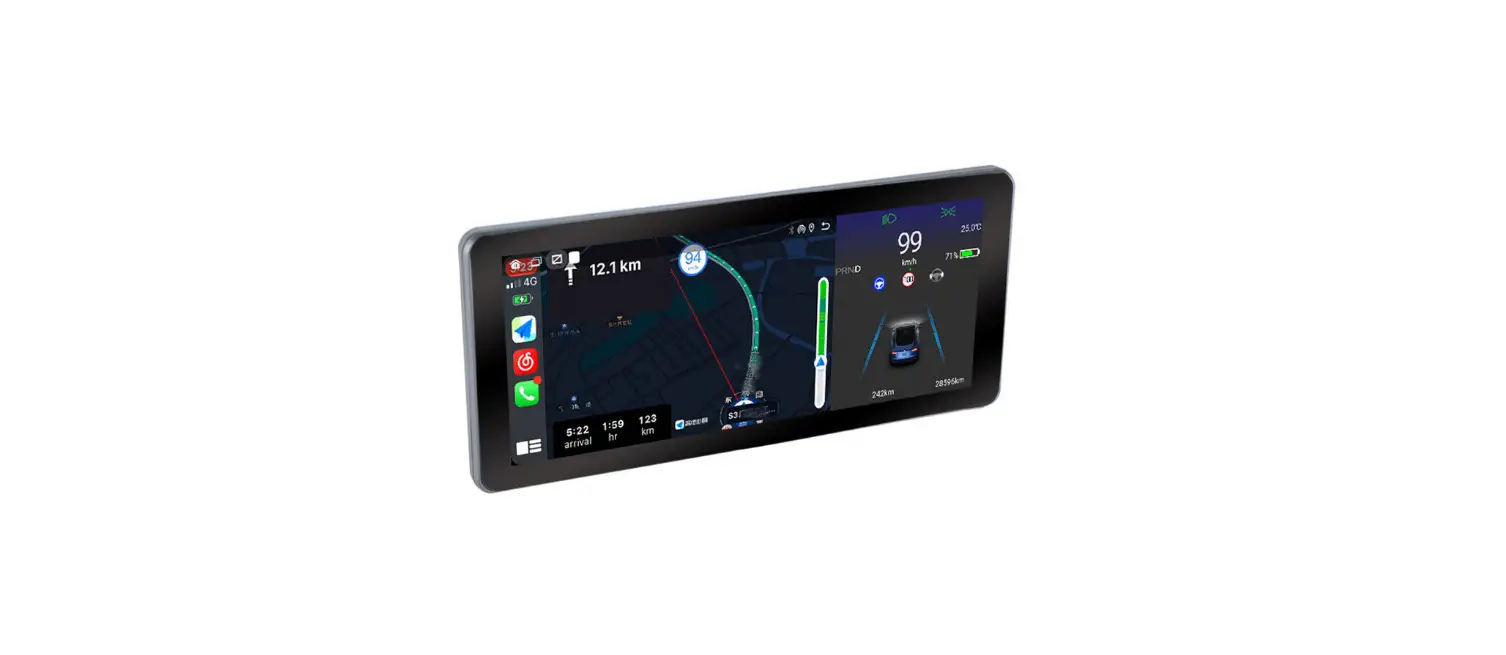
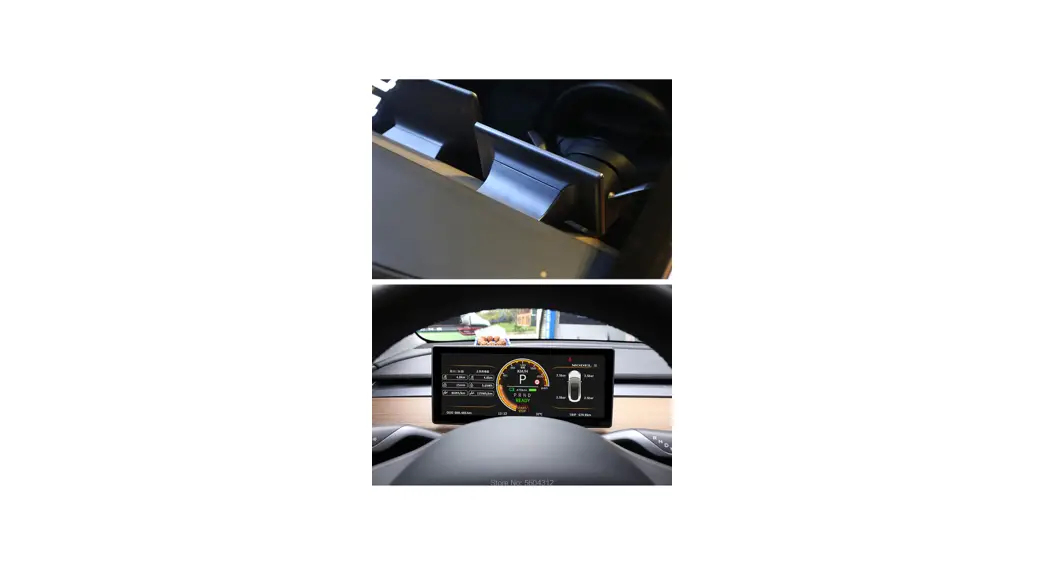
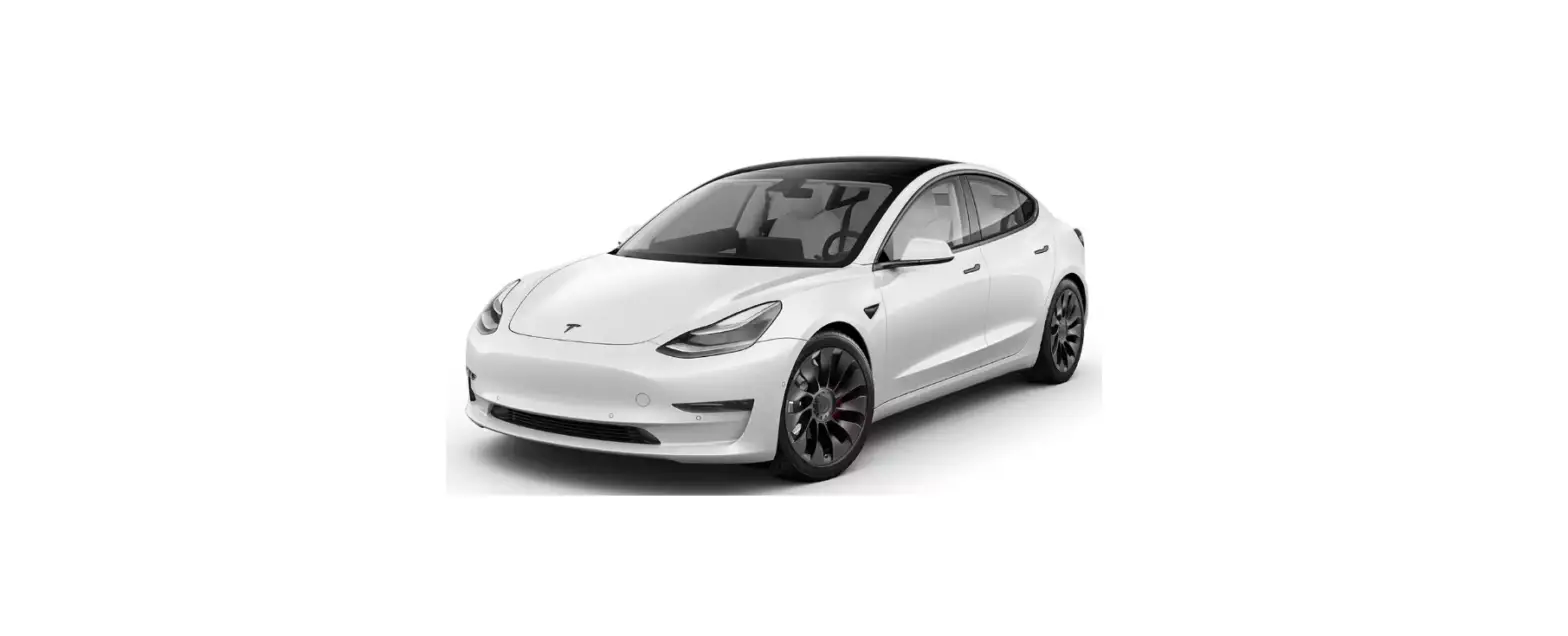
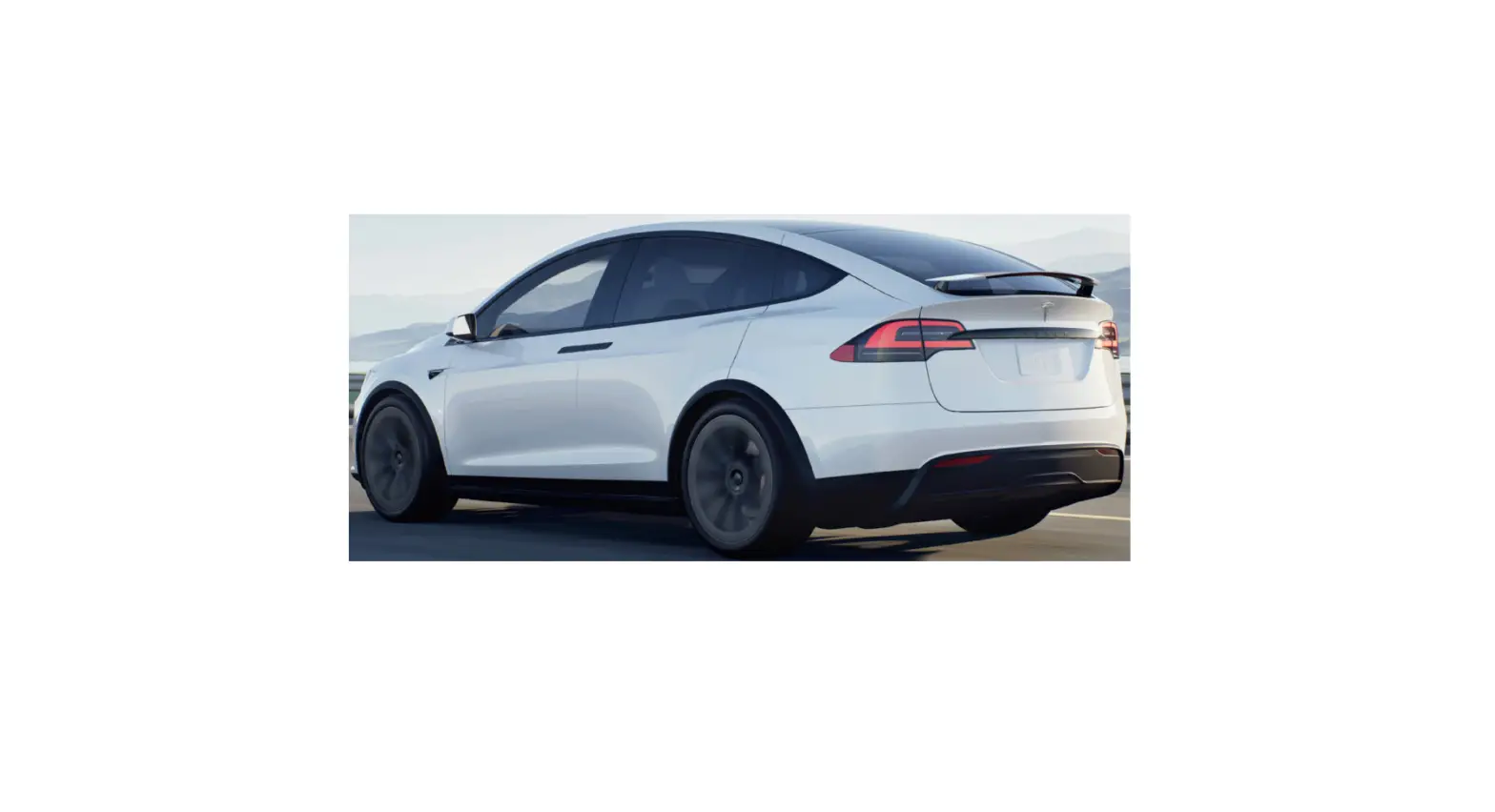
T618 instrument 10.25 Inch screen
Product Information
The T618 instrument is an integrated machine developed for
instruments, compatible with the original vehicle information,
Android system, CarPlay interconnection, Bluetooth, forward blind
area, navigation, and instrument information display. It features a
non-destructive installation mode and a perfect combination with
the center control panel, resembling the style of the original
large screen. The product operates on the open Android system and
can be controlled using steering wheel keys or voice commands for
safer operation while providing entertainment and personalized
high-end features.
The product uses Android version 4G full network with an
octa-core processor, DDR:2GB/4GB RAM, and ROM:32GB/64GB storage. It
has a 10.25-inch HD screen with a resolution of 1920*720 IPS for a
closer resemblance to the original big screen style. The T618
instrument supports various vehicle models and offers functions
such as wireless CarPlay, Bluetooth, online music and video
streaming, Autonavi real-time road condition map navigation, voice
control, and original car information and code watch style
display.
Product Usage Instructions
1. Before installation, ensure that the power is turned off to
prevent any power disconnection errors from the original car. In
case of abnormal start, please consult the 4S shop for
assistance.
2. To control the product, use the keys on the steering wheel or
make telephone calls using voice commands for simplified operation
and enhanced driving safety.
3. The screen display has three modes: full screen, right split
screen, and left split screen. You can select the desired mode in
Vehicle Settings – Other – screen display mode, and restart the
machine to apply the changes.
4. The steering wheel key operations are as follows:
- Left hand pulley:
- Slide up and down to adjust the volume.
- Short press left to play the previous song.
- Short press right to play the next song.
- Right hand pulley:
- Slide up and down to move the cursor.
- Short press the left push button to go back.
- Short press the right push button for confirmation.
- Long press left to open/close the code table display.
- Long press the right push button for the voice wake-up
button.
Please refer to the user manual for further details and
instructions on specific features and settings of the T618
instrument.
T618 instrument instruction manual
Thank you very much for your purchase of our products.
In order to protect your rights and interests, please read the instructions carefully before using the products of our company, so that you can use the machine correctly and safely. After reading, please keep it properly for future reference.
safety warning label
In order to ensure the safety of yourself, your car and others, please be sure to meet the following basic requirements: Please read all relevant instructions carefully before using this device. If damage is caused by failure to follow these instructions, the warranty will not be covered. In order to ensure driving safety and avoid violating traffic laws, please do not watch the program or operate the machine while driving. To avoid short circuit, do not allow the device to come into contact with rainwater. Do not place any metal objects (such as coins or metal tools) in the equipment. Please use the machine according to this manual. Do not open the machine for maintenance. If you need maintenance, please contact professional technicians.
Note: Remember to power off before installation, otherwise the original car will disconnect the power due to the error of detection, and the abnormal start will be dealt with in the 4S shop
Product introduction Developed for instrument, this product is an integrated machine compatible with the original vehicle information, Android system, CarPlay interconnection, Bluetooth, forward blind area, navigation, instrument information display, etc. The structure adopts the non-destructive installation mode of private car mold, and the perfect combination with the center control panel is closer to the style of the original large screen.
The operating system of the product is the open Android system, which can be controlled by
the keys of the steering wheel or make telephone calls by voice to simplify the operation and avoid driving safety risks, so that you can travel safely while providing entertainment and personalized high-end products. product performance characteristics 1This product uses Android version 4G full network, octa-core processor, DDR:2GB/4GB, ROM:32GB/64GB operating system:
Android12.0 with high performance hardware to run more smoothly, built-in wireless CarPlay mobile Internet, Bluetooth, online music, online video, Autonavi real-time road condition map navigation, voice control, and add the original car information and code watch style display 2The appearance adopts the private mode HD 10.25 inch large screen, customized UI interface, adopts the full fit process to avoid dust,
HD resolution 1920*720 IPS full view screen is closer to the original big screen style.
support models MJ
19-21 2021 2022
vehicle type
3 Y 3/Y
Configuration Full range of models Full range of models Full range of models
Remarks
Intel Atom Intel Atom AMD Ryzen
Product parameters
serial number
hardware configuration
1
CPU Octa-core(A75*2+A55*6)
Access Equipment
Built in Functions
WIFI
CarPlay
2
DRAM
2GB/4GB
GPS
S Voice
3
ROM
32G/64G
Forward looking
Bluetooth
Night mode
4
System
Android 12.0
camera (Radar trigger)
Music
Code table
5
LCD 1920*72010.25LxWxH
video
Tesla car model
6
Touch Screen
10.25LxWxH G+G UHTC
vehicle information
Battery Info
Stall
speed
Temp
NEDC
PSI
Door
time
Lights
autopilot
main interface function is introduced
The screen display has three modes (full screen. Right split screen. Left split screen), can be selected in “Vehicle Settings” – “Other” – “screen display mode”, restart the machine after saving the effect.
Right split screen
Left Split Screen
Steering wheel key operation instructions
Left hand pulley
Right hand pulley
Slide up and down for volume adjustment Short press left to push the previous song Short press right to push for the next song
Slide up and down to move the cursor Short press the left push button to return Short press the right push button to return the confirmation Long press left to open/close the code table display Long press the right push button for the voice wake up button
Note: When the control function is turned off by the button of cruise control or automatic driving, the button of left push
right push is to adjust the following distance with the car in front *
Function operation Application Language Setting car machine into the interface point “vehicle Settings” – “general” – “language choice”
supported languages are as follows: Chinese, English, traditional Chinese,Russian, Korean, French,Spanish, Portuguese, Polish, Dutch
Timing to set the date and time synchronization network (effective) connect the WIFI to set the date and time synchronization navigation (GPS) effectively is adjustable for 12 hours, when the default system 24 hours a day
time can be automatic/manual Settings
version information view vehicle Settings – general – version information
APP software upgrades 1) First turn the U disk into FAT32 format 2) Copy the upgrade package to the root directory of the USB flash drive, as shown in Figure 1 below!
3 After inserting the USB flash drive into the USB port on the right side of the instrument, the screen will prompt Firmware upgrade – Click Install (check “Clear all memory data” and some navigation data will be lost after formatting). Wait for the machine upgrade for about 3 minutes, the green interface will jump to the English interface after the upgrade is successful, remove the USB flash drive, as shown below!
instrument panel with the original car bluetooth connection Search the original car Bluetooth and find the Bluetooth “BT1036V2.5.2-….” of the instrument machine. Connect by name connection voice will send output through the simulation host When the instrument machine plays sound/video sound can be output through the original car large screen horn If not connected with the original car can only navigation sound, instrument built-in small speaker
WiFi Connection Manager
Start by turning on your phone’s hotspot car machine interface point “vehicle Settings” – “network” search WIFI hotspot connection to connect shortcut to enter, slipping over the screen long press “WIFI” icon to enter the connection
note to check the WIFI signal strength
Scott map function
connected wi-fi hotspots or inserted after 4 g card can be real-time navigation open navigation application enter the destination into the navigation or voice navigation navigation to adjust the size of the voice Tap the Sound icon in the upper right corner of the navigation map. A sound will be displayed
Size progress bar, adjust the size of the sound progress bar can adjust the size of the sound close map built-in input method Click the “Head” icon in the upper left corner of the map interface to enter Settings – Other – built-in input can be closed
main interface switching three UI steering wheel roller press roller long press left key 3 seconds to switch on the right
right click through the steering wheel on the right side of the wheel to choose corresponding UI
main interface way right border to replace custom images click right border in can change via USB or change the images in the machine According to return after choose to like the picture right border refresh automatically to the main interface main interface right border quickly switch point under the two custom images with energy recovery suggested the best effect is the square: 218 * 218 supported formats: JPG, PNG
PPTV click application – video playback – choose the corresponding video files play video can click on the picture in picture in the main interface display or drag the position
main interface, click on the picture in picture to enlarge video double-click can return to the video player Bluetooth connection Enable the Bluetooth function of the mobile phone in the machine interface “vehicle Settings” – “bluetooth” scan mobile devices When the phone’s Bluetooth device name is scanned, click the device name to connect phone receive pairing code prompts to confirm matching connection
HD-FRONT
Go to “Vehicle Settings” – “Other” – “Forward view Settings” visual function before open or close when radar is triggered automatically into the top 10 seconds When the front view camera is installed, the front view image can
be opened. Without the front view, there is no need to open it.
factory settings
“vehicle Settings” – “factory Settings” – 6688 “password” can enter the menu set at a lower level
navigation application into “vehicle Settings” – “navigation” path can be set up navigation application
choose music application into “vehicle Settings” – “factory Settings” – “6688” – choose music application
boot LOGO Settings the image resolution (1920 * 720/24).bmp file copy to U the packing list, and named bootlogo. BMP as shown in the figure below U disk inserted into the screen on the USB port on the right point in turn: vehicle factory Settings – > set (6688) — – > LOGO boot choice – > sure wait for set up successfully after the success of the set, remove the usb flash drive, machine electricity boot images can still be memory
Change WallPaper wallpaper (resolution 1920 * 720/32) first PNG format file copy to U the packing list, and name into which wallpaper *. PNG as shown in figure U disk inserted into the screen on the USB port on the right point in turn: vehicle factory Settings – > set (6688) – > select wallpaper – > sure wait for set up successfully
models color selection into “vehicle Settings” – “factory set up 6688” – “models color choice” is selected automatically when synchronization original car models
manual can make models colour (silver/white/red/blue/black)
to install the APP into the “application” – “document management” – “USB” – find U disk inside needed to install the apk – point Settings – allows applications from the source of open – points in the top right corner of the back – point – after installing or open
Mobile interconnection wireless connection CarPlay
First connect WIFI or insert 4G card to activate CayPlay
bluetooth function, open the IPhone into the machine scan bluetooth device name point connection, mobile phone received the bluetooth pairing request to choose matching (figure 1)
phone received bounced “allows synchronization” address book “and” personal collection “option allows (figure 2) phone received bounced “use CarPlay on-board” choose to use CarPlay vehicle (figure 3), connected (figure 4), the connection
is successful (figure 5)
Wired Android auto
Android auto requires a phone that supports Google services and is installed in the Google play store Install the following essential software:
After installing the above apps, click on Android Auto, and install the corresponding services and updates according to the prompts.
Android auto Correct operation steps for wired connection Phones need to support Google services and have auto software installed
1.Open zlink software –> 2. Insert Android phone to USB –> 3. The connection success screen is shown Android auto Correct steps for wireless connection
Phones need to support Google services and have auto software installed Android auto wireless connectionConnect the Android phone to the USB OTG interface of the car (only OTG port is supported, other usb ports are not supported), and the Android auto (mobile phone) interface will be displayed after successful connection
Common troubleshooting guide
fault
Reason
solution
The power supply fuse is burned out
Replace the fuse of the same model
Can not open the pc
Startup without image The navigation won’t go in
Installation without power failure causes vehicle detection error
To 4S shop after sale brush firmware processing
Other factors cause the microprocessor to work abnormally
The restart key
Background data error
Press the RST reset button at the top of the screen to restart the system
The navigation software is uninstalled or
deleted. Procedure
factory reset
Navigation updated
information
cannot
be
WIFI is not connected.
Connect to WIFI to synchronize online maps
GPS does not locate
GPS antenna position interference
Rearrange the position to be fixed
The original car information is not synchronized or not displayed
The protocol abnormal
of
the
power
cable is
Put the adapter plug back in and out
No images in front view or no access The forward view function is disabled Vehicle Settings – Other – forward view function turned on