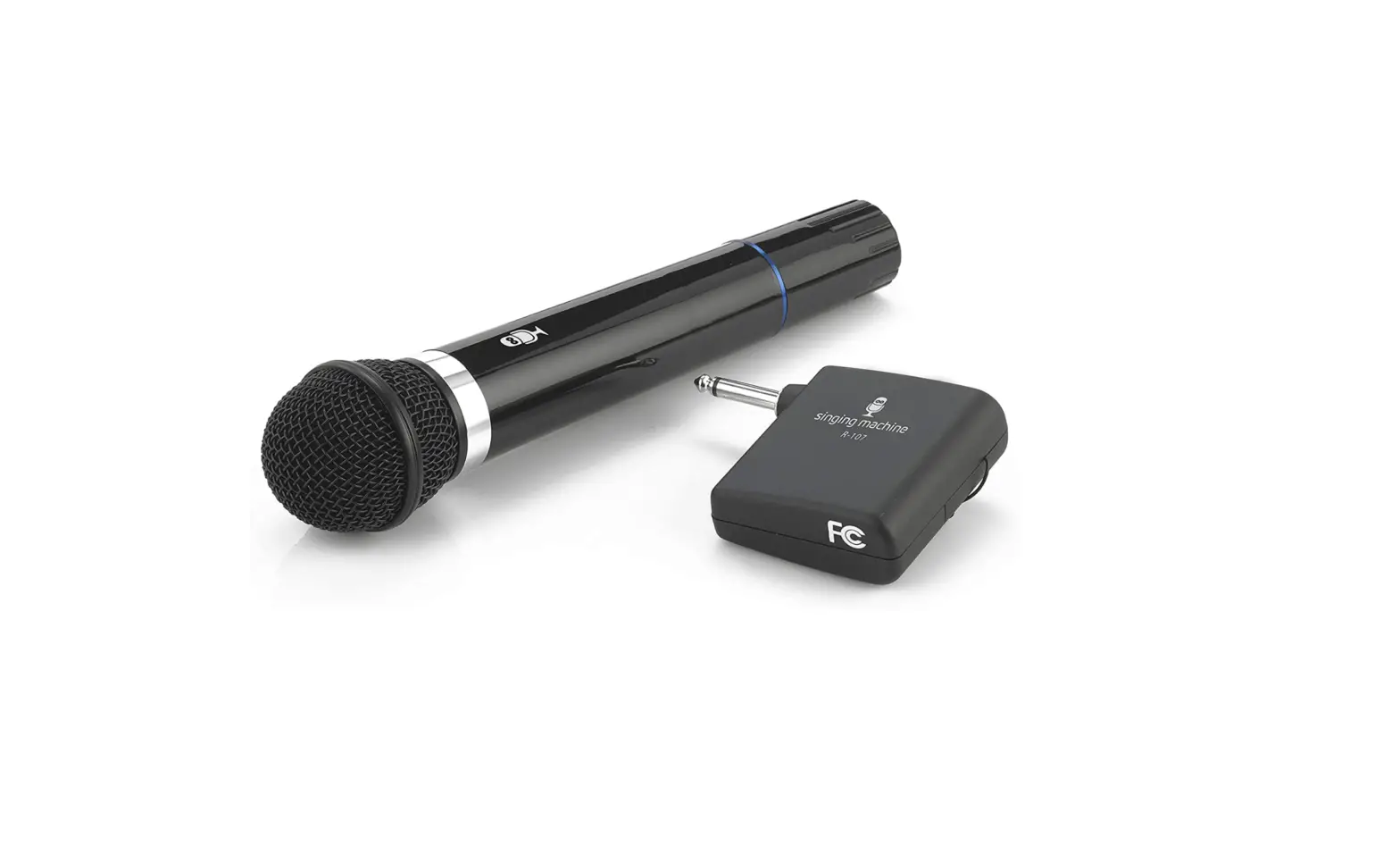
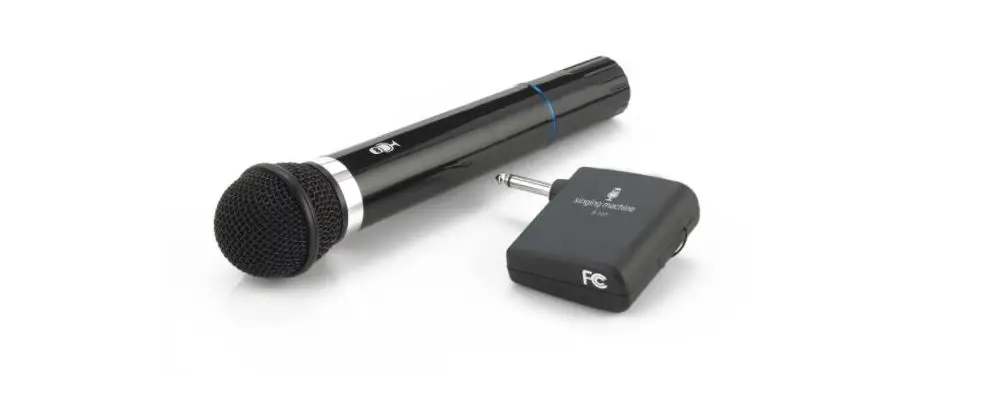
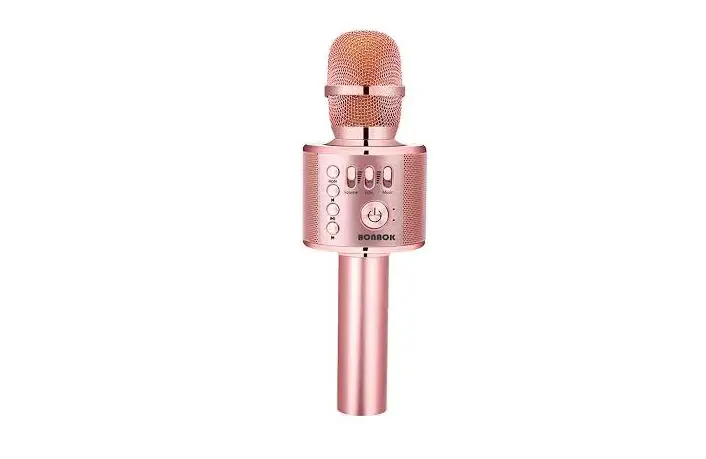
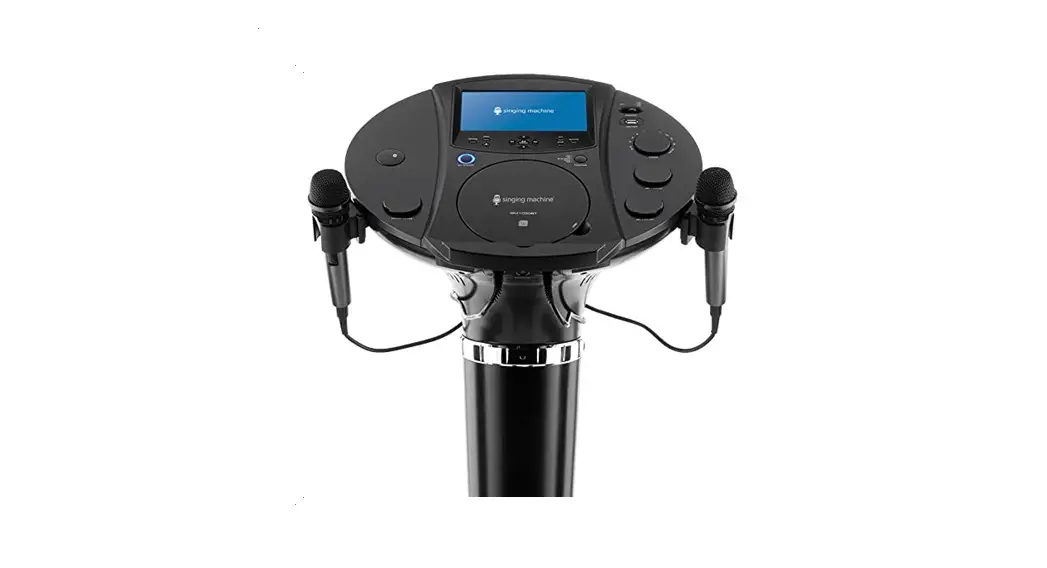
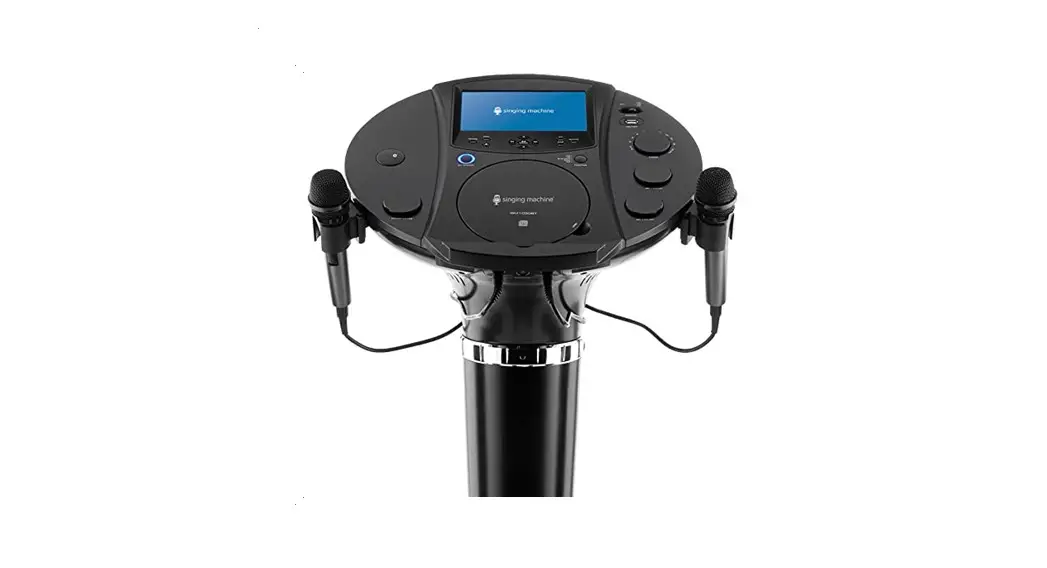
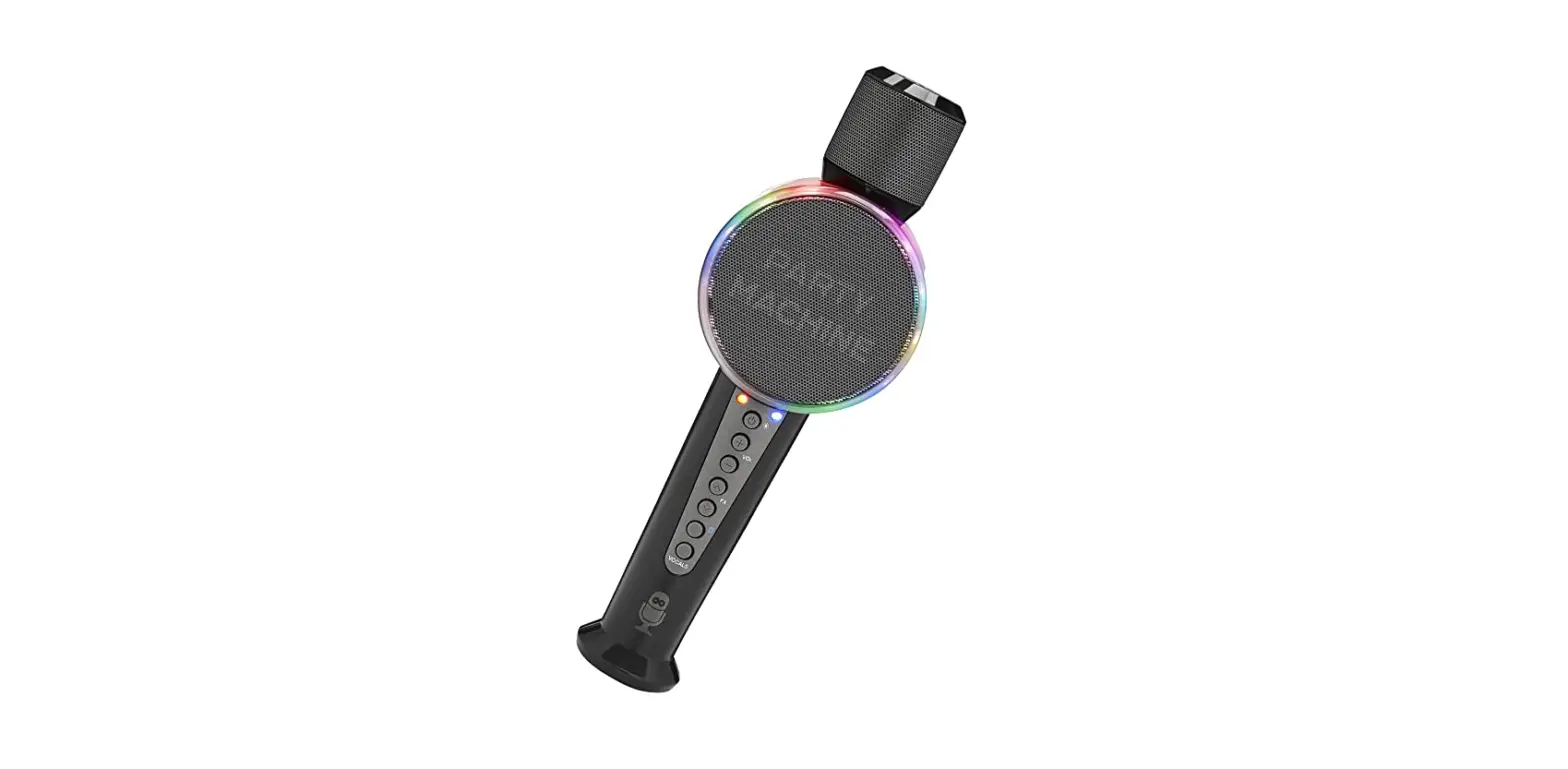
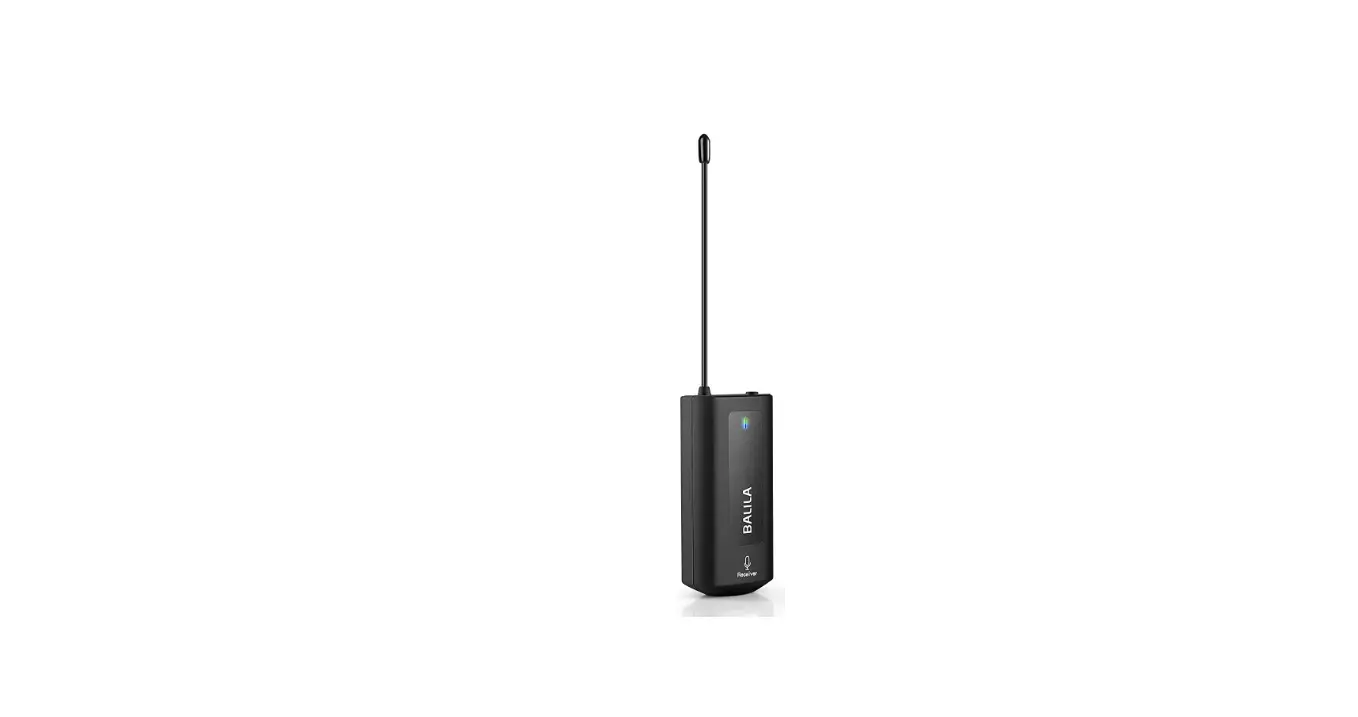
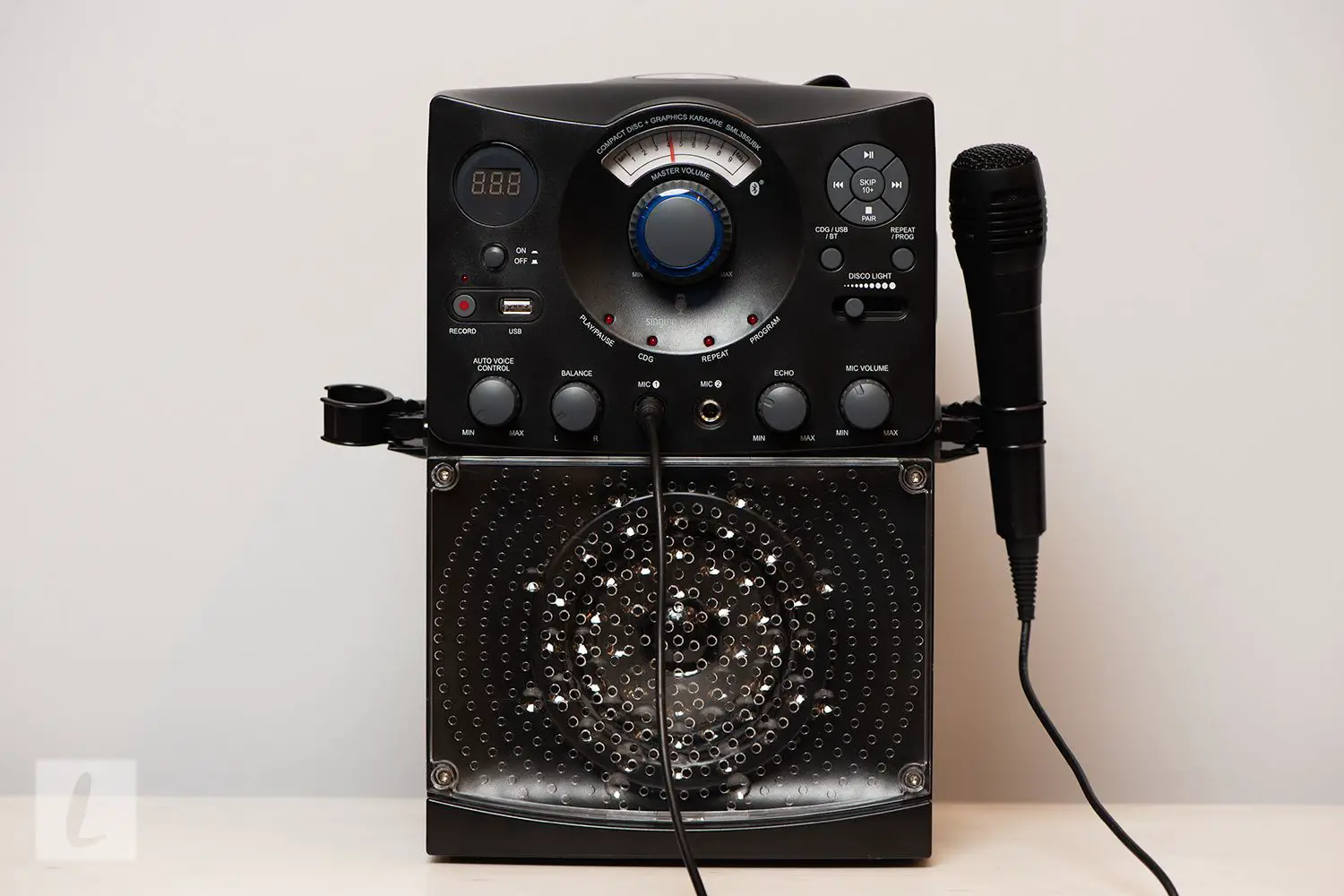
iSM9010 Wireless Microphone
Product Information
Product Name: iSM9010
Manufacturer: Singing Machine
Website: www.singingmachine.com
Warnings
- Risk of electric shock. Do not open the product.
- Do not expose the product to dripping or splashing.
- Do not place objects filled with liquids, such as vases, on the
product. - Ensure normal ventilation of the product is not impeded.
- Changes or modifications to the equipment may cause harmful
interference unless approved in the instruction manual. - Match wide blade of plug to wide slot and fully insert to
prevent electric shock. - Do not expose the unit to rain or moisture to prevent fire or
shock hazard. - Changes or modifications not approved by the responsible party
may void the user’s authority to operate the equipment. - Install and operate the equipment with a minimum distance of
20cm between the radiator and body.
Important Safety Information
- Read and keep these instructions.
- Heed all warnings provided.
- Follow all instructions given.
- Avoid using the apparatus near water.
- Clean the product only with a dry cloth.
- Do not block any ventilation openings. Install according to the
manufacturer’s instructions. - Avoid installing near heat sources that produce heat, such as
radiators or stoves. - Do not defeat the safety purpose of the polarized or
grounding-type plug. - Protect the power cord from being walked on or pinched.
- Use only attachments and accessories specified by the
manufacturer. - Use the product only with a cart, stand, tripod, bracket, or
table specified by the manufacturer. - When using a cart, exercise caution to avoid tip-over
injuries. - Unplug the apparatus during lightning storms or when unused for
long periods of time.
Please refer to the complete instruction manual for detailed
information on product usage and troubleshooting.
TM
iSM9010
INSTRUCTION MANUAL/MANUAL DE INSTRUCCIONES /MODE D’EMPLOI
www.singingmachine.com
The Singing Machine® is a registered trademark of The Singing Machine Co., Inc. The Singing Machine® es marca registrada de The Singing Machine Co., Inc.
The Singing Machine® est une marque déposée de The Singing Machine Co., Inc.
Warnings
CAUTION
RISK OF ELECTRIC SHOCK DO NOT OPEN
CAUTION: TO REDUCE THE RISK OF ELECTRIC SHOCK, DO NOT REMOVE COVER (OR BACK). NO USER-SERVICEABLE PARTS INSIDE.
REFER SERVICING TO QUALIFIED SERVICE PERSONNEL.
DANGEROUS VOLTAGE: The lightning flash with arrowhead symbol within an equilateral triangle is intended to alert the user to the presence of uninsulated dangerous voltage within the product’s enclosure that may be of sufficient magnitude to constitute a risk of electric shock to persons. ATTENTION: The exclamation point within an equilateral triangle is intended to alert the user to the presence of important operating and maintenance (servicing) instructions in the literature accompanying this product.
DRIPPING WARNING: This product shall not be exposed to dripping or splashing, and no objects filled with liquids, such as vases, shall be placed on the product.
VENTILATION WARNING: The normal ventilation of the product shall not be impeded for intended use.
FCC WARNING: This equipment may generate or use radio frequency energy. Changes or modifications to this equipment may cause harmful interference unless the modifications are expressly approved in the instruction manual. The user could lose the authority to operate this equipment if an unauthorized change or modification is made.
This device complies with part 15 of the FCC Rules. Operation is subject to the following two conditions: (1) This device may not cause harmful interference, and (2) this device must accept any interference received, including interference that may cause undesired operation.
NOTE: This equipment has been tested and found to comply with the limits for a Class B digital device, pursuant to part 15 of the FCC Rules. These limits are designed to provide reasonable protection against harmful interference in a residential installation. This equipment generates, uses and can radiate radio frequency energy and, if not installed and used in accordance with the instructions, may cause harmful interference to radio communications. However, there is no guarantee that interference will not occur in a particular installation. If this equipment does cause harmful interference to radio or television reception, which can be determined by turning the equipment off and on, the user is encouraged to try to correct the interference by one or more of the following measures: · Reorient or relocate the receiving antenna. · Increase the separation between the equipment and receiver. · Connect the equipment into an outlet on a circuit different from that to
which the receiver is connected. · Consult the dealer or an experienced radio/TV technician for help. The rating information is located at the rear of the unit.
CAUTION: TO PREVENT ELECTRIC SHOCK, MATCH WIDE BLADE OF PLUG TO WIDE SLOT AND FULLY INSERT. WARNING: TO PREVENT FIRE OR SHOCK HAZARD, DO NOT EXPOSE THIS UNIT TO RAIN OR MOISTURE.
Warning: Changes or modifications to this unit not expressly approved by the party responsible for compliance could void the user’s authority to operate the equipment.
RF Exposure Warning Statements:
This equipment complies with FCC radiation exposure limits set forth for an uncontrolled environment. This equipment shall be installed and operated with minimum distance 20cm between the radiator & body.
Important Safety Information
1. Read these Instructions.
2. Keep these Instructions.
3. Heed all Warnings.
4. Follow all Instructions.
5. Do not use this apparatus near water.
6. Clean only with a dry cloth.
7. Do not block any of the ventilation openings. Install in accordance with the Manufacturer’s instructions.
8. Do not install near any heat sources such as radiators, heat registers, stoves, or other apparatus (including amplifiers) that produce heat.
9. Do not defeat the safety purpose of the polarized or groundingtype plug. A polarized plug has two blades with one wider than the other. A grounding type plug has two blades and a third grounding prong. The wide blade or the third prong are provided for your safety. When the provided plug does not fit into your outlet, consult an electrician for replacement of the obsolete outlet.
10. Protect the power cord from being walked on or pinched particularly at plugs, convenience receptacles, and the point where they exit from the apparatus.
11. Only use attachments/accessories specified by the manufacturer.
12. Use only with a cart, stand, tripod, bracket, or table specified by the manufacturer, or sold with the apparatus. When a cart is used, use caution when moving the cart/ apparatus combination to avoid injury from tip-over.
13. Unplug this apparatus during lightning storms or when unused for long periods of time.
14. Refer all servicing to qualified service personnel. Servicing is required when the apparatus has been damaged in any way, such as power-supply cord or plug is damaged, liquid has been spilled or objects have fallen into the apparatus, the apparatus has been exposed to rain or moisture, does not operate normally, or has been dropped.
15. WARNING: To reduce the risk of fire or electric shock, do not expose this apparatus to rain or moisture. Do not place objects filled with water, such as a vase, on the apparatus.
16. The AC mains plug is used as the power disconnect device and it should remain readily accessible and operable during intended use. In order to completely disconnect the apparatus from power, the mains plug should be completely removed from the AC outlet socket.
17. CAUTION: To reduce the risk of fire or explosion, do not expose batteries to excessive heat such as sunshine, fire or other heat sources.
— E1 —
Included
Please make sure that the following items are included.
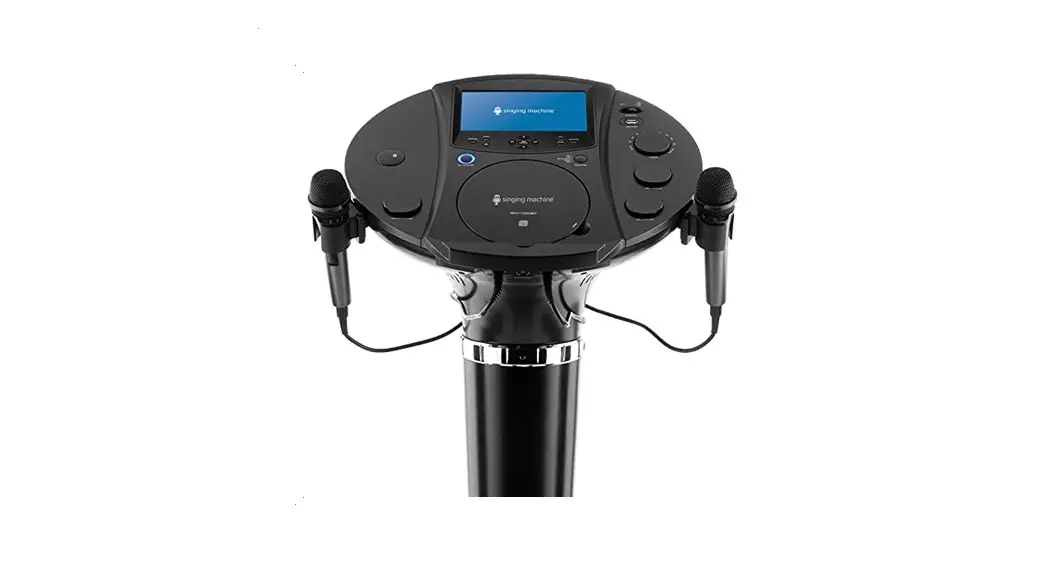
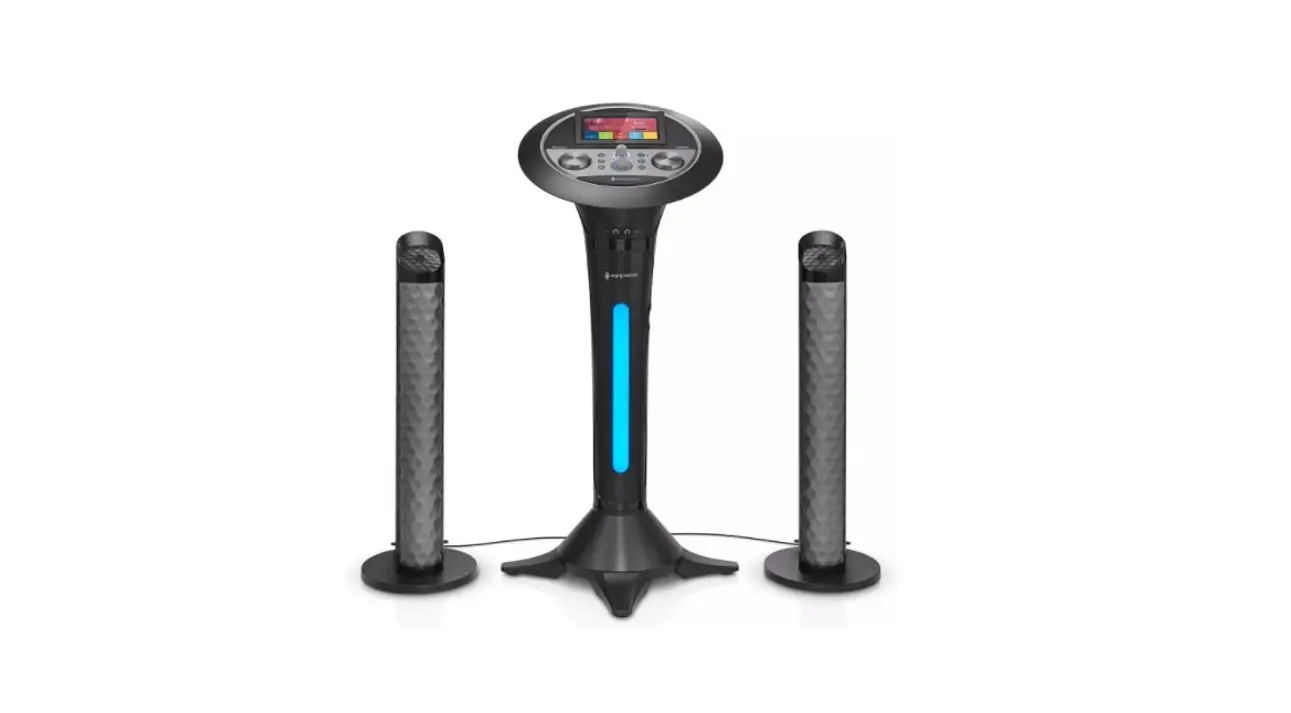
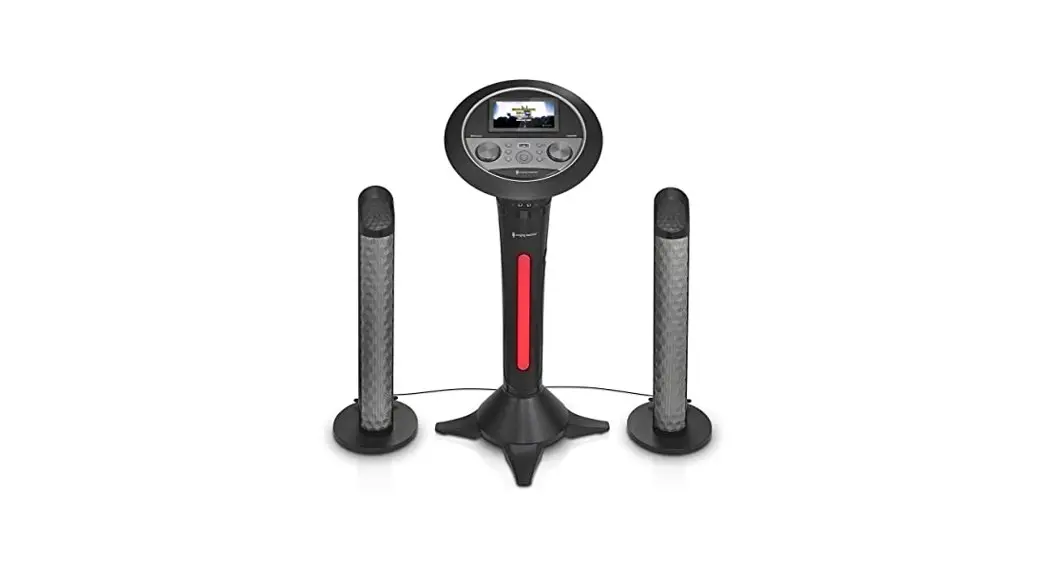
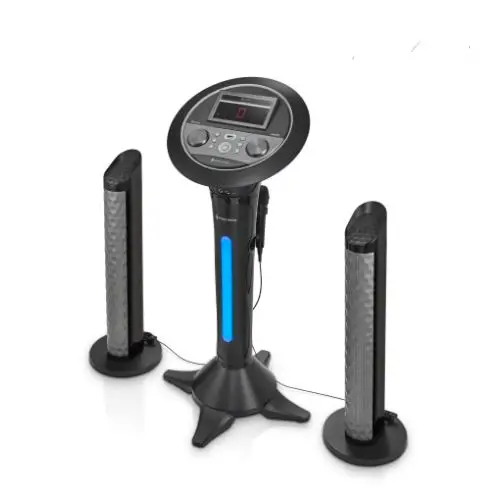
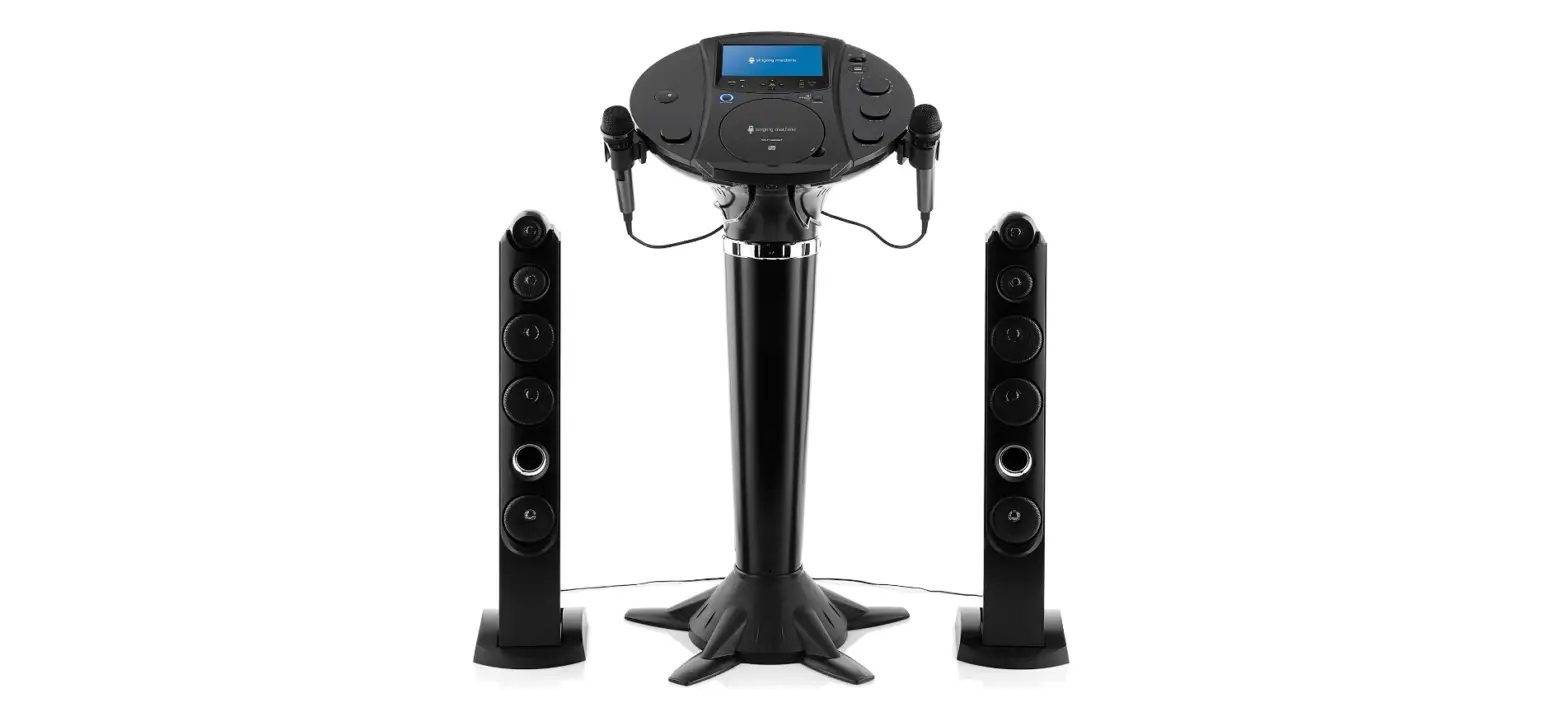
Main Unit
AC Adapter
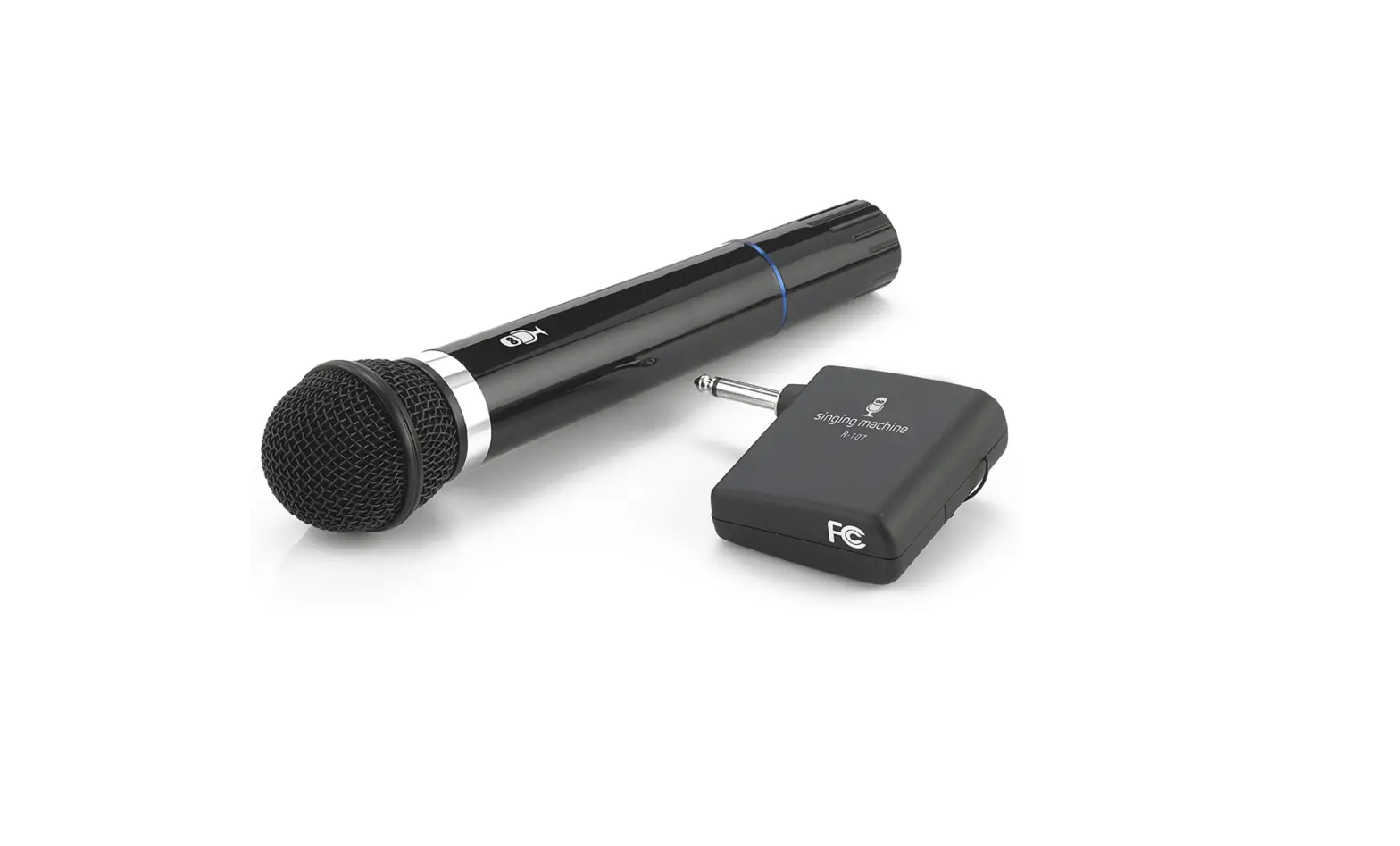
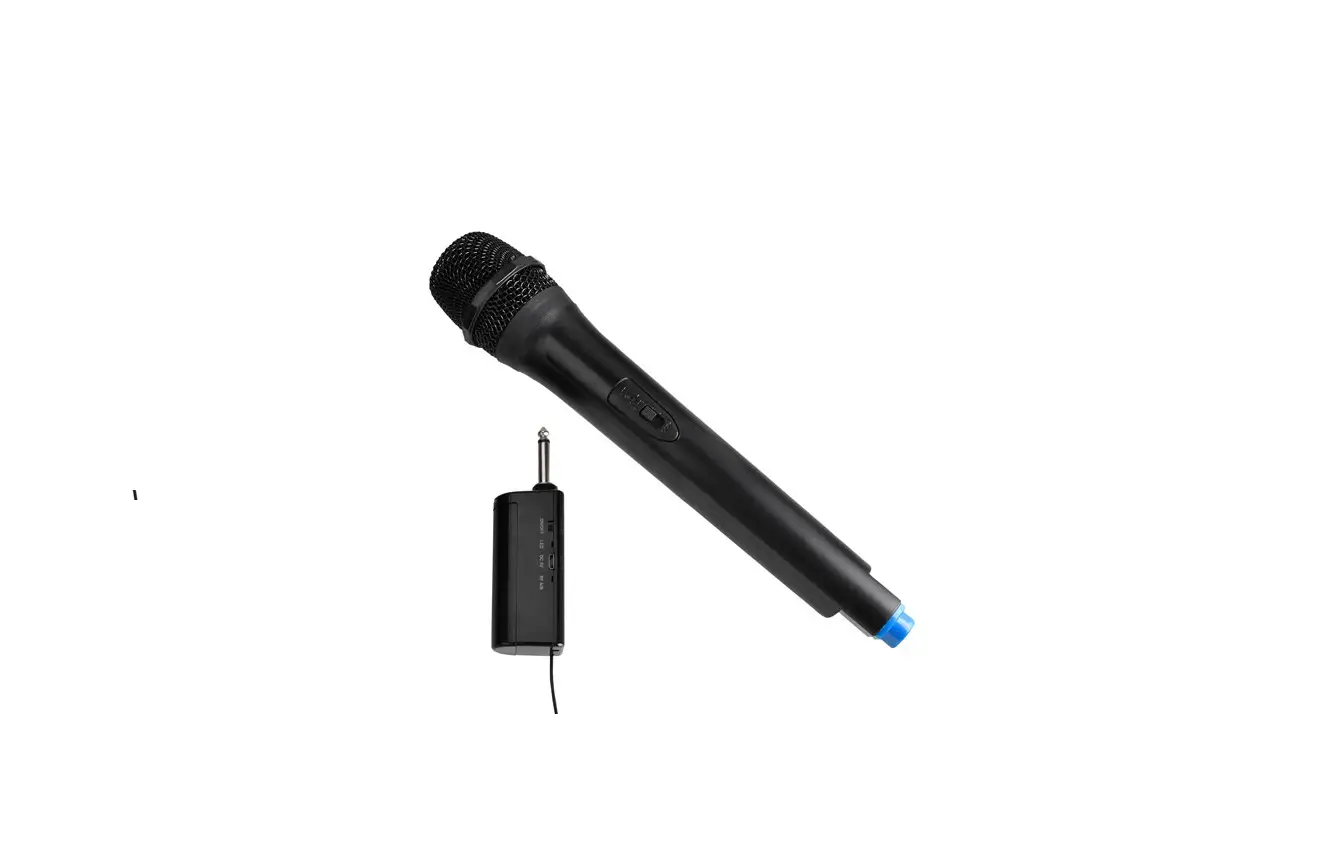
Wireless Microphone x2
— E2 —
Manual
Location of Controls (Top)
u v w x y U V
W
1. Touch Screen 2. (LIGHTS) Button 3. (BACK) Button 4. (HOME) Button 5. Power indicator 6. (ON/STANDBY) Button 7. RECORD Button 8. Speaker
X at ak al am an
9. SKIP Button 10. SKIP Button 11. USB Port 12. (PLAY/PAUSE/ENTER) button 13. (VOICE EFFECTS) Button 14. VOLUME/ EFFECTS Control
— E3 —
Location of Controls
X
vxU u wy V
W
1. Mic 1 Jack 2. Mic 2 Jack 3. Aux In Jack 4. Line Out Jack 5. Reset hole 6. HDMI Jack (Video only) 7. DC IN Jack 8. Wireless Mic holders 9. Handles
at
10. Power indicator
ak
11. ON/MUTE/OFF switch
12. Battery compartment
al
— E4 —
Connections
Connecting to AC Power
1
Insert the DC plug of the adapter into the DC IN Jack located on the
main unit.
2
Insert the AC adapter into a conveniently located AC outlet
having 120V AC, 60Hz.
3
Secure the power cord into the pre-installed Power Cord Clamps.
NOTE:
· Make all connections prior to plugging the AC adaptor into a power outlet. · The AC adaptor has a polarized plug that fits into the AC outlet only one way. If the plug
does not fit properly, turn it over and try again. Do not force and do not file or cut the wide blade.
2
Connecting the Unit to a TV
Rear of External TV HDMI Jack (In)
HDMI IN 1
The video and lyrics will be displayed on the built-in screen. You may also want to connect a TV to display a larger image (follow the steps below):
Plug the HDMI cable (not included) into the HDMI Jack on the back of the unit. Plug the other end of the HDMI cable into the HDMI input on your TV.
HDMI Jack (Out)
HDMI Cable
NOTES: · This unit can be used with or without a TV. · Also refer to the TV’s or external unit’s User Guide. · Audio and mic input cannot be output to your TV.
— E5 —
Connections
Changing the Wireless Microphone’s Battery
1.5V AAA/LR03 1.5V AAA/LR03
When the wireless mic batteries are low the battery indicator will flash. Change the batteries as follows:
1 Slide the battery door in the direction the arrow indicate to reveal the battery compartment.
2 Replace the batteries with 2 x “AAA” size/LR03 battery (not included).
3 Replace cover tightly before operating.
Battery Precautions The precautions below should be followed when using batteries in this device: 1. Use only the size and type of batteries specified. 2. Be sure to follow the correct polarity when installing the
batteries as indicated in the battery compartment. Reversed batteries may cause damage to the device. 3. Do not mix different types of batteries together (e.g. Alkaline and Carbon Zinc) or old batteries with fresh ones. 4. If the device is not to be used for a long period of time, remove the batteries to prevent damage or injury from possible battery leakage.
5. Do not try to recharge batteries not intended to be recharged, they can overheat and rupture. (Follow battery manufacturer’s directions.)
6. Rechargeable batteries are to be removed from the product before being charged.
7. Rechargeable batteries are only to be charged under adult supervision.
8. Exhausted batteries are to be removed from the product. 9. Batteries shall not be exposed to excessive heat such as
sunshine, fire or the like.
Connecting the Wireless Microphone(s)
v u
Slide the Wireless Mic’s ON/MUTE/OFF u switch to the ON position. The Mic power indicator v will light solid.
NOTES: · Working distance of up to 66 feet/20
meters in open space. · If there is no audio input for 15 minutes,
the wireless mics connection will automatically turn off. Press and rotate the VOLUME/EFFECTS control to reactivate the connection. · Sliding the switch to MUTE will temporarily stop the microphone input.
— E6 —
Connections
Connecting the Microphone(s)
u v
Connect the wired microphone (not included) into Mic jack u or v (when desired). NOTE: Maximum of two microphones (wired or wireless) can be connected to the unit at one time. After inserting the wired microphone (Mic 3), the wireless microphone 1 (Mic 1) will be turned off automatically.
Connecting to Line Out Jack
AUDIO OUTPUT
This unit can be connected to another audio system for greater audio output via 3.5mm AUX cord (not included).
Plug one end of AUX cord into the LINE OUT jack located on the rear of the machine.
Plug the other end of the AUX cord into the Line In jack on your separate audio device. You may need to refer the instructions of your separate audio device for more details.
Energy Saving (Auto Power System-APS)
This unit will automatically turn to Screen Saver mode after 15 minutes of inactivity, and automatically turn off after 10 minutes. The unit can be powered back on by pressing the (ON/STANDBY) button once. APS is for energy saving purposes.
NOTE: You can change the energy saving setting in the Screensave option, see the section of Wi-Fi & setting.
— E7 —
Operation
Wi-Fi & Settings
CONNEWCTIFTI O WIFI
Connect to your local WiFi
CANCEL
CONTINUE
singing machine
connected
asdfg attkaraoke c6301 joy xfinitywifi directvwifi
WIFI
Connect to your local WiFi
1
Connect the unit as described previously. Press the button to
turn the unit on. The set up Wi-Fi
connection window will pop up.
Select CONTINUE on the touch
screen.
2
Select your Wi-Fi network using the touch screen.
3
Use the keyboard on the touch screen to enter your Wi-Fi
password and press the ENTER
button. “Connected” will appear if
the connection is successful.
If unsuccessful, check your
password and Wi-Fi frequency and
re-connect.
— E8 —
Operation
Wi-Fi & Settings (Continued)
Premium partner of
Over 19,000*
crowd-pleasing hits
SING NOW *Number of songs varies by territory
4
You can always change the Wi-Fi network, by selecting the
SETTINGS icon on the touch
screen to enter Wi-Fi settings
mode.
BLUETOOTH®
LINE-IN
MEDIA
SETTINGS APPLICATIONS
y UV
SETTINGS
WIFI
DISPLAY
ABOUT US
5
Select WIFI and connect as previously described, if you want
to connect to another network.
6
To adjust the language, brightness, sleep time, HDMI, screen, time
setting and screensave select
DISPLAY.
RESET
UPDATE
HOME
W X at
7
Select ABOUT US to check the current version and serial number
of this unit.
8
Select RESET to reset this unit to factory settings.
9
Select UPDATE to set the date and time.
10Select HOME to go to main menu.
— E9 —
Operation
Accessing the Singing Machine Karaoke Catalog
u1
Premium partner of
Over 19,000*
crowd-pleasing hits
SING NOW *Number of songs varies by territory
2
Select Singing Machine Karaoke to enter Singing Machine Karaoke Store page.
Select “Sign up” and follow the on screen instructions to register your machine.
BLUETOOTH®
LINE-IN
MEDIA
SETTINGS APPLICATIONS
3
After signing up, select “Log In” to log into your account. Select
Singing Machine Karaoke at
home screen to go to the Singing
Machine Karaoke Store home
screen directly.
4
Select your favorite songs using the touch screen to playback.
Applications
Premium partner of
Over 19,000*
crowd-pleasing hits
SING NOW *Number of songs varies by territory
1
Selecting APPLICATIONS displays all built-in applications.
BLUETOOTH®
LINE-IN
MEDIA
SETTINGS APPLICATIONS
u
— E10 —
Operation
Other icons on the touch screen
Premium partner of
Over 19,000*
crowd-pleasing hits
SING NOW *Number of songs varies by territory
BLUETOOTH®
LINE-IN
MEDIA
SETTINGS APPLICATIONS
Premium partner of
Over 19,000*
crowd-pleasing hits
SING NOW *Number of songs varies by territory
BLUETOOTH®
LINE-IN
MEDIA
SETTINGS APPLICATIONS
Premium partner of
Over 19,000*
crowd-pleasing hits
SING NOW *Number of songs varies by territory
BLUETOOTH®
LINE-IN
MEDIA
SETTINGS APPLICATIONS
1
Select BLUETOOTH to enter the bluetooth mode.
NOTE: The unit automatically searches
for and pairs a previously paired Bluetooth
device (if previously paired).
2
Select LINE-IN to enter the line in mode.
NOTE: It must have been connected to
this unit and your audio device using a
3.5mm AUX cable (not included).
3
Select MEDIA to play internal or USB recorded music.
NOTE:
If you want to play USB recorded music,
please insert the USB flash drive into the
USB port of this unit.
— E11 —
Operation
Control Keys
u
v
w
1
Connect the unit as described previously. Press the button to
turn the unit on. The touch screen
will turn on.
NOTE: If the Wi-Fi network is not
connected in this unit, the Wi-Fi connection
window will pop up.
2
RECORD YOUR SINGING PERFORMANCE
During music playback, press the
REC button to record your singing
and the music. Recording will begin
and the recording indicator will
appear on-screen.
When done recording, press the
REC button again.
NOTES:
· You can save the recorded vocals and
music to the built-in memory or USB
flash drive.
· If the recorded audio files will be
recorded on a USB drive, Insert a USB
flash drive into the USB port on the unit.
3
There are 9 built-in light modes. Repeatedly press button to
switch between lighting effects.
4
x
Press the button repeatedly or press the button once and turn the VOLUME/EFFECTS control to select a sound effect.
— E12 —
Operation
Control Keys (Continued)
U V
5
y
Press the button to play the
song or enter the mode/folder.
Press the
button during
playback to pause the song.
Advance or go back one track by
pressing the or button.
6
Press button to go to the menu screen while in any mode or
screen.
7
Press the button to go back to the previous screen.
8
Press the VOLUME/EFFECTS control key; the MUSIC VOLUME,
MIC VOLUME and ECHO
W
VOLUME level list appear on the touch screen. Select the list you
want to adjust, then turn the
VOLUME/EFFECTS control or use
the touchscreen to adjust
NOTE: Mic volume to adjust the volume of
both microphones.
— E13 —
Operation
Record songs
u
BRLEUCEOTRODOITNHG®
Device Connected
00:00:08
Pause
Stop
Save
Disconnect Device
Vocal Fader ON
BRLEUCEOTRODOITNHG®
Device Connected
DELETE
SAVE
Disconnect Device
Vocal Fader ON
BRLEUCEOTRODOITNHG®
Device Connected
Recording 001
NO
YES
Disconnect Device
Vocal Fader ON
1
During music playback, press the ¡ button to record your singing
and the music. A timer will appear
on the screen.
2
Press the ¡ button again to stop recording. A box will pop up
to choose Delete or 0¢£¤.
3
If selected 0¢£¤ the rename box and save box will pop up.
¥¦ 0§
· You can save the recorded vocals and
music to the built-in memory or USB
flash drive.
· If the recorded audio files will be
recorded on a USB drive, Insert a USB
flash drive into the USB port on the unit.
— E14 —
Operation
Using a Bluetooth Device
v u
Premium partner of
Over 19,000*
crowd-pleasing hits SING NOW
*Number of songs varies by territory
BLUETOOTH®
LINE-IN
MEDIA
SETTINGS APPLICATIONS
1
Connect the unit as described previously. Press the button to
turn the unit on.
2
Select BLUETOOTH to enter the bluetooth mode.
3
Turn on your device’s Bluetooth option in settings to search for
a discoverable device with a
Bluetooth signal. Select “SINGING
3
MACHINE” from the device results
on the Bluetooth menu.
NOTE: Also refer to the user manual of your
Bluetooth device for detailed instructions.
4
4
The screen will show that your Bluetooth device is connected.
NOTES:
· If your Bluetooth prompts you for a
passcode during the pairing process,
please enter “0000” to connect.
· On some Bluetooth devices, once pairing
is complete, select your Bluetooth device
as “Use as Audio Device” or similar.
· If connection is lost after successful
pairing, check to make sure the distance
between speaker and Bluetooth enabled
device does not exceed 30 feet/10
meters.
— E15 —
Operation
Using a Bluetooth Device (Continued)
BLUETOOTH®
Device Connected
5
To control your Bluetooth device from this unit, press the button
to start playback (music app must
be open). Press the button
during playback to pause the song.
Disconnect Device
Vocal Fader ON
U y
6
SKIP: Advance or go back one track by pressing the or button.
BLUETOOTH®
Device Connected
Disconnect Device
Vocal Fader ON
7
Press Disconnect Device to disconnect the bluetooth
connection.
8
To sing without the lead singer on the recording, press the Vocal
Fader OFF. To resume the lead
singer, press Vocal Fader ON.
NOTE: Lead vocal removal might work
better on some songs than others.
VW
— E16 —
Operation
Using the LINE IN Jack
w u
Premium partner of
Over 19,000*
crowd-pleasing hits SING NOW
*Number of songs varies by territory
BLUETOOTH®
LINE-IN
MEDIA
SETTINGS APPLICATIONS
1
Connect the unit as described previously. Press the button to
turn the unit on.
2
Connect the external device by using an appropriate cable
(3.5mm audio cable not included)
to the LINE IN Jack on the rear
of this unit as previous described.
Connecting an external unit will
allow the audio to be played
through your Singing Machine.
AUDIO OUTPUT / HEADPHONE JACK
NOTES:
To External Unit
· It is highly recommended to set the
volume on the auxiliary unit to 1/3 or
AUX IN
lower to avoid distortion.
· Skipping files/tracks is not possible on
this unit when using an external device.
3
Select LINE IN to enter the line in mode.
— E17 —
Operation
Playing Songs from the Recorded Files
Premium partner of
Over 19,000*
crowd-pleasing hits SING NOW
*Number of songs varies by territory
BLUETOOTH®
LINE-IN
MEDIA
SETTINGS APPLICATIONS
1 v2
Connect the unit as described previously. Press the button to turn the unit on.
Select MEDIA to enter.
u
YOUR MUSIC
USB
RECORDINGS
w
RYEOCUORRMDUINSGI CS
3 Doors down – The Better Life In the style of 3 Doors Down 3 Doors down – The Better Life In the style of 3 Doors Down 3 Doors down – The Better Life In the style of 3 Doors Down 3 Doors down – The Better Life In the style of 3 Doors Down 3 Doors down – The Better Life In the style of 3 Doors Down
USB
RECORDINGS
3
Press USB or RECORDINGS to choose your desired playlist.
NOTE: If the audio file to be played is
recorded on a USB flash drive, please insert
the USB flash drive into the USB port of
this unit.
4
Use the touch screen or the or button to select a recorded
audio file from the song list. Press
once on touch screen or to
start playing the audio file. Press
on the touch screen or on
the control panel buttons during
x playback to pause the file. NOTE: To delete a file, press and hold the
file on the touch screen.
— E18 —
Troubleshooting Guide
Should this unit exhibit a problem, check the following before seeking service:
No Power · Power is not on; press the button to turn power on. · Confirm that the AC adapter is connected securely to the rear of the unit. · Connect the unit to a different outlet. · The normal function of the product may be disturbed by strong Electro-Magnetic
Interference. If so, simply restart the product to resume normal operation by following the instruction manual. In case the function could not resume, please use the product in another location.
No Sound General · Music Volume is set to minimum; raise volume. · If using an external device, raise the volume.
No sound from the microphone · Make sure the microphone is firmly connected to the MIC 1 or MIC 2 jack. · Make sure the mic’s ON/OFF switch is set to the ON position. · Make sure the MIC VOLUME/ECHO control is not set too low.
File(s) on USB jack not playing · The file is corrupted; replace the file. · The file is not in a format this unit will play. · The connected USB device is not supported by the product.
The Bluetooth device cannot be paired or connected with the unit · Ensure any other Bluetooth devices are turned off to avoid accidental pairing. · You have not activated the Bluetooth function of your device; see page E16 or refer to the
Bluetooth device user’s manual. · The system is not in pairing mode; press and hold the button to restart pairing.
The Music is not available on the unit after successfully connecting the Bluetooth · Ensure your Bluetooth device can support the A2DP Bluetooth profile. · The volume on the external Bluetooth device is set too low or muted; raise as desired.
The unit will not record · No USB drive inserted or the USB drive is full. Move all recordings to your computer to
make room.
Failed to connect to the Wi-Fi network · The unit is not within the Wi-Fi signal range. · Ensure the unit’s Wi-Fi signal has NOT been turned off. · Ensure you have entered the correct password. · WPA3 security settings can cause connection issues. If you have WPA3 security, we
recommend lowering to WPA2 or lower. Or contact us for further help.
— E19 —
Troubleshooting Guide (Continued)
No Internet connection · Ensure the unit is not too far from your router (recommended maximum of 10 meters). If
the Wi-Fi signal strength is weak, the password might not be verified as correct. · The unit Date and Time have been set to synchronise to internet time by default. In the
event that “Automatic date & time” (under Settings menu) function is set to OFF, you will need to set the date and time manually. If Date and Time have not been set correctly (e.g. December 31, 1969), you might not be able to access some websites. · If the unit’s Wi-Fi is connected to the router successfully. But you still cannot connect to the internet. You might need to check the Router’s settings to verify if that the unit is not restricted from going online. You are highly recommended to refer to your router’s instruction manual. · To ensure the unit’s Wi-Fi function works fine, you can connect your unit’s Wi-Fi to your mobile device’s hotspot with data service. · If the Singing Machines unit’s Wi-Fi is connected to the router successfully. But you still cannot connect to the internet. You might need to check for any internet connection problems on your router. Or check out the router’s settings to verify if the unit is blocked from going online. You are highly recommended to refer to your router’s instruction manual. · To ensure the unit’s Wi-Fi function works fine, you can connect your unit’s Wi-Fi to your mobile device’s hotspot with data service to verify.
— E20 —
Specifications
AUDIO Output Power ………………………………………………………………………………………………… 25 Watts (RMS)
BLUETOOTH Bluetooth Version ……………………………………………………………………………………………………………….V5.0 Working Distance……………………………………Up to 30 feet/10 meters measured in open space
USB Format……………………………………………………………………………………………………………………………… FAT32 Maximum Compatibility ……………………………………………………………………………………………………32GB
Wi-Fi frequency ……………………………………………………………………………………………….. 2.4GHz/5GHz
GENERAL Power ……………………………………………………………………………………………………..100-240V, 50-60Hz Output …………………………………………………………………………………… 15VDC 1.5A Positive Center Dimensions – Main Unit ……………………… 18.7 x 18.7 x 36.7 inches (47.5 x 47.5 x 93.2cm) Weight – Main Unit…………………………………………………………………………………………. 8.6Lbs (3.9kgs) Microphone………………….. -78 dB 600 Ohms impedance with 6.3 mm Dynamic Microphone Line In ………………………………………………………………………………………………………….3.5mm Stereo Jack Line Out ……………………………………………………………………………………………………..3.5mm Stereo Jack Internal memory ……………………………………………………………………………………. 1GB RAM, 8GB flash
Specifications are subject to change without notice.
The terms HDMI and HDMI High-Definition Multimedia Interface, and the HDMI Logo are trademarks or registered trademarks of HDMI Licensing Administrator, Inc. in the United States and other countries. The Bluetooth® word mark and logos are registered trademarks owned by Bluetooth SIG, Inc. and any use of such marks and logos by The Singing Machine Company, Inc. is under license. Other trademarks and trade names are those of their respective owners.
— E21 —
Mises en Garde
Mises en Garde
RISQUE DE CHOC ÉLECTRIQUE NE PAS OUVRIR
MISE EN GARDE DE LA FCC: Cet appareil peut générer ou utiliser des fréquences radio. Les modifications ou changements peuvent causer des interférences nuisibles, à moins que ces modifications ne soient approuvées expressément dans ce mode d’emploi. L’utilisateur pourrait perdre l’autorité de faire fonctionner cet équipement en cas de modification non autorisée.
MISE EN GARDE: AFIN DE RÉDUIRE LE RISQUE D’ÉLECTROCUTION, NE PAS RETIRER LE COUVERCLE (OU LE DOS DU BOÎTIER). AUCUNE PIÈCE POUVANT
ÊTRE RÉPARÉE PAR L’UTILISATEUR NE SE TROUVE À L’INTÉRIEUR. POUR TOUTE RÉPARATION, CONTACTER UN TECHNICIEN COMPÉTENT.
Cet appareil répond aux exigences de l’alinéa 15 des règlementations FCC. Son utilisation est soumise aux deux conditions suivantes : 1) Cet appareil ne peut pas causer d’interférence nuisible et 2), Cet appareil doit accepter toute interférence reçue, incluant les interférences qui pourraient affecter son fonctionnement
TENSION DANGEREUSE: Le symbole de l’éclair dans un triangle équilatéral a pour but d’avertir l’utilisateur du danger présenté par des pièces non isolées à l’intérieur de l’appareil, dont la tension est suffisante pour provoquer des décharges électriques dangereuses. ATTENTION: Le point d’exclamation à l’intérieur d’un triangle équilatéral a pour but d’avertir l’utilisateur de la présence de consignes importantes sur le fonctionnement et l’entretien (réparation) de l’appareil dans la documentation accompagnant ce produit.
AVERTISSEMENT D’ÉGOUTTEMENT: Ce produit ne doit pas être exposé à l’égouttement ni aux éclaboussures et aucun objet rempli de liquide, tel qu’un vase, ne doit être placé sur le produit.
AVERTISSEMENT D’AÉRATION: L’aération normale du produit ne doit pas être entravée pour l’usage prévu.
REMARQUE: Suite aux tests effectués, il est établi que cet appareil numérique de Classe B répond aux exigences de l’alinéa 15 des réglementations FCC. Ces normes sont élaborées pour vous protéger contre toute interférence nuisible en installation résidentielle. Cet appareil génère, utilise et peut émettre des fréquences radio. Par conséquent, s’il n’est pas installé et utilisé en suivant les instructions, il peut causer des interférences nuisibles aux communications radio. Cependant, aucune garantie n’est donnée concernant la possibilité d’interférence avec une installation spécifique. Si une interférence se produisait en réception radio et/ou de télédiffusion, lors de l’activation et la désactivation de l’appareil, nous vous recommandons · Réorientez ou déplacez l’antenne de réception. · Éloignez l’appareil du récepteur. · Branchez l’appareil à une prise de courant différente de celle utilisée par
le récepteur. · En cas de problème, contactez le vendeur ou un technicien spécialisé en
réception radio/TV. Le régime nominal est indiqué dans la partie l’arrière de l’appareil.
MISE EN GARDE : AFIN D’ÉVITER TOUT RISQUE D’ÉLECTROCUTION,
Avertissement: Les modifications ou changements qui ne sont pas
JUMELER LA LARGE BROCHE DE LA FICHE À LA FENTE LA PLUS LARGE ET expressément approuvés par la partie responsable de la conformité peuvent
L’INSÉRER COMPLÈTEMENT.
entraîner l’annulation du droit donné à l’utilisateur de se servir de cet appareil.
AVERTISSEMENT: AFIN D’ENRAYER TOUT RISQUE D’ÉLECTROCUTION OU D’INCENDIE, NE PAS EXPOSER CET APPAREIL À LA PLUIE OU À L’HUMIDITÉ.
Énoncés d’avertissement d’exposition aux RF :
Cet équipement est conforme aux limites d’exposition aux rayonnements de la FCC définies pour un environnement non contrôlé. Cet équipement doit être installé et utilisé avec une distance minimale de 20 cm entre le radiateur et le corps.
Renseignements Importants de Sécurité
1. Lisez ces instructions.
2. Conservez ces instructions.
3. Respectez toutes les mises en garde.
4. Suivez toutes les consignes.
5. N’utilisez pas cet appareil à proximité de l’eau.
6. Nettoyez l’appareil uniquement avec un chiffon sec.
7. Ne bloquez pas les ouvertures d’aération. Installez conformément selon les consignes du fabricant.
8. N’installez pas à proximité de sources de chaleur telles que les radiateurs, registres d’air chaud, cuisinières, ou autres appareils (notamment des amplificateurs) produisant de la chaleur.
9. Ne nuisez pas à la fonction de sécurité de la fiche polarisée ou de mise à la terre. Une fiche polarisée est dotée de deux broches dont l’une est plus large que l’autre. Une fiche de mise à la terre est dotée de deux broches et d’une troisième broche de mise à la terre. La broche la plus large ou la troisième broche est conçue pour votre sécurité. Lorsque la broche fournie ne convient pas à la prise, consultez un électricien afin de remplacer la prise désuète.
10. Protégez le cordon d’alimentation afin que personne ne marche dessus ou le pince, particulièrement au niveau des broches, de la prise et du point où ils sortent de l’appareil.
11. Utilisez seulement les accessoires spécifiés par le fabricant.
12. Utilisez seulement avec un chariot, une sellette, un trépied, un support ou une table. Lorsqu’un chariot est utilisé, prenez garde
de ne pas déplacer la combinaison chariot/ ATTENTION CHARIOT DE
appareil pour éviter toute blessure causée
TRANSPORT (symbole fourni par RETAC)
par un renversement.
13. Débranchez cet appareil durant un orage ou lorsqu’il n’est pas utilisé pendant de longues périodes.
14. Confiez toutes les réparations à un technicien compétent. La réparation s’avère nécessaire lorsque l’appareil a été endommagé, par exemple, si le cordon d’alimentation ou la fiche a été endommagé, du liquide a été renversé ou des objets sont tombés dans l’appareil, ou si l’appareil a été exposé à la pluie ou à l’humidité, ne fonctionne pas normalement, ou a été échappé.
15. AVERTISSEMENT : Pour réduire le risque d’électrocution, évitez d’exposer l’appareil à la pluie ou à l’humidité. Ne déposez pas d’objets remplis d’eau, tels qu’un vase, sur l’appareil.
16. La fiche de secteur c.a. est utilisée pour débrancher l’appareil et doit être facilement accessible et utilisable durant l’usage prévu. Afin de couper complètement l’alimentation de l’appareil, la fiche de secteur doit être complètement débranchée de la prise c.a.
17. MISE EN GARDE : Afin de réduire le risque d’incendie ou d’explosion, n’exposez pas les piles à une source de chaleur excessive telle que le soleil, le feu ou autre.
— F1 —
Visit Our Website: www.singingmachine.com Visite Nuestra Pagina de Internet: www.singingmachine.com
Visitez notre site Web : www.singingmachine.com
Copyright © 2023 All Rights Reserved. Derechos de autor © 2023 Todos los derechos reservados.
Droit d’auteur© 2023 – Tous droits réservés.
U.S. Representative
Company Name : The Singing Machine Company, Inc.
Address
: 6301 NW 5th Way, Suite 2900, Fort Lauderdale,
Florida, 33309 United States
Telephone
: 954 -596-1000
Website
: www.singingmachine.com
PRINTED IN CHINA IMPRESO EN CHINA
Imprimé en Chine 9010-2305-ESF01-US
 Karaoke Systems - Mobile, At Home, Bluetooth | The Singing Machine