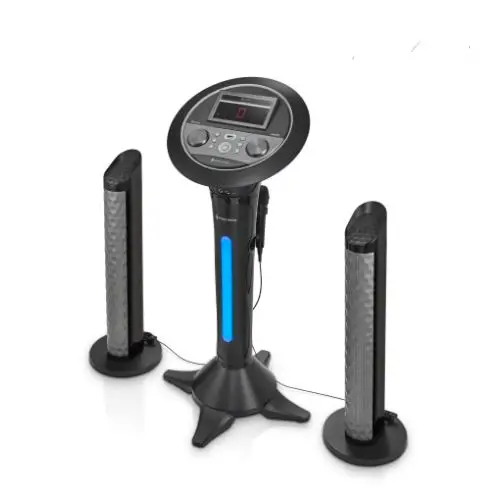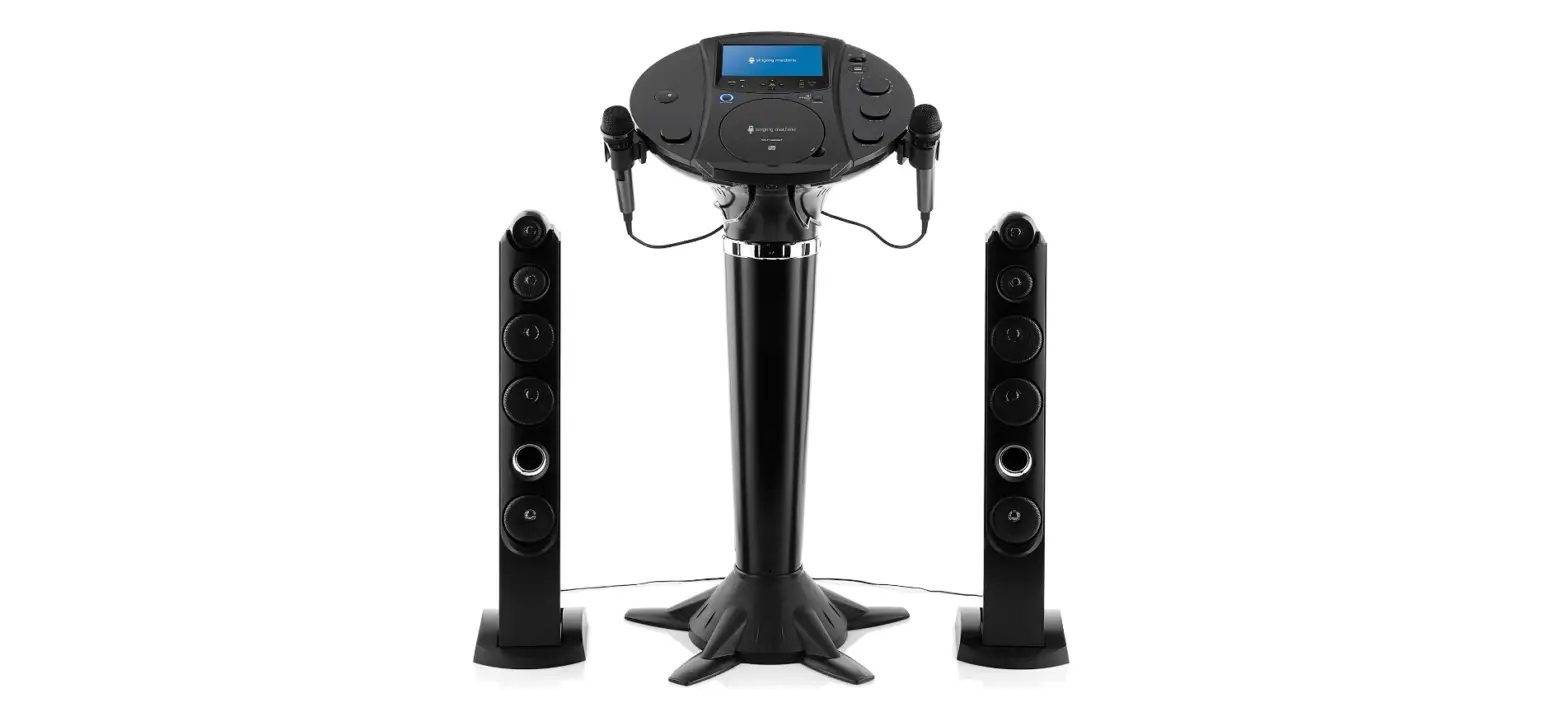

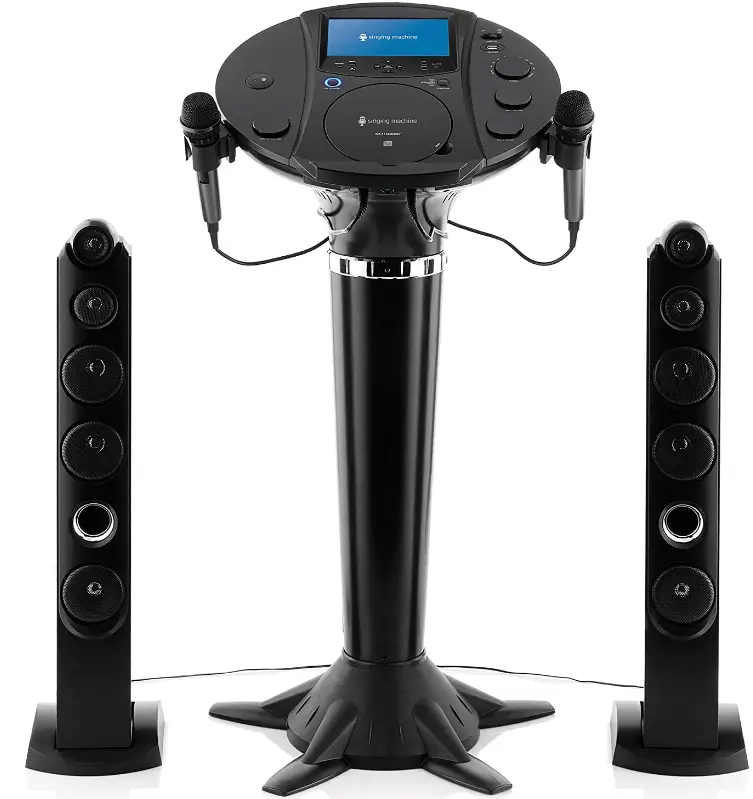
Singing Machine iSM1030BT Bluetooth Karaoke Pedestal
Important Safety Information
- Read these Instructions.
- Keep these Instructions.
- Heed all Warnings.
- Follow all Instructions.
- Do not use this apparatus near water.
- Clean only with a dry cloth.
- Do not block any of the ventilation openings. Install in accordance with the Manufacturer’s instructions.
- Do not install near any heat sources such as radiators, heat registers, stoves, or other apparatus (including amplifiers) that produce heat.
- Do not defeat the safety purpose of the polarized or grounding-type plug. A polarized plug has two blades with one wider than the other. A grounding type plug has two blades and a third grounding prong. The wide blade or the third prong are provided for your safety. When the provided plug does not fit into your outlet, consult an electrician for replacement of the obsolete outlet.
- Protect the power cord from being walked on or pinched particularly at plugs, convenience receptacles, and the point where they exit from the apparatus.
- Only use attachments/accessories specified by the manufacturer.
- Use only with a cart, stand, tripod, bracket, or table specified by the manufacturer, or sold with the apparatus. When a cart is used, use caution when moving the cart/apparatus combination to avoid injury from tip-over.
- Unplug this apparatus during lightning storms or when unused for long periodsof time.
- Refer all servicing to qualified service personnel. Servicing is required when the apparatus has been damaged in any way, such as power-supply cord or plug is damaged, liquid has been spilled or objects have fallen into the apparatus, the apparatus has been exposed to rain or moisture, does not operate normally, or has been dropped.
- WARNING: To reduce the risk of fire or electric shock, do not expose this apparatus to rain or moisture. Do not place objects filled with water, such as a vase, on the apparatus.
- The AC mains plug is used as the power disconnect device and it should remain readily accessible and operable during intended use. In order to completely disconnect the apparatus from power, the mains plug should be completely removed from the AC outlet socket.
- CAUTION: To reduce the risk of fire or explosion, do not expose batteries to excessive heat such as sunshine, fire or other heat sources.
Included
Please make sure the following items are included.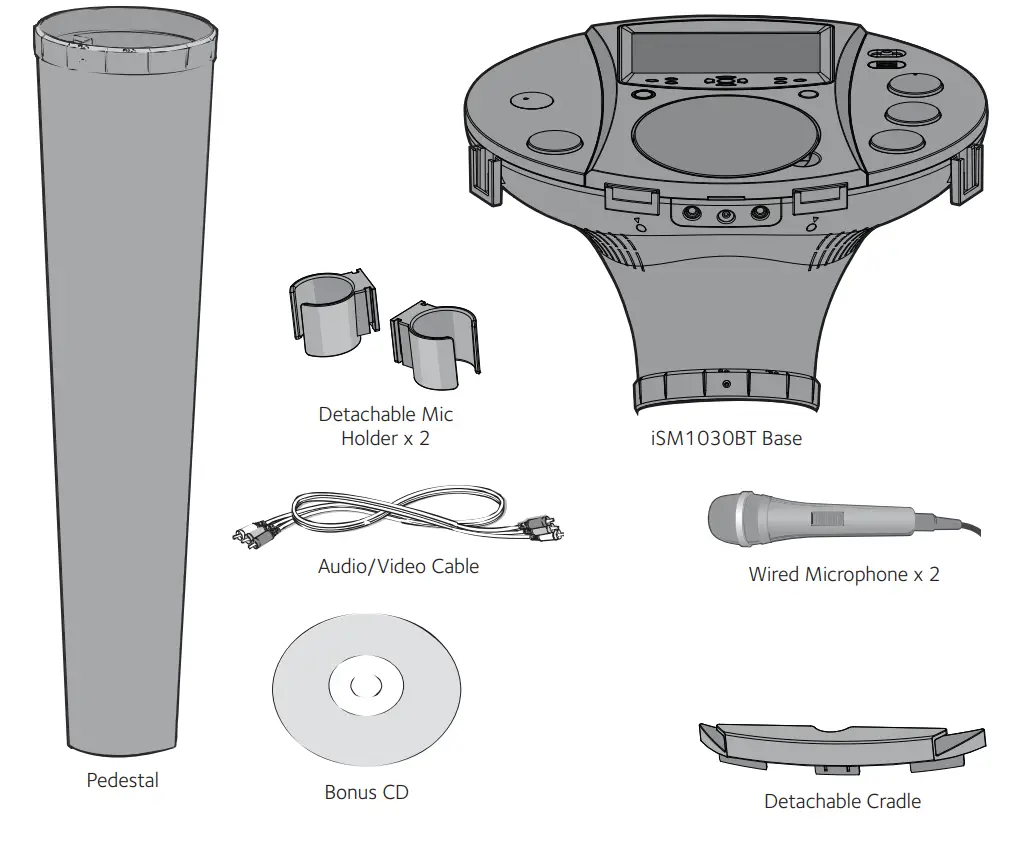
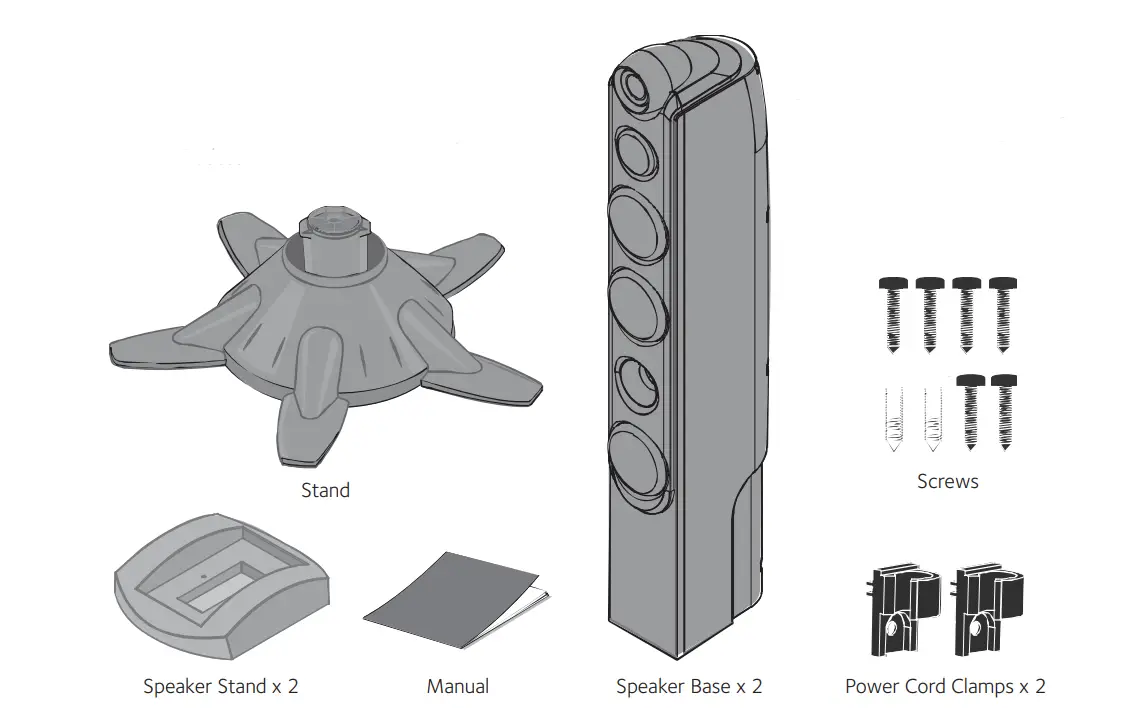
Installation
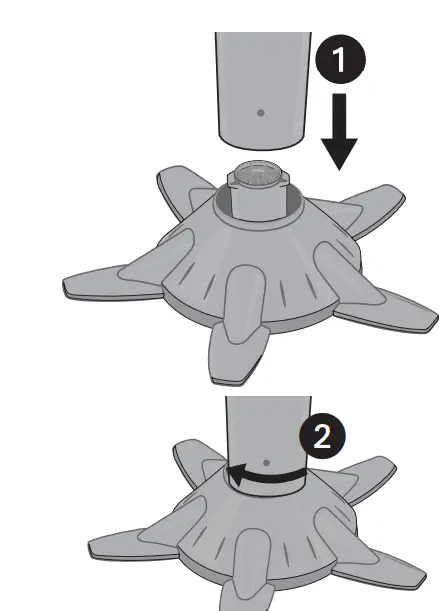
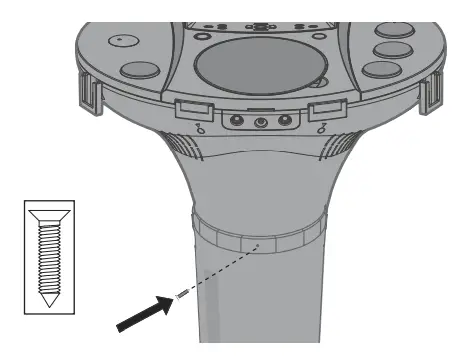
- Insert the Pedestal into the Stand 1 and then gently rotate clockwise 2 until tight, making sure the screw hole in the Pedestal aligns with the screw hole in the Stand.

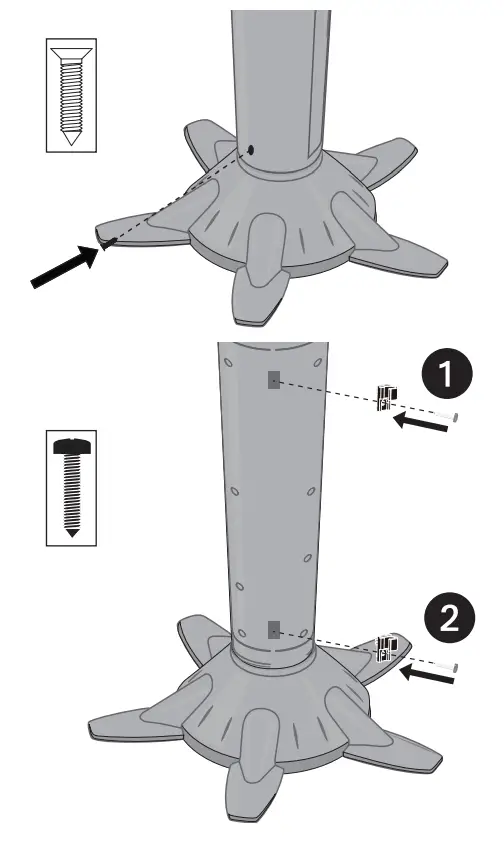
- Insert and tighten the self-tapping screw (silver) into the bottom of the Pedestal.
- Insert the Power Cord Clips into areas 1and 2and secure using the two clamp screws (silver).

- Insert the Base into the Pedestal uand then gently rotate clockwise v until the screw hole in the Base aligns with the screw hole in the Pedestal.

- Insert and tighten the self-tapping screw (silver) into the top of the Pedestal.


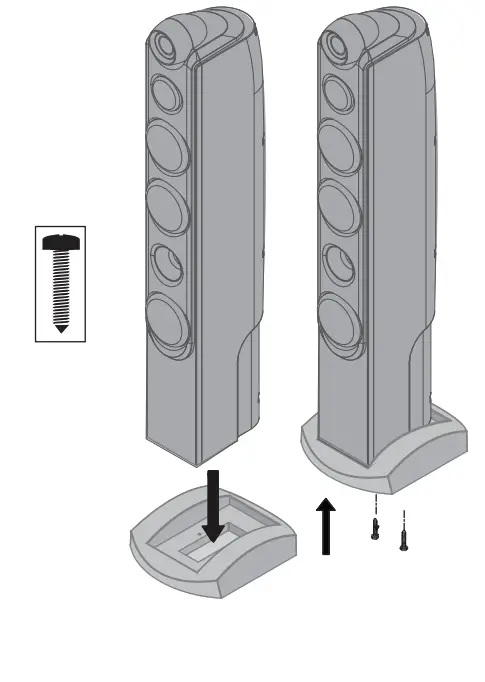
- Insert the speaker body into the Speaker Stand making sure to align the screw holes, then insert two screws (black) through the bottom of the base into the bottom of the speaker body to secure. Repeat for other speaker.
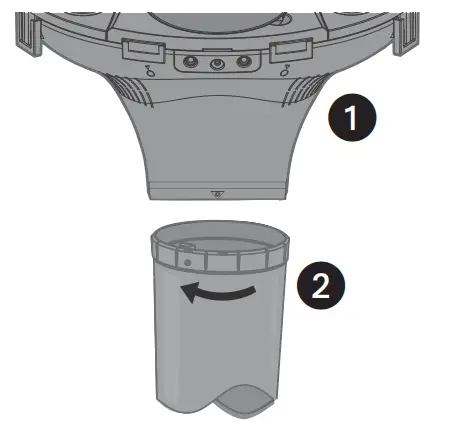
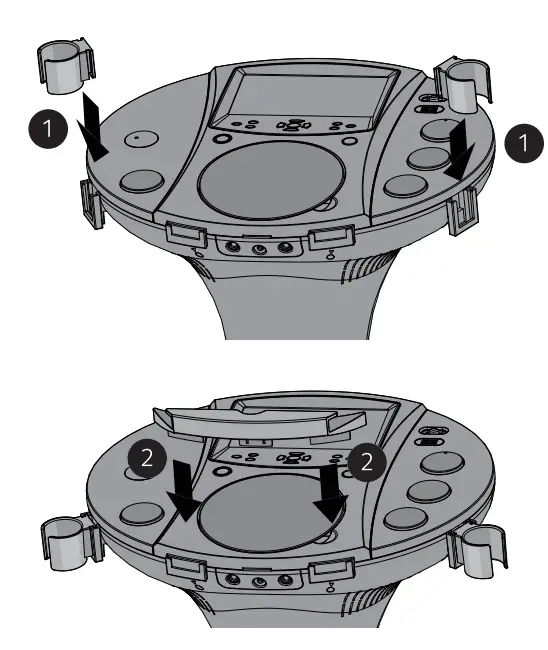
- Insert the detachable mic holders uinto the base mic holder slots.

- Insert the detachable cradle vinto the base cradle slots.
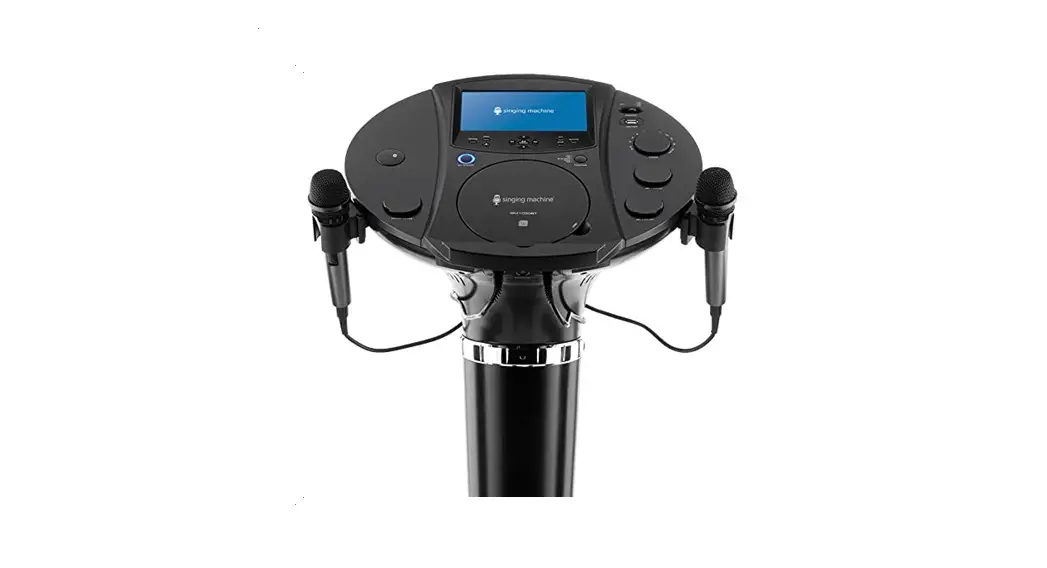
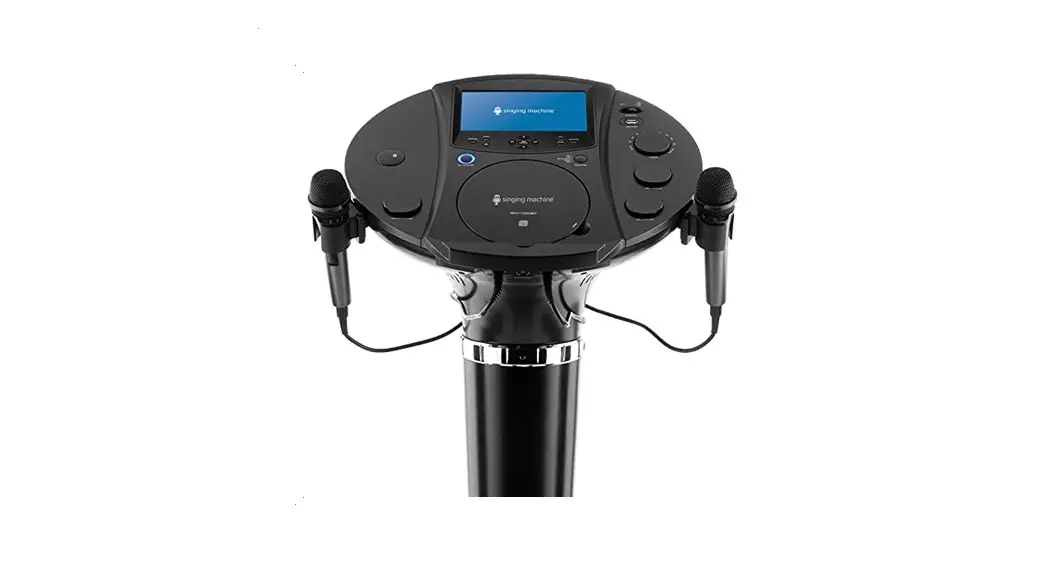
Location of Controls (Top/Front)
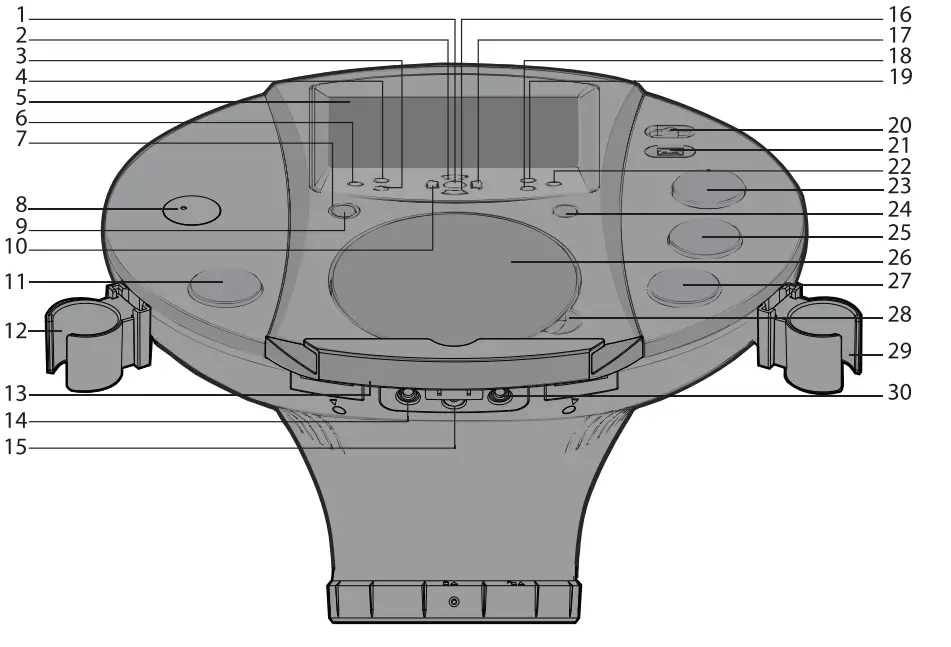
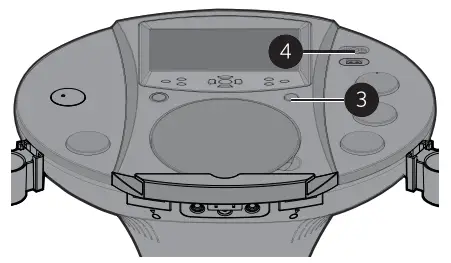
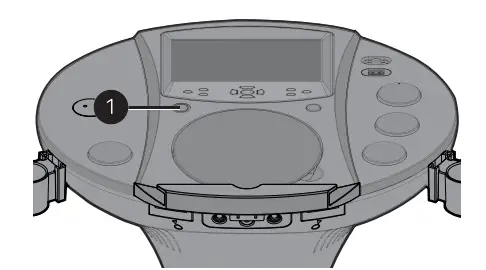
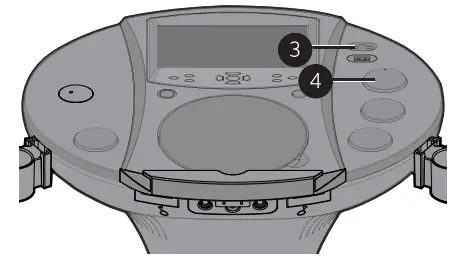
- Play/Pause 4;/ Bluetooth Pairing Restart Button
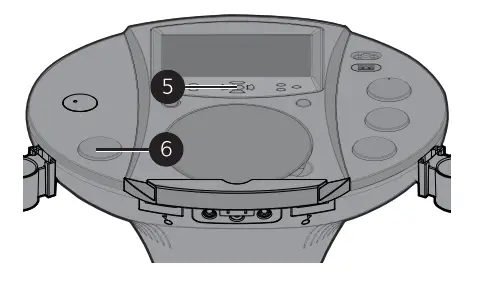
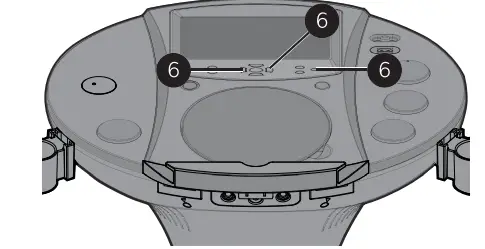
- Navigation Up 5Button
- Stop <Button
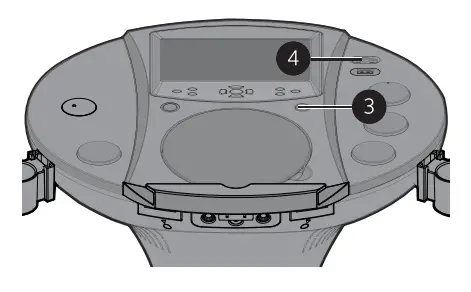
- MENU/Bluetooth Pairing Button
- TFT LCD Color Screen
- RECORD Button
- On/Standby Indicator
- Bluetooth Status Indicator
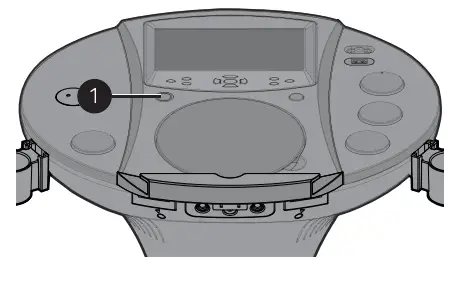
- ON/STANDBY Button
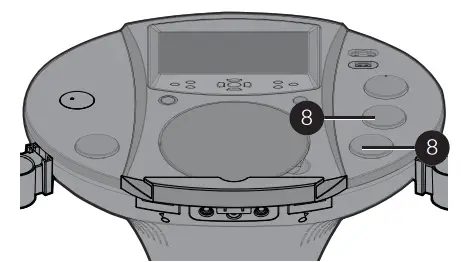
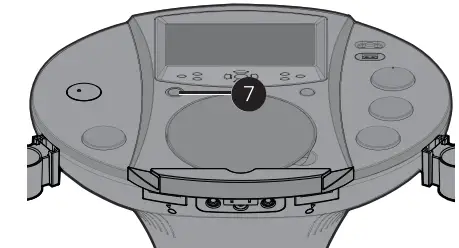
- Skip/Search Back 7Button
- MASTER VOLUME Control
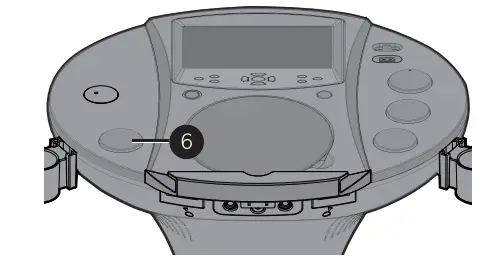
- Mic 1 Holder
- Cradle
- Mic 1 Jack
- Headphone Jack
- Navigation Down 6Button
- skip/Search Forward 8Button
- ECHO Button
- auto Voice Control (AVC) Button
- MONITOR Switch
- USB Port
- BALANCE Button
- TUNING Control
- FUNCTION Button
- MIC 1 VOLUME Control
- CD Compartment
- MIC 2 VOLUME Control
- CD Lift Open Area
- Mic 2 Holder
- Mic 2 Jack
Location of Controls (Back)
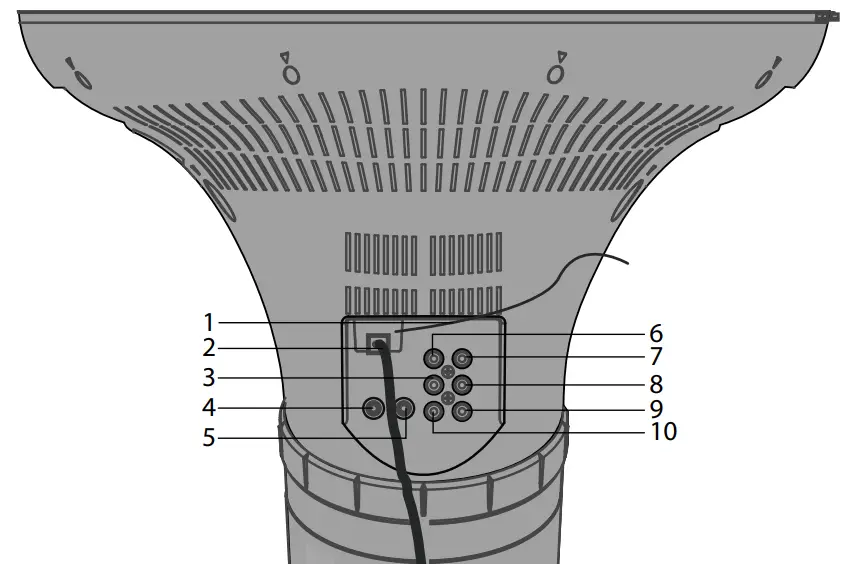
- FM Antenna Wire
- AC Power Cord
- AUX IN (Left) Jack
- Right Speaker Jack
- Left Speaker Jack
- VIDEO IN Jack
- VIDEO OUT Jack
- AUX OUT (Left) Jack
- AUX OUT (Right) Jack
- AUX IN (Right) Jack

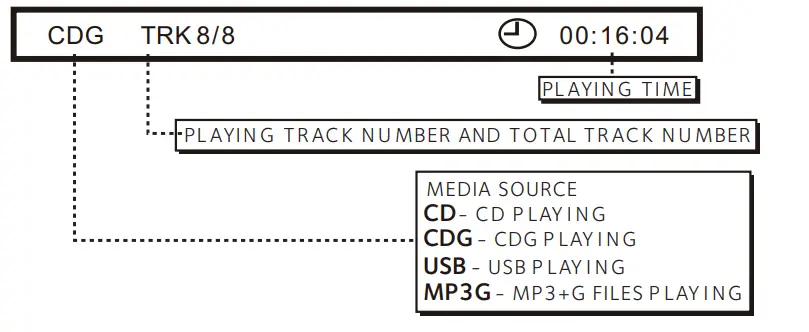
Connection
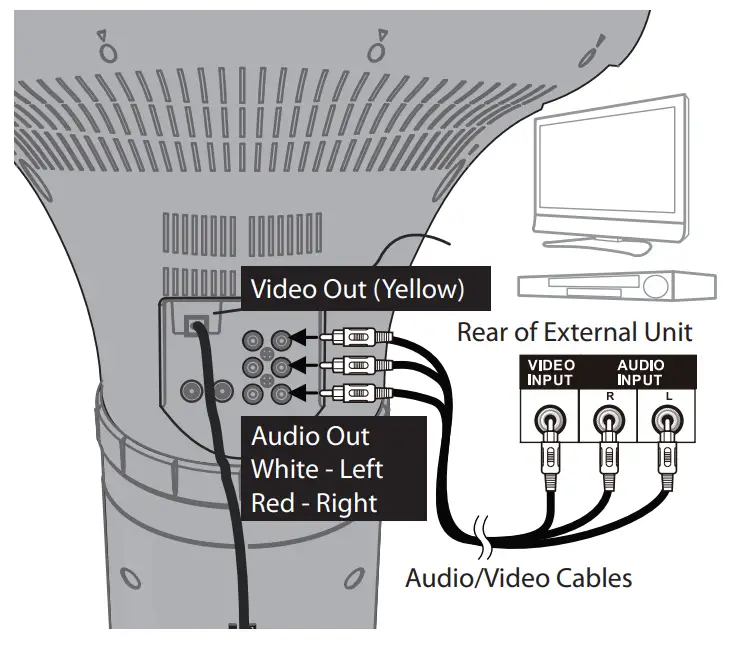
Connecting the Unit to an External TV, Stereo, etc.
The video and lyrics will be shown on the built-in screen. If you would prefer to output the video and/or audio through your TV, DVD player, stereo, etc., then perform the following steps:
- Connect the Audio/Video cable’s yellow plug to the yellow VIDEO OUT jack on the iSM1030BT and the other end to the external unit’s yellowVideo In jack.
- Connect the Audio/Video cable’s red and white plugs to the red and white AUDIO OUT jacks on the iSM1030BT and the other ends to the external unit’s red and white Audio In jacks.
If left unconnected, the audio will just play through this unit’s speakers.
Notes:- This unit can be used with or without a TV.
- To see the lyrics on the screen, you must use a CD+G disc or anMP3+G.
- Also refer to the TV’s or external unit’s User Guide.
- If you have a mono TV with only one Audio In jack, you may have topurchase a “Y” adapter (stereo to mono) at your local electronics accessories store.
- Audio/Video cables are included.
- do not connect to AC power until all connections have been made.
See bottom of page 9.
Connecting an External TV, Stereo, etc. to this Unit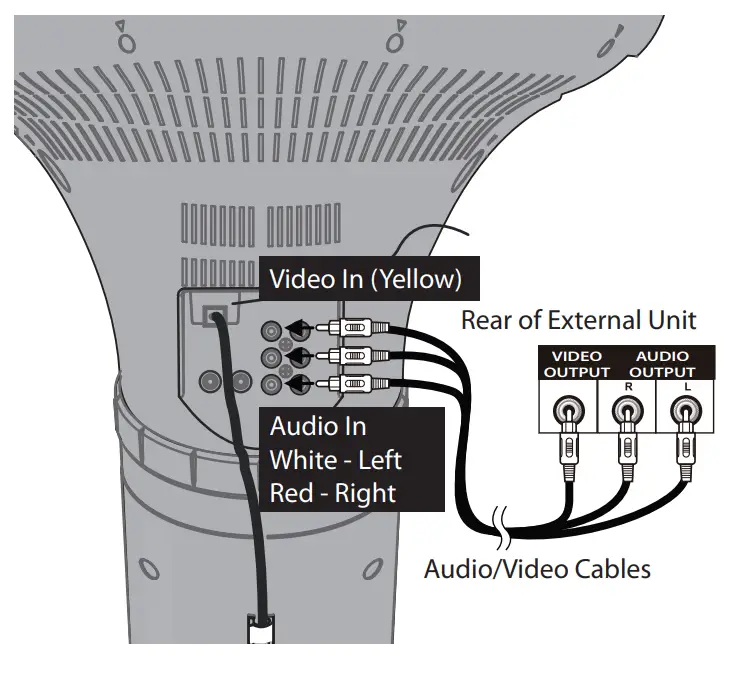
- Connect the Audio/Video cable’s yellow plug to the yellow VIDEO IN jack on the iSM1030BT and the other end to the external unit’s yellow Video Out jack.
- Connect the Audio/Video cable’s red and white plugs to the red and white AUDIO IN jacks on the iSM1030BT and the other ends to the external unit’s red and white Audio Out jacks.
Notes:- Also refer to the TV’s or external unit’s User Guide.
- Audio/Video cables are included.
- Do not connect to AC power until all connections have been made.
See below.
Connecting to AC Power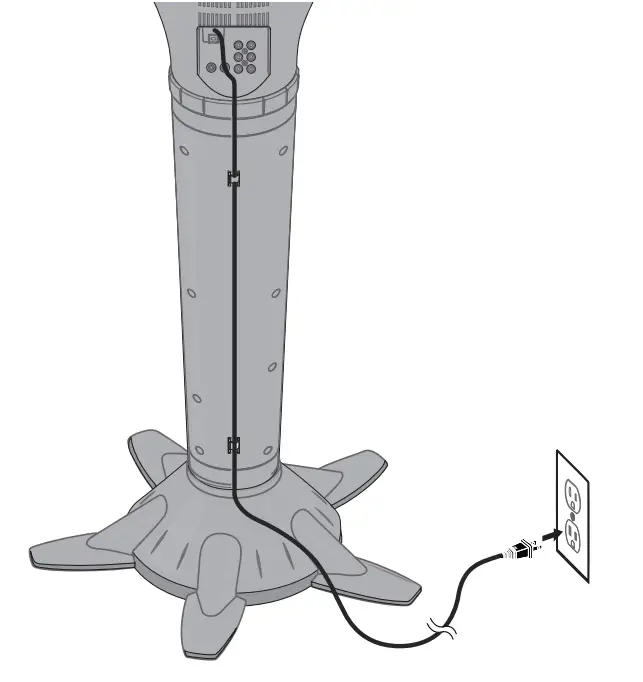
- Insert the AC power cord into a conveniently located AC outlet having 120V AC, 60Hz.
- Secure the power cord intothe Power clamps previously installed.
Notes:- Make all connections before connecting to AC power.
- The AC Power Cord has a polarized plug that fits into the AC outlet only one way. If the plug does not fit properly, turn it over and try again. Do not force and do not fileor cut the wide blade.
Connecting the Microphones and Headphones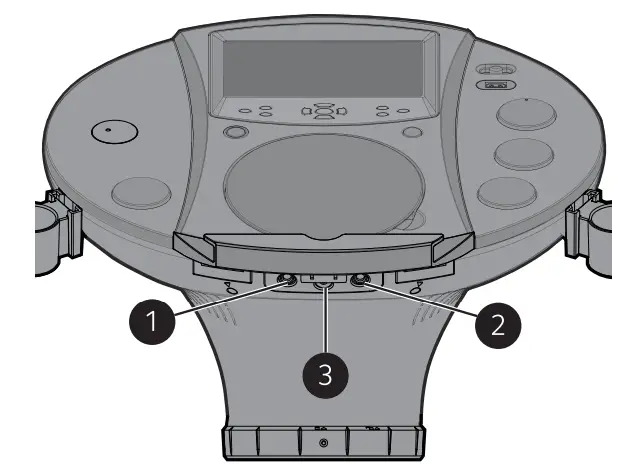
- Microphones:
Insert a microphone’s plug into the Mic 1 jack u. Insert the other microphone’s plug into the Mic 2 jack v(if desired).
Note: Do not drop or tap the mic as damage to the mic or speakers may occur. Do not spin the microphone around for the same reason. - Headphones:
For private listening, use headphones (not included). Insert a headphone’s plug into the Headphone jack w. Disconnect when finished so the included speakers can be used.
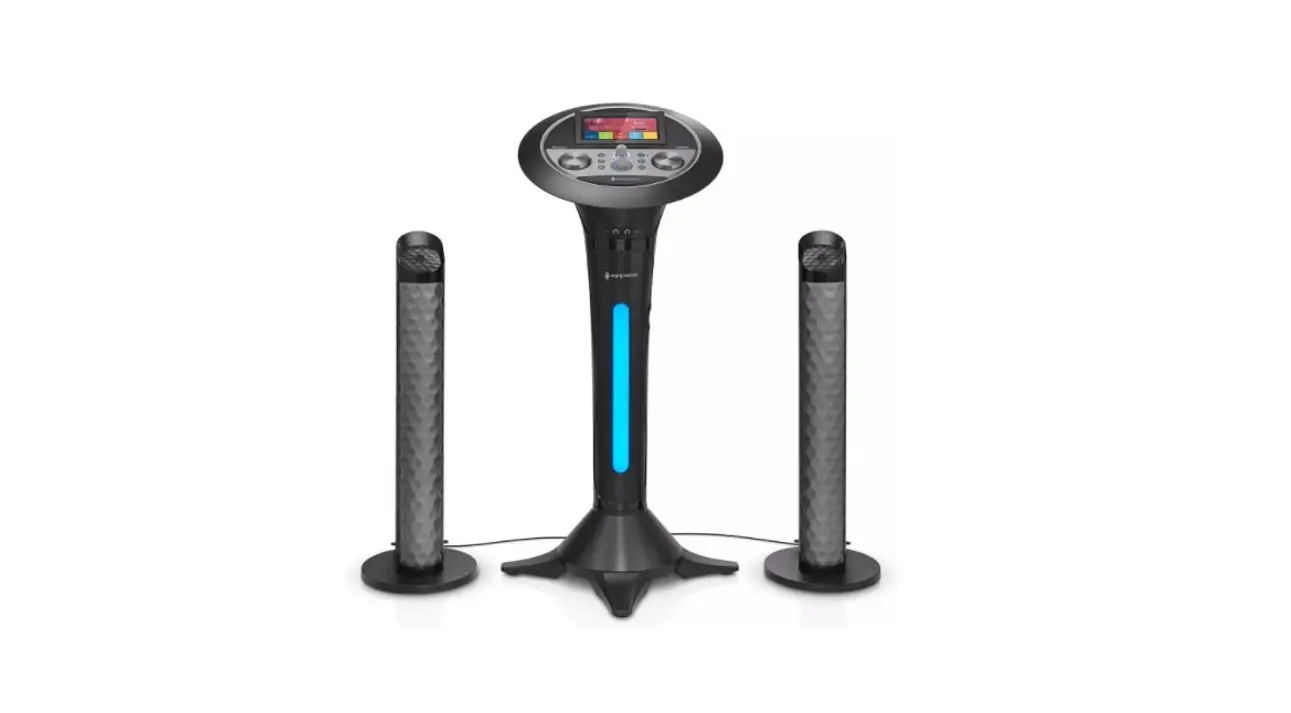
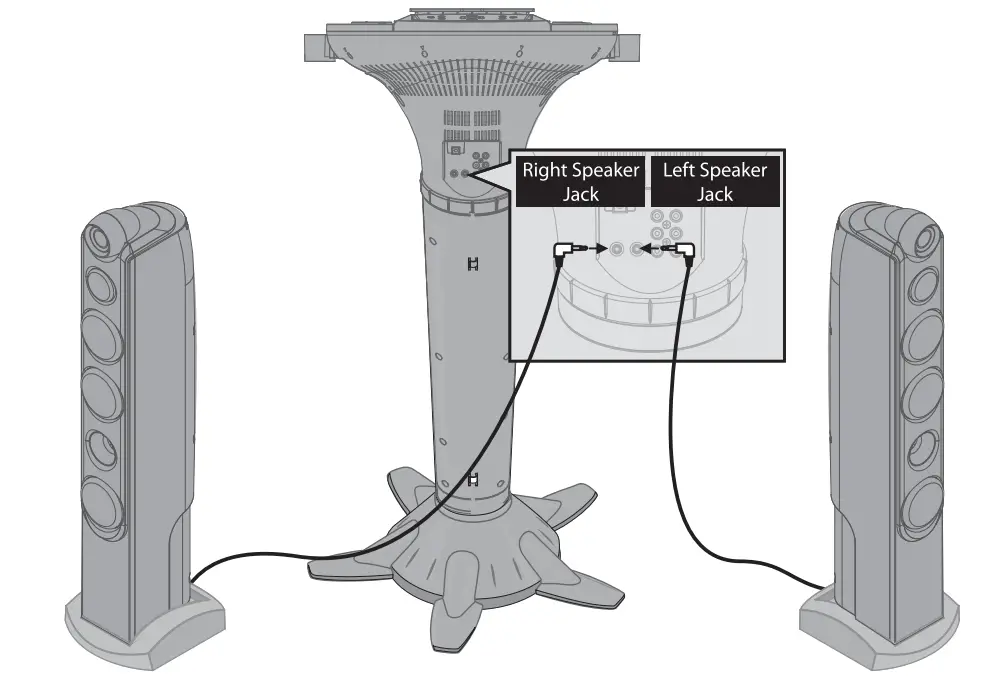
Connecting the Tower Speakers
- To protect the speakers, make sure the iSM1030BT is off and the MASTER VOLUME and the MIC 1 and 2 VOLUME controls are set to minimum.
- connect the right speaker’s plug to the Right Speaker jack and the left speaker’s plug to the Left Speaker’s jack.
- Turn the power on and slowly raise the MASTER VOLUME and the MIC 1 and 2 VOLUME controls to a comfortable level.

Operation
Playing a CD (with or without MP3+G files), CD+G or USB Drive
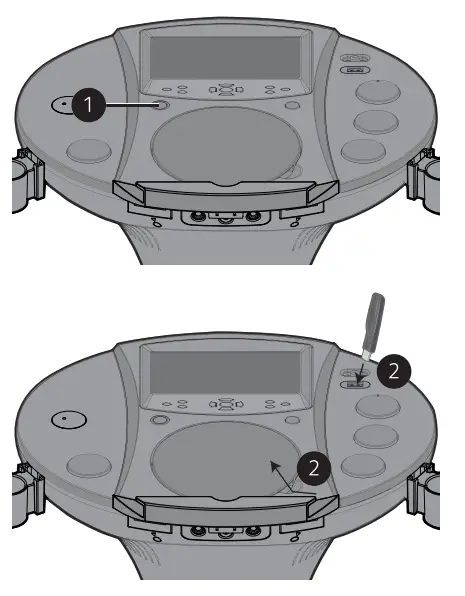
- Connect the unit as described previously. Press the ON/STANDBY button to turn the unit on; the On/Standby indicator will light blue and the LCD Screen will begin tooperate.

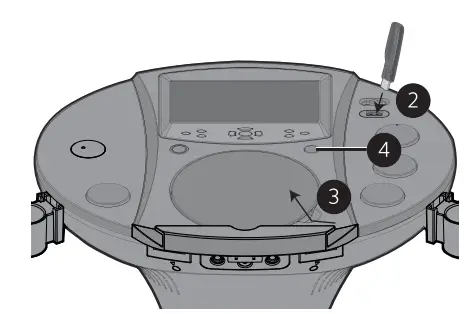
- Lift open the CD door and insert a CD (with standard or MP3+G files) or a CD+G by gently pressing it on the center spindle. Then close the CD door. If using the USB drive with MP3+G files, insert the USB into the USB slot.
FAQs- What is a CD+G?
A CD+G (CD+ Graphics), is the standard format for most karaoke discs that will display the words on the screen. - What is an MP3+G?
MP3+G is the newest format for karaoke music utilizing the MP3’s small file size. It will display the words on the screen. See page 25 to order and download MP3+G files.
- What is a CD+G?
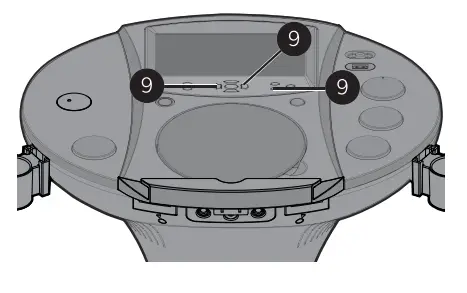
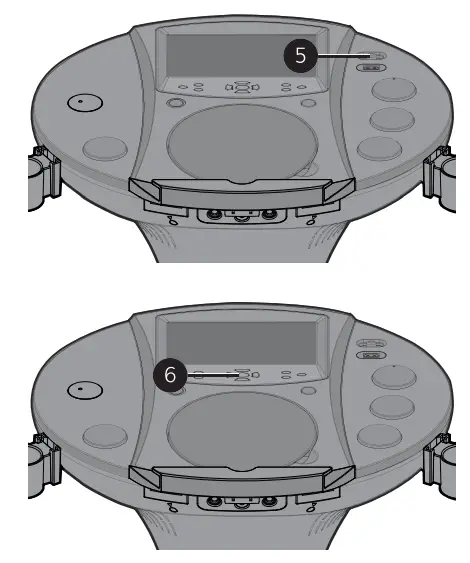
- Repeatedly press the FUNCTION button until the LCD Screen displays DISC to select the CDG/CD mode or USB to select the USB mode.

- Slide the MONITOR switch to the On (right) position to view the information and lyrics (if playing a CD+G or MP3+G file) or slide to the Off (left) position to turn the LCD Screen off.
Playing a CD (with or without MP3+G files), CD+G or USB Drive - Press the Play/Pause 4;button to start playback; if listening to an MP3+G or CD+G file, the image andlyrics will appear on the LCD Screen.

- Adjust the volume to a comfortable level using the MASTER VOLUME control.
Notes:- Never place anything other than a CD in the compartment, as foreign objects candamage the unit.
- If no disc is inserted, “NO DISC” will appear on the LCD screen.
- If no USB drive is inserted, “NO USB” will appear on the LCD screen.
- If connected to a TV or other audio source, adjust the volume of the TV using its own volume control.
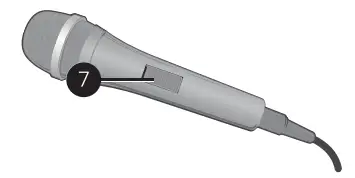
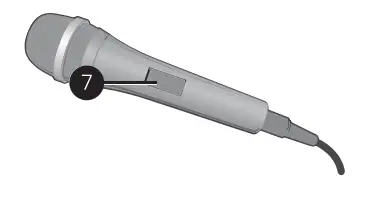
- Connect microphone(s) as shown on page 10, and slide the ON/OFF button on the microphone to power it on.

- Adjust the MIC VOLUME 1 or 2 control as desired. Increasing this control will increase the volume of the respective microphone.

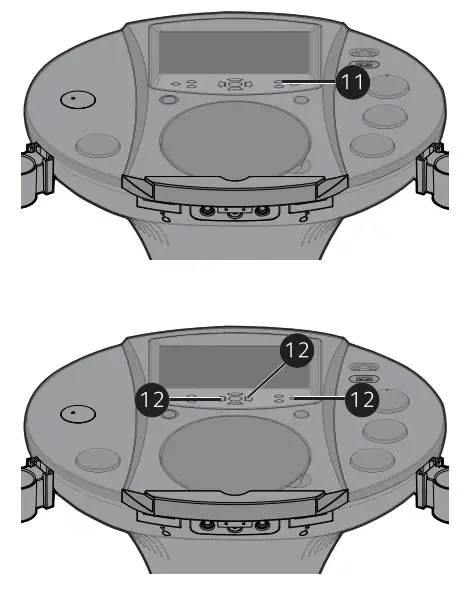
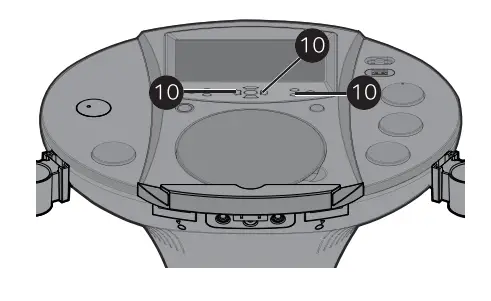
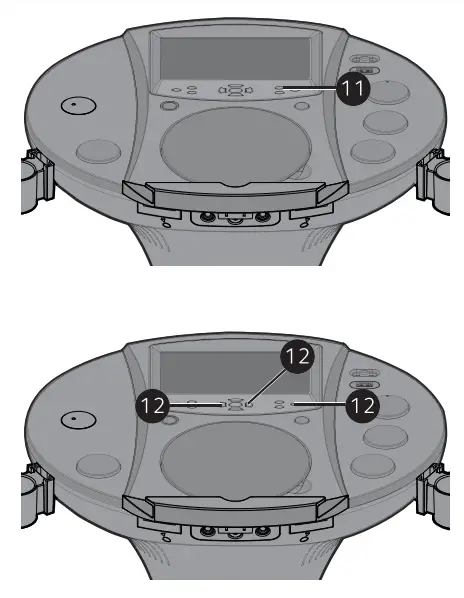
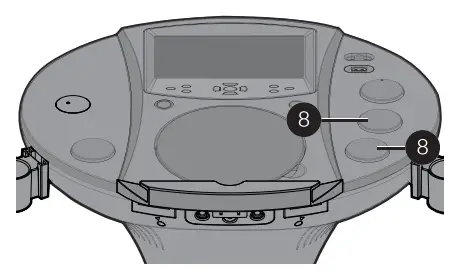
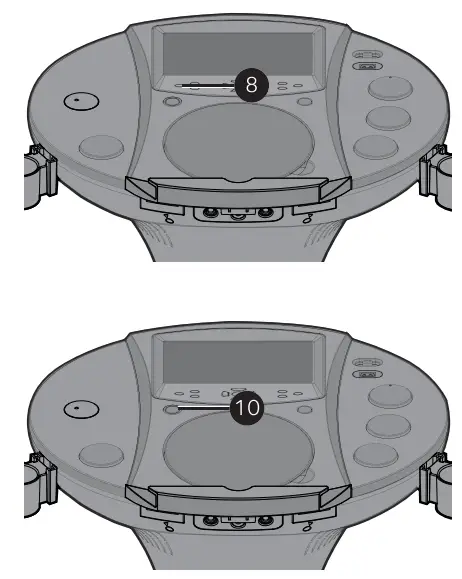
- Adjust the Echo to add an echo effect to your voice. Press the ECHO button, and then increase/decrease the echo using the Skip Forward 8/Skip Back 7buttons. The higher the number, the more echo effect.

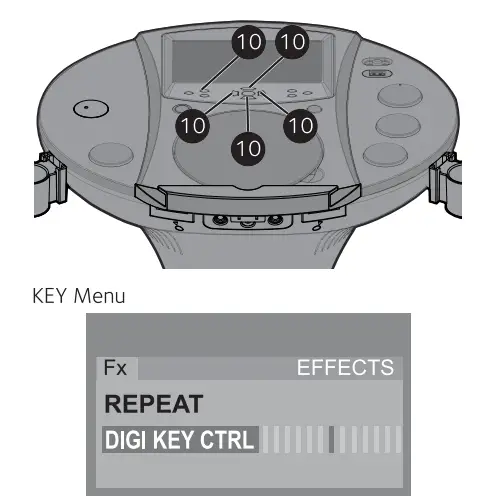
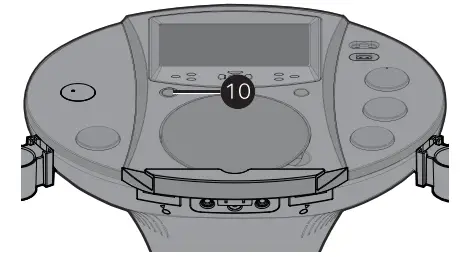
- Adjust the Key to obtain the best key for the singer. During playback, press the MENU button, and then navigate to DIGI KEY CTRL using the Navigation 6/ 5 buttons. Adjust the key using the Skip Forward 8/Skip Back 7buttons. Press the MENU button again when done.

- Press the Auto Voice Control (AVC) button to turn this option On (AVC ON will appear in the screen) and the vocals on a multiplex recording are muted as soon as the singer begins singing into the microphone. When the singer stops singing, the vocals are automatically unmuted.
IMPORTANT: This feature only works with multiplex media.
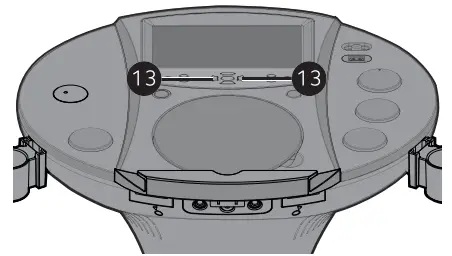
- Press the BALANCE button, and then adjust the balance level using the Skip Forward 8/Skip Back 7buttons. On multiplex recordings, use the Skip Back 7button to reduce or eliminate the lead singer’s voice and use the Skip Forward 8button to reduce or eliminate the music.
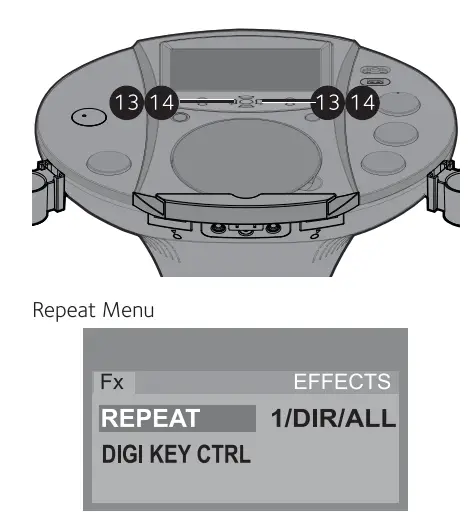
IMPORTANT: This feature only works with multiplex media. - SKIP: Advance or go back one track by pressing the Skip Back 7/Skip Forward 8buttons.
Note: If using a USB drive, during STOP mode you can also select a file using the Navigation 6/ 5 buttons to scroll up/down and/or the Skip Back 7/Skip Forward 8buttons to scroll left/right.
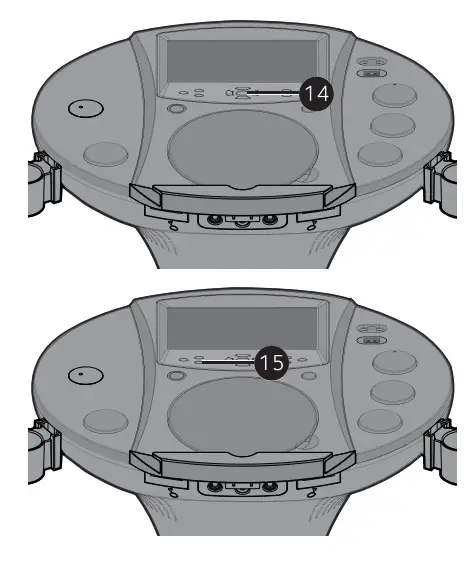
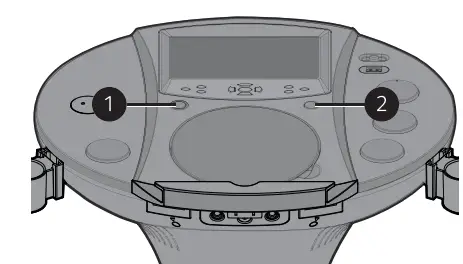
- SEARCH: During playback, press and hold either the Skip Back 7or Skip Forward 8button to move the player forward or backward within a track to locate a specific musical passage. When you release the button, normal playback will resume.
- REPEAT: During playback, press the MENU button, and then navigate to REPEAT using the Navigation 6/ 5 buttons. Select the desired Repeat setting {ONE (Repeat One song), ALL (Repeat All tracks/files) or DIR (Repeat Directory – this only appears when using a USB drive)} using the Skip Forward 8/Skip Back 7buttons. Press the MENU button again when done.

- PROGRAM: You can program up to 20 tracks on any disc for playback in any desired order. While in the Stop mode, press the MENU button; PRG P01 : 00 (01 represents the program number and 00 represents the track) will appear in the LCD Screen. Select the first track using the Skip Forward 8/ Skip Back 7buttons. Press the MENU button again to confirm the entry. Repeat to set up to 20 tracks into memory. When done, press the Play/ Pause 4;button to start playback.
Note: Press the Stop button TWICE to stop and clear the program. - PAUSE: During playback, if you wish to pause the disc momentarily, press the Play/Pause 4;button; “PAUSE” will appear on the screen. Press again to resume normal playback.
Note: Pausing the unit while playing a CD+G may distort the lyrics on the screen. This will remain until the screen is refreshed.
- Press the Stop button to stop playback.
- Press the ON/STANDBY button to turn the unit off; the On/Power indicator will light red and the LCDScreen will turn off.

Note: You can record your singing as well as the song/video onto a USB drive. See page 23 for more details.
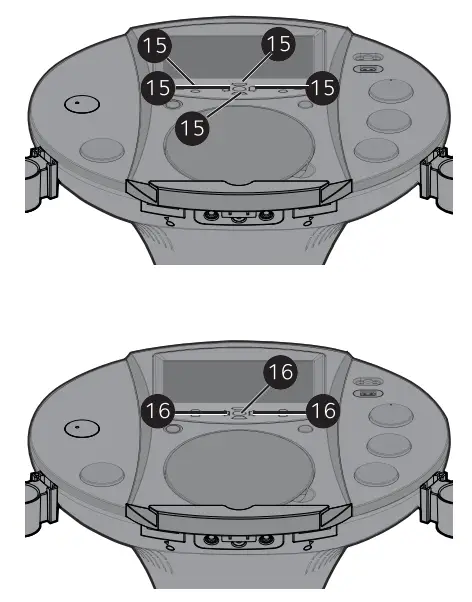
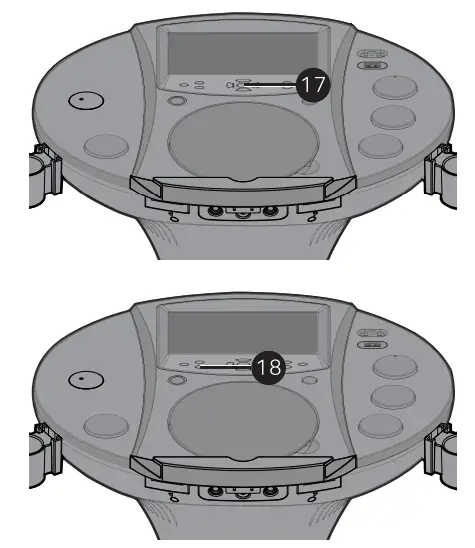
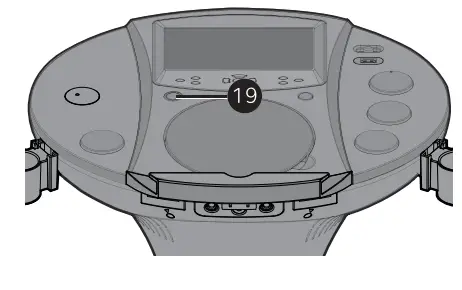
Using a Bluetooth Device
- Connect the unit as described previously. Press the ON/STANDBY button to turn the unit on; the On/Standby indicator will light blue and the LCD Screen will start up.

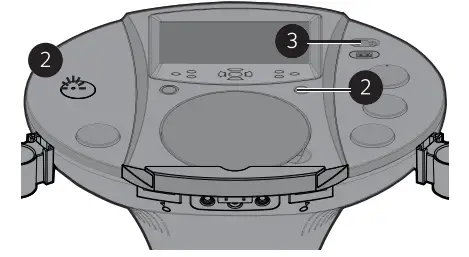
- Repeatedly press the FUNCTION button until the LCD Screen displays “BLUETOOTH” to select the Bluetooth mode; you will hear the Bluetooth sound and the Bluetooth Status indicator will blink red and blue.

- Slide the MONITOR switch to the Off (left) position to turn the LCD Screen off.
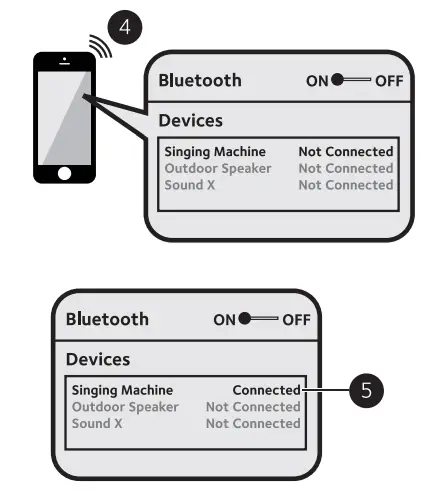
- Switch ON the Bluetooth function of your bluetooth compatible device within 10 meters (30 ft) from the pedestal unit. You will see “Singing Machine” appear on your device’s search list.
Note: Please always refer to the user manual of your bluetooth device for detailed instructions.
- Select “Singing Machine” to start pairing. Wait for completion of the pairing until you hear a beep from the unit. The Bluetooth status indicator will display a solid blue color.
Notes:- If your Bluetooth device prompts you for a passcode during the pairing process, please enter “0000” to connect. If you have paired before, a list of previous searched results will be displayed. Select “Singing Machine” and confirm.
- On some Bluetooth devices (i.e., computers), once pairing is complete, you must select your Bluetooth device as “Use as AudioDevice” or similar.
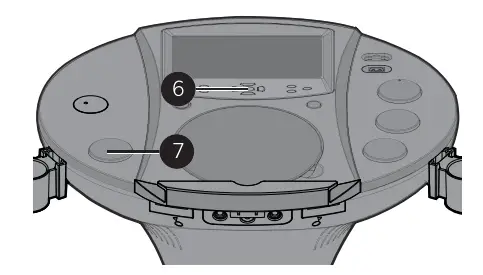
- PLAY/PAUSE: Press the Play/Pause button to start playback.

- Adjust the volume to a comfortable level using the MASTER VOLUME control.
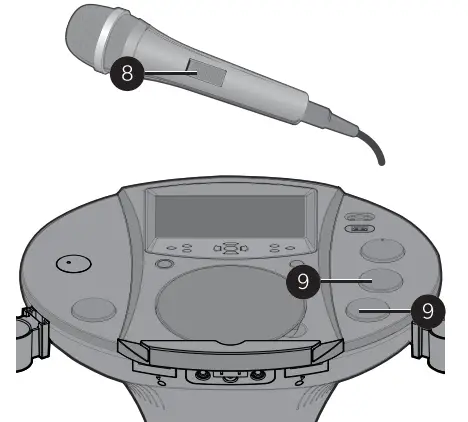
Note: If connected to a TV or other audio source, adjust the volume of the TV using its own volume control. - Connect microphone(s) as shown on page 10, and slide the ON/OFF switch to power it on.

- Adjust the MIC VOLUME 1 or 2 control as desired. Increasing this control will increase the volume of the respective microphone.
- Adjust the Echo to add an echo effect to your voice. Press the ECHO button, and then increase/decrease the echo using the Skip Forward 8/Skip Back 7buttons. The higher the number, the more echo effect.

- Press the Auto Voice Control (AVC) button to turn this option On (AVC ON will appear in the screen) and the vocals on a multiplex recording are muted as soon as the singer begins singing into the microphone. When the singer stops singing, the vocals are automatically unmuted.
IMPORTANT: This feature only works with multiplex media.
- Press the BALANCE button, and then adjust the balance level using the Skip Forward 8/Skip Back 7buttons. On multiplex recordings, use the Skip Back 7button to reduce or eliminate the lead singer’s voice and use the Skip Forward 8button to reduce or eliminate the music.
IMPORTANT: This feature only works with multiplex media. - SKIP: Advance or go back one track by pressing the Skip Back 7/Skip Forward 8buttons.


- PAUSE: During playback, if you wish to pause the track momentarily, press the Play/Pause 4;button. Press again to resume normal playback. Press and hold the Play/Pause 4; button to restart the pairing process.
Note: Pairing remains intact when the unit and/or your Bluetooth device is taken out of communication range. An active connection will be re-established when your Bluetooth device returns within range. When the unit is turned on again, it will automatically try to reconnect with the most recently paired Bluetooth device. When the Bluetooth function of your Bluetooth enabled device is turned on again, reconnection can be achieved by pressing MENU button on the unit. - Press the Stop button to stop playback.
- Press the ON/STANDBY button toturn the unit off; the On/Standby indicator will light red and the LCD Screen will turn off.
Note: There is no recording function when listening to the Bluetooth function. 
- You can always put your Bluetooth device onto the attached cradle after it is paired.
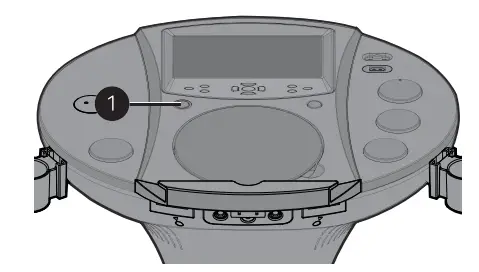
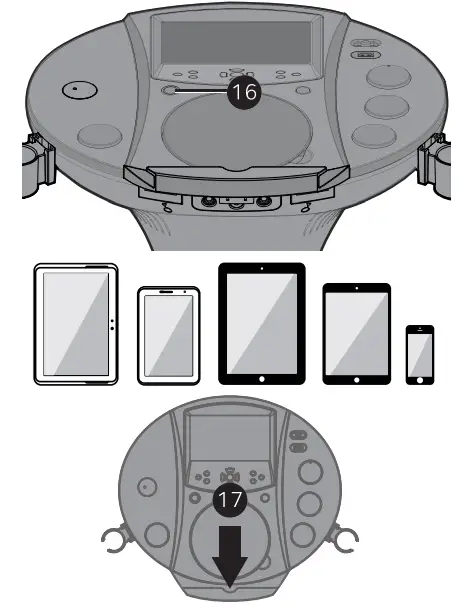
Using the AUX Jack
- Connect the unit as described previously. Press the ON/STANDBY button to turn the unit on; the On/Standby indicator will light blue and the LCD Screen will start up.

- Connect the external unit to the VIDEO/AUX in jacks on the rear of thisunit as shown on page 8.
Notes:- It is highly recommended to set the volume on the auxillary unit to 1/3 or lower to avoid distortion.
- Skipping files/tracks is not possible when using an external device.
- Repeatedly press the FUNCTION button until the LCD Screen shows Aux to select the Aux mode.

- Slide the MONITOR switch to the On(right) position to view the video from the external device or slide to the Off (left) position to turn the LCD Screen off.
- Connecting an external unit will allow the audio and video to be played through your Singing Machine.
- Adjust the volume to a comfortable level using the MASTER VOLUME control.

- Connect microphone(s) as shown on page 10, and slide the ON/OFF button switch on the microphone to power it off.

- Adjust the MIC VOLUME 1 or 2 control as desired. Increasing this control will increase the volume of the respective microphone.

- Adjust the Echo and Balance effects as shown on pages 12 and 13.
- Press the ON/STANDBY button to turn the unit off; the On/Standby indicator will light red and the LCD Screen will turn off.
Note: There is no recording function when listening to the Aux function.
Using the FM Radio
- Connect the unit as described previously. Press the ON/STANDBY button to turn the unit on; the On/Standby indicator will light blue and the LCD Screen will start up.

- Repeatedly press the FUNCTION button until the LCD Screen shows Radio to select the FM mode.
- Slide the MONITOR switch to the OFF position to turn the LCD Screen off.

- Tune a station using the Tuning control.
- Extend and uncoil the FM Wire Antenna on the rear of the unit for best FM reception.
Note: There is no Karaoke or recording function when listening to the radio. - Press the BALANCE button, and then adjust the balance level using the Skip Forward 8/Skip Back 7buttons.

- Press the ON/STANDBY button to turn the unit off; the On/Standby indicatorwill light red and the LCD Screen will turn off.

Recording on a USB Drive
- Connect the unit as described previously. Press the ON/STANDBY button to turn the unit on; the On/Standby indicator will light blue and the LCD Screen will start up.

- Insert a USB drive with available space into the USB jack.
- Lift the CD door and insert a standard disc or a CD+G by gently pressing it on the center spindle as shown on pages 11 and 12.

- Press the Function button until the LCD screen displays “DISC” to select the CDG/CD mode.
- Slide the MONITOR switch to the On (right) position to view the information and lyrics (if playing a CD+G or MP3+G file) or slide to the Off (left) position to turn the LCD Screen off.

- Press the Play/Pause 4;button to start playback; if listening to an MP3+G or CD+G file, the image and lyrics will appear on the LCD Screen.
- Connect and set the microphone’s volume as shown on page 12.
- Press the RECORD button; the LCD Screen will show REC and a percentage left on the inserted USB device. Sing or speak into the microphone and your voice will record along with the music and video (if video is present) onto the USB drive.
- When done recording, press the RECORD button again to stop recording.
- Press the ON/STANDBY button to turn the unit off; the On/Standby indicator will light red and the LCD Screen will turn off.
Note: To play the recording, repeatedly press the FUNCTION button to select USB and then select the file under the RECORD sub-menu.
Where to Download MP3+G Files
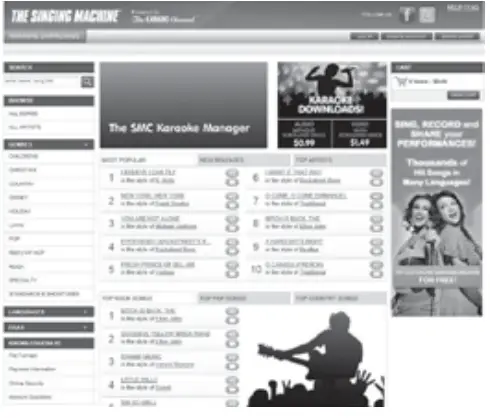
To purchase and download karaoke music, please visit http://store.singingmachine.com to access over 12,000 of your favorite karaoke songs. You will need a USB flash drive (not included) to transfer the downloads to this unit.
Follow these easy steps:
- Go to http://store.singingmachine.com using your internet browser, and then register.
- Select and purchase your favorite karaoke music from the Singing Machine Download Store.
- Download your selected purchase(s) from the Singing Machine Digital Locker to your USB flash drive.
- Insert the USB flash drive as shown on page 11 and enjoy!
Note: Your downloaded songs can also be burned to a blank CDR/CDRW.
Helpful Hints:
The .mp3 and .cdg files are delivered for download in a single, compressed MP3+G.zip file.
The MP3+G file cannot be played as a .zip file on a USB flash drive. To play karaoke songs using a USB flash drive, the MP3+G .zip file must be unzipped as follows:
- Connect a USB flash drive to your computer
- Download the MP3+G file from your Digital Locker and save the .zip* file to a folder on your computer
- Double click the .zip file to open the .zip (you will see the .mp3 and .cdg files)
- Drag and drop the .mp3 and .cdg files to the USB flash drive
- Remove (eject) the USB flash drive from your computer
Turn on the Singing Machine and connect the USB flash drive.
Care and Maintenance
Care for Compact Discs
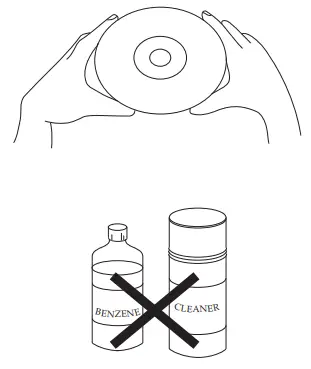
- Treat the compact disc carefully. Handle the compact disc only by its edges. Never allow your fingers to come inb contact with the shiny, unprinted side of the compact disc.

- Do not attach adhesive tape, stickers, etc. to the compact disc label. Clean the compact disc periodically with a soft, lint-free, dry cloth. Never use detergents or abrasive cleaners to clean the compact disc. If necessary, use a CD cleaning kit.
- If a disc skips or gets stuck on a section of the compact disc, it is probably dirty or damaged (scratched).

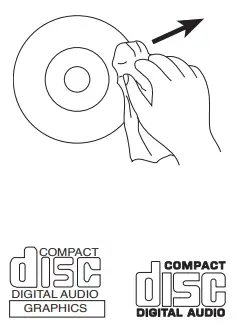
- When cleaning the compact disc, wipe in straight lines from the center of the compact disc to the outer edge of the compact disc. Never wipe in circular motions.
- This unit is designed to play only compact discs bearing the identification logos as shown here. Other discs may not conform to the CD standard and may not play properly.
- Compact Discs should be stored in their cases after each use to avoid damage. Do not expose compact discs to direct sunlight, high humidity, high temperatures or dust, etc. Prolonged exposure or extreme temperatures can warp the compact disc.
- Do not stick anything on either side of the compact disc.

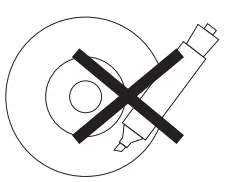
- Also do not write on the shiny side of the disc, as sharp writing instruments, or the ink, may damage the surface.
Cleaning the Unit
- To prevent fire or shock hazard, disconnect your unit from the AC power source when cleaning. The finish on your unit may be cleaned with a dust cloth and cared for as other furniture. Use caution when cleaning and wiping the plastic parts.
Troubleshooting Guide
Should this unit exhibit a problem, check the following before seeking service:
No Power
- Power is not on; press the ON/STANDBY button to turn power on.
- Make sure unit is connected to AC power.
No Sound – General
- Master Volume is set to minimum; raise volume.
- Correct Function was not selected; select using the FUNCTION button.
- The Tower speakers are not connected.
- Headphones are still connected to headphones jack; unplug headphones.
connected to a TV
- Volume on the TV is muted or too low.
- White and Red audio plugs are not connected properly, see pages 8 and 9.
- Correct source (usually AV) was not selected in the TV’s menu.
Lyrics do not appear on the screen
- If connected to an external TV, Yellow Video plug is not connected properly, see pages 8 and 9.
- If connected to an external TV, correct source (usually AV) was not selected in the TV’s menu.
- The file/track being played is not an MP3+G or CD+G file. These are the only files that allow you to view the lyrics on the screen.
- MONITOR switch is set to Off.
CD section is not working properly
- No disc inserted, or disc inserted upside down; insert disc correctly.
- Make sure to use a CD, CD+G or when downloaded music has been burn insure the disc is a
CDR or CDRW.
- Lens is dirty. Disconnect the power and clean the lens with a CD lens cleaner.
- Moisture has formed. Power the unit off, unplug the unit from the outlet and 20-30 minutes to dry.
No sound from the microphone
- Make sure it is firmly connected to the MIC1 or MIC2 jack.
- Make sure it is turned on, see page 12.
- Make sure the MIC VOLUME controls are not on the lowest setting.
- MASTER VOLUME is set to minimum; raise volume.
File(s) on USB jack not playing
- The file is corrupted; replace file.
- The file is not in a format this unit will play.
- The connected USB device is not supported by the product.
- The Bluetooth device can not be paired or connected with the unit.
- You have not activated the Bluetooth function of your device; see page 16 or refer to the Bluetooth device user manual.
- The unit is not in pairing mode; press and hold Play/Pause4;button to restart pairing.
- The unit is already connected with another Bluetooth device, press and hold Play/Pause4;button to disconnect that device and then start pair with your desired device
The Music playback is not available on the unit after successfully connecting the Bluetooth. - Ensure your Bluetooth device can support A2DP Bluetooth profile.
Specifications
AUDIO
- Output Power………………………………………………………………………………………………………… 7 Watts (RMS)
- Output Impedance ……………………………………………………………………………………………………………. 3 Ohms
- CD PLAYER
- Frequency Response …………………………………………………………………………………………… 100 Hz-20 KHz
- Signal to Noise Ratio………………………………………………………………………………………………………………50 dB
- Sampling System ………………………………………………………………………………………. 8 Times Oversampling
- Disc Diameter ………………………………………………………………………………………………………4.72” (120 mm) 3.15” (80 mm) Single CD
BLUETOOTH - Bluetooth Version …………………………………………………………………………………………………………………….V2.0
- Working Distance………………………………………………………..Up to 10 meters measured in open space
FM RADIO - Frequency…………………………………………………………………………………………………………….. 88 to 108 MHz
JACKS - Headphone Jack ………………………………………………………………………………. 3.5 mm Stereo Headphones
- Microphone …………………………………………………………………………………………. 6.3mm Microphone Jacks
GENERAL - Power ………………………………………………………………………………………………………… AC 110-120 V, 60 Hz
- Dimensions – Main Unit…………………………… 18.7 x 17.9 x 37.9 inches (47.5 x 45.5 x 96.3 cm)
- Dimensions – Tower Speakers ………………… 6.69 x 7.87 x 27.7 inches (17.0 x 20.0 x 70.3 cm)
- Weight – Main Unit ……………………………………………………………………………………………… 8.4 lbs (3.8 kg)
- Weight – Tower Speakers…………………………………………………………………………………….. 4.3 lbs (2.0 kg)
- Monitor ……………………………………………………………………………………………………. 7” Color TFT LCD NTSC
- Microphone………………………. -74 dB 600 Ohms impedance with 6.3 mm Dynamic Microphone
Specifications are subject to change without notice.
FAQs
Where can I get additional help with the file formats?
While on the Singing Machine Store’s web page, simply click FILE FORMATS at the lower left.
Does anyone know where I can get the replacement part for the base??? Mine broke so the machine isn’t steady without the bottom base
We bought this machine couple of years ago and the display stopped working and show the text after 2 months. Without this, the concept of karaoke loses its meaning. So, we stopped to use the machine. I wish if you will be in Minnesota – you could take our base.
When using singing machine app blue tooth to this machine, is there a way to use the “vocal” option ( original artist voice )?
The cds I bought have a vocal or no vocal option they’re from partytime. The machine itself doesn’t have that option but it allows you to
use Bluetooth as well so you could play music from another source with vocals. It just wouldn’t have words on screen.
Does it come with a CDG
some do, the best way is through utube
is the microphone wireless?
no the mic is not wireless but the cords are exceptionally long.
Can this unit support the wireless microphones?
It supports wireless microphones. I have them connected to my machine.
if i play a mp3 file off my ipod will the words play on the screen? or only off a cd+ G CD?
No only the music will play. You have to purchase Karaoke CDs for the words to show on the screen.
What’s the best way to connect to a receiver- red / white to receiver and yellow RCA plug to tv?
Connect the Audio/Video cable’s yellow plug to the yellow Video Out jack on the iSM103OBT and the other end to the external unit’s yellow video in jack.
Connect the Audio/Video cable’s red and white plugs to the red and white Audio Out jacks on the iSM103OBT and the other ends to the external unit’s red and white Audio in jacks.
If left unconnected the audio will just play through this unit’s speakers.
In the pictures it shows speakers with the machine those come with the package right ?
yes the speakers come with it. the box they come in will say it on the box
Does this machine have a scoring feature?
The Singing Machine Karaoke Systems do not include a scoring feature.
Will the ‘Party Tyme’ cd+g’s worj with this machine?
Yes this machine was purchased for a friend who takes it out to different places and plays CD+G on it.