Operation
Using a Bluetooth Device
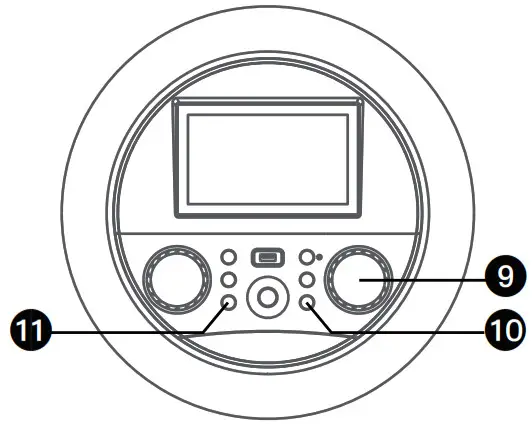
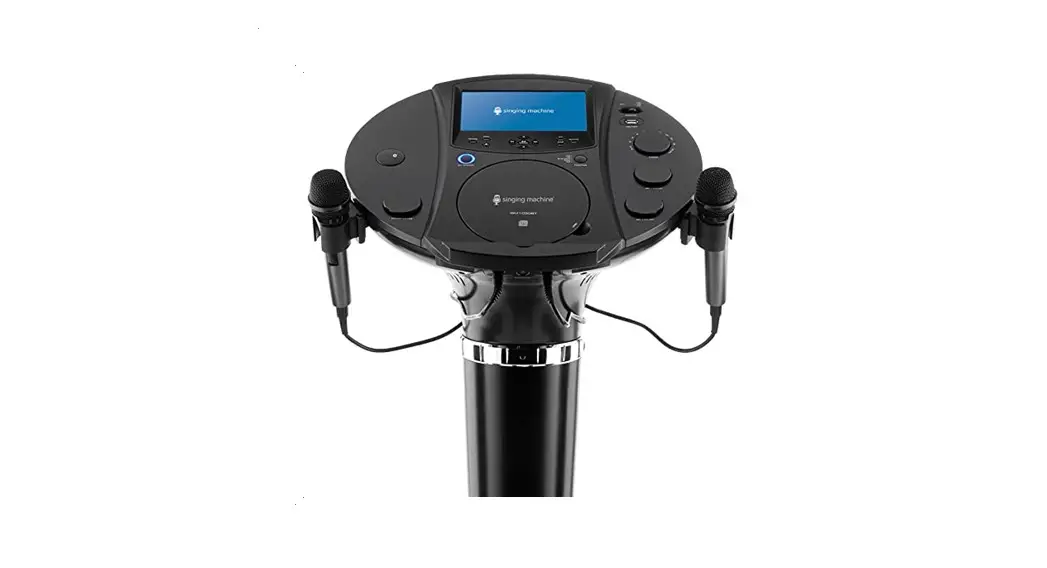
9. Adjust the MIC VOLUME/ECHO control as desired. Increasing this control will increase the volume of both microphones.
Press then rotate the MIC VOLUME/ECHO control as desired to add an echo effect to your voice. Rotate towards MAX to increase the echo.
10. Press the (RETURN) button to go back to the previous screen.
11. Press the (HOME) button to go to the home screen from any mode or screen. Press and hold the (HOME) button to go to menu.
RECORD YOUR VOCAL PERFORMANCE:
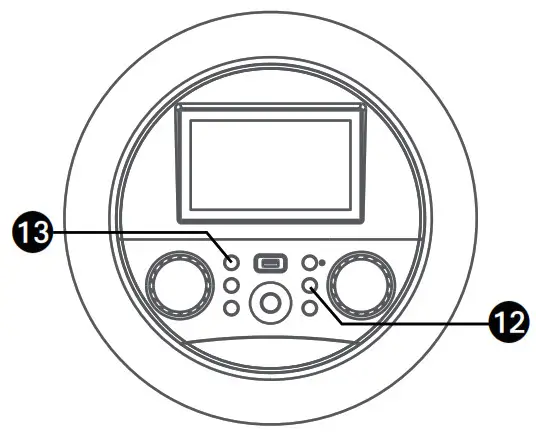
12. To record your singing as well as the music, press the  (RECORD) button. Recording wil begin and the recording indicator will show on-screen and the function indicator will start flashing red.
When done recording, press the (RECORD) button again; the function indicator will stop flashing.
Notes:
- You cannot start recording until the USB drive is inserted.
- Insert the USB flash drive into the USB slot on the unit with the face towards the top of the unit.
13. Press the  (ON/STANDBY) button to turn off the unit. The function indicator will turn off.
Using the LINE IN Jack
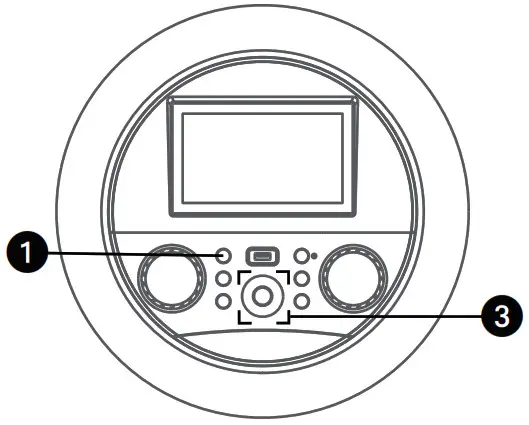
- Connect the unit as described previously. Press the (ON/ STANDBY) button to turn the unit on. The function indicator will light up
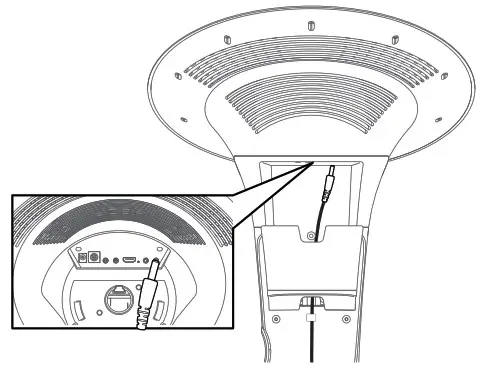
2. Connect the external device by using an appropriate cable (3.5mm audio cable not included) to the LINE IN Jack on the rear of this unit as previous described. Connecting an external unit will allow the audio to be played through your Singing Machine.
Notes:
- It is highly recommended to set the volume on the auxiliary unit to 1/3 or lower to avoid distortion.
- Skipping files/tracks is not possible on this unit when using an external device.

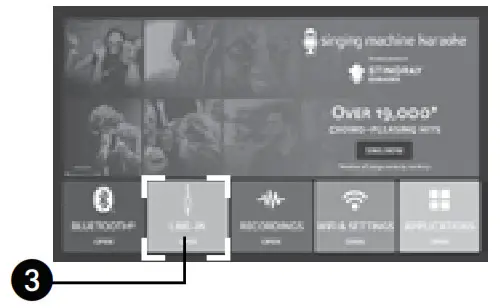
3. Select LINE IN icon using the touch screen or  /
/  /
/  /
/ navigation and
  (PLAY/ PAUSE/ENTER) buttons to enter the line in mode. The function indicator will light green.
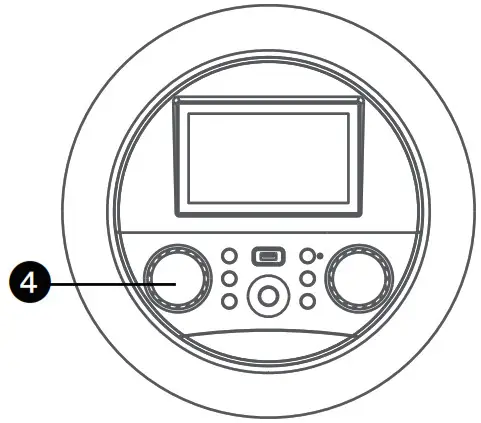 4. Adjust the MUSIC VOLUME control as desired.
6. Adjust the MIC VOLUME/ECHO control as desired. Increasing this control will increase the volume of both microphones.
Press then rotate the MIC VOLUME/ECHO control as desired to add an echo effect to your voice. Rotate towards MAX to increase the echo.
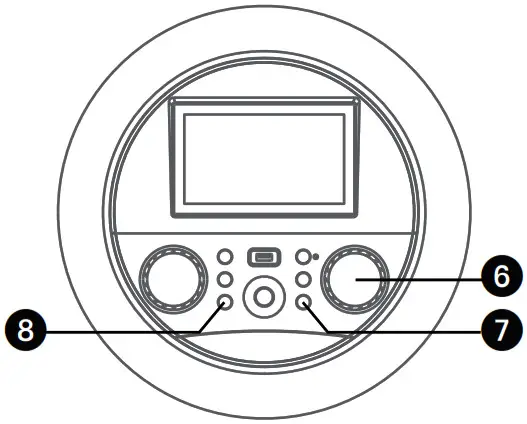
7. Press the (RETURN) button to go back to the previous screen.
8. Press the (HOME) button to go to the home screen from any mode or screen. Press and hold the (HOME) button to go to menu.
RECORD YOUR VOCAL PERFORMANCE: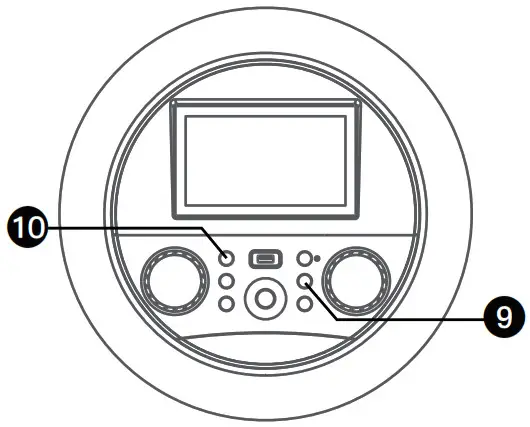
9. To record your singing as well as the music, press the (RECORD) button. Recording will begin and the recording indicator will show on-screen and the function indicator will start flashing red.
When done recording, press the (RECORD) button again; the function indicator will stop flashing.
Notes:
- You cannot start recording until the USB drive is inserted.
- Insert the USB flash drive into the USB slot on the unit with the face towards the top of the unit.
10. Press the  (ON/STANDBY) button to turn off the unit. The function indicator will turn off.
Playing Songs from the Recorded Files
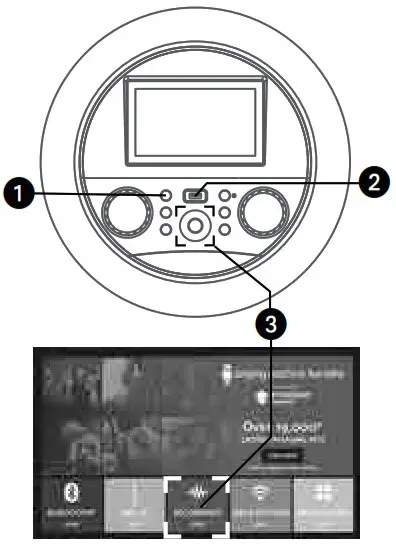
- Connect the unit as described previously. Press the
 (ON/ STANDBY) button to turn the unit on. The function indicator will light up.
 - Insert a USB flash drive into the USB port on the unit.
- Select RECORDINGS icon using the touch screen or / / / Navigation and (PLAY/ PAUSE/ENTER) buttons to enter. The function indicator will light orange.
4. Select a recorded audio file from the USB drive’s song list using the touch screen or / Navigation buttons. Then press the /ENTER button on the control panel to start the recorded audio file playback. Press the /ENTER button during playback to pause the file.
Note: To delete a file, select and hold it on the touch screen.
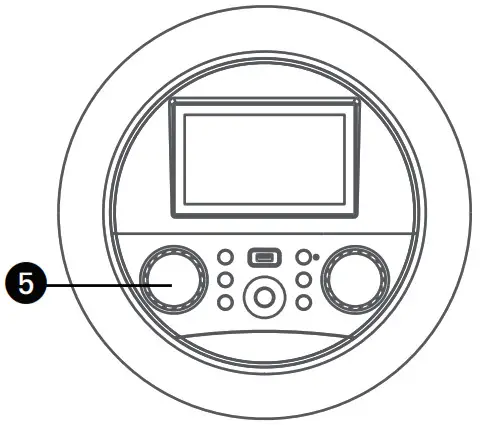
5. Adjust the MUSIC VOLUME control as desired.
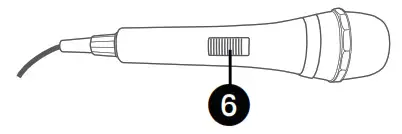
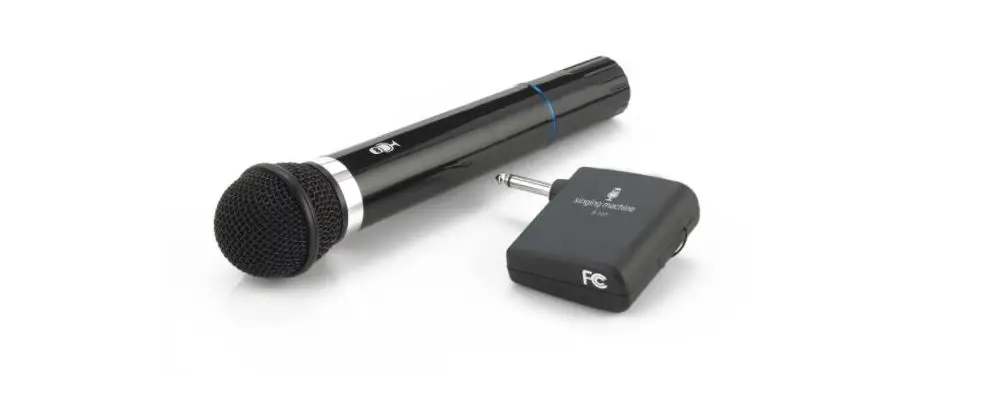
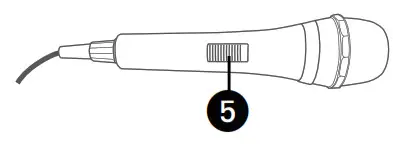
6. Connect microphone(s) and slide the ON/OFF switch on the microphone to the ON position.
7. Adjust the MIC VOLUME/ECHO control as desired. Increasing this control will increase the volume of both microphones. Press then rotate the MIC VOLUME/ECHO control as desired to add an echo effect to your voice. Rotate towards MAX to increase the echo.
8. Press the (RETURN) button to go back to the previous screen.
9. Press the (HOME) button to go to the home screen from any mode or screen. Press and hold the (HOME) button to go to menu.
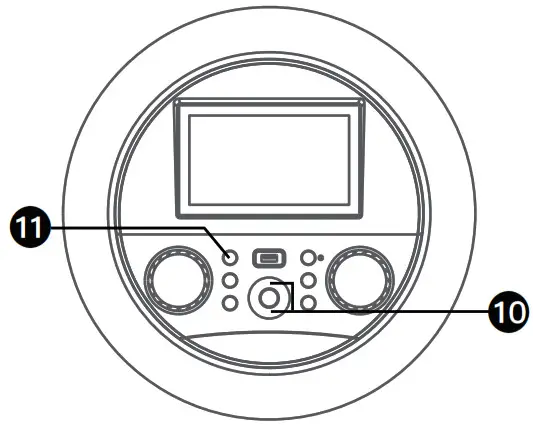
10. SKIP: Advance or go back one track by pressing the or (navigation) button.
11. Press the (ON/STANDBY) button to turn off the unit. The function indicator will turn off.
Troubleshooting Guide
Should this unit exhibit a problem, check the following before seeking service:
No Power
- Power is not on; press the ON/STANDBY button to turn power on.
- Confirm that the AC adapter is connected securely to the rear of the unit.
- Connect the unit to a different outlet.
- The normal function of the product may be disturbed by strong Electro-Magnetic Interference. If so, simply restart the product to resume normal operation by following the instruction manual. In case the function could not resume, please use the product in another location.
No Sound – General
- Music Volume is set to minimum; raise volume.
- If using an external device, raise the volume.
No sound from the microphone
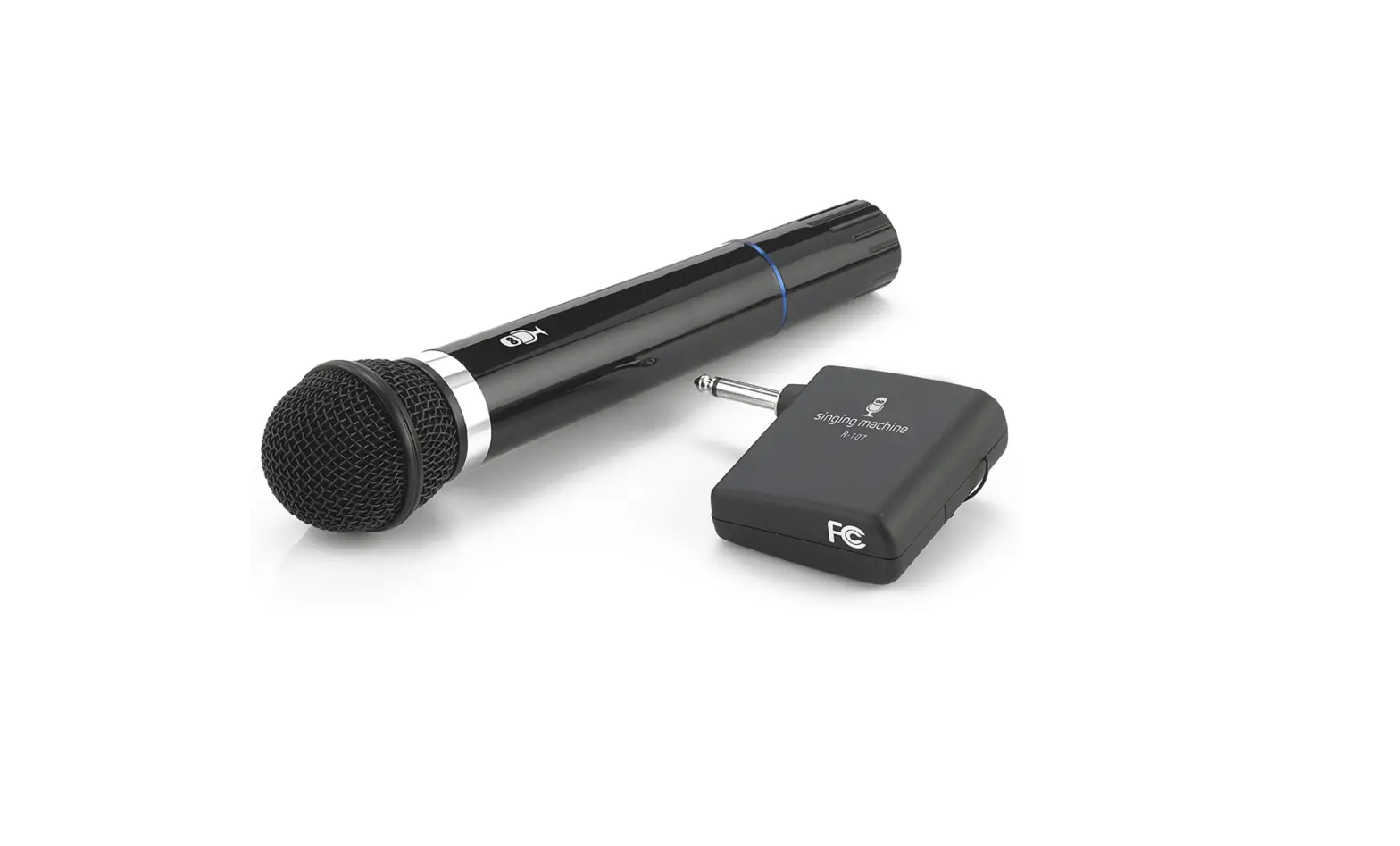
- Make sure the microphone is firmly connected to the MIC 1 or MIC 2 jack.
- Make sure the mic’s ON/OFF switch is set to the ON position.
- Make sure the MIC VOLUME/ECHO control is not set too low.
File(s) on USB jack not playing
- The file is corrupted; replace the file.
- The file is not in a format this unit will play.
- The connected USB device is not supported by the product.
The Bluetooth device cannot be paired or connected with the unit
- Ensure any other Bluetooth devices are turned off to avoid accidental pairing.
- You have not activated the Bluetooth function of your device; see page E16 or refer to the Bluetooth device user’s manual.
- The system is not in pairing mode; press and hold the
 button to restart pairing.
The Music is not available on the unit after successfully connecting the Bluetooth
- Ensure your Bluetooth device can support the A2DP Bluetooth profile.
- The volume on the external Bluetooth device is set too low or muted; raise as desired.
The unit will not record
- No USB drive inserted or the USB drive is full. Move all recordings to your computer to make room.
Failed to connect to the Wifi network
- The unit is not within the WiFi signal range.
- Check that your WiFi frequency is 2.4GHz.
- Ensure you have entered the correct password.
Specifications
AUDIO
Output Power ……………………………………………………………………………………………………. 60 Watts (RMS)
BLUETOOTH
Bluetooth Version ……………………………………………………………………………………………………………….V5.0
Working Distance ………………………………………….Up to 30 feet/10 meters measured in open space
USB
Format ……………………………………………………………………………………………………………………………… FAT32
Maximum Compatibility ……………………………………………………………………………………………………32GB
Wi-Fi frequency …………………………………………………………………………………………………………… 2.4GHz
GENERAL
Power …………………………………………………………………………………………………………..100-240V, 50-60Hz
Output ………………………………………………………………………………………. DC16.1V 3.5A Positive Center
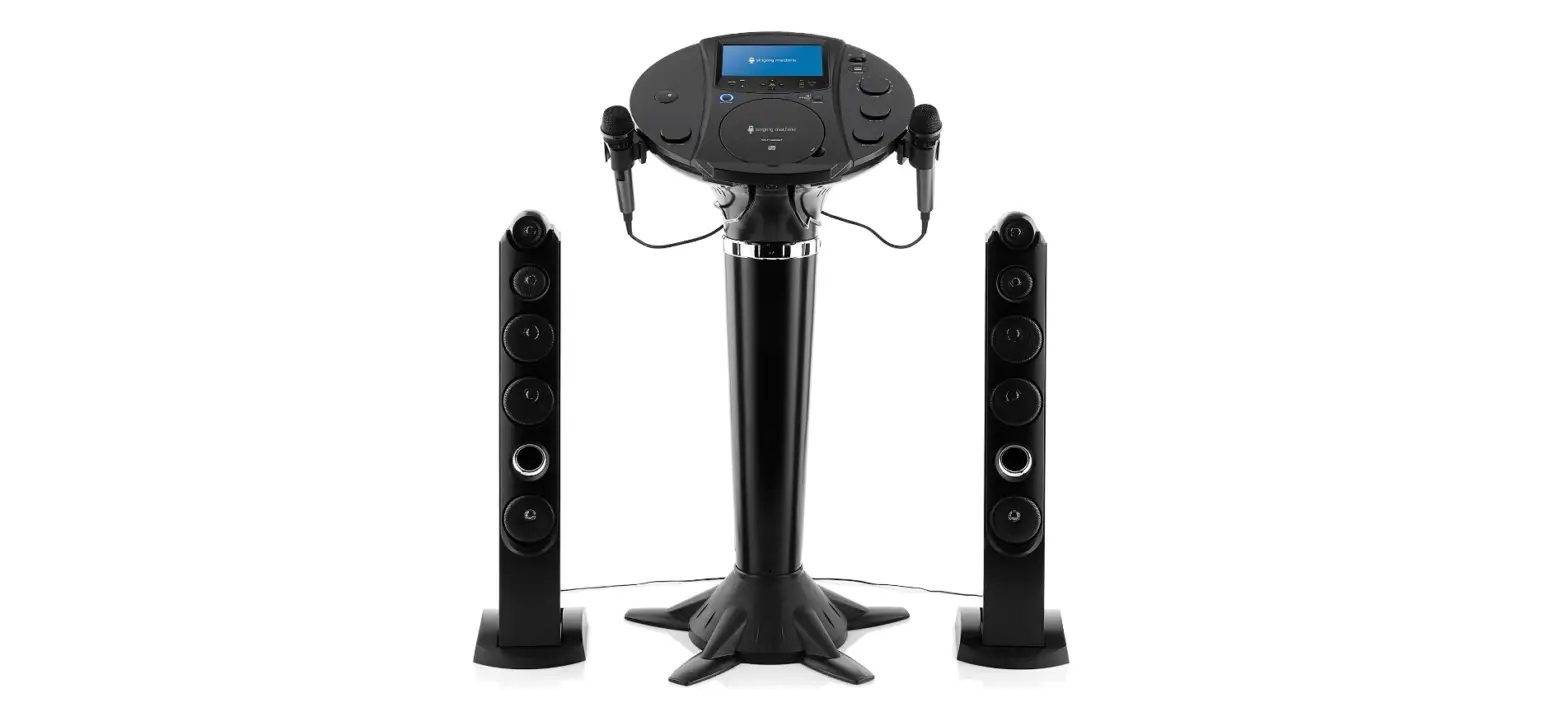
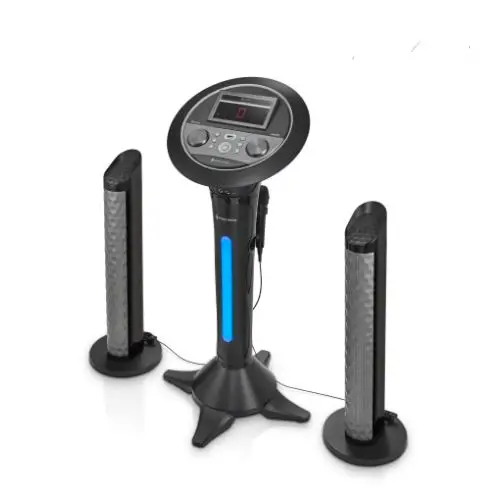
Dimensions – Main Unit ………………………………… 18.7 x 18.7 x 36.7 inches (47.5 x 47.5 x 93.2cm)
Speaker tower ……………………………………………………………. 9.1 x 9.1 x 26.8 inches (23 x 23 x 68cm)
Weight – Main Unit …………………………………………………………………………………………… 8.6Lbs (3.9kgs)
Speaker tower ……………………………………………………………………………….. 7.7Lbs (3.5kgs)
Microphone …………………………. -78 dB 600 Ohms impedance with 6.3 mm Dynamic Microphone
Line In ………………………………………………………………………………………………………….3.5mm Stereo Jack
Line Out ………………………………………………………………………………………………………3.5mm Stereo Jack
Internal memory …………………………………………………………………………………….. 1GB RAM, 8GB flash
Specifications are subject to change without notice.
 The terms HDMI and HDMI High-Definition Multimedia Interface, and the HDMI Logo are trademarks or registered trademarks of HDMI Licensing Administrator, Inc. in the United States and other countries.
 The Bluetooth® word mark and logos are registered trademarks owned by Bluetooth SIG, Inc. and any use of such marks and logos by The Singing Machine Company, Inc. is under license. Other trademarks and trade names are those of their respective owners.
Visit Our Website: www.singingmachine.com
Copyright © 2021 All Rights Reserved.
The Singing Machine Company, Inc.
4060 E Jurupa Street, Unit B
Ontario, CA 91761-1413 USA
U.S. Representative
Company Name: The Singing Machine Company, Inc.
Address: 6301 NW 5th Way, Suite 2900, Fort Lauderdale, FL33309, USA
Telephone: 954 -596-1000
Website: www.singingmachine.com
PRINTED IN CHINA