msi Realtek Audio Driver User Guide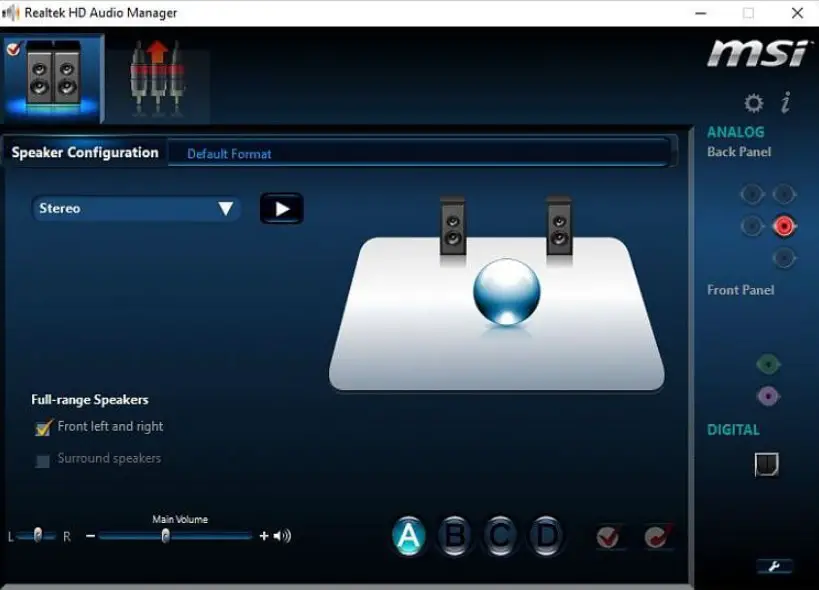
Quick Guide –Realtek Audio Driver Installation
This guide shows steps to install Realtek audio driver.
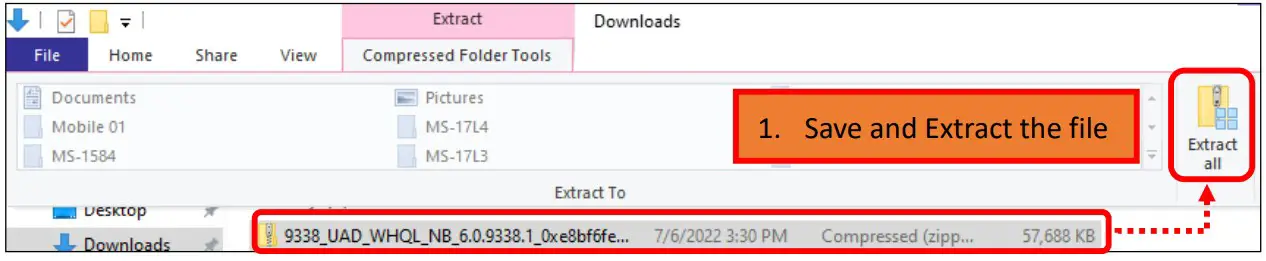
- Save and Extract the file

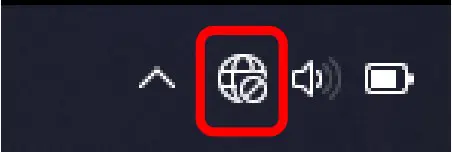
- Disconnect the network first to prevent any conflict with the drivers downloaded from Windows Update

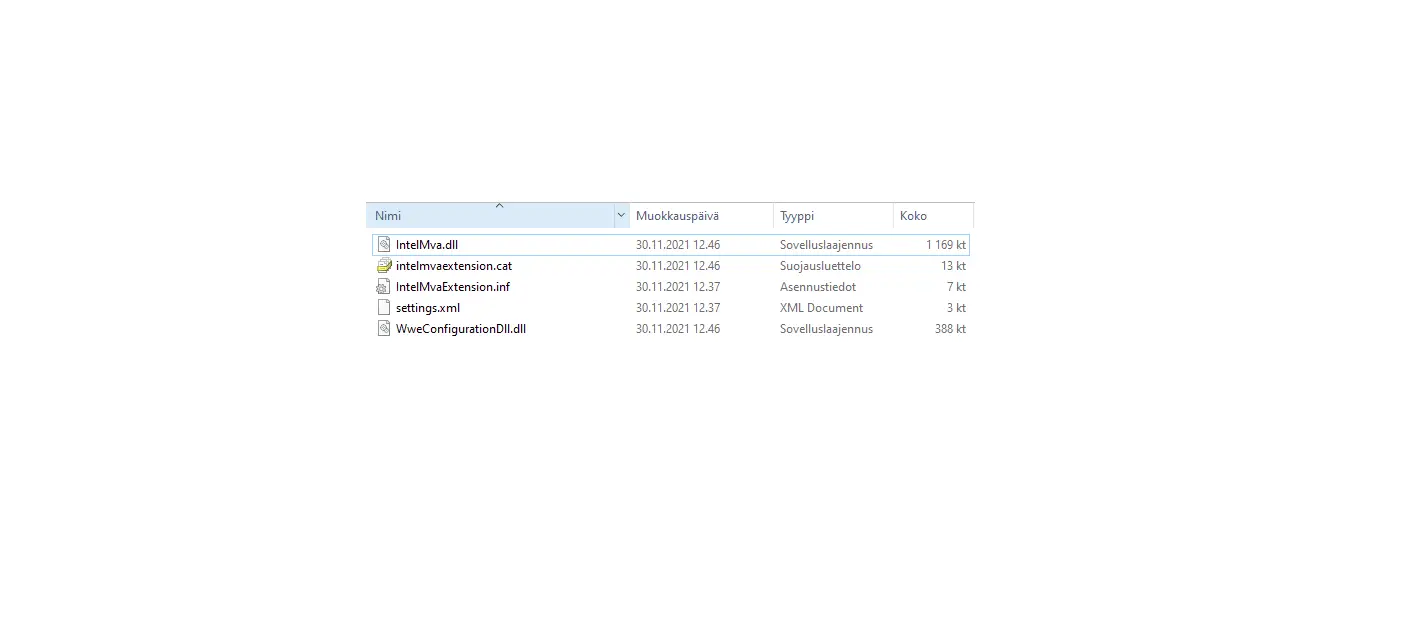
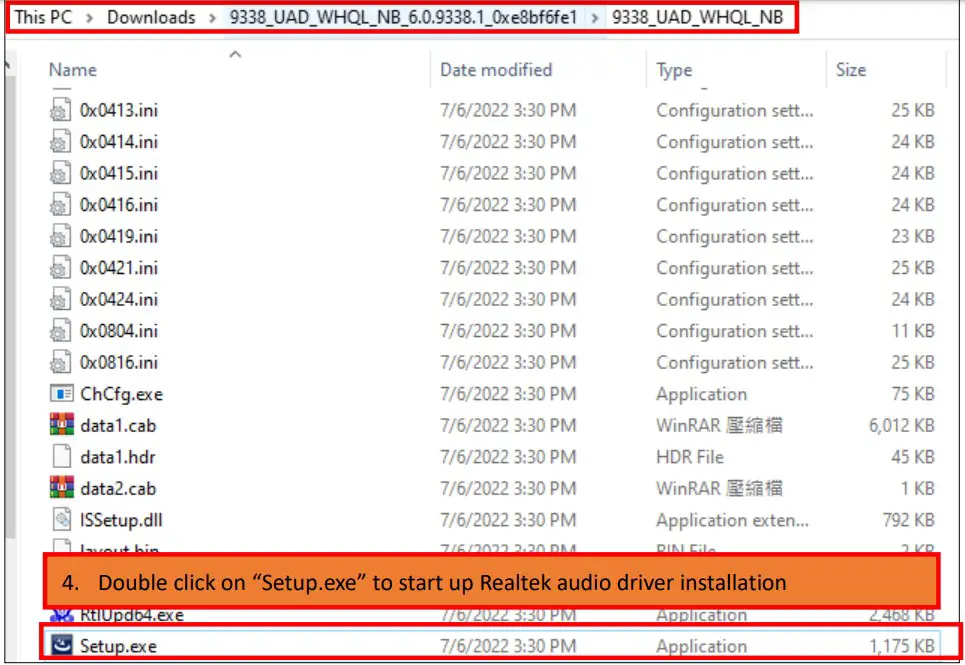
- Go to the file directory

- Double click on “Setup.exe” to start up Realtek audio driver installation
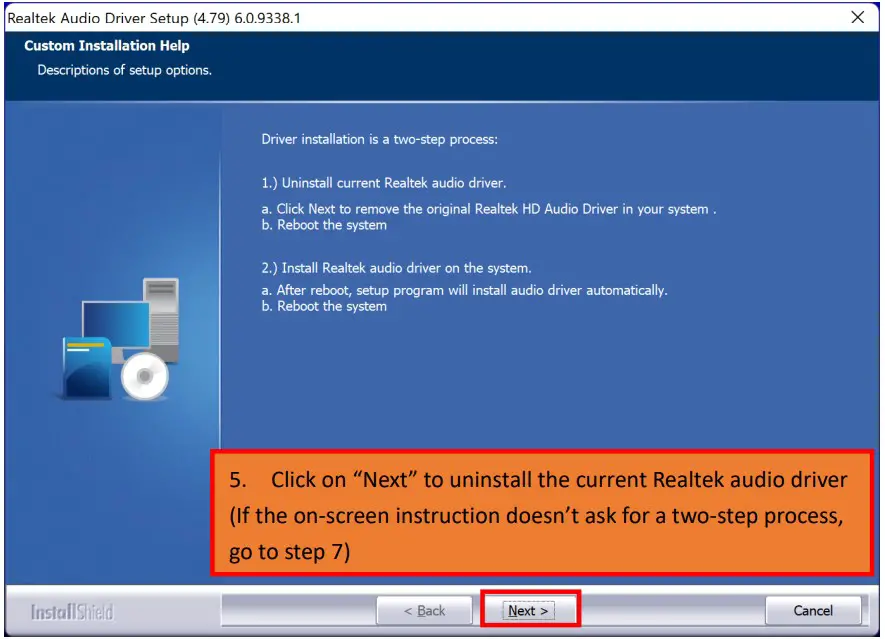
- Click on “Next” to uninstall the current Realtek audio driver (If the on-screen instruction doesn’t ask for a two-step process, go to step 7)

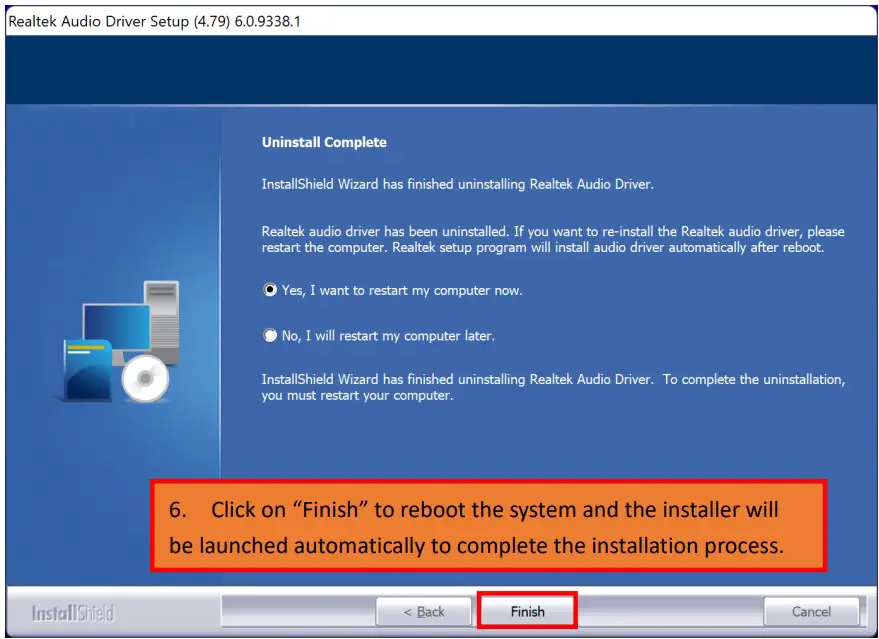
- Click on “Finish” to reboot the system and the installer will be launched automatically to complete the installation process.

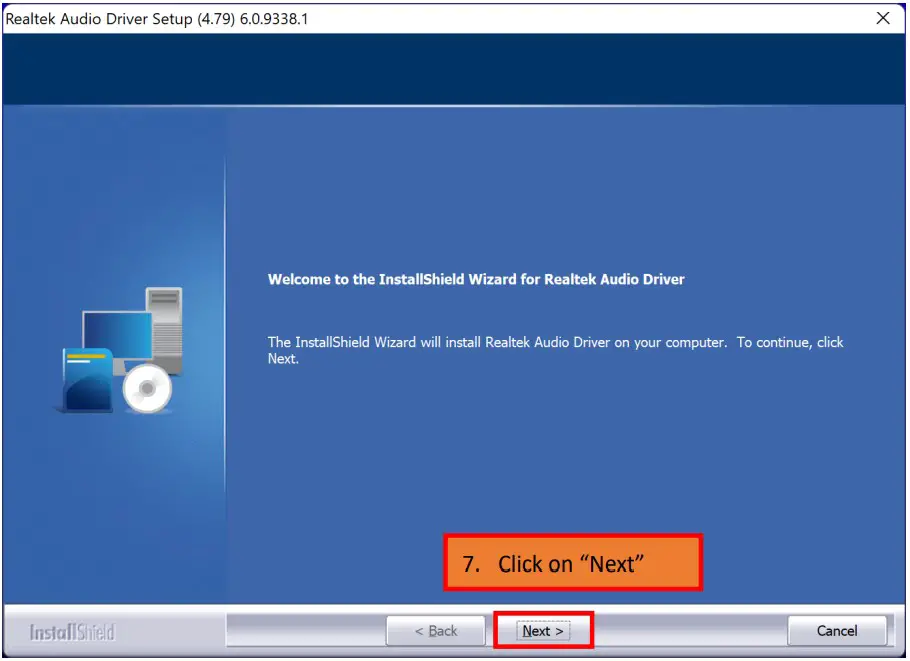
- Click on “Next”

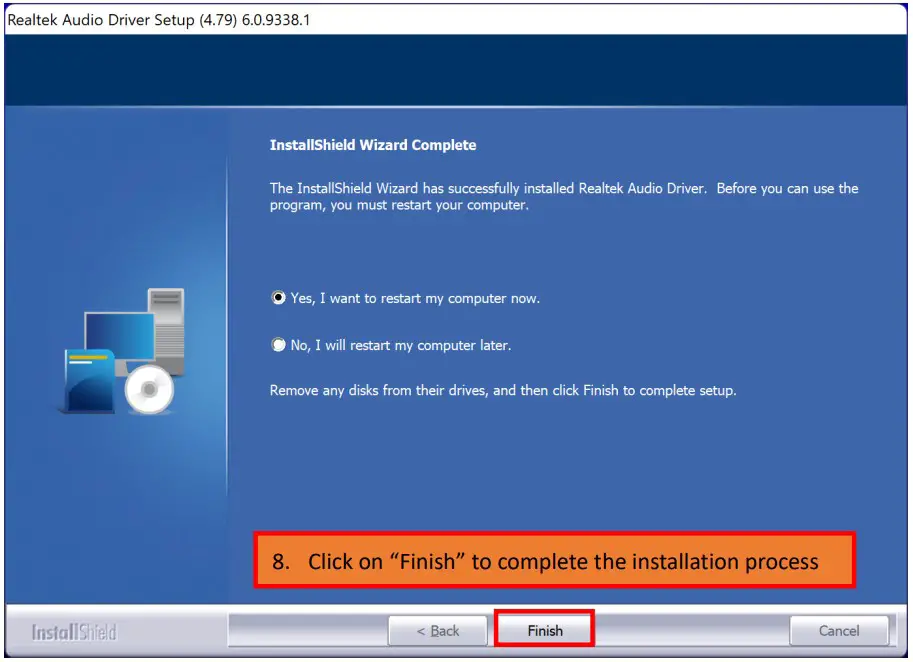
- Click on “Finish” to complete the installation process

MSI NB FAE Team︱Revision: 1.0︱Date: 2022/07/06 3