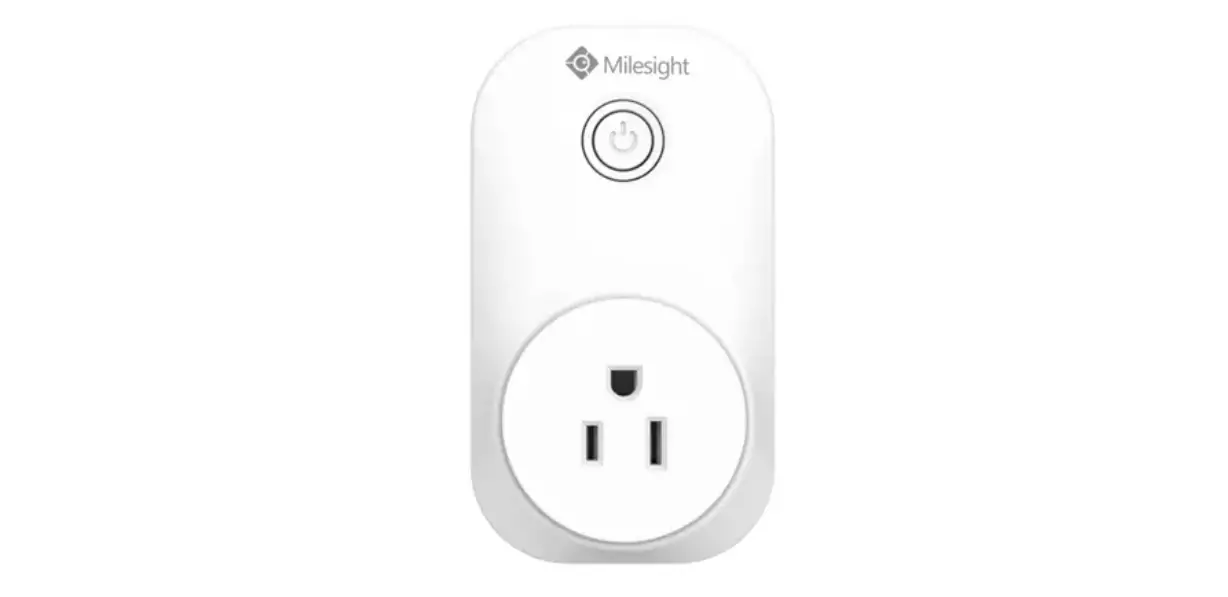
WS523 Portable Socket
Product Information
Portable Socket WS523
User Guide
Safety Precautions:
- Milesight will not shoulder responsibility for any losses or
damages resulting from not following the instructions of this
operating guide. - The device must not be modified in any way.
- In order to protect the security of the device, please change
the device password when first configuration. The default password
is 123456. - In order to get the best data transmission, ensure the device
is within the signal range. - Do not place the device close to objects with naked flames,
heat sources, cold sources, liquid, and extreme temperature
changes. - Use the device only in a clean environment. Dusty or dirty
environments may prevent the proper operation of this device. - The device must never be subjected to shocks or impacts.
- Use a dry, clean cloth to clean the device. Do not use strong
chemicals or detergents which may damage the device.
Declaration of Conformity:
WS523 is in conformity with the essential requirements and other
relevant provisions of the CE, FCC, and RoHS.
Revision History:
| Date | Doc Version | Description |
|---|---|---|
| August 11, 2021 | V 1.0 | Initial version |
| October 25, 2021 | V 1.1 | 1. Add multicast feature 2. Support RX2 configuration |
| January 10, 2022 | V 1.2 | Support power outage alert 1. Add Milesight D2D Agent feature 2. Add Single Channel mode 3. Add reboot downlink command 4. Add overcurrent protection feature |
| January 9, 2023 | V 1.3 | Support power outage alert |
Contents
- Product Introduction
- Hardware Introduction
- Operation Guide
Product Usage Instructions
Hardware Introduction
2.1 Packing List
If any of the above items is missing or damaged, please contact
your sales representative.
2.2 Hardware Overview
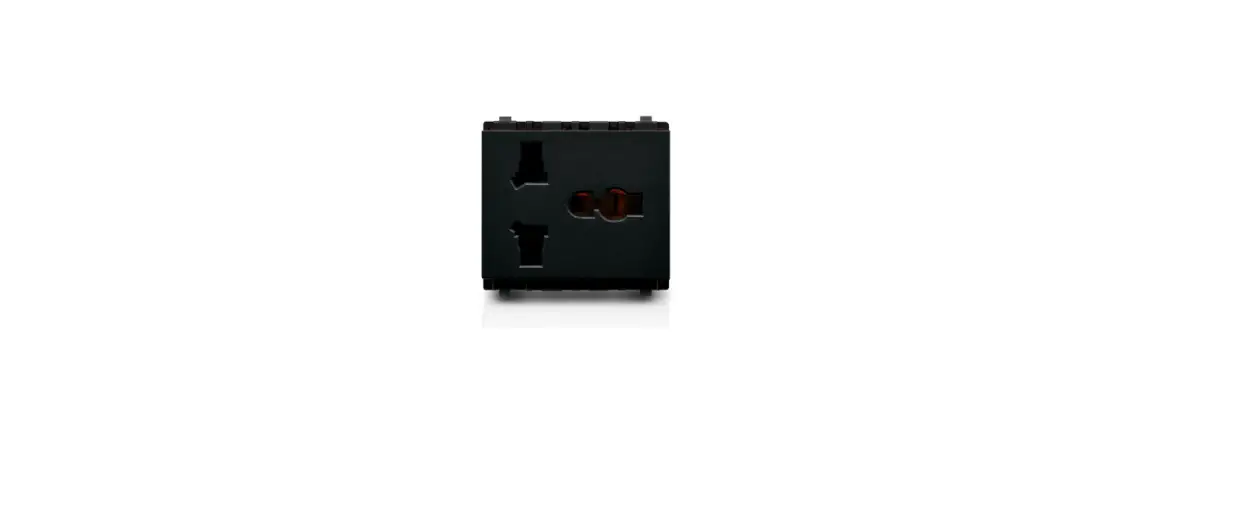
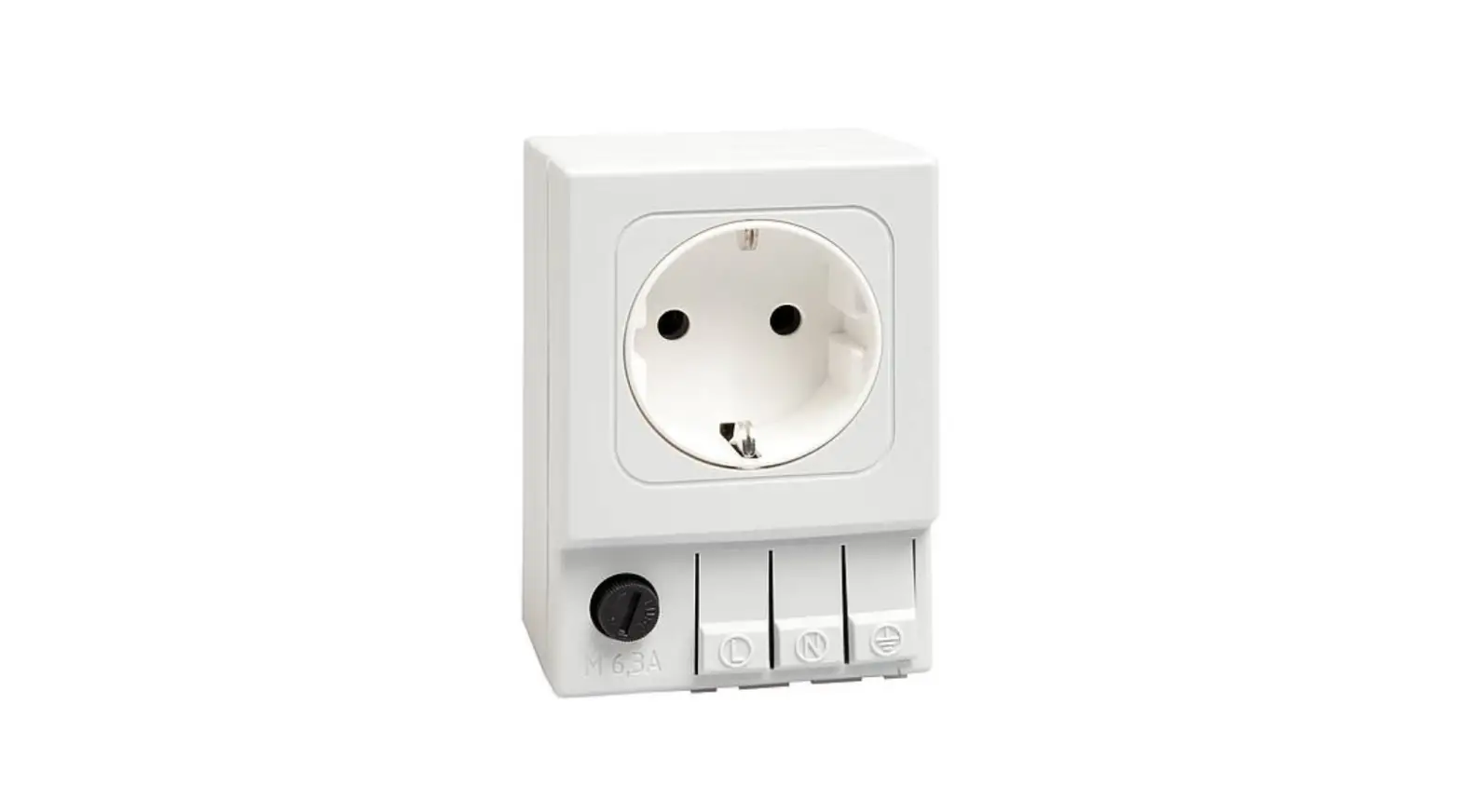
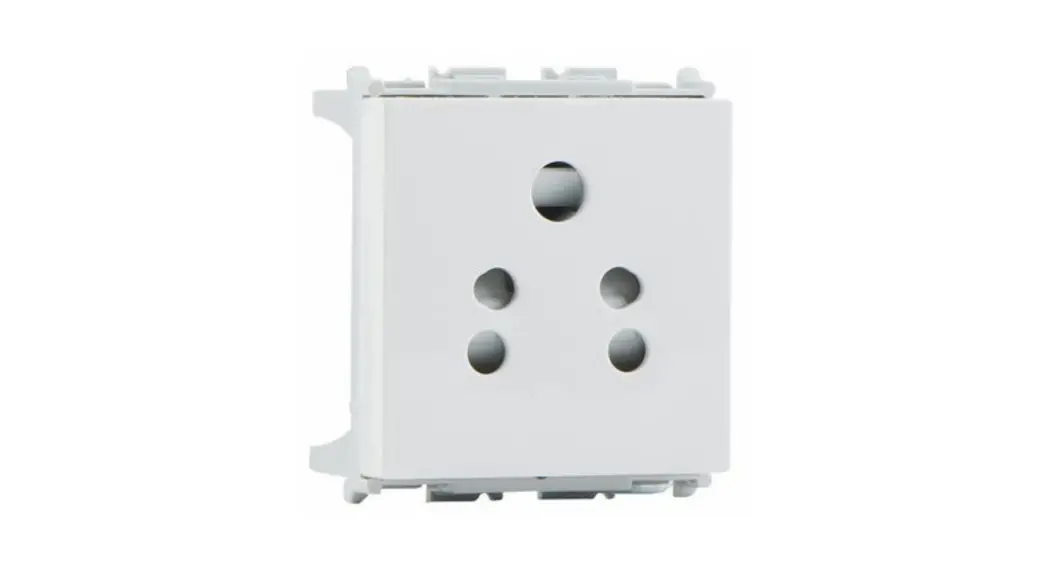
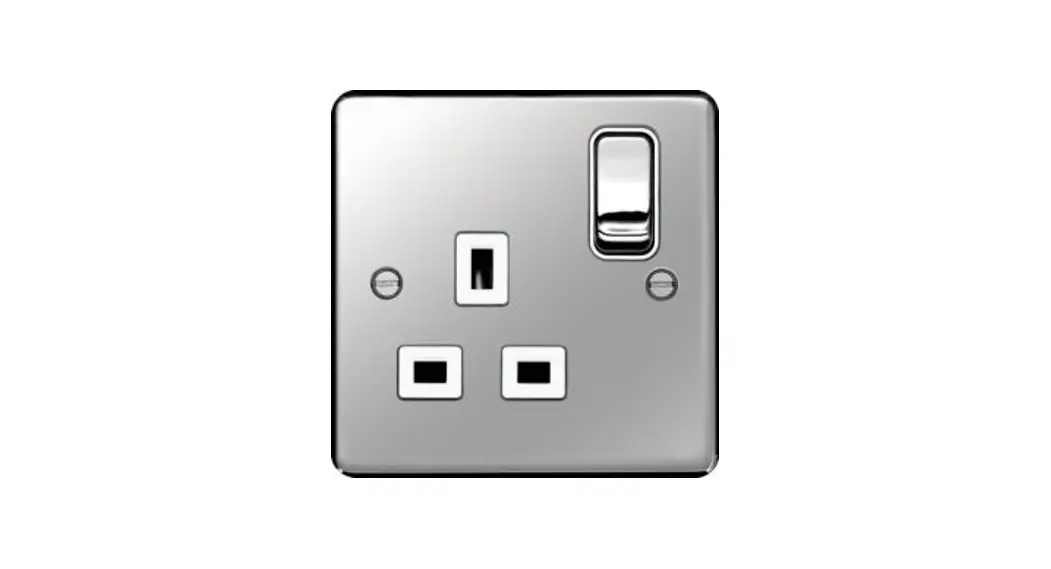
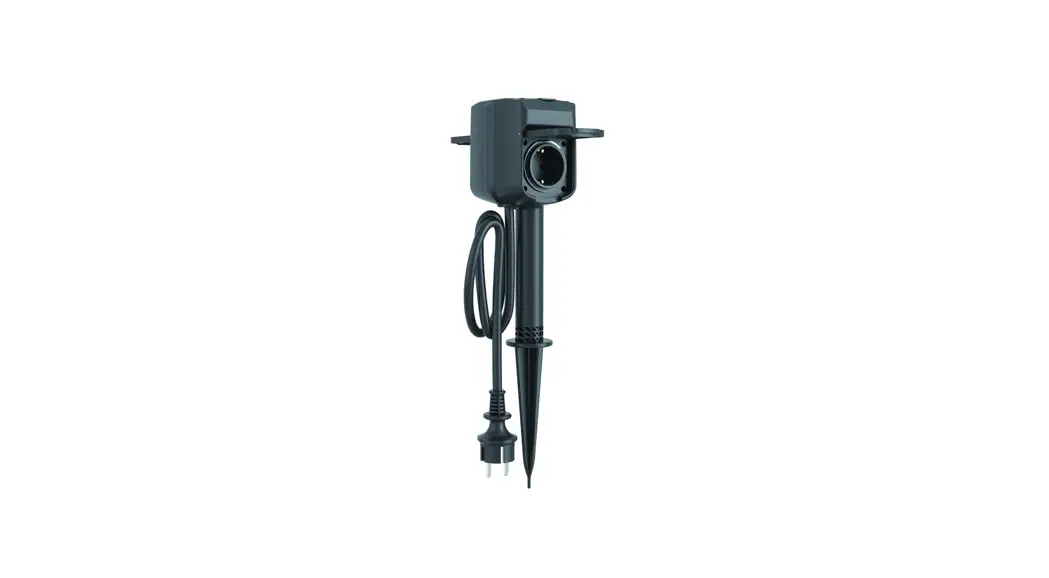
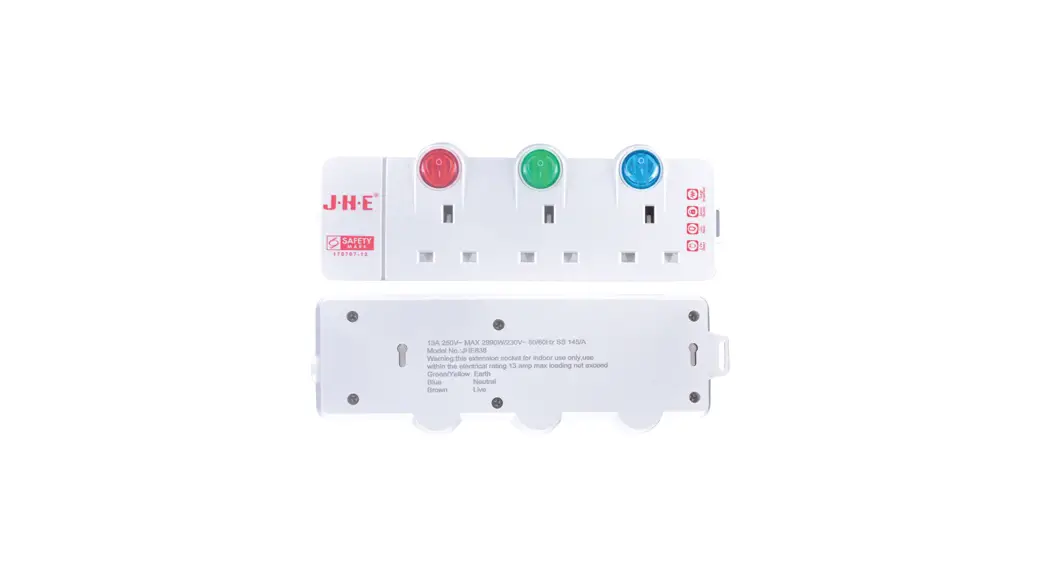
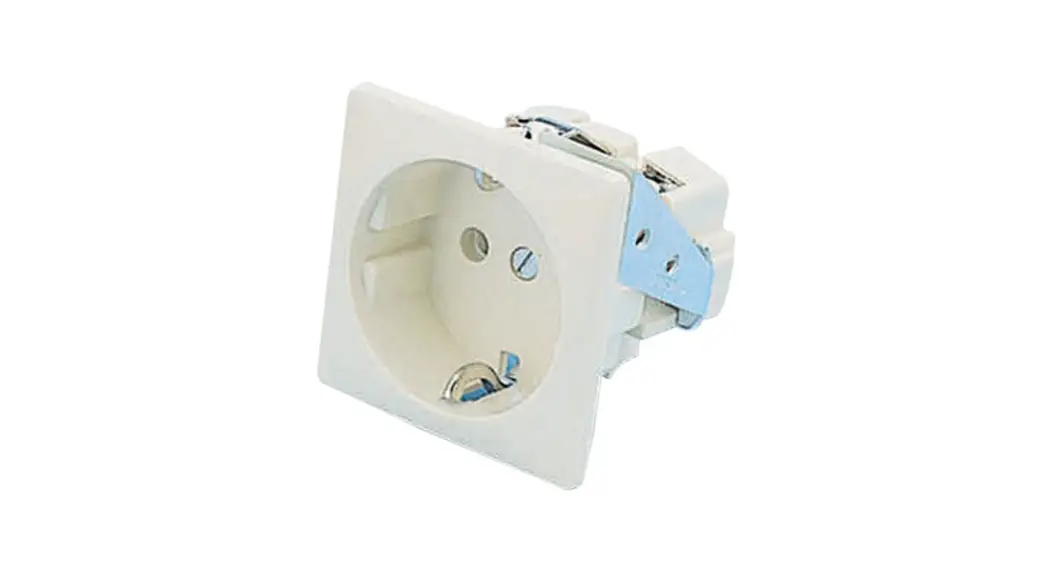
Note: The outlook will differ according to socket types.
2.3 Dimensions (mm)
Note: The plug size will differ slightly according to socket
types.
| Function | Action | LED Indicator |
|---|---|---|
| Open the Socket | Press the power button. | Off |
| Close the Socket | Press the power button. | Static On |
| Send join network requests | – | Blinks once |
| Network Status | Join the network successfully. | Blinks twice |
| Reset to Factory Default | Press and hold the power button for more than 10s. | Quickly blinks |
Note:
- Network status will only display when LED is enabled and the
socket powers on. - If WS523 still fails to join the network after 32 join
requests, the LED will stop blinking. - Reset operation is not affected even button lock is enabled or
LED indicator is disabled.
Operation Guide
3.1 NFC Configuration
Portable Socket
Featuring LoRaWAN®
WS523
User Guide
Safety Precautions
Milesight will not shoulder responsibility for any losses or damages resulting from not following the instructions of this operating guide. The device must not be modified in any way. In order to protect the security of the device, please change device the password when first
configuration. The default password is 123456. In order to get best data transmission, ensure the device is within the signal range of the
LoRaWAN® gateway and avoid the metal obstacles. Do not overload the maximum capacity in order to avoid the damage of the device. The device is intended only for indoor use. Do not place the device where the temperature is
below/above the operating range. Do not place the device close to objects with naked flames, heat source (oven or sunlight),
cold source, liquid and extreme temperature changes. Use the device only in clean environment. Dusty or dirty environments may prevent the
proper operation of this device. The device must never be subjected to shocks or impacts. Use a dry, clean cloth to clean the device. Do not use strong chemicals or detergents which
may damage the device.
Declaration of Conformity
WS523 is in conformity with the essential requirements and other relevant provisions of the CE, FCC, and RoHS.
Copyright © 2011-2023 Milesight. All rights reserved. All information in this guide is protected by copyright law. Whereby, no organization or individual shall copy or reproduce the whole or part of this user guide by any means without written authorization from Xiamen Milesight IoT Co., Ltd.
For assistance, please contact Milesight technical support: Email: [email protected] Support Portal: support.milesight-iot.com Tel: 86-592-5085280 Fax: 86-592-5023065 Address: Building C09, Software Park III,
Xiamen 361024, China
2
Revision History
Date August 11, 2021 October 25, 2021 January 10, 2022
January 9, 2023
Doc Version V 1.0 V 1.1 V 1.2
V 1.3
Description Initial version 1. Add multicast feature 2. Support RX2 configuration Support power outage alert 1. Add Milesight D2D Agent feature 2. Add Single Channel mode 3. Add reboot downlink command 4. Add overcurrent protection feature
3
Contents
1. Product Introduction …………………………………………………………………………………………………………. 5 1.1 Overview …………………………………………………………………………………………………………………..5 1.2 Features ………………………………………………………………………………………………………………….. 5
2. Hardware Introduction ………………………………………………………………………………………………………. 5 2.1 Packing List ………………………………………………………………………………………………………………5 2.2 Hardware Overview ………………………………………………………………………………………………….. 6 2.3 Dimensions (mm) …………………………………………………………………………………………………….. 6 2.4 Power Button and LED Patterns ………………………………………………………………………………… 6
3. Operation Guide …………………………………………………………………………………………………………………7 3.1 NFC Configuration ……………………………………………………………………………………………………. 7 3.2 LoRaWAN Settings …………………………………………………………………………………………………… 8 3.2.1 Basic Settings ………………………………………………………………………………………………… 8 3.2.2 Multicast Settings ………………………………………………………………………………………….10 3.3 General Settings …………………………………………………………………………………………………….. 12 3.4 Milesight D2D Settings …………………………………………………………………………………………….14 3.5 Maintenance ………………………………………………………………………………………………………….. 14 3.5.1 Upgrade ……………………………………………………………………………………………………….. 14 3.5.2 Backup ………………………………………………………………………………………………………….15 3.5.3 Reset to Factory Default …………………………………………………………………………………16
4. Device Payload ……………………………………………………………………………………………………………….. 17 4.1 Basic Information …………………………………………………………………………………………………… 17 4.2 Sensor Data …………………………………………………………………………………………………………… 18 4.3 Power Outage Alert ………………………………………………………………………………………………… 18 4.4 Downlink Commands ……………………………………………………………………………………………… 19
4
1. Product Introduction
1.1 Overview
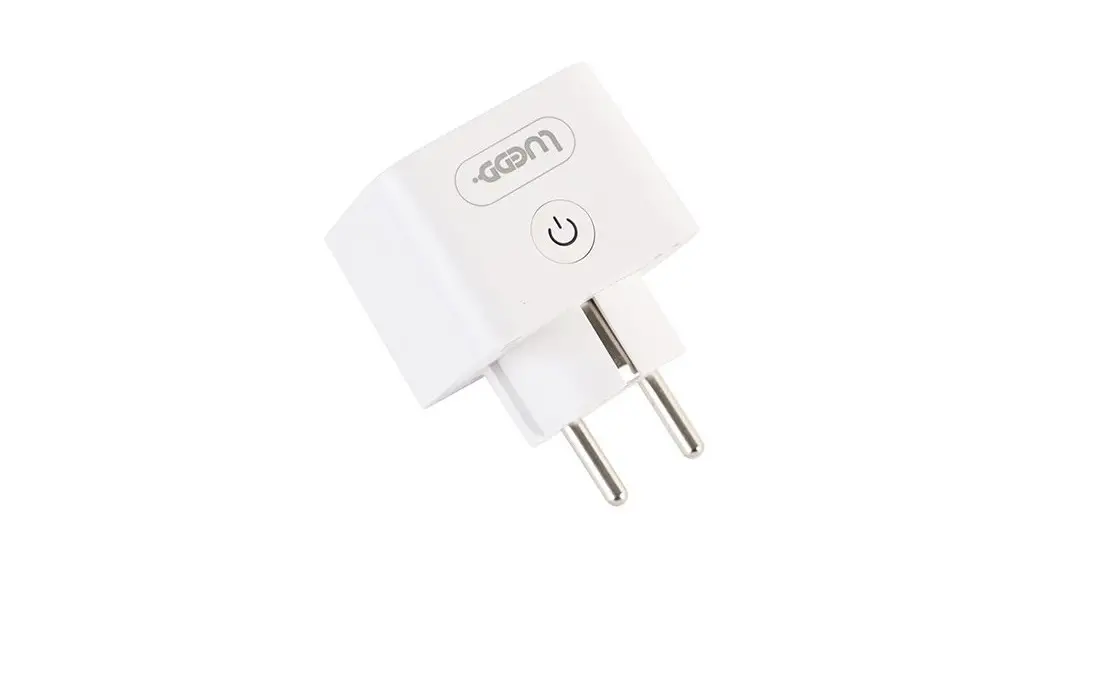
WS523 is a LoRaWAN® smart portable socket for the monitoring and control of electronic appliances. Supporting a variety of international socket types, WS523 can be used to turn on or off the electronic devices locally or remotely, to measure power consumption data, and even to send alarms in case of overcurrent events. Due to its intelligence, WS523 is suitable for wireless control of indoor lights, fans, heaters, machines, etc.
Power data is transmitted via LoRaWAN® protocol, and LoRaWAN® technology enables encrypted radio transmissions over long distances while consuming very little power. Also, users can check visualized data through Milesight IoT Cloud or through the user’s own Application Server.
1.2 Features
Plug & play experience Support a variety of international socket types Turn on/off devices and create timing switch-on/off schedules remotely Collect data of current, voltage, electrical consumption Support overload protection Up to 15 km communication range Easy configuration via NFC Standard LoRaWAN® technology Compatible with Milesight IoT Cloud and Milesight ToolBox
2. Hardware Introduction 2.1 Packing List
1× WS523 Socket
1× Quick Guide
1× Warranty Card
If any of the above items is missing or damaged, please contact your sales representative.
5
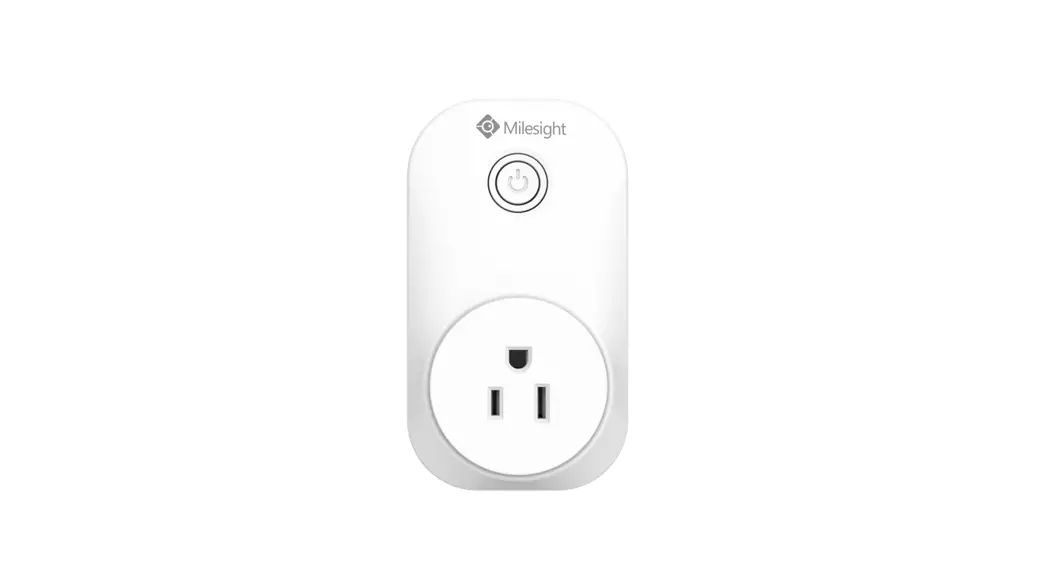
2.2 Hardware Overview
Note: The outlook will differ according to socket types.
2.3 Dimensions (mm)
Note: The plug size will a little differ according to socket types.
2.4 Power Button and LED Patterns
Function
Action
LED Indicator
Open the Socket Press the power button.
Close the Socket
Off Static On Static On Off
Send join network requests. Network Status
Join the network successfully.
Blinks once Blinks twice
Reset to Factory Press and hold the power button for more than 10s.
Default
Quickly blinks
Note:
1) Network status will only display when LED is enabled and the socket powers on.
2) If WS523 still fails to join the network after 32 join requests, the LED will stop blinking.
3) Reset operation is not affected even button lock is enabled or LED indicator is disabled.
6
3. Operation Guide 3.1 NFC Configuration
WS523 can be configured via smartphone with NFC function. 1. Plug WS523 into a wall socket, then WS523 will switch on automatically.
2. Download and install “Milesight ToolBox” App from Google Play or App Store. 3. Enable NFC on the smartphone and launch Milesight ToolBox. 4. Attach the smartphone with NFC area to the device to read device information. Basic information and settings of the device will be shown on ToolBox App if it’s recognized successfully. You can read and configure the device by tapping the Read/Write device on the App. In order to protect the security of the device, password validation is required when configuring via smartphone. Default password is 123456. 5. Press the power button, WS523 portable socket will supply the electric power to other electronic appliances.
Note: 1) Check the NFC area of your smartphone and it’s recommended to remove the phone case. 2) If the smartphone fails to read/write configurations via NFC, move the phone away and back to try again. 3) WS523 can also be configured on ToolBox via dedicated NFC reader provided by Milesight IoT.
7
3.2 LoRaWAN Settings
LoRaWAN settings are used to configure the data transmission parameters in LoRaWAN® network.
3.2.1 Basic Settings
WS523 supports basic configurations like join type, App EUI, App Key and other information. You can also keep all settings by default.
Parameters
Description
Device EUI
Unique ID of the device which can also be found on the label.
App EUI
Default App EUI is 24E124C0002A0001.
Application Port The port used for sending and receiving data, default port is 85.
Join Type
OTAA and ABP modes are available.
Application Key Appkey for OTAA mode, default is 5572404C696E6B4C6F52613230313823.
Device Address DevAddr for ABP mode, default is the 5th to 12th digits of SN.
Network Session Nwkskey for ABP mode, default is 5572404C696E6B4C6F52613230313823.
Key
Application Session Key
Appskey for ABP mode, default is 5572404C696E6B4C6F52613230313823.
LoRaWAN Version V1.0.2, V1.0.3 are available.
Work Mode
It’s fixed as Class C.
RX2 Data Rate RX2 data rate to receive downlinks or Milesight D2D commands.
RX2 Frequency RX2 frequency to receive downlinks or Milesight D2D commands. Unit: Hz
8
Channel Mode
Select Standard-Channel mode or Single-Channel mode. When Single-Channel mode is enabled, only one channel can be selected to send uplinks. Please enable Single-Channel mode if you connect device to DS7610. Enable or disable the frequency to send uplinks.
Channel
If frequency is one of CN470/AU915/US915, enter the index of the channel that you want to enable and make them separated by commas. Examples: 1, 40: Enabling Channel 1 and Channel 40 1-40: Enabling Channel 1 to Channel 40 1-40, 60: Enabling Channel 1 to Channel 40 and Channel 60 All: Enabling all channels Null: Indicates that all channels are disabled
Spread Factor If ADR is disabled, the device will send data via this spread factor. 9
If the device does not receive ACK packet from network server, it will resend Confirmed Mode
data once.
Reporting interval 30 mins: device will send specific numbers of LoRaMAC
packets to check connection status every 30 mins; If no replies after specific
Rejoin Mode
packets are being sent, the device will re-join. Reporting interval > 30 mins: device will send specific numbers of LoRaMAC
packets to check connection status at every reporting interval; If no replies
after specific packets are being sent, the device will re-join.
Set the number of When rejoin mode is enabled, set the number of LinkCheckReq packets sent.
packets sent
ADR Mode
Allow network server to adjust data rate of the device.
Tx Power
Transmit power of device.
Note:
1) Please contact sales representative for device EUI list if there are many units.
2) Please contact sales representative if you need random App keys before purchase.
3) Select OTAA mode if you use Milesight IoT Cloud to manage devices.
4) Only OTAA mode supports rejoin mode.
5) For -868M model, the default frequency is EU868; for -915M model, the default frequency is
AU915.
3.2.2 Multicast Settings
WS523 supports setting up several multicast groups to receive multicast commands from network server and users can use this feature to control devices in bulks. 1. Enable Multicast Group on WS523, set a unique multicast address and keys to distinguish other groups. You can also keep these settings by default.
10
Parameters
Description
Multicast Address Unique 8-digit address to distinguish different multicast groups.
32-digit key. Default values:
Multicast Group 1: 5572404C696E6B4C6F52613230313823
McNetSkey
Multicast Group 2: 5572404C696E6B4C6F52613230313824
Multicast Group 3: 5572404C696E6B4C6F52613230313825
Multicast Group 4: 5572404C696E6B4C6F52613230313826
32-digit key. Default values:
Multicast Group 1: 5572404C696E6B4C6F52613230313823
McAppSkey Multicast Group 2: 5572404C696E6B4C6F52613230313824
Multicast Group 3: 5572404C696E6B4C6F52613230313825
Multicast Group 4: 5572404C696E6B4C6F52613230313826
2. Add a multicast group on the network server. Take Milesight UG6x gateway as example, go to Network Server > Multicast Groups, click Add to add a multicast group.
Fill in the multicast group information the same as WS523 settings, and select the devices which you need to control, then click Save.
11
3. Go to Network Server > Packets, select the multicast group and fill in the downlink command, click Send. The network server will broadcast the command to devices which belongs to this multicast group. Note: ensure all devices’ application ports are the same.
3.3 General Settings
Go to Device > Settings > General Settings of ToolBox App to change the reporting interval, etc.
12
Parameters
Description
The interval of reporting socket status and electrical parameters. Default: Reporting Interval
20 mins, Range: 1-1080 mins
LED Indicator Enable or disable the light indicating in chapter 2.4.
Power
Record the power consumption. If disabled, the device will stop recording
Consumption and the power consumption value will stop updating.
When Power is If the device loses power and return to power supply, the device will switch
Restored, Socket the socket on or off according to this parameter.
Button Lock If enabled, the power button status will freeze except reset.
When current reaches the threshold, the device will send socket status and Overcurrent Alarm
device electrical parameters.
Overcurrent Protection
When current reaches the threshold, the device will stop supplying power.
Change Password Change the password for ToolBox App to write this device.
Note: even overcurrent alarm or overcurrent protection is disabled, the device will also stop supplying power when the current is over rated current by 30%, then send out an alarm packet.
13
3.4 Milesight D2D Settings
Milesight D2D protocol is developed by Milesight and used for connection among Milesight devices without gateway. When Milesight D2D setting is enabled, WS523 can work as the Milesight D2D Agent device to receive commands from Milesight D2D controller devices. 1. Ensure the RX2 datarate and RX2 frequency in LoRaWAN settings are the same as the controller device. 2. Enable D2D Settings, and define an unique D2D key to be the same as the settings in the Milesight D2D controller device.(Default D2D Key: 5572404C696E6B4C6F52613230313823) 3. Define a 2-byte hexadecimal control command (0x0000 to 0xffff) and command action. For example, you can configure a control command 1510 to turn on the button as below. WS523 supports at most 16 control commands.
3.5 Maintenance
3.5.1 Upgrade
1. Download firmware from www.milesight-iot.com to your smartphone. 2. Open ToolBox App and click “Browse” to import firmware and upgrade the device. Note: 1) Operation on ToolBox is not supported during upgrade. 2) Only Android version ToolBox supports the upgrade feature.
14
3.5.2 Backup
WS523 supports configuration backup for easy and quick device configuration in bulk. Backup is allowed only for devices with the same model and LoRaWAN® frequency band. 1. Go to “Template” page on the App and save current settings as a template. You can also edit the template file. 2. Select one template file that saved in the smartphone and click “Write”, then attach it to another device to write configuration.
Note: Slide the template item to the left to edit or delete the template. Click the template to edit the configurations.
15
3.5.3 Reset to Factory Default
Please select one of the following methods to reset device: Via Hardware: Hold on the power button for more than 10s until LED quickly blinks. Via ToolBox App: Go to Device > Maintenance to tap Reset, then attach smartphone with NFC area to device to complete the resetting.
16
4. Device Payload
All data are based on the following format (HEX), the Data field should follow little-endian:
Channel1 Type1 Data1 Channel2 Type2 Data2 Channel 3 …
1 Byte 1 Byte N Bytes 1 Byte 1 Byte M Bytes 1 Byte
…
For decoder examples you can find at https://github.com/Milesight-IoT/SensorDecoders.
4.1 Basic Information
WS523 reports basic information of device every time when it joins the network.
Channel
Type
Description
01(Protocol Version)
01=>V1
09 (Hardware Version)
01 40 => V1.4
0a (Software Version)
01 14 => V1.14
0b (Power On) 16 (Device SN)
Device is on 16 digits
ff 24 (Overcurrent Alarm)
Byte 1: 00-disabled, 01-enabled Byte 2: current threshold
25 (Button Lock)
00 00-disabled, 00 80-enabled
26 (Power Consumption) 00-disabled, 01-enabled
Byte 1: 00-disabled, 01-enabled 30 (Overcurrent Protection)
Byte 2: current threshold
Example:
ff0101 ff166148b13783621055 ff090100 ff0a0103 ff24010a ff30010a ff250080 ff2601
Channel ff
Channel ff
Channel ff
Channel
Type 01
(Protocol Version)
Type 09
(Hardware Version)
Type 24
(Overcurrent Alarm) Type
Value
Channel
01(V1)
ff
Value
Channel
0100 (V1.0)
ff
Value
Channel
01=>Enabled
ff
0a=10A
Value
Channel
Type
16(Device SN)
Type 0a
(Software Version)
Type 30
(Overcurrent Protection)
Type
Value
6148b13783 621055
Value
0103 (V1.3)
Value
01=>Enabled 0a=10A
Value
17
25(Button
00
26 (Power
ff
ff
01=>Enabled
Lock)
80=>Enabled
Consumption)
4.2 Sensor Data
WS523 reports electrical data according to reporting interval (20 mins by default) or when
current reaches the overcurrent threshold.
Channel
Type
Description
UINT16, Unit: V
03
74 (Voltage)
Resolution: 0.1V
04
80 (Active Power)
UINT32, Unit: W
05
81 (Power Factor)
UINT8, Unit: %
06
83 (Power Consumption) UINT32, Unit: Wh
07
c9 (Current)
UINT16, Unit: mA
08
70 (Socket Status)
00: Close, 01: Open
Example:
087001 058129 07c91200 0374f508 068305000000 048001000000
Channel 08
Channel
Type 70 (Socket
Status) Type
Value 01 => Open
Value
Channel 05
Channel
07
C9 (Current)
12 00=>00 12=18mA
03
Channel 06
Type
83(Power Consumption)
Value 05 00 00 00=>00
00 00 05=5 Wh=0.005kWh
Channel 04
Type 81 (Power
Factor) Type
74(Voltage)
Type 80 (Active
Power)
Value
29=> 41%
Value f5 08=>08 f5=2293 Voltage=2293 *0.1=229.3V
Value 01 00 00 00=>00 00 00 01=1 W
4.3 Power Outage Alert
WS523 will report an alert message when power supply of WS523 is disconnected. This feature
only works with hardware version 1.2 and later.
ff3fff
Channel
Type
Value
ff
3f (Power Outage)
ff(Reversed)
18
4.4 Downlink Commands
WS523 supports downlink commands to configure the device. Application port is 85 by default.
Channel
Type
Description
08
/
00 00 ff-close, 01 00 ff-open
03 (Set Reporting Interval) 2 Bytes, unit: s
10 (Reboot)
ff
Byte 1: 00
Byte 2-3: delay time, unit: s
22 (Add Delay Task)
Byte 4: 10-close, 11-open
Note: WS523 supports adding only one task.
Later command will cover previous command.
23 (Delete Delay Task)
00 ff
ff
Byte 1: 00-disable, 01-enable
24 (Overcurrent Alarm)
Byte 2: current threshold
25 (Button Lock)
00 00-disable, 00 80-enable
26 (Power Consumption)
00-disable, 01-enable
27 (Reset Power Consumption) ff
28 (Enquire Electrical Status) ff
2f (LED Mode)
00-disable, 01-enable
30 (Overcurrent Protection)
Byte 1: 00-disable, 01-enable Byte 2: current threshold
Example: 1. Open the supply of the socket.
Channel 08
080100ff Command
01 00 ff=>Open
2. Set reporting interval as 20 minutes.
Channel ff
ff03b004
Type 03 (Set Reporting
Interval)
Value b0 04=>04 b0=1200s
=20 minutes
3. Add a delay task: open the socket after 1minute
19
Channel ff
ff22003c0011
Type 22
(Add Delay Task)
Value Byte 1:00 Byte 2-3: 3c 00=>00 3c=60s=1min Byte 4: 11=>open
4. Delete the delay task
Channel ff
ff2300ff
Type 23(Delete Delay
Task)
Value 00ff
5. Enable overcurrent alarm and protection and set current threshold as 10A.
Channel
Type
24
ff
(Overcurrent
Alarm)
ff24010a ff30010a
Value Byte 1: 01=>enable
Byte 2:0a=>10A
Channel ff
Type
30 (Overcurrent Protection)
Value Byte 1: 01=>enable
Byte 2:0a=>10A
6. Reset power consumption
Channel ff
ff27ff Type 27(Reset Power Consumption)
Value ff (Reserved)
7. Reboot the device.
Channel ff
ff10ff Type 10(Reboot the device)
Value ff (Reserved)
-END-
20
 Support : IoT Support
 Milesight | 5G, AI, IoT and LoRaWAN
 GitHub - Milesight-IoT/SensorDecoders