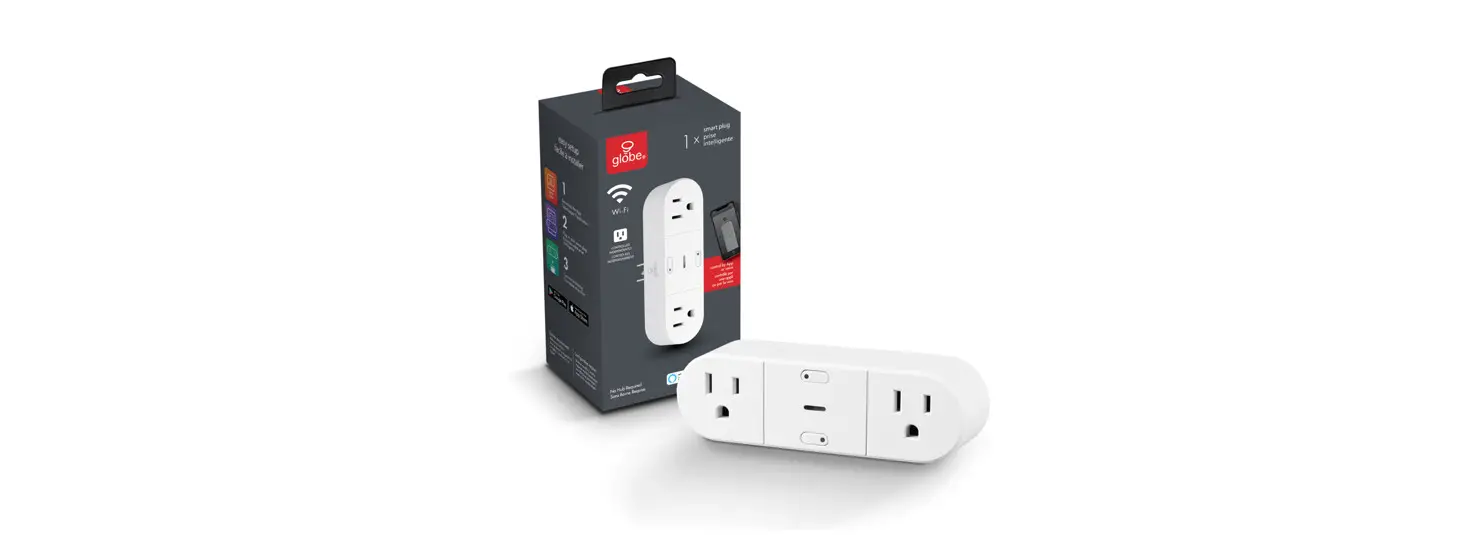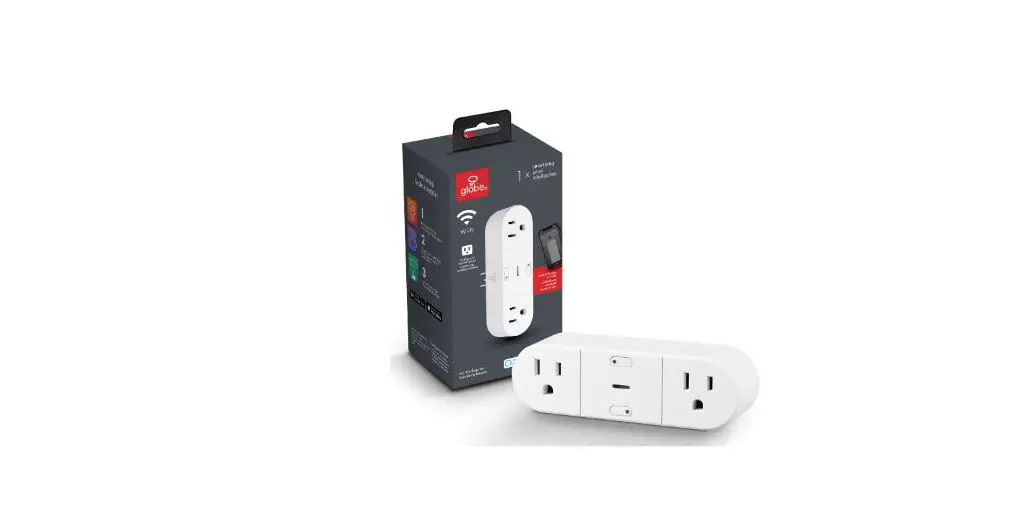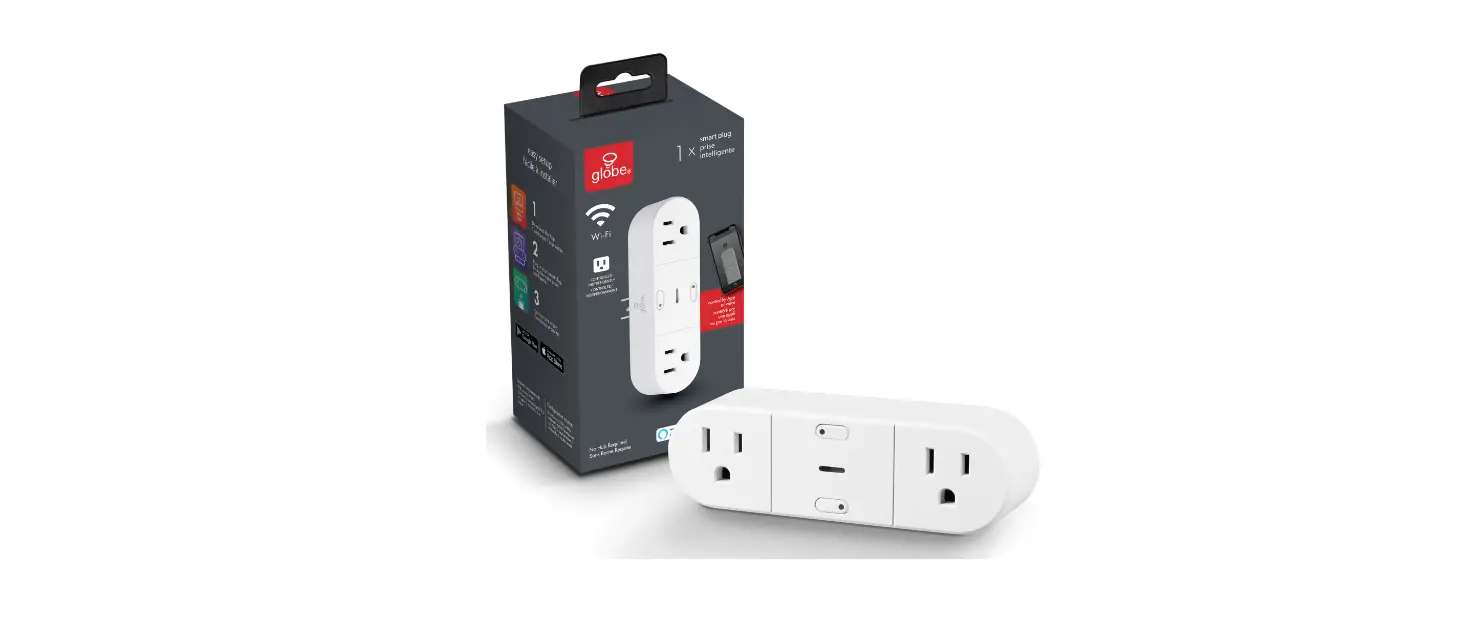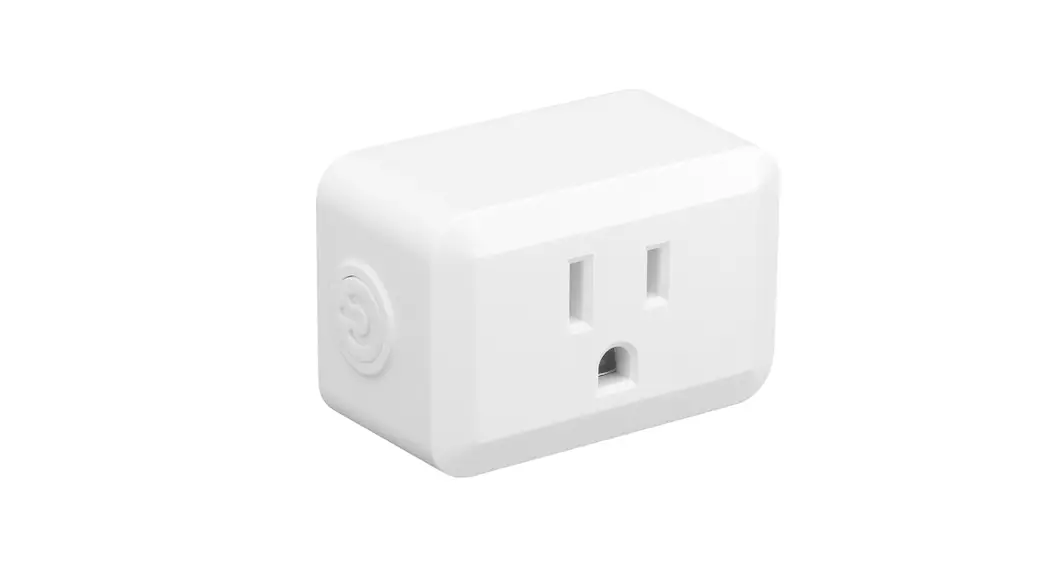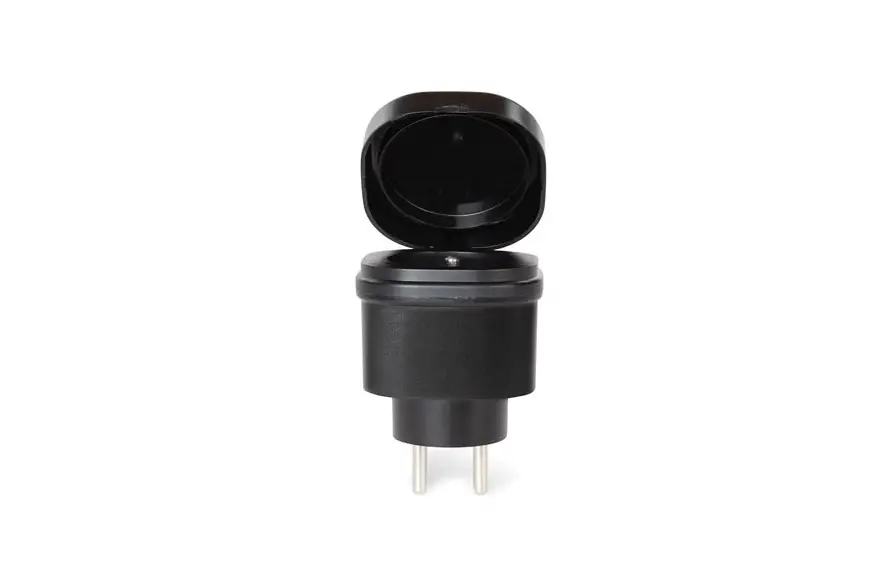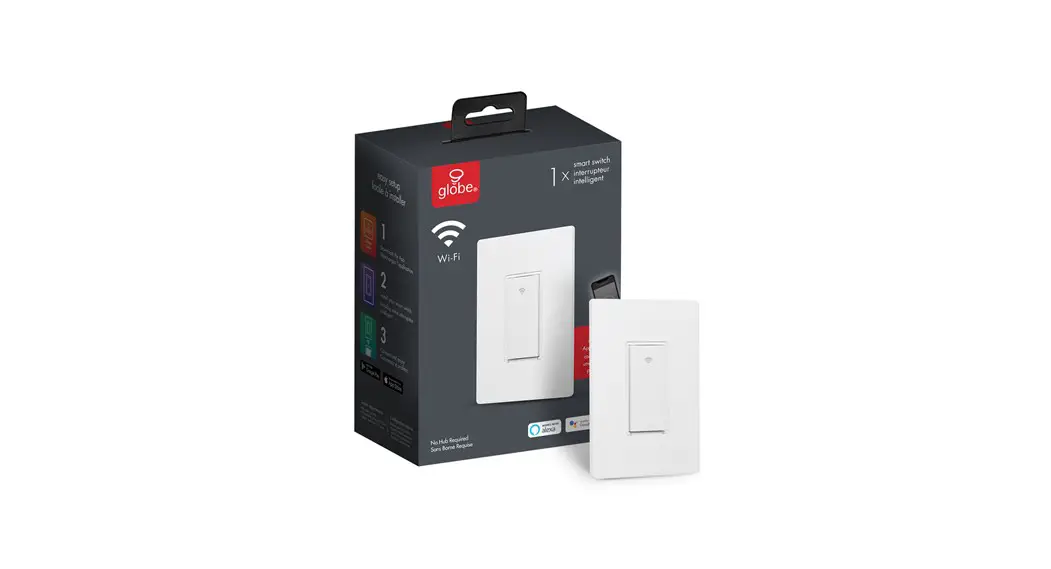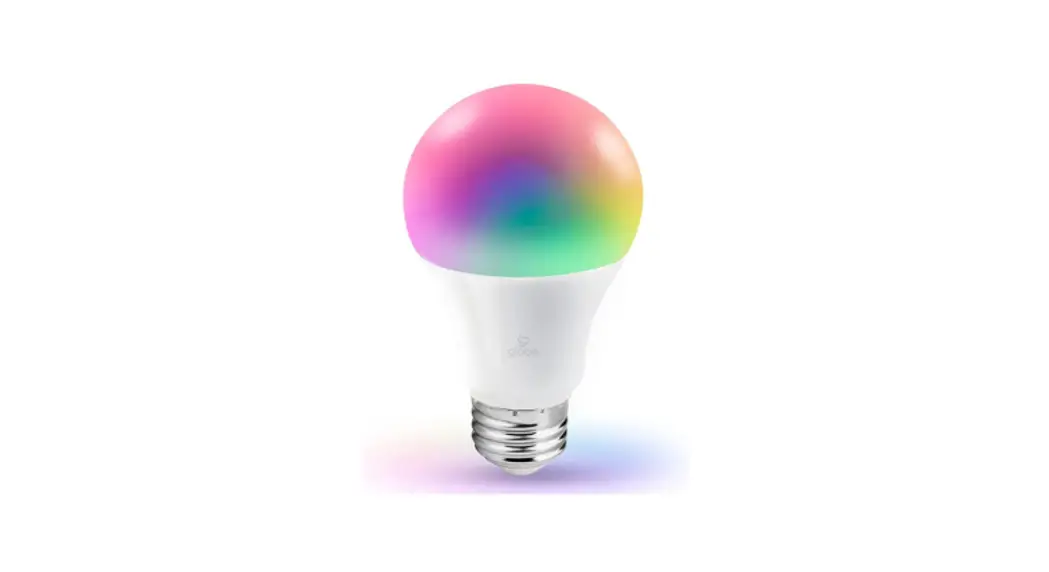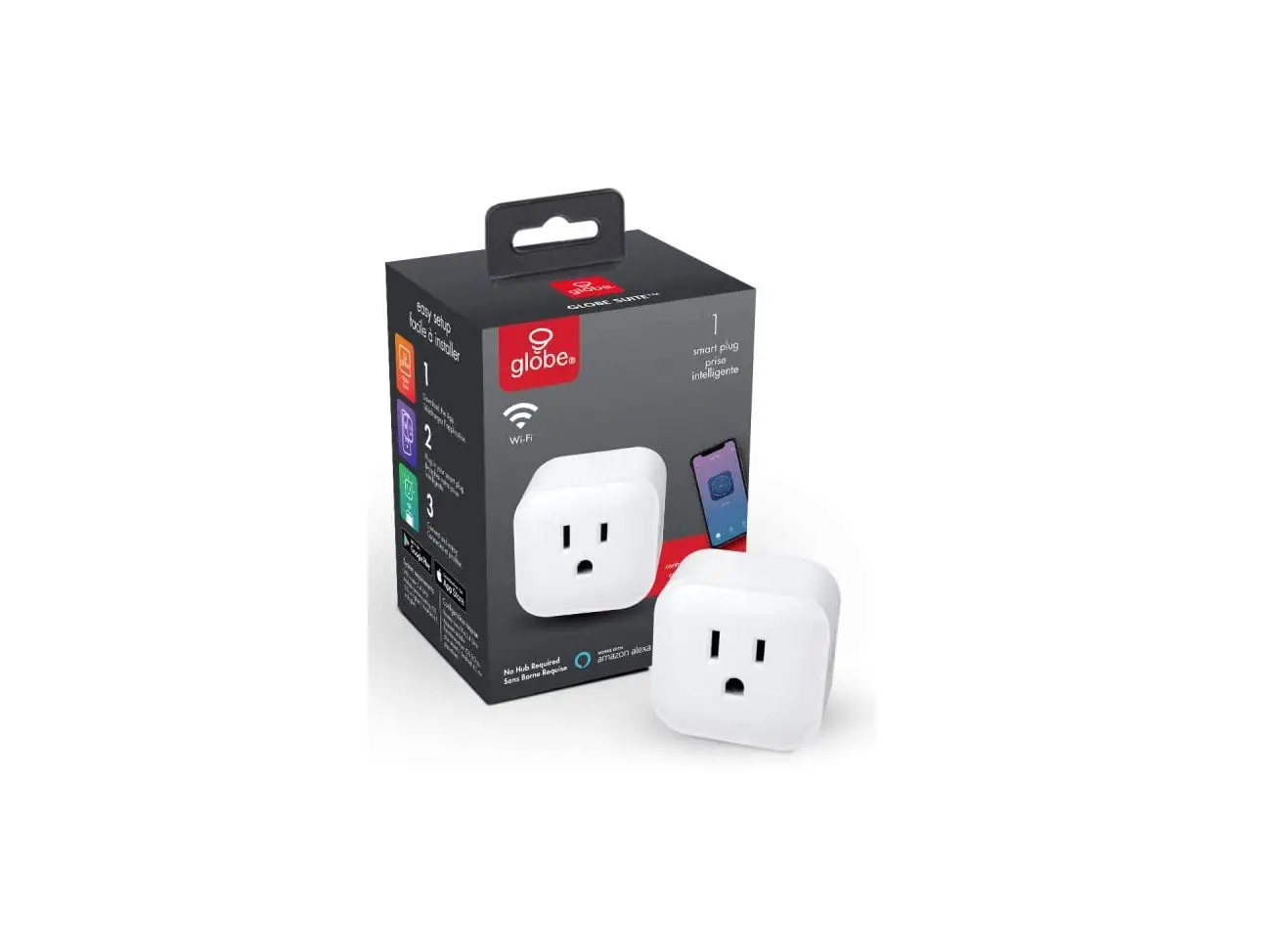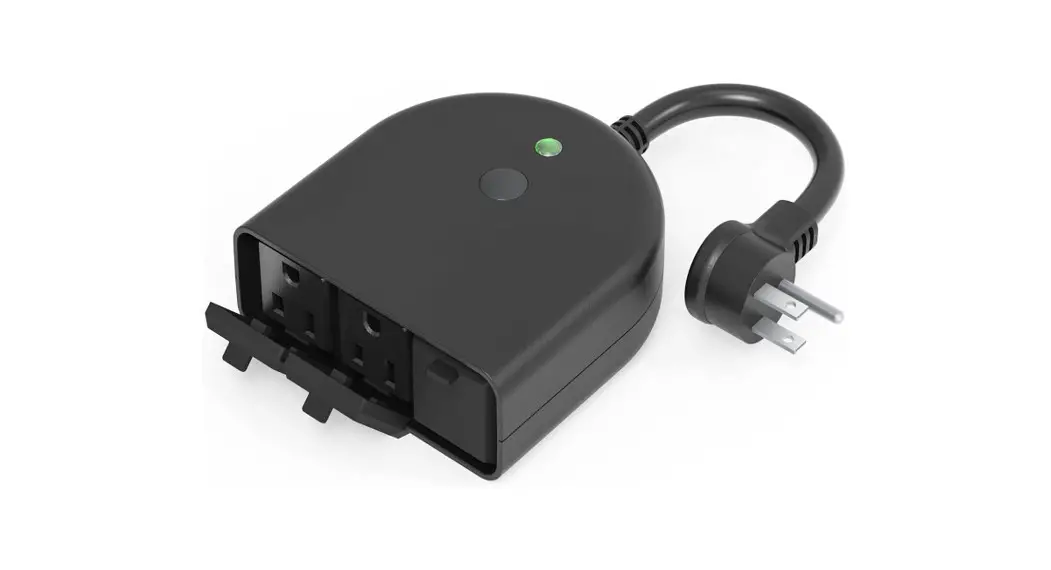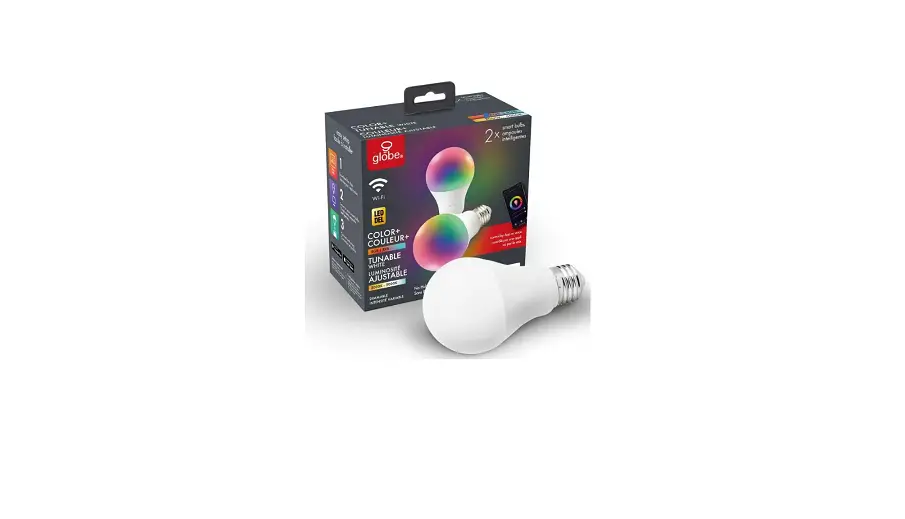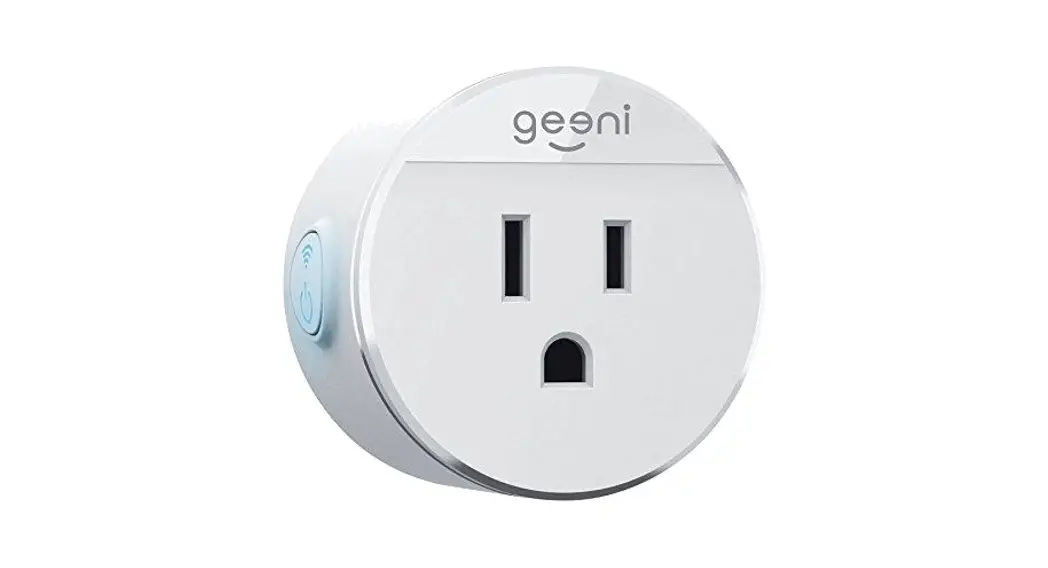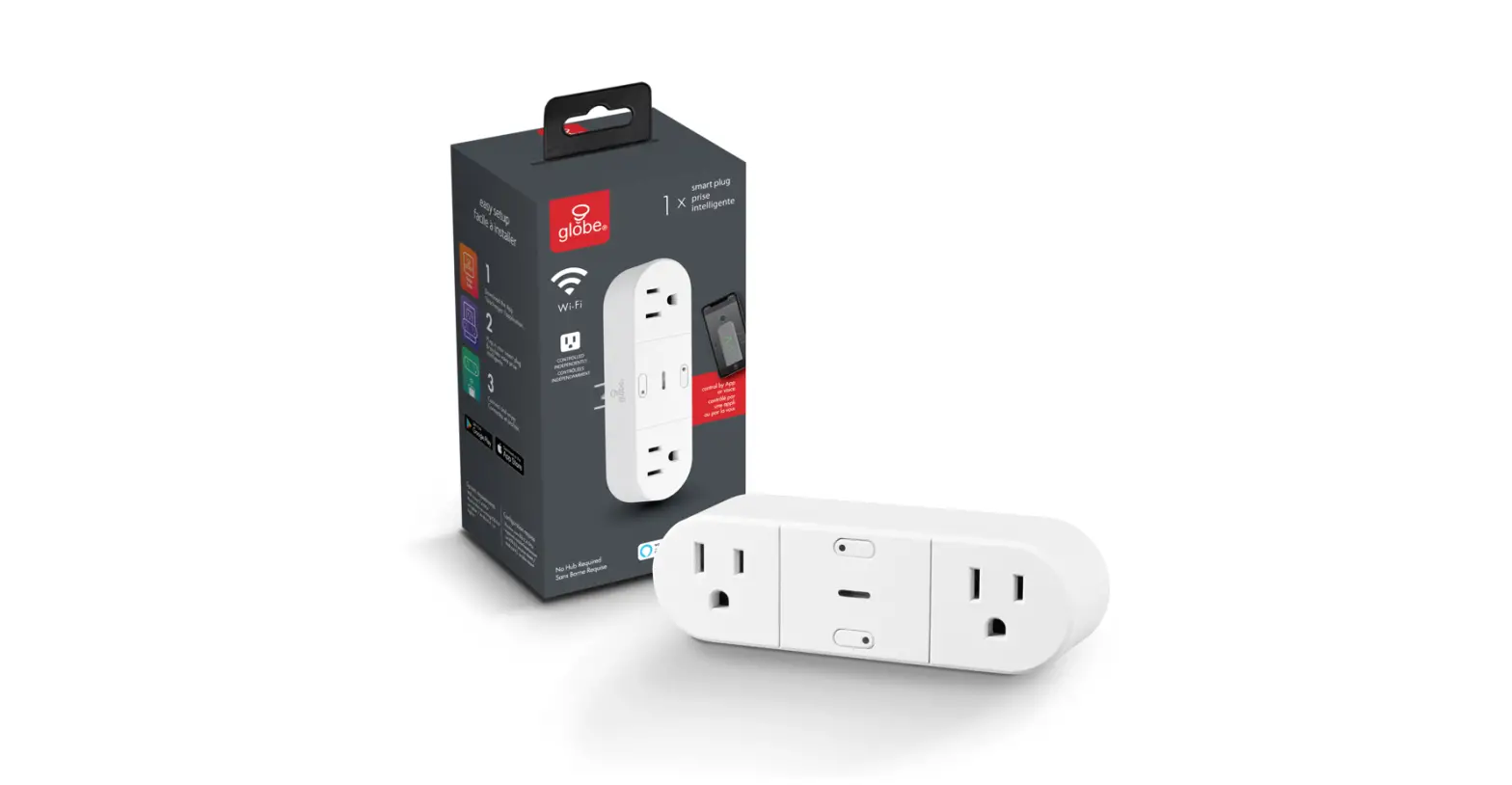

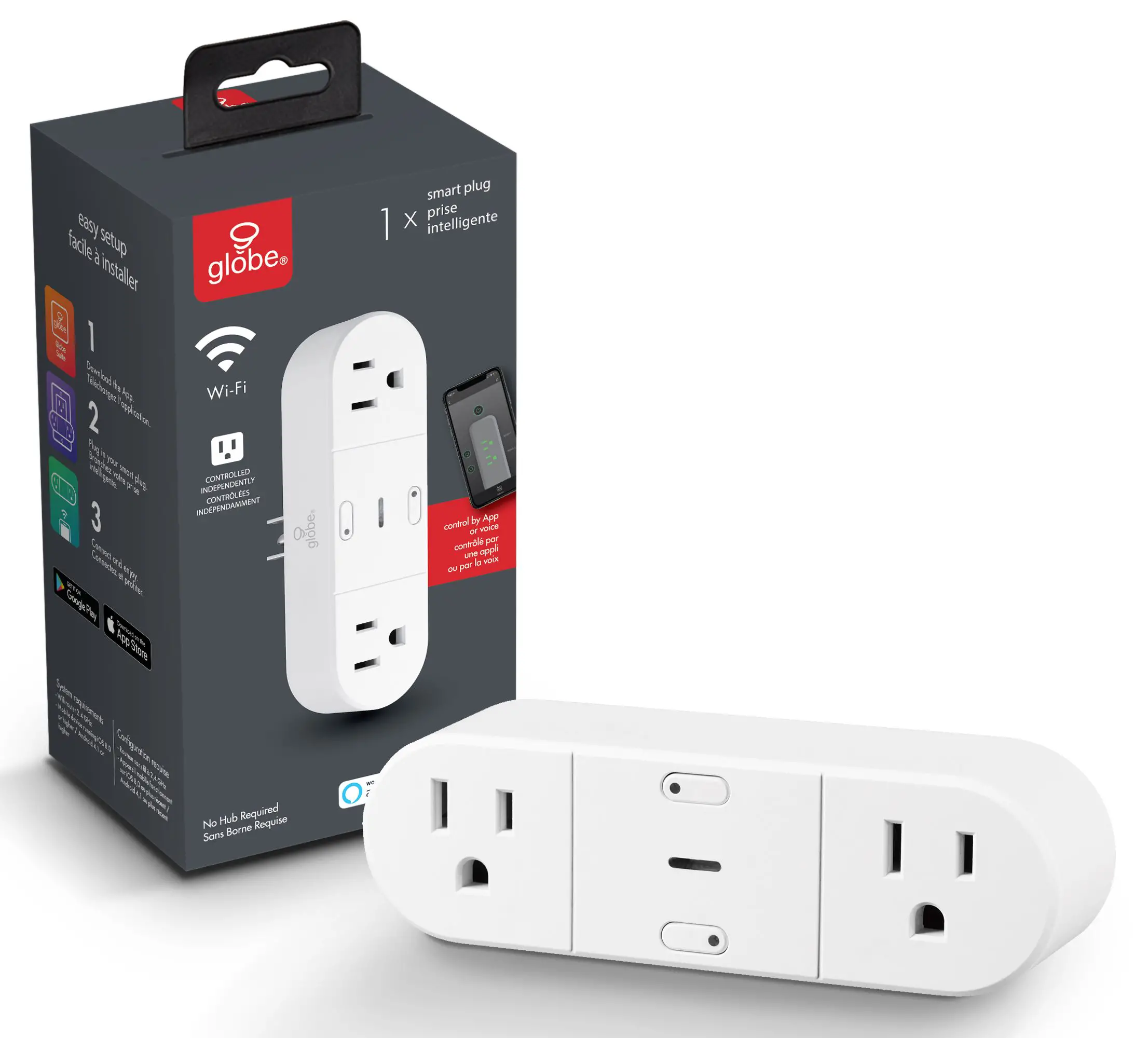
Globe Electric GE50020A Wifi Smart Socket
Welcome
Get started
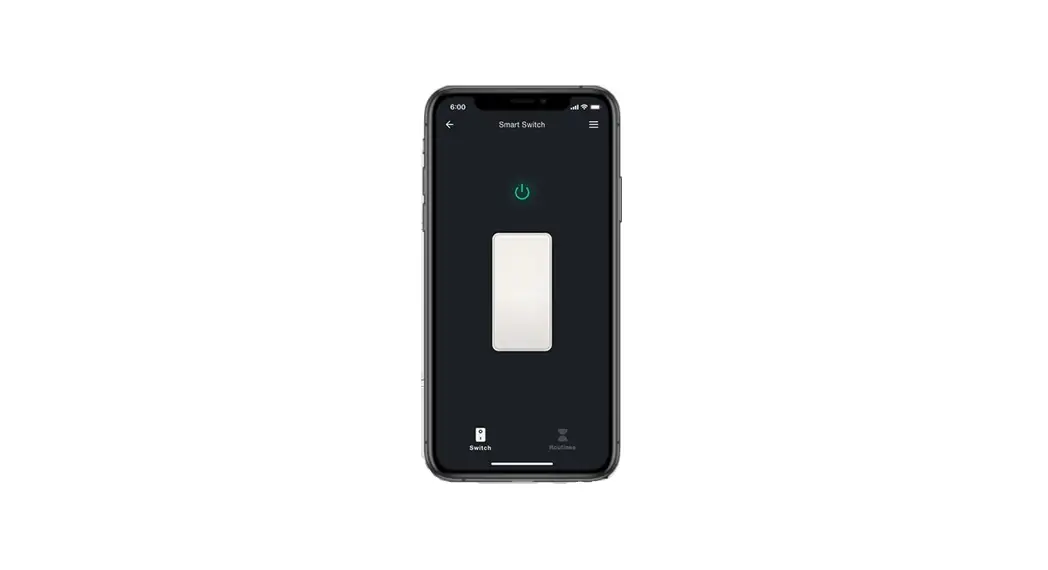
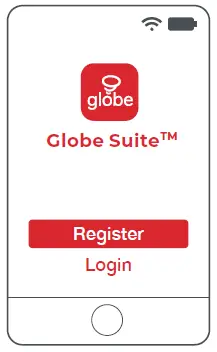
- Download the Globe SuiteTM app f rom the App Store or Google Play to your mobile device.
- Launch the Globe SuiteTM app.
- To register, enter your email address. Create a password, then login to the app.
OR - Login if you already have an account.
Verify your network
- Verify your network and ensure your mobile device is connected to a 2.4 GHz Wi-Fi channel.
- Consult your router documentation for detailed instructions on how to change wireless settings.
- Once your devices have been successfully paired, you can switch back to mixed mode or use a cellular data network to control your smart products.
Scan mode
- Power on your device.
- Select the “+” symbol on the top right hand corner.
- Follow instructions within the app.
- If your device is flashing rapidly and fails, try using EZ Mode.
EZ mode
- Select the “+” symbol on the top right hand corner.
- Select “Manual”.
- Select your product type and follow the instructions within the app.
- If the connection fails, try using AP mode.
AP mode
- Select the “+” symbol on the top right hand corner.
- Select “Manual”.
- Select your product type.
- Open the menu on the top right hand corner and select “AP mode”.
- Follow the instructions within the app. You’re good to go.

Setup voice assistance
- Instructions in the Globe SuiteTM app: Select “Profile”, select “Integration”, choose your voice assistant, and follow instructions.
Did you know?
Most modern routers are dual band meaning they support both 2.4 GHz and 5 GHz channels. The most common wireless options are:
- Mixed: The router will broadcast both 2.4 GHz and 5 GHz simultaneously under the same SSID. The device will choose which to connect to based on multiple variables (congestion, distance to router etc.).
- 2.4 GHz: Broadcast only on this channel.
- 5 GHz: Broadcast only on this channel.
- Dual 2.4 and 5 GHz using Separate SSIDs: Router will broadcast both channels and the user manually decides which to connect to.
Have a question?We can help!
Visit Website
www.globe-electric.com/smart
Check us out on YouTube
Contact no:
1-888-543-1388