
 Quick start guide
Read your entire Astral ™ User Guide or Clinical Guide before use.
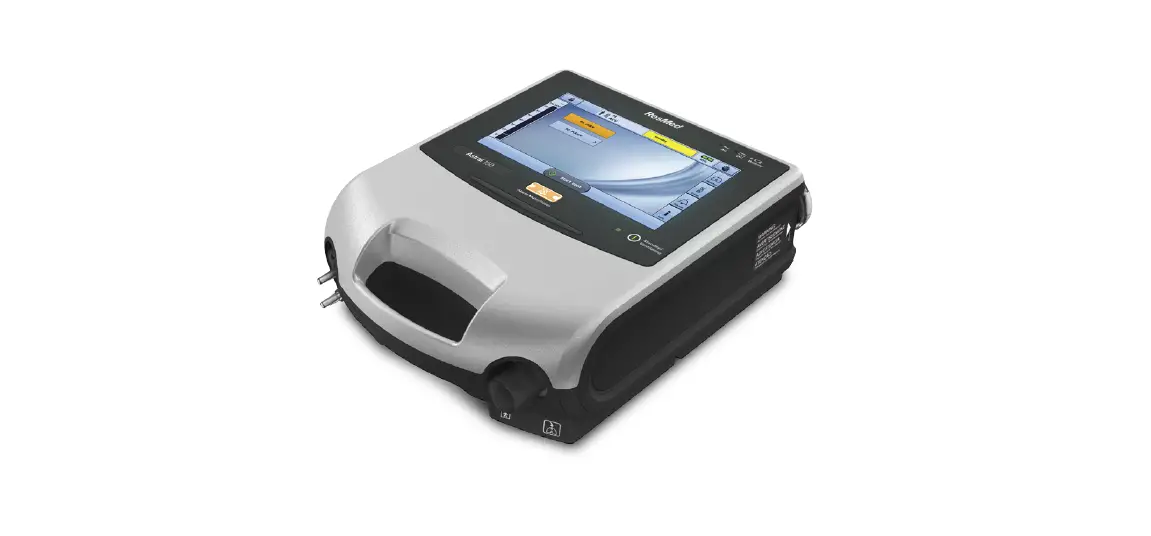
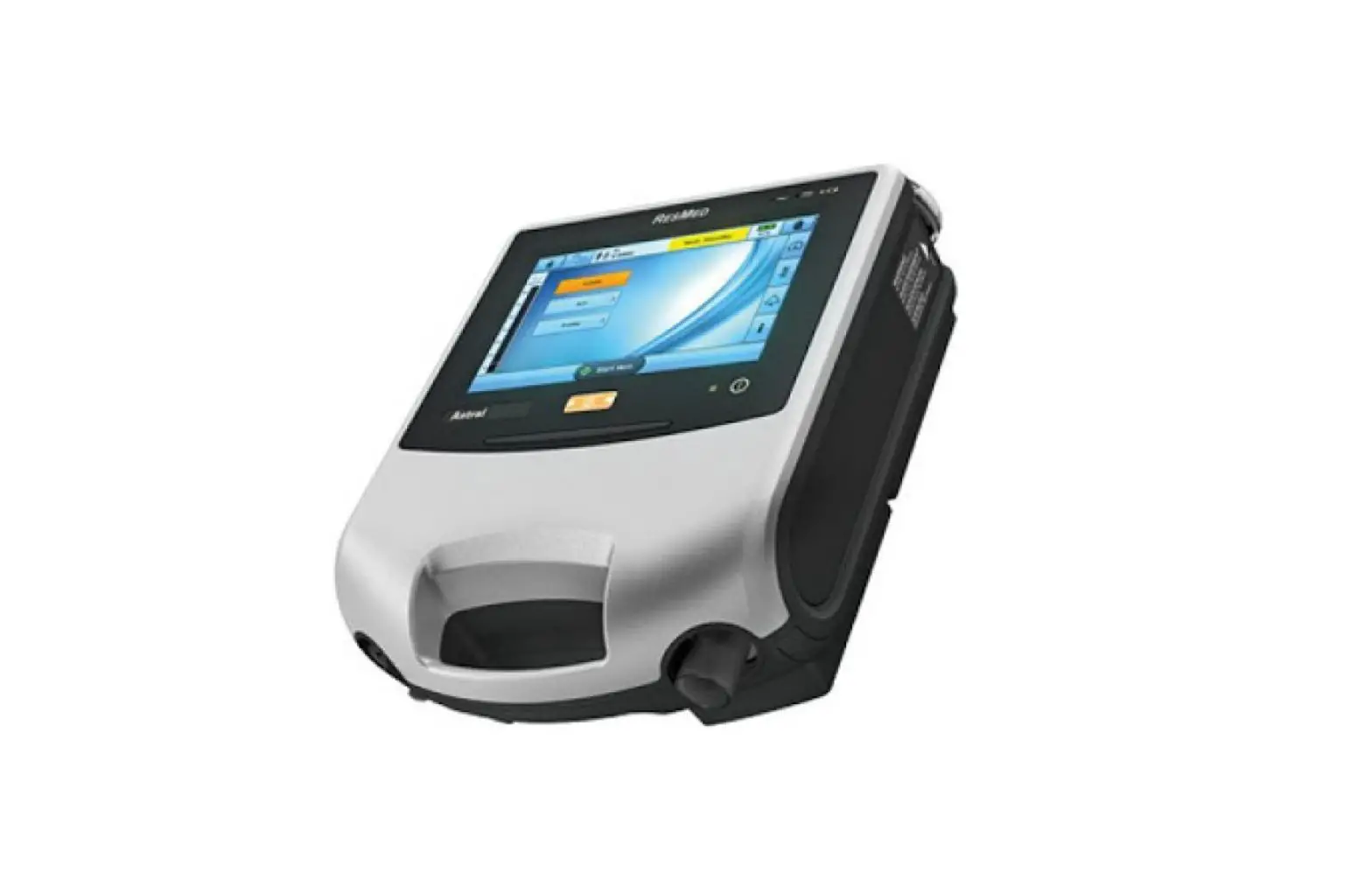
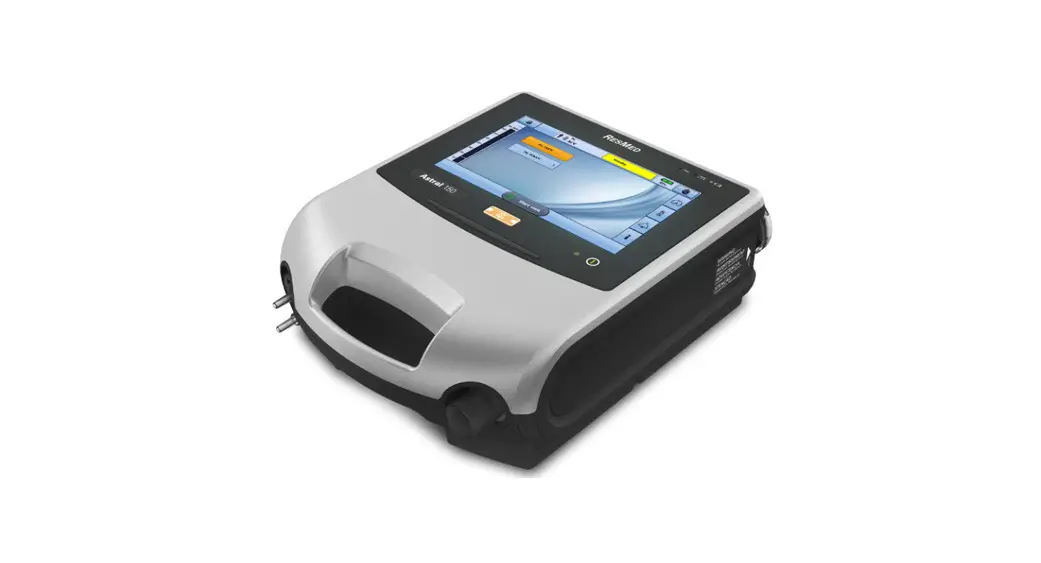
The Astral device
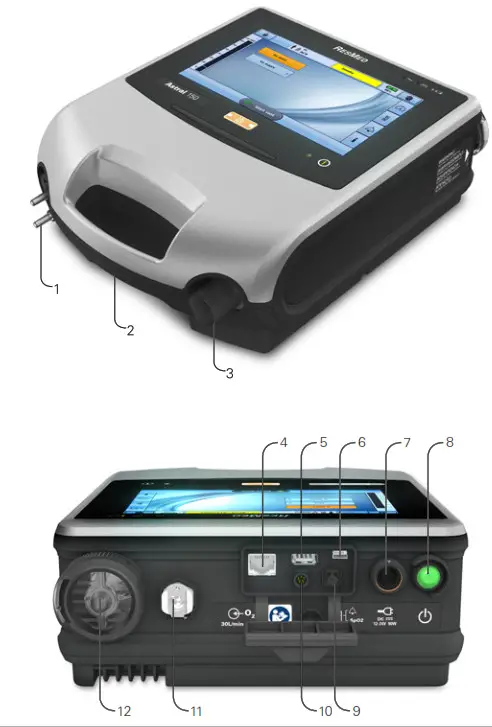
- Adapter port
Can be fitted with a single limb adapter, single limb leak adapter or double limb adapter (Astral 150 only) - Handle
- Inspiratory port (to the patient)
- Ethernet connector (service use only)
- USB connector (for download to ResScan and connection of approved accessories)
- Mini USB connector for ResMed Connectivity
Module (RCM) or ResMed Connectivity Module
Hospital (RCMH) - DC power inlet
- The device on/off push button
- SpO2
Sensor connector - Remote alarm five-pin connector
- Low flow oxygen input (up to 30L/min)
- Air inlet (complete with hypoallergenic filter)
Note: Some accessories may not be available in all regions.
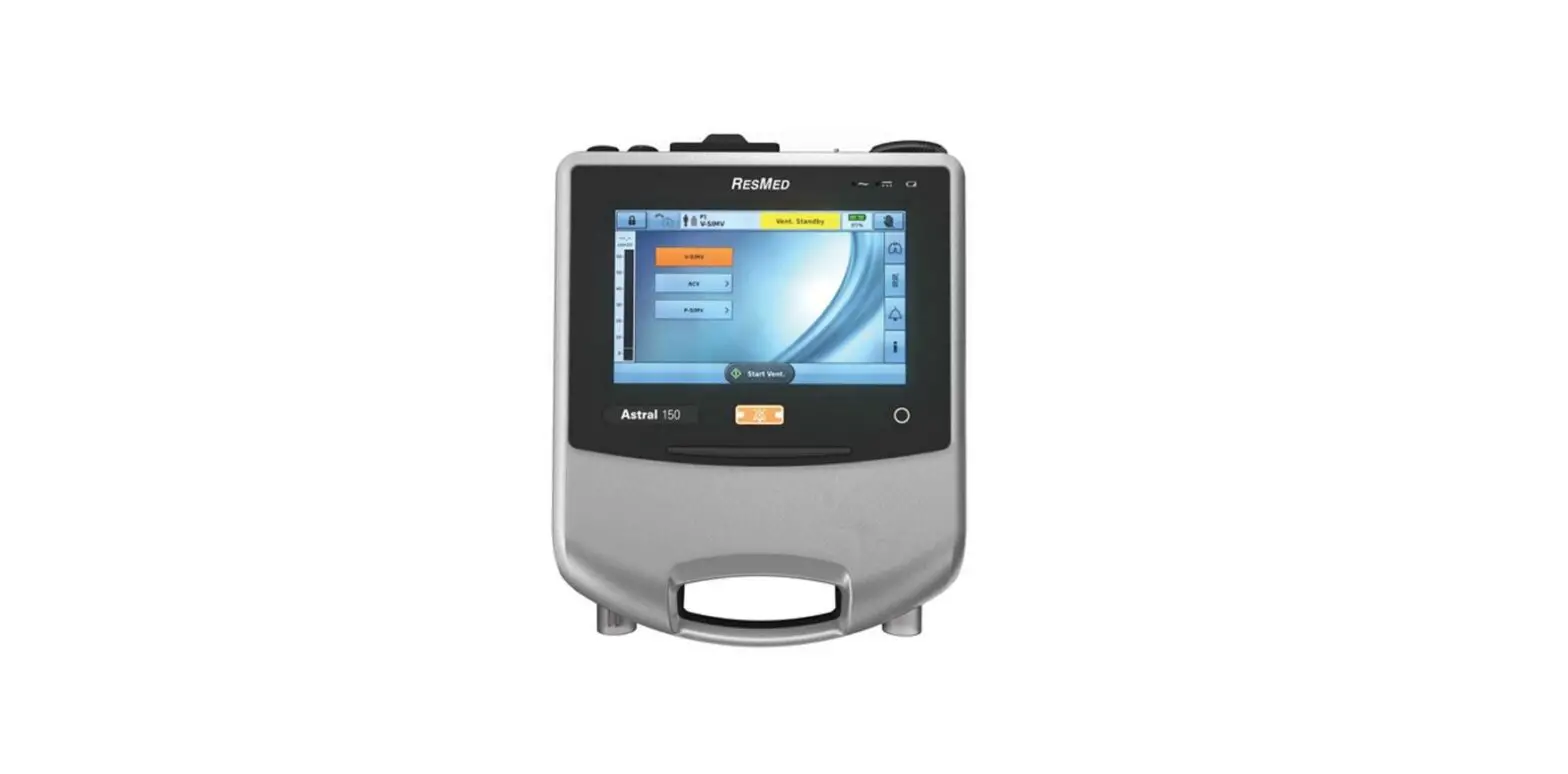
The Astral device interface
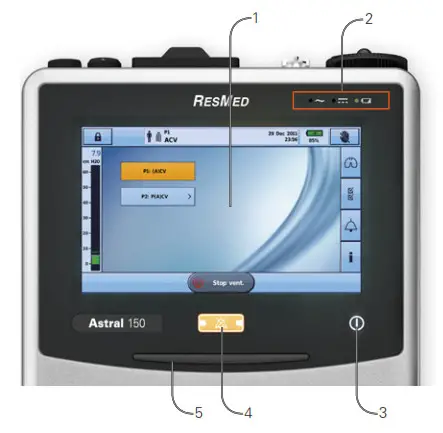
- Touch screen
- Power source indicators
 AC (mains power supply)
DC (external battery, car accessory adapter or ResMed Power Station II) Internal battery
 - Therapy on/off indicator
 Device ready
Constant green display when the device is turned on but not ventilating. Device ventilating
Flashes blue when the device is ventilating and the Ventilation LED setting is ‘ON’. Otherwise is ‘OFF’ - The alarm mute/reset button Illuminates when an alarm is triggered and flashes when the sound is muted.
- Alarm bar
 AC (mains power supply)
 Internal battery
 Device ready
 Device ventilating
Touch screen
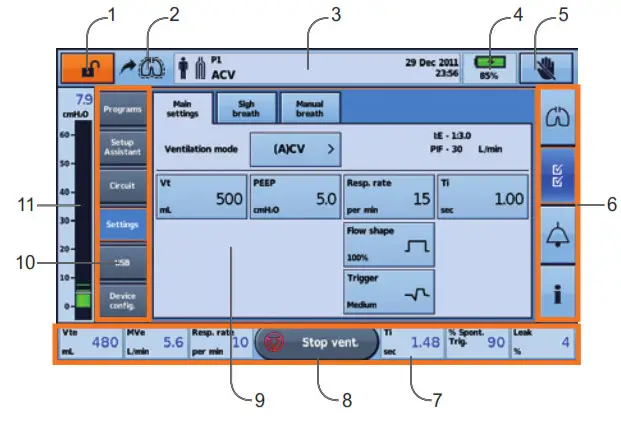
- Clinical mode access button
 Locked
  Unlocked
  The manual breath button is only shown if enabled
- Information bar
- Internal battery indicator
 Lock touch screen button
- Menu bar
- Bottom bar

Start ventilation button Stop ventilation button
- Main screen
- Submenus
- Pressure-bar
 Locked
  Unlocked
 The manual breath button is only shown if enabled
 Lock touch screen button
 Stop ventilation button
Patient circuits
The Astral device supports single and double-limb circuits with the use of interchangeable circuit adapters.
Breathing circuits may be of 10, 15, or 22 mm diameter. For recommended patient circuit components and compatible accessories, refer to www.resmed.com/astral/circuits.
There are three circuit adapters: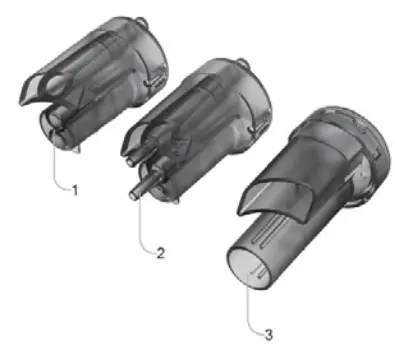
| Adapter | For use with |
| 1. Single limb leak |  Single limb circuit with intentional leak or Mouthpiece circuit Single limb circuit with intentional leak or Mouthpiece circuit |
| 2. Single limb |  Single limb circuit with expiratory valve (expiratory valve integrated into the circuit) Single limb circuit with expiratory valve (expiratory valve integrated into the circuit) |
| 3. Double limb (Astral 150 only) |  Double limb circuit (expiratory valve integrated into the adapter) OR single-limb circuit with intentional leak or Mouthpiece circuit Double limb circuit (expiratory valve integrated into the adapter) OR single-limb circuit with intentional leak or Mouthpiece circuit |
Fitting the circuit adapter
Before connecting the patient circuit, the adapter specific to the required circuit type must be fitted.
To fit the adapter: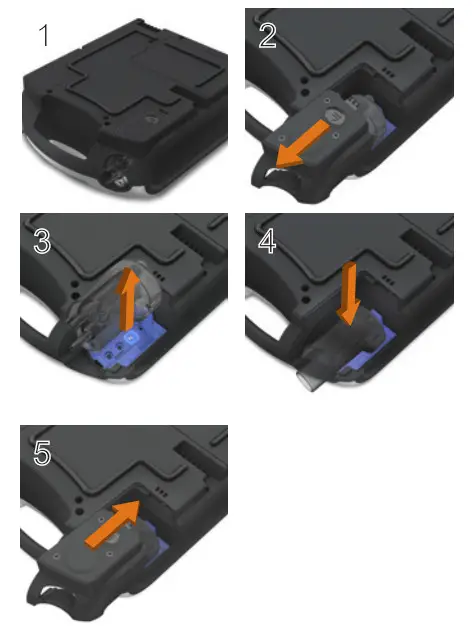
- Turn over the device and place it on a soft surface (to protect the LCD screen).
- Press and hold the eject button. Pull the cover out towards you.
- Lift the adapter out of the socket.
- Replace with the new adapter, ensuring it sits firmly in the socket.
- Place the cover over the enclosure, ensuring the runners on the device and the cover are aligned. Slide the cover back into place until the latch clicks.
Setting up the circuit
For complete details on setting up the circuit see Assembling patient circuits in the Astral Clinical Guide.
Single limb circuit with an intentional leak or Mouthpiece circuit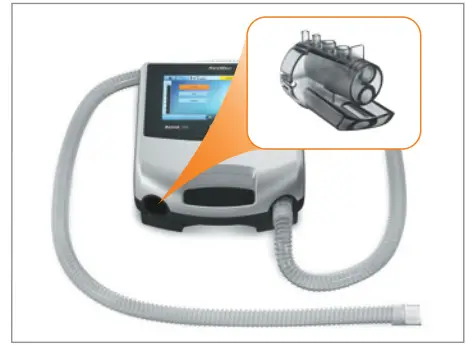
Single limb circuit with expiratory valve using ResMed proprietary circuit
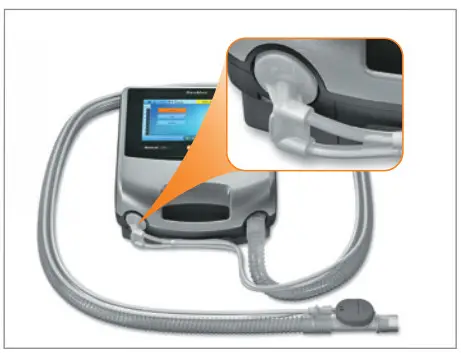
Single limb circuit with an expiratory valve using standard circuit
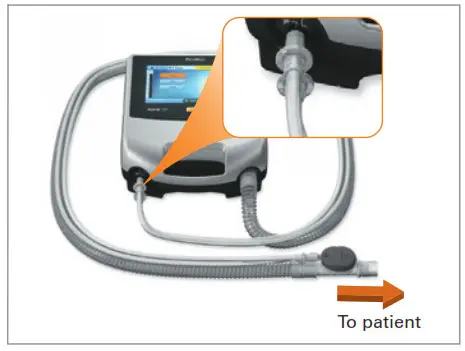
Double limb circuit (Astral 150 only) or single-limb circuit with intentional leak and Mouthpiece circuit
Performing a Learn Circuit
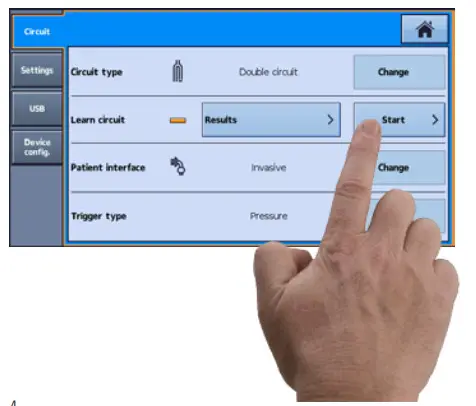
Do not connect patient interfaces prior to performing the Learn Circuit.
- From the Setup menu, select the Circuit sub-menu.
- Press Start and follow the on-screen prompts.
A Results screen is displayed once Learn circuit is complete. Error codes are provided if Learn Circuit fails and can be found in the Clinical Guide for help with troubleshooting. The previous test results can be accessed by selecting the Results button in the Circuit sub-menu.
Powering on the device
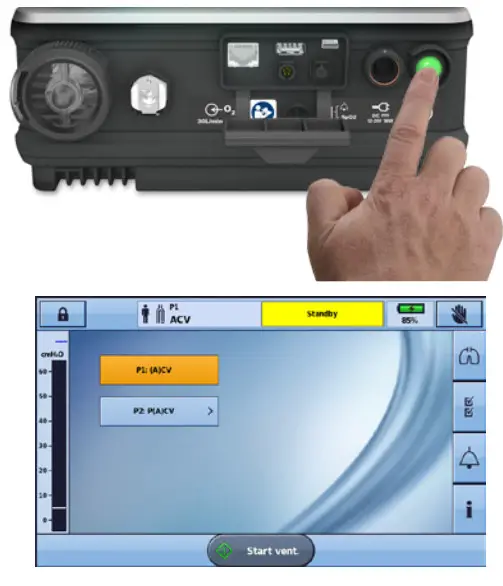
To power on the device, simply press the green power on/off switch at the back of the device. The device will perform a system check.
On completion of the system check, the Patient Home screen and the active program are displayed.
If more than one program is displayed, the active program will be highlighted in orange.
Note: Settings configured in the active program will be used when ventilation is started.
Accessing Clinical mode
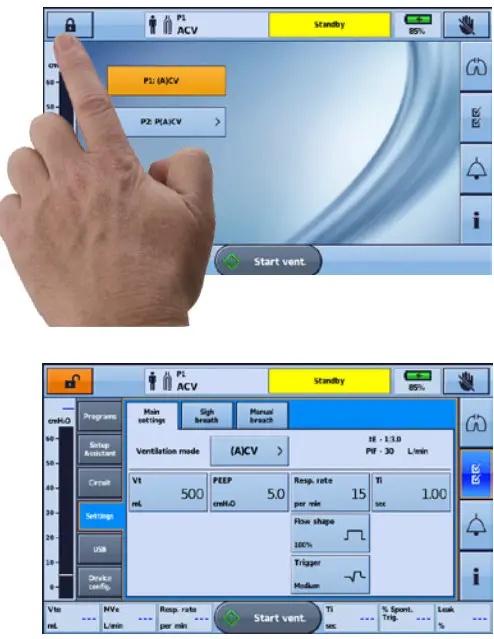
To access Clinical mode:
The clinical mode can be accessed from any screen, whether or not the Astral device is ventilating.
- From the patient home screen, press and hold for 3 seconds.
- Select 20 minutes or Unlimited.
The padlock is unlocked and the Main Settings screen is displayed.
To exit Clinical mode:
- Press. The Exit Clinical Mode screen is displayed.
- Press Confirm. The padlock is locked and the Patient Home screen is displayed.
Note: If you do not make a selection within 7 seconds, the device returns to the previous screen.
Using the Setup Assistant
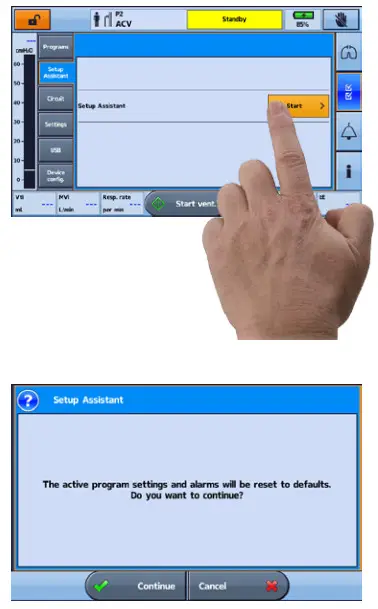
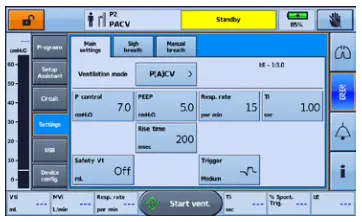
To quickly set up the Astral device and start ventilation for a new patient, use the Setup Assistant.
- Access Clinical mode.
- From the main menu, press
 .
. - Select Setup Assistant and press Start.
- A warning message will display. Select Continue.
- Select the patient type to automatically configure the alarm and setting ranges.
- Select the circuit type to be connected.
- Select Start to run the Learn Circuit.
- Follow the on-screen prompts to attach and test the circuit.
- Select your required ventilation mode. The default settings for the mode are displayed.
- Review and adjust the settings as required.
- Press to start ventilation.
 .
.For further information on adjusting setting parameters and alarm settings, see Adjusting patient settings and Adjusting alarm settings in the Astral Clinical Guide.
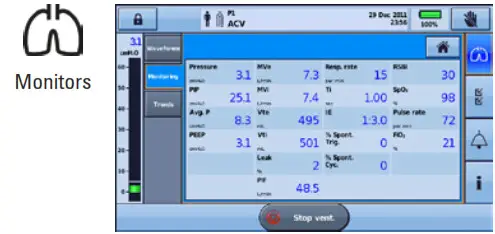
| Waveforms | Displays the last 15 seconds of patient airway pressure and flow in a graph. The graph updates in real-time. |
| Monitoring | Displays all measured parameters in numerical form. |
| Trends | Displays trending of various parameters for the last 30 days. |
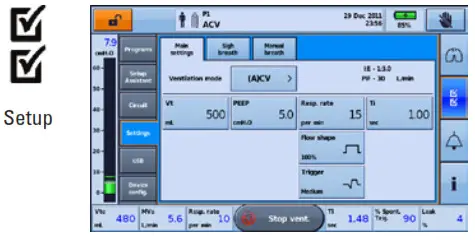
| Programs* | |
| Programs* | |
| Circuit | |
| Settings | Main Settings Manual Breath Sigh Breath |
| USB | Patient Data Settings Upgrade** |
| Device Config. | Device Date / Time Units Patient access |
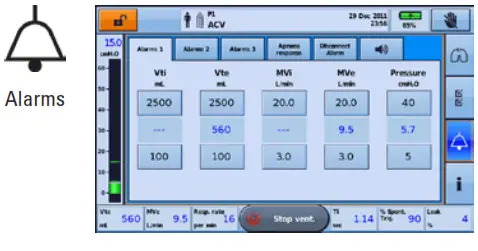
| Alarm 1 & 2 | Tidal Volume (Vt) Minute Ventilation (Mv) Respiratory Rate Pressure Low PEEP Ventilation Stop Leak NV mask / Rebreathing |
| Alarm 3 | FiO2 SpO2 Pulse |
| Apnoea Response | Apnoea Response Apnoea Detection |
| Alarm Volume | Alarm Level Alarm Minimum Volume Alarm Test |
| Disconnection Alarm | Disconnection Alarm |
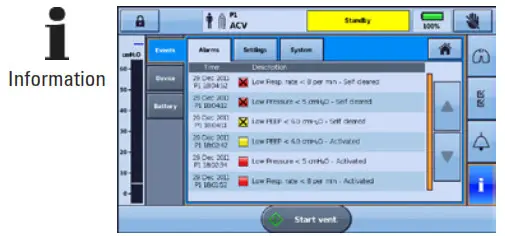
| Events | Alarms Settings System Delete* |
| Device | Basic Advanced |
| Battery | Charge Maintenance |
*Available in Clinical mode only. **Software upgrades can only be performed by an authorized service representative. Astral has the ability to be upgraded with a USB stick containing the appropriate software. Please contact your authorized agent for further information.
Enabling additional programs
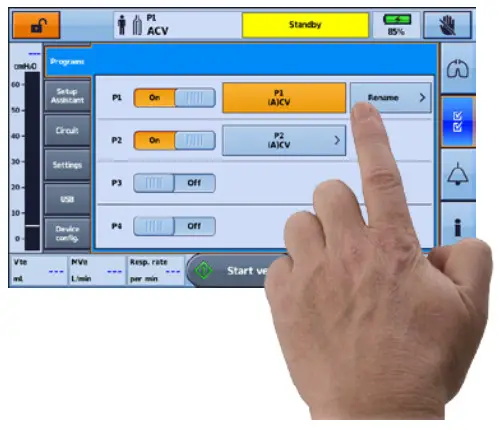
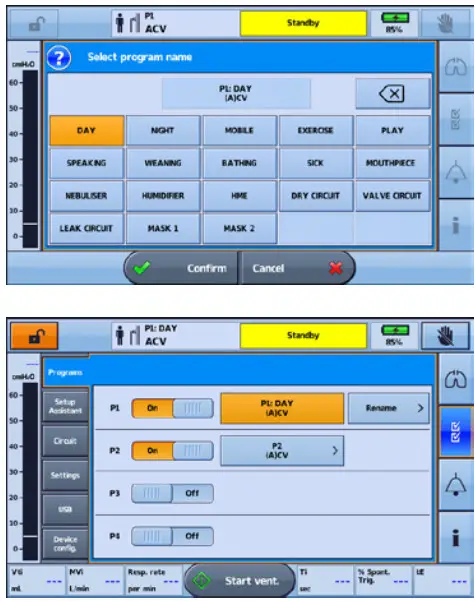
The Astral device comes factory preset with one active program. Additional programs can be enabled.
- Access Clinical mode.
- From the Setup main menu, select Programs.
- Enable additional programs by pressing the slider.
Note: The current active program is highlighted in orange and cannot be disabled. - Rename the program by pressing the Rename button.
Within the Rename window, a name for the currently active program can be chosen from the list provided (eg, DAY).
Note: A selected name can be removed by pressing the delete button - When selected, the program name is displayed on the program label and on the information bar when that program is active.
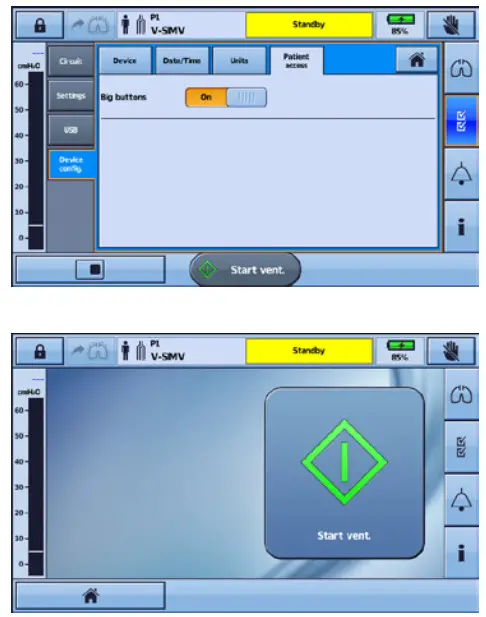
The Astral device offers an enhanced access feature (‘Big buttons’ mode) to provide easier usability and accessibility for starting and stopping ventilation as well as
Alarm mute.
The ‘Big buttons’ mode can be switched on and off as required in either Clinical or
Patient mode.
- From the main menu, press.
- Select the Patient Access tab from the Device Config. menu.
- Move the Big buttons slider to On.
Your enhanced access feature is now enabled.
Alarms
When an alarm is activated, the Astral device provides both audible and visual alerts and displays an alarm message in the Alarm display on the Information bar.
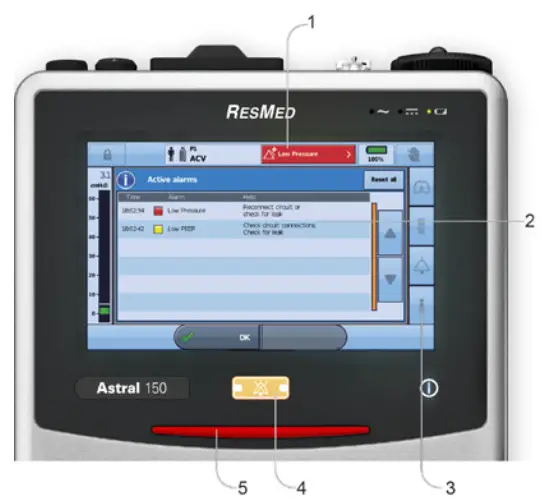
| Alarm priority | Alarm bar | Audible alert | |
| High |  | Red flashing light | 10 beeps every 5 seconds |
| Medium |  | Yellow flashing light | 3 beeps every 15 seconds |
| Low |  | Yellow steady | 2 beeps every 25 seconds |
| Indicator | Description |
| 1. Alarm display | Displays either the alarm message for the highest priority active alarm or the last alarm not yet reset. Press the Alarm display for further alarm information. Certain conditions may result in multiple alarms.  indicates that there are multiple active alarms. indicates that there are multiple active alarms.Press when displayed to view all active alarms and respond appropriately. Alarms are displayed in order of priority. |
| 2. Active Alarms screen | Displays the full set of active alarms. Will automatically display upon activation of an alarm in patient mode. |
| 3. Information menu | Some alarms clear automatically. To view a history of alarms, view the alarm log through the Information menu. |
| 4. Alarm mute/reset button | State: • no light – no active alarms • steady light – active alarm/s • flashing light – alarm mute on.This button also allows you to: • mute the audible alert • reset the currently displayed alarm (if permitted). |
| 5. Alarm bar | Indicates the priority of the alarm in the Alarm display. |
Attaching a humidifier
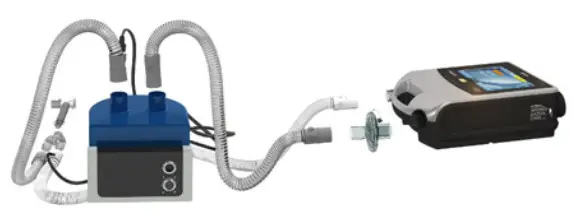
- Connect a length of air tubing to the inspiratory port of the device.
- Connect the other end of the air tubing to the inlet port of the humidifier.
- Connect the patient circuit to the outlet port on the humidifier.
Attaching a Heat Moisture Exchange (HME)
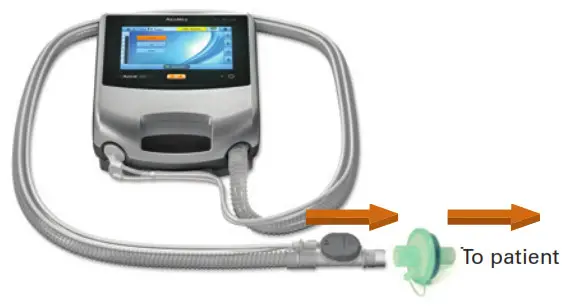
An HME can be used with the astral device with a double limb circuit or single-limb circuit with an integrated valve.
Place the HME between the patient end of the circuit and the patient interface.
Do not connect patient interfaces prior to performing the Learn Circuit.
Attaching an antibacterial filter
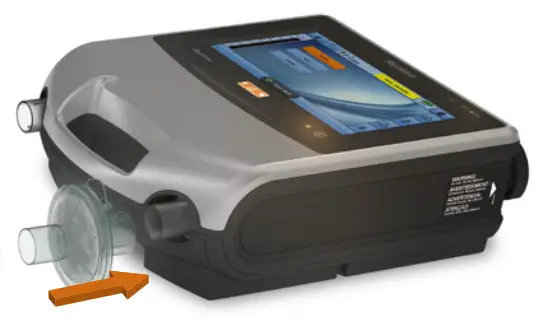
- Fit the antibacterial filter to the inspiratory port of the device.
- Connect the air tubing to the other side of the filter.
- Perform the Learn Circuit function.
- Attach the patient interface to the free end of the air tubing.
For complete details on attaching patient circuit accessories, see Accessories in the Astral Clinical Guide.
For a full list of accessories, see the Ventilation accessories guide on www.resmed.com. If you do not have internet access, please contact your ResMed representative.
 ResMed Pty Ltd
1 Elizabeth Macarthur Drive, Bella Vista NSW 2153 Australia
See ResMed.com for other ResMed locations worldwide. Astral is a trademark and/or registered trademark of the ResMed family of companies. For patent and other intellectual property information, see ResMed.com/ip.
© 2018 ResMed. 278119/3 2018-07
ResMed.com