
User’s Manual
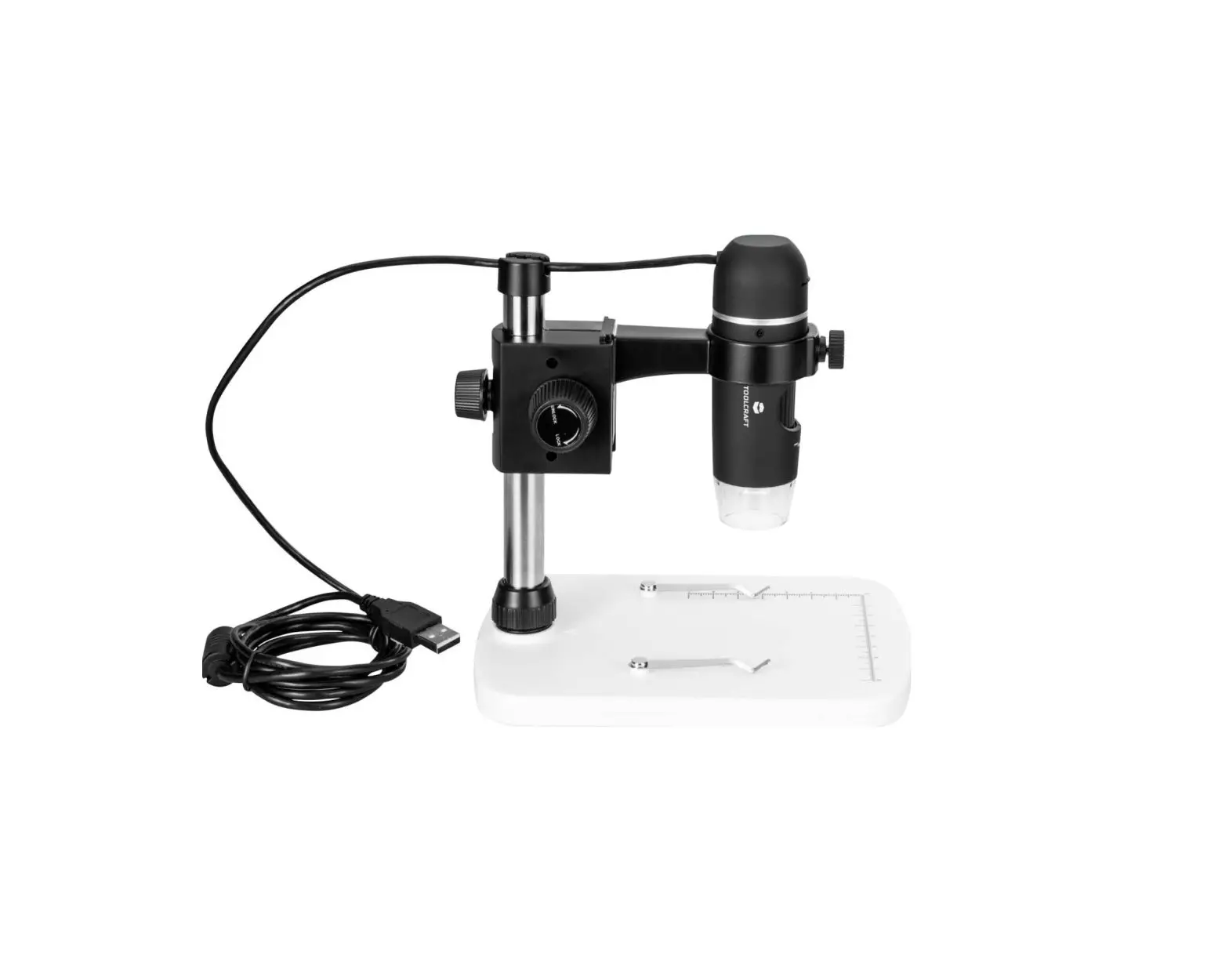
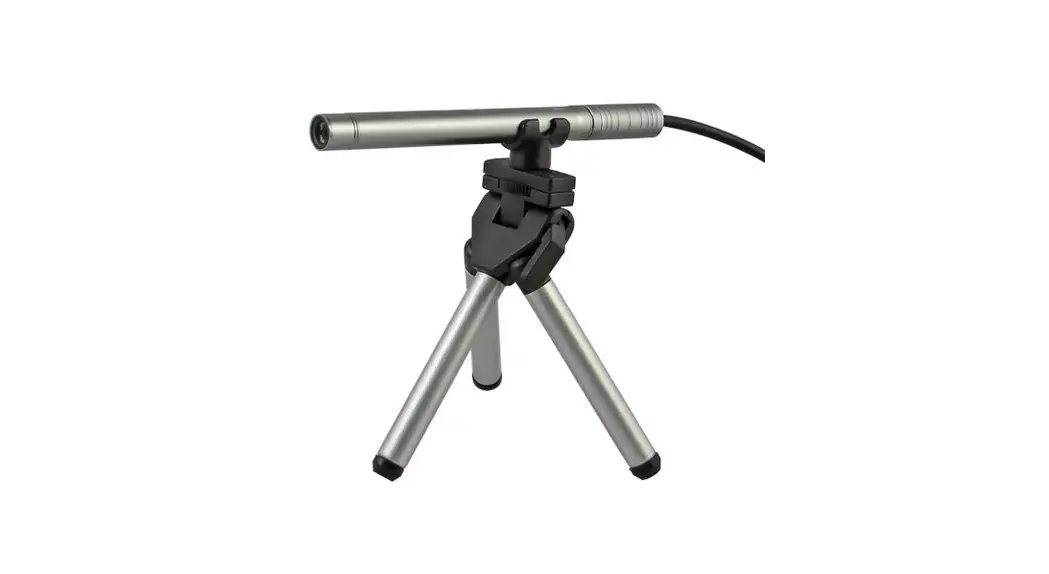
RS PRO USB Digital Microscope
Stock number: 196-4074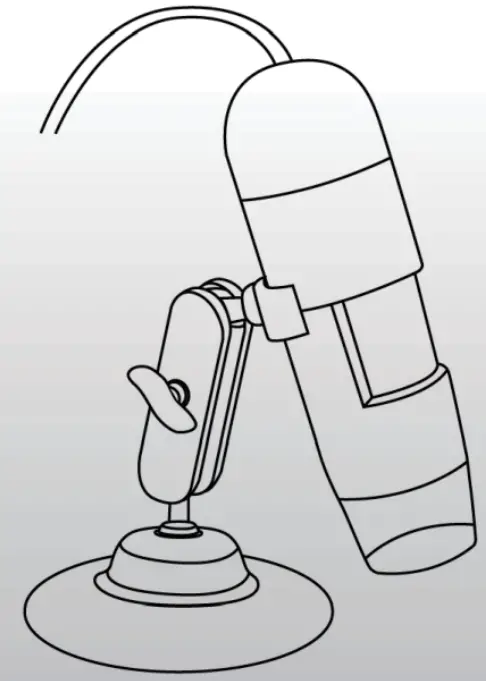

Welcome
Thank you for your choice of our product – it is a high-tech while easy to use Digital Microscope. With this unit you will see a unique and “bigger” world. It’s easy to zoom in on stamps, coins, paper currency, plants, insects, rocks and minerals, and so much more. We recommend reading this manual first to get the best out of this unit.
Precaution
Before using The USB Digital Microscope, please ensure that you read and understand the safety precautions described below.
Always ensure that the USB Digital Microscope is operated correctly.
- The Microscope is not waterproof, so keep it dry.
- Do not use it in a humid place like bathrooms. A dry environment will maintain its life to the maximum.
- Use the Microscope only at -5-50.
- Sudden temperature change may form dew inside the Microscope like entering a warm room in cold winter. Put it inside a handbag or plastic bag to slow down temperature changes.
- Do not point the Microscope lens to the sun or strong light for a long time. Powerful light may hurt the light-sensitive electronics.
- Avoid touching the lens.
- The white LEDs which illuminate the Microscope target field are very bright. Do not stare directly into these LEDs as it may damage your eyes.
- The clear plastic distance shell sometimes picks up dirt or toxic material from a microscopically observed surface. Be careful that this doesn’t get in contact with the human skin. Always wash carefully or disinfect as needed.
- Do not unplug the Microscope from the USB port when LEDs are on. This may cause information loss or circuit damage. Please always close MicroCapture Plus and then unplug the Microscope.
Preparation
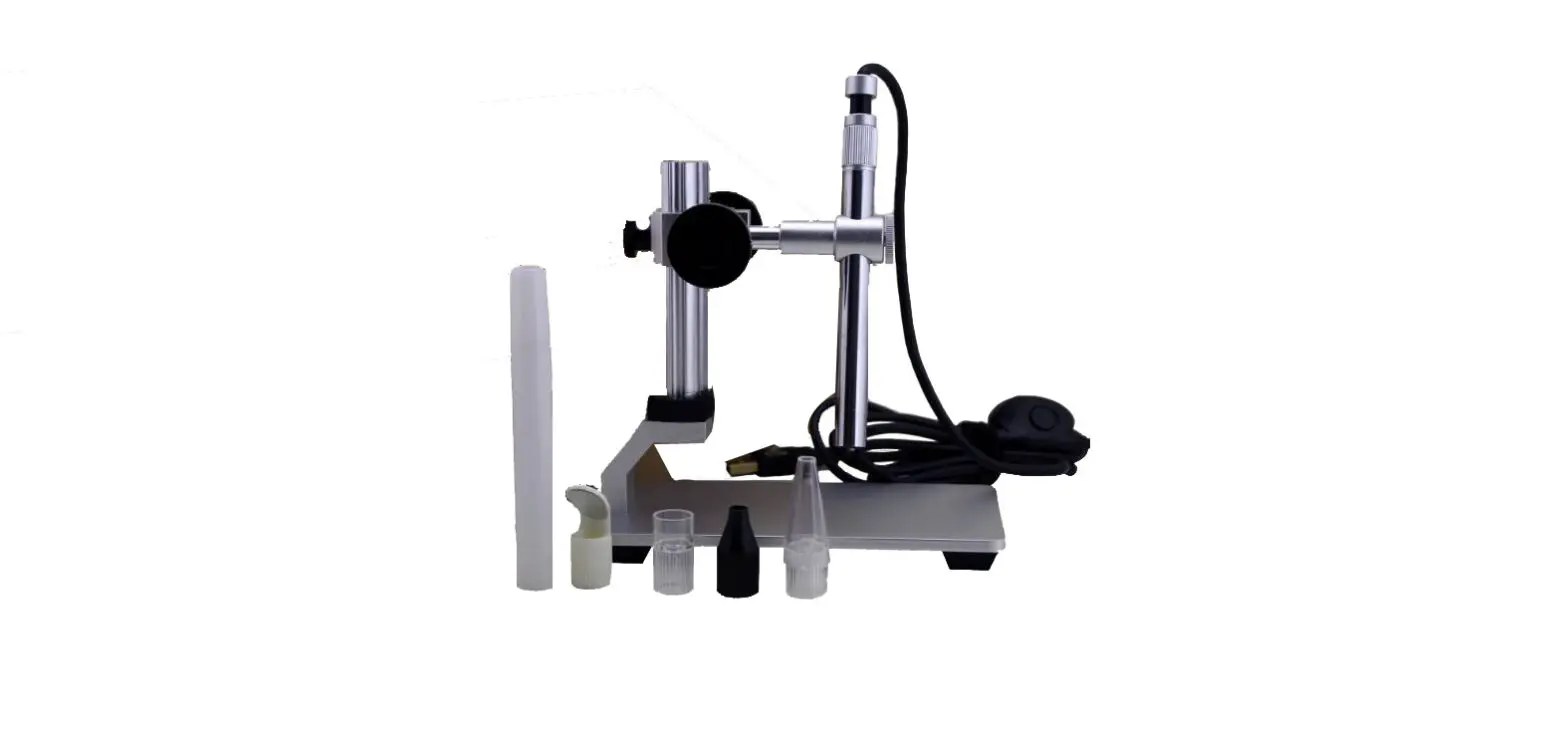
Standard accessories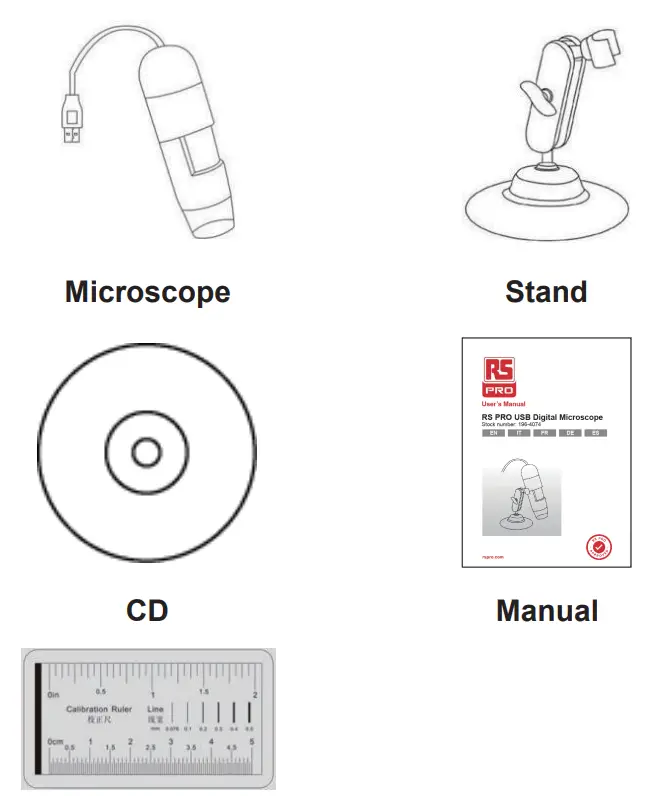
Parts Names & Functions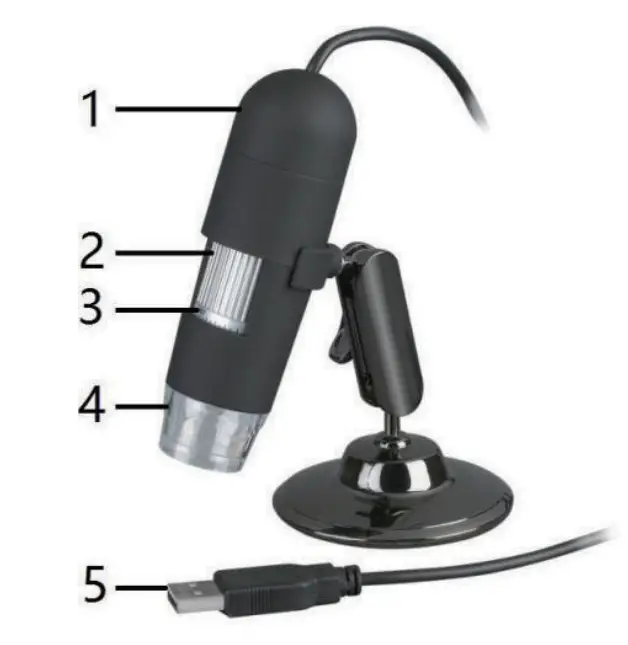
| #1 | LED dimmer |
| #2 | Focus wheel |
| #3 | Magnification ruler |
| #4 | LEDs |
| #5 | USB port |
Computer System Requirements
- Windows 7 / 8 / 10, Mac 10.12 and later
- P4 1.8 or above
- RAM: 1GB
- Video Memory: 128M
- USB port: 2.0
- CD-ROM Drive
Technical Specifications
| Image sensor | 2 Mega Pixels (true resolution) |
| Still capture resolution | 1920×1080, 1280×720, 640×480 |
| Video capture resolution | 1920×1080, 1280×720, 640×480 |
| Focus Range | Manual focus from 0mm to 150mm |
| Magnification Ratio | 20x-230x |
| Video format | AVI |
| Photo format | JPEG |
| Light source | 8 LED (adjustable by control wheel) |
| PC interface | USB2.0 |
| Power source | 5V DC from USB port |
| Operation system | Windows 7 / 8 / 10, Mac 10.12 and later |
| OSD language | English, Deutsch, Spanish, Russian, Italian, French, Portuguese, Dutch, Polish, Japanese, Korean, Chinese |
| Bundle software | MicroCapture Plus (with measurement for Win/Mac) |
| Size | Microscope: 110mm (L) x 33mm (R) |
3. Install the software in Windows
Insert the driver CD into CD-ROM Drive and this will automatically display the following interface:
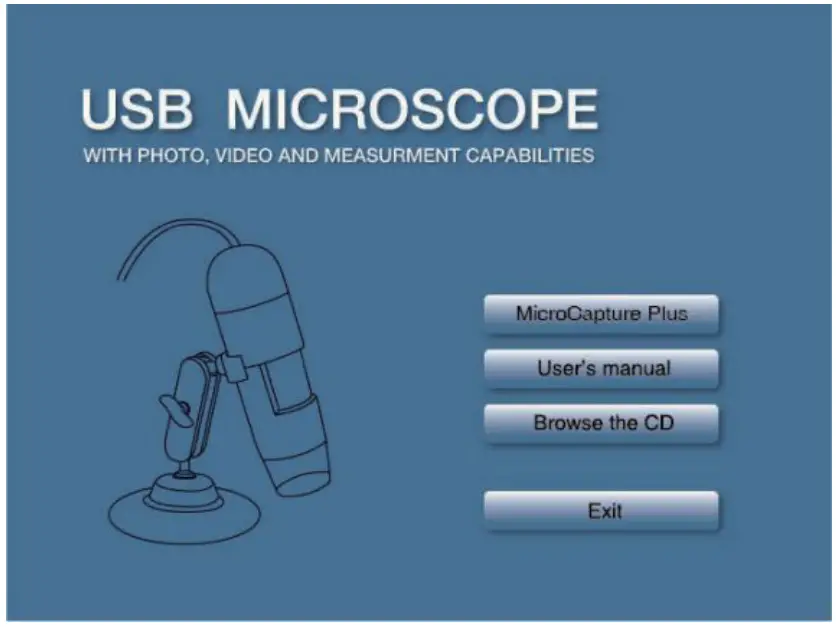
- Install MicroCapture Plus
Click Install MicroCapture Plus and the installation wizard will guide you through the whole process. - Full user’s manual can be viewed by clicking User’s Manual.
4. Start Microscope
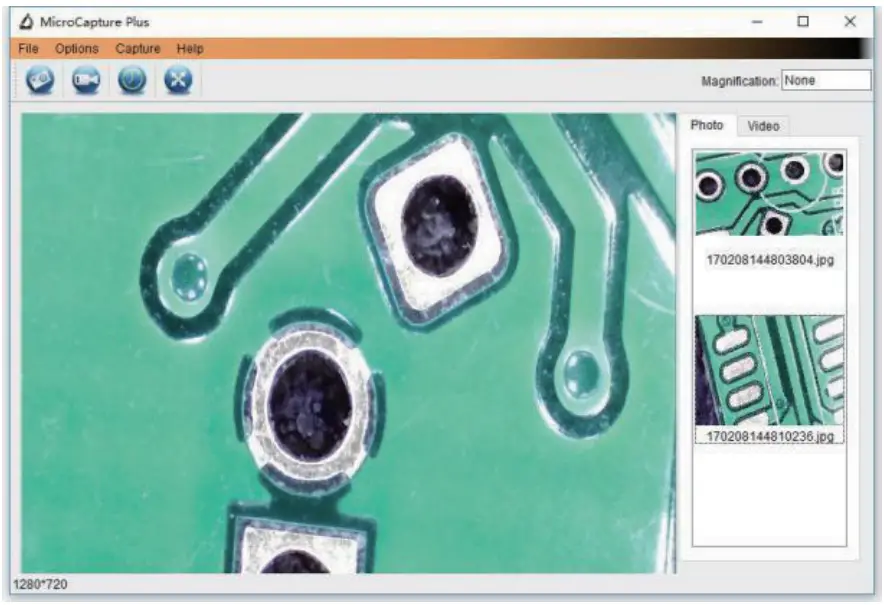
Connect your Microscope to your PC USB port, start the  software by clicking the icon generated on the desktop after installation and you will see the following screen pop up.
 When the Microscope is disconnected from your PC USB port, the following message will pop up
5. Software functions
Capture Photo
a. Click the `Photo’ shortcut icon bar  in the main menu
b. Click `Capture > Photo’.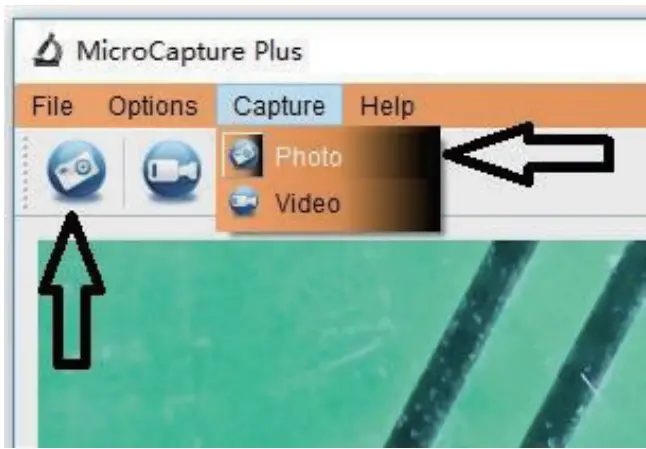
Capture Video
a. Click the `Video’ shortcut icon bar  in the main menu
b. Click `Capture > Video’.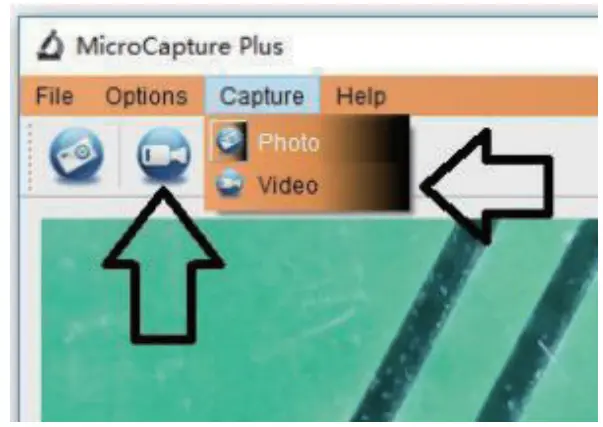
Timer (Photo / Video)
Click the `Timer’ shortcut icon  in the main menu bar.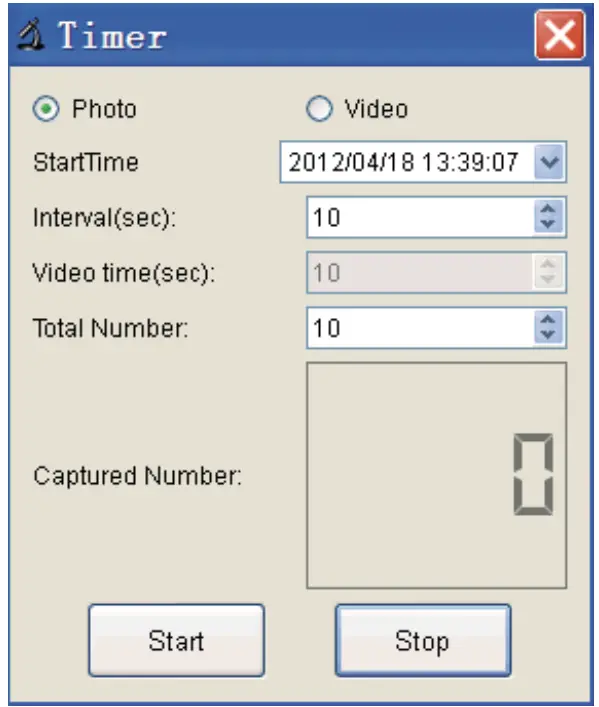
* Under Timer photo, you can set the start time, interval time, and total picture number.
* Under Timer video, you can set the start time, interval time, and total video number
Calibration and Measurement
Please make calibration before measurement.
Calibration
Display Crossing from `Options>Crossing”.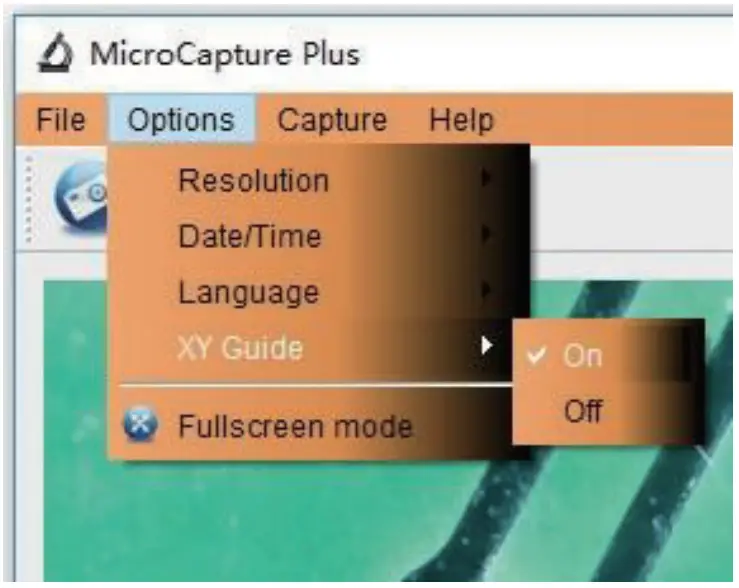
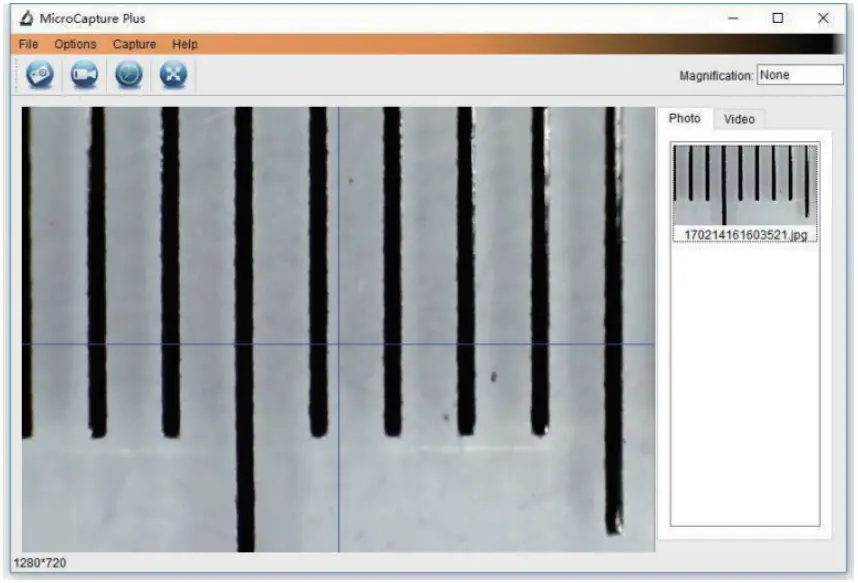
Microscope default at the crossing “on” It’s used to check the dial on the calibration ruler.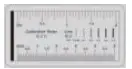
- Focus microscope on the attached calibration ruler and then adjust the magnification till the picture is clear. Take a picture for the selected area when the dial is parallel to the crossing as below.

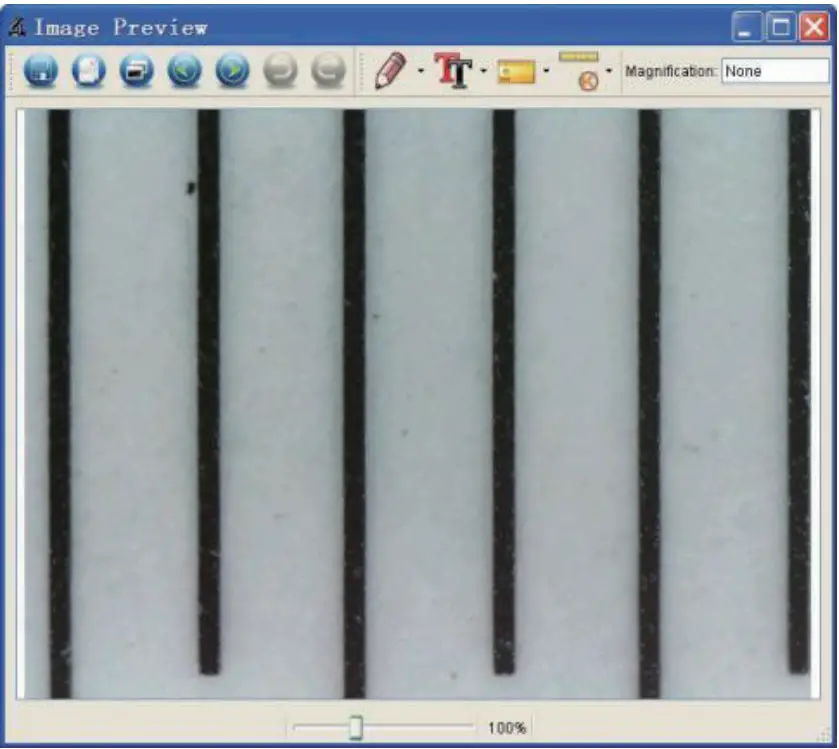
- Double-click on the picture to enter into the measurement interface as below.

- Click the Calibration icon
 , and then move the mouse to the picture. Click on the beginning and ending points across a known value. Now a dialog will popup as below and you need to enter the exact value of the measurement sample into `Actual dimension’. Then the software will automatically calibrate the magnification rate. Click `OK’ and the adjusted magnification rate will show in the upper right corner.
 * Remark: The measured line should be paralleled. 14
 - Now you can use `Any angle Line’ under the Measurement icon
 to measure the value again. If the value you measure by software is nearly the same as the exact value of the dial means the calibration finish.
 , and then move the mouse to the picture. Click on the beginning and ending points across a known value. Now a dialog will popup as below and you need to enter the exact value of the measurement sample into `Actual dimension’. Then the software will automatically calibrate the magnification rate. Click `OK’ and the adjusted magnification rate will show in the upper right corner.
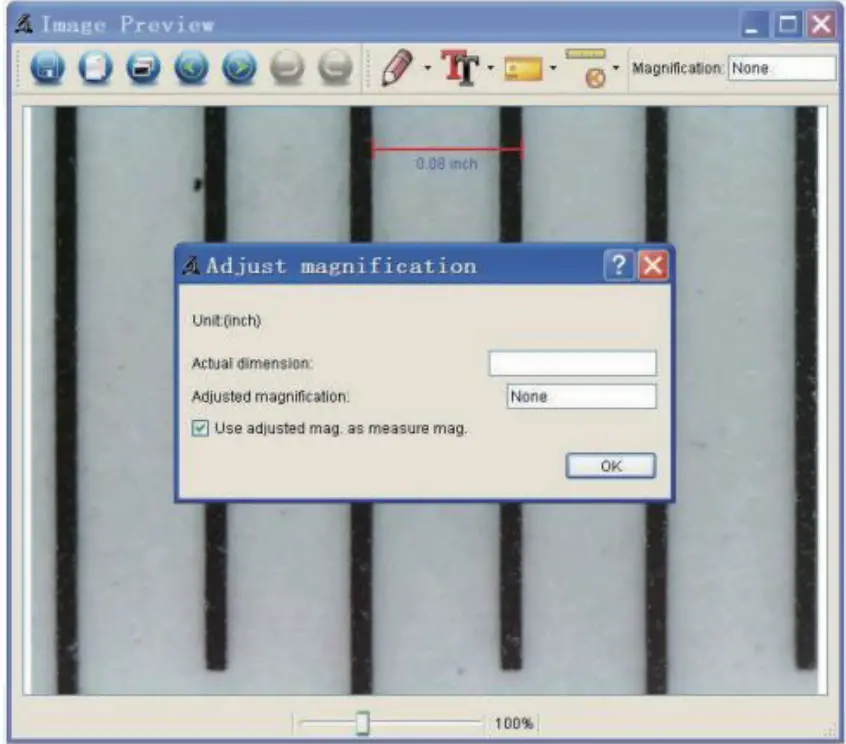 * Remark: The measured line should be paralleled. 14
 to measure the value again. If the value you measure by software is nearly the same as the exact value of the dial means the calibration finish.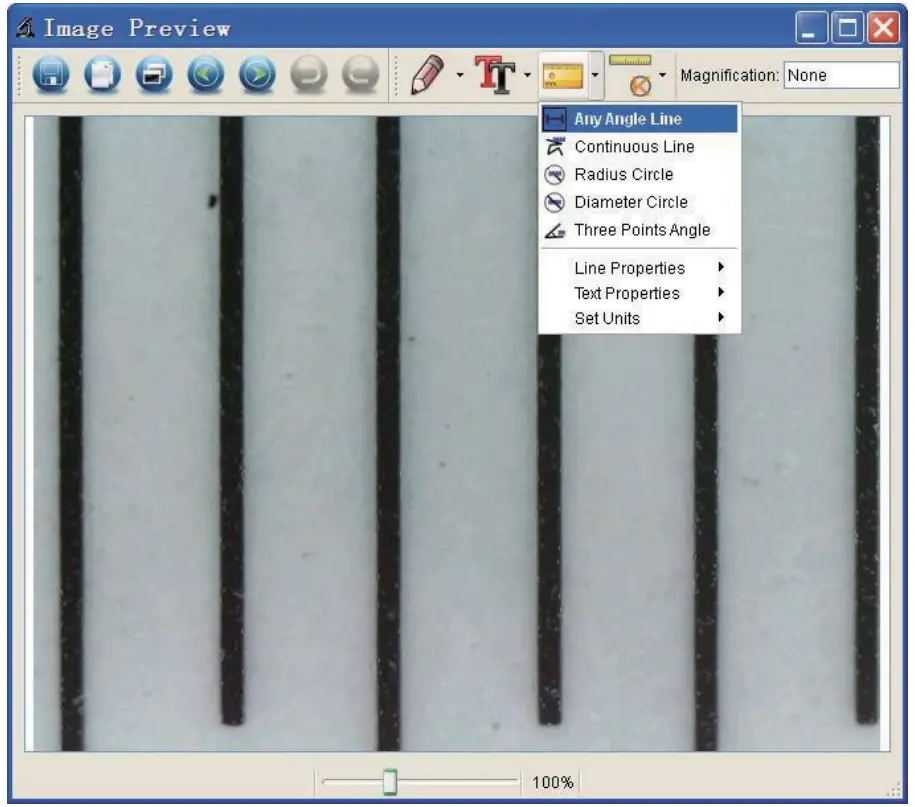
Measurement
- Double-click on the picture to enter into the measurement interface. Under the `Measurement’ icon , you can choose any desired options to measure. 1. Any Angle Line Measurement Simply click from one point and drag to the next point, and then release the click.
- Continuous Line Measurement The Continuous Line measurement allows you to measure any continuous desired length. Simply click and drag from one point to other desired points, and then release the click.
- Radius Circle Measurement Simply click and extend out to the desired radius, the radius, circumference, and area of the circle will show up accordingly.
- Diameter Circle Measurement Simply click and extend out to the desired diameter, the diameter, circumference, and area of the circle will show up accordingly.
- Three Points Angle Measurement Simply define any three points angles and click, the angle value will then display.
Change Calibration
If you need to change the magnification rate and adjust the focus to capture the picture, please calibrate the magnification rate again.
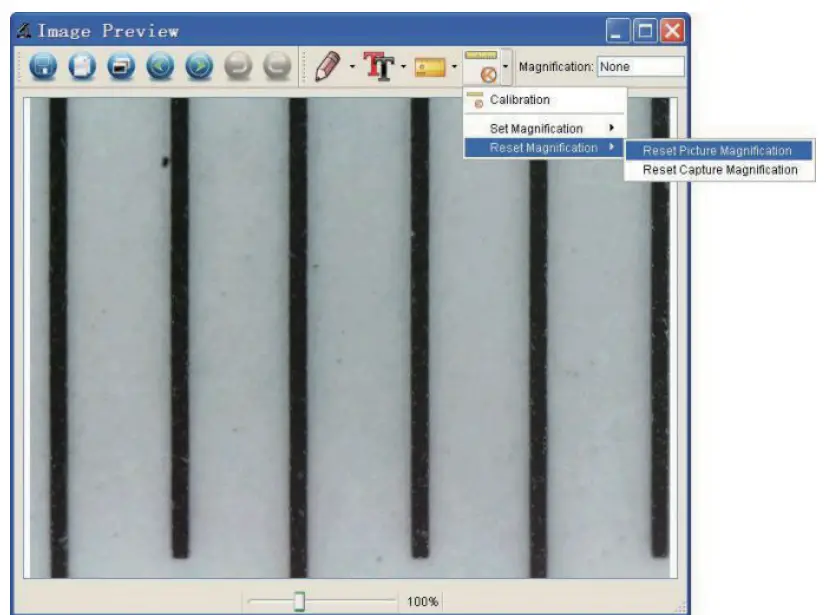
- Double click to open the picture, Click ` > Reset magnification > Reset picture magnification’ as below. And then start the calibration again (Calibration details please refer to page37).

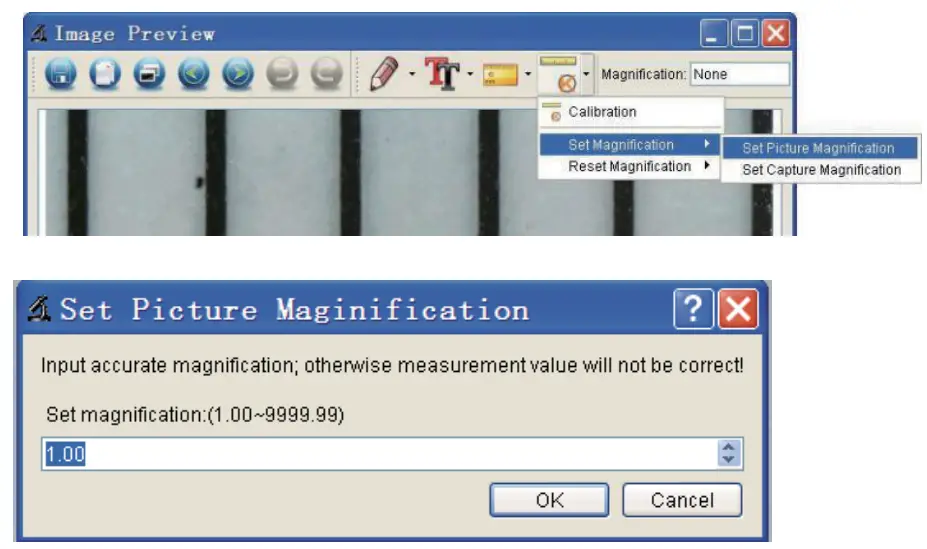
- Change the magnification rate and capture several pictures, click on the picture to enter into the measurement interface. And click ` > Set magnification > Set picture magnification’, now a dialog will show up as below; enter the magnification rate into the dialog and click `OK’.

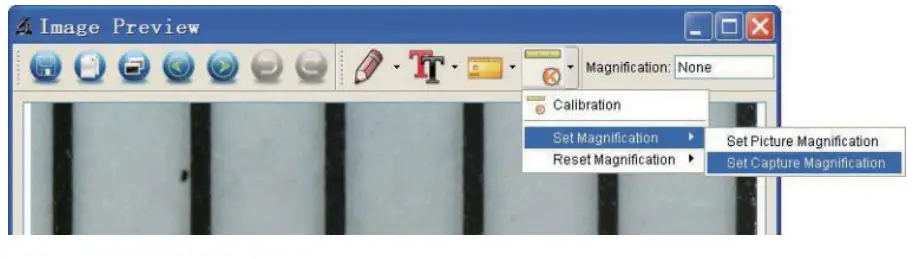
- If you want to use the same magnification rate to capture pictures, just click ` > Set magnification >Set capture magnification’. Now all pictures will use the same magnification rate and you can start measurement directly.
Draw and Text You can draw or add text to the picture and save it for later analysis.
- Click the
 icon to choose any kind of drawing under the pull-down manual as below.
- Click the
 icon and set the font for the text in the popup dialogue as below.
 icon to choose any kind of drawing under the pull-down manual as below.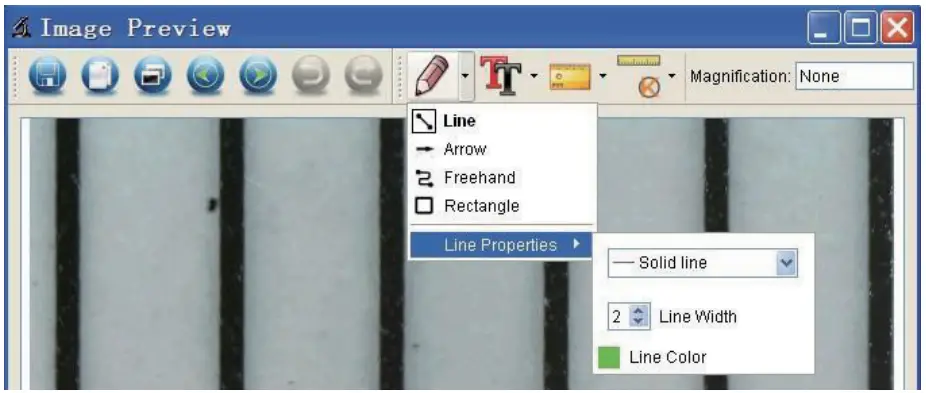
 icon and set the font for the text in the popup dialogue as below.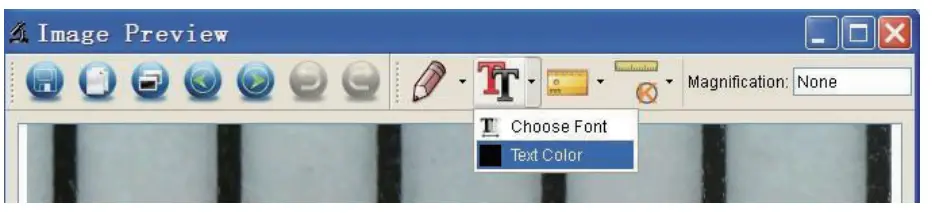
6. Software Interface Instructions
Main Interface Icons
Capture photo It’s used to capture photos one by one. Start / Stop record video. Timer for photo/video Set the start time, interval time, and total photo/video number. Full-screen mode, Press ESC, or double-click to exit.
Main Menu File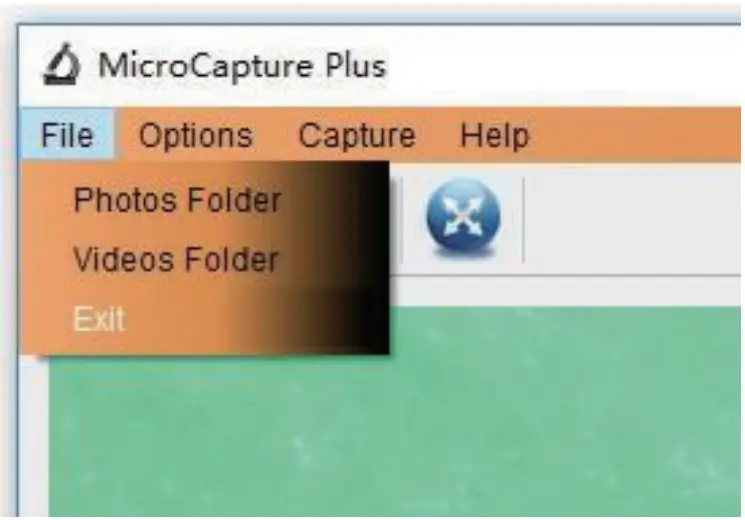 Photos Folder: set the directory to store photos taken;
Videos Folder: set the directory to store videos taken
Options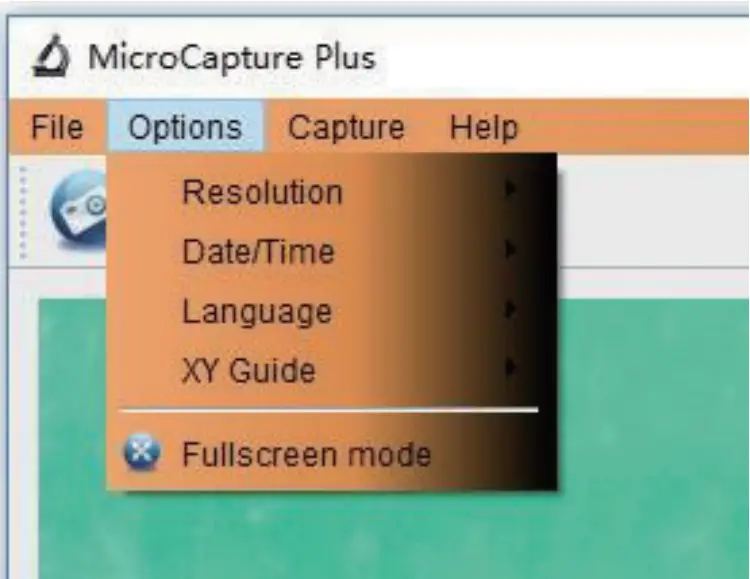 Resolution: change preview size
Date/Time: set to display system date/time on preview window
Language: choose different OSD language XY
Guide: display cross on the preview window
Fullscreen mode: enter into full screen. Click ESC or double click to exit
Capture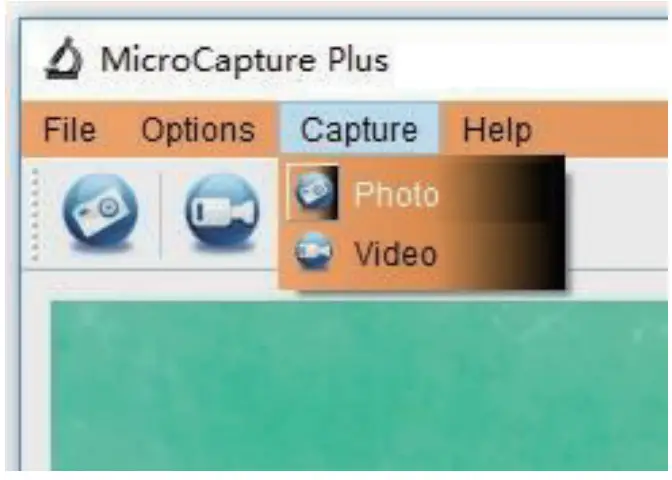 Photo: take a photo
Video: record a video clip
Measurement Interface Instructions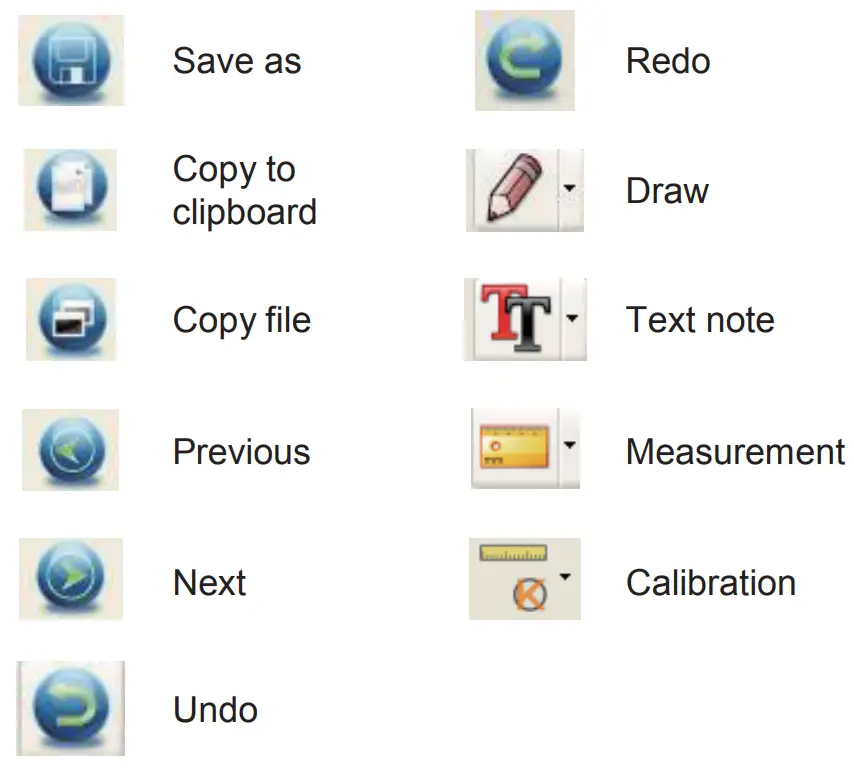
Instructions for Mac software
I- How to install the Mac software
Open the mac folder from the disc and click MicroCapture Plus to finish the installation process. And then there will be icons generated on the desktop as follows.II- How to use the Mac software
The use of the software is the same as that of Windows. So please refer to the previous instructions for Windows. This symbol on the product or in the instructions means that your electrical and electronic equipment should be disposed at the end of its life separately from your household waste. There are separate collection systems for recycling in the EU. For more information, please contact the local authority or your retailer where you purchased the product.
 RS PRO, the private label brand for Allied Electronics & Automation, part of RS Group | Authorized Distributor