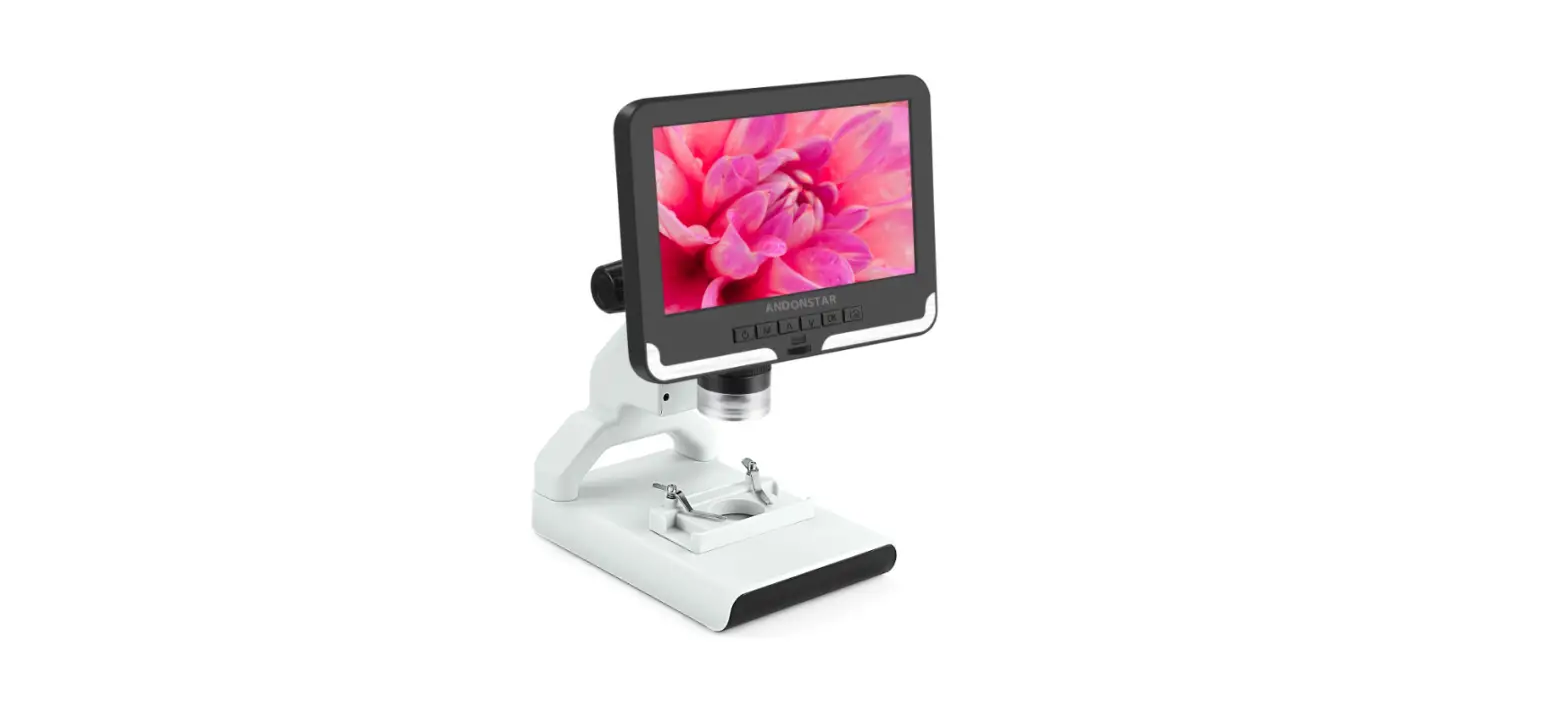
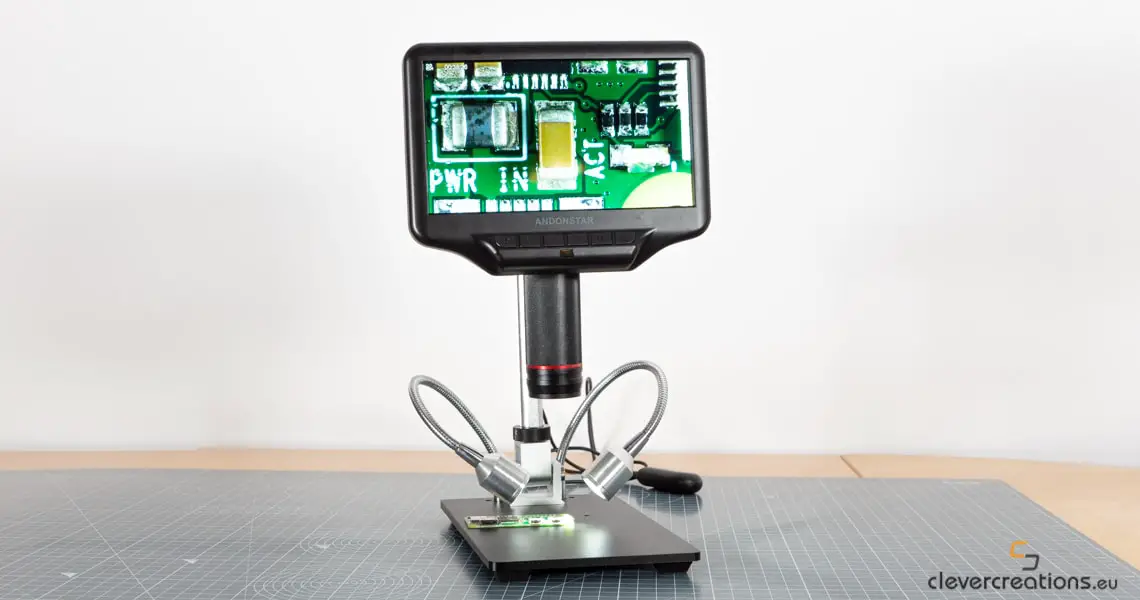
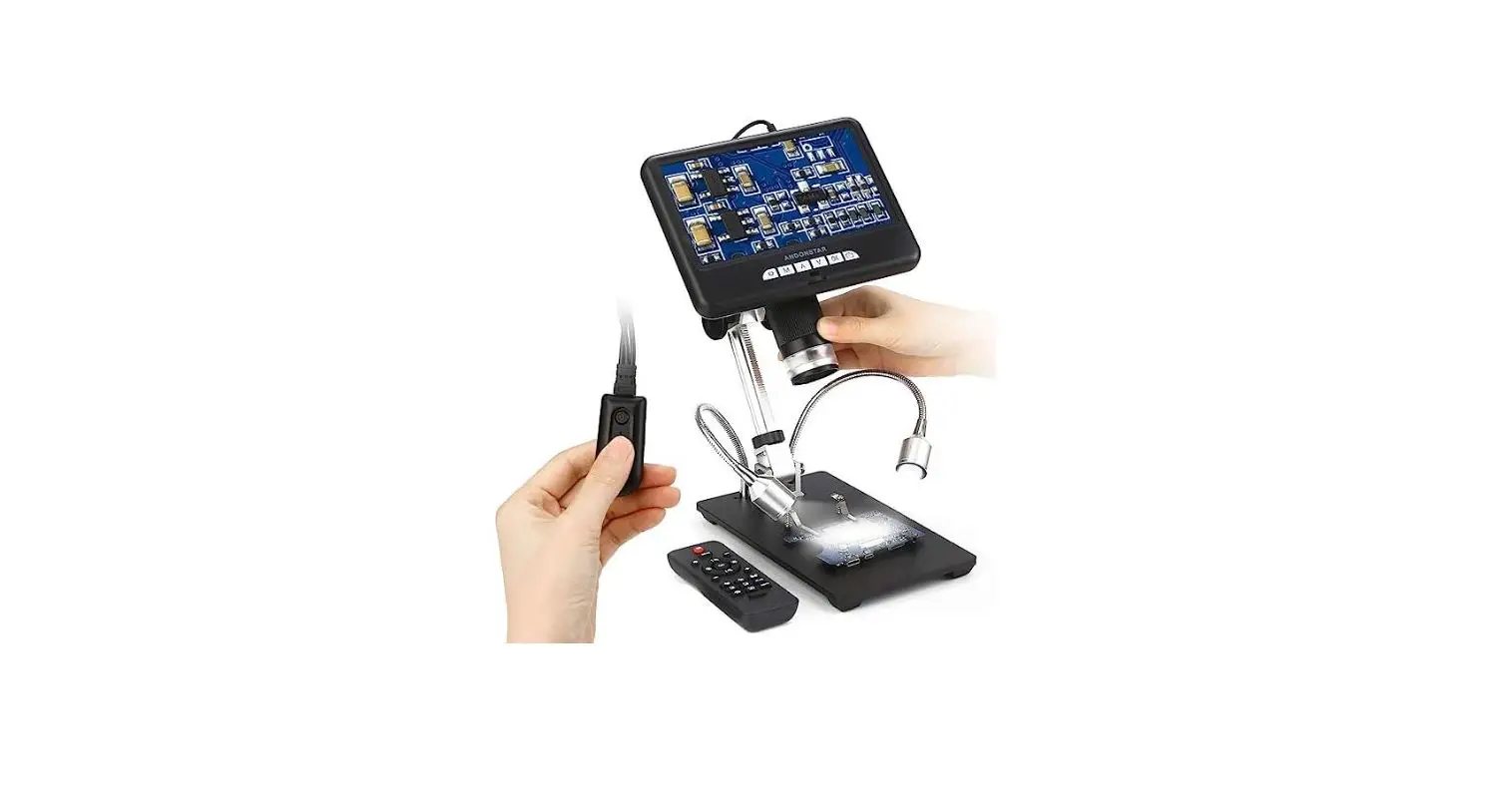
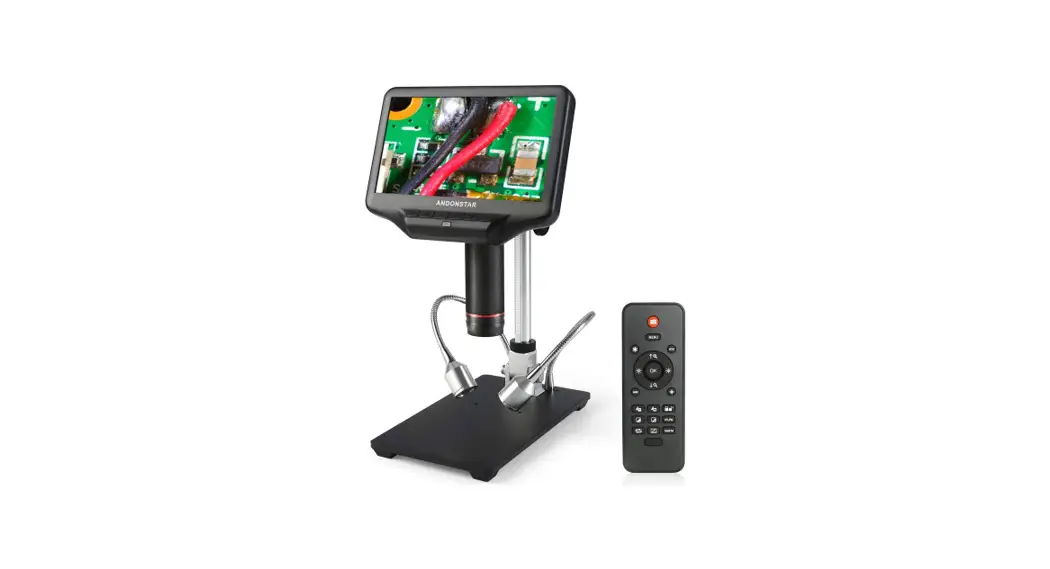
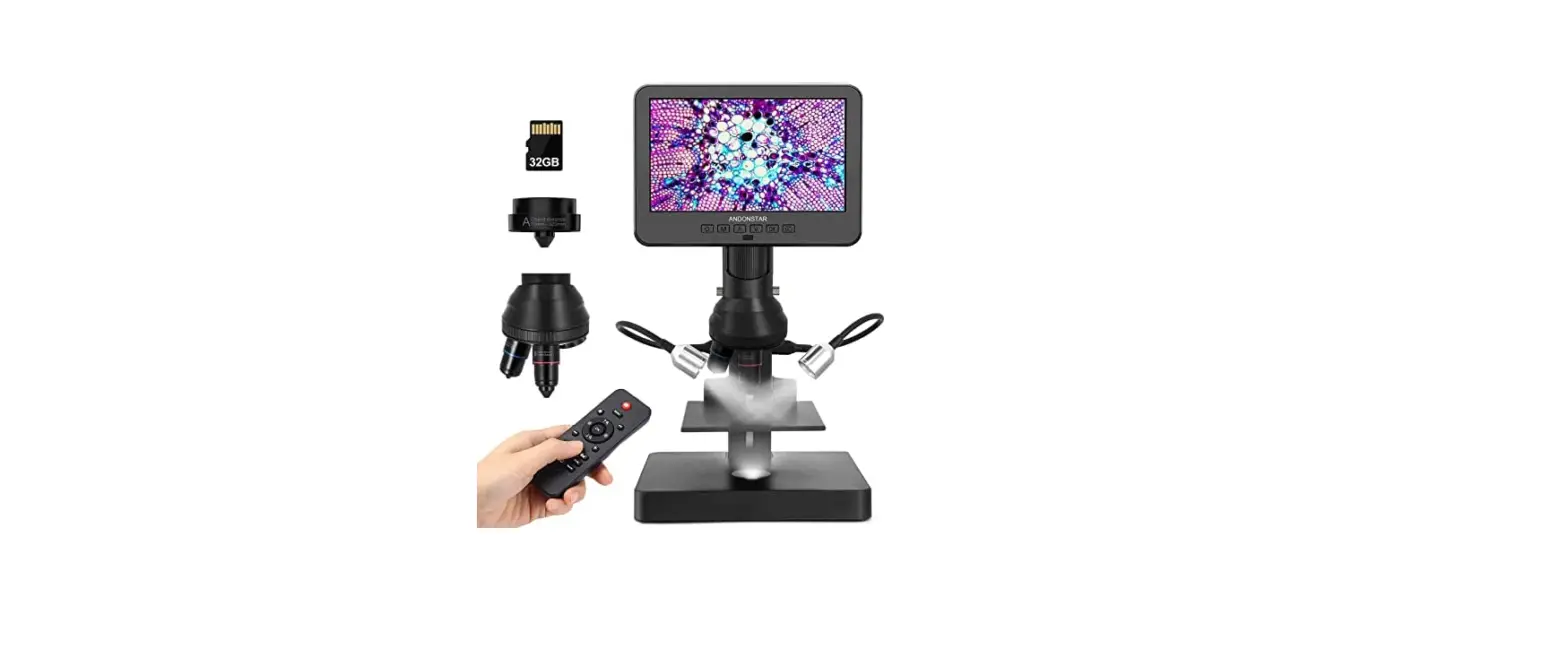
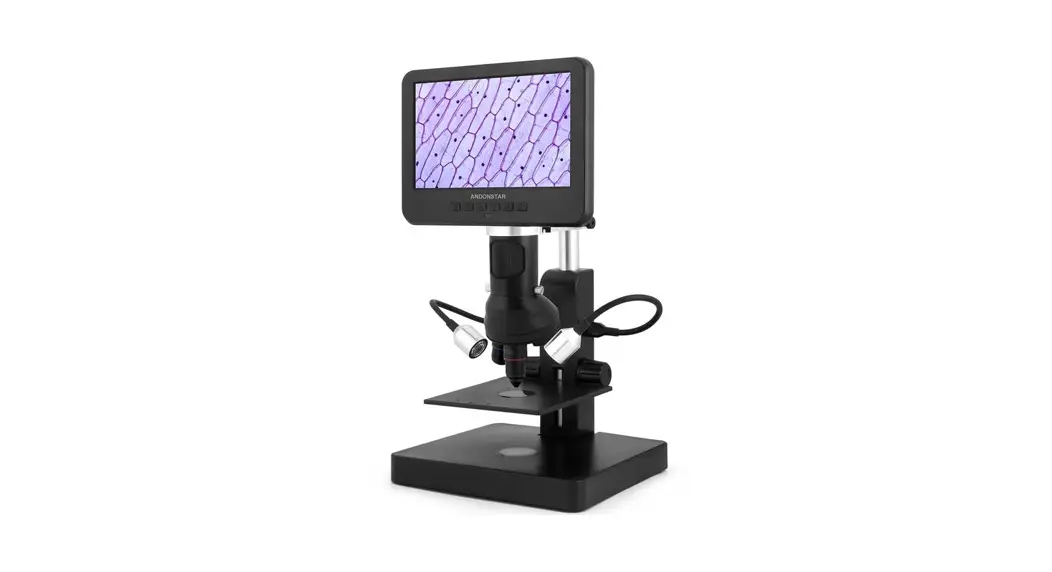
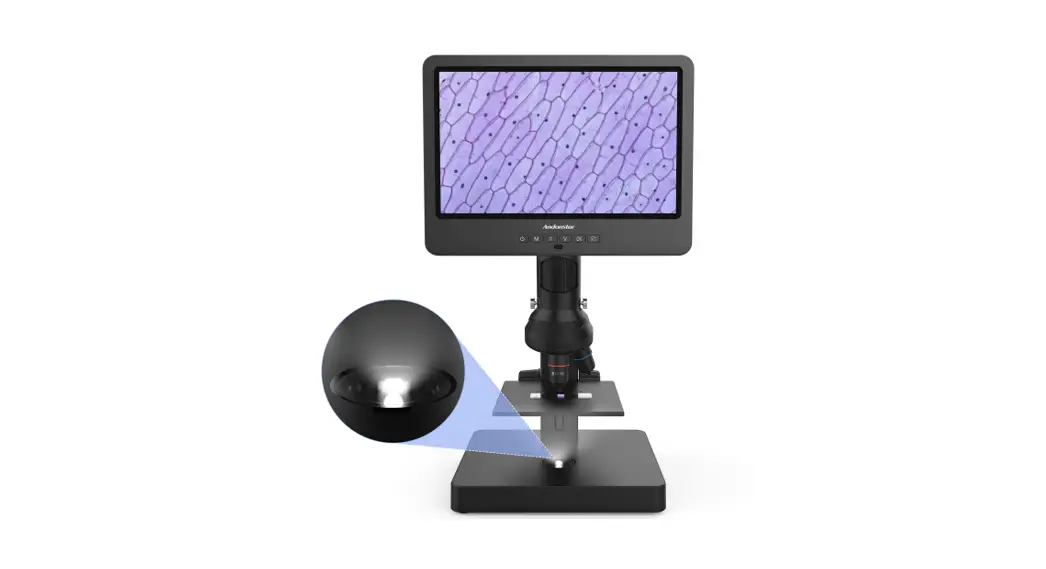
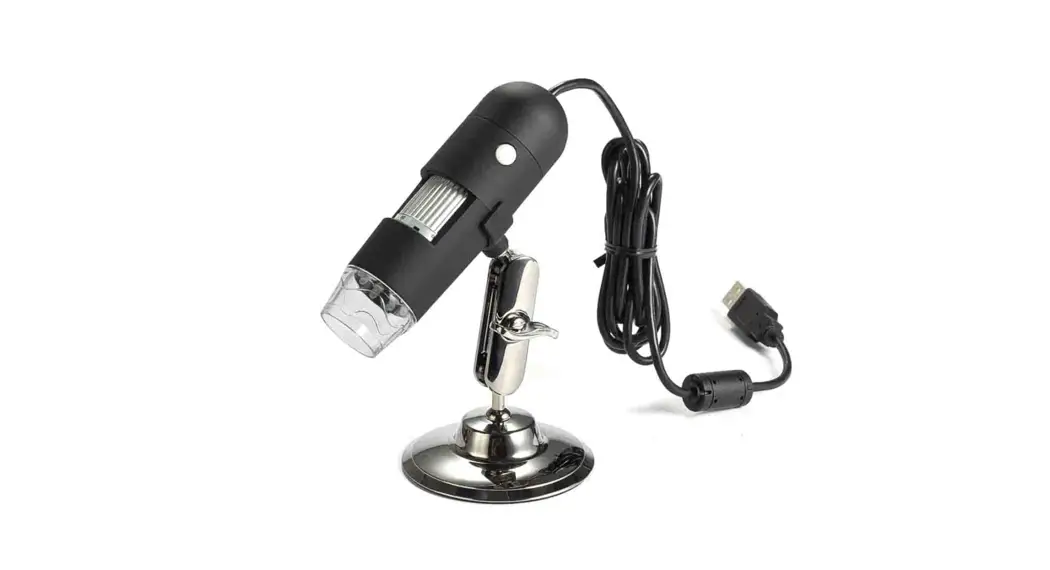
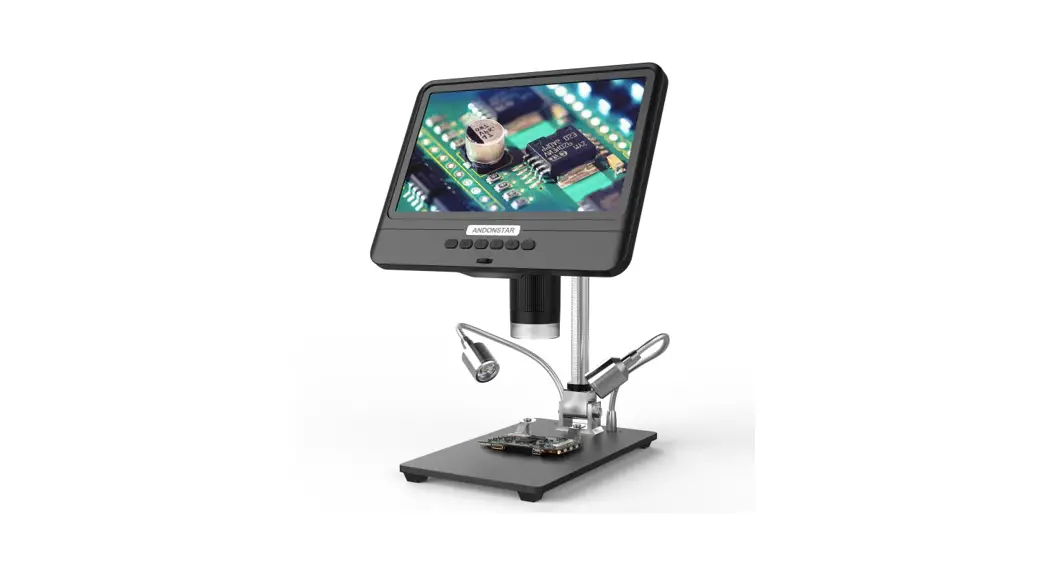
AD203 80-200X USB Digital Microscope
Product Information
| Parameter | Description |
|---|---|
| Image sensor | 2 MP HD Sensor |
| Video output | 1080FHD |
| Video format | 1920×1080 30FPS; HD1080P 1440×1080 30FPS; 720P 1280×720 30FPS; AVI |
| Magnification | Built-in 4 inch screen:28X, 3x digital magnification:84X; Full screen of 30inch computer:200X |
| Photo resolution | Up to 12M (4032×3024) JPG |
| Photo format | JPG |
| Focus range | Minimum 1cm |
| Frame rate | 30FPS |
| Storage | Micro SD card, Up to 32G |
| Pc support | Support Windows 7/8/10amcap software |
| Power source | USB 5V DC |
| Light source | 8 built-in LED lights |
| Display resolution | 800×480 4inch |
| Screen size | 4 inch |
| Language Support | 12 types: Simplified Chinese / Traditional Chinese / English / Japanese / French / German / Korean / Vietnamese / Portuguese / Russian / Spanish / Italian |
Product Usage Instructions
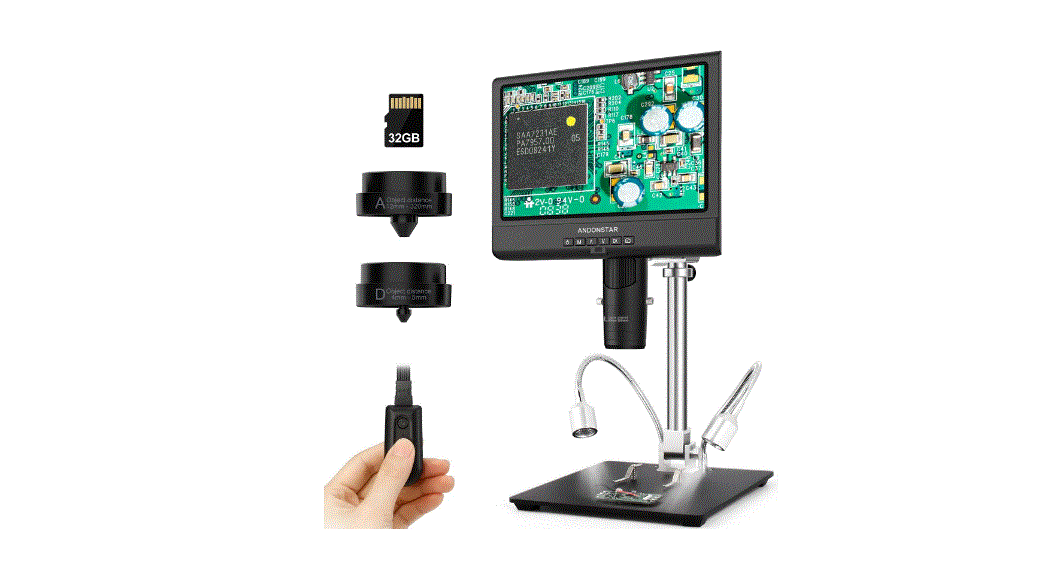
What’s in the Box:
- Microscope
- Carrying bag
- USB cable
- Wrist strap
- Power on/off
- Up/Zoom in (Long press in the Video Standby Mode to enter the
Black&White effect) - Take video/picture (Long press in the Video Standby Mode to
enter the Image Rotation effect) - Down/Zoom out (Long press in the Video Standby Mode to enter
the Color Reverse effect) - Mode/menu OK (Long press in the Video Standby Mode, the screen
will be hold)
Quick Start:
- Turn on the screen on the left side of the microscope and press
and hold the Power button until the screen lights up. (Usually, the
microscope will automatically turn on when the power is
connected) - Adjust the brightness of the lamp, adjust the object distance
and screen angle, and manually adjust the focus wheel to obtain the
desired image.- Turn the light adjustment wheel up to brighten, and turn it
down to darken - Turn the focus wheel clockwise to enlarge the magnification,
counterclockwise to reduce the magnification - In the Video Standby Mode, press up and down keys to zoom
in/out digitally, up to three times.
- Turn the light adjustment wheel up to brighten, and turn it
Troubleshooting:
If there is a crash, please use the reset hole to reset the
system. The reset hole is a small hole under the plastic cover,
which can be pressed with the help of a pin/pen tip and other
pointed objects. After the system is reset, the machine will
restart, and the settings will be restored to the factory settings,
but the images and video files saved in the memory card will not be
deleted.
Mode Switch:
- In the Video Standby Mode, press the M key to switch to the
Picture Mode - In the Picture Mode, press the M key to switch to the
Picture/Video Playback Mode - In the Picture/Video Playback Mode, press the M key to switch
to the Video Standby Mode - In the Picture/Video Playback Mode, press the up and down keys
to switch files. When the file is a video, press the key to play
the video.
Record Video:
In the Video Standby Mode, press the button to enter the video
shooting, and then press the button to end the video shooting.
Take Pictures:
In the Picture Mode, press the button to take the image.
System Settings:
- In the Standby Mode, long press the M key until the image
setting menu is displayed on the screen, and then short press the M
key to enter the system setting menu. - Press the up/down button to select the parameter to be set, and
press the OK button to enter the item and content to be set. - After finishing the setting, press the M key again to return to
the Standby Mode.
Digital Microscope User Manual
LIST OF CONTENTS
1. Safety and Maintenance……………………………………………………………………………………….1 2. Basic Parameters………………………………………………………………………………………………… 1 3. What’s in the Box…………………………………………………………………………………………………2 4. Product Introduction Picture………………………………………………………………………………. 2 5. Button Instructions…………………………………………………………………………………………….. 3 6. Quick Start…………………………………………………………………………………………………………..3
. Troubleshooting…………………………………………………………………………………………..4 . Mode Switch……………………………………………………………………………………………….. 4 . Record Video………………………………………………………………………………………………. 4 . Take Pictures………………………………………………………………………………………………. 4 . System Settings…………………………………………………………………………………………… 4 7. USB Output………………………………………………………………………………………………………….4 . Software Installation…………………………………………………………………………………… 4 . Operating Steps……………………………………………………………………………………………5 8. FAQ…………………………………………………………………………………………………………………….. 5
1. Safety and Maintenance
1. The microscope is not intended to medical use. The assembly includes small parts, particularly the thumbscrews used to hold the main device in place. Do NOT allow unsupervised access by infants or toddlers. 2. The microscope is not intended for field use. It is not waterproof, and should not be exposed to extreme temperatures. 3. When the microscope is working, please do not direct the LED light to human eyes to avoid injury. 4. When the microscope is working for a long time or is powered on, the left side of the screen and the position of the main board will be slightly warm, which is a normal phenomenon, please don’t worry. 5. The display on the device is very fragile. Please use with care. Do not drop, press hard or touch the display with sharp objects.
2. Basic Parameters
Image sensor
Video output
Video format
Magnification
Photo resolution Photo format Focus range Frame rate Storage Pc support Power source Light source Display resolution
Screen size
Language Support
Package contents
Product Data Packaging data Warranty
2 MP HD Sensor 1080FHD1920x1080 30FPS; HD1080P 1440×1080 30FPS; 720P 1280×720 30FPS; AVI Built-in 4 inch screen:28X, 3x digital magnification:84X; Full screen of 30inch computer:200X Up to 12M (4032×3024) JPG Minimum 1cm 30FPS Micro SD card, Up to 32G Support Windows 7/8/10amcap software USB 5V DC
8 built-in LED lights
800*480 4inch
12 types, Simplified Chinese / Traditional Chinese / English / Japanese / French / German / Korean / Vietnamese / Portuguese / Russian / Spanish / Italian
Handheld microscope × 1 power cable × 1 portable wrist strap × 1 portable bag × 1 instructions × 1 18*13*4cm/0.215kg 19*20*6.5cm/0.5kg 1 year
1
3. What’s in the Box
(P1, what’s in the box) Microscope Carrying bag USB cable Wrist strap
4. Product Introduction Picture
2
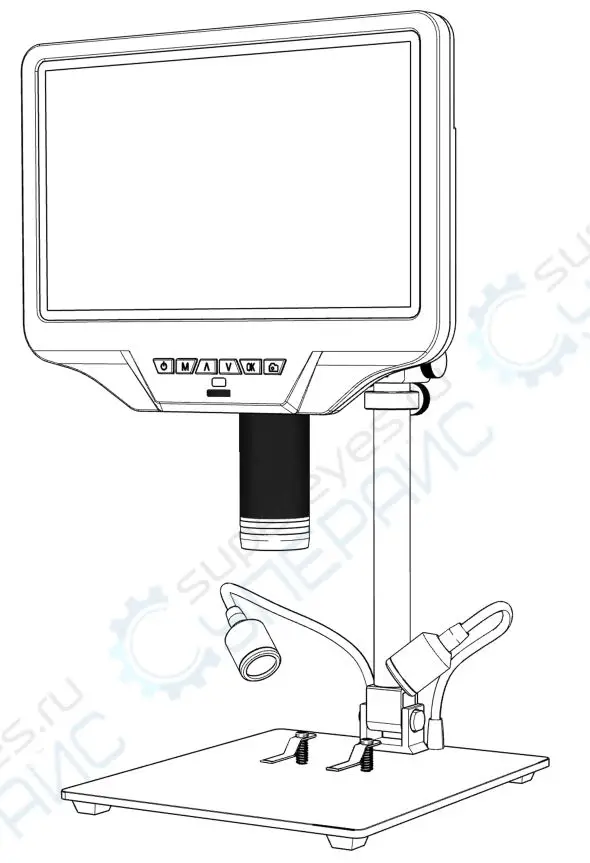
P2, Product Introduction Picture
5. Button Instructions
Power on/off Up/Zoom in (Long press in the Video Standby Mode to enter the Black&White effect) Take video/picture (Long press in the Video Standby Mode to enter the Image Rotation effect)
Down/Zoom out (Long press in the Video Standby Mode to enter the Color Reverse effect) Mode/menu OK(Long press in the Video Standby Mode, the screen will be hold)
6. Quick Start
1. Turn on the screen on the left side of the microscope and press and hold the Power button until the screen lights up. (Usually, the microscope will automatically turn on when the power is connected)
2. Adjust the brightness of the lamp, adjust the object distance and screen angle, and manually adjust the focus wheel to obtain the desired image.
* Turn the light adjustment wheel up to brighten, and turn it down to darken * Turn the focus wheel clockwise to enlarge the magnification, counterclockwise to reduce the magnification * In the Video Standby Mode, press “up” and “down” keys to zoom in/out digitally, up to three times.
3
. Troubleshooting
If there is a crash, please use the “reset hole” to reset the system. The “reset hole” is a small hole under the plastic cover, which can be pressed with the help of a pin/pen tip and other pointed objects. After the system is reset, the machine will restart, and the settings will be restored to the factory settings, but the images and video files saved in the memory card will not be deleted.
. Mode Switch
In the Video Standby Mode, press the “M” key to switch to the Picture Mode; In the Picture Mode, press the “M” key to switch to the Picture/Video Playback Mode; In the Picture/Video Playback Mode, press the “M” key to switch to the Video Standby Mode; In the Picture/Video Playback Mode, press the “up” and “down” keys to switch files. When the file is a video, press the ” ” key to play the video.
. Record Video
In the Video Standby Mode, press the ” to end the video shooting.
” button to enter the video shooting, and then press the ”
” button
. Take Pictures In the Picture Mode, press the ”
” button to take the image.
. System Settings
1). In the Standby Mode, long press the “M” key until the image setting menu is displayed on the screen, and then short press the “M” key to enter the system setting menu. 2). Press the “up/down” button to select the parameter to be set, and press the “OK” button to enter the item and content to be set. 3). After finishing the setting, press the “M” key again to return to the Standby Mode.
3. USB Output
. Software Installation
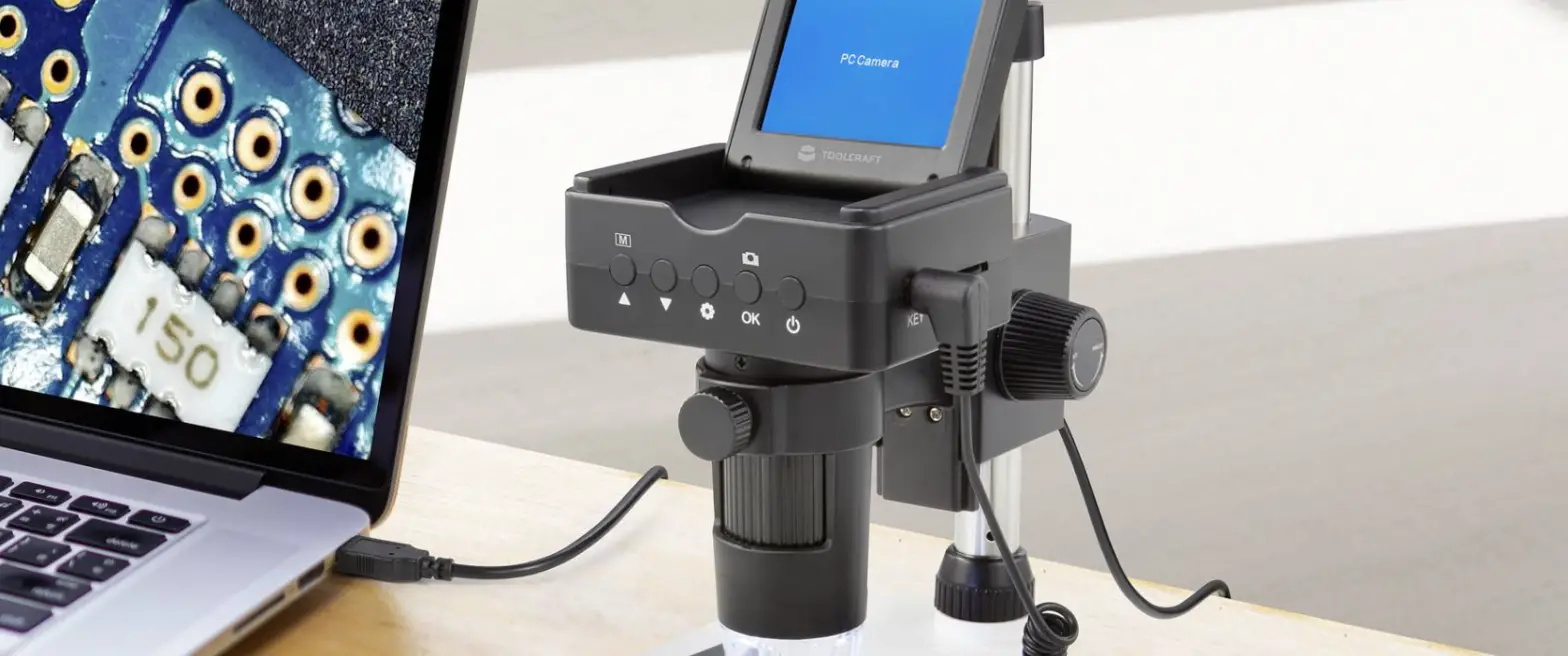
Amcap software download link: https://bit.ly/3woHmVG Operating system required for installation: Windows XP, Windows 7, Windows 8, Windows 10 Windows10 and MacOS systems can use the system camera to view images. After download is successful, open the compressed file you downloaded, install and run it.
* Make sure that your computer’s USB port provides enough powerful and stable power. Some laptops may not work normally due to unstable power supply, please try to replace a computer. If there is a problem, please contact our technical team.
4
. Operating Steps
*In this mode, the resolution is 1280*720 1). Connect the microscope to the computer. 2). Two options “Mass storage” and “PC Camera” appear on the microscope screen. Use the “Down” and “OK” buttons to select “PC Camera”. 3). Start the “Amcap” software 4). Choose the microscope device ” USB camera” in ” Devices” . Capture picture: 1). Initial setting: OptionsPreview, CaptureStillEnable, 2). Select the image storage path: CaptureStillFolder 3). Take a picture: CaptureStillSnap (or directly press “Enter” on the keyboard Record video: 1). Select the video storage path: FileSet Capture File Target Folder 2). Recording: Capturestart captureOKcapturestop capture.
8. FAQ
· Why does the device feel warm? Microscope work requires a camera, GPU (image processor), CPU (processor) and other devices to work together. During imaging or image processing, the microscope has a high load and consumes a lot of power. Long working hours may cause a certain degree of warmth. This is a normal phenomenon. · Why the image is not clear? Please adjust the focus or focus tube and light irradiation angle. When conditions permit, auxiliary lighting can be added for better lighting effects! · Why choose Playback Mode after recording, and there is no image on the display? It is possible that the video is not saved completely, the shooting is not successful, or the video file of the video is too large, and the system needs running time. Do not power off/shut down during video shooting! · Why the image is abnormal after connecting to the computer? Please try to change a computer or a USB cable. If you cannot solve it, please contact our technical team in time.
5
Warranty Card
User’s name
Address
Phone number
Post code
Model name
Purchase date
Fault feedback
Date
Fault
Notice Our warranty doesn’t cover:
1
If users can not provide the purchase proof or the Warranty.
2
If users use it in an improper environment, such as incompatible power supply, high temperature environment etc.
3
If the fault caused by accident, oversight, improper operation or natural disasters etc.
If the fault caused by people who are not belong to authorized organizations of our
4
company during repacking, repair, dismantle, Or if users repack, repair or dismantle
the device not following our advice.
5
Out of warranty period.
6
 amcap.exe - Google Drive