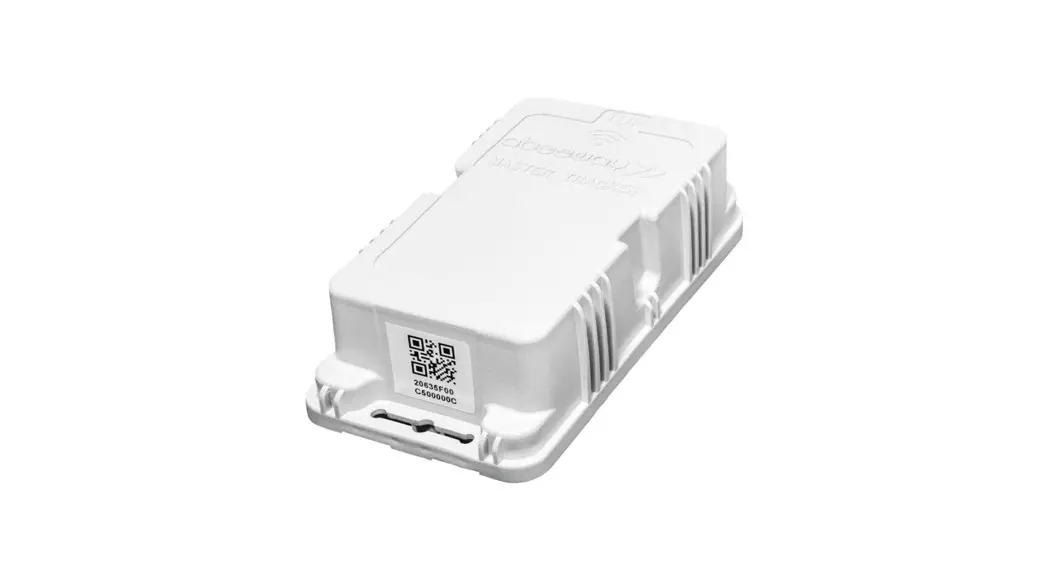
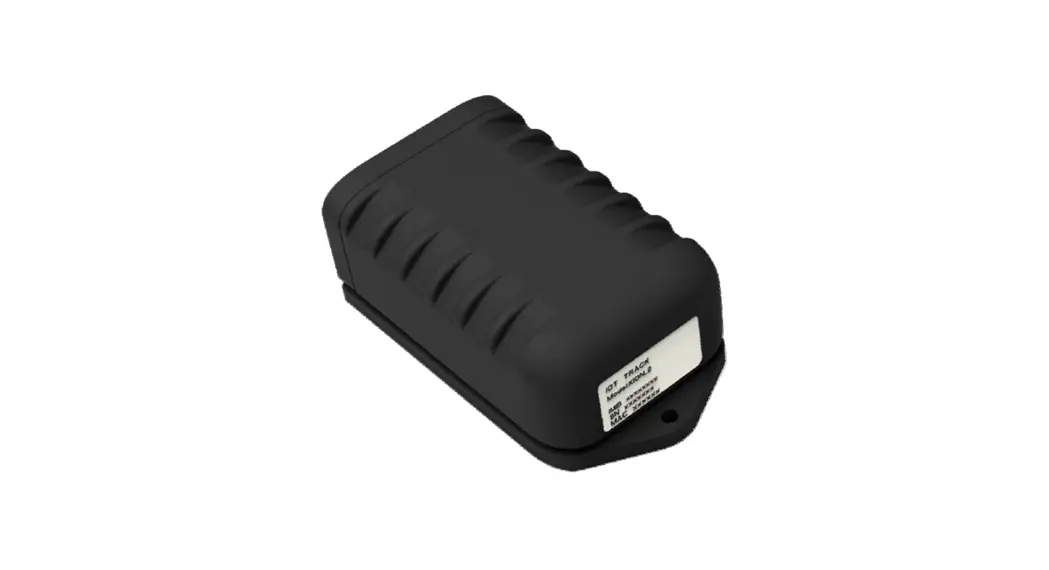
9602-AB Ultra Low Power Consumption Tracker
Product Information:
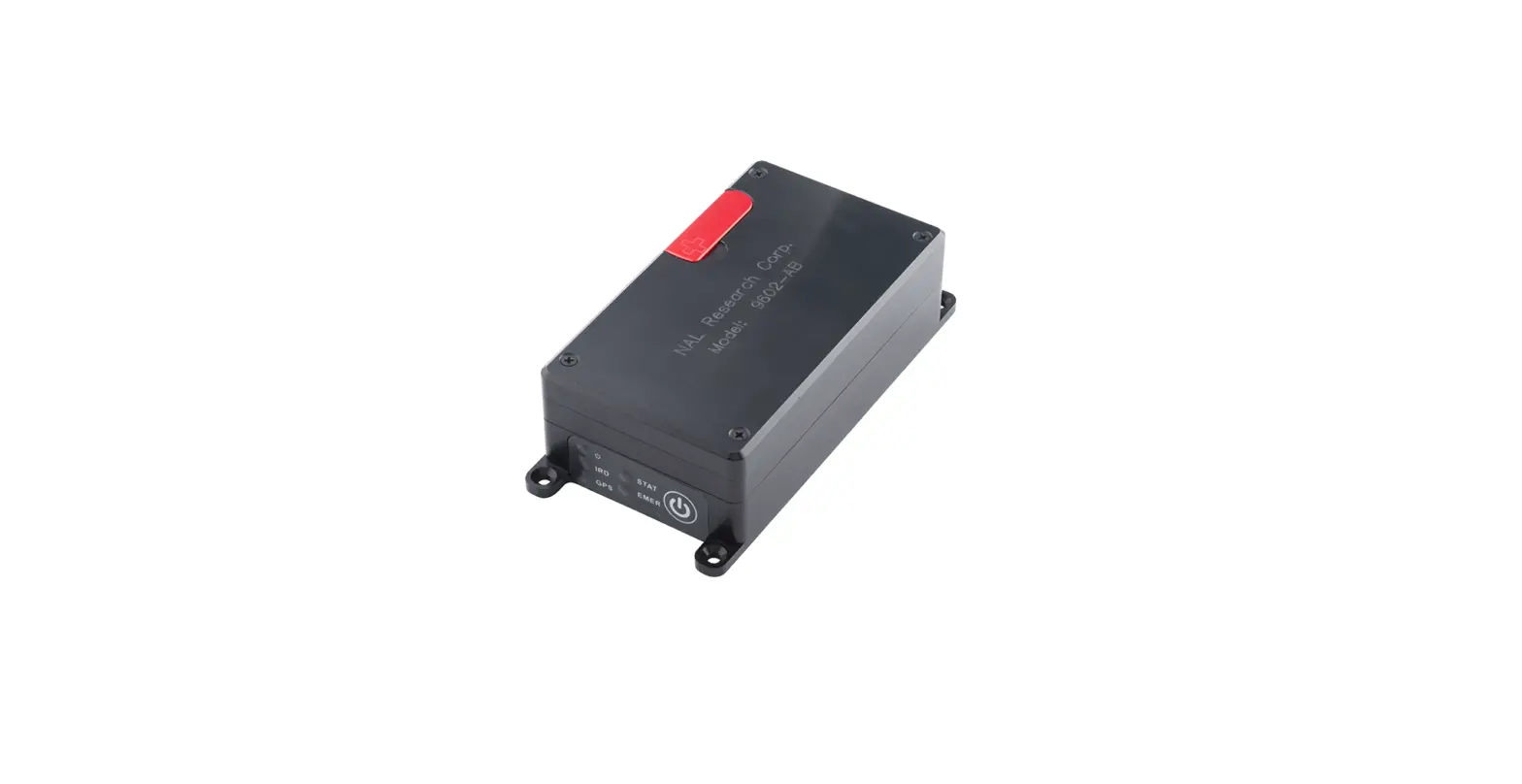
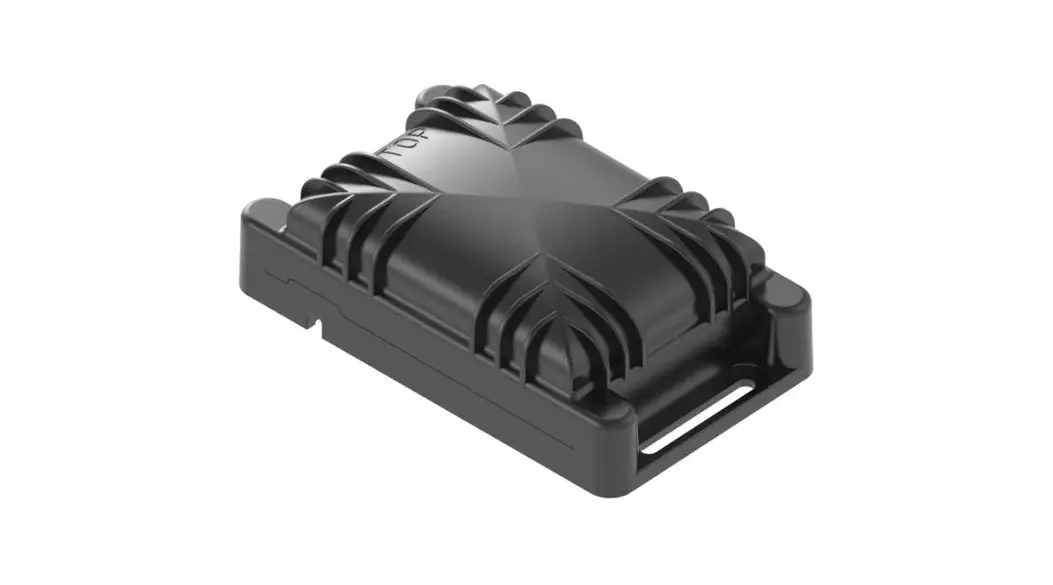
The 9602-AB is a device that provides various indicators such as
Power indicator, Iridium signal strength, GPS availability, SBD
transmission status, and Emergency mode alert. It comes with Power
LED, Iridium LED, GPS LED, Status LED, and Emergency LED for visual
feedback. The device has Iridium and GPS antennas embedded inside
the lid. It also features an Emergency button, a Power On/Off
button, and a USB-Mini connector for connectivity.
LED Indicators:
- Power LED (Top)
- Iridium LED
- GPS LED
- Status LED (Top)
- Emergency LED
Contact Information:
Support Phone#: 571-833-2169
Email: [email protected]
Manual Version: 451-92681-004A
Valid Until: 2023-03-31
Product Usage Instructions:
Emergency Mode:
To activate Emergency Mode, quickly press and release the
Emergency button. This will trigger emergency tracking and the
Emergency LED will illuminate. To deactivate Emergency Mode, press
and hold the Emergency button for longer than three (3)
seconds.
Power On/Off Device:
- Press the Power button for two (2) seconds to turn on the
device. The device will start in Track mode and send out tracking
reports. - Depending on the device configuration, press the Power button
for two (2) seconds to turn the device off.
Charging the Battery:
- Connect the USB-mini cable to the USB-mini connector port on
the 9602 device. - Connect the USB connector on the USB mini cable to the USB
connector port on the AC Wall Adapter.
Configuring the Device:
- Connect the USB-mini cable to the USB-mini connector port on
the 9602 device. - Connect the USB connector on the other end of the USB mini
cable to the USB connector port on a DTE (Data Terminal
Equipment). - Configure the device using SatTerm/At Commands.
9602-AB QUICK START GUIDE Support Phone#: 571-833-2169 [email protected] 451-92681-004A 2023-03-31
DEVICE DESCRIPTION: The 9602-AB Tracker is an ultra-low power consumption tracker designed for SBD communication using the Iridium satellite network. It comprises an internal Iridium antenna, an internal GPS antenna, and an internal Liion battery. The 9602-AB can send either standard or 256-bit AES-encrypted GPS reports at a pre-programmed interval ranging from once every 60 seconds to once every seven (7) days. The interval can be changed via SatTerm or AT commands using a Data Terminal Equipment (DTE). IMPORTANT: The 9602-AB antennas must have a clear view of the sky during transmission. LED Settings: There are five (5) status LEDs that provide quick visual check to ensure proper operations . These
include Power indicator, Iridium signal strength, GPS availability, SBD transmission status, and Emergency mode alert. NOTE: The 9602-AB ships with all LEDs set to ACTIVE.
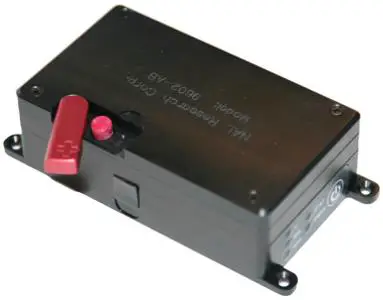
Iridium and GPS Antennas Embedded Inside the Lid
Emergency Button
Power LED (Top) Iridium LED GPS LED
Status LED (Top) Emergency LED
USB-Mini Connector
Power On/Off Button 1
9602-AB QUICK START GUIDE Support Phone#: 571-833-2169 [email protected] 451-92681-004A 2023-03-31
EMERGENCY MODE Activate: Quickly press and release the Emergency button to to trigger emergency tracking. The Emergency
LED illuminates. Deactivate: Press/hold the Emergency button longer than three (3) seconds to take the 9602-LP out of
emergency tracking.
POWER ON/ OFF DEVICE 1. Press the Power button for two (2) seconds to turn on the
device. The device starts in Track mode and sends out tracking reports. 2. Depending on device configuration, press the Power button for two (2) seconds to turn the device off.
CHARGE BATTERY
1. Connect the USB-mini cable to the USB-mini connector port on the 9602 device and connect the USB connector on the USB mini cable to the USB connector port on the AC Wall Adapter.
2. Plug the AC Wall Adapter into power source. Fully charge the 9602-AB before use. It must be kept in environments between 0°C (32°F) and 45°C (113°F) when charging.
CONFIGURE DEVICE 1. Connect the USB-mini cable to the USB-mini connector port on the 9602 device and connect the USB
connector on the other end of USB mini cable to the USB connector port on a DTE. 2. Configure the device using SatTerm/At Commands.
2