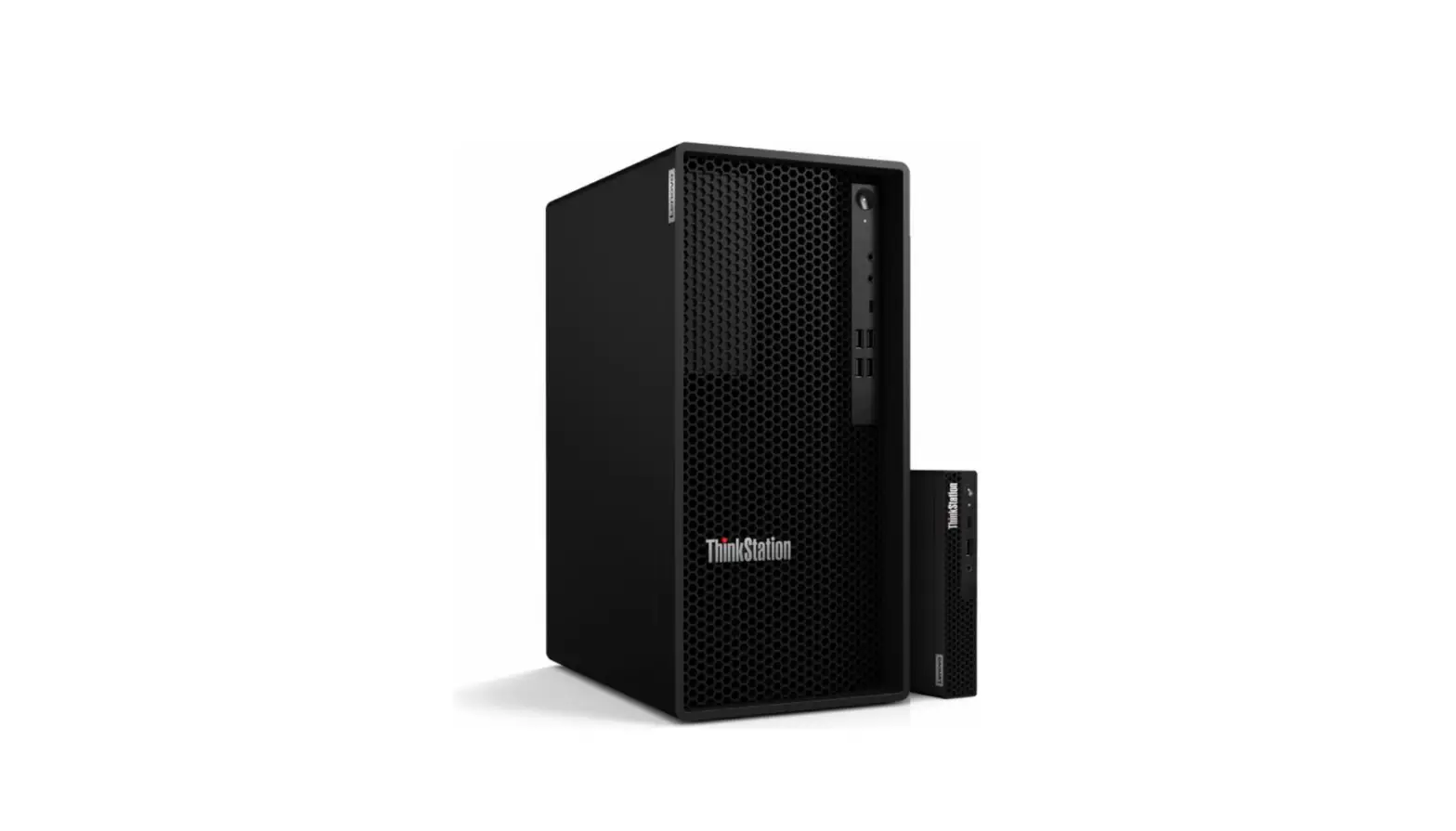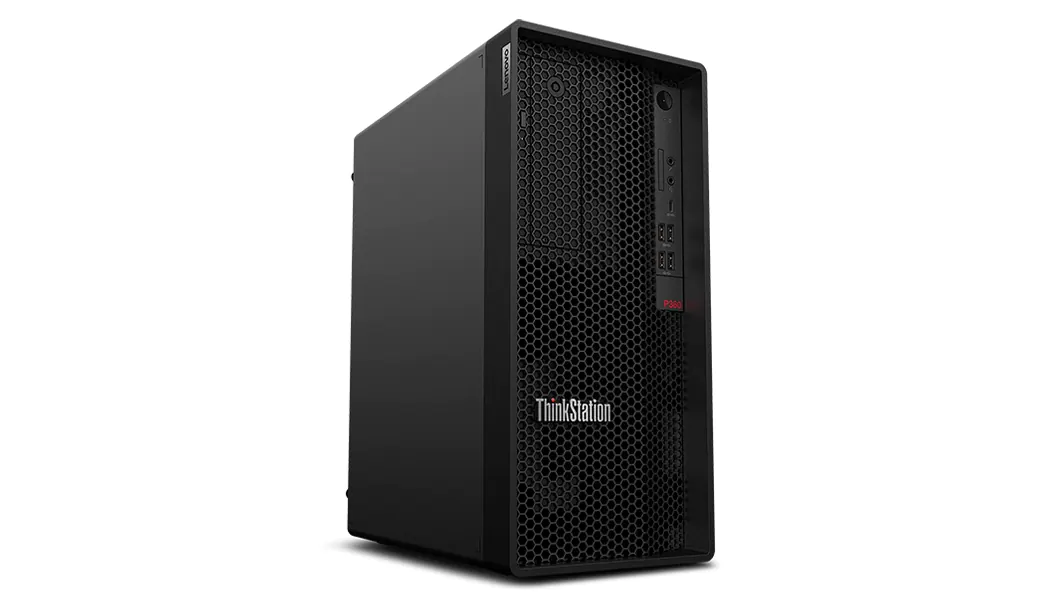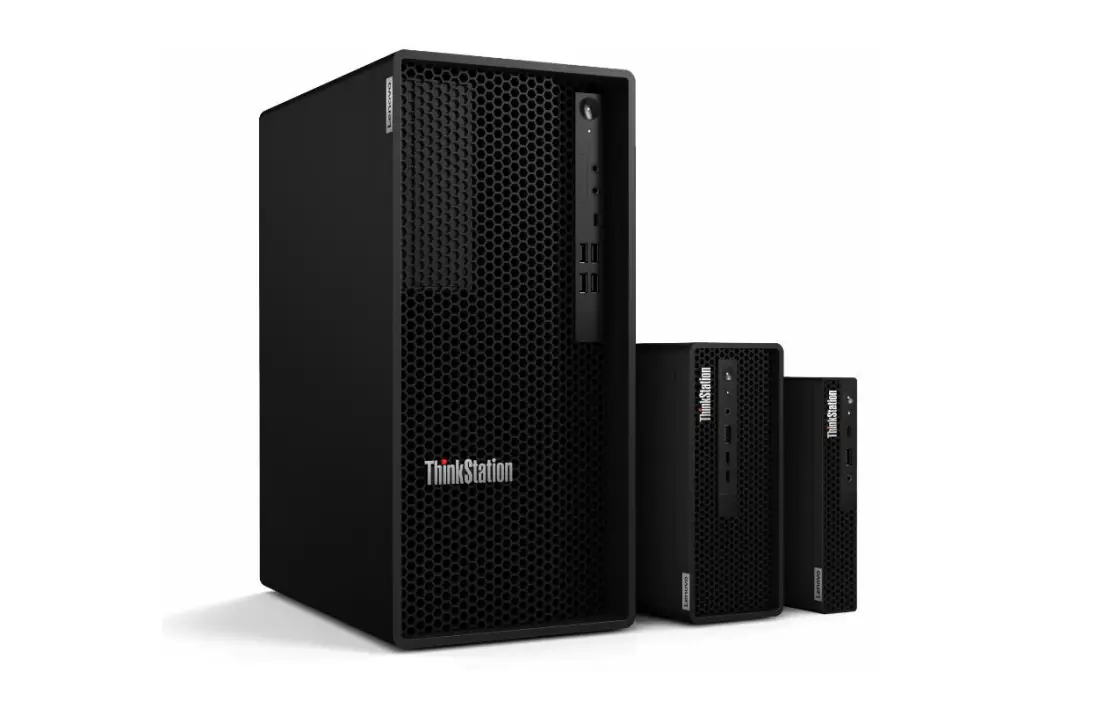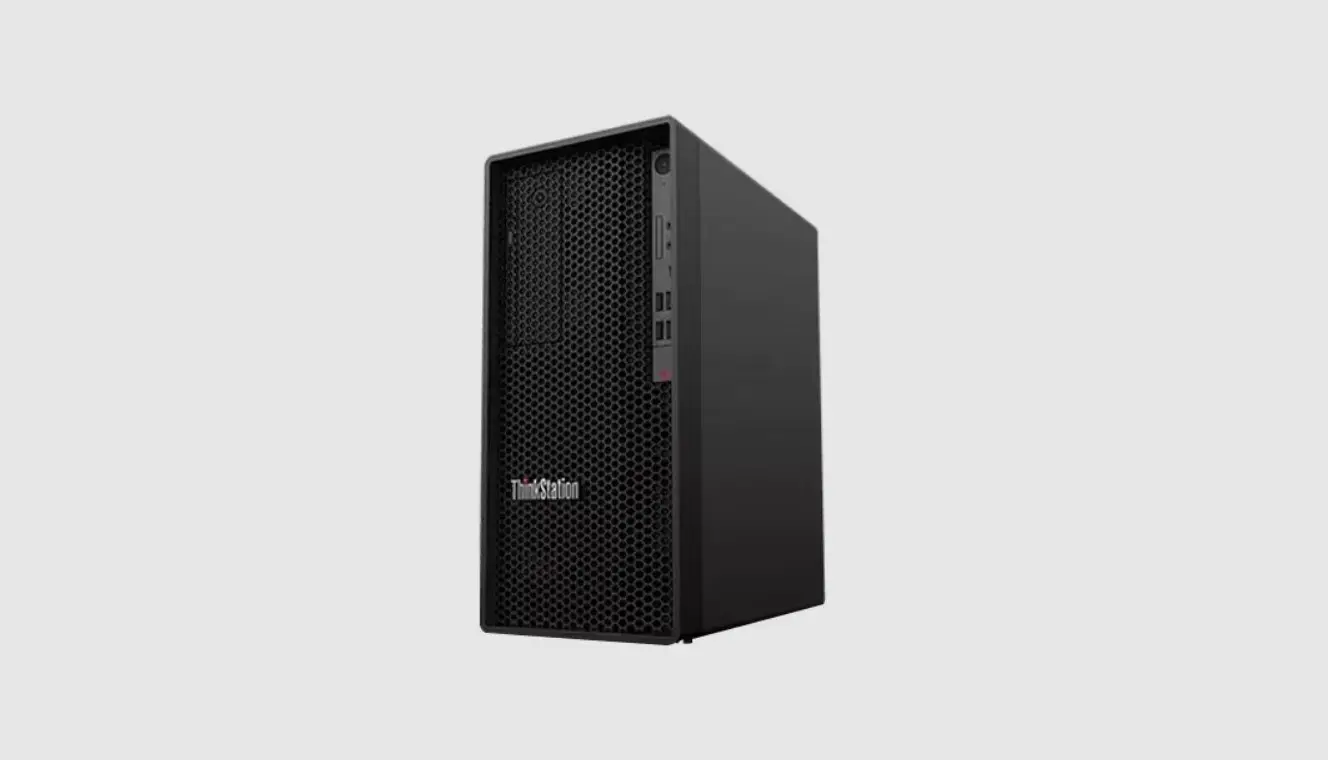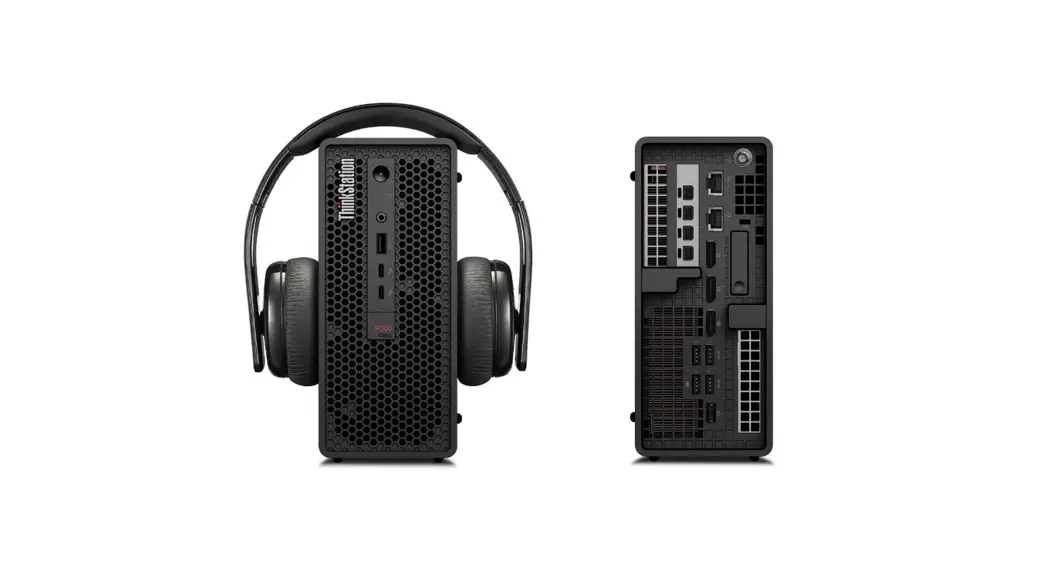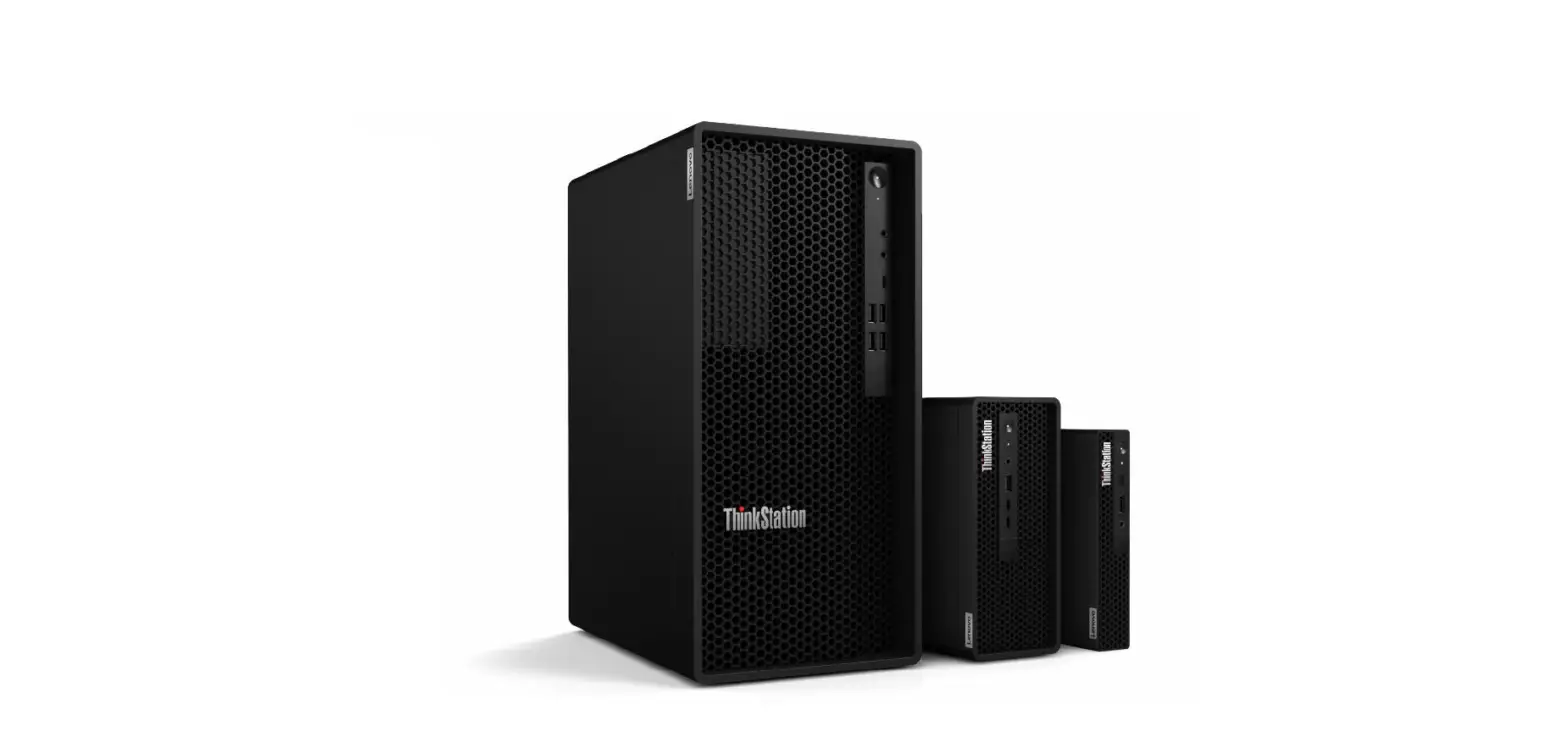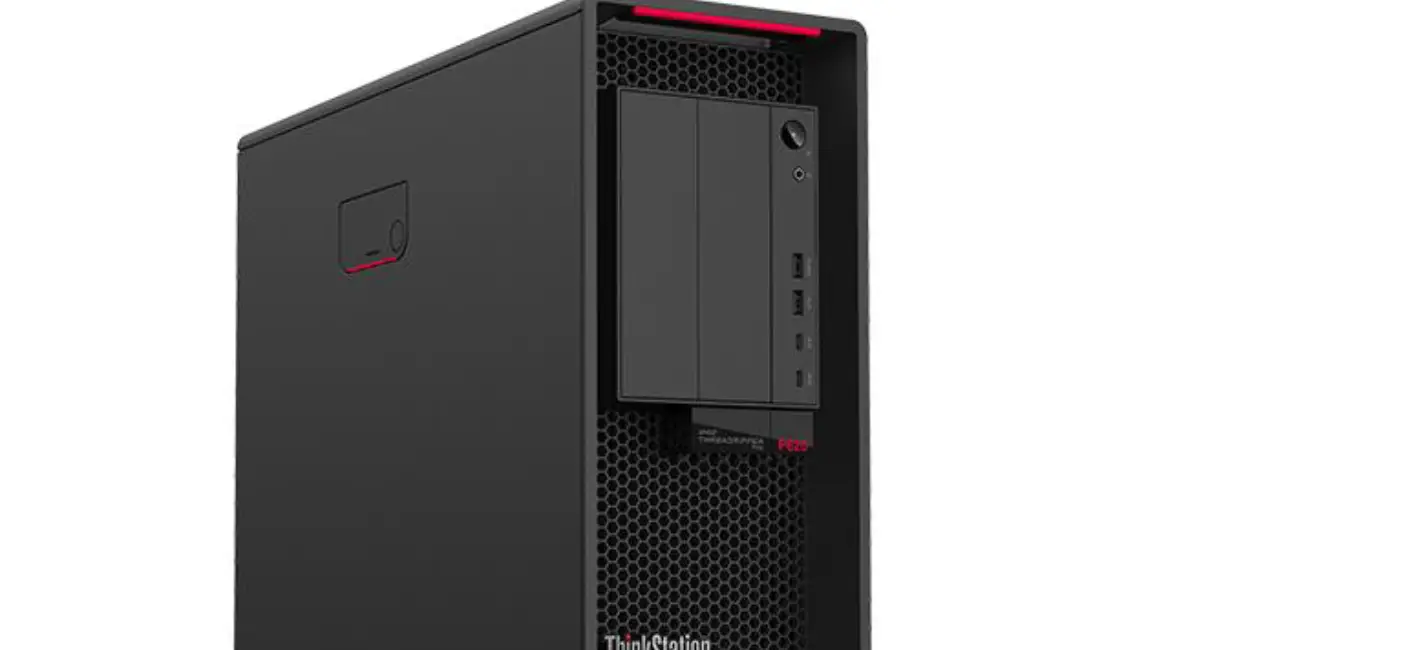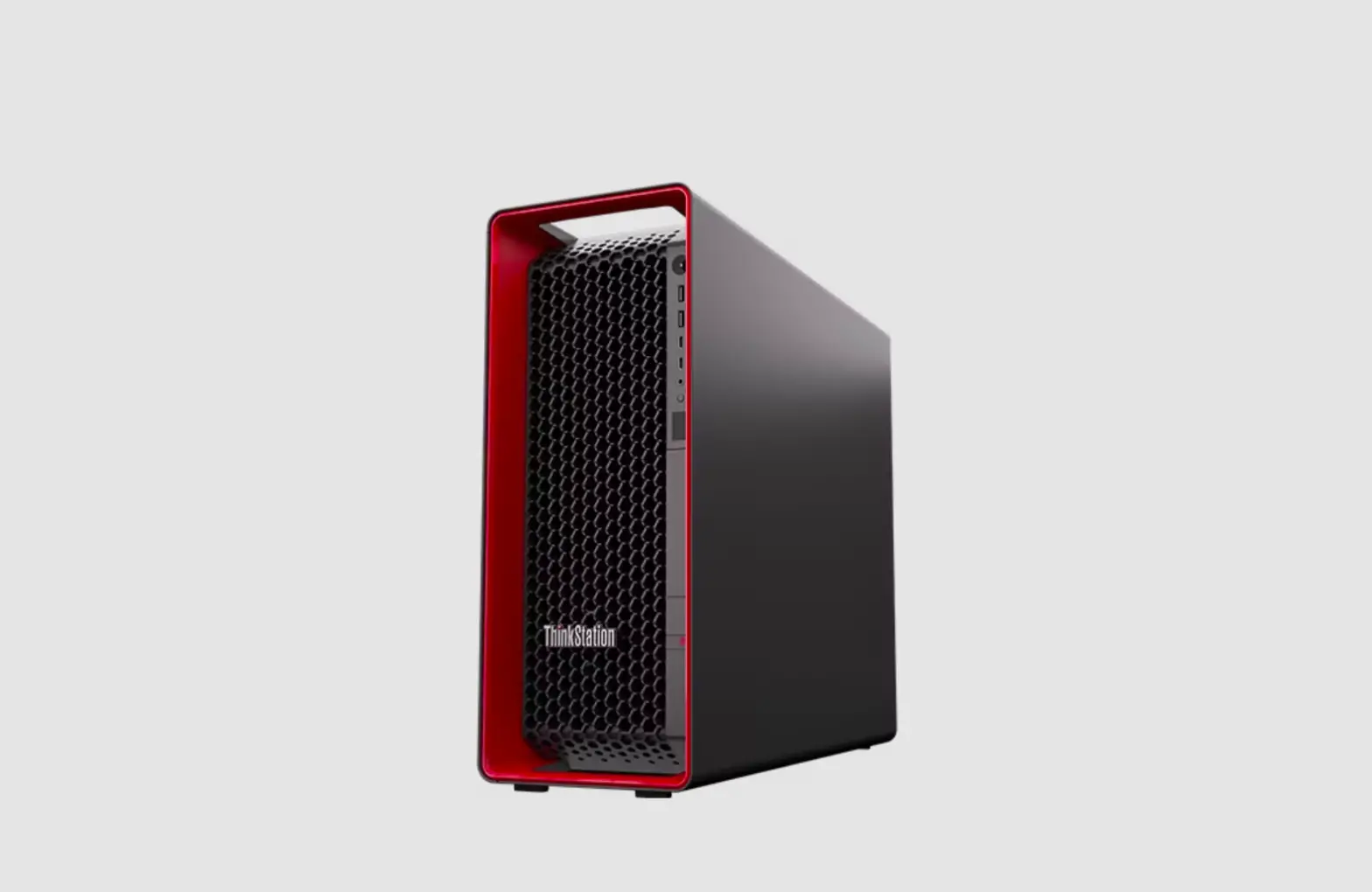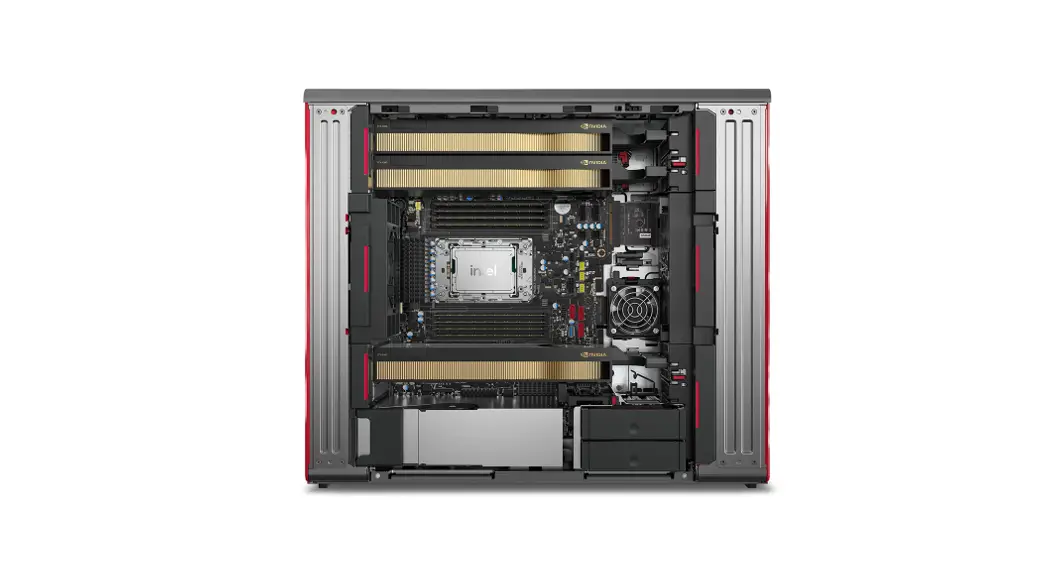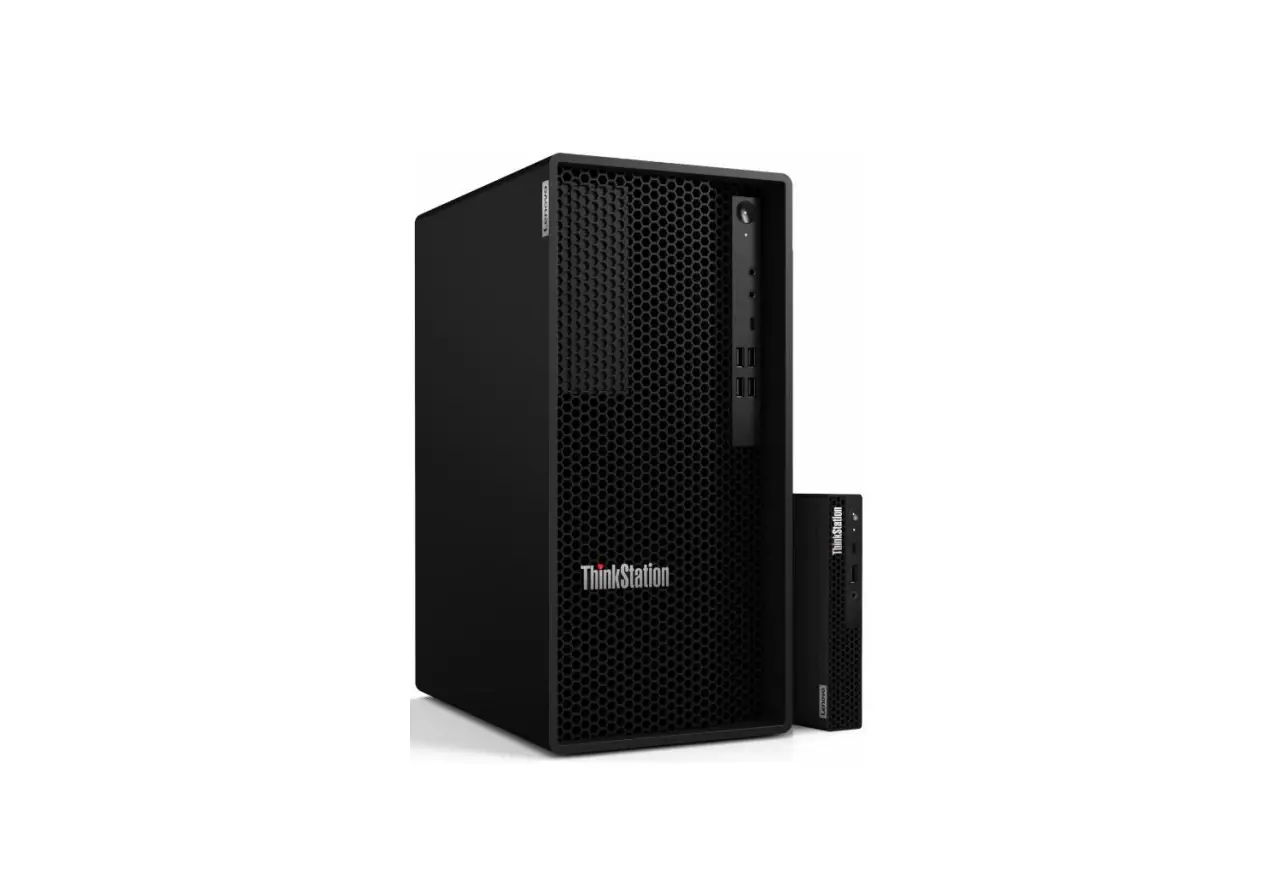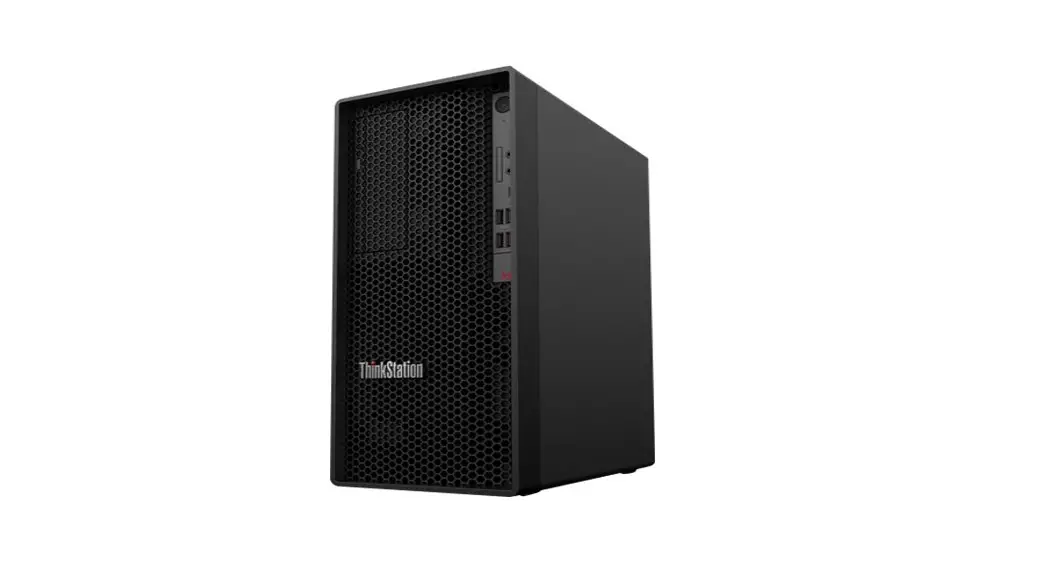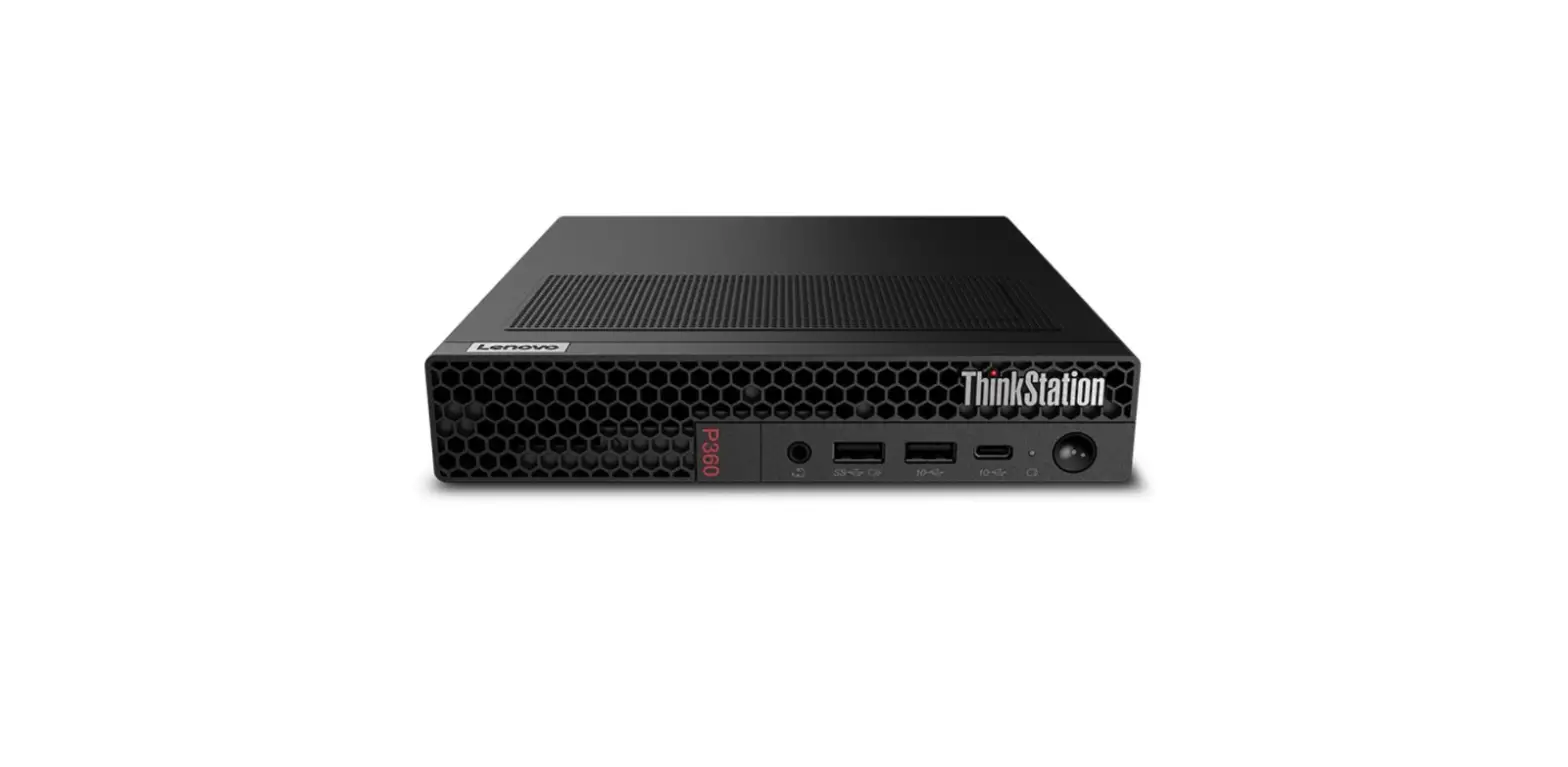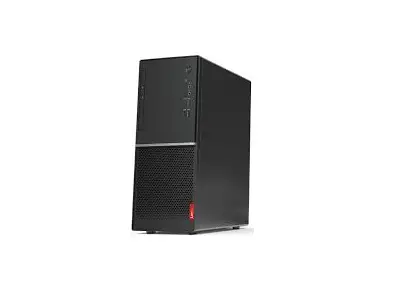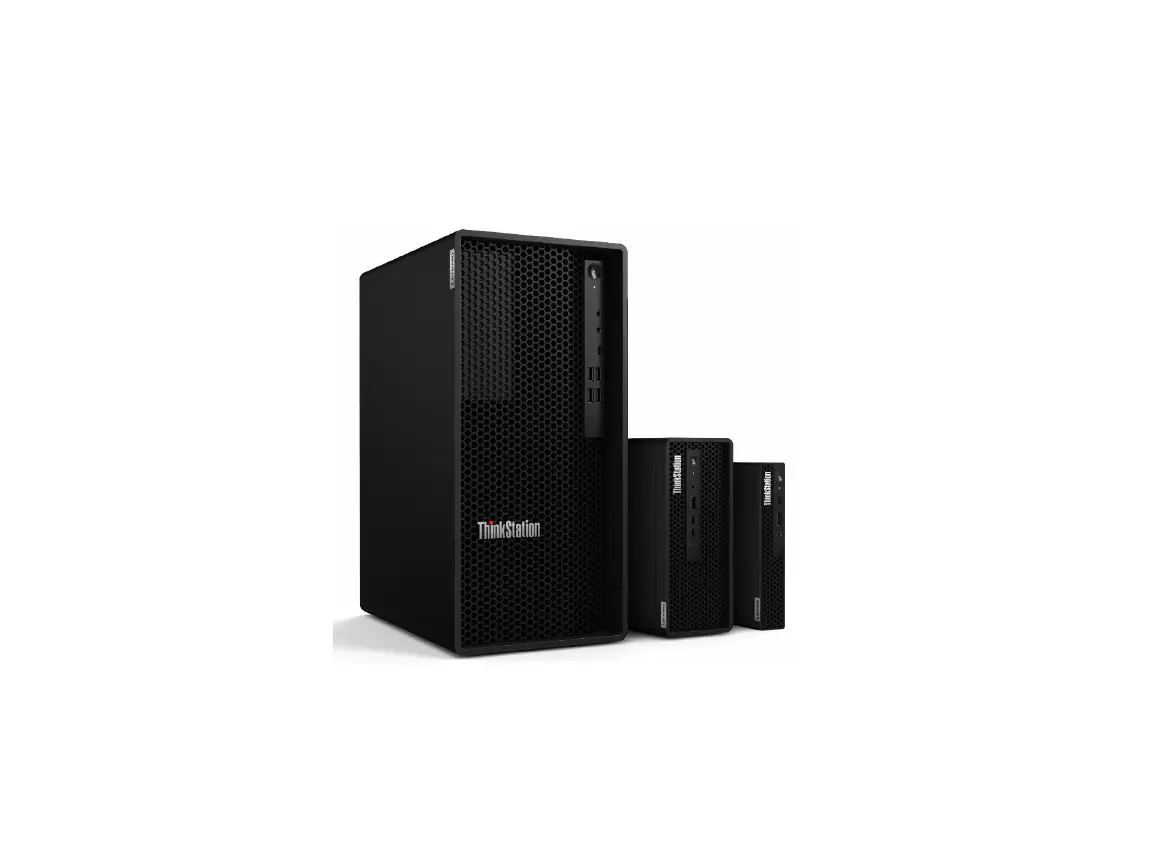

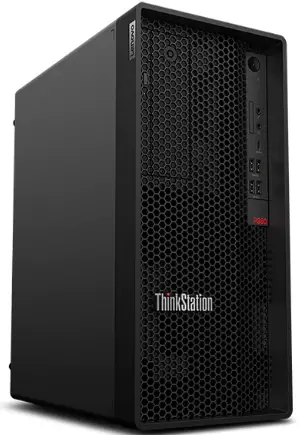
Lenovo ThinkStation P360 Tower Workstation
Section 1 – BIOS Configuration
The first step before installing Linux is to make sure the system BIOS is setup correctly.
- Boot into BIOS by pressing the function F1 key at the “Lenovo” splash screen.

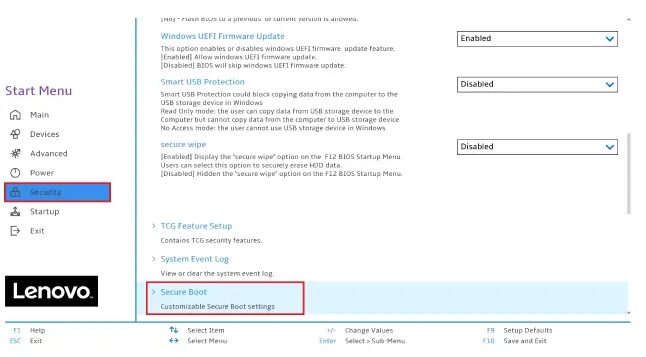
- On the “Security” menu tab, scroll down and select the “Secure Boot” option.

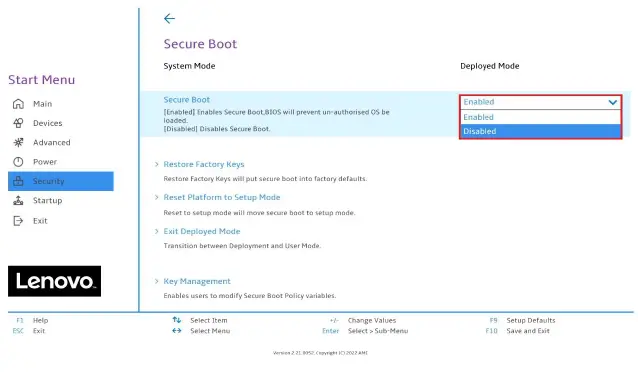
- Check whether Secure Boot is disabled. If found enabled, disable it.

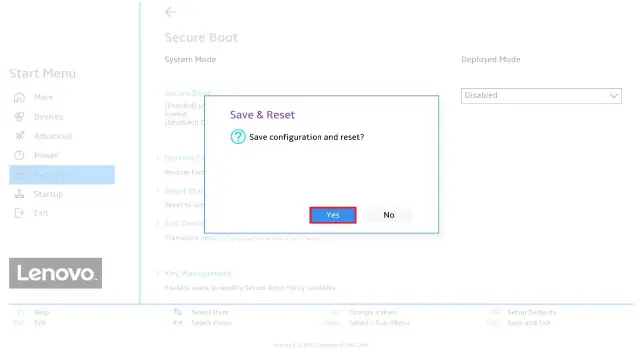
- Save changes by pressing F10 function key.

Installing Debian 11
Please refer to the following instructions and screenshots on how to install Debian 11 on the Lenovo ThinkStation P360.
- Insert the Debian 11 installation media (either through USB or CD/DVD).
- Power on the system and press the F12 function key whenever the following Lenovo splash screen appears.
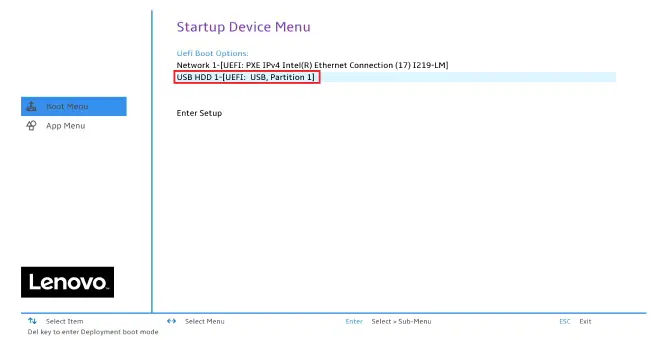
- Select the Linux bootable installation media from the F12 boot menu list.

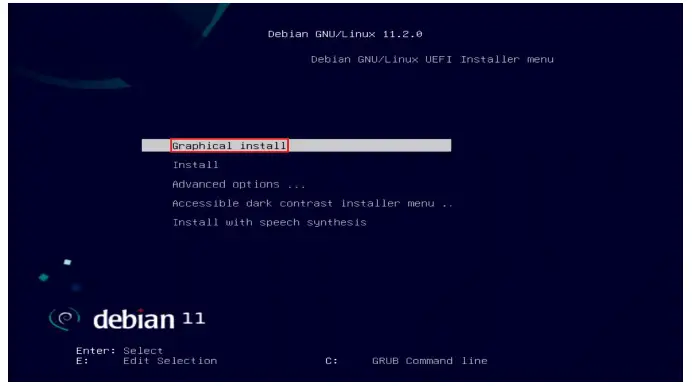
- Select “Graphical install” from the GRUB boot menu and press enter.

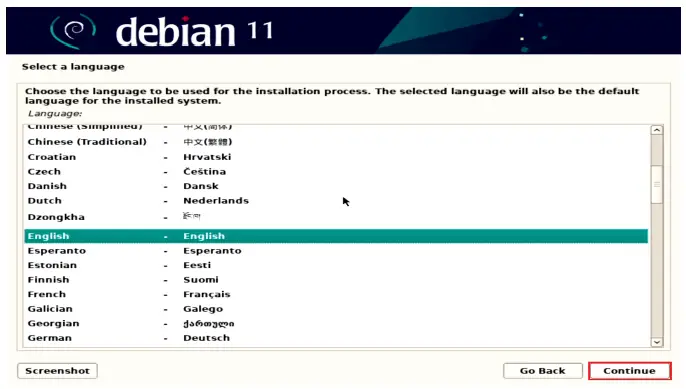
- Select the appropriate language and press Continue.

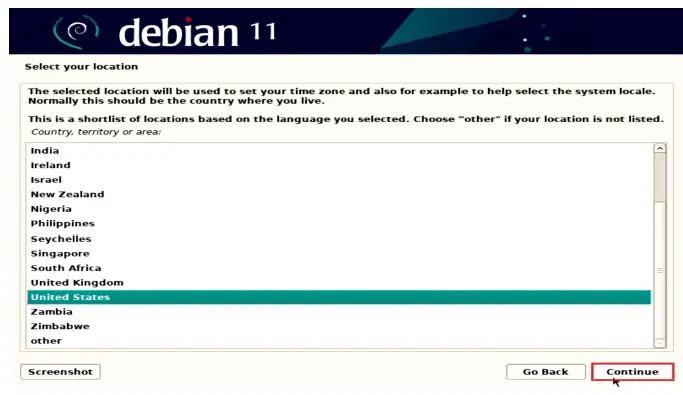
- Select the user location and press Continue.

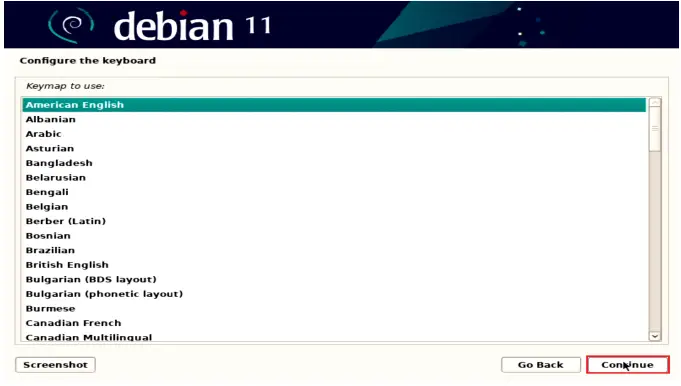
- Configure the keyboard by choosing the appropriate keyboard language and press Continue.

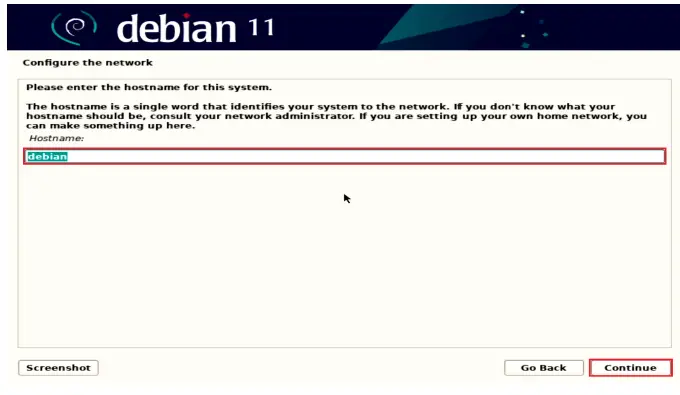
- Enter a hostname for the system and select Continue.

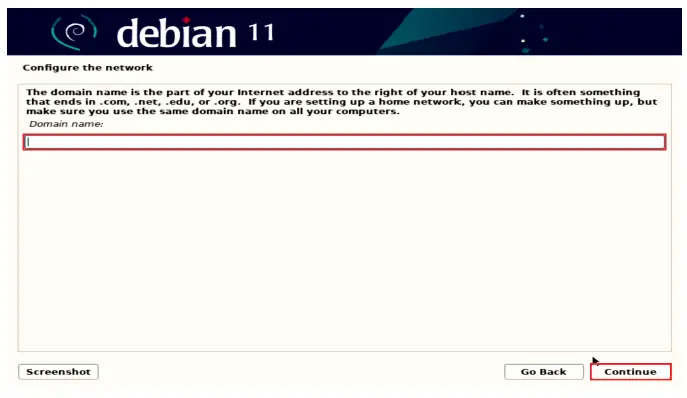
- Enter a domain name and select Continue. If there is no domain in the environment just leave it blank.

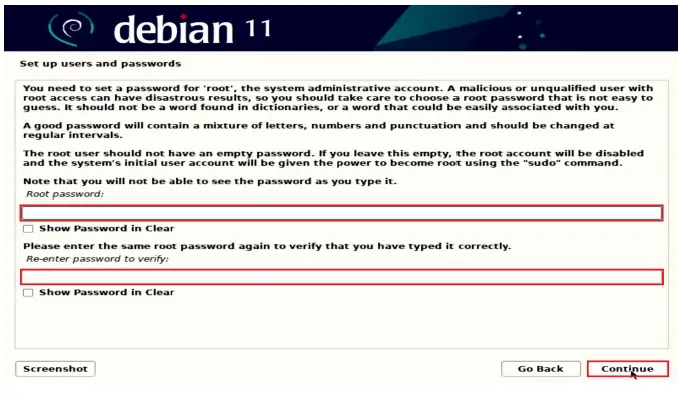
- Set a root password and select Continue.

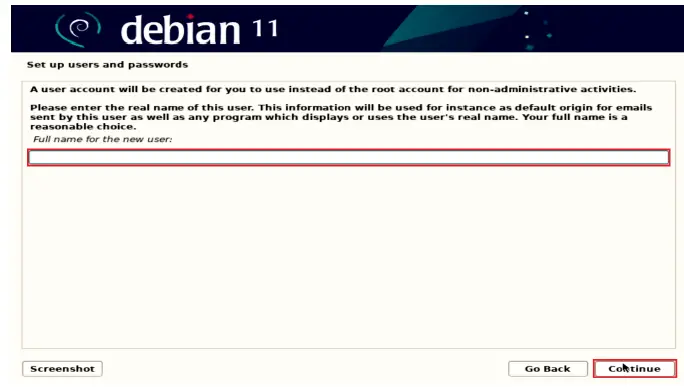
- Enter a full name for the user and select Continue.

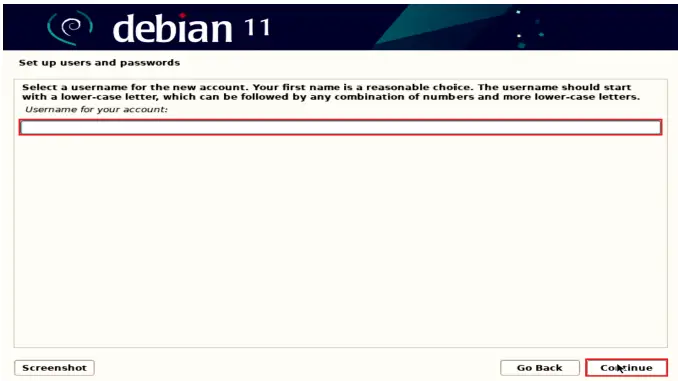
- Enter a username to create a user and press Continue.

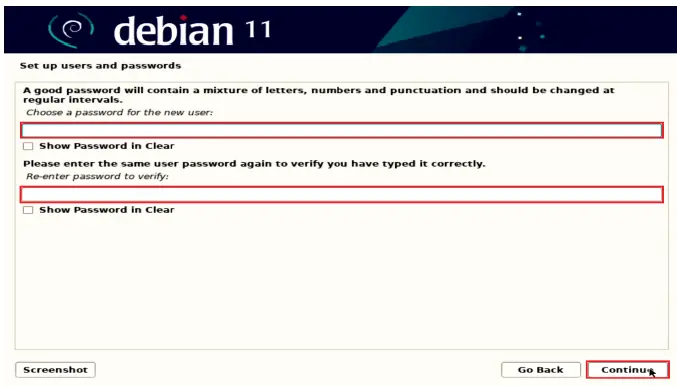
- Create a strong password for the newly created user and press Continue.

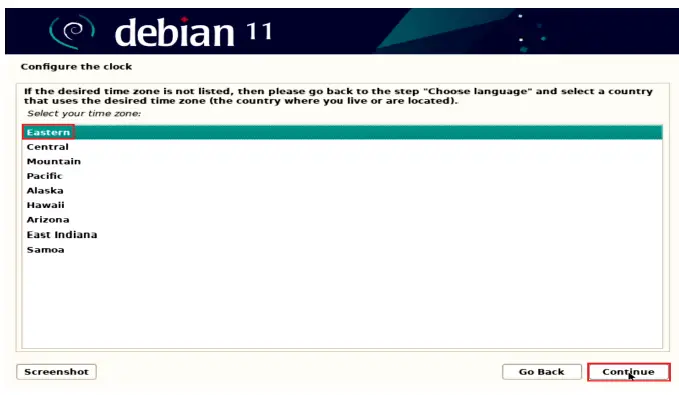
- Select an appropriate time zone to configure the clock and press Continue.

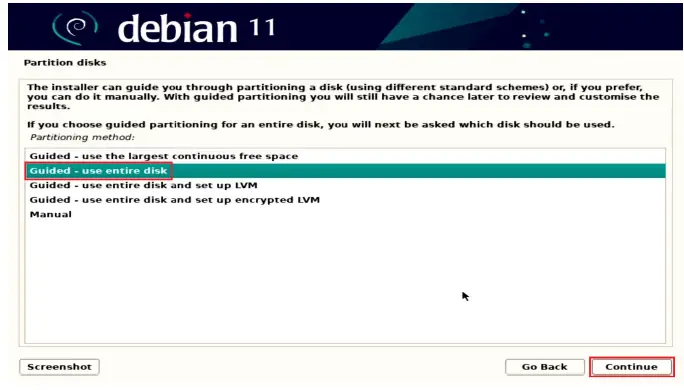
- Choose an appropriate option for partitioning the disk. If the user selects “Guided – use entire disk”, Debian will erase the content and use the entire disk for OS installation.

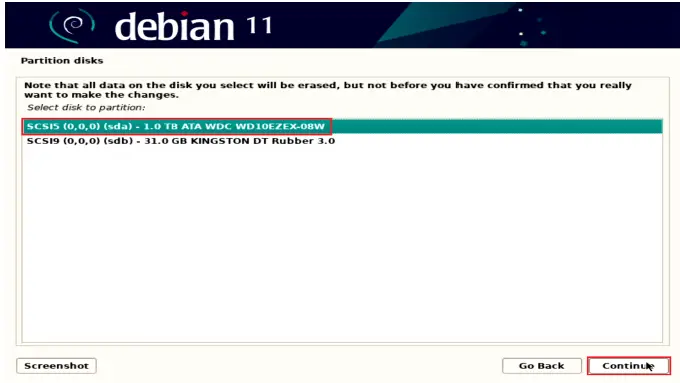
- Select disk to partition and press Continue.

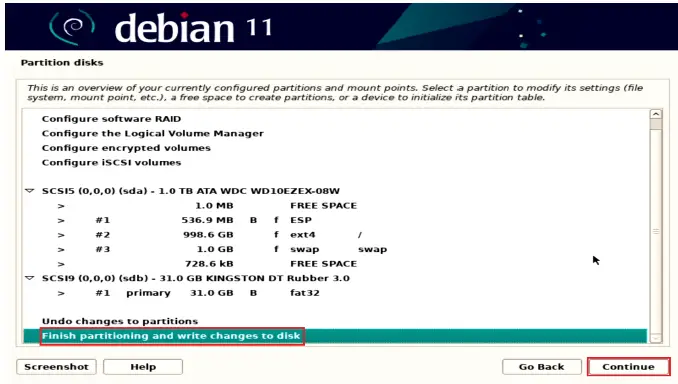
- Select “Finish partitioning and write changes to disk” option after confirming the partitions and press Continue.

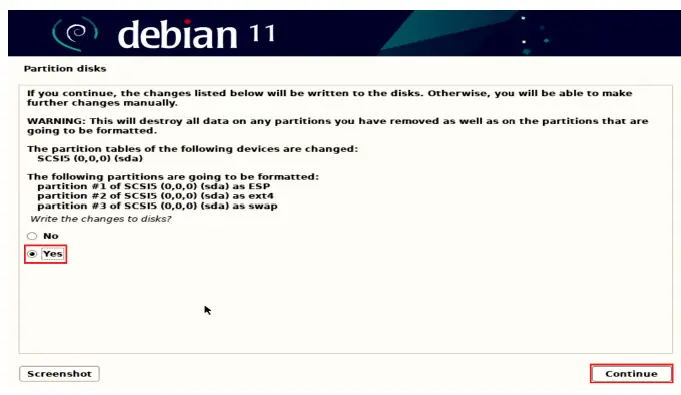
- Select “Yes” to write changes to the disk and press Continue.

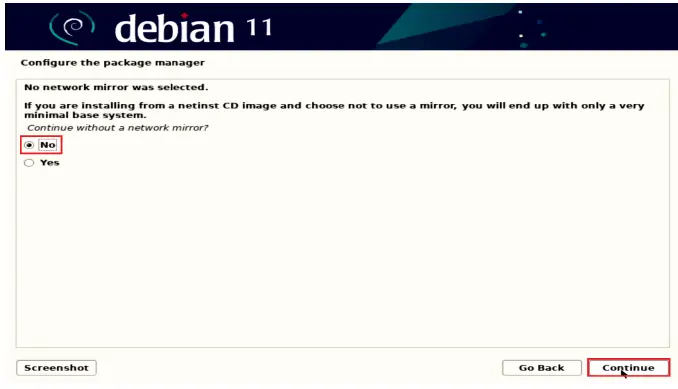
- Select “No” for network mirror and select Continue.
Note: Debian can be installed with a Graphical User Interface (GUI) or a Command Line Interface (CLI). To install Debian 11 with a GUI, connect the system to the internet and select “No” to continue without a network mirror. If “Yes” is selected, the system will be installed as a CLI only.
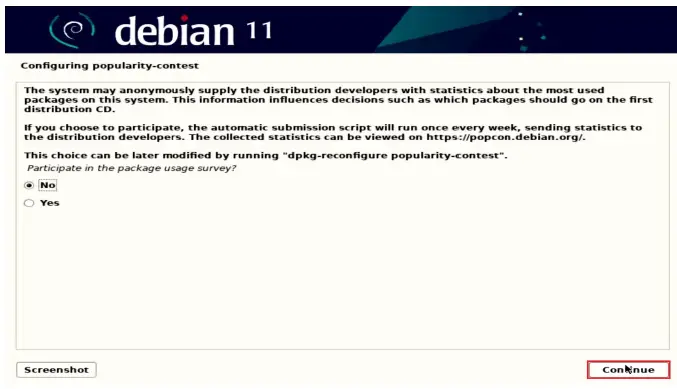
- Choose to participate or not in the package usage survey and press Continue.

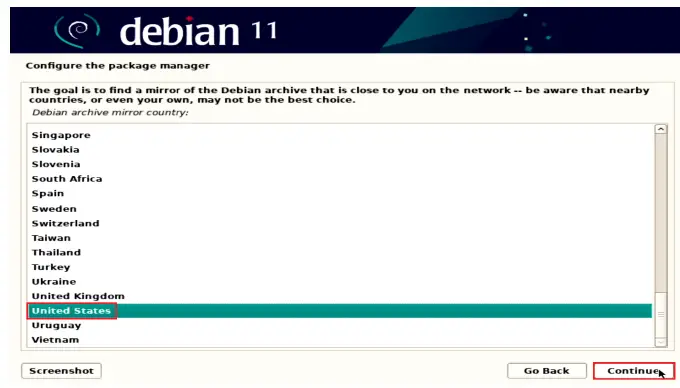
- Select the correct location and press Continue.

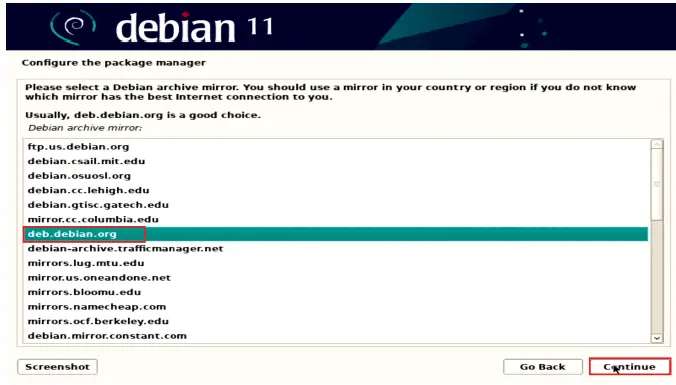
- Select the mirror and select Continue.

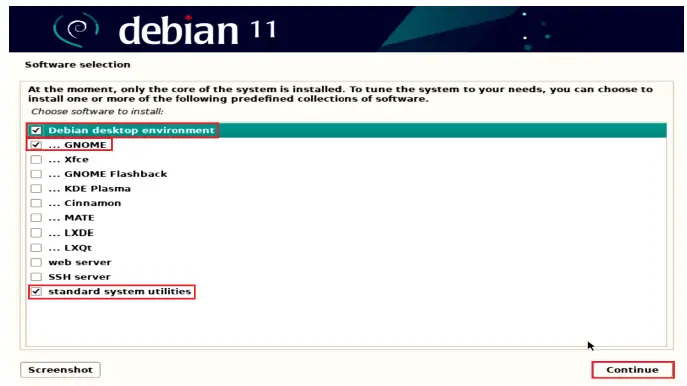
- Choose software to install from the list of software and press Continue.

- Optionally, you can select as many of these settings as you would like, for this installation process will be selected default software.
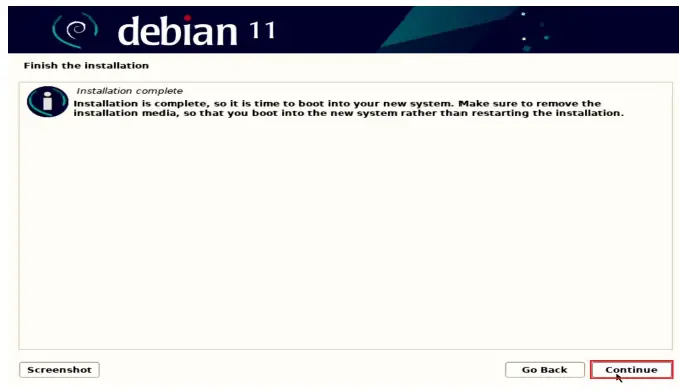
- Remove the installation media and reboot the system by pressing Continue.

Wireless Connection
Before the next steps ensure you have connected to LAN network. To install the Wifi drivers complete the next steps: • Download the appropriate driver for your card from https://www.intel.com/content/www/us/en/support/articles/000005511/wireless.html
Notes:
- For this example, Intel® Wi-Fi 6 AX201 has been used.
- In some cases, GitHub clone* may be needed to find all necessary files to complete the installation (for Intel AX201 file iwlwifi-so-a0-hr-b0-68.ucode need to be added to /lib/firmware).
GitHub clone – https://git.kernel.org/pub/scm/linux/kernel/git/firmware/linux-firmware.git/tree/
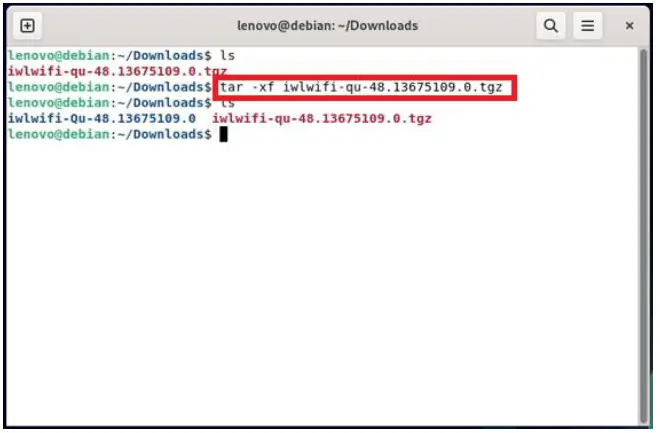
- Extract the files from download file

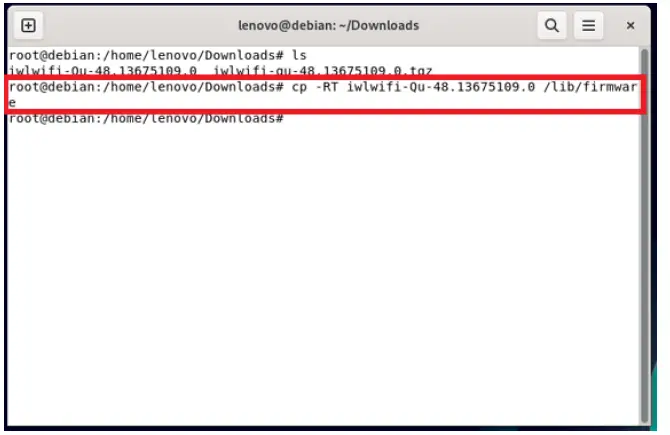
- Copy extracted files to /lib/firmware

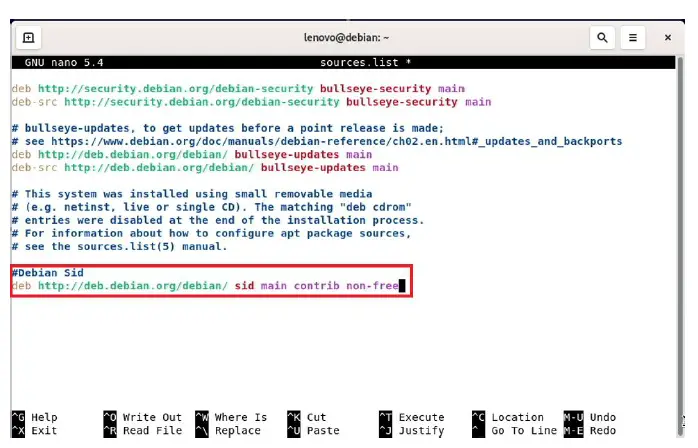
- Add “contrib” and “non-free” components to /etc/apt/sources.list.
#Debian Sid
deb http://deb.debian.org/debian/ sid main contrib non-free
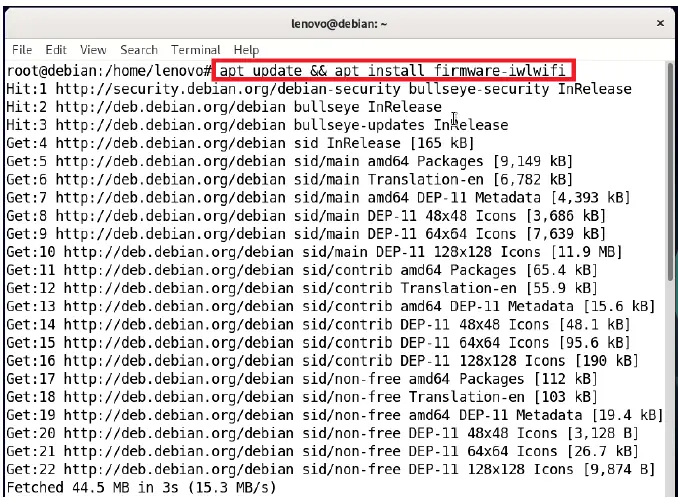
- Update the list of available packages and install the firmware-iwlwifi package:
# apt update && apt install firmware-iwlwifi
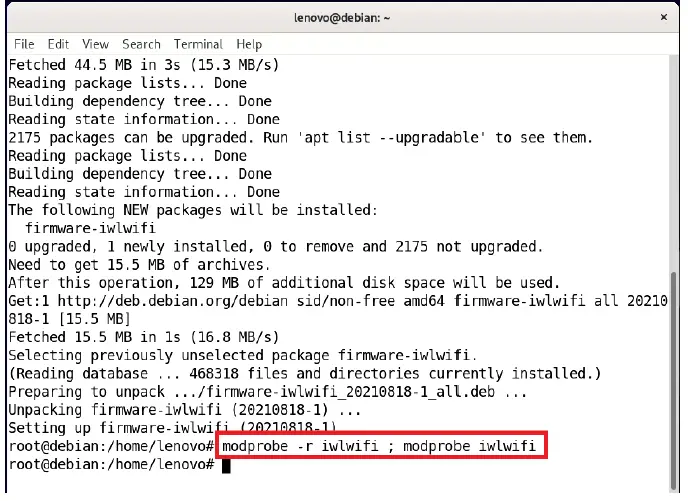
- As the iwlwifi module is automatically loaded for supported devices, reinsert this module to access installed firmware:
# modprobe -r iwlwifi ; modprobe iwlwifi
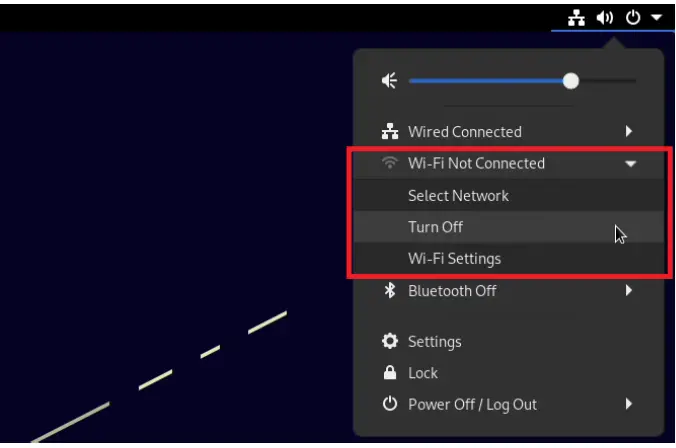
- After restart Wifi options should appear in the network manager.

- Configure your wireless interface as appropriate.
Installing the Nvidia Graphics Driver
To get optimal performance out of the Nvidia GPU, it is a good idea to install the Nvidia graphics driver.
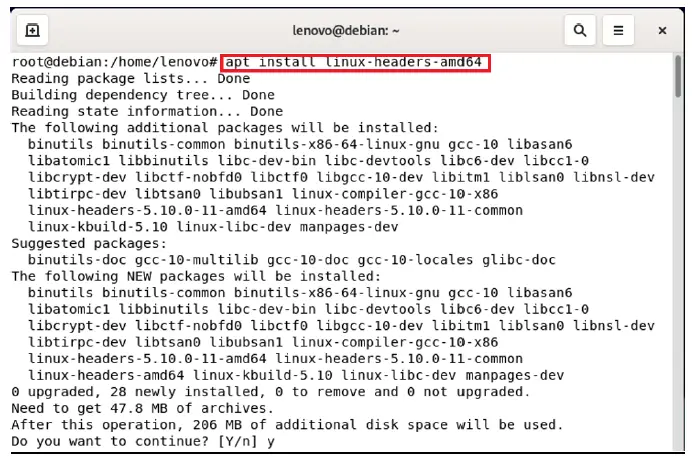
Note: Before installing the drivers, you must obtain the proper kernel headers for the NVIDIA driver to build with.
- Run this command, you can simply run #apt install linux-headers-amd64

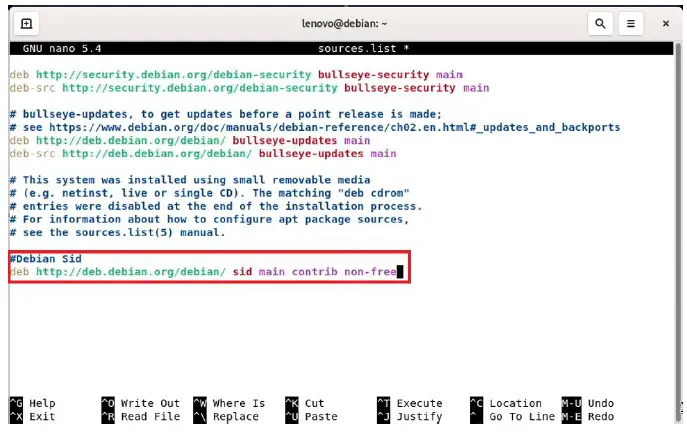
Note: If you’re using the kernel from Debian Backports: Add bullseye-backports as an additional new line to your /etc/apt/sources.list, for example: # bullseye-backports deb http://deb.debian.org/debian bullseye-backports main contrib non-free And run the same command but with the -t flag followed by bullseye-backports. - Add “contrib” and “non-free” components to /etc/apt/sources.list.
#Debian Sid
deb http://deb.debian.org/debian/ sid main contrib non-free
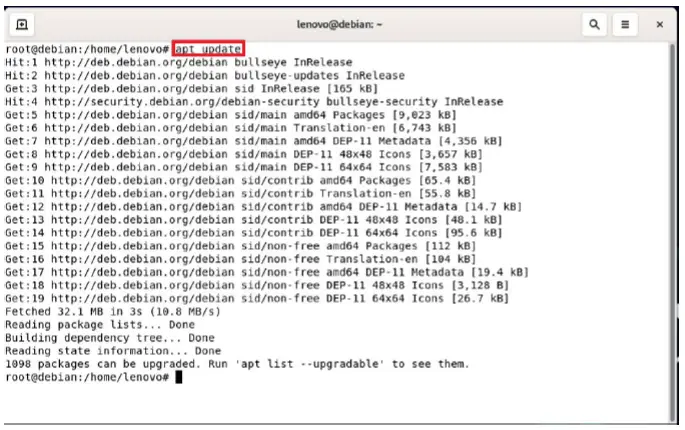
- Update the list of available packages #apt update

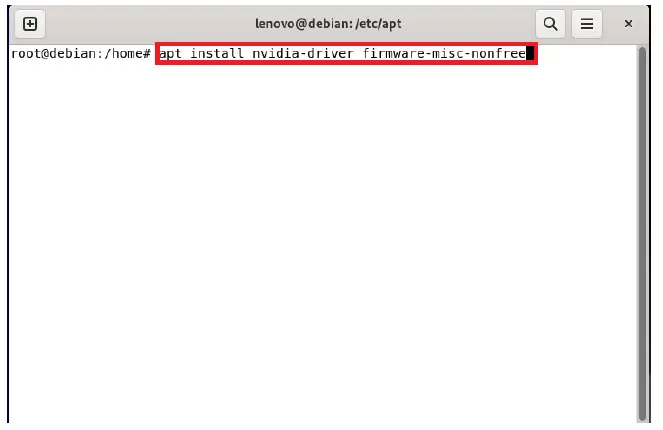
- Install Nvidia drivers #apt install nvidia-driver firmware-misc-nonfree

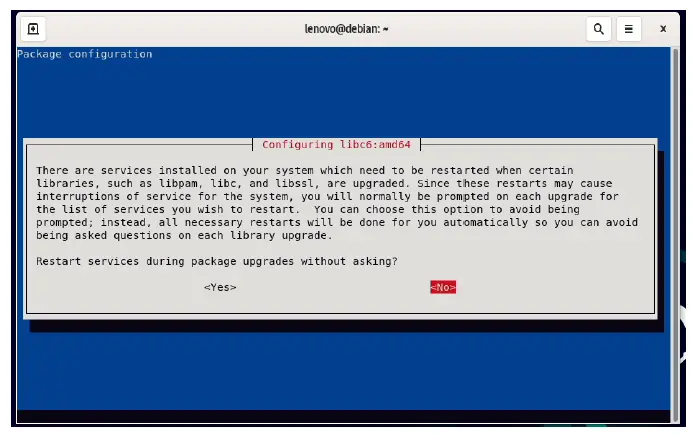
- During configuration select “Yes” to restart services during package upgrades without asking

- Then click “OK”

- Restart your system to load the new driver.
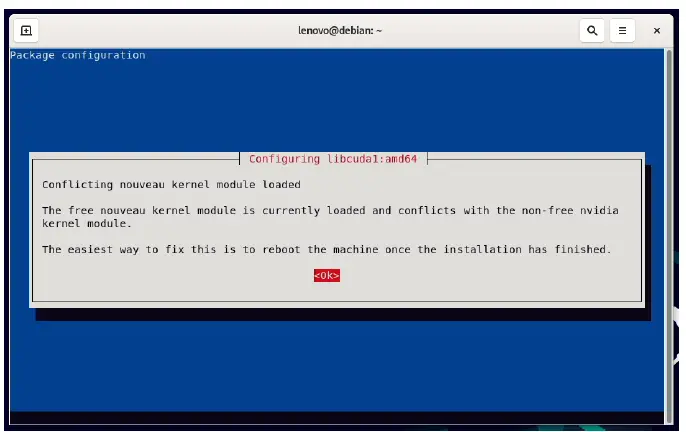
In case you desire to install a specific Nvidia driver please follow the next steps:
- Download the latest Nvidia graphics driver for the appropriate Nvidia GPU from www.nvidia.com/download
- To get the Nvidia driver running, we will need to blacklist the nouveau driver. Follow the steps below:
- Log in as root: su
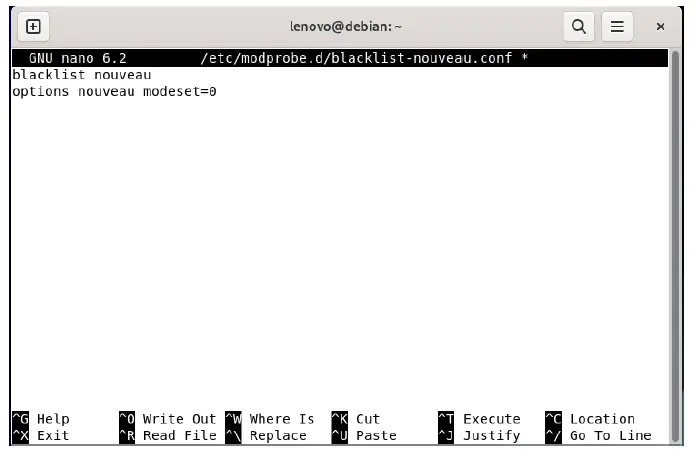
- Open blacklist.conf file: nano /etc/modprobe.d/blacklist-nouveau.conf
- Blacklist nouveau driver by writing: blacklist nouveau options nouveau modeset=0

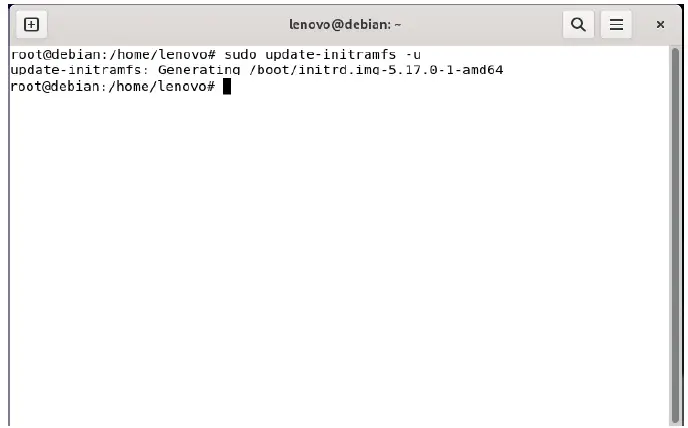
- Run the command: update-initramfs -u

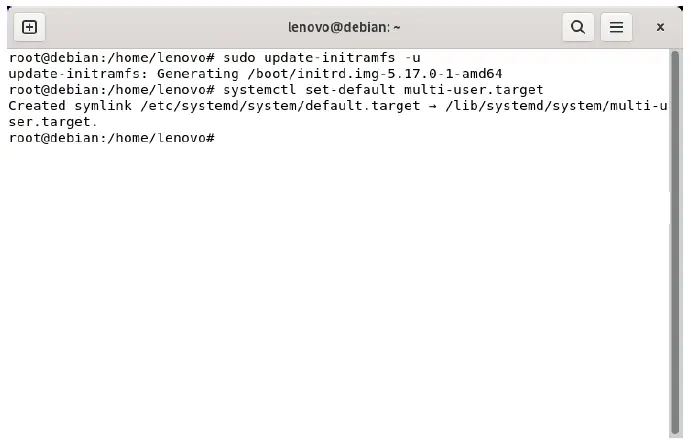
- Stop x-windows by using the command: systemctl set-default multi-user.target

- Then restart restart the system by: systemctl reboot
- Log in as root and redirect to the directory where the Nvidia driver is located.

- Run the Nvidia installer by: bash NVIDIA-Linux-x86_64-390.144.run

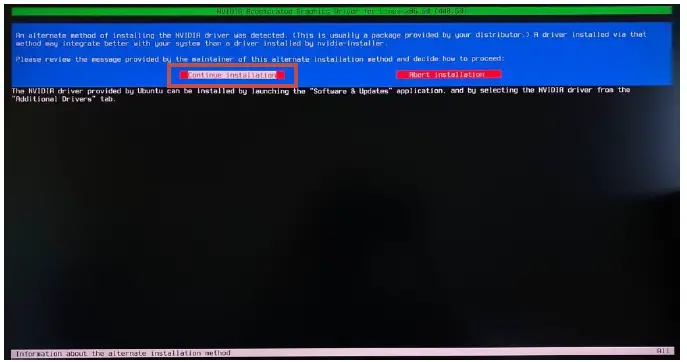
- Select Continue installation.

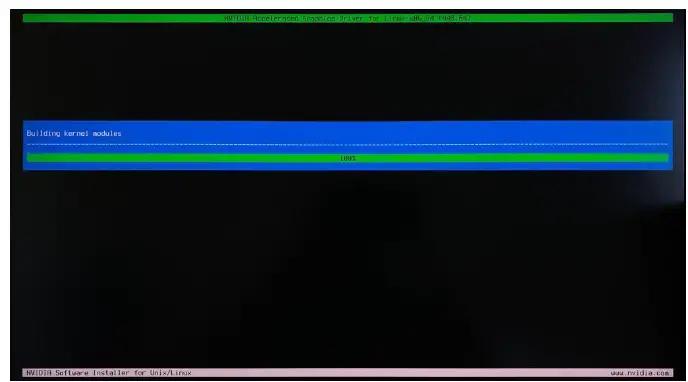
- Wait until the kernel modules are completely built.

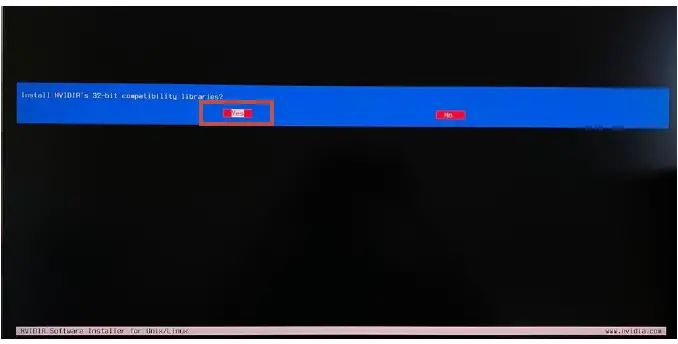
- Select Yes for installing 32-bit compatibility libraries.

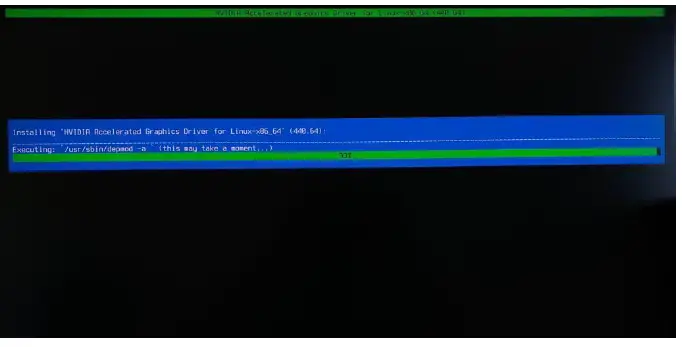
- Wait until the installation is complete.

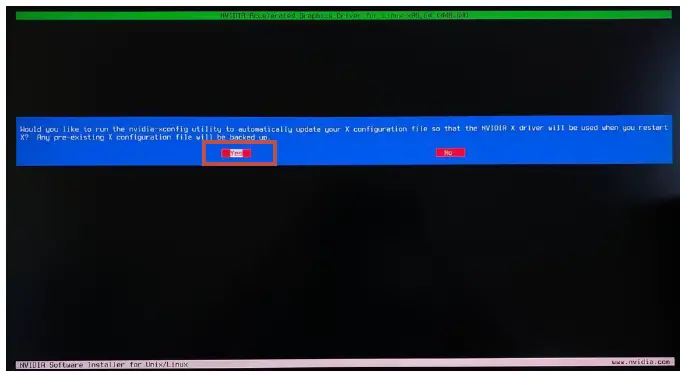
- Select Yes to run nvidia-xconfig utility to automatically update your X configuration file.

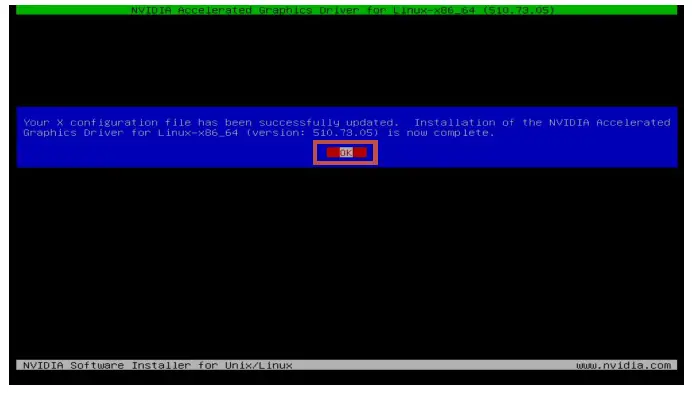
- Select OK once the X configuration file gets updated successfully.

- Enable GUI by: systemctl set-default graphical.target

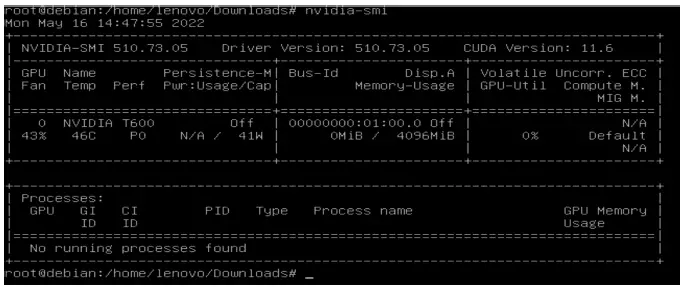
- Execute the following command to verify the Nvidia driver is loaded: nvidia-smi

- Reboot the system.



Revision History
| Version | Date | Author | Changes/Updates |
| 1.1 | 7/12/2022 | Aleksandr Panteleev | Added support for P360 Ultra |
| 1.0 | 5/17/2022 | Aleksandr Panteleev | Initial release |
 Index of /debian
 Kernel.org git repositories
 Backports - Debian Wiki
 Linux* Support for Intel® Wireless Adapters