Ubuntu 22.04 Linux Setup Guide
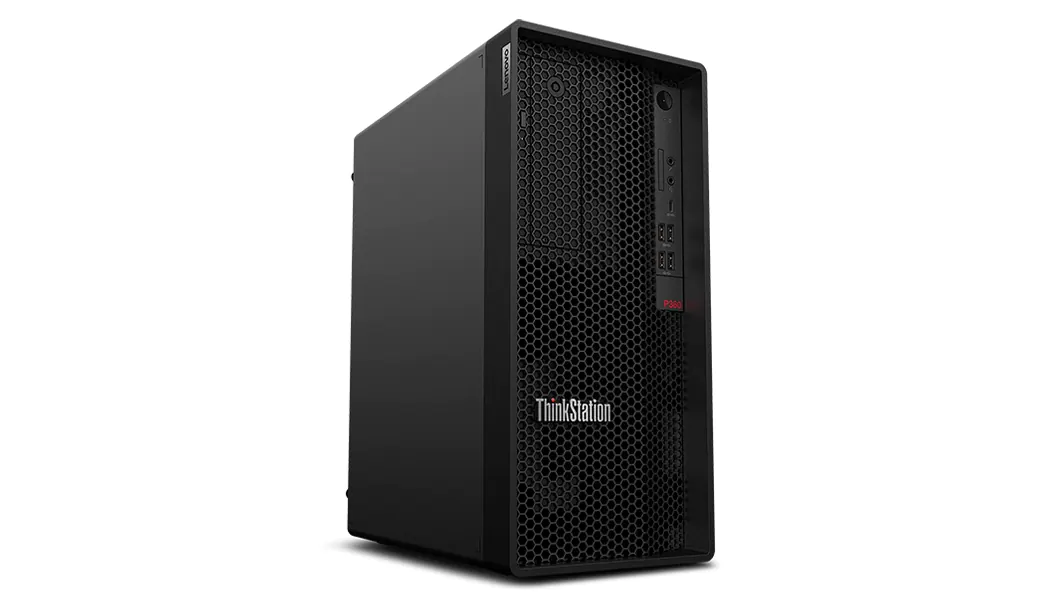
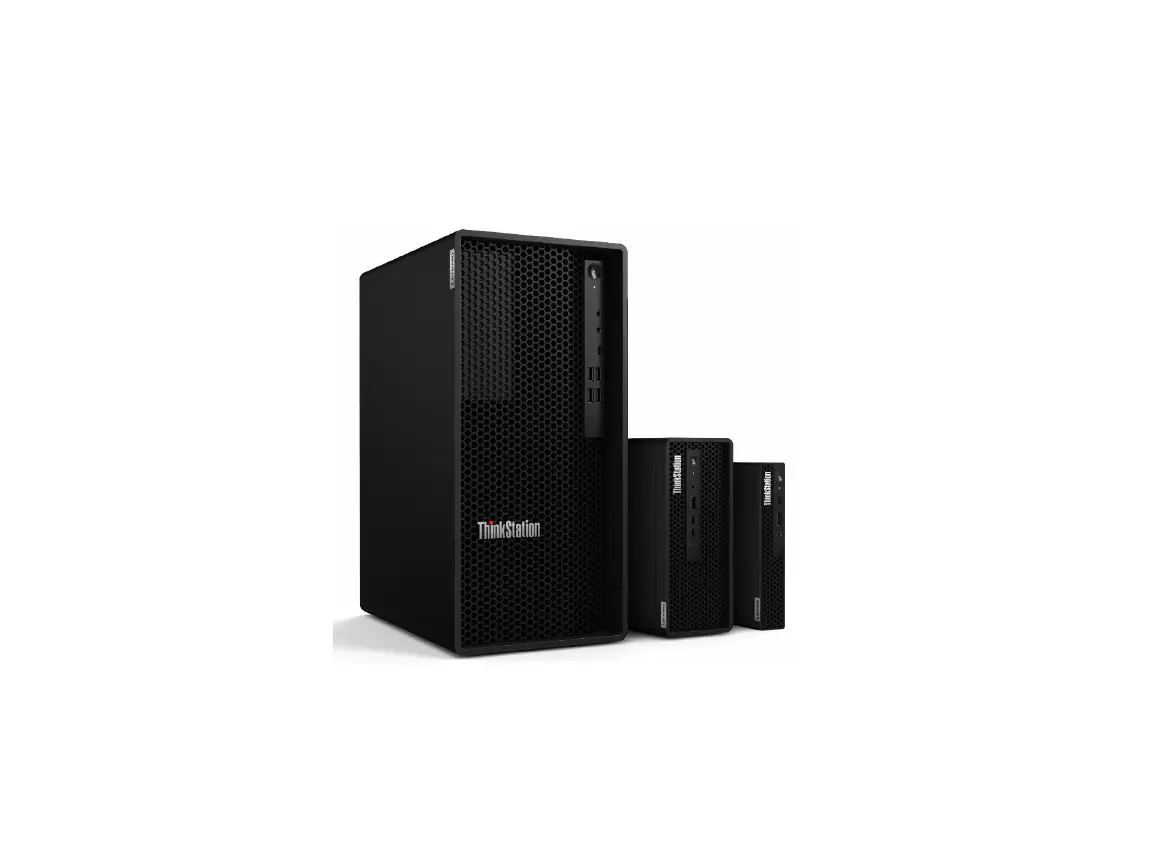
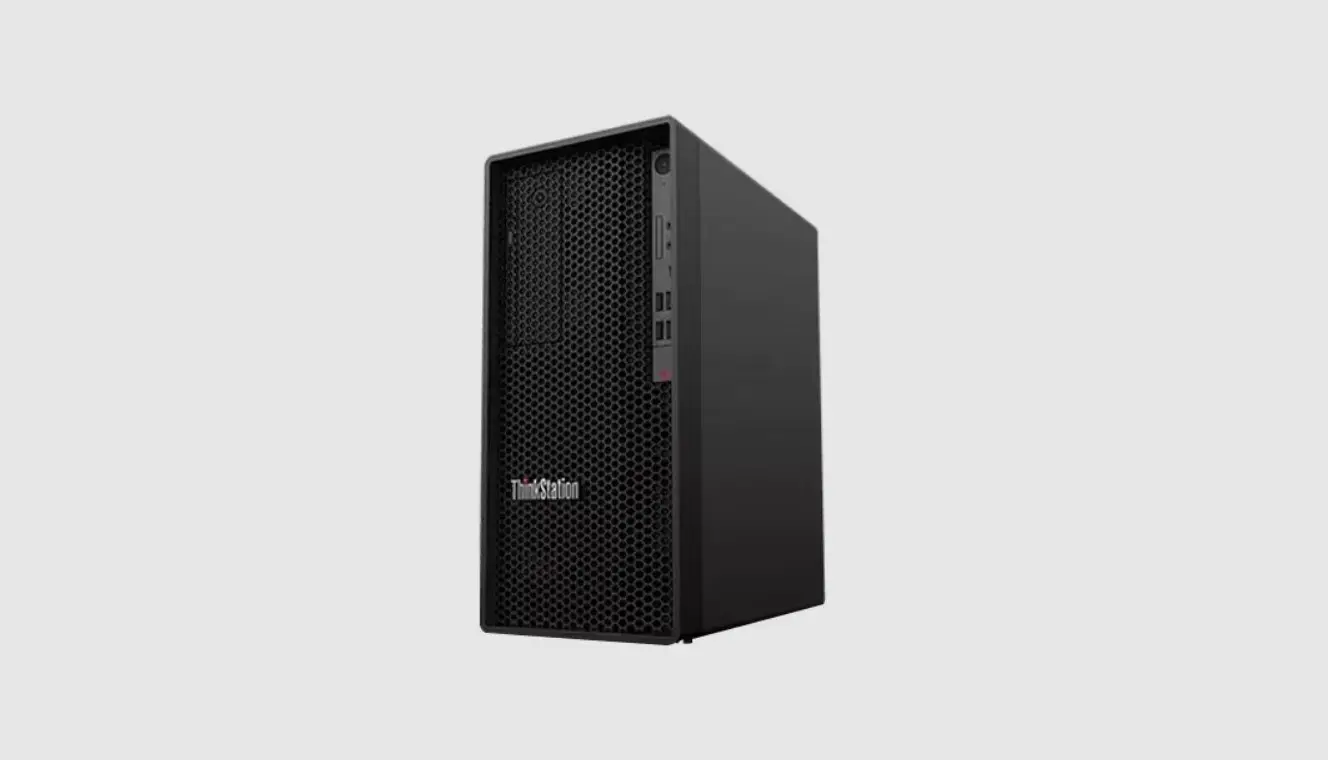
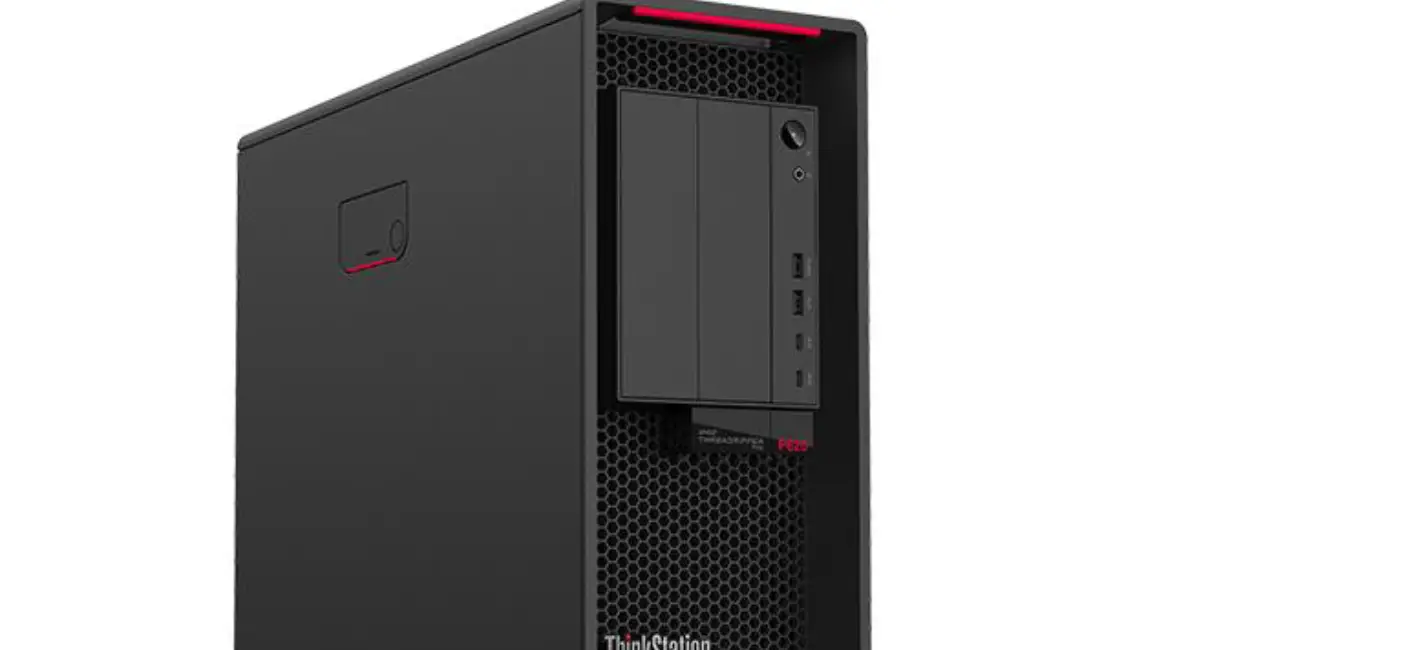
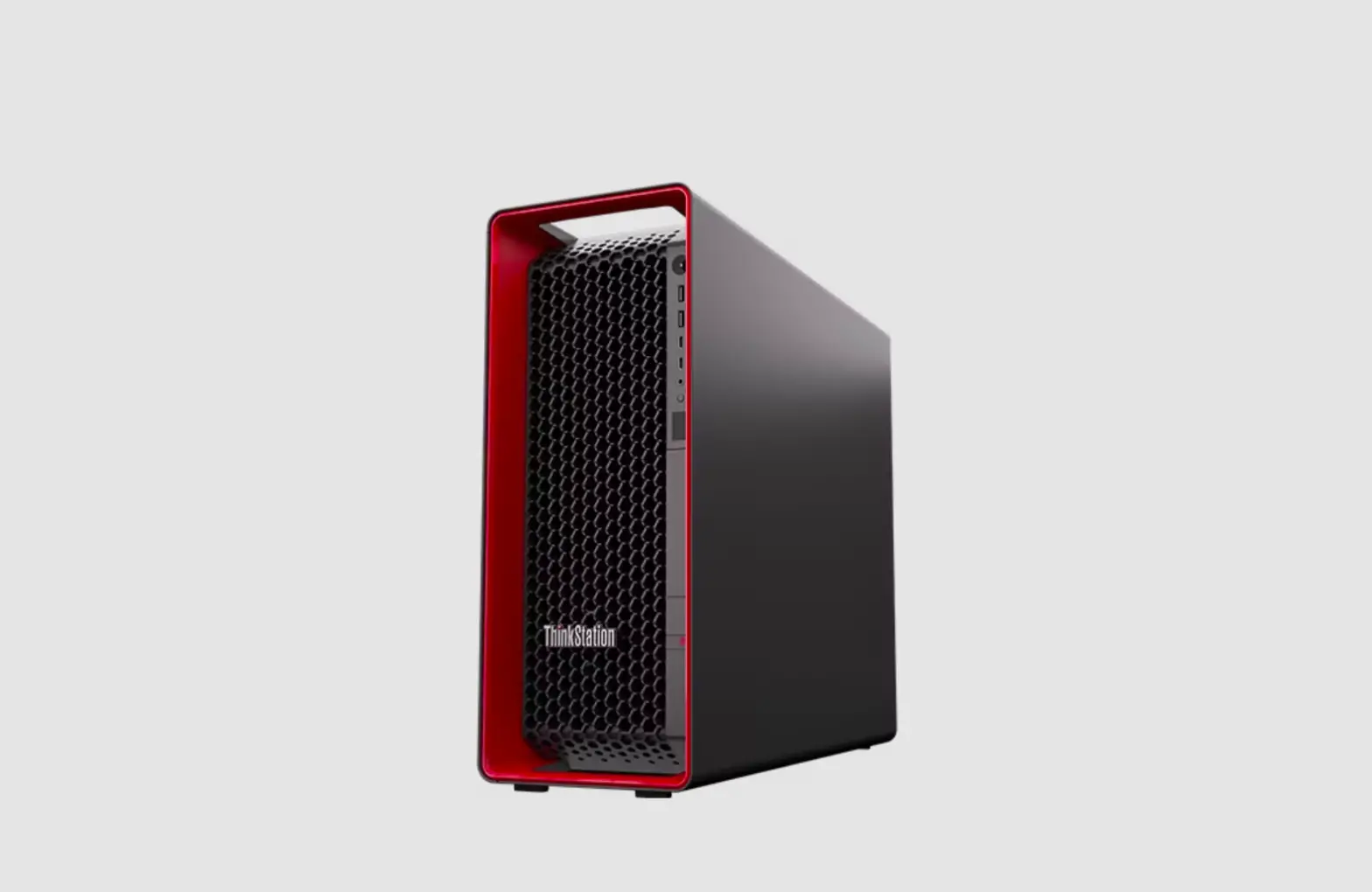
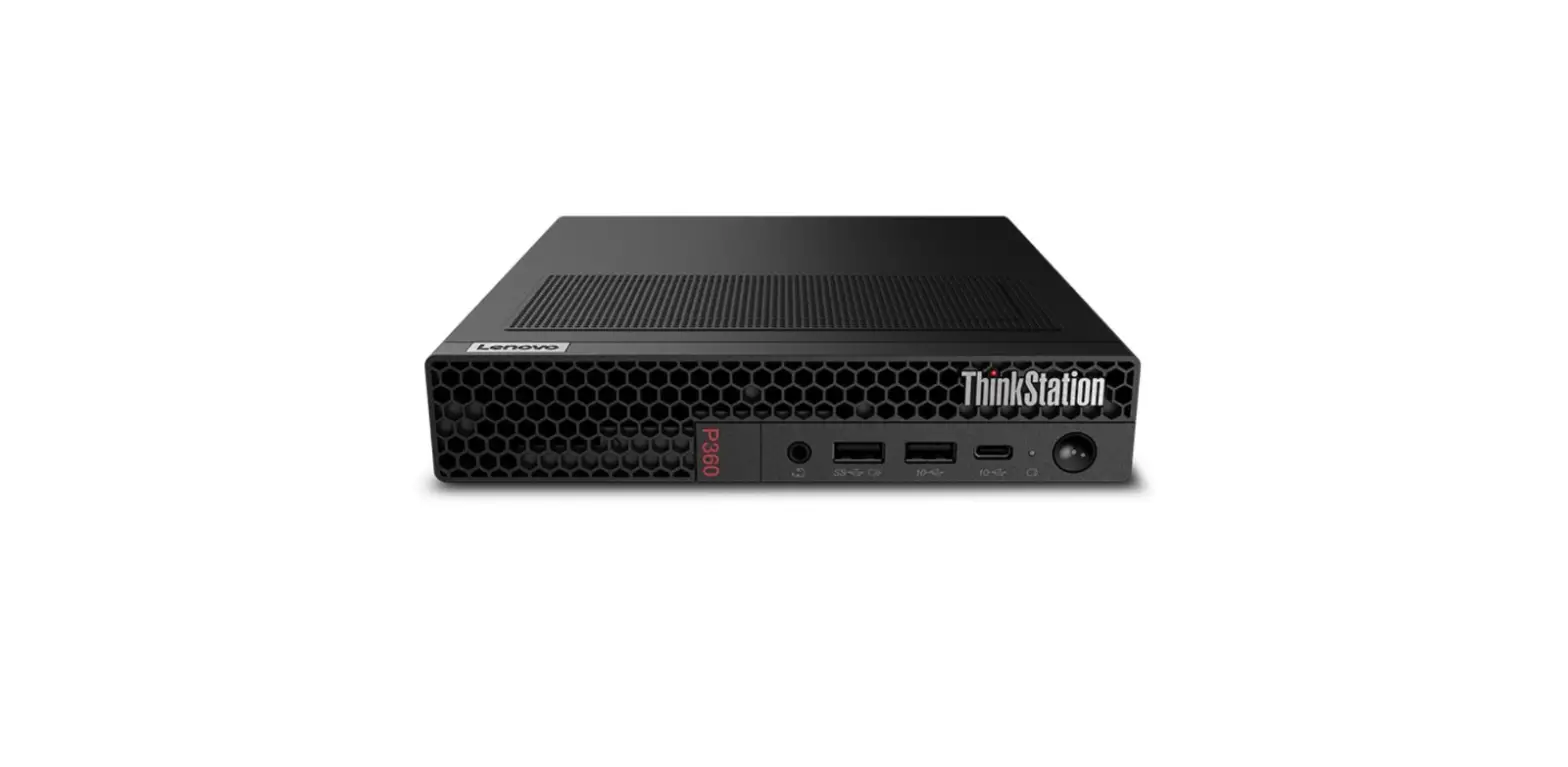
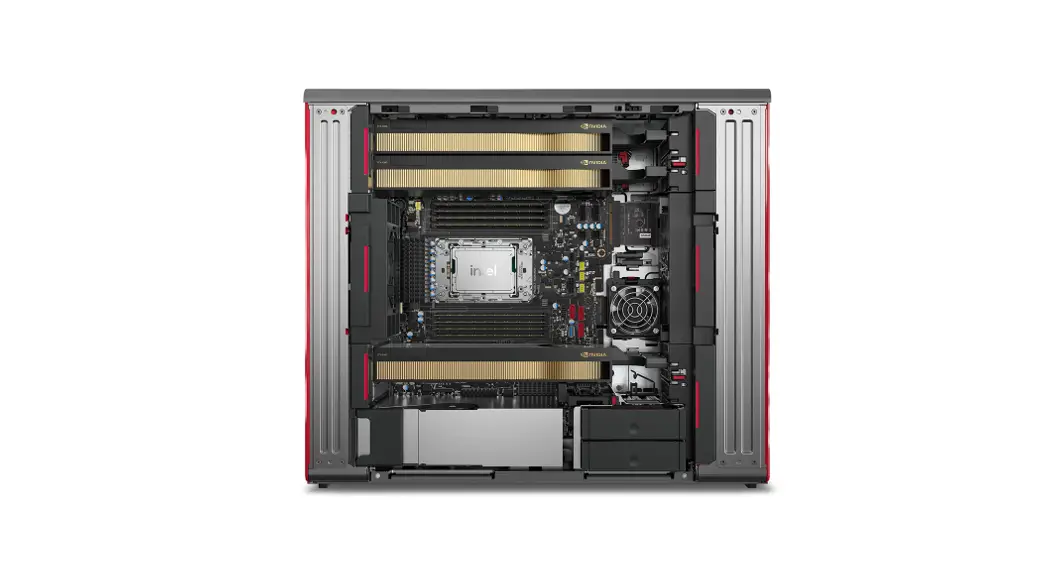
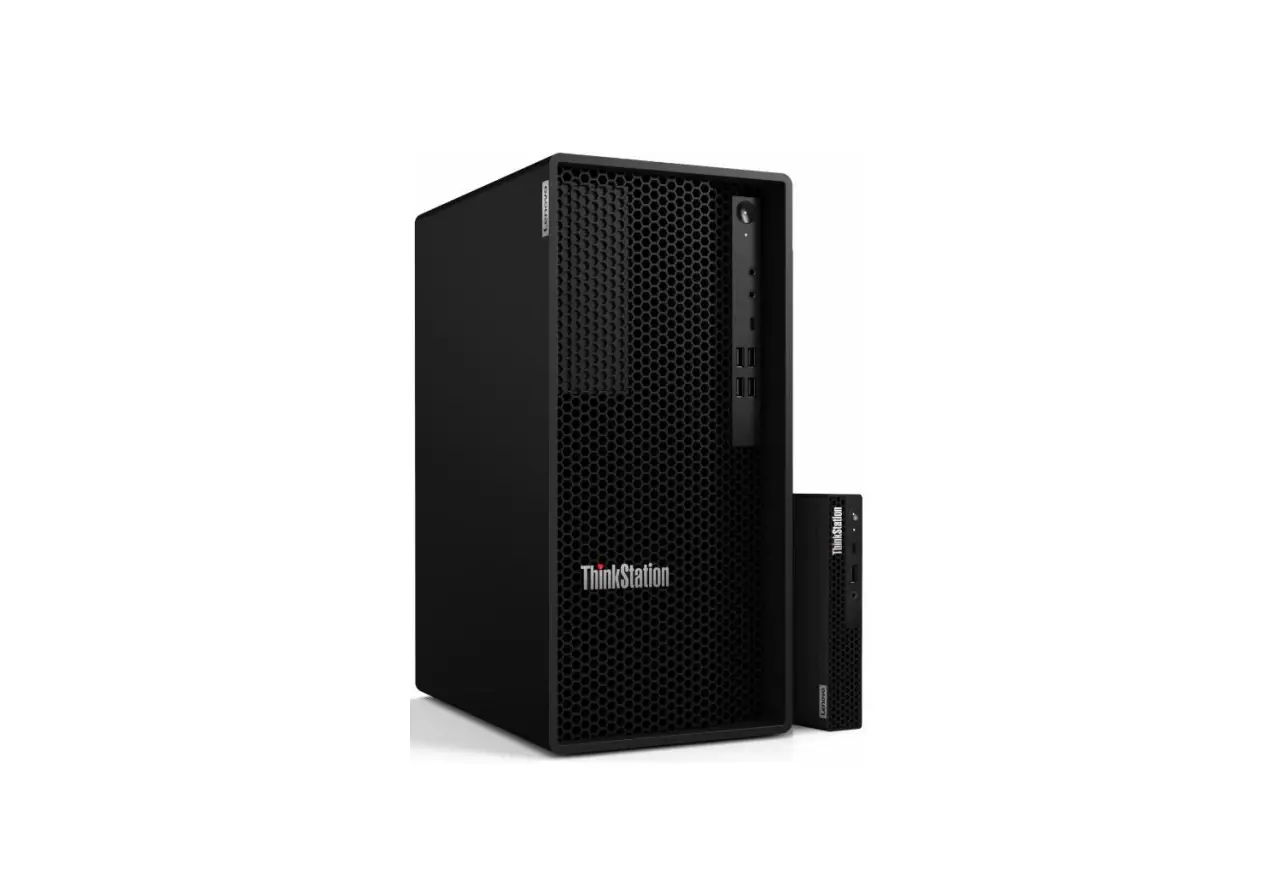
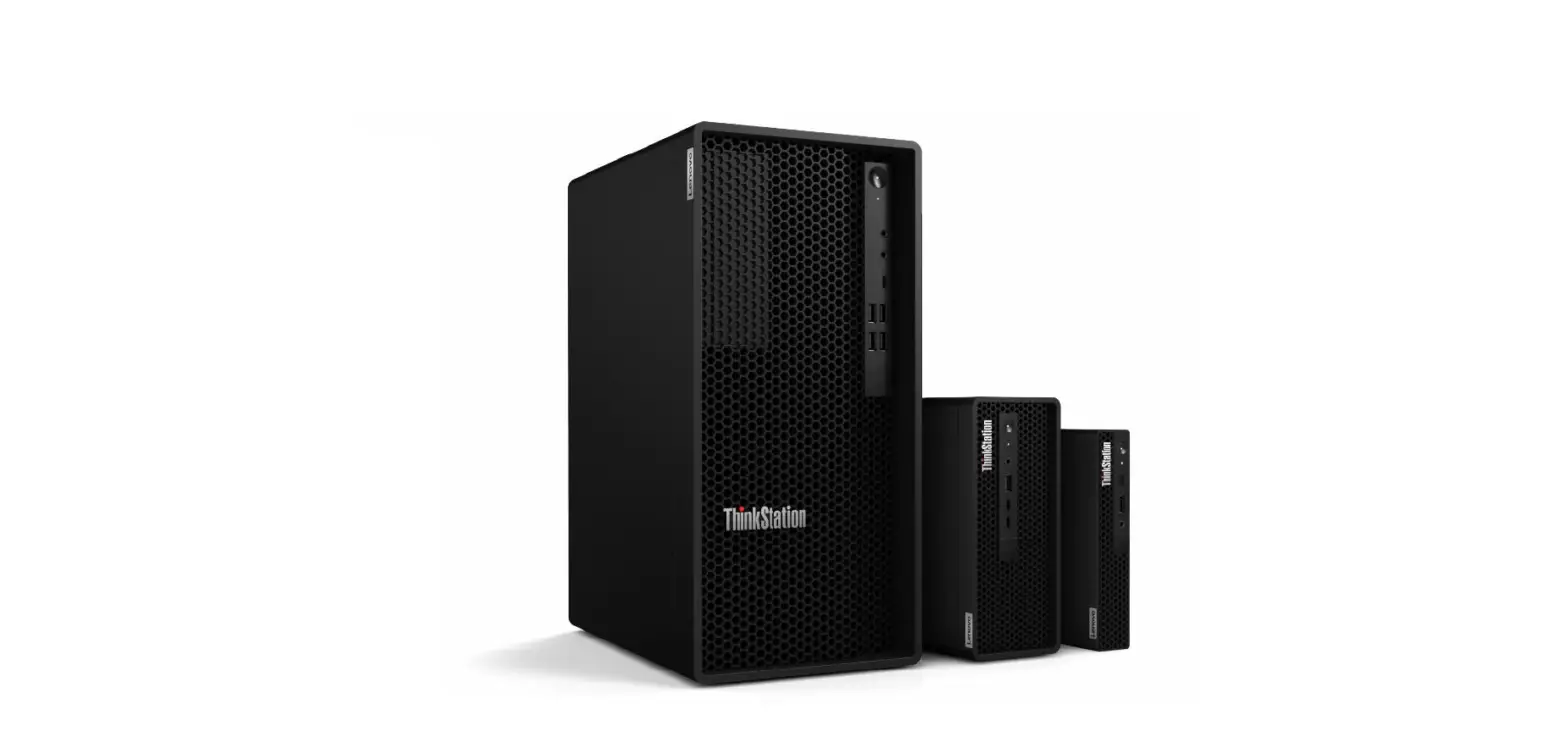
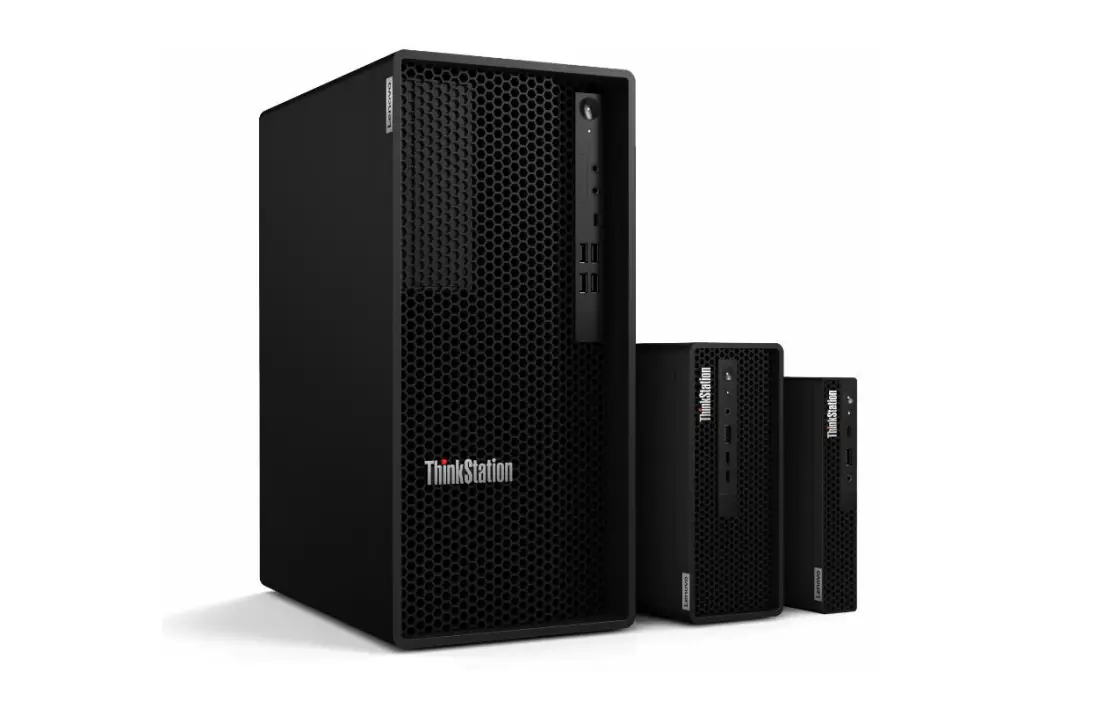
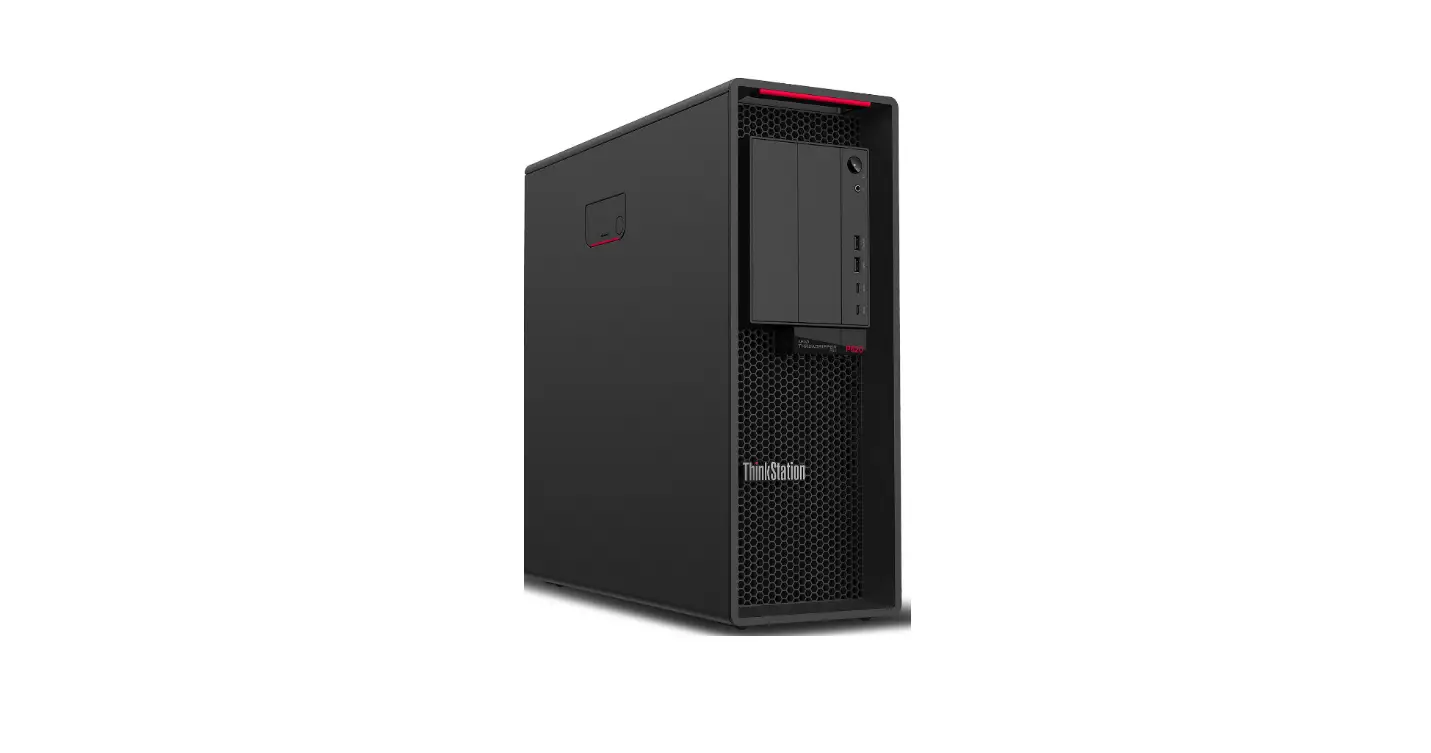
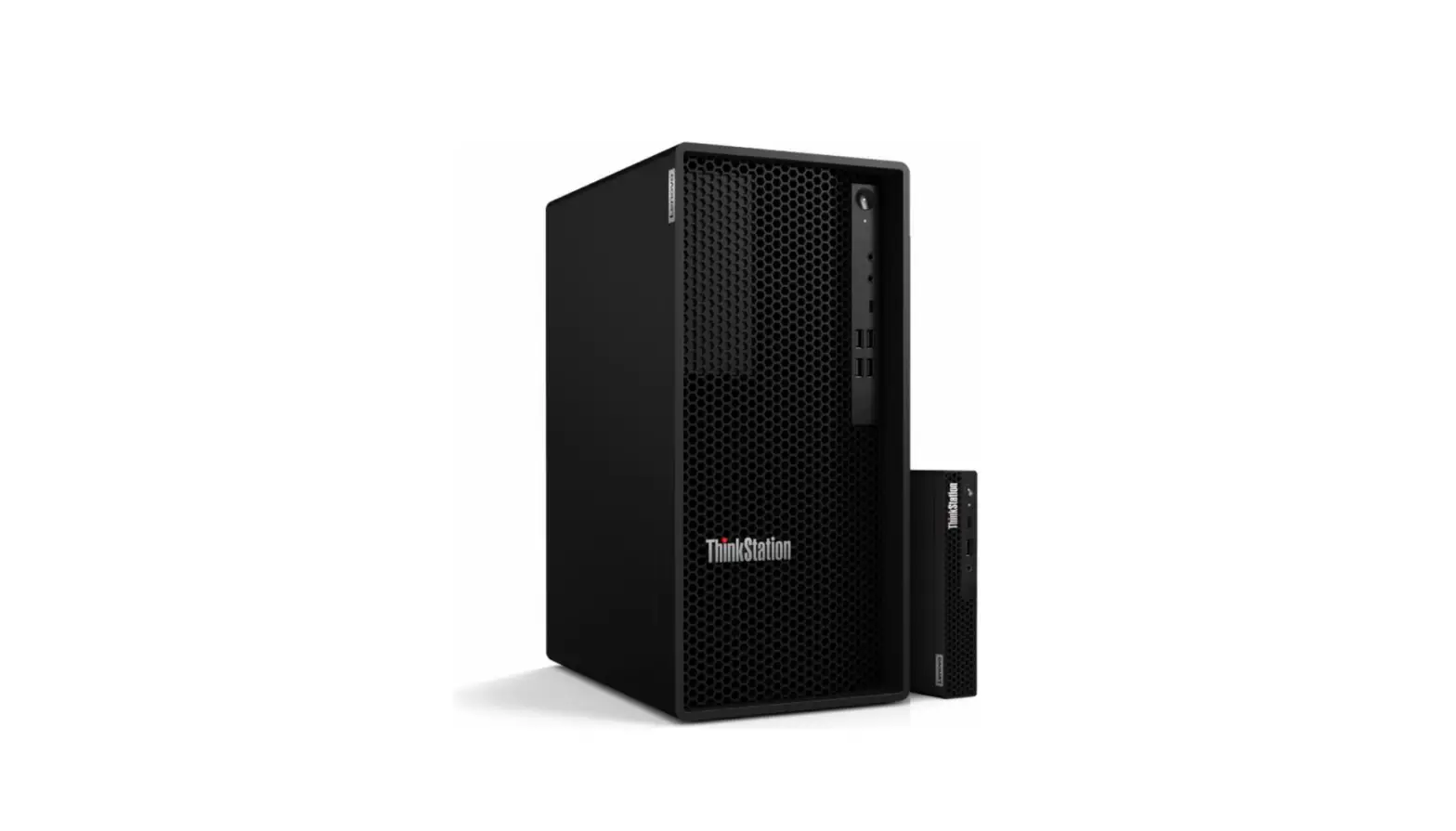
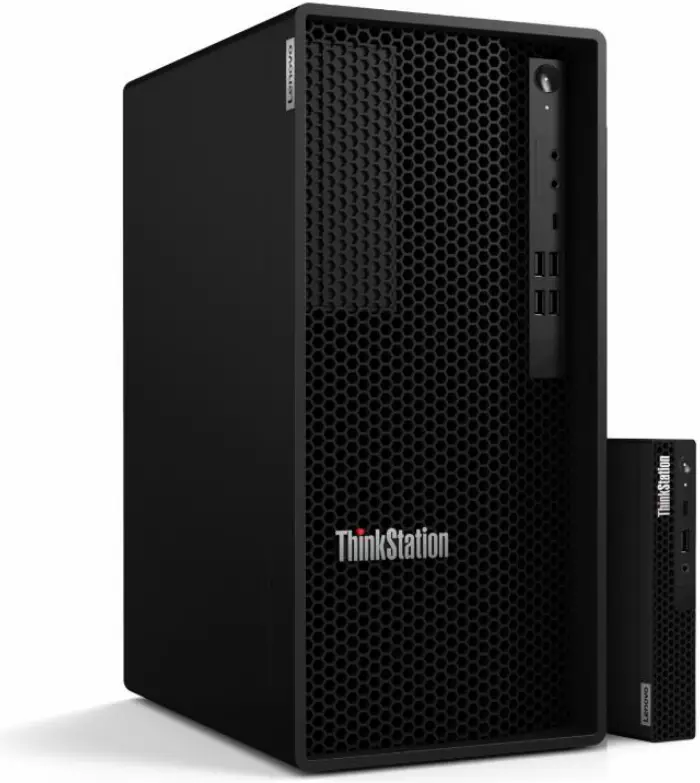
For ThinkStation P360 Tower, Tiny
 Section 1 - BIOS Configuration
 Section 1 - BIOS Configuration
The first step before installing Linux is to make sure the system BIOS is setup correctly.
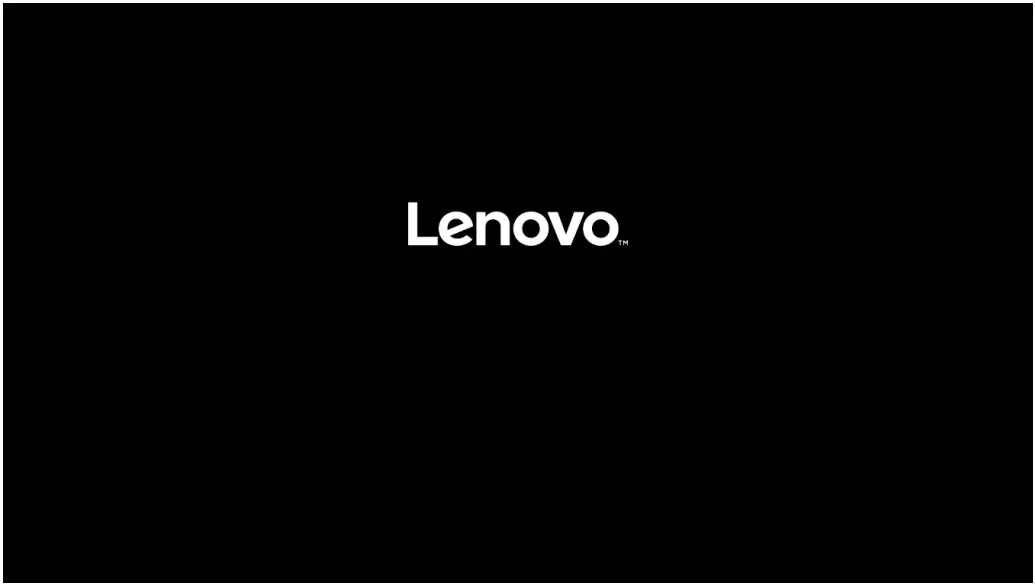
- Boot into BIOS by pressing the function F1 key at the “Lenovo” splash screen.
- Tab over to the Security tab and select “Secure Boot”.
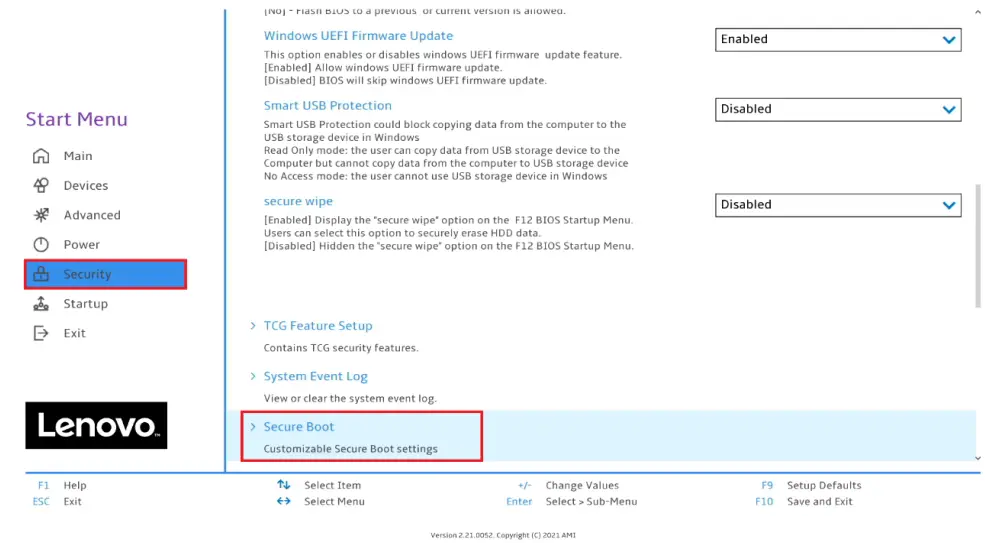
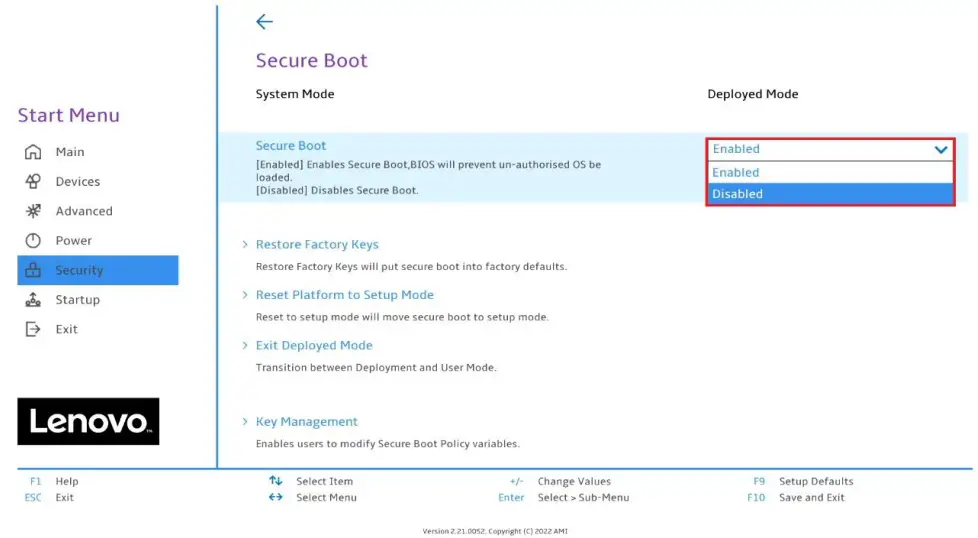
- Check whether Secure Boot is disabled. If found enabled, disable it.
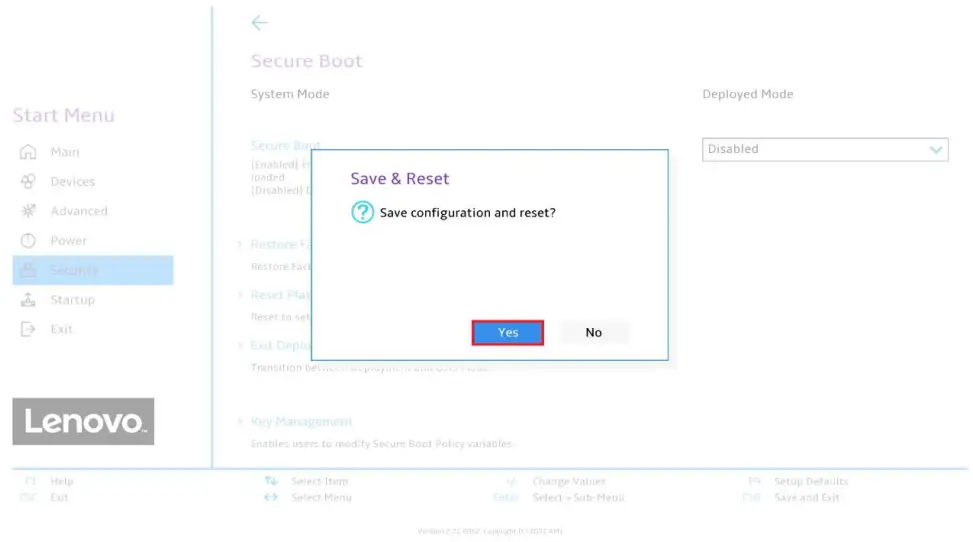
- Save changes by pressing F10 function key.
Section 2 - Installing Ubuntu Linux 22.04 LTS
Please refer to the following instructions and screenshots on how to install Ubuntu 22.04 LTS on the Lenovo ThinkStation P360.
- Insert the Ubuntu 22.04 LTS installation media (either through USB or CD/DVD)
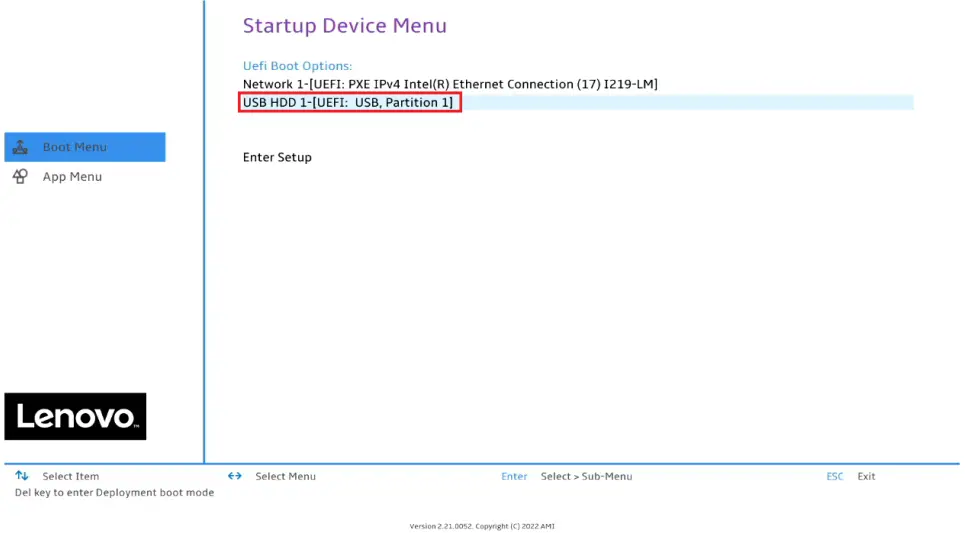
- Power on the system and press the F12 function key whenever the following Lenovo splash screen appears.

- Select the Linux bootable installation media from the F12 boot menu list.

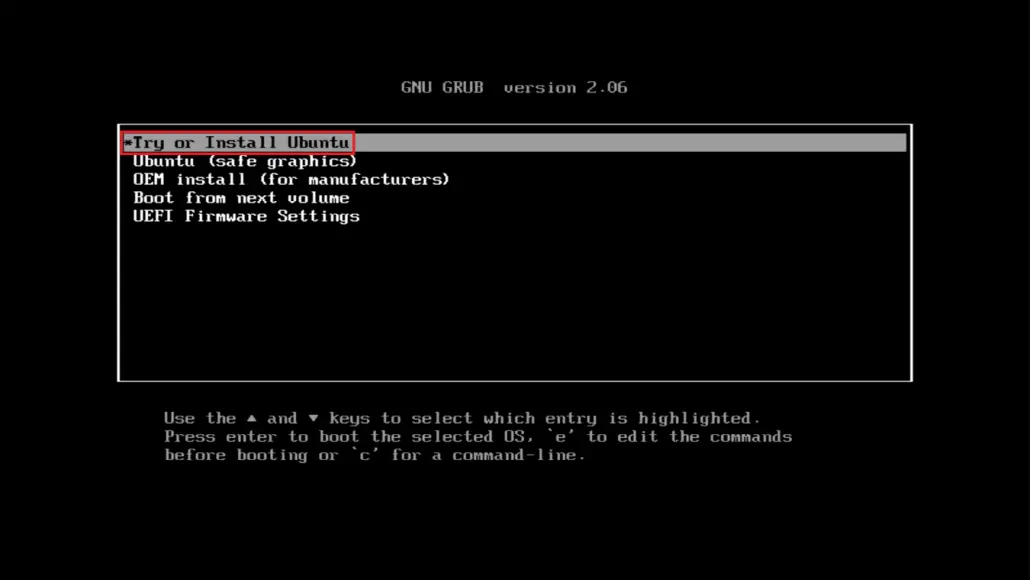
- Select “Ubuntu” from the GRUB boot menu and press enter.

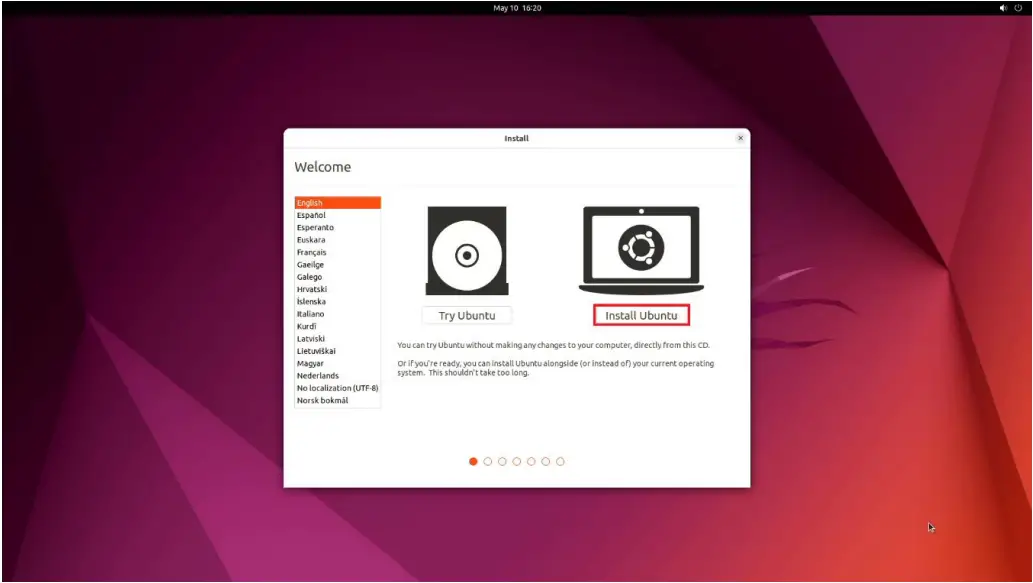
- Select the “Install Ubuntu” option on the welcome screen.
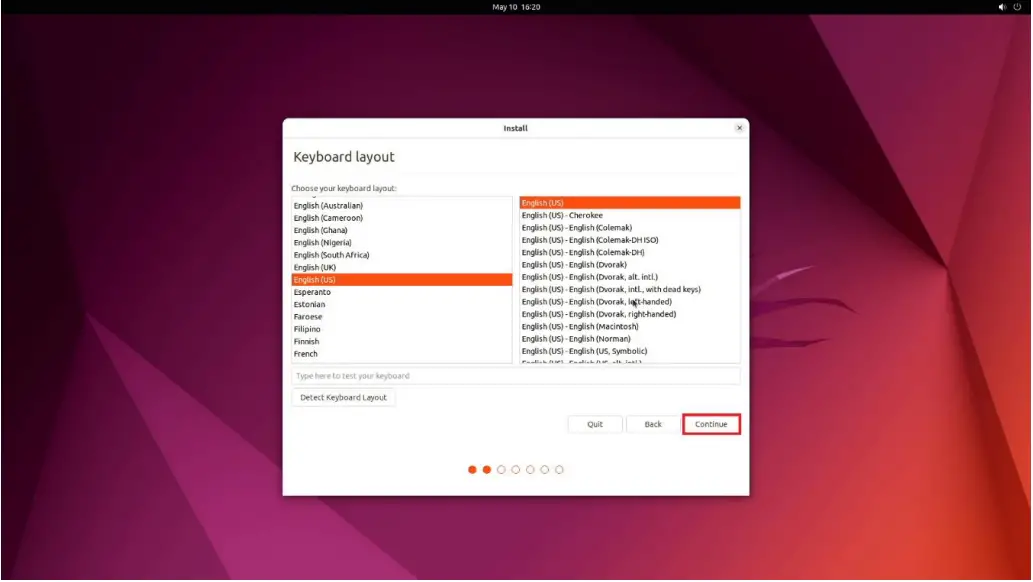
- Select the appropriate keyboard layout and language and press “Continue”.

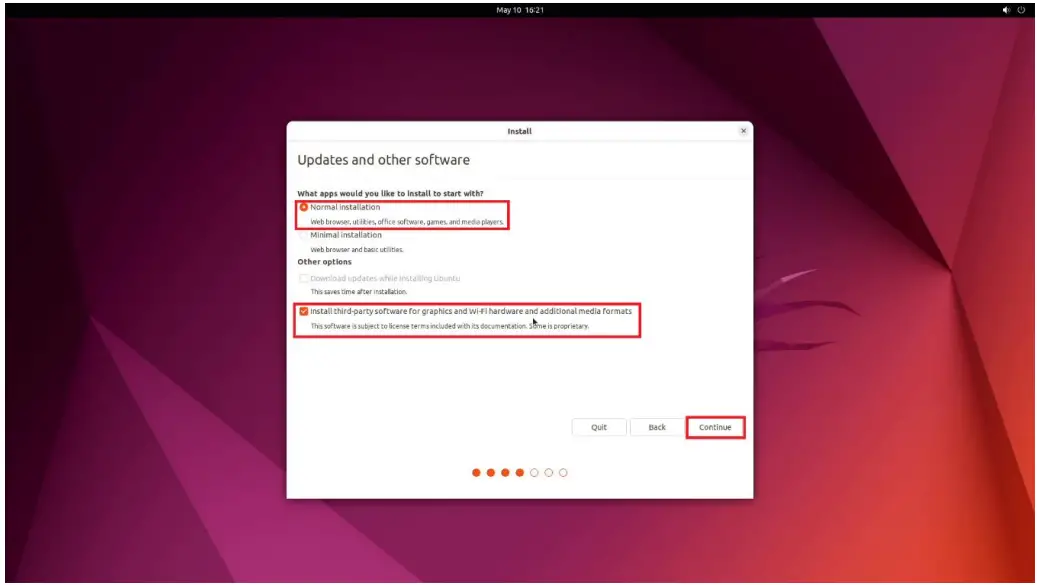
- Select “Normal Installation” and press “Continue”.
Optional: “Install third-part software…”
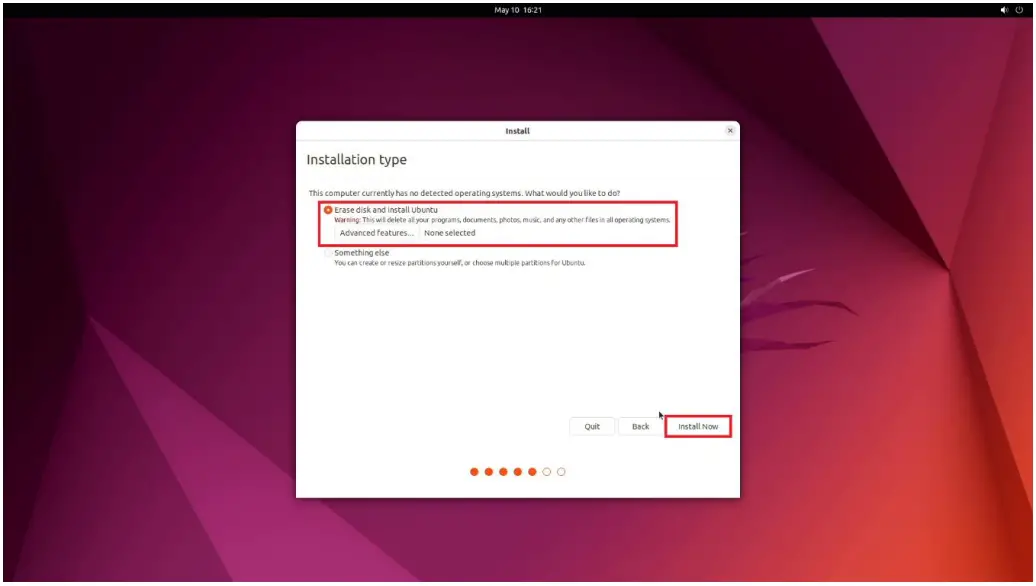
- Choose the installation type. For simplicity, this guide was done using “Erase disk and install Ubuntu”

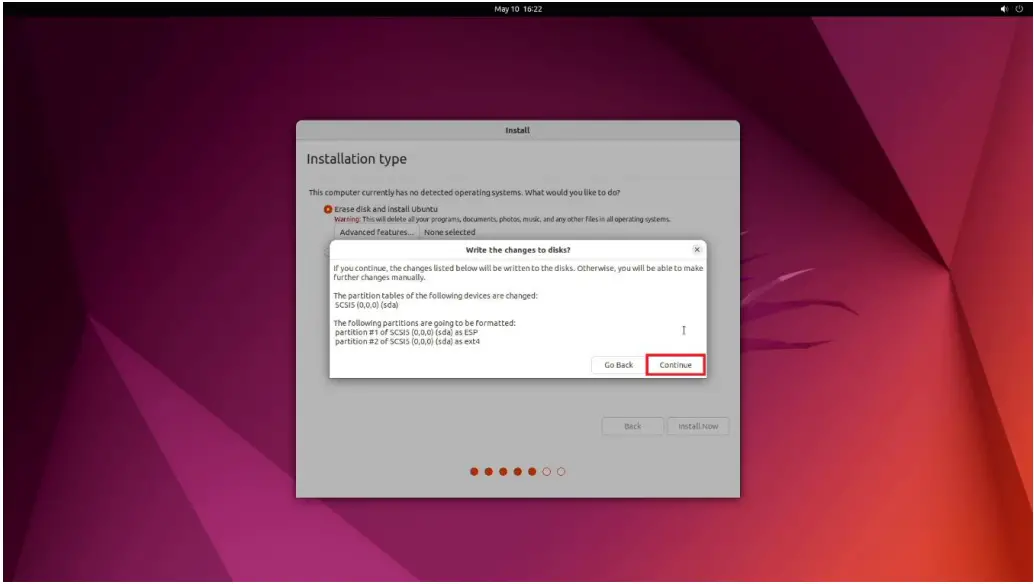
- Select “Continue” to confirm changes will be made to the disk.
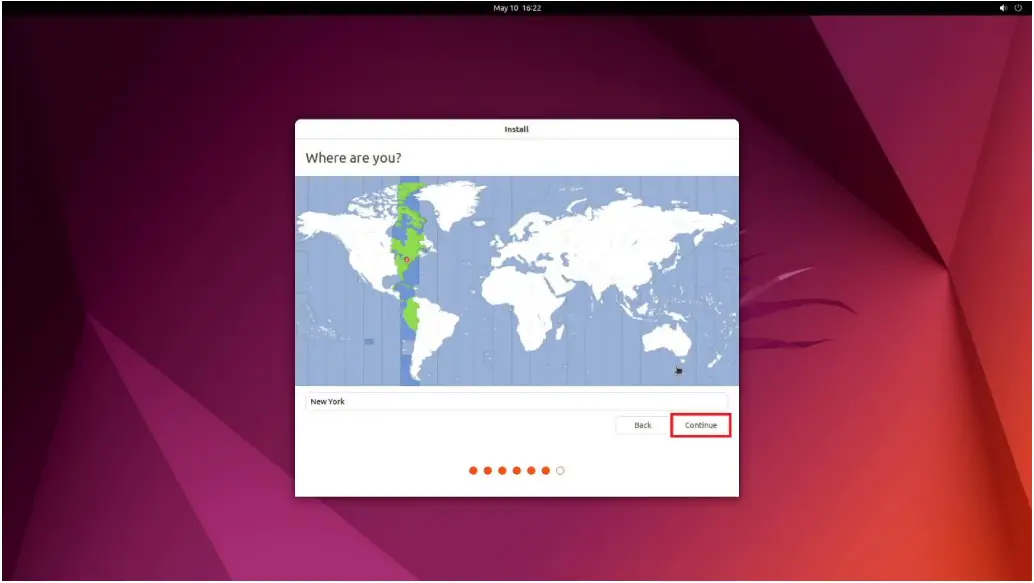
- Choose the appropriate geographical location and select “Continue”.
- Fill out the appropriate information and select “Continue”.
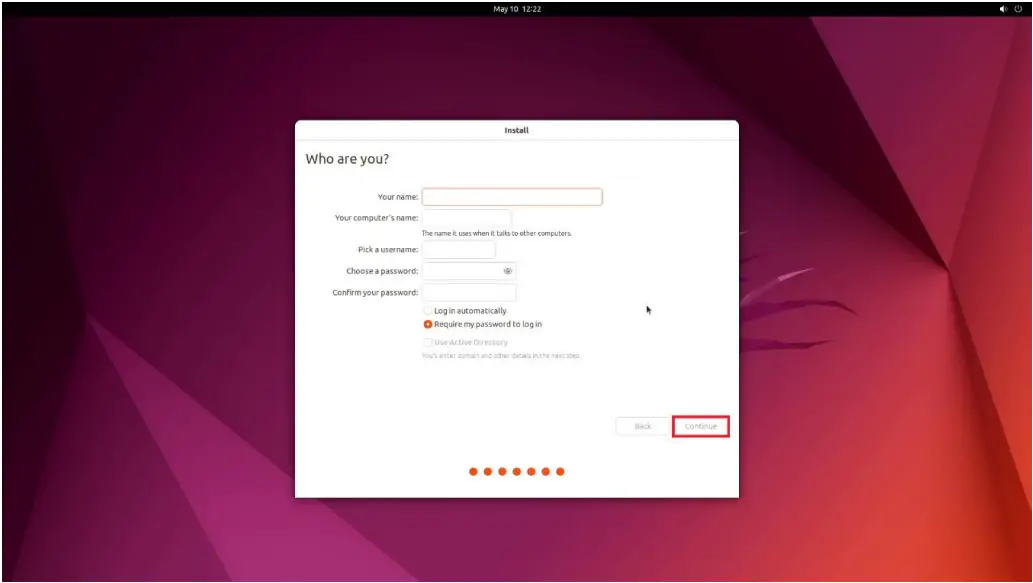
- Ubuntu installation progress bar will be shown.
- Once the installation completes, select “Restart now”.
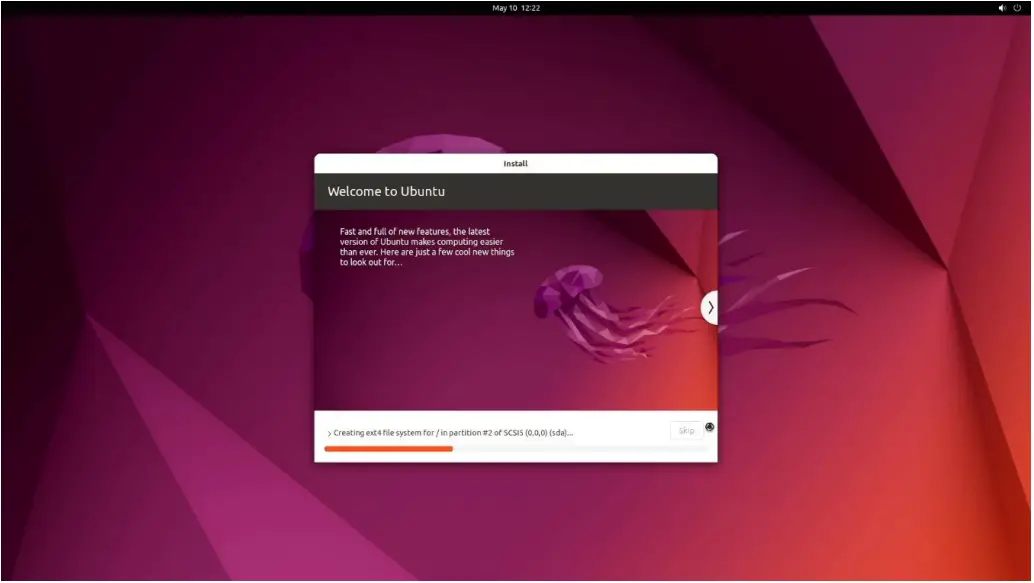
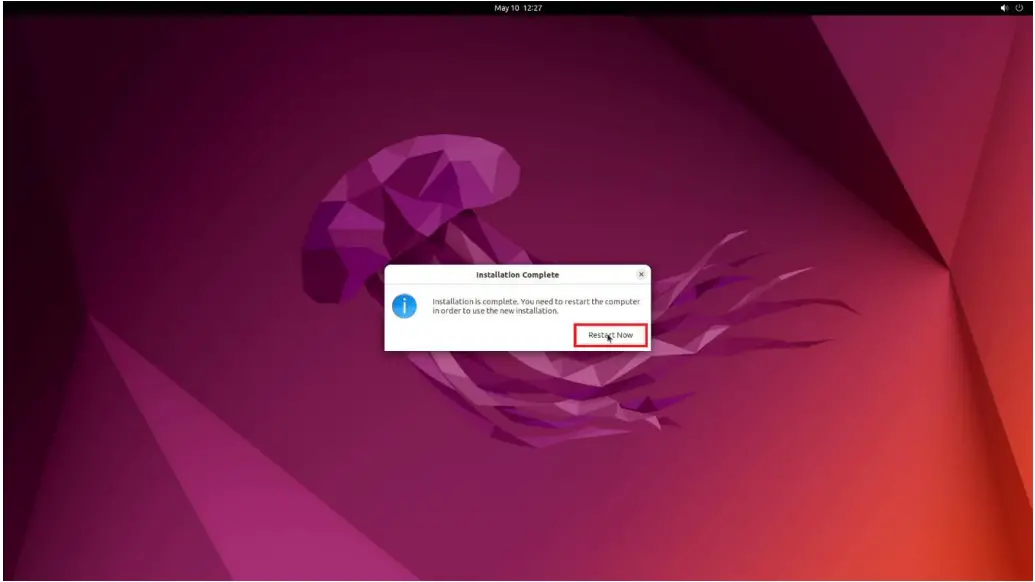
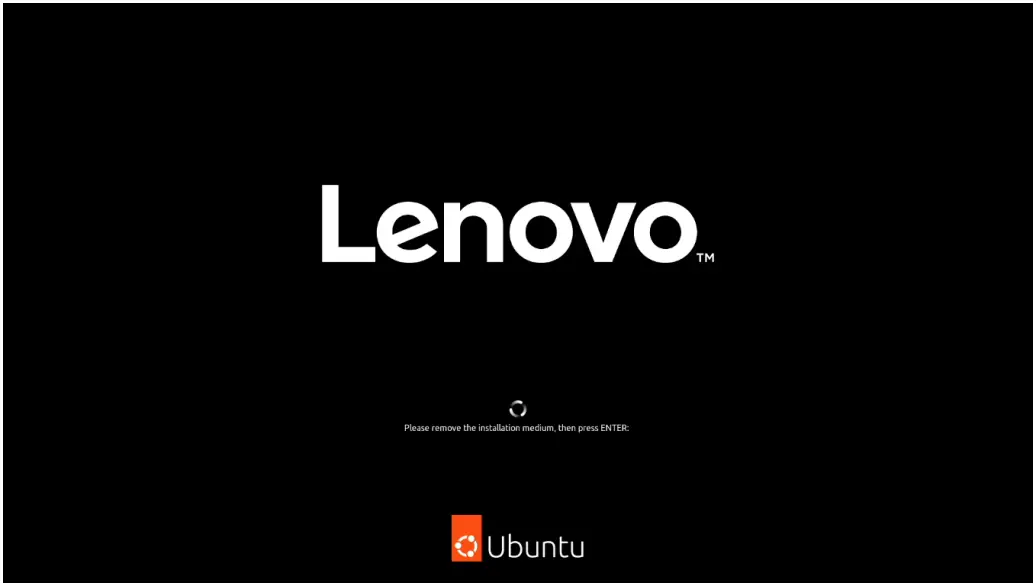
- Remove the installation media and press enter.
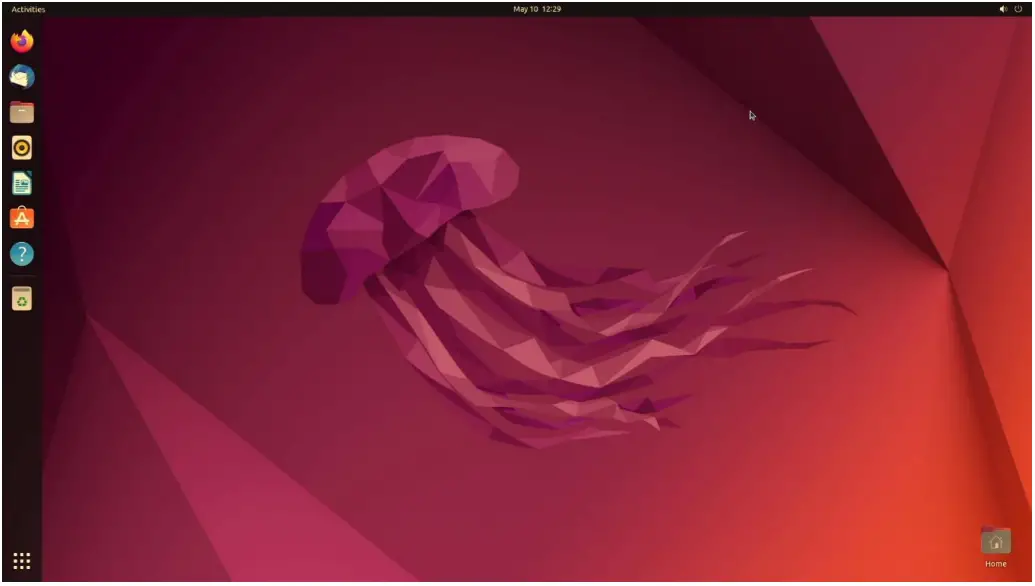
- User will land on the Ubuntu Desktop Screen.
Section 3 - Installing the Nvidia Graphics Driver
To get optimal performance out of the Nvidia GPU, it is a good idea to install the Nvidia graphics driver.
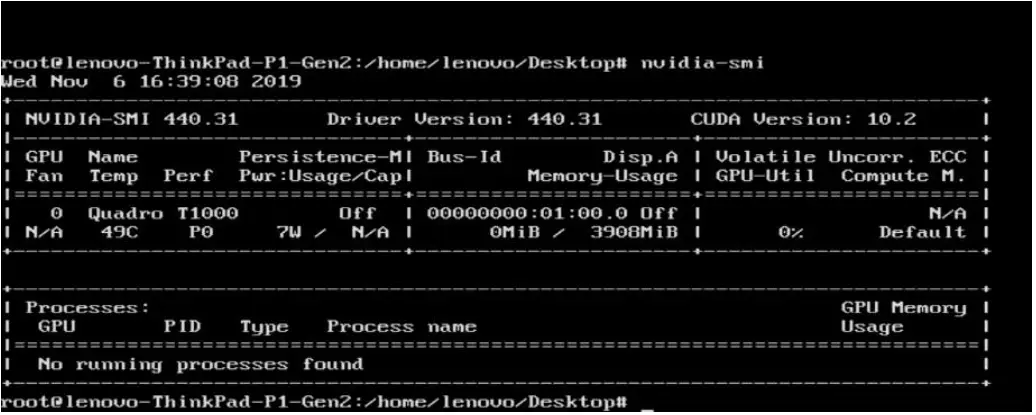
- To make sure the Nvidia GPU is working, open the terminal and write the command nvidia-smi.
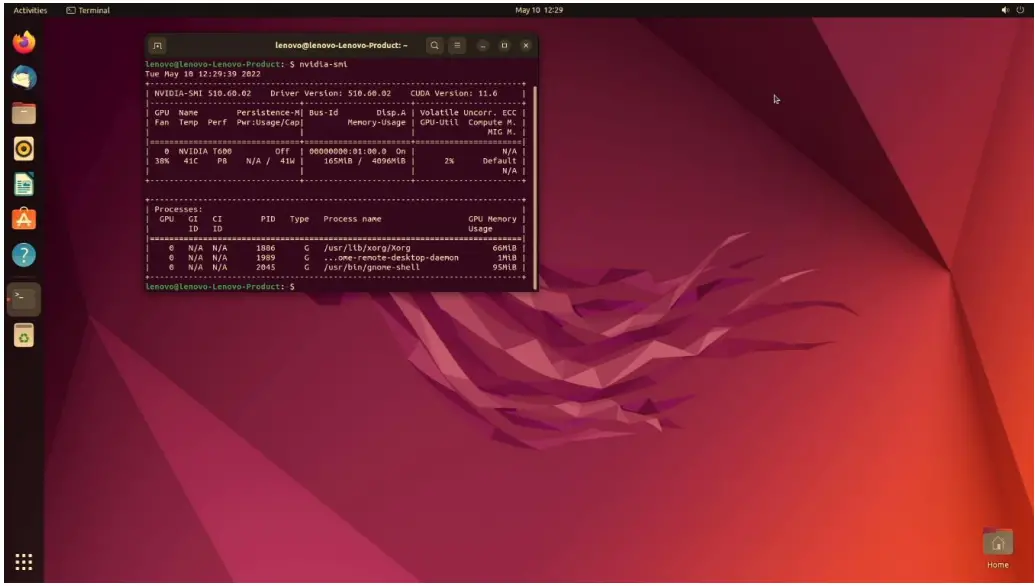
In case Nvidia GPU is not native, follow the steps below to install the GPU driver:
- Open Software & Updates.
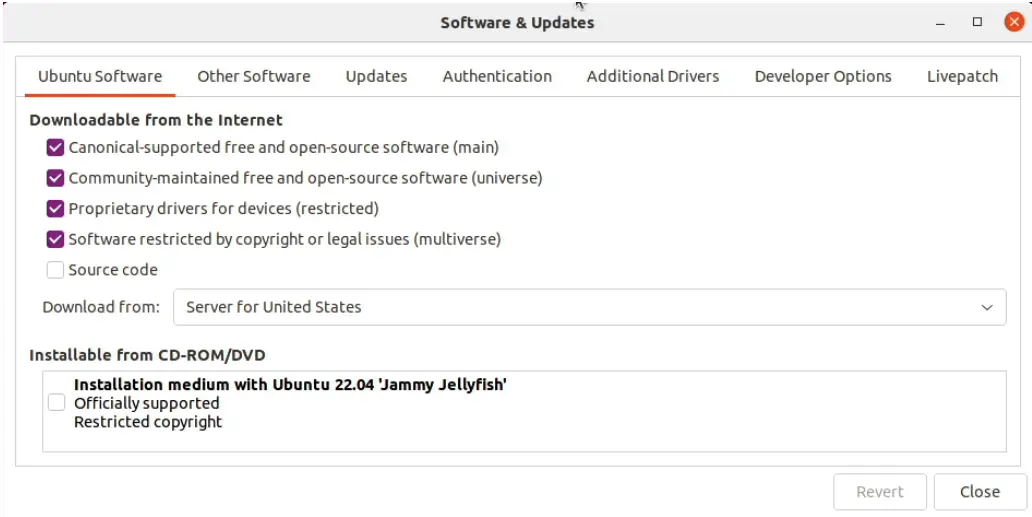
- Click on Additional Drivers

- Select the driver you would like to install and click Apply Changes
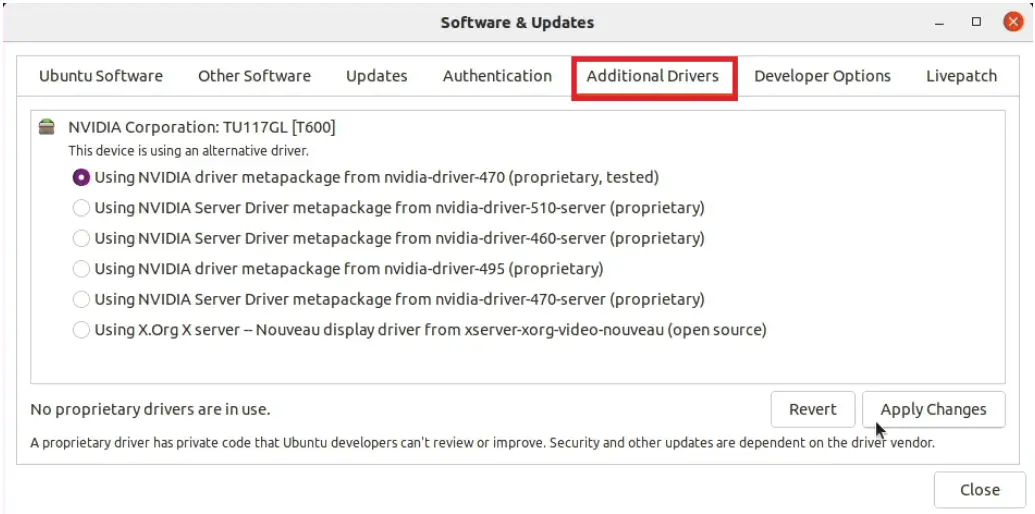
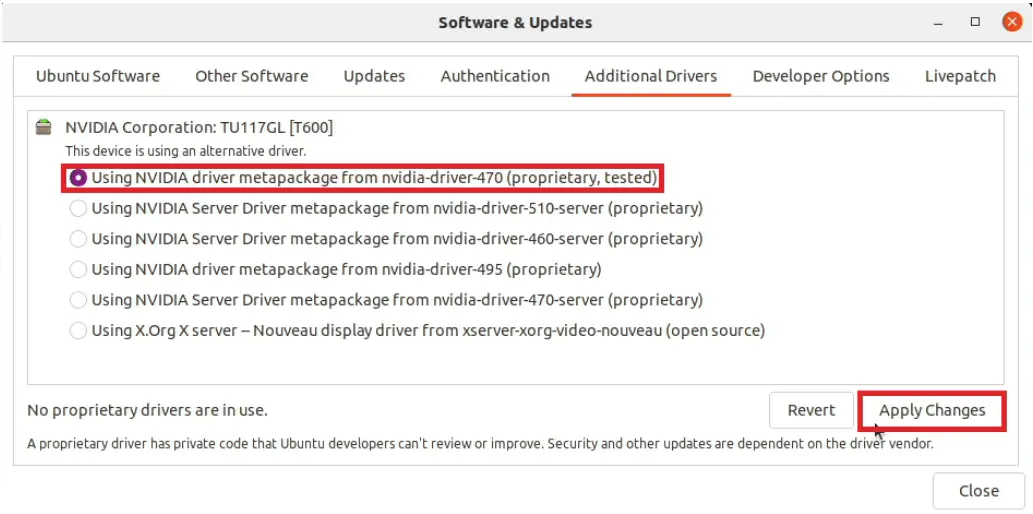
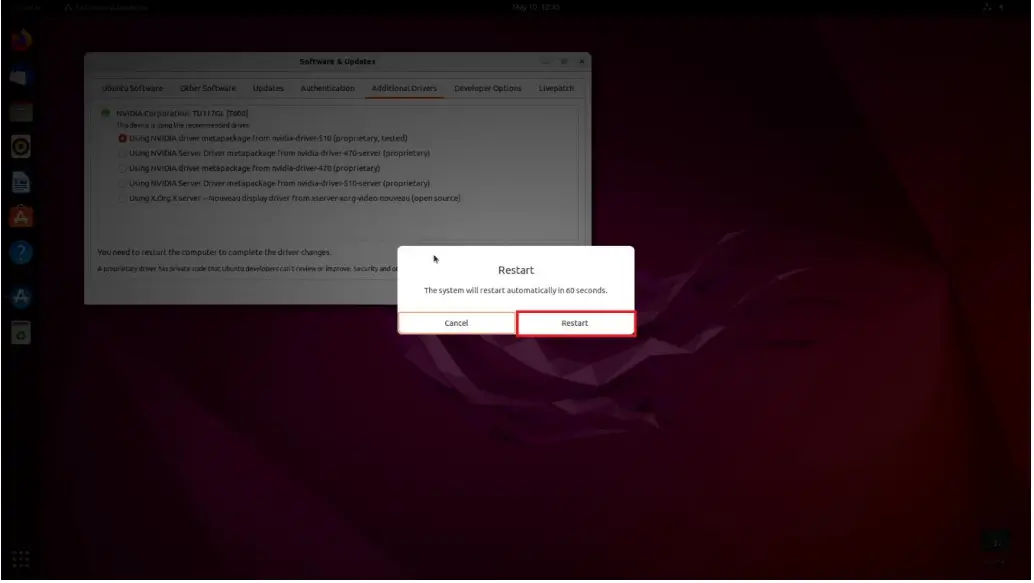
- After that system will ask to restart, click Restart.
In case you desire to install a specific Nvidia driver please follow the next steps:
- Download the latest Nvidia graphics driver for the appropriate Nvidia GPU from www.nvidia.com/download
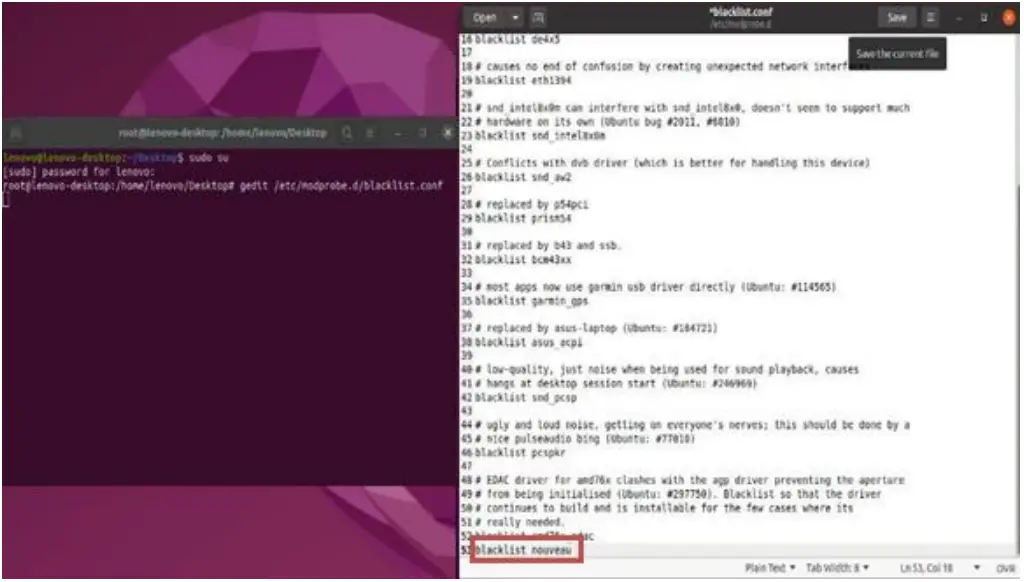
- To get the Nvidia driver running, we will need to blacklist the nouveau driver. Follow the steps below:
o Log in as root: sudo su
o Open blacklist.conf file: gedit /etc/modprobe.d/blacklist.conf
o Blacklist nouveau driver by writing: blacklist nouveau
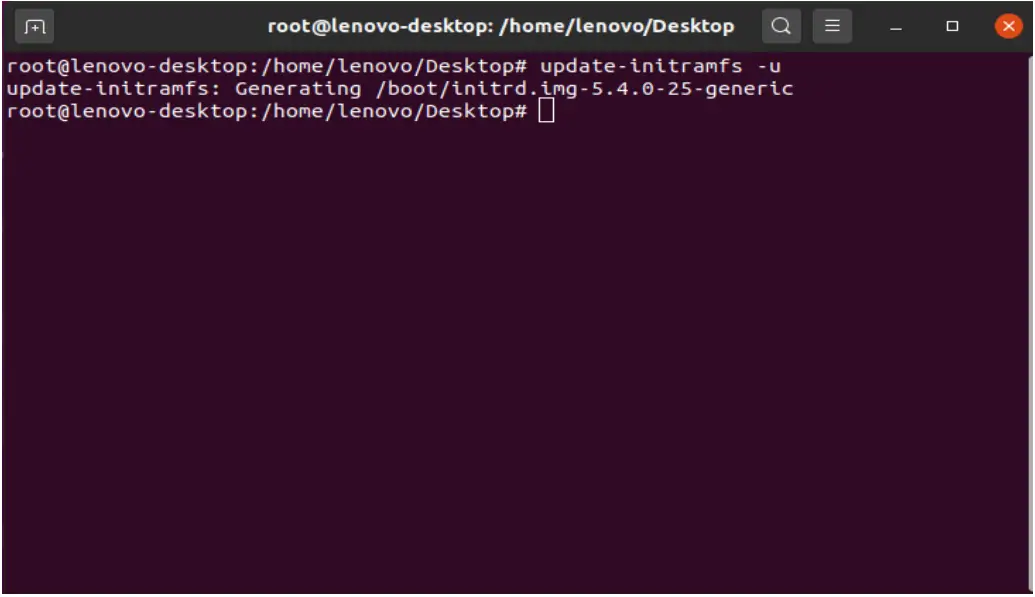
- Run the command: update-initramfs -u
- Reboot the system: reboot
o Once your system reboots, open a terminal window and:
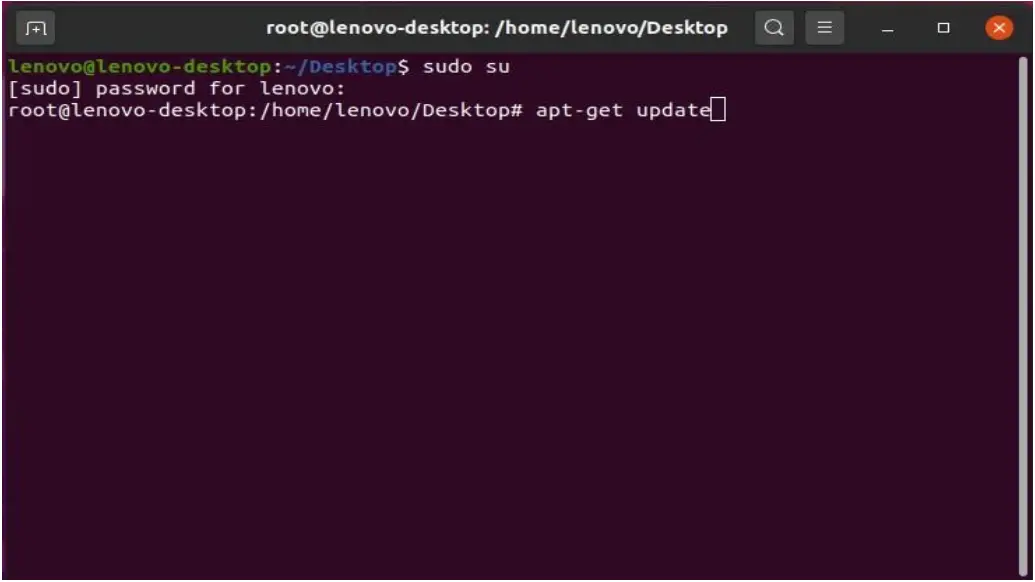
o Log in as root: sudo su
o Run the command: apt-get update
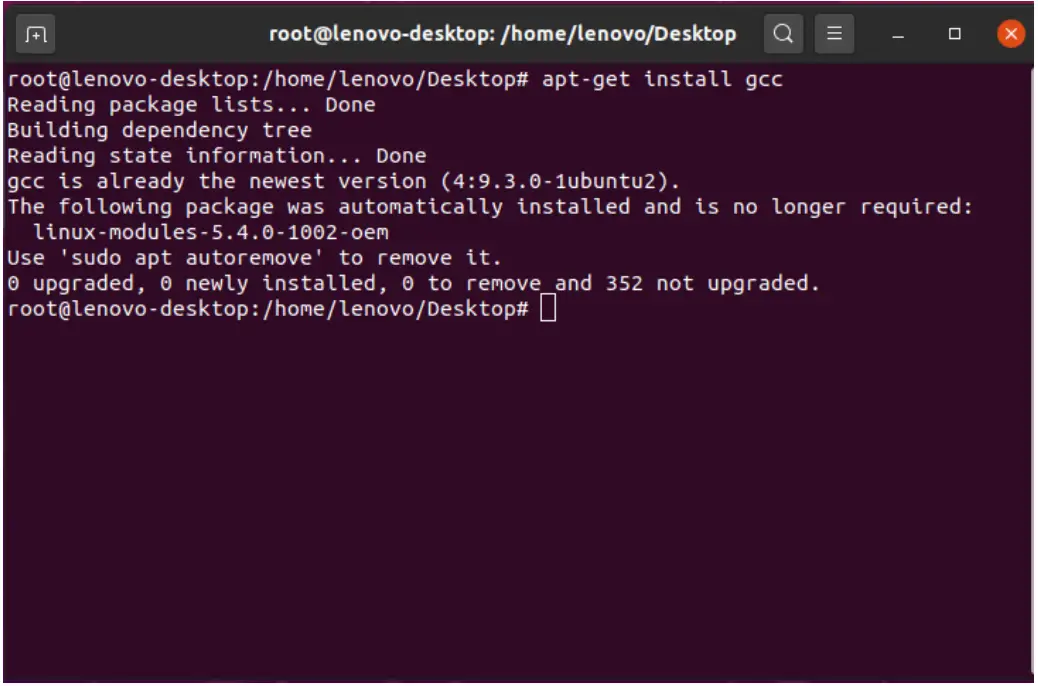
- Install gcc: apt-get install gcc
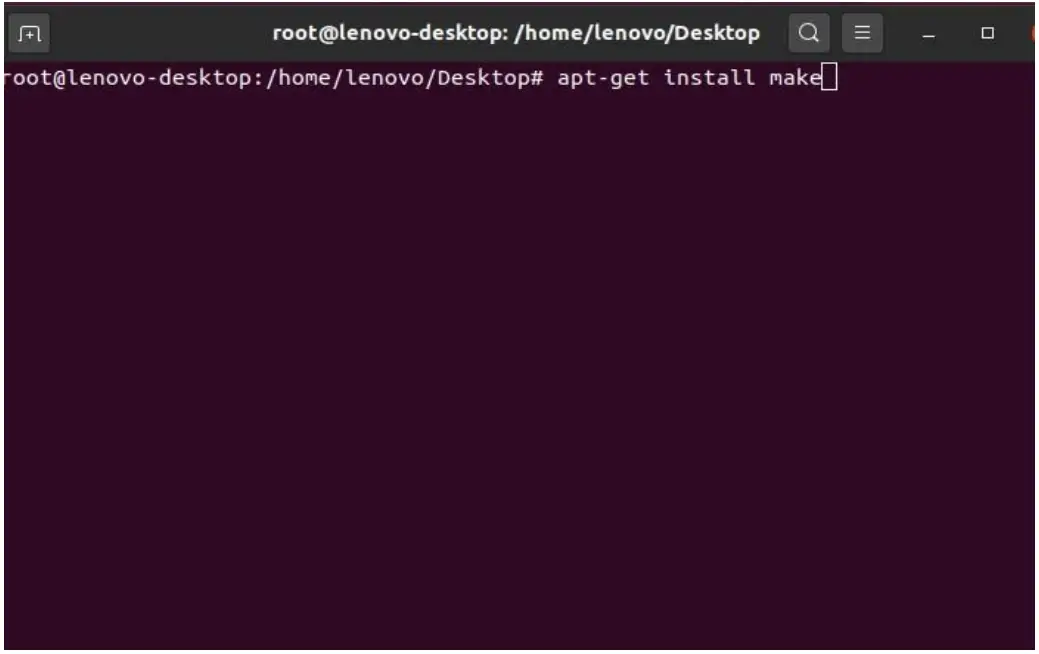
- Install make: apt-get install make

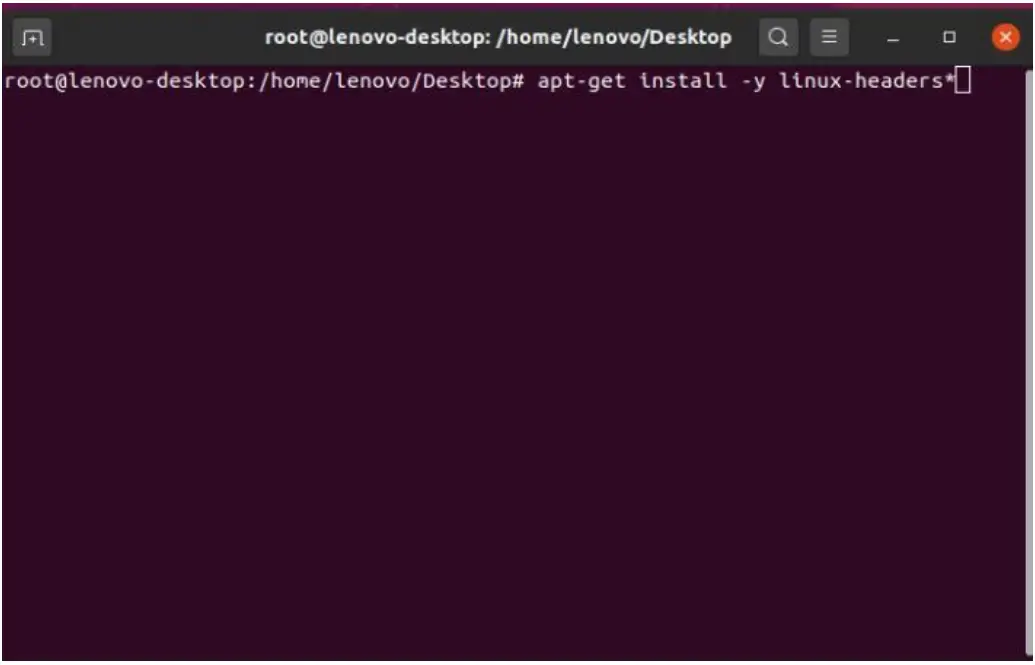
- Install linux-headers: apt-get install -y linux-headers*
- Stop x-windows by using the command: init 3

- Log in as root and redirect to the directory where the Nvidia driver is located.
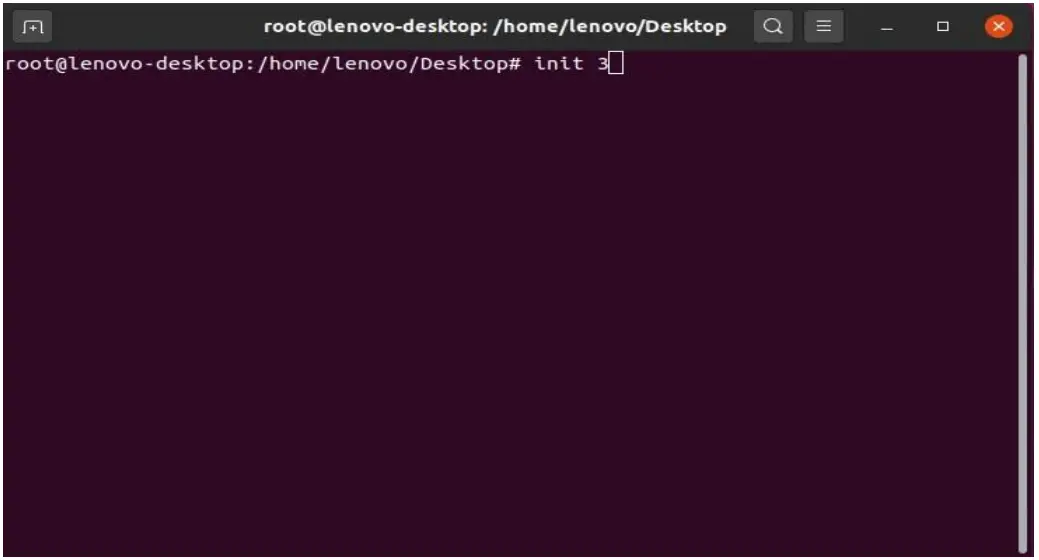
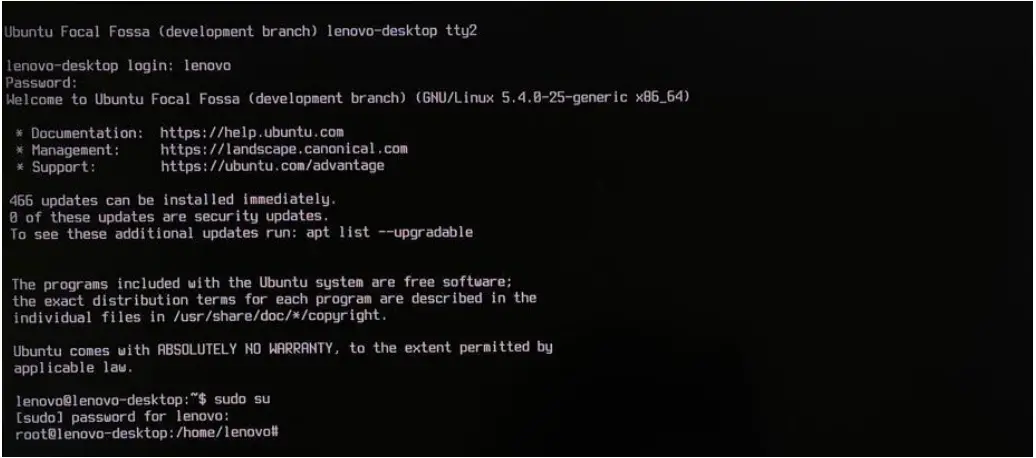
- Make the Nvidia installer an executable by the command- chmod +x NVIDIA-Linux-x86-64-* And run the Nvidia driver by- ./NVIDIA-Linuxx86_64-430.50.run

- Select Continue installation.
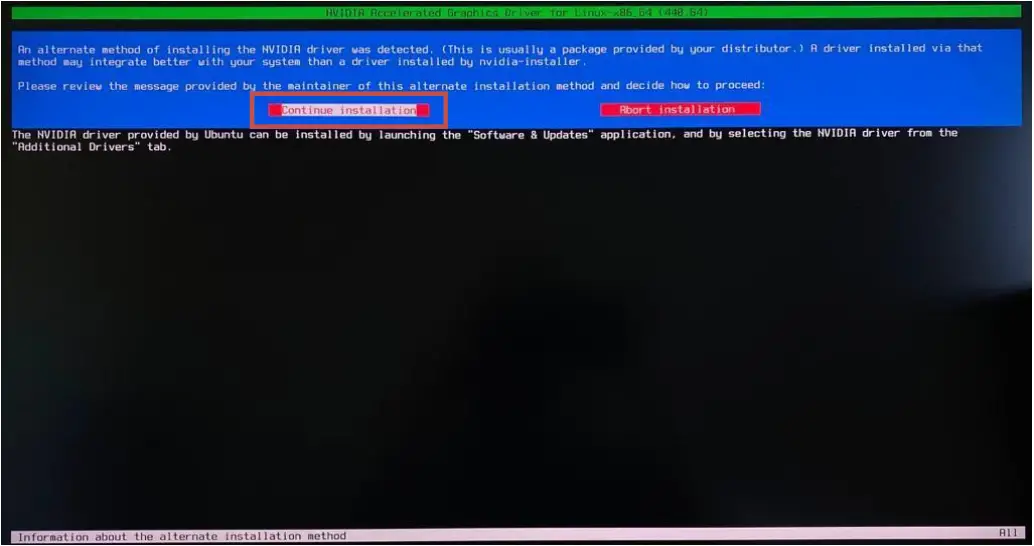
- Wait until the kernel modules are completely built.

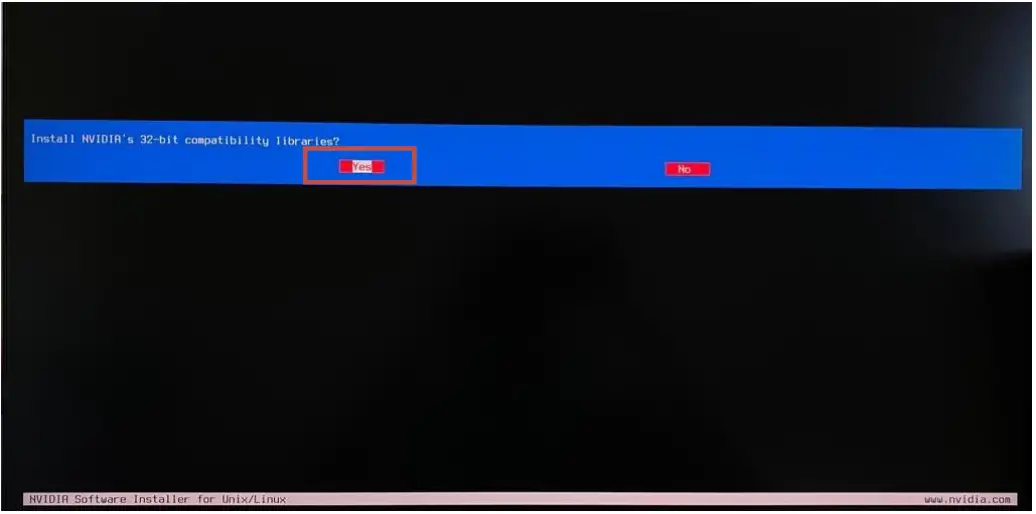
- Select Yes for installing 32-bit compatibility libraries.
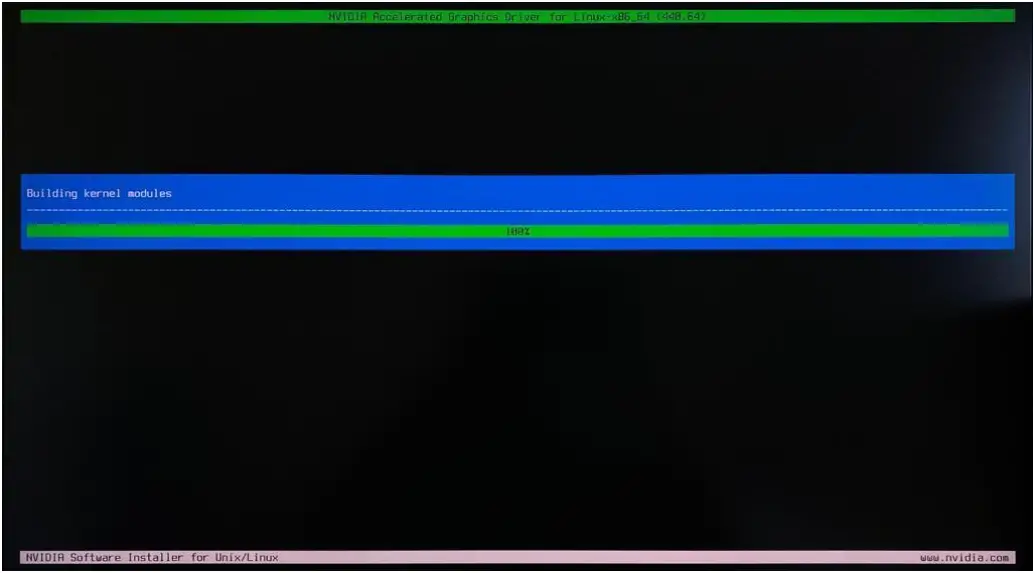
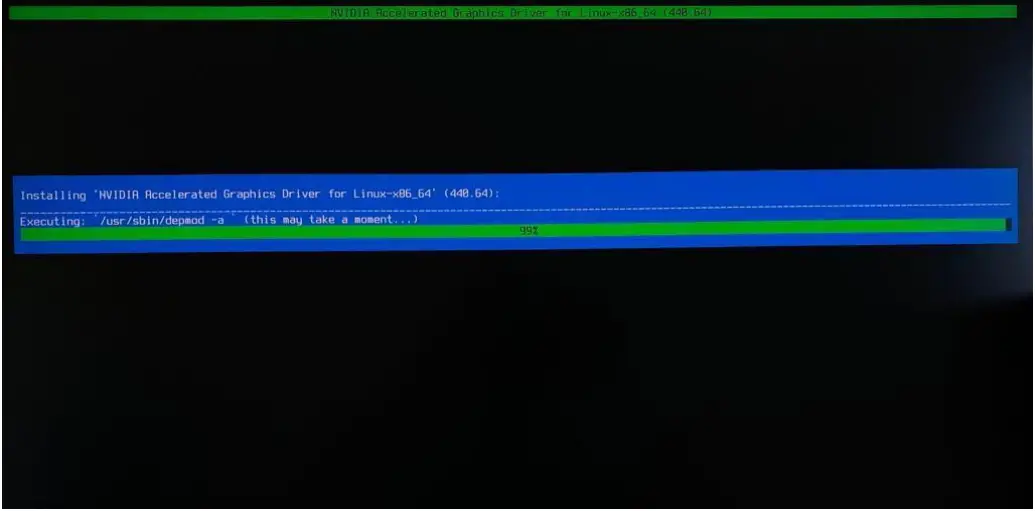
- Wait until the installation is complete.

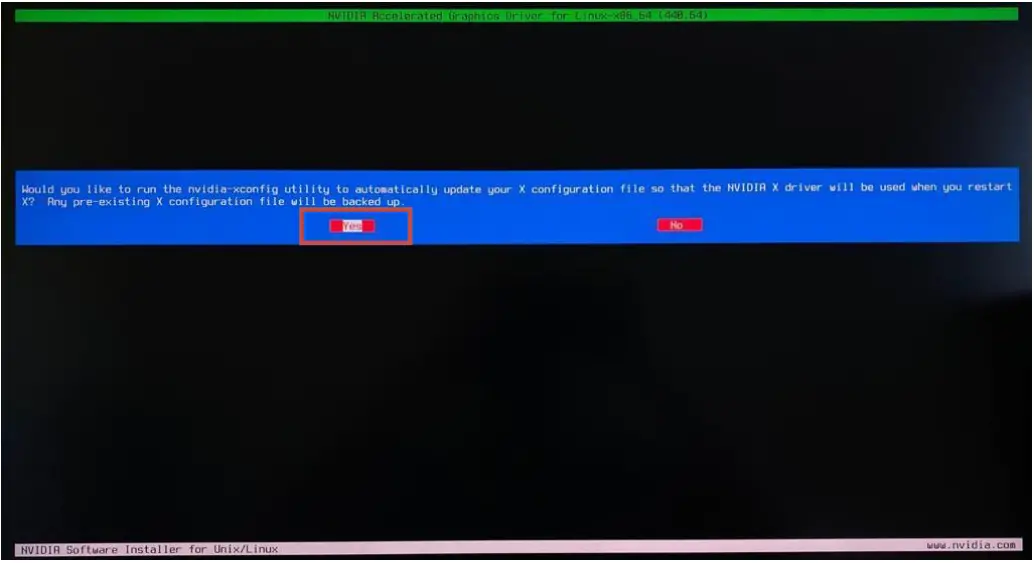
- Select Yes to run nvidia-xconfig utility to automatically update your X configuration file.
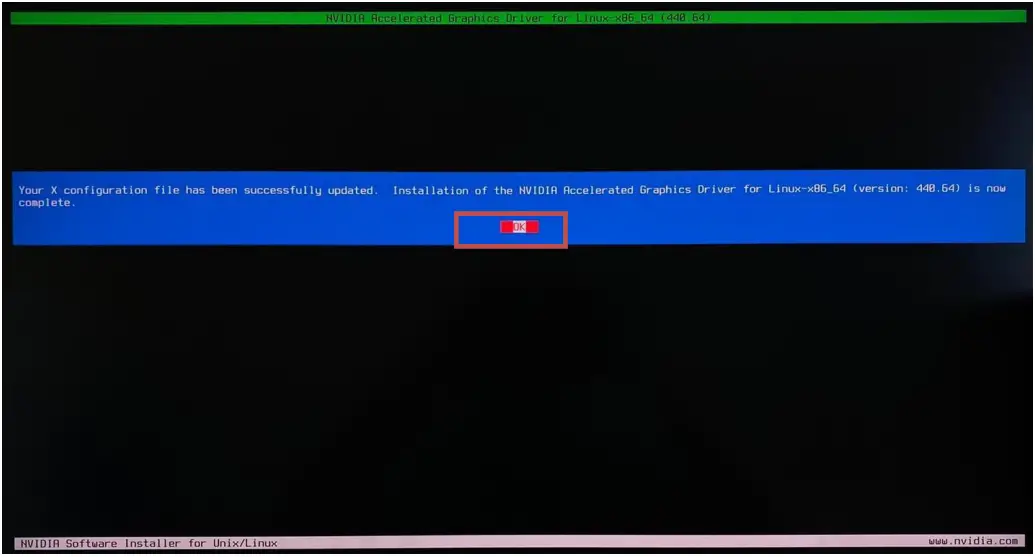
- Select OK once the X configuration file gets updated successfully.

- Execute the following command to verify the Nvidia driver is loaded: nvidiasmi
- Reboot the system.
Revision History
| Version | Date | Author | Changes/Updates |
| 1.0 | 5/17/2022 | Aleksandr Panteleev | Initial launch release |