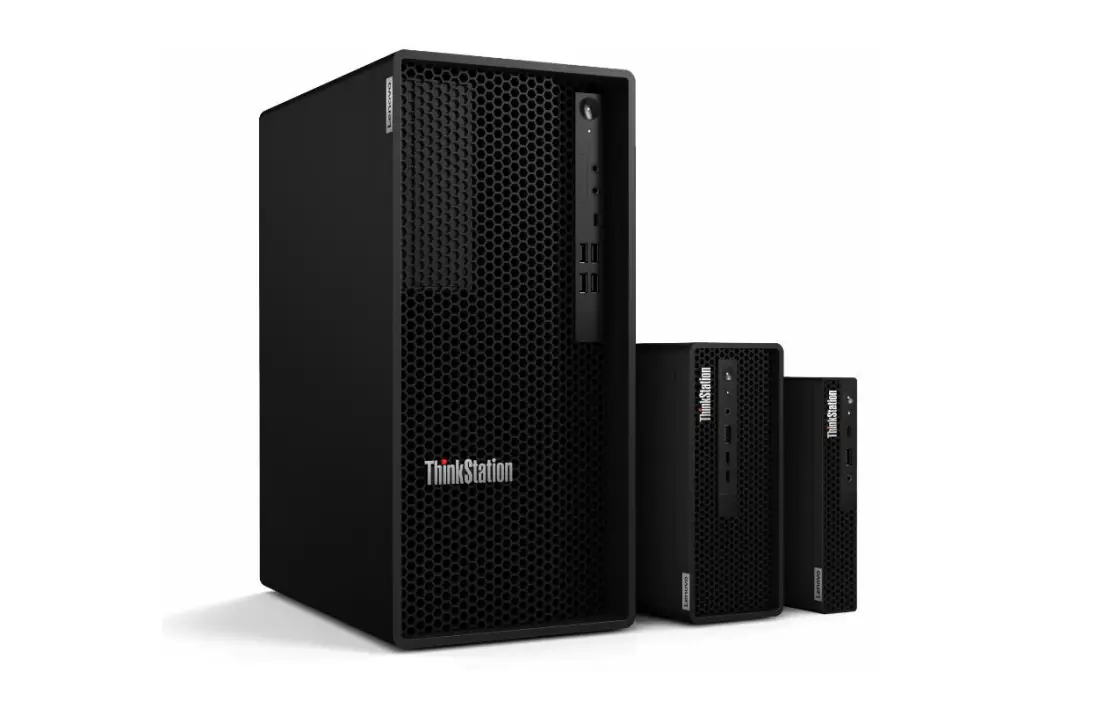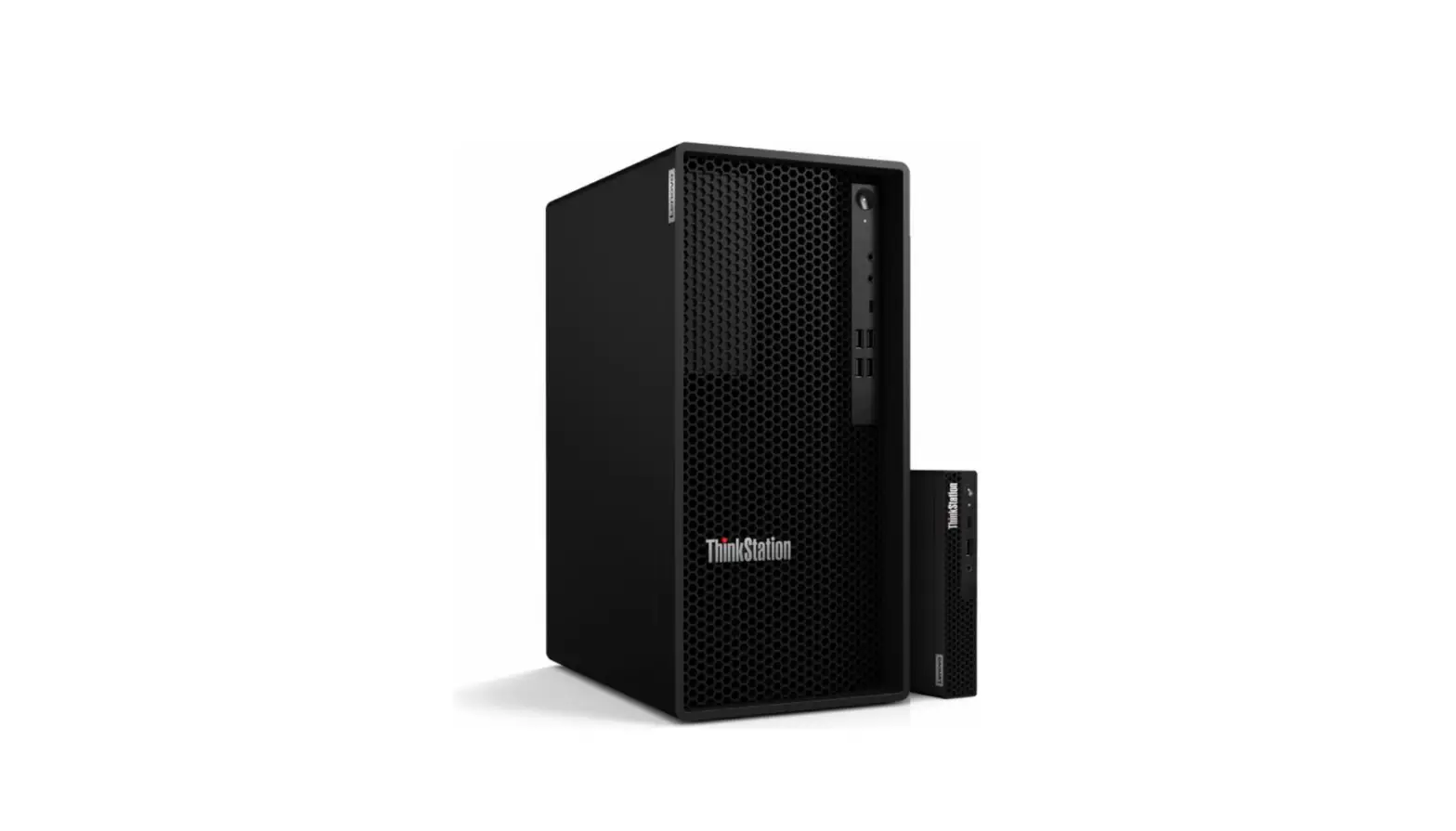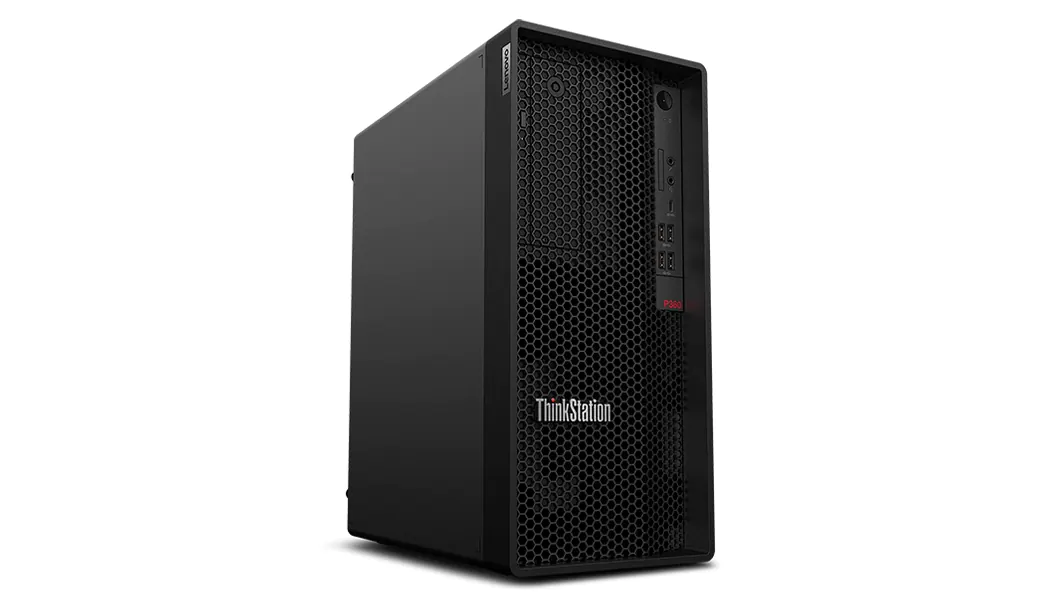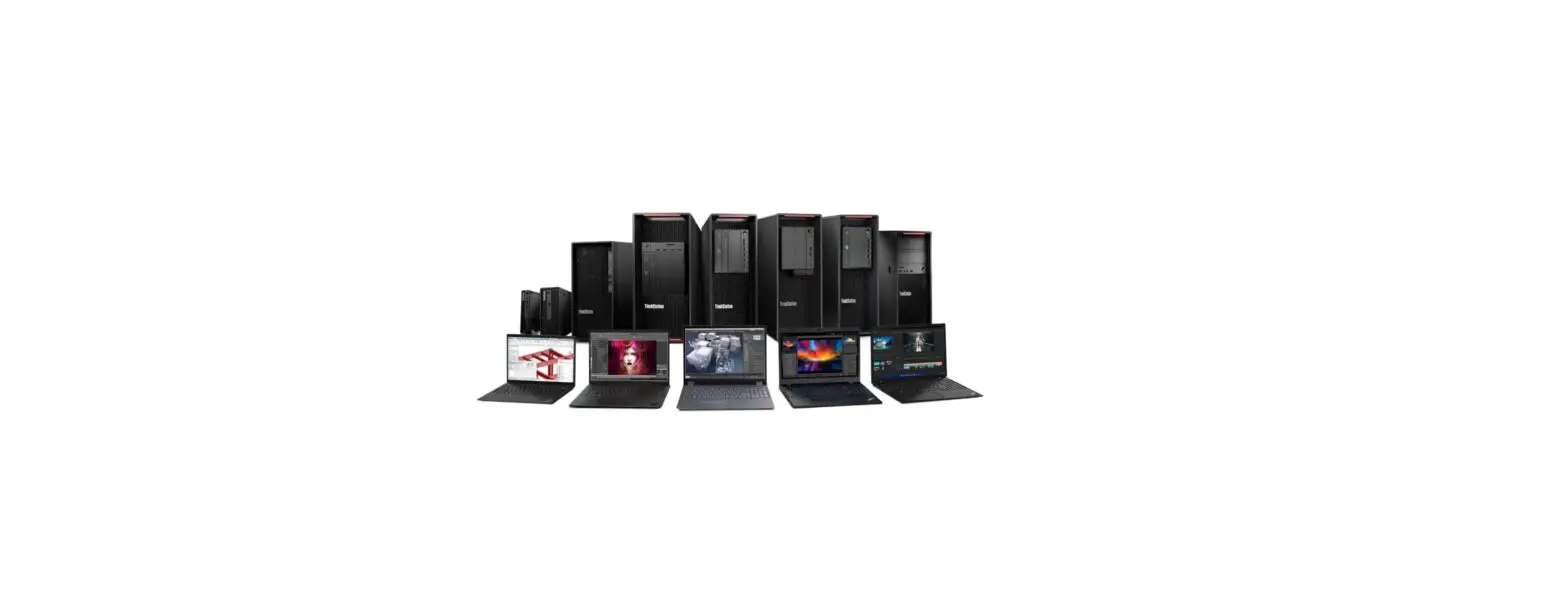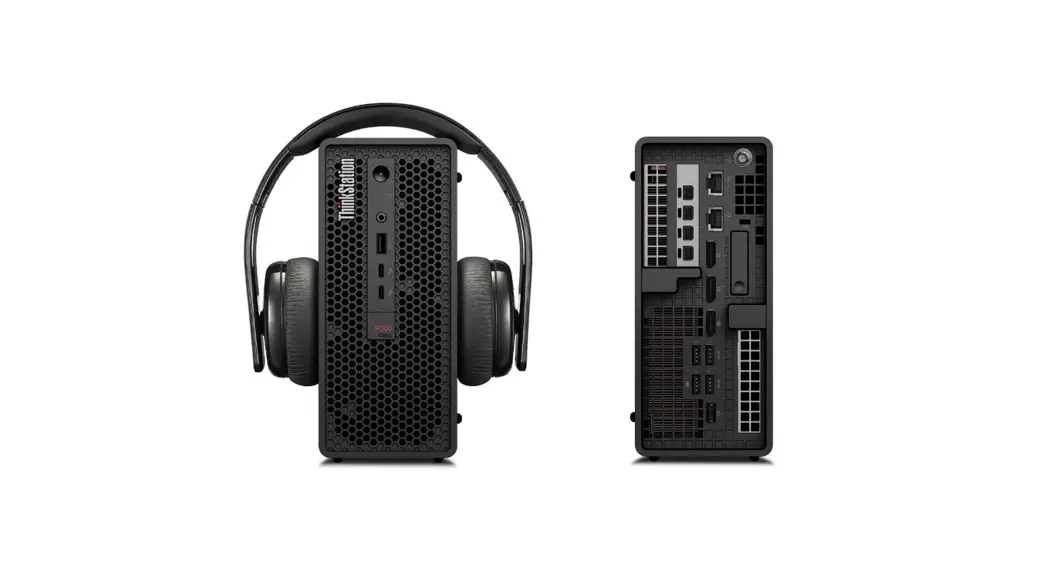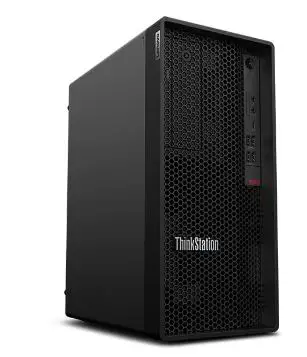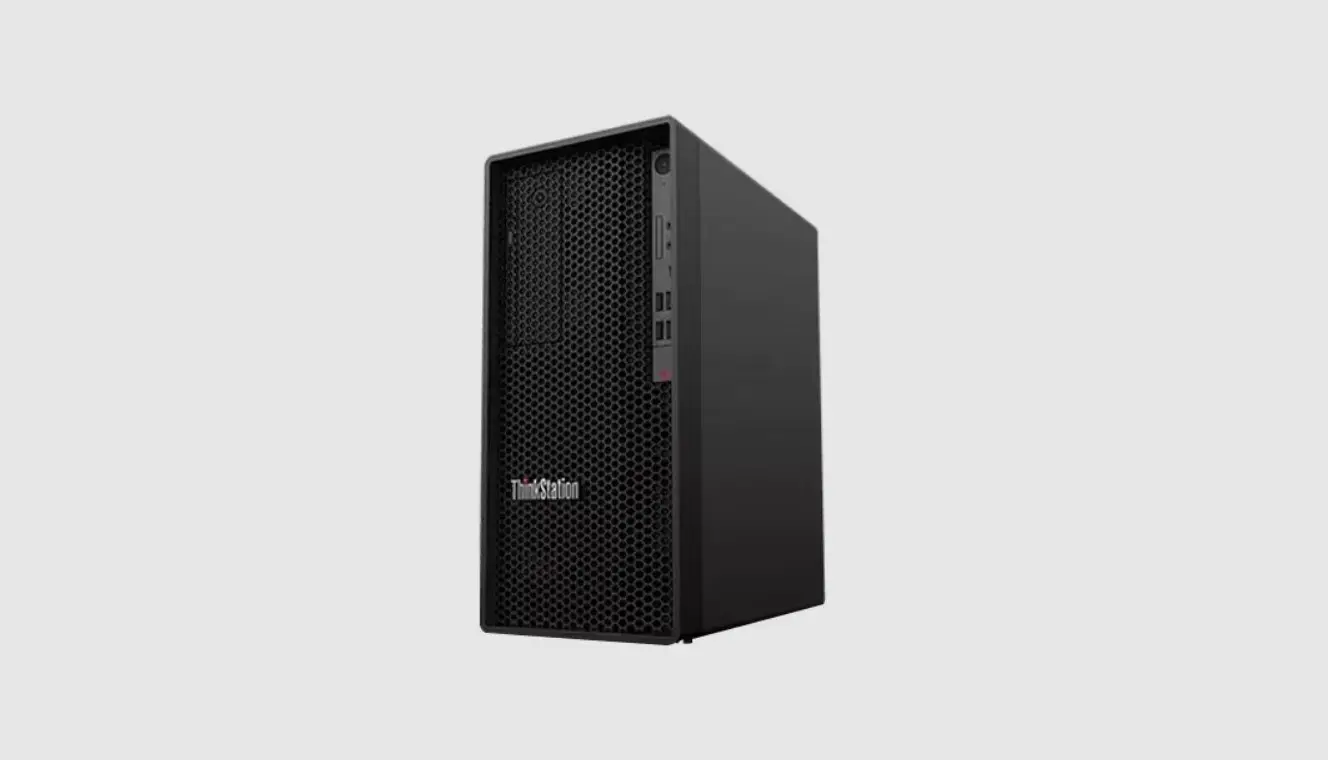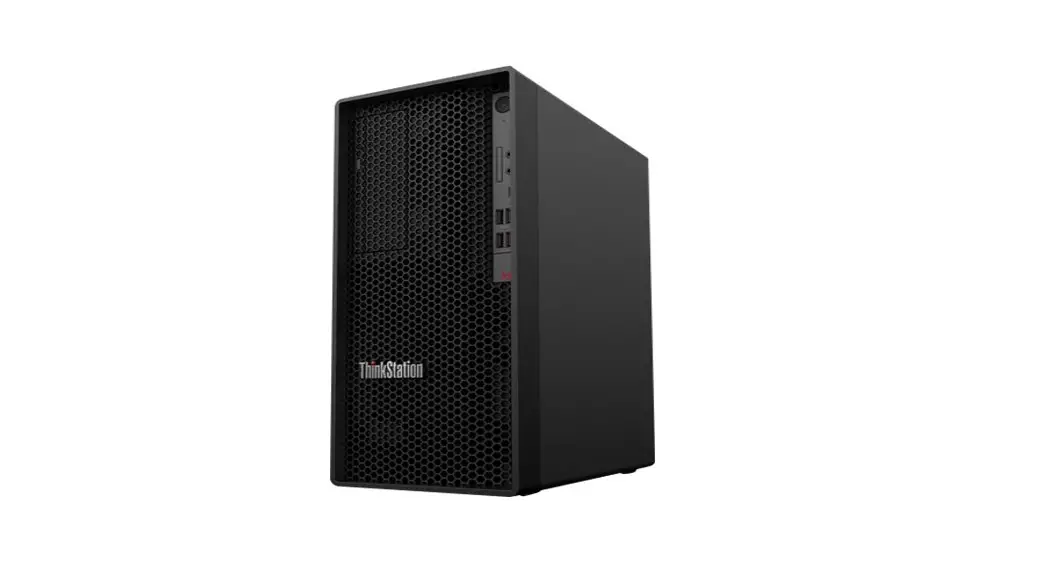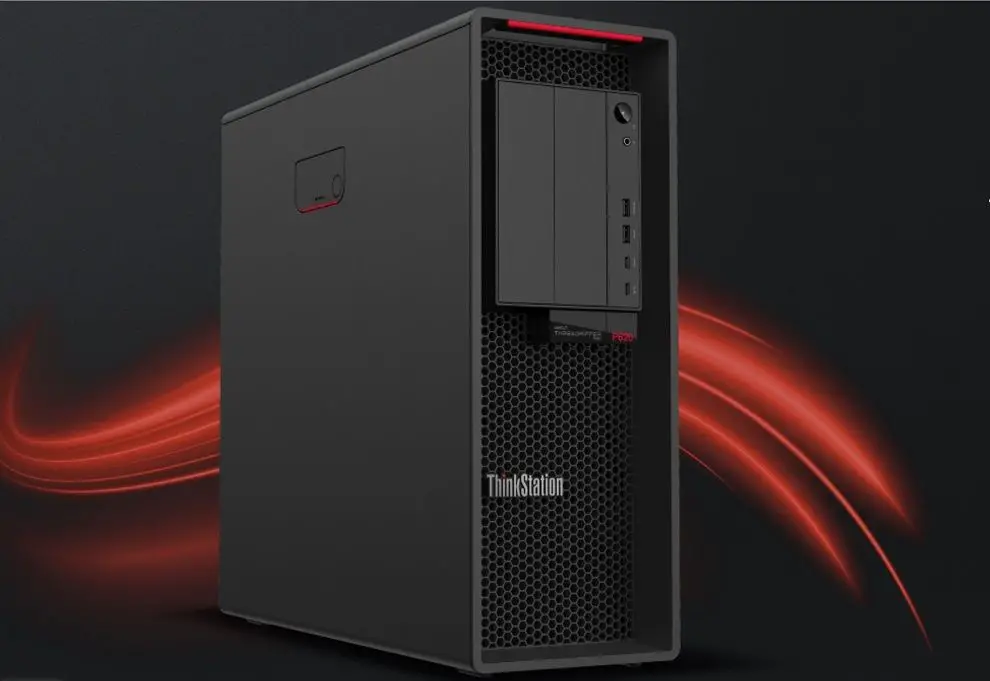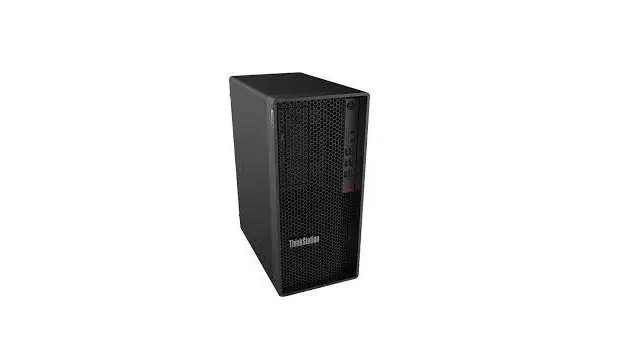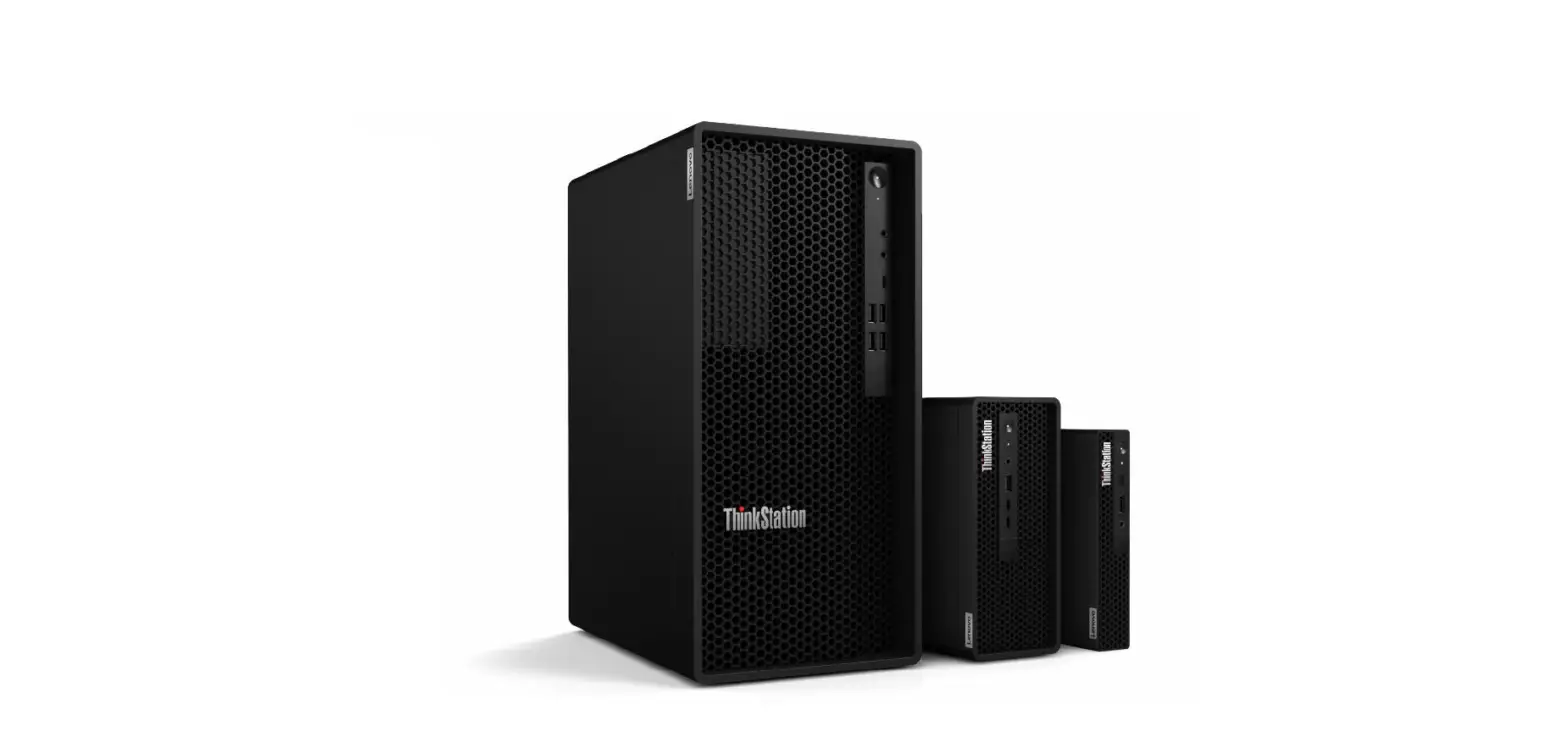

Lenovo Ubuntu 20.04 Linux for ThinkStation P360 Tower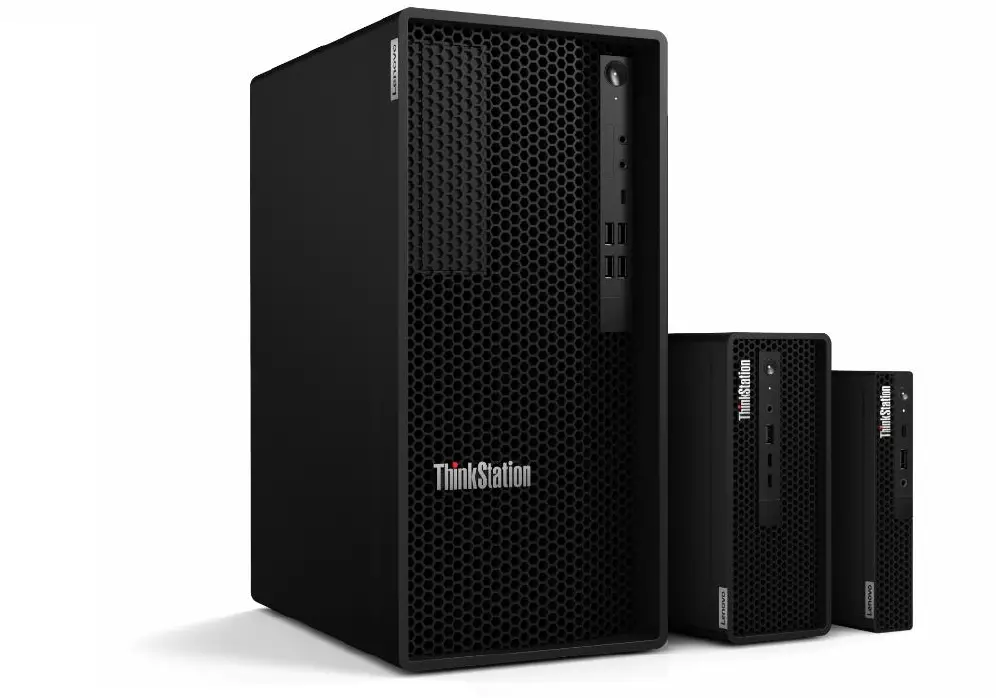
BIOS Configuration
The first step before installing Linux is to make sure the system BIOS is setup correctly.
- Boot into BIOS by pressing the function F1 key at the “Lenovo” splash screen.
- Tab over to the Security tab and select “Secure Boot”.
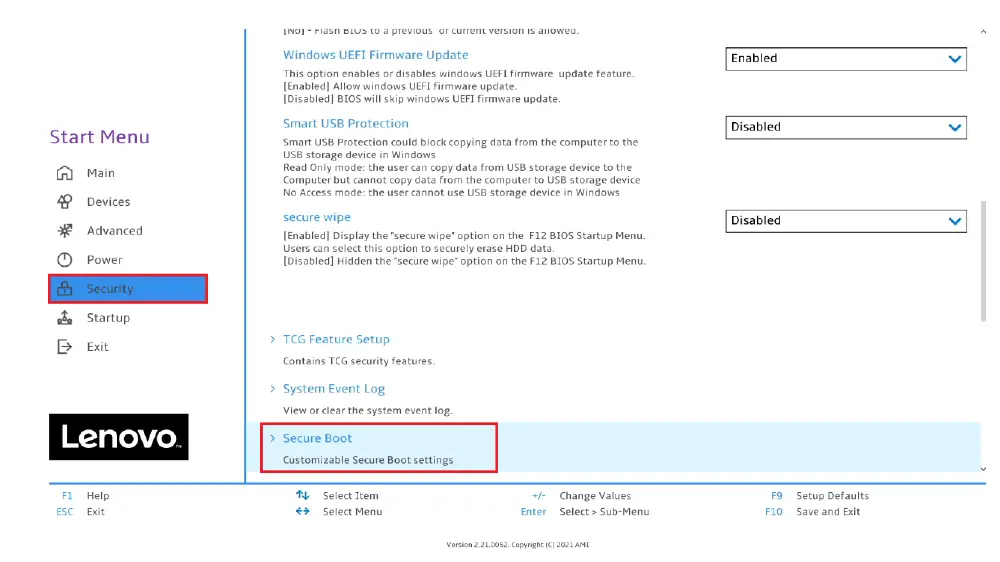
- Check whether Secure Boot is disabled. If found enabled, disable it.
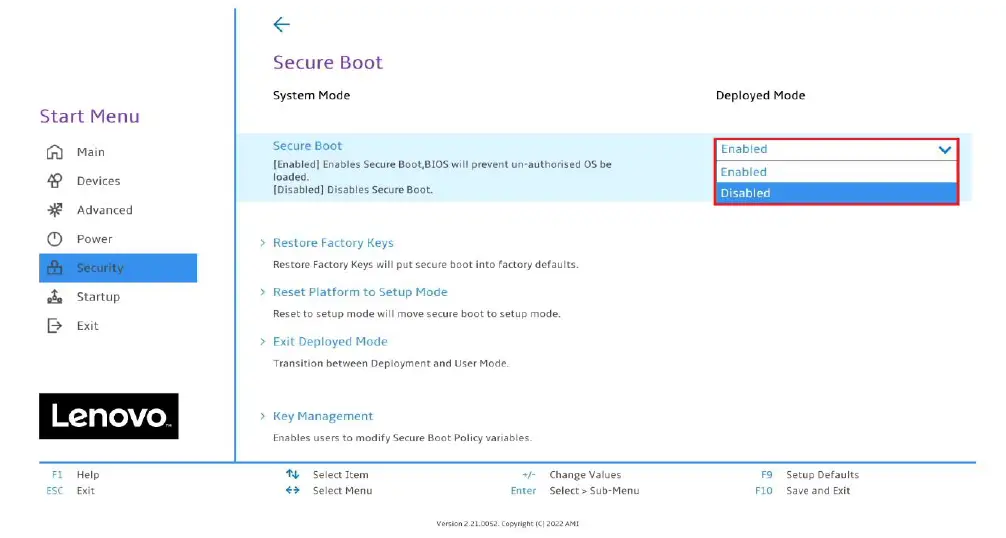
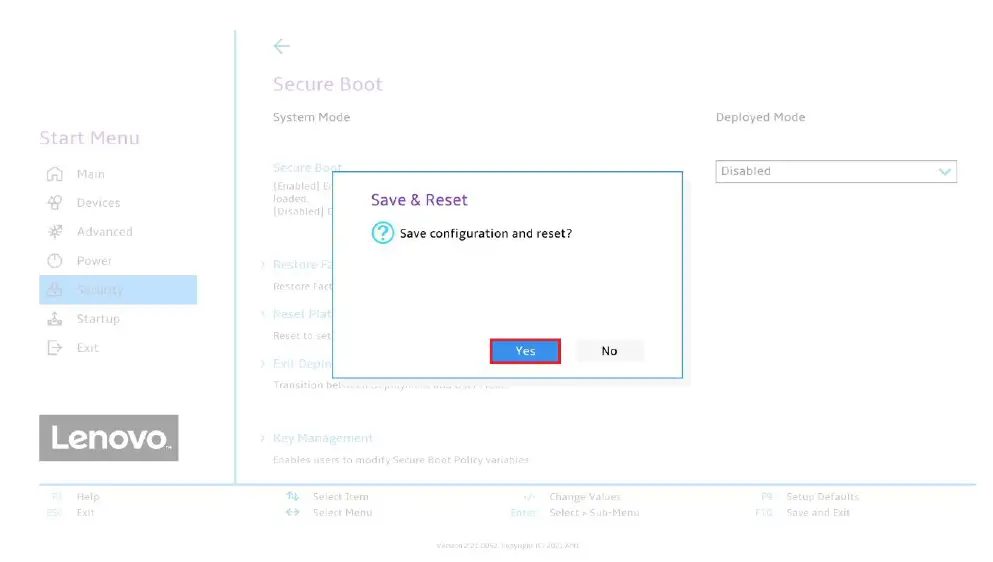
- Save changes by pressing an F10 function key.
Installing Ubuntu Linux 20.04 LTS
Please refer to the following instructions and screenshots on how to install Ubuntu 20.04 LTS on the Lenovo ThinkStation P360.
- Insert the Ubuntu 20.04 LTS installation media (either through USB or CD/DVD)
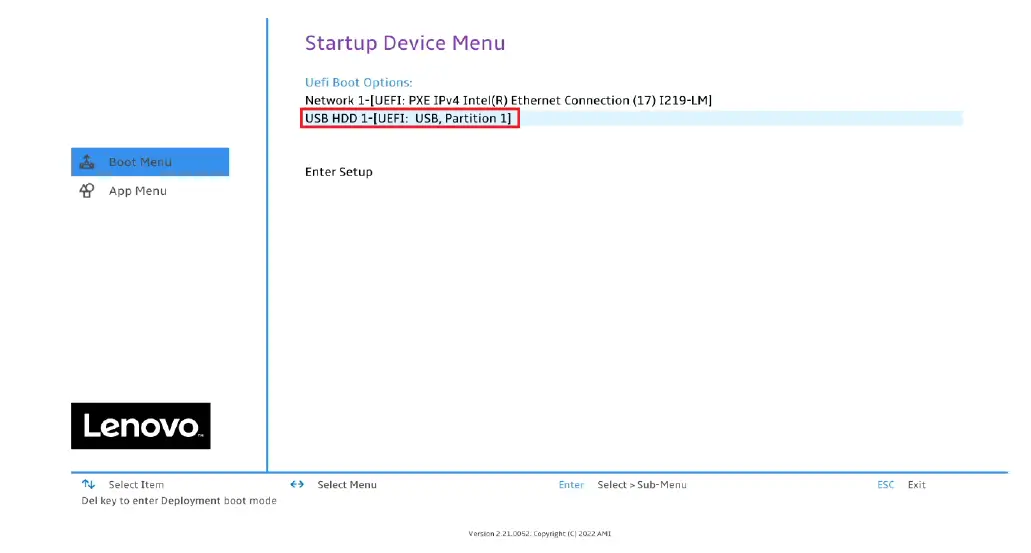
- Power on the system and press the F12 function key whenever the following Lenovo splash screen appears.
- Select the Linux bootable installation media from the F12 boot menu list.
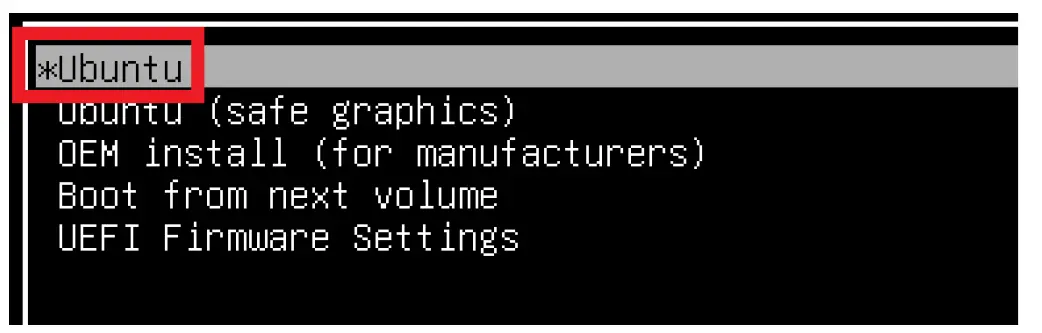
- Select “Ubuntu” from the GRUB boot menu and press enter.
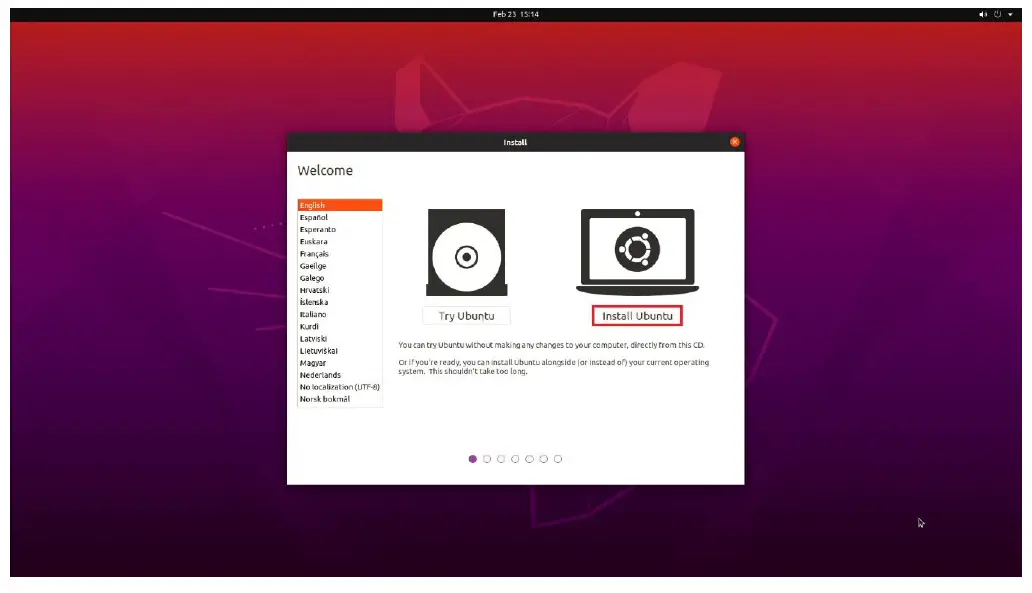
- Select the “Install Ubuntu” option on the welcome screen.
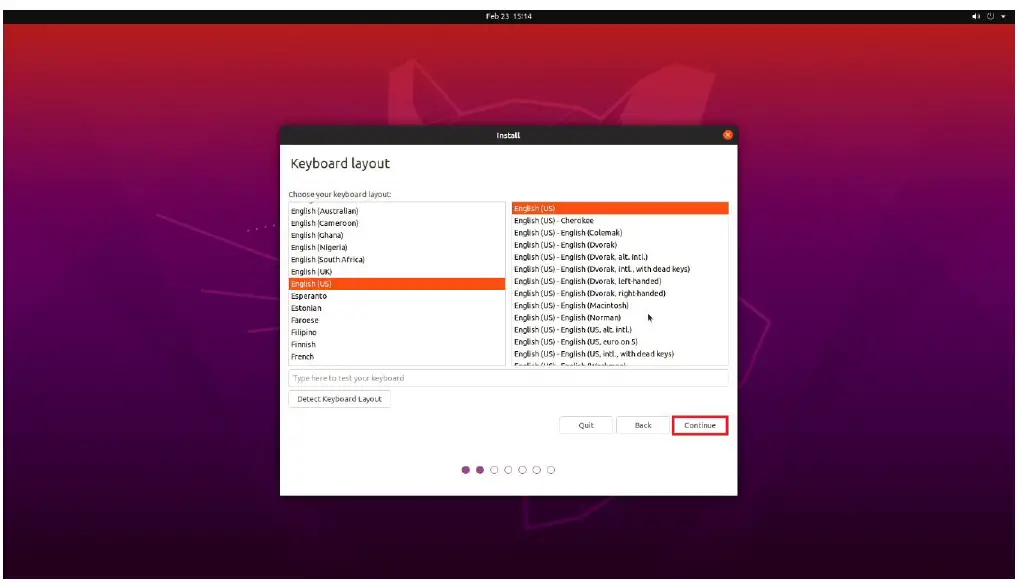
- Select the appropriate keyboard layout and language and press “Continue”.
- Select “Normal Installation”and press “Continue”.
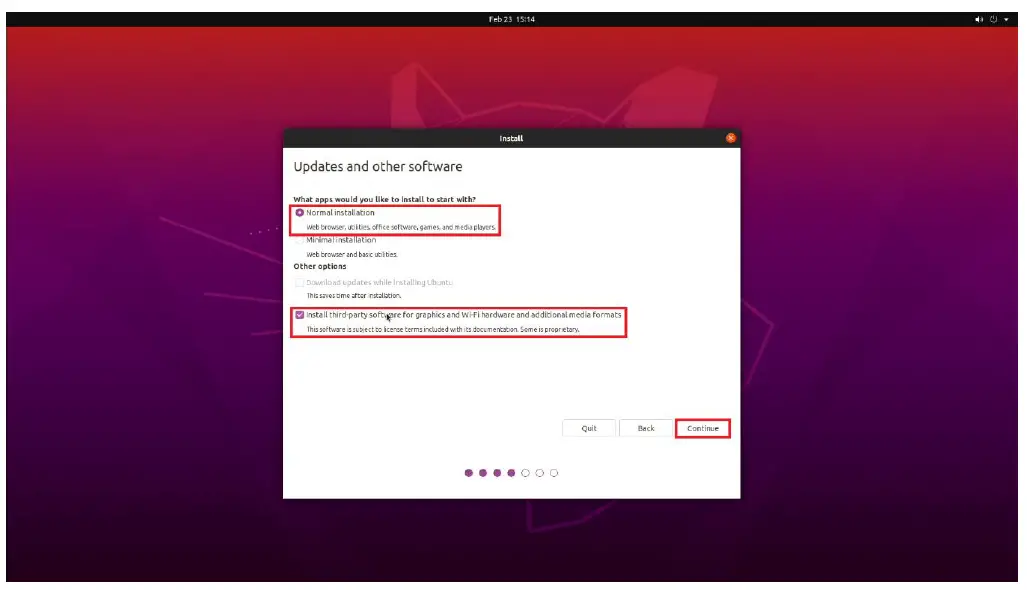
Optional: “Install third-party software…” - Choose the installation type. For simplicity, this guide was done using “Erase disk and install Ubuntu”
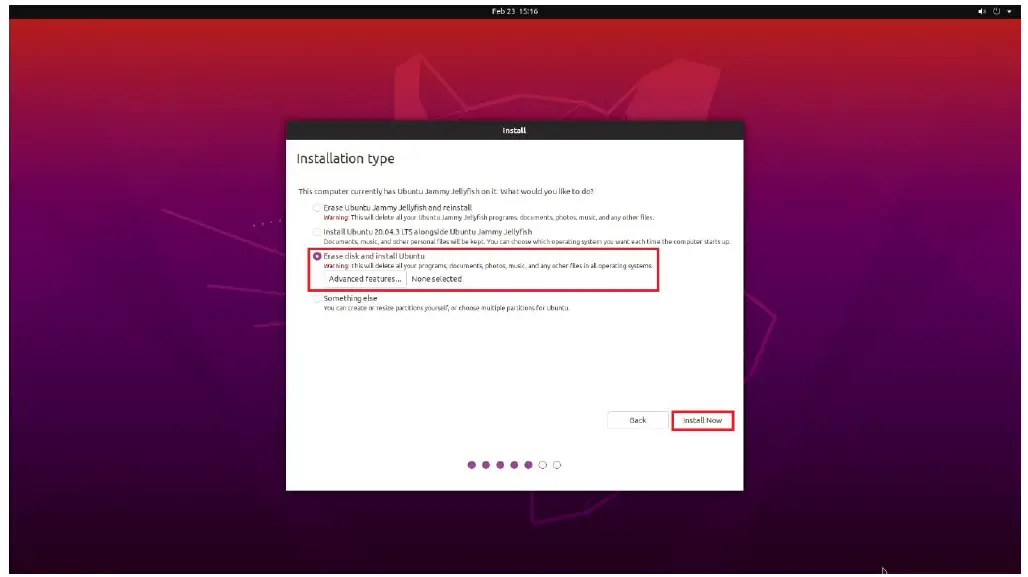
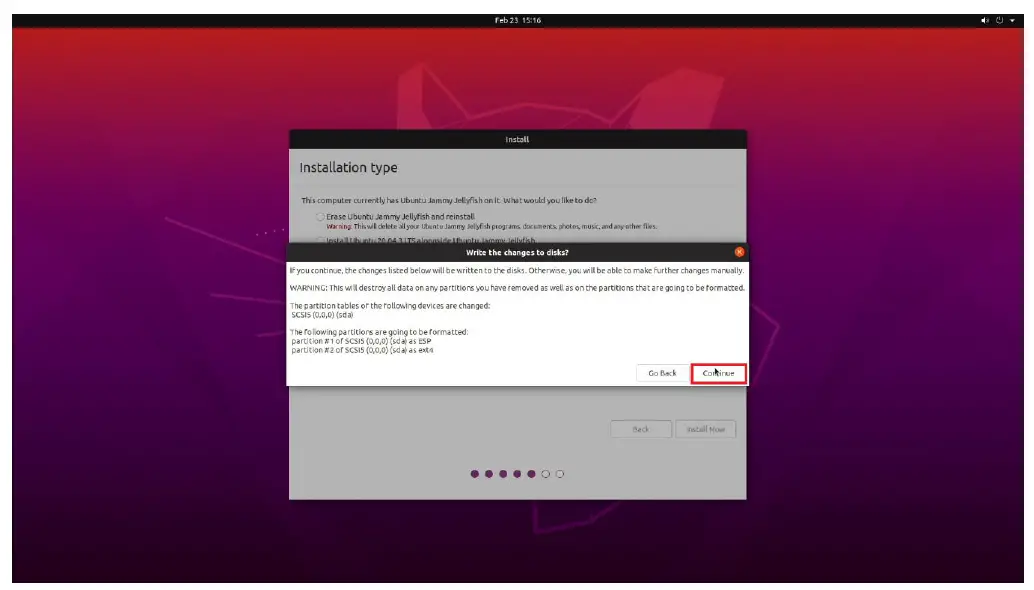
- Select “Continue” to confirm changes will be made to the disk.
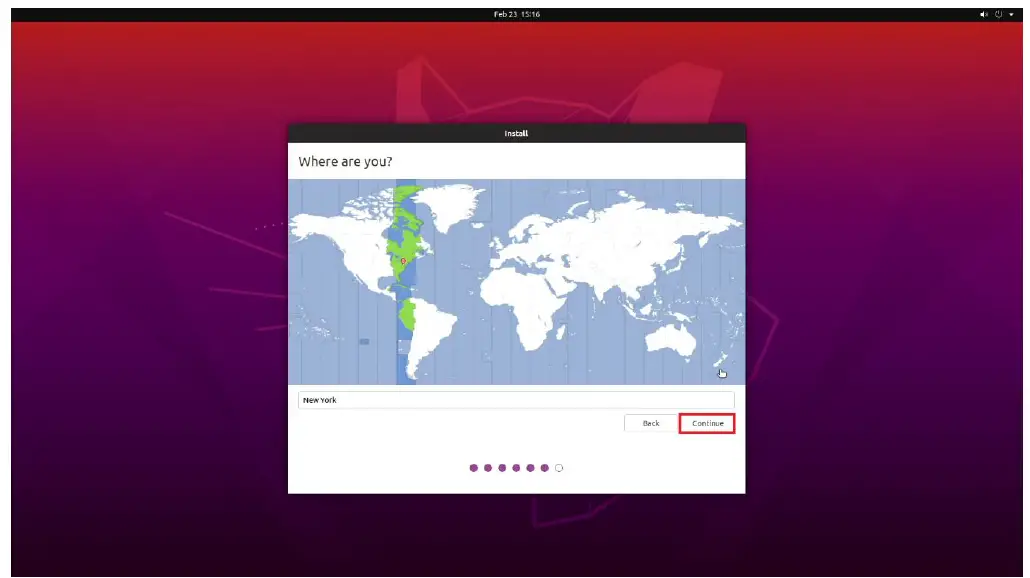
- Choose the appropriate geographical location and select “Continue”.
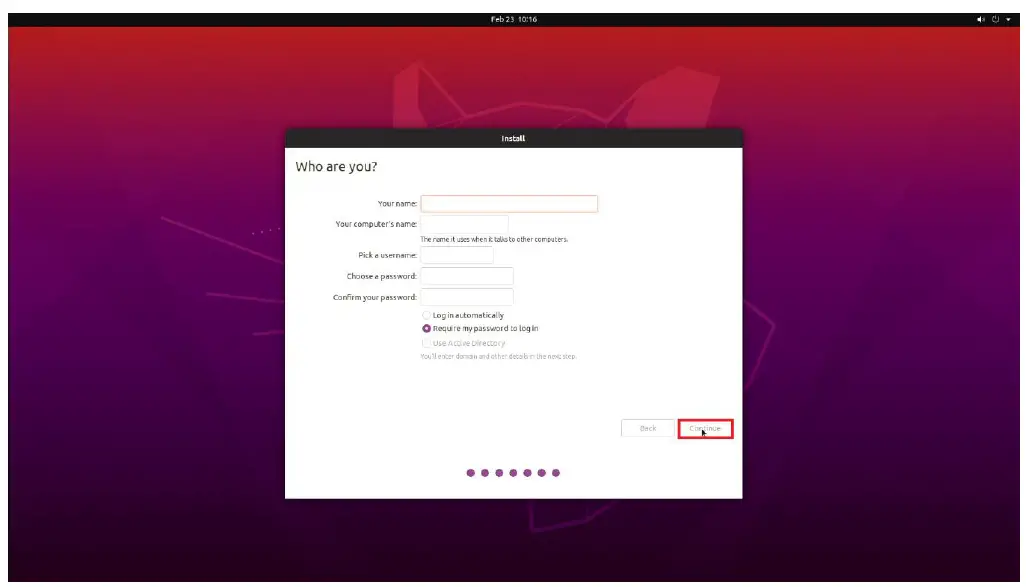
- Fill out the appropriate information and select “Continue”.
- Ubuntu installation progress bar will be shown.
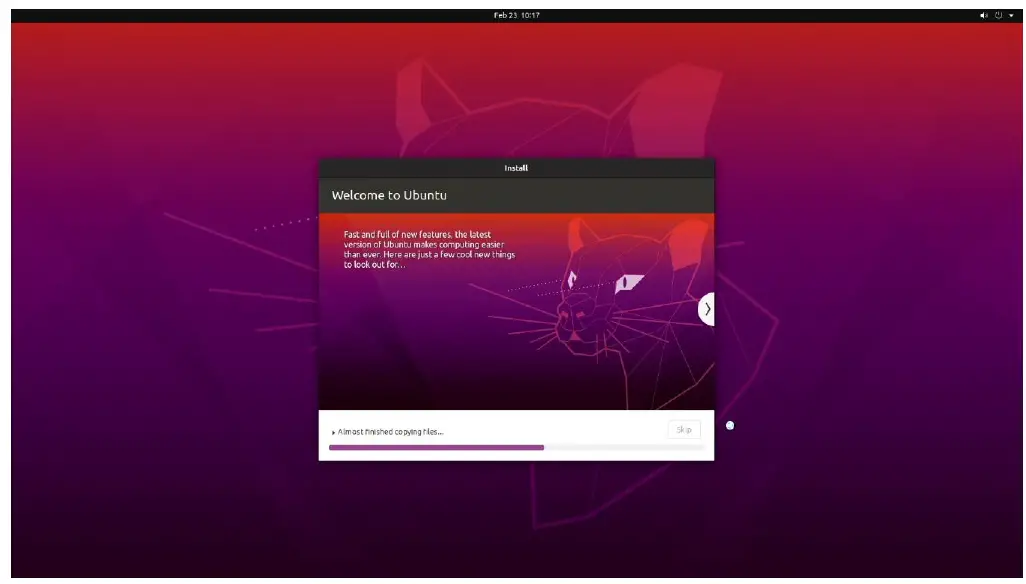
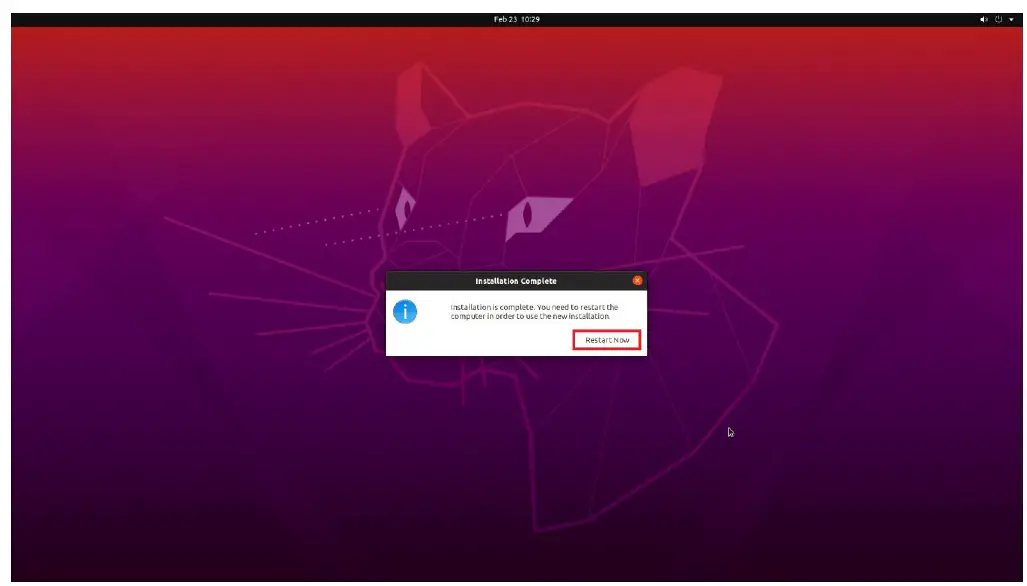
- Once the installation completes, select “Restart now”.
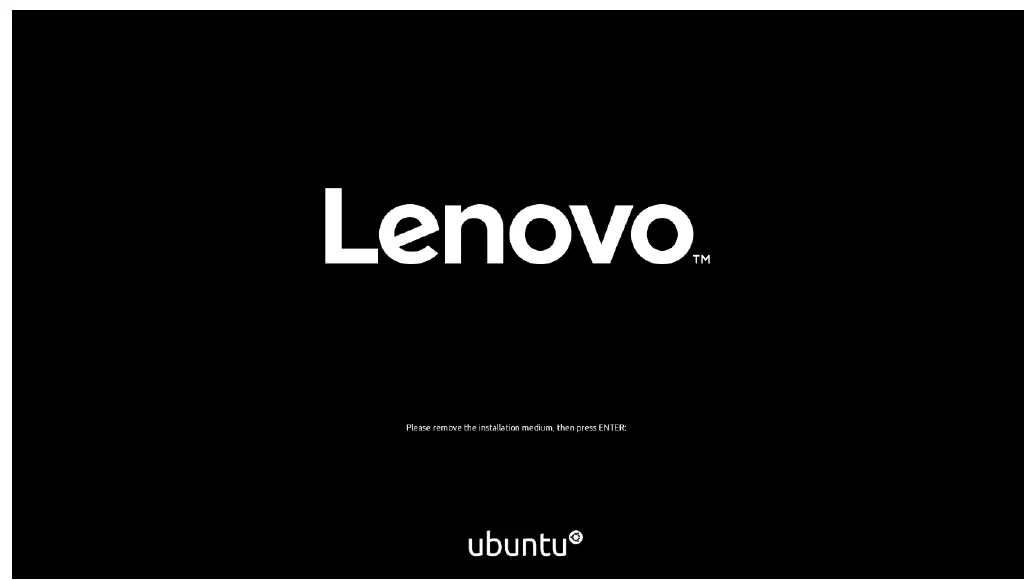
- Remove the installation media and press enter.
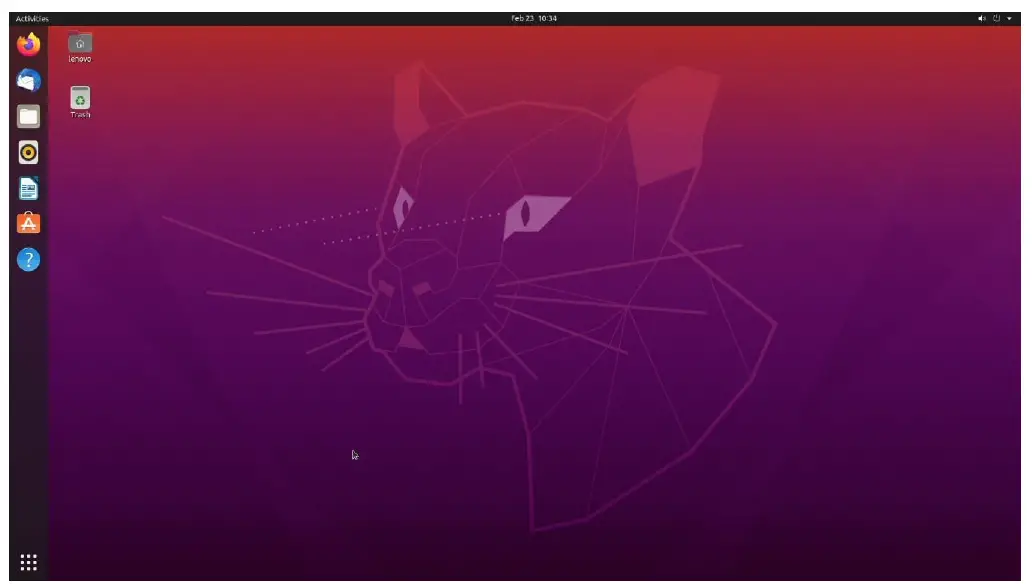
- User will land on the Ubuntu Desktop Screen.
Installing the Nvidia Graphics Driver
To get optimal performance out of the Nvidia GPU, it is a good idea to install the Nvidia graphics driver.
- To make sure the Nvidia GPU is working, open the terminal and write the command nvidia -smi.
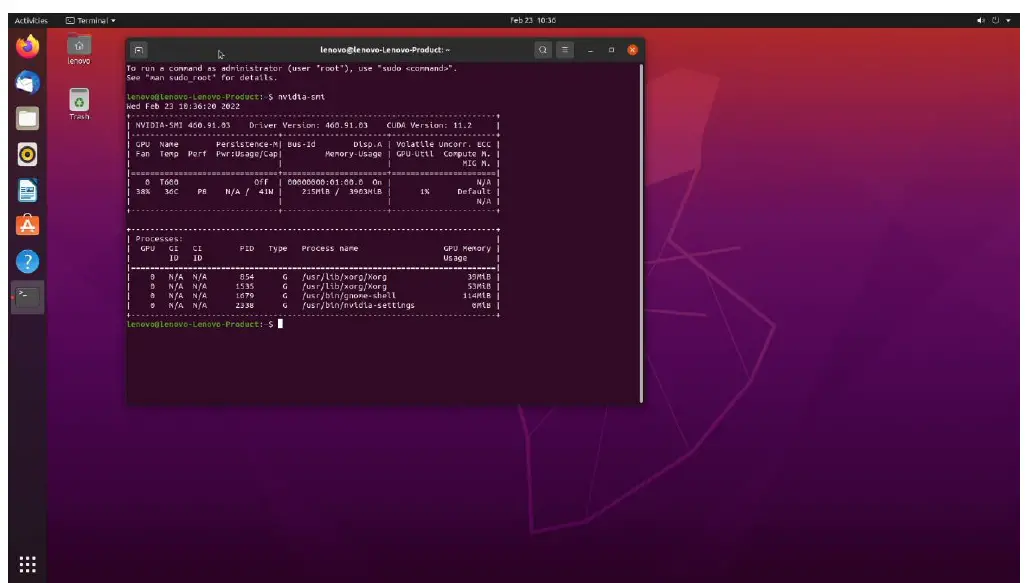
In case Nvidia GPU is not native, follow the steps below to install the GPU driver: - Open Software & Updates.
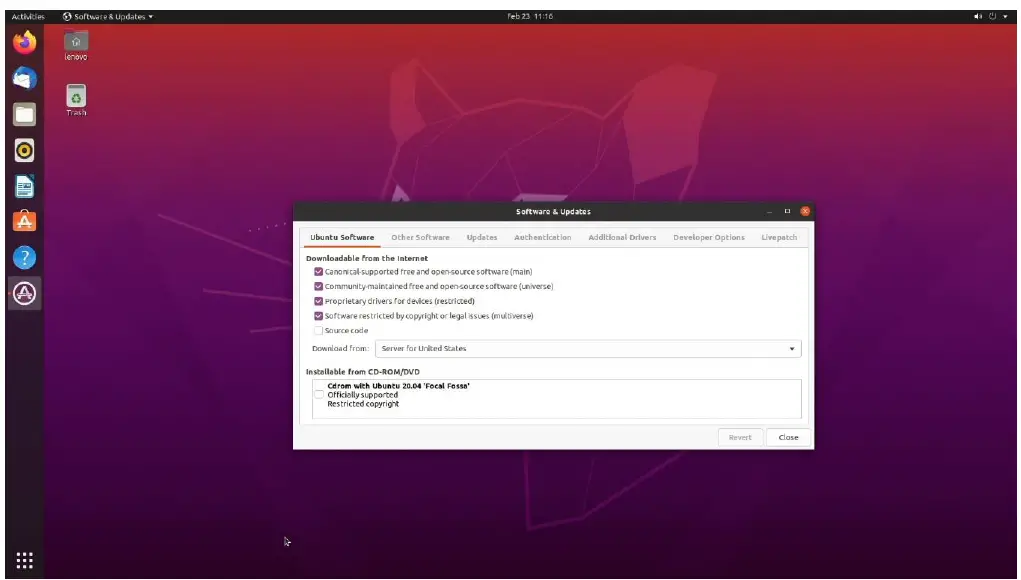
- Click on Additional Drivers
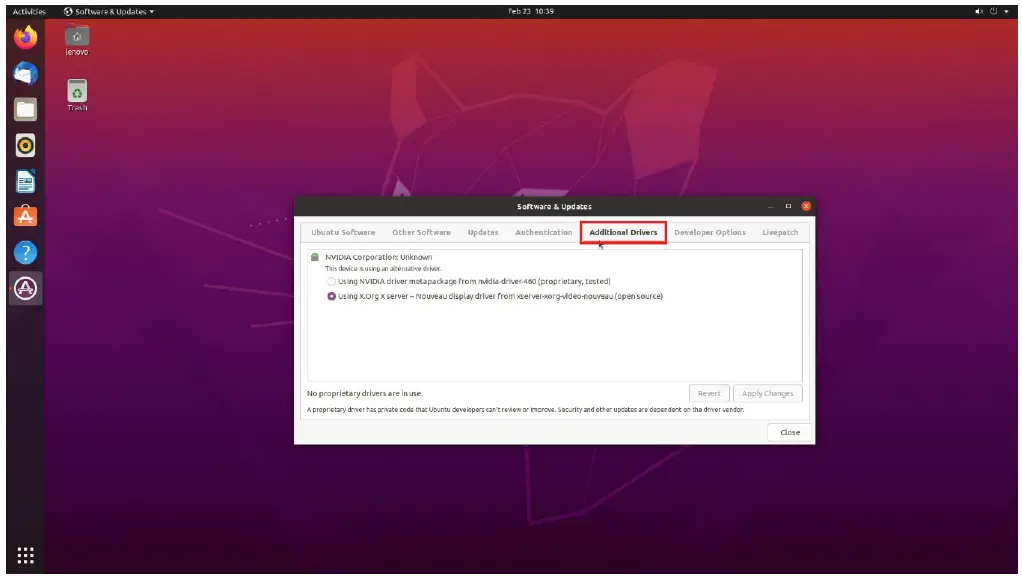
- Select the driver you would like to install and click Apply Changes
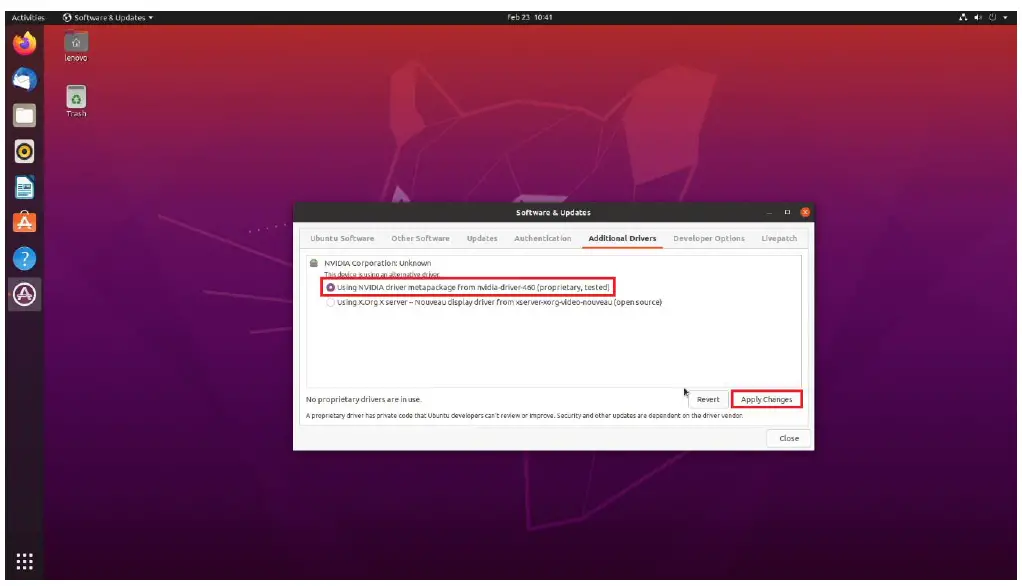
- If the system will prompt to restart, click Restart.
In case if need to install a proprietary Nvidia driver outside of the upstream kernel releases please follow the next steps:
- Download the latest Nvidia graphics driver for the appropriate Nvidia GPU from www.nvidia.com/download
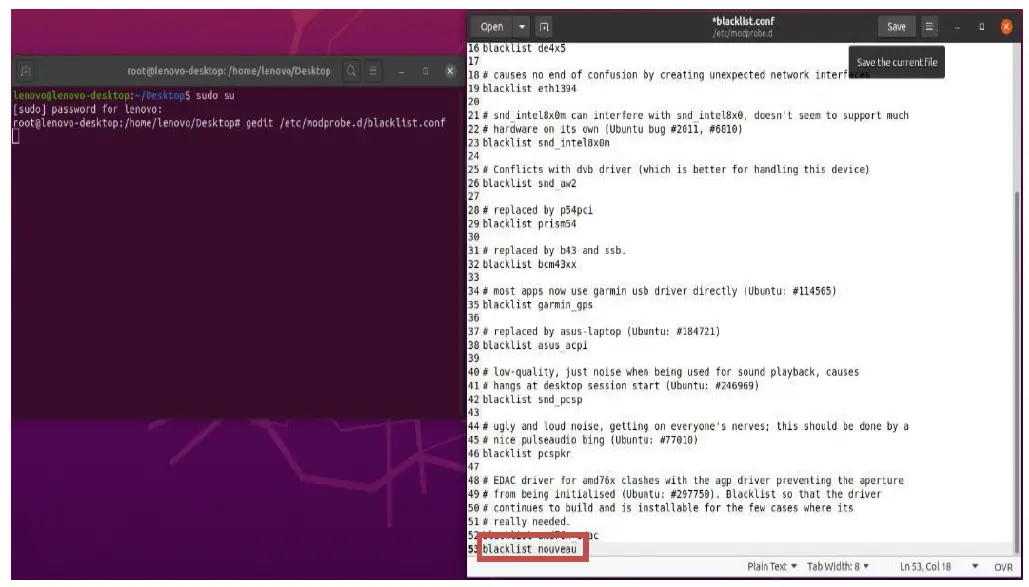
- To get the Nvidia driver running, we will need to blacklist the nouveau driver. Follow the steps below:
- Log in as root: sudo su
- Open blacklist.conf file: gedit /etc/modprobe.d/blacklist.conf
- Blacklist nouveau driver by writing: blacklist nouveau
Run the command: update-initramfs -u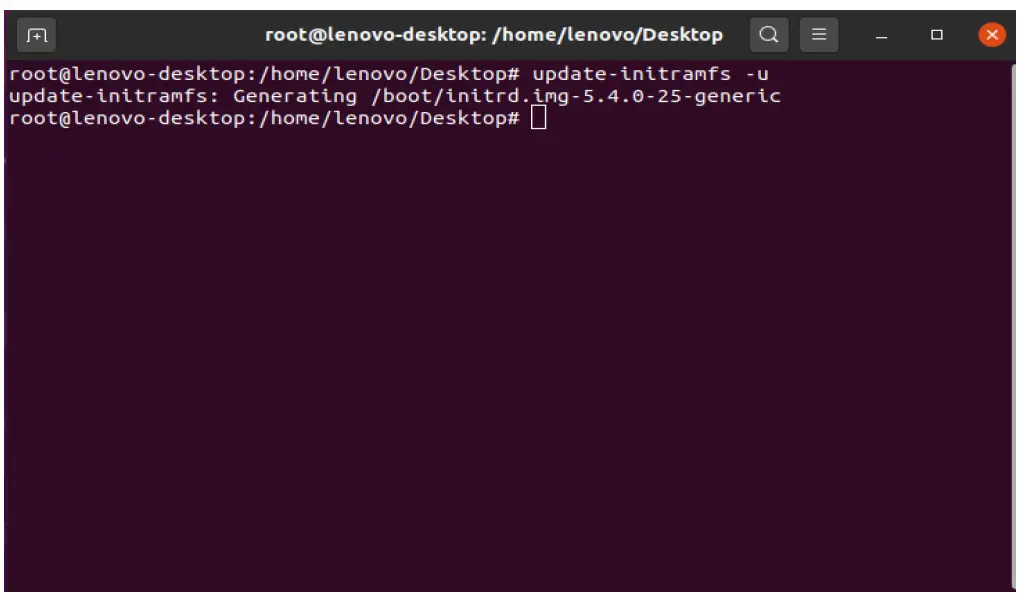
- Reboot the system: reboot
- Once your system reboots, open a terminal window and:
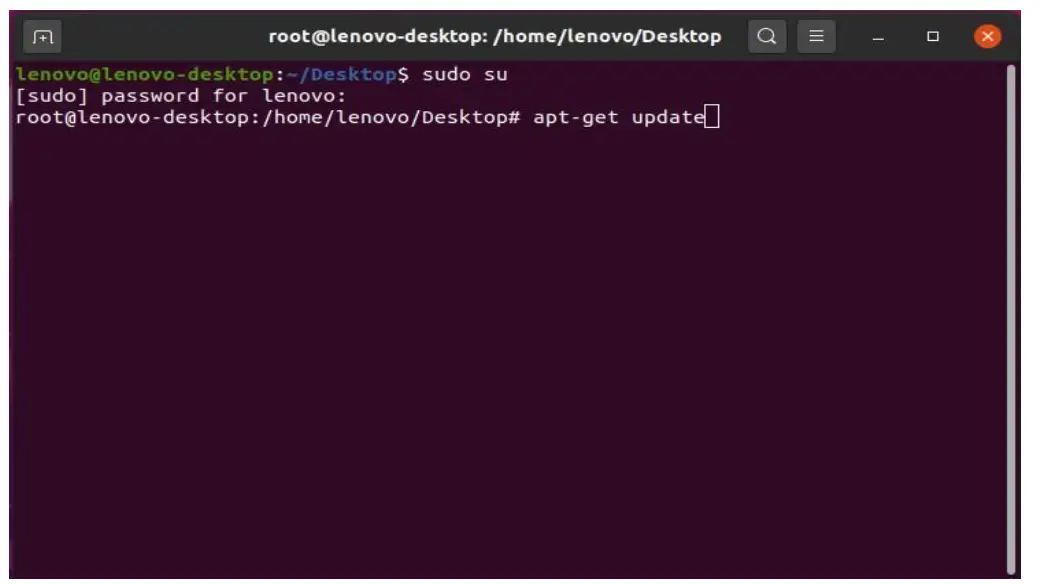
- Log in as root: sudo su
- Run the command: apt-get update
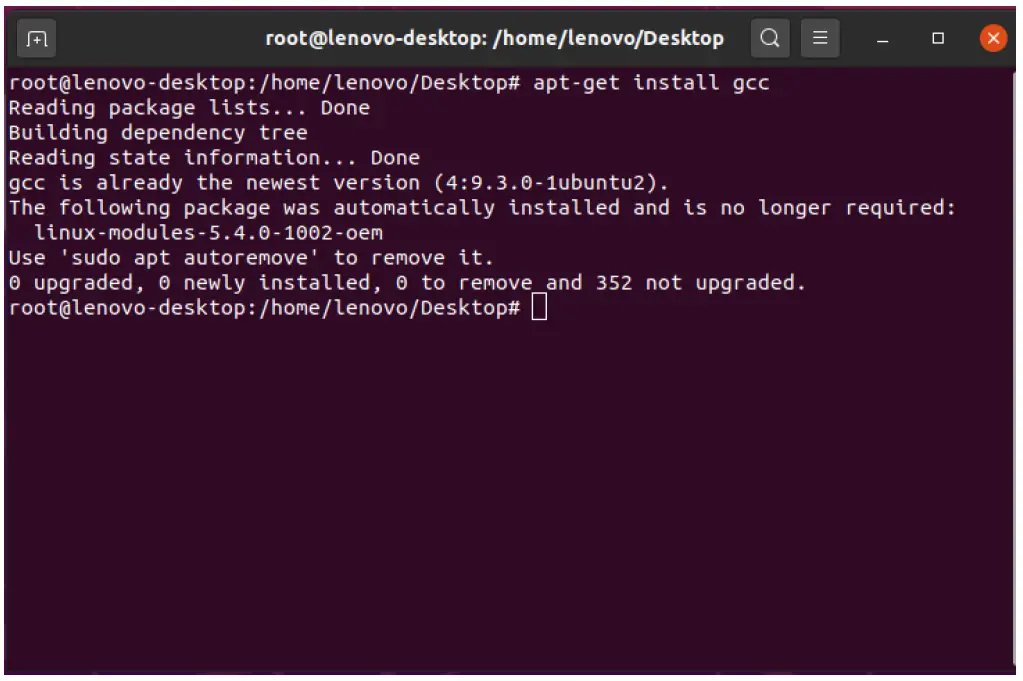
- Install gcc: apt-get install gcc
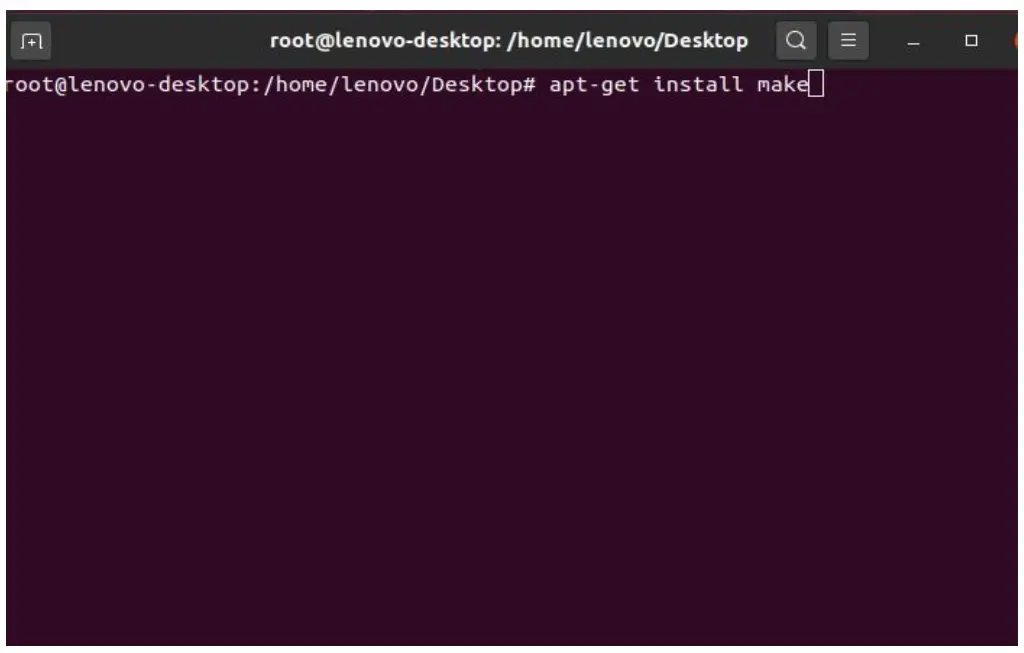
- Install make: apt-get install make
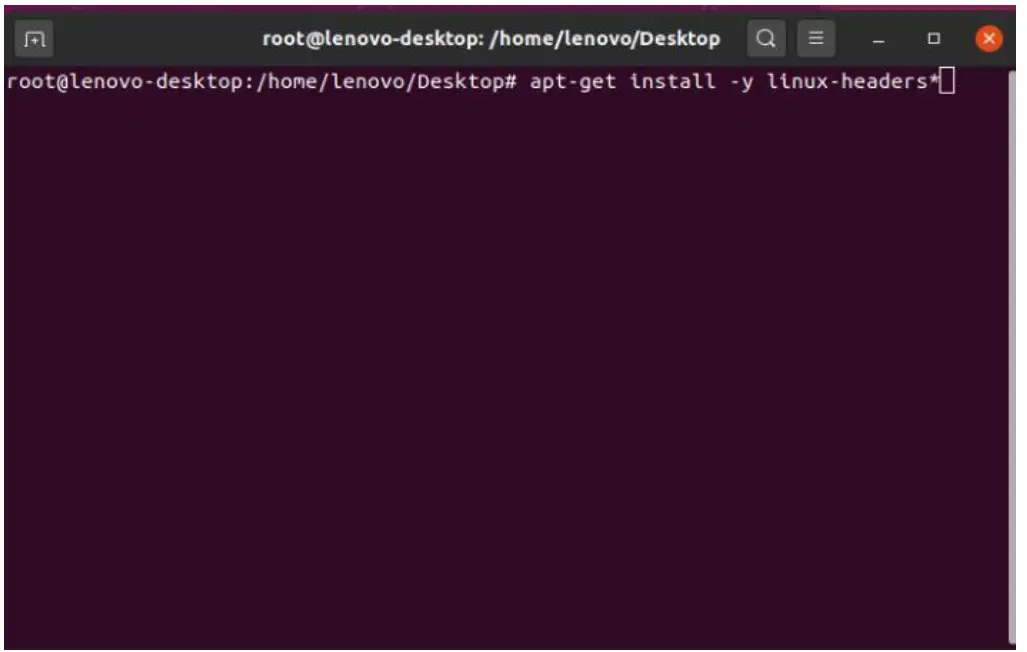
- Install linux-headers: apt-get install -y linux-headers*
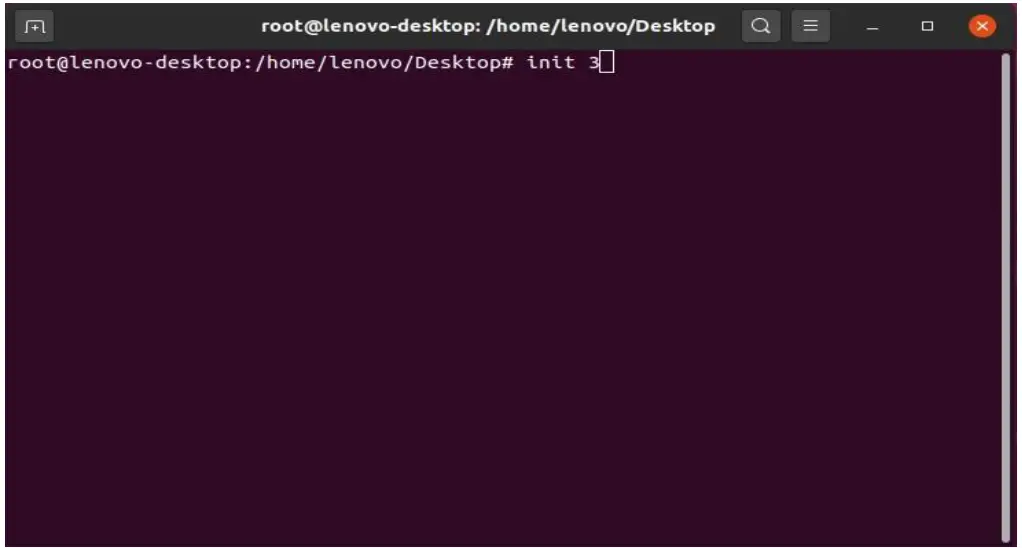
- Stop x-windows by using the command: init 3
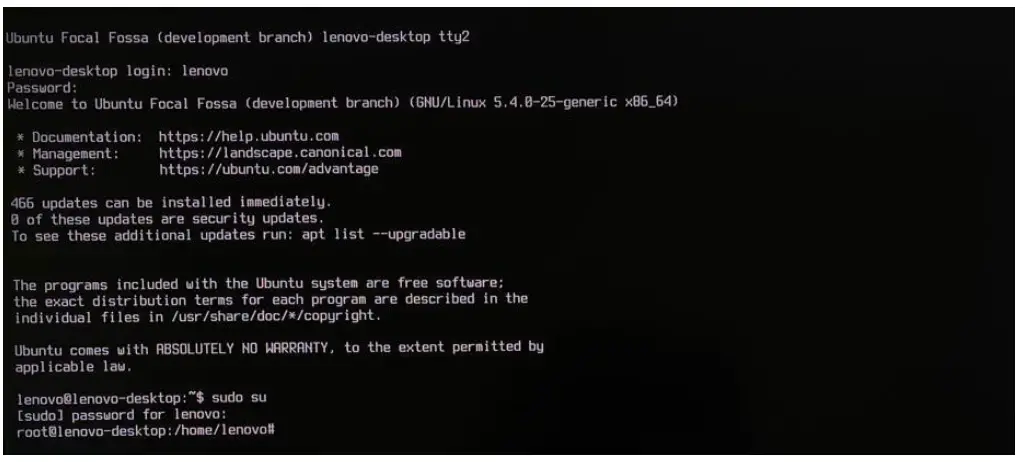
- Log in as root and redirect to the directory where the Nvidia driver is located.
- Make the Nvidia installer an executable by the command- chmod +x NVIDIA-Linux-x86-64-* And run the Nvidia driver by- ./NVIDIA-Linux-x86_64-430.50.run

- Select Continue installation.
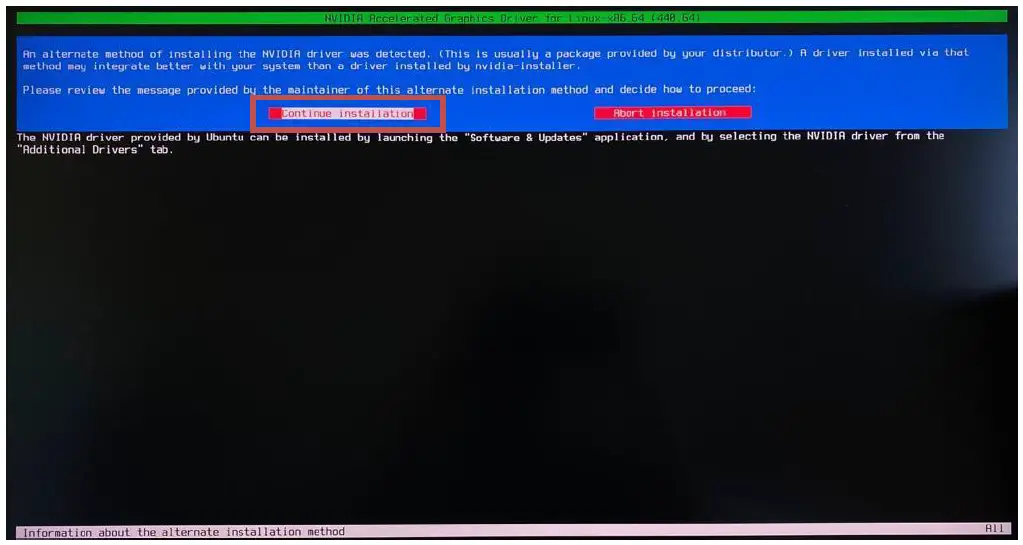
- Wait until the kernel modules are completely built.
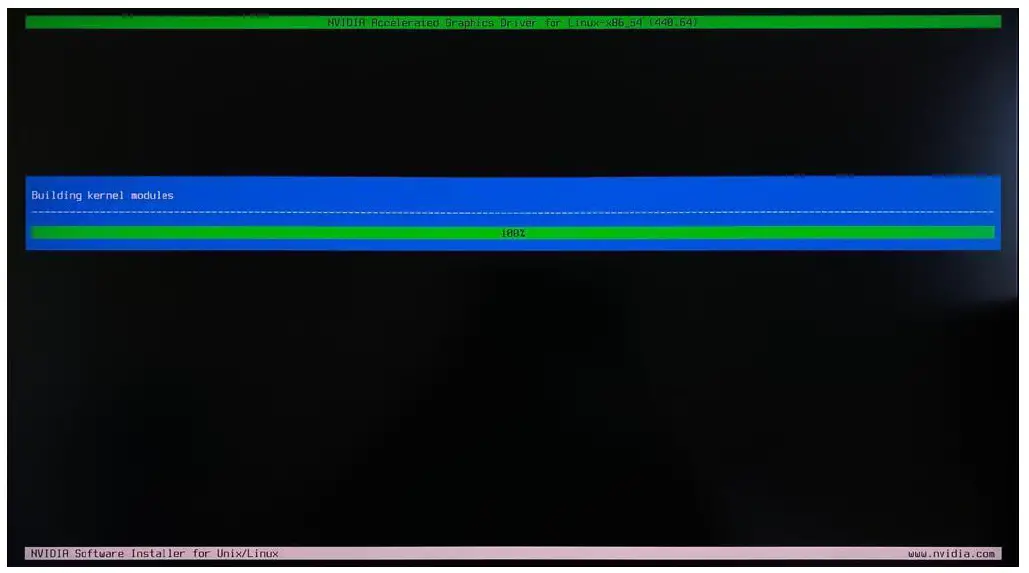
- Select Yes for installing 32-bit compatibility libraries.
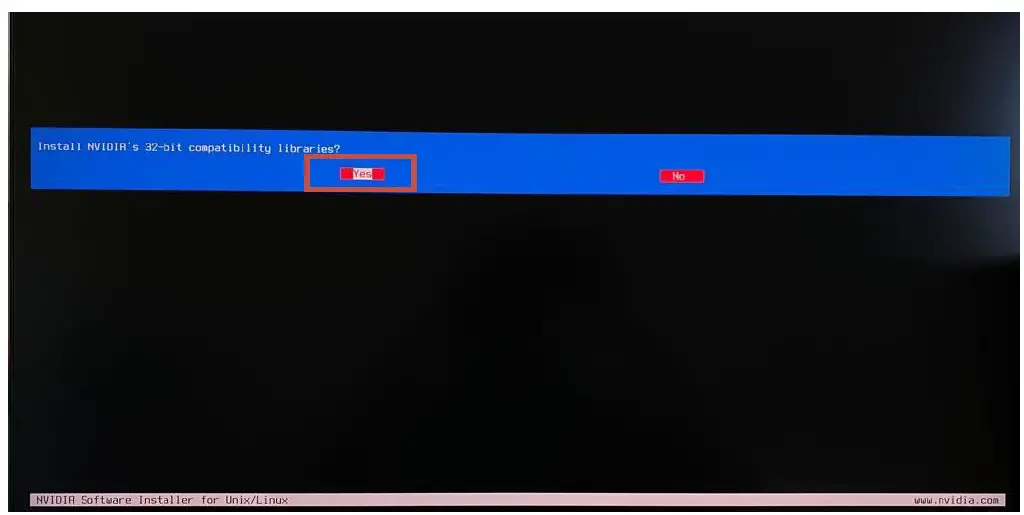
- Wait until the installation is complete.
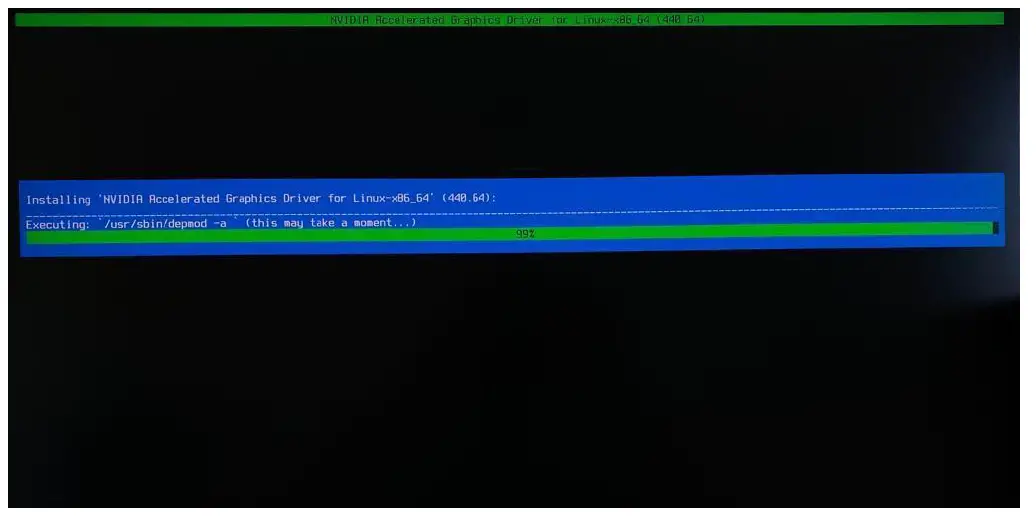
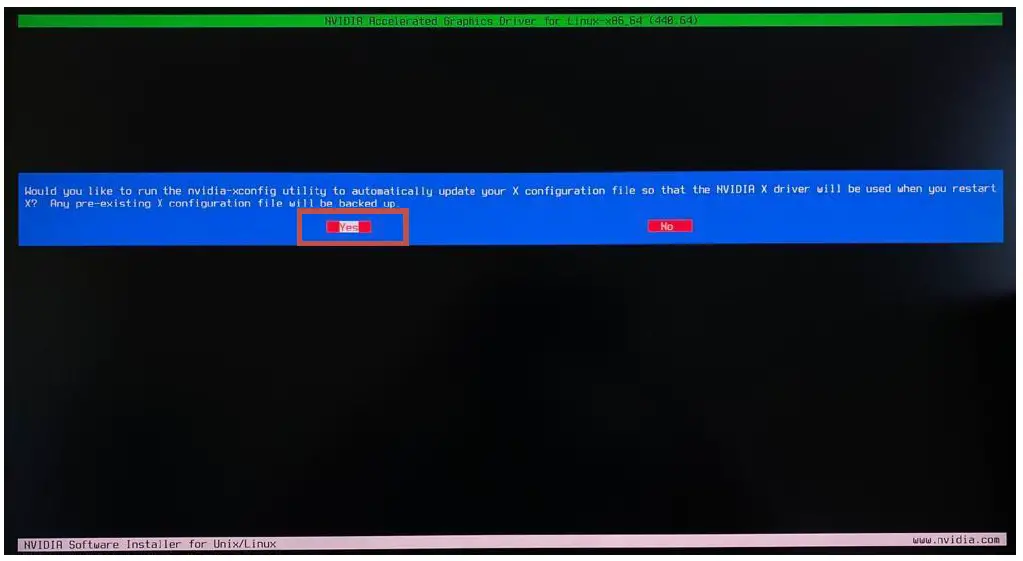
- Select Yes to run nvidia-xconfig utility to automatically update your X configuration file.
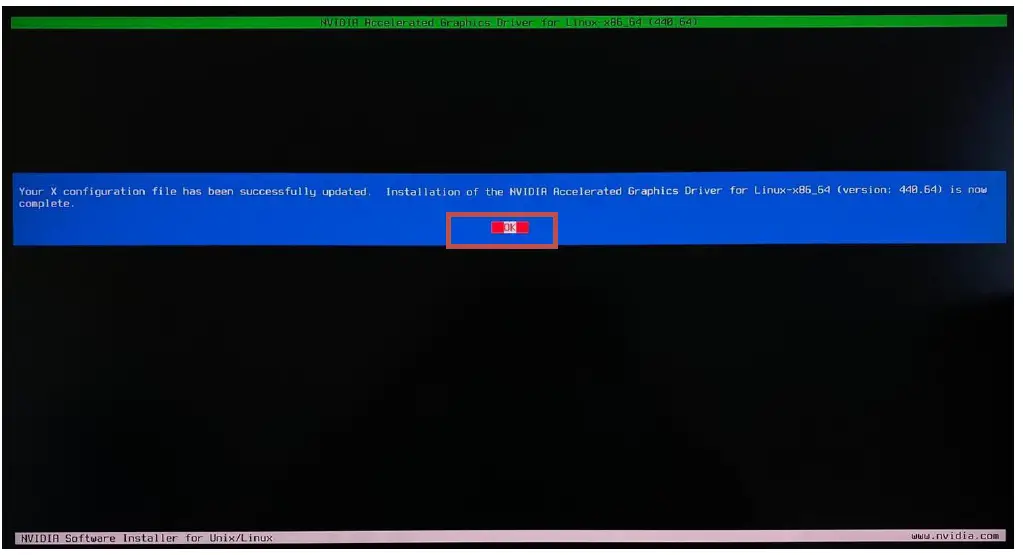
- Select OK once the X configuration file gets updated successfully.
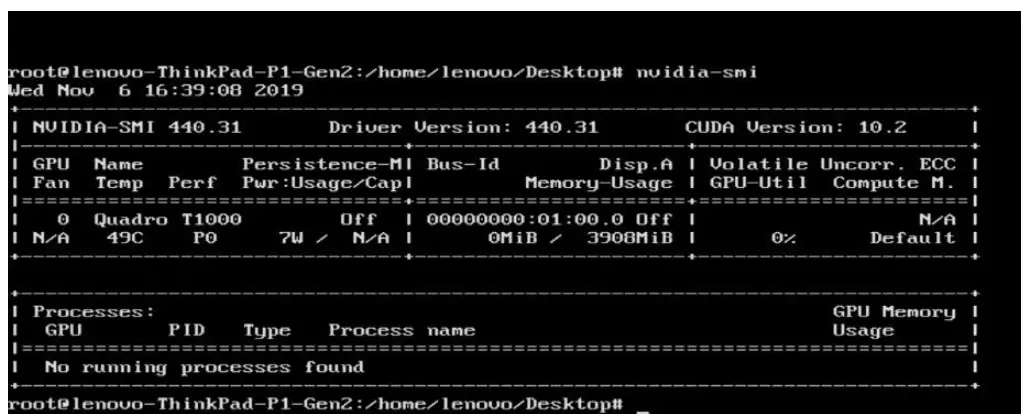
- Execute the following command to verify the Nvidia driver is loaded: nvidia-smi
- Reboot the system.
Revision History
| Version | Date | Author | Changes/Updates |
| 1.1 | 7/12/2022 | Aleksandr Panteleev | Added support for P360 Ultra |
| 1.0 | 5/17/2022 | Aleksandr Panteleev | Initial launch release |