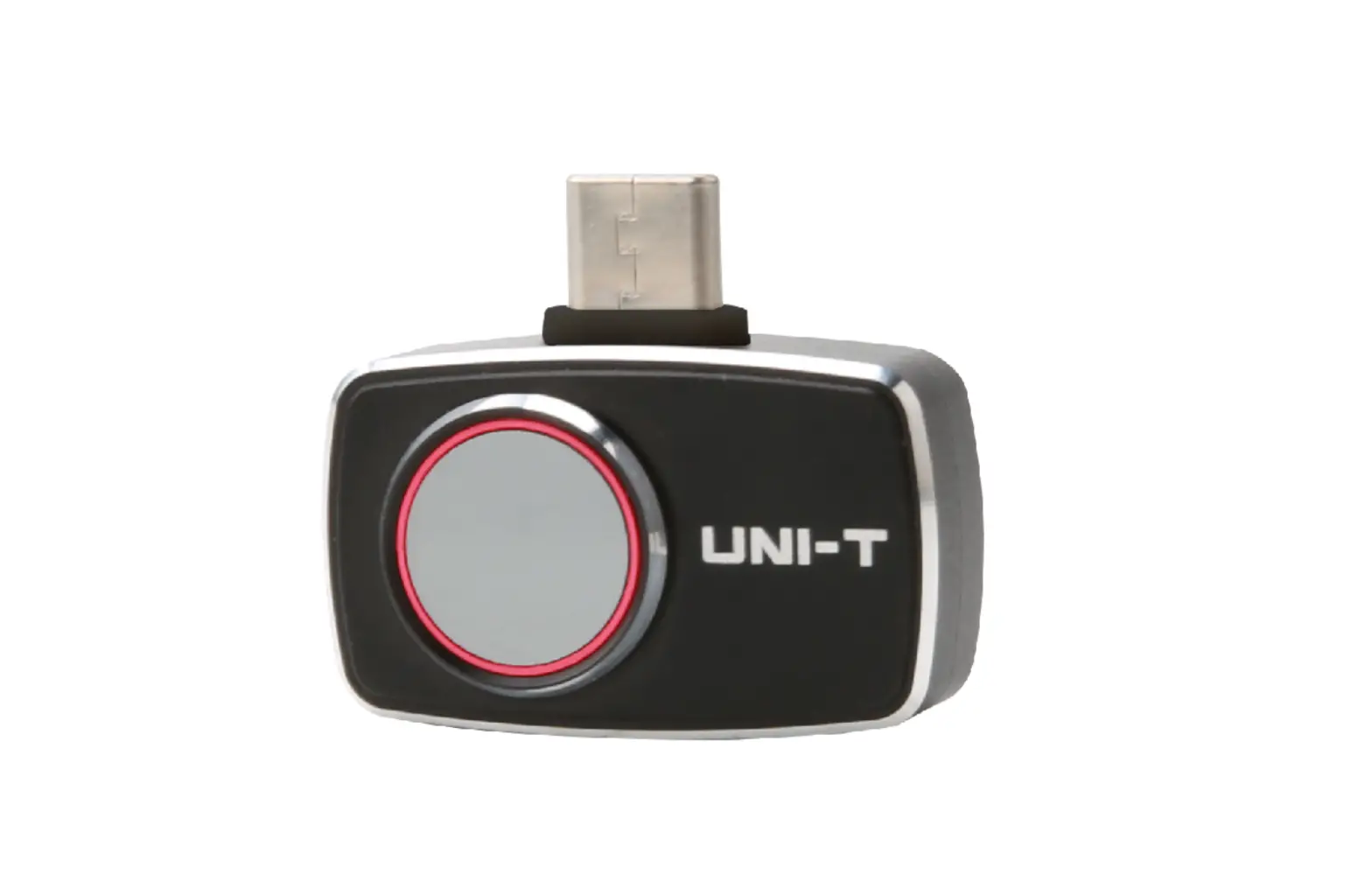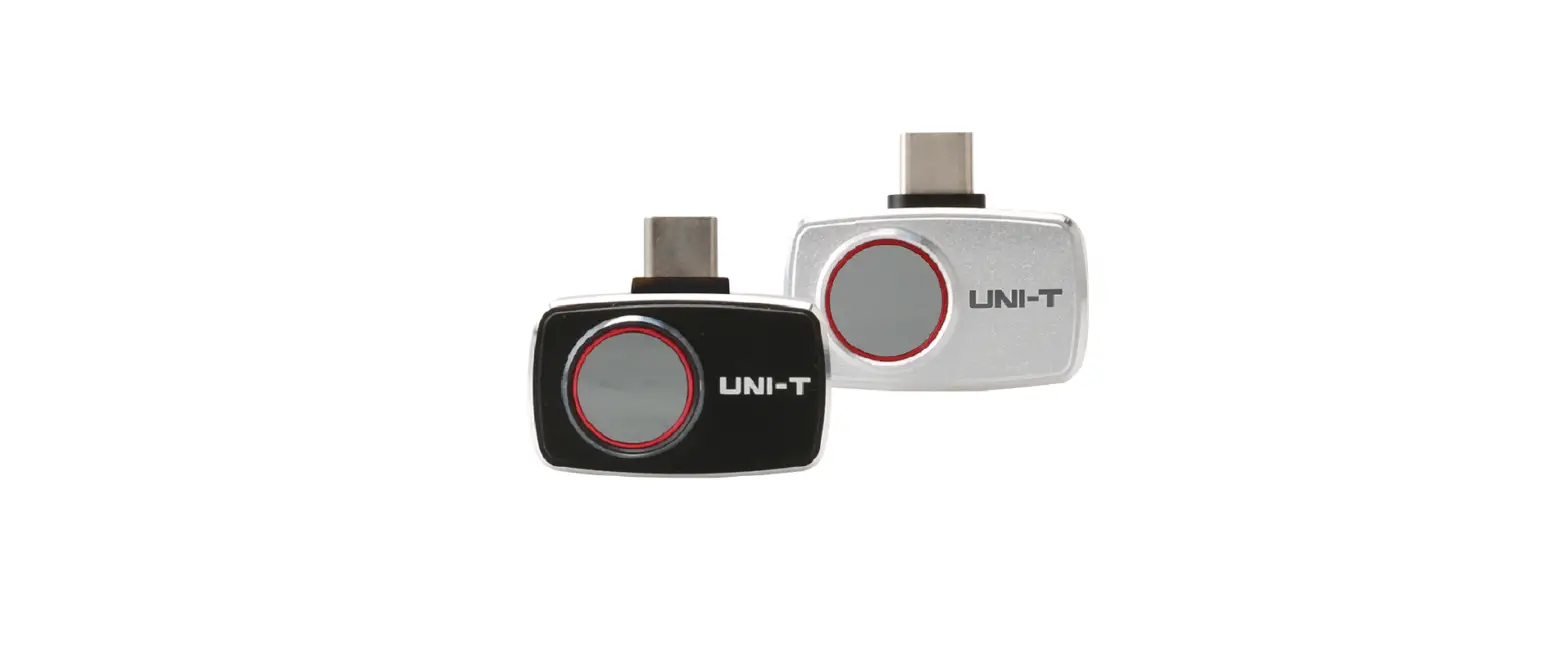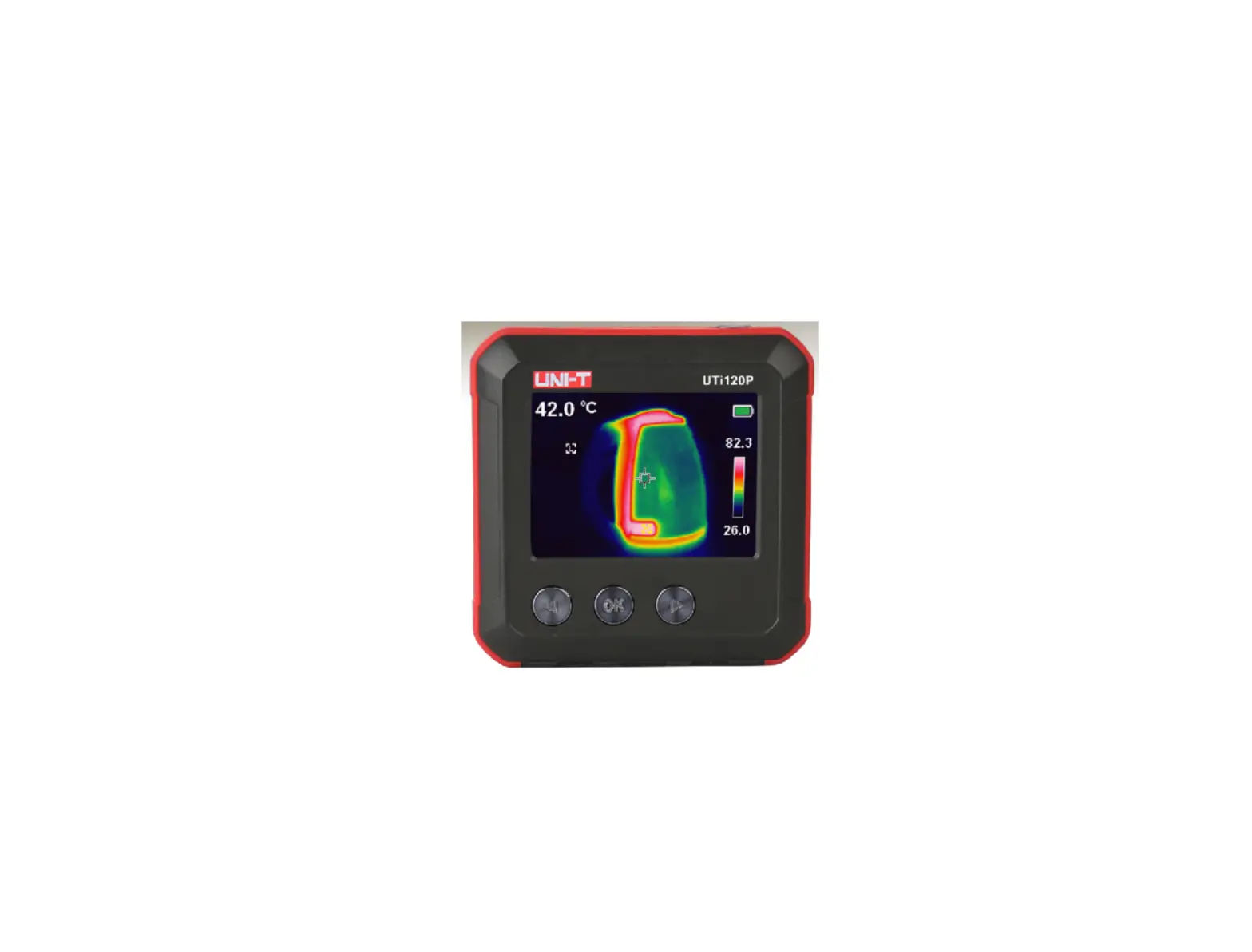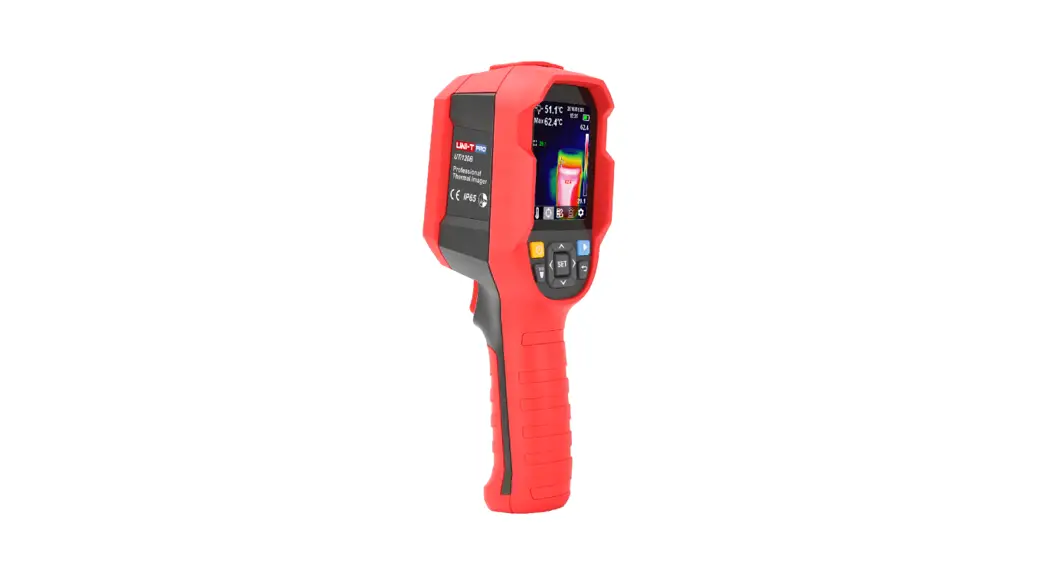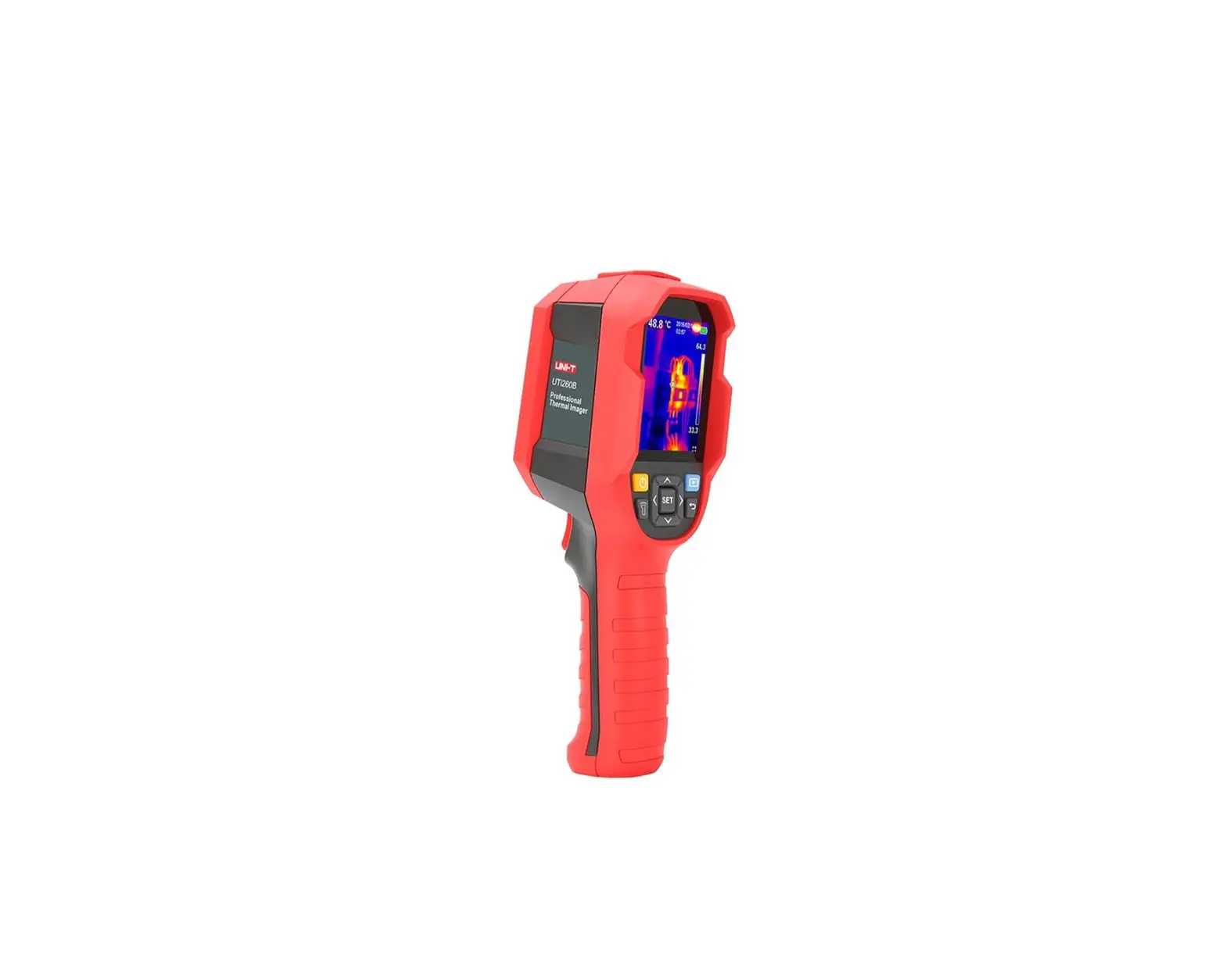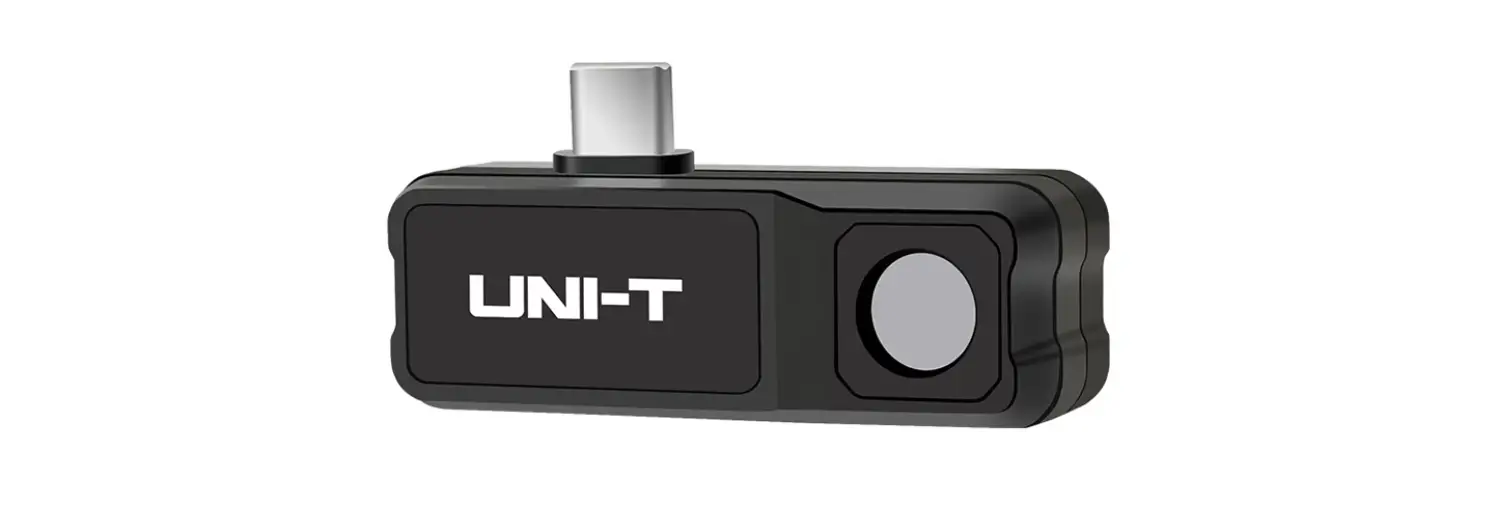

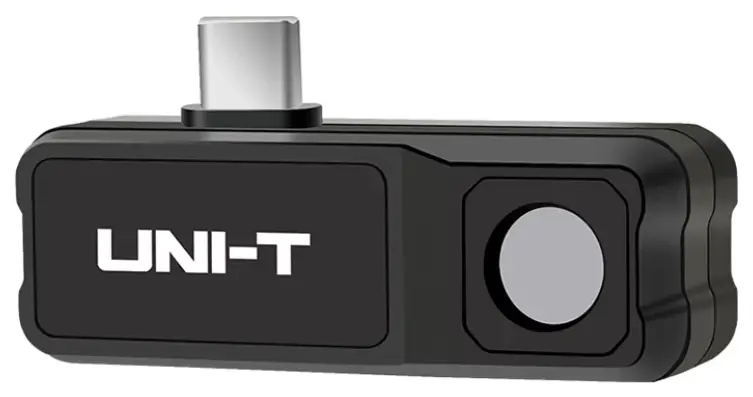
UNI-T UTi120Mobile Thermal imager for Smart Phone
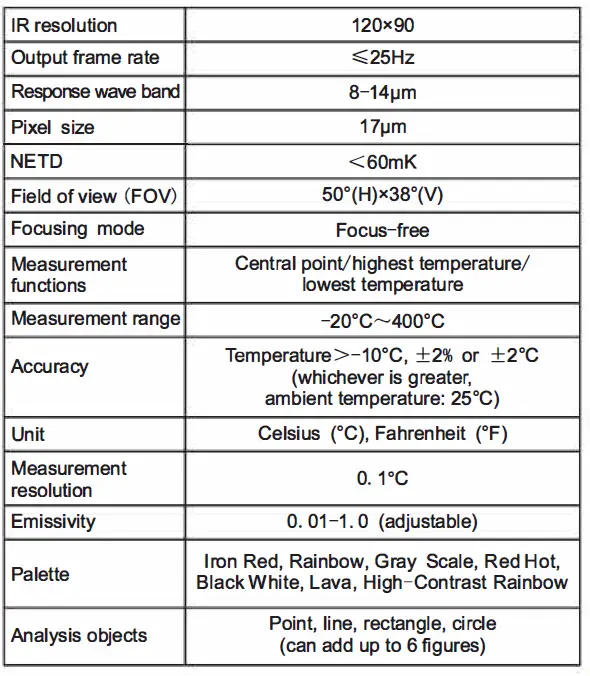
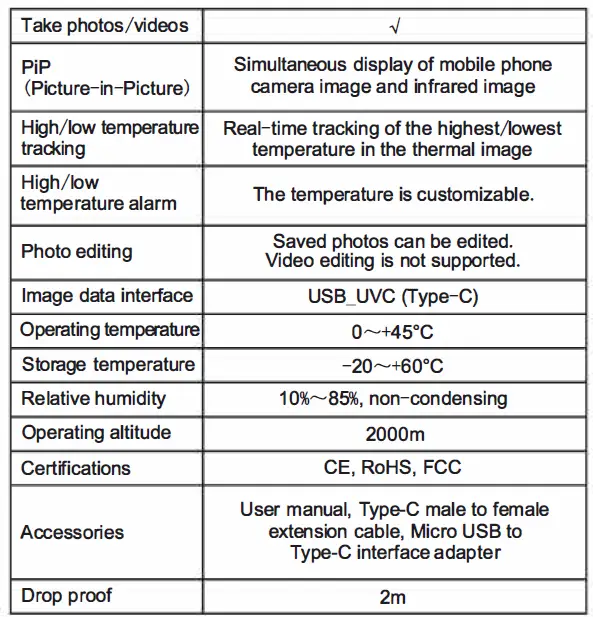
Specifications

Connection
Open the APP. If the device is not detected, the following interface will appear as shown in Figure 1. At this time, users can still enter the “Photos” and “Selling” pages, but other functions are unavailable. Insert the product into a smart phone, a prompt “Open UTi120Mobile to process the UNIT Applicationl Device?” will pop up. Click OK to connect to the device (if users want to connect directly without a prompt next time, check the box below “Always open UTi120Mobile after connecting to the UNIT Application Device” before clicking OK).

The words “Loading” and “Calibrating” will appear when detecting the device as shown in Figure 2.

Display
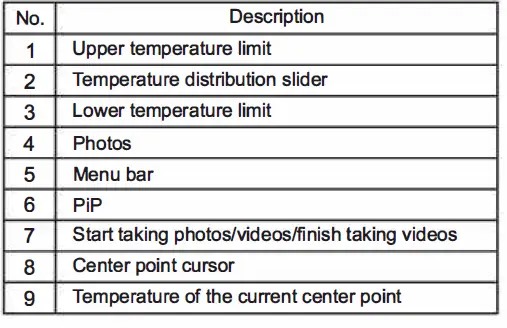
The initial slate of the device after startup is shown in Figure 3 below. The palette is Iron Red by default, and the main page is divided into the following sections.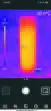
Photos
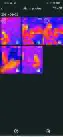
After opening the APP, click on Photos (No.4 in Figure 3) to enter the photos/videos interface as shown in Figure 4. and users can view and select these photos/videos.
Select/Cancel (Figure 5)
Click “Select” and then click a photo/video, the photo/video will be selected, and there will be a checked checkbox on the corresponding thumbnail. Click “Cancel”, and the checkbox will disappear.
When a photo/video is selected, ii can be shared or deleted, and the icons are Share and Delete respectively.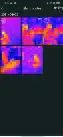
View (Figure 6)
Click on a photo to enter the viewing interface, and users can perform
functions such as Share/PiP/Delete/Blending/Edit. Click “Delete”, and it will prompt “Delete this file?” Select “YES” to delete the photo and return to the photo interface.
Figure 6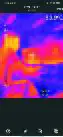
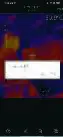
Click on a video to enter the viewing interface, and users can perform functions such as Play/Share/Delete. Click on the screen, and the icon – will appear. Users can Pause/Fast Forward/Rewind the video by using this icon or dragging the progress bar below.

PiP/Blending (Figure 8)
Click the icon ■, a small PiP window will appear in the lower right corner. Users can also click on the icon  to check the blending situation, and drag the upper slider to adjust the blending ratio of visible light and infrared light.

Clicking the PiP and blending icons can turn off these two functions, and a prompt “No visible light” will pop up.
Remarks: When using a Type-C extension cable to connect to the product, the relative distance between the visible light camera and the product camera is unfixed and the blending effect is not good. Therefore, it is not recommended to perform the blending function when using a Type-C extension cable.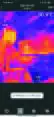
Edit
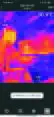
Click “Edit” in the photo viewing interface to enter the editing interface. Users can edit the current photo, and click “Cancel” to cancel the previous operation. After saving the editing operation, enter the editing interface again and click “Restore” in the upper right corner to restore the photo to its original state. 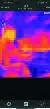
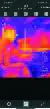
The infrared thermal imaging photos taken by UTi120Mobile App can be edited while viewing.
The specific editing operations are as follows:
- Rotate the photo: click the icon
 to change the photo direction.
 - Add an analysis object: click the icon
 to display the following interface. These analysis objects can be moved/added/deleted.
- Brush: click the icon
 , the following interface will appear. Users can mark a photo in different colors. Click
 to withdraw the previous operation, after clicking “Finish”, enter the interface again, click can still withdraw the previous operation.
 to change the photo direction.
 to display the following interface. These analysis objects can be moved/added/deleted.
 , the following interface will appear. Users can mark a photo in different colors. Click
 to withdraw the previous operation, after clicking “Finish”, enter the interface again, click
Visible Light Blending
When users click the icon  , a slider for adjusting blending will appear at the top. Dragging the slider can adjust the blending ratio of visible light and infrared light. Click the icon ■ , and the blending icon will appear. Drag the icon, and it will display the blending situation of the relevant position. Click ■ again, the blending icon will disappear.

Add Analysis Objects
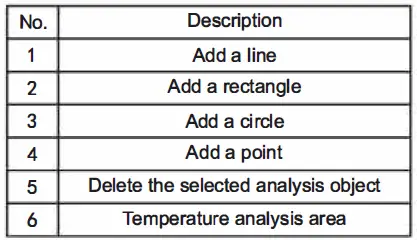
Click the icon to enter the interface for adding analysis objects, as shown in the figure below. Users can add/move/delete analysis objects (point/line/area), and only six objects can exist at the same lime. After adding an analysis object and taking a photo, the added object can still be deleted.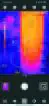
Point
Clicking the icon a can add a point temperature analysis object and expand a semi-transparent information bar on the right side of the interface to display the temperature information of the analysis objects. Click once to add one point. If users drag a point to change its position, the temperature information of the point will be updated synchronously, and up to 6 point analysis objects can be added.
Line
Clicking the icon can add a line temperature analysis object and expand a semi-transparent information bar on the right side of the interface to display the temperature information of the analysis objects. Click once to add one line. If users drag a line to change its position, the temperature information of the line will be updated synchronously, and up to 6 line analysis objects can be added.
Area
Clicking the icon can add a rectangle temperature analysis object and expand a semi-transparent information bar on the right side of the interface lo display the temperature information of the analysis objects. Click once to add one rectangle. If users drag a rectangle to change its position, the temperature information of the rectangle will be updated synchronously, and up to 6 rectangle analysis objects can be added. Clicking the icon
 can add a circle temperature analysis object and expand a semi-transparent information bar on the right side of the interface to display the temperature information of the analysis objects. Click once to add one circle. If users drag a circle to change its position, the temperature information of the circle will be updated synchronously, and up to 6 circle analysis objects can be added.
Delete Selected Analysis Objects
Clicking the icon can delete the selected temperature analysis object.
Palette (Figure 9)
In the main interface, click the icon to open the palette selection interface, as shown in the figure below. This APP provides Iron Red, Rainbow, Gray Scale, Red Hot, Black While, Lava, High-Contrast Rainbow palettes for users to choose according to different scenes or preferences.
Setting (Figure 10)
Click the icon to enter the setting interface, as shown in the figure below. In the setting interface, users can perform functions such as selecting language/temperature uni U temperature mark, setting high and low temperature alarm/emissivity/measurement distance, and viewing version information.

Language
Users can select the language according to their needs. The APP currently supports Chinese (default) and English.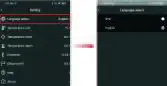
Temperature Unit
The default temperature unit is Celsius (°C), and users can switch to Fahrenheit (°F) as needed.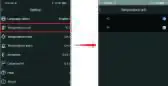
Temperature Mark
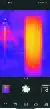
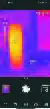
Users can set Max Temp Mark, Min Temp Mark and Center Mark. After turning on these marks, the main interface will display the corresponding marks (Max Temp Mark: red, Min Temp Mark: green, Center Mark: a central cross cursor). If the marks are not turned on, the main interface will only display the temperature distribution slider, as shown in the figure.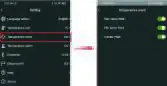
Temperature Alarm
Users can set Temperature Alarm Max and Temperature Alarm Min. After setting, when the temperature exceeds the Temperature Alarm Max, a red triangle will appear. When the temperature is lower than the Temperature Alarm Min, a green inverted triangle will appear.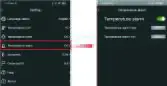
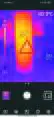
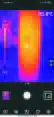
If the Temperature Alarm is turned on, but the corresponding temperature value is not set, a prompt “The temperature setting is wrong. Please check!” will pop up.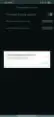
Emissivity
The default value of emissivity is 0.95. Users can adjust the temperature measurement parameters according to the different measured objects to improve the measurement accuracy.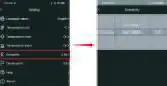
Distance
The default distance is 0.6m. Users can adjust it according to their requirements.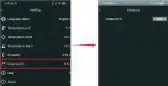
Help
Open the product instruction manual.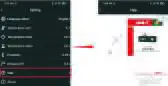
About
It includes the APP Version and the Model Version.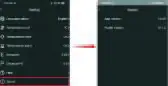
Switch Photo Video Function
Slide the camera button left/right to switch between taking photos/ videos. Both photos and videos will be automatically saved in the Photo.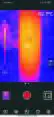
Start/End Taking Photos Videos
Slide the camera button left/right to enter the recording mode. Click the recording button to start recording, and the recording duration will be displayed on the top. Click the button again to end the recording.
PiP
Click the icon on the main interface, the APP will open the phone camera and display a small PiP window. Click the icon again to cancel the PiP. When double-clicking anywhere in the small window, the visible light and infrared light display windows will be interchanged, and double -clicking the small window again will restore the state.
Switch Camera
Click the icon lll!l to switch the front/rear camera of the mobile phone, and the infrared light image will be mirrored. The front and rear visible light cameras of the mobile phone can be switched at the same time,
and the infrared thermal image can be mirrored.
Auto/Manual Call Shutter
Clicking the cross cursor can manually call the shutter.
Notes
- The App will automatically call the shutter according to the temperature measurement needs when operating;
- Do not use soluble liquids on the device, as this may cause device damage.
- When using the device, please try to keep it stable and avoid violent shaking.
- Please do not violently disassemble the product to avoid irreversible damage.
- Please avoid hard objects scratching the device lens.
- Please do not point the product lens at high-intensity energy sources (including the sun, laser emission equipment and the reflection sources of these equipment), otherwise it may affect the measurement accuracy, and damage the infrared detector of the product.
- Please put the product into the plastic box when it is not used.
FCC Compliance statement
This device complies with Part 15 of the FCC Rules. Operation is subject to the following two conditions: (1) this device may not cause harmful interference, and (2) this device must accept any interference received, including interference that may cause undesired operation.
UNI-T:
UNI-TREND TECHNDLDBV (CHINA) CD., LTD.
No.6, Gong Ye Bei 1st Road,
Songshan Lake National High-Tech Industrial
Development Zone, Dongguan City,
Guangdong Province, China
Preface
Thank you for purchasing this brand new UTi120Mobile Smart Phone Thermal Camera. In order to use this product safely and correctly, please read this manual thoroughly, especially the safety notes.
After reading this manual, it is recommended to keep the manual at an easily accessible place, preferably close to the device, for future
reference.
Limited Warranty and Liability
Uni-Trend guarantees that the product is free from any defect in material and workmanship within one year from the purchase dale. This warranty does not apply to damages caused by accident, negligence, misuse, modification, contamination or improper handling. The dealer shall not be entitled to give any other warranty on behalf of Uni-Trend. If you need warranty service within the warranty period, please contact your seller directly.
Uni-Trend will not be responsible for any special, indirect, incidental or subsequent damage or loss caused by using this device. Thank you for purchasing this brand new UTi120Mobile Smart Phone Thermal Camera. In order to use this product safely and correctly, please read this manual thoroughly, especially the safety notes.
After reading this manual, it is recommended to keep the manual at an easily accessible place, preferably close to the device, for future reference.
Uni-Trend guarantees that the product is free from any defect in material and workmanship within one year from the purchase dale. This warranty does not apply to damages caused by accident, negligence, misuse, modification, contamination or improper handling. The dealer shall not be entitled to give any other warranty on behalf of Uni-Trend. If you need warranty service within the warranty period, please contact your seller directly.
Uni-Trend will not be responsible for any special, indirect, incidental or subsequent damage or loss caused by using this device.