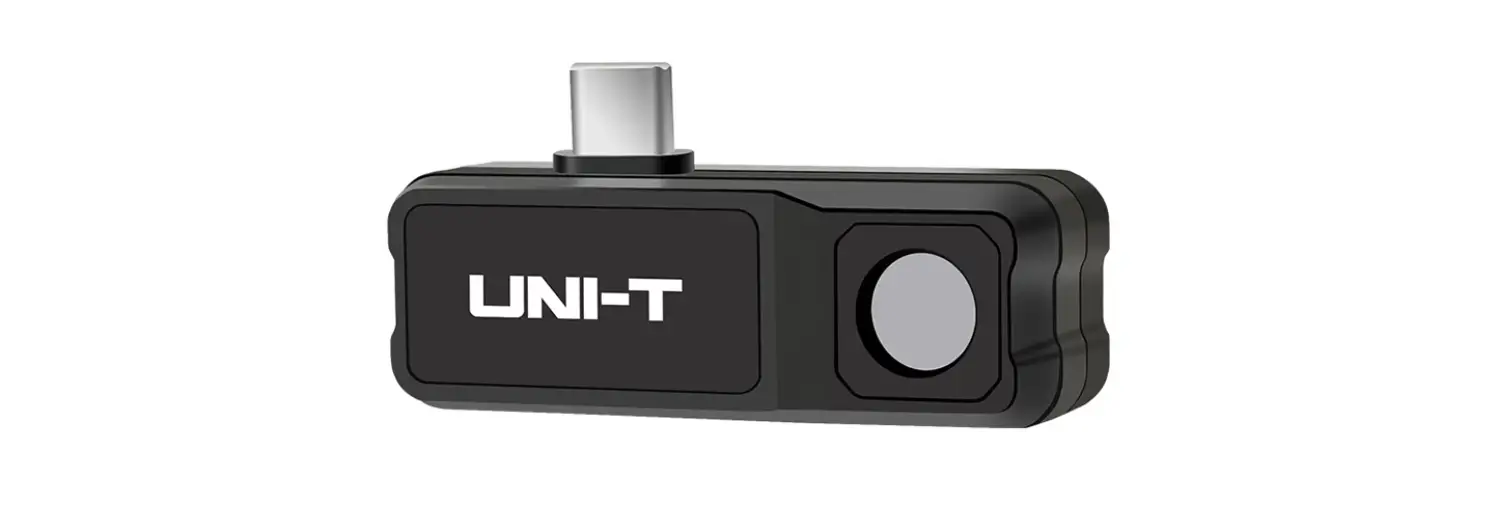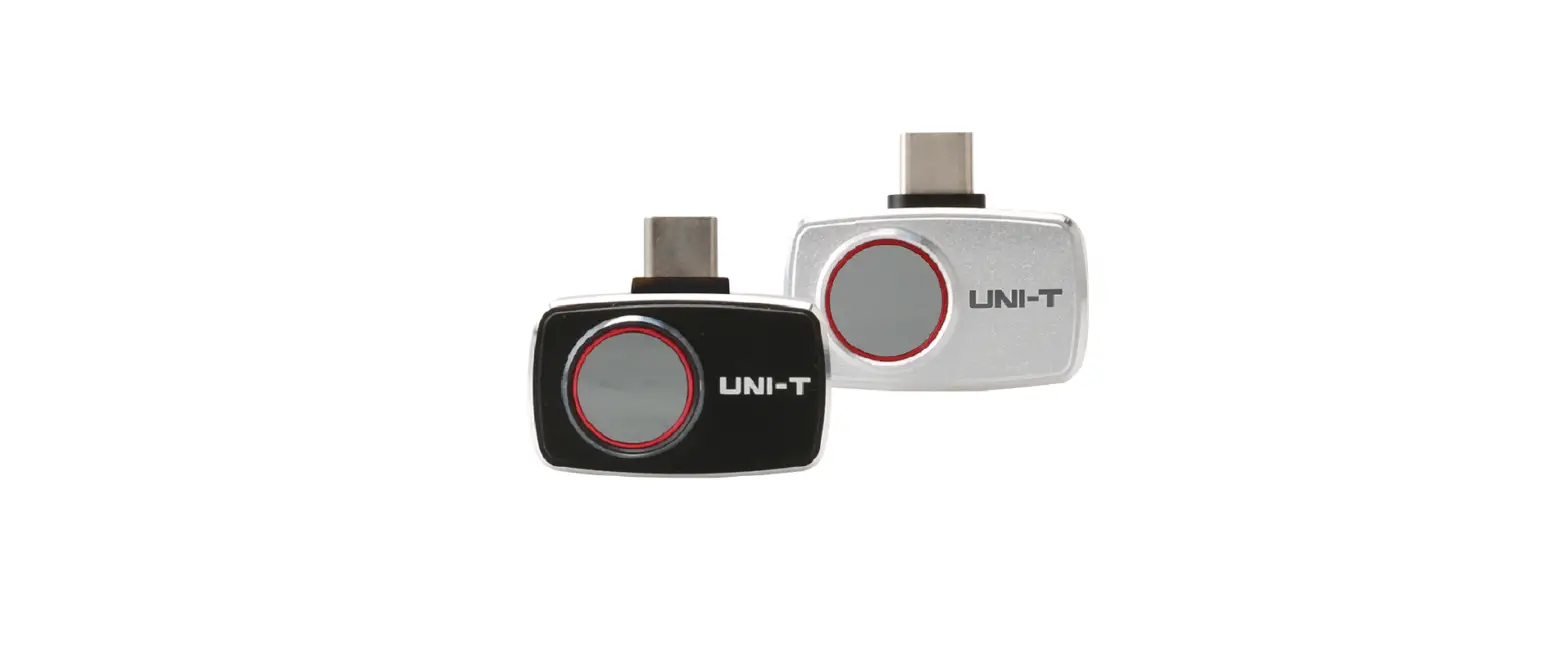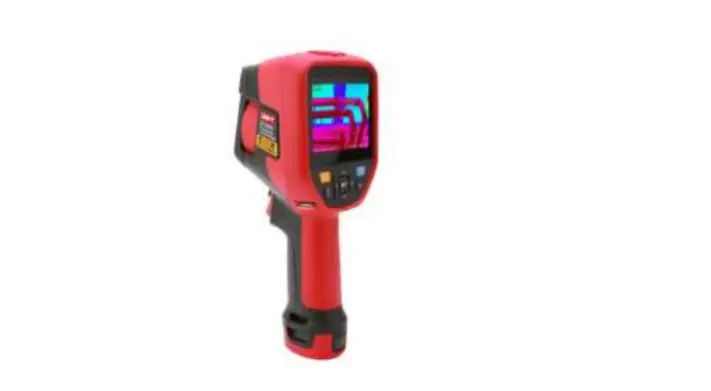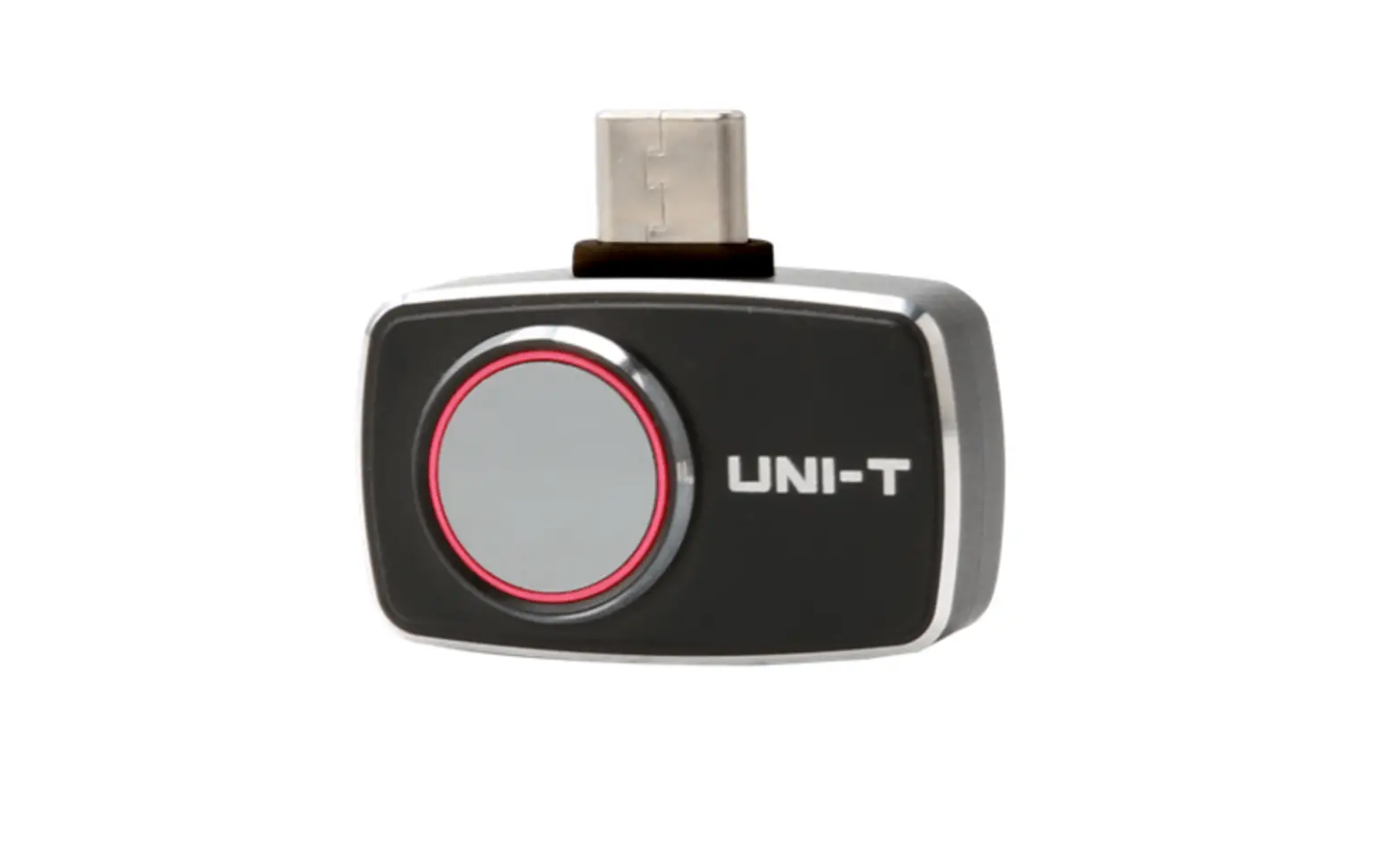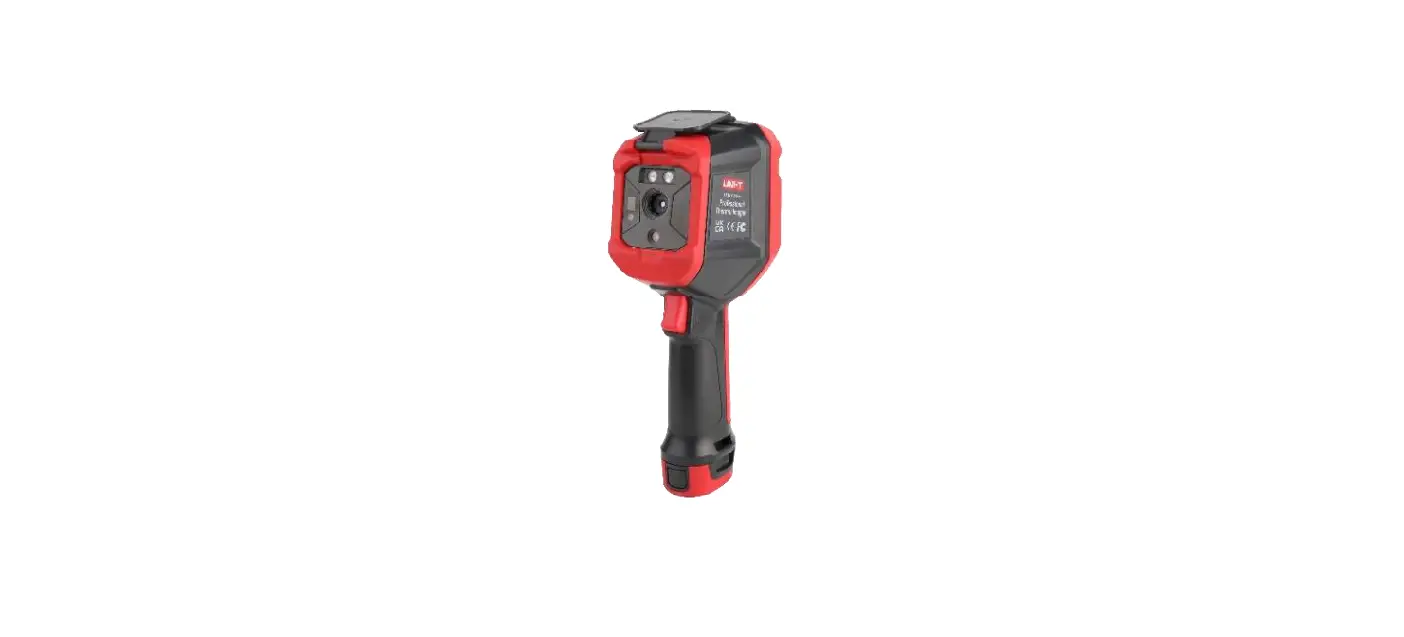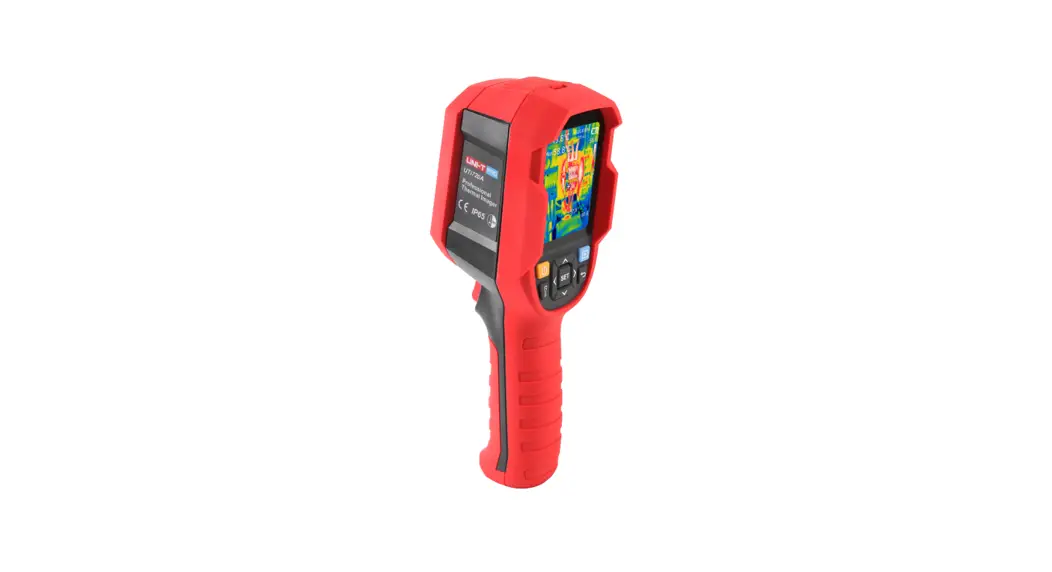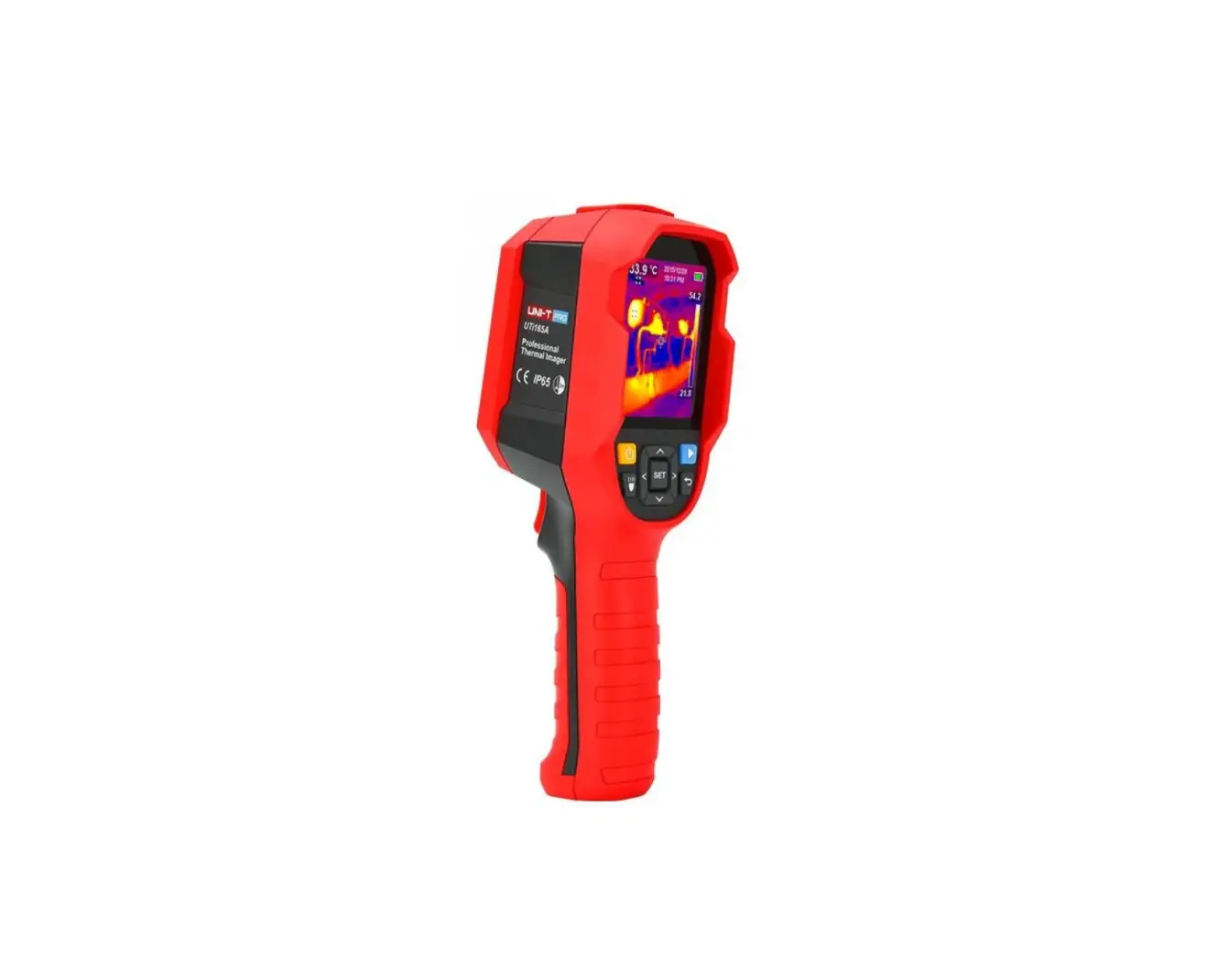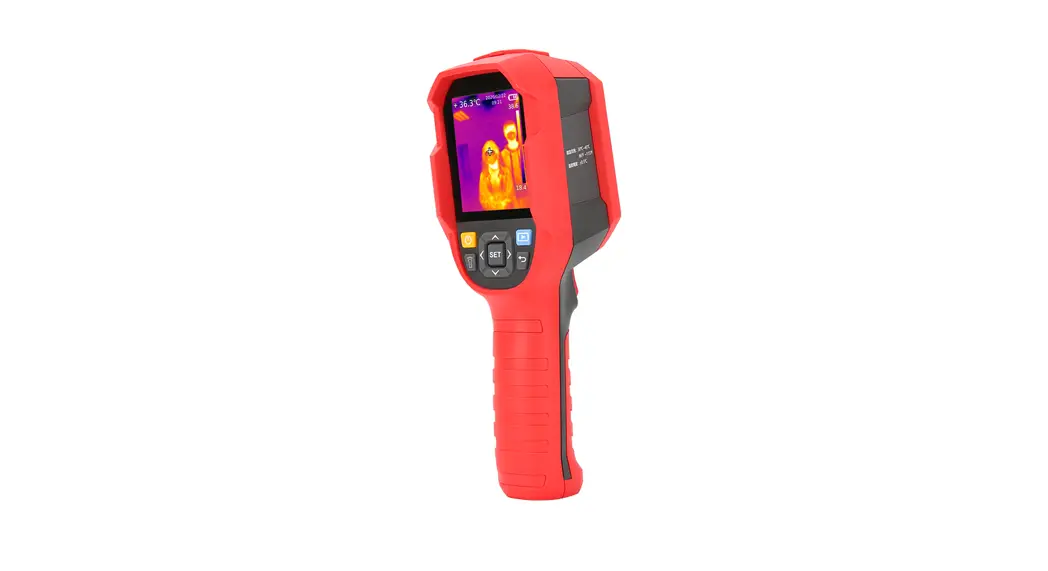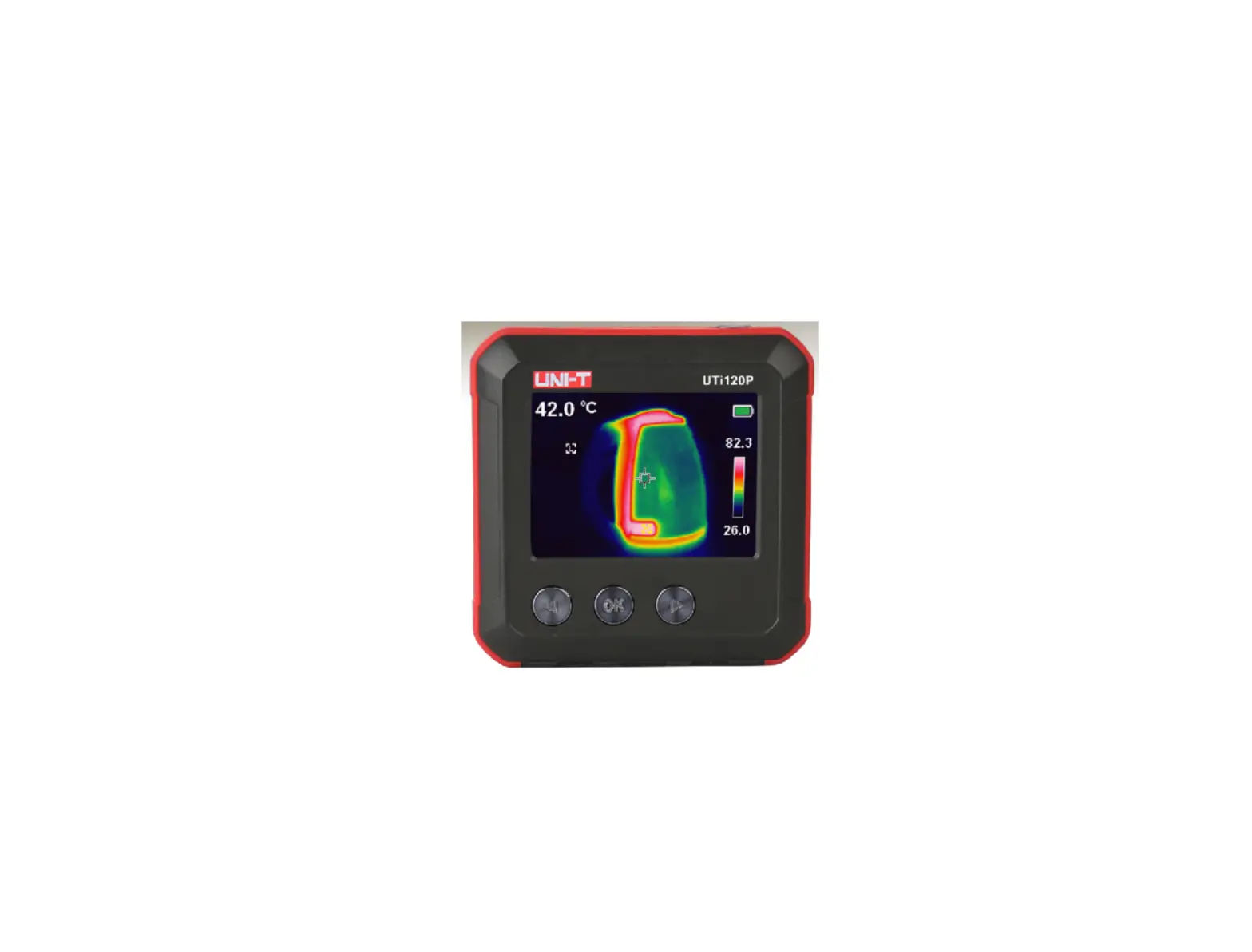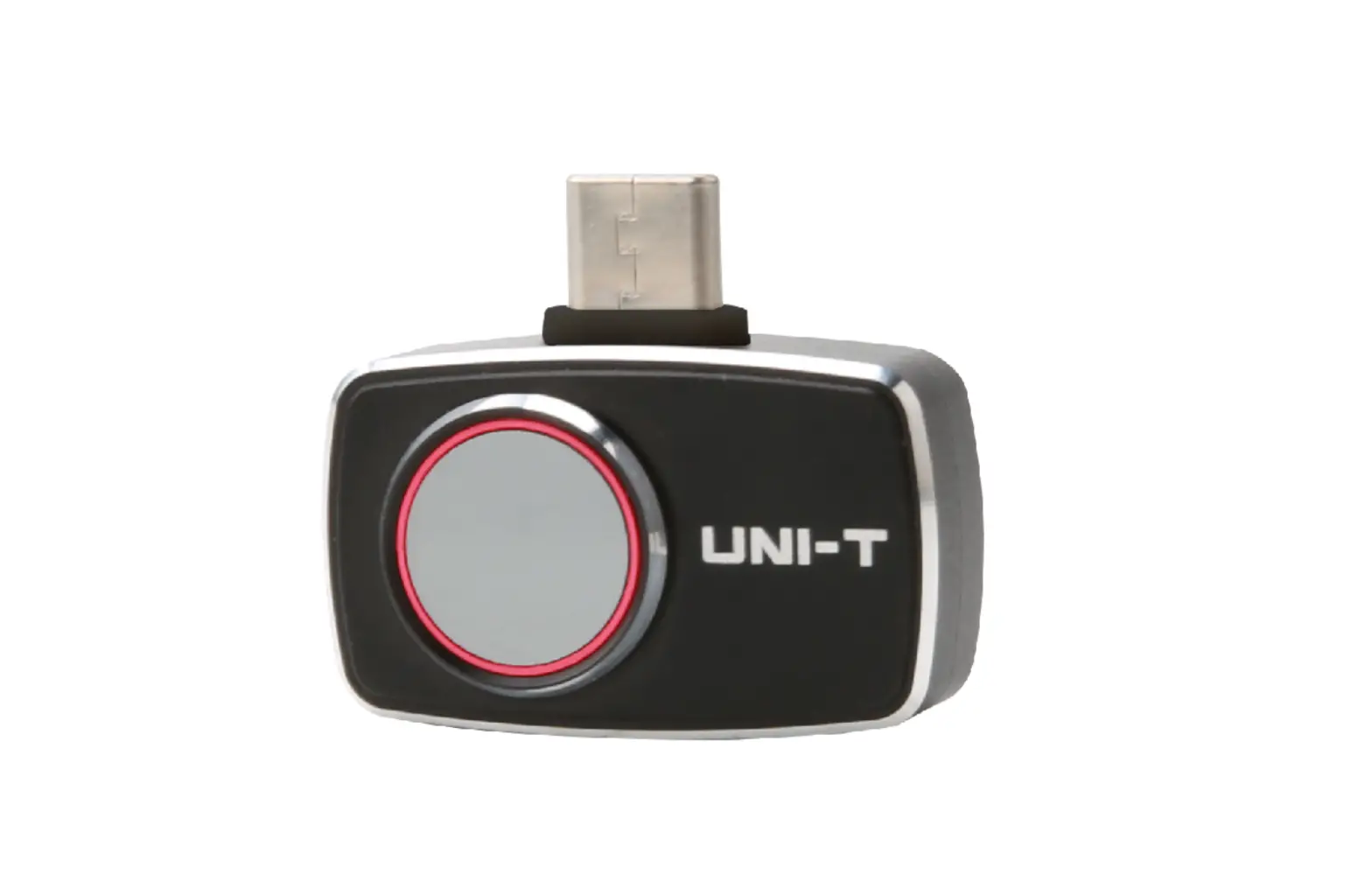
UNI-T UTi256M Mobile Phone Thermal Imager User Manual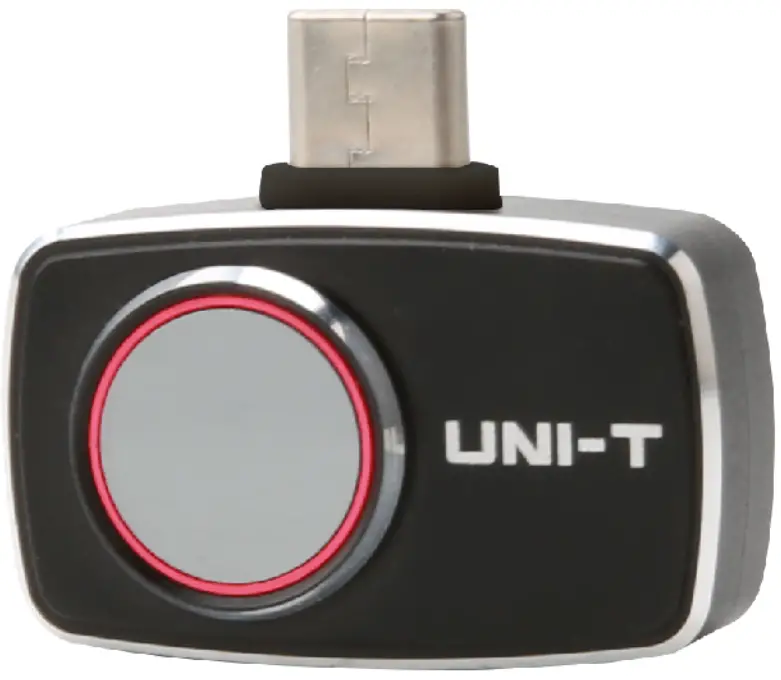
Preface
Thank you for purchasing this brand new UTi260M/UTi256M smartphone thermal camera module. In order to use this product safely and correctly, please read this manual thoroughly, especially the safety notes.
After reading this manual, it is recommended to keep the manual at an easily accessible place, preferably close to the device, for future reference.
Limited Warranty and Liability
Uni-Trend guarantees that the product is free from any defect in material and workmanship within one year from the purchase date. This warranty does not apply to damages caused by accident, negligence, misuse, modification, contamination or improper handling. The dealer shall not be entitled to give any other warranty on behalf of Uni-Trend. If you need warranty service within the warranty period, please contact your seller directly.
Uni-Trend will not be responsible for any special, indirect, incidental or subsequent damage or loss caused by using this device.
Specifications
| Sensor | Unoooled vanadium oxide |
| Emissivity | 0.95 (default) 0.01-1.00 |
| IR resolution | 256”192 t49152) |
| Pixel size | 12pm |
| Spectral range | 8-14pm |
| Palettes | Ironbow, Rainbow, Black Hot, White Hot, Red Hot, Lava, Rainbow HC |
| Field of view | 56.0° (H) • 42.2° (V) |
| IFOV | 3.8mrad |
| Lens focal length | 3.2mm |
| Focus | Focus free |
| NETD | <50mK@25’C |
| Frame rate | 25Hz |
| On screen analyzer | Point, Line, Rectangle(up to 3 graphics can be added for each type) |
| Temperature display | Center spot, Hi/Lo spot tracking |
| Temperature units | °C (defult), °F |
| Hi/Lo temperature alarm | |
| Image modes | Thermal, fusion [fuse visual image (on phone) and infrared image], PIP |
| Camera modes | Photo capturing & Video recording |
| Image format | JPG |
| Photo browsing | Images can be rotated, brushed, analyzed, deleted and saved. |
| Image storage | Stored in the smanphone |
| Data communication | Type-C USB (male) |
| Language | Chinese/English |
| Mobile APP | (support Google Play) |
| Operating system | Android 6.0 and higher versions |
| Certificates | FCC CE (EN61326-1) |
| Operating temperature | -106- SOW (14°F- 122°F) |
| Storage temperature | -20W- 60°C (-4°F- 140°F) |
| Operating humidity | 10% – 95%RH (non-condensing) |
| Operating power consumption | <350mW (typical value at room temperature) |
| Drop Proof | 1m |
| Temperature scale | Low scale: -20“C-150“CHigh scale: 0”C-550”C (auto switch) |
| Temperature measurement modes | Industry, human body |
| Accuracy | Industry: 0”C-550”C, -I-2”C/î2% (Whichever is greater, ambient temperature:25”CJ |
| Human body: 30”C-40”C, +0.5”C (room temperature without wind) | |
| Temperature measurement range | -20”C-550’C (-4”F-1022”F) |
| Temperature measurement modes | Industry |
| Accuracy | 0-200’C, -L2“C/z2% (Whichever is greater, ambient temperature:25“C› |
| Temperature measurement range | -20“C-200“C (-4”F-392”F) |
Connection
Enter mobile APP. If the thermal camera module (the Device) is not detected, an interface for users to select model will appear, as shown below.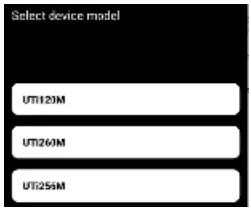
Select “UTi260M” or “UTi256M” to enter the following interface. At this time, users can open the ‘Gallery” and “Settings” pages, but other functions are unavailable. After inserting the Devi, a prompt will pop up. Select “YES” connect the Devi.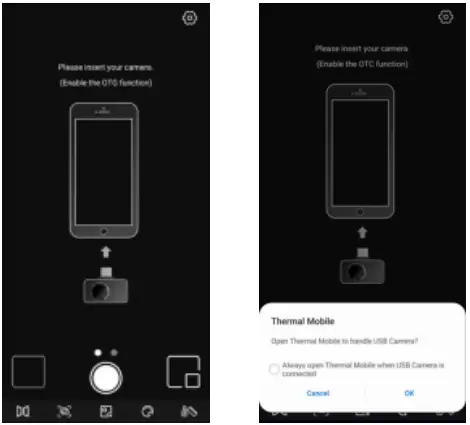
Screen Indicators/cons
After the device is loaded, the initial smartphone page is shown in the figure below. The palette is Iron bow by default, and the main page is divided into the following sections.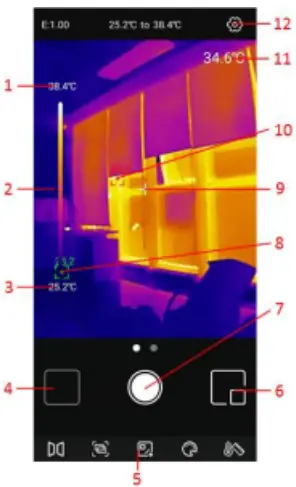
Gallery
On the initial page, tap “Gallery” (NO.4 in Screen Indicators/Icons) to view the photos/videos. Tap the icon U to select/select all/share/delete photos/videos.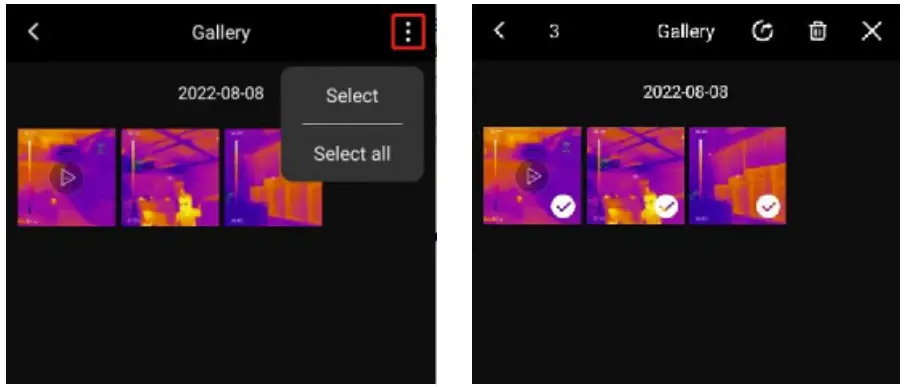
Tap an image/video to enter an interface where users can preview/share/delete/ edit (image only) this image/video, view its PIP/fusion mode or detailed information (filename, date, time, resolution, Hi spot, Lo spot, center spot, mode, emissivity).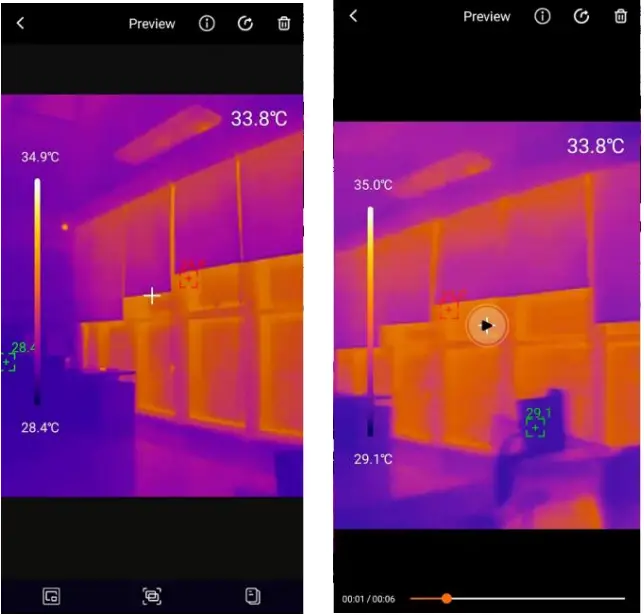
If the PIP or fusion mode is turned on when capturing a photo, tap the icon  a when viewing this photo, a small PIP window will appear in the lower right corner. Users can
  tap 2P1, to check the fusion status, and drag the upper slider to adjust the fusion ratio of visible light and infrared light.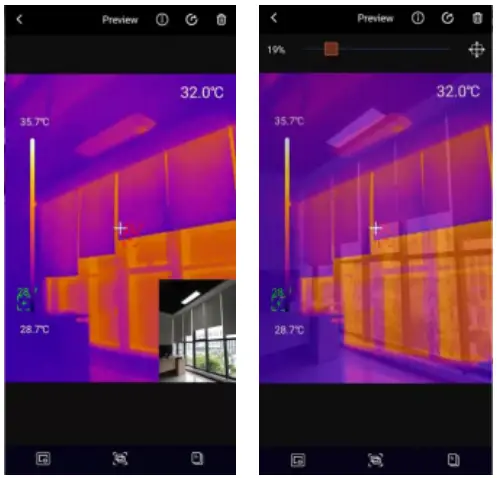
If the PIP or fusion mode is not turned on when capturing a photo, when users tap the PIP or fusion icon while viewing this photo, a prompt “No visible light!” will pop up.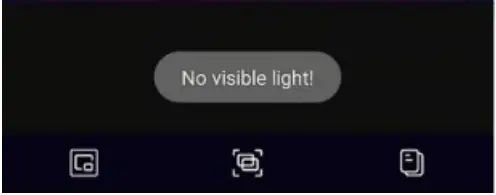
In the photo viewing interface, tap the icon  to edit the current photo. The specific editing operations are as follows:
- Rotate: Tap IN icon
 to change the photo direction.
 - Add on screen analyzers: Tap
 A to display the interface as shown in the lower left. The analyzers can be added/moved/deleted.
 - Brush: Tap
 1 to display the interface as shown in the lower right. Users can mark a photo in different colors. Tap 141 to withdraw the previous mark. (After saving a photo, tap
  RI can still withdraw.)
- Isotherm: Tap
 to enter the isotherm selection interface, as shown below.
 to change the photo direction.
 A to display the interface as shown in the lower left. The analyzers can be added/moved/deleted.
 1 to display the interface as shown in the lower right. Users can mark a photo in different colors. Tap 141 to withdraw the previous mark. (After saving a photo, tap
  RI can still withdraw.)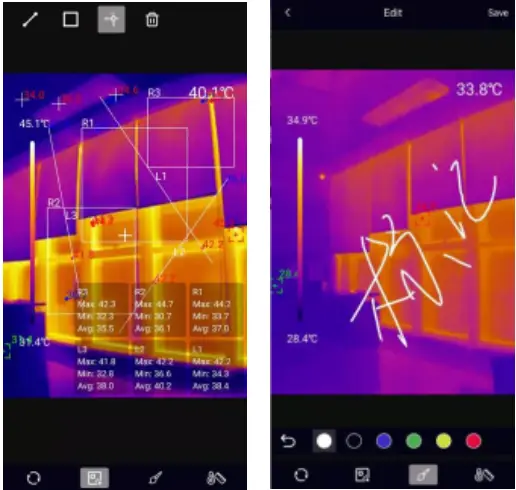
 to enter the isotherm selection interface, as shown below.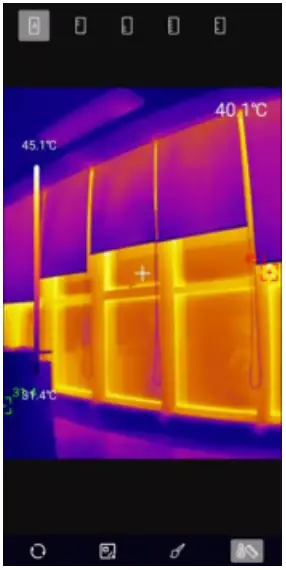
Main Interface
Camera Switching
Tap  Da to switch between the front and rear cameras of the smartphone. The infrared image will be mirrored.
Fusion
When users tap the icon  a slider for adjusting fusion will appear at the top. Dragging the slider can adjust the fusion ratio of visible light and infrared light (left figure). Tap the icon
  at the upper right corner, and it will be highlighted (right figure). At this point, users can drag the screen to manually adjust the fusion distance. Tap the icon again to exit.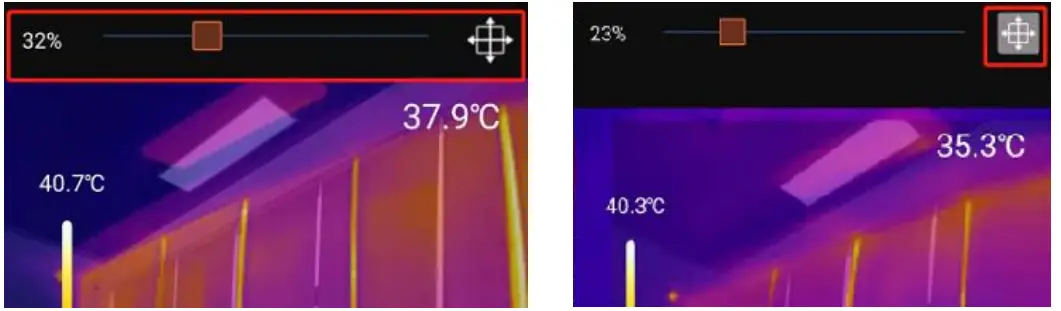
On Screen Analyzer
Tap  to enter the interface for adding on screen analyzers. Users can add/move/ delete the analyzers (line/rectangle/point). Tap the icon
  in to delete all added analyzers. To delete a single analyzer, drag the analyzer to the edge until it disappears. Analyzers added in the main interface can be deleted in the editing interface.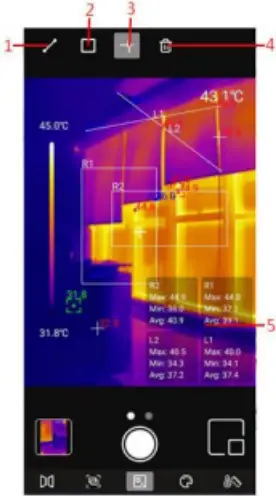
| NO. | Description |
| 1 | Line |
| 2 | Rectangle |
| 3 | Point |
| 4 | Delete |
| 5 | Temperature analysis area |
Tapping the corresponding icon can add an on screen analyzer and expand a semi transparent information bar on the bottom right of the interface to display the temperature information of the added analyzer. If users drag an analyzer to change its position, its temperature information will be updated synchronously. Up to 3 analyzers can be added for each type.
Palettes
In the main interface, tap  , and the optional palettes will show on the top of the screen, including iRobot, Rainbow, White Hot, Red Hot, Black Hot, Lava, Rainbow HC.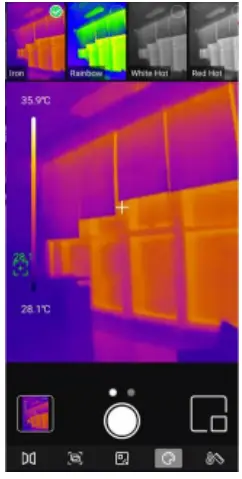
Isotherm
In the main interface, tap  , and the optional isotherm tools will show on the top of the screen, including Auto, Below, Above, Section and, Manual.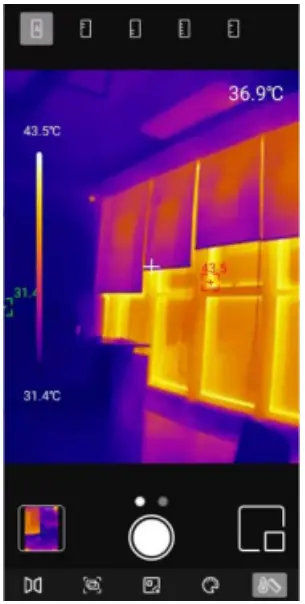
PIP
Tap  , and the APP will turn on the smartphone camera and display a small PIP
window. Tap the icon again to turn it off.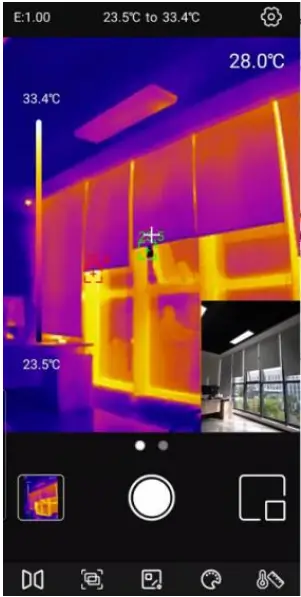
Photo Capturing Nideo Recording
Slide the camera icon left/right to switch between Photo Capturing and Video Recording modes. Both photos and videos will be automatically saved in “Gallery” (NO.4 in Screen Indicators/Icons).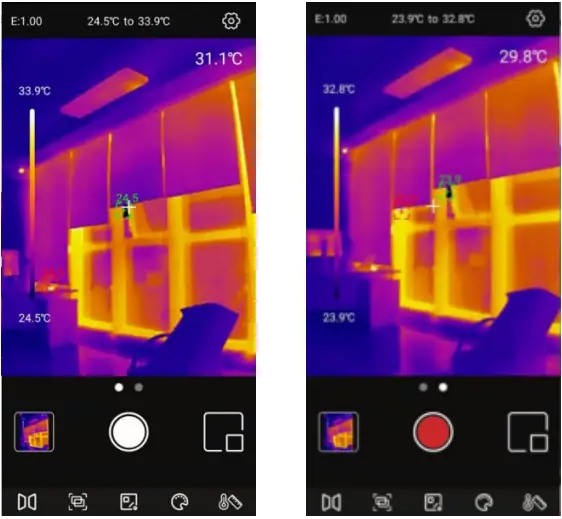
Slide the camera icon left/right to enter the video mode. Tap video icon to record videos, and the recording duration will be displayed in the lower right corner. Tap the video icon again to end the recording.

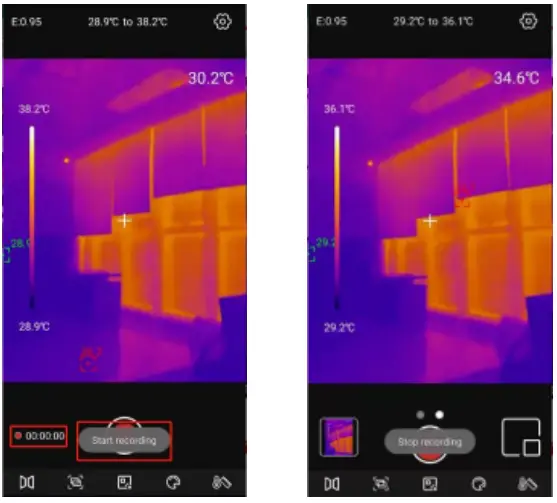
Shutter Calibration
When the device is on, Shutter will automatically activate for calibration according to ambient changes or the different temperature of measured target.
Settings
Tap  to enter the setting interface. Users can perform the following functions.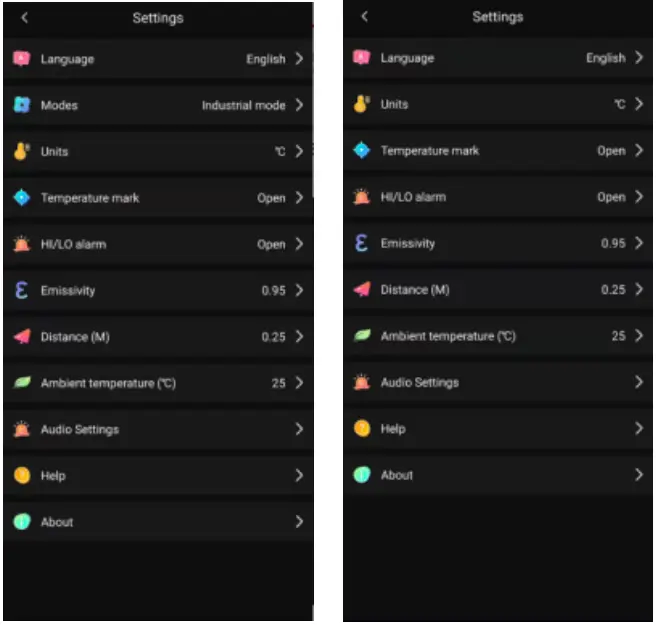
| Main menu | Submenu |
| Language | English/Chinese |
| Modes (UTi260M only) | Industry, human body |
| Units | °C, `F |
| Temperature mark | The following markups can be turned on or off: Hi temperature Lo temperature Centre point |
| Hi/Lo alarm | The Hi/Lo alarm can be turned on or off. After turning on the alarm, the Hi/Lo value can be adjusted. |
| Emissivity | 0.01-1.00 adjustable |
| Distance | 0.05-5.00 adjustable |
| Ambient temperature | 0-50°C adjustable |
| Audio Settings | Users can select whether to record sound during video recording. |
| Help | View the user manual |
| About | Display the current APP version and device model |
FCC Compliance statement
This device complies with Part 15 of the FCC Rules. Operation is subject to the following two conditions:
- this device may not cause harmful interference, and
- this device must accept any interference received, including interference that may cause undesired operation.
Cautions
- Do not use soluble liquids on the device, as it may cause damage.
- When using the device, please try to keep it stable and avoid violent shaking.
- Please do not violently disassemble the product to avoid irreversible damage.
- Please avoid hard objects contacting the device lens.
- Please do not point the product lens at high-intensity energy sources (including the sun, laser emission equipment and the reflection sources of these equipment), otherwise, it may affect the measurement accuracy, and damage the infrared detector of the product.
- Please put the product into the carrying box when it is not used.
- Due to different batches, the materials and details of actual products may be slightly different from the graphic information. Please refer to the goods received.
- The experimental data in the manual are theoretical values and all from Uni-Trend’s internal laboratories, for reference only. Customers cannot use them as bases for placing orders. If users have any questions, please contact customer service.
UNI-TREND TECHNOLOGY (CHINA) CO., LTD.
No.6, Gong Ye Bei 1st Road, Longshan Lake National High-Tech Industrial Development Zone, Dongguan City, Guangdong Province, China