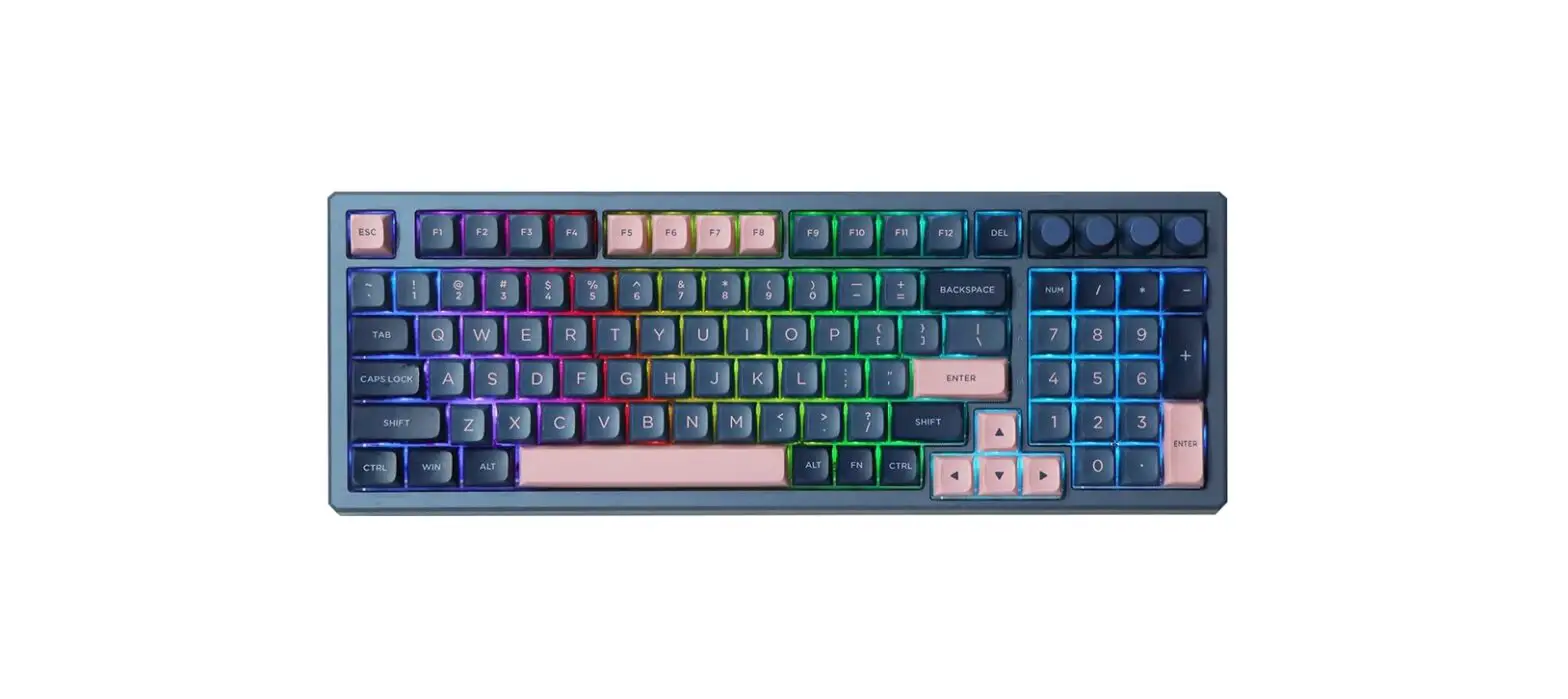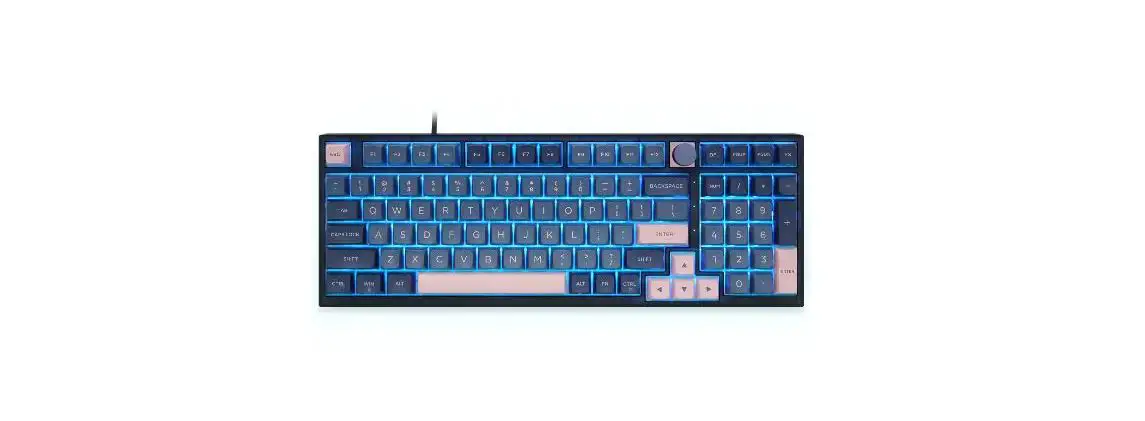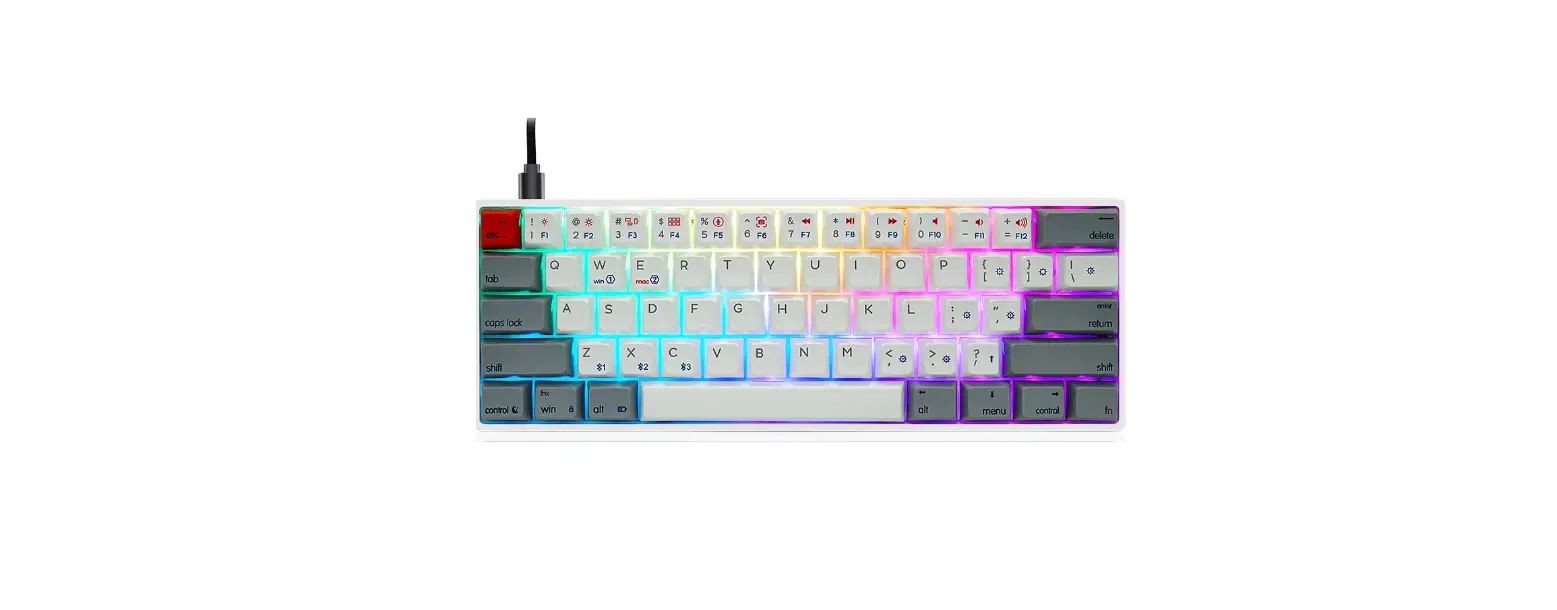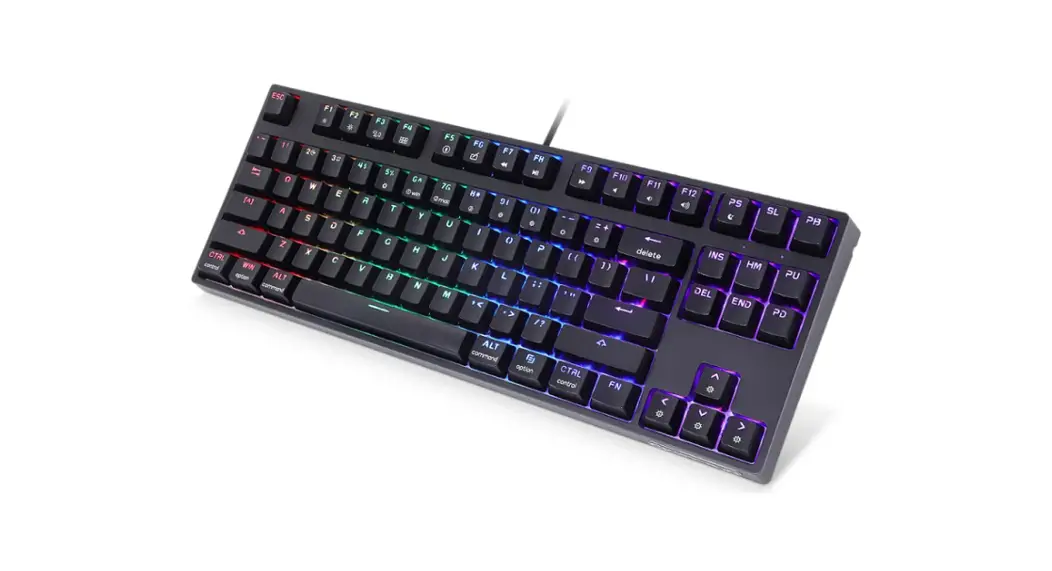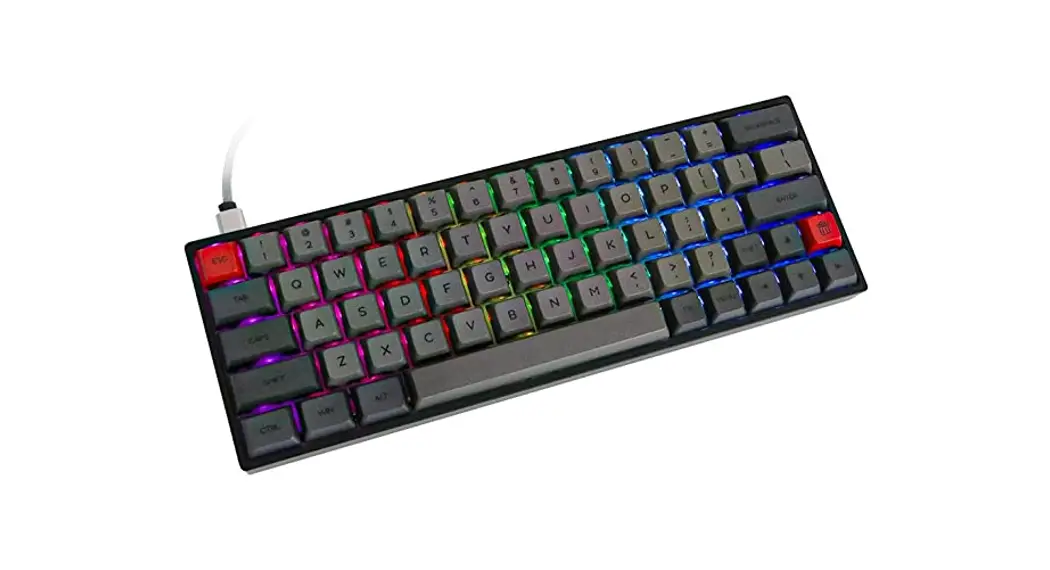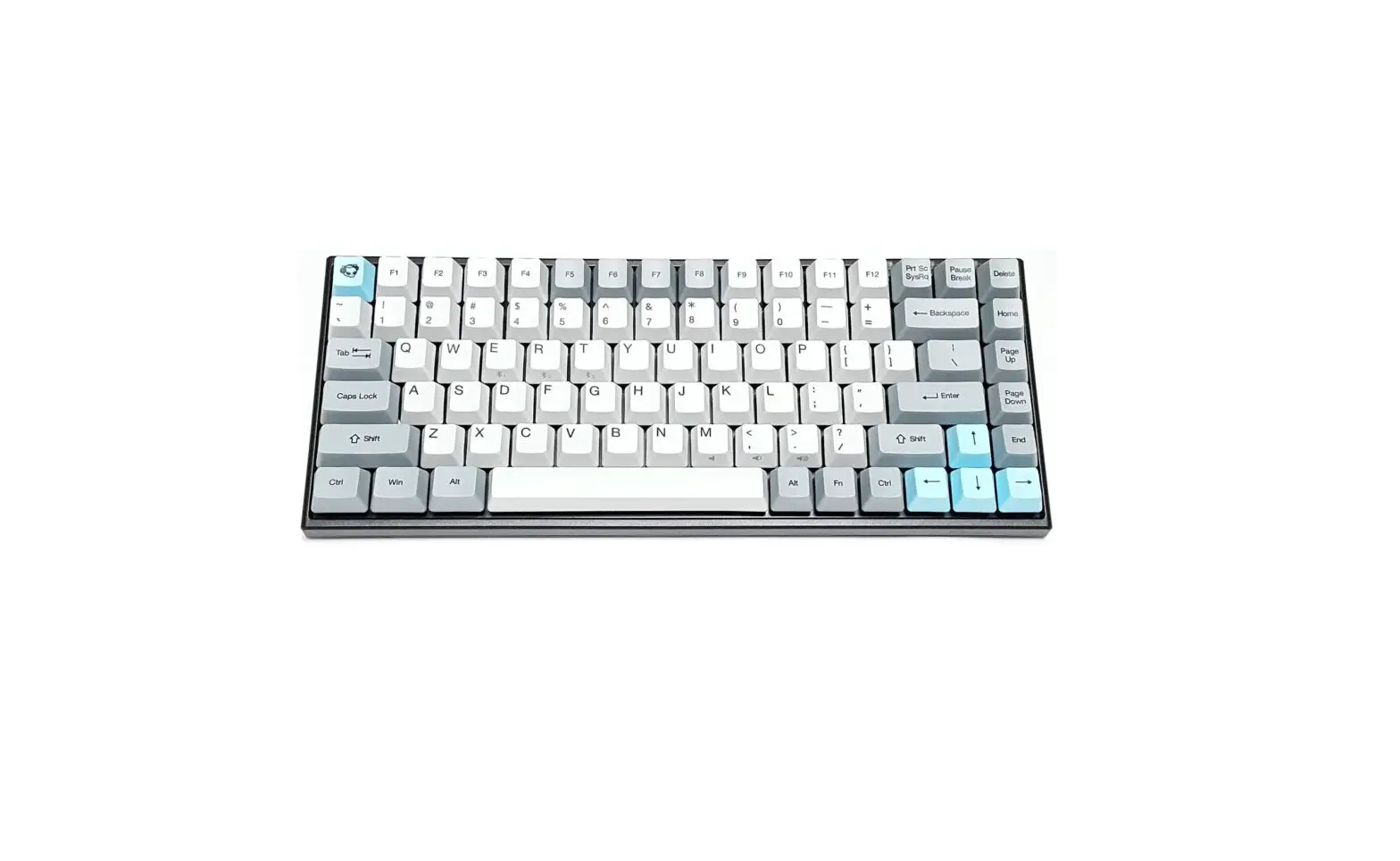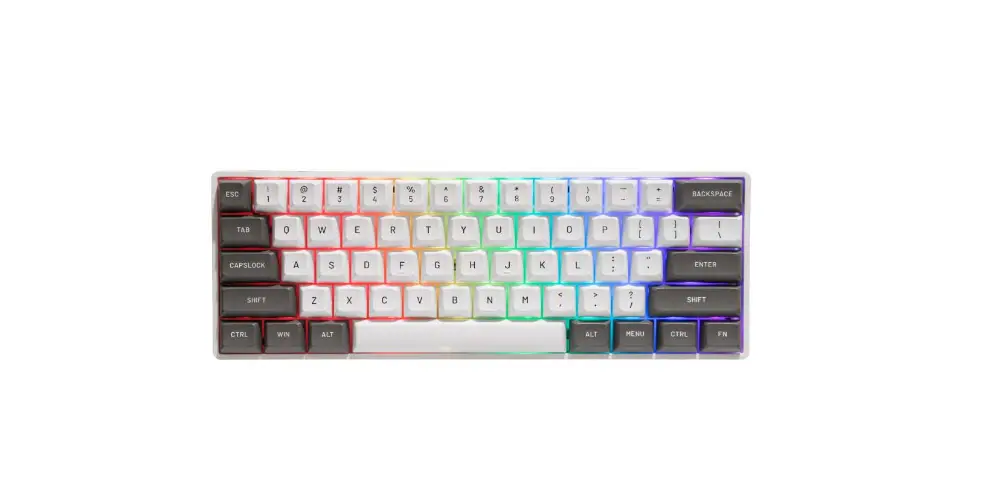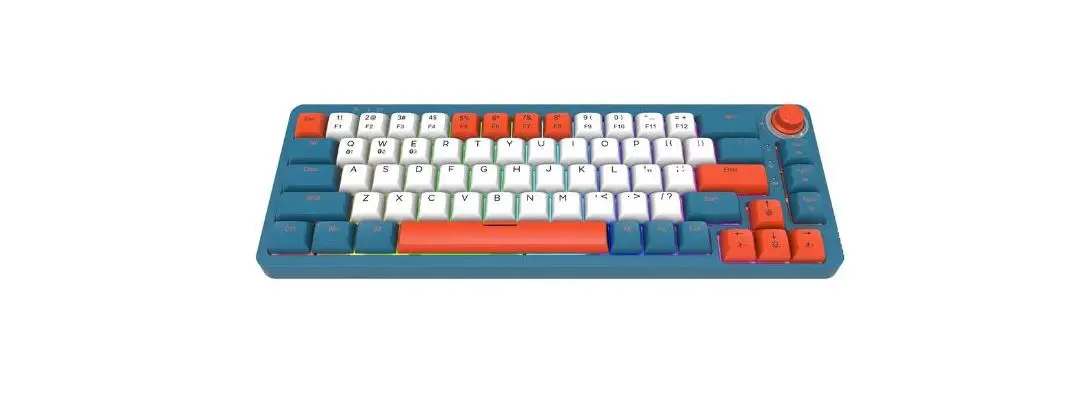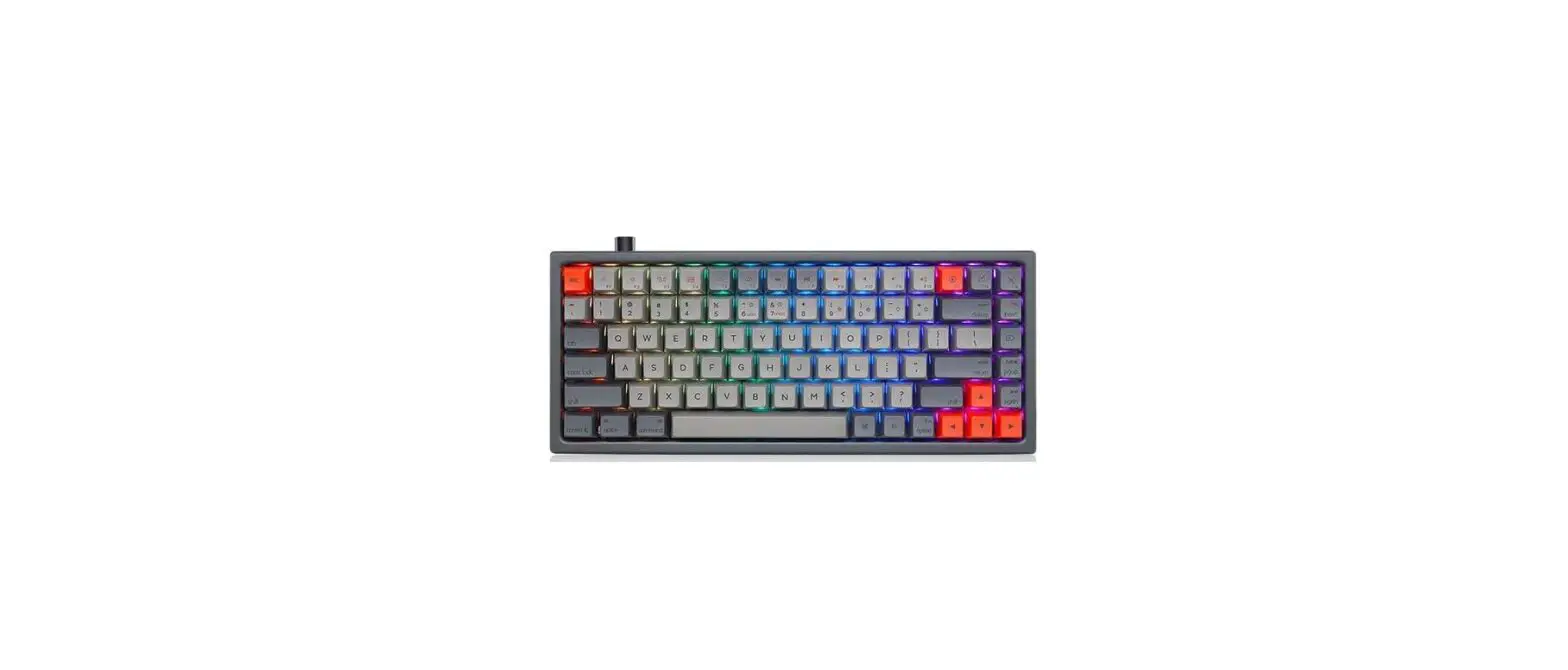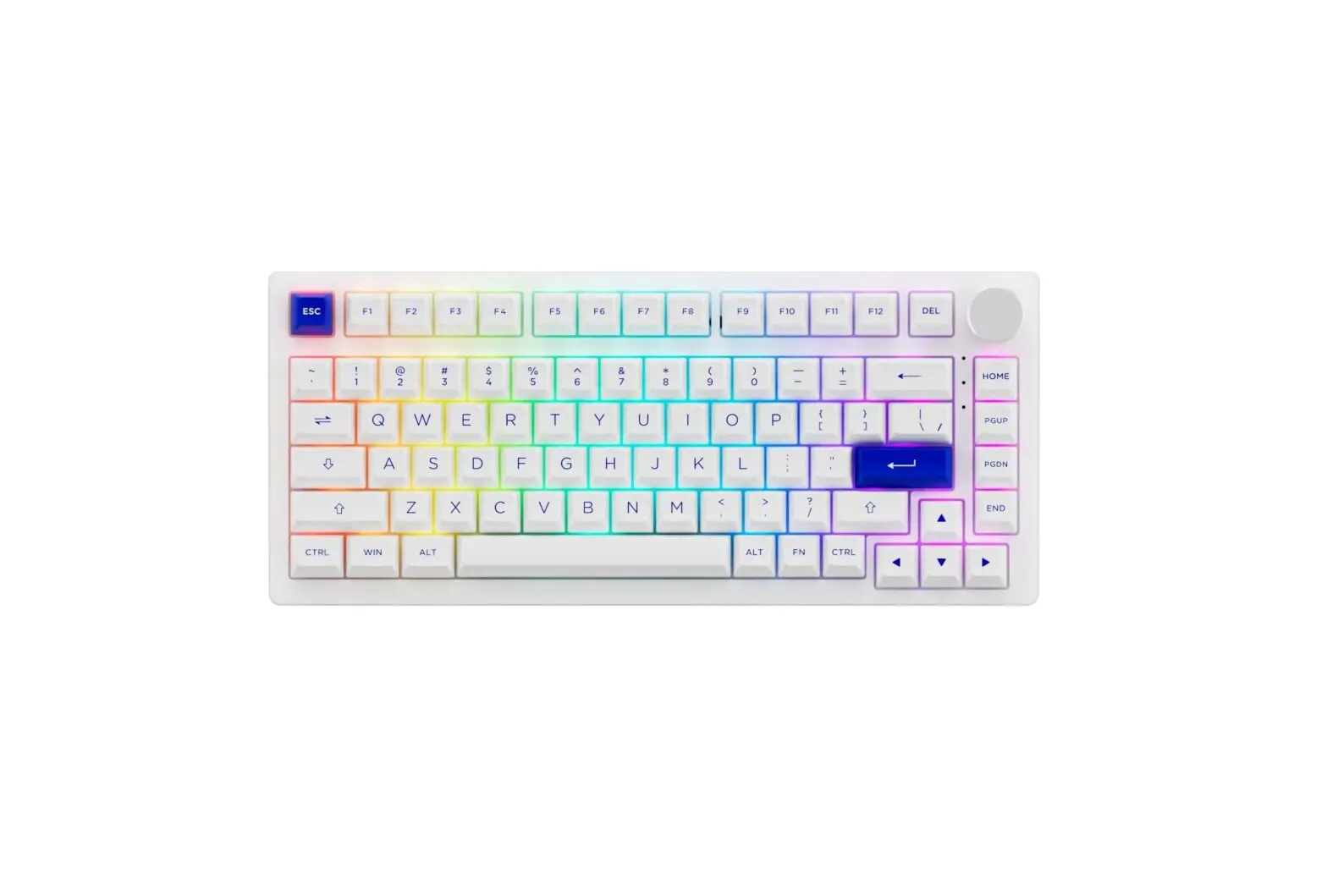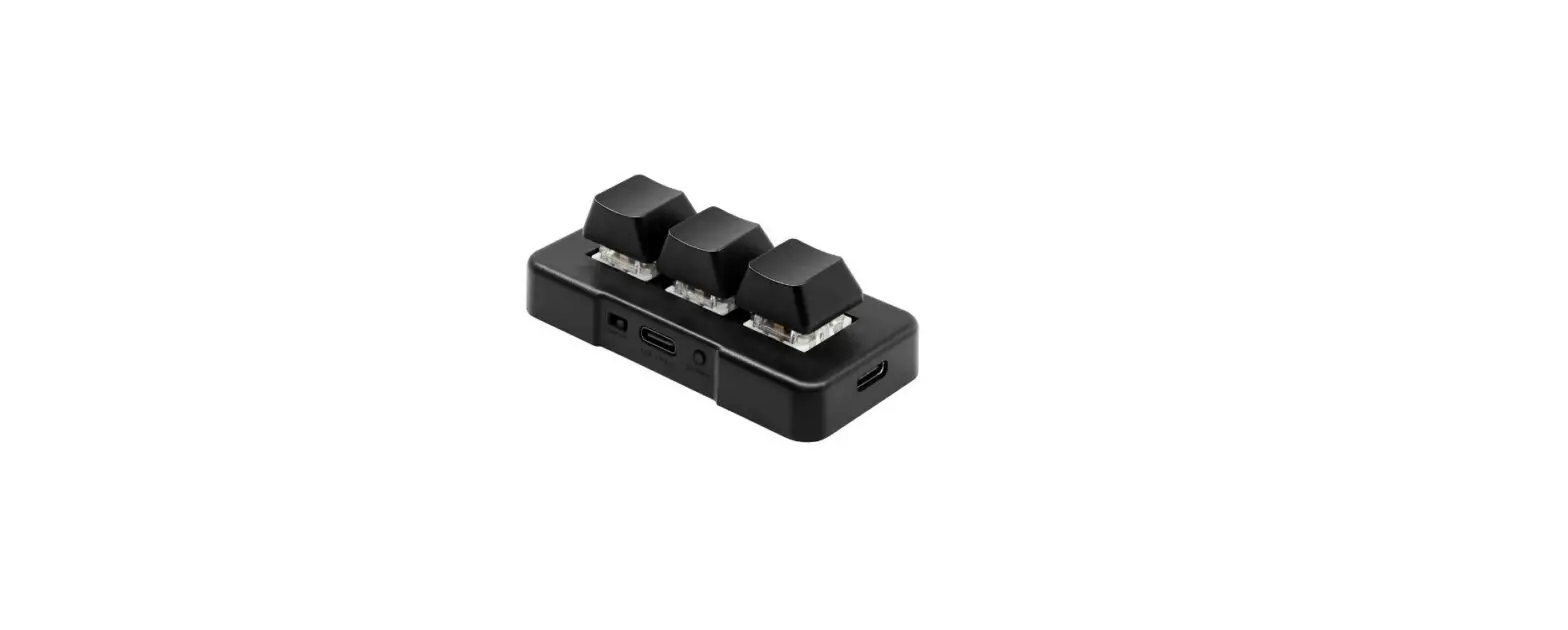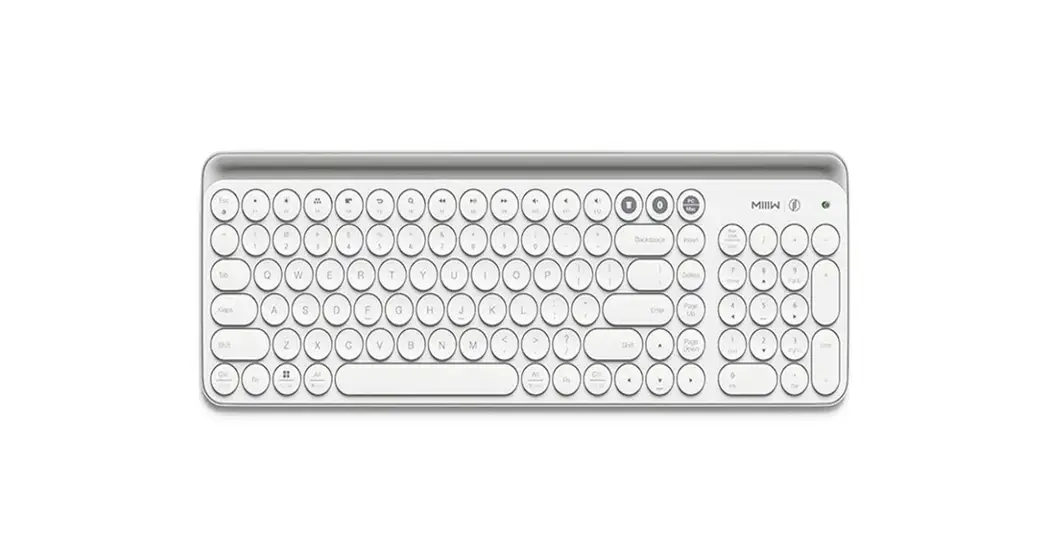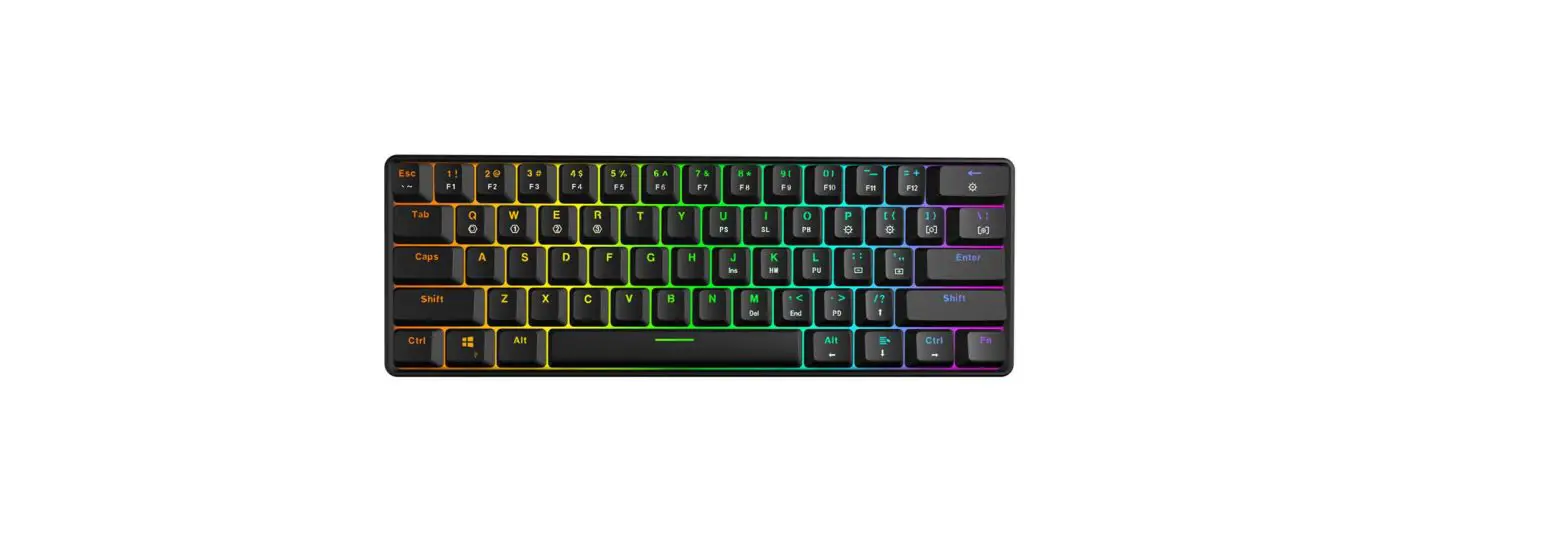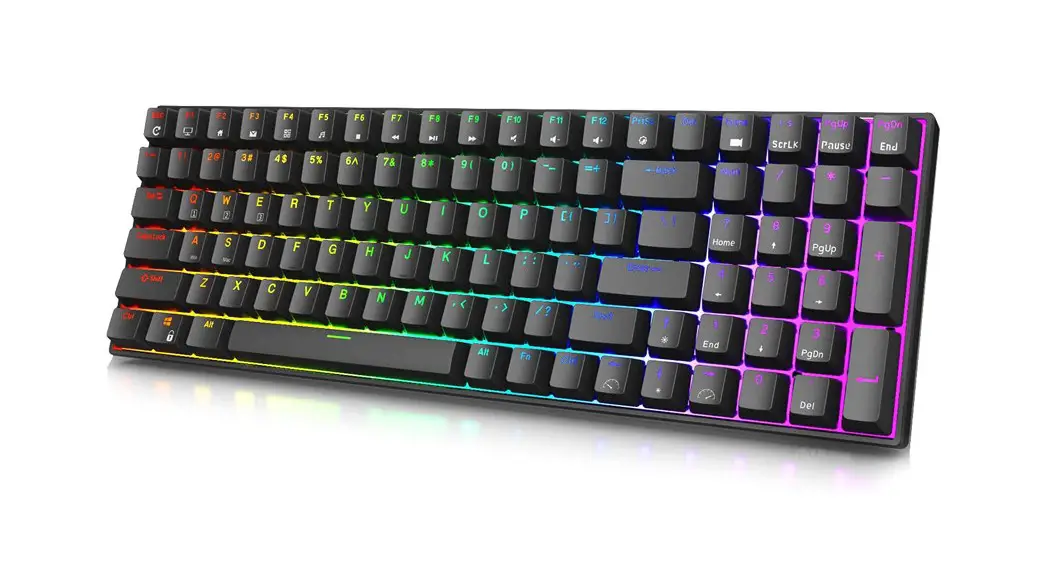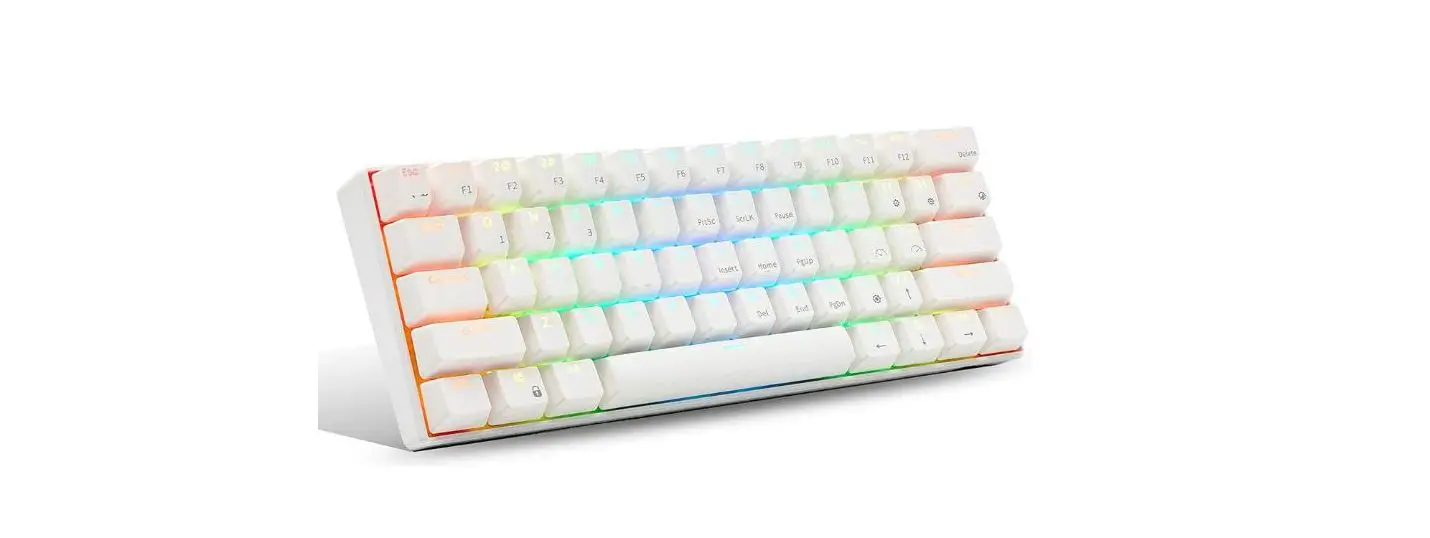
 GK75S RGB USB Bluetooth 2.4G 3 Modes Keyboard
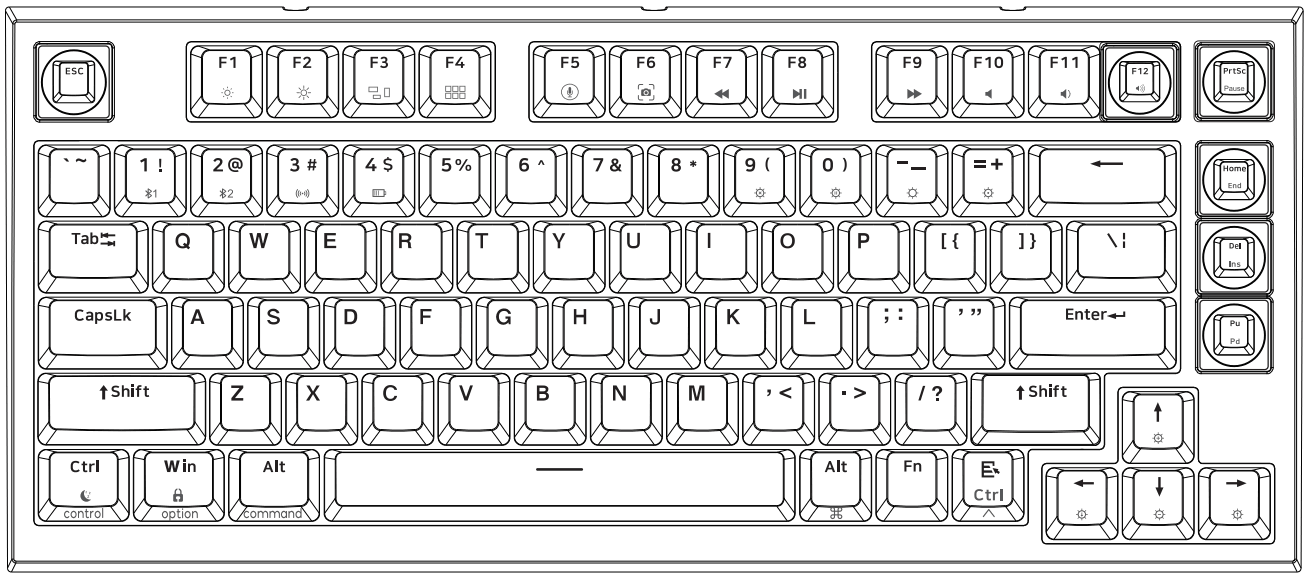 User Manual
Mode switch function
Switch 1 | Switch 2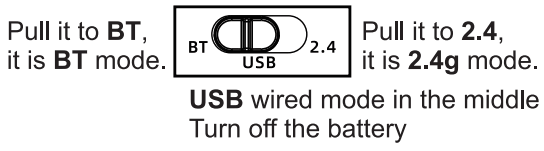 |
2.4g receiver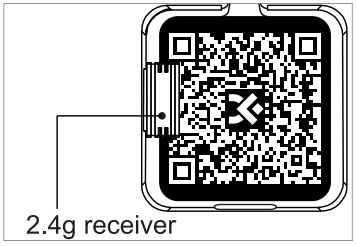
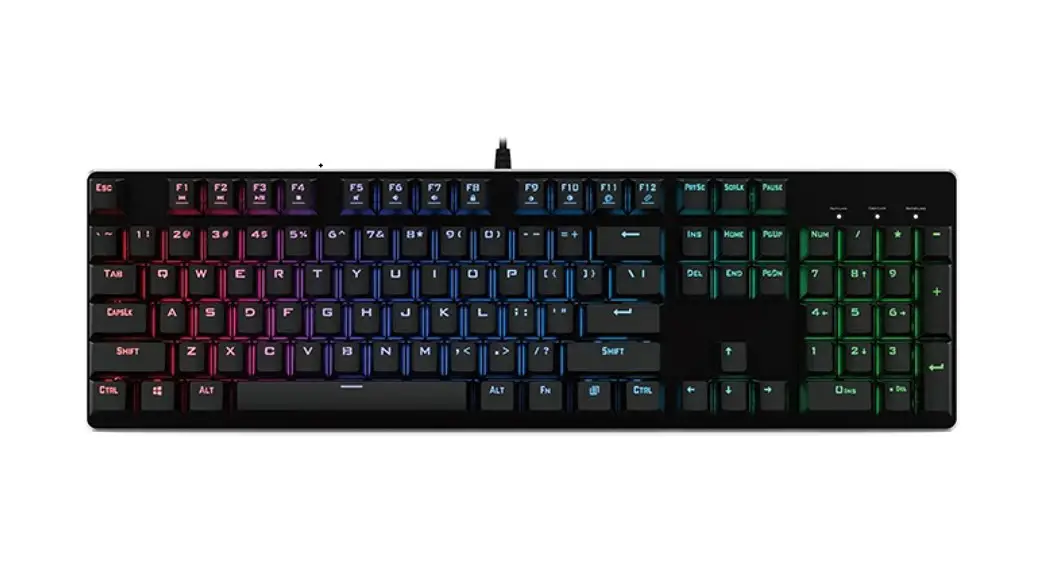
Backlight Settings (can not modify)
| Key | Function | Key | Function |
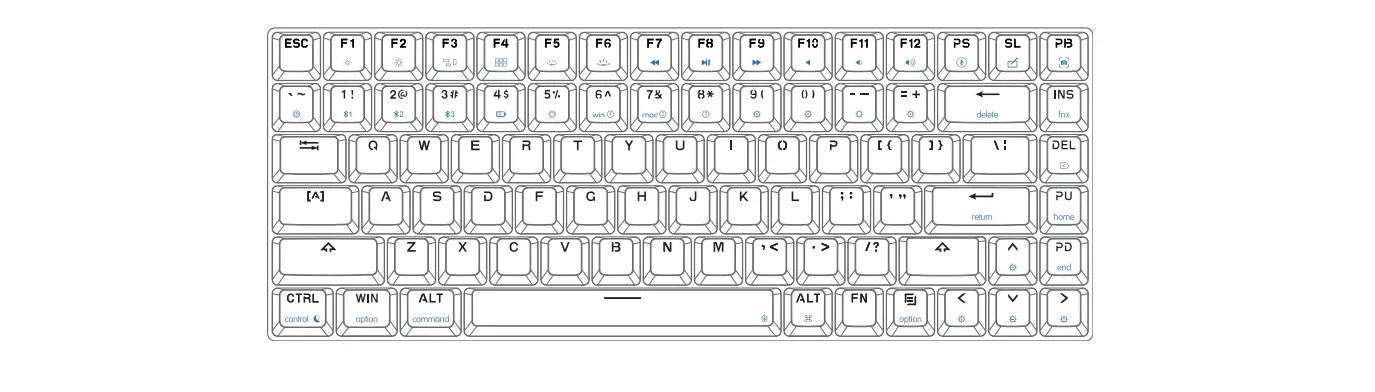
| FN + 9( |  Backlight ON/OFF Backlight ON/OFF | FN + |  Backlight brightness — Backlight brightness — |
| FN + 0) |  Light effect pause/play Light effect pause/play | FN + |  Backlight brightness + Backlight brightness + |
| FN + — |  Backlight mode 1-5 Backlight mode 1-5 | FN + |  Backlight Effect Speed — Backlight Effect Speed — |
| FN + =+ |  Backlight mode 6-9 Backlight mode 6-9 | FN + |  Backlight Effect Speed + Backlight Effect Speed + |
| FN + Home | End | FN + Backspace | Del |
| FN + Del | Insert | FN + Win |  Lock/Unlock Win key Lock/Unlock Win key |
| FN + Pgup | Pgdn | FN + 4$ |  Turn off/on the charging indicator low voltage alarm Turn off/on the charging indicator low voltage alarm |
| FN + L-Ctrl |  Backlight and wirless sleeping time setting, LED on F1 : 5 minutes, F2:10minutes F9:45minutes, F10 never sleep. Backlight and wirless sleeping time setting, LED on F1 : 5 minutes, F2:10minutes F9:45minutes, F10 never sleep. | ||
Wirless Contrion
| Key | Function | |
| FN + 1! |  Long press: The red&blue LED of 1! keycap will flash, The *1 bluetooth equipment can be paired. Long press: The red&blue LED of 1! keycap will flash, The *1 bluetooth equipment can be paired. | Press: The keyboard will connect the *1 BT equipment or disconnect. |
| FN + 2@ |  Long press: The red&blue LED of 2@ keycap will flash, The *2 bluetooth equipment can be paired. Long press: The red&blue LED of 2@ keycap will flash, The *2 bluetooth equipment can be paired. | Press: The keyboard will connect the *2 BT equipment or disconnect. |
| FN + 3# |  Long Press: for 3 seconds into 2.4 g equipment, enter the search device the red & green LED of 3# keycap will flash, pairing search time is 20 seconds, the keyboard with dongle can be paired,the keyboard will connect while 3# light green LED, 2 seconds into current light effect, the code has been successfully matched and can be used directly. Long Press: for 3 seconds into 2.4 g equipment, enter the search device the red & green LED of 3# keycap will flash, pairing search time is 20 seconds, the keyboard with dongle can be paired,the keyboard will connect while 3# light green LED, 2 seconds into current light effect, the code has been successfully matched and can be used directly.Press: 2.4 g mode. Or disconnect 2.4g, into USB or bluetooth mode If no any other connect, keyboard will go to sleep. | |
| FN + Space | In BT or 2.4g mode, Plug USB cable can quickly switch USB mode and wireless mode, easy to connect between multiple devices, It does not respond if there is no USB connection. | |
| Note: If the Wirless pairing timed out or failed, please re-pair; if the bluetooth pairing is successful on the equipment, but the keyboard can not work still, Please delete this keyboard in the Bluetooth list, Turn off bluetooth of your PC or Mobile , restart the keyboard, and re-pair. | ||
Knob function (6 PCS switches can be replaced to knobs,Install one knob by default)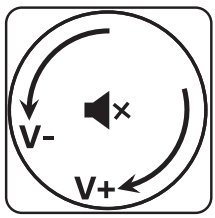
Standard Knob Settings
- Turn left : Volume —
- Turn right : Volume +
- Press: Mute 4.
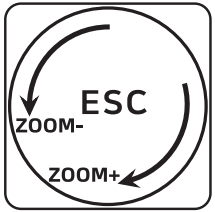
Knob function can be modified by the driver e.g.picture zoom in and zoom out
- Turn left: Zoom —
- Turn right: Zoom +
- Press: ESC
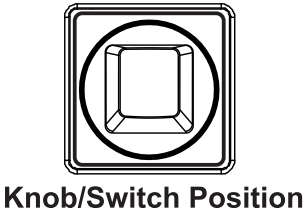
Mode function settings (User can modify the settings by the driver,download and save to the keyboard.)
| Key | Win mode(Win mode can modify on layer 1) | Mac mode (Mac mode can modify on layer 2) | ||
| F1 | Fl |  Screen brightness — for Mac Screen brightness — for Mac | (FN+F1=F1) | |
| F2 | F2 |  Screen brightness + for Mac Screen brightness + for Mac | (FN+F2=F2) | |
| F3 | F3 |  for Mac for Mac | (FN+F3=F3) | |
| F4 | F4 |  for Mac for Mac | (FN+F4=F4) | |
| F5 | F5 |  One click call Siri for Mac One click call Siri for Mac | (FN+F5=F5) | |
| F6 | F6 |  Screenshot for Mac Screenshot for Mac | (FN+F6=F6) | |
| F7 |  Previous Previous | (FN+F7=F7) | Previous | (FN+F7=F7) |
| F8 |  NI Play/Pause NI Play/Pause | (FN+F8=F8) | Play/Pause | (FN+F8=F8) |
| F9 |  Next Next | (FN+F9=F9) | Next | (FN+F9=F9) |
| F10 |  Mute Mute | (FN+Fl 0=F1 0) | Mute | (FN+F10=F10) |
| F11 |  Volume — Volume — | (FN+F11=F11) | Volume — | (FN+F11=F11) |
| F12 |  Volume 4- Volume 4- | (FN+F12=F12) | Volume + | (FN+F12=F12) |
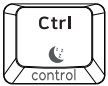 | Ctrl | control | ||
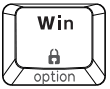 | Win | option | ||
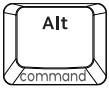 | Alt | command | ||
 | Alt | command A control | ||
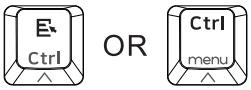 | Ctrl | |||
Win Driver download address: http://www.jikedingzhi.com/downloadlist?driverID=41
Mac APP download address: http://www.jikedingzhi.com/downloadlist?driverlD=90
Federal Communications Commission Notice
This device complies with part 15 of the FCC Rules. Operation is subject to the following two conditions: (1) This device may not cause harmful interference, and (2) this device must accept any interference received, including interference that may cause undesired operation. Any Changes or modifications not expressly approved by the party responsible for compliance could void the user’s authority to operate the equipment.
Note: This equipment has been tested and found to comply with the limits for a Class B digital device, pursuant to part 15 of the FCC Rules. These limits are designed to provide reasonable protection against harmful interference in a residential installation.
This equipment generates uses and can radiate radio frequency energy and, if not installed and used in accordance with the instructions, may cause harmful interference to radio communications. However, there is no guarantee that interference will not occur in a particular installation. If this equipment does cause harmful interference to radio or television reception, which can be determined by turning the equipment off and on, the user is encouraged to try to correct the interference by one or more of the following measures:
- Reorient or relocate the receiving antenna.
- Increase the separation between the equipment and receiver.
- Connect the equipment into an outlet on a circuit different from that to which the receiver is connected.
- Consult the dealer or an experienced radio/TV technician for help.
The device has been evaluated to meet general RF exposure requirement.
The device can be used in portable exposure condition without restriction.