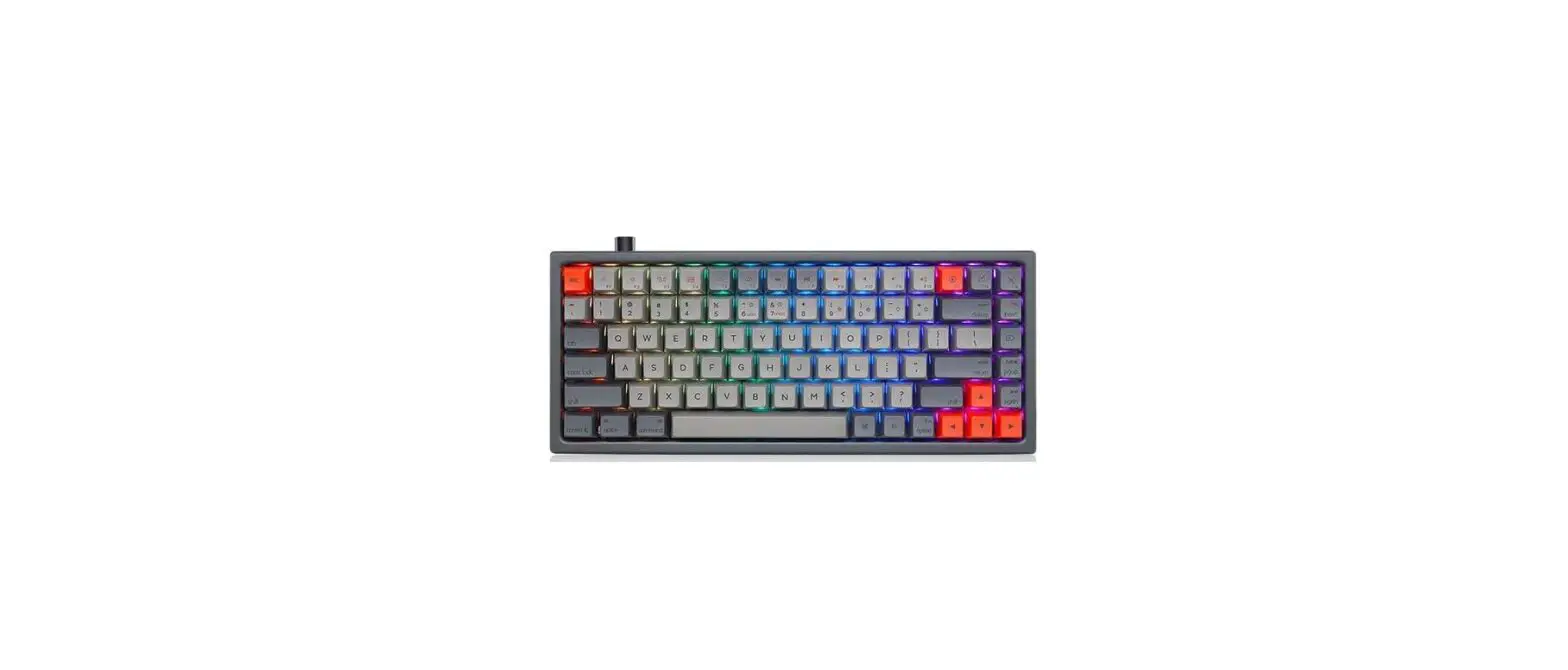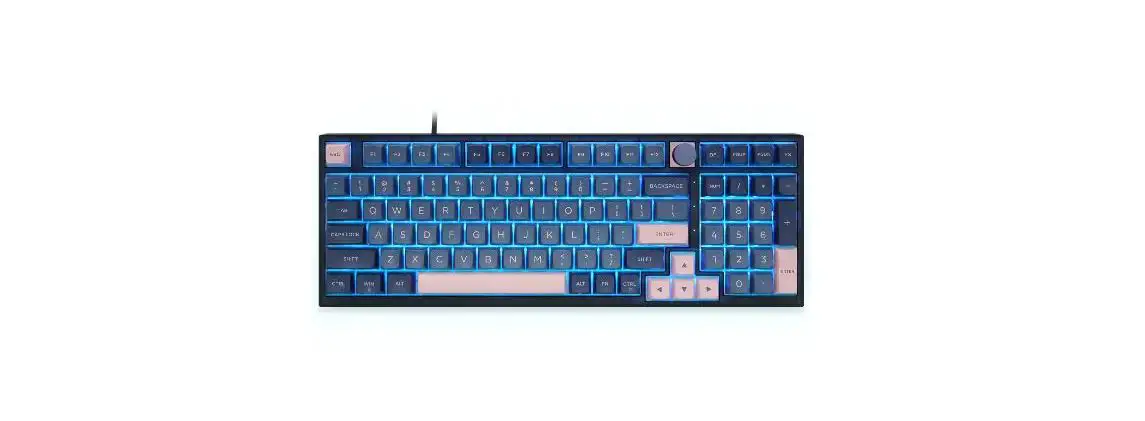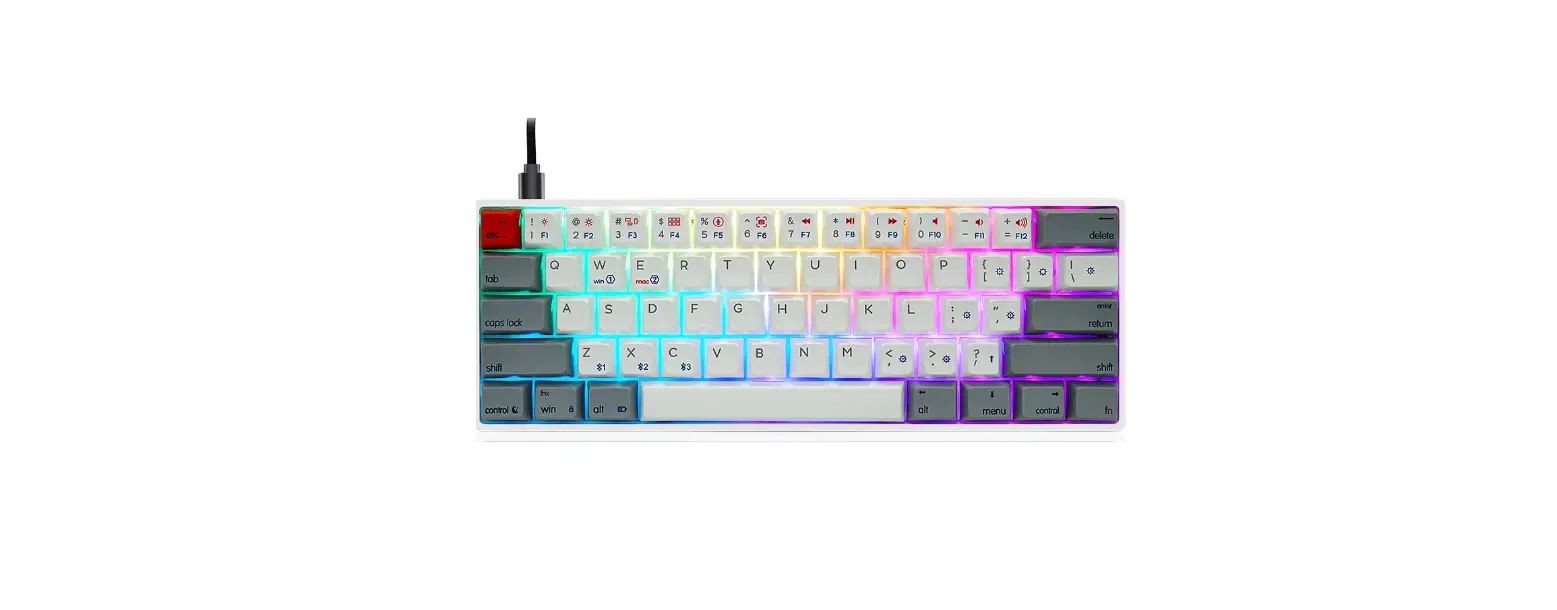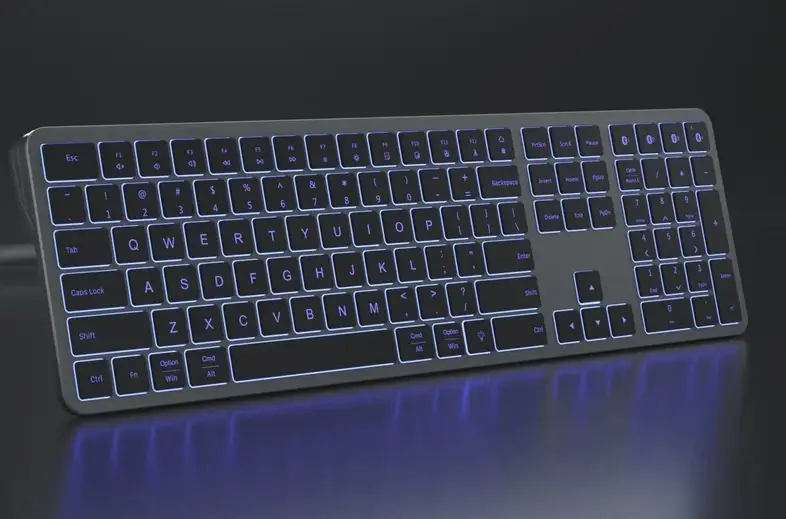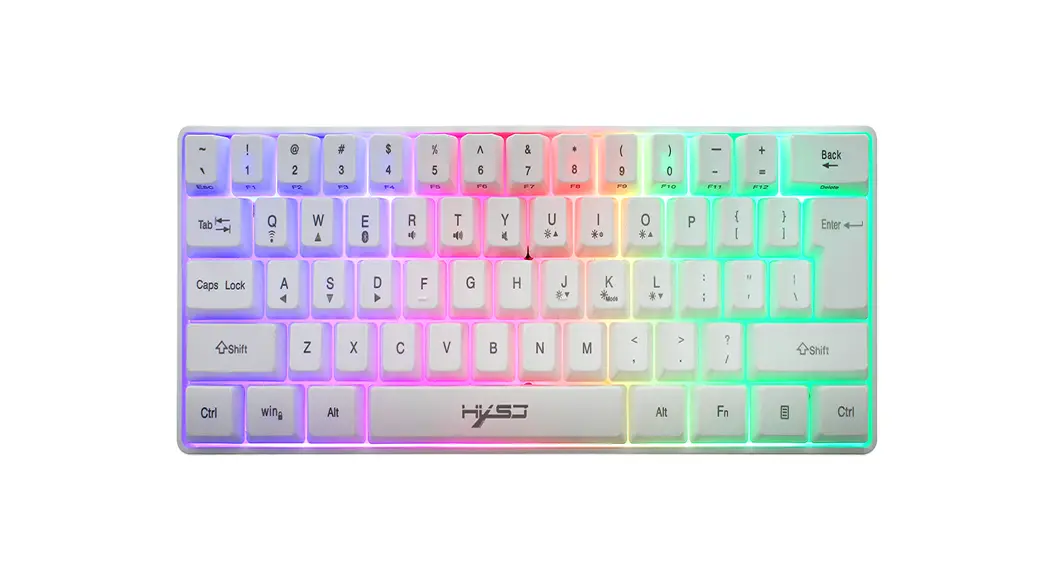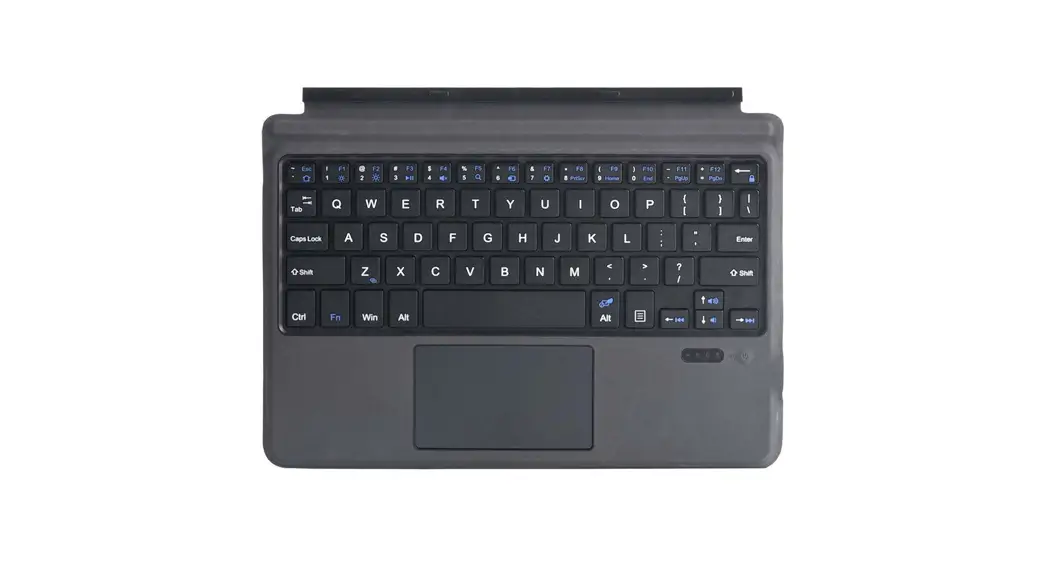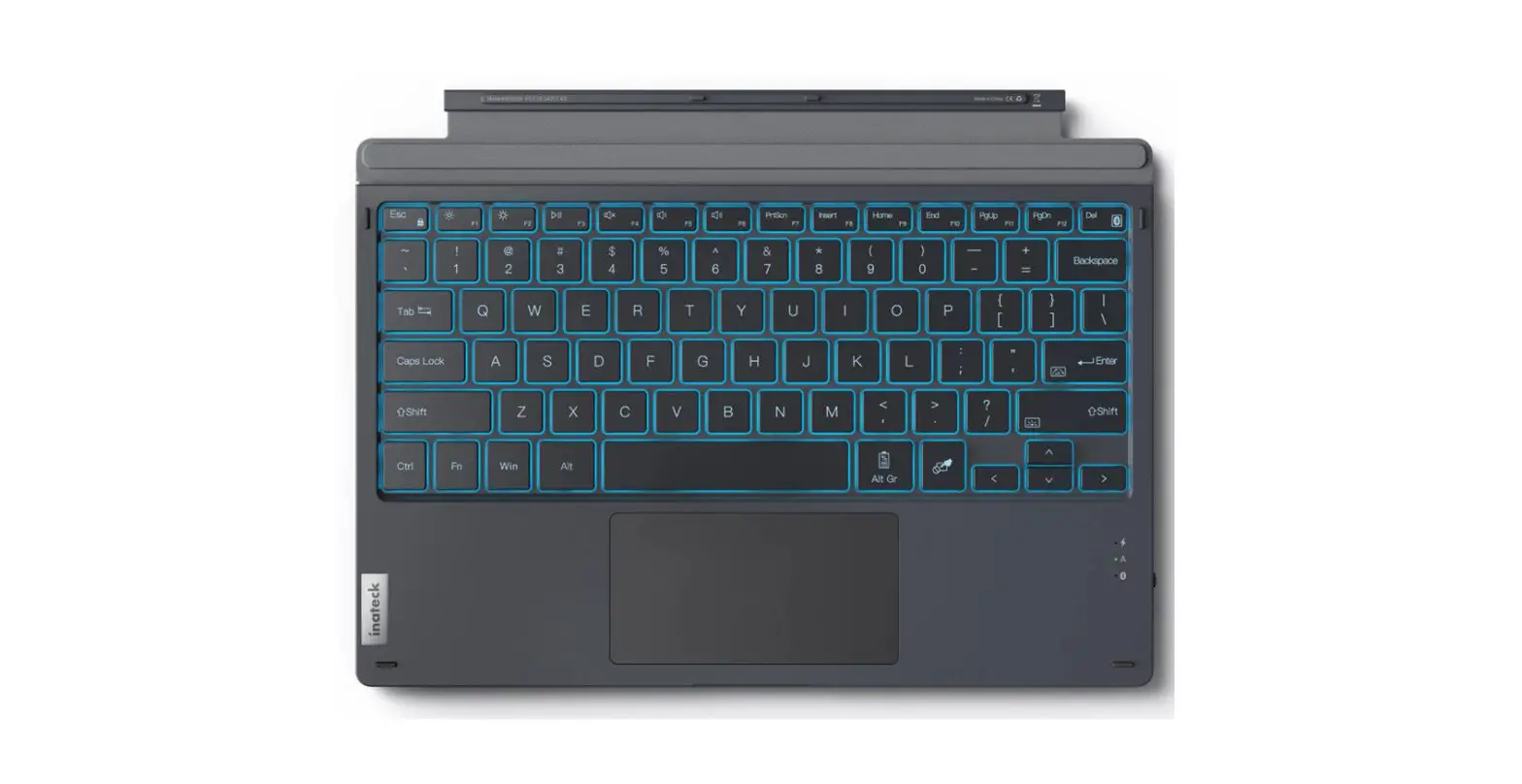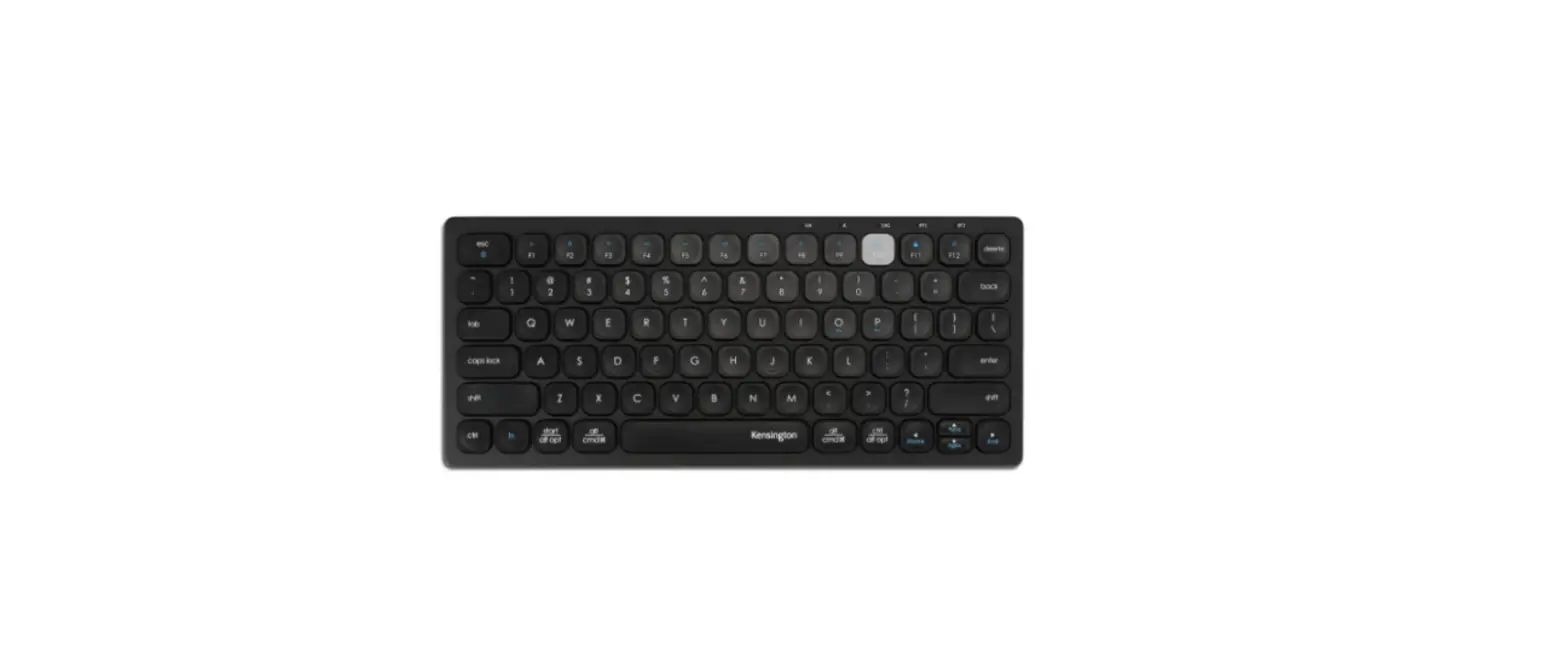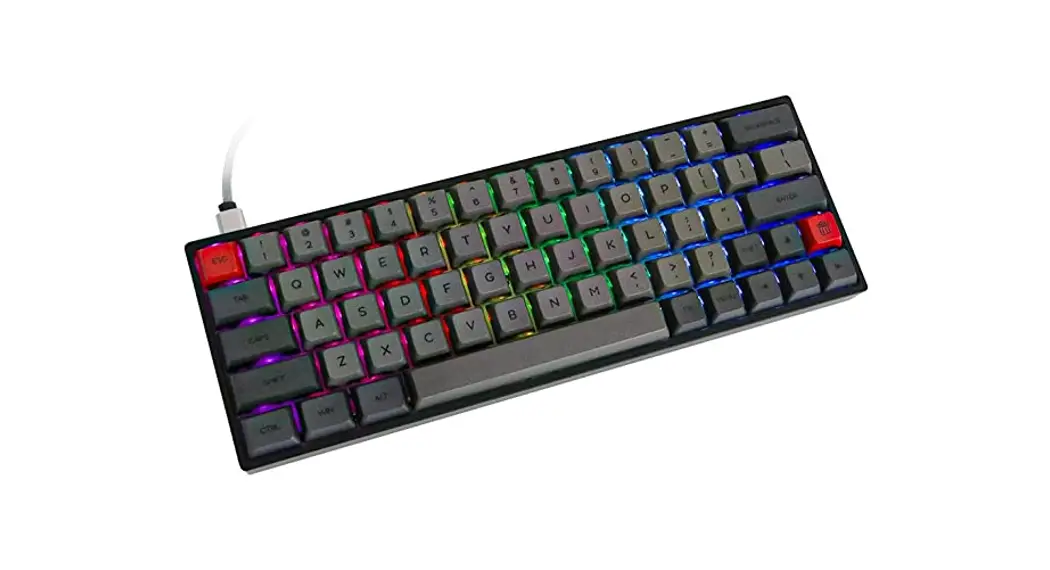

USB+Bluetooth 2 mode Keyboard
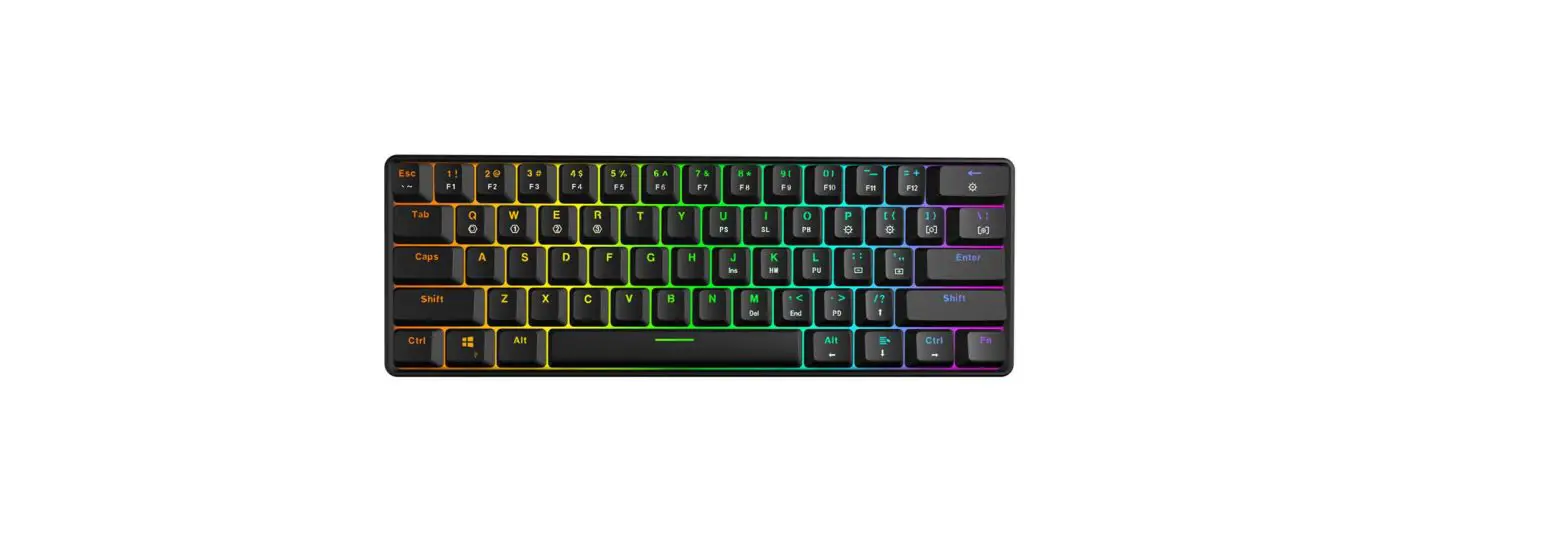
Item: SK64S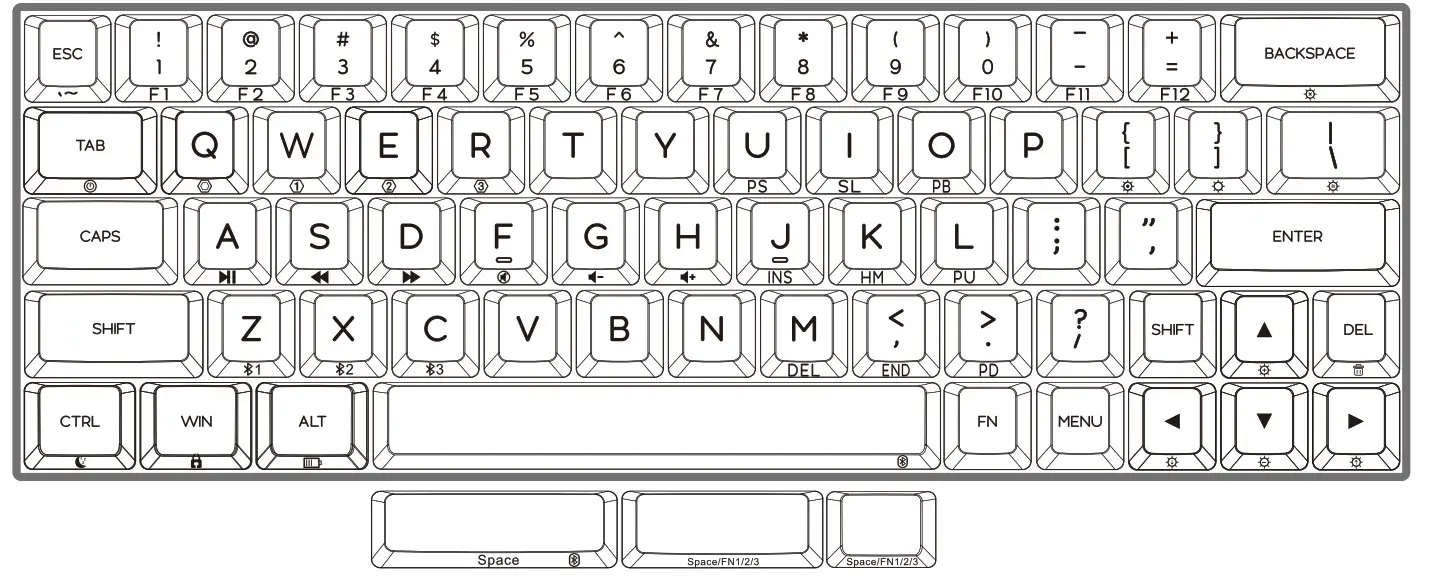
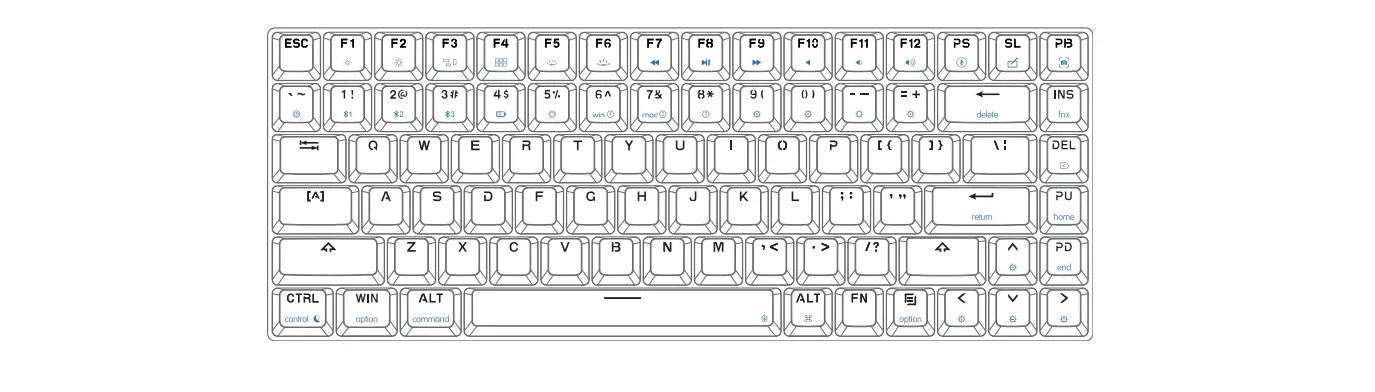
* NOTE: Press Fn with the function keys.
*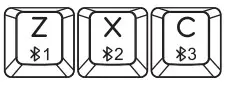 one of the blues LEDs is flashing, The keyboard is connecting the BT equipment.
  Bluetooth ON/OFF switch, Link to USB mode.
FN function description (Double-click FN to light FN’s white LED, FN function is held, click FN again to escape from holding status).
Midea key (Standard mode settings)
| Key | Function | Key | Function |
| FN +A |  Play/Pause Play/Pause | FN + F |  Mute Mute |
| FN + S |  Previous Previous | FN + G |  Volume- Volume- |
| FN + D |  Next Next | FN + H |  Volume+ Volume+ |
BT&System settings(BT model only, can not modify)
| Key | Function | |
| FN + Space |  | Bluetooth ON/OFF switch |
| Link to USB mode or the last BT equipment. | ||
| FN + Z |  | Long press: The red&green LED of 2 keycaps will flash. The *1 Bluetooth equipment can be paired. |
| Press: The keyboard will con the $1 BT equipment or disconnect. | ||
| FN + X |  | Long press: The red&green LED of X keycap will flash, Tbe*2bluetooth equipment can be paired. |
| Press: The keyboard will connect the*2 BT equipment or disconnect | ||
| FN + C |  | Long press: The red&green LED of the C keycap will flash, The $3bluetoolh equipment can be paired. |
| Press: The keyboard will con the$3 BT equipment or disconnect | ||
Note: If the Bluetooth pairing is dined out or failed, please re-pair. If the Bluetooth pairing is successful on the equipment, but the keyboard can not work still, please delete the keyboard in the Bluetooth list of the equipment and pair again.
| FN + Tabe | GK 8T model series-long press for 3 seconds to one off the keyboard |
 | SK BT model series long-press thee’ key in the label under the keyboard for 3 seconds to on/off the keyboard |
| FN + Win |  Lock/Unlock Win key Lock/Unlock Win key |
| FN + L – Alt | Low vo itage&chargIng status Indicator ON/OFF Logo LED&back side LED ON/OFF Logo LED&back side LED |
| FN + L – Ctrl |  Keyboard’s sleep time setting, white LED onO: never sleep, 1:5minutes, 2:10minutes…….9:45mInutes to sleep. Keyboard’s sleep time setting, white LED onO: never sleep, 1:5minutes, 2:10minutes…….9:45mInutes to sleep. |
FN + function(Standard mode settings)
| Key | Function | Key | Function |
| FN + 1 | F1 | FN + 7 | F7 |
| FN + 2 | F2 | FN + 8 | F8 |
| FN + 3 | F3 | FN + 9 | F9 |
| FN + 4 | F4 | FN + 0 | F10 |
| FN + 5 | F5 | FN + – | F11 |
| FN + 6 | F6 | FN + + | F12 |
| FN + U | PS | FN +J | Ins |
| FN+I | SL | FN + K | HM |
| FN + 0 | PB | FN + L | PU |
| FN + < | End | FN + M | Del |
| FN + > | PD | FN + Esc | • |
| FN+Shift+Esc | ∼ | ||
Backlight settings(Can not modify )
| Key | Function |
| FN + backspace← | Backlight ON/OFF |
| FN + D |  Backlight mode 1-5 (Can modify) Backlight mode 1-5 (Can modify) |
| FN + [{ |  Backlight mode 6-9 Backlight mode 6-9 |
| FN + 1I |  Light effect pause/play Light effect pause/play |
| FN + ↓ |  Cl- Backlight brightness — Cl- Backlight brightness — |
| FN + ↑ |  Backlight brightness + Backlight brightness + |
| FN + ← |  Backlight Effect Speed — Backlight Effect Speed — |
| FN +→ |  Backlight Effect Speed + Backlight Effect Speed + |
Define mode
| Key | Function |
| Standard mode | In standard mode, all buttons can not be user-defined. User can customize their own personality keyboard by the following 4 modes. On-board model 1/2/3 is strongly recommended,(Note: In the custom mode, except FN key, other keys can be redefined key values, some of the FN + ” x ” function can be also modified, except the backlight, Bluetooth, and system control. The FN button can not be moved, but the user can define their own FN1/FN2/FN3 at any key on the keyboard in the custom mode). |
| FN + Q Driver mode |  FN + Q is the driver mode layer, ” Q ” lights white LED, some special function ( For example You may assign a macro of more than 32 bytes to a key in the driver mode while it’s unavailable in those onboard mode layer ) and backlights can be set in this mode. You must keep the driver running and the keyboard connected with the driver. Press FN + Q again, back to standard mode. FN + Q is the driver mode layer, ” Q ” lights white LED, some special function ( For example You may assign a macro of more than 32 bytes to a key in the driver mode while it’s unavailable in those onboard mode layer ) and backlights can be set in this mode. You must keep the driver running and the keyboard connected with the driver. Press FN + Q again, back to standard mode. |
| FN + W Onboard model Layer’ I Fnl | 1. FN + W, onboard mode layer 1, ” W ” lights white LED, no need to run and connect the driver. The keyboard works in the custom key functions and the user can modify the key functions and macro Settings by the driver and these Settings can be downloaded and saved to the keyboard. The reference Setting: the multifunctional reuse Settings of the space bar, click for the regular space function, Space + other key combination to achieve the onboard mode layer3 call function. Press FN + W again, back to the standard model. |
| FN +E Onboard mode2 Layer2 / Fn2 MAC OS mode | 2. FN + E, onboard mode layer 2, ” E ” lights white LED. The reference Setting: keyboard of MAC OS, the “control, option, command “key will be in the original position, user can modify the Settings by the driver, download and save to the keyboard, no need to run and connect the driver when using Mac’s function settings. Press FN + E again, back to the standard model. |
| FN +R Onboard mode3 Layer3 / Fn3 | 3. FN + R, onboard mode layer 3, ” R ” lights white LED. The reference Setting: Some special function keys, combination keys, or macro keys, these settings of this model can be called by the key FN3 in layerl&layer2, All Settings in this mode can be modified and saved to the keyboard. Press FN+R again, back to the standard model. |
More function and LED backlight settings, please download or update the driver from the following website: http://www.jikedingzhi.com/downloadlist?driverlD=41
Dongguan Jizhi Electronic Technology Co., Ltd
This device complies with part 15 of the FCC Rules. Operation is subject to the following two conditions:
(1) This device may not cause harmful interference, and
(2) this device must accept any interference received, including interference that may cause undesired operation.
This equipment has been tested and found to comply with the limits for a Class B digital device, pursuant to part 15 of the FCC Rules. These limits are designed to provide reasonable protection against harmful interference in a residential installation. This equipment generates, uses and can radiate radio frequency energy and, if not installed and used in accordance with the instructions, may cause harmful interference to radio communications. However, there is no guarantee that interference will not occur in a particular installation. If this equipment does cause harmful interference to radio or television reception, which can be determined by turning the equipment off and on, the user is encouraged to try to correct the interference by one or more of the following measures:
– Reorient or relocate the receiving antenna. – Increase the separation between the equipment and receiver.
– Connect the equipment into an outlet on a circuit different from that to which the receiver is connected.
– Consult the dealer or an experienced radio/TV technician for help.
Any changes or modifications not expressly approved by the party responsible for compliance could void the user’s authority to operate the equipment.
FCC Radiation Exposure Statement
This equipment complies with FCC radiation exposure limits set forth for an uncontrolled environment. This transmitter must not be co-located or operating in conjunction with any other antenna or transmitter.