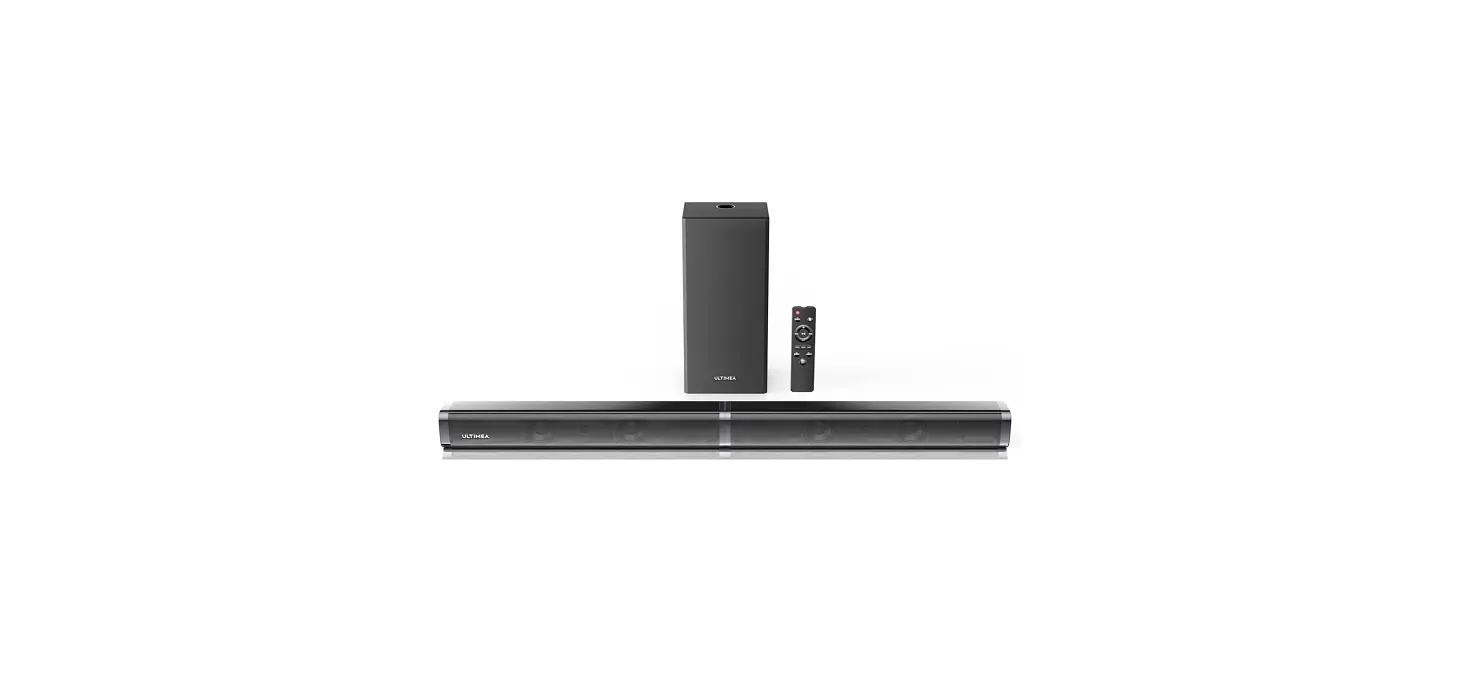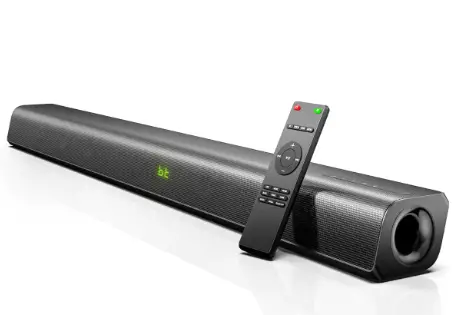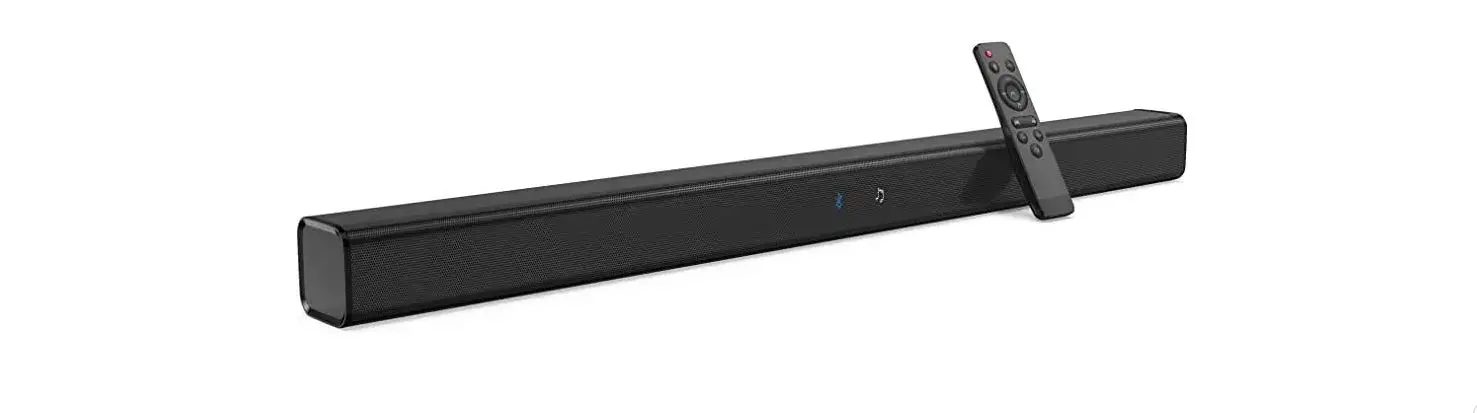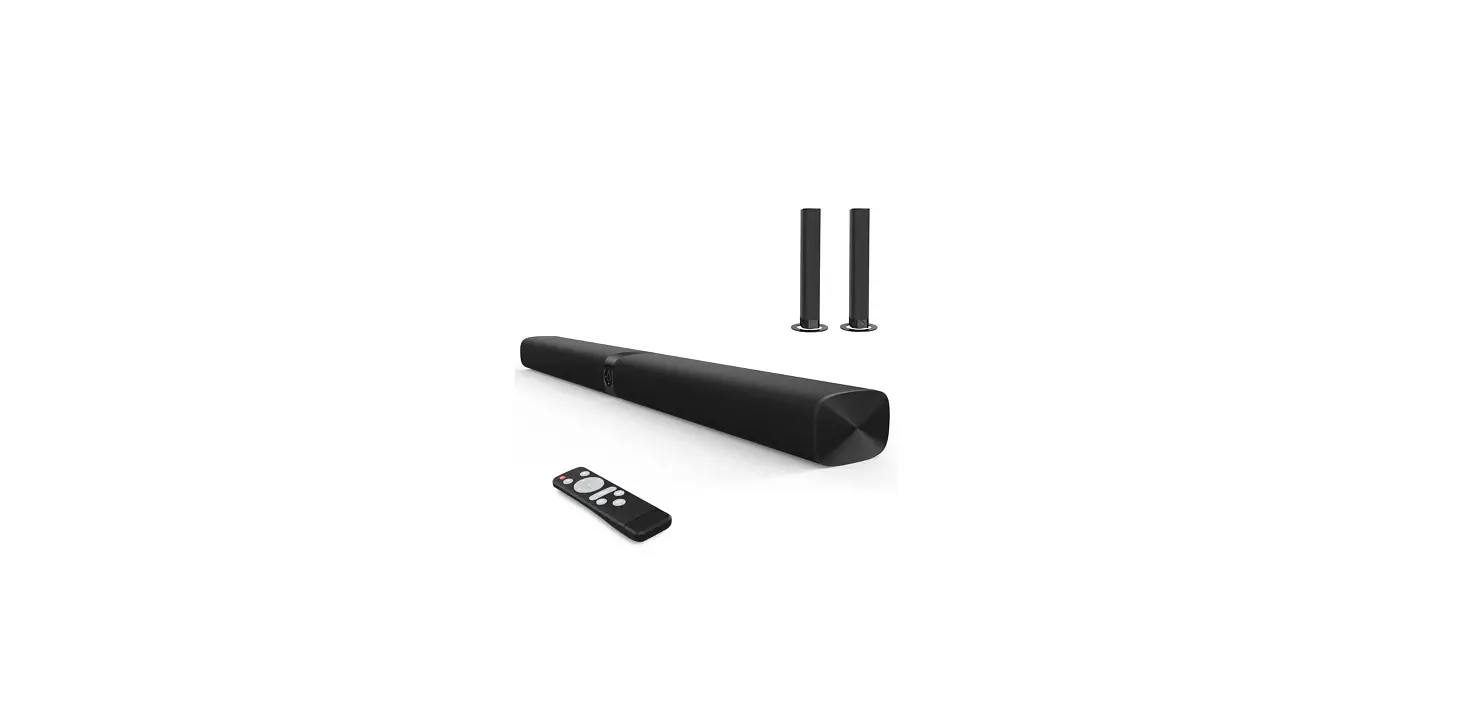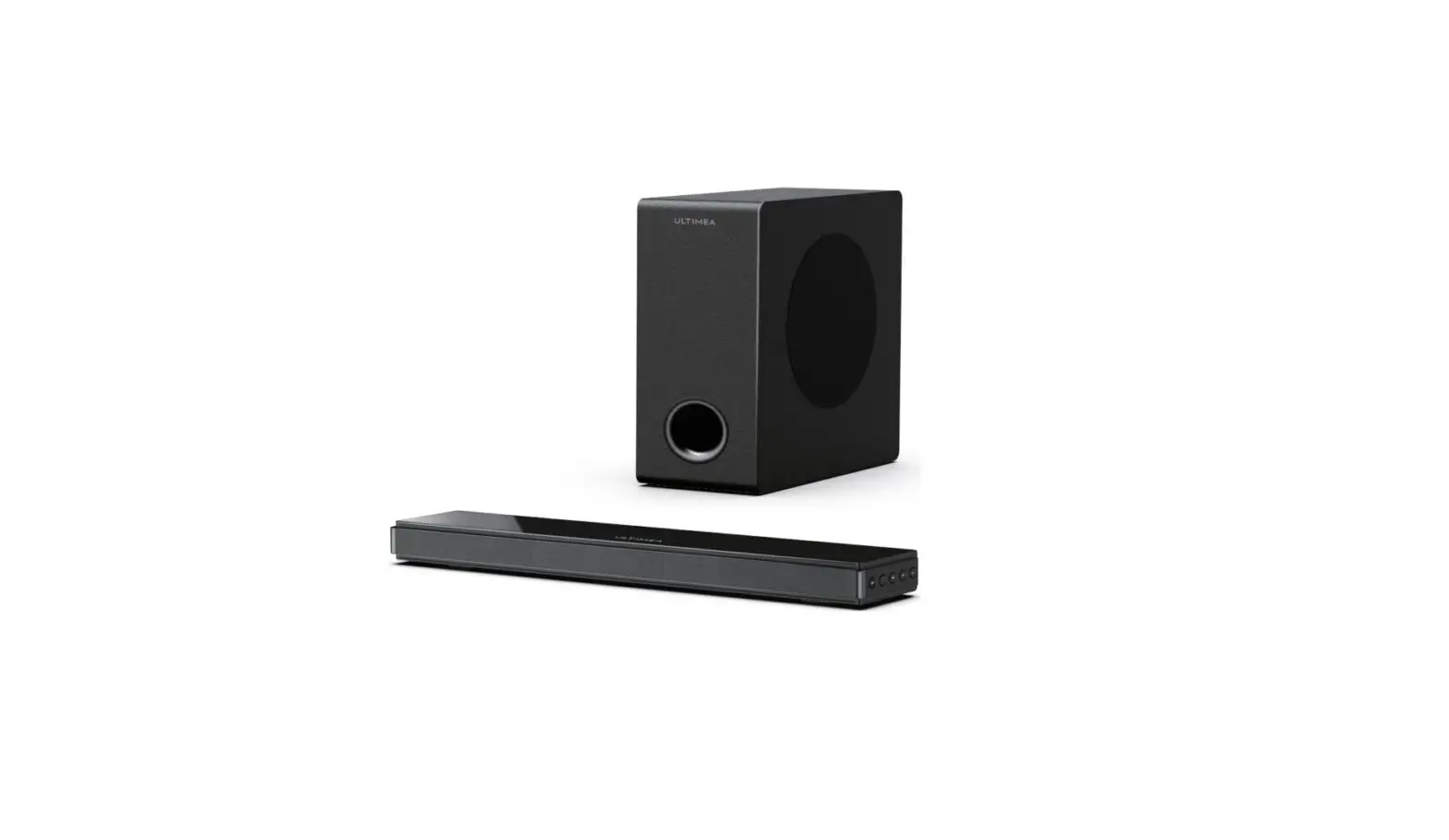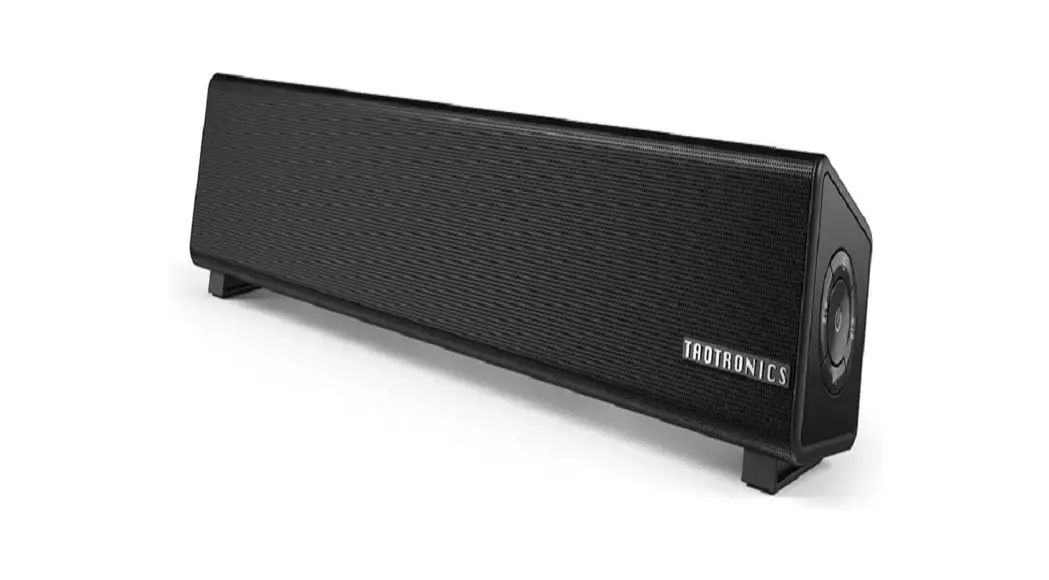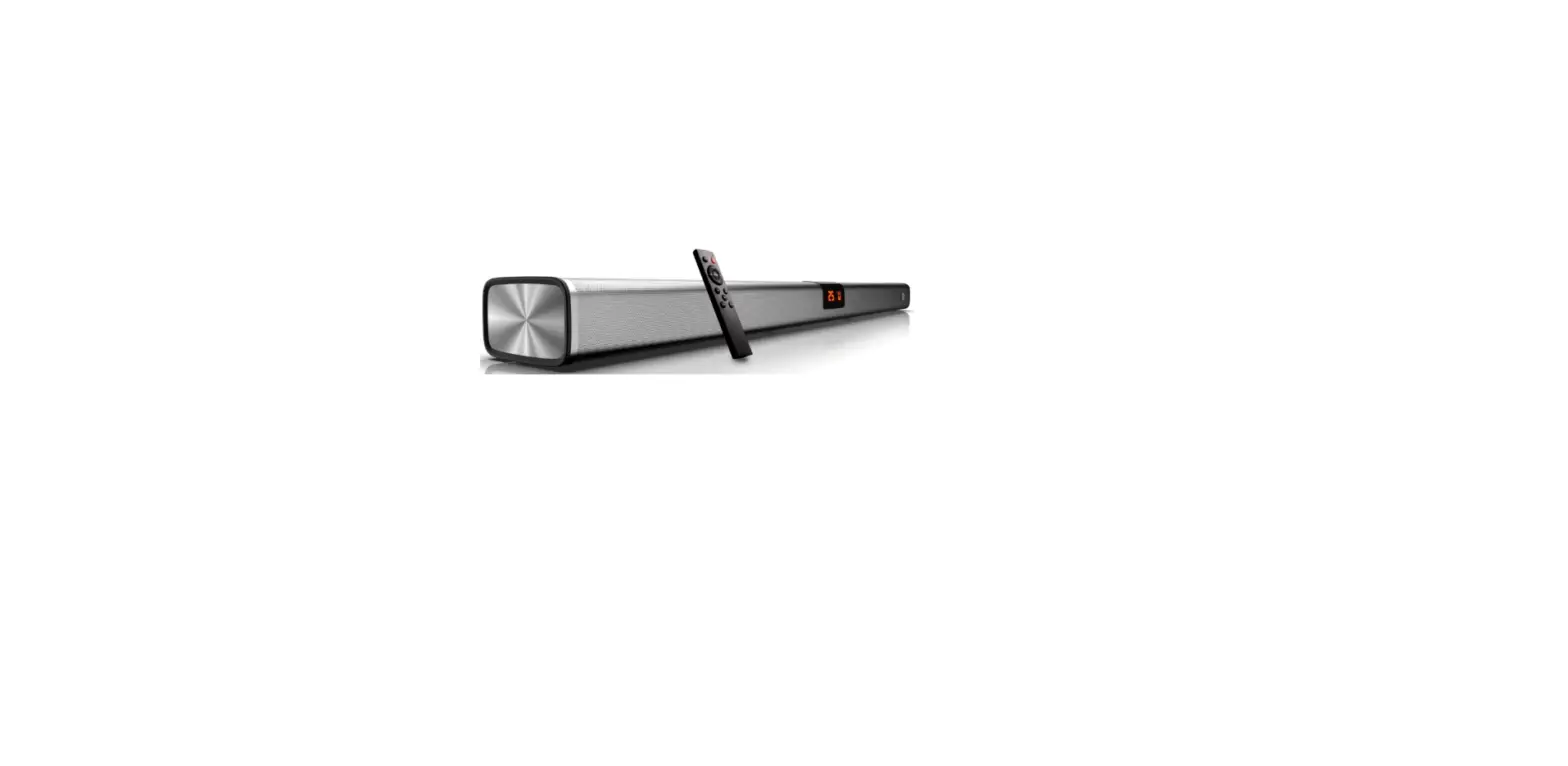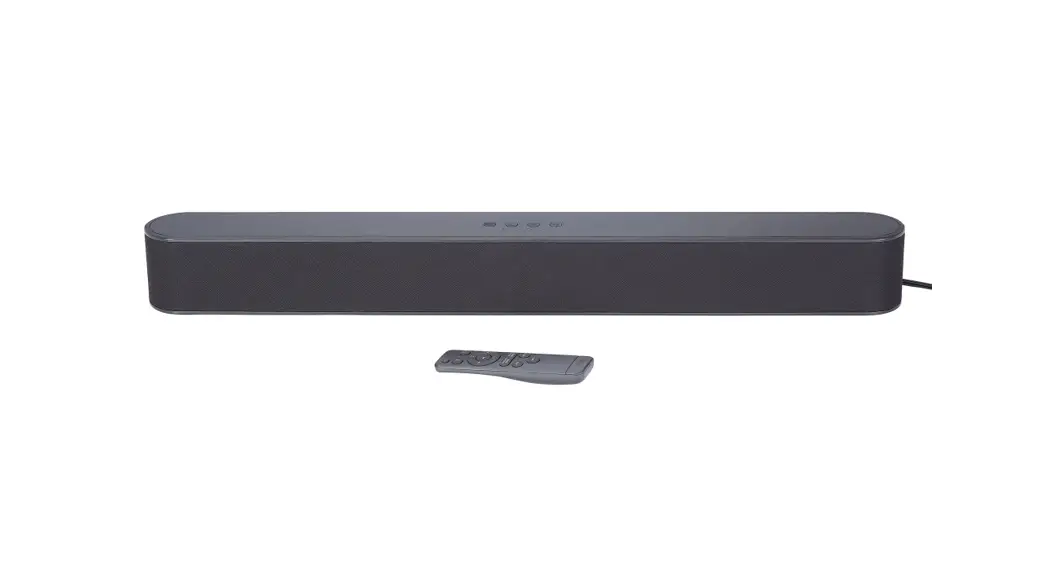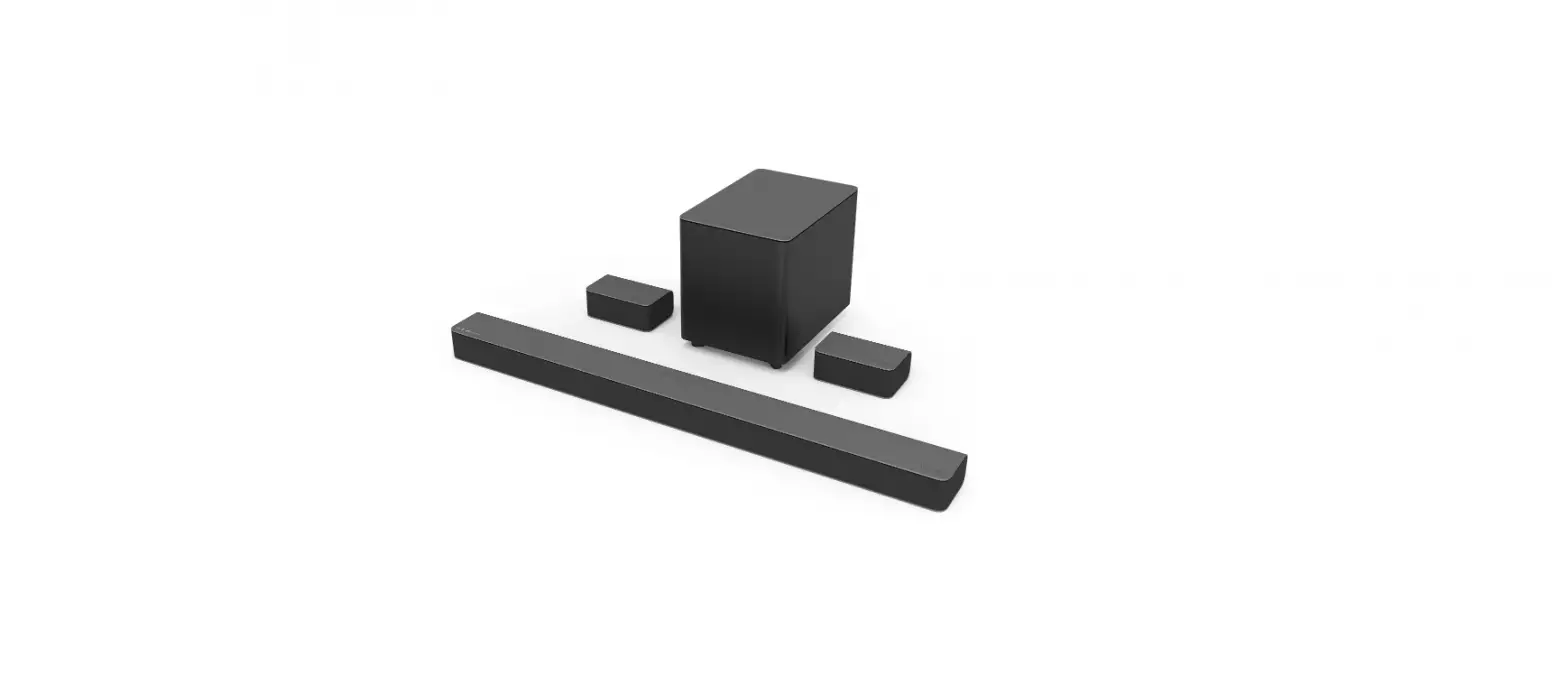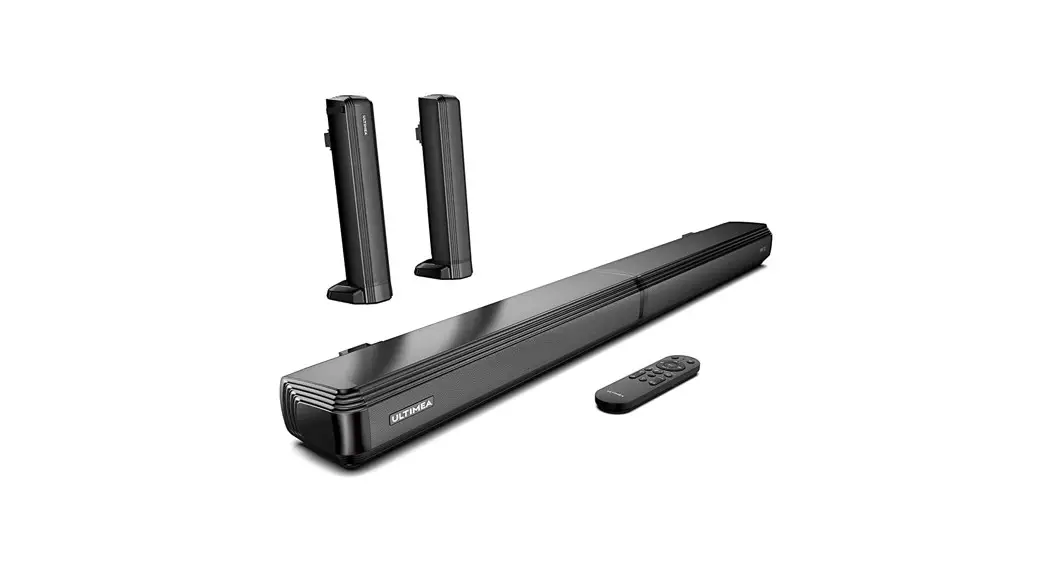
 U3300 2.2ch Sound Bars for TV
2 in 1 Separable Speakers
Apollo S40
User Guide
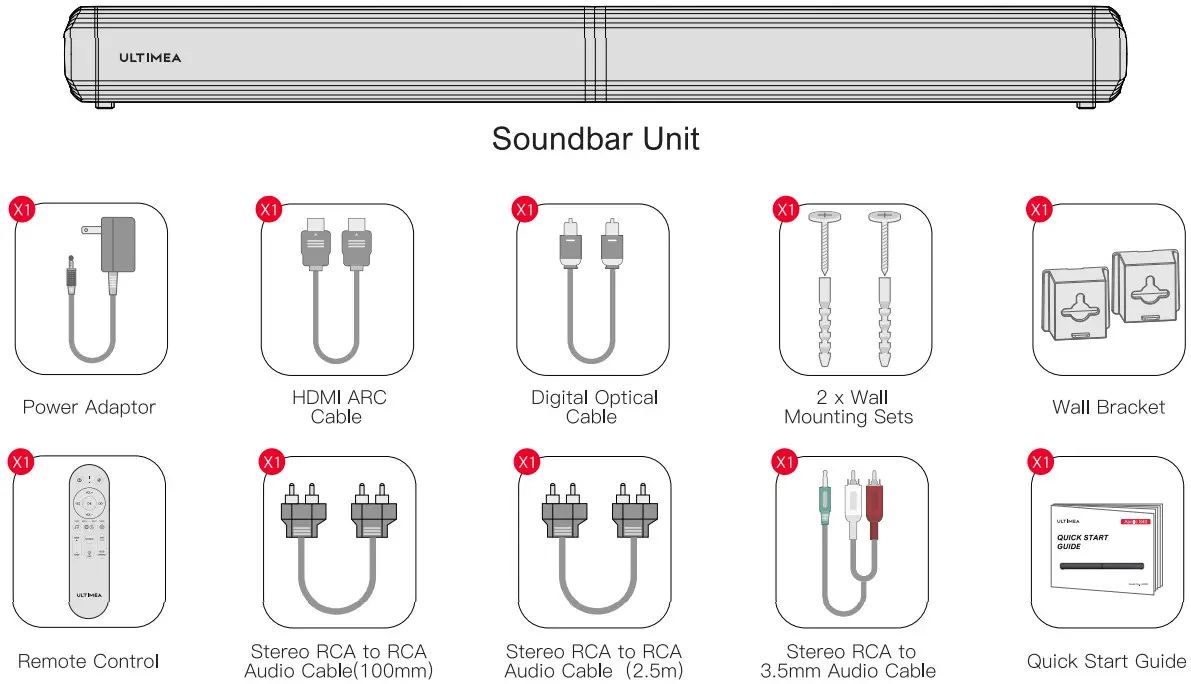
ACCESSORIES LIST
BLUETOOTH
Bluetooth Connection
- Turn on soundbar, press and hold “SOURCE” button for 3 seconds on soundbar or on remote control t o enter Bluetooth pairing mode.
- Turn on Bluetooth setting of your phone and choose name of “ULTIMEA Apollo S40” to connect soundbar.
Note: If it’s already in the pairing mode, there’s no need to long hold the “SOURCE” button. Long-hold procedure is only needed to replace a device which is already connected to the soundbar. 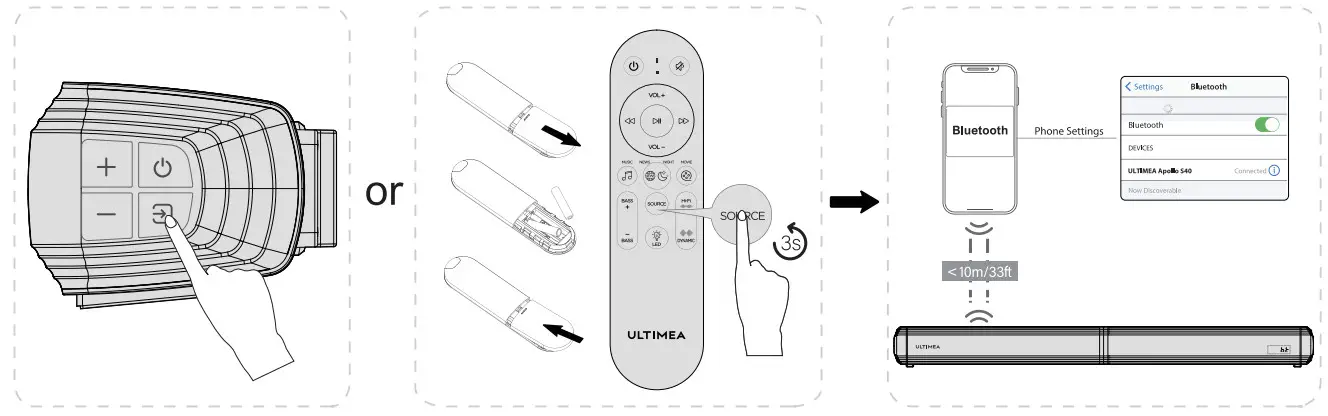
CONNECTING TO TV
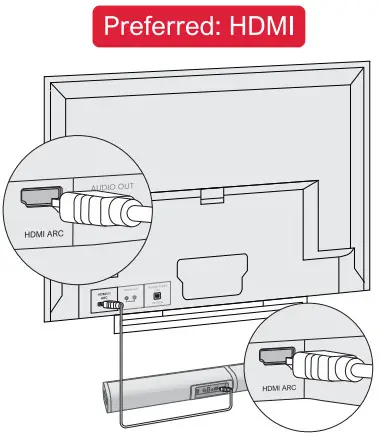
OPTION 1(Preferred): HDMI ARC
NOTE:
- HDMI Connection is unavailable if your TV does not support HDMI ARC.
- Connecting via HDMI(ARC) enable the following functions using the TV’s remote control:
Turn the TV and soundbar on/off and adjust the volume simultaneously. (Support CEC function)
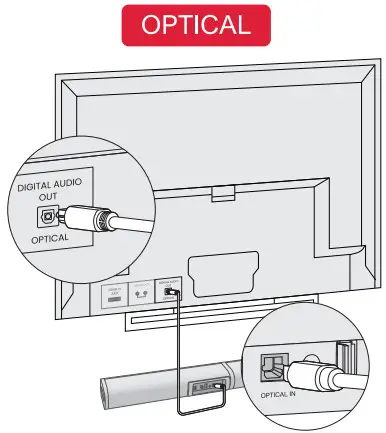 OPTION 2: OPTICAL
NOTE:
- Make sure the TV’s port is OPTICAL OUT.
- If the sound is coming from TV’s internal speaker, mute the TV speaker or volume is minimize.
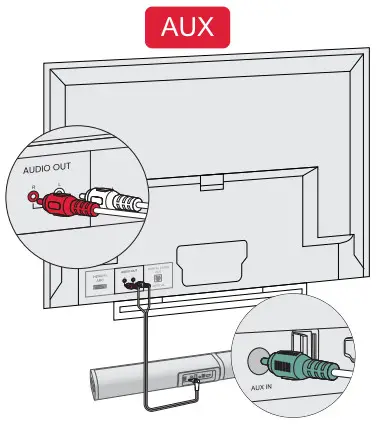 OPTION 3: AUX
NOTE:
- Use the 3.5mm to RCA audio cable to connect to your TV’s RCA AUDIO OUT port.
- Make sure that the cable ends match the color of TV ports.
SOUNDBAR CONTROLS
Control Panel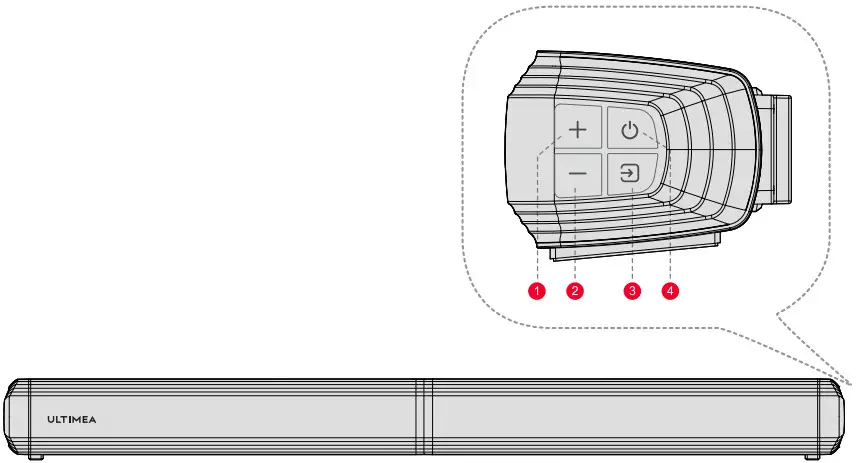
- VOL+: Volume Up.
- VOL-: Volume Down.
- SOURCE:
Press to switch channel:
ARC-BT-Optical-AUX-USB. Press for 3 seconds t o switch to BT mode, and enter pairing mode. - Power Button:
Press t o power on/ Press for 3 seconds to power off.
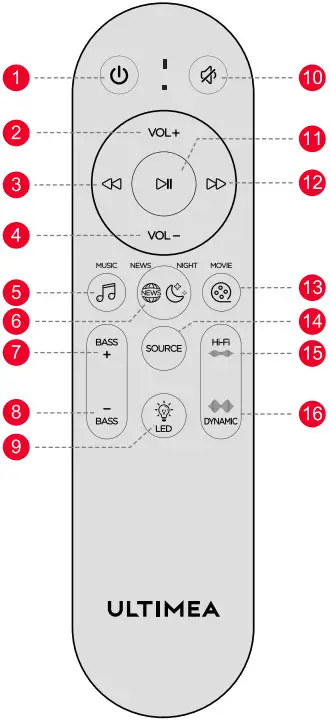
 : Power Button Press t o power on/ Press for 3 seconds to power off
- “VOL+”: Volume up
- “
 ”: Previous BT and USB mode: skip to previous track.
 - “VOL -“: Volume Down
- “
 “: music
Press to switch to Music mode, the display will show: “ ”.
”.  :NEWS/ NIGHT
Press to switch News mode, the display will show: .
.
Press and hold the button for 3 seconds to switch Night mode, the display will show: .
.- “BASS+”.
Increase the Bass level, the display will show:
- “BASS -”
Decrease the Bass level, the display will show:
- “
 “: LED
Press to turn off LED, press again to turn on. - “
 ” : Mute/ Recover the volume
 - “
 ”: Play/Pause
BT and USB mode: Play/ Pause
USB Mode: Hold for 3 seconds to switch between
USB single loop play back and list loop playback. - “
 ” : Next
BT and USB mode: skip to next track. - “
 ” :Movie
Press t o switch t o Movie mode, the display will show: .
. - “SOURCE”:
Press to switch channel:
 Hold for 3 seconds to switch to bluetooth pairing mode.
 - “
 ” : Hi-Fi
Hi-Fi Sound: Sound Clearer, the display will show “ ”.
”. - “
 ”: DYNAMIC
Dynamic Sound: Sound more powerful, the display will show : “ ”.
”.
 : Power Button Press t o power on/ Press for 3 seconds to power off
 ”: Previous BT and USB mode: skip to previous track.
 “: music
 ”.
”. :NEWS/ NIGHT
 .
. .
.

 “: LED
 ” : Mute/ Recover the volume
 ”: Play/Pause
 ” : Next
 ” :Movie
 .
.
 Hold for 3 seconds to switch to bluetooth pairing mode.
 ” : Hi-Fi
 ”.
”. ”: DYNAMIC
 ”.
”.Default Mode: News+Dynamic (You can keep the volume you had last time).
WALL MOUNT INSTALLATION
| Assembly steps: | Detached and stand on base: |
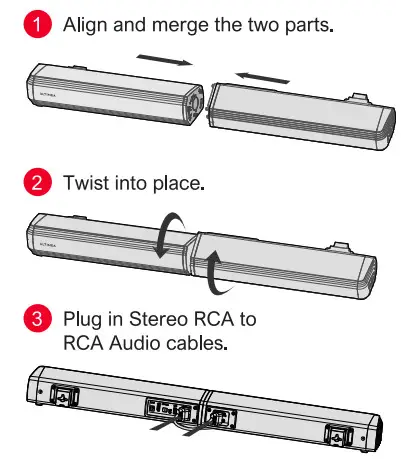 | 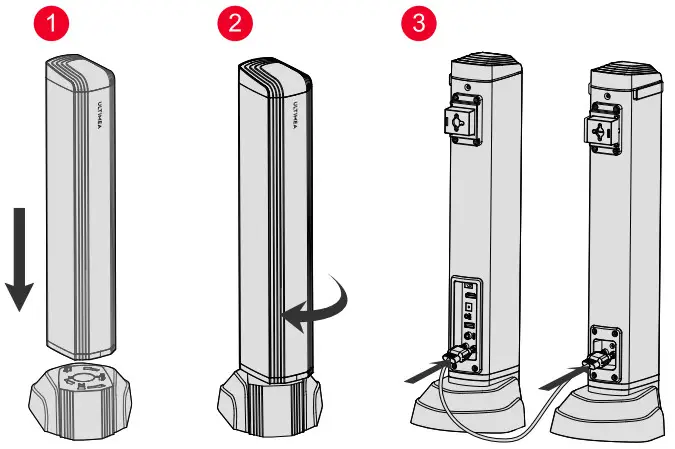 |
Wall mounting:
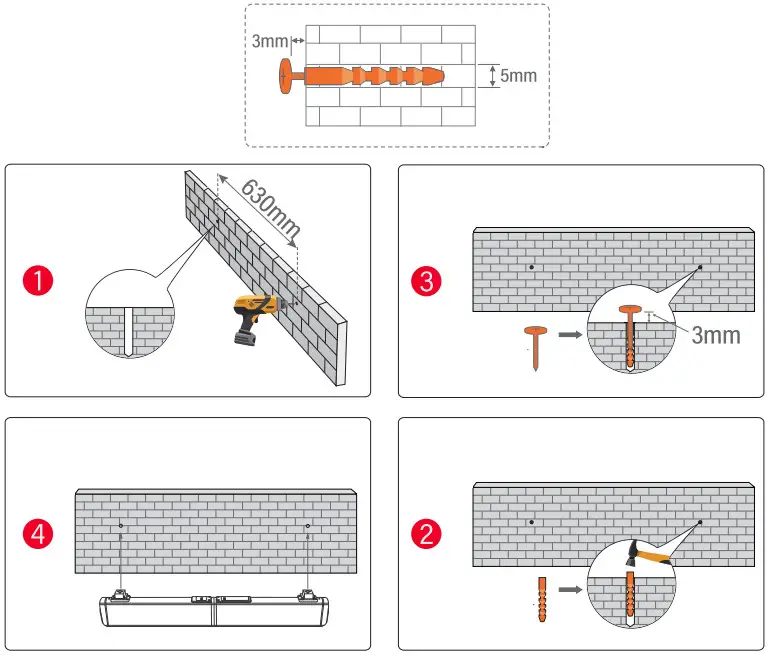
NOTES FOR TV AUDIO SETTIMGS OF VARIOUS BRAND
 Very Important!!!
How to Set up the Soundbar and TV? Normally as below: Settings → Sound → Digital Audio Output → PCM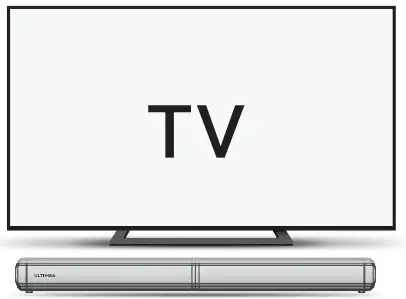
More examples for various TV brands:
Samsung TV
- Settings > Sound > Sound output > select Receiver (HDMI)
- Settings > Sound > Expert Settings > Digital O u t p u t Audio Format > PCM
- Settings General > External Device Manager > Anynet + (HDM – CEC)> ON
Vizio TV
- Settings > Audio > TV Speakers > Off
- Settings > Audio > Digital Audio Out > PCM
- Settings > System > CEC > Enabled
Sony TV
- Settings > Display & Sounds > Audio Output > Speakers > Audio System
- Settings > Display & Sounds > Audio Output > Digital Audio Out > PCM
- Settings > Display & Sounds > Audio Output > Pass Through Mode > OFF
- Settings Channels & Inputs > External inputs >BRAVIA Sync > BRAVIA Sync control > ON
LGTV
- All Settings > General – Devices > HDMI Settings > SIMPLINK (HDMI – CEC)> ON
- All Settings > Sound > Advances Settings > Digital Sound Output > PCM
- All Settings > Sound > Sound Out > Use Wired Speaker > HDMI (ARC) Device
TCL ROKU TV
- Settings > Audio > Audio output > Auto
- Settings > Audio > Digital audio format > Select Stereo
Hisense ROKU TV
- Settings > Audio > TV Speakers > Select Disabled
- Settings > Audio > Digital Audio out > Select Stereo
CNN ROKU TV
- Settings > Audio > TV Speakers > Select Disabled
- Settings > Audio > Digital Audio Format > Select Stereo
Insignia Fire TV
- Settings Display & Sounds > Audio Output > TV Speakers > select OFF
- Settings Display& Sounds > Audio Output > Digital Audio Format > select PCM
- Settings Display & Sounds > HDMI CEC Device Control >ON
Toshiba Fire TV
- Settings > Display & Sounds > Audio Output > TV Speakers > select OFF
- Settings > Display & Sounds > Audio Output > Digital Audio Format > select PCM
- Settings > Display & Sounds > HDMI CEC Device Control > ON
Panasonic TV
- Menu Audio Settings > Advanced Audio > TV Speakers > select OFF
- Menu > Audio Settings > Advanced Audio > HDMI > select DIGITAL
- Menu > Audio Settings > Advanced Audio > Digital Audio Out > select PCM
Sharp TV (Powered by Android)
- settings > devices preferences > sound > Digital Output > select PCM
- settings > devices preferences > sound > Speakers > External audio system
Roku TV Stick
- Settings > Audio > Digital Output Format > Stereo
- Settings > Audio > Audio Mode > Select Stereo
Fire TV stick
- Settings > Display & Sounds > Audio > Surround Sound > PCM
- Settings > Display & Sounds > HDMI CEC Device Control > ON
Hisense ROKU TV
- Settings > Audio > TV Speakers > Select Disabled
- Settings > Audio > Digital Audio out > Select Stereo
ONN ROKU TV
- Settings > Audio > TV Speakers > Select Disabled
- Settings > Audio > Digital Audio Format > Select Stereo
TCL TV ( Powered by Android )
- TV Settings > Audio > Advanced Settings > Digital Audio Out > Select PCM
- TV Settings > System > T – Link > Select ON
Hisense TV ( Powered by Android )
- Settings > Sound > Speakers > select ARC
- Settings > Sound > Advanced Settings > Digital Audio Out > select PCM
Sharp TV
- Settings > sound > Advanced audio settings > TV Speaker & ARC > select ARC
- Settings > sound > Advanced audio settings > Digital Audio Out > select PCM
If you didn’t find your TV Brand or streaming devices here, please contact customer service of your TV or us at: [email protected]
WE ARE READY TO HELP

Prefer video tutorial?
Setup guidance video, or USER MANUAL on ULTIMEA website. 
@Ultimea_Official
 support.ultimea.com
 gait 888-598-8875 (US)
Mon-Fri 9am-5pm (PST)
Mon-Fri 9am-5pm (CET)
+49 89-628-25828 (EU)