GOKUID
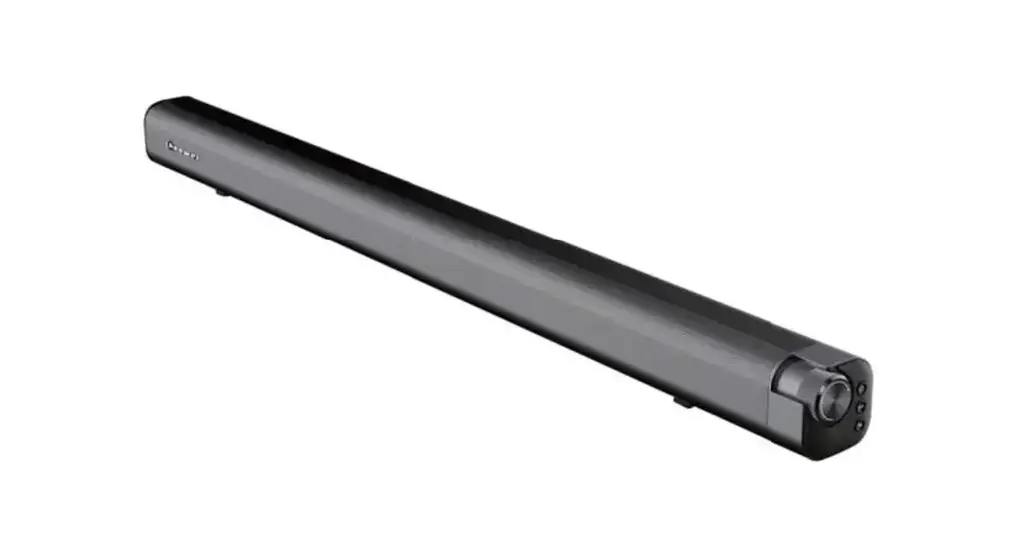
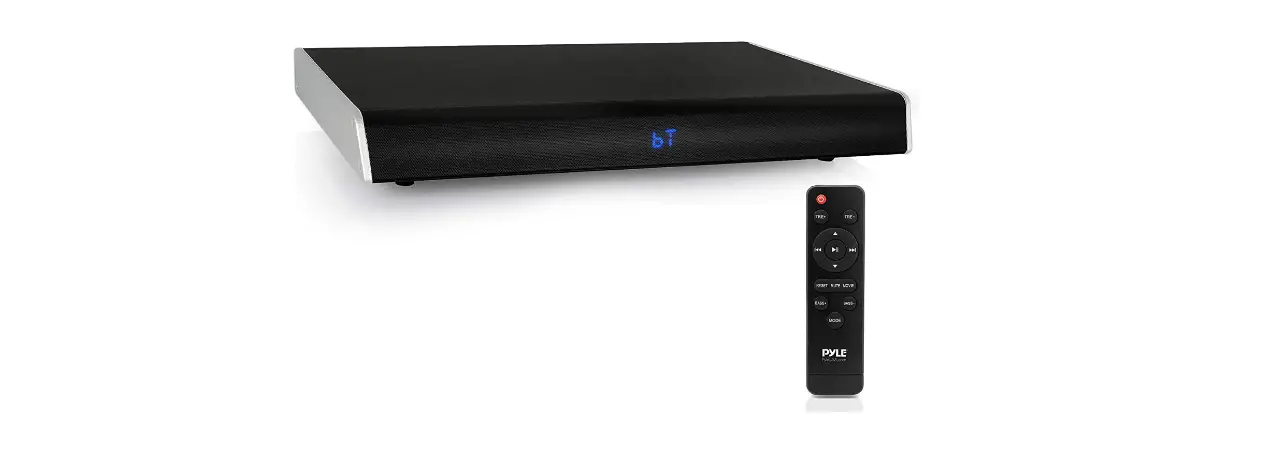
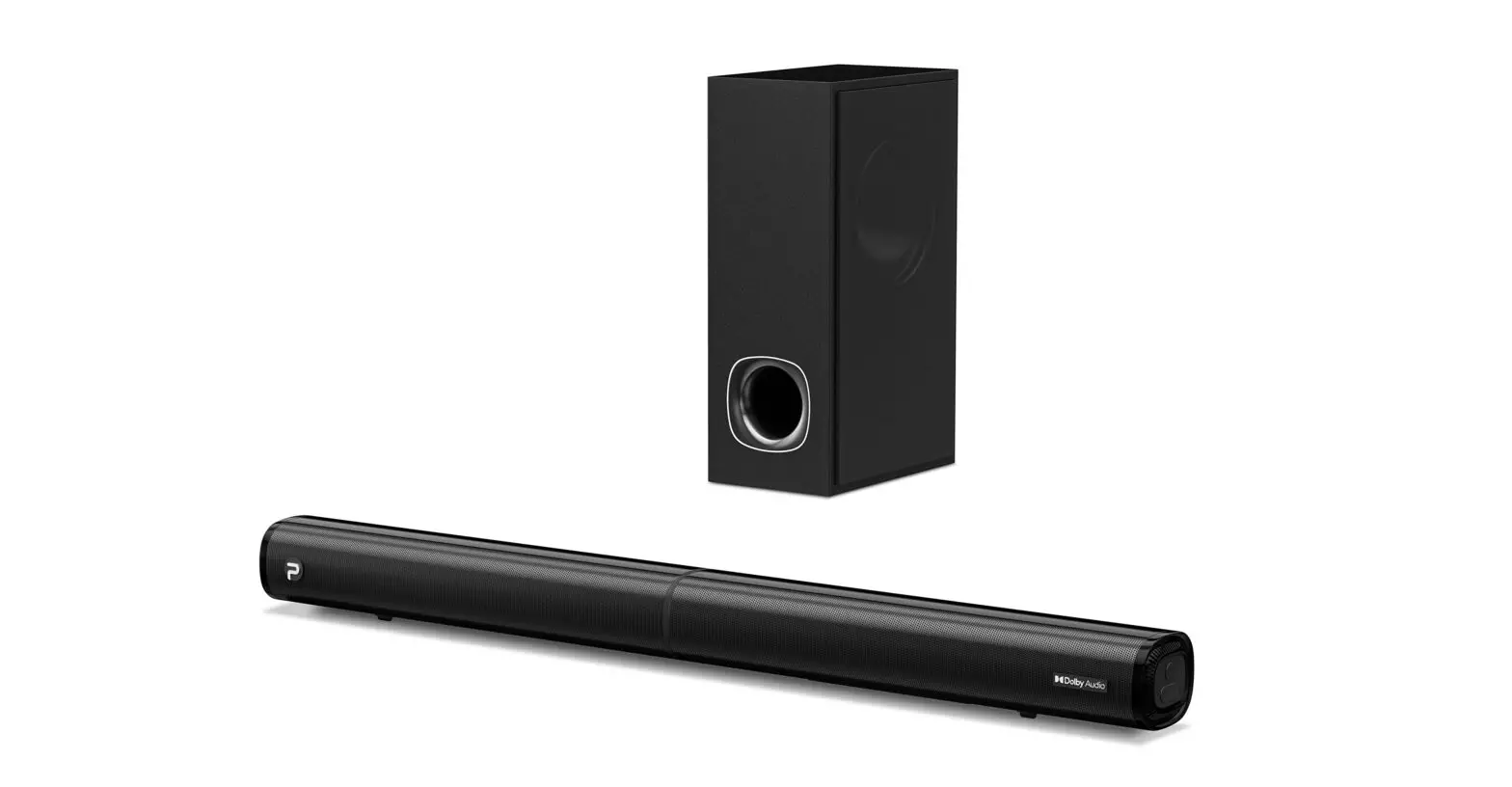
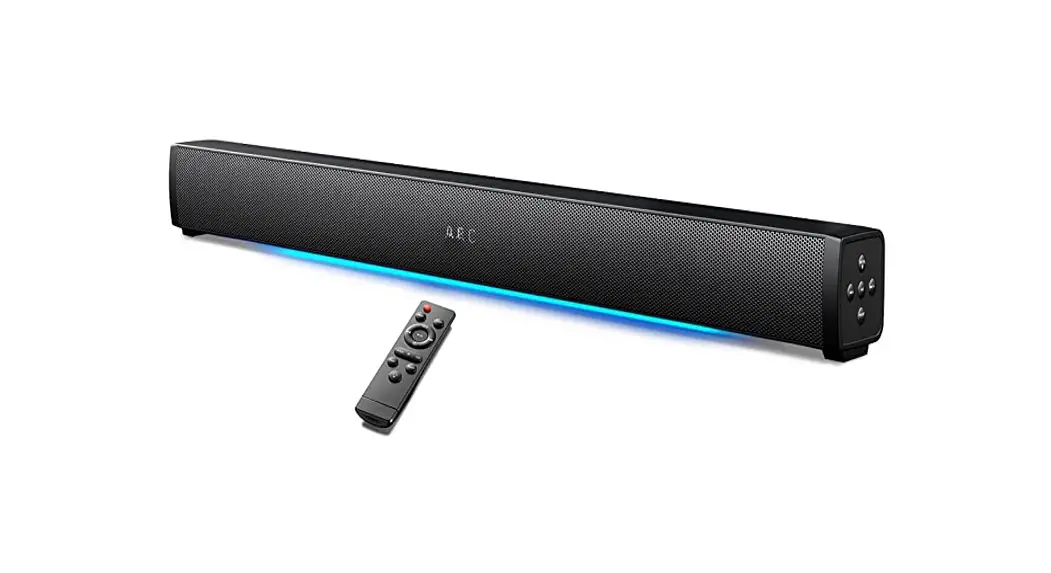
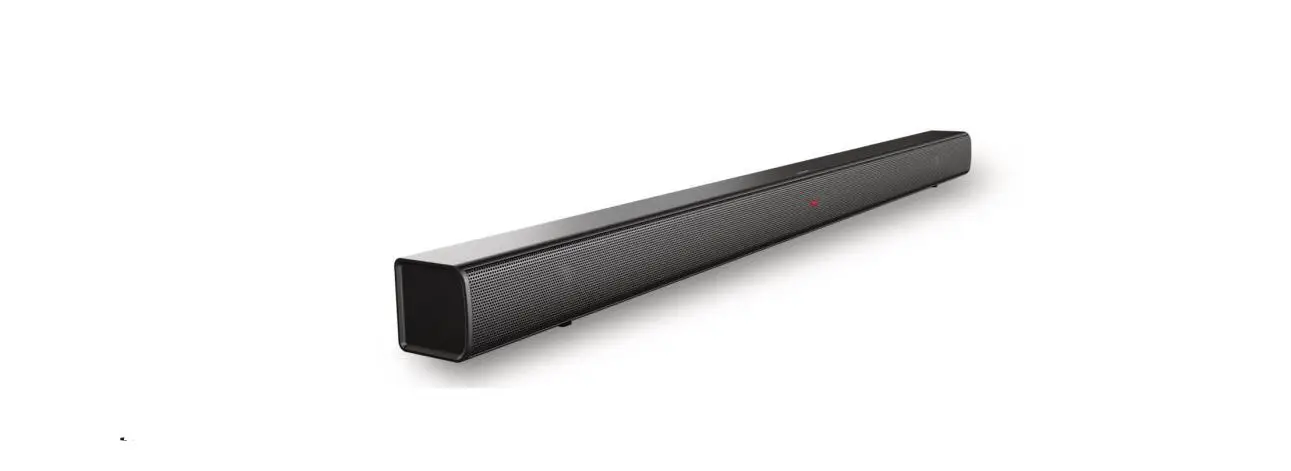
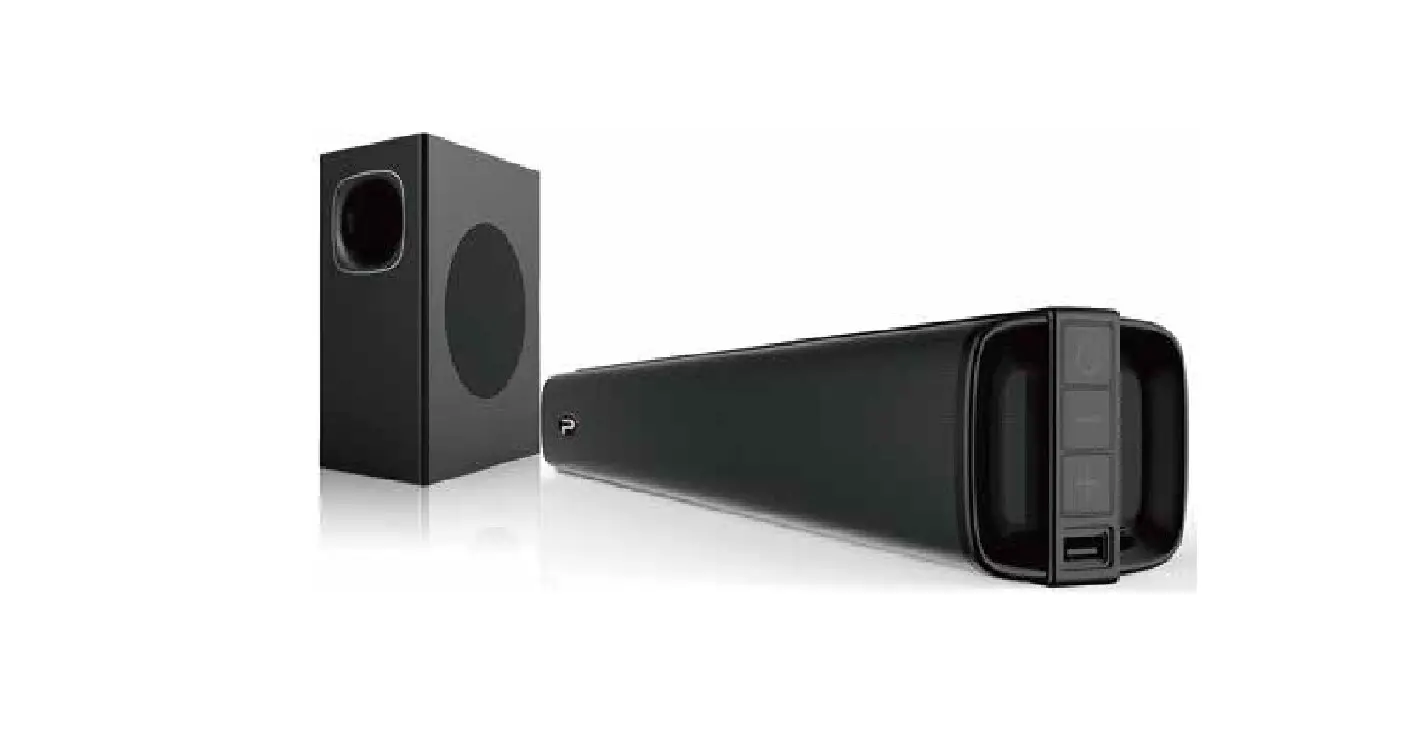
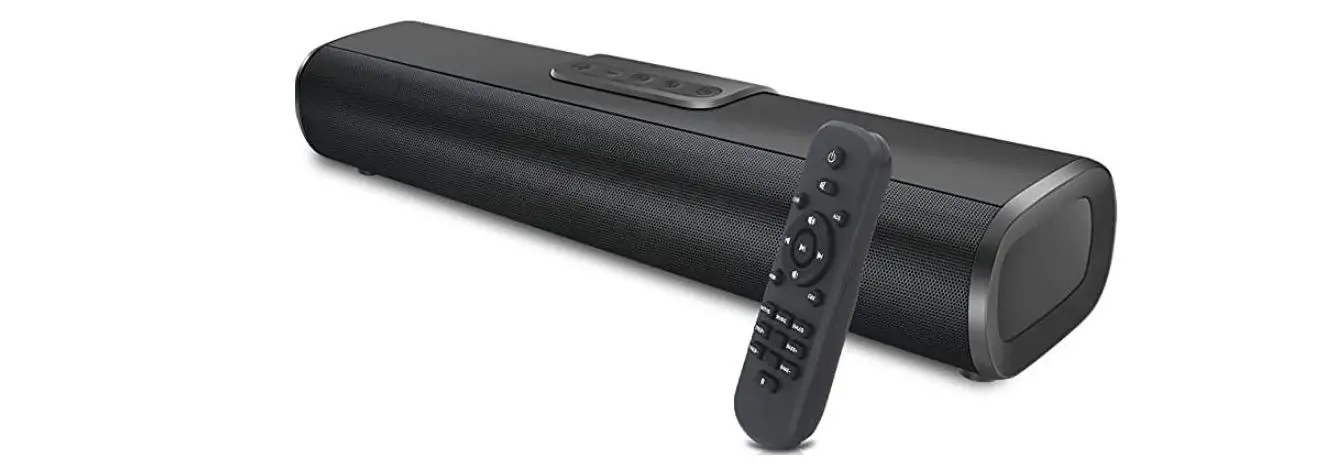
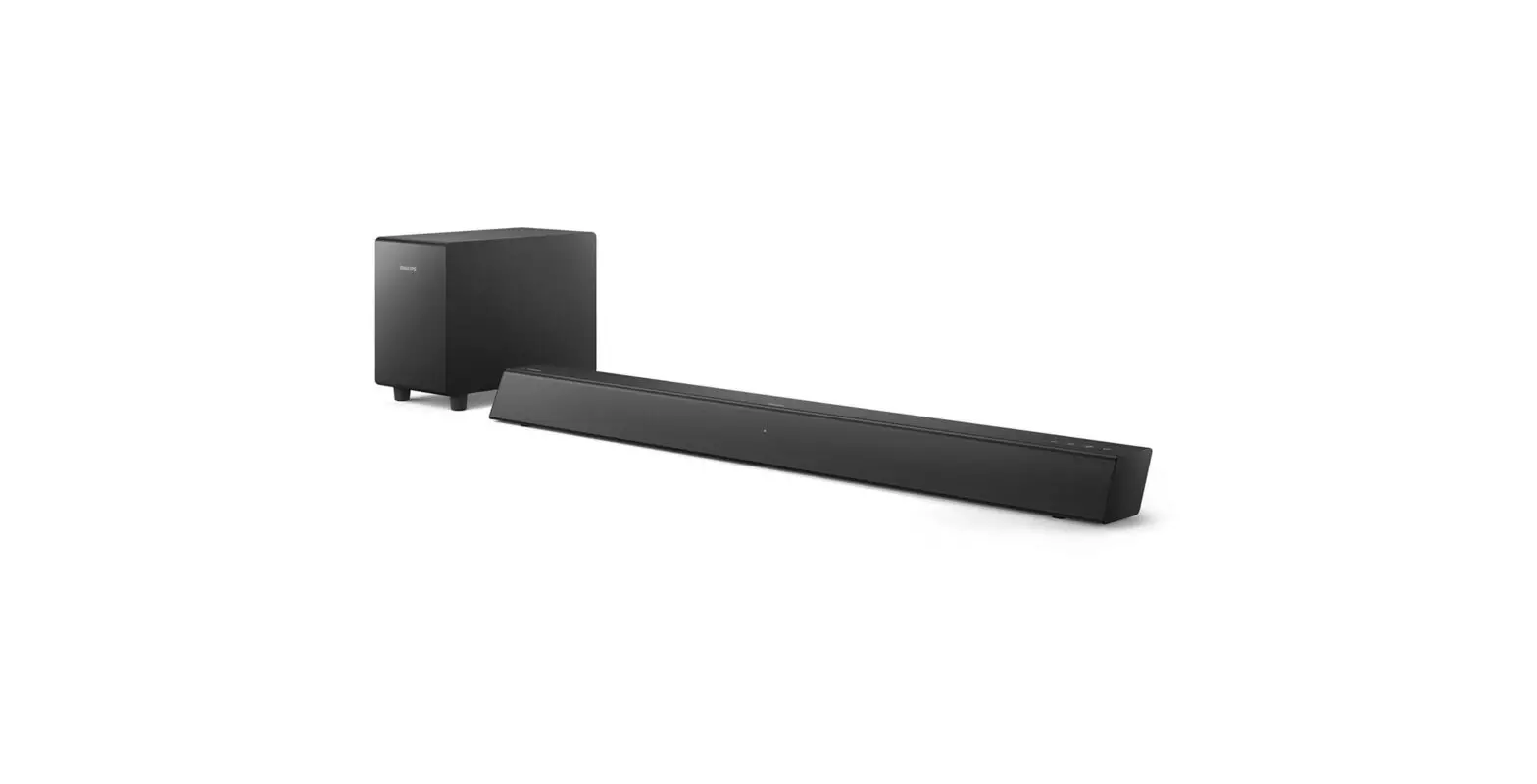
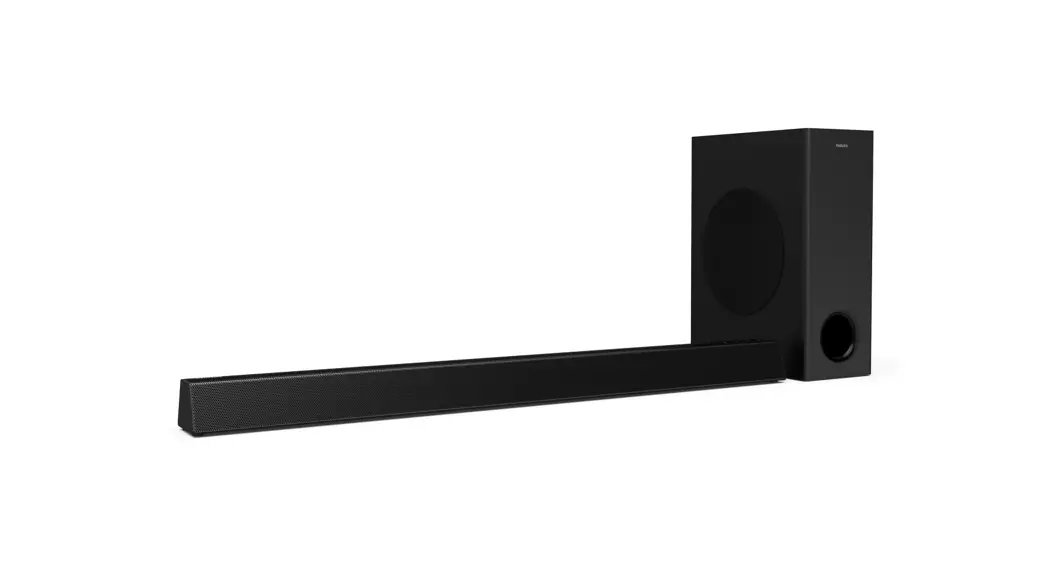
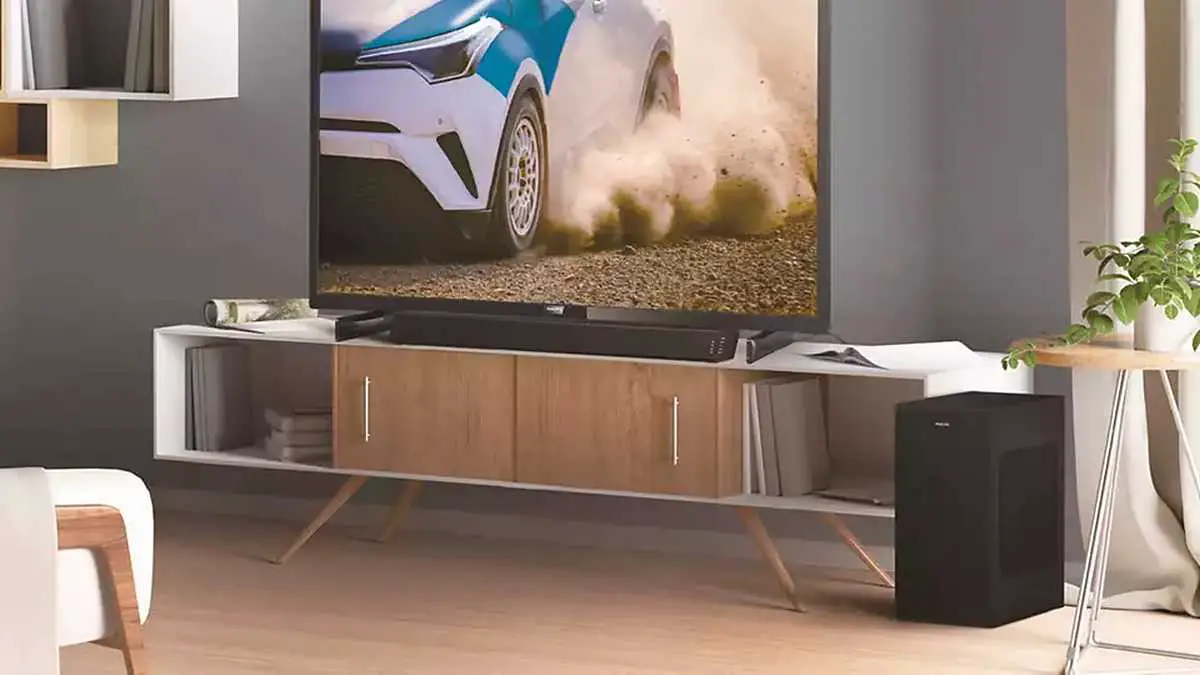
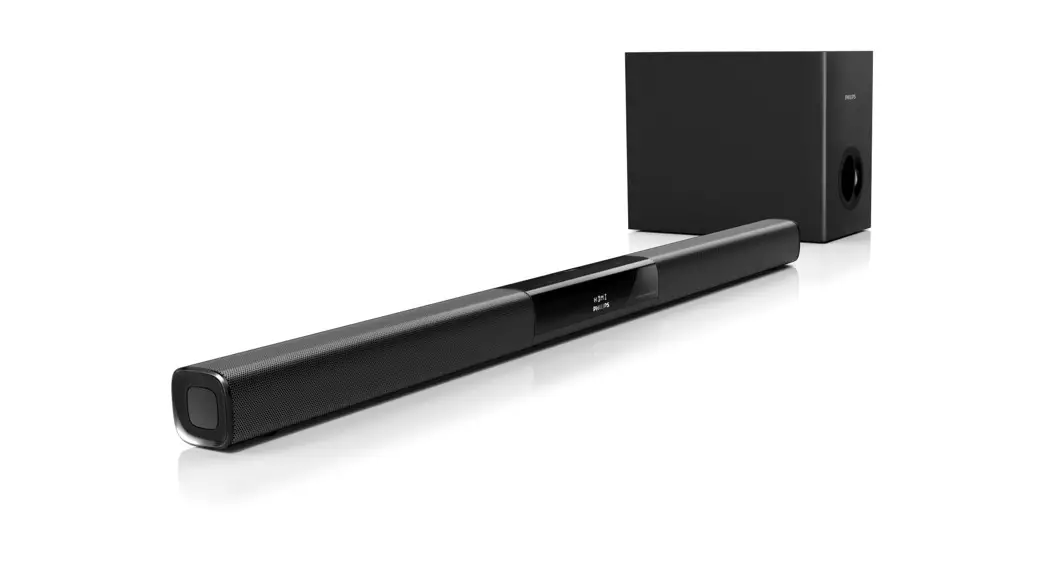
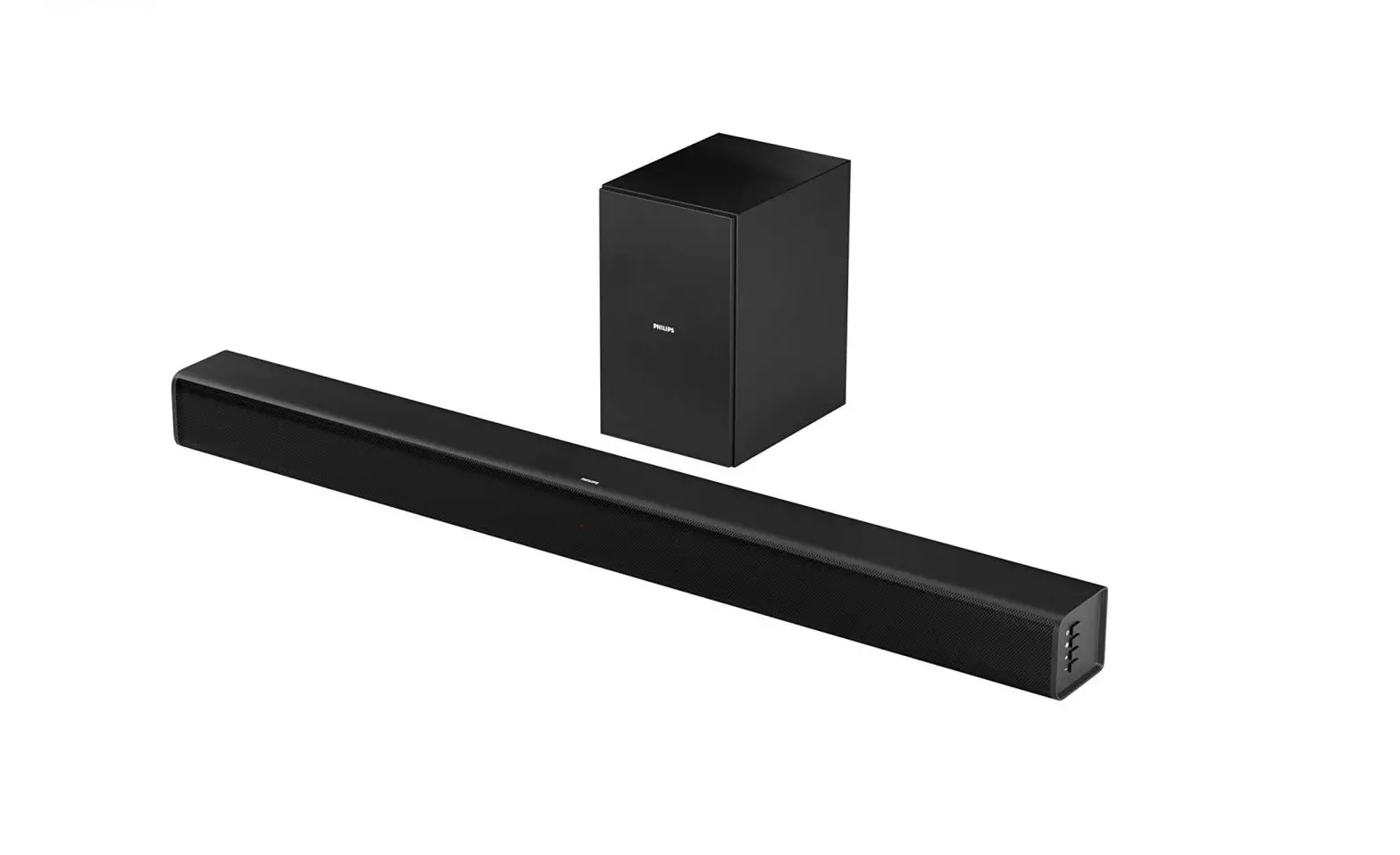
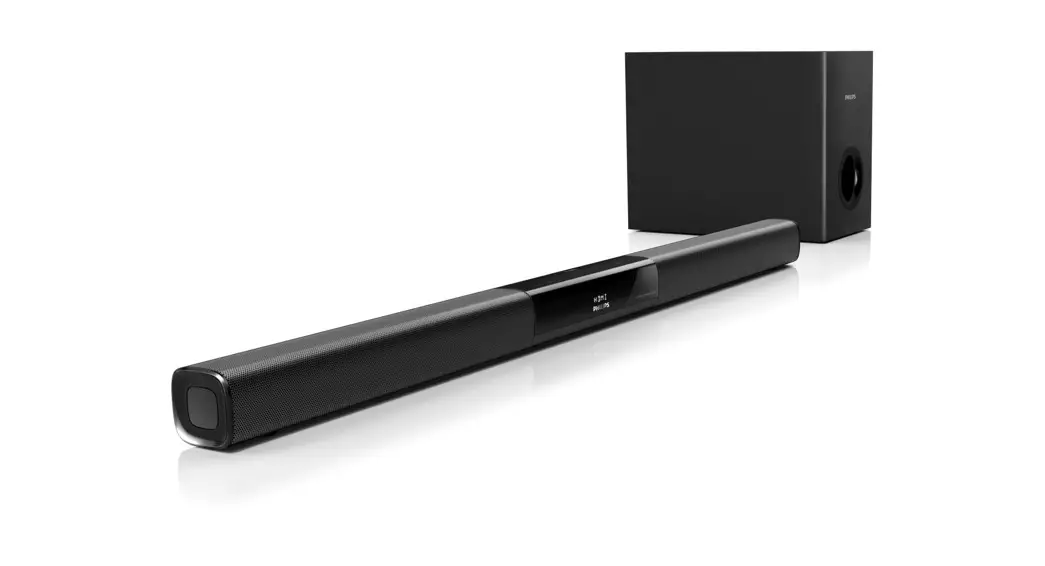
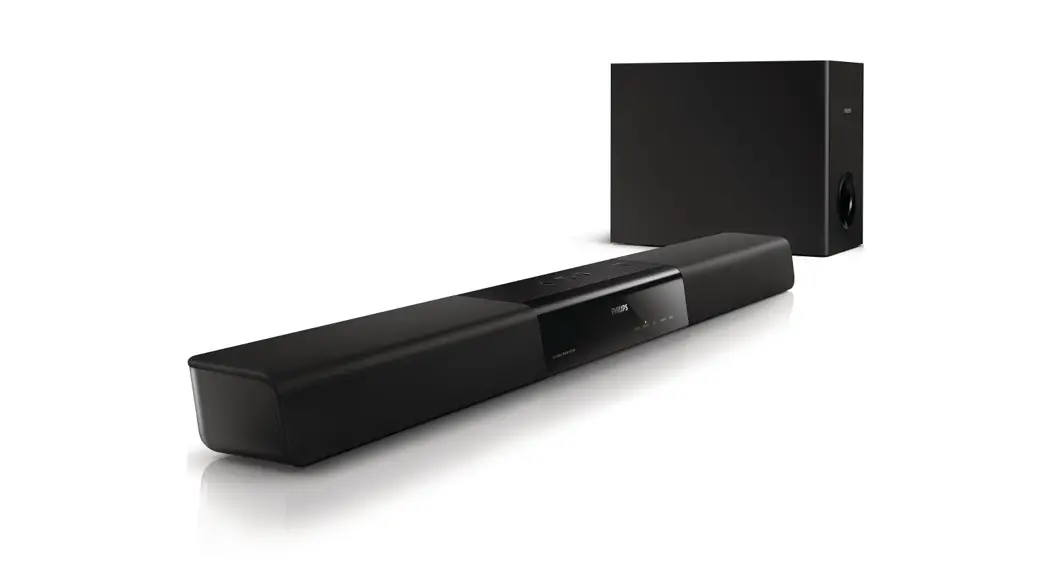
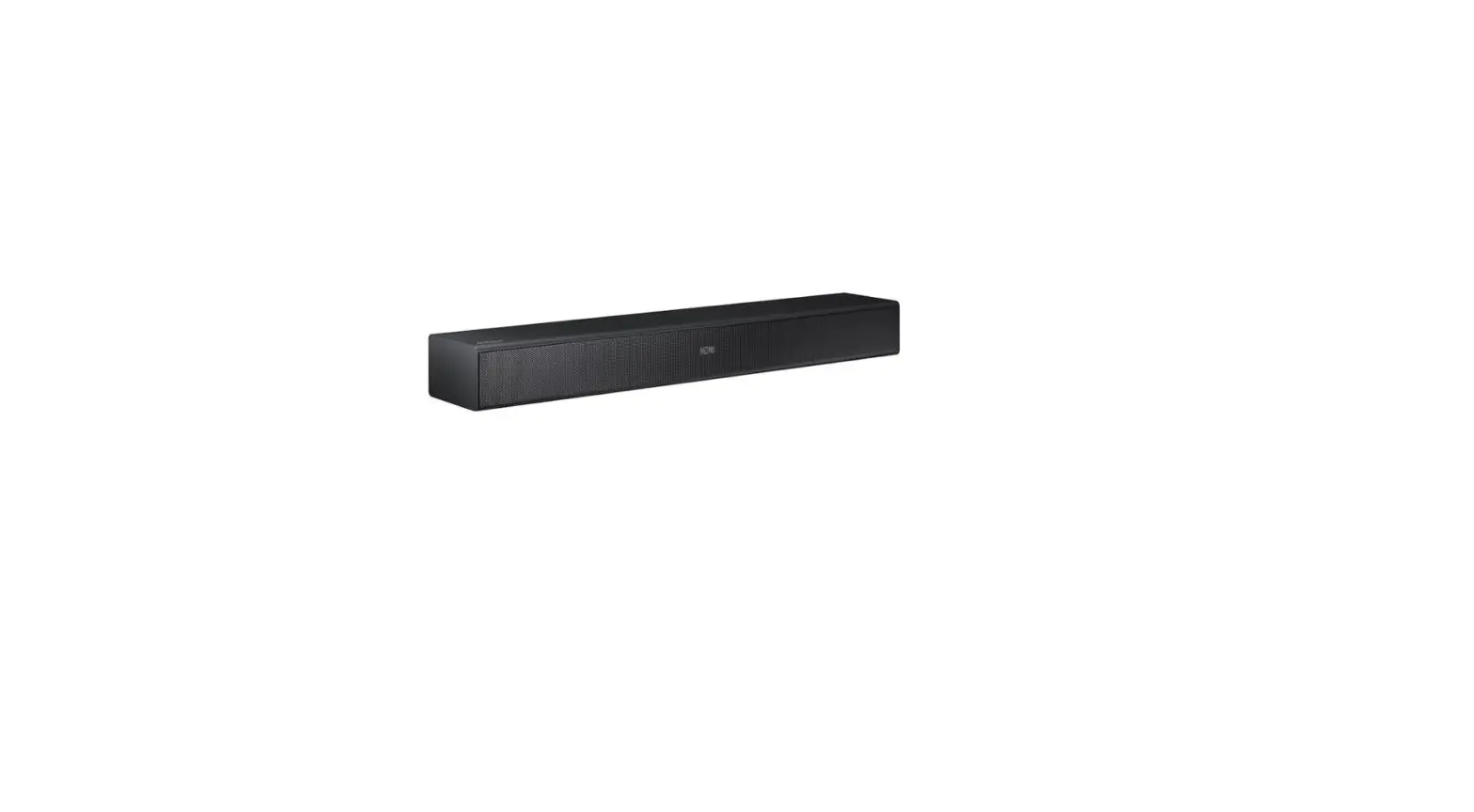
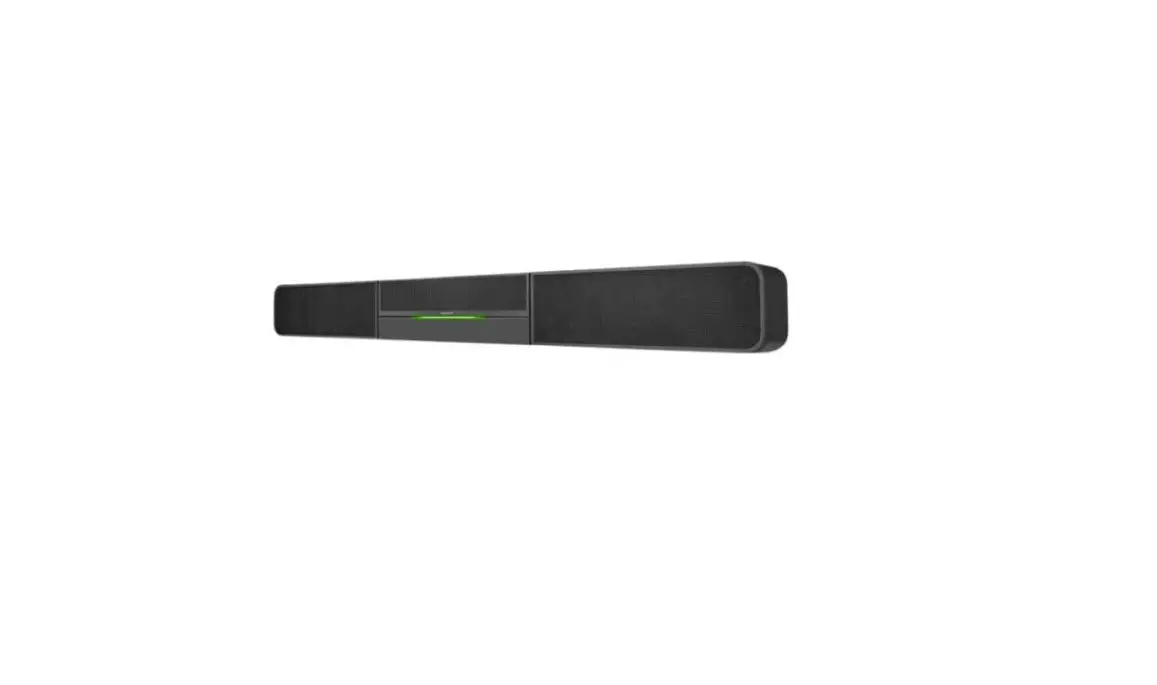
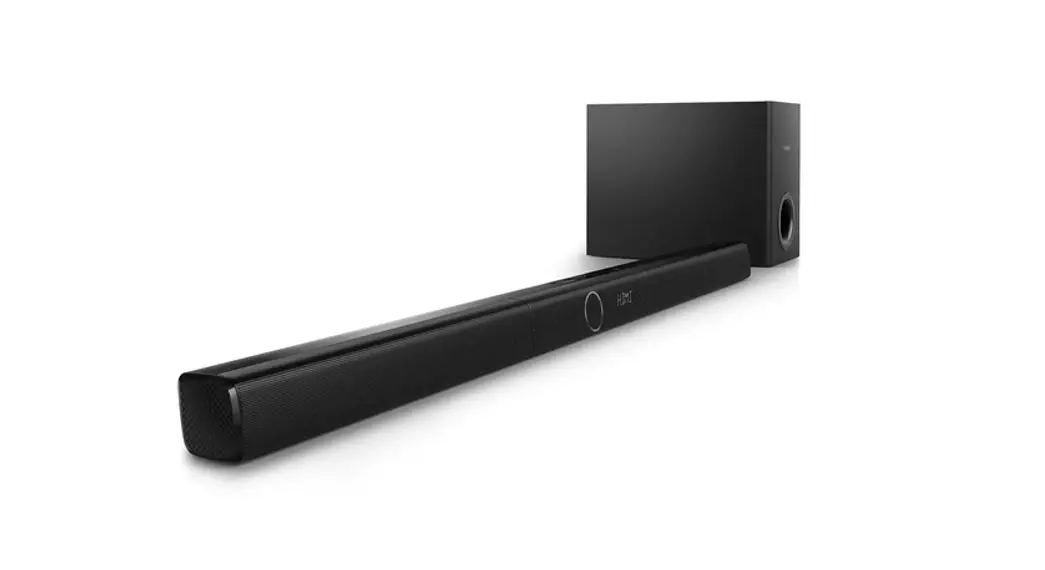
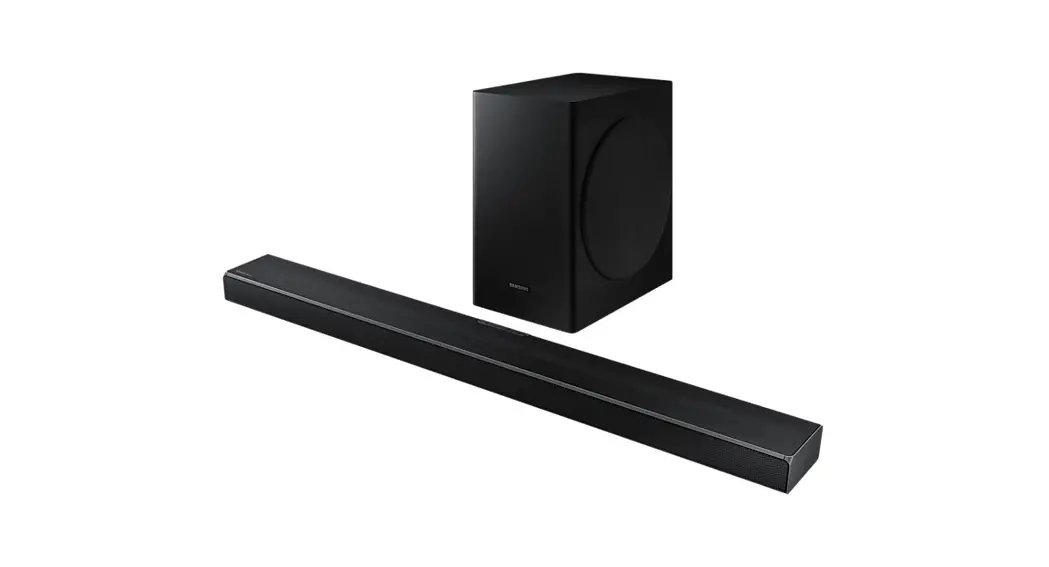
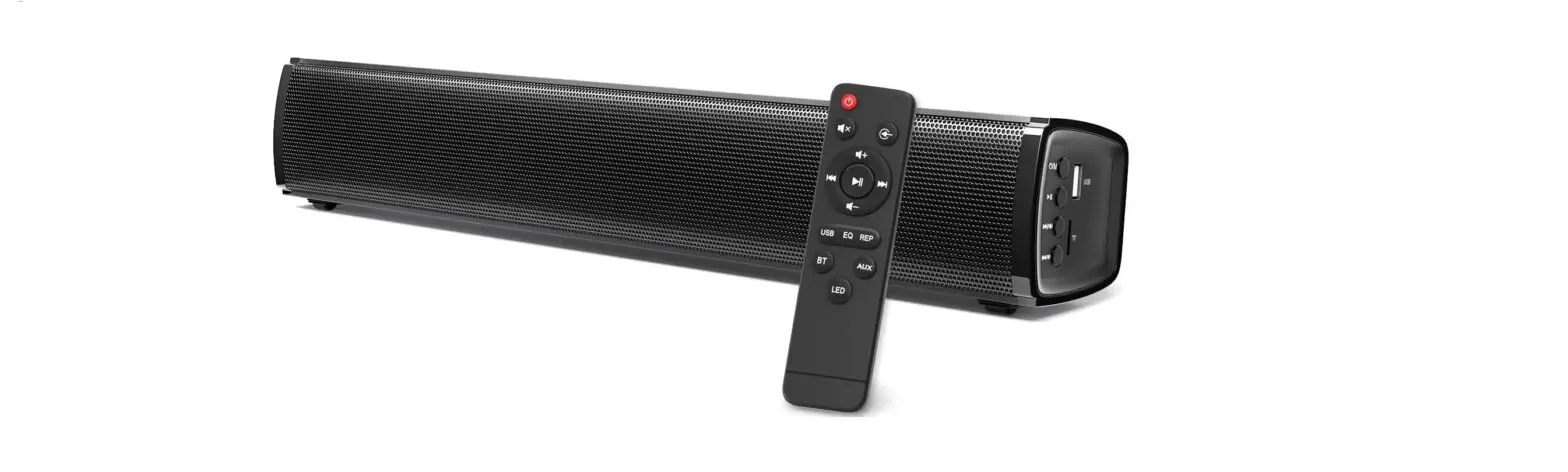
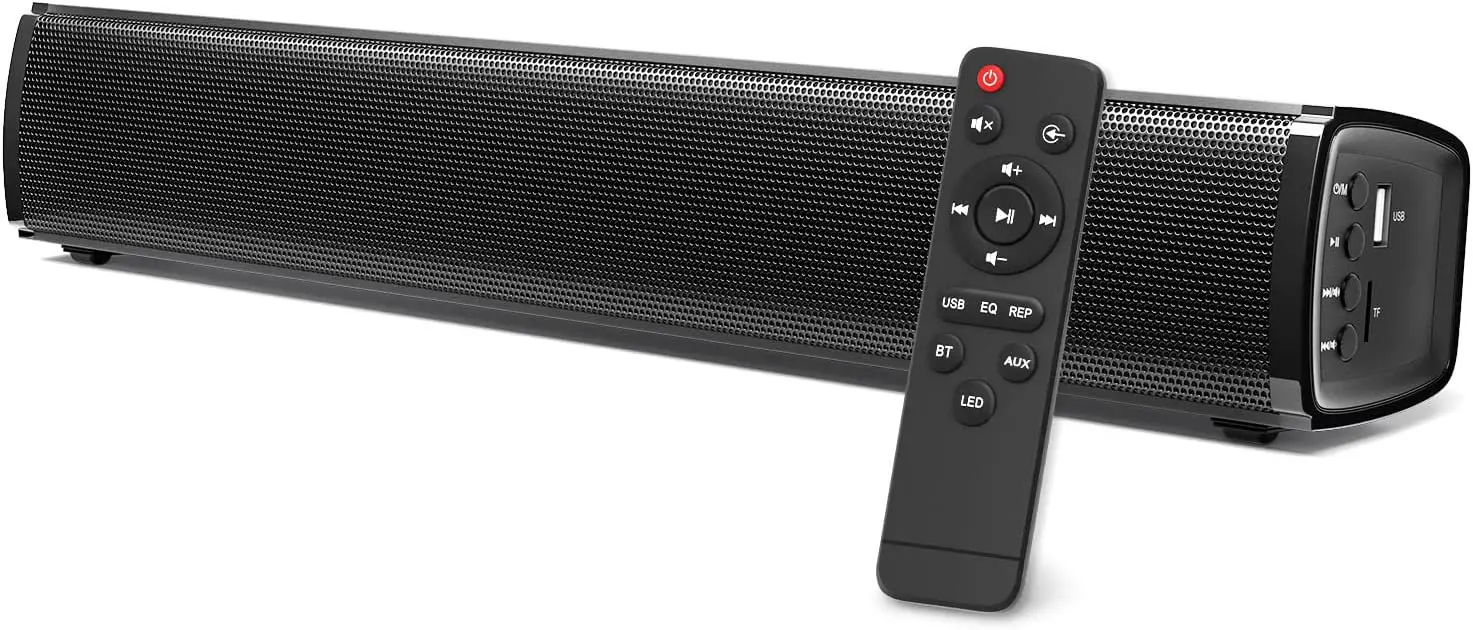
GOKUID Soundbar, 2.1CH Surround Sound TV Speaker
Specifications
- DIMENSIONS: 17 x 6 x 3 inches,
- WEIGHT: 2.99 pounds,
- POWER SUPPLY: AC – 100 – 240V, 50Hz/60Hz,
- OUTPUT CHANNEL: 2.1 ch,
- FREQUENCY RESPONSE: 20Hz – 18kHz,
- SIGNAL TO NOISE RATIO: >=75Db,
- BLUETOOTH: 5.0,
- CONENCTION DISTANCE: 10 meters
The Gokuid Soundbar features a built-in subwoofer that provides a deep and powerful bass. It has two front facing speakers with provides rich and high quality sound. This soundbar is compatible with Bluetooth, allowing you to create a wireless connection with your devices. This makes it easy to enjoy music and podcasts. The soundbar comes with optical, RCA and 3.5mm cables. This means it can support this type connection if someone is enable to use Bluetooth technology. The Gokuid soundbar is small in size but provides excellent quality sound with balanced and natural sounding audio. This soundbar is compatible with not only TV but also with desktops, etc.
What’s in the Box
- Sound bar x 1
- Sound bar Remote Control (Batteries Excluded) x 1
- Power Adapter x 1
- Optical Cable x 1
- Aux Cable x 1
- Aux to RCA Cable x 1
- Mount Screws x 1
Tv’s Audio Setting Guide
Turning on the TV
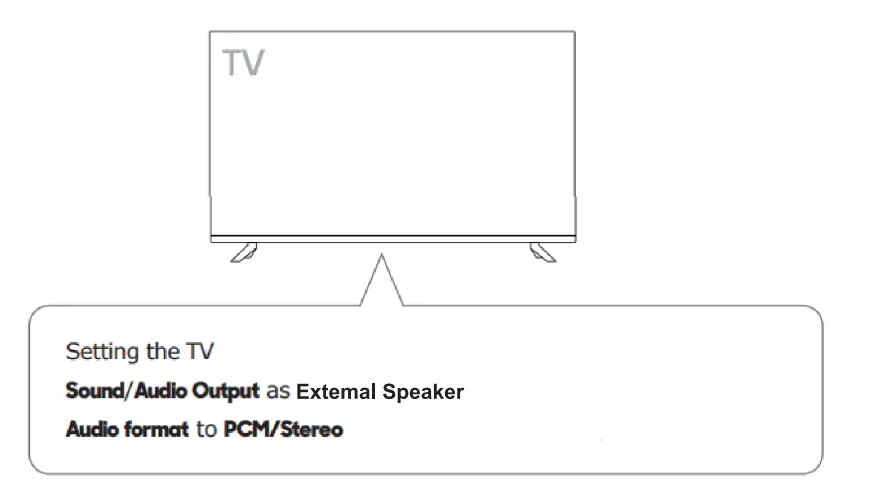
TV/Sound/Audio Output Setting
Notice
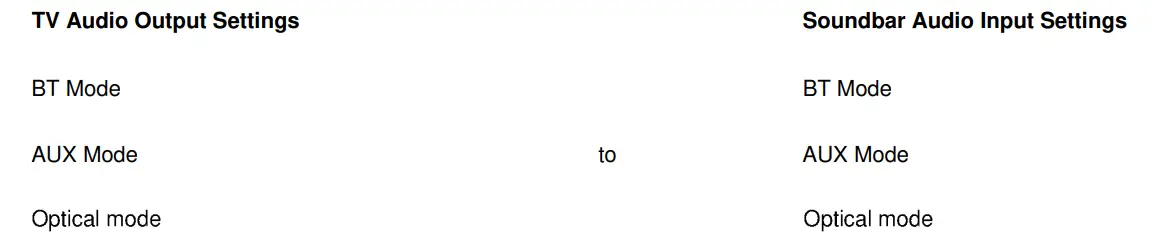
- Make sure that the TV’s Audio output selected is the same one selected on the soundbar.

- When you use apps such as NETFLIX, HULU, or AMAZON PRIME on your smart TV, please turn off DOLBY and/or DTS function in the app sound settings or choose STEREO output to ensure that the soundbar will be compatible with your TV
NOTE: Please kindly refer to the TV user manual for specific audio settings
- Do not place magnetic objects in, on, or around the soundbar as this may damage your soundbar.
Other Connection Methods
Optical Cable Connection
For other steps refer to the instructions on the previous page.
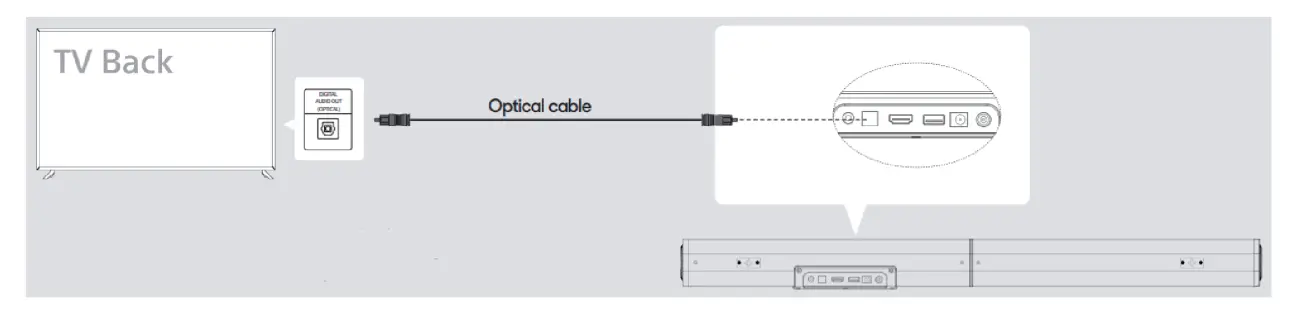
Note:
Sometimes users may hear an echo sound when connecting the soundbar to the TV via optical cable. To eliminate the echo effect, your TV speakers should be disabled. Refer to your TV’s audio menu options to make the necessary changes to the speaker settings.
Audio Cable Connecting
For other steps refer to the instructions on the previous page.
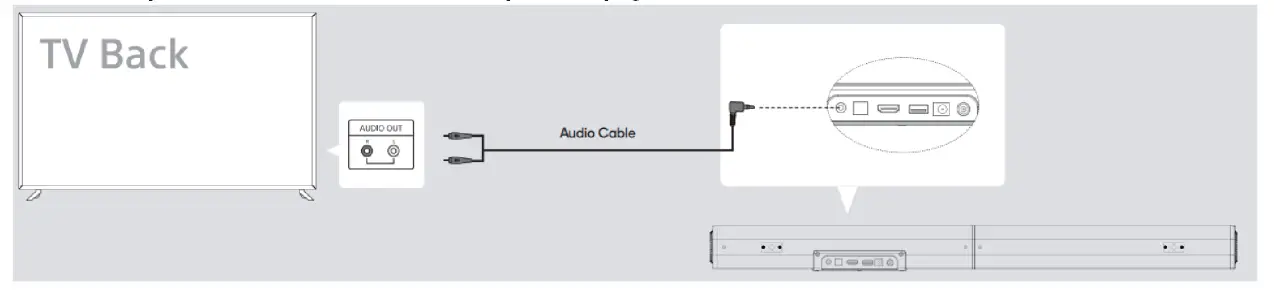
Some TVs have AUDIO IN only, cant deliver sound to the soundbar.
AUDIO SETTINGS
Fire TV stick
- Settings >DispIay & Sounds >DOLBY DIGITAL OUTPUT > Dolby Digital Plus OFF
- Settings >Display & Sounds >Audio Output> TV Speakers>select OFF
Fire TV Cube
- Settings >Display & Sounds >Surround sound > PCM
- Settings >Display & Sounds >Audio Output> TV Speakers>select OFF
Toshiba Fire TV
- Settings >Display & Sounds >Audio Output> TV Speakers>select OFF
- Settings > Display & Sounds > Audio Output > Digital Audio Format > select PCM
Insignia Fire TV
- Settings >Display & Sounds >Audio Output> TV Speakers>select OFF
- Settings > Display & Sounds > Audio Output > Digital Audio Format > select PCM
- Settings > Display & Sounds > HDMI CEC Device Control
TCL ROKU TV
- Settings >Audio >TV Speakers >Select off
- Settings >Audi0>Digital audio format>Select Stereo
Hisense ROKU TV
- Settings >Audio >TV Speakers >Select Disabled
- Settings >Audi0>Digital Audio out >Select Stereo
ONN ROKU TV
- Settings >Audio >TV Speakers >Select Disabled
- Settings >Audi0>Digital Audio Format >Select Stereo
Roku TV Stick
- Settings PCM-Stereo
- Settings >Audi0>Audio Mode>Select Stereo
Samsung TV
- Settings > Sound > Sound Output > select Receiver (HDMI)
- Settings > Sound > Sound Output > Expert Settings > HDMl-eARC Mode > Auto
- Settings > Sound > Sound Output > Expert Settings > Digital Output Audio Format > PCM
- Settings > Sound > Sound Output > Expert Settings > Digital Output Audio Delay > O
Vizio TV
- Settings > Audio
- Settings > Audio > TV Speakers > Off
- Settings > Audio > Volume Levelling > Off
- Settings > Audio >Surround sound>Off
- Settings > Audio > Analog Audio Out>Fixed
- Settings > Audio >Advanced Audio > Digital Audio Out > PCM
Sony TV
- Settings > Display & Sounds > Audio Output > Speakers > Audio System
- Settings > Display & Sounds > Audio Output > eARC Mode > On
- Settings > Display & Sounds > Audio Output > Digital Audio Out > PCM
- Settings > Display & Sounds > Audio Output > Pass Through Mode > OFF
Hisense TV
(Powered by Android)
- Settings >Sound >Speakers >select ARC
- Settings >Sound>Advanced Settings>Digital Audio Out >select PCM
Sharp TV
- Settings>sound>Advanced audio settings>TV Speaker & ARC>select ARC
- Settings>sound>Advanced audio settings>Digital Audio Out>select PCM
Sharp TV
(Powered by Android)
- settings > devices preferences > sound > Digital Output > select PCM
- settings > devices preferences > sound > Speakers > External audio system
LG TV
- Settings > Sound > Sound Out > HDMI ARC
- Settings > Sound > Additional Settings > Digital Sound Out > PCM
Panasonic TV
- Menu >Audio Settings >Advanced Audio >TV Speakers >select OFF
- Menu >Audio Settings >Advanced Audi0>HDMl>select DIGITAL
- Menu >Audio Settings >Advanced Audi0>Digital Audio Out >select PCM
FREQUENTLY ASKED QUESTIONS
- Is 2.1 or 5.1 sound bar better?
A 5.1 soundbar is anticipated to deliver significantly more than a 2.1. With or without extra technologies, a fuller listening experience can be achieved by using the additional centre channel for dialogue clarity and the two rear speakers. - Does soundbar require PCM setting in the tv?
It is not necessary to select the PCM setting if you connect via HDMI ARC. For improved sound quality when connected via optical, aux, or coaxial, it is preferable to set the TV Speaker Audio Format to PCM. It may be found in the TV’s setting-sound-digital audio format, and it is simple to set. - Will this work with a TCL Roku TV?
Yes, it will work with TCL Roku TV. - Does it need a battery?
No, neither the soundbar nor the remote require batteries. - Can you hook up additional surround speakers to this what type?
No, this isn’t possible. - How does it mount?
Yes, it is mount using the two slots for screws that are present on the soundbar. - Does it come with mounting brackets?
Yes, it comes with mounting brackets which are present on the back of the soundbar. It can be fixed to the wall using screws in the package. - Can I plug the power cord into the cigarette lighter in my car?
No, you can’t due to different volt levels. - Will it work with Xbox one?
Yes, it will work with Xbox one. - Does it work with my Samsung TV?
Yes, it works with Samsung TV.