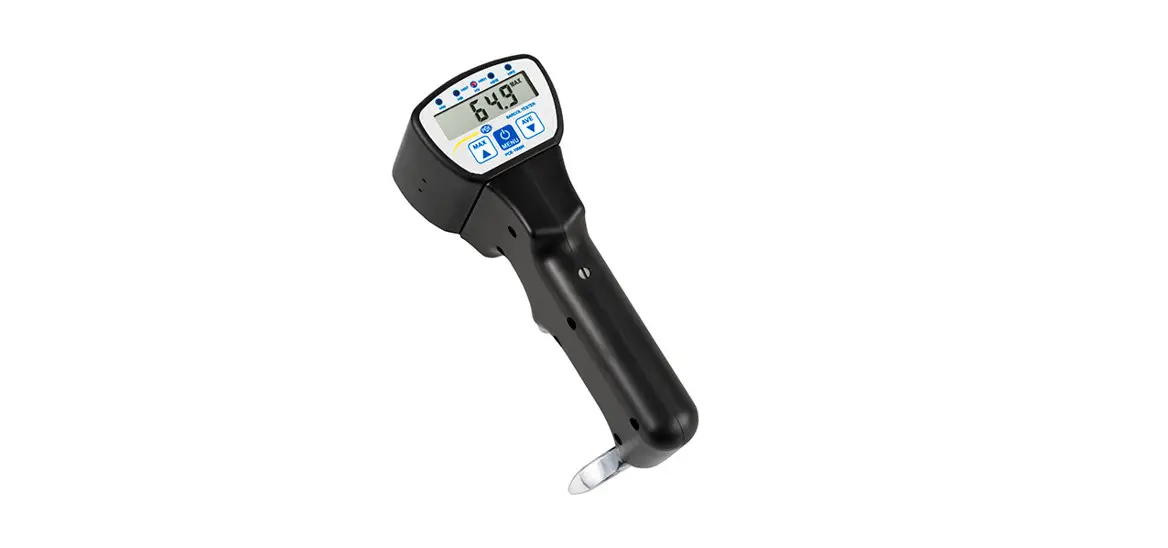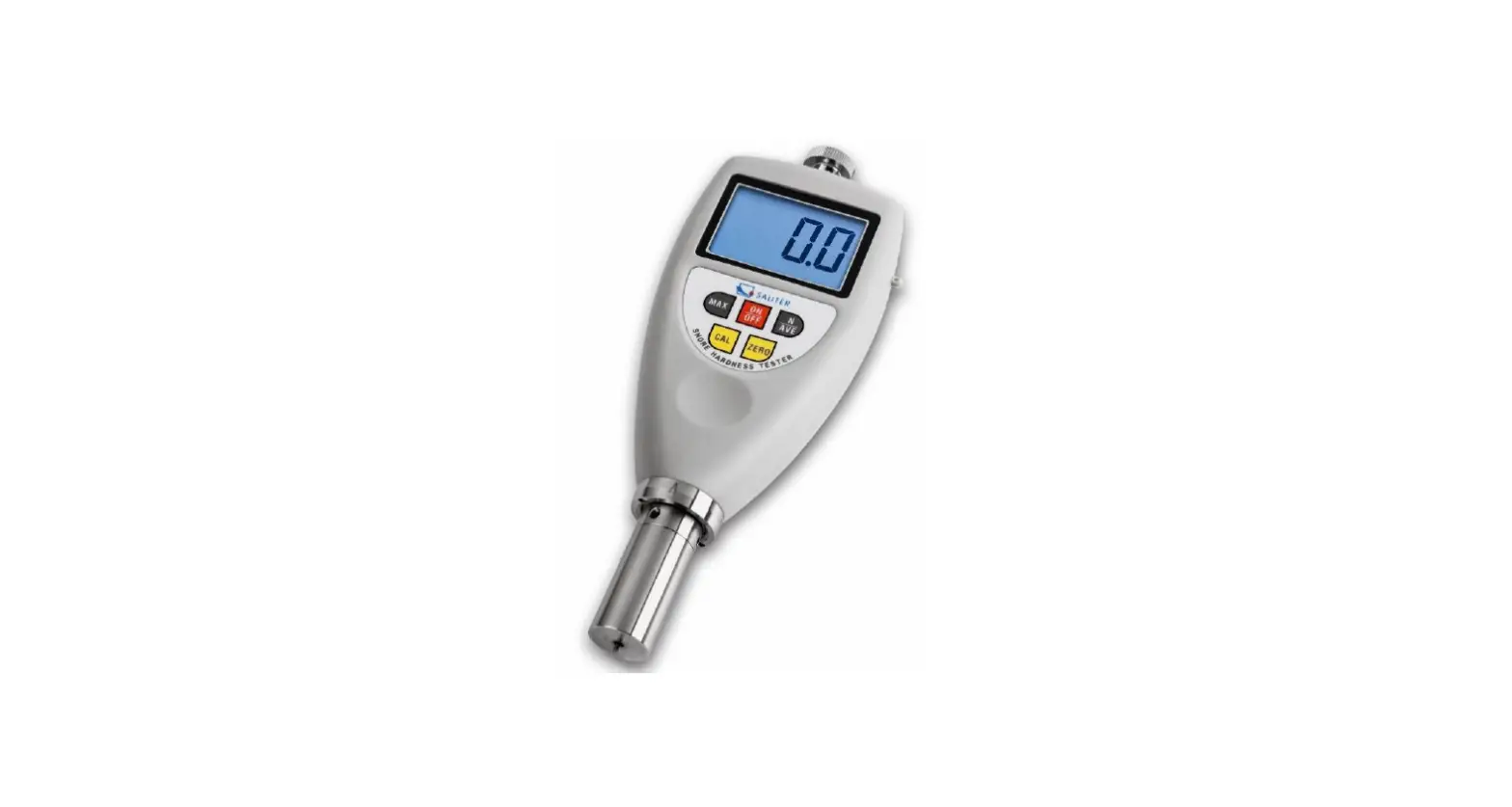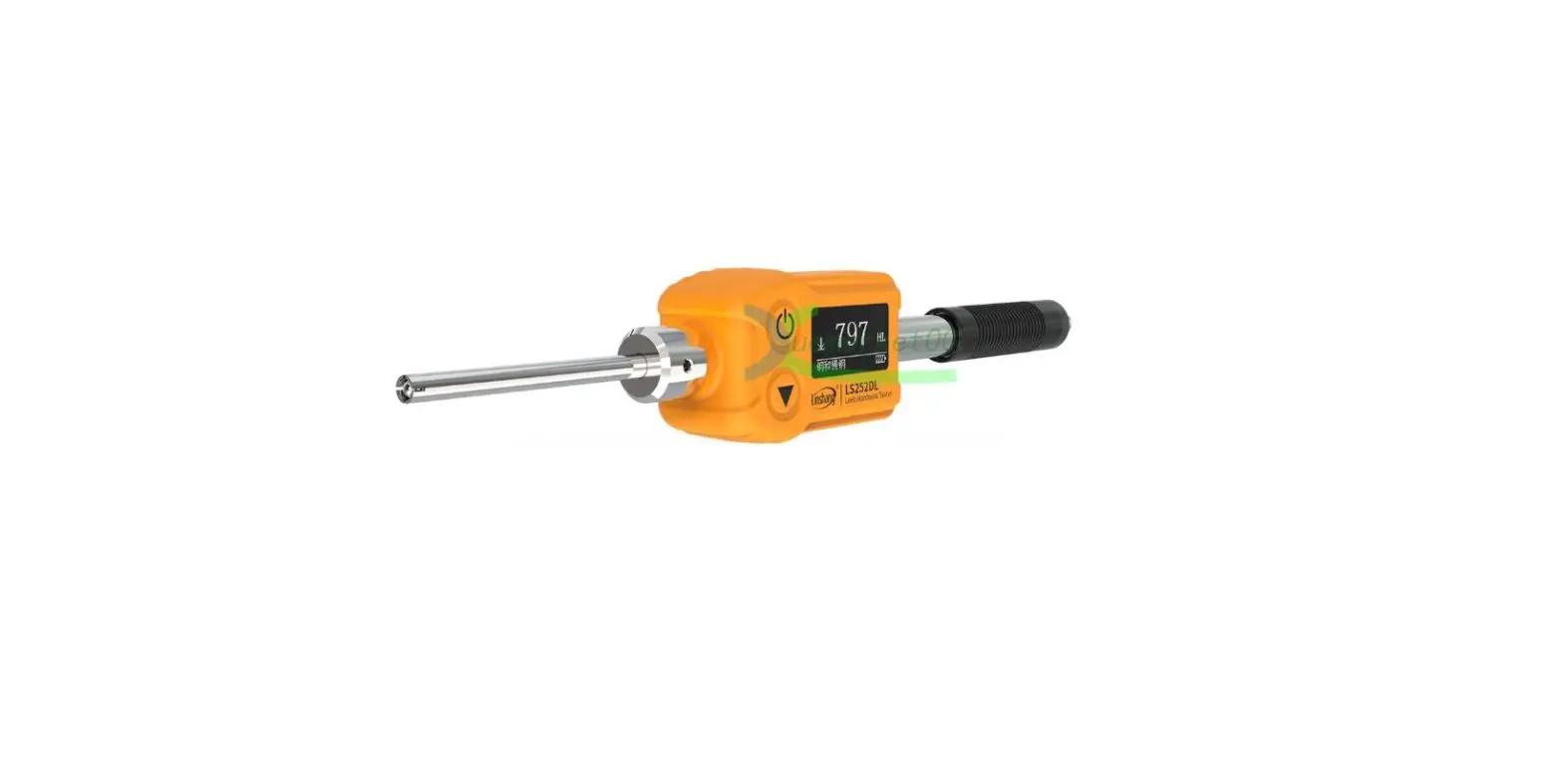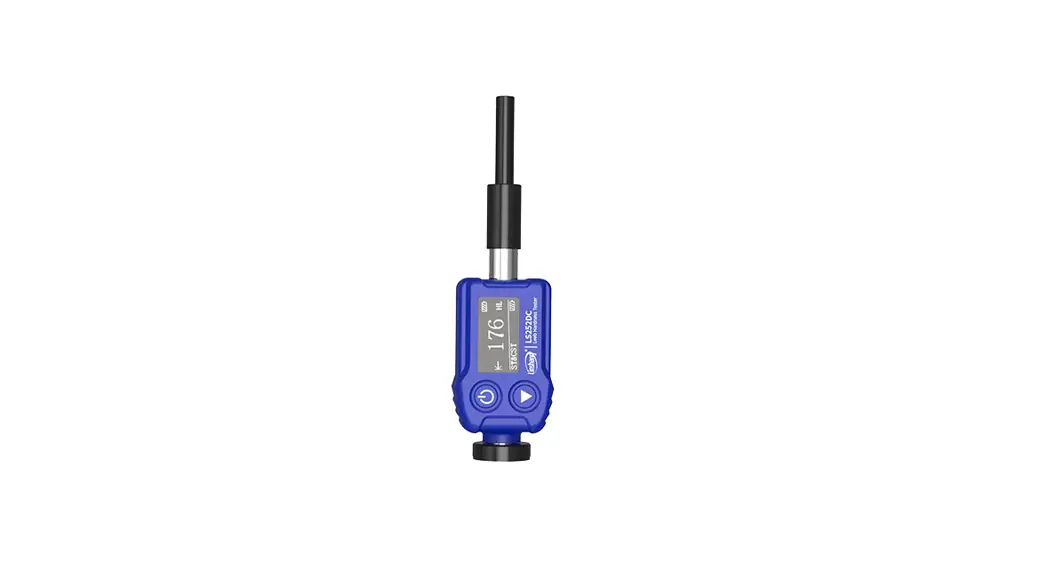
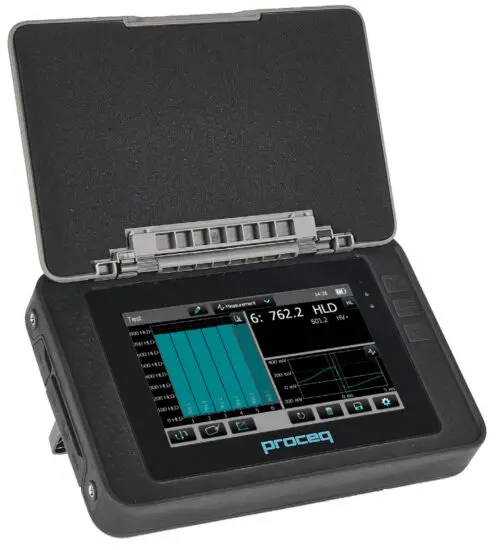
 54257 Equotip 2 Portable Hardness Tester
User Guide
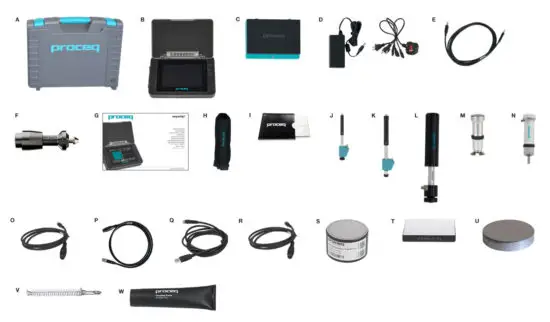
This Quick Start Guide does not replace the Operating Instructions of this product. For complete instructions and safe handling information, see the Operating Instructions:
Touchscreen Unit: Information → Documents Screening Eagle Website: www.screeningeagle.com
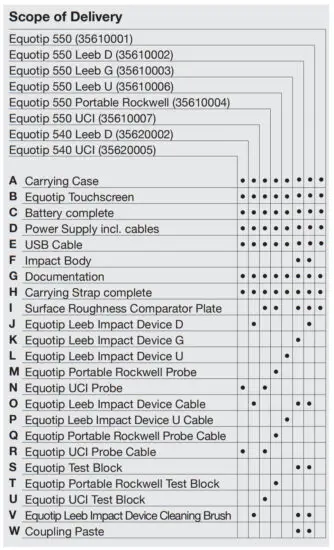
Getting Started
Battery Installation
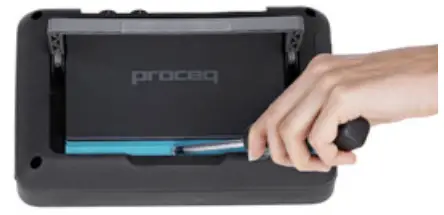
To install the battery, remove the protection foil and lift the stand as shown. Insert the battery and fasten it in place with the screw.
Load Battery
The battery must first be charged 8 hours before use.
Connect through the power supply connection. A Quick Charger (32701053) is available (full charging < 5.5 h).
Connect the Probe
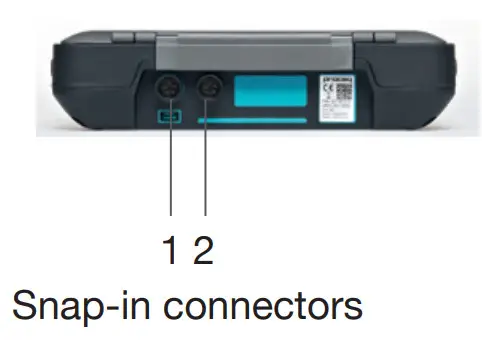
For Leeb, Probes use the Snap-in connector 1.
For UCI Probe use the Snap-in connectors 1 or 2.
For the Portable Rockwell
Probe uses the USB Host connector.
Hardware Connections
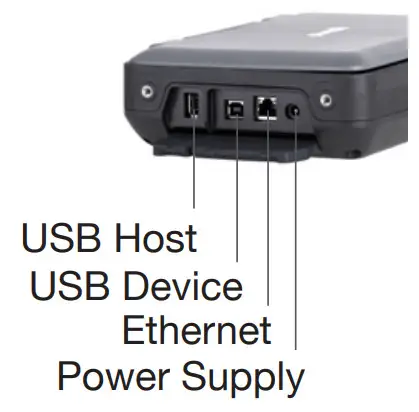
USB Host:
Additionally connect a mouse, keyboard, or USB stick.
USB Device:
Connect to PC.
Ethernet:
Connection to network.
Power Supply:
Connect the power supply through this connection.
Start the Instrument
 Press Power ON/OFF to power on.
Software Upgrade
It is recommended to check for firmware upgrades before using the instrument for the first time. (See Equotip Link).
On start-up, the main menu is displayed. All functions are accessible directly via the Touchscreen.
Return to the previous menu by pressing the Back Button or the return icon (arrow) at the top left of the Touchscreen.
 | Measurement Measurement screen. |
 | Settings Application settings; See Operating Instructions for details. |
 | Data File manager; review of saved measurements on the instrument. |
 | Wizards Predefined workflows to increase process reliability and time efficiency. |
 | Information Contains comprehensive Operating Instructions and important device information. |
 | System Define your interface language, date, time, and other system settings. |
 | Power off Switch off the device. |
Equotip Link
Download and Install the Equotip Link: www.screeningeagle.com. Connect the instrument to a PC using the USB cable provided. Make sure you are connected to the Internet.
 Click on the PQ-Upgrade icon to check for software updates.
Updates should be performed periodically to take advantage of Proceq’s continuous firmware development.
NOTES
| Proceq Europe Ringstrasse 2 8603 Schwerzenbach Zurich | Switzerland T +41 43 355 38 00 | Proceq Rus LLC Ul. Optikov, 4-2A office 410 197374 Saint-Petersburg | Russia T +7 812 448 35 00 |
| Proceq UK Ltd. Bedford i-lab, Stannard Way Priory Business Park MK44 3RZ Bedford London | United Kingdom T +44 12 3483 4645 | Proceq Middle East Sharjah Airport International Free Zone | P.O.Box: 8365 United Arab Emirates T +971 6 5578505 |
| Proceq USA, Inc. 117 Corporation Drive Aliquippa, PA 15001 | USA T +1 724 512 0330 | Proceq SAO Ltd. Rua Paes Leme 136 | Pinheiros, Sao Paulo, SP 05424-010 | Brasil T +55 11 3083 3889 |
| Proceq Asia Pte Ltd. 1 Fusionopolis Way Connexis South Tower #20-02 Singapore 138632 T +65 6331 4151 | Proceq China Room 701, 7th Floor, Golden Block 407-1 Yishan Road, Xuhui District 200032 Shanghai China T +86 21 6317 7479 |
Subject to change. Copyright © 2022 by Proceq SA, Schwerzenbach. All rights reserved.
82035603 ver 06 2018
 Screening Eagle Technologies
 Screening Eagle Technologies