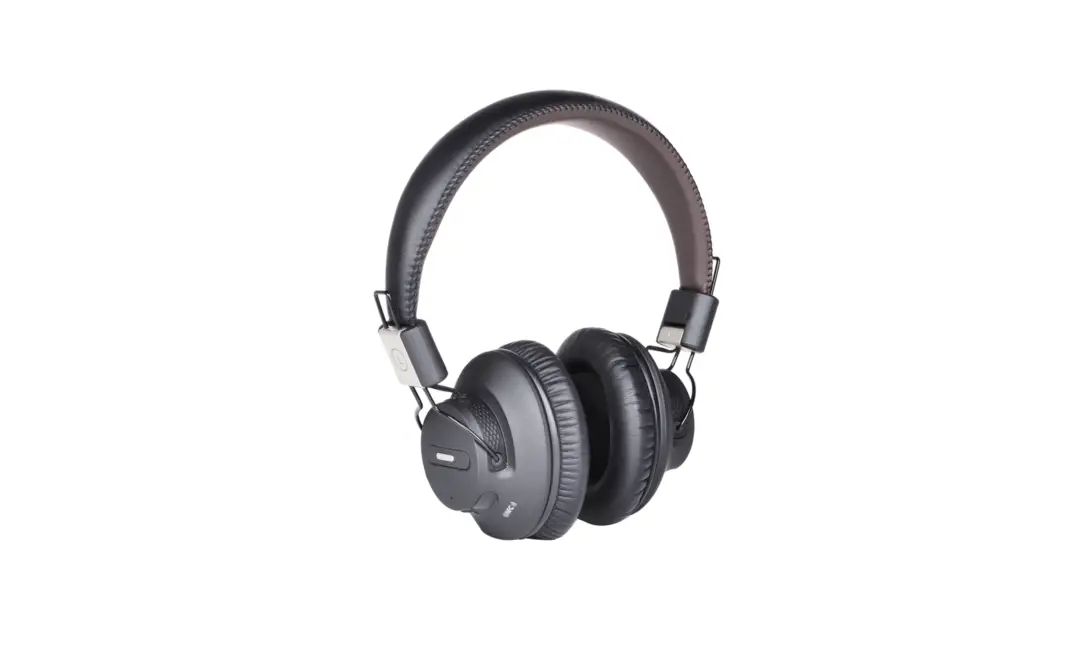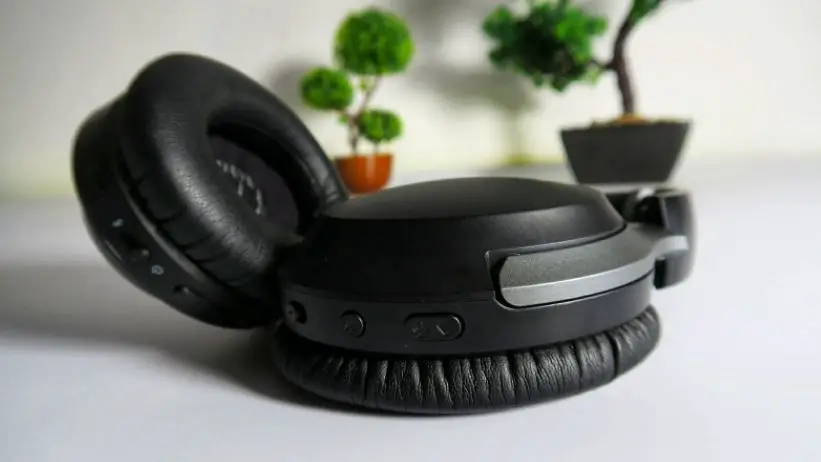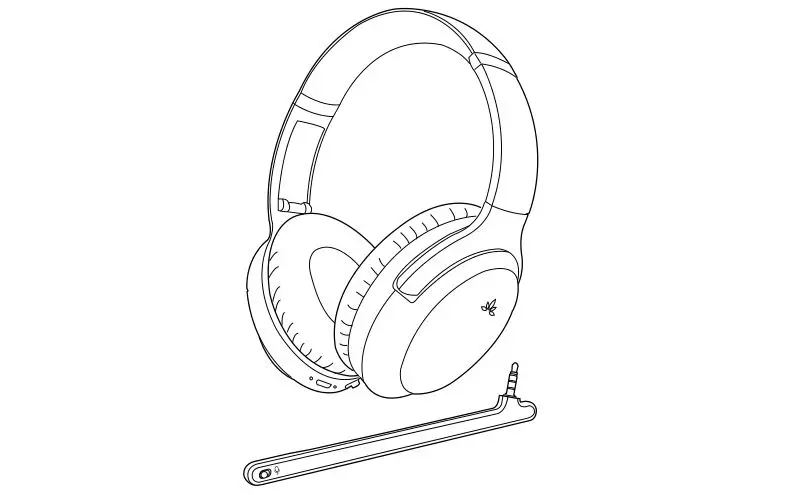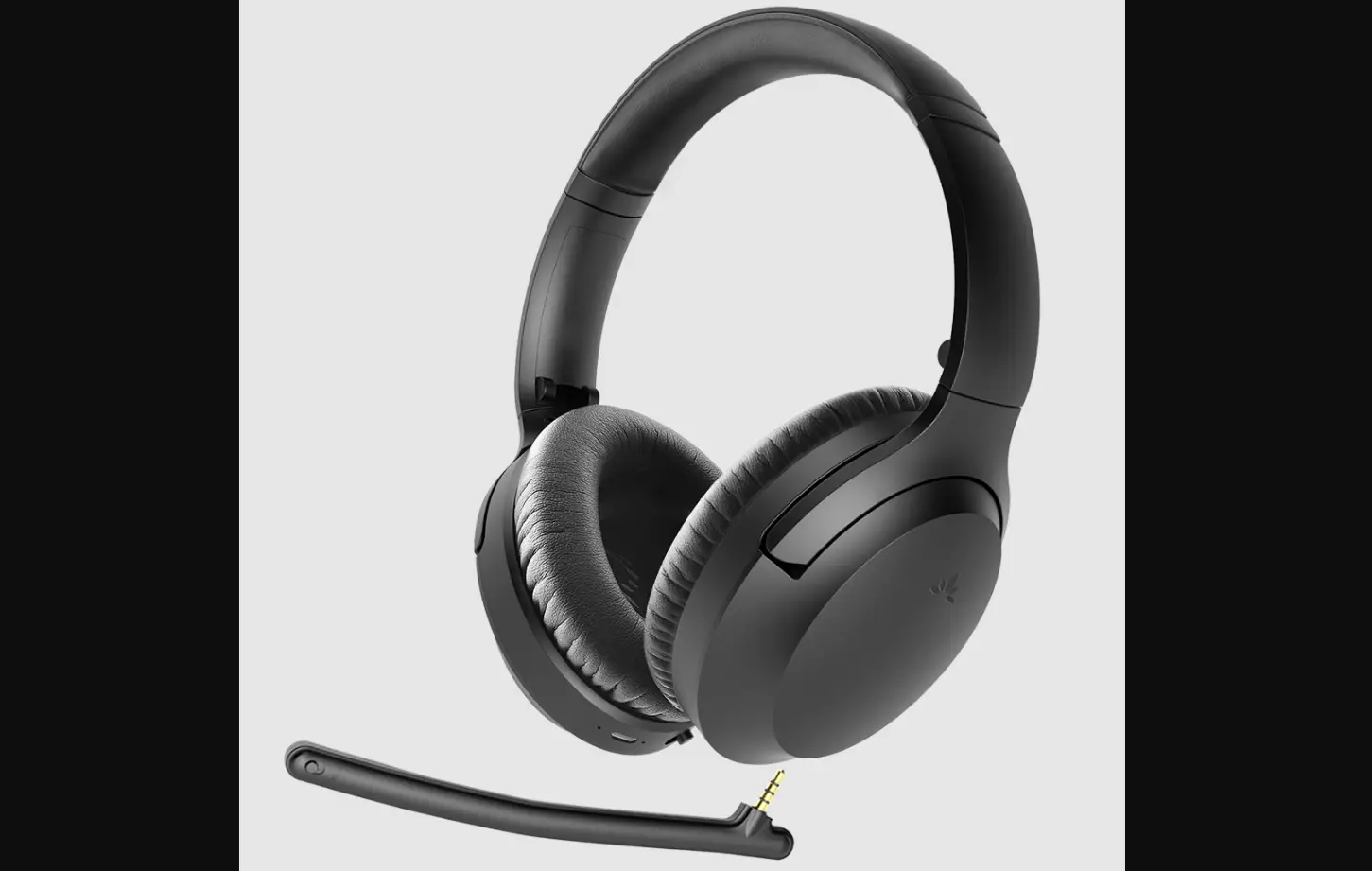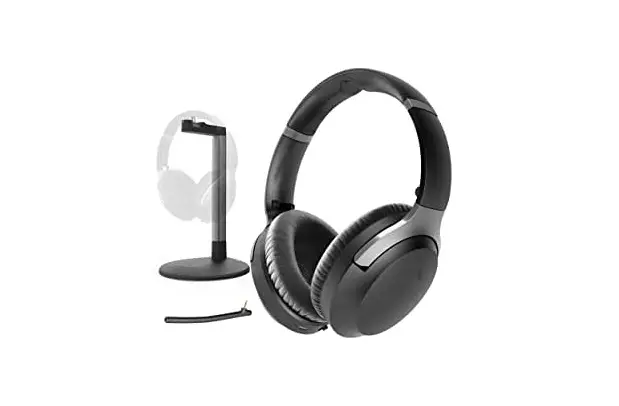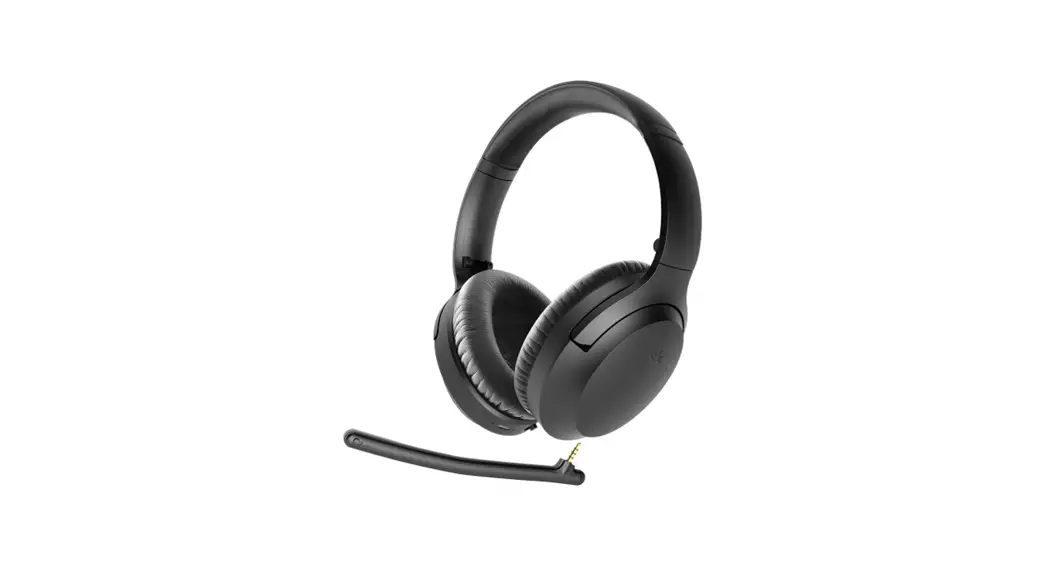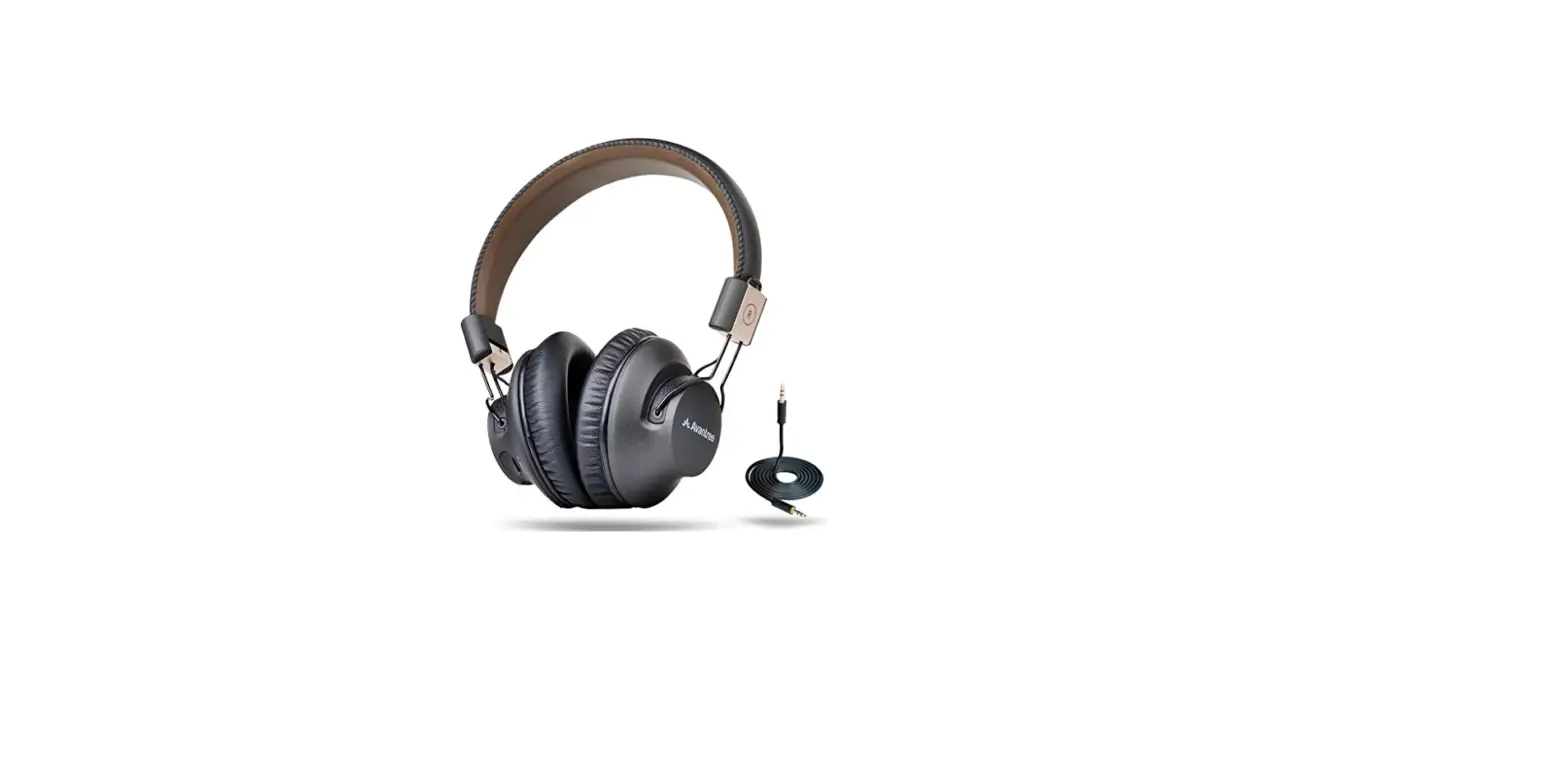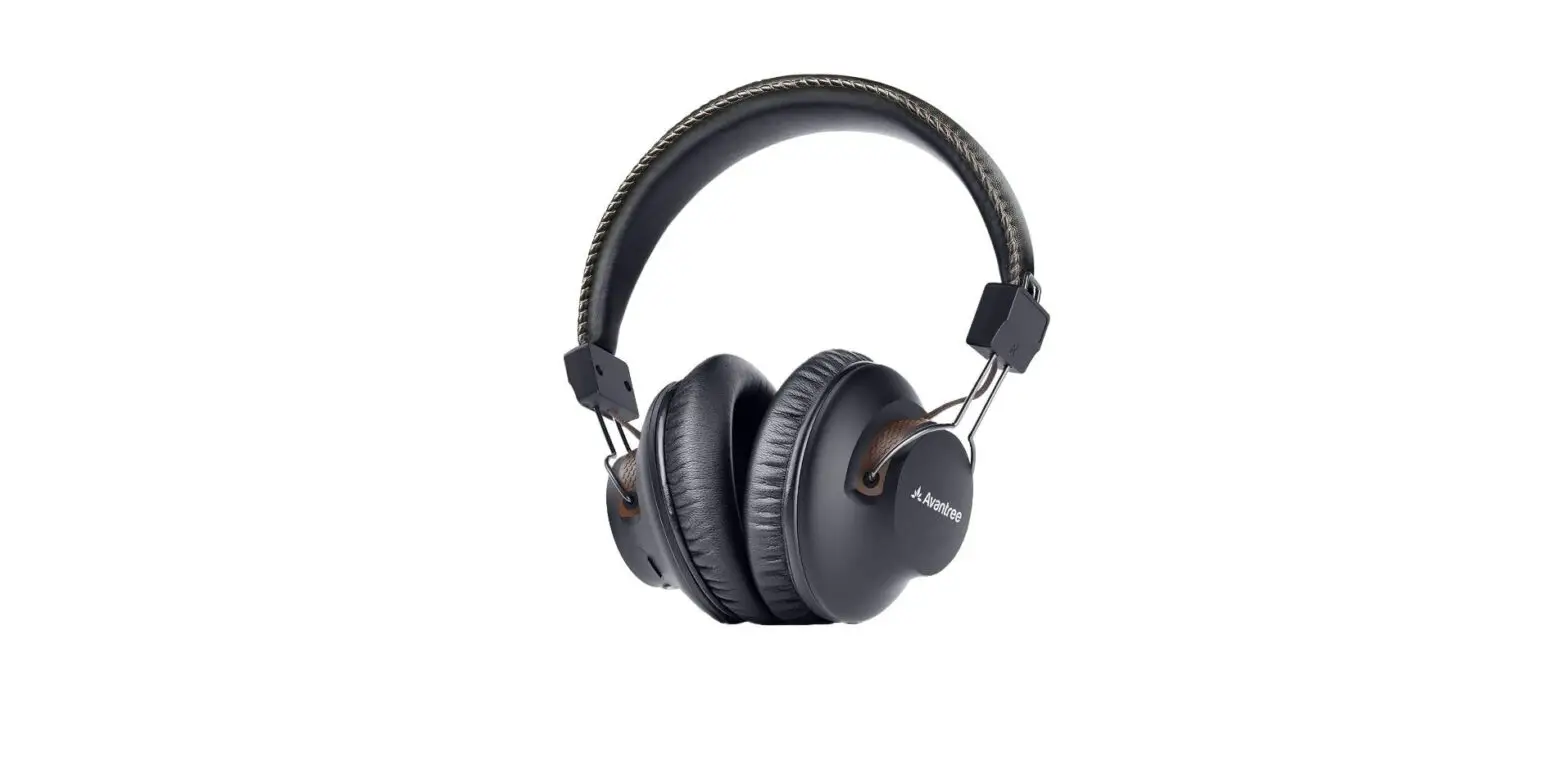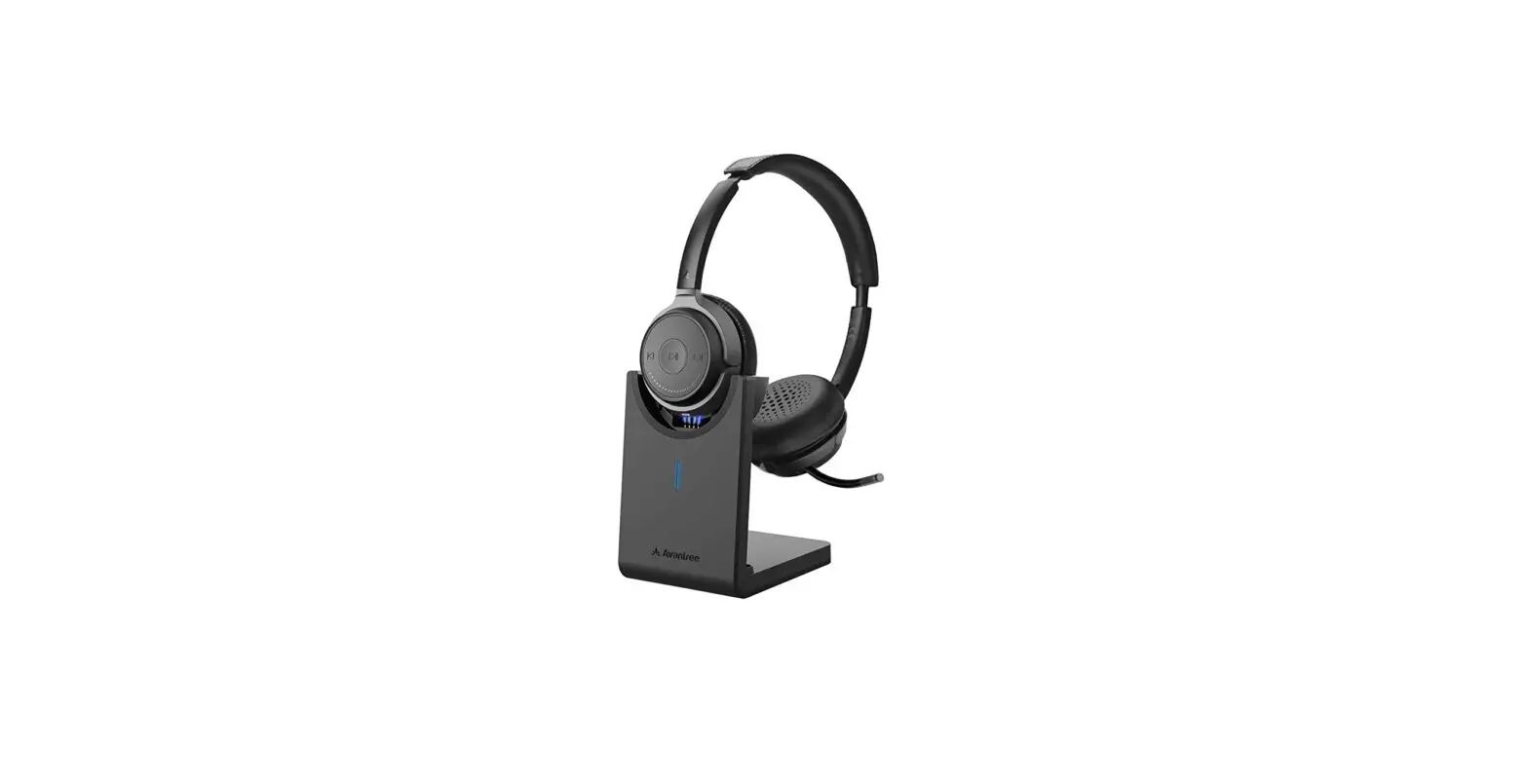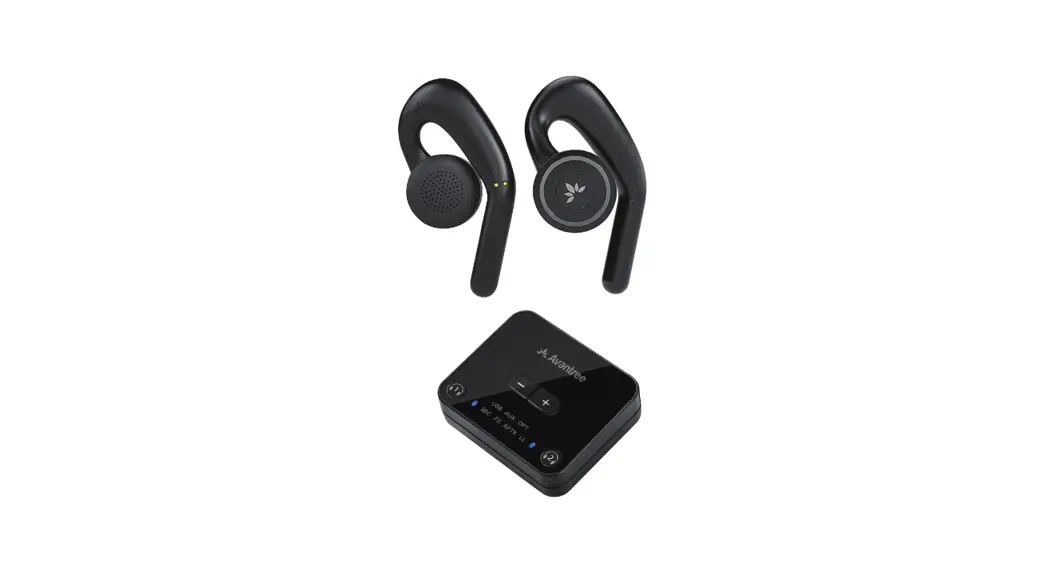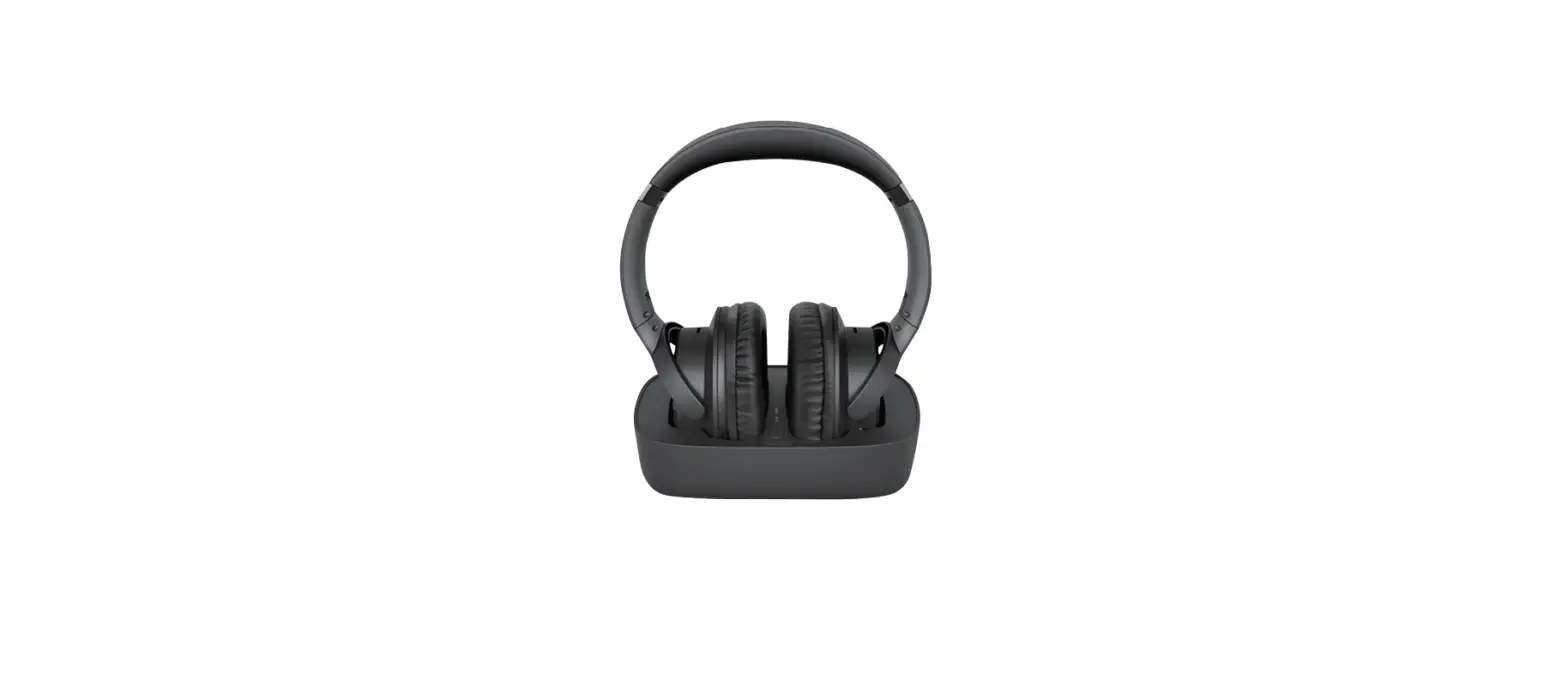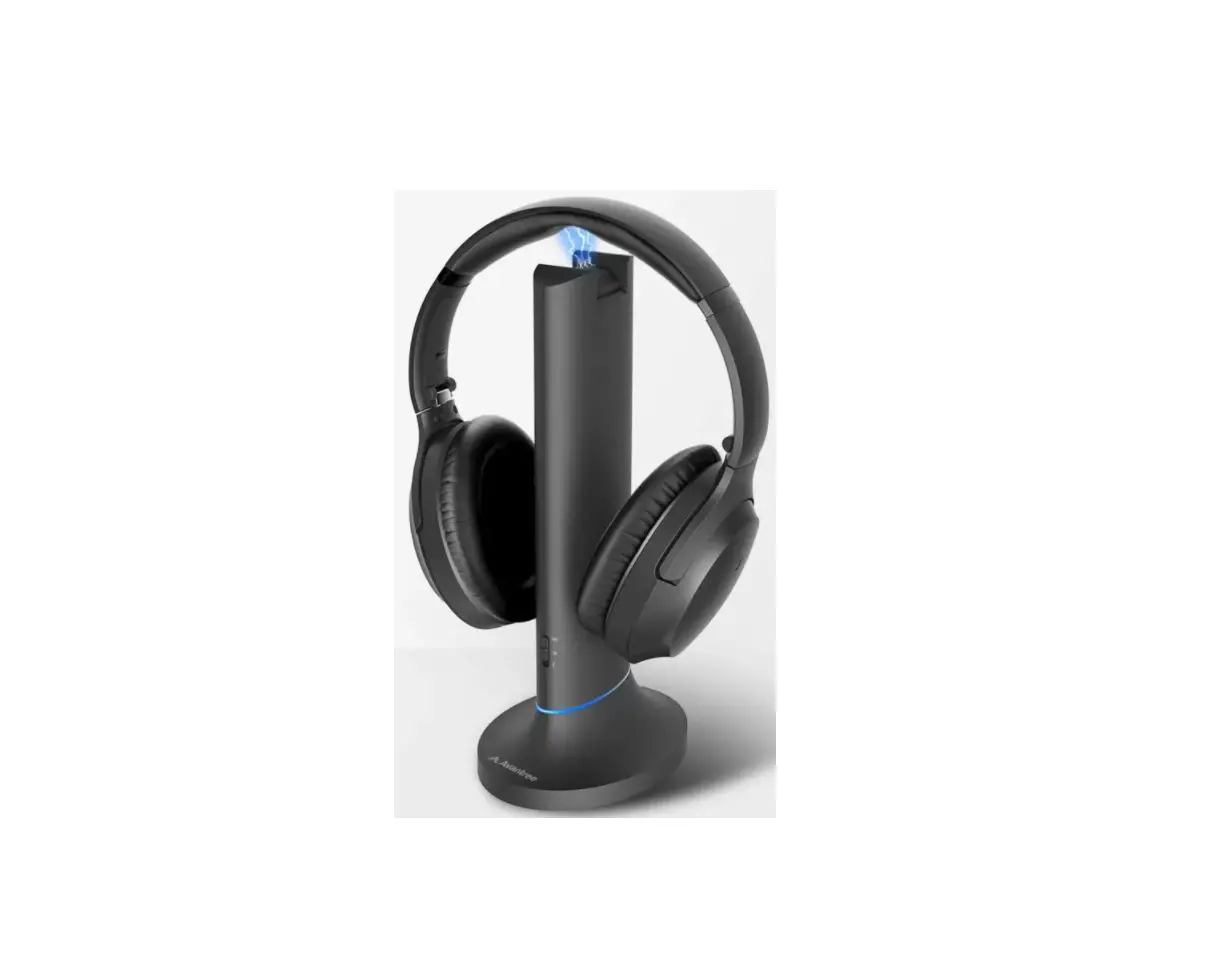

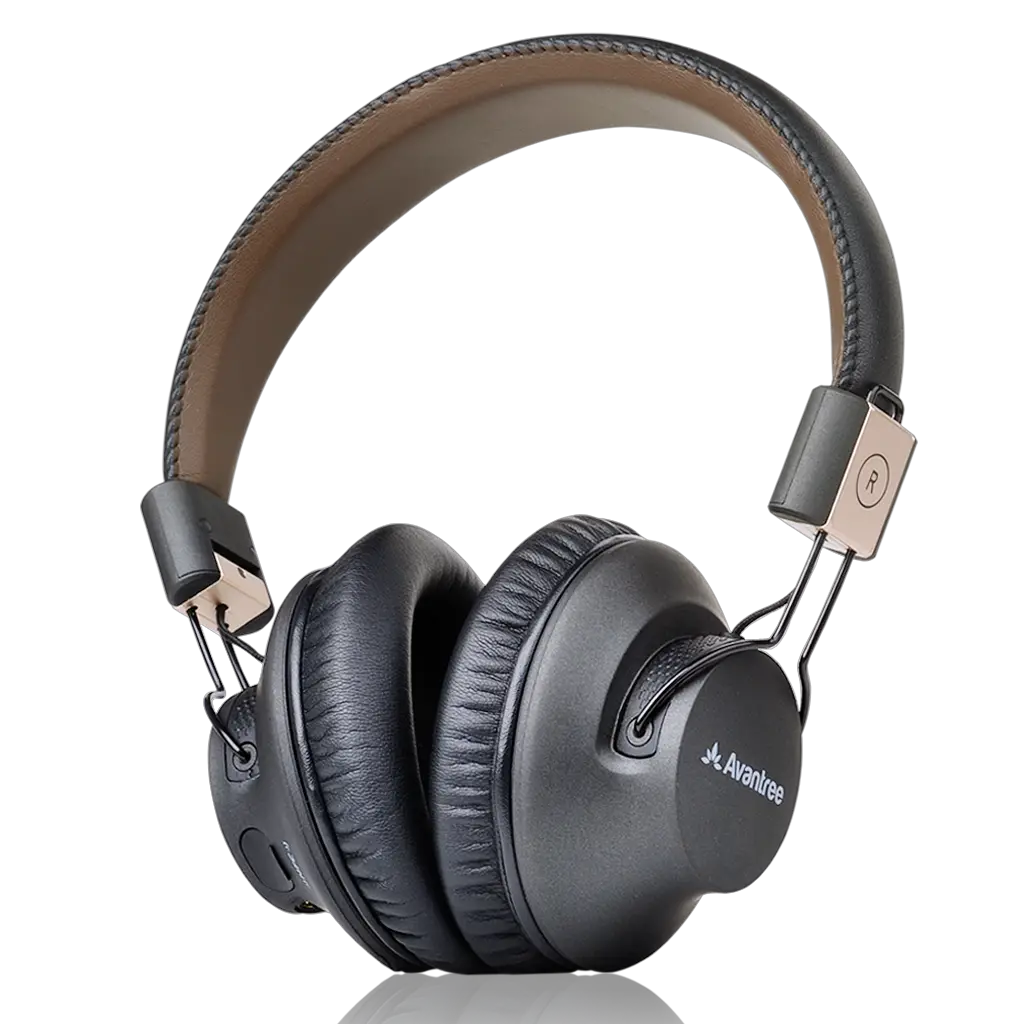
Avantree BTHS-AS9P Low Latency Wireless Headphones
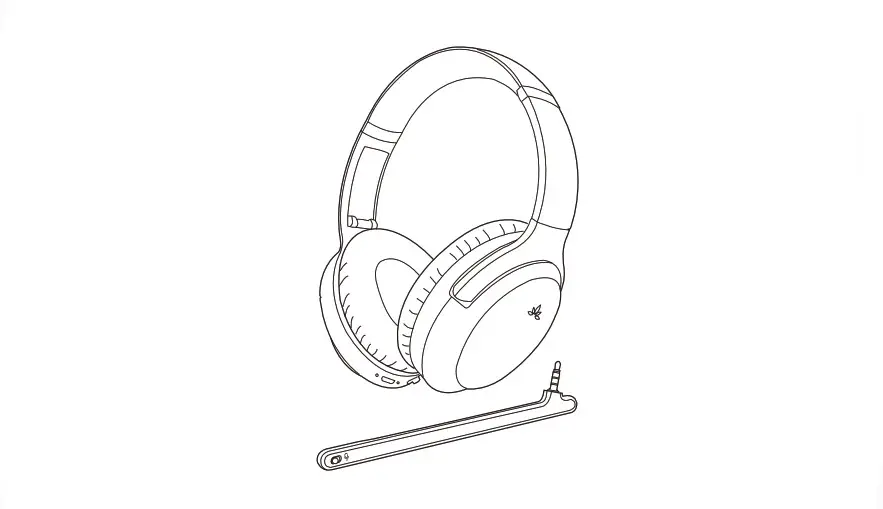
Overview
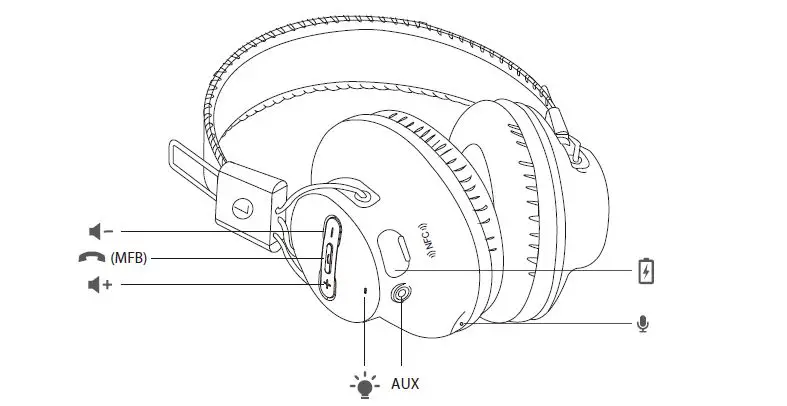
Basic operation
| Button | Function | Operation |
|
| Power on | Press and hold MFB for 1 second |
| Power off | Press and hold MFB for 2 second | |
| Answer a call | Press MFB once | |
| End a call | Press MFB once | |
| Reject a call | Press and hold MFB for 1 second | |
| Redial last number | Double click MFB | |
| Play music | Press MFB once | |
| Pause music | Press MFB once | |
| “V+” and “V-” | Voice Dial / Command (Phone feature) | Short press both “V+” and “V-” |
| “V+” and “V-” | Bass boost | Press and hold both “V+” and “V-” for 3 seconds |
| and “V+” | Voice prompts ON | Press both MFB and “V+” once |
| and “V-” | Voice prompts OFF | Press both MFB and “V-” once |
| V+ | Volume up | Press “V+” once |
| V- | Volume down | Press “V-” once |
| V+ | Next track | Press and hold “V+” |
| V- | Previous track | Press and hold “V-” |
Note: To switch between Bass ON and Bass OFF modes, press and hold V+ and V- for about 3 seconds while listening to the music. You will hear the voice prompts “Bass on” and “Bass off”.
LED indicators
| Working mode | Headphones LED indicator |
| SBC codec | LED flashes BLUE once every 7 seconds |
| aptX codec | LED flashes WHITE once every 7 seconds |
| aptX Low Latency codec | LED flashes WHITE twice every 7 seconds |
Note: aptX Low Latency is supported when the headphones are paired with a transmitter that also supports aptX Low Latency. This can be verified by the LED indications.
Connecting with a mobile phone
Use with one mobile phone
The first time you turn on your headphones they will automatically enter pairing mode.
Step 1 While the headphones LEDs are flashing red and blue alternately, activate Bluetooth ® on your phone and set it to search for new devices.
- iPhone ® Settings > Bluetooth > On*
- Android ™ Settings > Bluetooth: On > Scan for devices
NOTE Menus may vary by device.
Step 2 Select “Avantree Audition Pro” – If prompted, enter passkey 0000/accept connection.
Step 3 Once successfully paired, you will hear “your headset is connected”.
If you want to pair another phone, you can enter pairing mode by pressing and holding the “MFB” button for 5 seconds until the LED flashes alternately blue and red.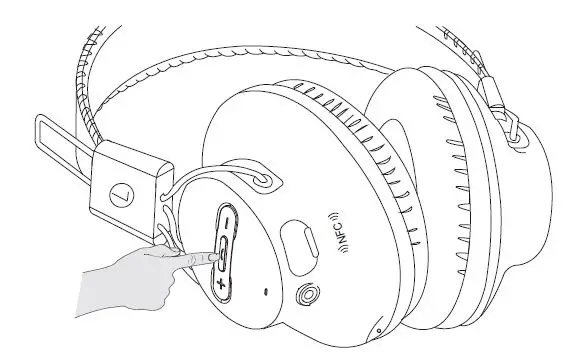
Use with two mobile phones simultaneously
Step 1 Connect headphones with the first phone as above. Then Turn off the headphones.
Step 2 Connect headphones with the second phone as above.
Step 3 Tap and select “Avantree Audition Pro” on the first phone to connect it.
Step 4 Now the headset should be connected with both phones simultaneously.
NOTE: Audition Pro only has one audio channel, if you want to play music from another Bluetooth device, please pause the current device’s music first.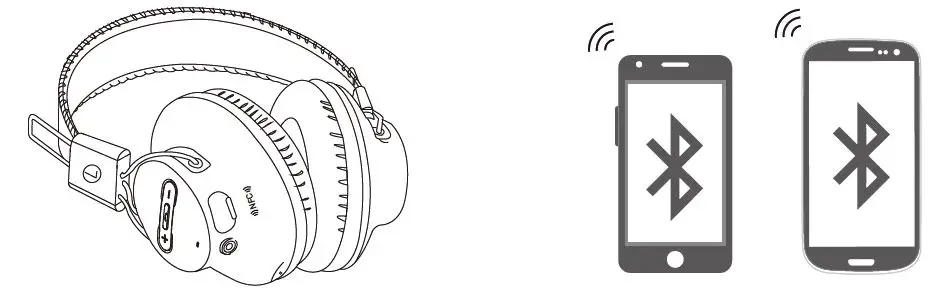
Reconnecting
The next time you turn on the Audition Pro it should automatically reconnect to your phone. Alterna-tively you can press the MFB button once to reconnect them.
Use with an NFC enabled mobile phone
Step 1 Turn on your phone’s NFC function from the phone settings and ensure the screen is active and unlocked.
Step 2 Hold the NFC mobile phone against the NFC zone of the headset (the NFC logo) until your mobile phone plays an indicate note. (Some phones will vibrate, some will emit a beep sound.)
Step 3 Your phone will get a reception request asking if you would like to pair with the headphones.
Step 4 Tap “Yes”, then your mobile phone will connect with your Audition Pro.
Step 5 Tap it again to disconnect.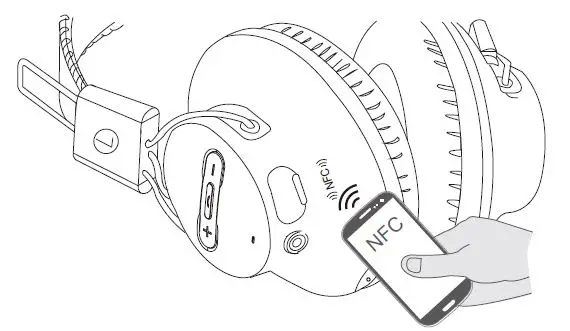
NOTE: Since the NFC antenna location is different depending on the phone, it is helpful to know its location for accurate pairing. Please refer to your phone’s user manual. NFC pairing is active pairing, the headset can be activated both while power is on or power off.
Connecting with a TV
Many TVs currently include Bluetooth streaming as a built-in feature. Check to see if your TV is Blue-tooth enabled by referring to your user manual or by searching for Bluetooth audio options in your TV’s settings menu.
Use with a Bluetooth enabled TV
Step 1 Make sure the Audition Pro is OFF.
Step 2 Press and hold the MFB for about 5s until the LED indicator flashes blue and red alternately.
Step 3 Enable your TV’s Bluetooth function from its System Settings menu then select ‘Avantree Audi tion Pro’ to connect.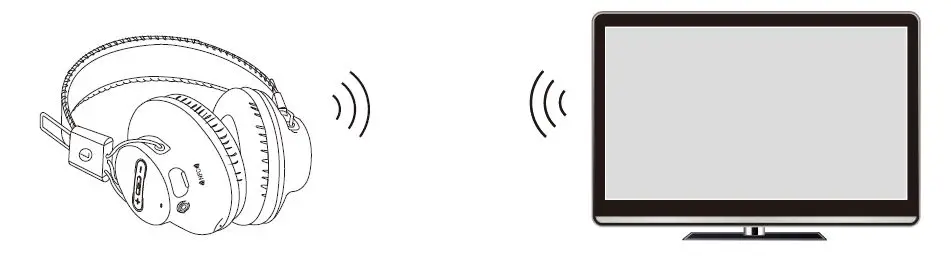
NOTE: To make use of the Audtion Pro’s aptX-Low Latency feature (Latency of <40ms) , your TV’s Bluetooth or your Bluetooth transmitter must also support aptX-LL. (Our Avantree Oasis and Avantree Audikast support both aptX and aptX-LL)
Use with a Non-Bluetooth enabled TV (must use a Bluetooth transmitter)
Step 1 Press and hold the MFB for about 5s until the LED indicator flashes blue and red alternately.
Step 2 Enter the transmitter’s pairing mode (please refer to your user manual), keep it close to the Audition Pro and wait for them to pair and connect (You’ll hear “connected” once they success fully connected).
Step 3 Connect Bluetooth transmitter to your TV’s audio out (please refer to user manual).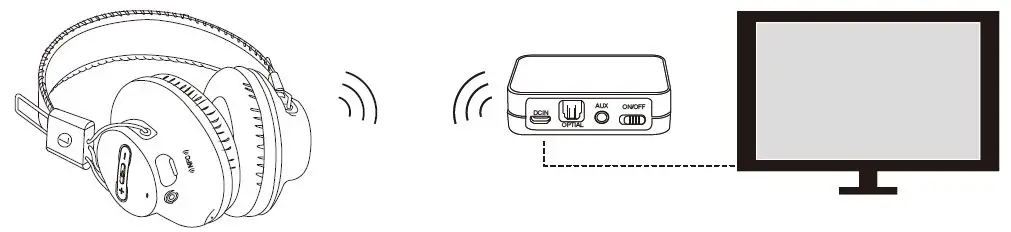
For more instructions details please search “Audition Pro” on support.avantree.com or contact [email protected]
Why is there no sound?
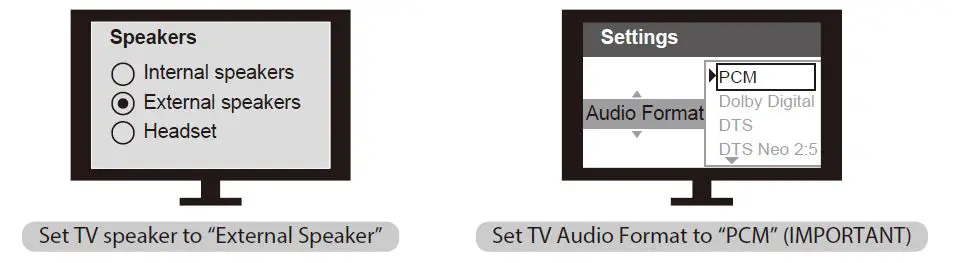
Optical Audio Out
When you set up your Bluetooth transmitter using optical audio out:
a. Ensure your TV speaker is set to “External Speaker”
b. Ensure your TV Audio Format is set to “PMC” (This is IMPORTANT)
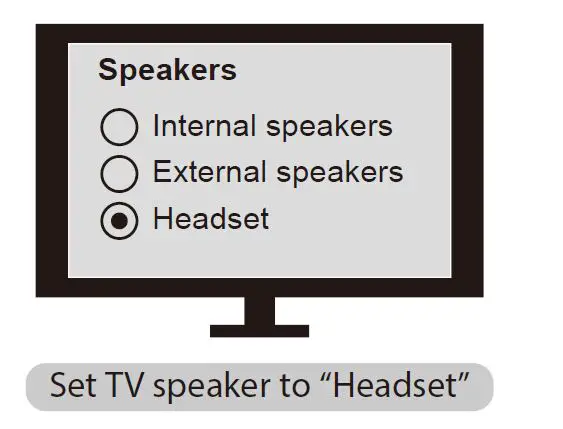
AUX/3.5mm Audio Out
When you set up your Bluetooth transmitter using optical audio out, please ensue your TV speaker is set to “Headset”.
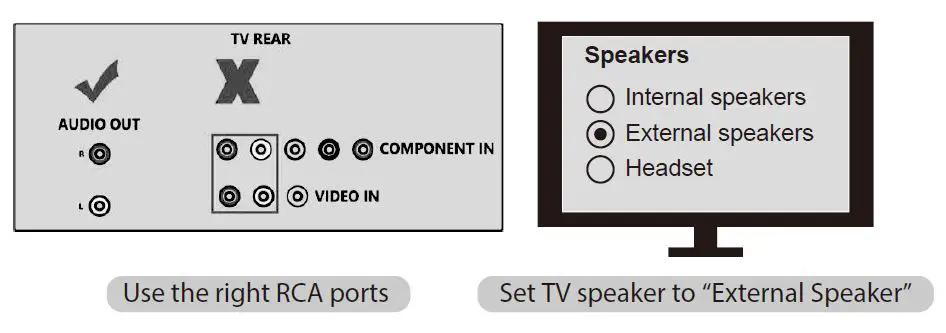
RCA Audio Out ( Red/White ports labeled “AUDIO OUT” ) When you set up your Bluetooth transmitter using RCA Audio Out:
a. Ensure use TV Red/White ports labeled “AUDIO OUT”, other Red/White ports are incorrect.
b. Ensure your TV Speaker is set to “External Speaker”
 Connecting with a Bluetooth enabled PC/Laptop
 Connecting with a Bluetooth enabled PC/Laptop
Turn on: Press and hold the MFB for 1 second, the LED flashes blue and you will hear: “Welcome to Avantree”.
Turn off: Press and hold the MFB for 2 seconds, the LED flashes red and you will hear: “Goodbye”.
Step 1 Turn your Audition Pro off (press and hold the MFB for 2 seconds).
Step 2 Press and hold the MFB for about 5s until the LED indicator flashes blue and red alternately.
Step 3 Activate Bluetooth on your PC/Laptop and connect with “Avantree Audition Pro”.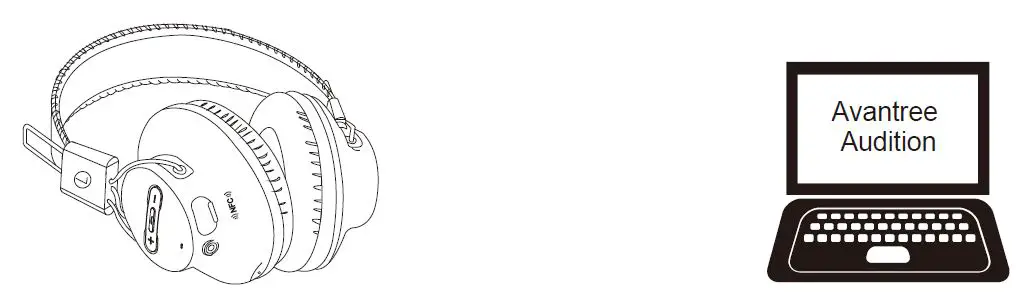
NOTE: Your PC/notebook should support the A2DP profile, if not you may need a separate Bluetooth dongle that supports this feature. On “Playback devices”, please select the “Avantree Audition Pro Hands-Free” as the Default Communications Device, and the “Avantree Audition Pro Stereo” as the Default Device, or the sound will come from the laptop speakers instead of the headphones. For additional details on PC/Laptop please see support.avantree.com.
Use as wired headphones
If your audio source is not Bluetooth enabled, or if the Audition Pro battery is low (LED blinking red), you can use a 3.5mm audio cable to stream music. Connect the supplied 3.5mm audio cable between your device and the 3.5mm audio socket on your Audition Pro.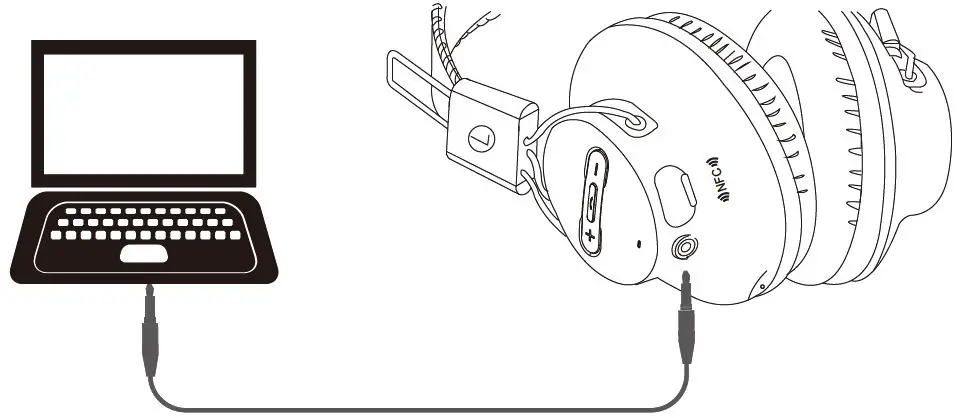
NOTE: The buttons and microphone on your Audition Pro will not work when connected as wired headphones.
Charging
When the LED blinks red, you should recharge your headphones. Remove the Micro USB port protector and charge the headphones via the supplied Micro USB cable. It normally takes about 3 hours to fully charge the battery. The LED will stay red when charging and will turn off when charging is complete.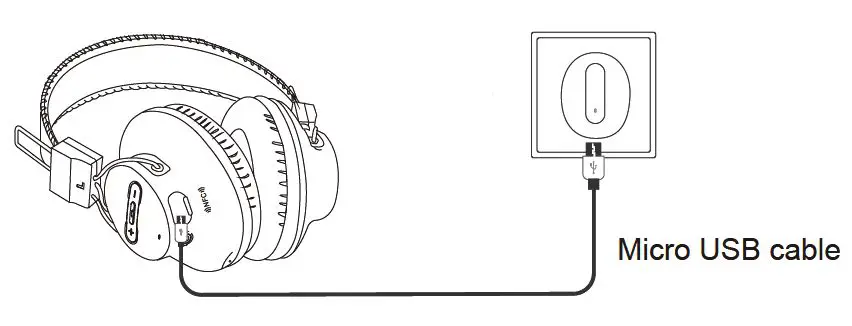
Charging requirement: You can plug our supplied Micro USB cable into a compatible USB charger (wall charger/travel charger/car charger etc.) with 5V/500mA-2A output or to a PC/Mac USB port. It is OK to use most mobile phone chargers on the market.
Clear pairing history
You may need to reset your Audition Pro if it’s not working as expected. In standby mode, press and hold both “V+” and MFB buttons for 5 seconds until the LED flashes blue and red together very quickly about 2 times and then the headset will turn off automatically. Now your Audition Pro has been restored to its default settings. After turning it on again, it will automatically enter pairing mode.
Troubleshooting
No sound with PC?
- Under Playback Devices select the Avantree AS9P as the default playback device
- When using AS9P to make VOIP calls from an app, please select the AS9P Hands-Free for Micro phone and Speaker device
No sound using a Bluetooth transmitter to watch TV?
- Ensure the Bluetooth transmitter and headphones are connected properly
- Check that your audio OUTPUT is functioning properly
- AUX & RCA (red and white) outputs on TV – test audio with any wired headphone
- OPTICAL output on TV – set your TV audio format to “PCM/LPCM” or turn off Dolby/DTS
- Change your TV audio out device setting to External speakers/Headset
Clearing paired history (Bluetooth & Broadcast)
Turn on headphones (do not activate Broadcast function), hold and together for 5 seconds until the LED blinks Blue and Red together (looks PINK) for 2s.
To restart the headphones
If the headphones DO NOT respond, please recharge the headphones or connect the headphones with any audio device via the 3.5 mm audio cable.
Headphones do not pair with Bluetooth device
- Ensure the AS9P is in Pairing mode – LED will flash BLUE and RED alternately.
- For Bluetooth transmitter, ensure the transmitter is in Pairing mode – please refer to user manual.
- For mobile phones, tablets and PCs
- Turn the Bluetooth off then on again.
- Delete/forget the “Avantree AS9P” from your device’s Bluetooth list and then try to pair again
- Clear the headphone’s pairing history, and pair again
- Pair and connect
WARNINGS / CAUTIONS
- Permanent hearing loss may result from long-term exposure to sound at high volumes.
- This product contains small parts which may be a choking hazard. Not suitable for children under age 3.
- To reduce the risk of fire or electrical shock, do NOT expose this product to rain, liquids or moisture.
- Do NOT make unauthorized alterations to this product.
- Do NOT expose products containing batteries to excessive heat (e.g.direct sunlight,fire, etc.).
- Do not leave a fully charged battery connected to a charger;overcharging may shorten its life.
Declaration of Conformity
CE: The product is in conformity with the essential requirements of Article 3.1 (a) (b),3.2 of Directive 1999/5/EC and the essential requirements of Directive 2004/108/EC.
This device complies with part 15 of the FCC Rules. Operation is subject to the condition that this device does not cause harmful interference (1) this device may not cause harmful interference, and (2) this device must accept any interference received, including interference that may cause undesired operation.Chang-es or modifications not expressly approved by the party responsible for compliance could void the user’s authority to operate the equipment.
NOTE: This equipment has been tested and found to comply with the limits for a Class B digital device, pursuant to Part 15 of the FCC Rules. These limits are designed to provide reasonable protection against harmful interference in a residential installation. This equipment generates uses and can radiate radio frequency energy and, if not installed and used in accordance with the instructions, may cause harmful interference to radio communications. However, there is no guarantee that interference will not occur in a particular installation.If this equipment does cause harmful interference to radio or television reception, which can be determined by turning the equipment off and on, the user is encouraged to try to correct the interference by one or more of the following measures:
- Reorient or relocate the receiving antenna.
- Increase the separation between the equipment and receiver.
- Connect the equipment into an outlet on a circuit different from that to which the receiver is connected. — Consult the dealer or an experienced radio/TV technician for help.
To maintain compliance with FCC’s RF Exposure guidelines, This equipment should be installed and operated withminimum distance between 20cm the radiator your body: Use only the supplied antenna. FCC ID: 2AITF-BTHS-AS9P
Dispose of the packaging and this product in accordance with the latest provisions.