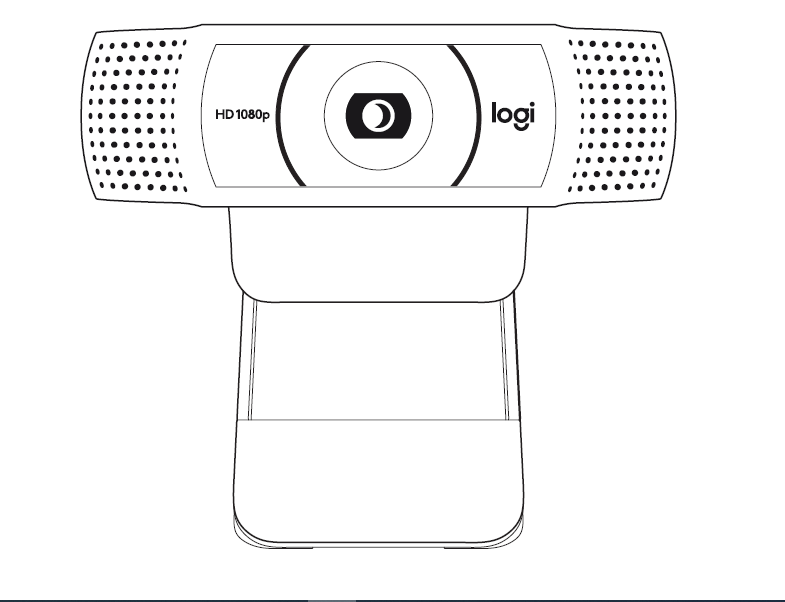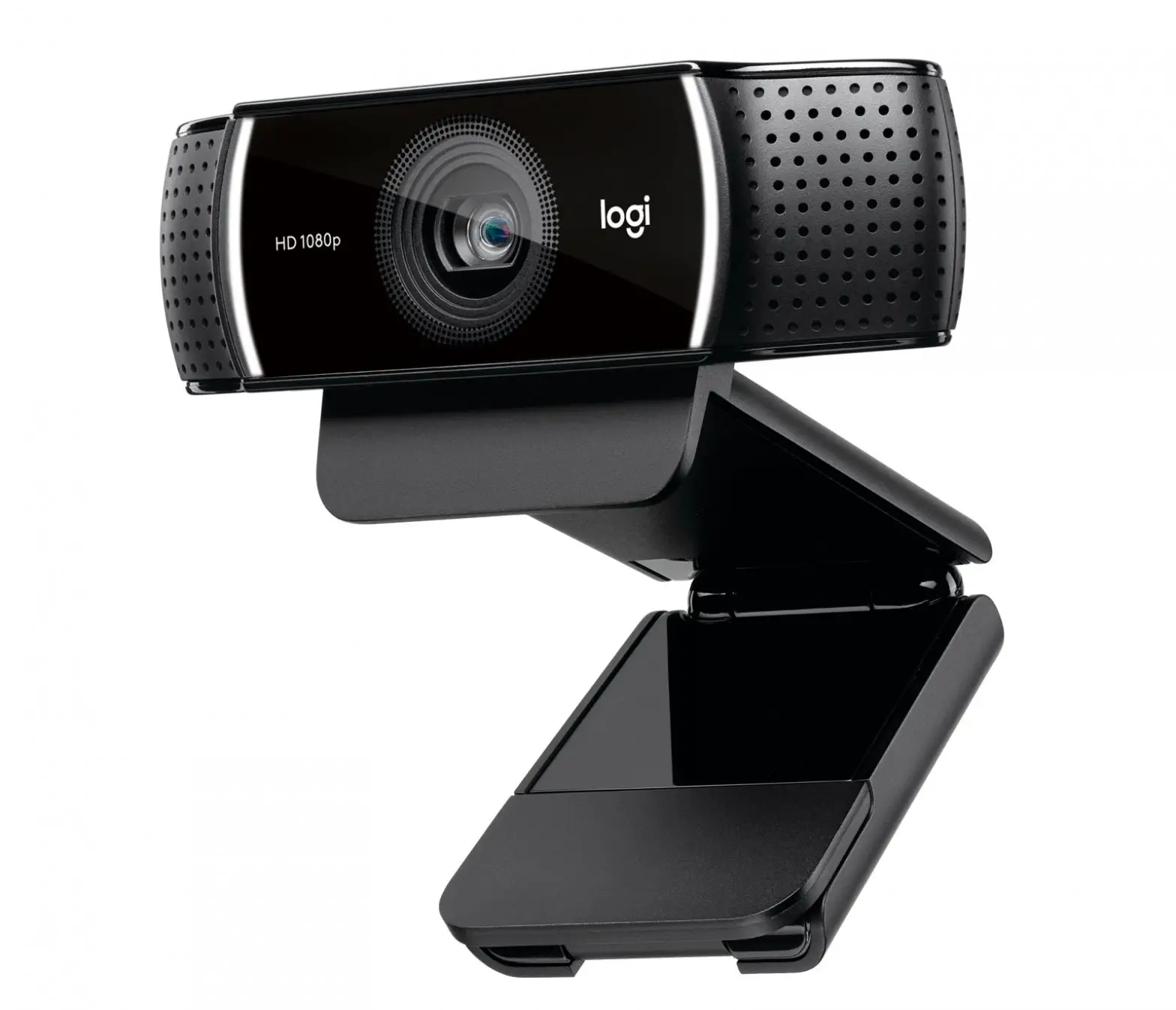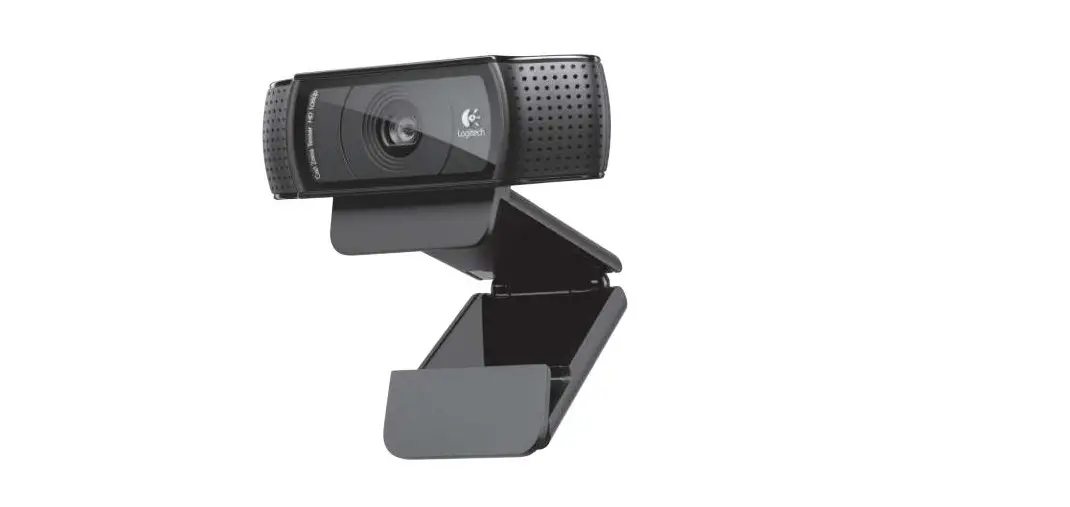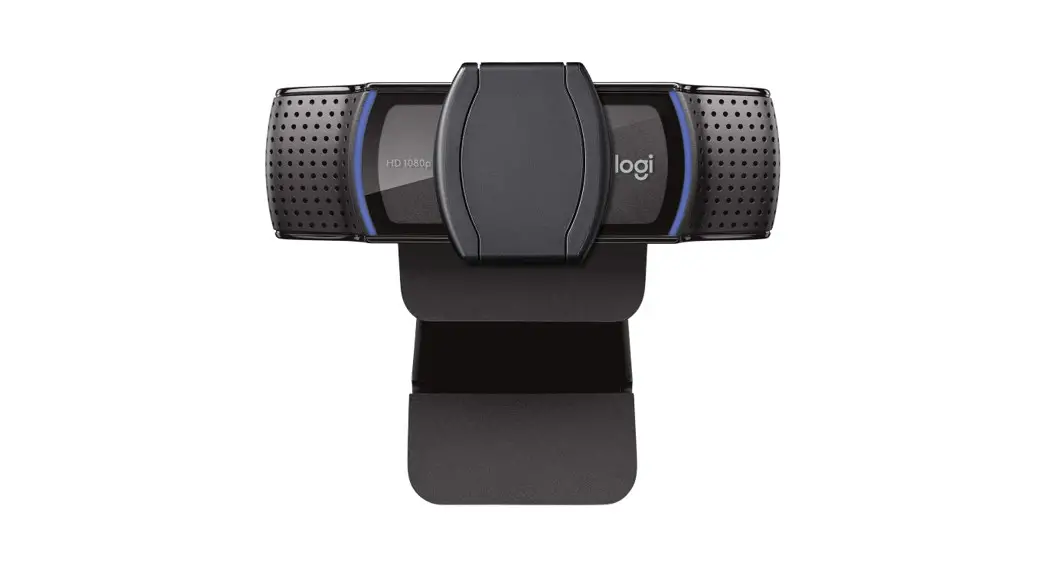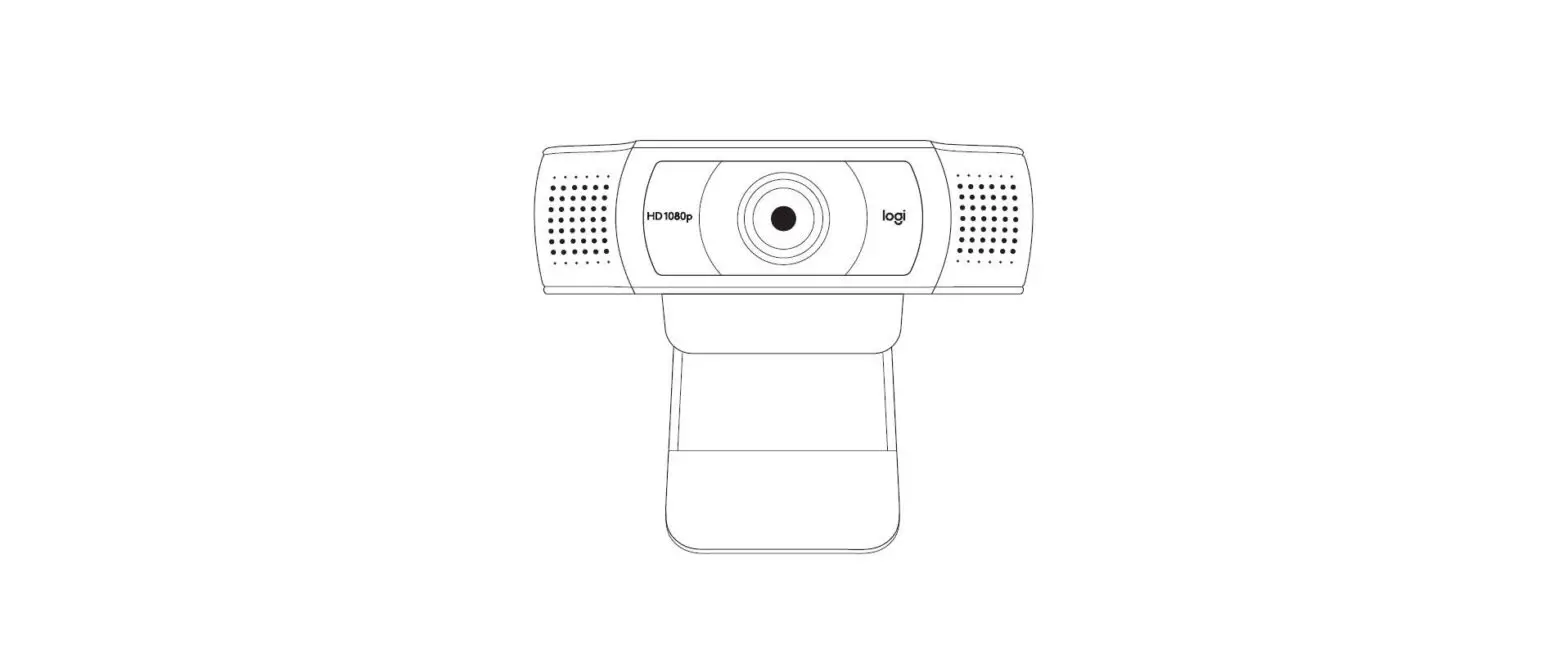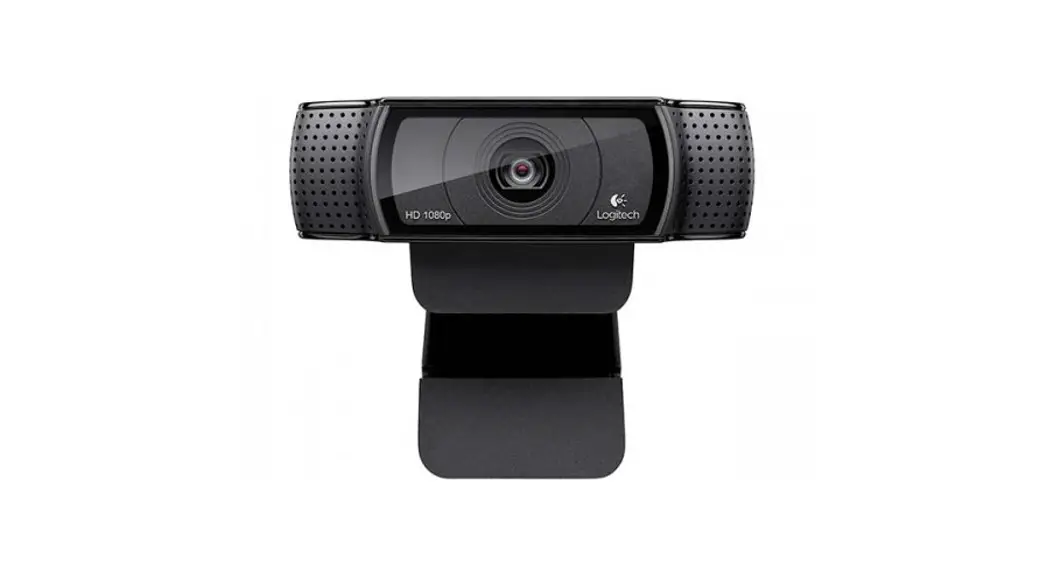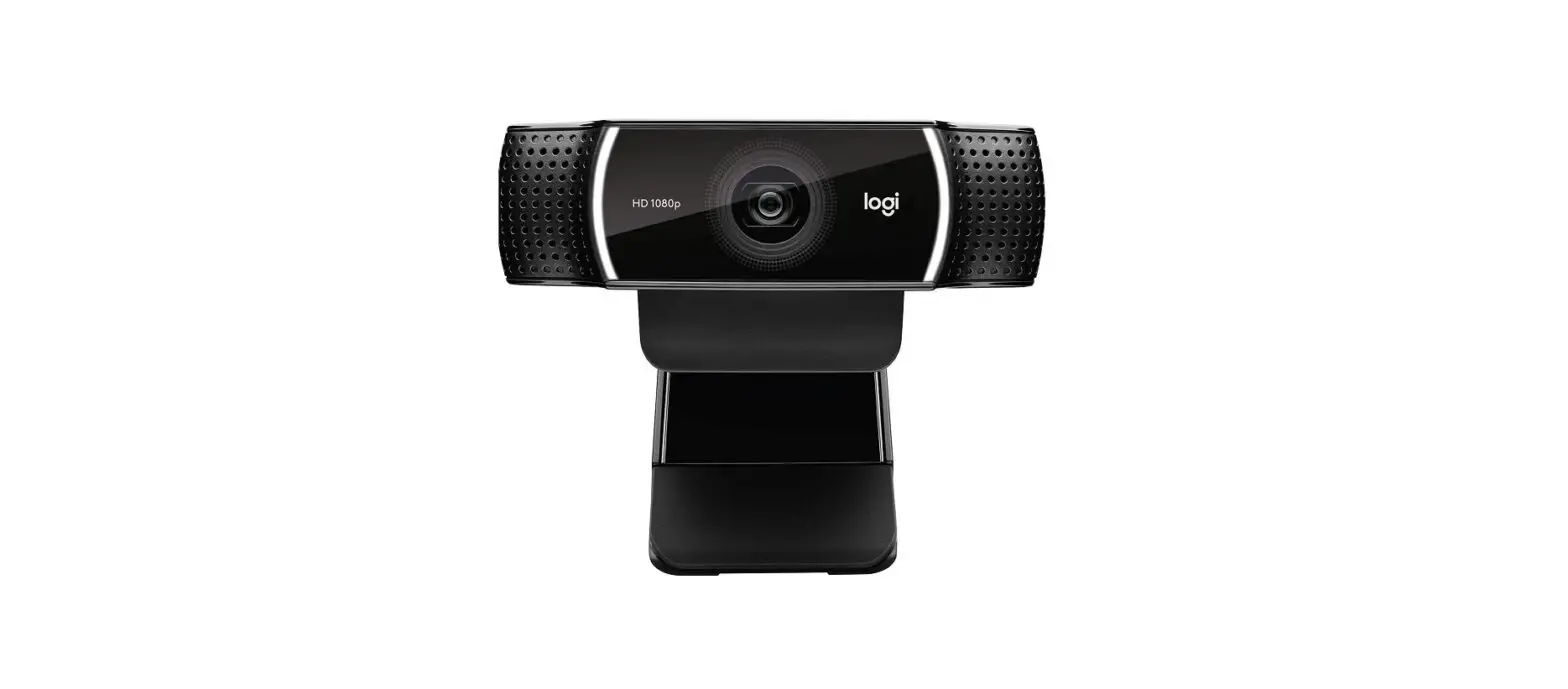

logitech C922X PRO Stream Webcam
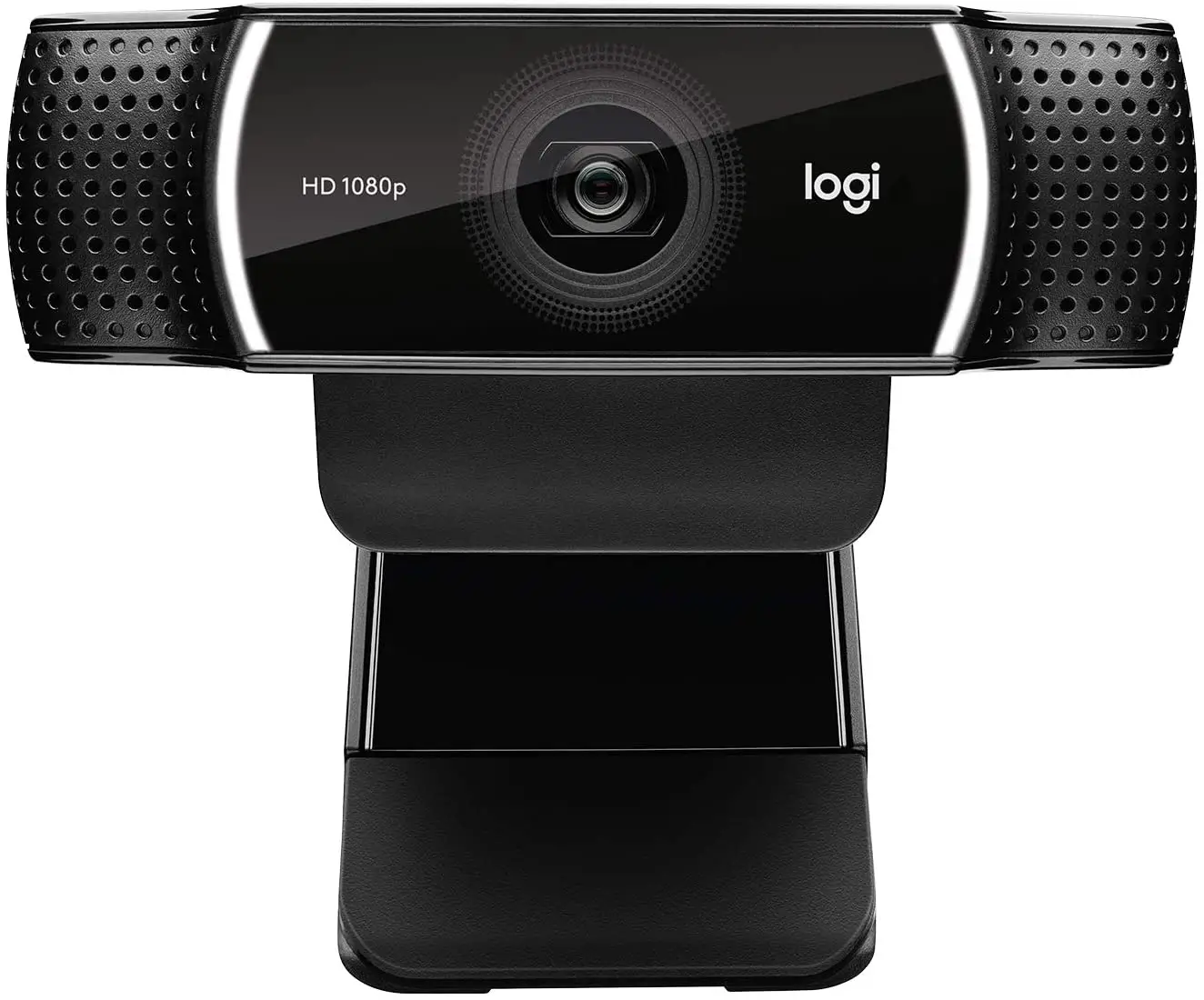
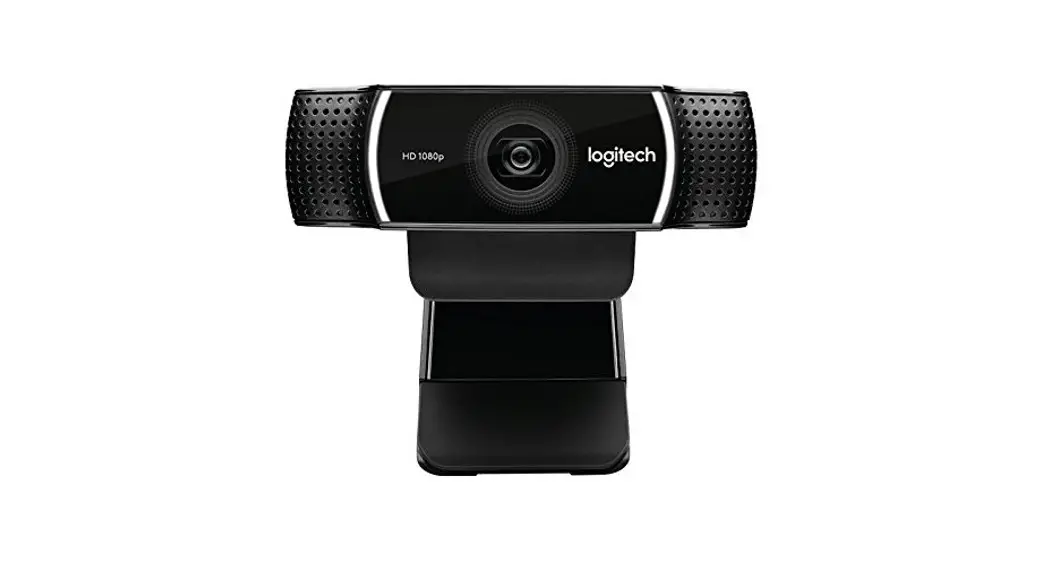
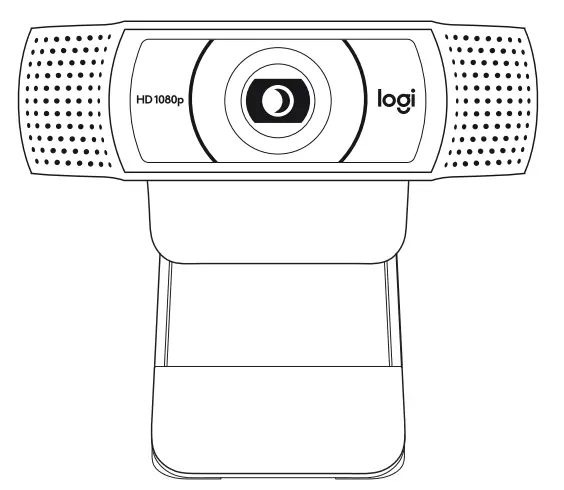
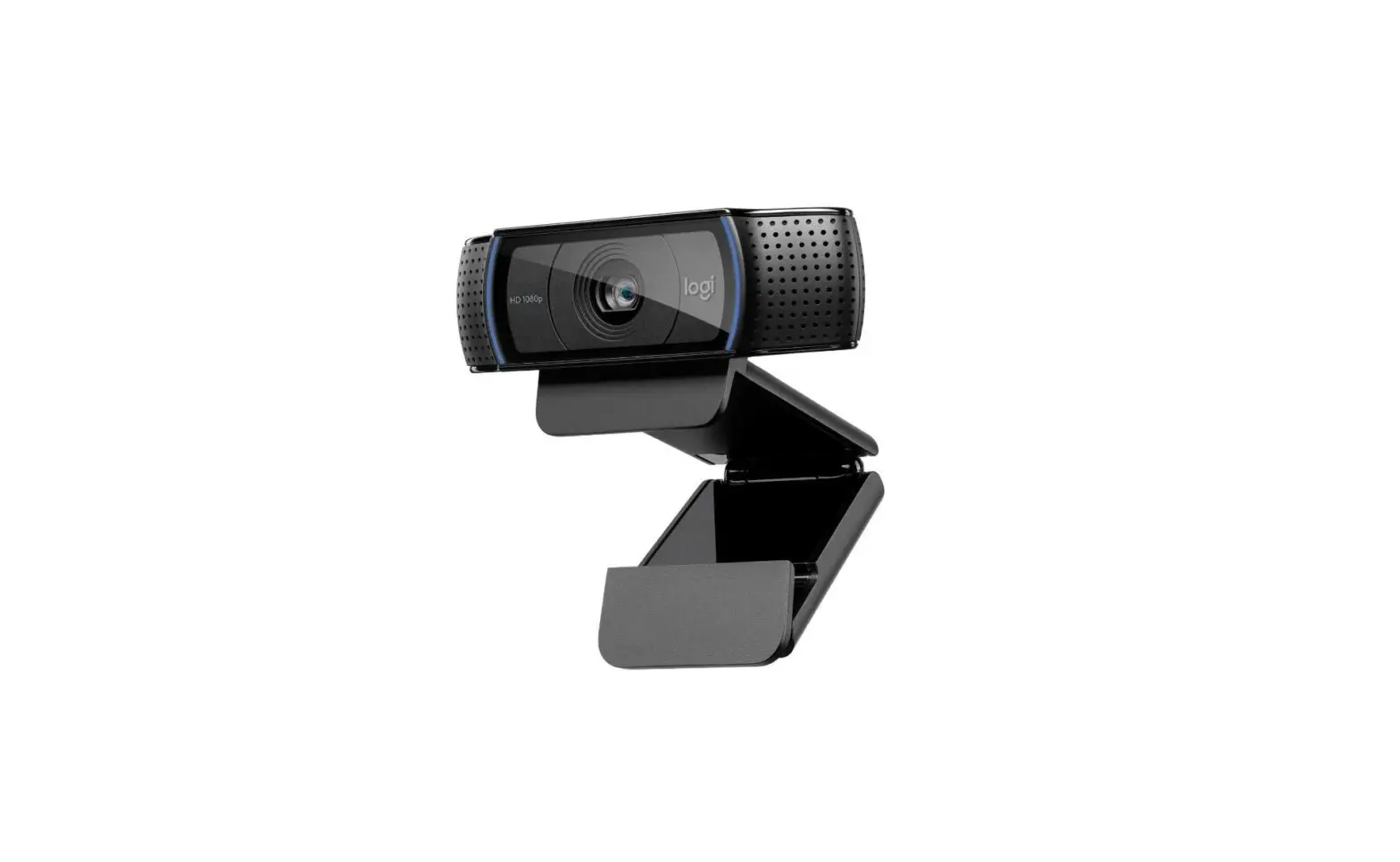
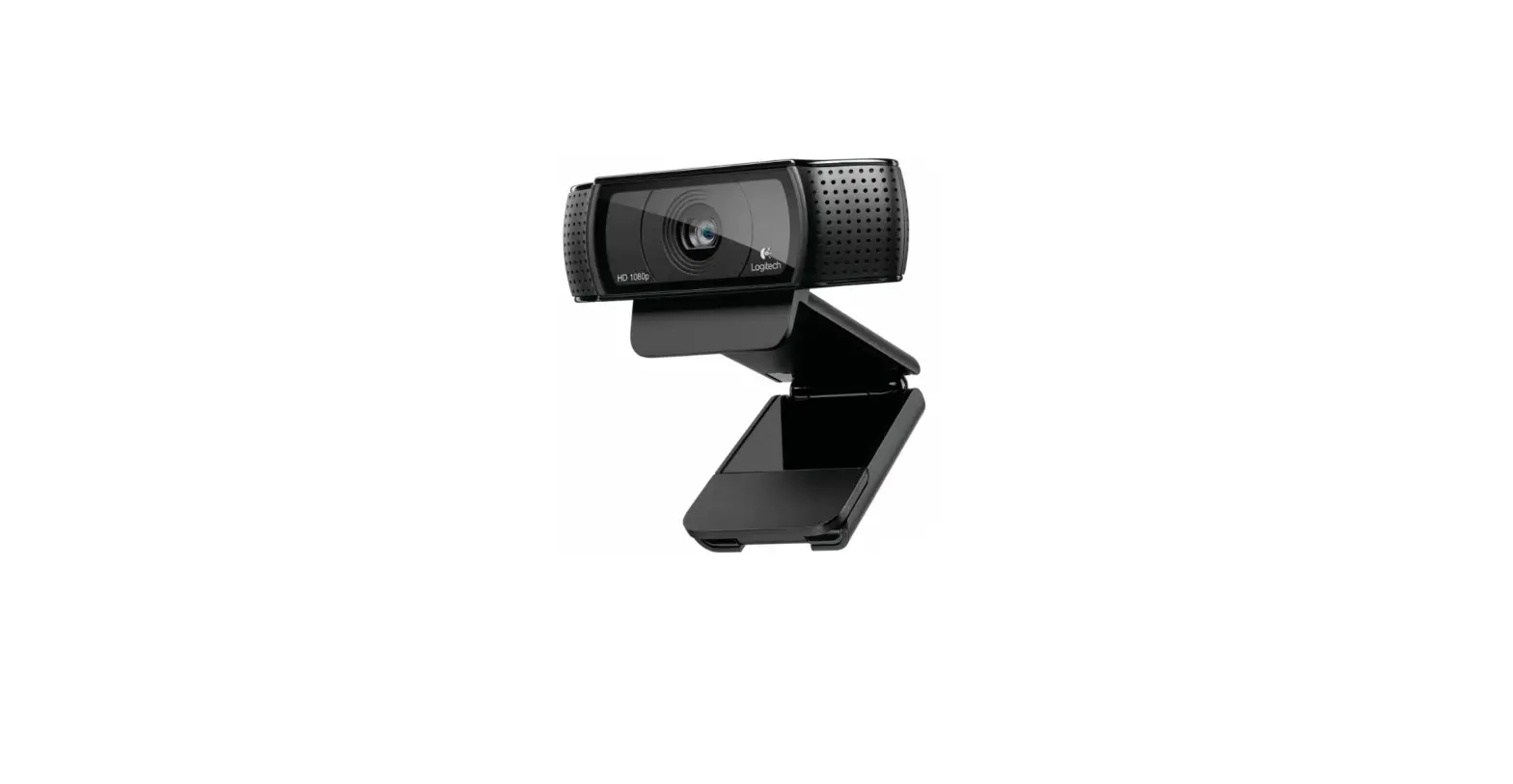
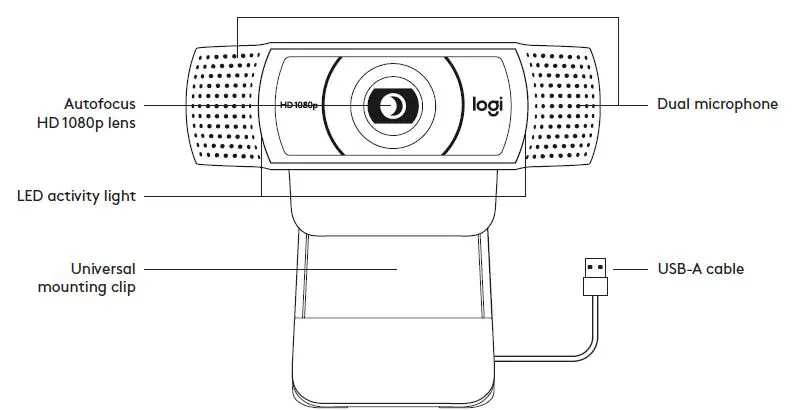
KNOW YOUR PRODUCT
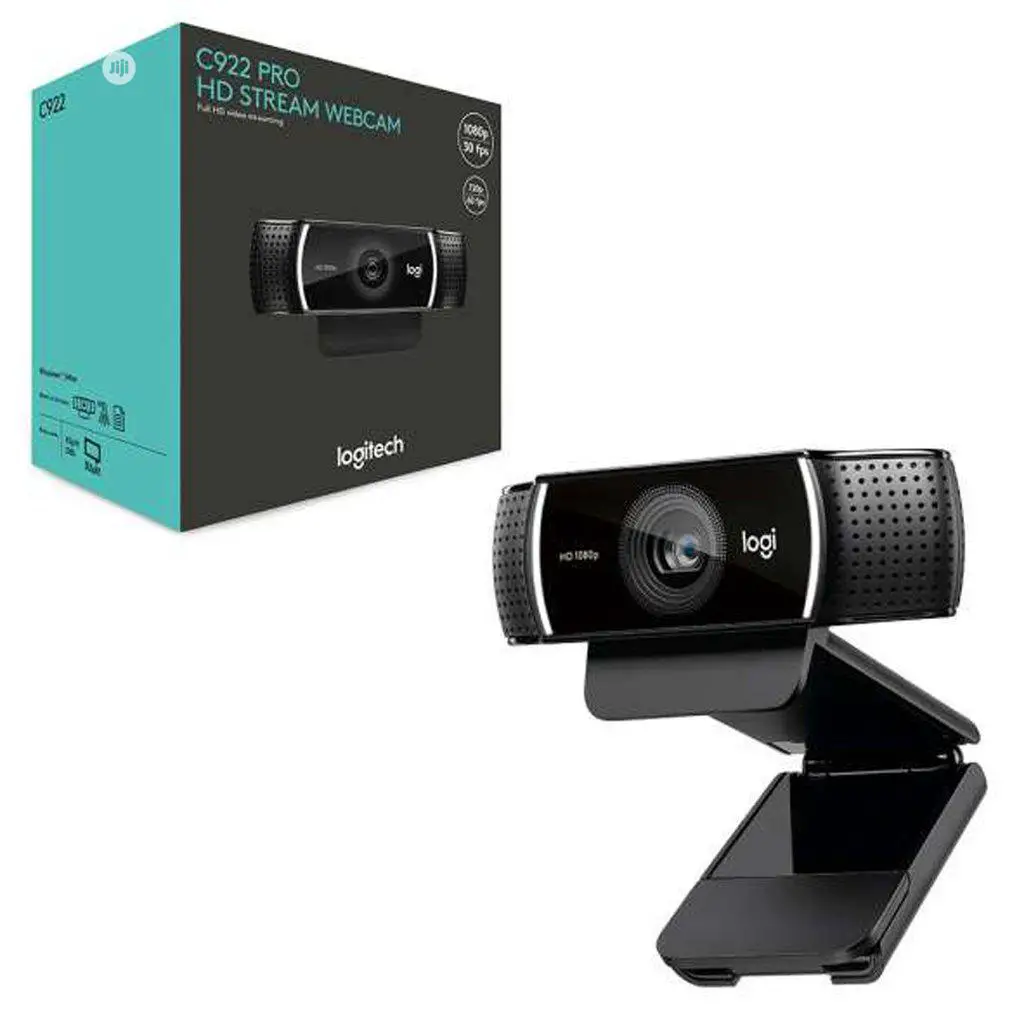
WHAT’S IN THE BOX
- Webcam with 5 ft (1.5 m) attached USB-A cable
- XSplit license coupon
- User documentation


SETTING UP THE WEBCAM
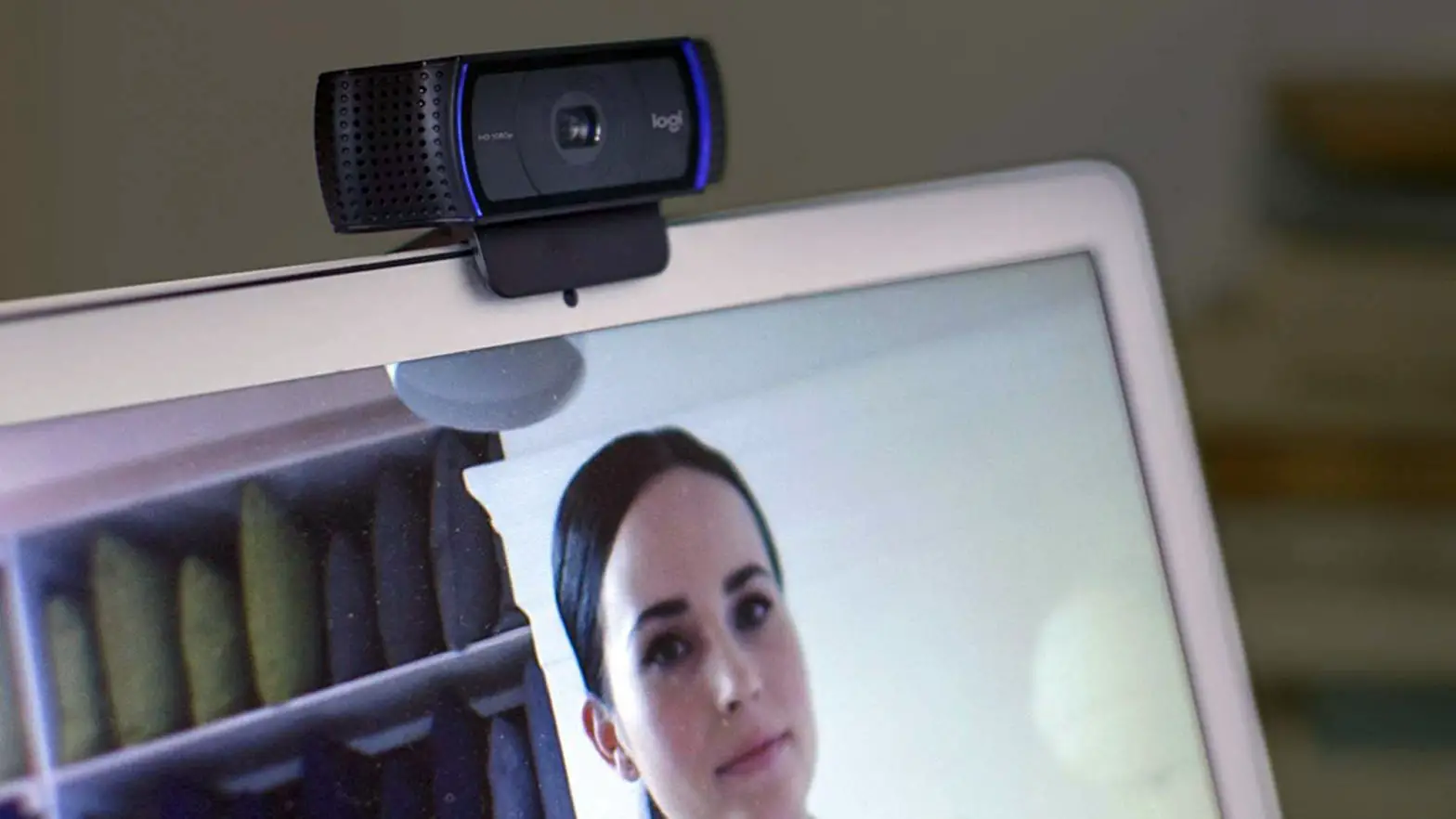
For placement on a monitor
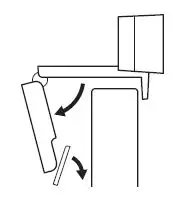
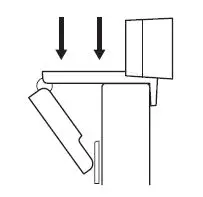
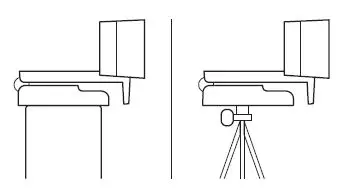
- Place your webcam on a computer, laptop or monitor at a position or angle you desire.

- Adjust the webcam to make sure the foot on the universal mounting clip is flush with the back of your device.

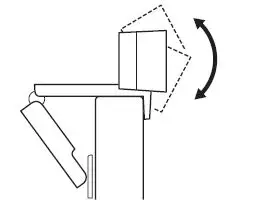
- Manually adjust the webcam up/down to the best position to frame yourself.

For placement on a tripod
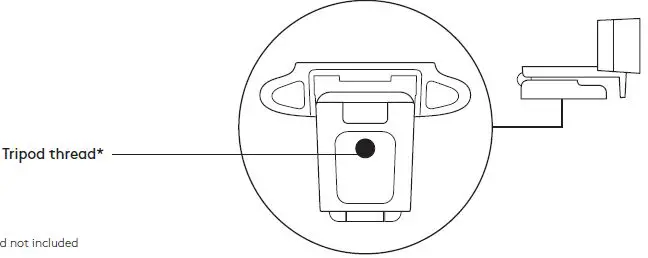
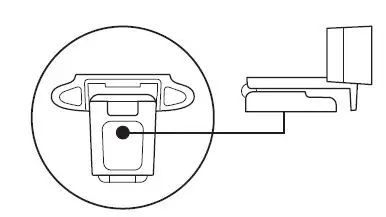
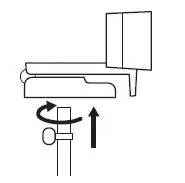
- Locate the ¼ inch tripod thread on the bottom of the universal mounting clip.

- Secure the webcam on your tripod by twisting it into the ¼ inch thread.

- Place your webcam with the tripod anywhere you desire to the best position to frame yourself.

CONNECTING THE WEBCAM VIA USB-A
Plug the USB-A connector into the USB-A port on your computer. 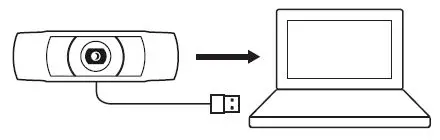
SUCCESSFUL CONNECTION
LED activity light will light up when the webcam is in use by an application.
 DIMENSIONS
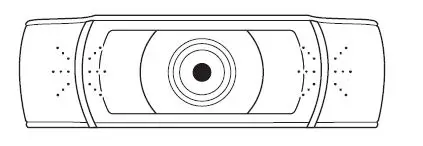 DIMENSIONS
INCLUDING FIXED MOUNTING CLIP:
- Height x Width x Depth: 1.73 in (44 mm) x 3.74 in (95 mm) x 2.80 in (71 mm)
- Cable Length: 5 ft (1.5 m)
- Weight: 5.71 oz (162 g)
 Logitech Support + Download