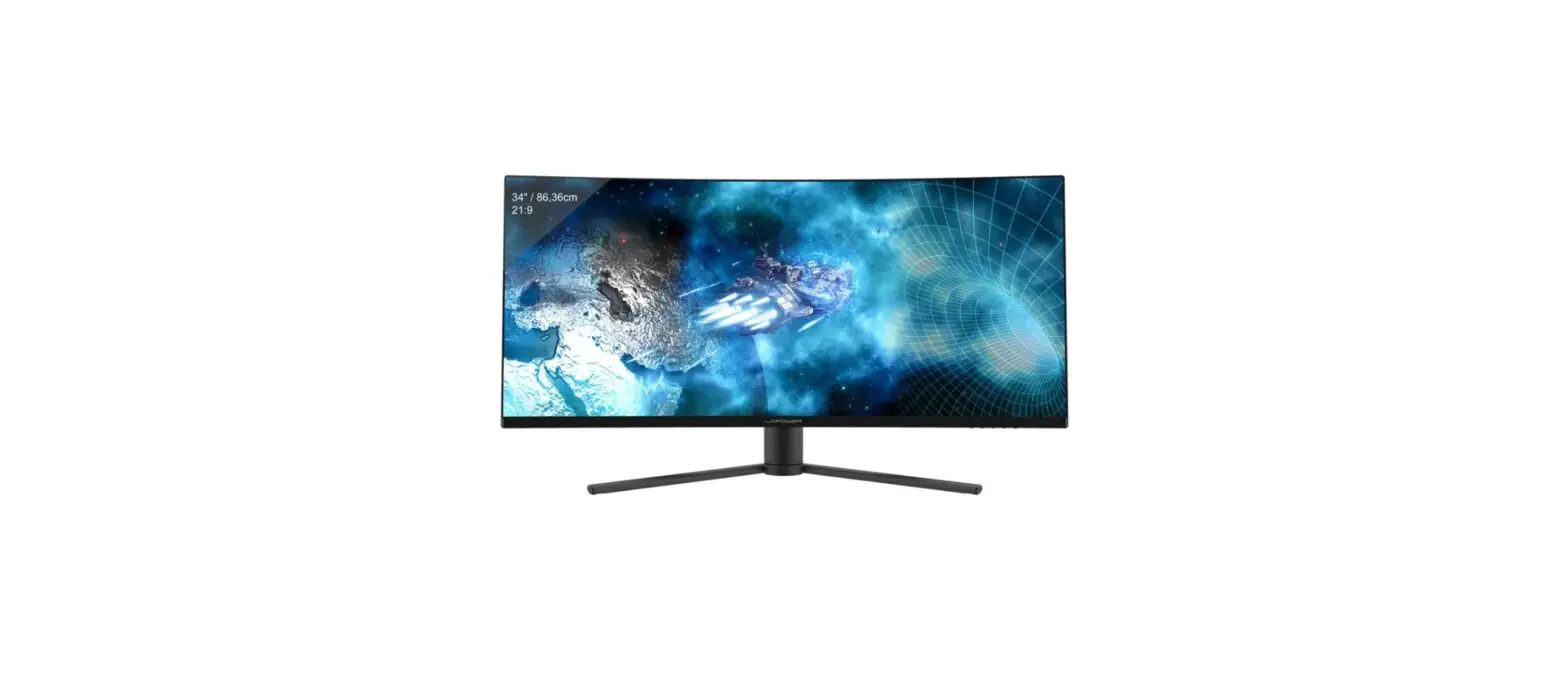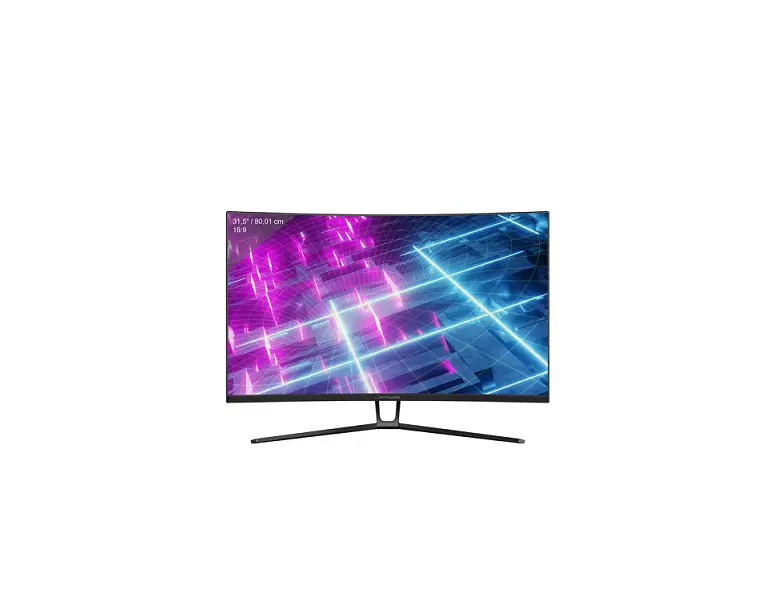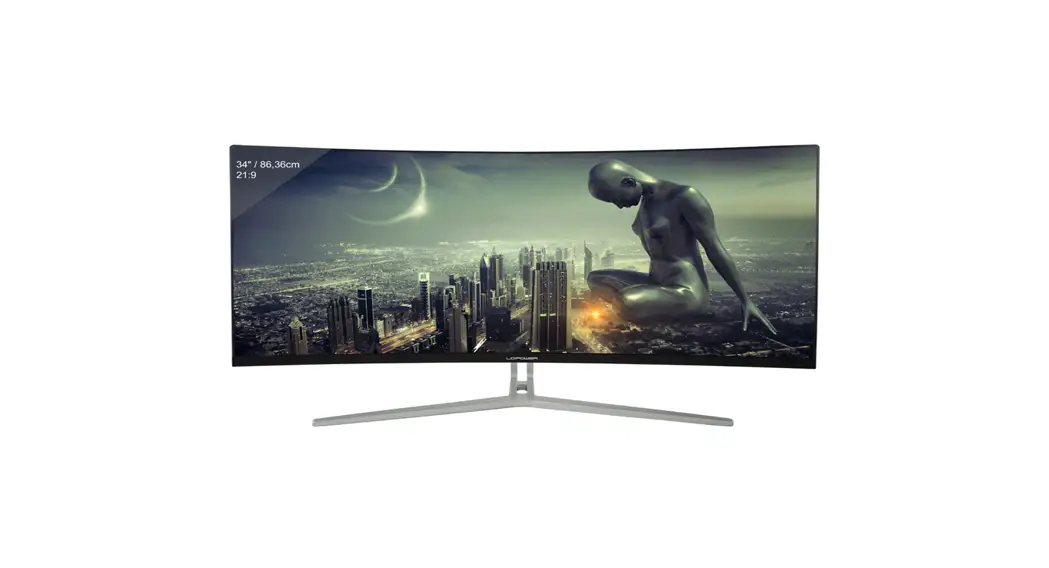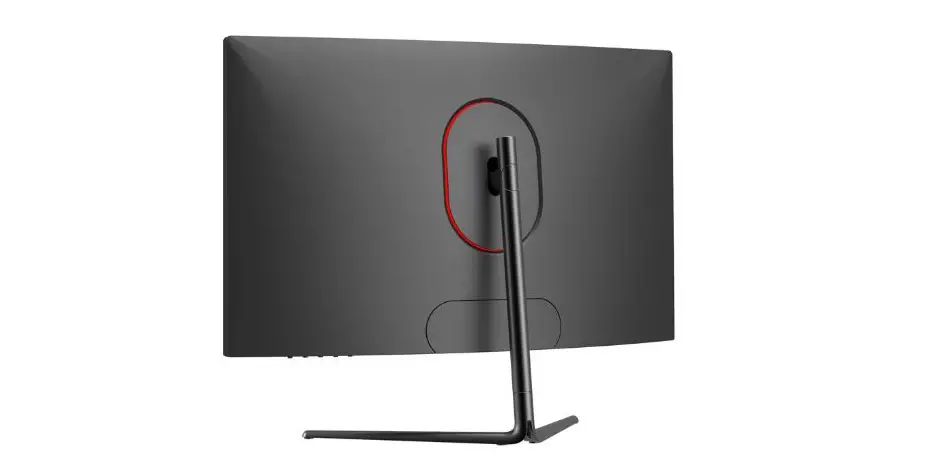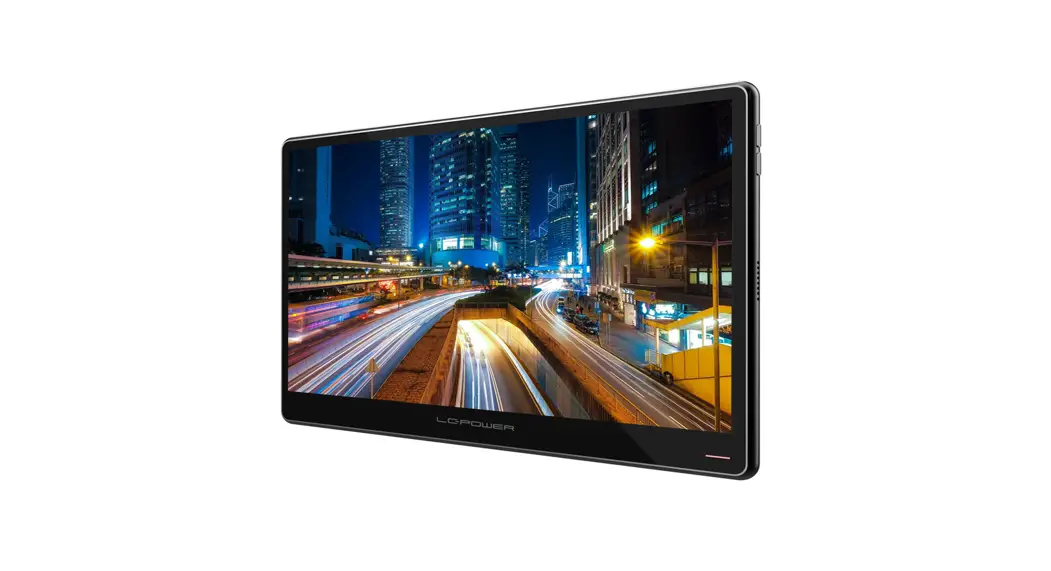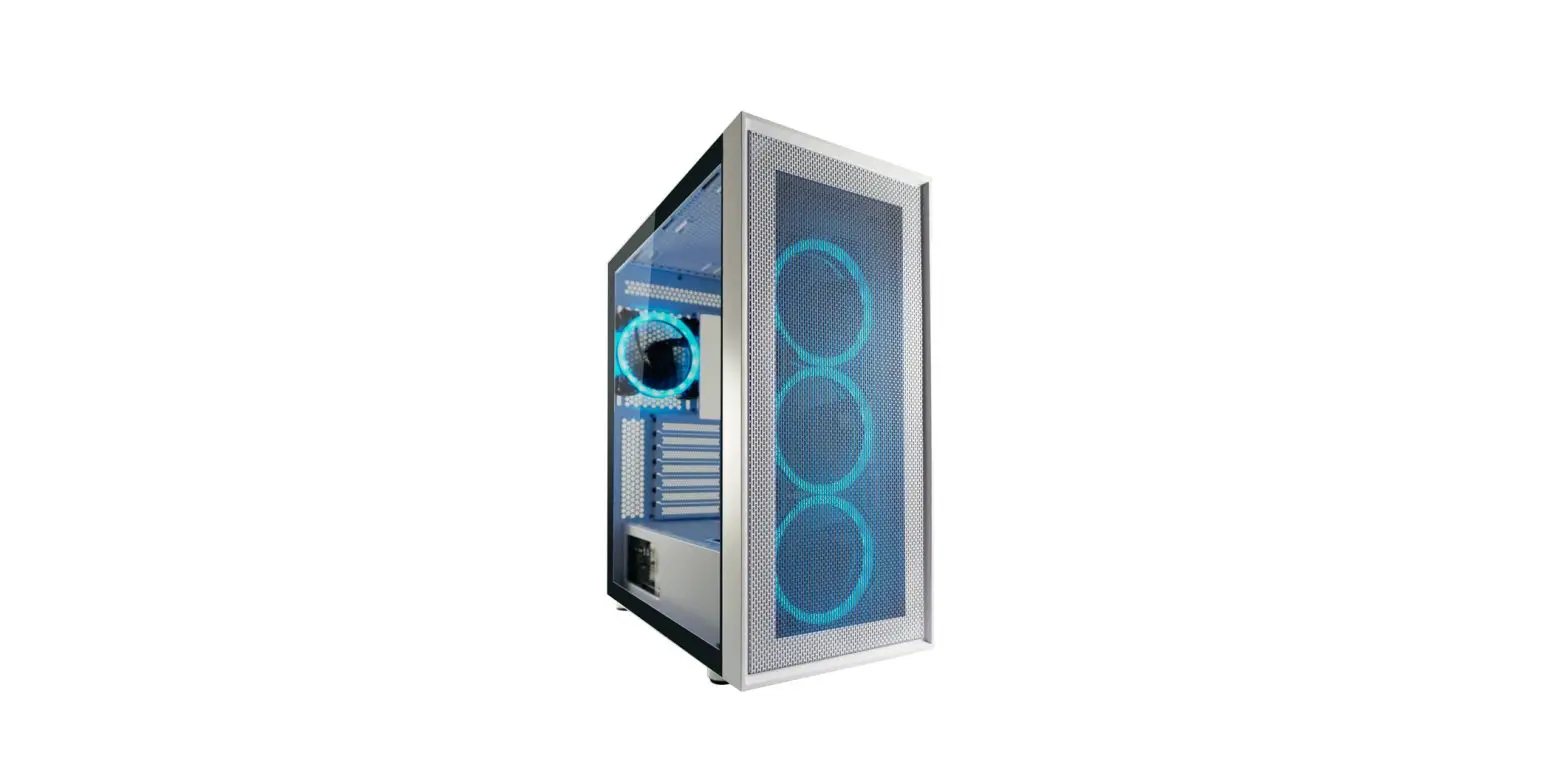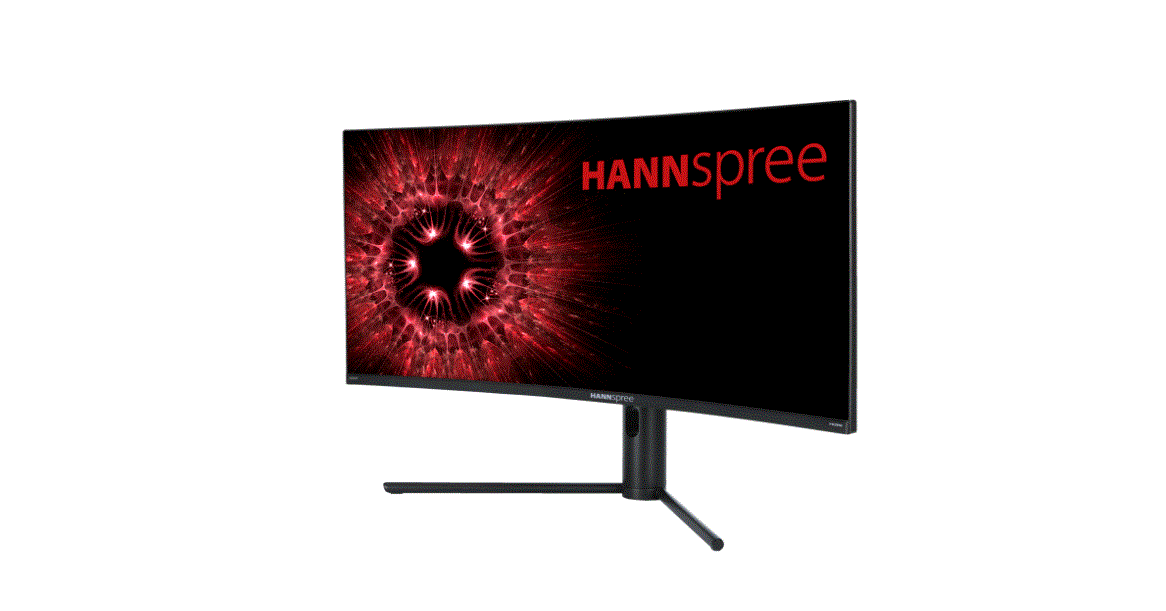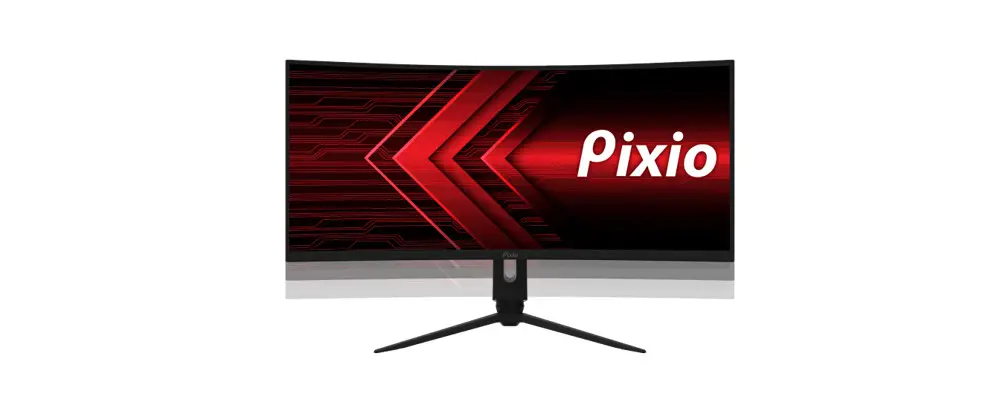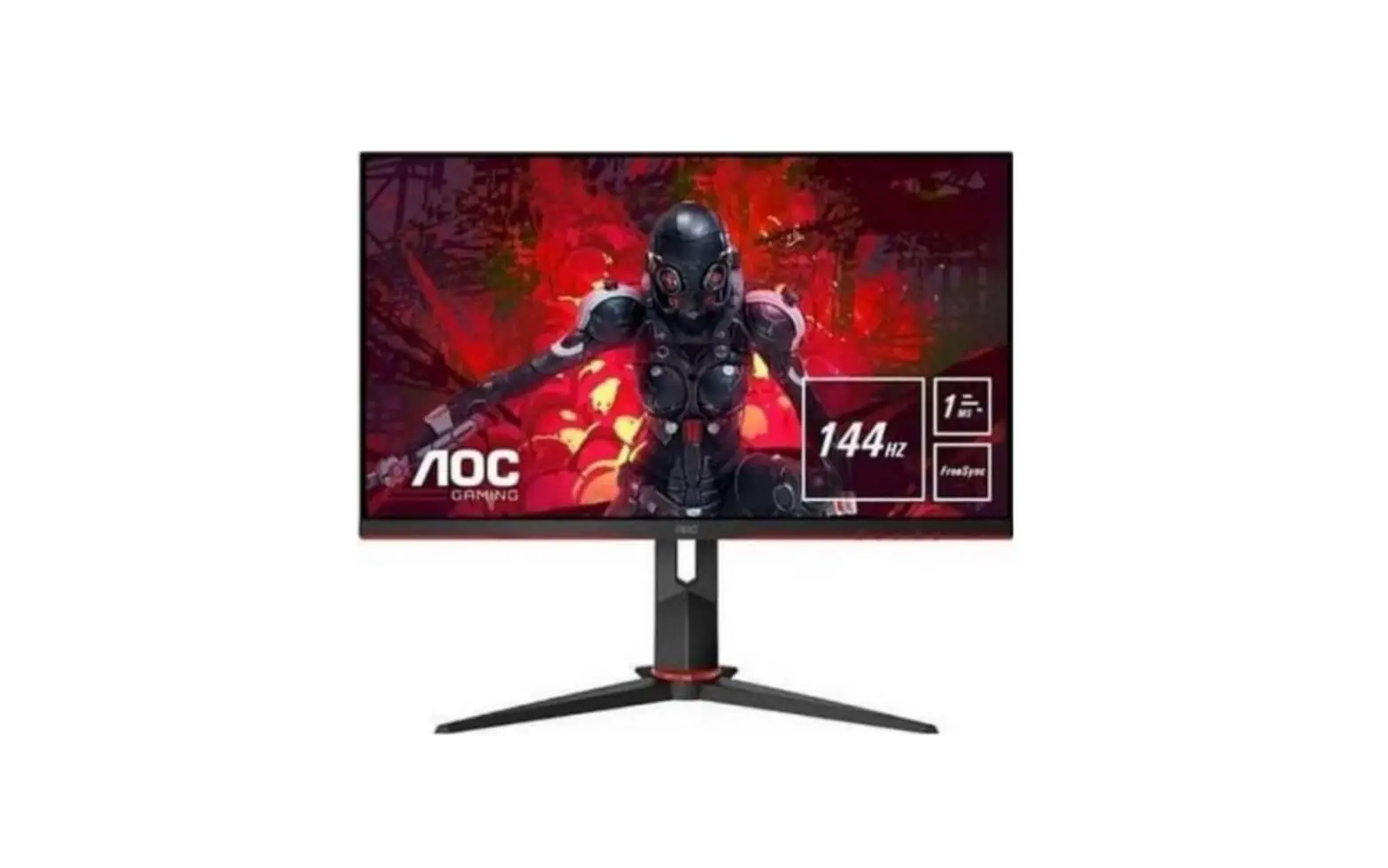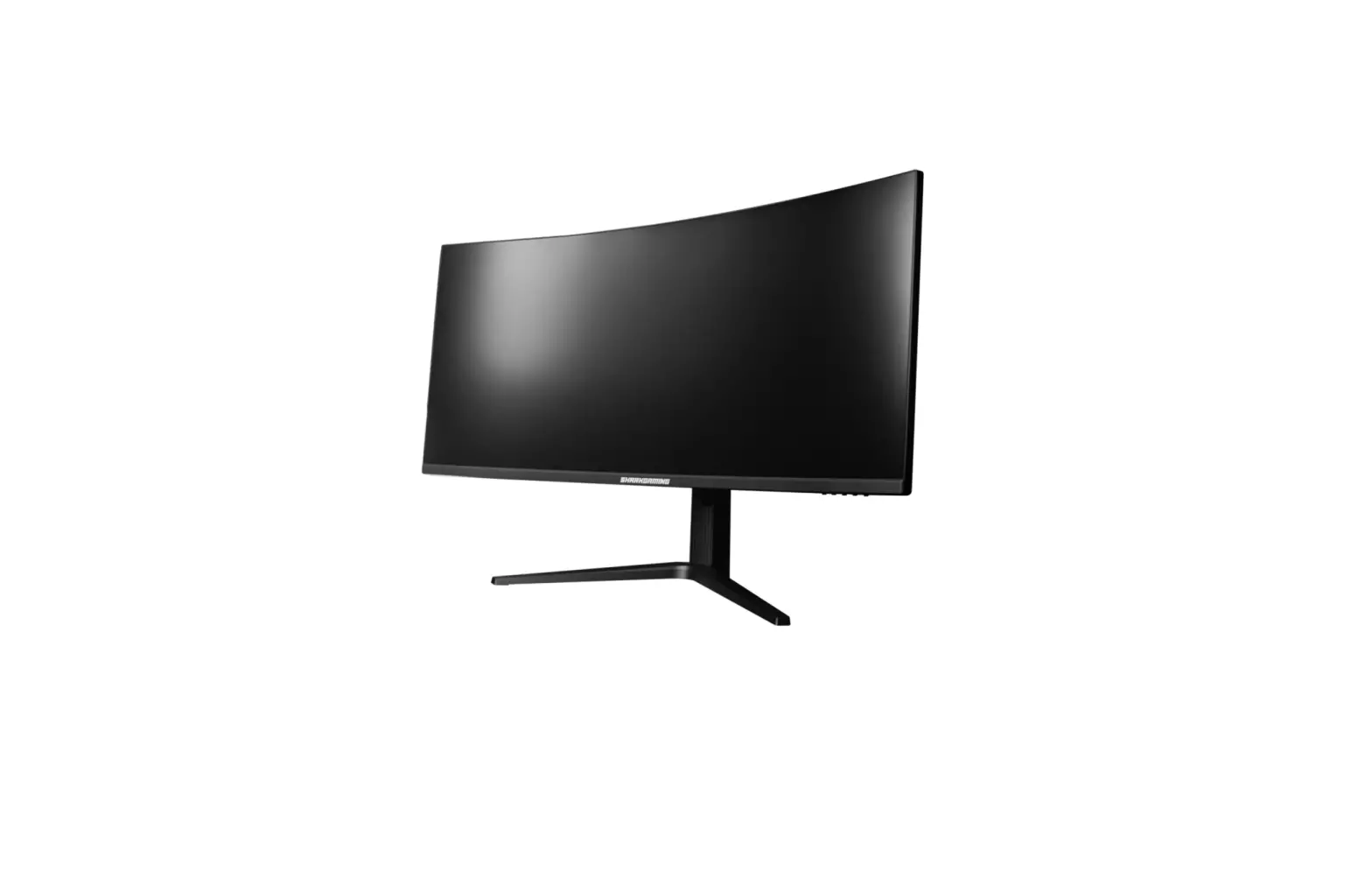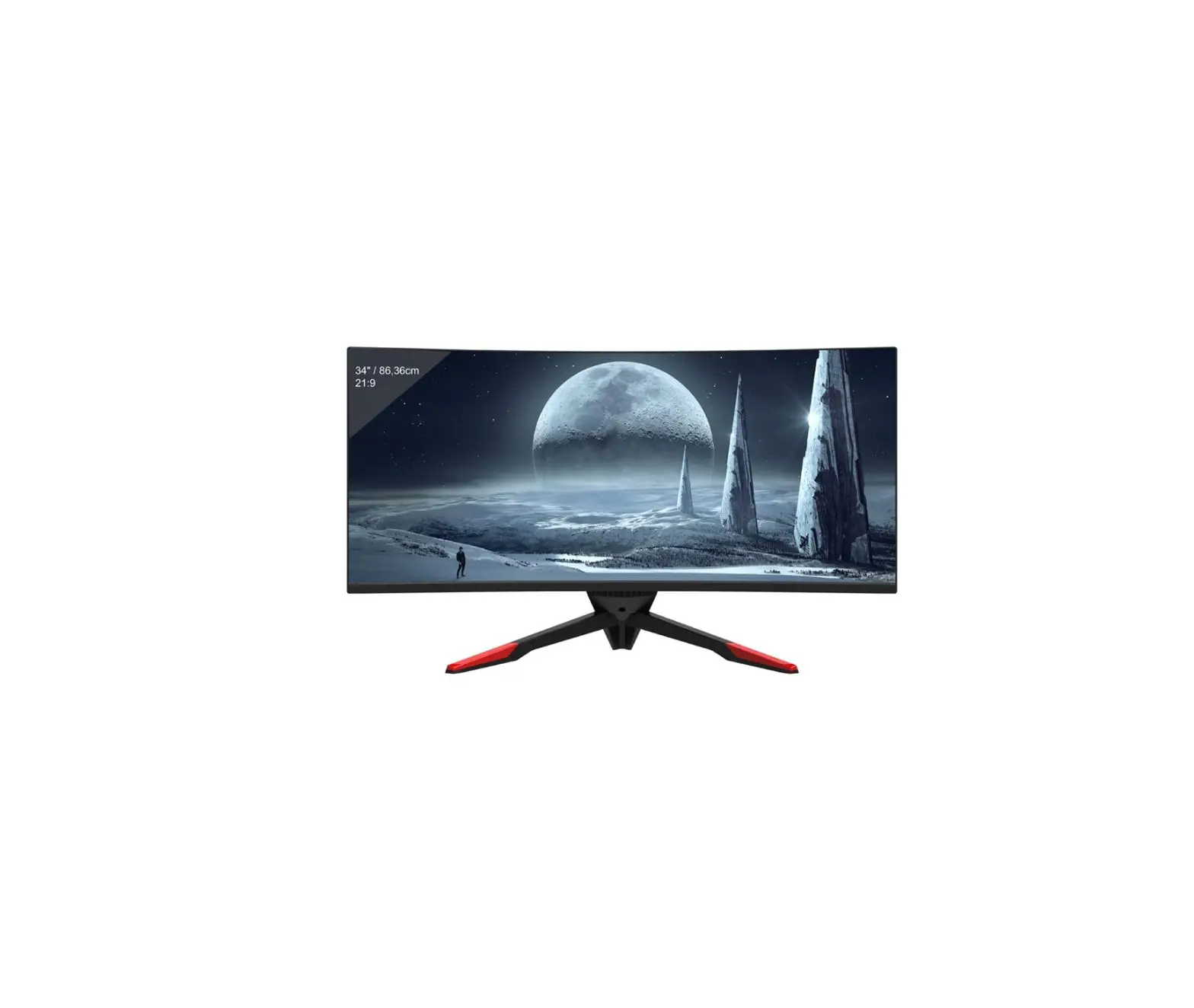
LC-POWER LC-M34-UWQHD-144-C-K Gaming Monitor
SAFETY PRECAUTIONS
Do not expose the monitor to a humid environment, rain or other liquids.
Do not open the monitor housing to avoid any shock due to electrical or mechanical hazards.
Operation:
- Keep the monitor out of direct sunlight or other heat sources like stoves.
- Keep the monitor away from any liquid.
- Remove any object that could fall into the ventilation holes.
- Do not block the ventilation holes to avoid overheating.
- Do not knock or drop the monitor.
MAINTENANCE
CAUTION: Unplug the power cable from the outlet before cleaning the monitor.
- To clean your screen, slightly moisten a soft, clean cloth with water.
- Please use a special screen-cleaning tissue if possible.
- Do not use benzene, thinner, ammonia, abrasive cleaners or compressed air.
- Inappropriate cleaning solutions may damage the monitor or leave a milkyfilm on screen or housing.
- Unplug the monitor if you are not going to use it for a longer time period.
- Do not expose the monitor to dust, liquids or a humid environment.
- In case the monitor gets in touch with any liquid, wipe it down immediately using a dry cloth.
- In case any liquid gets spilled into the ventilation holes, do not use the monitor anymore.Please cgntact a professional service technician.
Legal notice:

The terms HDMI and HDMII High Definition Multimedia Interface, and the HDMI logo are trademarks or registered trademarks of HDMI Licensing Administrator, Inc. in the USA and other countries.
Box Contents
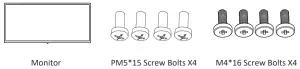
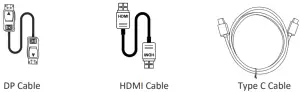
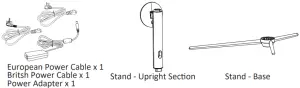
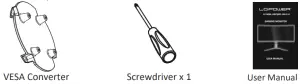
Product Overview
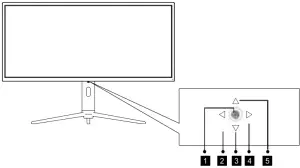
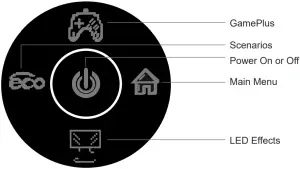
- Press rocker to turn the display on/off.
- Scenarios
- Rocker backward LED Effects.
- Rocker right Main Menu.
- GamePlus
Monitor Ports
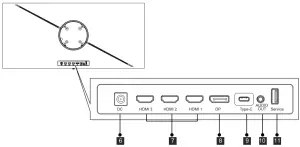
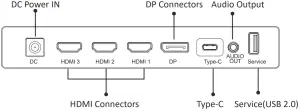
6. DC Power IN
7. HDMI Input: Insert one end of the HDMI cable into the computer’s HDMI output and connect the other end to the monitor’s HDMI port.
8. DP Connectors: Insert one end of the DP cable into the computer’s DP output and connect the other end to the monitor’s DP port.
9. Type-C: Insert one end of the Type-c cable into the computer’s Type-c output and connect the other end to the monitor’s Type-c port.
10. Audio Output: Insert the audio cab,le for output of audio signals.
11. USB 2.0 (only Service)
Stand Installation
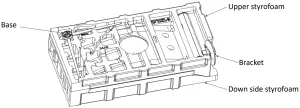
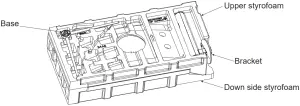
- Open the package, take out the built-in accessories and styrofoam, and place them on the desktop.

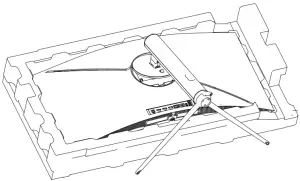
- Remove the upper styrofoam and the inner bag protection bag, place the lower styrofoam on the desktop, and keep the machine away from the lower styrofoam {the inner auxiiliary lock with bracket base needs to be placed)

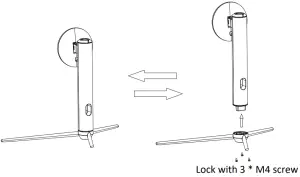
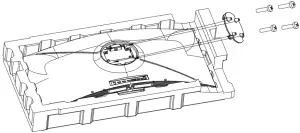
- As shown in the figure, screw the bracket and base together with three screws

- Insert the bracket obliquely into the rear housing.

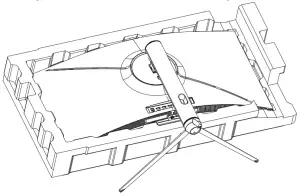
- The bracket is pressed down to automatically fasten the rear shell.

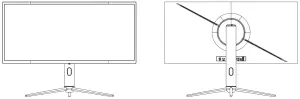
- Hold the support shaft by hand and erect the machine.
Note: do not hold the screen directly with your hands during the process of erecting the machine to prevent the screen from breaking.
 Make sure the monitor is laid on a flat surface before removing the stand.
Wall Mounting
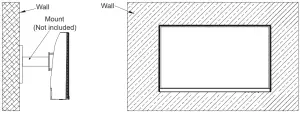
 This monitor only includes screws which may be used when attaching the monitor to a VESA 75*75mm type mount. No VESA mount or mounting accessory is included.
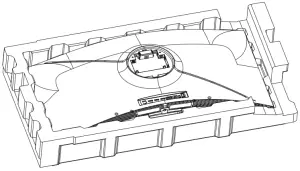
- Open the package, take out the built-in accessories and styrofoam, and place them on the desktop.

- Take off the upper styrofoam and the inner bag protection bag, place the lower styrofoam on the desktop, and keep the machine away from the lower styrofoam; take out the wall mount adapter and the fixing screw from the accessory bag, and tighten the lock stud.

- Do not pinch the screen directly with your hands during the process of padlocking the machine to prevent the screen from breaking.

Connectivity Options
- Insert one end of the DP cable into your PC’s graphics card. An HDMI cable may also be used. HDMI cable is not included.
- Connect the other end of the cable to the corresponding connector on your monitor.

- Connect the power cable to your monitor then connect the other end to your power source. It is recommended that you use a surge protector with adequate voltage if a wall outlet cannot be reached directly.
- Locate the power button on the monitor and press it to turn the monitor on.
Light Indicator
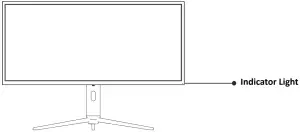
Indicator Light
Solid blue light indicates power is on and monitor is operating normally.
Solid red light indicates that the power is off. The indicator light flashes red and blue, and the display is in standby mode.
OSD
The On-Screen Display (OSD) Menu may be used to adjust your monitor’s settings and appears on screen after turning on the monitor and pressing the M button.
 When using the monitor for the first time, settings will automatically adjust to optimal settings according to your computer’s configuration and parts etc.
The On-Screen Display (OSD) Menu may be used to adjust your monitor’s settingsand appears on screen after turning on the monitor and pressing the M button.
- The monitor includes one touch options to access common settings.

- Press(
 ) to enter the 05D screen.
- Control pad Up (
 ) or After(
 ) to browse functions.
 - Control pad Left (
 ) to exit the current screen.
 ) to enter the 05D screen.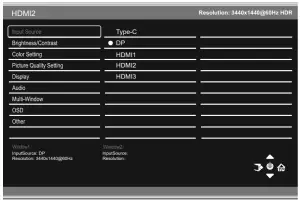
 ) or After(
 ) to browse functions.
 ) to exit the current screen.
| Main Menu | Sub-Menu | Options | Description |
| Input Source | Type-C | NONE | Switch to Type-C signal input |
| DP | NONE | Switch to DP signal input | |
| HDMI1, HDMI2 HDMI3 | NONE | Switch to HDMI signal input | |
| Brightness/ Contrast | Brightness | 0~100 | Adjust display brightness |
| Blacklevel | 0~100 | Adjust display black level | |
| Contrast | 0~100 | Adjust display contrast | |
| DCR | On | Turn on DCR function | |
| Off | Turn off DCR function | ||
| LightSensor | On/Off | Turn on/off LightSecnsor function | |
| Color Setting | Gamma | 1.8 | Set Gamma add-in |
| 2.0 | |||
| 2.2 | |||
| 2.4 | |||
| 2.6 | |||
| Picture Mode | Standard, Photo, Movie, Game, FPS, RTS, | Set visual mode according to activity | |
| Color Temperature | Warm, Cool, User | Select color temperature | |
| Low Blue Light | 0~100 | ||
| Hue | 0~100 | Adjust hue levels | |
| Saturation | 0~100 | Adjust saturation levels | |
| RGB Range | Full,Limited | Select RGB range mode full and limited | |
| Picture Quality Setting | Sharpness | 0~100 | Set display sharpness |
| Response Time | Off, High, Middle, Low | Adjust response time | |
| Noise Reduction | Off, High, Middle, Low | Reduce the interference of image noise caused by signal source interference | |
| Dynamic Luminous Control | On, Off | Compensate for gray scale display screen and strengthen the expression of gray scale | |
| MPRT | On, Off | Moving Picture Response Time | |
| Display | Aspect Ratio | Wide Screen, 4:3, 1:1, Auto | Select on-screen aspect ratio |
| Audio | Mute | On, Off | Turn mute mode on/off |
| Volume | 0-100 | Adjust audio volume | |
| Audio Source | AutoSource, Type-C,DP,HDMI1, HDM2, HDMI3 | Select audio signal input via HDMI or DP | |
| Multi-Window | Multi-Window | Off, PIP Mode, PBP 2Win | Select PIP/PBP modes according to the number of input signals etc. |
| Sub Win2 Input | Type-C,DP1, DP2, HDMI1,HDMI2 | Select according to input signal for PIP/ PBP mode | |
| PIP Size | Small, Medium, Large | Adjust the PIP/PBP display window size | |
| PIP Position | Top Right, Top Left, Bottom Right, Bottom Left | Adjust the PIP/PBP window position | |
| Swap | NONE | Swap the two channel signal source of only the PIP/PBP 2 screens function | |
| OSD | Language | English, 简体中文, 한국어, Русский, Español, 日本語, Français, Deutsch | Set OSD language |
| OSD H-Position | 0-100 | Adjust the OSD’s horizontal position | |
| OSD V-Position | 0-100 | Adjust the OSD’s vertical position | |
| OSD Transparency | 0-100 | Set the OSD’s overall transparency | |
| OSD Time Out | 5-100 | Set how long the OSD remains open after non-use | |
| OSD Rotation | Normal,90,180,270 | When the user flips the display , this function can also flip the OSD to achievethe best display angle | |
| Other | DP Version | DP1.1, DP1.2, DP1.4 | |
| Adaptive-Sync | On, Off | Turn the Adaptive-sync function on/off | |
| HDR | Off/HDR600/ HDR1000 | Turn the HDR mode on/off ,automatic detection | |
| Turn on Type-C Function | On, Off | Turn the type-C function on or off | |
| USB Updata FW | On, Off | Turn the USB function on or off | |
| Reset | None |
LED Effects System Console
The default light effect is colorful, highlight and breath. You can select your favourite light effect as below
RGB Ranges and Gameplus Switching
- Press button to switch Gameplus modes. According to the needs of your game, choose the corresponding game icon.These game icons are primarily designed to optimize your aim during shooting games, though they can be used for other scenarios.

- Press Left () button to switch ECO modes. These modes include Standard, Photo, Movie, Game, FPS, and RTS and can be used to optimize settngs according to your actvity. Standard mode is suitable for most actvities.

Technical Specifications
| Model | LC-M34-UWQHD-144-C-K |
| Screen Size | 34″ |
| Aspect Ratio | 21:9 |
| Backlight | E-LED |
| Brightness | 600 cd/ m2 / HDR 1000 cd/ m2 |
| Panel | VA |
| Resoluti on | DP1.4: 3440*1440@144Hz HDMI 2.0: 3440*1440@100Hz Type-C:3440 * 1 440@60Hz |
| Refr esh Rate | 144Hz |
| Response Time | Fast 4ms |
| Viewing Angle | 178°(H) /178°(V) |
| Contrast Ratio | 3000:1 |
| VESA Mounting | 75 x 75mm |
| Colours | 16.7M |
| Adaotive-Svnc | Yes |
| Signal Input | DP 1.4*1, HIDMI 2.0*3, Type-C*l, USB2.0*1, Audio out*l |
| Power Input | DC 19.5V⎓9.23A |
| Audio | |
| Speakers | No |
| Audio Out | Yes |
| Accessories | |
| Power Cable Power Adapter | Yes |
| Additional Functions | |
| Low Blue Light | Yes |
| Physical Dim ensions | |
| Dimensions (w/ Stand) | 806.63*569.5*286.73mm |
| Dimensions (w/o Stand) | 806.63*370.3*162.9mm |
| Net Weight | 7.16kg |
| Gross Weight | 8.75kg |
Formerweg 8
47877 Willich
Germany
www.lc-power.com