LC-POWER LC-M24-FHD-165-C Gaming Monitor User Manual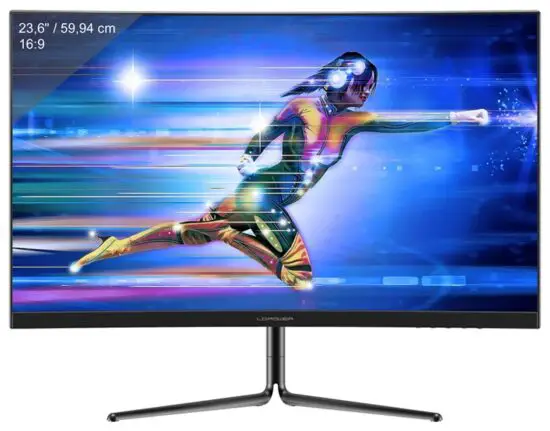
SAFETY PRECAUTIONS
Do not expose the monitor to a humid environment, rain or other liquids. Do not open the monitor housing to avoid any shock due to electrical or mechanical hazards.
Operation:
- Keep the monitor out of direct sunlight or other heat sources like stoves. – Keep the monitor away from any liquid.
- Remove any object that could fall into the ventilation holes.
- Do not block the ventilation holes to avoid overheating.
- Do not knock or drop the monitor.
MAINTENANCE
CAUTION: Unplug the power cable from the outlet before cleaning the monitor.
- To clean your screen, slightly moisten a soft, clean cloth with water.
- Please use a special screen-cleaning tissue if possible.
- Do not use benzene, thinner, ammonia, abrasive cleaners or compressed air.
- Inappropriate cleaning solutions may damage the monitor or leave a milky film on screen or housing.
- Unplug the monitor if you are not going to use it for a longer time period.
- Do not expose the monitor to dust, liquids or a humid environment.
- In case the monitor gets in touch with any liquid, wipe it down immediately using a dry cloth.
- In case any liquid gets spilled into the ventilation holes, do not use the monitor anymore. Please contact a professional service technician.
Legal notice:
The terms HDMI and HDMI High Definition Multimedia Interface, and the HDMI logo are trademarks or registered trademarks of HDMI Licensing Administrator, Inc. in the USA and other countries.
BOX CONTENTS
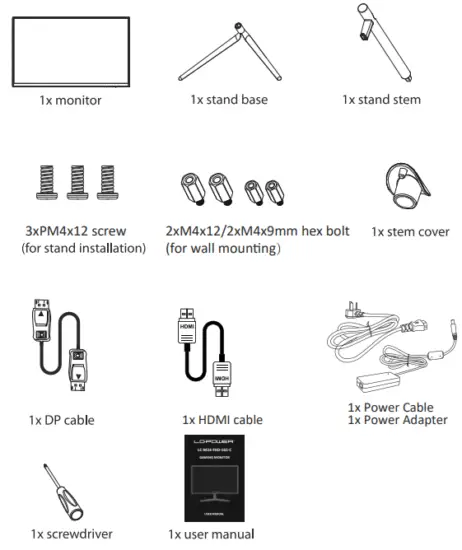
 Additional screws may be included as backup.
PRODUCT OVERVIEW
Monitor buttons
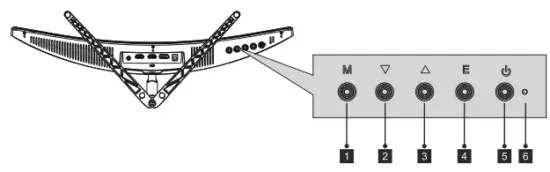
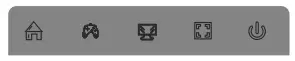
- Menu button: Press to display the OSD menu or enter submenus.
- Down button: Press to move down in the menus.
- Up button: Press to move up in the menus.
- Exit button: Press to exit the menu.
- Power button: Press to turn the monitor on and off.
- LED indicator: Changes colour to indicate the monitor status.
Monitor ports
- Audio output: Connect your headphones or speakers to playback audio signals from the computer.
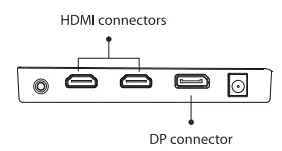
- HDMI connectors: Connect a HDMI cable to one of these ports and to the computer’s HDMI port (e.g. graphics card or mainboard)
- DP connector: Connect the DisplayPort cable to this port and to the computer’s DisplayPort (e.g. graphics card or mainboard).
- Power connector: Connect the power cable to the monitor and a wall outlet.
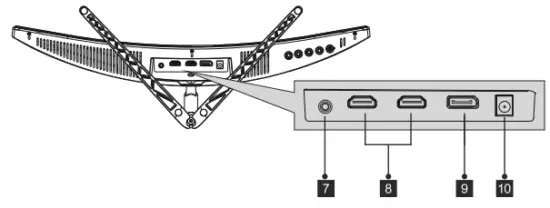
If you use other DP or HDMI cables, please make sure they support the latest standards to achieve the best picture quality and refresh rate.
STAND INSTALLATION
Keep the foam underneath the monitor while attaching the stand.
- Open the package and take out the product with the foam still attached. Carefully place it on a desk or table and shield the screen.

- Push the base into the stem and mount it with a M4 screw.

- Remove the protection from the screen top and place the monitor on a flat surface.

- Use a M4 screw to attach the stand to the monitor.

- Mount the stem cover on the stem to cover the screw.

- You have completed the stand installation.

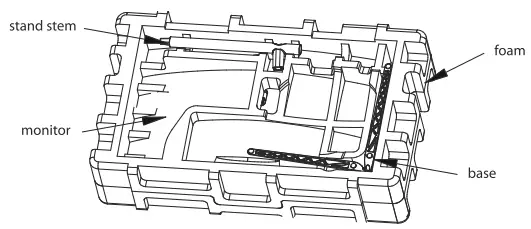
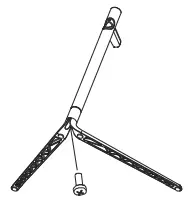
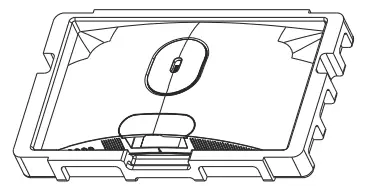
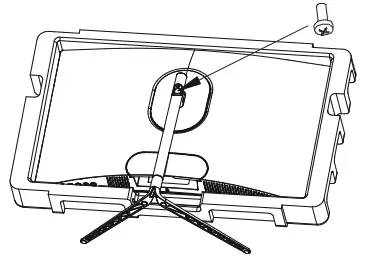
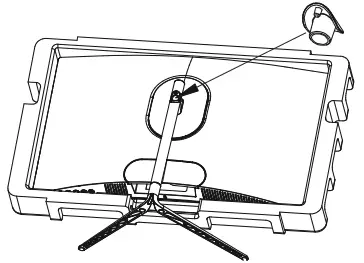
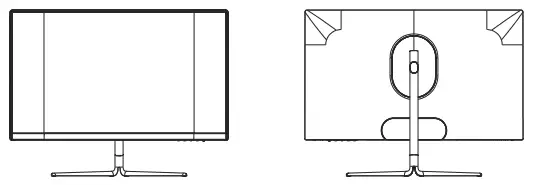
Keep the foam part attached to the monitor while setting it up. Do not touch the screen to avoid any damage.
WALL MOUNT INSTALLATION
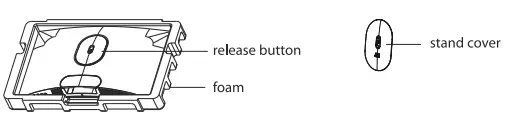
- Open the package and take out the product with the foam still attached. Carefully place it on a desk or table and shield the screen. Press the release button to remove the stand cover. if the stand has already been mounted, remove it according to chapter 5.4.

- Keep the foam underneath the panel to prevent it from breaking. Remove the four original screws from the opening on the back of the monitor (1).

- Mount the four hex bolts – xM4x12mm on upper and 2xM4x9mm on lower position (2).
- Follow the instructions of your wall mount or similar accessory to mount the monitor to it.

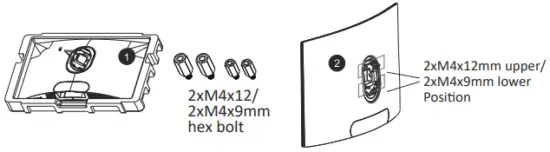
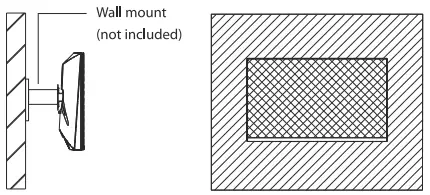
Do not touch the panel during the mounting process to prevent it from breaking. Keep the screws in case you may want to mount the stand later on.
CONNECTIVITY OPTIONS
Connecting your headphones
Plug in your headphones to receive audio signals from your computer. If your headphones are connected to the monitor, other audio devices like speakers will be muted. Headphones or other audio devices are not included in delivery.
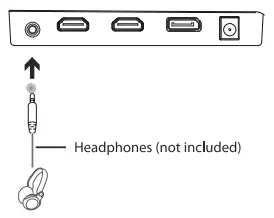
 Please be careful, listening to loud audio for a longer time may permanently damage your hearing.
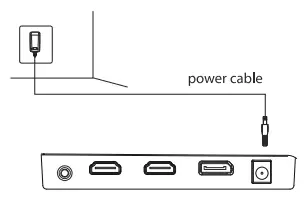
Connecting the power cable
Connect the power cable to the power connector of the monitor and then to a wall outlet.
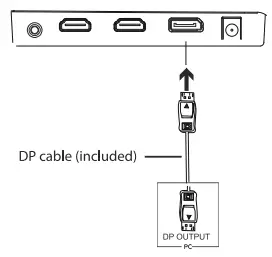
DP connectivity
Use the DP cable to connect your monitor to your computer.
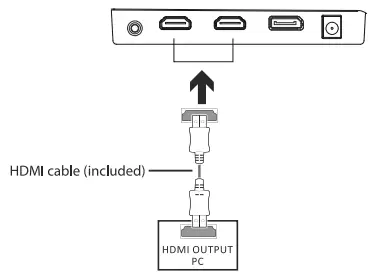
HDMI connectivity
Use the HDMI cable to connect your monitor to your computer in case it does not offer a DP port.
BASIC OPERATION
- Use the DP cable to connect your monitor and your computer’s graphics card.
- If your graphics card doesn’t offer DR you can use the HDMI cable instead.

- Connect the power cable to your monitor and to an outlet. In case you can’t reach a wall outlet directly, we recommend to use a surge protector with adequate voltage.
- Press the power button of the monitor to turn it on.
INDICATOR LIGHT
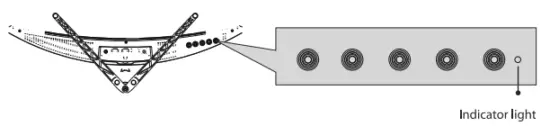
Consistent blue light indicates that the monitor is turned on and operating normally. Flashing blue light indicates that no video source (horizontal or vertical signal) has been detected. Please make sure that your computer is turned on and that the DP or HDMI cable is correctly connected (fully inserted into the port).
The OSD menu (On-Screen Display) may be used to adjust your monitor’s settings and appears on screen after turning on the monitor and pressing the menu button (see chapter 4.1).
If you use the monitor for the first time, settings will automatically adjust themselves to your computer’s configuration. Use the OSD menu and the graphics card software to change settings according to your needs.
- Press any button to activate the navigation window ( M ,
 , , E , ).
- Press M (
 ) to enter the OSD menu.
- Press or to browse the functions of the OSD menu. Highlight the desired function, then press M to enter the submenu.
Press or to browse submenus, then press M to highlight the desired function.
Press or to highlight an option, then press M to confirm the settings and exit the current screen. - Press E to exit the current screen and the OSD menu.
 ,
,  , E ,
, E ,  ).
).
 ) to enter the OSD menu.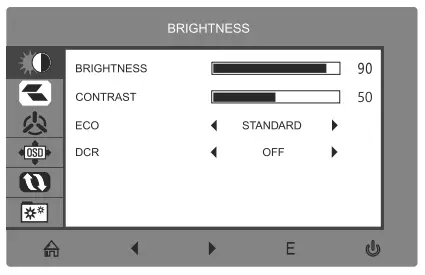
| Main Menu | Sub-Menu | Options | Description |
| BRIGHTNESS | Brightness | 0-100 | Adjust display brightness |
| Contrast | 0-100 | Adjust display contrast | |
| ECO | Standard. Game, RTS, FPS, Movie. Text | Set visual mode | |
| OCR | On | Turn on DCR function | |
| Off | Turn off DCR function | ||
| IMAGE | Aspect | Wide, Auto, 4:3 | Set aspect ratio |
| COLOR TEMP. | Color temp. | Warm, User, Cool, | Adjust color temperature |
| Red | 0-100 | Customize RG8 components | |
| Green | 0-100 | ||
| Blue | 0-100 | ||
| OSD SETTING | Language | English, Polski, Italiano, Nederlands ,RI | Set OSD language |
| OSD H. POS. | 0-100 | Adjust the OSD horizontal position | |
| OSD V .POS. | 0-100 | Adjust the OSD vertical position | |
| OSD Timer | 0-60 | Set how long the OSD remains open after non-use | |
| Transparency | 0-100 | Set the OSD overall transparency | |
| RESET | Image auto adjust | N/A | Set auto adjust the display image |
| Color auto adjust | N/A | Set auto adjust the display color | |
| Reset | N/A | Reset monitor configurations | |
| MPRT | On,Off | Moving Picture Response Time | |
| MISC | Signal source | DP, HDMILHDMI2 | Display the input signal |
| Volume | 0-100 | Adjust audio volume | |
| Low blue ray | 0-100 | Set blue light filtering level | |
| Adaptive-Syne | On,Off | Turn the Adaptive-Syne On/Off | |
| Over Driver | High, Middle, Low, Off | Set Overdrive function | |
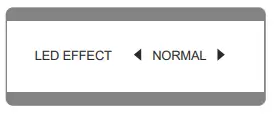
| LED Effect | Normal, Flicker, Off | Set led display modes |
ECO MODES AND GAMEPLUS SWITCHING
- Press any button to activate the navigation window ( M , , , E , ).

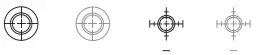
- Press the button to switch Gameplus modes. Choose the game icon best matching to your game. These game icons are primarily designed to improve your aiming in shooter games, but can of course also be used for other scenarios.

- Press to switch LED display modes, or turn off the LED effects.

TECHNICAL SPECIFICATIONS
| Model | LC-M24-FHD-165-C |
| Screen size | 23,6″/ 59,94 cm |
| Aspect ratio | 16:09 |
| Backlight | E-LED |
| Brightness | 250 cd/m2 (typical) |
| Panel | VA |
| Resolution | DP 1.2: 1920 x 1080 @ 165Hz HDMI 1.4: 1920 x 1080 @ 120 Hz |
| Refresh rate | 165 Hz |
| Response time | OD 4 ms |
| Viewing angle | ._. 178 ° (H) / 178 ° (V) |
| Contrast ratio | 3000:1 |
| VESA mounting | 75 x 75 mm |
| Colours | 16,7 million |
| Adaptive-Sync | Yes |
| Signal input | 1 x DP 1.2, 2x HDMI 1.4 |
| Speakers | Not included |
| Audio output, power cable, DP cable, Low blue light, flicker-free ,HDMI cable | Included |
Silent power Electronics GmbH
Formerweg 8
47877 Willich
Germany
www.Ic-power.com
![Philips Gaming Monitor [272e1] User Manual](https://static-data1.manualsee.com/1/img/407/16107/2020/12/Philips-Gaming-Monitor-272E1.jpg "Philips Gaming Monitor [272e1] User Manual")