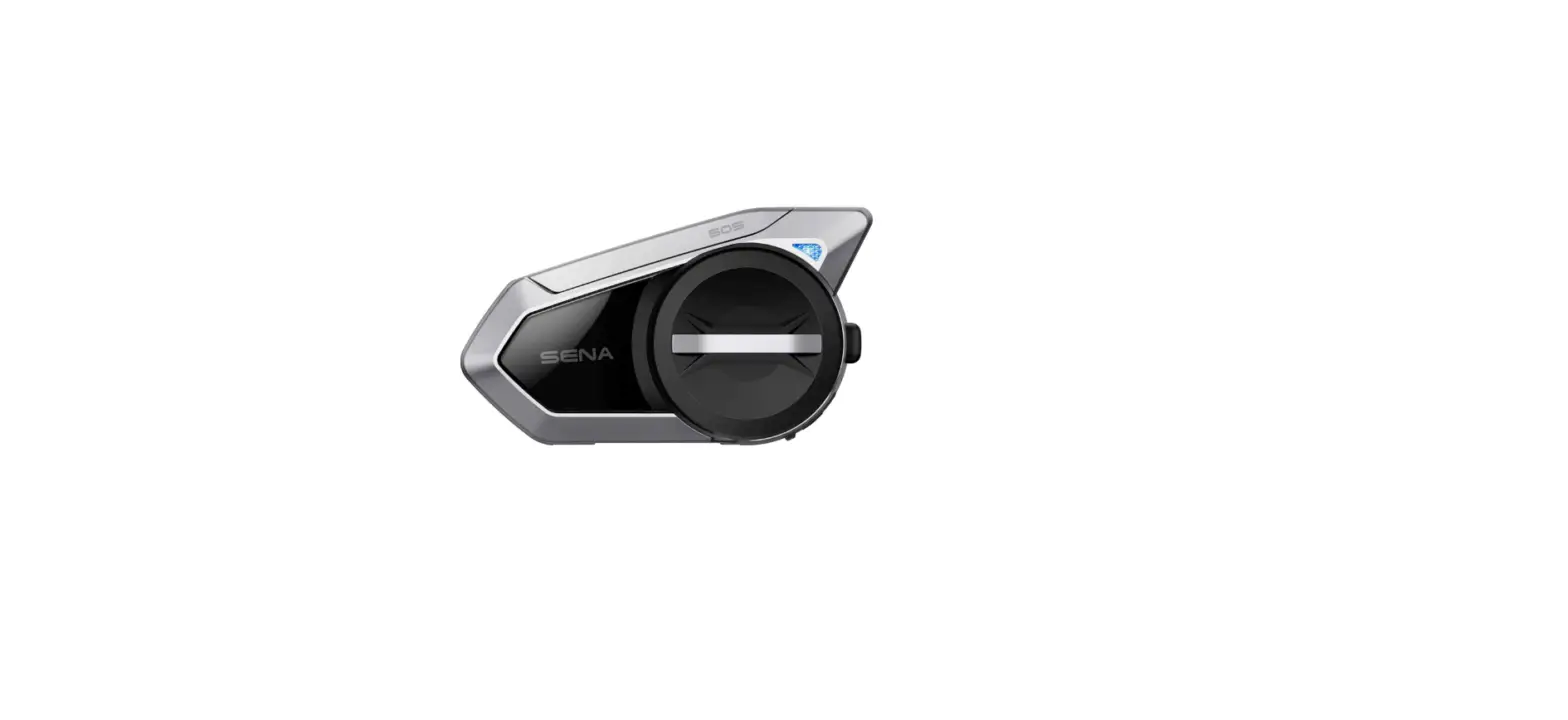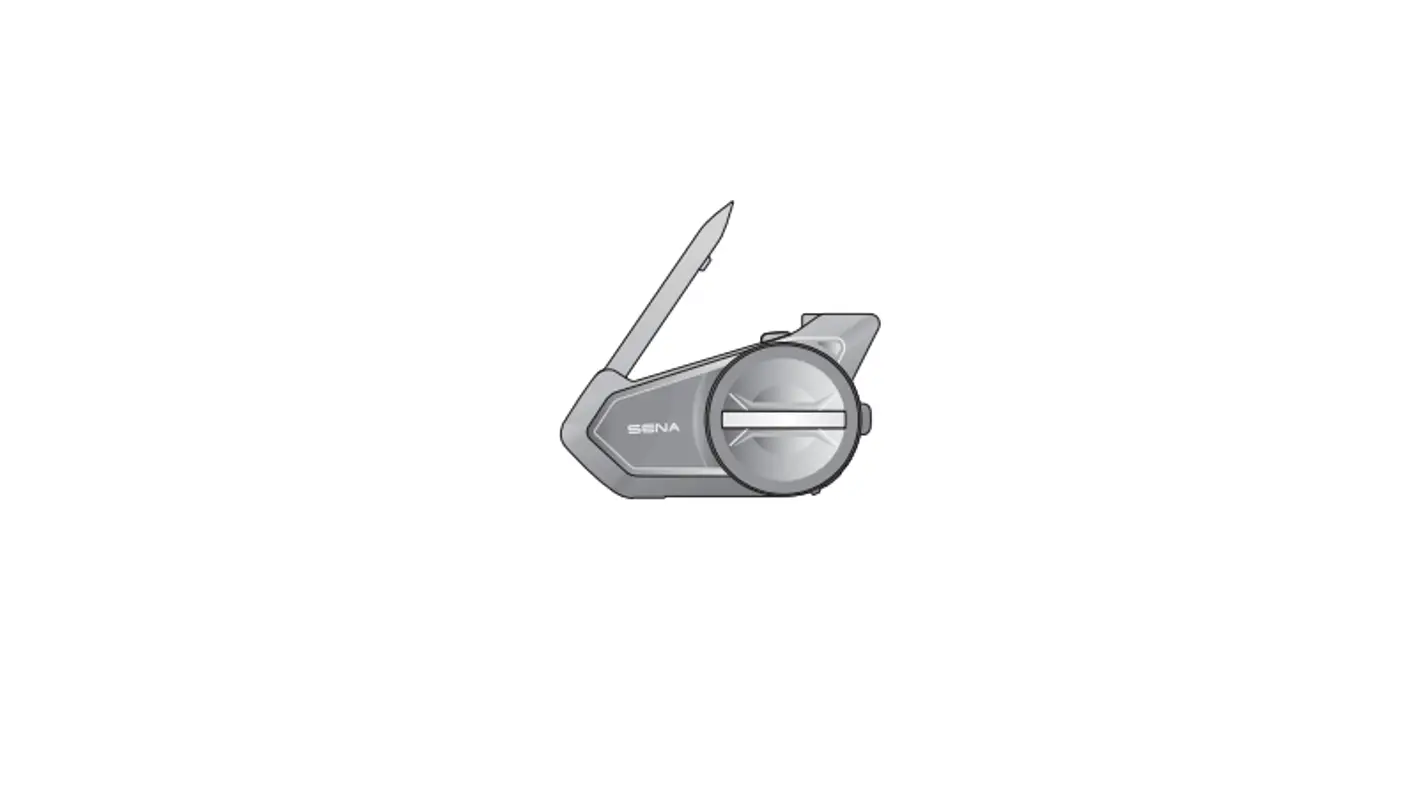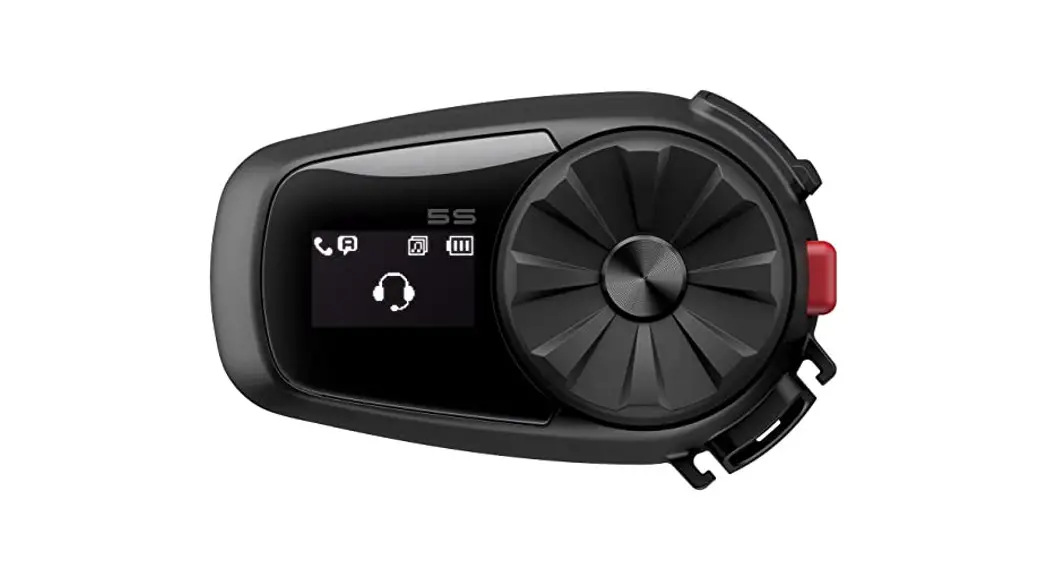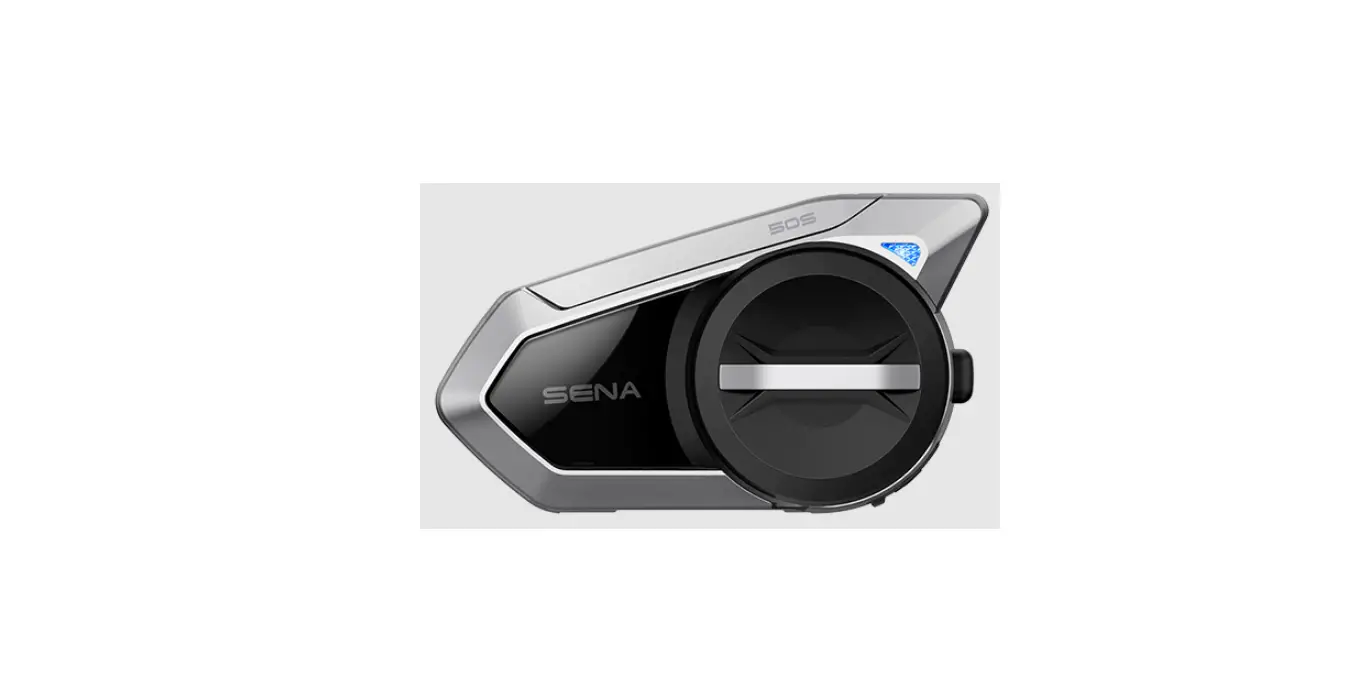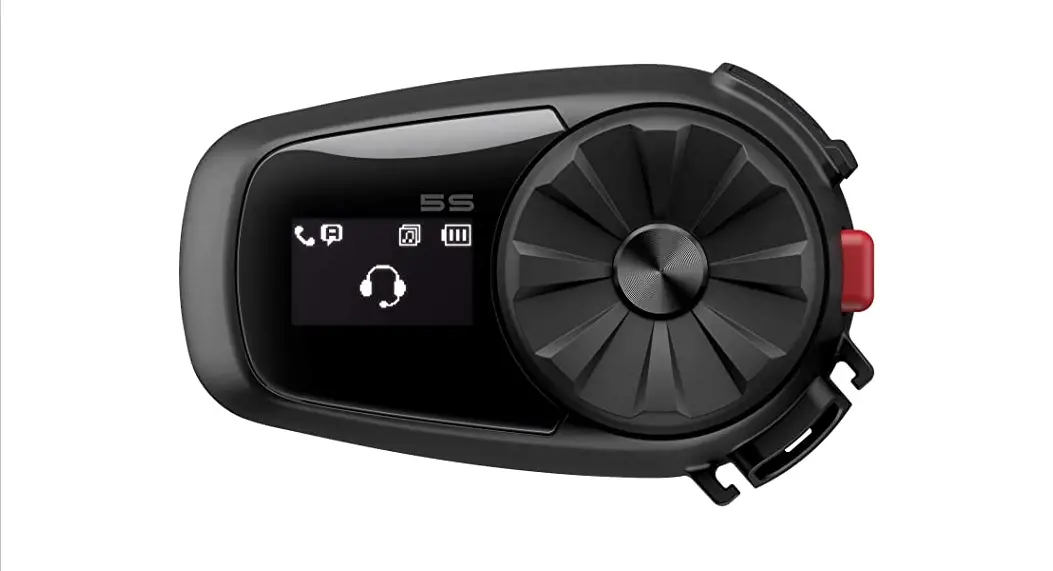
 BLUETOOTH® COMMUNICATION SYSTEM WITH MESH INTERCOM™
User Guide
RIDE CONNECTED
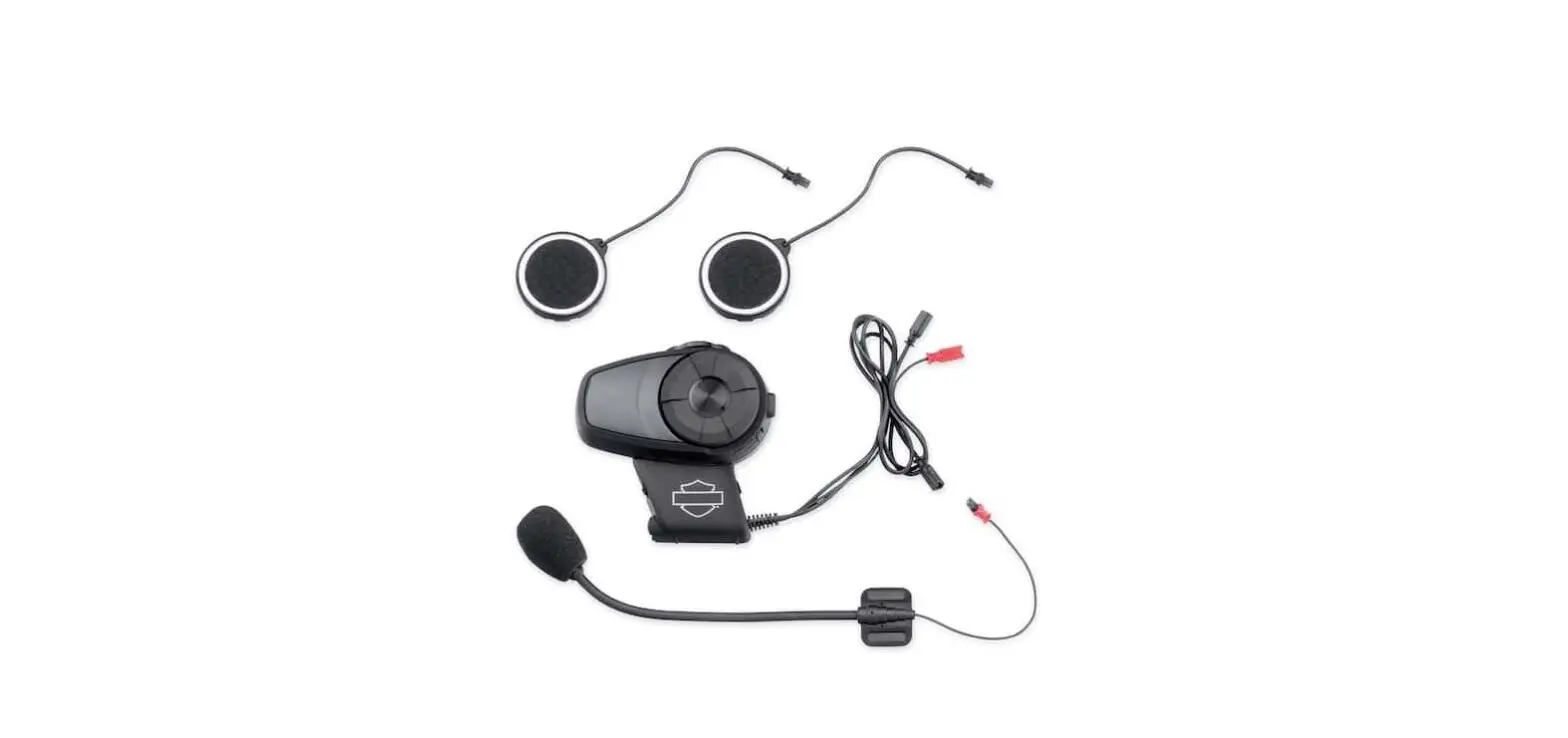
The Boom! Audio 30K features HarleyDavidson’s Mesh Intercom technology allowing your group to seamlessly communicate, even if a rider falls out of range. With more connections and Mesh Intercom™ technology, the Boom! Audio 30K is the next generation of communication.
 | Mesh Intercom™ up to 2.0 km (1.2 mi) |
 | Audio Multitasking™ |
 | Intercom up to 2.0 km (1.2 mi) |
 | Group Intercom |
 | FM Radio |
 | Bluetooth® 4.1 |
 | Multi-Way Intercom |
 | Advanced Noise Control™ |
 | Remote Control |
GETTING STARTED
- This product comes with a Quick Start Guide, which is a basic version of the User’s Guide. A FULL VERSION OF THE USER’S GUIDE CAN BE DOWNLOADED AT WWW.H-D.COM/INFOTAINMENT-SUPPORT.
- Update this product for free with the latest firmware to fully enjoy the new advanced features built into this product. Visit www.H-D.com/infotainment-support to see how to update your product.
- Users can follow Harley-Davidson on Facebook, YouTube, Twitter and Instagram to receive the most up to date information on products, helpful tips and all other announcements regarding Harley-Davidson products.
How to Use This Guide
The legend and callouts are here to help you read the illustrations. New technology can be confusing, but we’ve created a simple way to perform actions using illustrations.
 Function = Button(s) to Tap or Hold
Buttons
Icon Legend
 | Tap button/Jog Dial the specified number of times |
 | Press and Hold button/Jog Dial for the specified amount of time |
 | Rotate Jog Dial clockwise (right) or counterclockwise (left). |
 | Rotate while Pressing Jog Dial clockwise (right) or counterclockwise (left). |
 | Audible prompt from the Bluetooth Module |
QUICK START GUIDE
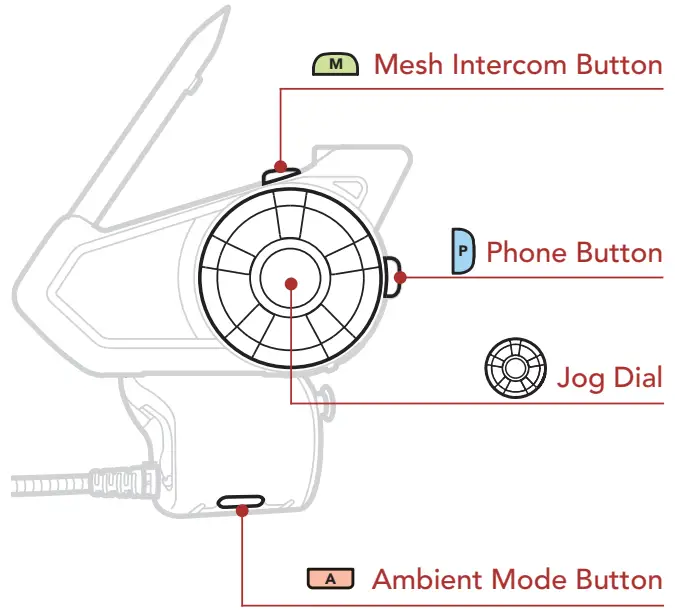
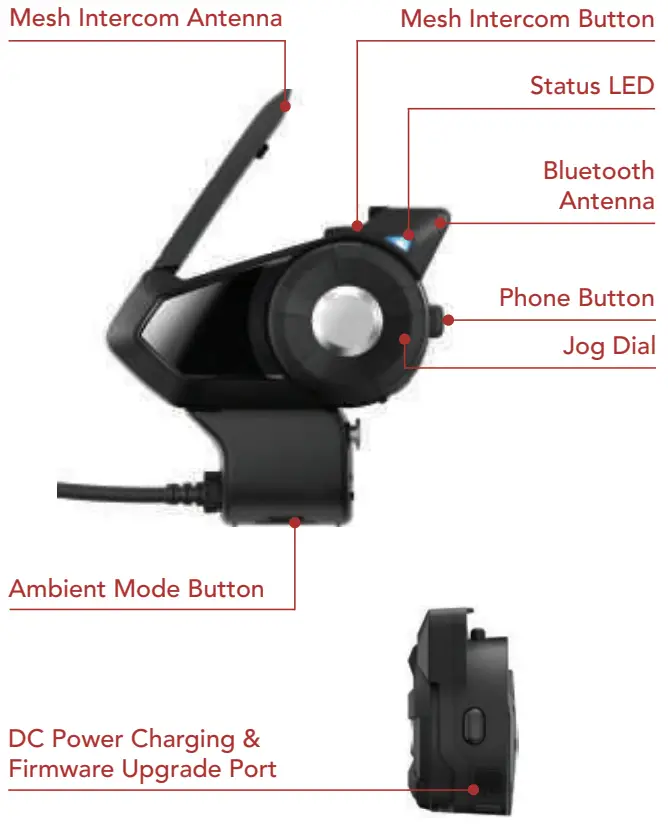
Product Details
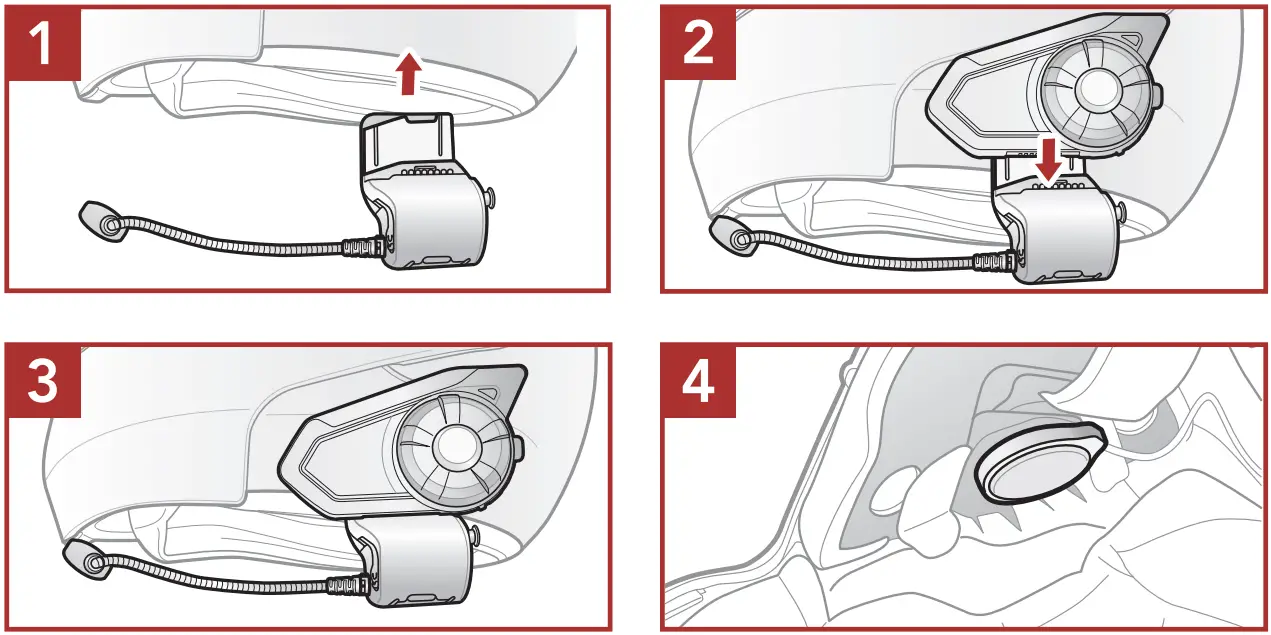
Installation
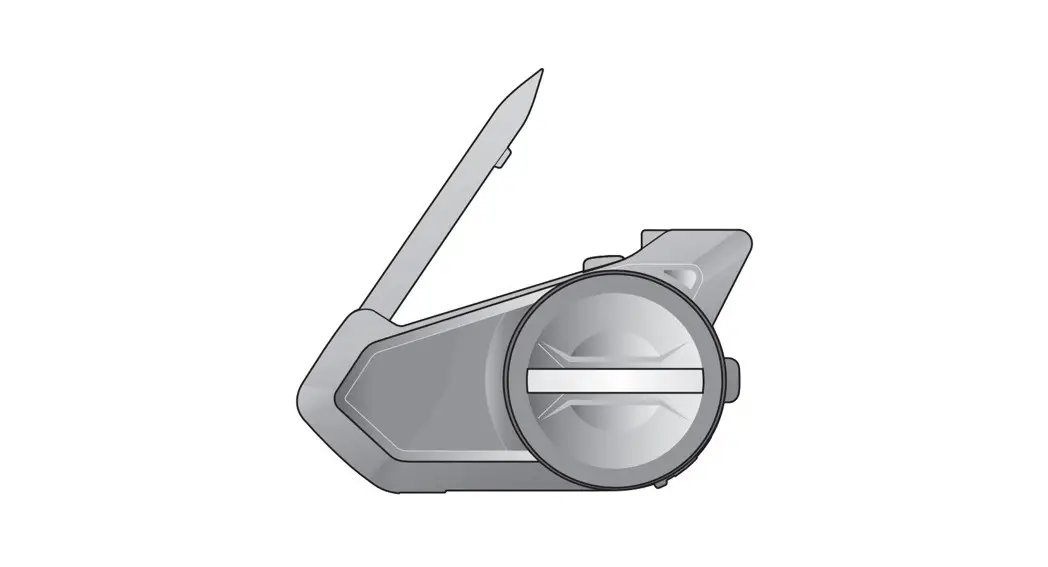
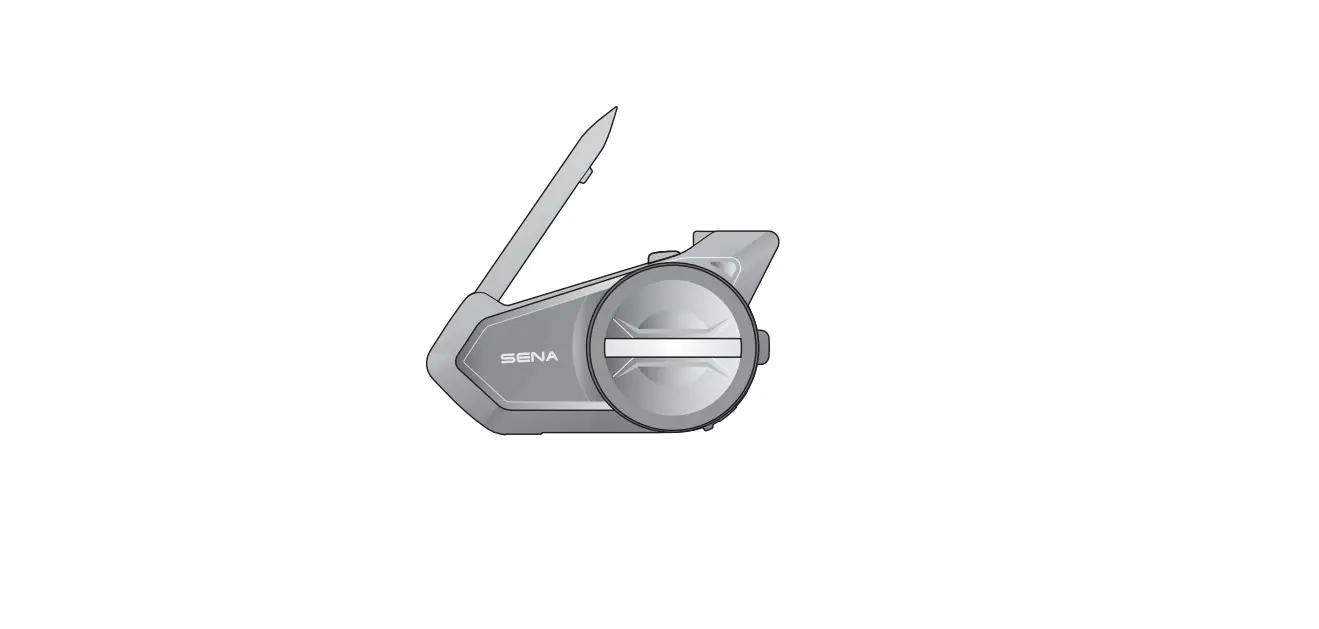
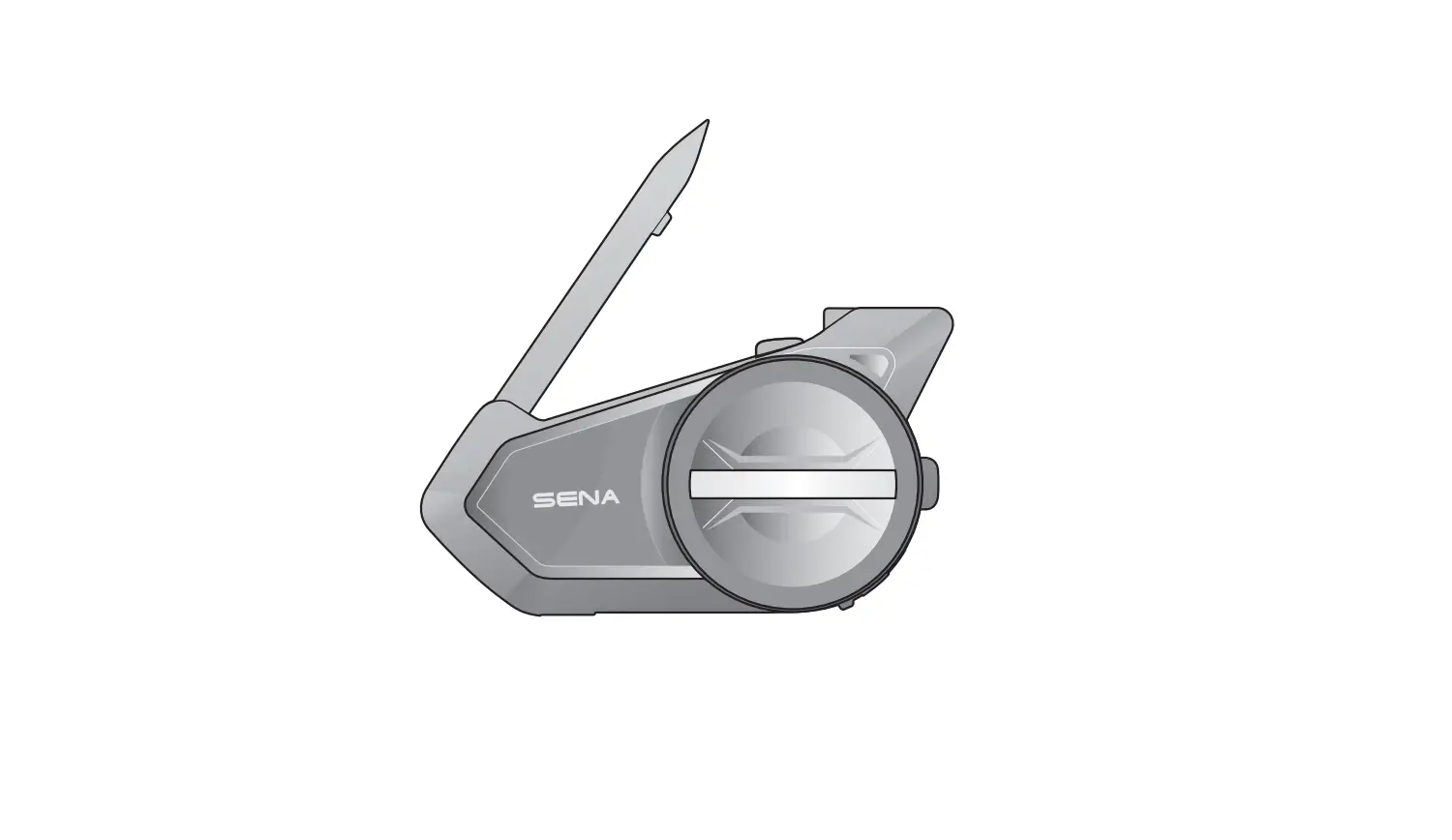
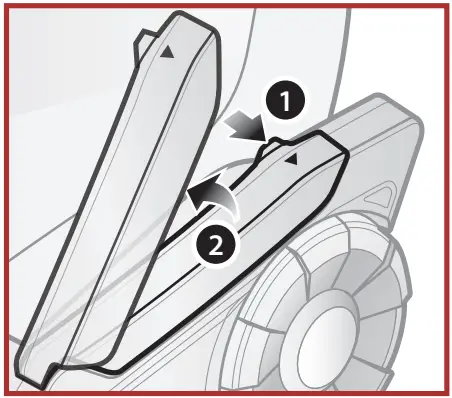
Mesh Intercom Antenna
Pull the Mesh Intercom Antenna outwards slightly to unfold it.
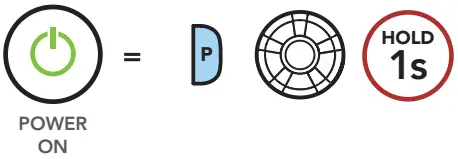
Basic Operations
| Powering On | Powering Off |
 | 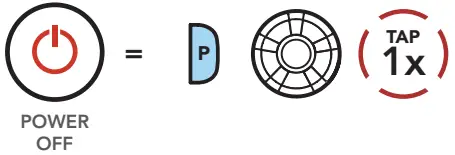 |
| Volume Up | Volume Down |
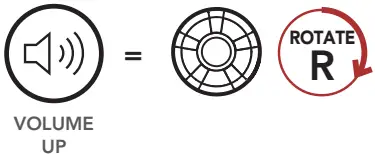 | 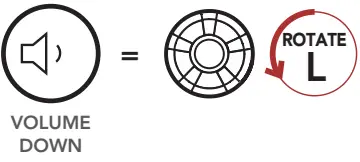 |
Checking the Battery Level
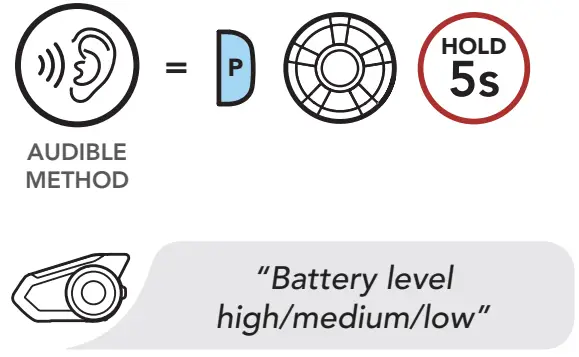
There are two ways to check the battery levels, visually using the LED lights, and audibly. Instructions are for when powering the Bluetooth Module on.
Visual Method
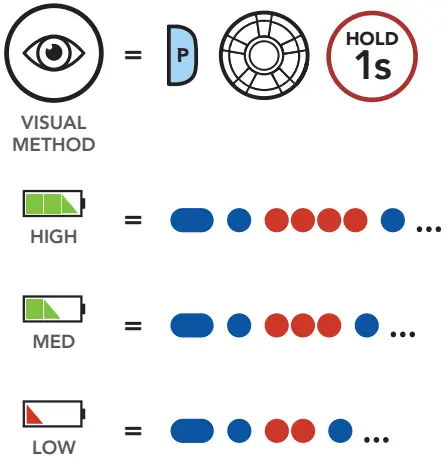
Audible Method
Bluetooth Pairing with WHIM
Pairing with WHIM Boom! Box radio go to: Home > Setup > Wireless Headset Setup > Pair Rider (select)
Select: Boom! Audio 30K v1.0…
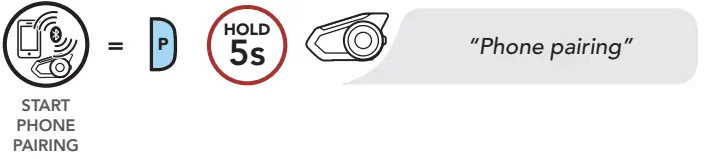
Bluetooth Pairing (Phone, MP3, GPS)
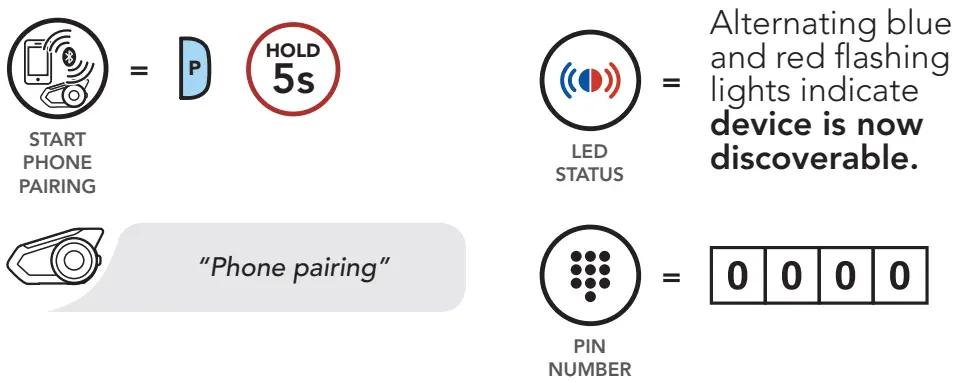
Mobile Phone Pairing
Mobile Phone
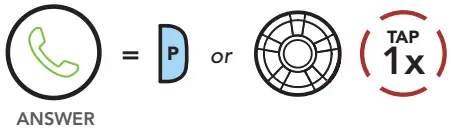
| Answer a Call | Reject a call |
 | 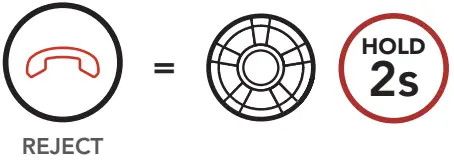 |
| End a Call | Make Call with Voice Dialer |
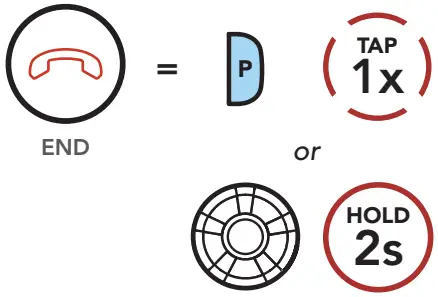 | 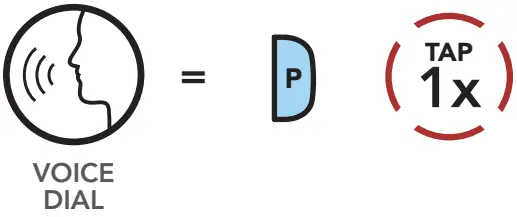 |
Music Controls
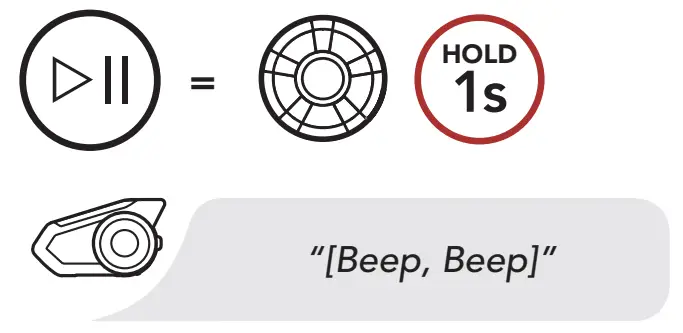 | Play/Pause |
 | Track forward |
 | Track backward |
Mesh Intercom™
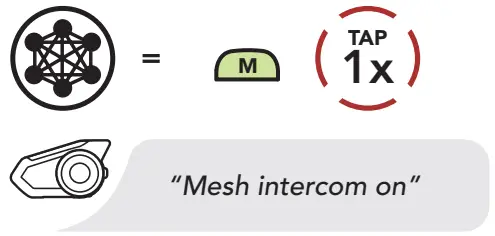
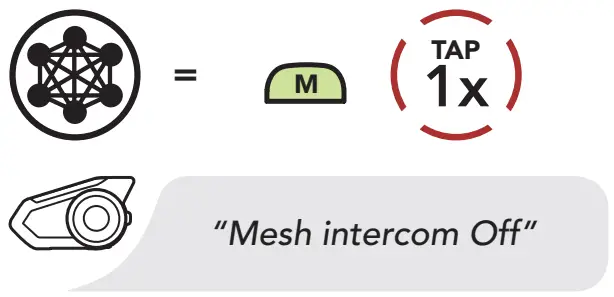
When Mesh Intercom is enabled, the Boom! Audio 30K will automatically connect to nearby Boom! Audio 30K users and allow them to talk to each other by pressing the Mesh Intercom Button.
| Mesh Intercom On | Mesh Intercom Off |
 |  |
Note: Open Mesh and Group Mesh cannot communicate with the previous modes Public Mode and Private Mode. In case of no communication, the Boom! Audio 30K should be upgraded to the latest firmware.
Open Mesh™
When Mesh Intercom is enabled, the headset will be in Open Mesh (default: channel 1) initially. Users can freely communicate with each other in the same Open Mesh channel.
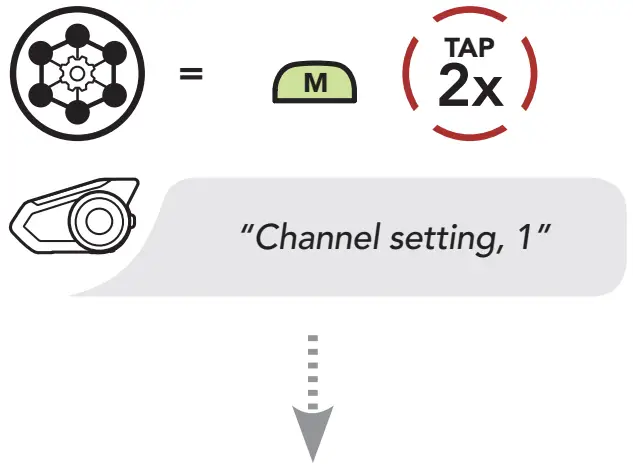
Channel Setting (Default: channel 1)
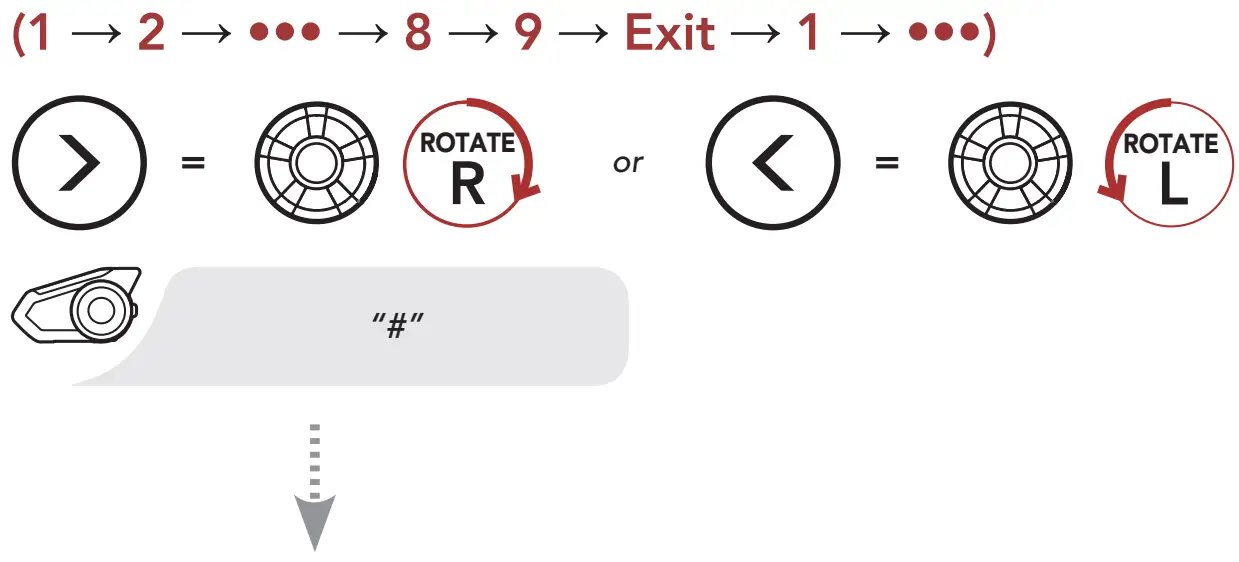
If the Open Mesh communication experiences interference because other groups are also using channel 1 (default), change the channel. You can select from channels 1 to 9.
Enter into the Channel Setting
Navigate between Channels
Save the Channel
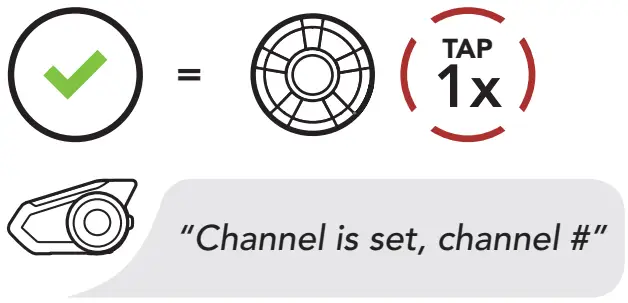
Note: To exit the Channel Setting, rotate the Jog Dial clockwise or counterclockwise until you hear a voice prompt, “Exit”, and tap the Jog Dial.
Group Mesh™
Group Mesh is a closed group intercom function that allows users to join, leave, or rejoin a group intercom conversation without pairing each headset. Up to 24 users can all be connected in each private group.
Creating a Group Mesh
Creating a Group Mesh requires two or more Open Mesh users.
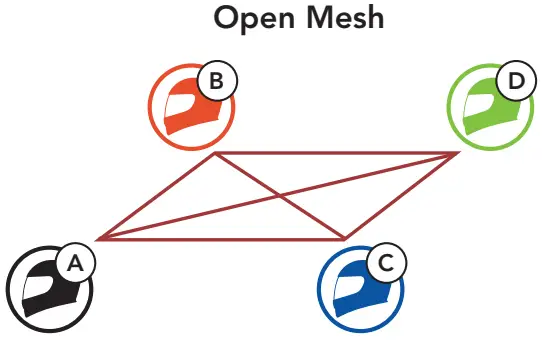
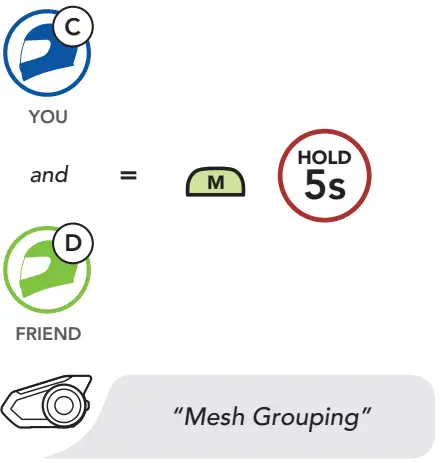
- Enter into Mesh Grouping to create a Group Mesh.

- The headsets complete Mesh Grouping and automatically switch from Open Mesh to Group Mesh.

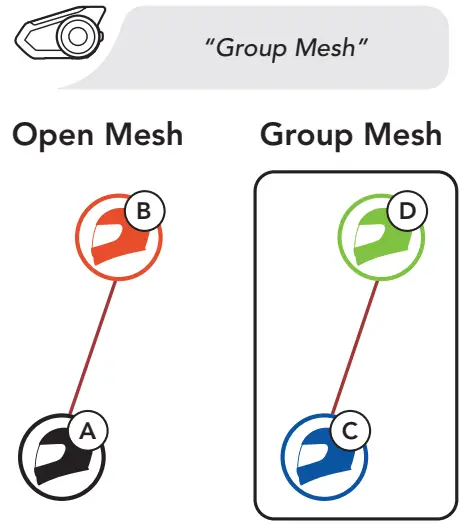
Joining an Existing Group Mesh
One of the members in an Existing Group Mesh can allow new members in Open Mesh to join the Existing Group Mesh.
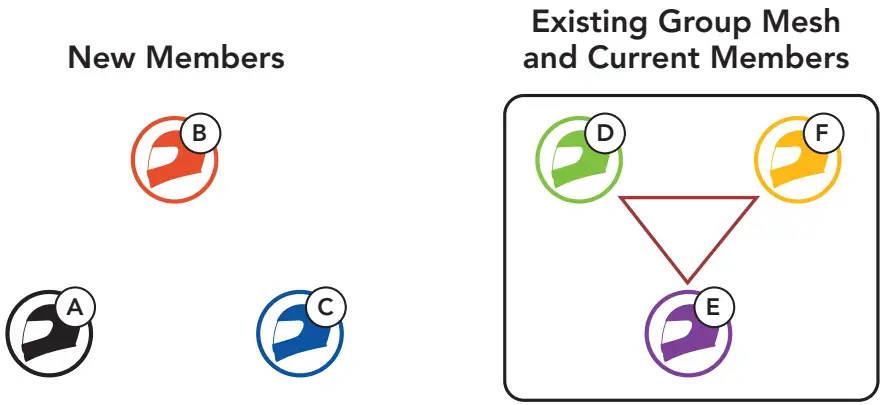
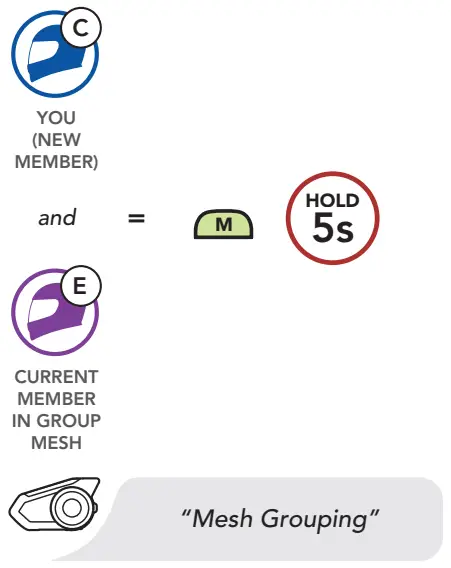
- One of the current members and a new member enter into Mesh Grouping to join the Existing Group Mesh.

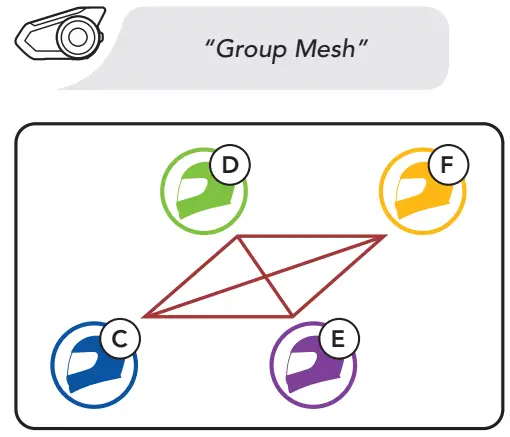
- The headsets complete Mesh Grouping. The new members will hear a voice prompt as their headsets automatically switch from Open Mesh to Group Mesh.

Reset Mesh
If a headset in an Open Mesh or Group Mesh resets the Mesh, it will automatically return to Open Mesh (default: channel 1).

Enable/Disable Mic (Default: Enable)
Users can enable/disable the microphone when communicating in a Mesh Intercom.
Enable/Disable the Microphone

Bluetooth Intercom
Up to three people can communicate via intercom with you (A) simply by pairing their headsets.
Pairing Headset A with Headset B
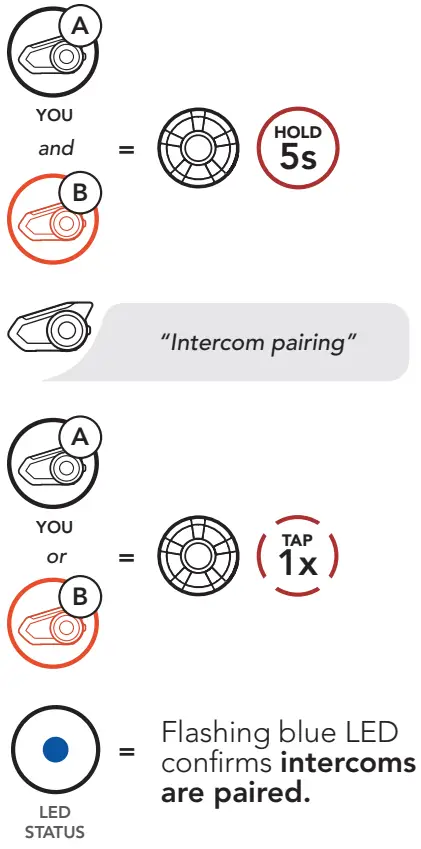
Start/End Intercom with Headset B

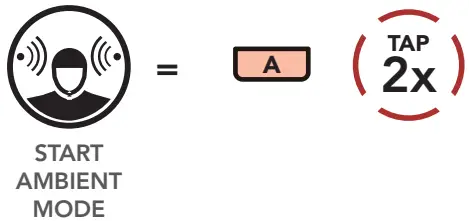
Ambient Mode
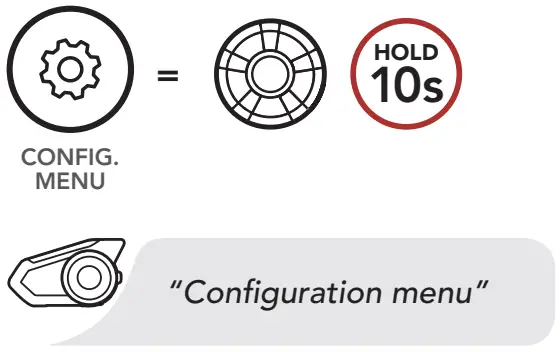
Configuration Menu
Accessing the Configuration Menu
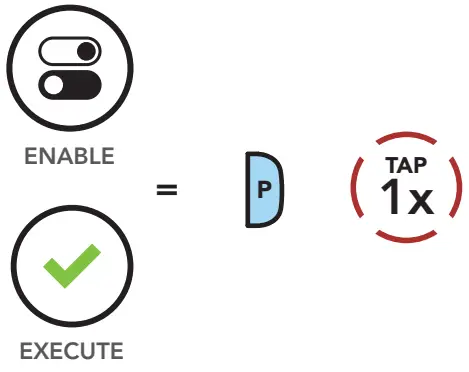
Enable or Execute Menu Options
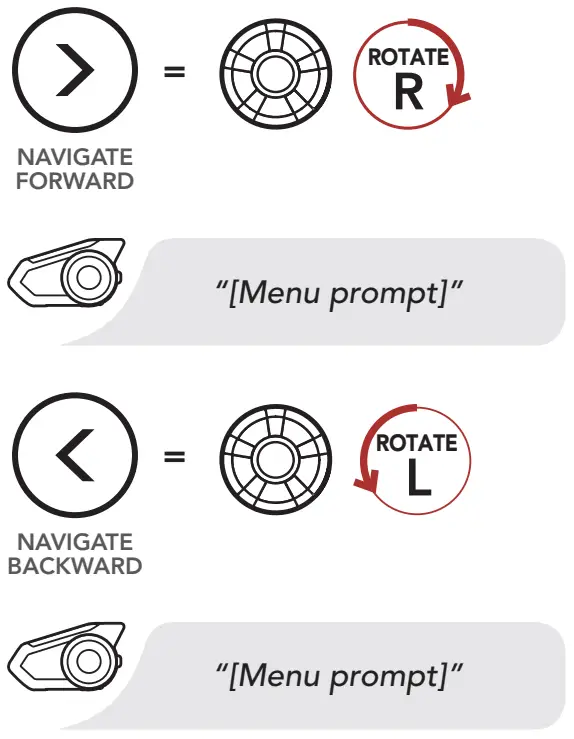
Navigating Between Menu Options
Boom Audio Bluetooth Device Manager
The Boom Audio Bluetooth Device Manager allows you to upgrade the firmware and configure its settings directly from your PC or Apple computer. Using this software, you can assign speed dial presets, FM radio station presets and more. For more information on downloading the Boom Audio Bluetooth Device Manager, please visit www.H-D.com/infotainment-support.
Sena Motorcycles App
The Sena Motorcycles App allows you to configure the headset settings, as well as access the User’s and Quick Start Guides. To do so, pair your mobile phone with your headset by following the instructions in the “Bluetooth Pairing (Phone, MP3, GPS)” section in this quick start guide.Run the Sena Motorcycles App and configure the settings directly from your smartphone. You can download the Sena Motorcycles App for Android or iPhone from Google Play or App Store.

Troubleshooting
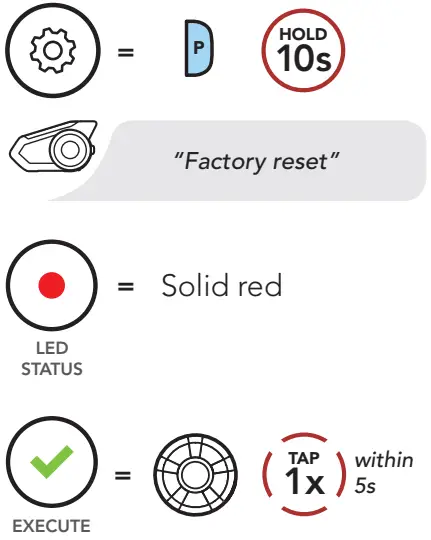
Factory Reset
Fault Reset
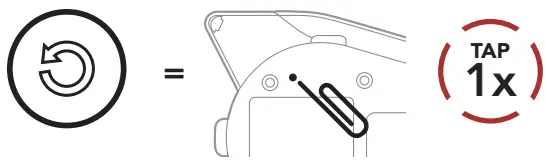
Note: Fault Reset will not restore the Bluetooth module to factory default settings.
QUICK REFERENCE
| TYPE | OPERATION | BUTTON COMMANDS |
 Basic Operations Basic Operations | Power on /Power off | 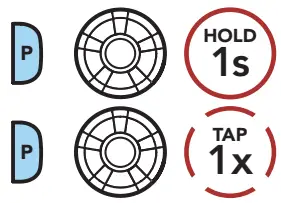 |
| Volume up /Volume down |  | |
| Ambient Mode |  | |
| Answer phone call |  | |
 Mobile Phone Mobile Phone | End phone call |  |
| Reject phone call |  | |
| Call transfer while on the phone |  | |
| Voice dial | | |
| Speed dial |  | |
 Music Music | Play/Pause music |  |
| Track forward |  | |
| Track backward |  | |
| Mesh Intercom™ | Mesh Intercom on/off |  |
| Channel setting |  | |
| Mesh Grouping |  | |
| Reset Mesh |  | |
| Enable/Disable Mic |  | |
 Intercom Intercom | Intercom pairing |  |
| Start/End intercom |  | |
| End all intercoms | | |
| Start/End Group Intercom |  |
Customer Support:
www.H-D.com/infotainment-support
2.2.0_EN_September2022
2.2.0
 Login | Harley-Davidson SIP