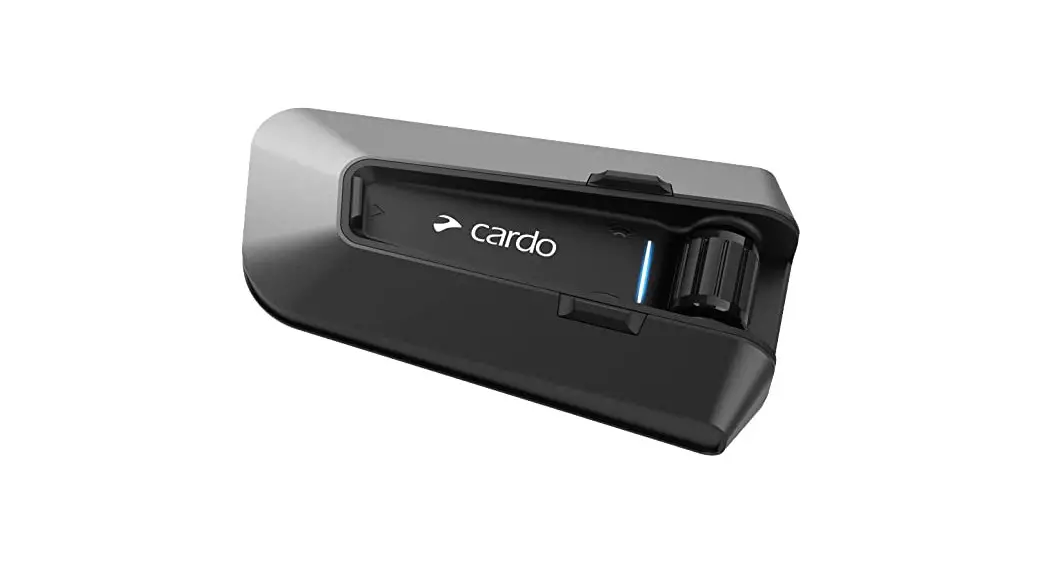

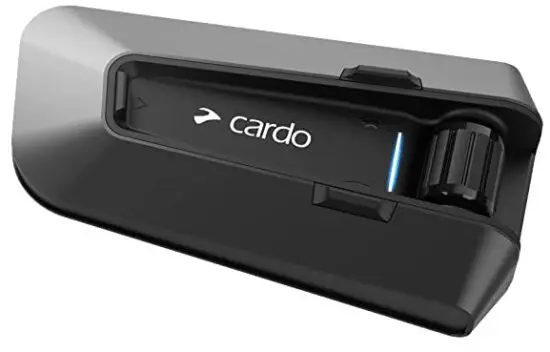

EDGE
POCKET GUIDE

CONNECT APP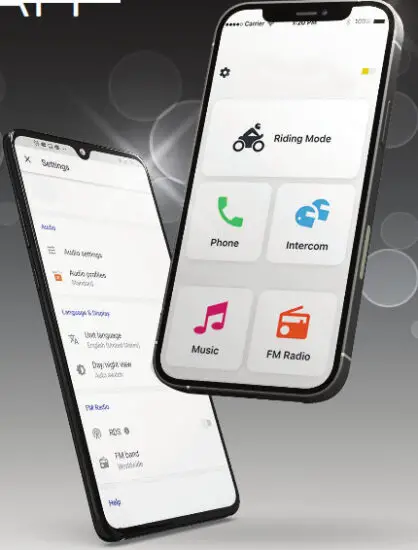

Cardo Connect App
Getting Started
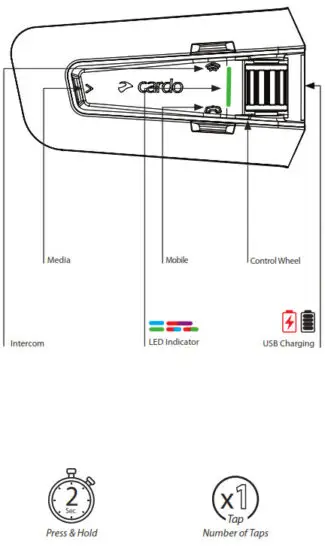
 On / Off
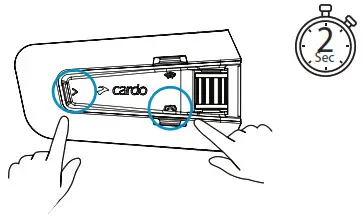
 Phone Pairing
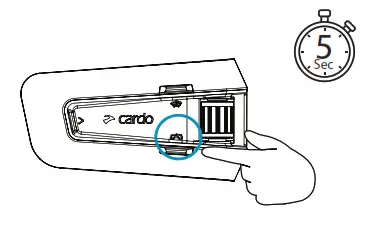
LED Red & Blue 
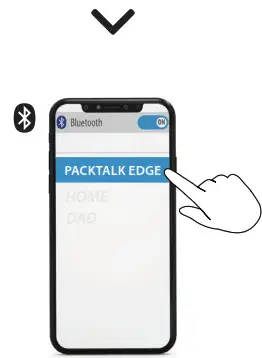
 Download

 Register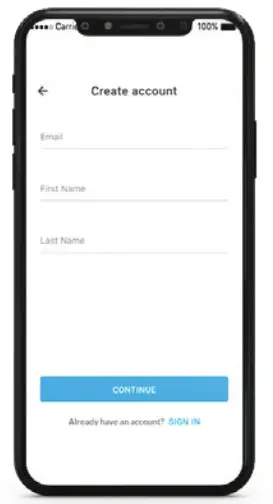
 Choose Language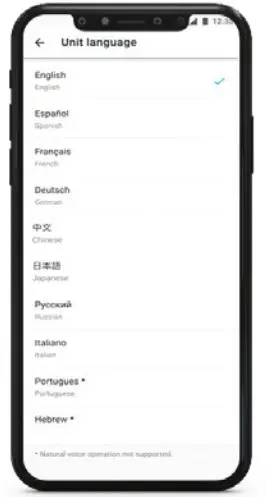
 Update Software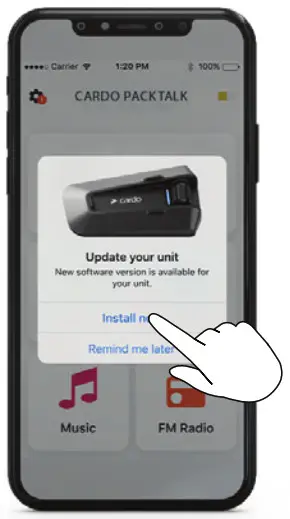
 Volume Up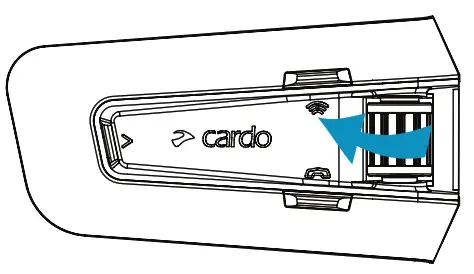
 Volume Down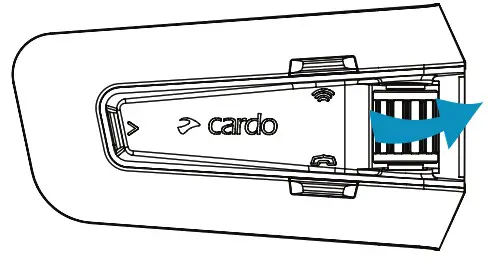
 Mute / Unmute Microphone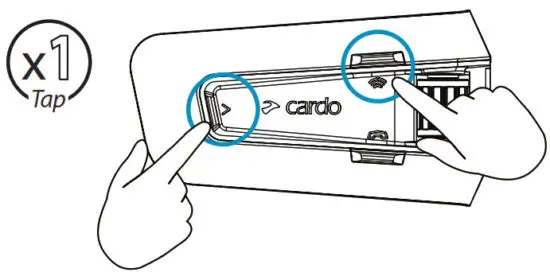
 Voice Assistant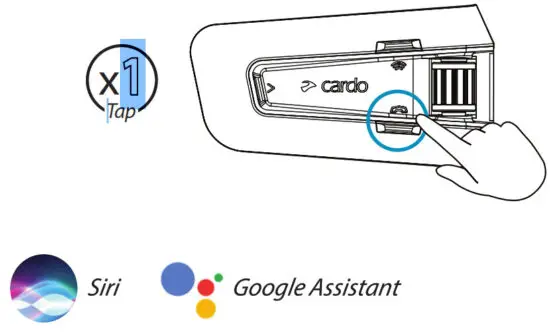
Radio
 Set Presets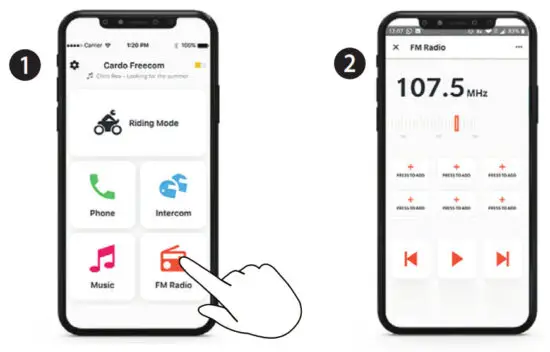
On 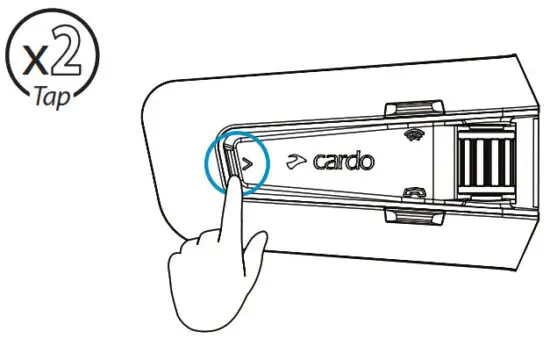
Off 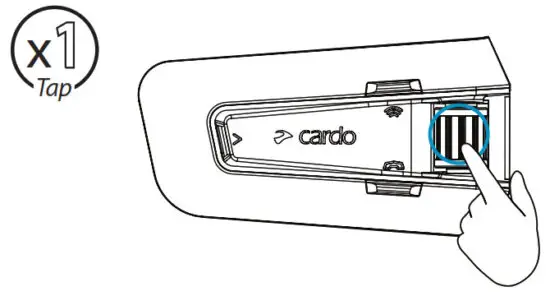
 Next Preset
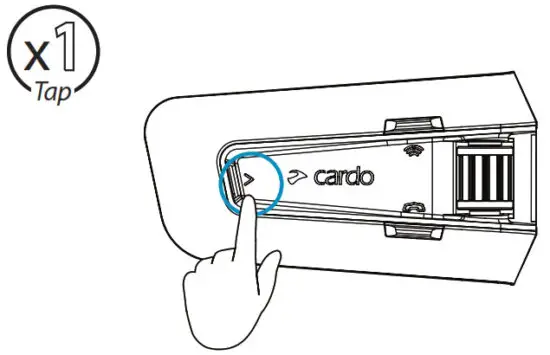
 Start Scan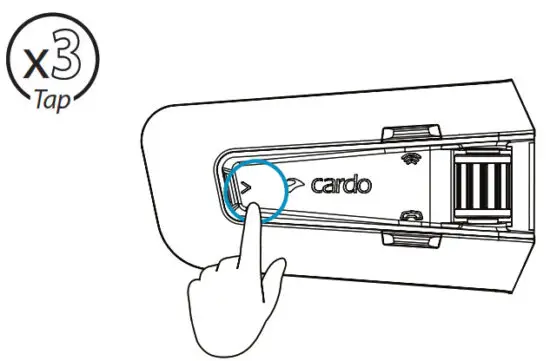
 Stop Scan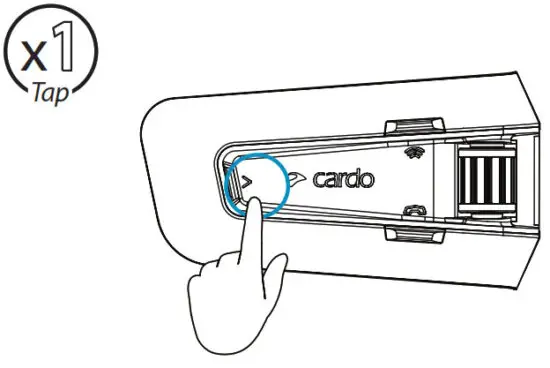
 On
On
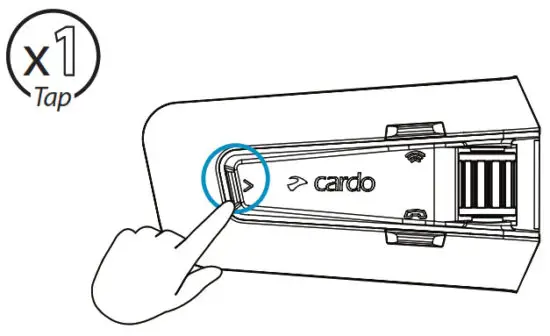
 Off
Off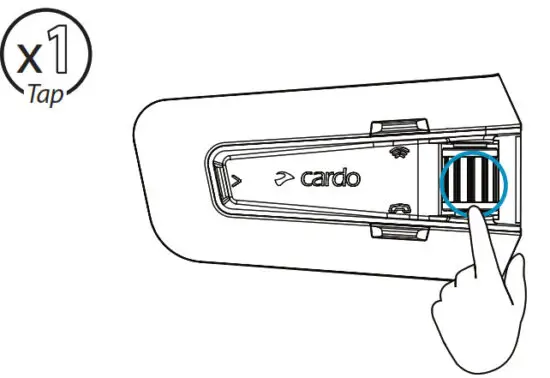
Next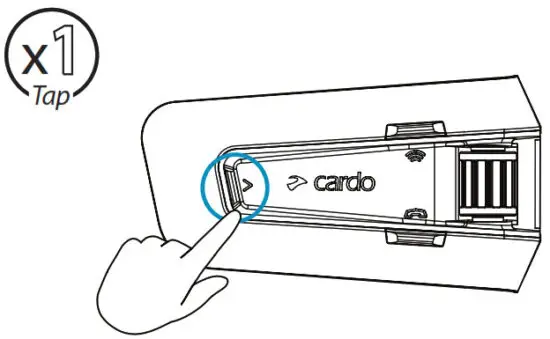
 Previous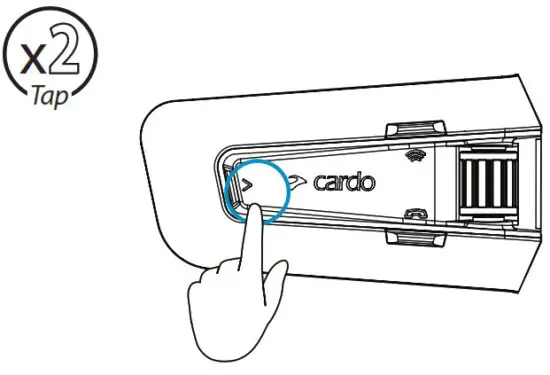
Switch Source
 Music to Radio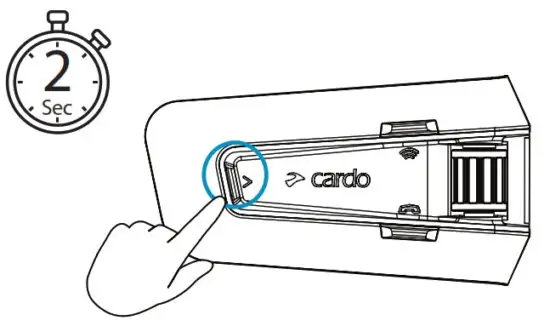
 Radio to Music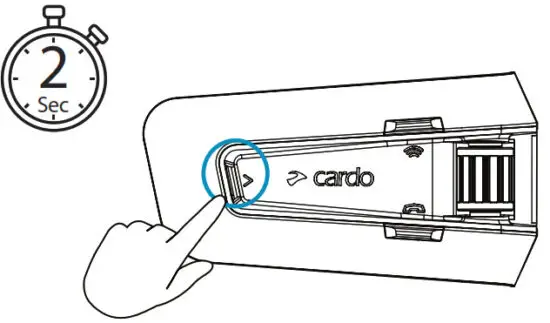
Phone Call
 Answer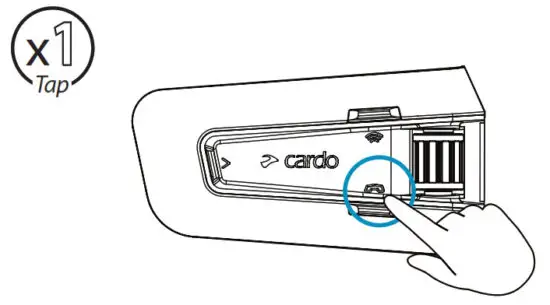
 Ignore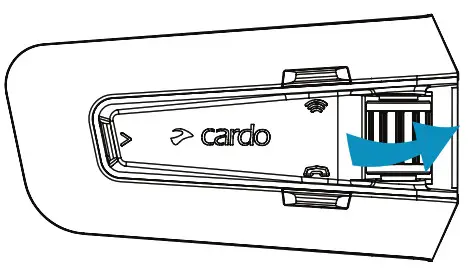
 End Call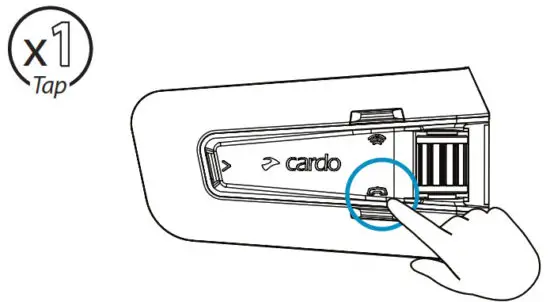
 Redial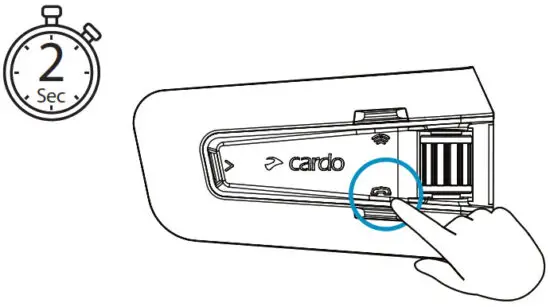
DMC Intercom
 Grouping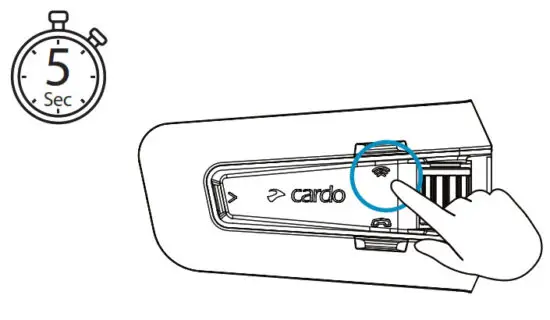
LED Red & Green
Grouping Success
LED Purple
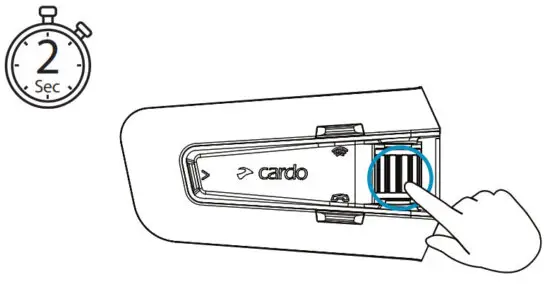
 Mute / Unmute Group
 Share Call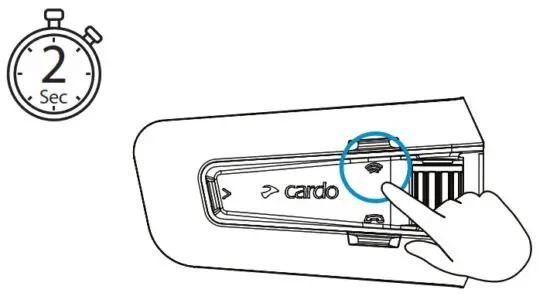
Advanced Features
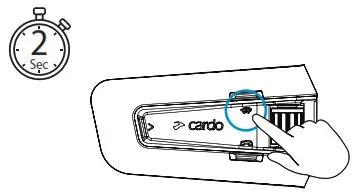
Music Sharing Set Sharing Partner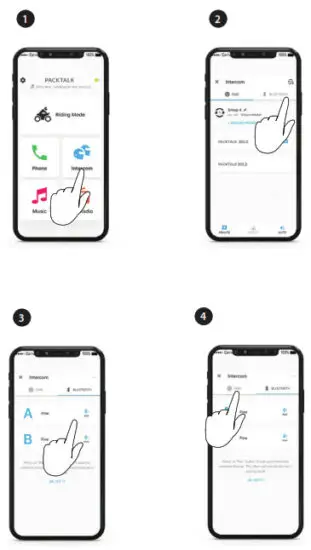
 Start / Stop Sharing
Advanced Features
DMC Intercom Set Private Chat Partner
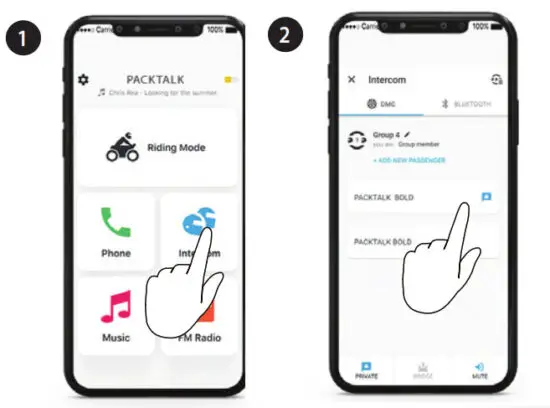
 Start / Stop Private Chat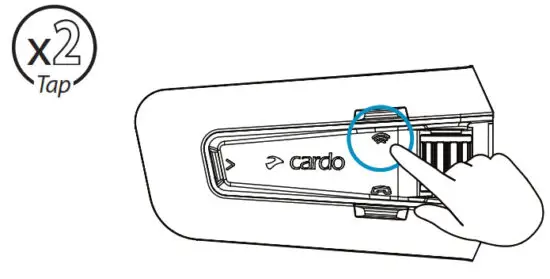
+ Add Bluetooth Passenger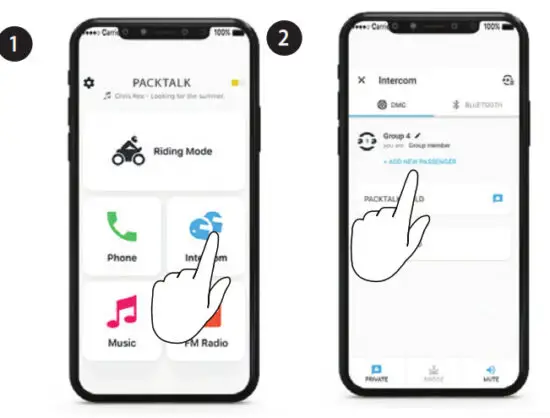
Start/Stop Passenger Intercom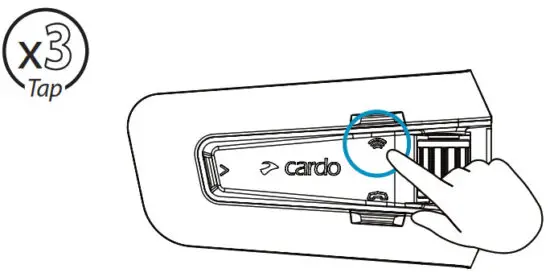
Advanced Features
Phone Call Set Speed Dial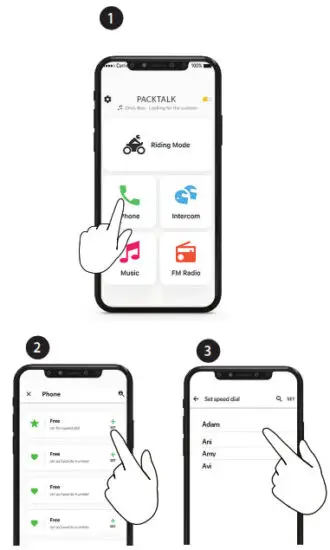
 Call Speed Dial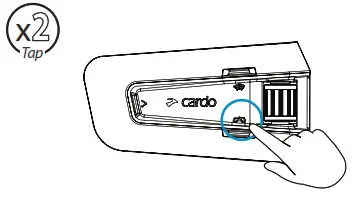
Advanced Features
GPS Pairing
1.Step 1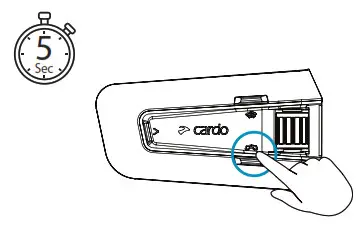 LED Red & Blue
2. Step 2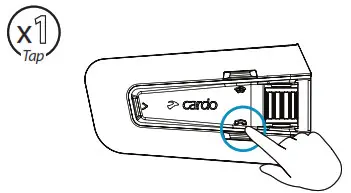
LED Red & Green
3. Step 3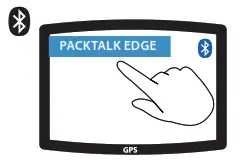 Advanced Features
Universal Bluetooth Intercom Bluetooth Intercom Pairing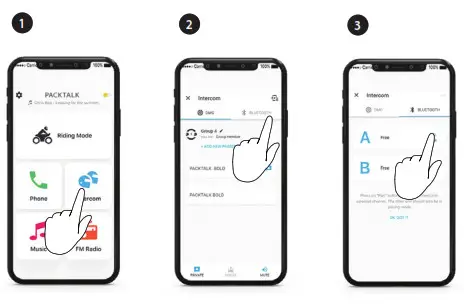
 Start / Stop Intercom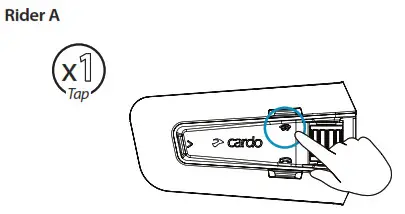
Start / Stop Intercom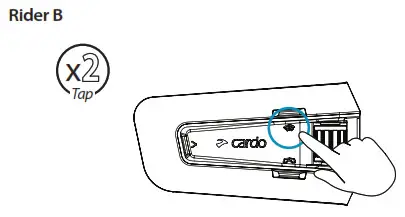
Advanced Features
Reboot 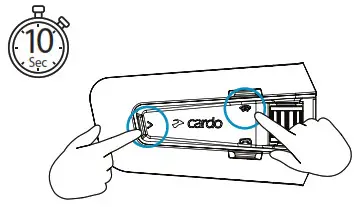
Factory Reset
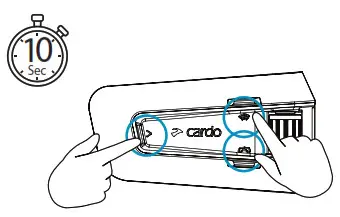
Advanced Features
Voice Commands – Always On!
 | • Answer • Ignore • “Hey Cardo, end call” • “Hey Cardo, speed dial” • “Hey Cardo, the redial number” |
 | • “Hey Cardo, music on” • “Hey Cardo, music off ” • “Hey Cardo, next track” • “Hey Cardo, the previous track” • “Hey Cardo, share music” |
 | • “Hey Cardo, radio on” • “Hey Cardo, radio off ” • “Hey Cardo, next station” • “Hey Cardo, the previous station” |
 | For Bluetooth intercom only • “Hey Cardo, call the intercom” • “Hey Cardo, end intercom” |
 | • “Hey Siri” • “OK Google” |
 | • “Hey Cardo, volume up” • “Hey Cardo, volume down” • “Hey Cardo, mute audio” • “Hey Cardo, unmute audio” • “Hey Cardo, mute the microphone” • “Hey Cardo, unmute the microphone” |
 | • “Hey Cardo, battery status” |




communication in motion
cardosystems.com
Cardosystems.com/update
Cardosystems.com/support
 Cardo Systems - The World's Best Powersports Communication System