 mobile
User Guide
 REGISTRATION
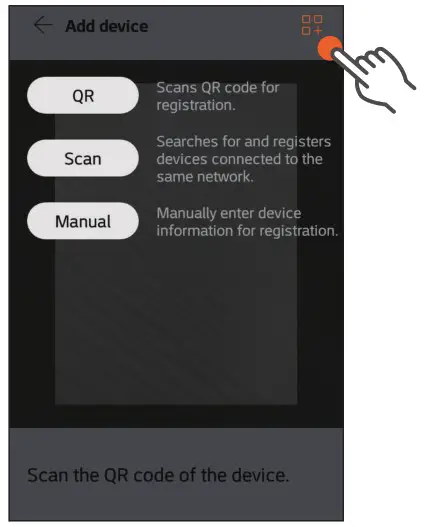
New device registration
Registering a new device
 QR code registration
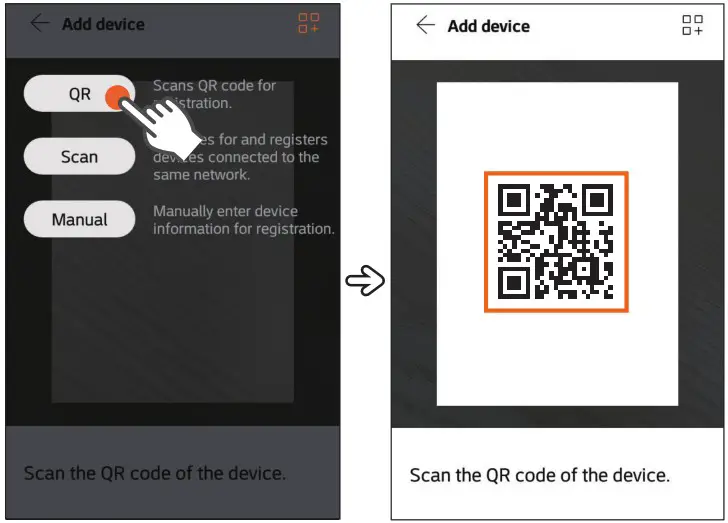
For devices with a QR code sticker
- At the bottom of the screen, select
 〉
〉 Device.
 - Select
 〉
〉 〉 QR on the device registration screen.
 - Scan the QR code on your device.
- Enter the ID and password of the device, and select OK.
■ Device registration is complete.
■ You can select the channel you want, available for your device. Select it and click OK.
 〉
〉 Device.
 〉
〉 〉 QR on the device registration screen.
 Scan registration
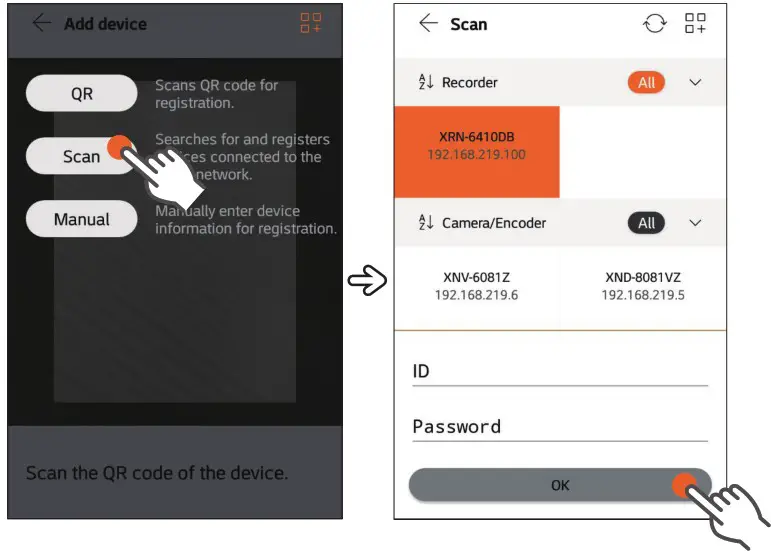
For a smartphone and a device on the same
Wi-Fi network
- At the bottom of the screen, select 〉Device.
- Select 〉 〉 Scan on the device registration screen.
■ A list of devices automatically detected will appear.
■ By selecting , you can change the sorting order of devices.
 - Select the device you want to register.
- Enter the ID and password of the device, and select OK.
■ Devices sharing the same ID and password can be registered simultaneously.
■ Device registration is complete.
 , you can change the sorting order of devices.
 Manual registration
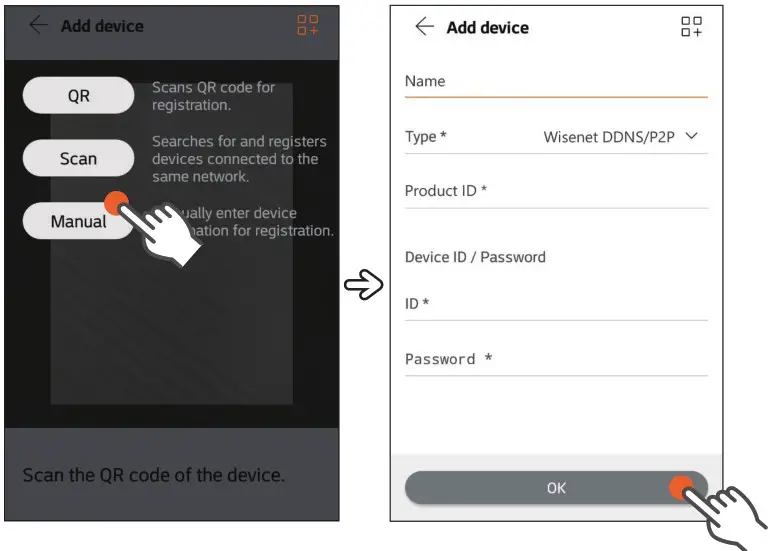
- At the bottom of the screen, select 〉 Device.
- Select 〉 〉 Manual on the device registration screen.
- Enter the login information and select OK.
■ Device registration is complete.
■ You can select the channel you want, available for your device. Select it and click OK.
 Incoming video transmission may be blocked depending on the carrier network provider. If you have correctly entered the device registration information, but the video is still unavailable, please see page 9.
For more information, you can also check  〉 FAQ.
 DEVICE LIST
Device list
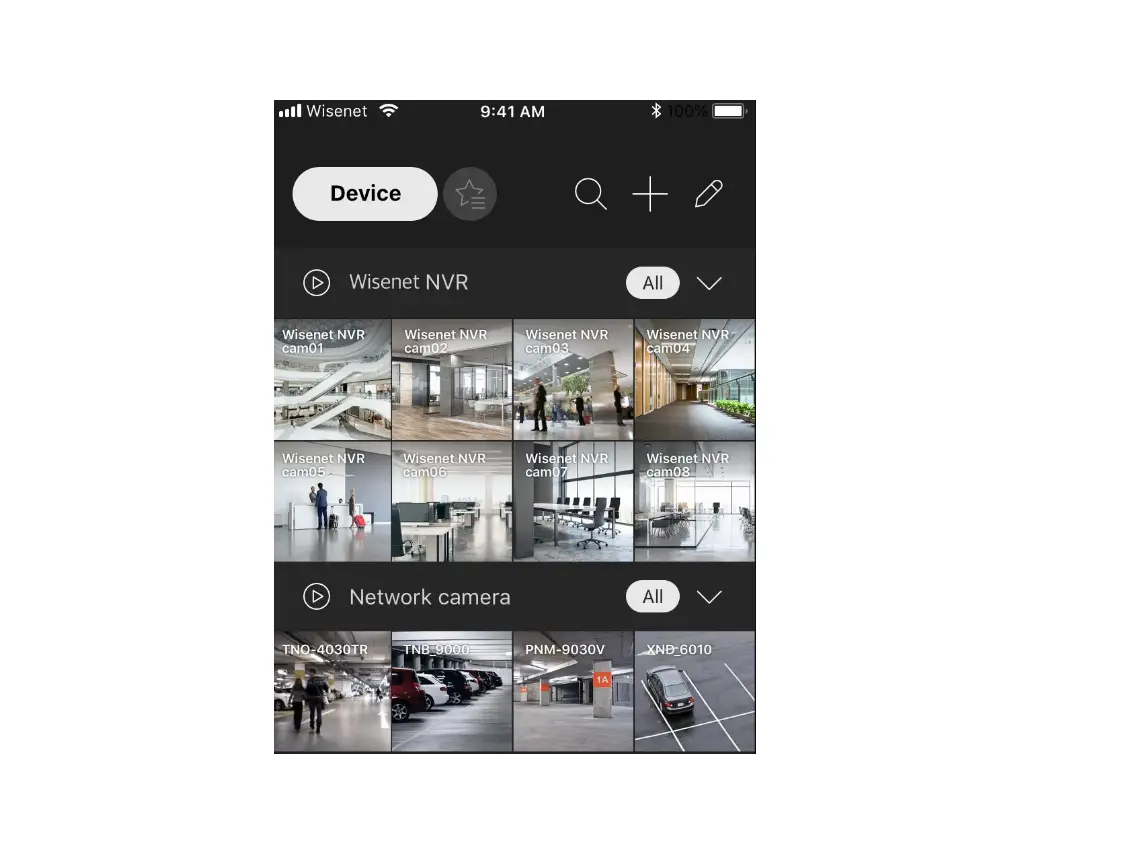
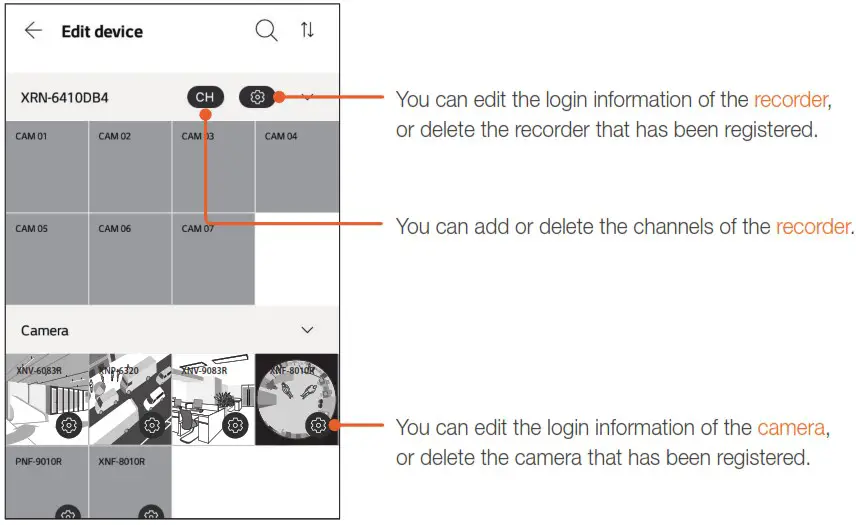
Device list screen
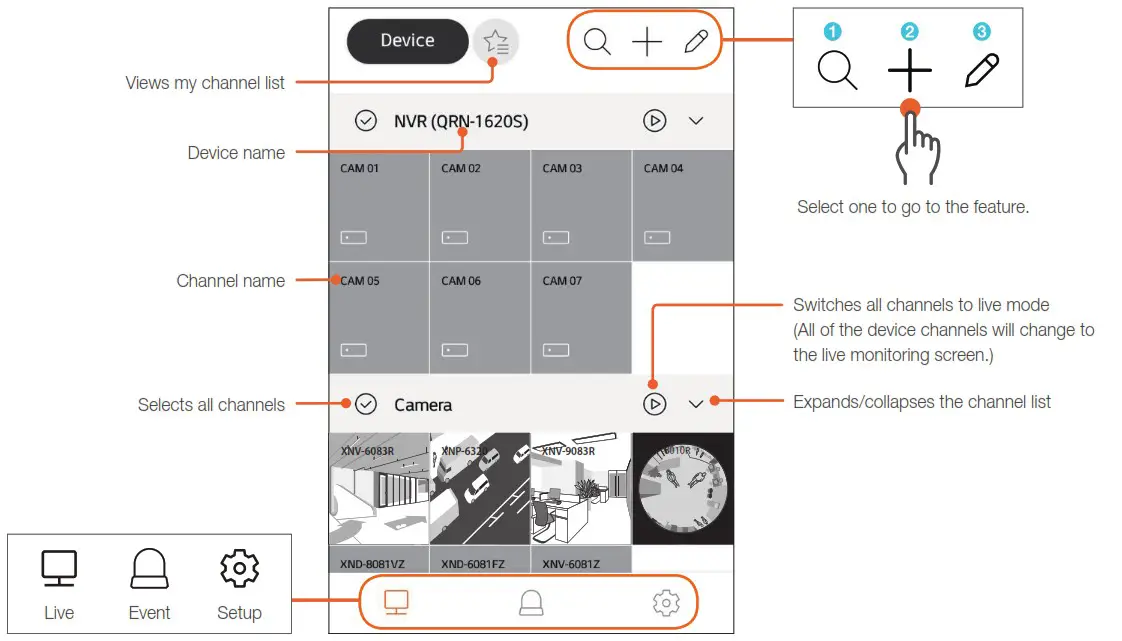
Go to 〉Main screen and select the item you want to change the main screen of Wisenet mobile. Go to 〉 Screen mode 〉 Dark theme and turn it on or off to change the color theme of Wisenet mobile.
- Device/channel name search

- New device registration

- Device information edit

 MY CHANNEL LIST
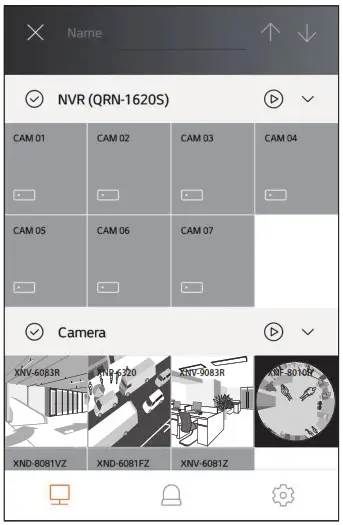
My channel list
My channel screen
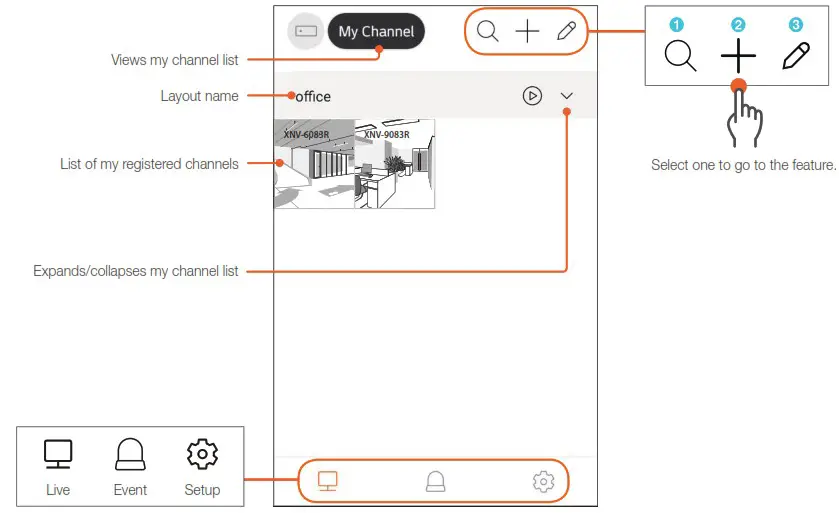
Go to 〉Main screen and select the item you want to change the main screen of Wisenet mobile.
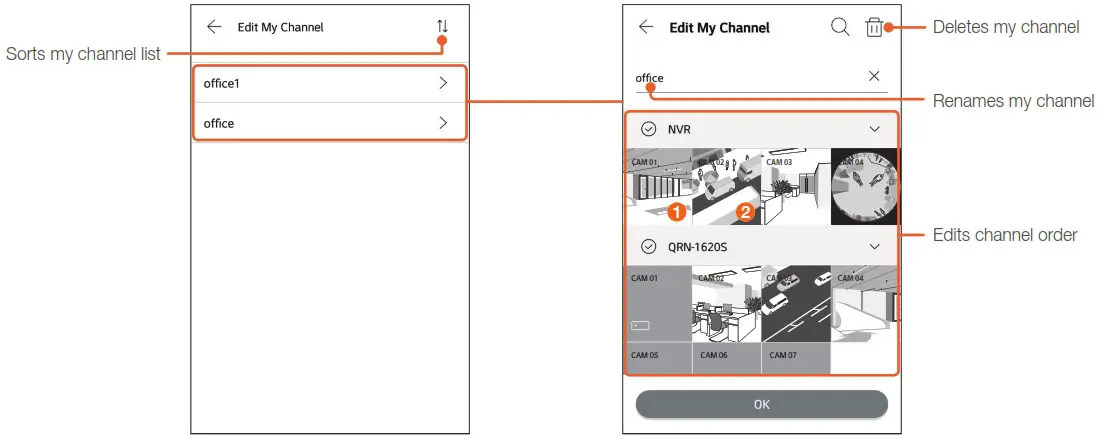
- My channel search

- My channel registration

- My channel edit

 LIVE MONITORING
Live monitoring
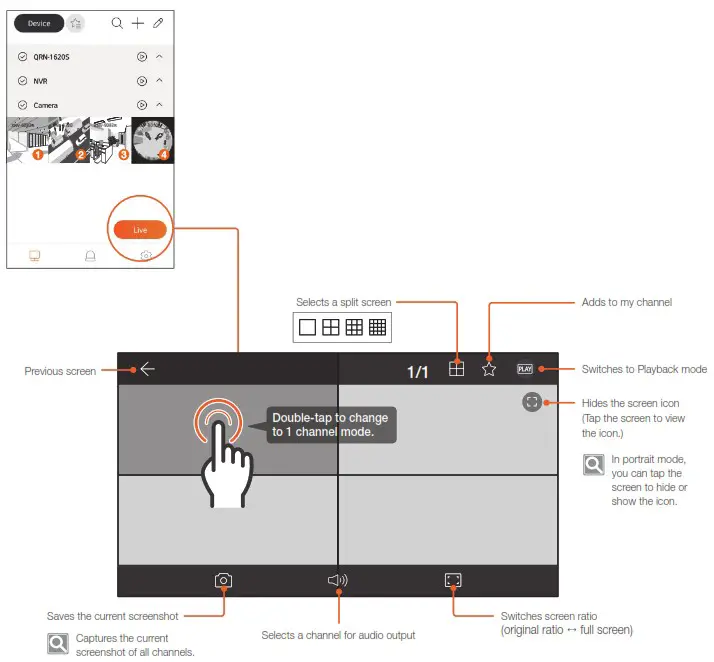
- Select the channel you want from the channel list or my channel list.
■ You can select more than one channel.
■ Tap the selected channel to deselect it. - Select Live to go to Live monitoring screen.

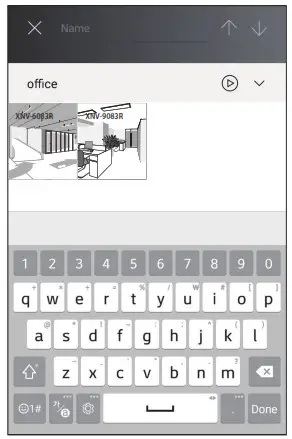
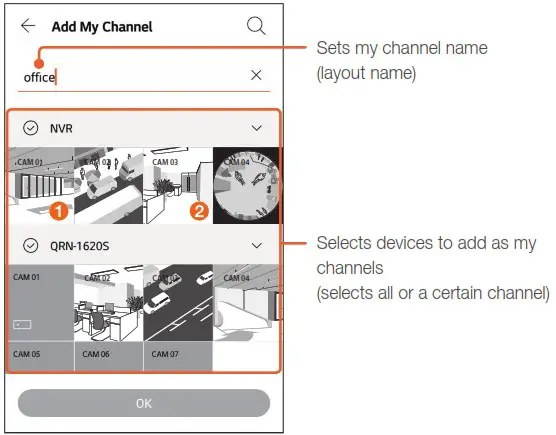
My channel registration
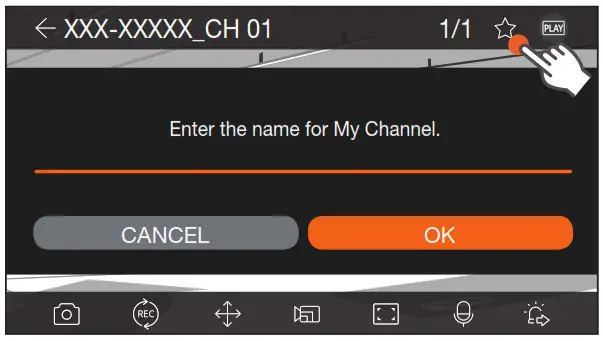
- Select
 to add a channel as my channel during live monitoring or playback.
 - Enter the layout name and select OK.
■ The selected channel will be added as my channel.
■ To check my channel list, select〉 My channel.
 to add a channel as my channel during live monitoring or playback.
 My channel.
 LIVE MONITORING
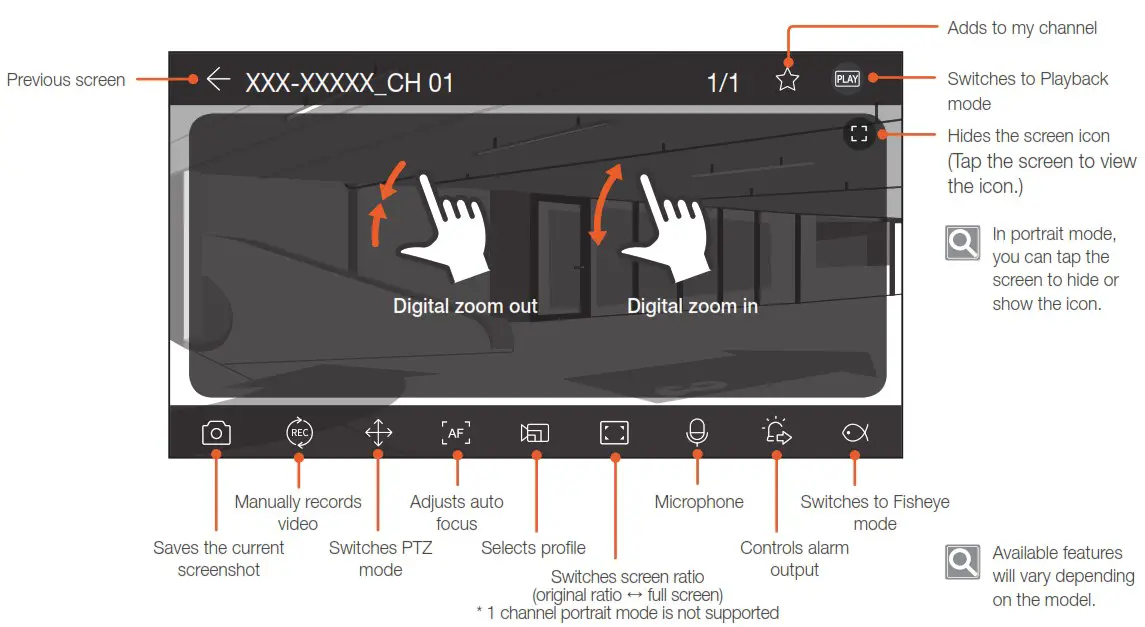
1 channel mode
PTZ mode
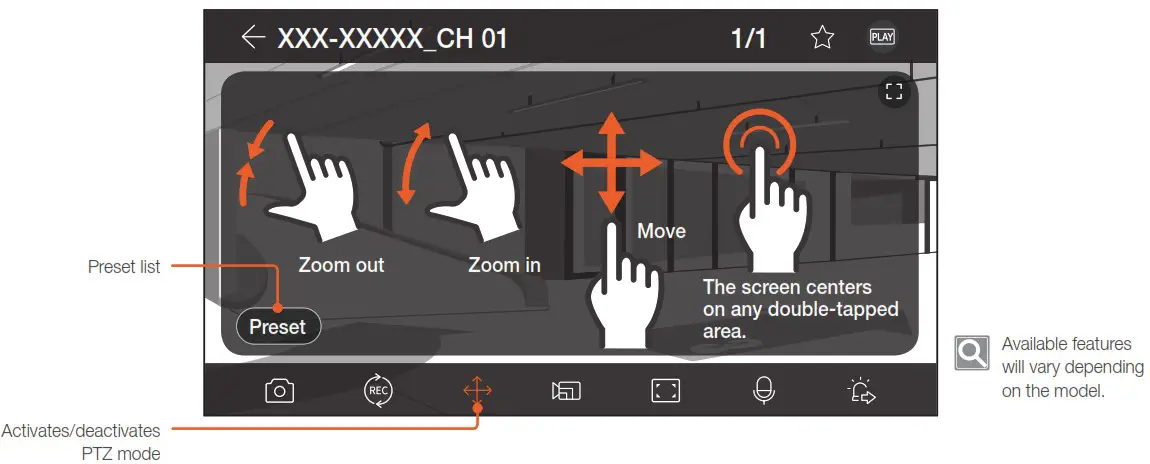
- For DVR,
 (Near) and
  (Far) buttons are displayed instead of Preset.
 - You can drag the screen to move to where you want.
- If you keep your finger pressed down as you drag, you will keep moving in that direction.
- In the Portrait mode, you can use
 to fine-tune the direction of the camera.
 (Near) and
  (Far) buttons are displayed instead of Preset.
 to fine-tune the direction of the camera.
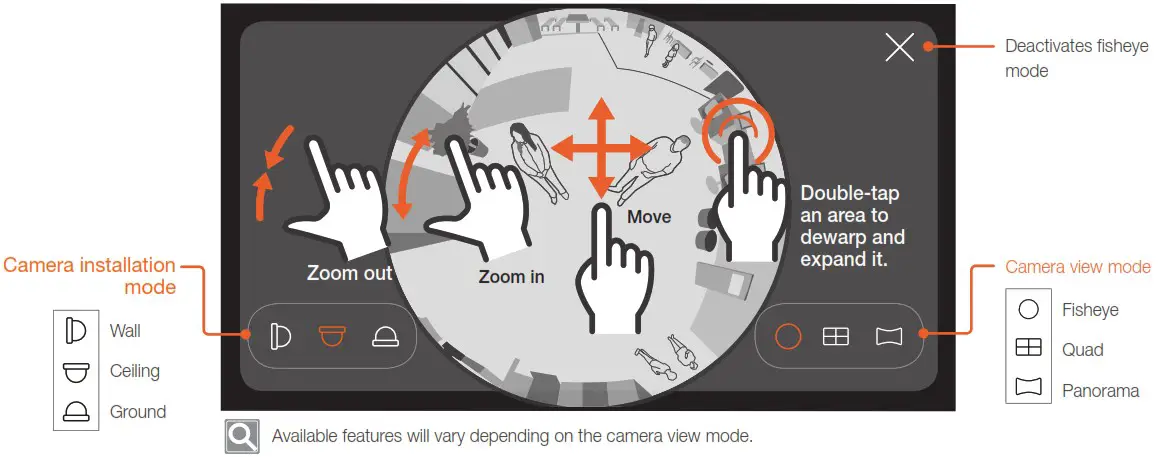
 Fisheye mode
 SEARCH & PLAYBACK
Search & playback
Moving to Playback screen
Go to the Playback mode by selecting PLAY in the top right of the live monitoring screen.
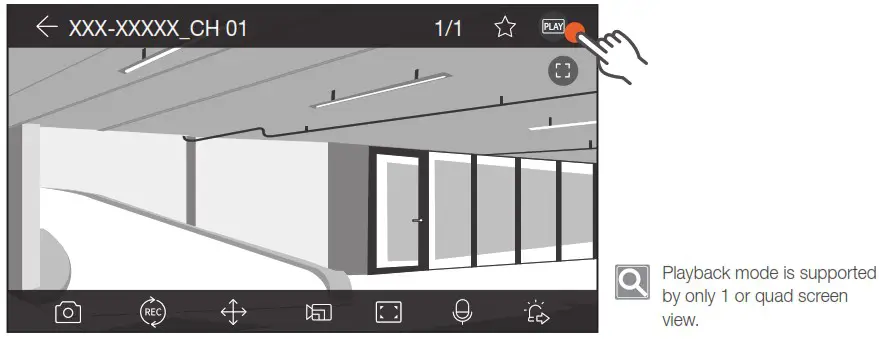
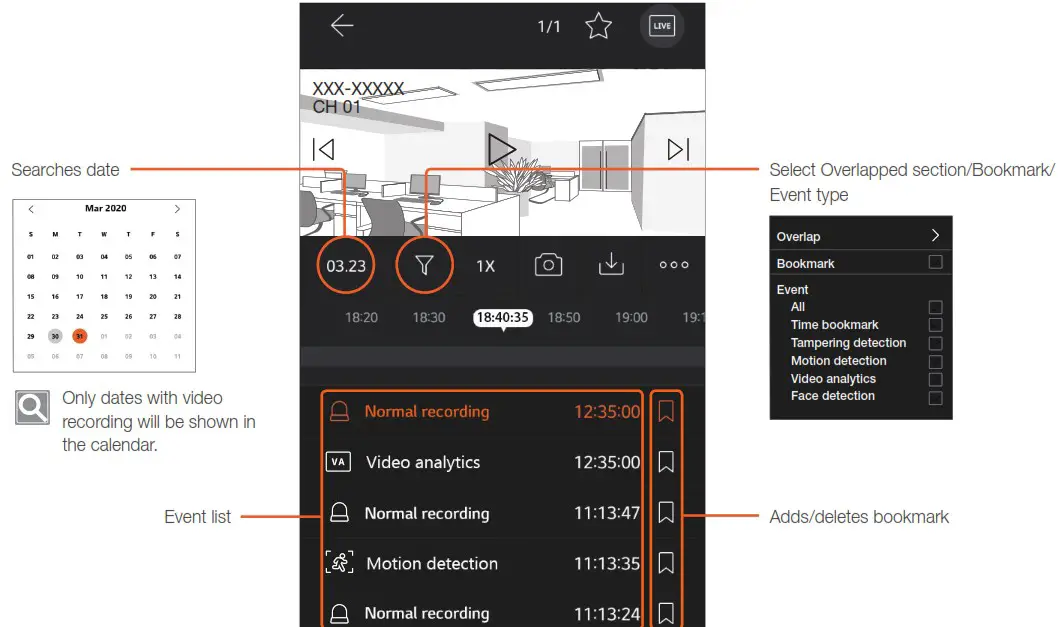
Date and event search
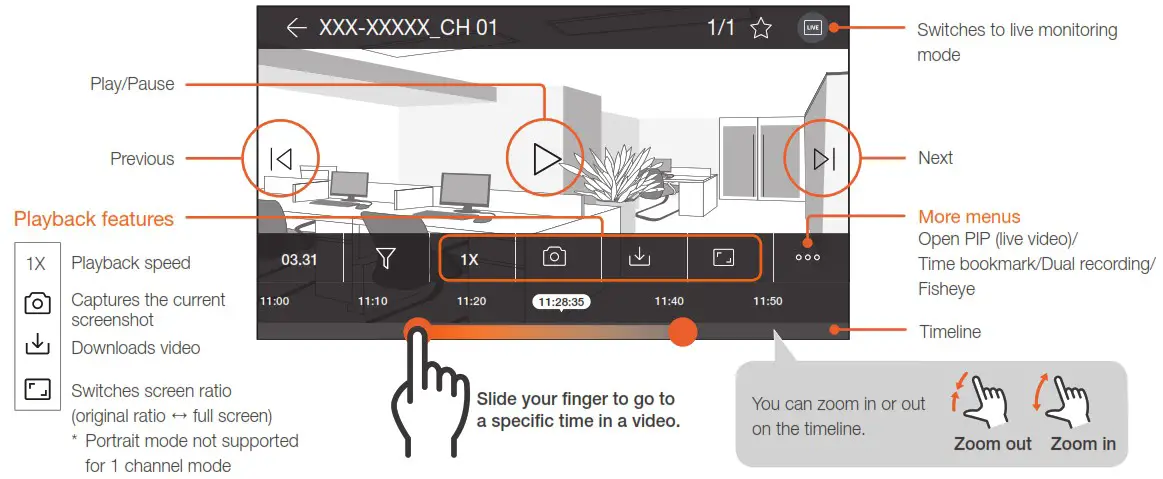
Playback screen details
 SEARCH & PLAYBACK
Search & playback
Event search
- Select
 at the bottom of the screen.
 - Choosing the device, channel, and date, and then select Search.
■ Event list will be displayed.
■ For ANPR devices, you can select ANPR from the types and search them. (ANPR: Automatic Number Plate Recognition)
 at the bottom of the screen.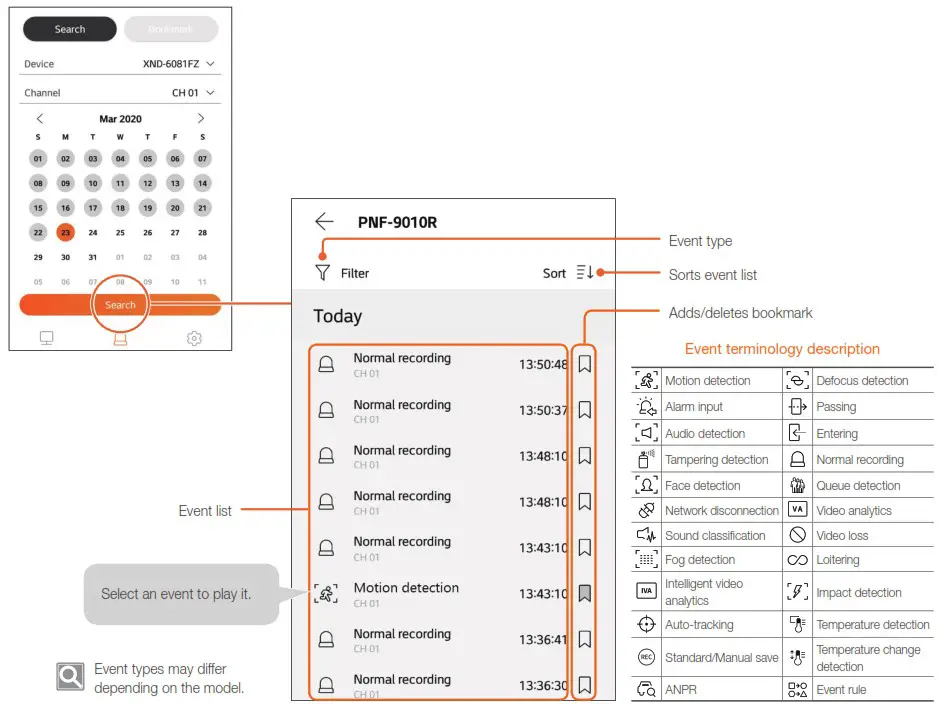
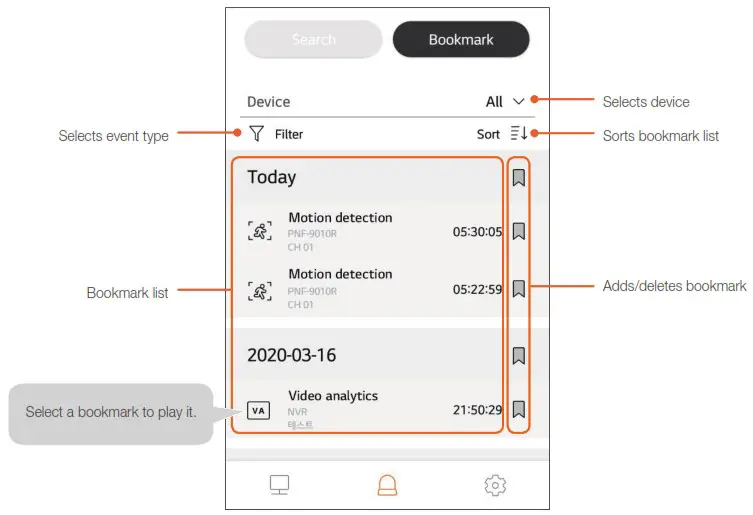
Bookmark search
 PUSH NOTIFICATION
Event notification
Event notification setup
For the device registered with a QR code, you can set it up to receive a push notification whenever there is a new event.
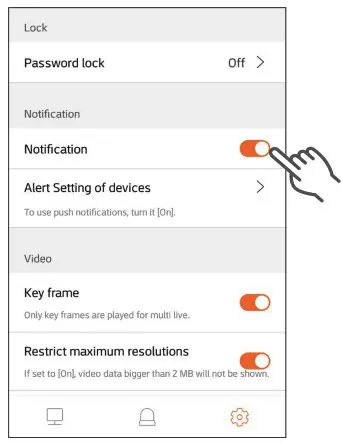
- Select at the bottom of the screen.
- Set the Notification to
 .
. - Select Alert Setting of Devices and then set the device you will allow push notifications to .
 .
.When you select an event from the list of push events received, the app will run and you can monitor the video.
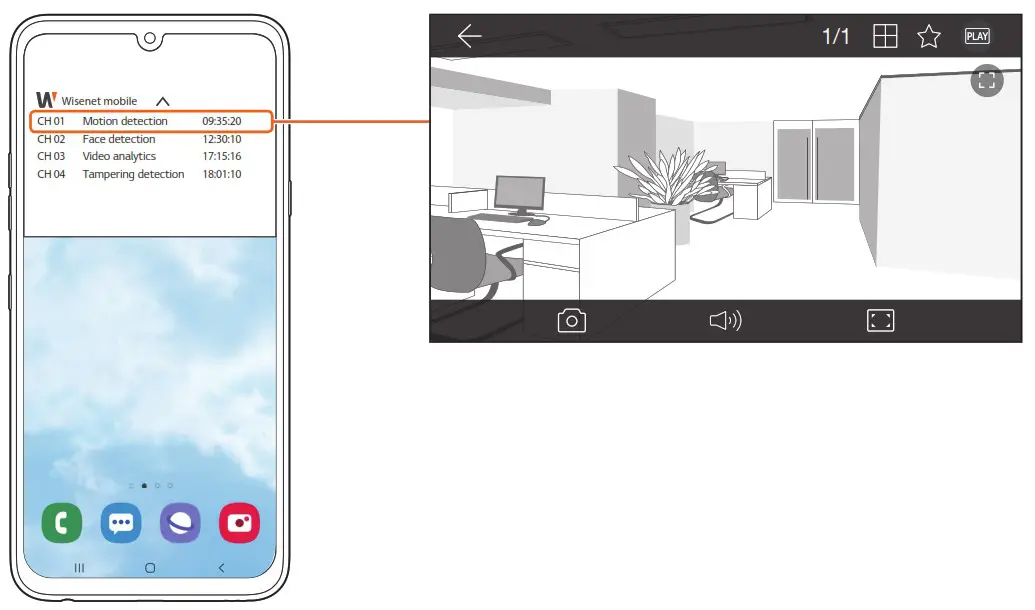
The screen that you see when you receive push events may change depending on the mobile settings.
 SETTINGS
Setup menu
You can check the setup menu by selecting at the bottom of the screen.
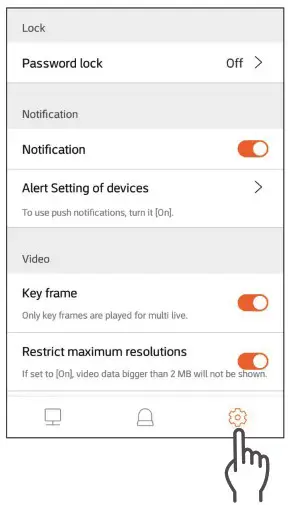
Lock
| Menu | Feature description |
| Password lock | You can set whether or not to use a password when you run Wisent mobile. |
| Change password | You can change your password when you run Wisent mobile. |
Notification
| Menu | Feature description |
| Notification | You can set whether or not to receive a notification when there is a new event. |
| Alert Setting of Devices | You can select a device to receive push notifications. |
Video
| Menu | Feature description |
| Key frame | For multi-live, you can only monitor important scenes. |
| Restrict maximum resolutions | You can select whether or not to play a video whose resolution is greater than 2MB. |
| Hardware decoding | This improves playback speed and quality. |
| PIP (live video) | You can live stream with PIP (Picture In Picture) in the Playback mode. |
Video setup may differ depending on the operating system.
Transfer video
| Menu | Feature description |
| RTSP over HTTP RTSP over TCP | When you cannot receive video due to the network of your carrier network provider, select RTSP over TCP, and enter RTSP port information of the device. |
Main screen
| Menu | Feature description |
| Device list Device live shortcut My Channel live shortcut | You can set the first screen you will see when you run Wisent mobile. |
Screen mode
| Menu | Feature description |
| Dark theme | You can set the color theme of Wisent mobile. |
More
| Menu | Feature description |
| User guide | You can check Wisent mobile user guide. |
| FAQ | Go to Wisent mobile FAQ. |
| Wisent mobile information | You can check the information about Wisent mobile and its open source license. |