
Apps Openeye Mobile App 
Downloading Openeye Mobile
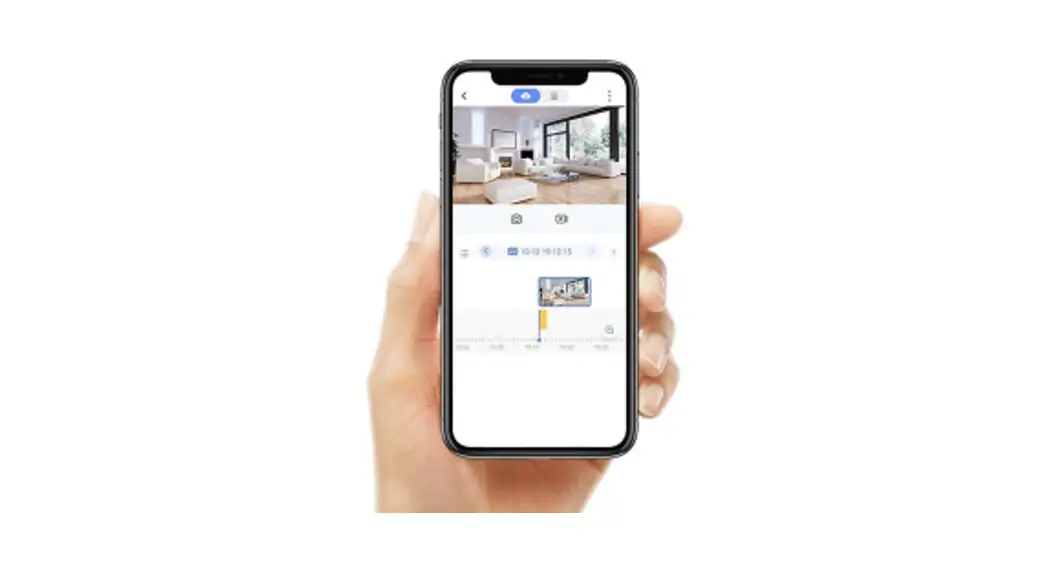
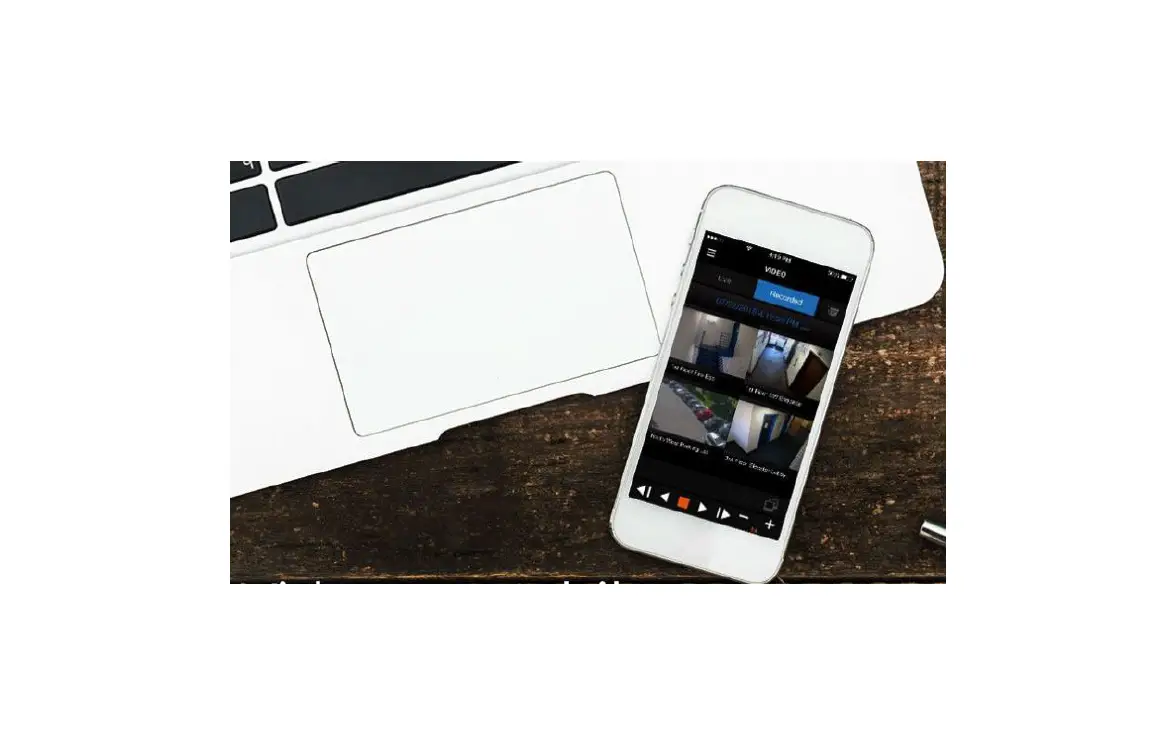
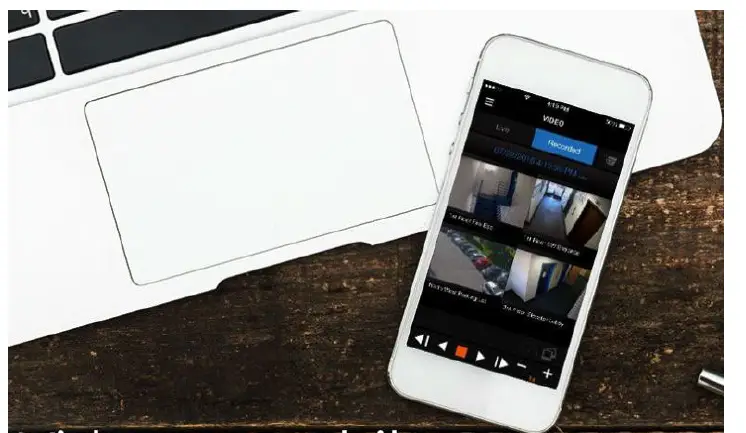
Available for Android and iOS devices, the OpenEye Mobile app is your on-the-go solution for viewing live and recorded video on your OpenEye recorders. Sign in using your OWS account and your recorders are automatically added with no additional setup necessary. When a new recorder is added to your OWS account it will appear in the list on your mobile device, ready for connection. Simple, hassle free, remote access.
To download Openeye Mobile simply open your preferred App Store
Search for the Openeye Mobile App and install 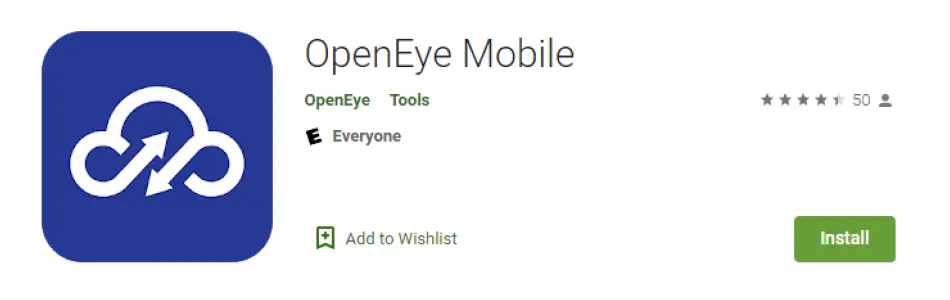
Open the Openeye Mobile App and log in! This is the same email address and password you set up your Openeye account with. That email address and password will log you into the Web Portal at ows.openeye.net AND to the Mobile App. No more having to remember multiple passwords! 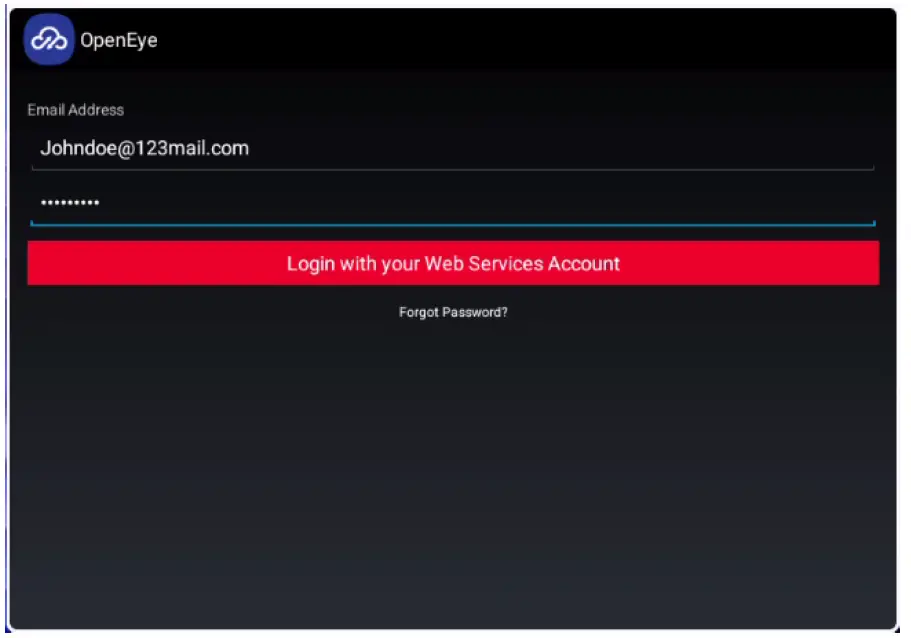
Operation 
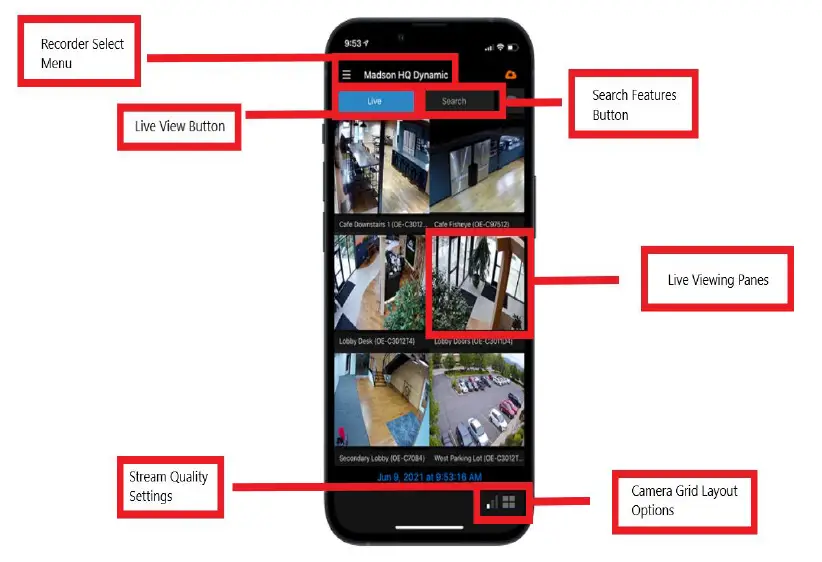
Recorder Select Menu – Choose which of your recorders you wish to view
Live View Button – Use this button to switch to live view for the cameras
Search Feature Button – Use this button to view previously recorded video from your system. Search by Date and Time or do an Event Search for Motion, Sensors, or Analytics (See additional details below)
Live Viewing Panes – Live camera views will populate these tiles based off which grid size you have selected. By default a 4 camera grid will be selected. Swipe right or left to cycle through all cameras. Click on any camera in the viewing pane to switch to a single view of that camera. Click the camera again to return to the grid view.
Camera Grid Layout – Push this button to change how many cameras you view at one time. Choose between 1, 2, 3, 4, or 6 camera views at one time (additional cameras can be accessed by swiping right or left).
Stream Quality Settings – Adjust streaming quality between Low, Medium, or High with this setting.
To Search by Date and Time simply select your Date and Time and hit Search 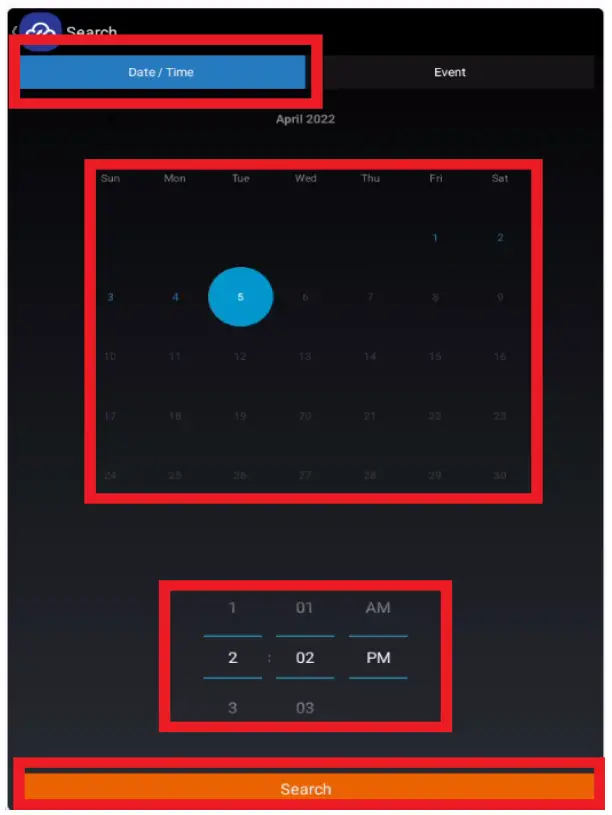
To Search based off Motion, Sensors, or Analytics simply click the Event Tab, choose your Date and Time, Search option (Motion, Sensors, or Analytics), choose your cameras, and hit Search 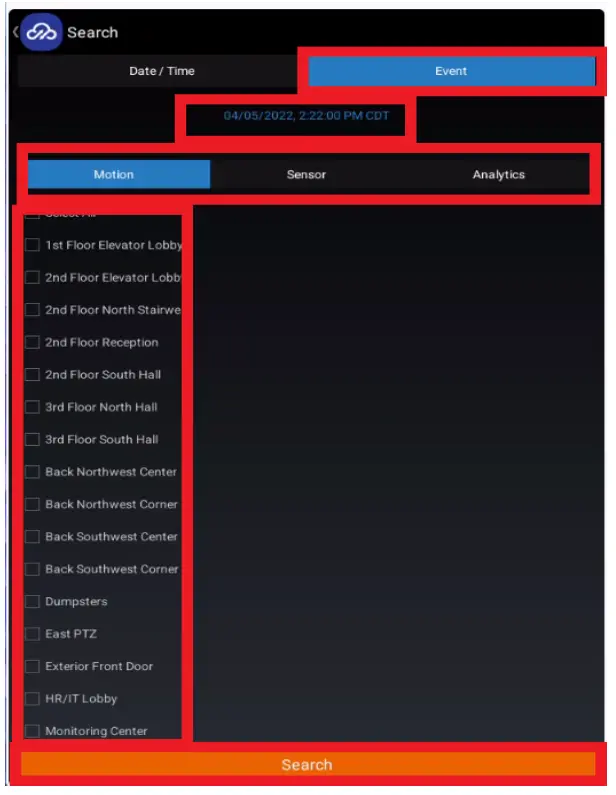
Forgotten Password
If a password is forgotten simply click the “Forgot Password” link from the login screen to reset the password 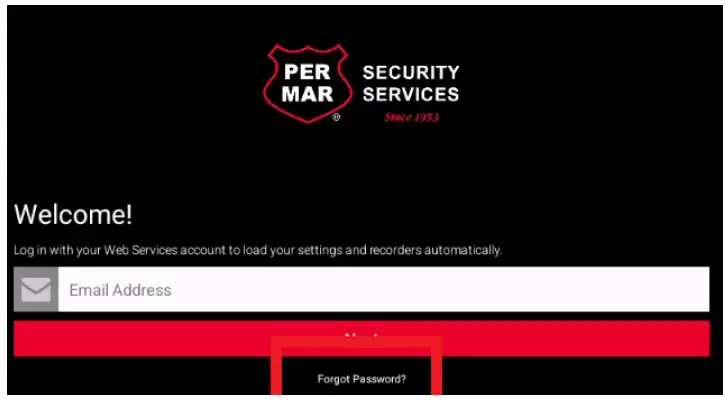
 Web Services