 4iiii iOS App
User Guide
INTRODUCTION
The 4iiii app is a valuable tool that lets you get the most out of the features on your 4iiii products. Connect to the 4iiii app to calibrate, re-name, or update firmware on a 4iiii product, save and download workout data, pair dual Power meters, set up pass-through on your Viiiiva, and test trainer modes on Fliiiight. The 4iiii app will also allow you to unlock and purchase new features to make the most out of your device.
GETTING STARTED
- On the Apple App Store, search for 4iiii and download the app.
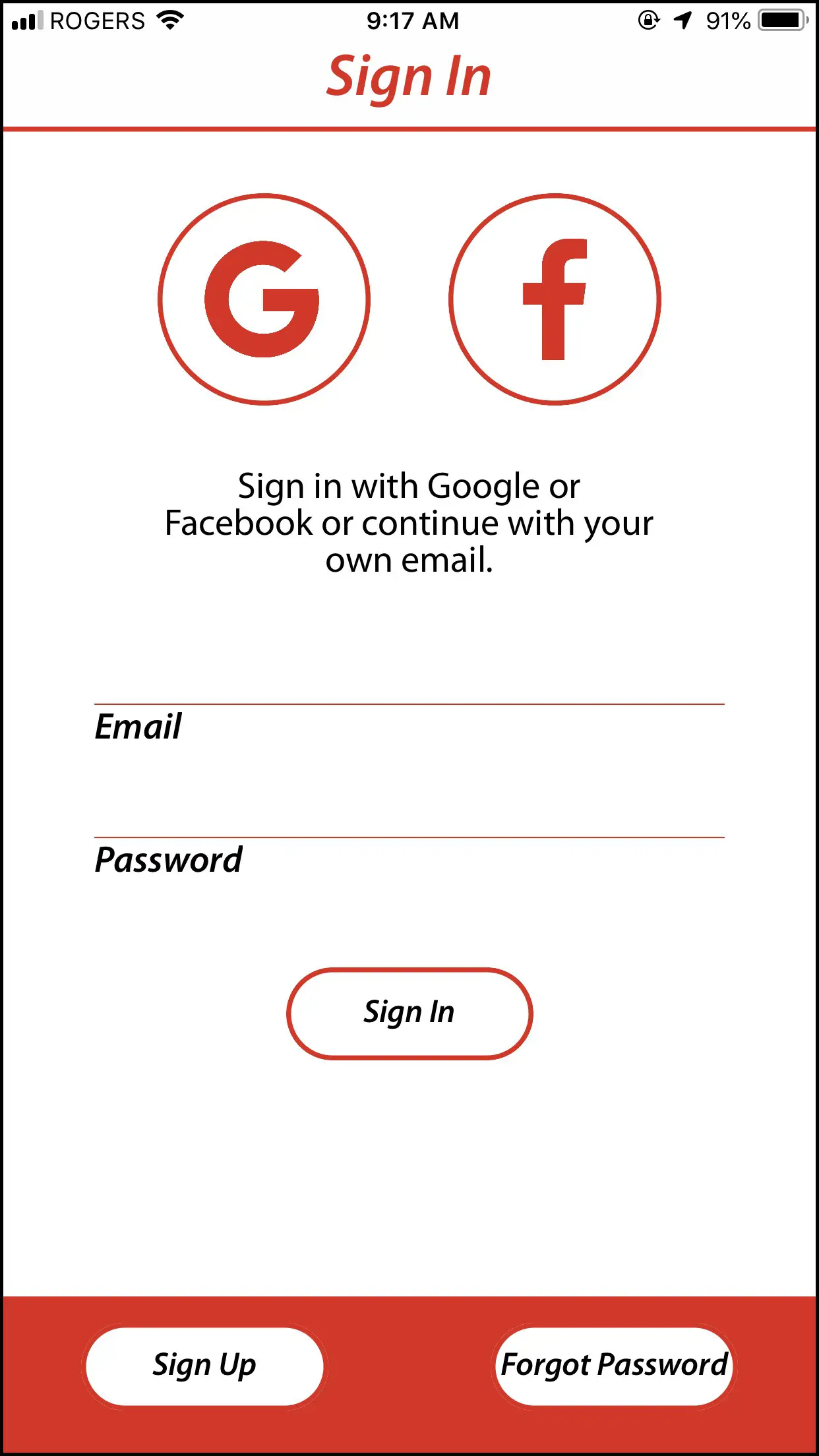
- Open the app and create a new account by selecting Sign Up or use your existing 4iiii account.
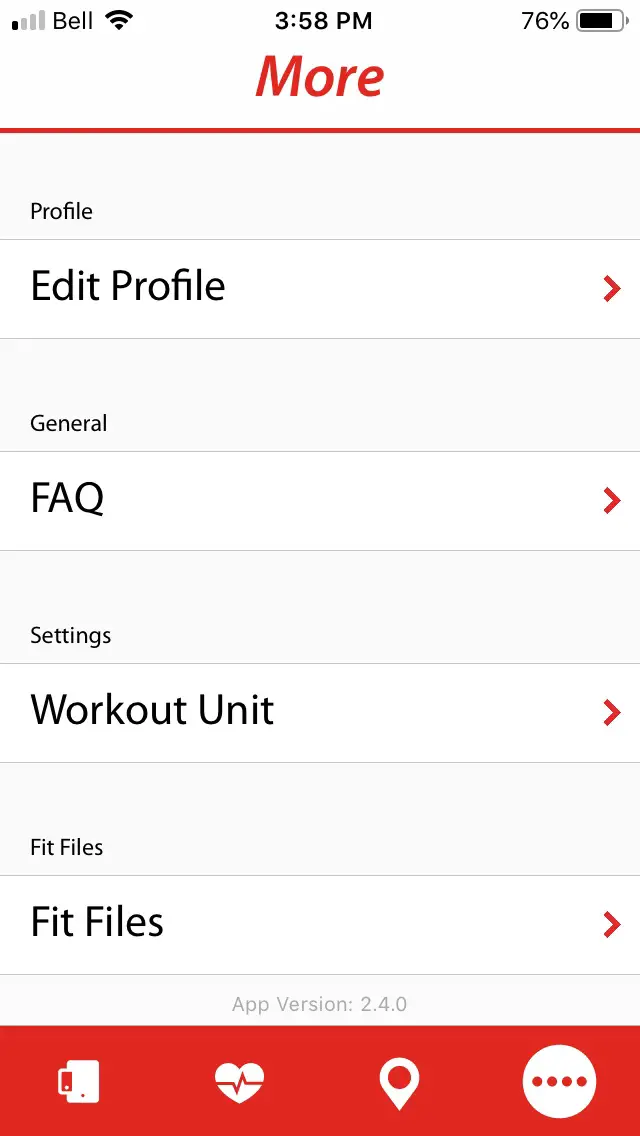
Tiiiip: If you previously had a 4iiii account, you will need to create a new one. Don’t worry, all of your saved .fit files will still be available - Once you have an account, select the More (….) tab. Select Edit Profile.
- Enter your name, birthday, gender and weight to get the most out of the available features.
- You’re now set up and ready to use the app!
POWERMETER FUNCTIONS
The 4iiii app enables the initial setup of your Powermeter, and give you access to troubleshooting and additional functions.
Connecting to a Powermeter
- Spin your PRECISION or Podiiiium Powermeter 3-4 times to wake it up.
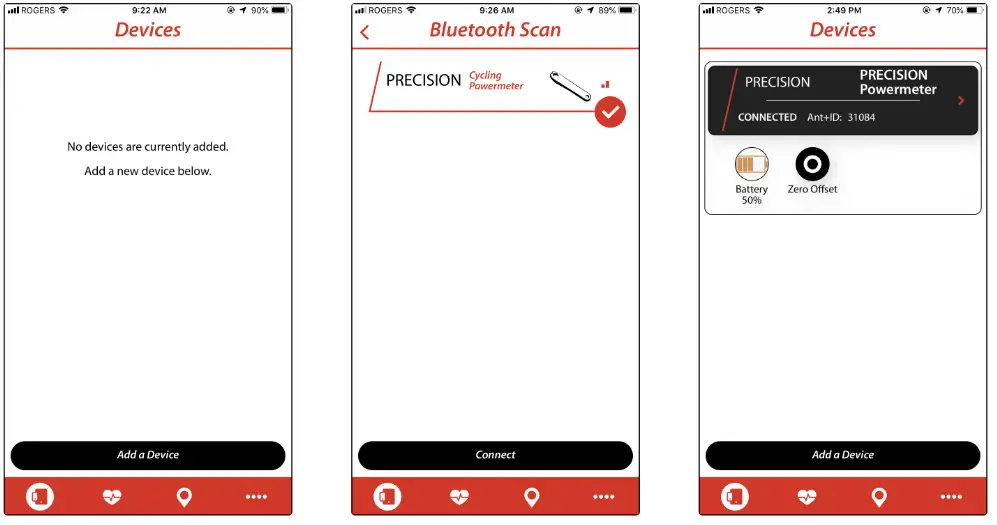
- Select the Devices tab from the menu on the bottom of the app screen. Then select Add a Device.
- Select your Powermeter from the drop-down list and press Connect.
Tiiiip: If this is the first time you have connected to your power meter, you can identify it using its ANT+ ID. This number is etched onto the side of the power meter pod on the crank. - Your PRECISION or Podiiiium Powermeter is now connected and ready to use.
Pairing a PRECISION PRO or Podiiiium Pro Powermeter
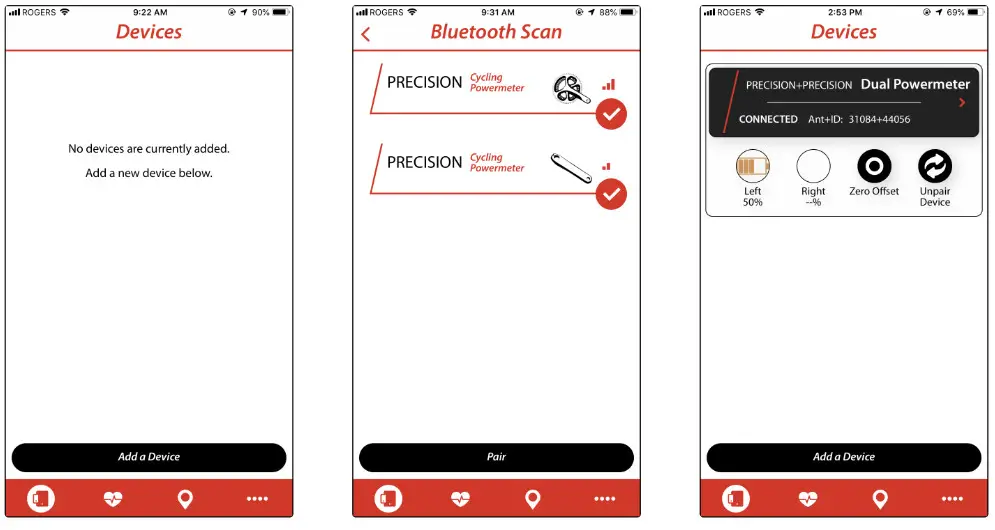
- Open the 4iiii app and log in. The app will take you directly to the Devices tab.
- Spin your PRECISION PRO or Podiiiium Pro Powermeter 3-4 times to wake it up.
- Select Add a Device.

- Select both the Drive Side andNon-Drive Side Power meters and press Pair.
Tiiiip: A crank graphic beside the ANT+ ID indicates whether it is the Drive Side or Non-Drive Side Powermeter.
Tiiiip: If this is the first time you have connected to your power meter, you can identify it using its ANT+ ID. This number is etched onto the side of the Powermeter pod on the crank. - Your PRECISION PRO or Podiiiium Pro Powermeter will now be paired and connected and ready to use.
Unpairing a Dual Powermeter
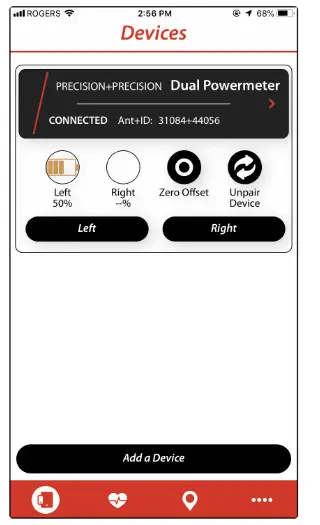
- Connect to your dual Powermeter, and navigate to the Devices page.
- Press the Unpair Device icon. Wait for a prompt indicating unpairing was successful
Calibrating a Powermeter (Zero-Offset)
- Connect to your Powermeter, and navigate to the Devices page.
- Position your crank arms at 6 and 12 ‘o clock and hold the bike still.
- Press on the Zero Offset icon. Wait for a prompt indicating calibration was successful.
Accessing Device Settings
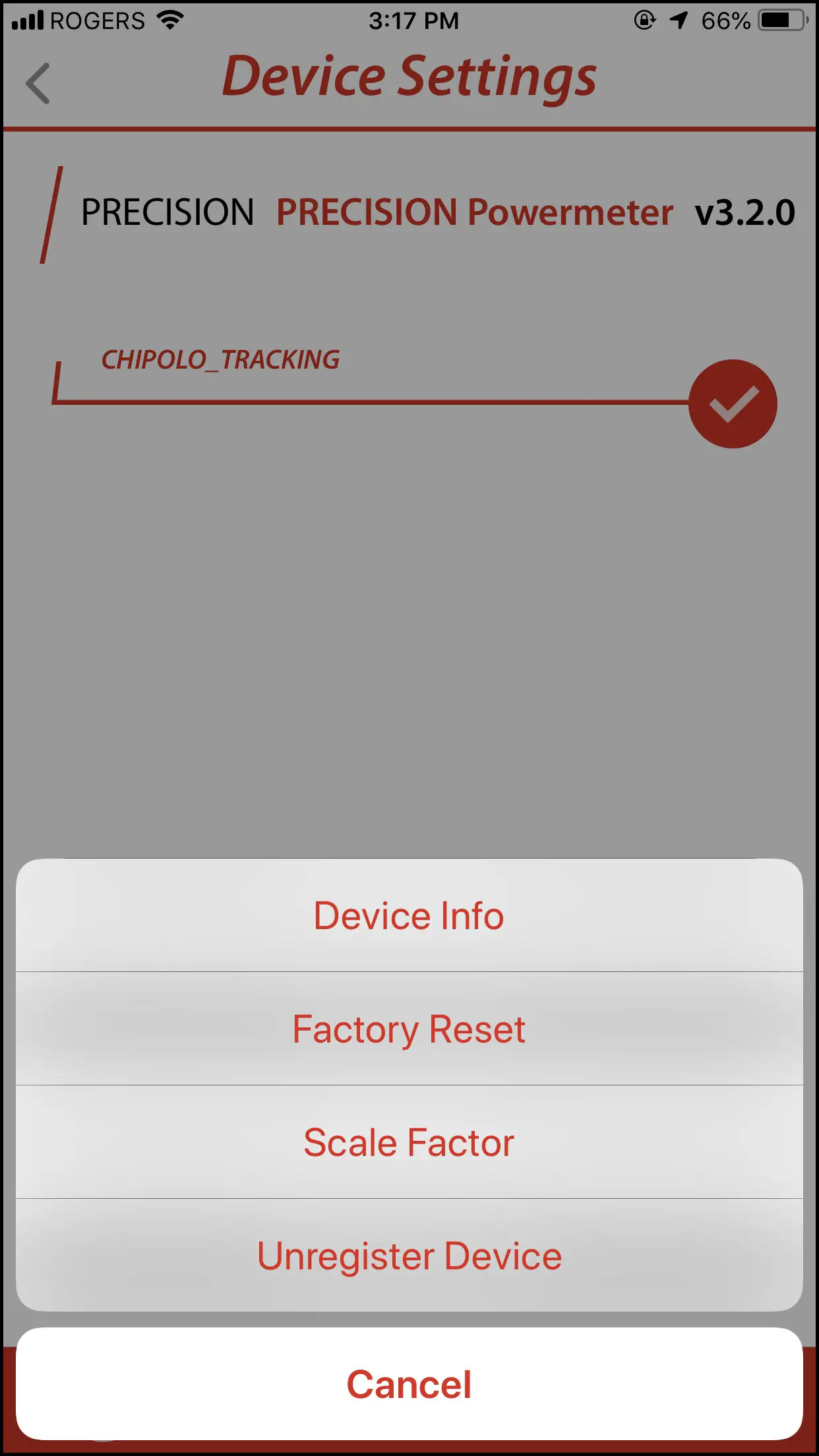
- Connect to your Powermeter, and select it from the Devices tab to access Device Settings.
a. Device Info: View device name, ANT+ ID, device type, serial number, firmware version, boot version and software development version.
b. Factory Reset: A factory reset can be useful in troubleshooting Powermeter issues. Please contact customer service before
attempting a factory reset.
c. Scale factor: Scale factor allows you to adjust for a left/ right leg imbalance when using a single-side Powermeter.
d. Unregister Device: Once features are added to your Powermeter, it will be registered to your 4iiii account. If you want to transfer features such as the Finder Feature to another phone or account, unregister the Powermeter.
Connecting to a Different Powermeter
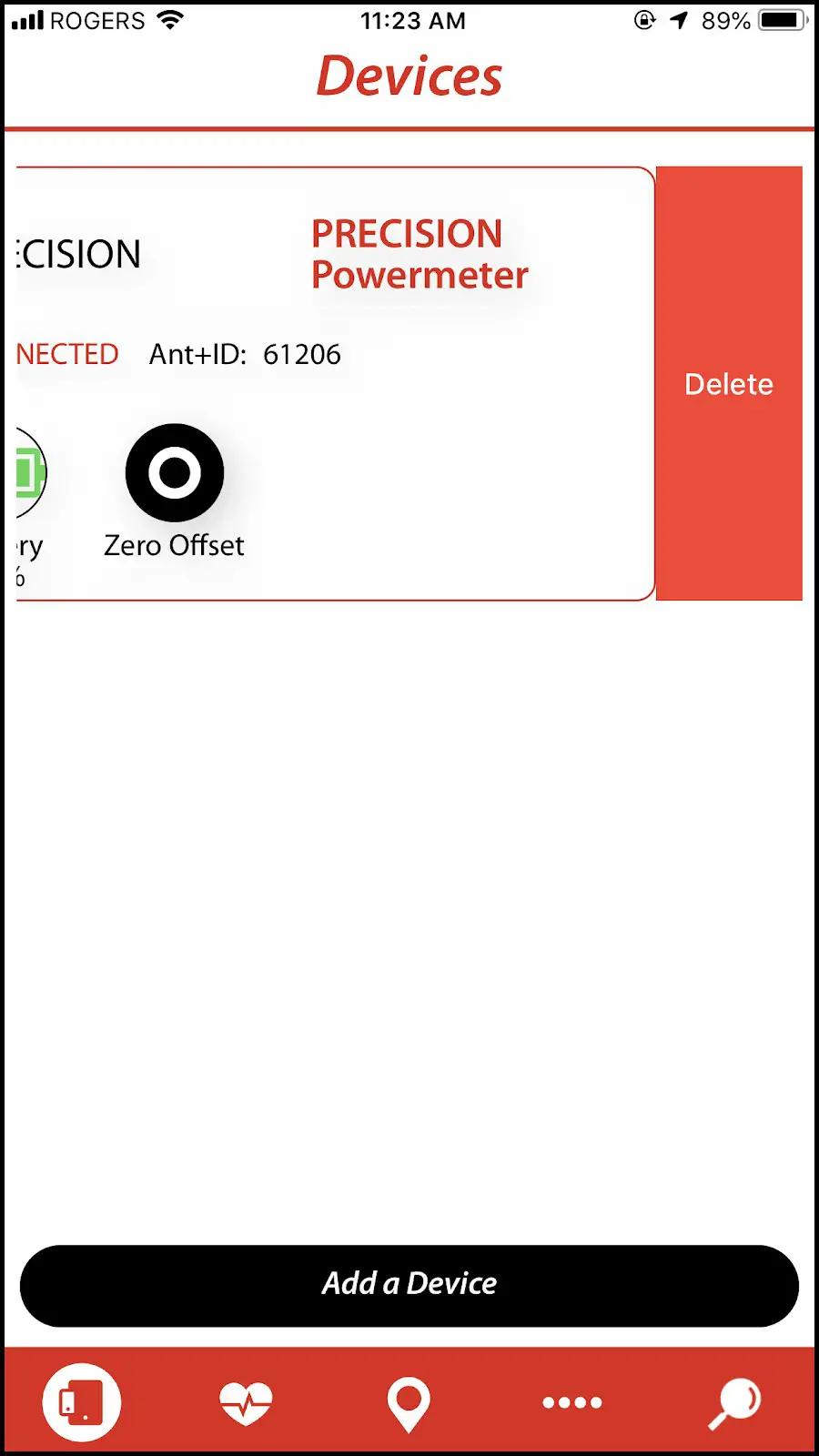
- To remove a Powermeter from the app, swipe left on the power to uncover a Delete Button. Press Delete to forget this Powermeter.
Tiiiip: You can only connect to one single-side Powermeter at a time. No other single-side Power meters will show up in a search.
CHIPOLA FINDER FEATURE
Enabling the Chipolo Finder Feature
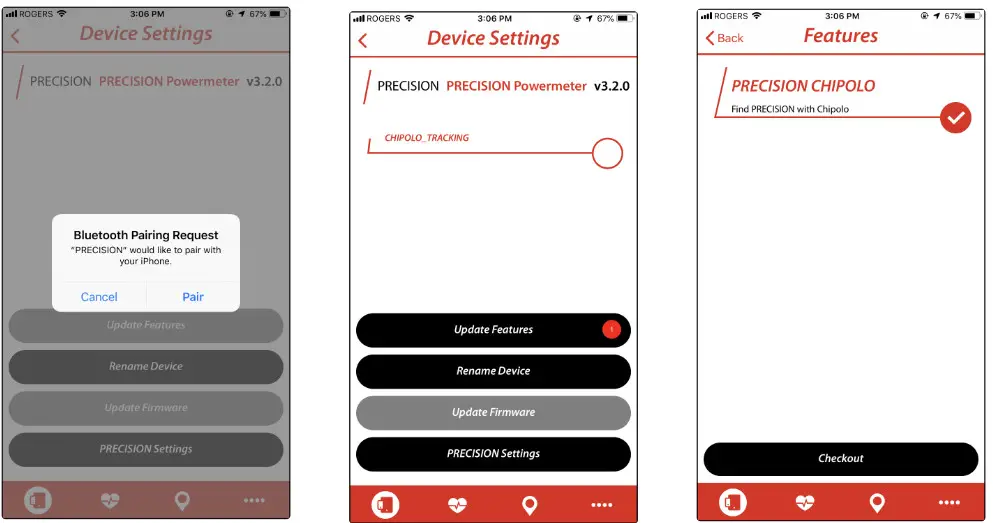
- Connect to your Powermeter and select it from the Devices page to access Device Settings.
- If this is your first time accessing Device Settings, a Bluetooth Pairing Request will pop up. Select Pair. This will register your Powermeter to your 4iiii app account.
- Select Update Features.
Tiiiip: If there is a new feature, you will see a red icon indicating the number of features available for upgrade. - Select PRECISION CHIPOLO for $0.00, then select Checkout.
Tiiiip: For purchasable features, you will be brought to a payment page to input your credit card information and complete the purchase.
Finding a Lost Device
- Click on the Finder Feature icon.
- Click on Mark as Lost/ Found.
- You will now begin getting location notifications from pings received on the Chiplo finder network.
Viiiiva FUNCTIONS
- Wake up your Viiiiva by either rubbing on the two metal leads or by wetting the strap contacts and putting on the Viiiiva.
- Select the Devices tab from the menu on the bottom of the app screen.
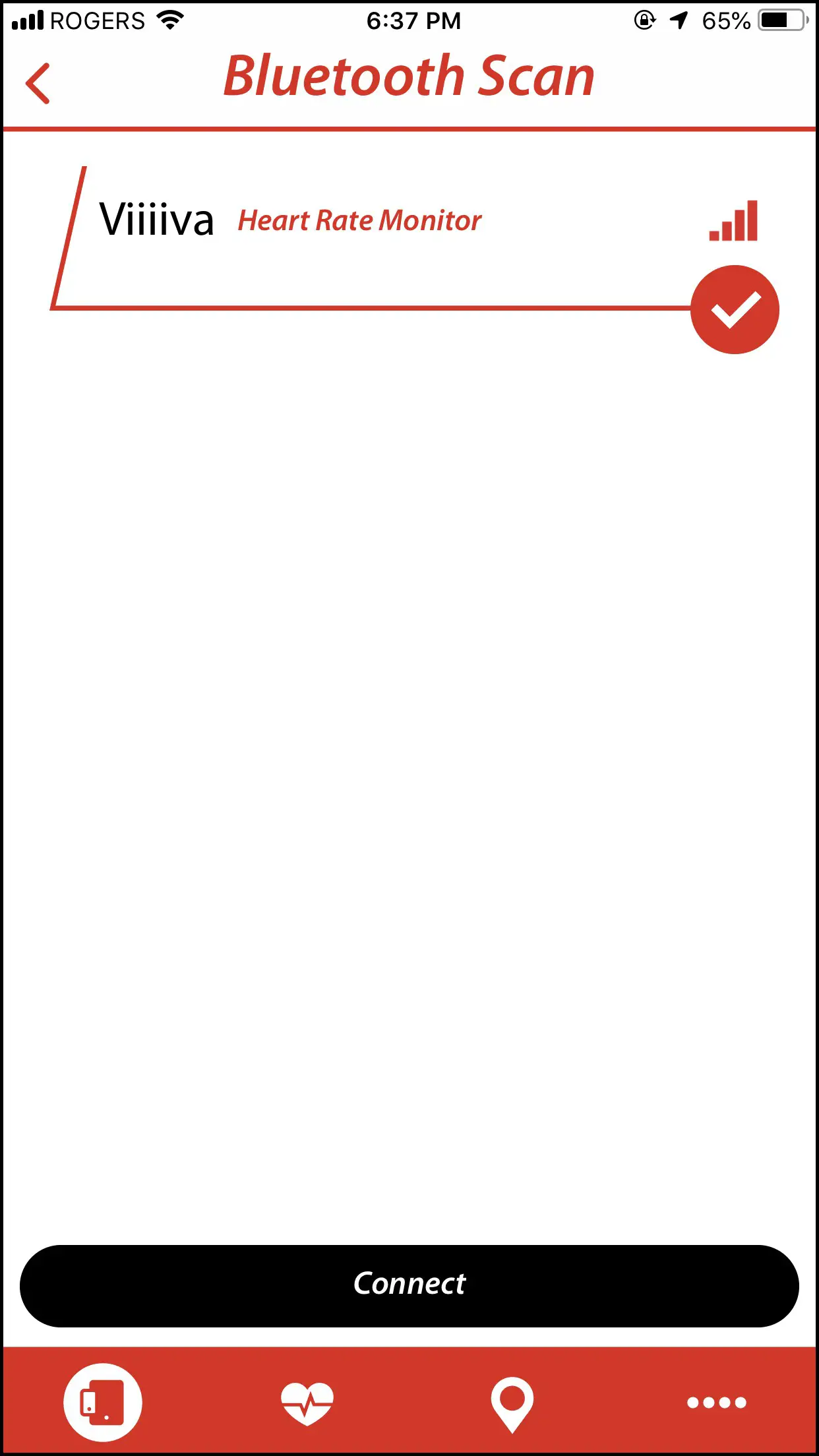
- Select Add Device.
- Select your Viiiiva from the Bluetooth Scan screen and select Connect.
- Your Viiiiva is now connected and ready to use!

Downloading Saved Workouts from Your Viiiiva
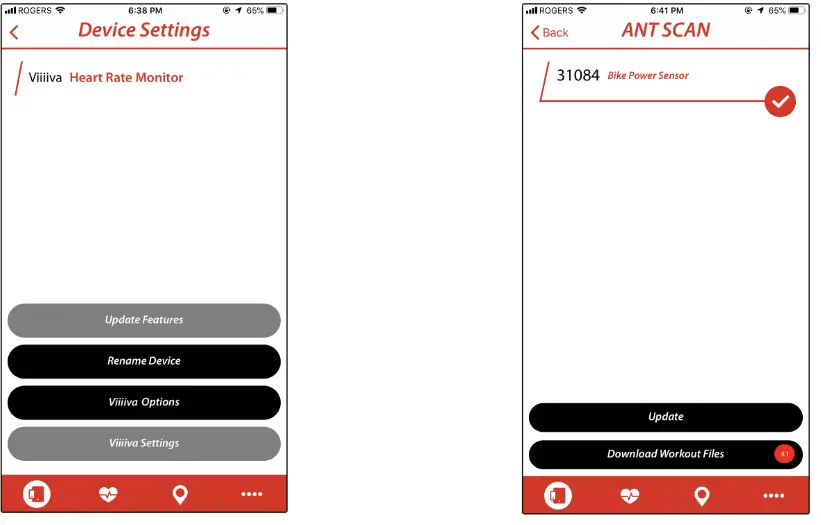
- Connect to Viiiiva, and select Heart Rate Monitor to access Device Settings.

- Select Viiiiva Options.
- Select Download Workout Files. The workouts will be downloaded to the phone.
Tiiiip: A red number indicates the number of workouts saved on your Viiiiva.
Connecting Other Devices to Your Viiiiva (Pass-Through)
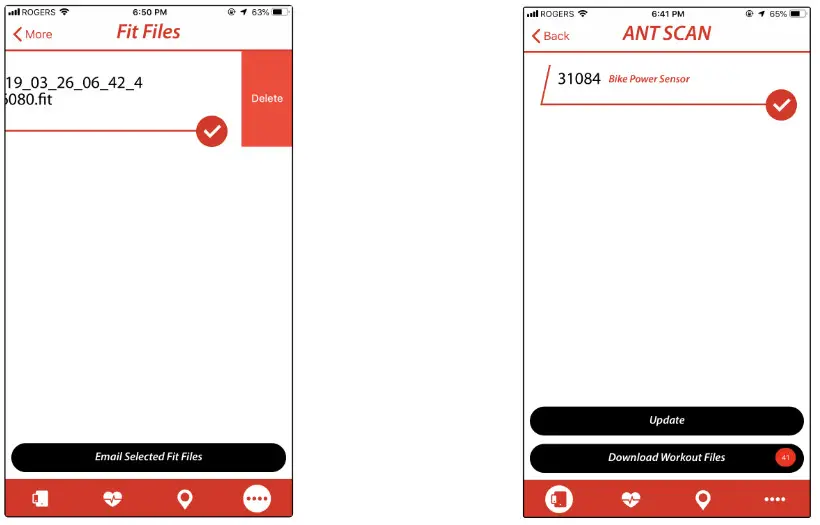
- Connect to Viiiiva, and select Heart Rate Monitor to access Device Settings.
- Select Viiiiva Options.
- Select your device and press Update. Whenever the paired device is awake and your Viiiiva is on, Viiiiva will record its data and transmit it via Bluetooth® along with the Viiiiva data.
Fliiiight SMART TRAINER FUNCTIONS
Connecting to Fliiiight
- Open the 4iiii app and log in. The app will take you directly to the Device tab.
- Turn on Fliiiight.
- Select Add Device.
- Select the Fliiiight Smart
Trainer, then select Connect. - The Fliiiight Smart Trainer is now connected and ready to use.
Calibrating Fliiiight for your Wheel Size
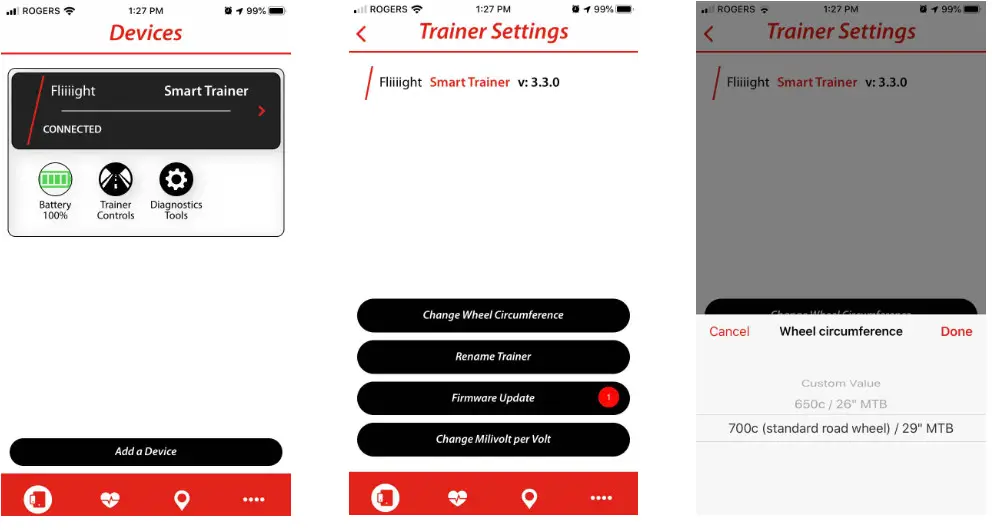
Fliiiight is calibrated for a standard 700c road bike wheel or 29” MTB wheel. If you have a different wheel size, update your wheel rim circumference to get the most accurate power readings.
- Turn on and connect to Fliiiight.
- From the Device tab, select Fliiiight for more settings.
- Select Change Rim Circumference.
- Select your wheel from the drop-down menu. Tiiiip: For custom wheel, sizes enter your wheel’s ISO (the wheel rim diameter in millimeters).

Sending Smart Trainer Commands
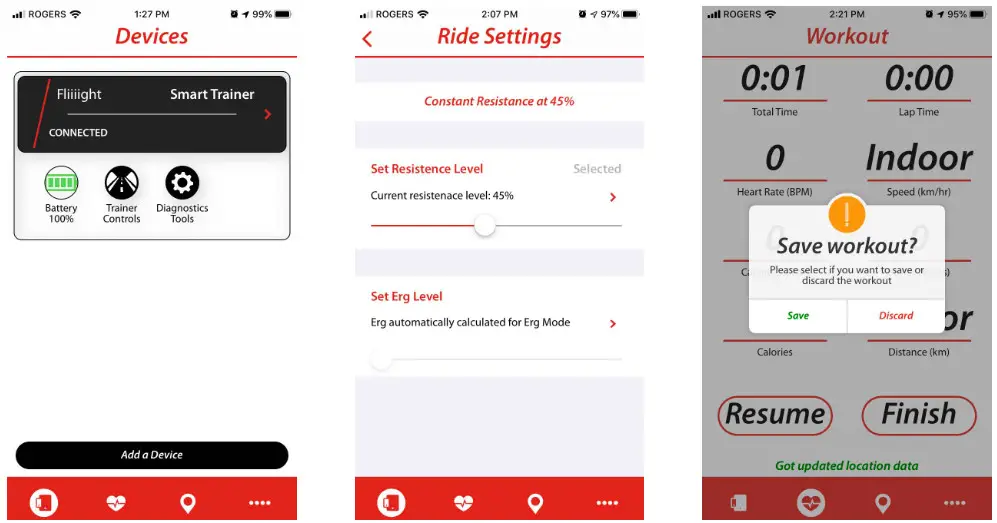
- From the Device tab, select Trainer Controls. Select Okay.
- Adjust your ERG or Resistance target by dragging the dot left or right. The active setting will say Selected. Select > to get a description of this mode.
- If you wish to record this ride in the 4iiii app, you must Start a ride in the Workout tab. Select the Workout tab (heart icon) from the menu at the bottom of the screen. Select Start. When you are finished select Stop, Finish, and Save.
WORKOUTS
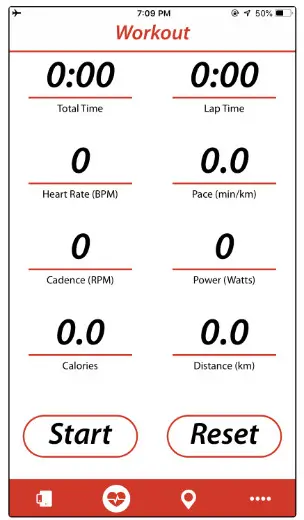
How to Record a Workout
- Connect to your 4iiii Powermeter or Smart Trainer.
- Select the Workout tab (heart icon) from the menu on the bottom of the screen.
- Select Start to begin a workout.
- Once you are finished, select Stop, Finish and Save.
- Workouts will be saved as Fit Files.
Sending Saved Files
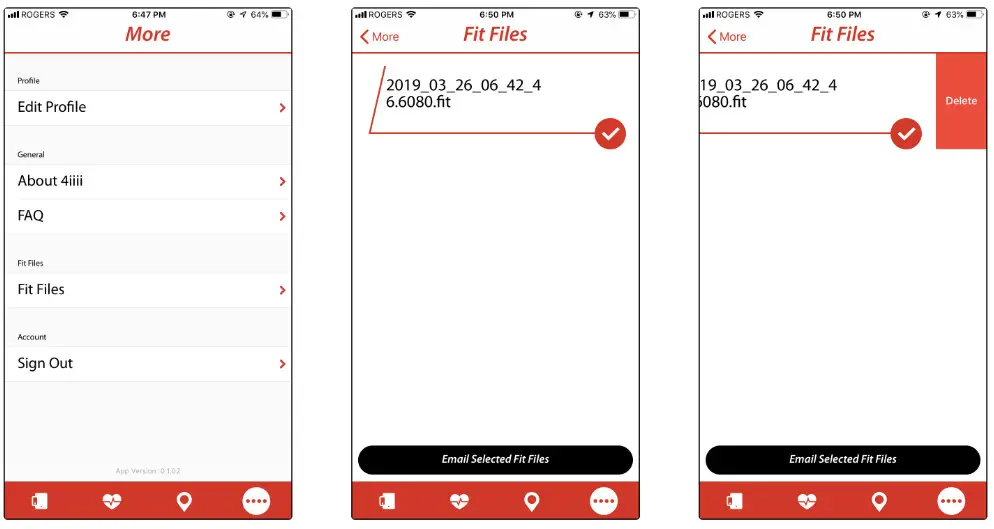
- Select the More (….) tab from the menu at the bottom of the screen.
- Select Fit Files to view a list of files available for download.
- Select a workout and press Email Selected Files. Follow your phone’s dialogue to send files using the email account connected to your iPhone.
Tiiiip: You must have mail client set up on your iPhone in order to send an email from within an app. - To delete a file, slide to the left to reveal a Delete button

FIRMWARE UPDATES
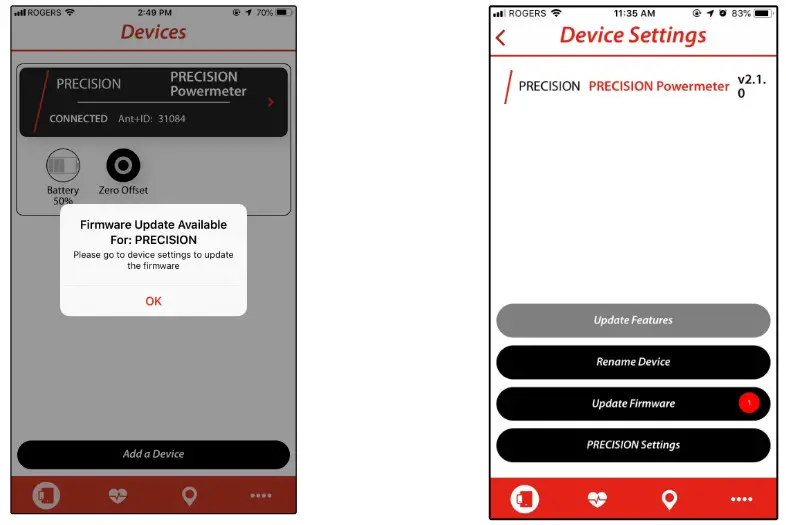
- If a new firmware update is available, you will be prompted when you connect to your 4iiii device.
Tiiiip: We recommend updating your firmware if prompted. We’re always making improvements and adding new features!
- Select your device to view Device Settings. Select Update Firmware.
Tiiiip: Do not close the app during a firmware update.
MORE CUSTOM SETTINGS
Renaming a 4iiii Device
This name will appear whenever you connect to the device over Bluetooth®.
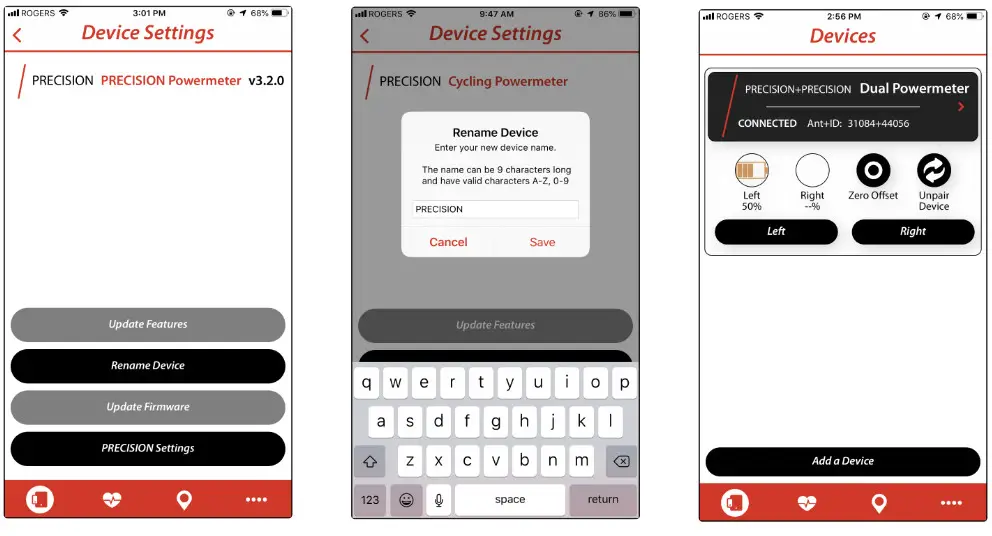
- Connect to your 4iiii device and select it to open up the Device Settings screen.
Tiiiip: For a dual Powermeter, select Left or Right to access the Device Settings for that side. - Select Rename Device. This will open a dialogue box where you can enter your new device name.
Tiiiip: You can only use alphanumeric characters and the maximum length is 9 characters. - Select Save.

Changing Workout Unit (Metric or Imperial)
- Select the More (….) tab from the menu at the bottom of the screen.
- Select Workout Unit to toggle between Metric and Imperial.
- Select OK.
For questions, please visit 4iiii.com/support