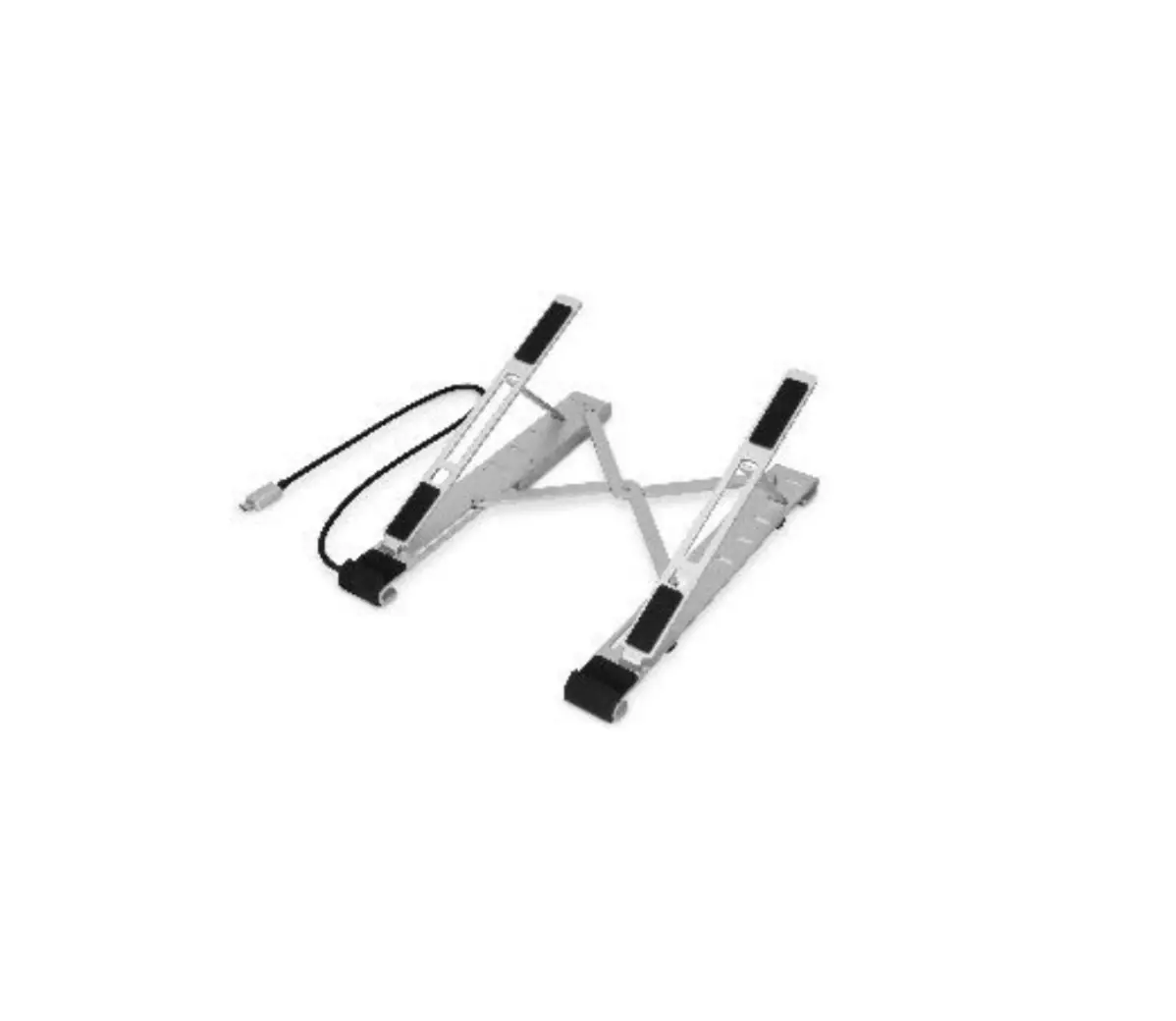
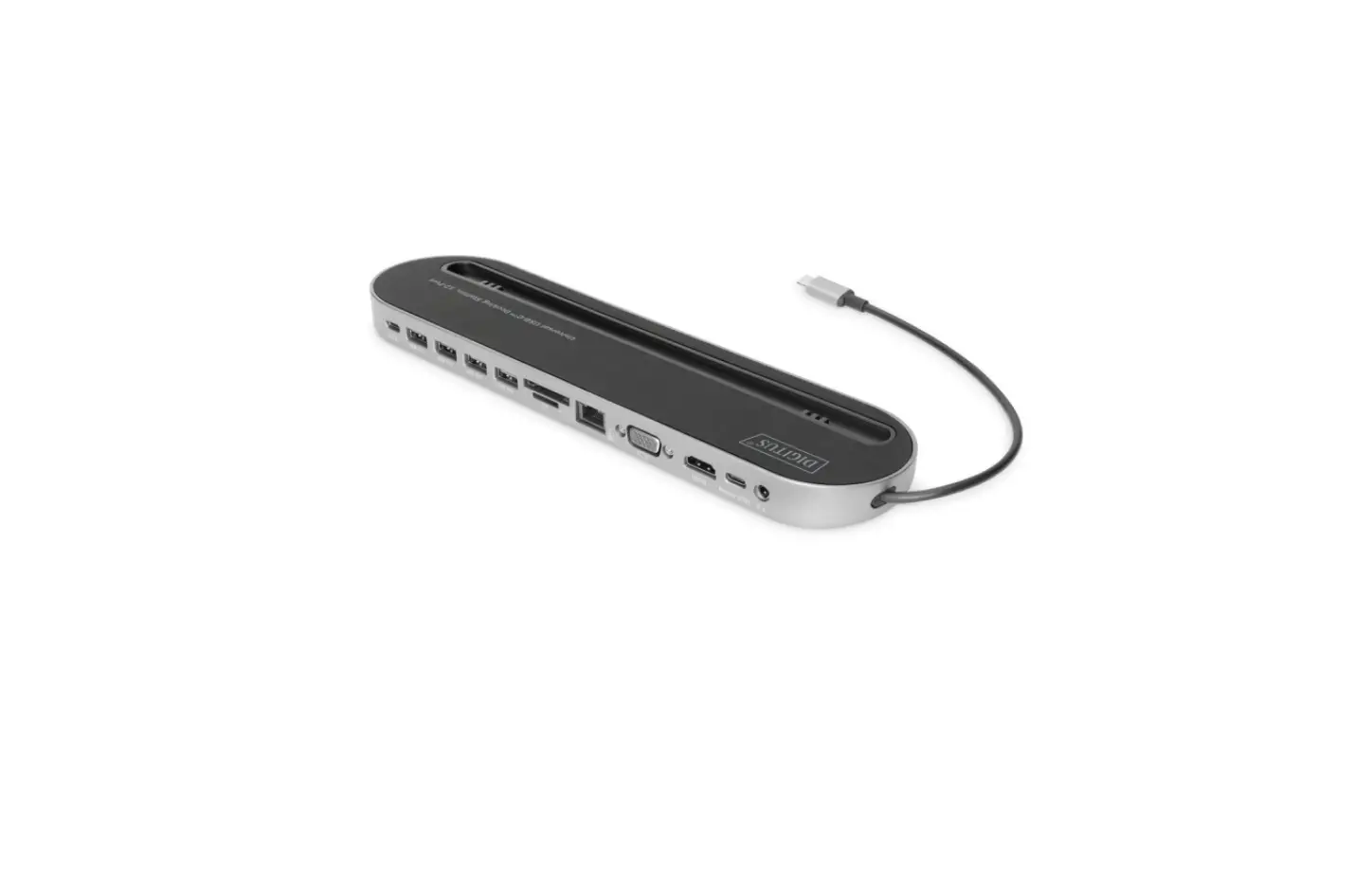
DA-90440 Variable Notebook Stand 7 Port Pop Out Docking Station
Product Information:
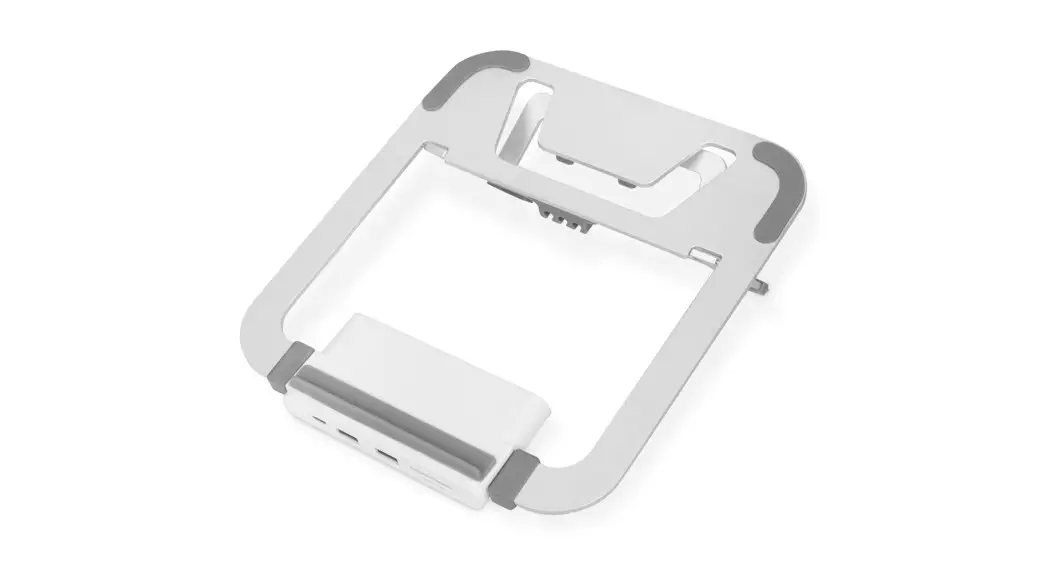
The Variable Notebook Stand with 7-Port Pop-Out USB-CTM Docking
Station is a versatile and convenient accessory for your laptop. It
features a built-in docking station with multiple ports for
enhanced connectivity and functionality. The stand is made of
elegant aluminum and comes in a stylish gray color. It also
includes integrated cable management for organized storage of the
USB-CTM connection cable.
Key Features:
- 7-Port Pop-Out USB-CTM Docking Station
- 1 x USB-CTM (host), 1 x USB-CTM (PD, Power Delivery)
- 1 x HDMI (4K/30Hz), 2 x USB-A (3.0), 1 x RJ-45 (Gigabit), 1 x
SD, 1 x microSD - Integrated cable management on the underside
- Dimensions: 26 (D) x 23.6 (W) x 2.6 (H) cm
- Weight: 500 g
- Color: Gray
Product Usage Instructions:
5.1 Use description of the interface (SST)
To use the Copy mode Windows System Computer Display Replication
Mode (SST), follow these steps:
- Connect the product to the computer’s type-c base.
- Connect the product to an HD display using an HDMI audio and
video cable. - The system will automatically identify the display.
- Right-click on the desktop and select Display Settings.
- In the Display Settings, pull down to More Display
Settings. - Select Desktop on Copy 1.
- The display will show a replication of the notebook
screen.
5.2 Schematic diagram of the other interface connections
For other interface connections, follow these instructions:
- To charge the laptop, connect the product to the computer’s
type-c dock and plug the PD adapter into the product’s type-c
dock. - To connect USB devices such as a mouse, keyboard, or u disk,
connect the product to the computer’s type-c base. Then, insert the
USB device into the USB 3.0 interface. You can access and manage
files on the device through the computer.
Product Precautions:
- Do not let any objects or liquids fall into or infiltrate the
product, as it may cause damage. - Avoid using or placing the product in wet or dusty
environments. - If not using the product for an extended period, store it in a
dust-free environment to prevent dust accumulation and oxidation of
the sockets. - Do not attempt to repair or replace any parts unless specified
in the manual. Seek professional assistance from your dealer or
authorized agent.
Connection Diagram:
- TYPE-C PD: Connect to the charger and supports up to 100wpd
charging. - USB3.0: For connecting mouse, keyboard, u disk, and other USB
devices. Supports USB 3.0 5Gbps, compatible with USB2.0/1.1, Plug
& Play. - TF/SD: Insert an SD card for USB2.0 speed singles.
- HDMI: Connect to an HDMI monitor and supports 3840 x 2160p
30hz, 1080p 60hz HD video output. - LAN: Supports a gigabit network, compatible with one hundred
gigabit. - TYPE C/F: The type c 3.1 input interface.
Variable Notebook Stand with 7-Port Pop-Out USB-CTM Docking Station
Quick Installation Guide
DA-90440
1. Introduction
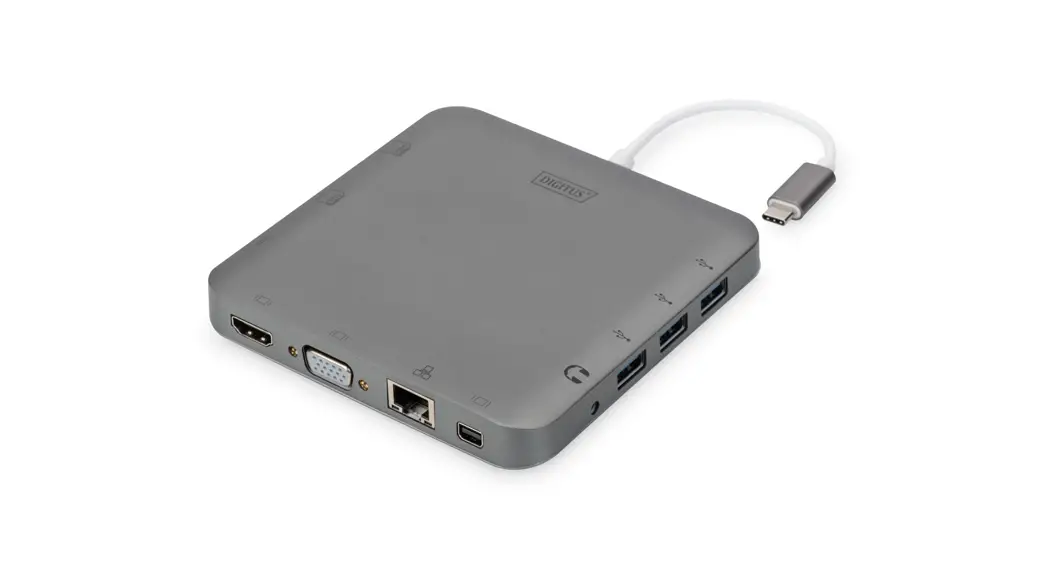
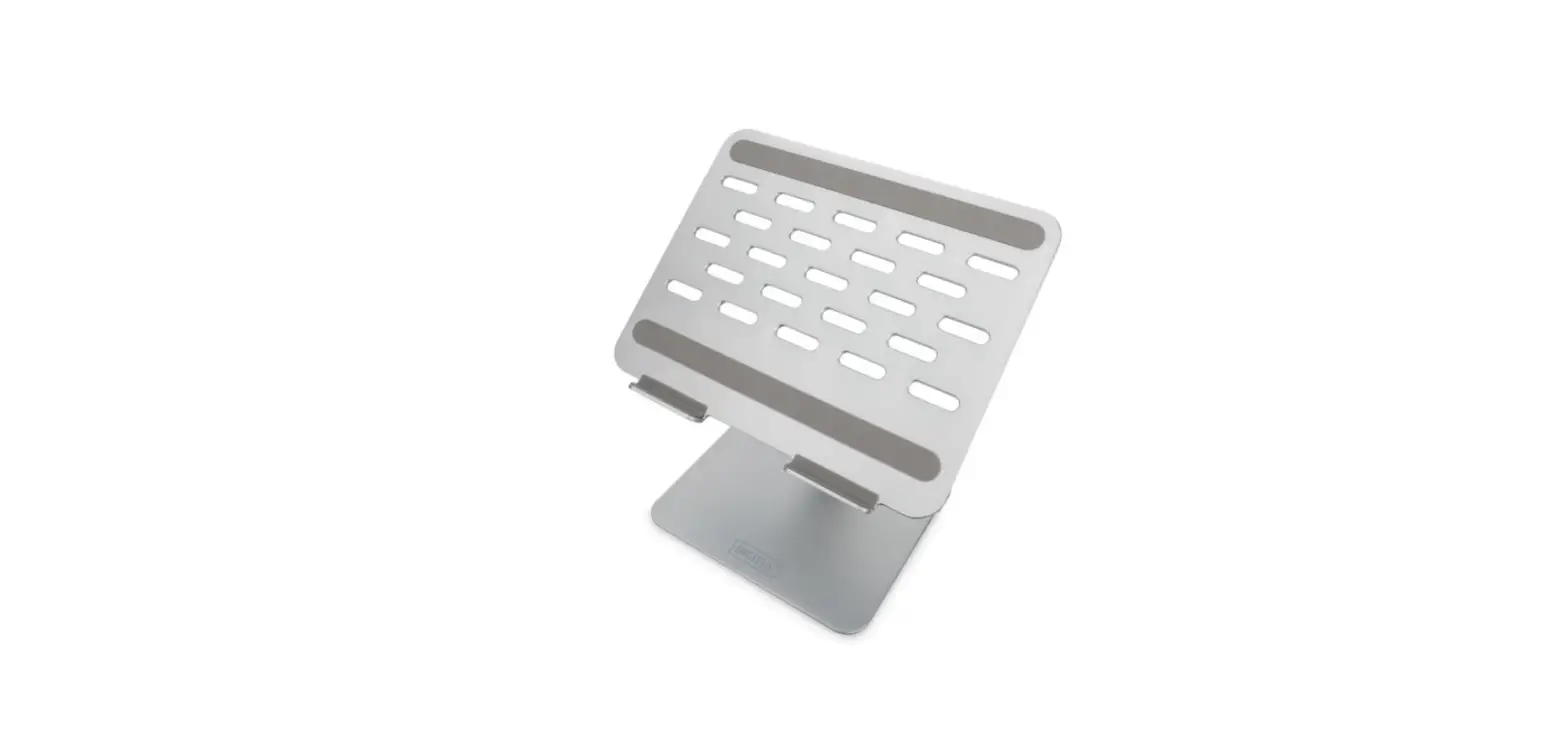
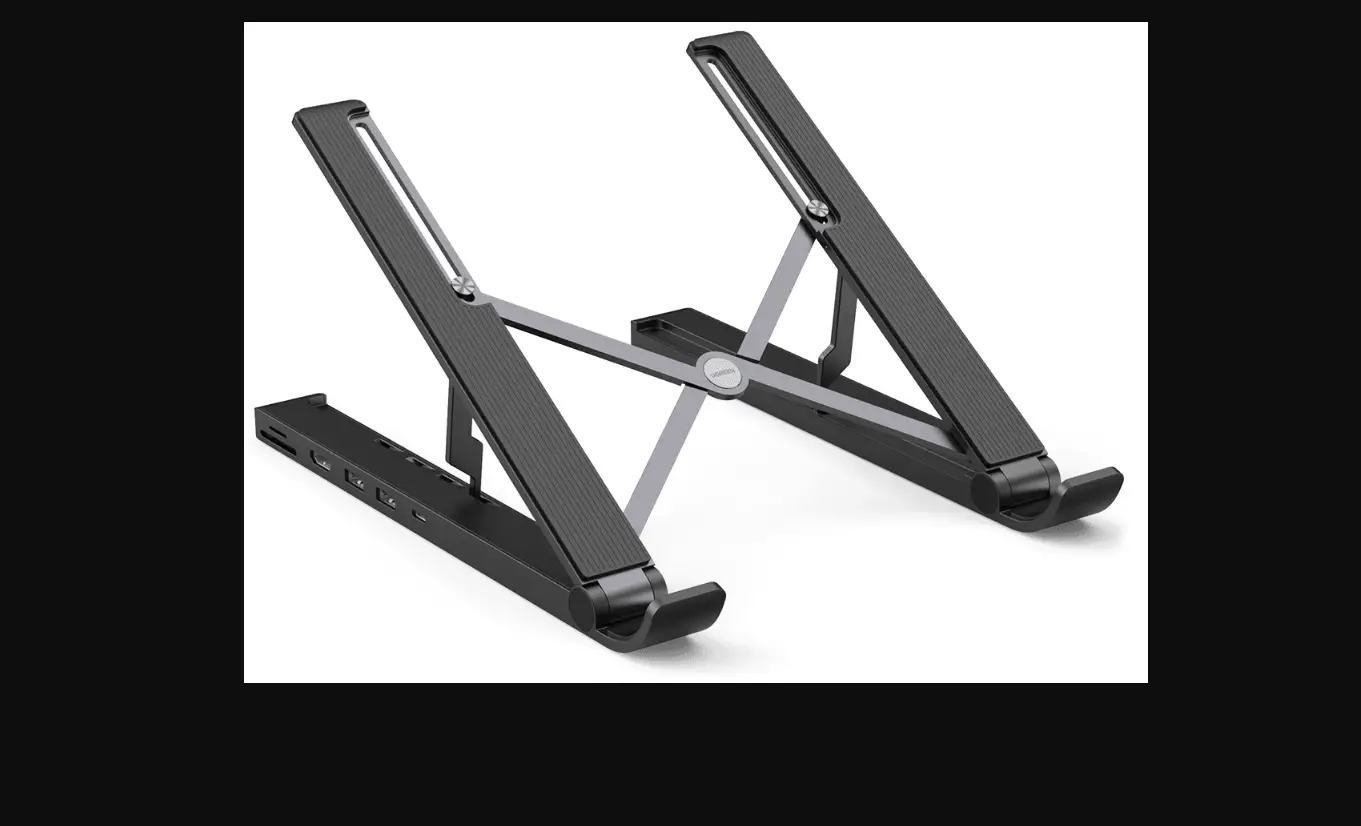
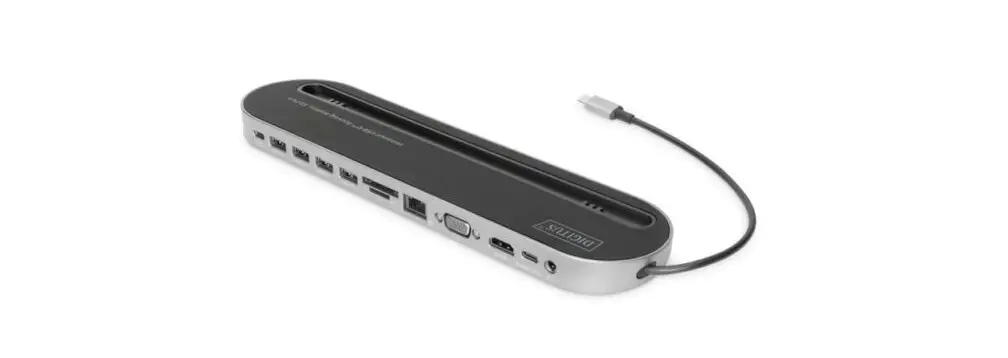
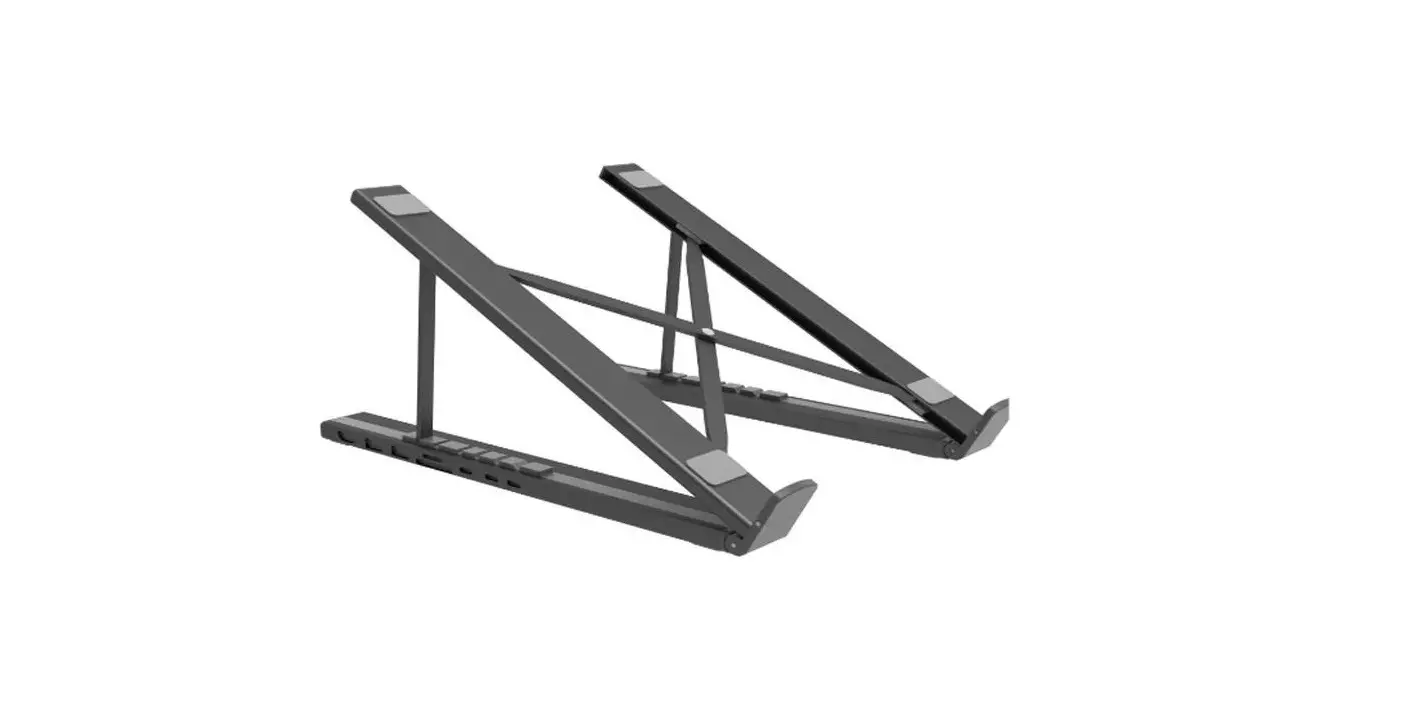
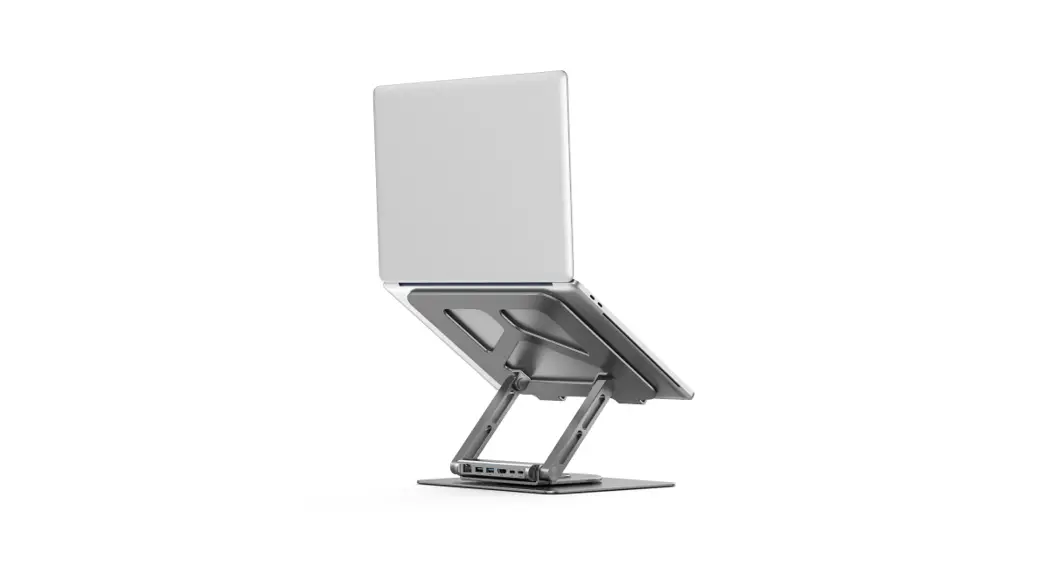
The variable notebook stand with 7-Port Pop-Out USB-CTM Docking Station from DIGITUSTM combines ergonomics and connectivity. The stand can be rotated 360° and allows for individual angle adjustment. The docking station offers 7 ports to expand your notebook’s connectivity – This can be taken out of the stand and used as an external peripheral device, whether on the go or for stationary use. All in all, the stand can be folded together completely (incl. dock) and is therefore also the perfect mobile companion as a whole.
2. Features
1. Foldable – Flexible use, whether stationary or on the go 2. Variable stand (360° rotatable) for individual angle adjustment 3. 7-Port Pop-Out USB-CTM Docking Station – The Docking Station can
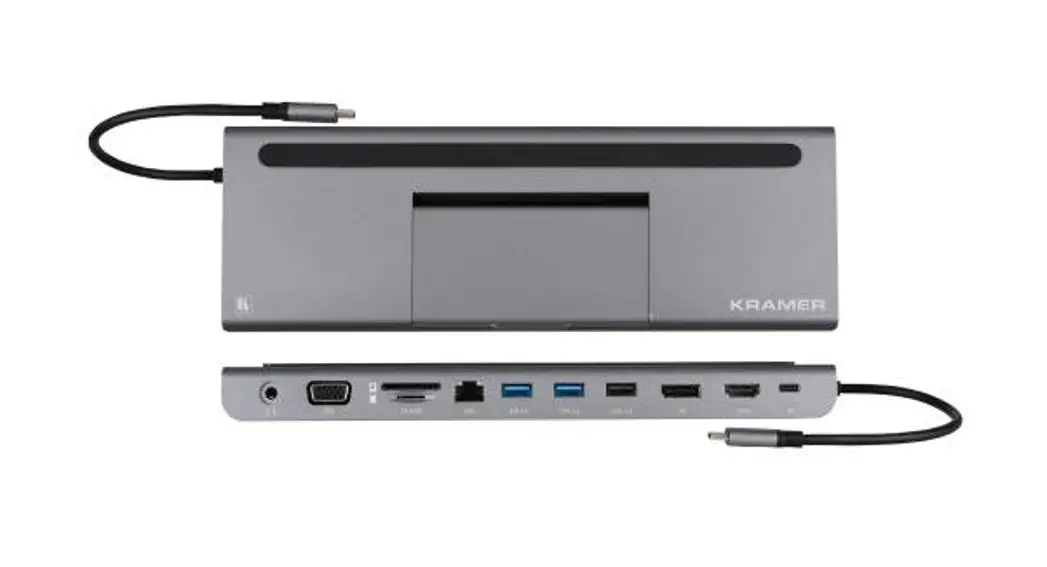
be removed and used as a standalone peripheral device. 4. USB-CTM Dock: 1 x USB-CTM (host), 1 x USB-CTM (PD, Power Delivery),
1 x HDMI (4K/30Hz), 2 x USB-A (3.0), 1 x RJ-45 (Gigabit), 1 x SD, 1 x microSD 5. Integrated cable management on the underside- For stowing the USB-CTM connection cable (included). 6. Elegant aluminum
3. Package content
1x Variable Notebook Stand with 7-Port Pop-Out USB-CTM Docking Station
1x USB-CTM connection cable 1x QIG
2
4. Specifications
1. Integrated cable management on the underside- For stowing the USB-CTM connection cable (included).
2. Dimensions: 26 (D) x 23.6 (W) x 2.6 (H) cm 3. Weight: 500 g 4. Color: Gray 5. Manufacturer’s notice: Not all USB-CTM ports support all the
features of the USB Type-CTM standard. Make sure that your notebook’s USB-CTM port supports the DisplayPort Alternate Mode (DP Alt Mode) as well as USB Power Delivery (PD). 6. The video output capabilities depend on your notebook’s graphics card and the connected monitor. Certain graphics cards have limited MST support while some screens also restrict the available resolution. 7. The power adapter used should provide at least 100 watts to power a connected notebook as well as the Docking Station via the USB-CTM port.
5. Description of function use
5.1 Use description of the interface (SST)
Connect the product to the computer’s type-c mother seat, and then connect the HD display with the HDMI audio and video cable, the system automatically recognizes the display and synchronize the display of the computer screen content Display mode has replication mode and extended display mode, please set it up in the computer’s Display settings. Extended mode Connect the product to the computer’s type-c base, and then connect to HD with a HDMI audio and video cable Display, which automatically recognizes, opens System Preferences-Display-Permutation- Bottom left corner without playing “” in the case of the mirror mode option. The screen is: notebook shows “a” screen, display shows “b” screen. As shown in the figure below
3
Copy mode Windows System Computer Display Replication Mode (SST) Connect the product to the computer’s type-c base, and then connect to HD with a HDMI audio and video cable Display, the system will automatically identify the display, desktop blank right-click “Display Settings” -pull down to ” More Display Settings-Select Desktop on Copy 1 The picture is: notebook shows “a” screen, display shows “a” screen. As shown in the figure below
5.2 Schematic diagram of the other interface connections
Connect the product to the type-c dock on the side of the computer and plug the PD adapter into the type-c dock on the side of the product when the laptop battery displays the charging icon and is charging the laptop.
Connect the product to the type-c base on the side of the computer, and then insert the u disk, move the hard disk or solid state disk to the USB 3.0 interface, when the computer pop up the disk character,
4
click in, you can copy, move, delete and other files inside Connect the product to the type-c master seat on the side of the
computer, and then insert the SD/TF interface, when the computer pop up disk characters, click to enter, you can copy, move, delete and other files inside. Connect the product to the type-c mother seat on the side of the computer, and then insert the mouse keyboard until the usb2.0 interface. At this time, the computer will pop up the card character, click to enter, and you can copy, move, delete and other files inside. Connect the product to the type-c dock on the side of the computer and insert the cable into the network interface when the computer automatically connects to the network (Built-in drive is required below win7) Due to the large hard drive power consumption, when the hard drive content cannot be read normally, please connect the charger to the type-c base seat of the product, so that it can power the hard drive while charging the computer.
6. Product Precautions
1. Do not let any object (e. g. combustible, needle) or any liquid (like water, drink) fall into or infiltrate the product, leaving the product from normal use.
2. Do not use or place this product in: wet environment (e. g. bathroom, bathroom); exposed to dusty environment, rotten objects.
3. In the case of not using the equipment for a long time, put the product glue bag into the box to prevent dust accumulation and oxidation of the socket to lead to bad contact with the socket
4. Do not repair the machine yourself or replace any of the parts (unless specifically indicated in this manual).Please give repairs to your dealer or authorized agent.
5
7. Connection Diagram
1
TYPE-C PD
Connect to the charger and supports up to 100wpd charging
For connecting the mouse, keyboard, u disk and
2, 3 USB3.0 other USB devices Support USB 3.0 5Gbps, compatible with USB2.0/1.1, Plug & Play
4, 5
TF/SD
Inserting into the SD card supports usb2.0 speed singles
6
HDMI
Connect to the HDMI monitor and supports 3840 x 2160p 30hz,1080p 60hz HD video output
7
LAN
Support for a gigabit network, compatible with one hundred gigabit
8 TYPE C/F The type c 3.1 input interface
Hereby Assmann Electronic GmbH declares that the Declaration of Conformity is part of the shipping content. If the Declaration of Conformity is missing, you can request it by post under the below mentioned manufacturer address.
www.assmann.com ASSMANN Electronic GmbH Auf dem Schüffel 3 58513 Lüdenscheid Germany
6
 ASSMANN Electronic GmbH | Germany