Bacode Scanner Module
Product Information: Barcode Scanner Module
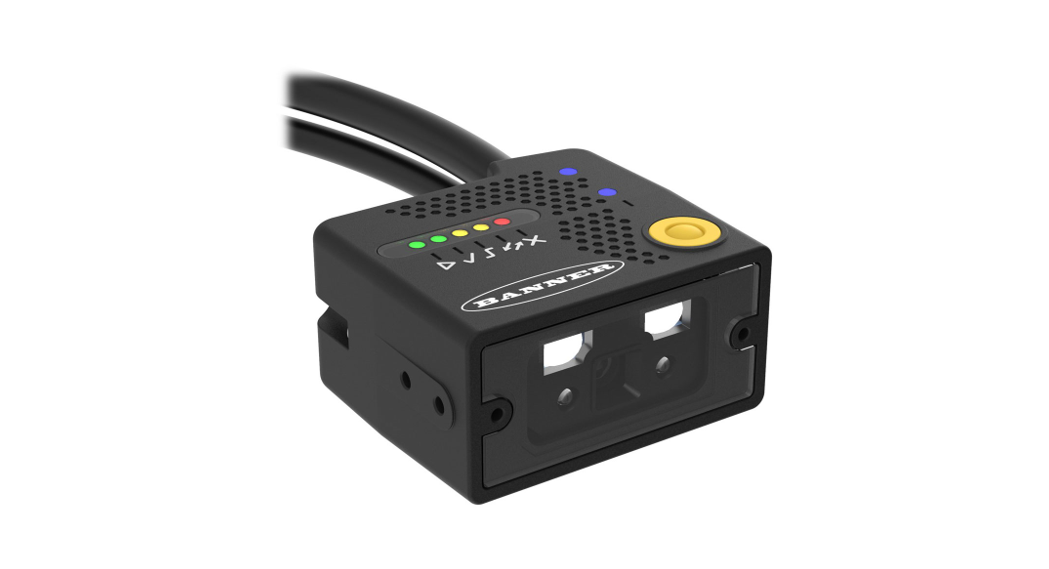
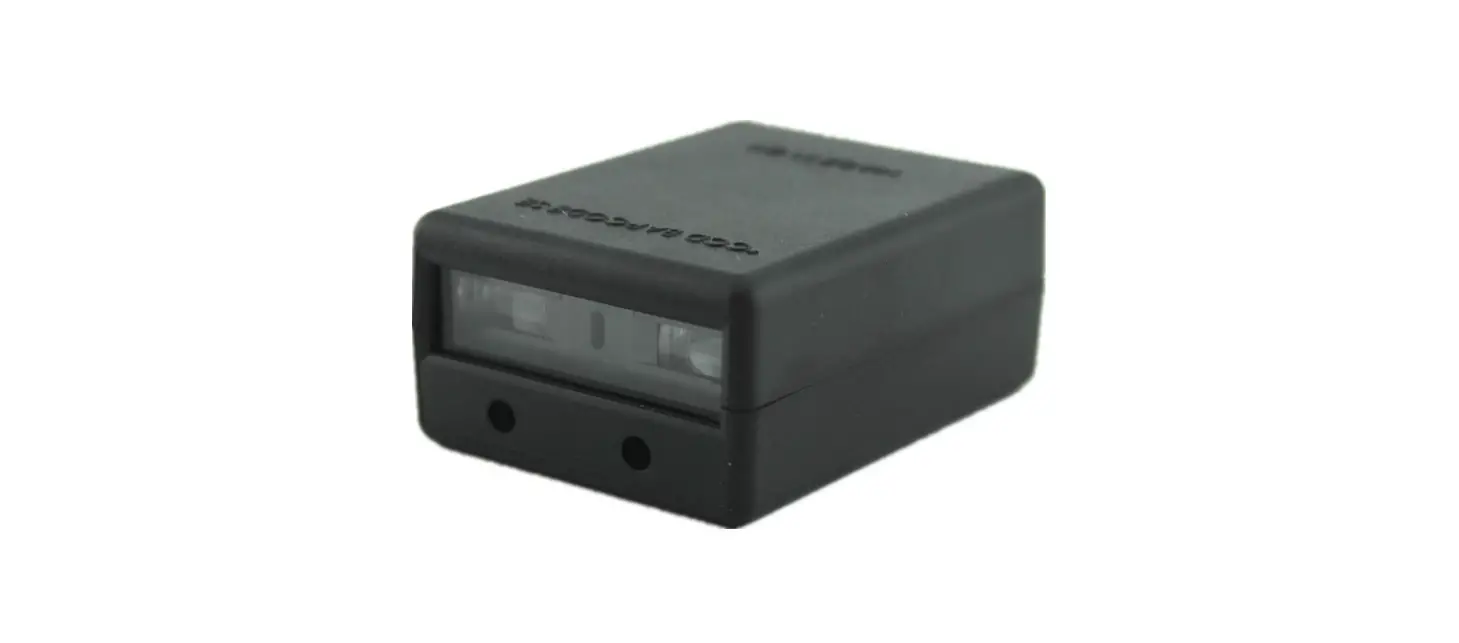
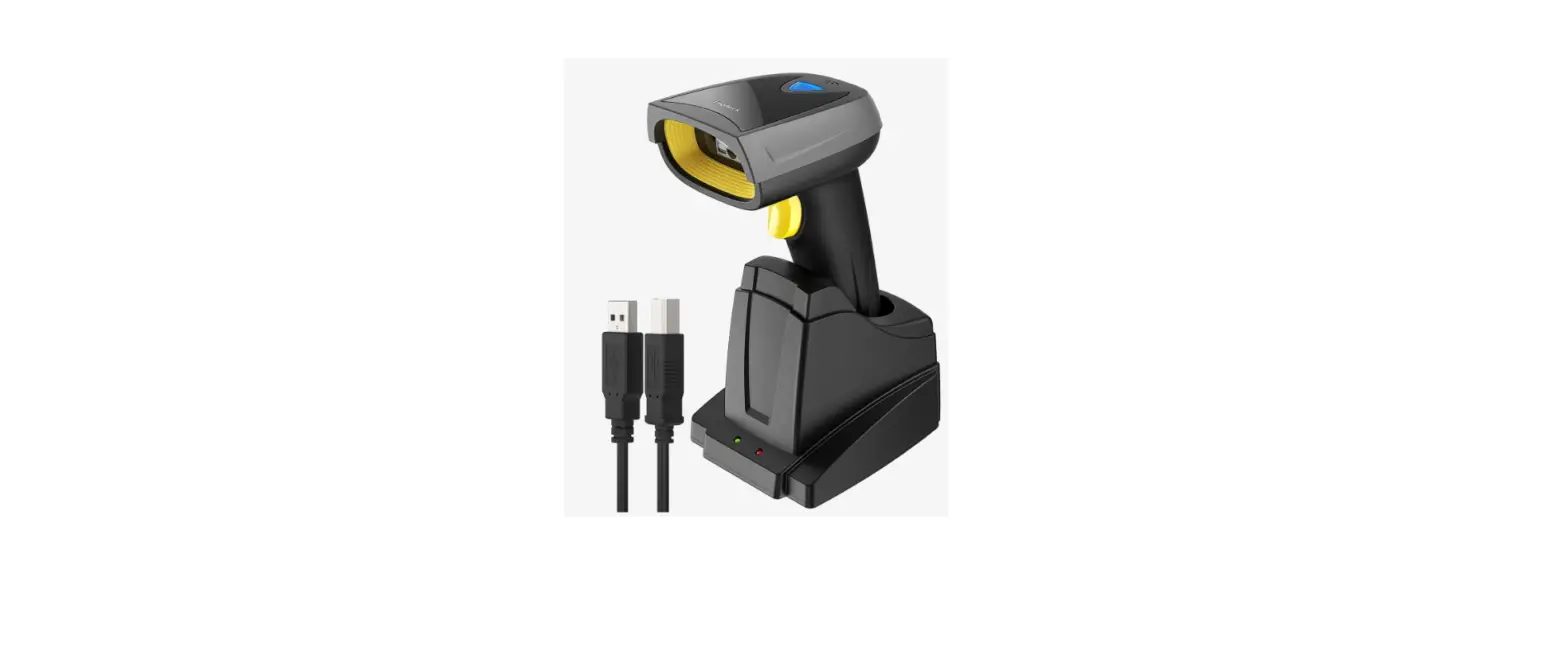
The Barcode Scanner Module is a device that can scan barcodes
and output the decoded content to a PC. It has two output modes:
USB and serial port. The factory default setting is USB output, but
it can be changed to serial output by scanning the setting code.
The module supports serial port output with default parameters of
9600, 8N1, and the baud rate can be modified.
Hardware Connection
To connect the Barcode Scanner Module to a PC, use the USB cable
to connect the module’s USB interface to the PC. After the
connection, an additional keyboard device will appear in the device
manager (only in USB mode). If there is no new keyboard device
recognized after connecting to the computer, scan the USB PC output
setting code and test again. If there is still no device
recognized, it is recommended to replace the USB cable.
For serial port output, you need to purchase a TTL to serial
port module. Connect Vcc to 5V, GND to GND, Rx to Tx, Tx to Rx.
Then connect the serial port module to the PC. After connection, a
recognized serial port device will appear in the device
manager.
Product Usage Instructions
Scanning Test – USB Output Mode
- Open a document (such as Word or a text document) on the PC,
and click on a black space to make the document in input mode
(i.e., you can input text directly). - Scan the barcode with the Barcode Scanner Module.
- The corresponding decoded content will be input into the
document.
Serial Port Output Mode
- Download and open the serial port assistant software from
Waveshare Wiki. - Set the serial port number to the one recognized by the device
manager. - Set the baud rate to 9600 (or the modified parameter if
applicable). - Scan the barcode with the Barcode Scanner Module.
- The barcode content will be output to the serial port
assistant.
Barcode Scanner Module
Barcode Scanner Module Quick Start
Hardware Connection
The factory default setting of the Barcode Scanner Module is: manual scanning, USB PC output. If the user needs to use serial output, you need to scan the setting code first and change it to serial output. This manual is based on testing by connecting to a PC.
USB Debugging Hardware Connection
Use the USB cable to connect the module’s USB interface to the PC.
After the connection, an additional keyboard device will appear in the device manager (only in USB mode).
Barcode Scanner Module
If there is no new keyboard device recognized after connecting to the computer, scan the USB PC output setting code, and then test again. If there is still no device recognized, it is recommended to replace the USB cable.
Serial Port debugging Connection
The module supports serial port output, when using serial output, you need to scan the setting code first to change the output mode to serial port output. The default serial parameters are 9600, 8N1, and the baud rate can be modified (please refer to the user manual).
Barcode Scanner Module When using the serial port, you need to purchase a TTL to serial port module. (If you already have one, you don’t need to buy another one.) Note: Connect Vcc to 5V, GND to GND, Rx to Tx, Tx to Rx. (Please identify the silk screen to connect.)
Then connect the serial port module to the PC. After connection, a recognized serial port device will appear in the device manager.
Barcode Scanner Module
Scanning Test USB Output Mode
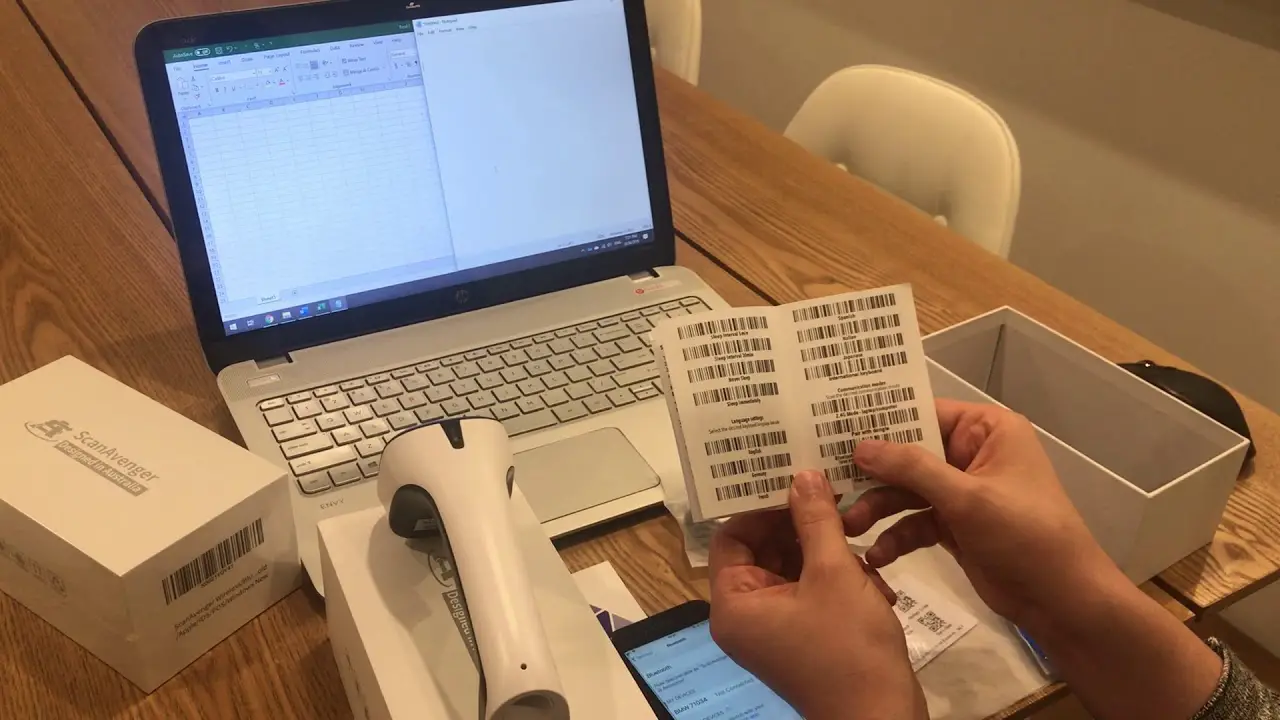
Open a document (such as word, text document) on the PC, and click on a black space to make the document in input mode (i.e. you can input text directly). Then scan the barcode, and the corresponding decoded content will be input into the document.
Serial Port Output Mode
Open the serial port assistant software. (You can download it from Waveshare Wiki), set the serial port number to the one recognized by the device manager. Set the baud rate to 9600 (or the modified parameter if applicable). Then scan the barcode, and the barcode content will be output to the serial port assistant.