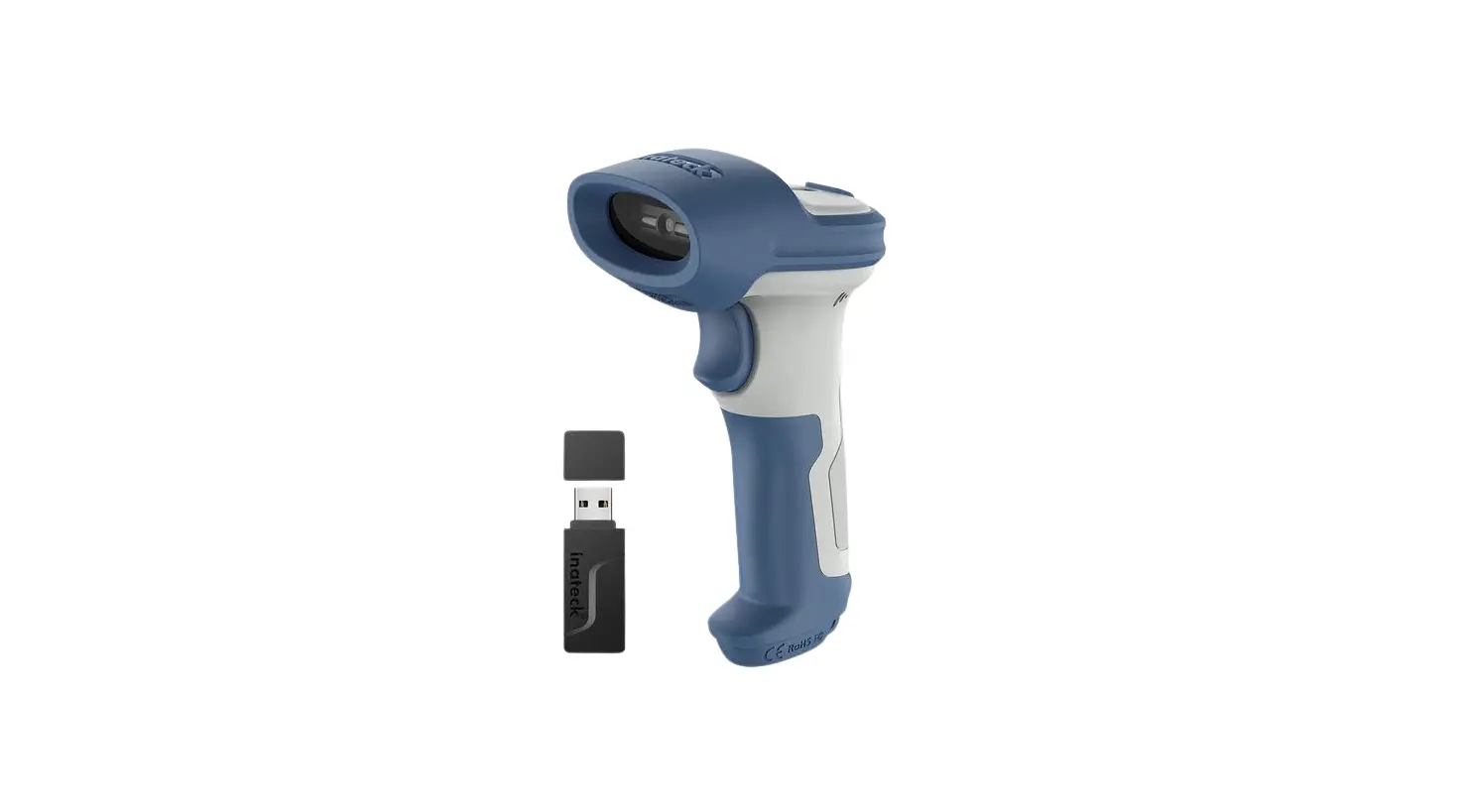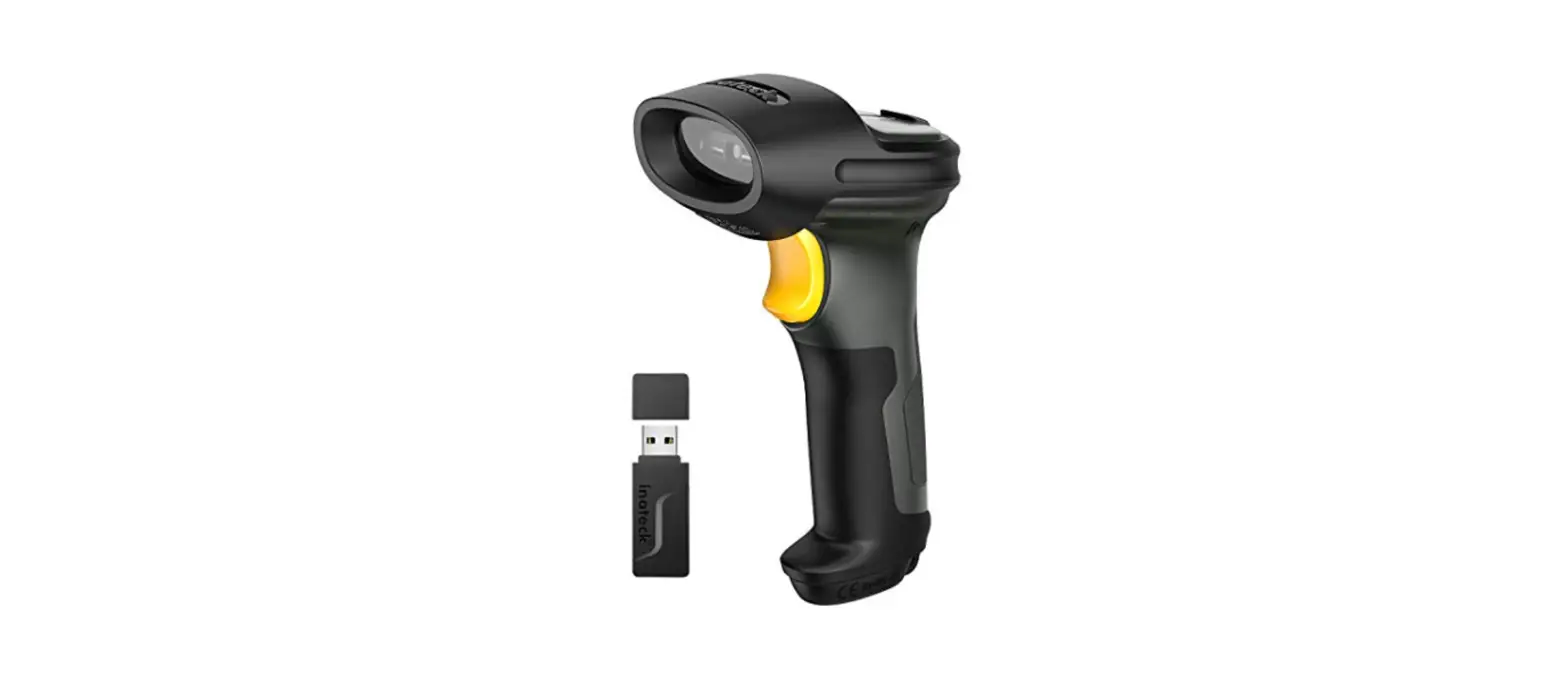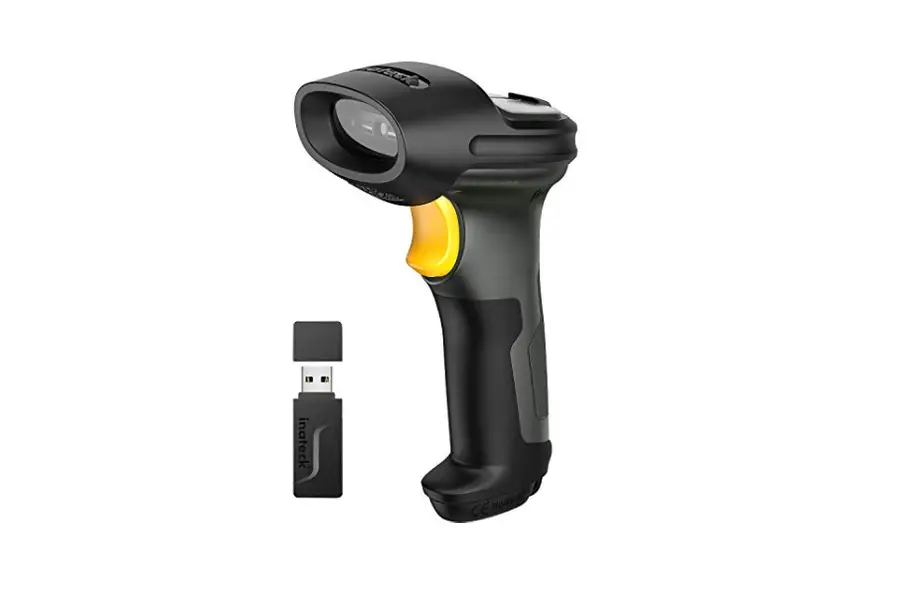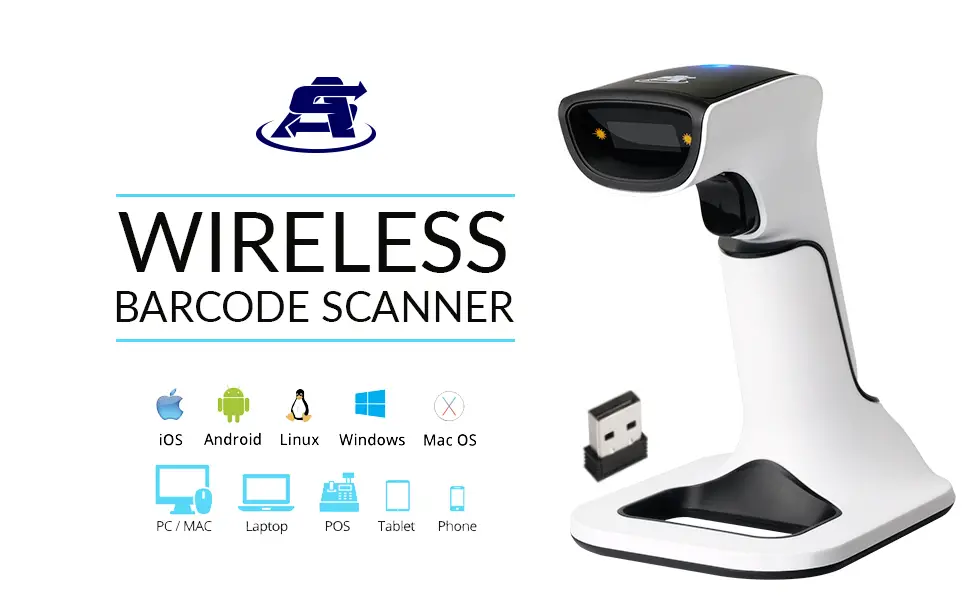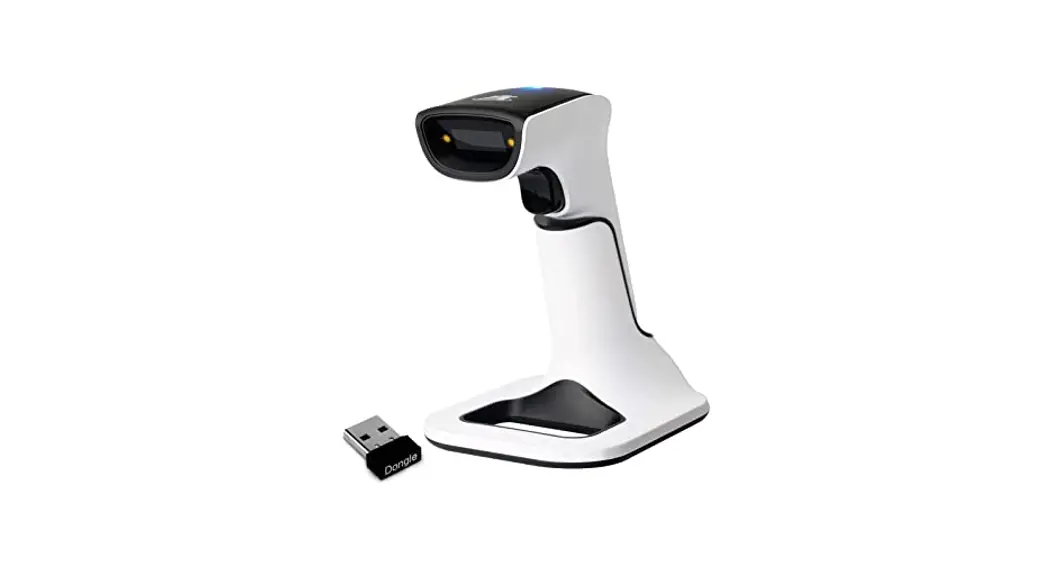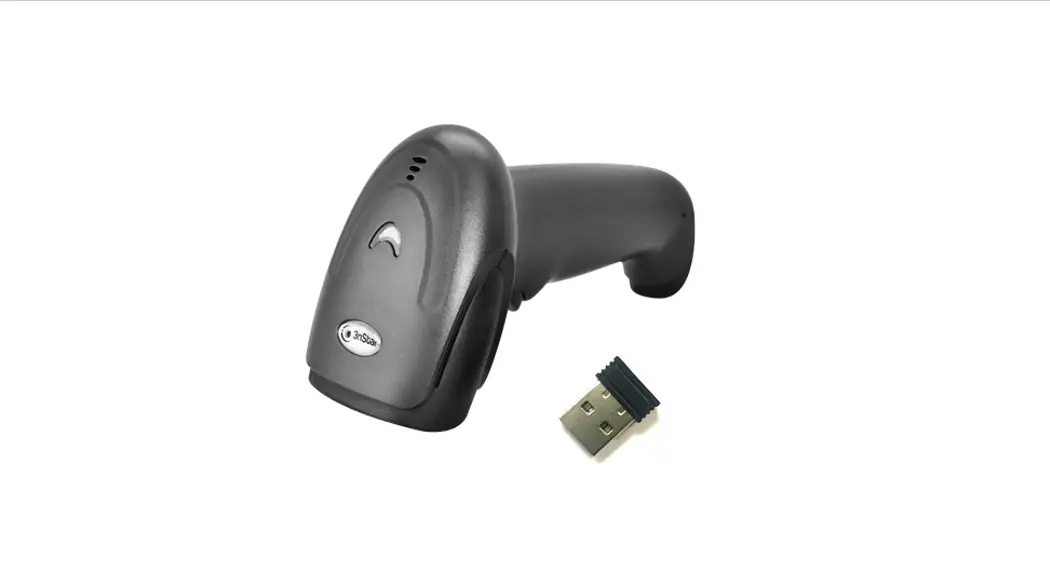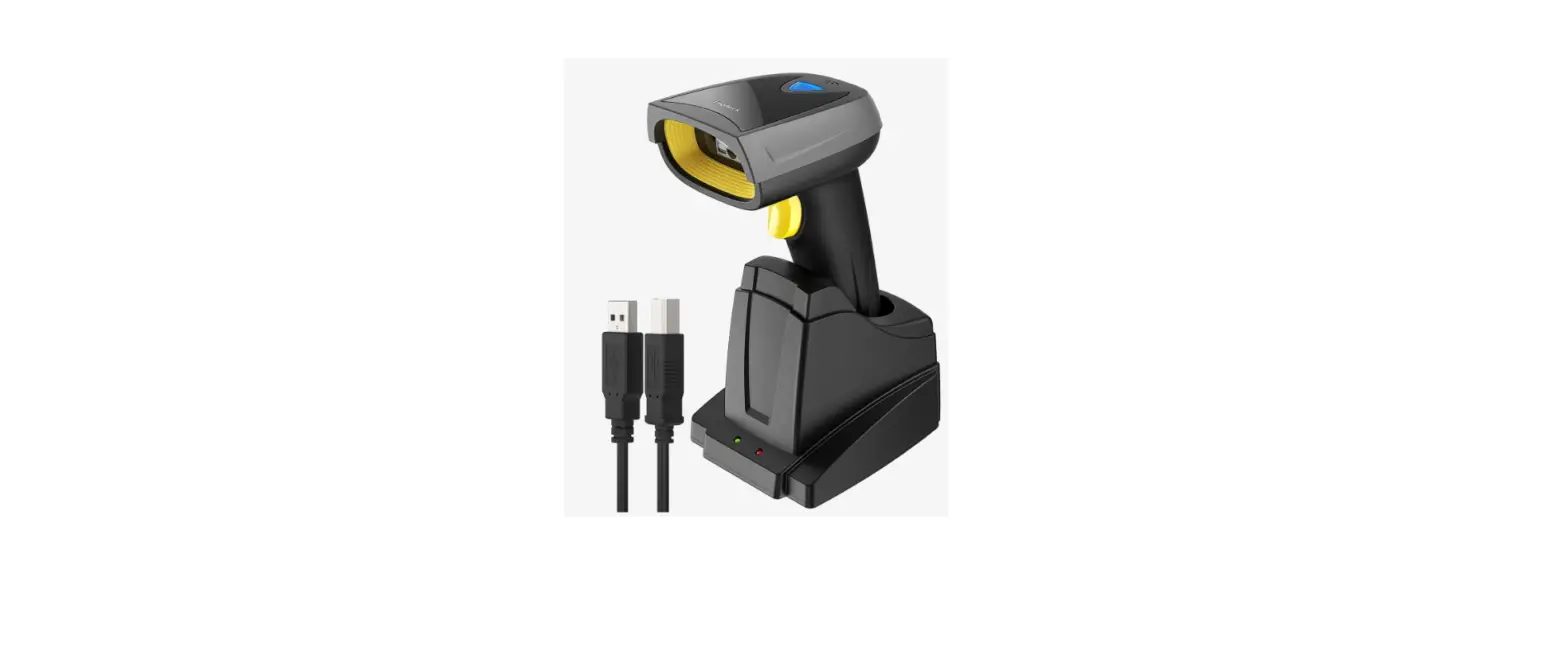
 inateck BCST43 Wireless Barcode Scanner
 inateck BCST43 Wireless Barcode Scanner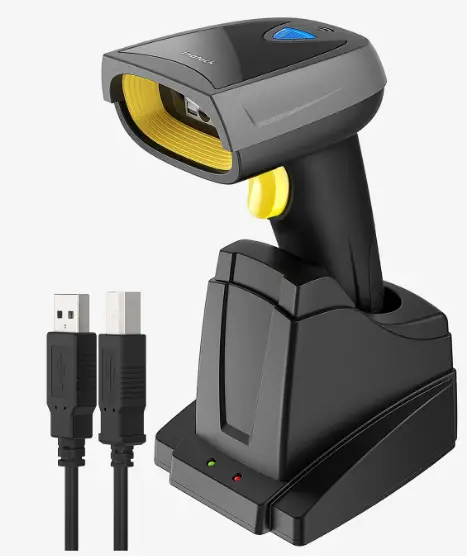
Quick Start
How to Press the Buttons for Quick Function Switch
(For more functions, please read through the manual completely.)
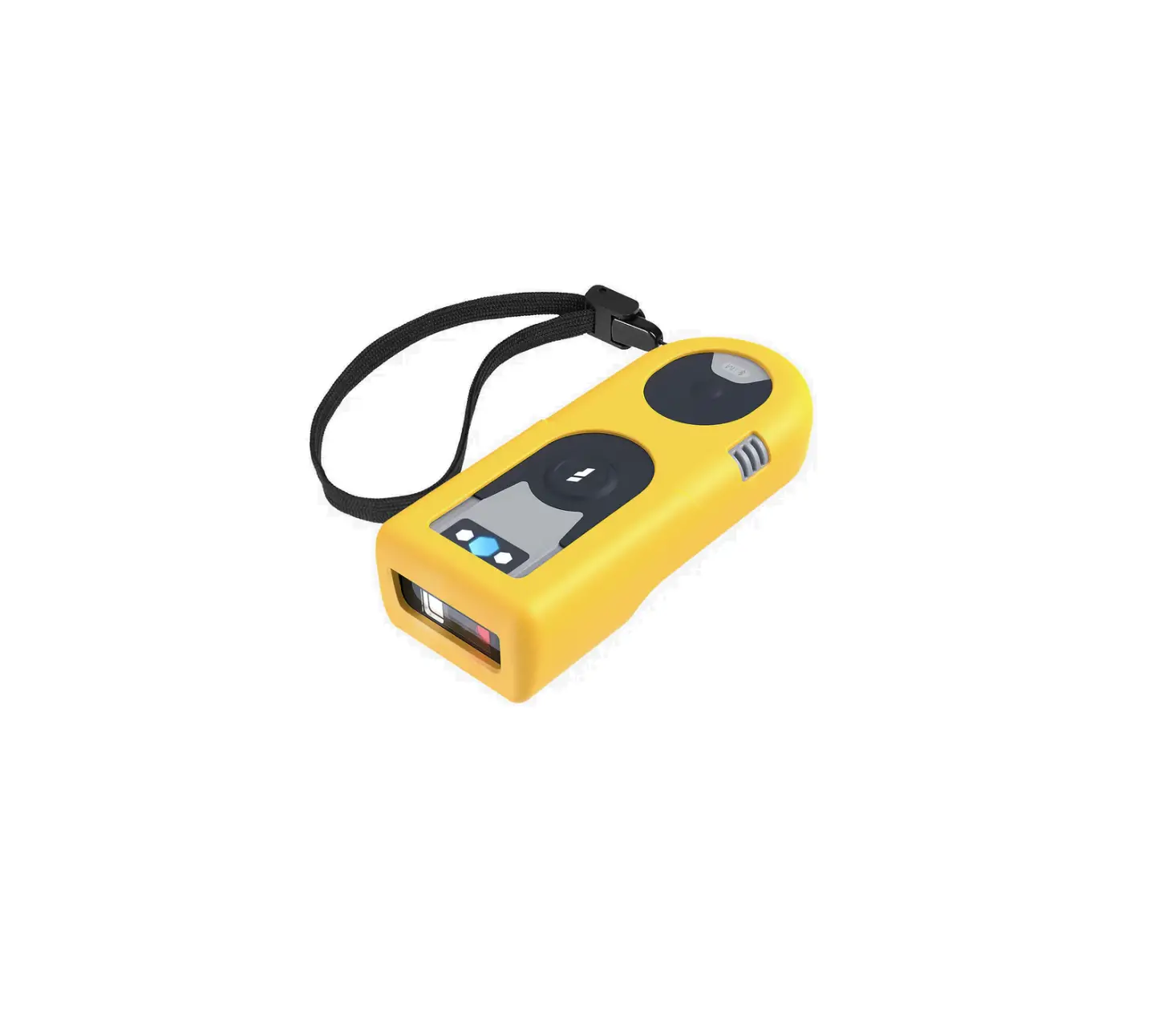
- How to Enter Bluetooth/Wireless Adapter Pairing Mode. Long press the pairing/multi-functional button <II0 and the middle indicator will flash when the scanner enters pairing mode.
- The scanner is in wireless adapter mode by default. If Bluetooth connection is preferred, please refer to Item 4 to quickly switch to Bluetooth mode.
- If the scanner doesn’t appear as an available device after entering Bluetooth pairing mode, please delete all the pairing record and retry.
- How to Check Battery Status Quickly. Short press the pairing/multi-functional button CI@). The stronger the flashing green LED is, the higher the battery level is. When the battery level drains to below 10% with flashing yellow LED, please recharge the scanner.
- How to Switch Between Inventory Mode and Normal Mode. Long press the scan button’ and the pairing/multi-functional button CII0 simultaneously to switch between inventory mode and normal mode.
- How to Switch Between Wireless Adapter Mode and Bluetooth Mode. Toggle the power switch to OFF, long press the pairing/multi-functional button <II0 and toggle the switch to ON simultaneously to Switch between wireless adapter mode and Bluetooth mode.
Frequently Used Barcodes
- Function Setting Steps: “Enter Setup” -“e.g. Low Volume” – “Save and Exit
- Those marked with (*) in the manual indicate default settings.
buttons
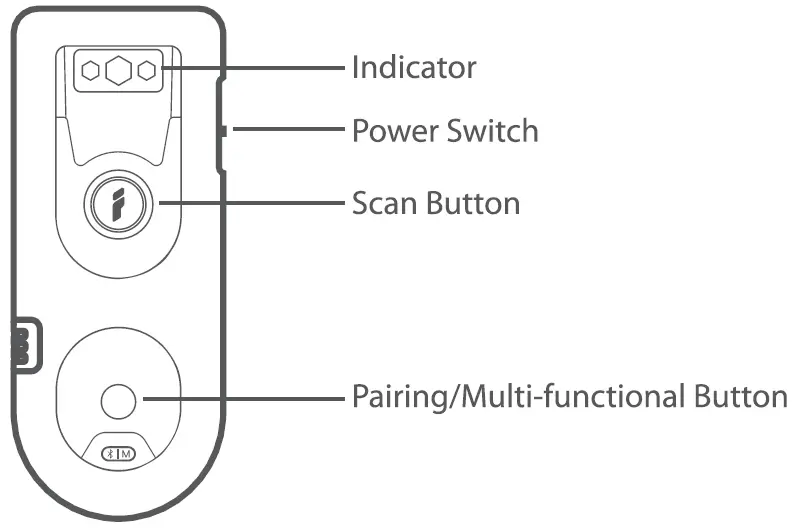
Use of the Scanner
Connection
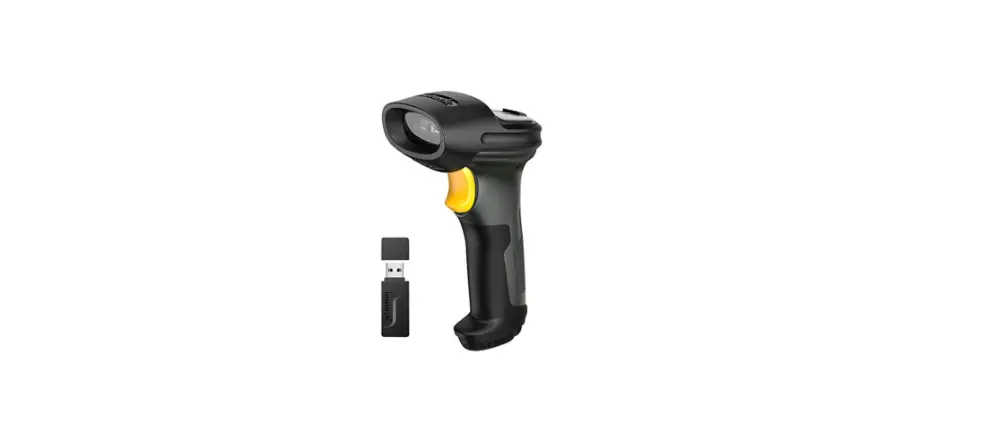
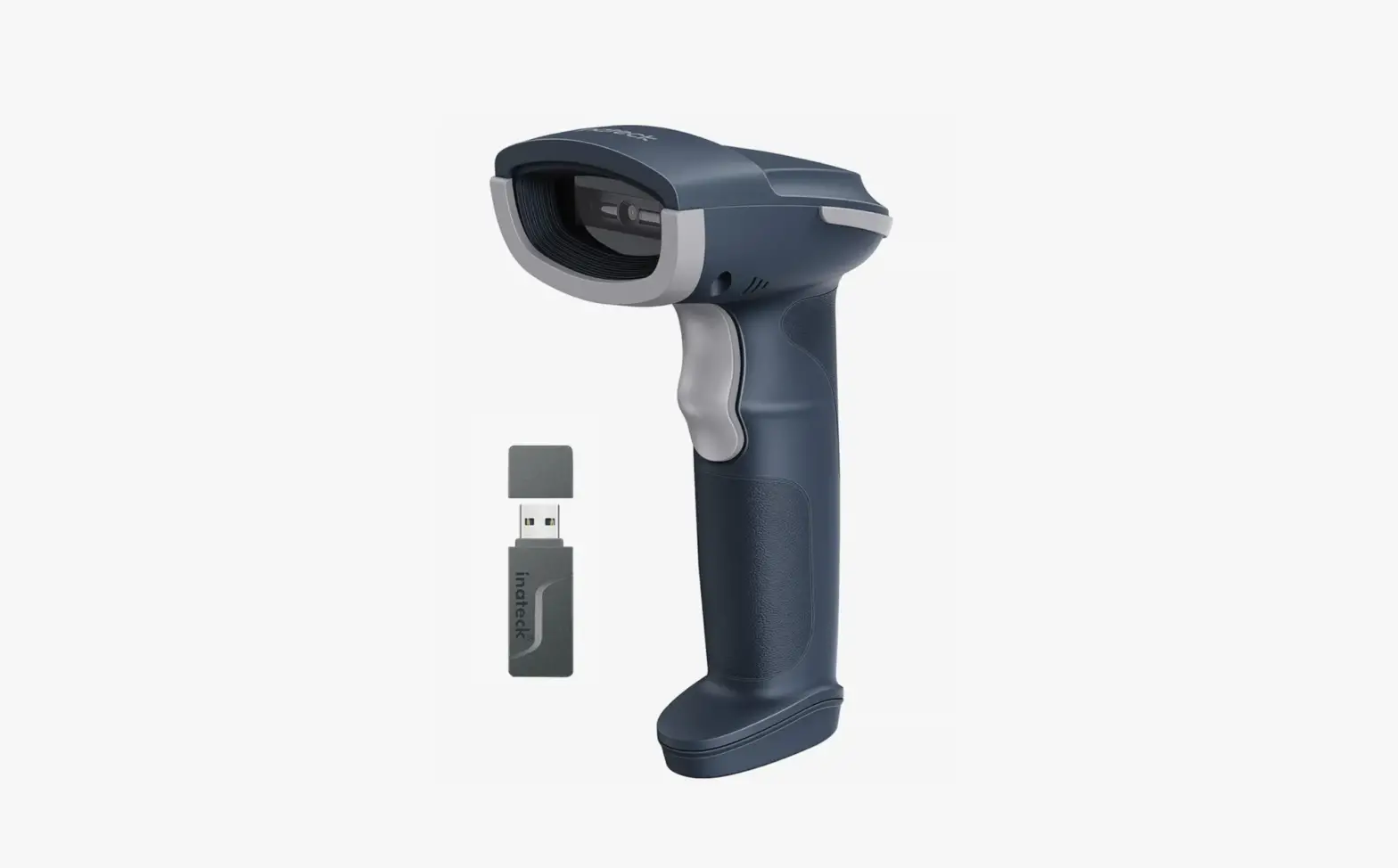
Wireless adapter mode is the default mode. Once the wireless adapter is plugged into the USB port of a computer, the scanner will be paired with the adapter automatically.
Note: If the scanner has any trouble pairing with the adapter, please scan the command barcodes in sequence to reconnect the scanner to the adapter:”Enter Setup”-“Wireless Adapter Mode”-“Save and Exit”
Wired Mode
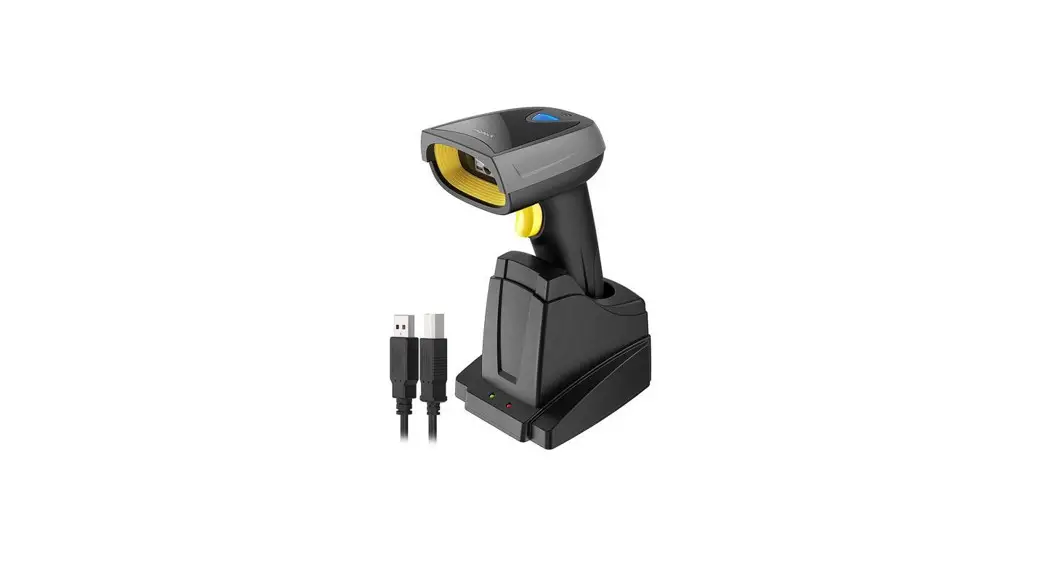
Connect the scanner to a device via the USB cable and priority will be given to the USB cable to transmit data.
Bluetooth Mode(HID)
To enter this mode, please scan the command barcodes in sequence: “Enter Setup” -”Bluetooth Pairing(HID Mode)”-“Save and Exit” Bluetooth Pairing
Charging
Connect the scanner to a computer/charger directly via the included USB cable to charge it.
Inventory Mode
Users may use the inventory mode to keep the scanned barcodes in the cache of the scanner and upload them to a computer in batches. In inventory mode users are not restricted to the time or location when uploading data. In addition, historical data can be cleared in the cache. More details about inventory mode are as below.
NOTE: It is not necessary to scan “Enter Setup” or”Save and Exit”when scanning the 5 barcodes [ below. Simply scan the barcodes to activate the functions.
Status Indicator
Check Battery Status
Short press the pairing/multi-functional button CII0 to check the battery level according to the LED indicators.
| LEO Indicator | Battery Level |
| One yellow LED | <10% |
| One green LED | 30%-55% |
| Two green LEDs | 56%-80% |
| Three green LEDs | >80% |
LED Indication
| Green LED flashes once | Data is read and uploaded. |
| Flashing blue LED | Under Bluetooth pairing |
| Blue LED flashes once | Data is read and stored in buffer. |
| Green(left), blue(middle), green(right) LEDs light at once | Switched to wireless adapter mode |
| Steady blue LED | Under setup mode |
| Flashing yellow LED | Low battery |
| Steady red LED | Charging (Red LED goes off once fully charged) |
| All LEDs flash in green for 5 times | Switched to Bluetooth mode |
Product Specification
| Material | ABS, PC, TPU |
| Voltage | DCSV |
| Battery Capacity | 1200 mAh |
| Scan Method | Auto/Manually |
| Lowest Contrast | 20% |
| Communication Frequency | 2.402GHz-2.480GHz |
Packing List
- Scanner* 1
- USB Cable* 1
- User Guide* 1
- Wireless Adapter* 1
FCC Requirement
Any changes or modifications not expressly approved by the party responsible for compliance could void the user’s authority to operate the equipment. This device complies with Part 15 of the FCC Rules. Operation is subject to the following two conditions:
- this device may not cause harmful interference, and
- this device must accept any interference received, including interference that may cause undesired operation.
Note: This equipment has been tested and found to comply with the limits for a Class B digital device, pursuant to Part 15 of the FCC Rules. These limits are designed to provide reasonable protection against harmful interference in a residential installation. This equipment generates, uses, and can radiate radio frequency energy, and if not installed and used in accordance with the instructions, may cause harmful interference to radio communications. However, there is no guarantee that interference will not occur in a particular installation. If this equipment does cause harmful interference to radio or television reception, which can be determined by turning the equipment off and on, the user is encouraged to try to correct the interference by one or more of the following measures:
- Reorient or relocate the receiving antenna.
- Increase the separation between the equipment and receiver.
- Connect the equipment into an outlet on a circuit different from that to which the receiver is connected.
- Consult the dealer or an experienced radio/TV technician for help.