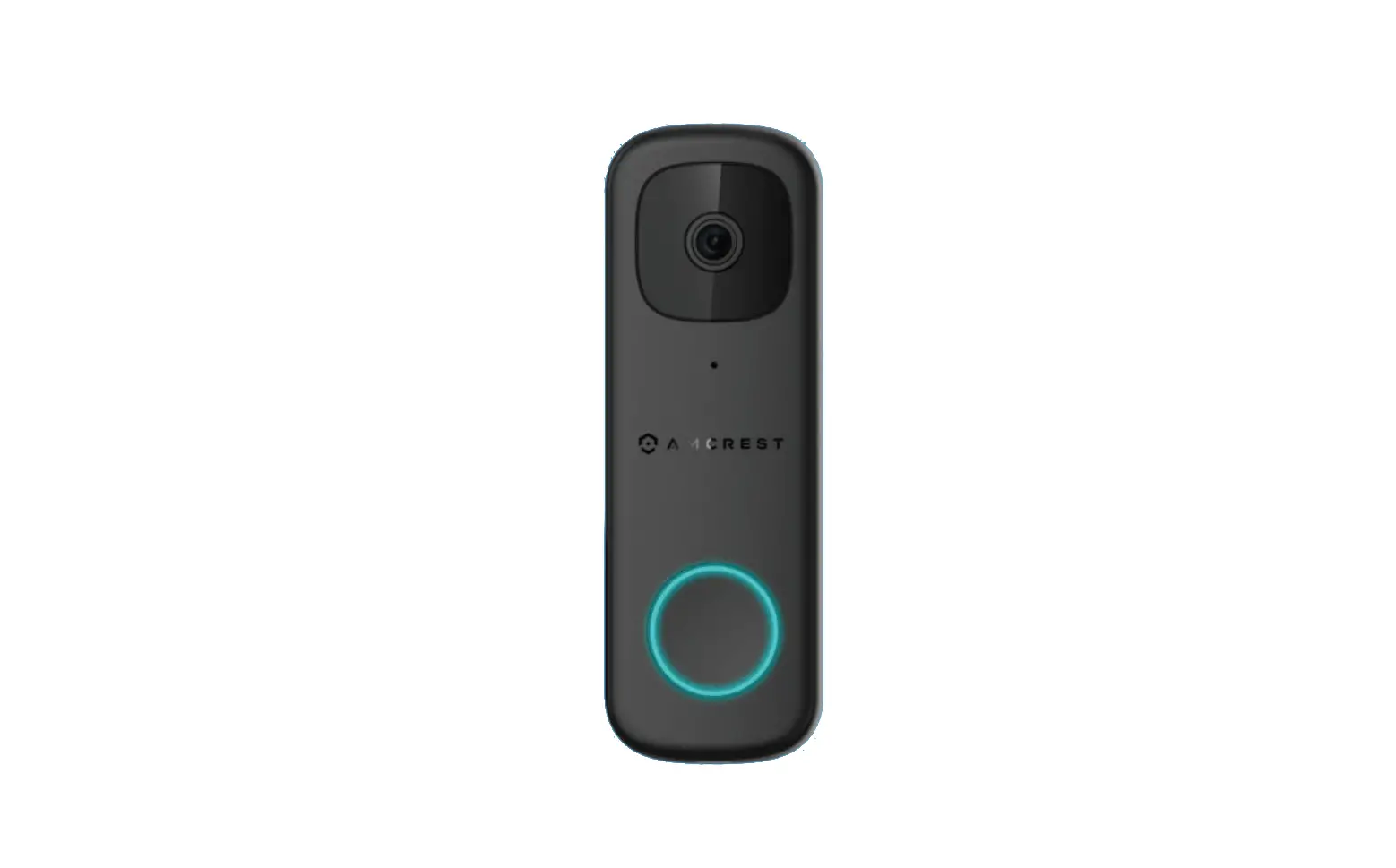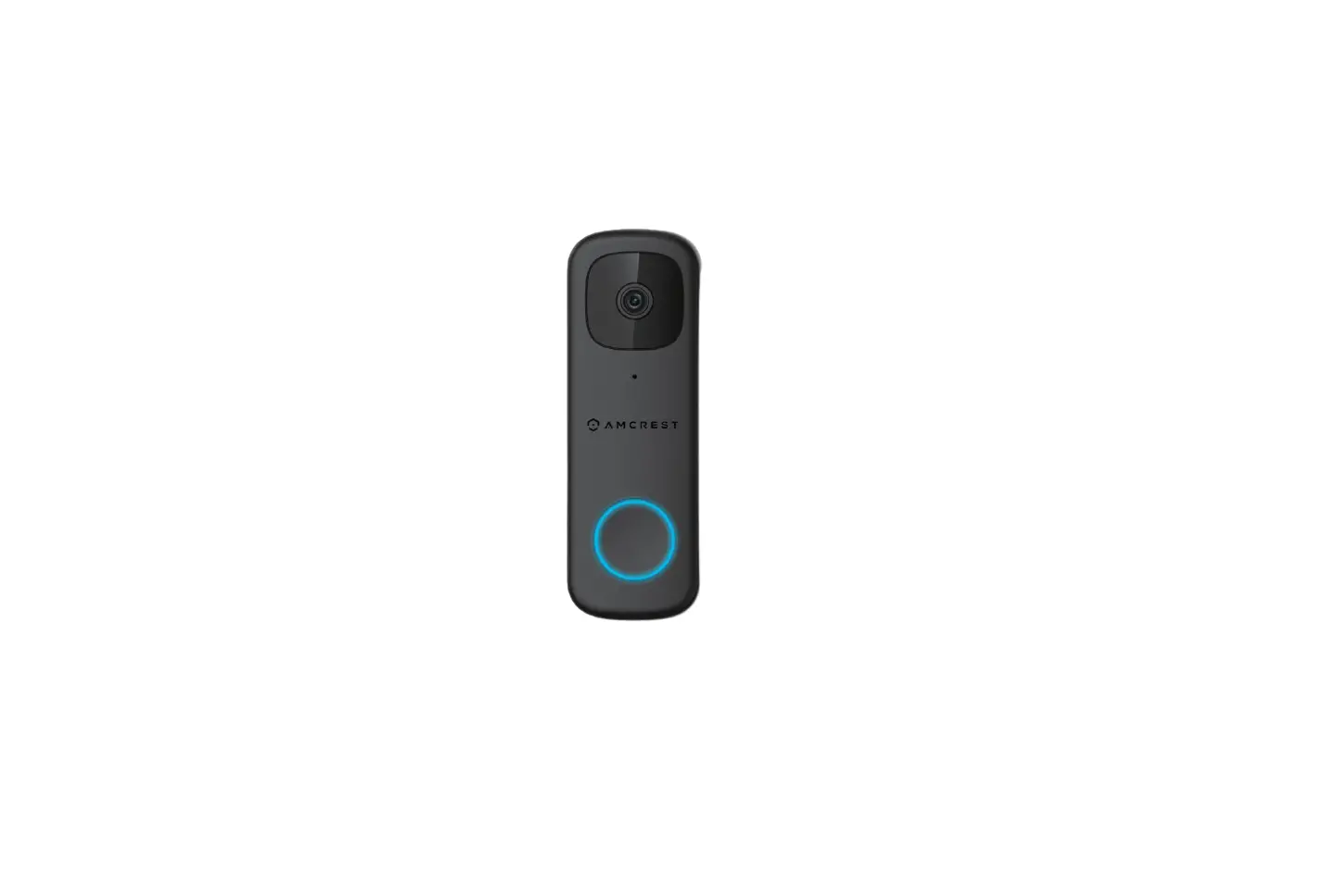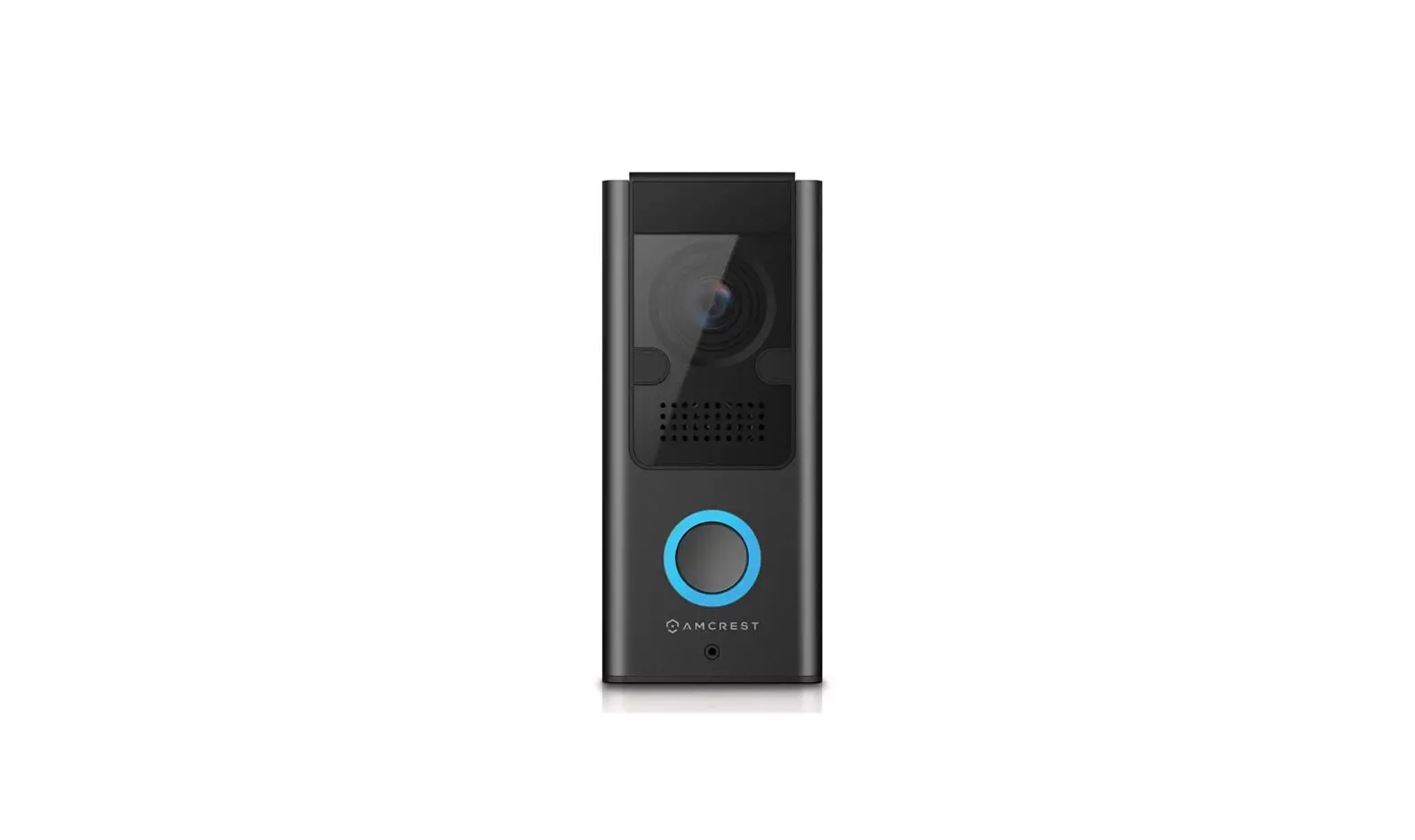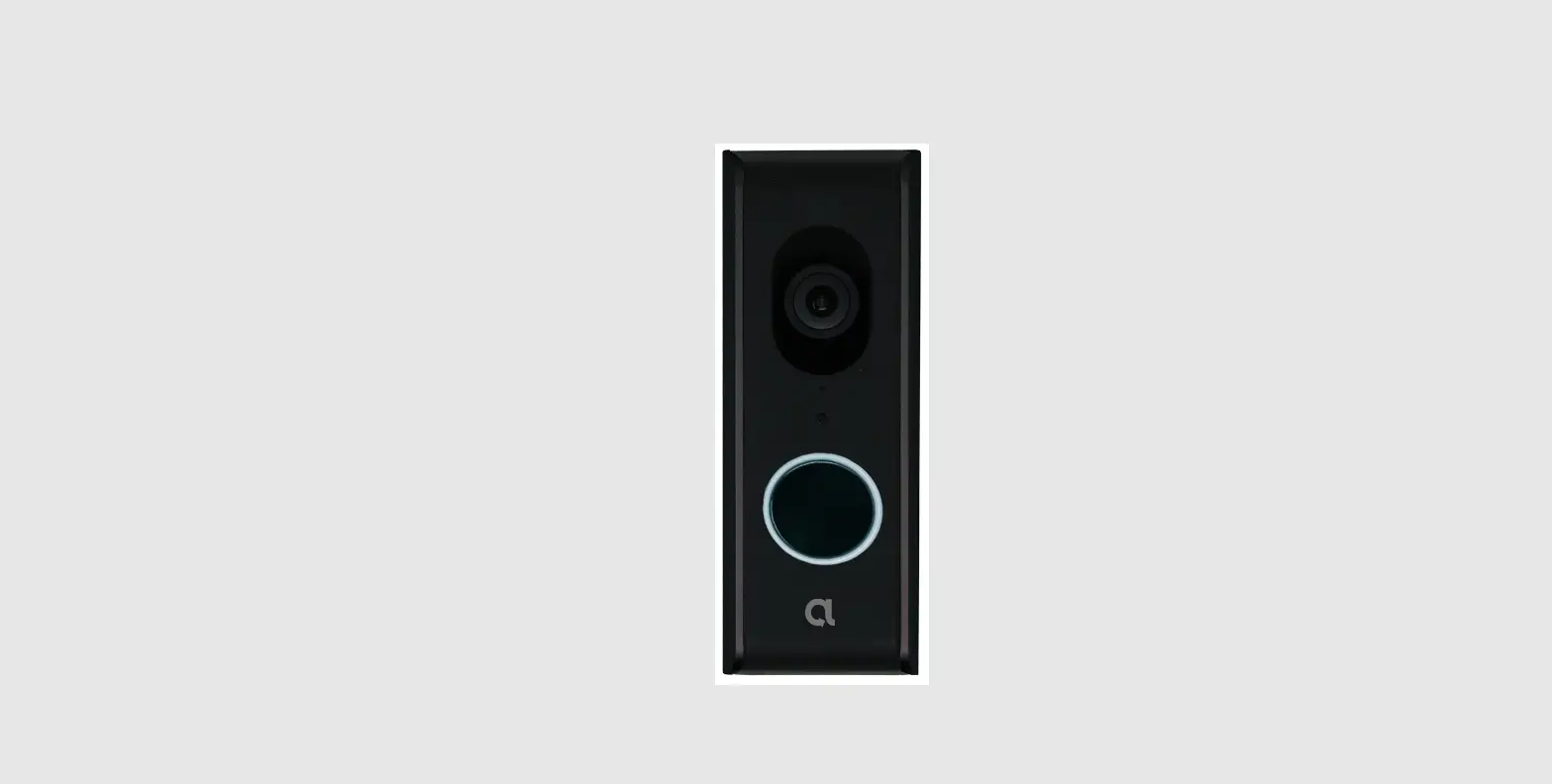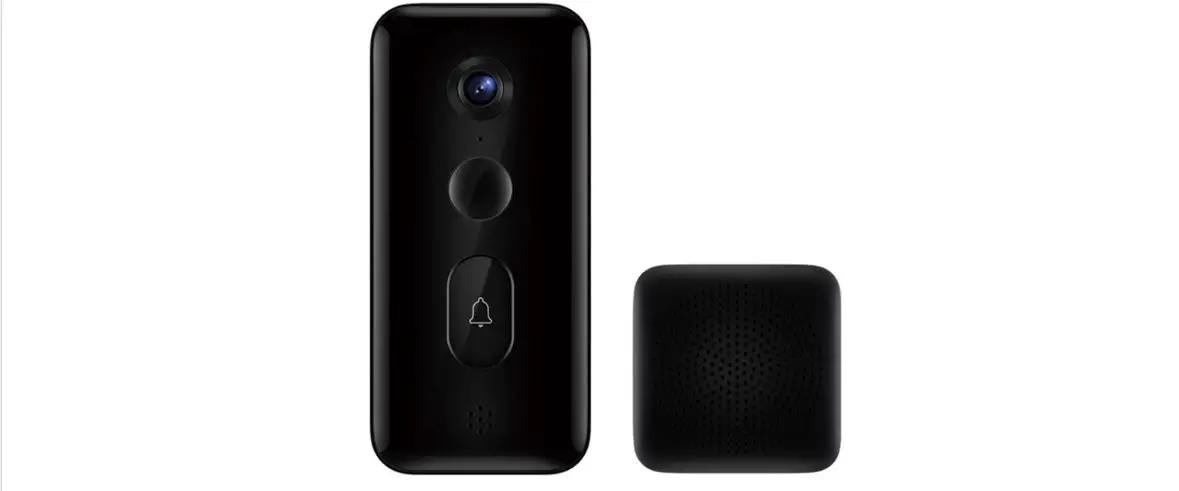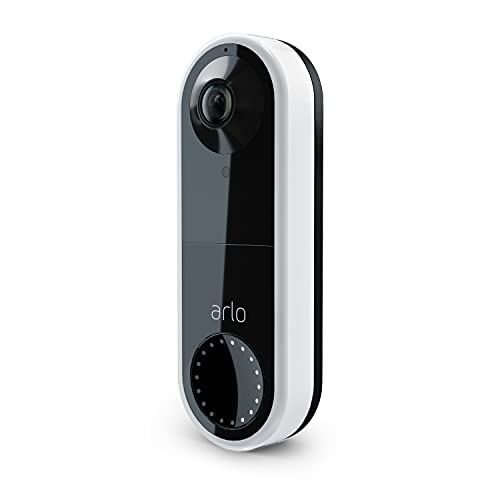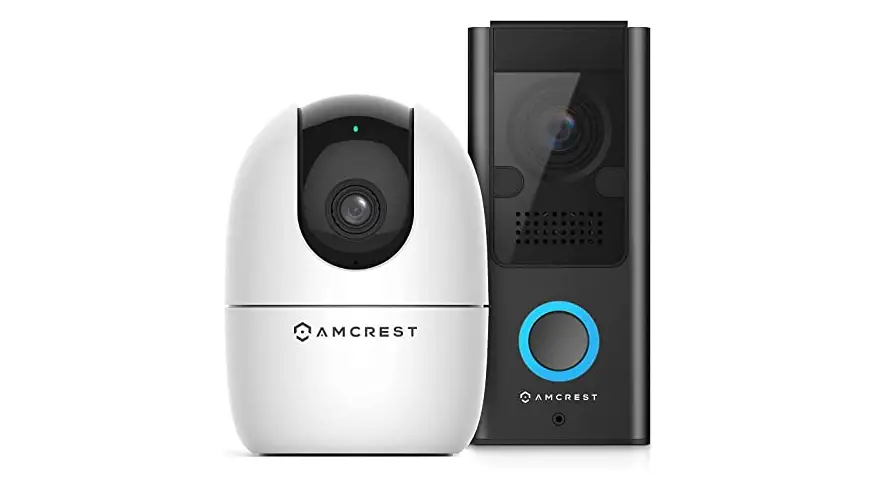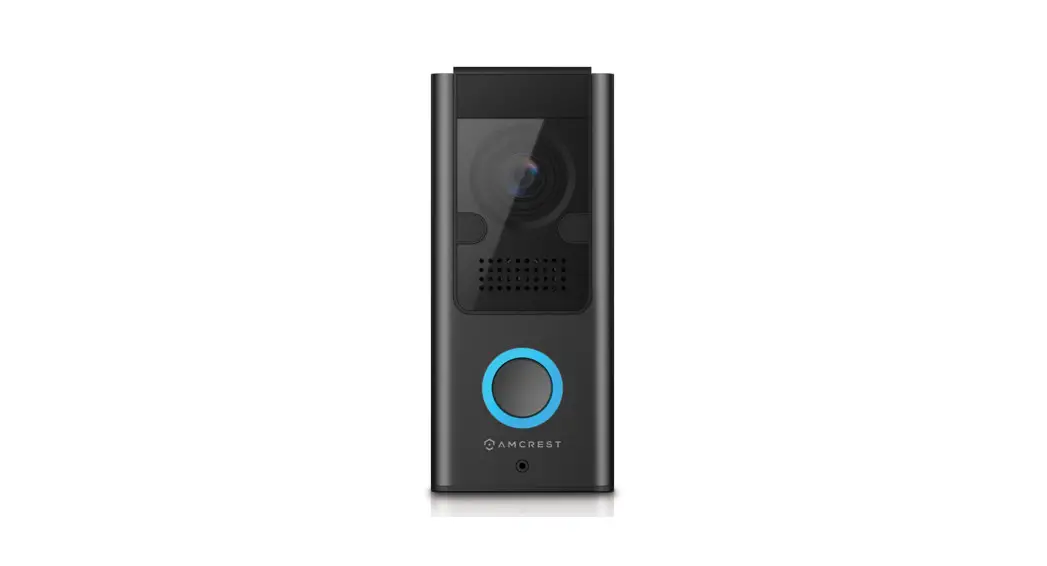

Installing Your Wi-Fi Doorbell
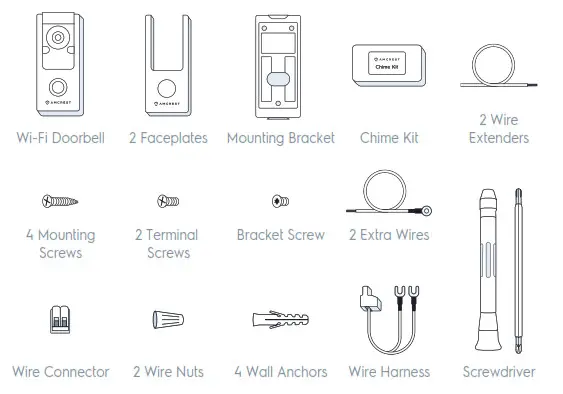
In the box.
 NOTE A 15/64 masonry drill bit will be required if installing on concrete stucco or brick.
Step 1: Remove the Faceplate and Bracket
| A Place your fingers in the indentations on the sides of the doorbell, simultaneously pull away and push the faceplate out. | 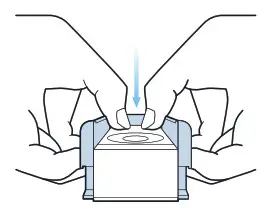 |
| B Use the included Philips head screwdriver to remove the bracket screw from the doorbell. | 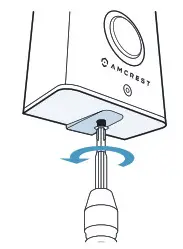 |
Step 2: Installing the Mounting Bracket
| A Remove your existing doorbell from the wall and disconnect the wires. These are the wires we will be using to install your new Amcrest Wi-Fi Doorbell. | 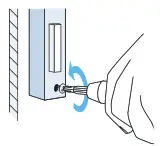 |
| B Place the doorbell bracket to fit your existing doorbell wiring. Then mark the drill holes with a marker. | 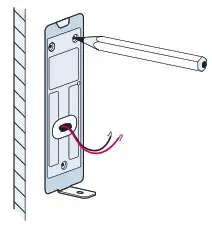 |
| C For Wood, Drywall or Soft Surfaces: Secure the doorbell bracket to the mounting surface using the included screwdriver and mounting screws. | 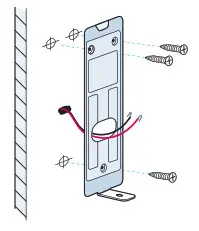 |
| For Concrete, Stucco or Brick: Using your previously marked holes as a guide, drill holes into the mounting surface using a 15/64 masonry drill bit. Then, insert wall anchors and secure the mounting brackets using the included mounting screws. | |
Step 3: Connect Doorbell to Existing Wiring
| Loosen the terminal screws located on the back of your Wi-Fi Doorbell using the included Phillips head screwdriver. Place your existing doorbell wiring underneath the terminal screws, then re-tighten the terminal screws to secure the wires. | 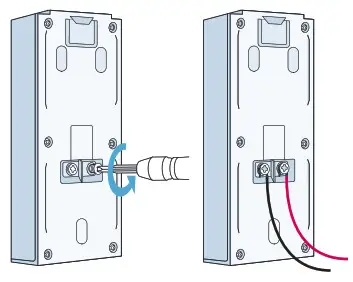 |
| NOTE If your existing doorbell wiring is too short, use the included extra wires and wire nuts to extend your wiring. Remove the terminal screws completely then thread the screws through the extra wire. | 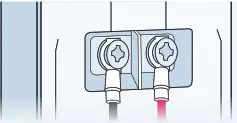 |
| NOTE To attach the wires, align the ends of the two wires, place the wire nut over the exposed wiring and twist the wire nut clockwise to tighten. |  |
Step 4: Mounting the Doorbell
| Feed the wiring back into the wall. Then, secure the doorbell to the mounting bracket using the included screwdriver.NOTE Be sure to secure the the doorbell correctly to the bracket lip, located at the top at the mounting bracket. | 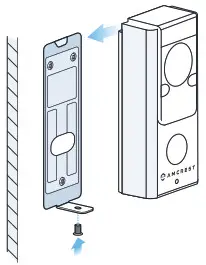 |
| Inserting a MicroSD Card (Optional) On the side of the device locate the MicroSD card slot. Raise the MicroSD card flap and insert the MicroSD card, gold pins down. Secure the flap back to the doorbell.  Supports 64GB MicroSD Card (Class 10 or Higher) NOTE The MicroSD card must be formatted to FAT32 before Supports 64GB MicroSD Card (Class 10 or Higher) NOTE The MicroSD card must be formatted to FAT32 beforeproceeding. For more information please visit amcrest.com/support | 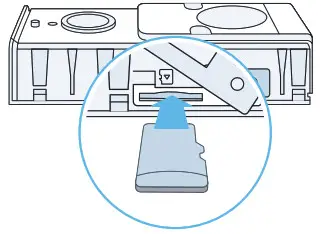 |
Step 5: Turn the Breaker Back On
The physical installation is now complete. Turn your breaker back on and the allow the doorbell to power up. It may take the doorbell up to 2 minutes to fully power up.
 Amcrest Smart Home
Now it’s time to setup the Amcrest Smart Home App.
To connect your Amcrest Wi-Fi doorbell to your Android or iOS mobile device, download the Amcrest Smart Home app and follow the instructions in the app setup.
 How can we help?
We are dedicated to providing the highest quality support to our customers and are available 7 days a week.
Online Quick Start Guide amcrest.com/support
Need help? amcrest.com/contactus 1-888-212-7538
 Contact Us