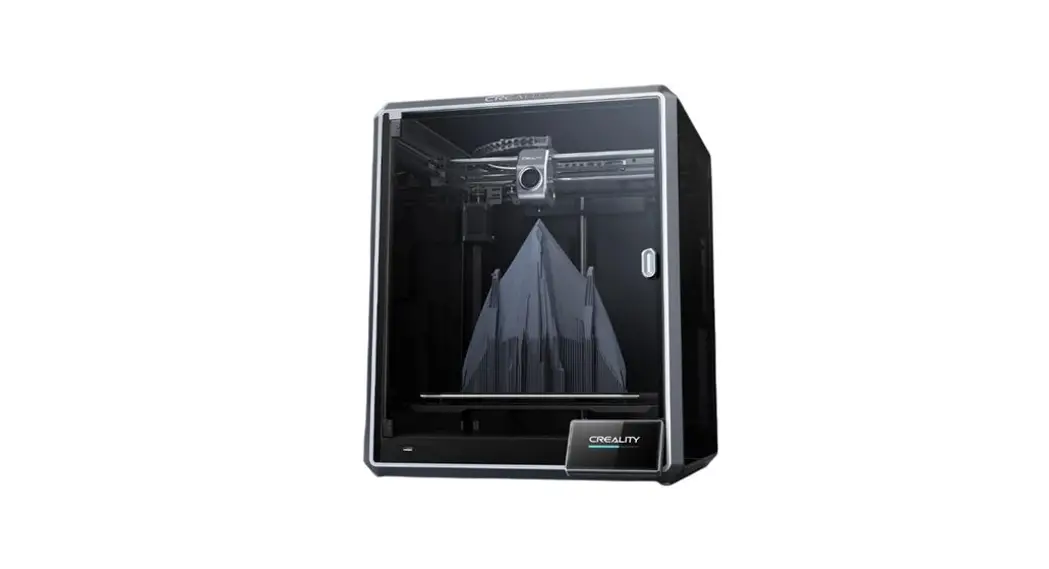
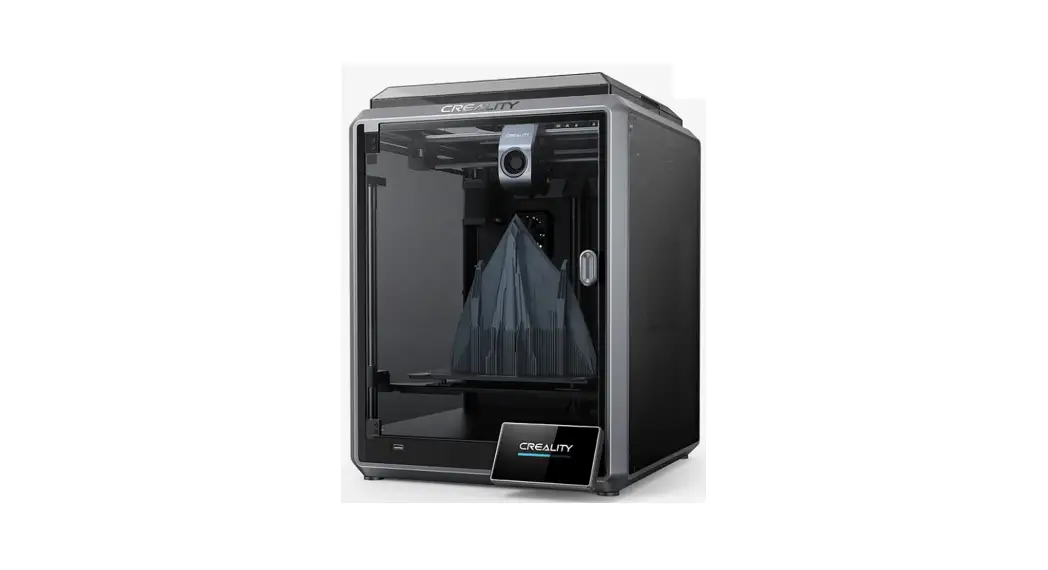
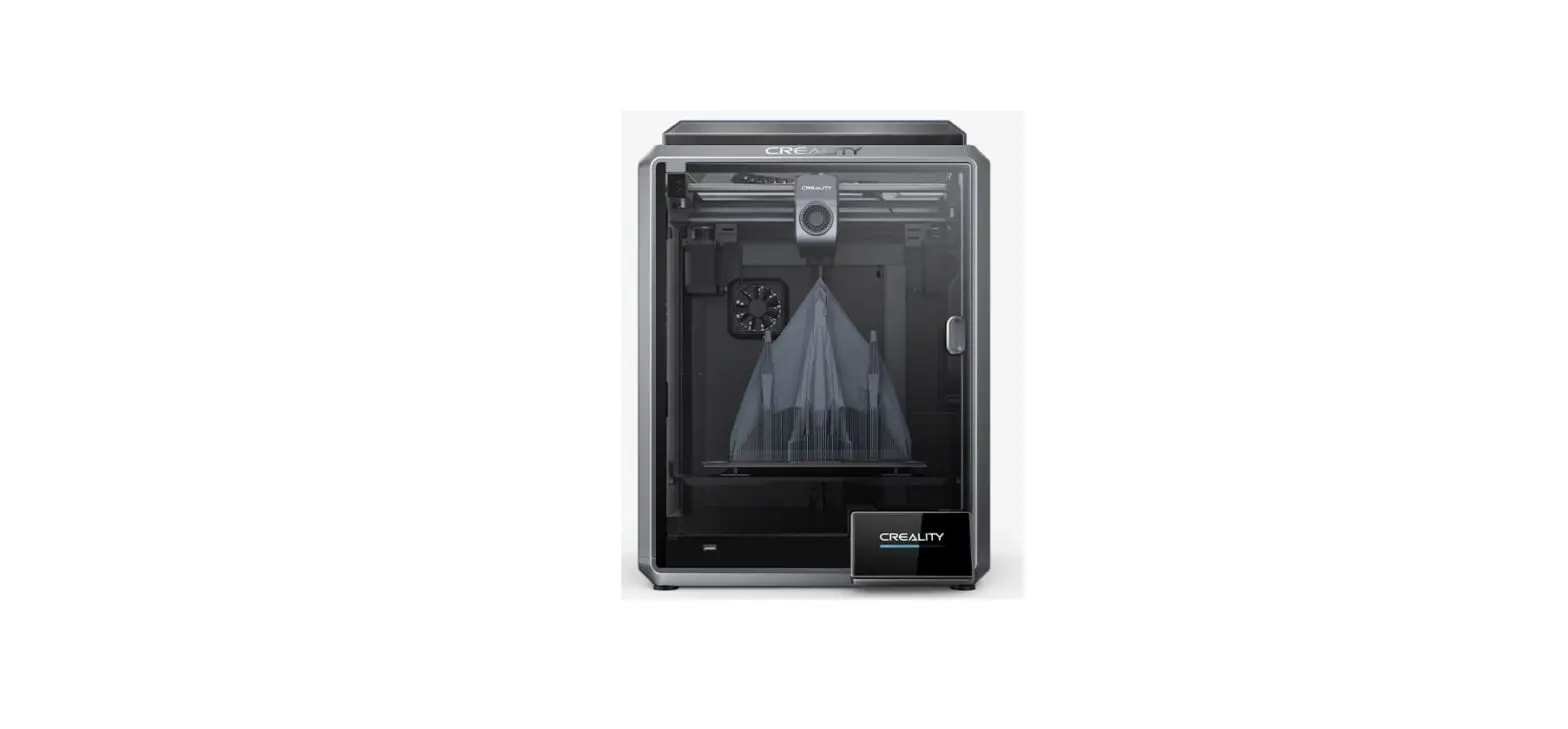
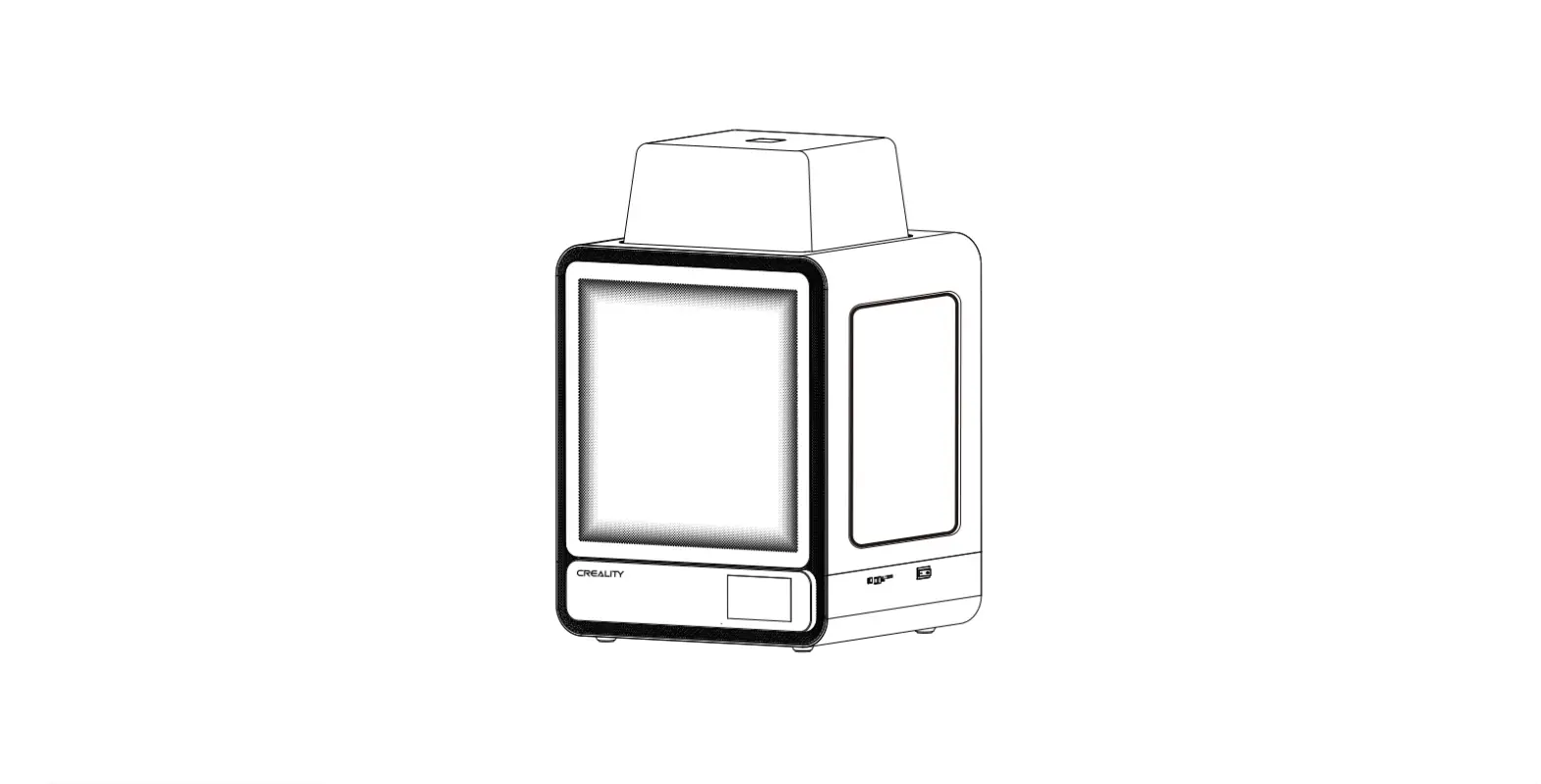
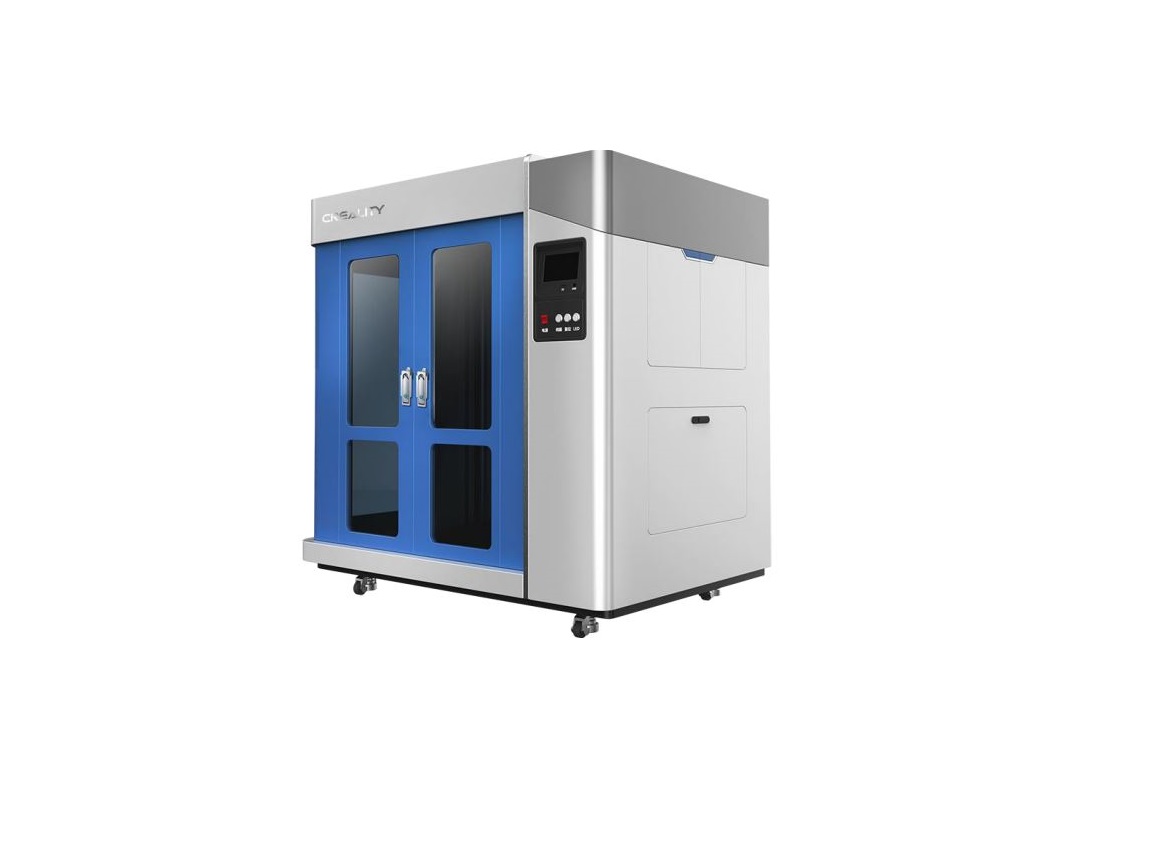
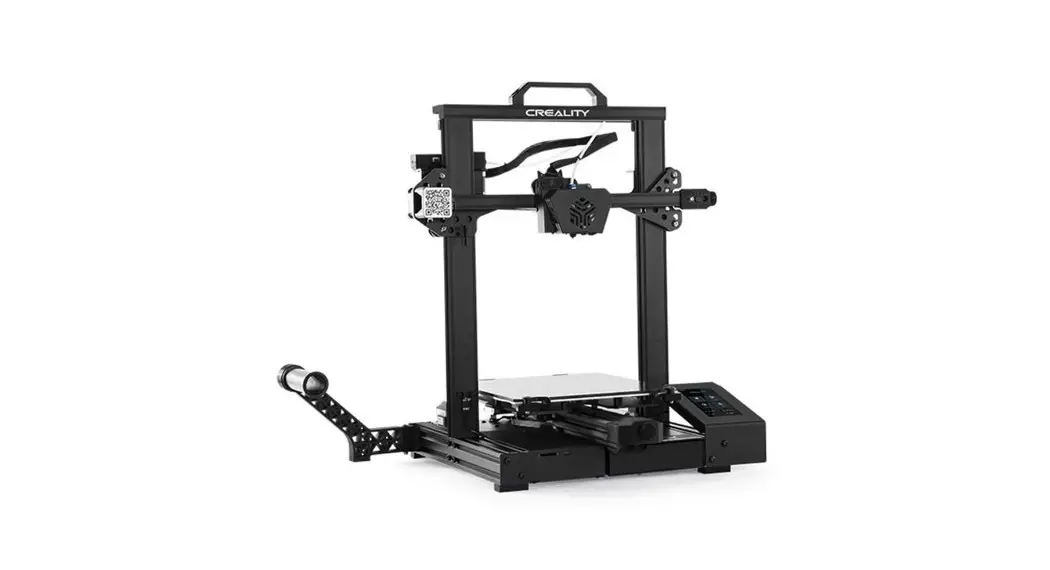
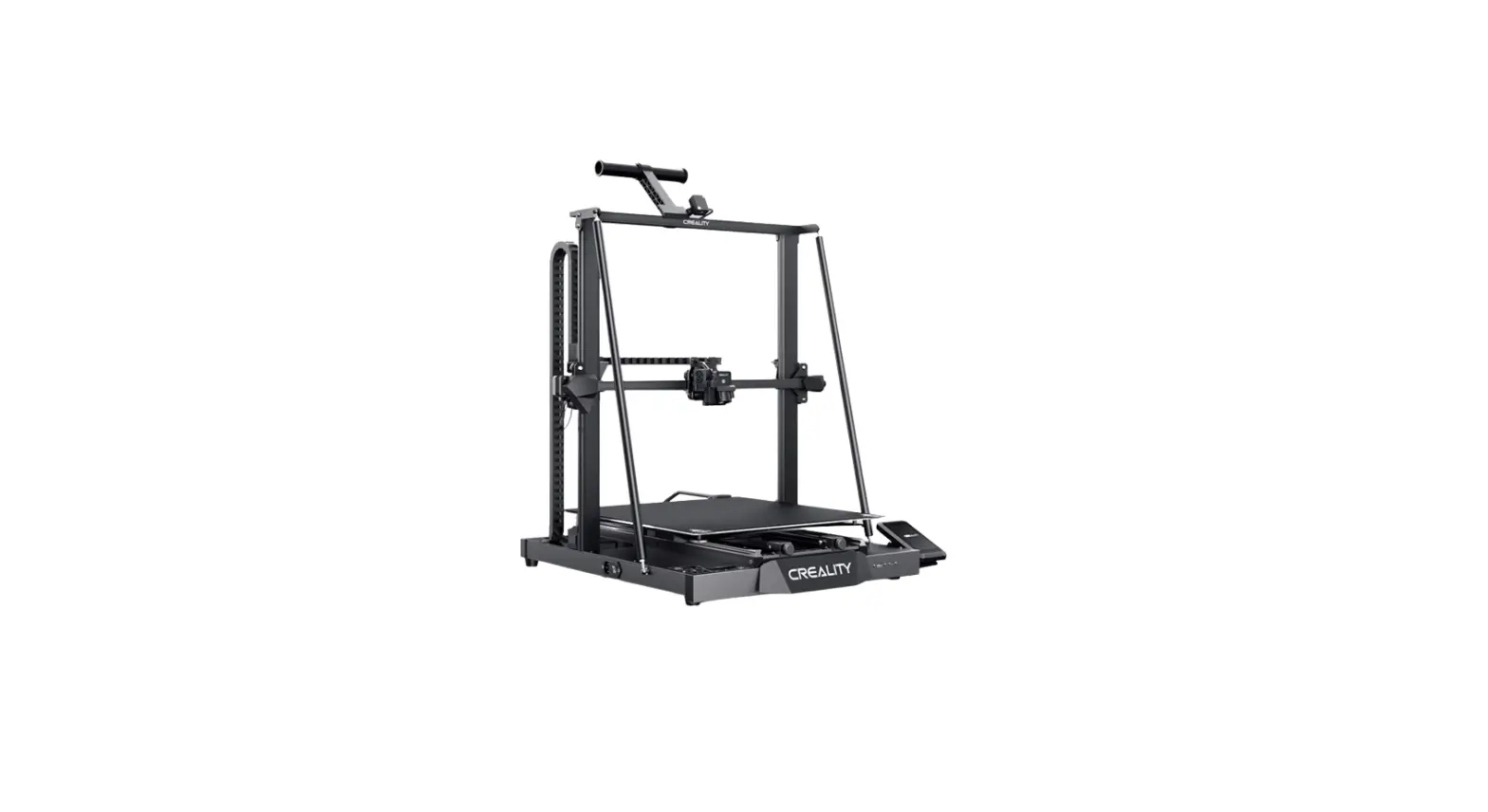
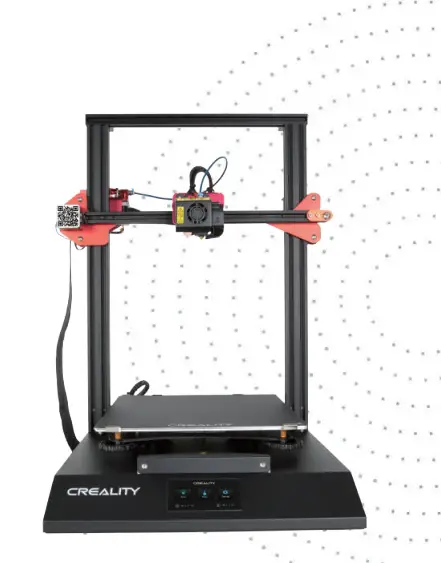
K1 3D Printer
Product Information
The Creality 3D K1 machine is a 3D printer that uses Cura
slicing software for its operation. To use the printer effectively,
please follow the instructions below.
Product Usage Instructions
- Download Slicing Software:
To begin, you need to download the Cura5 slicing software and
install it. You can download the software from the following link:
GitHub –
Ultimaker/Cura. - Add Printer:
- Open the slicing software and go to the “Entrance”
section. - Select a similar machine named “Ender-3 S1” as a reference for
the K1 machine. - Rename the selected machine to “Creality K1” or any other
desired name. - Configure the machine settings to match the K1 machine size.
Make sure to include the Start G-code and End G-code
synchronously.
- Open the slicing software and go to the “Entrance”
- Start G-code: M140 S0 M104 S0 START_PRINT EXTRUDER_TEMP=220
BED_TEMP=55 - End G-code: END_PRINT
- In the right sidebar of the software, click on the operation
drop-down box and select “Manage Configuration Files”. - Click the import button and upload the pre-prepared
configuration file for the K1 machine (tutorial attachment). - After successful import, select the configuration file and
click the fold button on the right. - Finally, click to activate the configuration file for it to
take effect. The configuration file for K1 series machines is named
“cura_k1_pla.curaprofile”.
Once all the configuration operations are completed, import the
model into the software. Select the imported configuration file and
click the slice button. After successful slicing, save the
resulting gcode file to the desktop or any desired disk space.
If you have any feedback or need further assistance, please
contact us at: [email protected]
Creality 3D K1 machine uses cura slicing software.
1. Download Slicing Software
Need to download cura5 slicing software and install it yourself: Download link: GitHub – Ultimaker/Cura: 3D printer / slicing GUI built
on top of the Uranium framework
2. Add printer
1. Entrance
2. Select K1 similar machine :Ender-3 S1
3. Renamed to Creality K1 or other name
4. Just configure it to the K1 machine size, don’t forget to start and end gcode synchronously
Start G-code(To keep newlines): M140 S0 M104 S0 START_PRINT EXTRUDER_TEMP=220 BED_TEMP=55
End G-code(To keep newlines): END_PRINT
3. Import gcode configuration file.
1. In the operation drop-down box on the right sidebar, click Manage
Configuration Files:
2. Click the import button to upload the configuration file of the K1 machine we prepared in advance (tutorial attachment):
After the import is successful, we find the configuration file, select it, and click the fold button on the right:
3. Finally click to activate the configuration file to take effect:
K1 series machine configuration file: cura_k1_pla.curaprofile
4. Save to desktop after slicing
After all configuration operations are completed, we import the model, select the imported configuration file, and click the slice button:
1. After slicing is successful, we save the gcode file to the desktop/disk
space
© 2014-2023 Shenzhen Chuangxiang 3D Technology Co., Ltd. All rights reserved.
Feedback email: [email protected]
 cura_k1_pla(4).curaprofile
 GitHub - Ultimaker/Cura: 3D printer / slicing GUI built on top of the Uranium framework