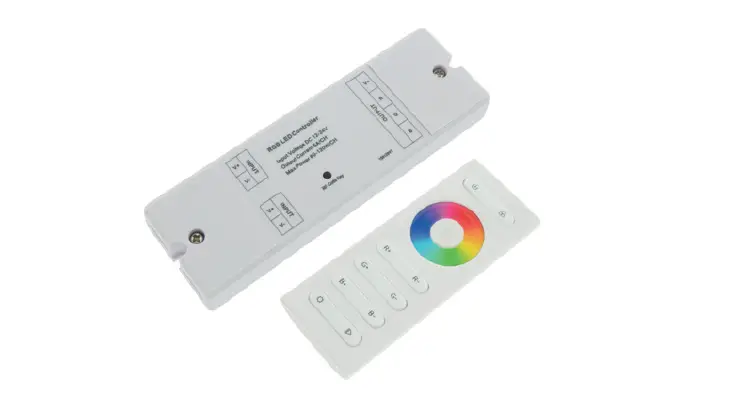
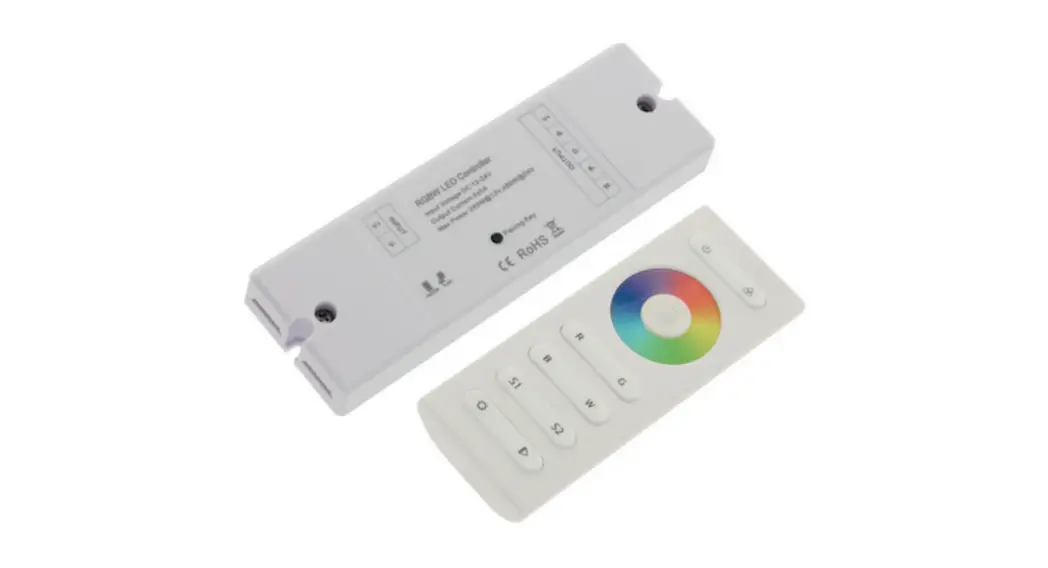
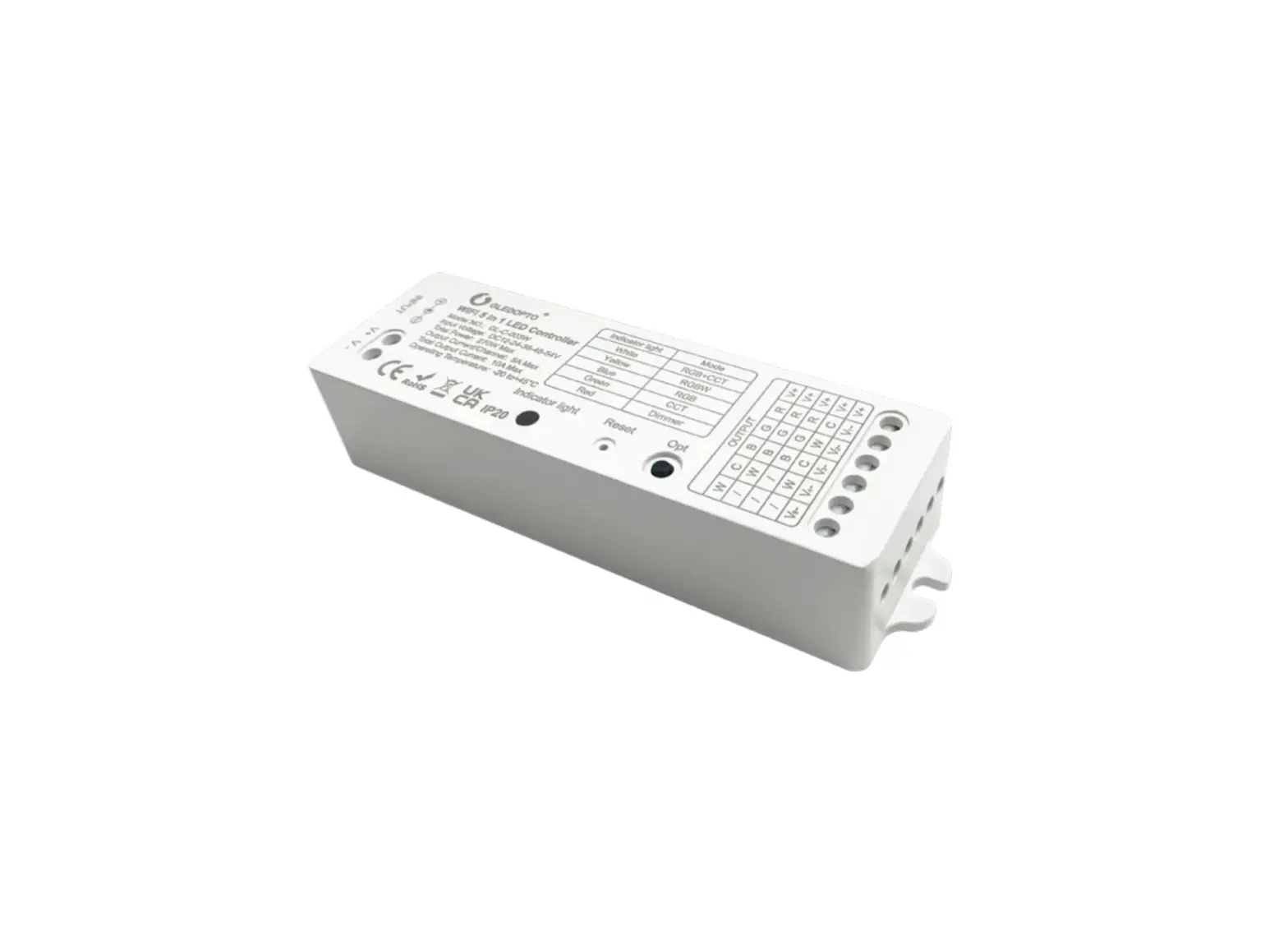
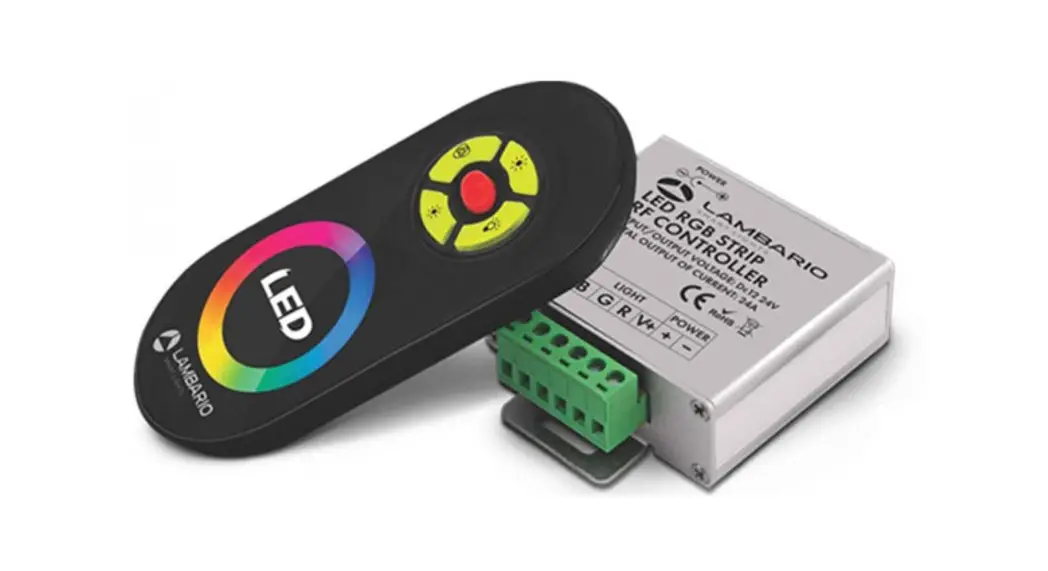
RGBCCT-MZ8-RF Controller Module
Product Information
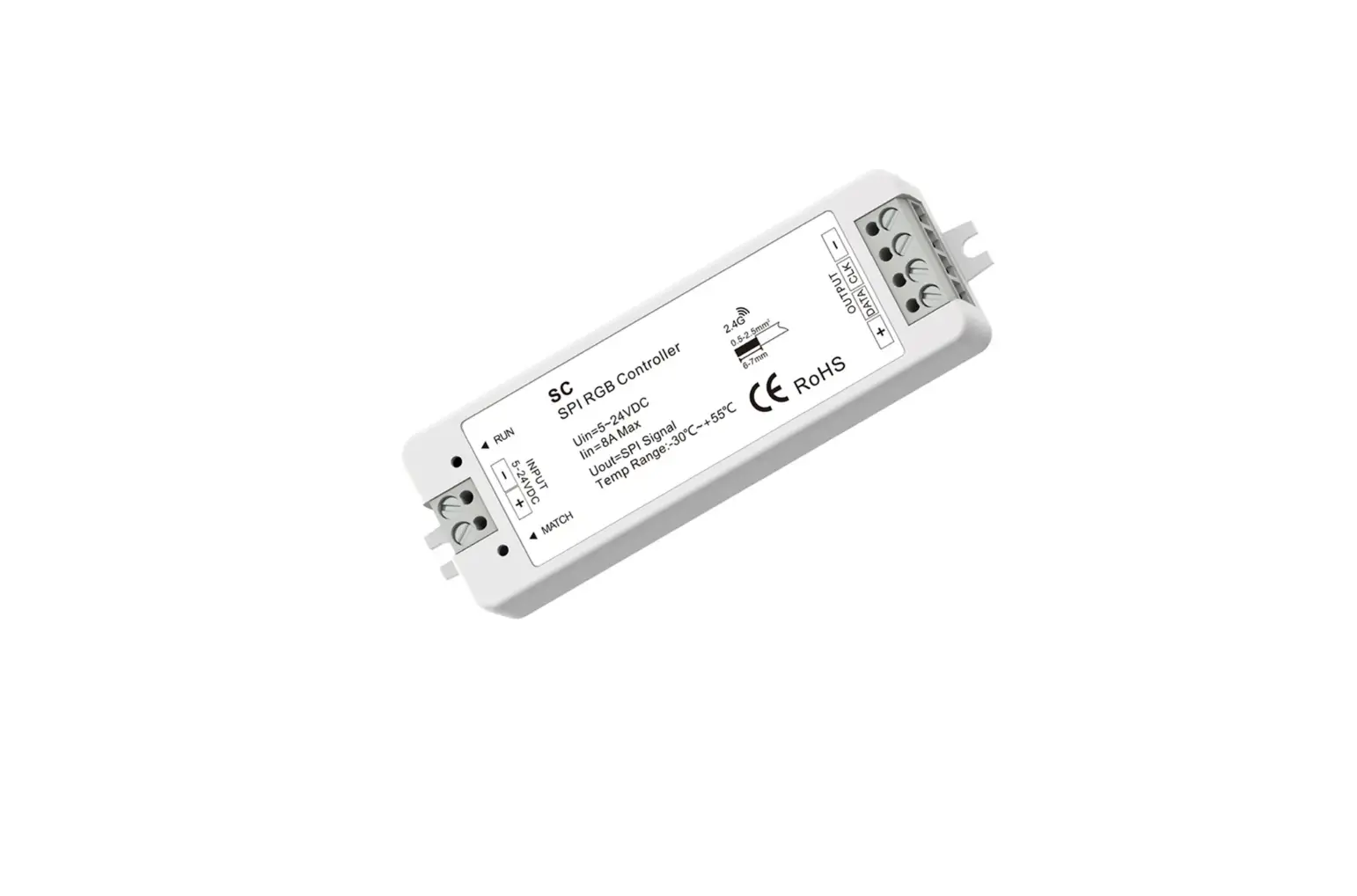
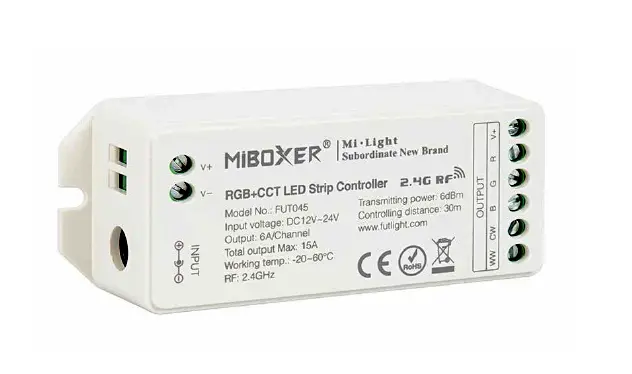
Product Name: RGB+CCT Controller Module
Included Parts: 1 – RGB+CCT Controller
Module
Specifications:
- Operating Voltage Range: [insert operating voltage range]
- Radio Frequency: [insert radio frequency]
- Electrical Connection: [insert electrical connection]
- Operating Temperature: [insert operating temperature]
- Warranty: [insert warranty details]
Compatible Remote Controls:
One of these controls (available at additional cost) is required
to operate the controller module. Each light can be linked with up
to 4 different remote controls (any combination of wireless remotes
and Wi-Fi controls). Each control (and zone) can be linked to an
unlimited number of controller modules.
- Signal Relay Function and Synchronization:
Inputs from any linked remote control received by one module are
automatically relayed from that module to any additional modules
linked to the remote within a 100 ft (30 m) range. In addition, any
modules linked in the same zone will automatically synchronize upon
receiving input from the remote control, whether direct or relayed
from another controller module. - Compatible Remote Controls:
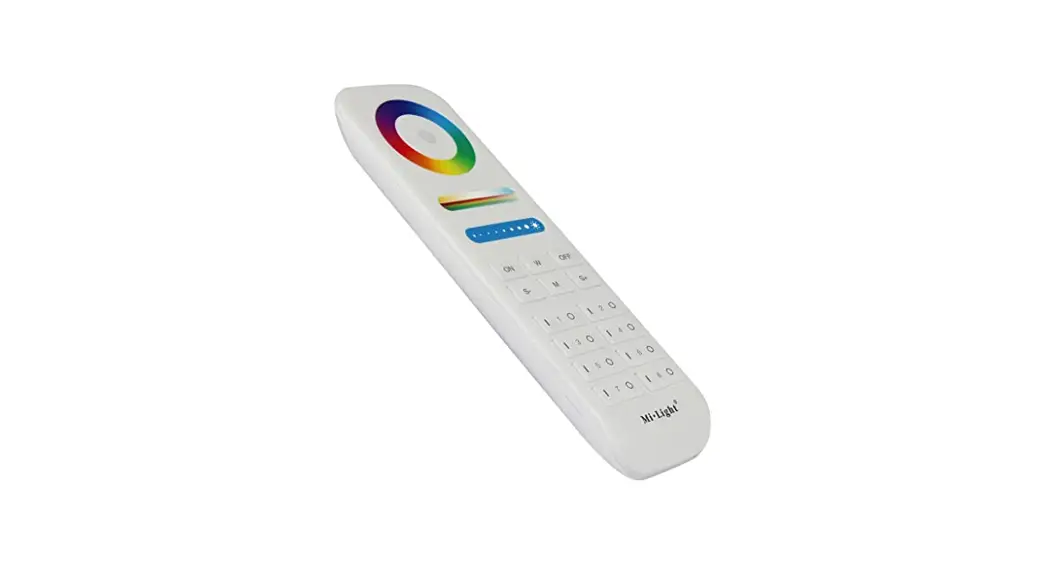
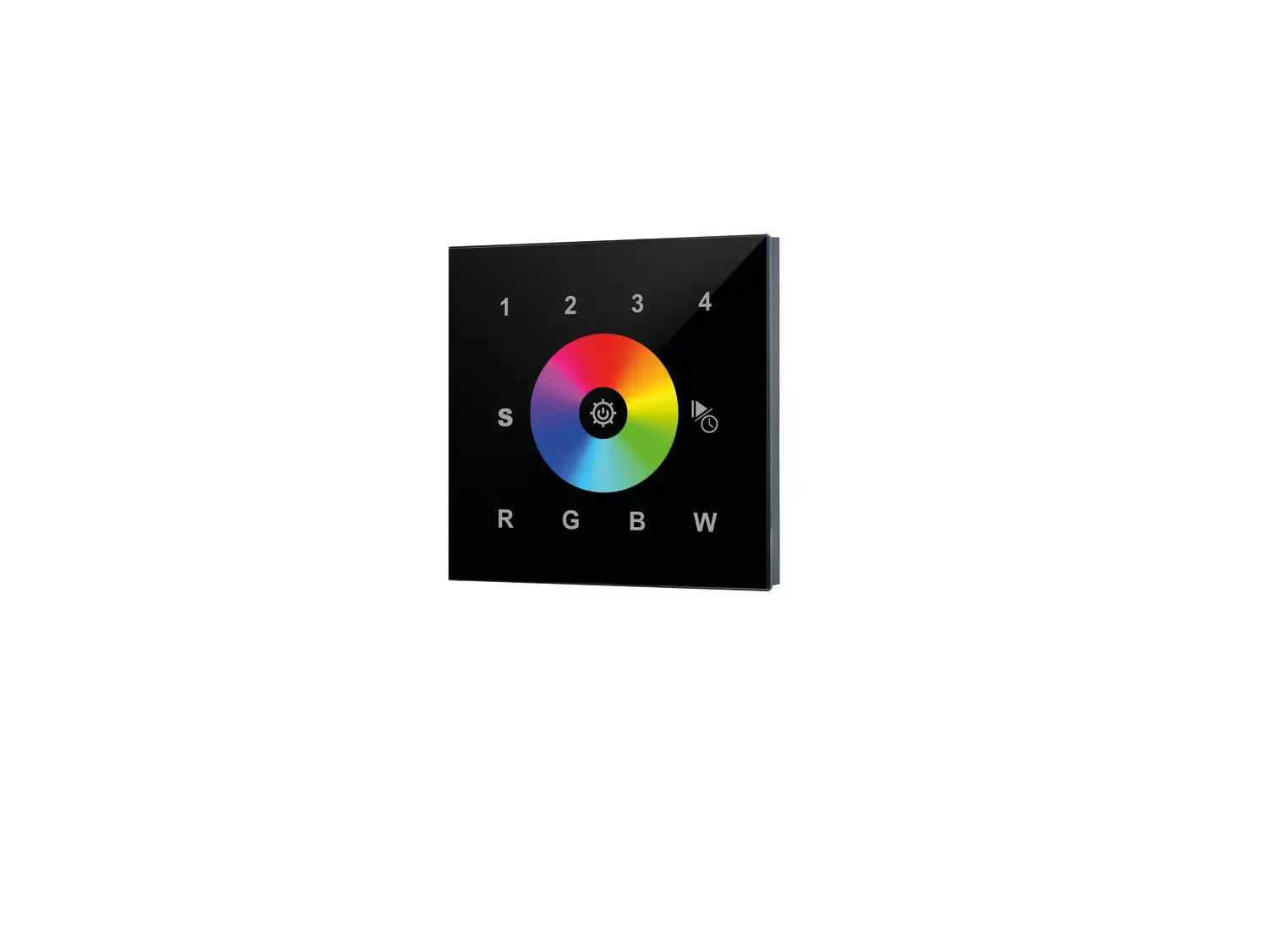
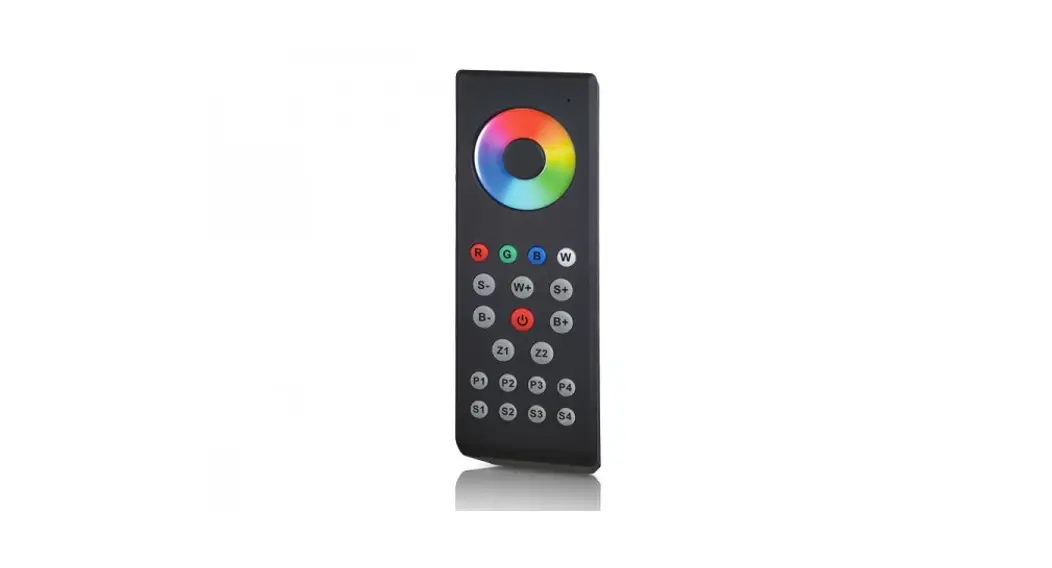
- RGBCCT-MZ8-RF
- WIFI-CON2 (for smartphone control)
Product Usage Instructions
Control Features:
- Master On/Off: Acts as a master On (-)/Off (O)
control for all linked RGBW and RGB+CCT lights. Also activates the
Master function, which allows the remote to control lights of all
zones. If a zone is currently active, pressing the Master On (-)
button on the remote or back button in the app restores the Master
function to the remote. - Color Selection Ring: Directly selects color
along a circular spectrum. Press the W button to change to a steady
bright white. - Selection LED Indicator: Flashes once to
indicate when a command has been selected (wireless remote control
only). - Brightness Touch Slider: Increase/Decrease the
brightness level. Changing the active mode resets the brightness
level to full. - Saturation/CCT Touch Slider: Increase/Decrease
the color saturation level. When controlling white, it adjusts from
cool white (right side) to warm white (left side). - Mode: Nine distinct modes feature different
color combinations, light transitions, and patterns. On the
wireless remote, this button initiates the mode function and
scrolls through modes in ascending order. In the app, simply select
the mode button and press any numbered mode button to switch
between modes. - Mode Speed Increase/Decrease: Increases (S+ or
+Speed) or decreases (S- or -Speed) the speed of the currently
active mode. - White LED Selection: Switches to white LED
operation.
Note: While functions remain the same, the phone/tablet display
will vary in appearance from the remote control.
Light Modes:
| Mode | Description | Additional Control(s) |
|---|---|---|
| 1 | Seven color, gradual transition | Saturation, speed, and brightness |
| 2 | White (mix of warm and cool), gradual transition | Speed and brightness |
| 3 | RGB, gradual transition | Saturation, speed, and brightness |
| 4 | Seven color sequence, jump to change | Saturation, speed, and brightness |
| 5 | Random color, jump to change | Saturation, speed, and brightness |
| 6 | Red light pulse then flash 3 times | Saturation, speed, and brightness |
| 7 | Green light pulse then flash 3 times | Saturation, speed, and brightness |
| 8 | Blue light pulse then flash 3 times | Saturation, speed, and brightness |
Important: Read all instructions prior to installation.
RGB+CCT Controller Module
Included Parts
1 – RGB+CCT Controller Module
Specifications
operating voltage range radio frequency electrical connection
operating temperature warranty
RGBCCT6-MZ 1224 VDC 2.4 GHz hardwire or coaxial power connector with 5.5 mm outer diameter and 2.1 mm inner diameter -4140° F (-2060° C) 2 Years
Compatible Remote Controls
One of these controls (available at additional cost) is required to operate the controller module. Each light can be linked with up to 4 different remote controls (any combination of wireless remotes and Wi-Fi controls). Each control (and zone) can be linked to an unlimited number of controller modules.
Signal Relay Function and Synchronization Inputs from any linked remote control received by one module are automatically relayed from that module to any additional modules linked to remote within 100 ft (30 m) range. In addition, any modules linked in same zone will automatically synchronize upon receiving input from remote control–whether direct or relayed from another controller module.
RGBCCT-MZ8-RF
WIFI-CON2
(for smart phone control)
3
2
5
4 9
1
1
7
7
6
8
8
User Manual
RGBCCT6-MZ
Control Features
1. Master On/Off Acts as a master On (-)/Off (O) control for all linked RGBW and RGB+CCT lights. Also activates the Master function, which allows remote to control lights of all zones. If a zone is currently active, pressing Master On (-) button on remote or back button in app restores Master function to the remote.
2. Color Selection Ring Directly selects color along a circular spectrum. Press W button to changes to a steady bright white.
3. Selection LED Indicator (wireless remote control only) Flashes once to indicate when a command has been selected.
4. Brightness Touch Slider – Increase/Decrease Increases (right side) or decreases (left side) the brightness level. Changing active mode resets brightness level to full.
5. Saturation/CCT Touch Slider – Increase/Decrease Increases (right side) or decreases (left side) the color saturation level. When controlling white, adjusts from cool white (right side) to warm white (left side).
6. Mode Nine distinct modes feature different color combinations, light transitions, and patterns. On wireless remote, this button initiates mode function and scrolls through modes in ascending order. In app, simply select mode button and press any numbered mode button to switch between modes.
7. Mode Speed Increase/Decrease Increases (S+ or +Speed) or decreases (S- or -Speed) speed of currently active mode.
8. Zones 18 On (|)/Off (O) Allows up to eight zones (channels) of RGBW and/or RCB+CCT lights to be separately linked and controlled by remote/app. Pressing any Zone On(|) button activates that zone. Commands will affect only lights in that zone. Once linked to a zone, lights remain linked until they are unlinked.
9. White LED Selection Switches to white LED operation.
Note: While functions remain the same, the phone/tablet display will vary in appearance from remote control.
Light Modes
Mode
Description
Additional Control(s)
1 seven color, gradual transition
saturation, speed, and brightness
2 white (mix of warm and cool), gradual transition
speed and brightness
3 RGB, gradual transition
saturation, speed, and brightness
4 seven color sequence, jump to change
saturation, speed, and brightness
5 random color, jump to change
saturation, speed, and brightness
6 red light pulse then flash 3 times
saturation, speed, and brightness
7 green light pulse then flash 3 times
saturation, speed, and brightness
8 blue light pulse then flash 3 times
saturation, speed, and brightness
9 white (mix of warm and cool) light pulse then flash 3 times speed and brightness
Rev Date: V3 06/21/2023 4400 Earth City Expy, St. Louis, MO 63045
866-590-3533 superbrightleds.com
Important: Read all instructions prior to installation.
Wi-Fi Control
Parts Included
1 – WIFI-CON2 1 – USB-500MA-5V
Setup Instructions
1. Download MiBoxer app on compatible device (iOS or Android). 2. See WIFI-CON2 manual for complete instructions on how to establish connection
and set up Wi-Fi control.
Note: Constant 2.4 GHz Wi-Fi connection is required for remote access to Wi-Fi control through your device.
Linking Lights to App Remote
Linking a Light 1. Press the Link/Unlink button (1). 2. Select the desired zone. 3. Follow the on screen instructions to link the light.
Activating and Controlling a Specific Zone To activate a specific zone, select one of the available zones and press On button. Zone is now active and remote commands will only affect lights linked to that zone.
Unlinking a Light 1. Make certain the light is powered off. 2. Press the Link/Unlink button (1). 3. Select the desired zone. 4. Press the unlink button to remove devices from the selected zone.
User Manual
RGBCCT6-MZ
1
Wireless Remote Control
Parts Included
1 – RGBCCT-MZ8-RF
Setup Instructions
Install two AAA batteries (not included) into wireless remote. Note: Wireless remote operates using radio frequency and has 100 ft. (30 m) range.
Linking Lights to Remote Control
Linking a Light 1. Make certain light is powered off. Apply power. Within 3 seconds, press one of the eight Zone On (|) buttons three
times quickly until light begins flashing. Light will flash 3 times if successfully linked to selected zone. Note: If encountering issues when pairing, instead try continually pressing the desired Zone On (|) button repeatedly from before when power is applied to the controller until a few seconds after.
Activating and Controlling a Specific Zone To activate a specific zone, press Zone On (|) button for desired zone. Zone is now active and remote commands will only affect lights linked to that zone.
Unlinking a Light 1. Make certain light is powered off. 2. Apply power. Within 3 seconds, press the associated Zone On (|) button five times
quickly until light begins flashing. Light will flash 10 times if successfully unlinked.
FCC Statement
This device complies with part 15 of the FCC Rules. Operation is subject to the following two conditions: (1) This device may not cause harmful interference, and (2) This device must accept any interference received, including interference that may cause undesired operation. Any changes or modifications in construction of this device which are not expressly approved by the party responsible for compliance could void the user’s authority to operate the equipment.
Safety and Notes
· For indoor use only · White color temperature can not be adjusted unless
White LED Selection mode is active.
Rev Date: V3 06/21/2023 4400 Earth City Expy, St. Louis, MO 63045
866-590-3533 superbrightleds.com
 LED Lighting For Everything | Super Bright LEDs