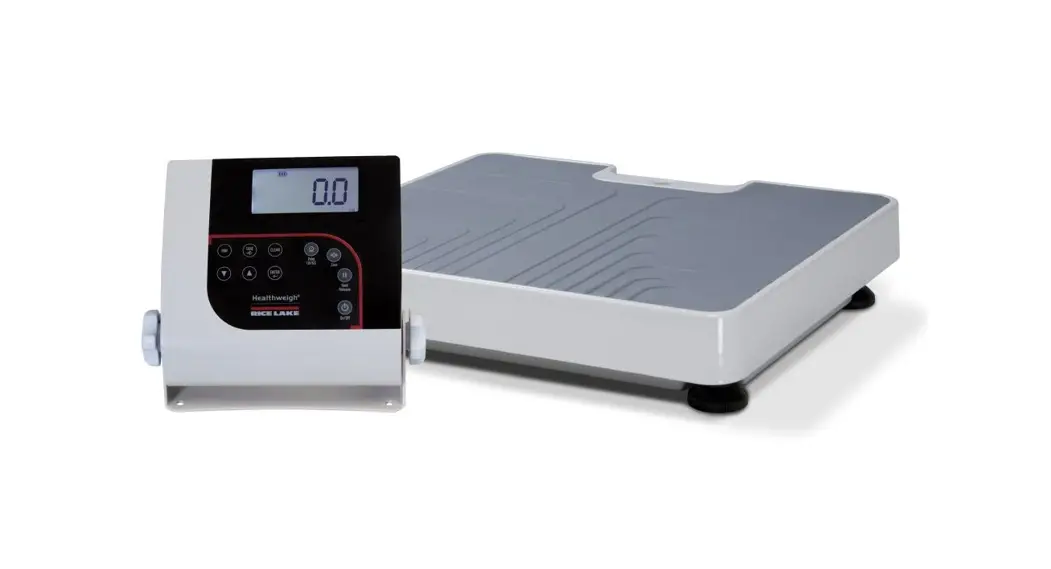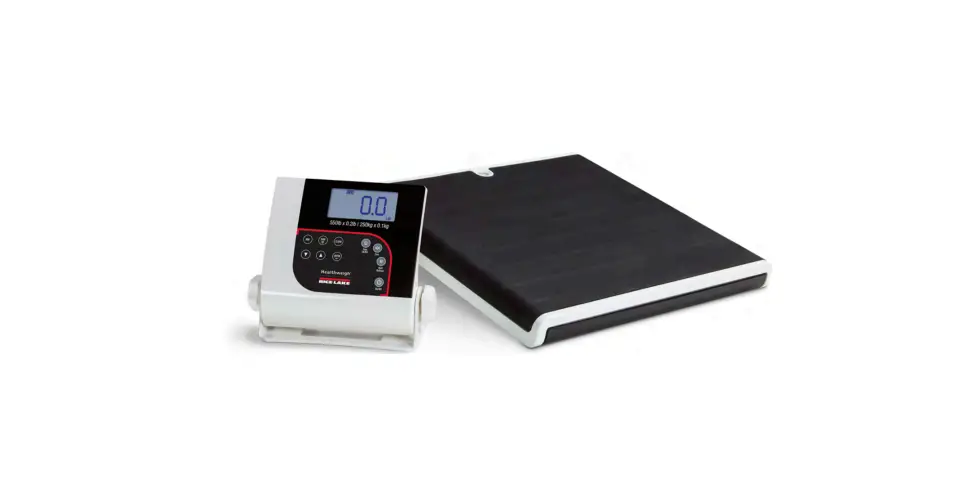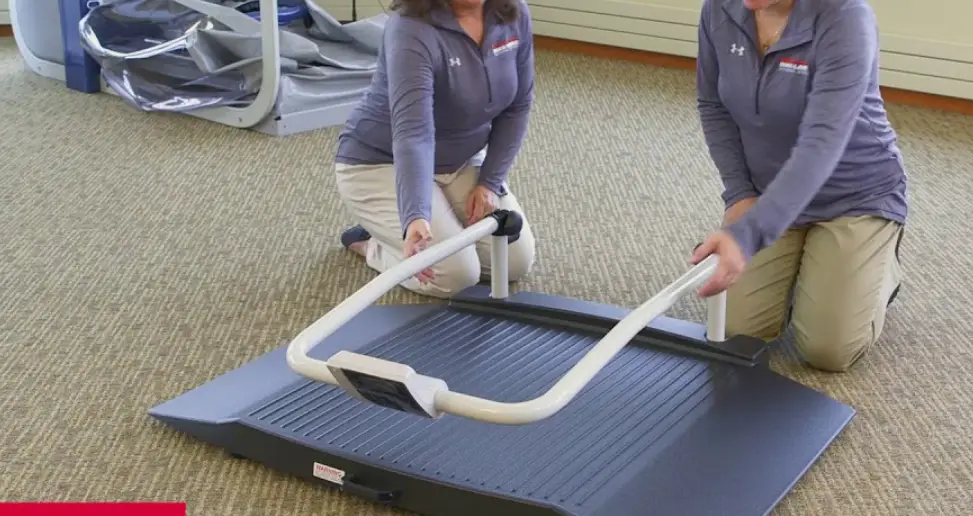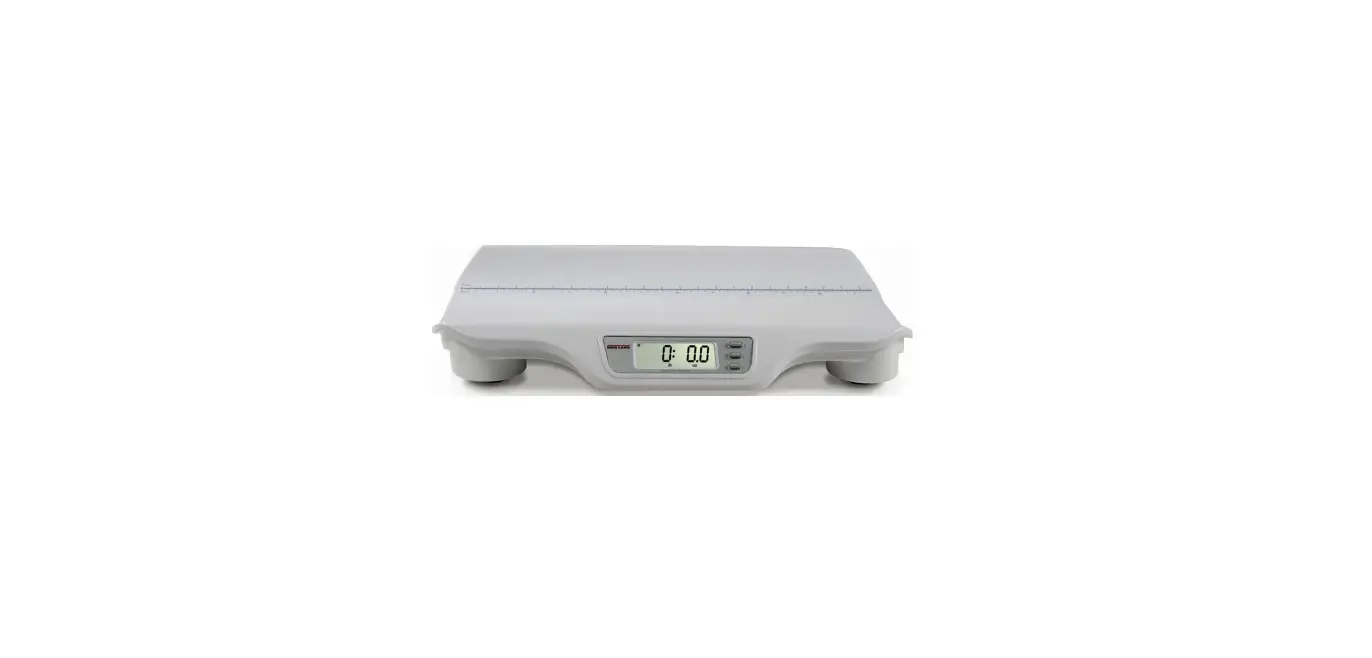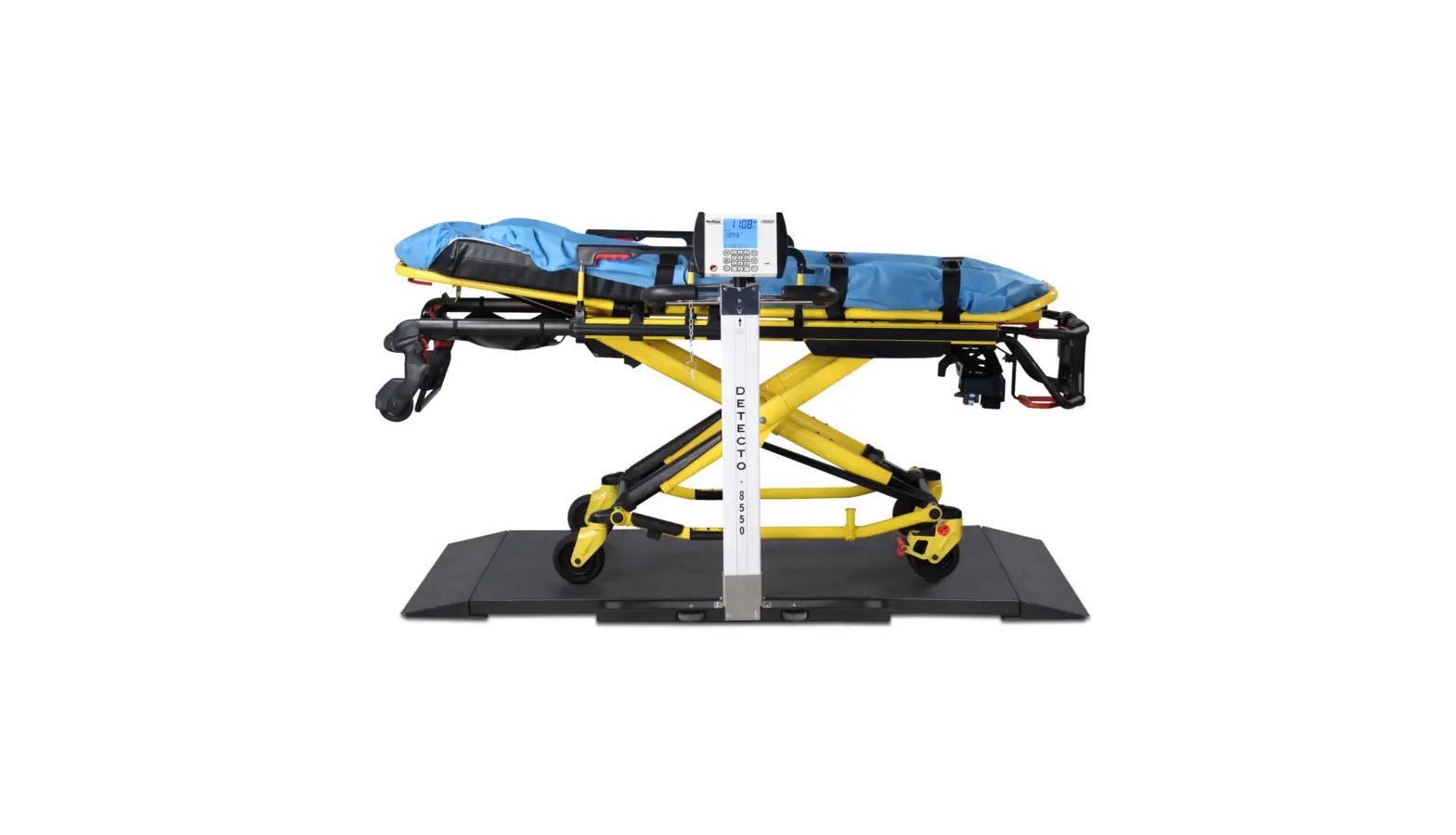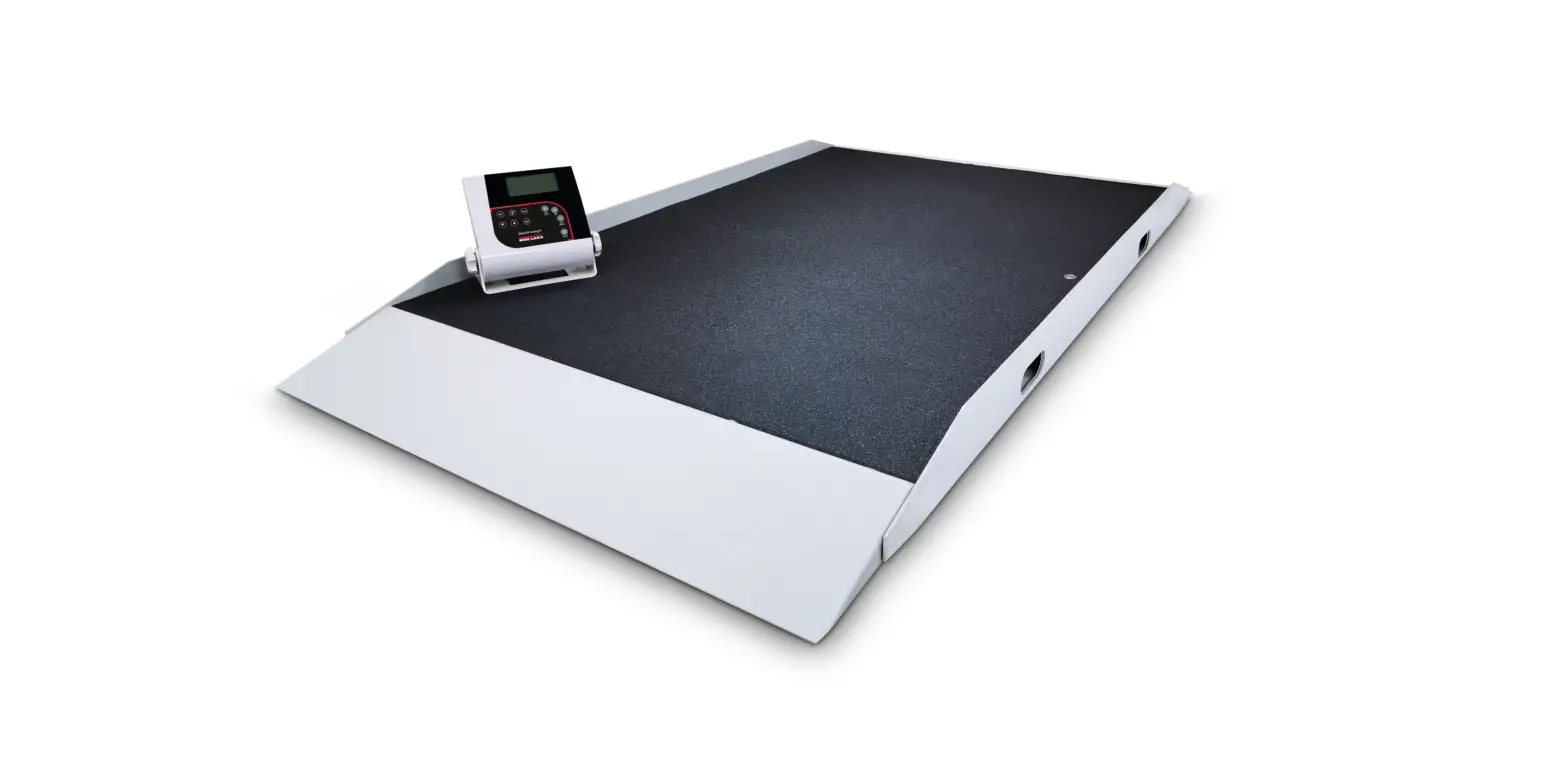
350-10-8S Digital Stretcher Scale
350-10-8S
Digital Stretcher Scale Software Version 11525
Operation Manual
August 18, 2022
PN 204798 Rev B
© Rice Lake Weighing Systems. All rights reserved.
Rice Lake Weighing Systems® is a registered trademark of Rice Lake Weighing Systems.
All other brand or product names within this publication are trademarks or registered trademarks of their respective companies.
All information contained within this publication is, to the best of our knowledge, complete and accurate at the time of publication. Rice Lake Weighing Systems reserves the right to make changes to the technology, features, specifications and design of the equipment without notice.
The most current version of this publication, software, firmware and all other product updates can be found on our website:
www.ricelake.com
Revision History
Revision History
This section tracks and describes the current and previous manual revisions for awareness of major updates and when the updates took place.
Revision B
Date
Description
August 18, 2022 Established a revision history; formatted content to match other medical manuals; software version 11525
Table i. Revision Letter History
Technical training seminars are available through Rice Lake Weighing Systems. Course descriptions and dates can be viewed at www.ricelake.com/training or obtained by calling 715-234-9171 and asking for the training department.
© Rice Lake Weighing Systems All Rights Reserved
i
350-10-8S Digital Stretcher Scale
Contents
1.0 Introduction . . . . . . . . . . . . . . . . . . . . . . . . . . . . . . . . . . . . . . . . . . . . . . . . . . . . . . . . . . . . . . . . . . . . . . . . . . . . 1
1.1 FCC Compliance. . . . . . . . . . . . . . . . . . . . . . . . . . . . . . . . . . . . . . . . . . . . . . . . . . . . . . . . . . . . . . . . . . . . . . . . . . . . . . . . . . . . . 1 1.2 Safety . . . . . . . . . . . . . . . . . . . . . . . . . . . . . . . . . . . . . . . . . . . . . . . . . . . . . . . . . . . . . . . . . . . . . . . . . . . . . . . . . . . . . . . . . . . . . 2
2.0 Assembly . . . . . . . . . . . . . . . . . . . . . . . . . . . . . . . . . . . . . . . . . . . . . . . . . . . . . . . . . . . . . . . . . . . . . . . . . . . . . . 3
2.1 Unpacking . . . . . . . . . . . . . . . . . . . . . . . . . . . . . . . . . . . . . . . . . . . . . . . . . . . . . . . . . . . . . . . . . . . . . . . . . . . . . . . . . . . . . . . . . 3 2.2 Repacking Scale . . . . . . . . . . . . . . . . . . . . . . . . . . . . . . . . . . . . . . . . . . . . . . . . . . . . . . . . . . . . . . . . . . . . . . . . . . . . . . . . . . . . . 3 2.3 Setup. . . . . . . . . . . . . . . . . . . . . . . . . . . . . . . . . . . . . . . . . . . . . . . . . . . . . . . . . . . . . . . . . . . . . . . . . . . . . . . . . . . . . . . . . . . . . . 4 2.4 Indicator Installation . . . . . . . . . . . . . . . . . . . . . . . . . . . . . . . . . . . . . . . . . . . . . . . . . . . . . . . . . . . . . . . . . . . . . . . . . . . . . . . . . . 6
2.4.1 Load Cell Connection. . . . . . . . . . . . . . . . . . . . . . . . . . . . . . . . . . . . . . . . . . . . . . . . . . . . . . . . . . . . . . . . . . . . . . . . . . 6 2.4.2 Insert Batteries . . . . . . . . . . . . . . . . . . . . . . . . . . . . . . . . . . . . . . . . . . . . . . . . . . . . . . . . . . . . . . . . . . . . . . . . . . . . . . . 7 2.4.3 Power Connection . . . . . . . . . . . . . . . . . . . . . . . . . . . . . . . . . . . . . . . . . . . . . . . . . . . . . . . . . . . . . . . . . . . . . . . . . . . . 7
3.0 Operation . . . . . . . . . . . . . . . . . . . . . . . . . . . . . . . . . . . . . . . . . . . . . . . . . . . . . . . . . . . . . . . . . . . . . . . . . . . . . . 8
3.1 Key Descriptions . . . . . . . . . . . . . . . . . . . . . . . . . . . . . . . . . . . . . . . . . . . . . . . . . . . . . . . . . . . . . . . . . . . . . . . . . . . . . . . . . . . . . 8 3.2 Weighing . . . . . . . . . . . . . . . . . . . . . . . . . . . . . . . . . . . . . . . . . . . . . . . . . . . . . . . . . . . . . . . . . . . . . . . . . . . . . . . . . . . . . . . . . . . 9 3.3 Hold/Release Function . . . . . . . . . . . . . . . . . . . . . . . . . . . . . . . . . . . . . . . . . . . . . . . . . . . . . . . . . . . . . . . . . . . . . . . . . . . . . . . . 9 3.4 Preset Tare . . . . . . . . . . . . . . . . . . . . . . . . . . . . . . . . . . . . . . . . . . . . . . . . . . . . . . . . . . . . . . . . . . . . . . . . . . . . . . . . . . . . . . . . . 9 3.5 Toggle Tare. . . . . . . . . . . . . . . . . . . . . . . . . . . . . . . . . . . . . . . . . . . . . . . . . . . . . . . . . . . . . . . . . . . . . . . . . . . . . . . . . . . . . . . . . 9 3.6 Using the Body Mass Index (BMI) Function . . . . . . . . . . . . . . . . . . . . . . . . . . . . . . . . . . . . . . . . . . . . . . . . . . . . . . . . . . . . . . . 10
3.6.1 LB Mode. . . . . . . . . . . . . . . . . . . . . . . . . . . . . . . . . . . . . . . . . . . . . . . . . . . . . . . . . . . . . . . . . . . . . . . . . . . . . . . . . . . 10 3.6.2 KG Mode . . . . . . . . . . . . . . . . . . . . . . . . . . . . . . . . . . . . . . . . . . . . . . . . . . . . . . . . . . . . . . . . . . . . . . . . . . . . . . . . . . 10 3.7 Troubleshooting . . . . . . . . . . . . . . . . . . . . . . . . . . . . . . . . . . . . . . . . . . . . . . . . . . . . . . . . . . . . . . . . . . . . . . . . . . . . . . . . . . . . 11
4.0 Communications . . . . . . . . . . . . . . . . . . . . . . . . . . . . . . . . . . . . . . . . . . . . . . . . . . . . . . . . . . . . . . . . . . . . . . . 12
4.1 Push-button Keypad Print . . . . . . . . . . . . . . . . . . . . . . . . . . . . . . . . . . . . . . . . . . . . . . . . . . . . . . . . . . . . . . . . . . . . . . . . . . . . . 12 4.2 USB Connection . . . . . . . . . . . . . . . . . . . . . . . . . . . . . . . . . . . . . . . . . . . . . . . . . . . . . . . . . . . . . . . . . . . . . . . . . . . . . . . . . . . . 13
5.0 Maintenance . . . . . . . . . . . . . . . . . . . . . . . . . . . . . . . . . . . . . . . . . . . . . . . . . . . . . . . . . . . . . . . . . . . . . . . . . . . 14
5.1 Basic Maintenance . . . . . . . . . . . . . . . . . . . . . . . . . . . . . . . . . . . . . . . . . . . . . . . . . . . . . . . . . . . . . . . . . . . . . . . . . . . . . . . . . . 14 5.2 Cleaning . . . . . . . . . . . . . . . . . . . . . . . . . . . . . . . . . . . . . . . . . . . . . . . . . . . . . . . . . . . . . . . . . . . . . . . . . . . . . . . . . . . . . . . . . . 14
6.0 Specifications . . . . . . . . . . . . . . . . . . . . . . . . . . . . . . . . . . . . . . . . . . . . . . . . . . . . . . . . . . . . . . . . . . . . . . . . . 15
Rice Lake continually offers web-based video training on a growing selection of product-related topics at no cost. Visit www.ricelake.com/webinars
ii
Visit our website www.RiceLake.com
Introduction
1.0 Introduction
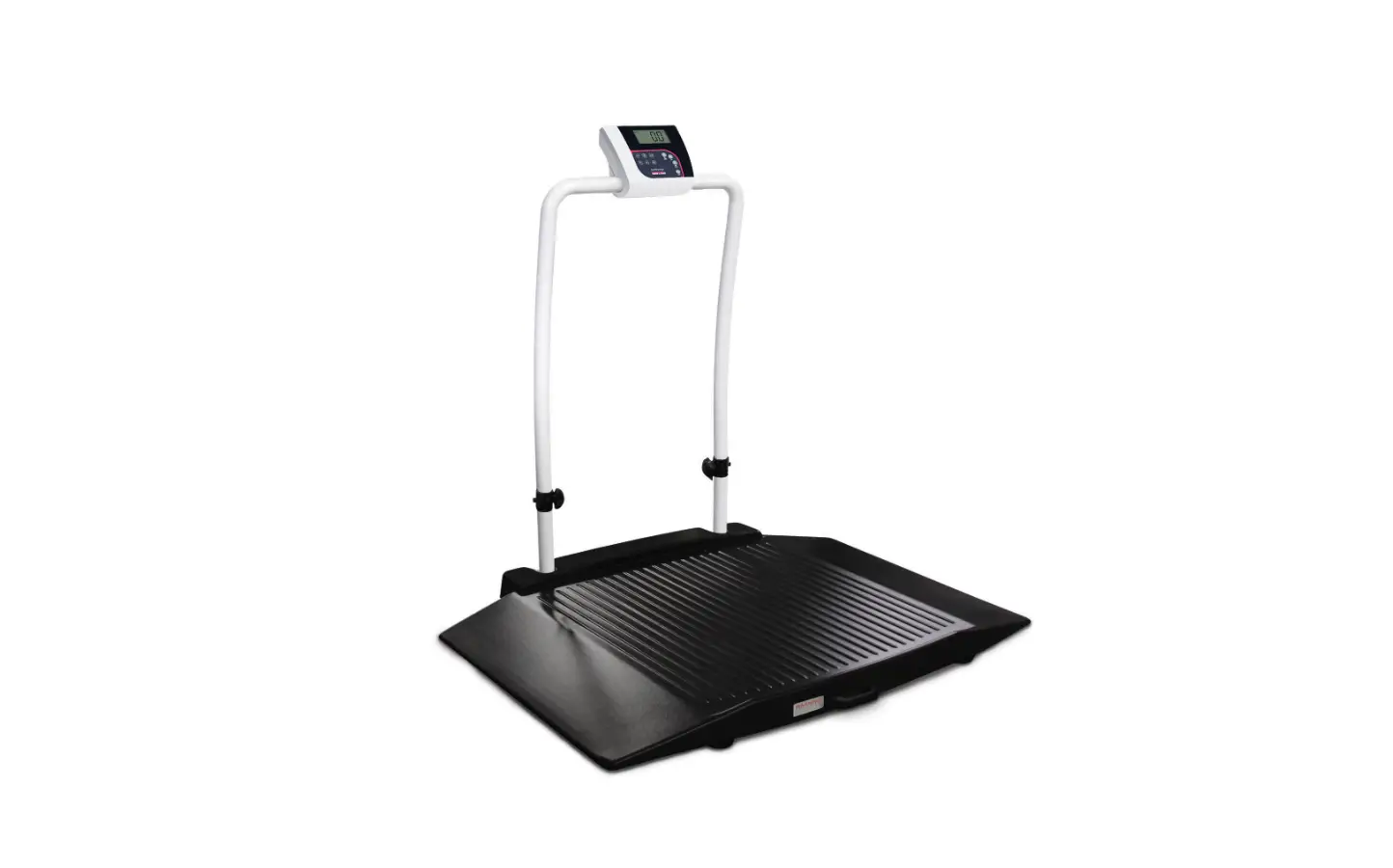
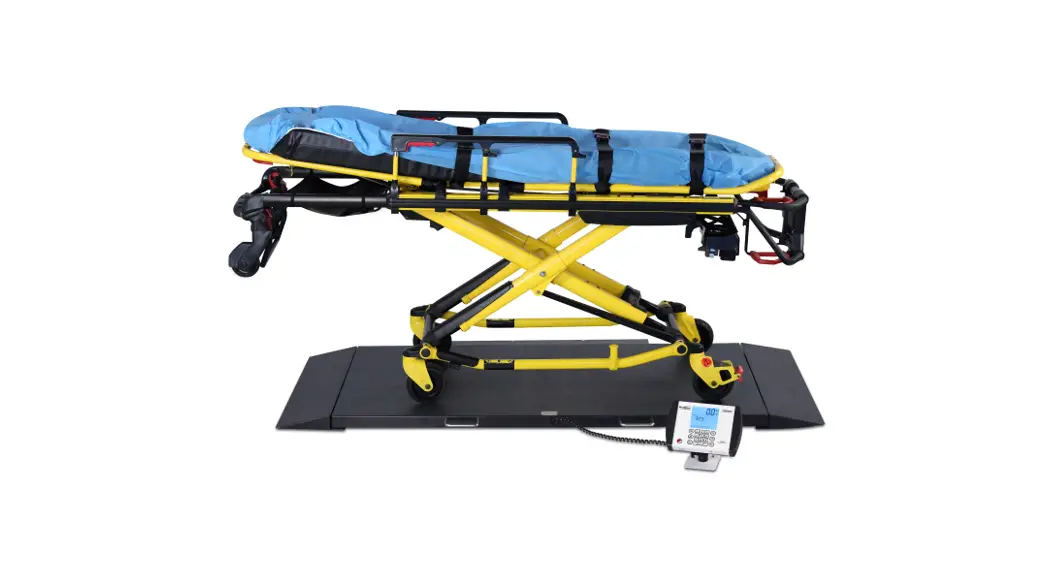
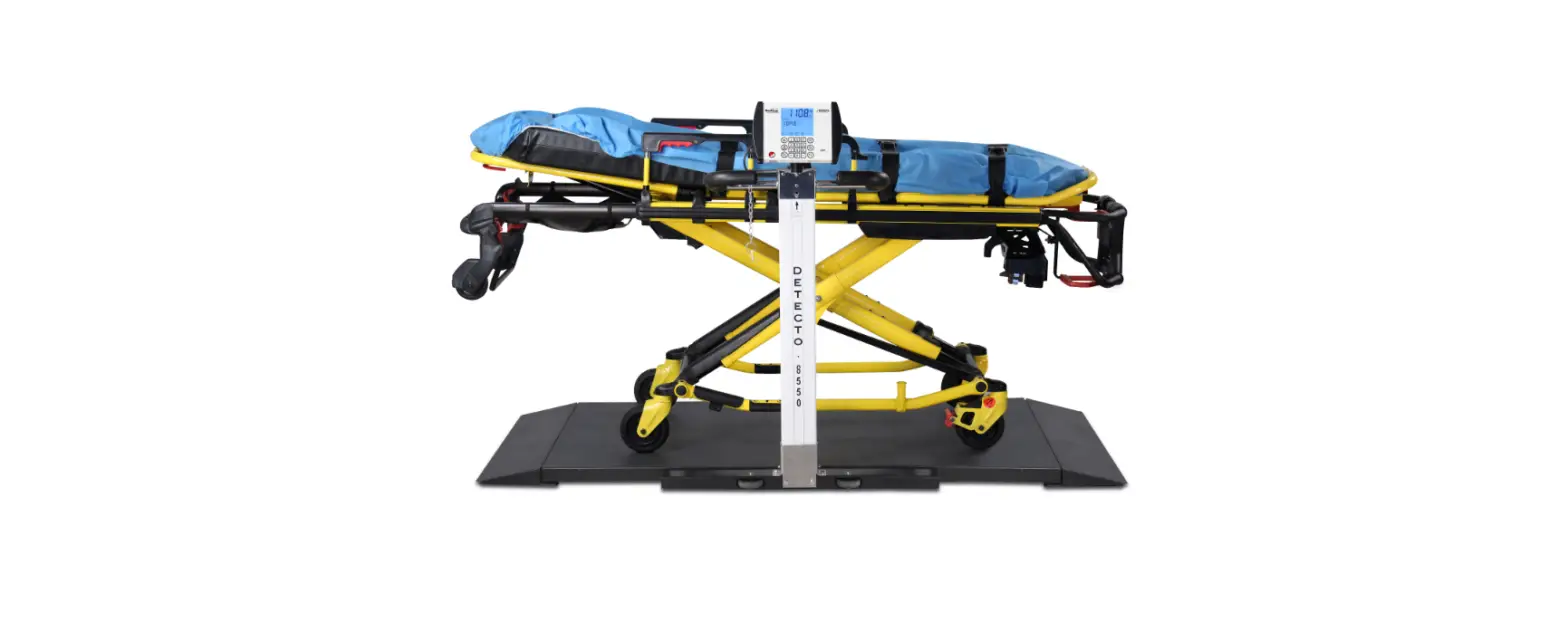
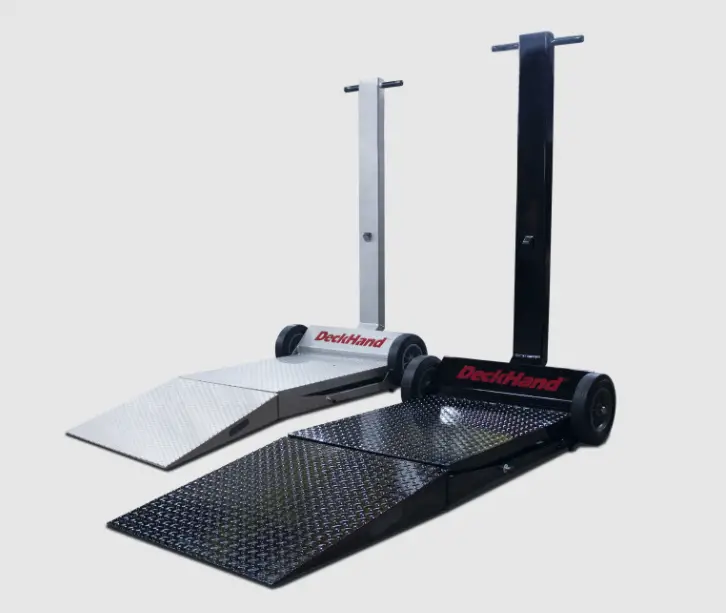
The 350-10-8S digital stretcher scale is designed for safe weighing of patients being received into a medical facility by a stretcher. The heavy-duty frame and wide ramps allow easy, safe weighing and fast patient processing. The scale is also equipped with two heavy-duty side wheels for easy portability. Movement compensation technology ensures sound, accurate weighments. Weight can be displayed in pounds or kilograms. To obtain a tare weight, see Section 3.0 on page 8.
Manuals, resources and warranties are available from Rice Lake Weighing Systems website at www.ricelake.com/health
1.1 FCC Compliance
United States This equipment has been tested and found to comply with the limits for a Class A digital device, pursuant to Part 15 of the FCC Rules. These limits are designed to provide reasonable protection against harmful interference when the equipment is operated in a commercial environment. This equipment generates, uses, and can radiate radio frequency energy and, if not installed and used in accordance with the instruction manual, may cause harmful interference to radio communications. Operation of this equipment in a residential area is likely to cause harmful interference in which case the user will be required to correct the interference at his own expense.
Canada This digital apparatus does not exceed the Class A limits for radio noise emissions from digital apparatus set out in the Radio Interference Regulations of the Canadian Department of Communications. Le présent appareil numérique n’émet pas de bruits radioélectriques dépassant les limites applicables aux appareils numériques de la Class A prescites dans le Règlement sur le brouillage radioélectrique edicté par le ministère des Communications du Canada.
© Rice Lake Weighing Systems All Rights Reserved
1
350-10-8S Stretcher Scale
1.2 Safety
Safety Definitions:
DANGER
Indicates an imminently hazardous situation that, if not avoided, will result in death or serious injury. Includes hazards that are exposed when guards are removed.
WARNING
Indicates a potentially hazardous situation that, if not avoided, could result in serious injury or death. Includes hazards that are exposed when guards are removed.
CAUTION Indicates a potentially hazardous situation that, if not avoided, could result in minor or moderate injury.
IMPORTANT
Indicates information about procedures that, if not observed, could result in damage to equipment or corruption to and loss of data.
General Safety
Do not operate or work on this equipment unless this manual has been read and all instructions are understood. Failure to follow the instructions or heed the warnings could result in injury or death. Contact any Rice Lake Weighing Systems dealer for replacement manuals.
WARNING
Failure to heed could result in serious injury or death. Ensure every individual who operates or works with this unit has read and understands all safety information. Do not transport the scale while someone is on the scale. Do not allow minors (children) or inexperienced persons to operate this scale. Do not use in the presence of flammable materials. Do not use this product if any of the components are loose or cracked. Do not use near water. Do not use the scale on slippery surfaces, such as a wet floor. Do not use this scale when a person’s body or feet are wet, such as after taking a bath. Do not place fingers into slots or possible pinch points. To avoid cross contamination, the scale should be cleaned regularly. Prior to cleaning, make sure the scale is disconnected from the power source. People with disabilities, or who are physically frail, should always be assisted by another person when using this scale.
IMPORTANT
Do not drop the scale or subject it to violent shocks. Do not jump on the scale. For accurate weighing, the scale must be placed on a flat, stable surface. Operating at voltages and frequencies other than specified could damage the equipment. Avoid contact with excessive moisture. Do not make alterations or modifications to the scale. Rice Lake Weighing Systems offers optional AC adapters; utilizing an adapter not supplied by Rice Lake Weighing Systems voids all warranties and approvals. Weight exceeding the maximum capacity may damage the scale.
2
Visit our website www.RiceLake.com
Assembly
2.0 Assembly
Use the following information to unpack and set up the unit.
2.1 Unpacking
Place the carton in an open area that has ample room for unpacking the scale.
CAUTION The scale is heavy. Use two (2) people, in order to prevent damage to the scale and/or cause personal injury.
Use scissors or a box cutter to cut the strapping bands that secure the box together. Immediately after opening the box, visually inspect the scale to ensure all parts are included and undamaged. If parts were damaged in shipment, notify Rice Lake Weighing Systems and the shipper immediately. Parts contained in the shipping box include:
· Scale · Manual · Indicator · Parts box containing:
Scale feet (4) Power adapter (120/230/ ACV 50-60 Hz) RS-232communications cable USB communications cable
Figure 2-1. Box Contents
2.1.1 Repacking Scale Retain the packaging for use in the event that the scale must be returned or moved. The product must be properly packed with sufficient packing materials. Whenever possible, use the original carton and packing materials when shipping the scale back.
IMPORTANT Damage caused by improper packaging is not covered by the warranty.
© Rice Lake Weighing Systems All Rights Reserved
3
350-10-8S Digital Stretcher Scale
2.2 Setup Scale
Move the scale into the area where the weighing process will occur. Remove scale from box by the scale base.
IMPORTANT
Place the scale on a hard, level surface for the most accurate weighments. Placing the scale on thin carpeting is not recommended.
CAUTION The scale is heavy. Use two (2) people, in order to prevent damage to the scale and/or cause personal injury.
The unit comes with four feet that must be attached to the scale base for proper operation. The four feet are located in the parts box in the original shipping box. Use the following steps to attach the feet to the scale.
1. Tip the scale onto its side using the recessed handle openings. Ensure the scale base is securely supported on its side, either against the wall or held by another person.
Figure 2-2. Tip Scale on Side Using Recessed Handles
CAUTION When tipping the scale, be cautious of surroundings to prevent potential injuries. 2. Screw all of the four feet clockwise until firmly seated Figure 2-3 and then unscrew the feet counterclockwise four
entire turns to ensure no mechanical binding is present.
IMPORTANT The scale will not weigh properly if the feet restrict the scale platform.
Figure 2-3. Secure Scale Platform Feet
4
Visit our website www.RiceLake.com
3. Transport the scale by rolling it to its intended location using two people, if not done so prior.
Assembly
Figure 2-4. Use Heavy-Duty Wheels to Transport
4. Gently set the scale base down on to the floor. Ensure there is minimal clearance between the scale base and the floor without having the scale base contacting the floor.
Figure 2-5. Scale Base Clearance
5. It is important to ensure that the scale is completely level. Gently press down on all corners of the scale base to ensure that there are no high spots or rocking of the scale base. The level bubble must also be centered within its viewing window.
Figure 2-6. Level Bubble
Note An uneven base will produce inaccurate weight readings.
© Rice Lake Weighing Systems All Rights Reserved
5
350-10-8S Digital Stretcher Scale
2.3 Indicator Installation
Use the following sections to setup the provided Rice Lake Indicator. 2.3.1 Load Cell Connection The indicator and scale comes factory installed with a load cell cable connection. Follow the procedure below if the load cell cable needs to be replaced or reconnected to the indicator.
1. Unscrew and remove the tilt stand bracket from the indicator to gain access to the load cell connection.
Unscrew tilt stand knobs and remove tilt stand from indicator
Figure 2-7. Remove Tilt Stand 2. Remove the four back retaining screws to remove the back cover to the indicator.
Figure 2-8. Remove Back Cover 3. Plug the end of the load cell cable into the load cell connection. When it clicks the load cell cable is properly seated
into the connection.
Load Cell Connection
Figure 2-9. Load Cell Connection Point 4. Reinstall the back cover and attach to the tilt stand.
Do Not Use this Connection for Load Cells
6
Visit our website www.RiceLake.com
2.3.2 Insert Batteries The six AA batteries supplied with the scale provide an average of 25 hours of continuous use. To install the batteries:
1. Turn thumbscrew counterclockwise then remove battery cover. 2. Insert batteries into the battery chamber as illustrated.
Assembly
Thumb Screw
Figure 2-10. Battery Chamber 3. Put the cover in place and turn the thumbscrew clockwise to secure.
Note Remove the batteries prior to storing if the product is not going to be used for an extended period of time.
Note
If the LO BAT indicator activates, for accurate weighing, replace the batteries or connect the scale to an AC power source as soon as possible.
2.3.3 Power Connection An optional AC power adapter can be used when a power outlet is available.
IMPORTANT
Only use power adapters supplied by or purchased from Rice Lake Weighing Systems. The use of a power adapter not from Rice Lake Weighing Systems voids the warranty.
AC Power Connection
Figure 2-11. Power Connection Site The battery annunciator on the display turns off when using an AC power connection.
Note
The brightness of the backlight is reduced to 60% when using battery power.
© Rice Lake Weighing Systems All Rights Reserved
7
350-10-8S Digital Stretcher Scale
3.0 Operation
This section describes the front panel and includes procedures for operation of the scale.
Figure 3-1. Front Panel Keypad
3.1 Key Descriptions
The display has 10 front panel keys. Key functions are described in the table below.
IMPORTANT The front panel keys are very sensitive, so only a gentle press is required.
Key
Name
On/Off
Powers the scale on or off
Function
On/Off
Print LB/KG
Print LB/KG
Zero
Sends data out from the RS-232 port; Allows to toggle between kilograms and pounds providing that it is enabled in Configuration mode; Cannot toggle while in the BMI mode
Only functions if the current weight is stable and less than 2% of the capacity of the scale. Anything over 2% requires a recalibration
Zero
Hold Release Displays most current weight value on the display and holds that value when the patient is off the scale. A second press releases the weight value. Not active while in BMI mode
Hold Release
BMI
BMI
TARE TARE
T
Pressing the BMI key enables access to the BMI (Body Mass Index) mode (defaults when scale is turned on). The patient is gets on the scale, weight stabilizes and press the BMI key. The display then asks for the patient height to calculate out the patient BMI.
Used to remove the weight initially of anything on the scale that shouldn’t be included in the total weight of the patient on the scale
CLEAR
CLEAR
When using the BMI function, the display looks for a height entry. Pressing Clear changes this entry back to 190.0 cm (default) or 5 ft, 7.5 in.Once BMI is displayed, pressing the Clear key exits BMI
ENTER ENTER
Used to accept height in BMI mode; accepts the value of the parameter last entered and moves to the next stage Pressing and holding Enter during startup will display ID. This is the first setup on entering into configuration mode
Up Arrows Adjusts the value of the flashing digit/number Adjusts height input (0.5 in/0.5 cm) while in BMI mode
Down Arrows Adjusts the value of the flashing digit/number Adjusts height input (0.5 in/0.5 cm) while in BMI mode
Table 3-1. Key Functions
8
Visit our website www.RiceLake.com
Operation
3.2 Weighing
Use the following steps to weigh.
1. Press to turn on the scale. 0.0 appears on the display along with the ZERO annunciator. 2. Place the patient on the scale. The patient’s weight is displayed, the LOCK annunciator is on and the indicator beeps
to indicate the end of the weighing process.
3. Press
to change the display from lb to kg and vice-versa.
4. Press and hold until OFF displays to turn off the scale.
3.3 Hold/Release Function
Use the following steps to use the Hold/Release function.
1. Press to turn on the scale. 0.0 prompts along with ZERO on the display.
2. Press
once the patient’s weight stabilizes. The patient’s weight and the HOLD and LOCK annunciators remain
on the display when the patient is off the scale.
3. Press again to return the scale to zero.
Note Pressing
will not work while using Hold/Release function.
Note Pressing
prior to the patient getting on the scale will also hold the weight display.
3.4 Preset Tare
Use the following steps for the Preset Tare function prior to patient weighing if additional items are being used by the patient.
1. Press to turn on the scale. 0.0 appears on the display along with the ZERO annunciator. 2. Place additional item(s) on the scale.
3. Press TARE until the display returns to 0.0 and NET annunciator appears on the display. T
4. Remove additional item(s) from the scale. The weight displays with a negative symbol to the left of it.
Note Not removing the additional item(s) prior to patient weighing will also work. 5. Position the patient and additional item(s) on the scale. The display identifies the patient weight. The NET annunciator
is still active. The weight of the additional item(s) remains stored in memory for the duration of this weigh in. 6. To cancel the tare weight, remove patient from the scale and press TARE until NET disappears from the display and
T
the display turns back to 0.0 and GROSS appears.
Note Tare weight is also canceled when the scale is turned off.
3.5 Toggle Tare
Use the following steps to use the Toggle Tare function when the additional item to be weighed is known.
1. Press TARE when the scale is empty and 0.0 displays. The default values prompts while 0.0 is flashing on the display T (default is programmed to be 33.0 lb/15.0 kg).
2. Use
and
to adjust the value. Press ENTER to start the tare function. The NET annunciator turns on instead
of the GROSS annunciator.
© Rice Lake Weighing Systems All Rights Reserved
9
350-10-8S Digital Stretcher Scale
3.6 Using the Body Mass Index (BMI) Function
Use the following steps in determining the BMI. 3.6.1 LB Mode
1. Ensure that the scale is at zero. 2. Place the patient on the scale to obtain a weight. The LOCK annunciator appears on the display.
3. Press BMI . The BMI and FT/IN annunciators appear on the display and a default height value of 5 feet – 7.5 inch (5 – 07.5) is flashing.
4. Use and to adjust the height value.
5. Press . ENTER
6. The BMI value and BMI annunciator are shown on the display. Press CLEAR to return to the Weighing mode and the BMI function will be turned off.
3.6.2 KG Mode 1. Ensure that the scale is at zero. 2. Place the patient on the scale to obtain a weight. The LOCK annunciator appears on the display.
3. Press BMI . The BMI and CM annunciators appear on the display and a default height value of 170.0 cm (170.0) is flashing.
4. Use and to adjust the height value.
5. Press . ENTER
6. The BMI value and BMI annunciator are shown on the display. Press CLEAR to return to the Weighing mode and the BMI function will be turned off.
10
Visit our website www.RiceLake.com
Operation
3.7 Troubleshooting
Refer to the following table to check and correct any failure before contacting service personnel.
Symptom
Possible Cause
Corrective Action
Scale does not turn on
Dead batteries
Replace batteries or connect to AC power
Faulty electrical outlet
Use a different electrical outlet
Bad power supply
Replace adapter
Questionable weight or the scale does not zero
External object is interfering with the scale Remove the interfering object from the scale
Display did not show 0.0 before weighing Help the patient off the scale, zero the scale and begin the weighing process again
Scale is not placed on a level floor
Ensure scale is level and begin the weighing process again
Scale is out of calibration
Check the weight with a certified calibration weight
Scale base is touching floor during a weighment
Adjust height of feet so fingers can slide between the base of scale and the floor all the way around the platform
The display shows a STOP message
The load on the scale exceeds the capacity of the scale
Remove the excess weight and use the scale according to manufacture specifications
The display shows LO Bat message
The battery is low
Replace batteries
The display shows E and Err messages as detailed below
E06
Identifier – ADC
AD too high
E07
AD too low
E10
Overload
Scale has been overloaded. Remove load from scale
E4L
BAT
Battery low, but still usable- one bar left on indicator display
E4U
Battery low and unstable – no bars left on indicator display
E11
CAL
Calibration Error – recalibrate scale
Err 1
Load cell cable may be plugged into wrong Ensure cable is connected to the load cell connection port.
connection port
Note: Load cell connection point is located underneath the
curved plastic cover of the indicator. Remove four back
retaining screws, remove curved back cover to access load
cell connection point.
Err 2
Low saturation state (low A/D)
The load cell is not connected properly; Check the cables
and mechanical connections; if the problem persists, replace
the set of load cells
Err 3
High saturation state (high A/D)
See Err 2
Err 6
Unstable weight; Cannot calibrate
Check the load cell mechanical surroundings and ensure
nothing is contacting the load cell and that the cables are
properly welded
Err 7
Scale isn’t moving
Make sure feet are installed on the scale. Turn the feet all
the way in and then back them out three full turns, then level
the scale
SAT
Damaged load cell cable
Replace load cell cable
Load cell cable may be plugged into wrong Ensure cable is connected to the load cell connection port.
connection port
Note: Load cell connection point is located underneath the
curved plastic cover of the indicator. Remove four back
retaining screws, remove curved back cover to access load
cell connection point.
Table 3-2. Troubleshooting Table
© Rice Lake Weighing Systems All Rights Reserved
11
350-10-8S Digital Stretcher Scale
4.0 Communications
The unit comes with an RS-232 port that enables weight data to be transmitted to other equipment, such as a computer or printer. The RS-232 cable with DB-9 connector (PN 100719) is available from Rice Lake Weighing Systems. That connection is shown in USB Connection section on the next page. The RS-232 parameters are:
· 9600 baud (selectable in the programming mode) · 8 data bits · 1 stop bit · no parity · no handshaking There are three methods of communication: · Push-button keypad print · Standard remote protocol · Escape protocol
4.1 Push-button Keypad Print
With a stable, in-range weight, press and hold for at least three seconds, or until the scale emits two quick beeps.
Note If the scale does not beep after five seconds, release
as the weight was either in motion or out of range.
If displaying weight and not BMI, the scale will send out the following 21 character string: xxxxxxxxx<SP>uu<SP>mmmmm<SP><CR><LF>
Token
Description
xxxxxxxxx <SP> uu mmmmm <CR> <LF>
Weight with decimal point and “-” sign Space Unit – lb or kg Mode – gross or net Carriage return Line feed (moves cursor down to the next line)
Example:
Table 4-1. Print Format Tokens
-10 Lb net = <SP><SP><SP><SP>-10.0<SP>lb<SP><SP>Net<SP><SP><SP><CR><LF>
10 Lb gross = <SP><SP><SP><SP><SP>10.0<SP>lb<SP>Gross<SP><CR><LF>
· The scale will send out the following data while in BMI mode (displaying the BMI value):
Setting
Value
Gross Weight Tare Weight Net Weight Patient Height
215 Lb 0.0 Lb 215 Lb 6-01.0 ft
Patient BMI
28.4
Table 4-2. BMI Data
12
Visit our website www.RiceLake.com
Communications
4.2 USB Connection
The scale has the capability of connecting to a Windows® computer (PC) using a USB cable (not included) and a terminal emulation program. A terminal emulation program allows the transfer of data between the scale and PC using a serial port.
USB Connection RS-232 Connection
Figure 4-1. Connection Ports
Note Apple® and Macintosh® computers are unable to transfer the necessary data to the scale. Only use a PC for data transfer.
Connecting software and downloads should always be addressed by the IT department for safety reasons and can vary depending on what type of computer platform is being used.
Consult the IT department if driver protections are preventing the use of the USB driver. Driver protections may need Note to be temporarily disabled on Windows 10 or later computers to allow for the installation of the USB driver.
1. Connect the scale’s indicator to a PC using a USB-Type B to USB-Type A cable (not included).
2. Turn the indicator on.
Note
In most cases, the PC should find the driver and automatically configure the driver when the scale is plugged into a USB port.
3. Open a terminal emulation program, such as Advanced Serial Port Terminal, pUtty or Hercules (used in this example).
4. Connect to the serial port assigned by the PC (COM5 in example). This can be found in Device Manager. Once selected, press Open.
Figure 4-2. Connecting to a Serial Port 5. With weight on the scale, press and hold the Print button on the indicator for three seconds. The patient’s weight is
sent to the PC.
Figure 4-3. Patient Weight Displayed
© Rice Lake Weighing Systems All Rights Reserved
13
350-10-8S Digital Stretcher Scale
5.0 Maintenance
The following section provides instructions for maintaining and cleaning the unit.
5.1 Basic Maintenance
Before the first use of the scale and after periods of non-use, check the scale for proper operation and function. If the scale does not operate correctly, contact a qualified service personnel. Go through the following steps for basic maintenance.
· Check the overall appearance of the entire scale for any obvious signs of damage · Inspect the condition of the AC power adapter cord for cracking, fraying or for broken or bent prongs
5.2 Cleaning
Proper care and cleaning is essential to ensure a long life of accurate and effective operation. Before beginning the cleaning process, disconnect the scale from the AC power source.
· Clean all external surfaces with a clean, damp cloth or tissue. Mild soap and water solution may be used. Dry with a clean soft cloth
· Do not immerse the scale into cleaning or other liquid solutions · Do not use isopropyl alcohol or other solutions to clean the display surface
14
Visit our website www.RiceLake.com
6.0 Specifications
Power 9 VDC output provided by six AA batteries (included) 230V/120V input provided by AC adapter (optional)
Battery Type Six AA size alkaline batteries (included)
Battery Use 25 hours continuous use with batteries. Automatic power-off can be configured.
Environmental Operating Temperature Storage Temperature Humidity
50°F to 104°F (10°C to 40°C) 0°F to 122°F (10°C to 50°C) 85%
Capacity 1000 lb x 0.2 lb (450 kg x 0.1 kg)
Display 5-digit LCD display, 0.75 in (1.9 cm) digit height
Platform Dimensions without Ramps (W x L x H) 32.7 in x 49.3 in x 2.4 in (83 cm x 125 cm x 7 cm)
Dimensions with Wheels and Ramps (W x L x H) 34.2 in x 63.7 in x 3.7 in (87 cm x 162 cm x 9 cm)
Weight 145 lb (65 kg)
Warranty Two-year limited warranty
Specifications
© Rice Lake Weighing Systems All Rights Reserved
15
350-10-8S Digital Stretcher Scale
16
Visit our website www.RiceLake.com
© Rice Lake Weighing Systems Specifications subject to change without notice.
230 W. Coleman St. · Rice Lake, WI 54868 · USA U.S. 800-472-6703 · Canada/Mexico 800-321-6703 · International 715-234-9171 · Europe +31 (0)26 472 1319
August 18, 2022
www.ricelake.com
PN 204798 Rev B
 Rice Lake Weighing Systems