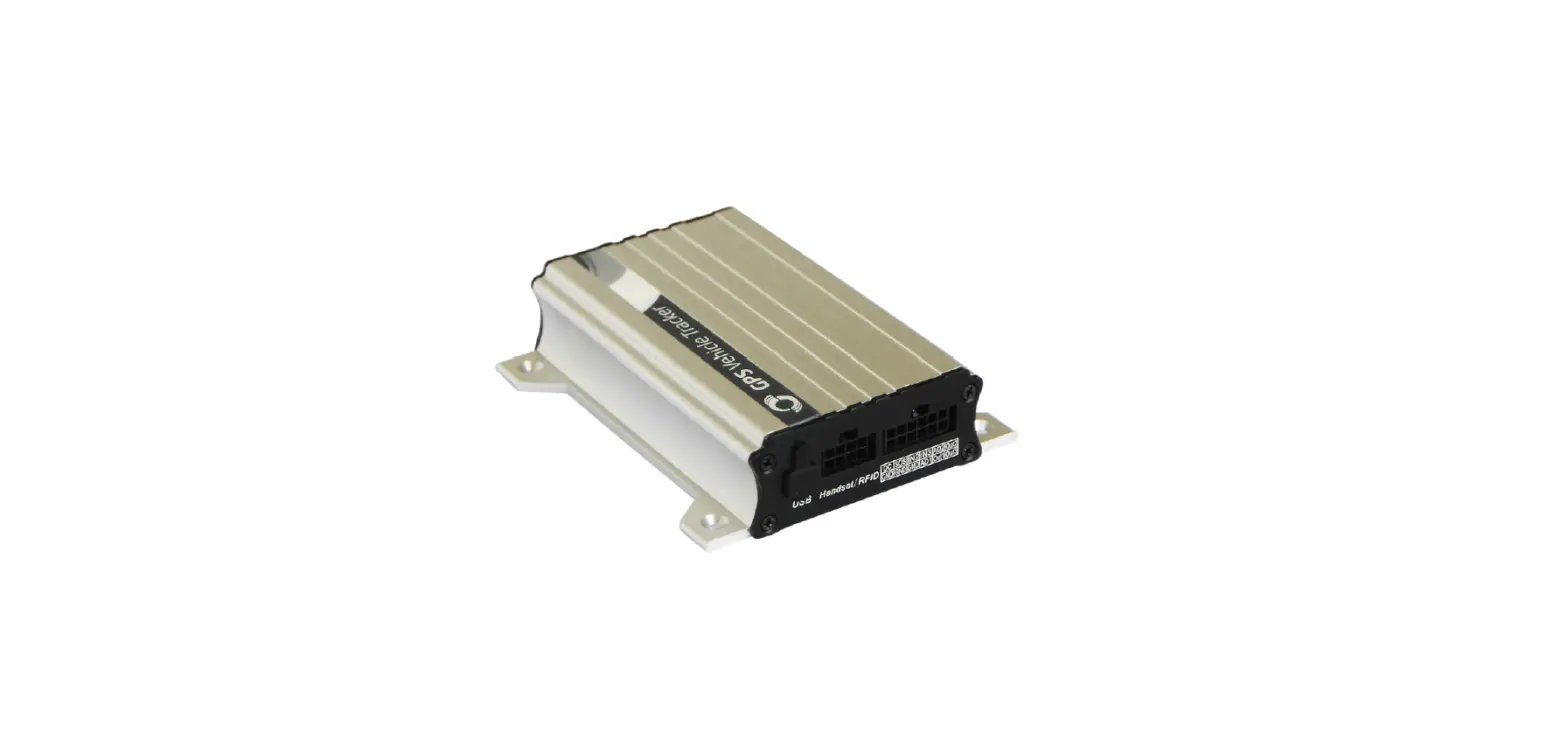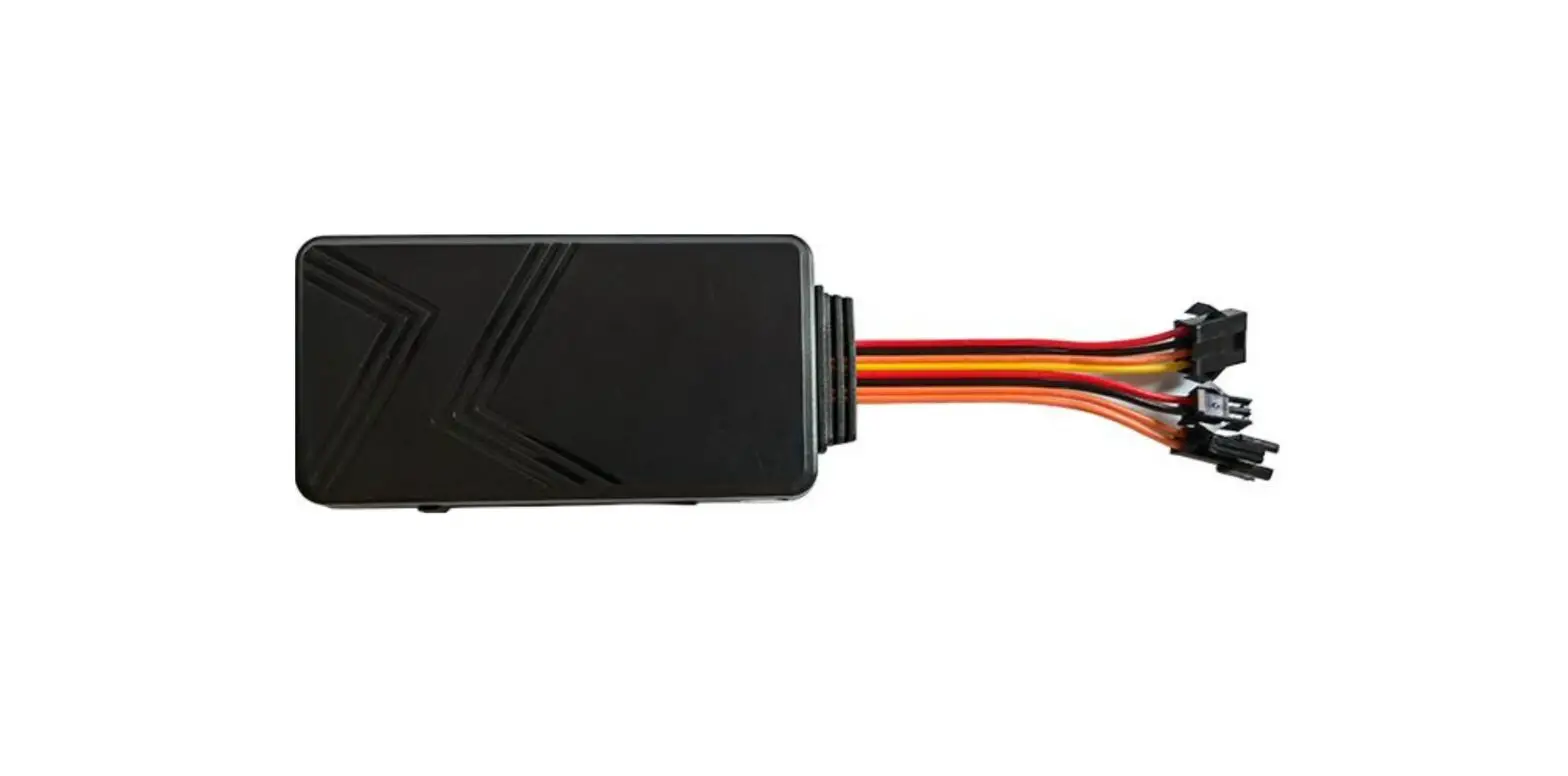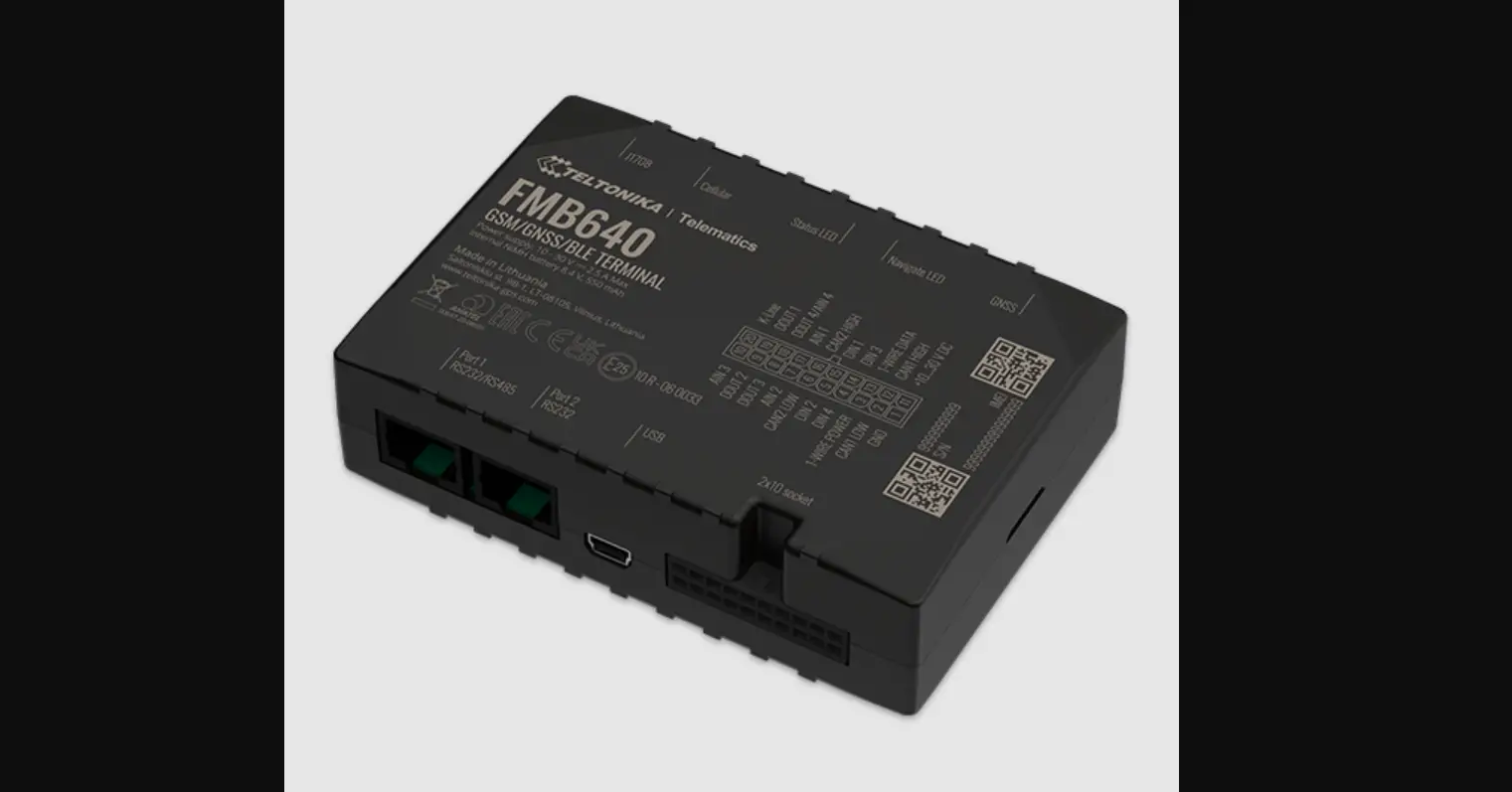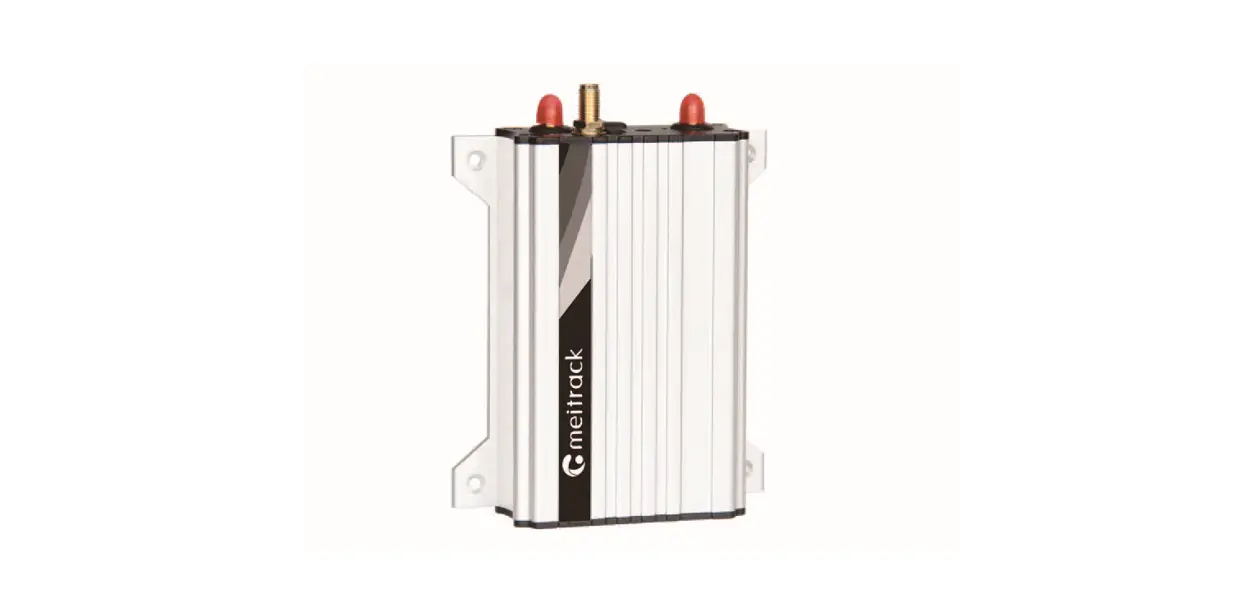
 T622G_F9 Iridium Vehicle GPS Tracker
User Guide
Change History
| File Name | MEITRACK T622G F9 User Guide | ||
| Project | T622G F9 | Creation Date Update Date | 2017-12-22 2021-02-03 |
| Subproject | User Guide | Total Pages | 22 |
| Version | V1.2 | Confidential | External Documentation |
Copyright and Disclaimer
Copyright © 2021 MEITRACK. All rights reserved.
and  are trademarks that belong to Meitrack Group.
The user manual may be changed without notice.
Without the prior written consent of Meitrack Group, this user manual, or any part thereof, may not be reproduced for any purpose whatsoever or transmitted in any form, either electronically or mechanically, including photocopying and recording.
Meitrack Group shall not be liable for direct, indirect, special, incidental, or consequential damages (including but not limited to economic losses, personal injuries, and loss of assets and property) caused by the use, inability, or illegality to use the product or documentation.
Product Introduction
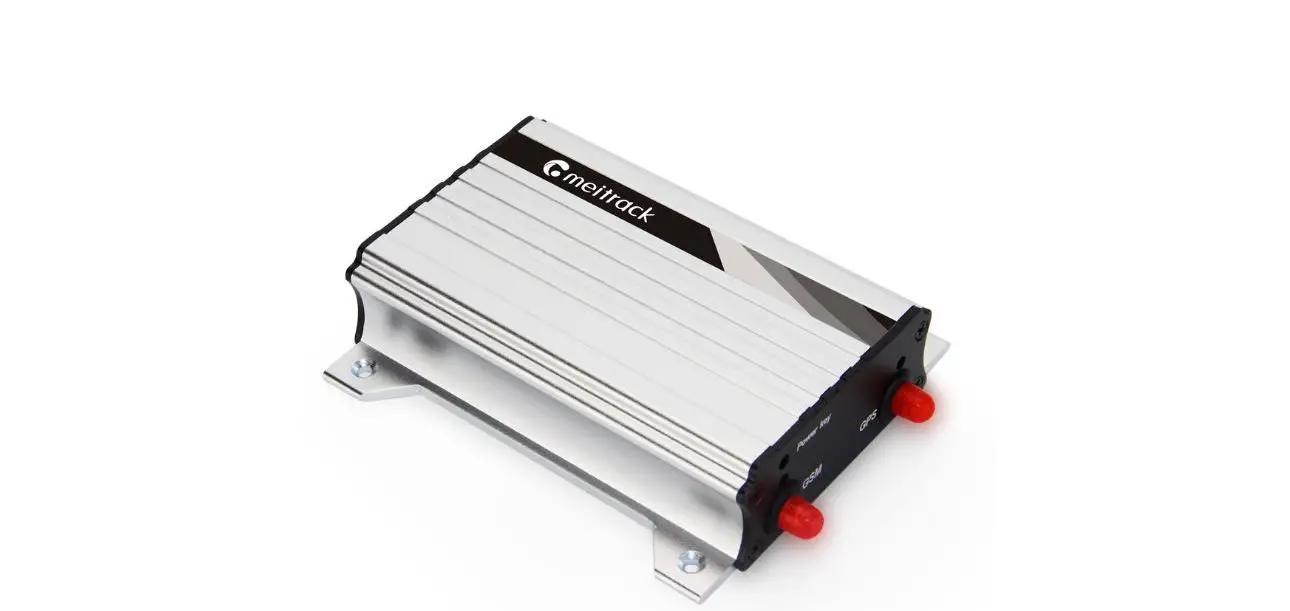
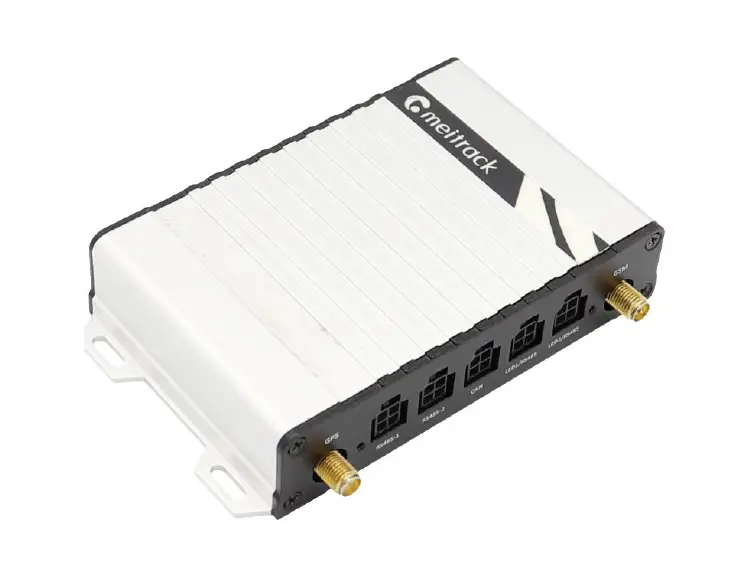
The T622G_F9 is a brand new high-end vehicle GPS tracker with market-proven quality and precise positioning. In addition to real-time tracking, it supports Iridium communication mode and can be compatible with various peripherals. Even in some areas with poor GSM signals, it can work properly.
Product Features
ridium Communication
The device can communicate by Iridium satellites without SIM cards.
To connect Iridium satellites, you must connect the device to an external power supply and enable Iridium communication.
For more information about fees and how to enable Iridium communication, please send an email to alan.[email protected]
You need to submit the server IP address and port and the device’s IMEI number to the person.
You can set the Iridium satellite uploading mode (mode 3, mode 4, or mode 5) by Meitrack Manager or MS03 tracking platform, as shown in the following figure.
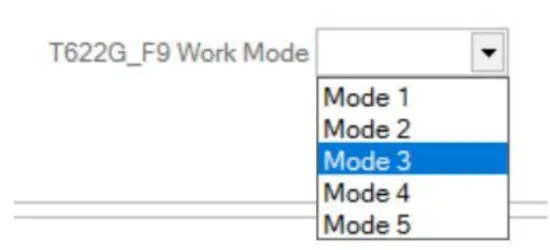
The device supports five working modes as follows:
- Mode 1: Transmit data by GSM.
- Mode 2: When the device cannot connect to the server by GSM, the network will be switched to Iridium automatically. Once the GSM signal recovers, the network will be switched to GSM.
- Mode 3: Transmit data by GSM and Iridium.
- Mode 4: Transmit all positioning data by Iridium.
- Mode 5: Transmit minimum positioning data by Iridium, including latitude, longitude, and time.
The Iridium antenna should be connected to the device as follows, and do not install the antenna at a metal-covered place.
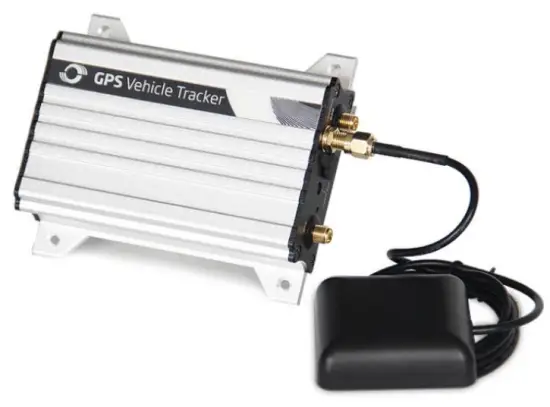
There are five Iridium satellite signal levels. When the signal level is 0, the Iridium communication cannot be established. To receive Iridium satellite signals, the signal level must be greater than 1. (The Iridium satellite signals will be stable at open places. For example, in underground parking lots, the device cannot receive Iridium satellite signals.)
Cautions:
- Iridium communication is expensive. Before enabling Iridium communication, please confirm the data uploading time interval.
- Iridium satellites are used for network communication only and don’t support voice communication.
- If the device uses Iridium communication, it will upload positioning data only and will not upload CAN bus data.
Garmin Navigator
After the device is connected to a Garmin navigator, the GPS navigation, information dispatching, and location query functions become available.
The device can connect to the Garmin navigator which supports FMI protocol V2.5 or later, and you must purchase the Garmin data cable.
For details about the Garmin navigator, please visit the website:
http://www8.garmin.com/solutions/mobile-resource-management/supported-devices/.
For details about how to install and use the Garmin navigator, see the Garmin Navigator User Guide.
Harsh Acceleration/Braking Alert
You can detect the harsh acceleration/braking alert by setting the limit value.
Cautions on-device installation:
- The device should be installed into the vehicle according to the following direction.
- The device installation angle cannot exceed 15 degrees.
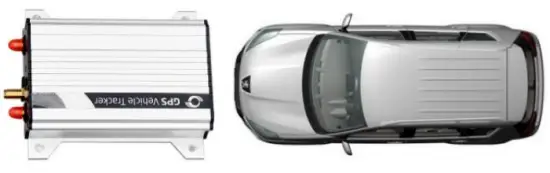
The default harsh acceleration and braking alert values are 230 mG and -300 mG respectively.
Note: The alert results vary according to the device installation, vehicle model, vehicle weight, and driving behaviors. After the device has been installed properly, you can use the Meitrack Manager software to adjust the harsh acceleration and braking alert values by every 10 mG. You can also use the D79 command to set the values.
Roaming Mode
On the Meitrack Manager page, device parameters in roaming mode differ from that in non-roaming mode. When the device detects that it is in roaming mode, it will be operated according to roaming parameters. This helps to save network traffic and learn about the device’s working status.
CAN Bus Interface
The device can read CAN bus data of a vehicle that supports the FMS protocol.
The following data can be read: vehicle speed, vehicle control status, accelerator pedal position (%), total fuel consumption, engine rotational speed, total engine run time, total mileage, engine coolant temperature, fuel level, engine torque, ambient temperature, torque at current speed, fuel consumption rate, axle weight, service distance, and instantaneous fuel consumption.
Caution:
- To obtain the preceding data, the vehicle must support the FMS protocol.
- Install the device based on vehicle types. Connect vehicle’s CANH and CANL wires to tracker’s CANH and CANL connectors respectively.
GPS Data Filtering
The GPS data filtering function can ensure GPS data accuracy and eliminate static drift.
You can set the following parameters by Meitrack Manager: GPS speed range, GPS positioning accuracy, and Number of GPS satellites. When the GPS data filtering function is enabled, if all conditions are met, GPS data will be updated. Otherwise, GPS data will be invalid.
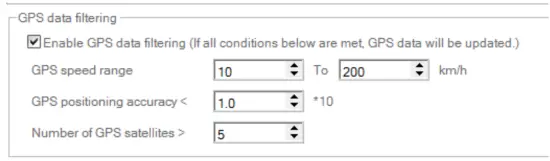
Note: This function can be enabled by Meitrack Manager.
Activating Output by Event
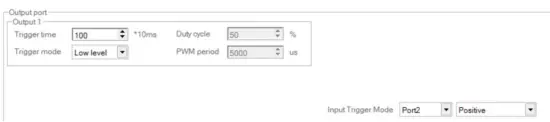
You can activate output by the event.
For example:
- When speeding is detected, the device can control buzzer sounds.
- When unauthorized ignition or GPS antenna cut-off is detected, the engine will not be able to start.
- When RFID triggering is detected, the device can control the vehicle door.
- When input or output status is detected, the output will be active or inactive.
Product Functions and Specifications
Product Functions
Position Tracking
- GPS + LBS positioning
- Real-time location query
- Track by time interval
- Track by distance
- Cornering report
- Speeding alert
- Track by mobile phone
- Harsh acceleration/braking alert
- GPS data filtering
- Iridium communication mode
Anti-Theft
- SOS alert
- GPS antenna cut-off alert
- External power supply cut-off alert
- GPS blind spot alert
- Remote vehicle fuel/power cut-off
- Engine or vehicle door status alert
- Towing alert
- Polygonal geo-fence alert
- Fuel monitoring
Other Functions
- SMS/GPRS (TCP/UDP) communication (Meitrack protocol)
- Built-in 8 MB buffer for recording driving routes (storing 256 SMS cache records. The quantity of GPRS cache and GPS logs can be set and their sum is a fixed value.)
- Mileage report
- Low power alert for internal battery
- 3-axis accelerometer
- Over-the-Air (OTA) update
- Activate output by event
- Stop Moving and Start Moving alerts
- Online Parameter Editor
- Support a CAN bus interface.
- Set device parameters in roaming mode. (Switch to roaming parameters when the device is in roaming mode.)
Functions of Optional Accessories
| Optional Accessories | Function | |
| Relay | Remotely control the switch. | |
| 1 RS232 port | Garmin navigator | Used for vehicle navigation and tracking |
| A83 camera (Used with a Micro SD card) | Take photos. | |
| RFID reader | Identify the driver ID and grant permission to start the vehicle. Monitor driver attendance by RFID report. | |
| Liquid level sensor (LLS) sensor | Check the fuel level and detect a fuel theft alert. | |
| A76 ultrasonic fuel level sensor | Check the fuel level and detect a fuel theft alert. | |
Specifications
| Item | Specifications |
| Dimension | 105 mm x 65 mm x 26 mm |
| Weight | 190g |
| Power supply | DC 11.4-36 V/1.5 A |
| Backup battery | 400 mAh/3.7 V |
| Power consumption | Current in sleep mode: 11 mA |
| Operating temperature | -10°C to 55°C |
| Operating humidity | 5% to 95% |
| Working hour | 45 hours in power-saving mode 4 hours in normal mode |
| LED indicator | Green indicator showing the GSM signal Blue indicator showing the GPS signal |
| Button/Switch | 1 power button |
| Memory | 8 MB buffer |
| Sensor | 3-axis accelerometer (used to wake the device up by vibration and detect towing alerts) |
| Frequency band | UMTS/HSDPA: 800/850/900/1900/2100 MHz |
| GSM/GPRS: 850/900/1800/1900 MHz | |
| Iridium satellite | Frequency band: 1616-1626.5 MHz Duplex mode: TDD Multiplexing mode: TDMA/FDMA |
| GNSS | GPS |
| GPS sensitivity | -161 dB |
| Positioning accuracy | 2.5m |
| I/O port | 3 digital inputs (1 negative trigger, 1 positive trigger, and 1 positive/negative selectable trigger) 1 output 1 RS232 EXT port 1 USB port 1 CAN bus interface |
T622G_F9 and Accessories
622G_F9 and standard accessories:
- T622G_F9 tracker
- External 3G antenna
- External Iridium antenna
- External GPS antenna
- Micro serial USB cable
- I/O cable(without SOS button) 1 meter
- CD download card
The external Iridium antenna has a standard version and two optional versions: standard Iridium antenna, high-end Iridium antenna, and super-high-end Iridium antenna.
External Iridium antenna accessories:
- Standard Iridium antenna
| Appearance | 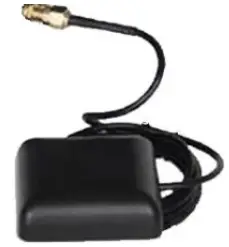 |
| Specification | 25*25*4mm |
| Frequency | 1621MHz±5 MHz |
| Frequency bandwidth | >10MHz |
| Impedance | 50Ω |
| Gain | 5dB |
| Polarization | RHCP |
| Appearance | 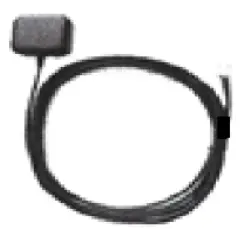 |
| Specification | 13mm×88mm×76mm |
| Frequency | IRIDIUM+GPS |
| Impedance | 50Ω |
| Gain | 3dB |
| Polarization | RHCP |
| Working temperature | -40℃~85℃ |
- Super-high-end Iridium antenna(Optional)
| Appearance | 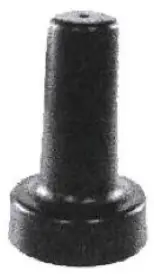 |
| Frequency | 1616~1626 MHz |
| Frequency bandwidth | 30MHz |
| Impedance | 50Ω |
| Gain | 1dB |
| Working temperature | -40℃~85℃ |
| RF Connector | TNC |
| Efficiency | 50% |
| Axial ratio | 2dB (max) |
| VSWR | 1.5 (max) |
Optional accessories: .
- SOS button
- Relay (12 V/24 V)
- Camera
- RFID reader
- Garmin navigator
- Liquid level sensor (LLS) sensor
- A76 Ultrasonic fuel level sensor
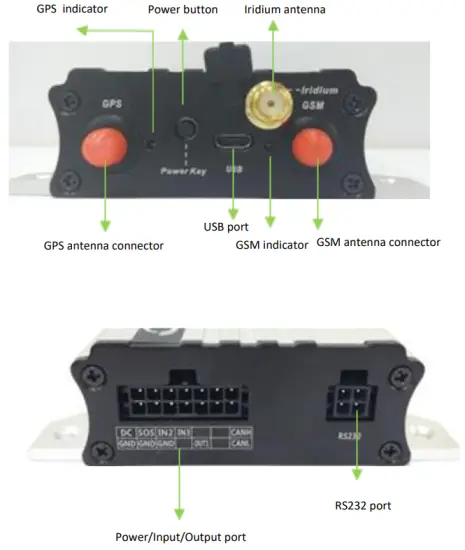
Appearance
First Use
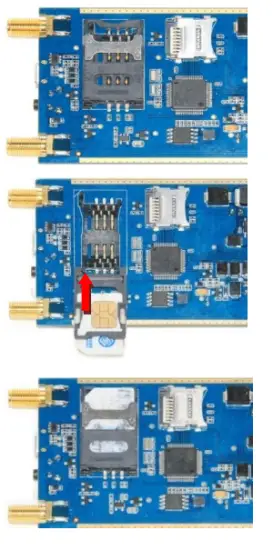
Installing the SIM Card
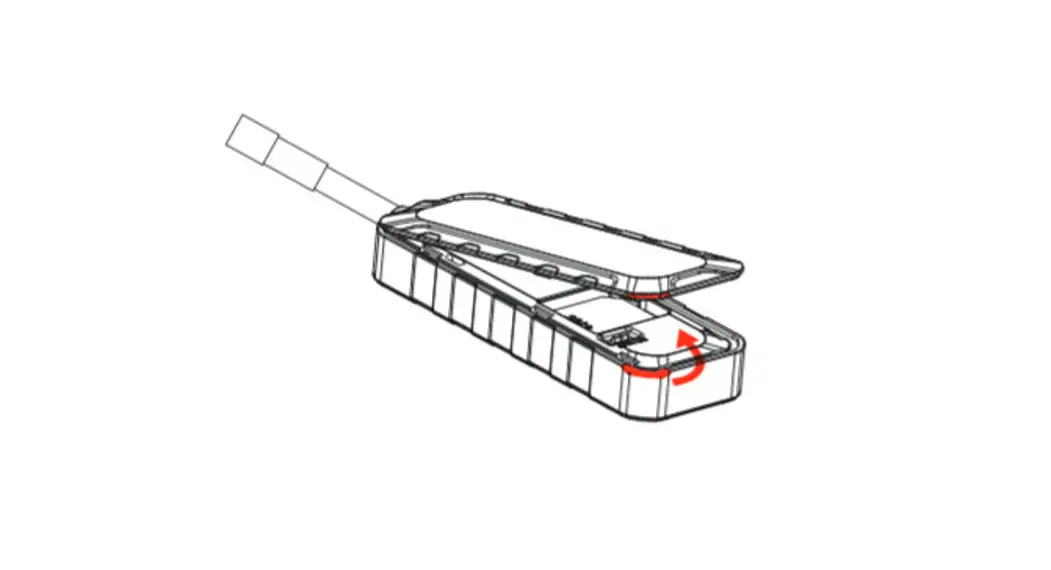
- Loosen the screws, and remove the front cover of the device.
- Insert the SIM card into the card slot with its gold-plated contacts facing towards the Printed Circuit Board (PCB).
- Close the cover, and tighten the screws.
Note:
- Power off the device before installing the SIM card.
- Ensure that the SIM card has sufficient balance.
- Ensure that the phone card PIN lock has been closed properly.
- Ensure that the SIM card in the device has subscribed the caller ID service if you want to use your authorized
phone number to call the device.
Charging the Device
When you use the device for the first time, connect the device GND (-Black) and Power (+Red) wires to 12 V or 24 V external power supply for charging. Ensure that the device is charged at least two hours. Eight hours are recommended.
The device can be installed on a vehicle only after it is configured and tested.
LED Indicator
Press and hold down the power button for 3–5 seconds to start the device.
| GPS Indicator (Blue) | |
| Steady on | A button or an input is triggered. |
| Blink (every 0.1 seconds) | The device is being initialized or the battery power is low. |
| Blink (0.1 seconds on and 2.9 seconds off) | A GPS signal is received. |
| Blink (1 second on and 2 seconds off) | No GPS signal is received. |
| GSM Indicator (Green) | |
| Steady on | A call is coming in or a call is being made. |
| Blink (every 0.1 seconds) | The device is being initialized. |
| Blink (0.1 seconds on and 2.9 seconds off) | A base station signal is received. |
| Blink (1 second on and 2 seconds off) | No base station signal is received. |
Configuring Device Parameters by Meitrack Manager
This section describes how to use Meitrack Manager to configure the device on a computer.
Procedure:
- Install the USB driver and Meitrack Manager.
- Connect the device to a computer by using the USB cable.
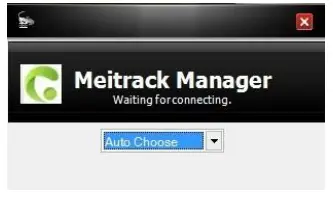
- Run Meitrack Manager, then the following dialog box will appear.

- Turn on the device, then Meitrack Manager will detect the device model automatically and the parameter page will appear accordingly.
For details about MEITRACK Manager, see the MEITRACK Manager User Guide.
Tracking by Mobile Phone
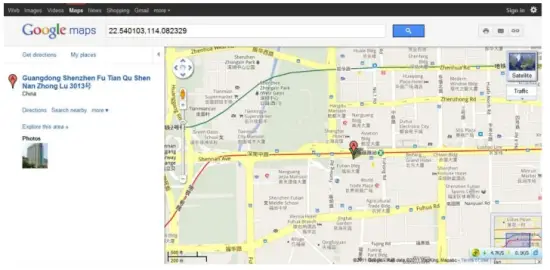
Call or send the 0000,A00 command by SMS to the device’s SIM card number. The device will reply to an SMS with a map link.
Click the SMS link. The device’s location will be displayed on Google Maps on your mobile phone.
Note: Ensure that the device’s SIM card number has subscribed the caller ID service. Otherwise, the tracking function by mobile phone will be unavailable.

SMS example:
Now,061314 10:36,V,26,0Km/h,96%,http://maps.meigps.com/?lat=22.513781&lng=114.057183
The following table describes the SMS format:
| Parameter | Description | Remarks |
| Now | Indicates the current location. | SMS header: indicates the current location |
| or the alert type. | ||
| 061314 10:36 | Indicates the date and time in MMDDYY hh:mm format. | None |
| V | The GPS is invalid. | A = Valid V = Invalid |
| 26 | Indicates the GSM signal strength. | Value: 1-32 The larger the value is, the stronger the signal is. If the value is greater than 12, GPRS reaches the normal level. |
| 0Km/h | Indicates the speed. | Unit: km/h |
| 96% | Indicates the remaining battery power. | None |
| http://maps.meigps .com/?lat=22.51378 1&Ing=114.057183 | Indicates the map link. Latitude: 22.513781 Longitude: 114.057183 | None |
Common SMS Commands
Setting Authorized Phone Numbers – A71
SMS sending: 0000,A71,Phone number 1,Phone number 2,Phone number 3
SMS reply: IMEI,A71,OK
Description:
Phone number: A phone number contains a maximum of 16 bytes. If no phone numbers are set, leave them blank.
Phone numbers are empty by default.
Phone number 1/2/3: SOS phone numbers. When you call the tracker by using these phone numbers, you will
receive SMS notification about the location, geo-fence alert and low power alert.
If you need to delete all authorized phone numbers, send 0000,A71.
When the SOS button is pressed, the tracker will dial phone numbers 1, 2, and 3 in sequence. The tracker will stop
dialing when a phone number responds.
Example:
Sending: 0000,A71,13811111111,13822222222,13833333333
Reply: 353358017784062,A71,OK
Setting the Smart Sleep Mode – A73
SMS sending: 0000,A73,Sleep level
SMS reply: IMEI,A73,OK
Description:
When the sleep level is 0, the sleep mode is disabled (default).
When the sleep level is 1, the tracker enters the normal sleep mode. The GSM module always works, and the GPS module occasionally enters the sleep mode. The tracker works 25% longer in the normal sleep mode than that in the normal working mode. This mode is not recommended for short interval tracking; this will affect the route precision.
When the sleep level is 2, the tracker enters the deep sleep mode. If no event (SOS, button triggered, incoming calls, SMSs, or vibration) is triggered after five minutes, the GPS module will stop working, and the GSM module will enter sleep mode. Once an event is triggered, the GPS and GSM modules will be woken up.
Note: In any condition, you can use an SMS command to disable the sleep mode, and then the tracker exits the sleep mode and returns back to the normal working mode.
Example:
Sending: 0000,A73,2
Reply: 353358017784062,A73,OK
Setting GPS Data Filtering – D71
SMS sending: 0000,D71,X,Y1,Y2,Y3,Y4
SMS reply: IMEI,D71,OK
Description:
X: Whether to enable the GPS data filtering function. 1: Enable the function. 0: Disable the function (default).
Y1: indicates the minimum value of the driving speed. Value range: 0–999 km/h. When the driving speed is greater than Y1, GPS data will be updated.
Y2: indicates the maximum value of the driving speed. Value range: 0–999 km/h. When the driving speed is less than Y2, GPS data will be updated.
Y3: indicates the number of satellites. Value range: 0–99. When the number of satellites is greater than Y3, GPS data will be updated.
Y4: indicates the positioning accuracy. Unit: x10. Value range: 0–999. When the positioning accuracy value is less than Y4, GPS data will be updated.
When the GPS data filtering function is enabled, if all conditions of Y1, Y2, Y3, and Y4 are met, GPS data will be updated.
The GPS data filtering function can eliminate static drift, but it will affect the route precision.
Example:
Sending: 0000,D71,1,5,225,8,9
Reply: 353358017784062,D71,OK
Setting Output Triggering – D72
SMS sending: 0000,D72,X,Y1,Y2,Y3,Y4
SMS reply: IMEI,D72,OK
Description:
X: Select an output port. 1: OUT1. 2: OUT2.
Y1: indicates the output time when an event is triggered. Unit: 10 ms. Value range: 0–4294967295.
Y2: Value: 0, 1, and 2.
- 0: Output high level.
- 1: Output low level (default).
- 2: Output PWM wave.
Y3: indicates the PWM duty cycle. Value range: 0–100.
Y4: indicates the PWM period. Unit: μs. Value range: 2000–50000000.
Configure output triggering according to your requirements. The output is low level by default. The PWM duty cycle and period are available for PWM wave output only.
Example:
Sending: 0000,D72,1,0,0
Reply: 353358017784062,D72,OK
Allocating GPRS Cache and GPS Log Storage Space – D73
SMS sending: 0000,D73,X,Y
SMS reply: IMEI,D73,OK
Description:
X: Set the storage percentage of GPRS cache. Decimal in percentage.
Y: Set the storage percentage of GPS logs. Decimal in percentage.
The sum of X and Y must be 100.
If data is stored in internal memory which has 8 MB capacity, GPRS cache and GPS logs occupy 50% of the total capacity respectively by default (that is, 8,190 GPRS cache records and 65,536 GPS logs).
At most 16,384 GPRS cache records and 131,072 GPS logs are allowed.
Example:
Sending: 0000,D73,70,30
Reply: 353358017784062,D73,OK
For details about SMS commands, see the MEITRACK SMS Protocol.
Note:
- The default SMS command password is 0000. You can change the password by using Meitrack Manager and SMS command.
- The device can be configured by an SMS command with a correct password. After an authorized phone number is set, only the authorized phone number can receive the preset SMS event report.
Logging In to MS03 Tracking System
Visit http://ms03.trackingmate.com, enter the user name and password, and log in to the MS03. (Purchase the login account from your provider.)
For more information about how to add a tracker, see the MEITRACK GPS Tracking System MS03 User Guide (chapter 4 “Getting Started”).
The MS03 supports the following functions:
- Track by time interval or distance.
- Query historical trips.
- Set polygonal geo-fences.
- Bind driver and vehicle information.
- view various reports.
- send commands in batches.
- Support OTA updates.
For details, see the MEITRACK GPS Tracking System MS03 User Guide.
Installing the T622G_F9
Installing GPS and GSM Antennas
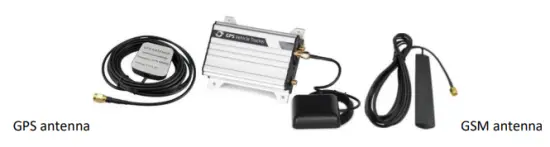
Connect the GSM antenna to the connector which is labeled “GSM”. The GSM antenna is non-directional, so you can hide it in any place of a vehicle.
Connect the GPS antenna to the connector which is labeled “GPS”. It is recommended that the antenna is facing up to the sky and the antenna side with words is downwards. Secure the antenna by using double sided tapes.
Connect the Iridium antenna to the connector which is labeled “Iridium”. It is recommended that the antenna is facing up to the sky. The installation method is the same as that of the GPS antenna, and the Iridium antenna should be far away from places with electromagnetic and frequency interference, such as WiFi, frequency modulation (FM), etc.
Note: Do not install the GPS antenna and Iridium antenna at a metal covered place.
Installing an I/O Cable
The I/O cable is a 14-pin cable, including the power, analog input, digital temperature sensor input, negative/positive input and output, and CAN bus interfaces.
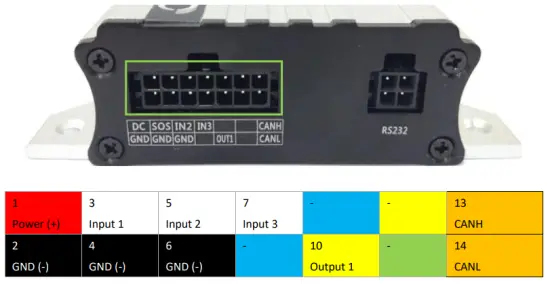
| Pin Number | Color | Description |
| 1 (Power 4-) | Red | Positive charge of the power input, connected to the positive charge of the vehicle battery. Input voltage: 11-36 V. 12 V is recommended. |
| 2 (GND) | Black | Ground wire, connected to the negative charge of the vehicle battery or to the negative terminal. |
| 3 (Input 1) | White | Digital input 1, negative trigger (SOS button by default) |
| 4 (GND) | Black | Ground wire, connected to input 1 (SOS button) |
| 5 (Input 2) | White | Digital input 2. Positive trigger by default. You can switch to negative trigger. Connect to a door trigger signal cable to detect vehicle door status. |
| 6 (GND) | Black | Ground wire It can be used as a ground wire connected to an analog sensor. |
| 7 (Input 3) | White | Digital input 3 (positive trigger) Connect to the vehicle ACC cable by default to detect the vehicle ACC status. |
| 8 (Reserved) | Blue | Reserved |
| 9 (Reserved) | Blue | Reserved |
| 10 (Output 1) | Yellow | Output 1 Default: low level (0 V) Invalid: open collector Maximum voltage for output open collector (invalid): 40 V Maximum current: 400 mA High level triggering mode and PWM triggering mode are allowed to set. Connect to an external relay to remotely cut off the vehicle fuel cable or engine power supply. |
| 11 (Reserved) | Yellow | Reserved |
| 12 (Reserved) | Green | Reserved |
| 13 (CANH) | Orange and white | Used to connect a CAN bus peripheral. |
| 14 (CANE) | Orange | Used to connect a CAN bus peripheral. |
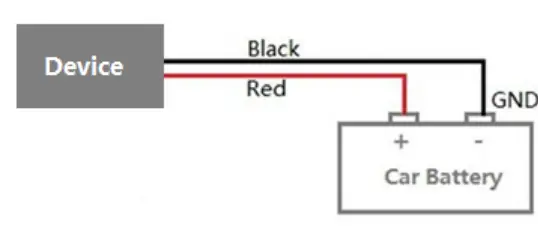
Power Cable/Ground Wire (Pin 1/2)
Connect the power cable (red) and ground wire (black) to the positive and negative charges of the vehicle battery respectively.
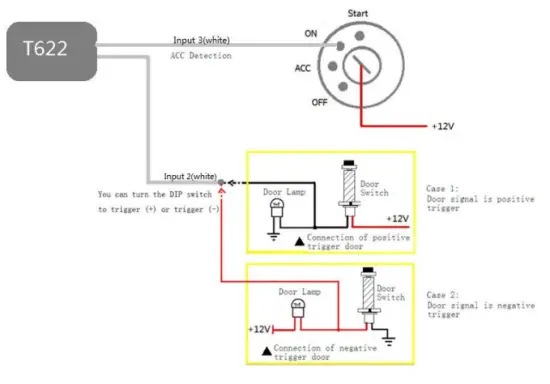
ACC and Door Detection (Pin 5/7)
Note:
- If input 3 is connected to the “ACC” position, after the engine is started, the platform will read it as ON-OFF-ON. If input 3 is connected to the “Start” position, after the engine is started, the platform will read it as OFF-ON-OFF. If installed correctly, after the engine is started, the platform will read it as OFF-ON.
- Input 2 is the positive or negative selectable start cable. By default it is positive. Install and configure the cable according to your requirements.
Output Control (Pin 10/11)
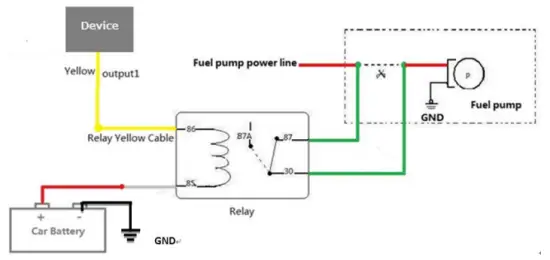
Note: To implement remote fuel/power cut-off, connect the relay to the fuel pump power cable or to the engine power cable in series.
Installing the Camera/Garmin Navigator (RS232 Port)
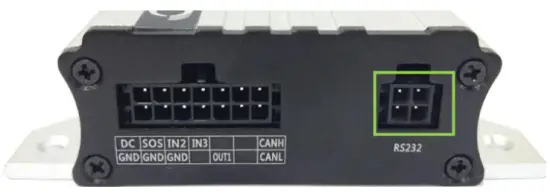
| Pin Number | Color | Description |
| 1 | Red | Power output Output voltage: 5 V |
| 2 | Black | Ground wire |
| 3 | Green | RX |
| 4 | White | TX |
After the camera is installed, you must configure related parameters by Meitrack Manager.
Note: The RS232 port can connect to the Garmin navigator, LLS sensor, ultrasonic fuel level sensor or camera.
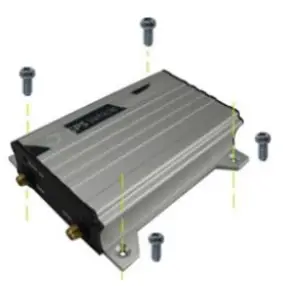
Mounting the T622G_F9
Tighten the four screws shown in the following figure.
If you have any questions, do not hesitate to email us at [email protected].
 maps.meigps.com/?lat=22.513781&lng=114.057183
 Login
Login Fleet-Ready Navigators | Fleet Management | GARMIN Close Close IE Banner Garmin on Facebook Garmin on Twitter Garmin on YouTube Garmin on Pinterest Garmin on Instagram