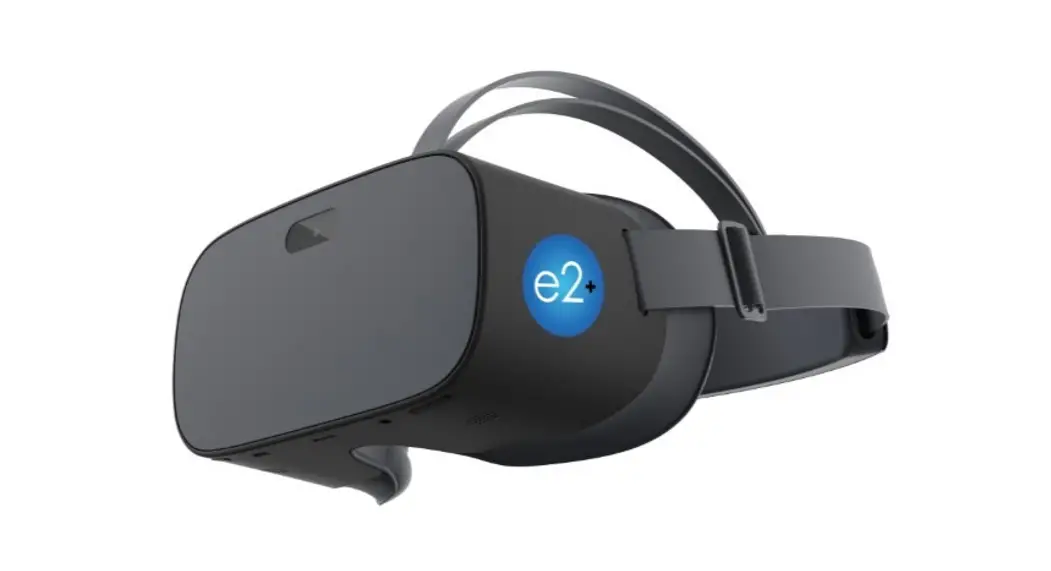

 Empowering Your Vision
User’s Manual
Contents hide
*IMPORTANT SAFETY INSTRUCTIONS*
READ THESE INSTRUCTIONS CLEAN WITH A DRY SOFT CLOTH
*DO NOT WALK OR DRIVE WITH THE E2+ BY NUEYES*
DO NOT EXPOSE INTERIOR LENSES TO SUNLIGHT *CHARGE YOUR BATTERY BEFORE USE*
What’s Included
CAREFULLY UNPACK AND CONFIRM THE FOLLOWING PARTS ARE INCLUDED
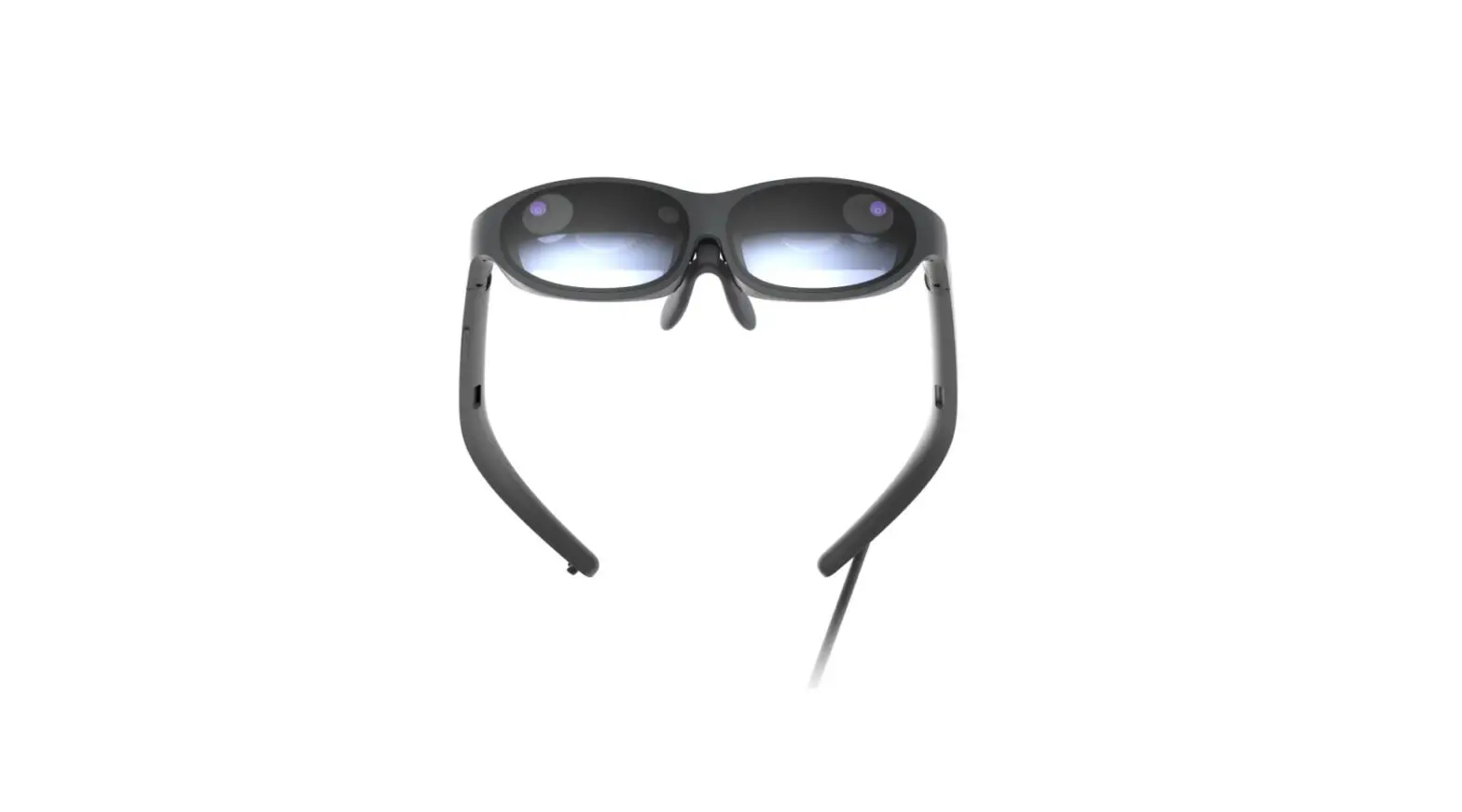
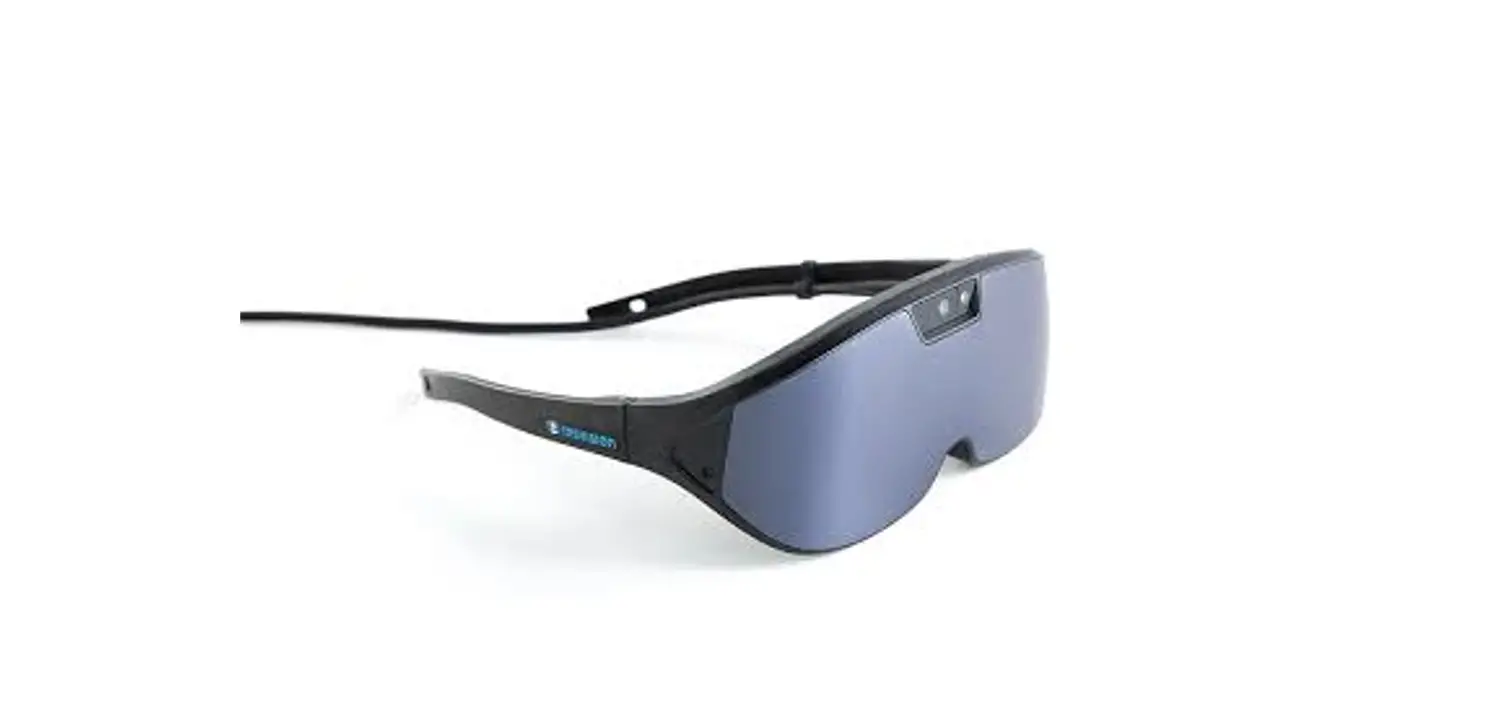
- Your e2+ Device
- Cleaning Cloth
- Block Charger
- Charging Cord
- Remote Control
How to Put On Your e2+ For Maximum Clarity And Comfort
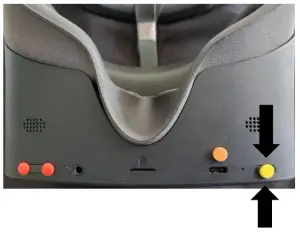
- Please turn on your e2+ by pressing the power button below the right-hand side of the product

**PLEASE NOTE OUR APPLICATION WILL TAKE 10-12 SECONDS TO LOAD. DO NOT PRESS ANY BUTTONS** - Align the lenses/screen to your eyes
- Once aligned gently place the strap over your head
- Once the strap is on your head, adjust the side straps tighter or looser for maximum comfort and clarity
***PLEASE NOTE IF THE IMAGE DOES NOT LOOK CLEAR TO YOU TO ADJUST THE e2+ UP OR DOWN ON YOUR FACE***
Magnifying with Your e2+
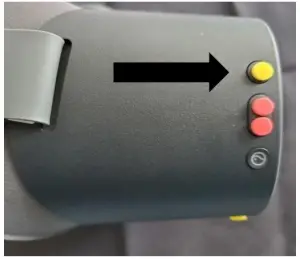
- To increase magnification, press the top button on the right-hand side of your e2+

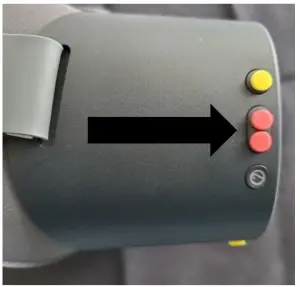
When you reach the maximum magnification, an icon displaying MAX will appear. - To decrease magnification, press the middle button on the righthand side of your e2+
Changing Contrast with Your e2+
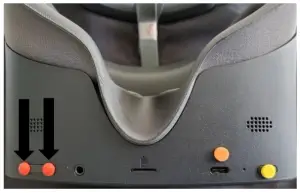
- To change contrast: Press the Left or Right underside (Volume) button of your e2+. The contrasts will cycle through 5 levels of contrast.

Using OCR-Text To Speech with e2+
- To use the OCR feature: Press and hold down the magnification button for 2 seconds. The OCR will start on its own

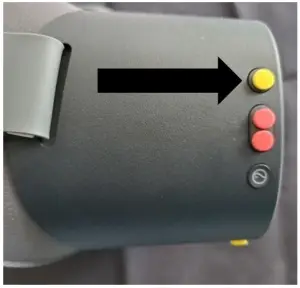
- To access your e2+ Menu: Press and hold down the contrast/volume or left underside button for 2 seconds

- Once on the menu, you have four options.
• Vision (Brightness control 40100, Language)
• OCR (Gender voice, Speed, Volume, Text Color, Highlight Color)
• Settings (Where to set up WIFI)
• Update (OTA – Over the Air) - To select each option, press the middle right button (decrease magnification)
- To toggle an option, press the top right button (increase magnification button)
- To exit please hold the contrast button for 2 seconds.
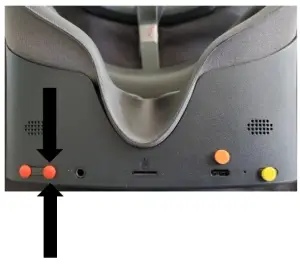
Turning OFF/ Powering Down Your e2+
- Simply press and hold the power button for 2 seconds. The NuEyes logo will appear (Chimes) Screen will turn black indicating the device is off.

- Take the device off or Lay down the device to go into “sleep mode”
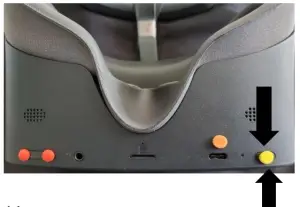
Charging Your e2+
Simply plug your USB cord into the slot next to the power button.
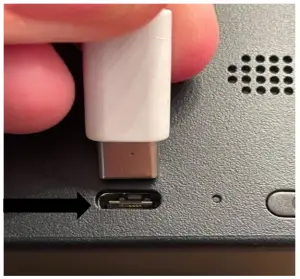
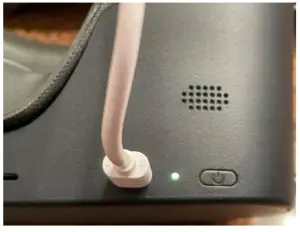
- A light appears next to the charging plug indicating it is charging. (Red Light needs charge) if Red Light does not change or the device does not charge (Hold the power button for 10 secs, this will reboot the device)
- Blue light, charging – Forest green light, fully charged. (30min to 1hour)
- If you are not sure it is charging, please (quick press power button) look in screen, large white battery shows charging.
Rebooting Your e2+
Press the power button for 10 seconds Turn devise on by pressing power button NuEyes app will load
Please find e2 product
line training video
https://youtu.be/79ImvpUmeU www.nueyestech.de e2 product tab
Quick Reference Guide:
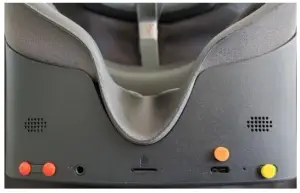
- Yellow Dot Bottom right POWER BUTTON
- Orange Dot Bottom mid MARKER FOR USB PLUGIN
- Red Dots Bottom left e2+ HOLD 2 SEC QUICK MENU/ QUICK PRESS CONTRAST
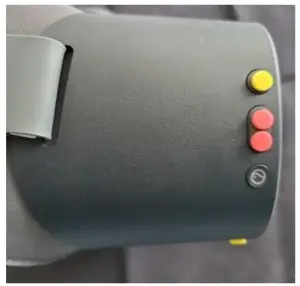
- Upper Right-Hand Yellow Dot INCREASE MAGNIFICATION/TOGGLE feature for Quick menu
- Upper Right Hand 2 Red dots (1 button) DECREASE MAGNIFICATION/SELECT feature for Quick menu
Technical Specifications
| Display | 4K |
| CPU | Qualcomm Snapdragon 835 |
| Weight | 298g (w/o Band) |
| Refresh rate | 75hz |
| Storage | 128G |
| Battery | 3-5 Hours (depending on heavy usage) |
| Tracking | 3DOF Camera |
| Camera | 16mp |