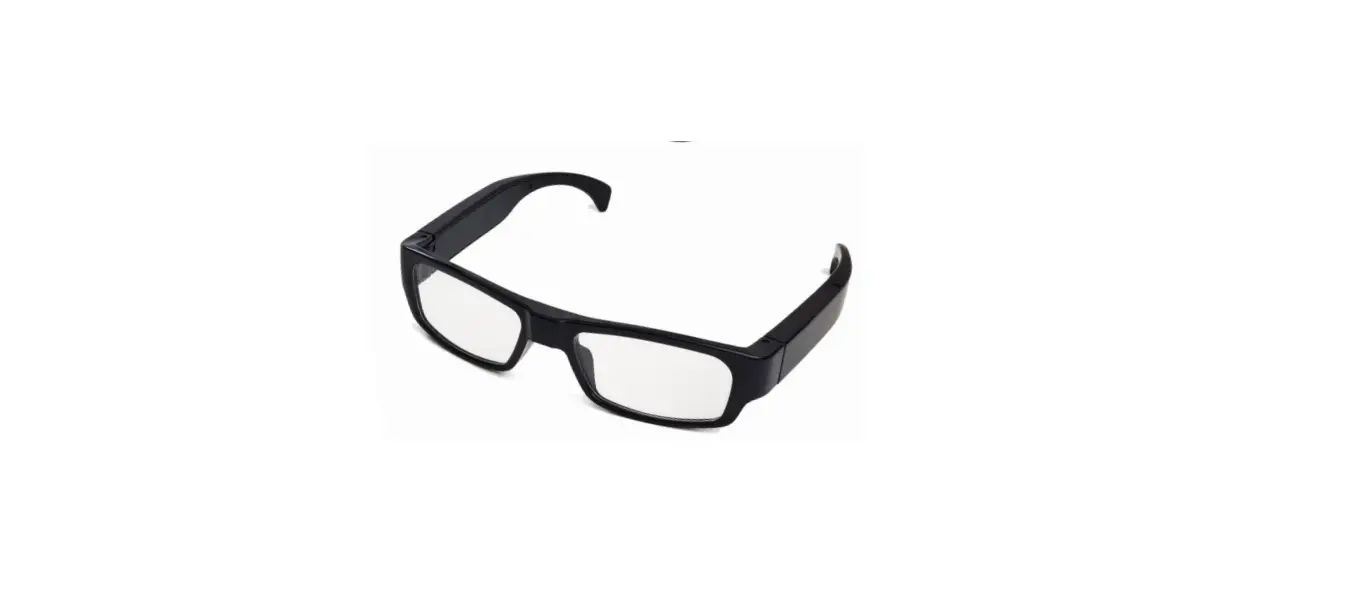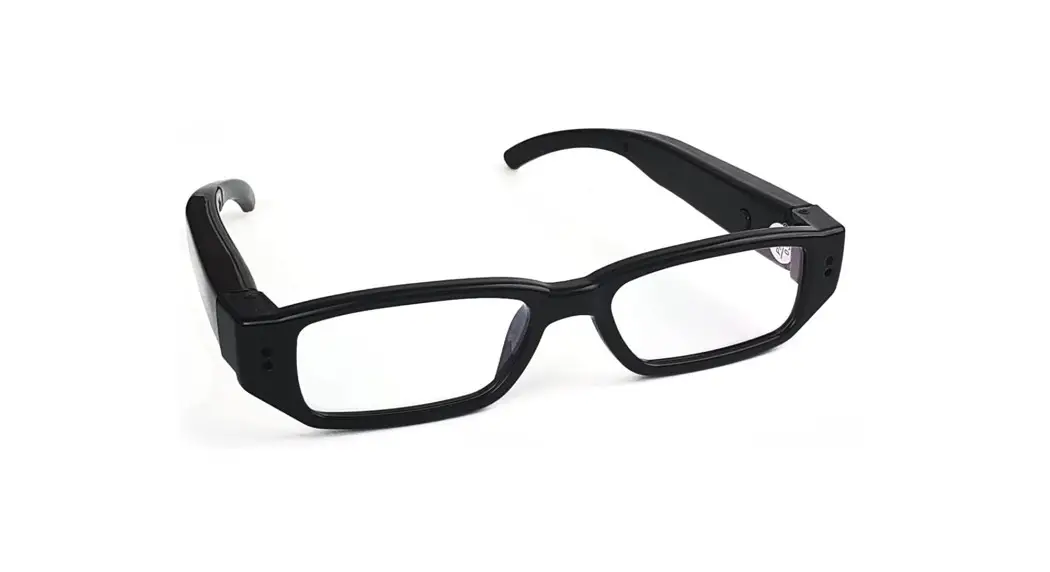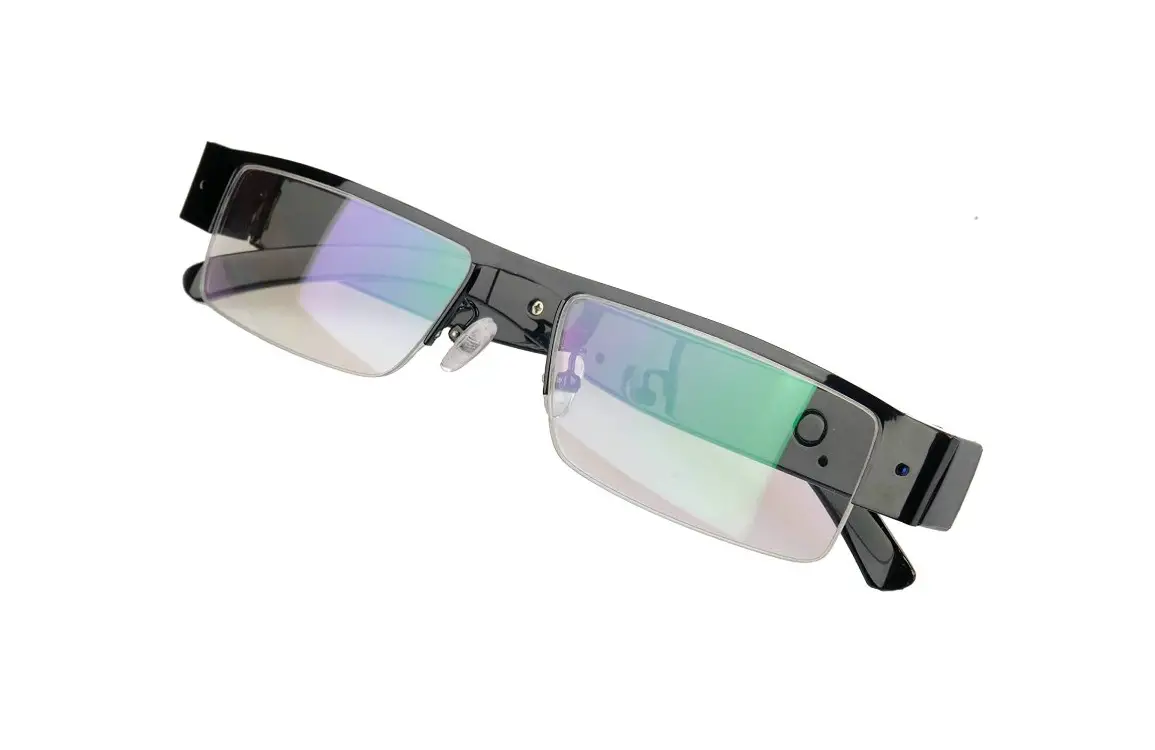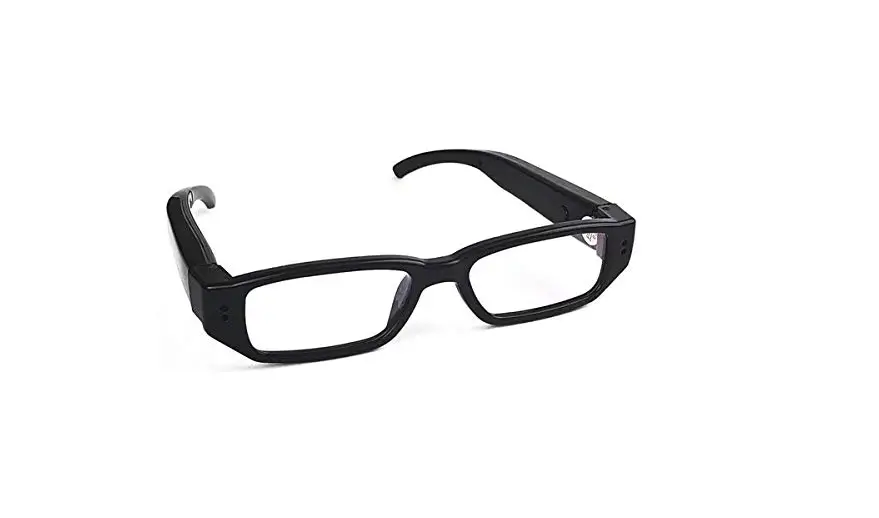

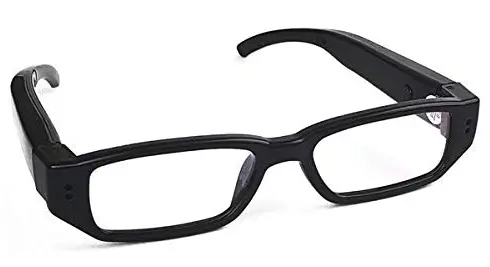
Zetronix Kestrel2 HD Camera Eye Glasses
Included
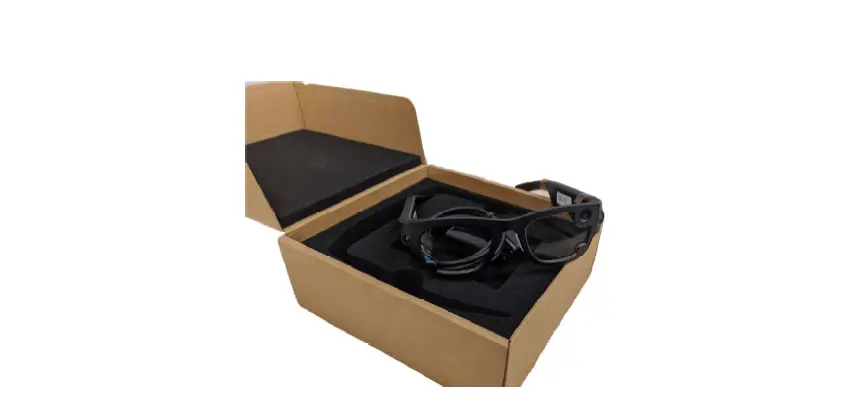
Packing list
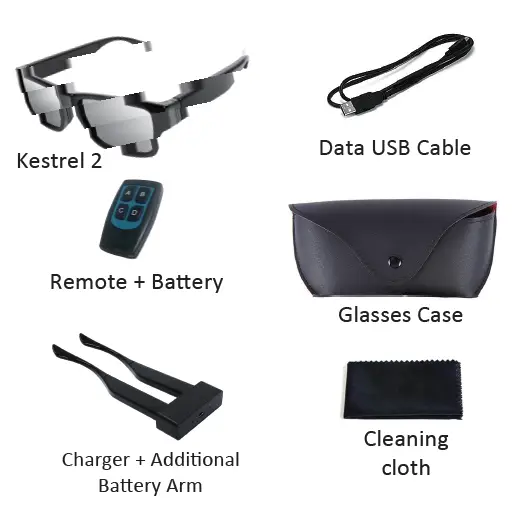
| Kestrel Glasses | 1 |
| Case | 1 |
| Remote | 1 |
| Battery leg | 2 |
| Nose pad | 1 |
| Manual | 1 |
| Leg charger | 1 |
| USB cable | 1 |
| Glasses cloth | 1 |
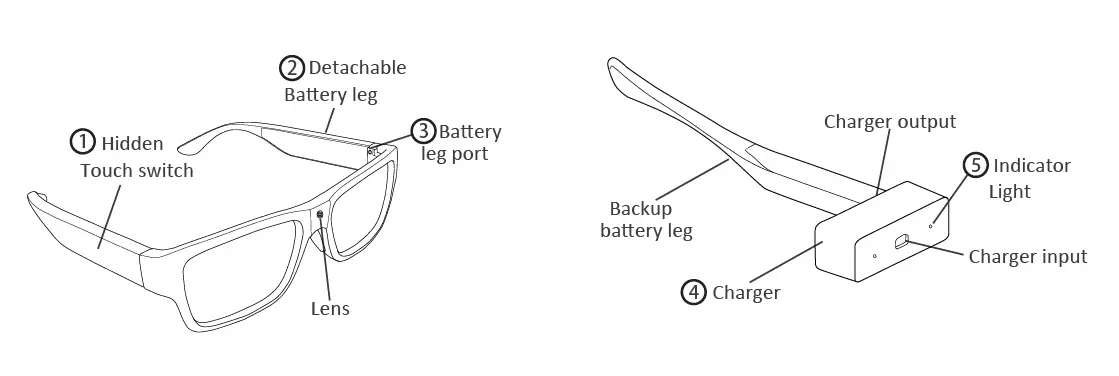
Diagram
Operation
Fully charge the device 2-3 hours before usage.
Power on & Record
Long press the button 2s to boot, the machine vibrates and the blue light is always on that the machine is on. When device is on, it vibrate 2 times while the blue light flashes 3 times and then goes off automatically into the video recording. During video recording, short press the button to stop recording and the blue light is on that the standby mode. Standby mode without operation 3 minutes automatic shutdown.
Power off
Power on state, long press the button 3s-8s release, save the video and shut down the machine, the blue light off.
No card
No card state will be turned on every 0.5s vibration prompt no card, and vibration after 10s automatically shut down. Card inserted during the vibration process to stop automatically and enter standby mode.
Card error
Card error will be 1s vibration once to prompt the card error.
Formatting operation
Long press the button more than 8s after the long vibration 2s prompts until the formatting is successful and stops vibrating.
Time settings
Directly change in the generated document ,the Y / N this is to change, to Y is to confirm the change.
Remote control operation
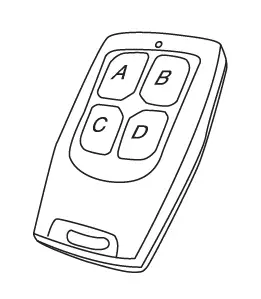
Short press the A key to turn on the machine, the machine vibrates and the blue light is always on that the machine is on, 1s automatically vibrate 2 times while the blue light flashes 3 times after the off automatically into the video. Short press the B key to turn off the machine. Short press the C key to start/stop video recording. Short press the D key to take pictures. Press D during the recording process will capture a picture. Take a picture of the process vibration and blue light off and then light up to take a picture. Each time after re-plugging the battery, please re-key the power on, before you can operate the remote control.
Playback
Use the included USB data cable to connect the frame port of the glasses to a computer to access the recorded media. The video and photos will be inside the DCIM folder.
Specifications
| Video resolution | 1920 * 1080, Max 30fps |
| View Angle | 70/80/120 Degree |
| Max internal storage | 32-64GB |
| Battery | 280mA |
| Battery life | 75 minutes |
| Video storage | 16GB with 2 hours 10minutes recording |
| Video Player | VLC Player/SM Player |