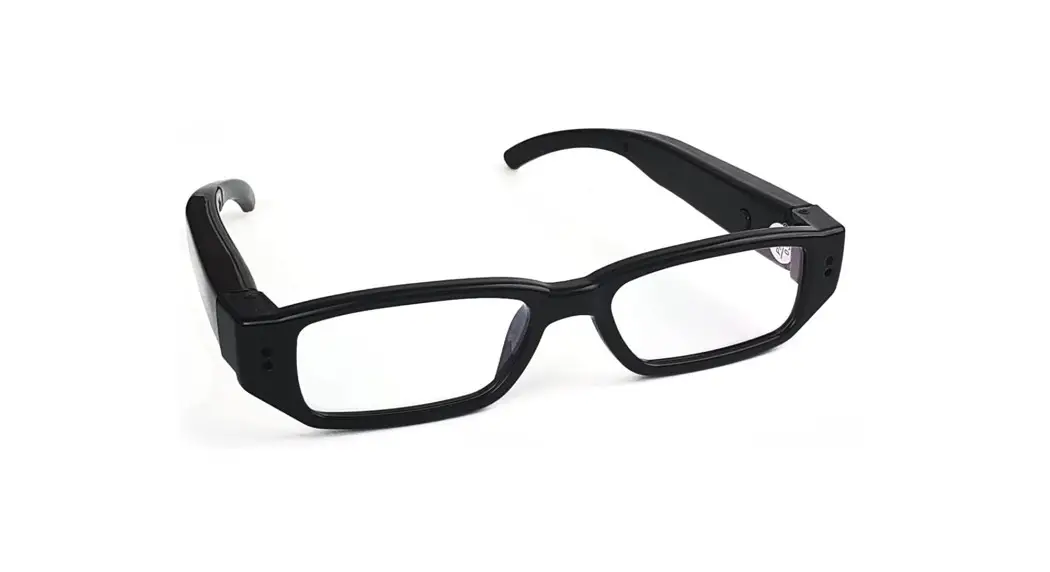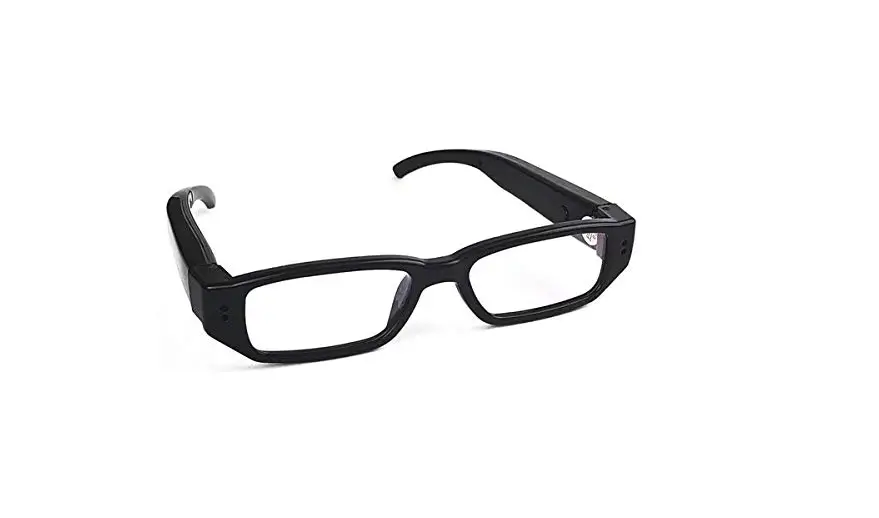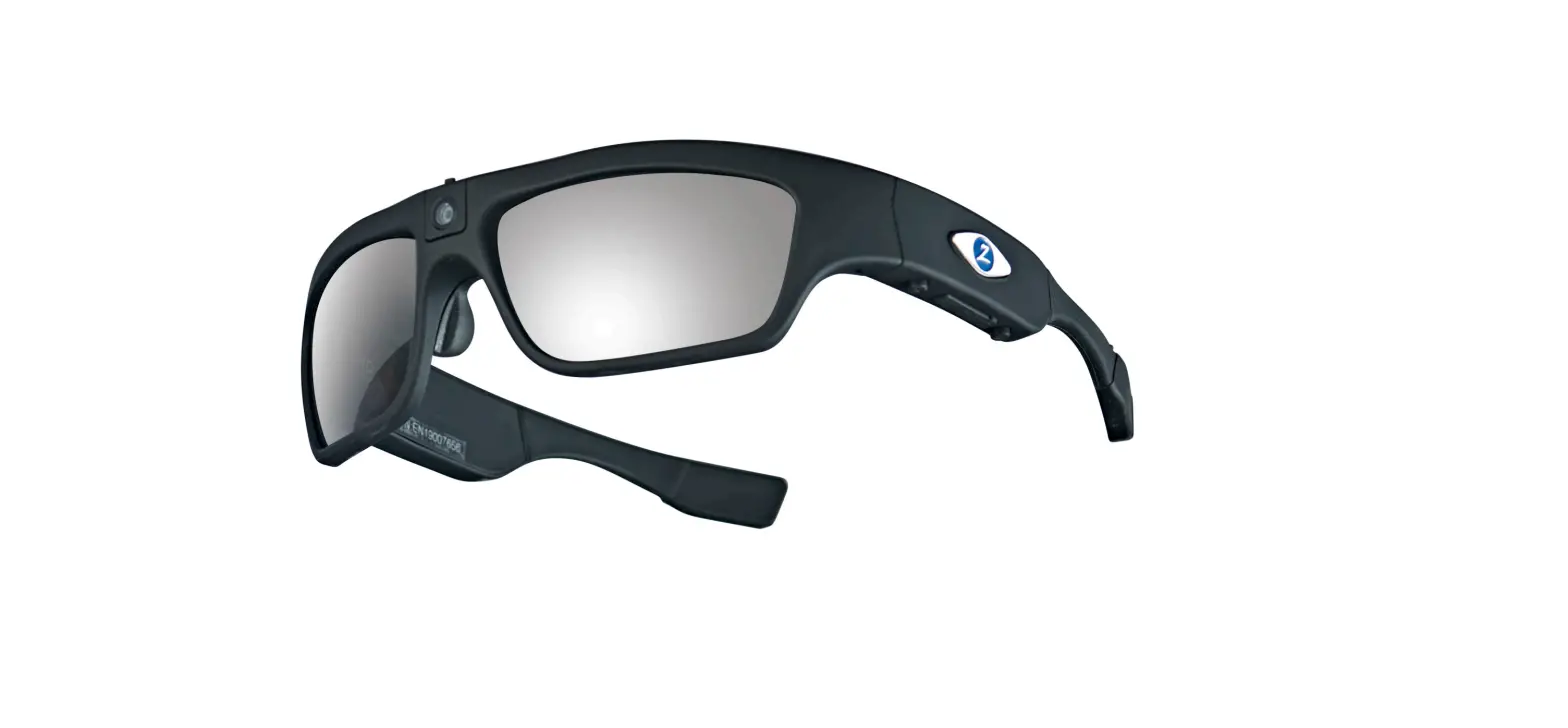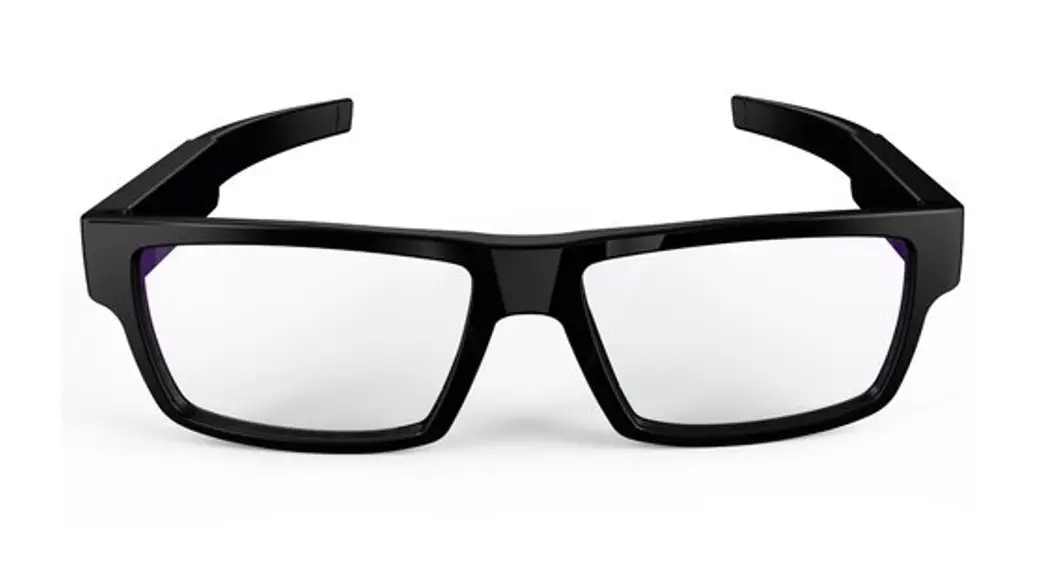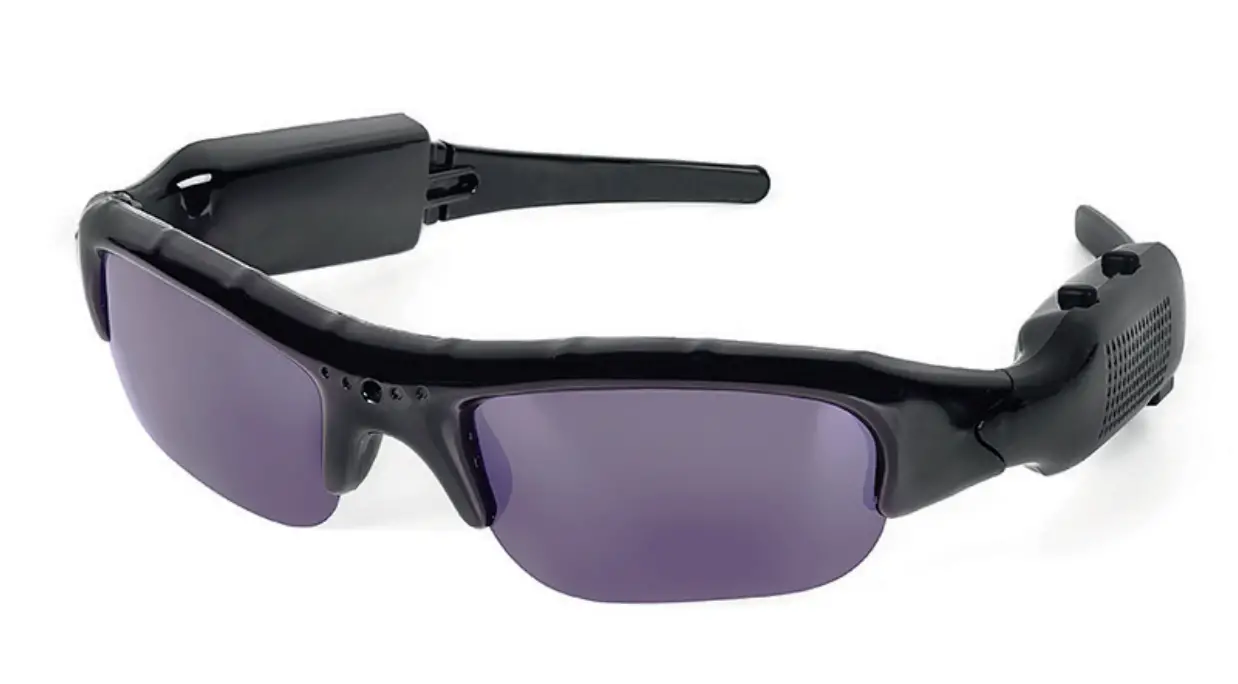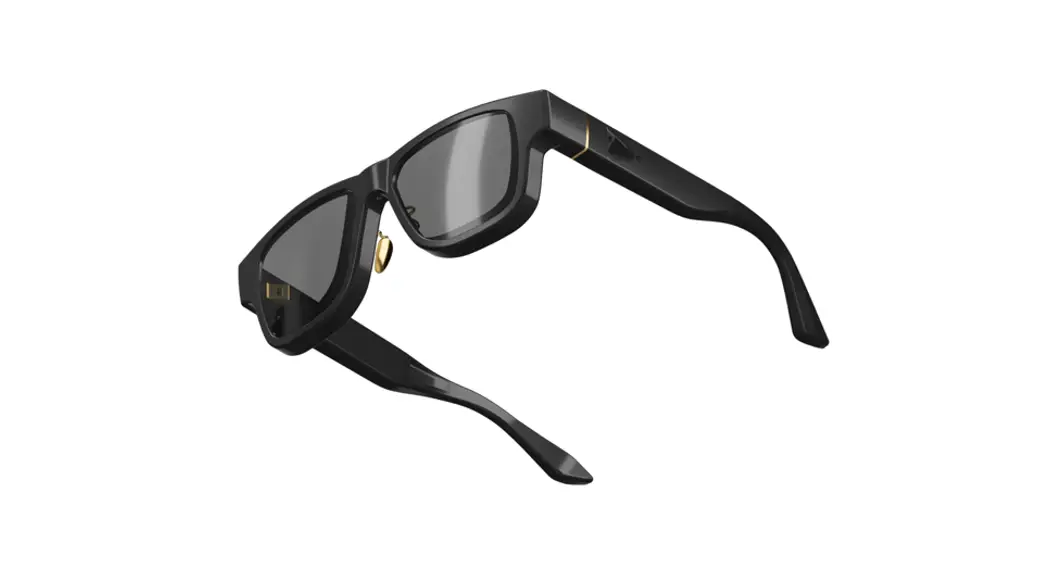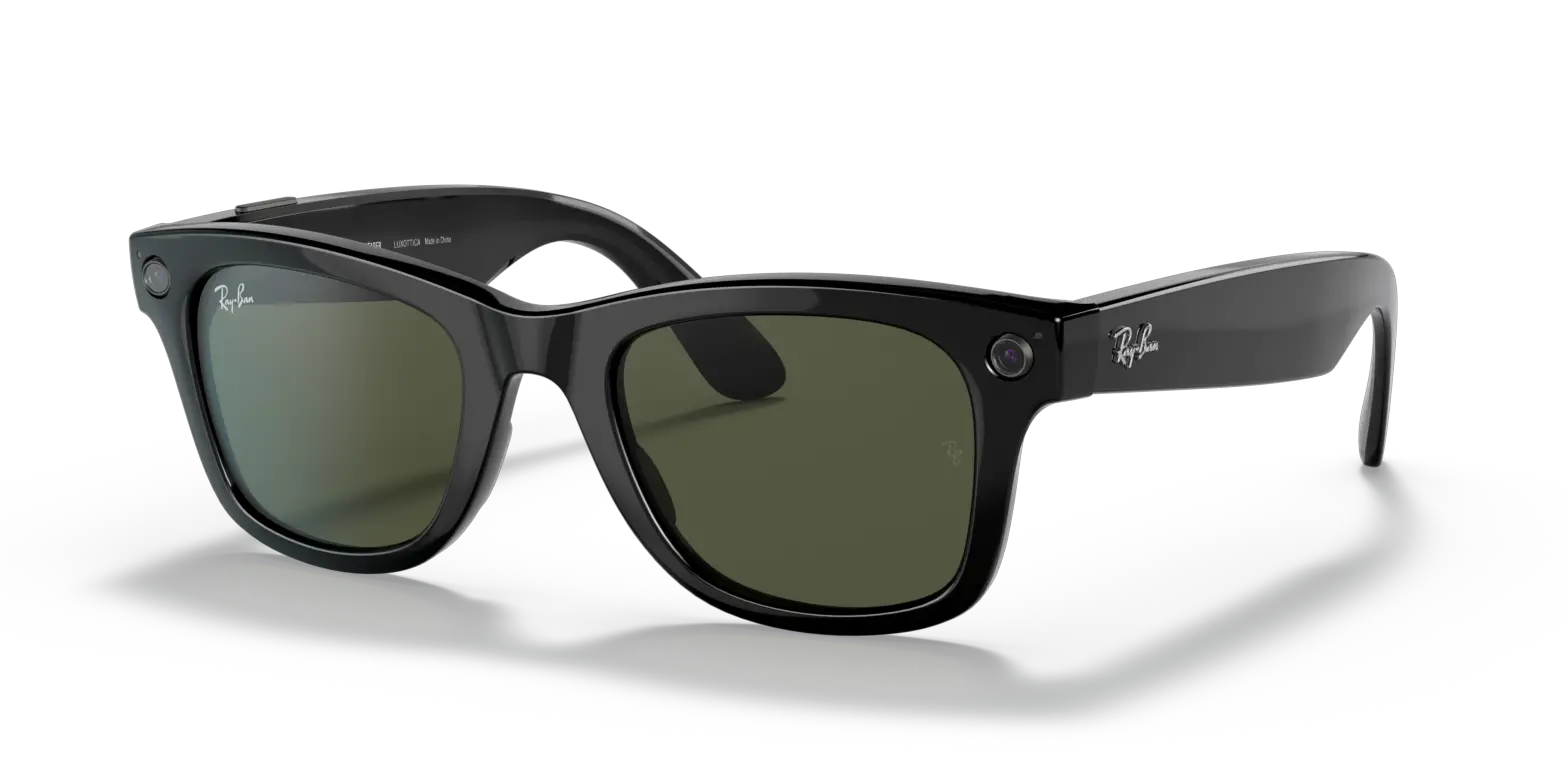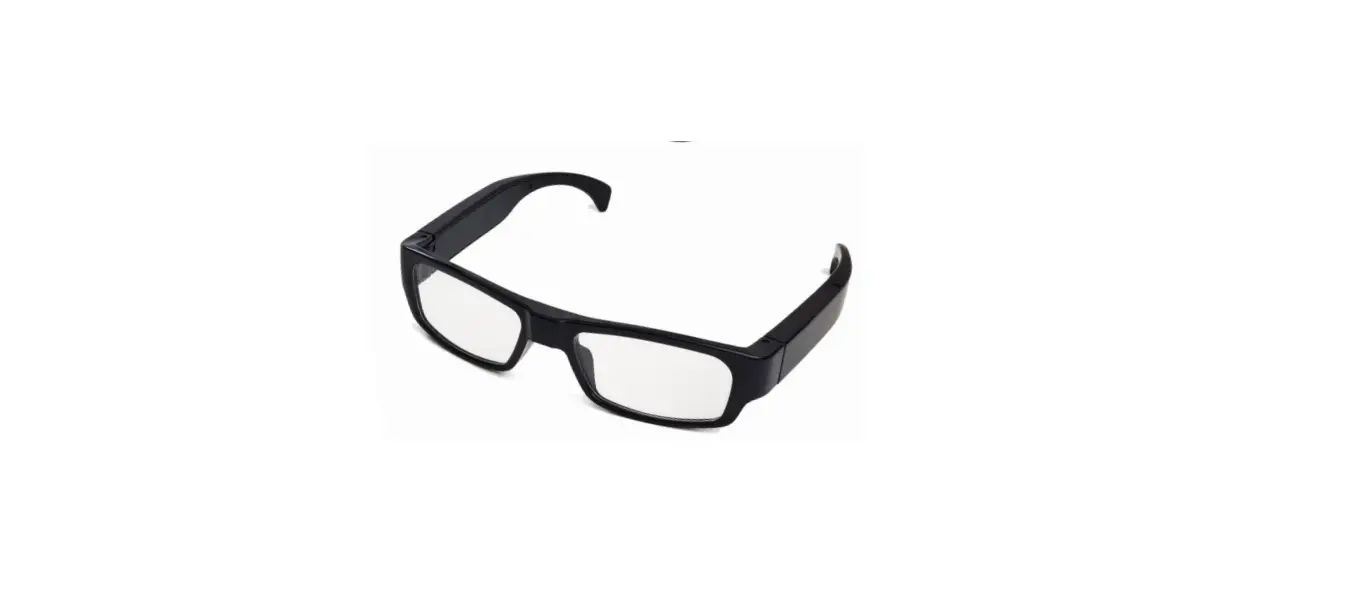

Zetronix Kestrel-1080 Video Recording Glasses
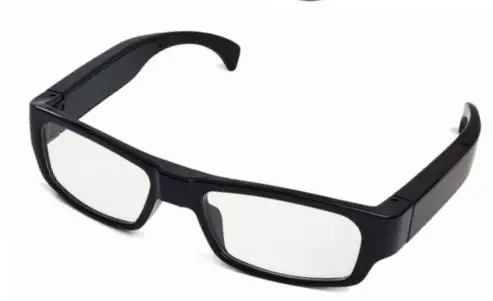
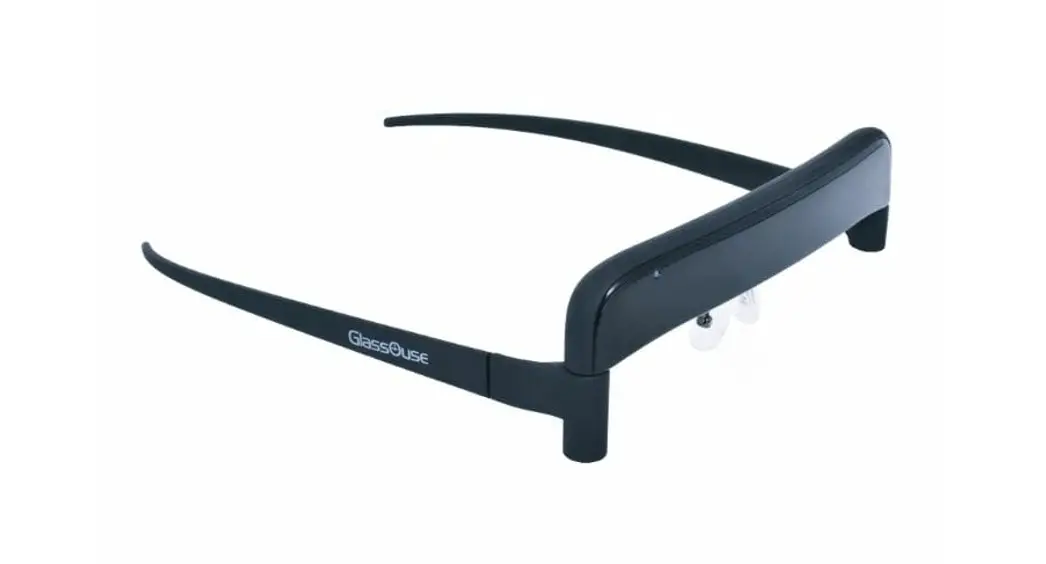
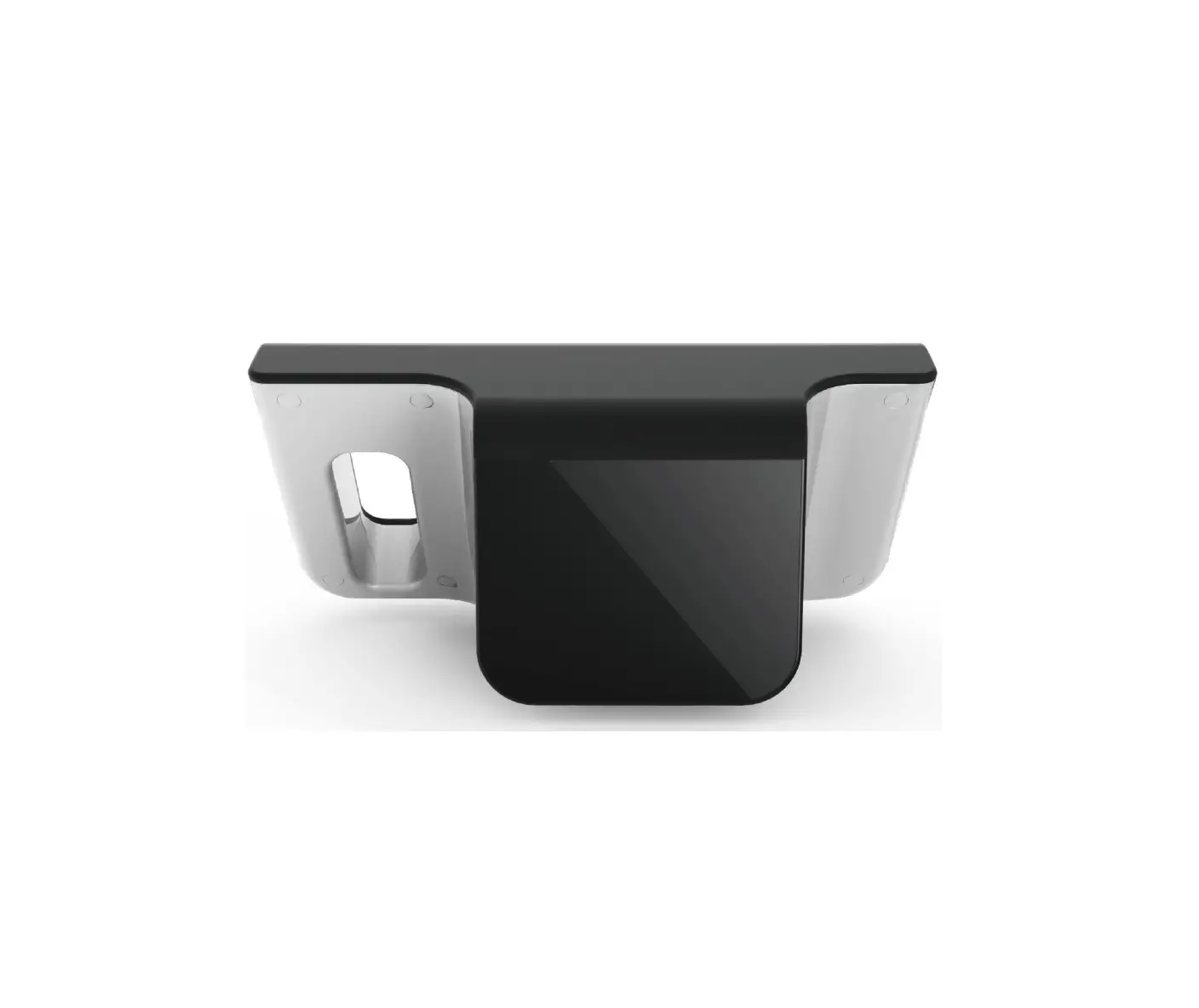
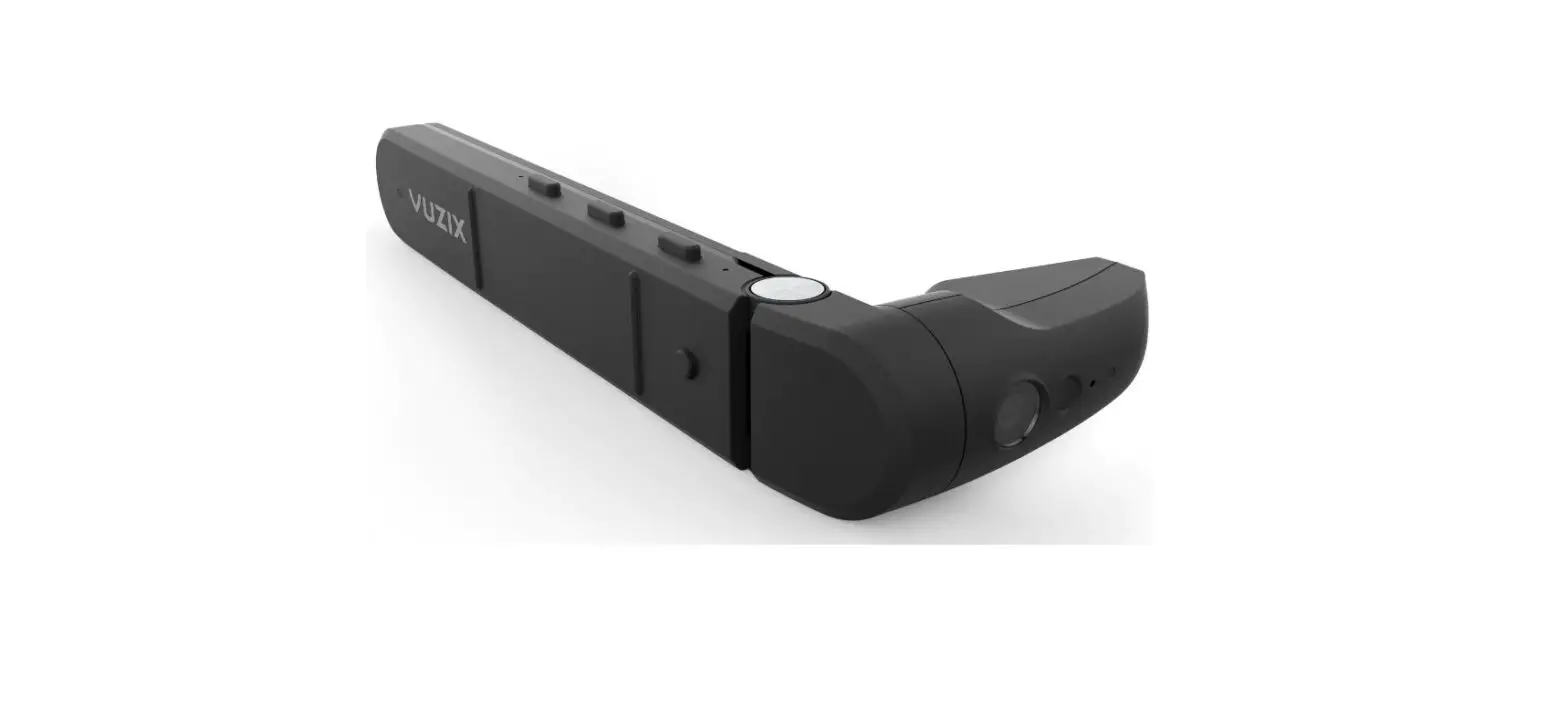
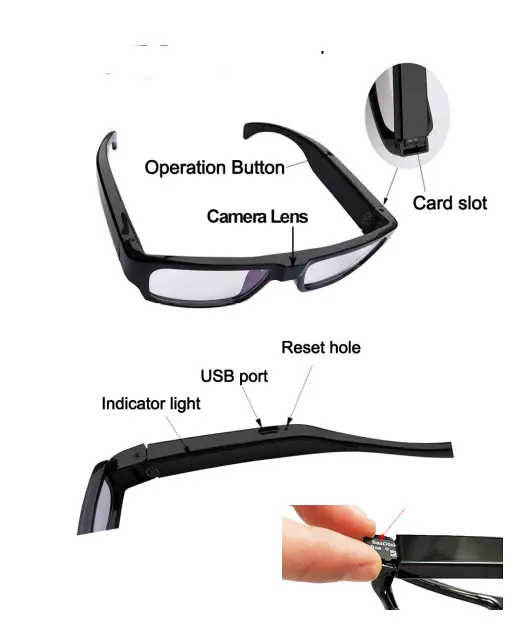
DIAGRAM
OPERATING INSTRUCTIONS
NOTE: Before recording any media, please remember to install a MicroSD card. By folding the left arm, you should see the card slot hiding on the actual arm. See images.
Power On
Press and hold the function button for about 2 seconds, the blue light will come on, the device enters into the stand-by state. Note: In stand-by state, the Kestrel will power off automatically if idle for 1 minute.
Snaping Photos
In the standby state, hit the function button to take the photos.
Meanwhile, the blue light will go off and on again and save the files in *.JPG format.
Recording Video
In a standby state, press and hold the function button for
about 2 seconds, the blue light will flash twice then go off and the video will start recording. While recording, hit the
function button again to pause, the blue light will come back on and stay on solid. To guarantee the size and safety of the recorded videos, the system saves the videos in file segments of 5 minutes each.
Power Off
In a standby state, press and hold the function button for 5 seconds, the red light will flash 3 times, flash blue once then go off.
Charging
Charge the glasses by connecting them to a computer’s USB port
(computer must be on) or by using a USB AC adaptor. A flashing red light indicates that its charging, the blue light will come on once fully charged.
Playback
To review the recorded media, you can connect the glasses to your computer directly using the included USB cable, ensure the glasses are powered off before doing so. You may also connect the memory card directly to your computer if your computer has a memory card reader. Once connected, your computer should prompt you to browse or download the files.
We recommend using a VLC player to playback videos recorded with the glasses. Download it free at:
Date-Time Stamp Setup
To update or remove the date-time imprinted on the video or photos please download the zUtilityApp from the Zetronix help section. Once installed in your system, select your Kestrel model form the list of items and the app will instruct you though the process.
https://www.zetronix.com/download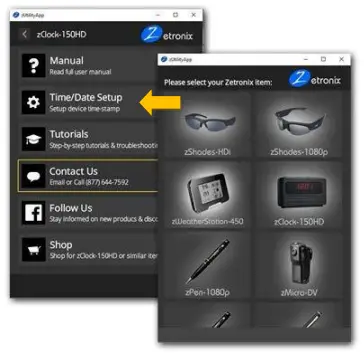
MAINTENANCE
Please abide by the relevant regulations and laws in your state or country. The user is fully responsible for the illegal use according to local laws.
Battery
The working time becomes shorter with an increase in the use time. Please charge the battery fully before using it when the product is in long-time storage.
File safety
The product is not a professional storage device, does not guarantee the completeness and safety of the stored files. Please back up your important files on the computer or other storage devices timely.
Video quality
The product is not a professional video device, it does not guarantee the same effect of the user’s perception.
Working humidity
Avoid humid working environments, the product is not waterproof.
Shoot illumination
Please shoot in an environment with enough illumination, don’t point the lens towards the sun as this can damage the sensor.
Cleaning requirements
Please don’t use the product in the high dusty environment, against gusty winds to the camera lens and other components. Please clean the camera lens with fine cloth gently.
Conditions
Please avoid a strong impact. Please don’t use the product in strong magnetic or electric fields.
TROUBLESHOOTING
When the glasses stop responding or do not respond properly, it may be the result of low battery, full memory, or corrupted memory. Giving it a full charge, resetting, and formatting the memory will fix most issues.
Check for low-battery
When the battery is low, the red and blue lights flash 3 times, then shut down automatically. The files being taken will be saved before shutdown.
Resetting
When the product stops responding or can’t connect with the computer, insert a pin or paperclip in the reset hole to press and hold the hidden reset switch for 15 seconds, the glasses will shut down, then simply turn it back on.
Formatting
Formatting the memory card can clear up issues caused by a corrupted file system. Please ensure you back up the files from the memory card before formatting it as it will wipe out all recorded media. If you don’t know how to format, please find more information online or consult with someone you know knowledgeable about computers.
SPECIFICATIONS
| Item | Parameters |
| Video format | AVI |
| Video encoding | M-JPEG |
| Video resolution | 1920×1080 progressive |
| Video frame rate | 30fps±1fps |
| Media playing software | Most default video players should be able to to playback videos. VLC Player is recomended to playback the videos from this device. |
| Picture format | JPG |
| Picture pixel | 5MP |
| Image ratio | 16:9 |
| Compatible O/S | Windows me/2000/XP/Vista/8/10; Mac OS 10.4; Linux; |
| charging voltage | DC-5V |
| Charging time | About 1.5hours |
| Interface | MicroUSB 5 Pin |
| Storage | Micro SD(TF) card, up to 32GB |
| Battery | high-capacity lithium polymer |
| Working temperature | 0~40 °C |
| Working humidity | 20%—80% |
 VLC: Official site - Free multimedia solutions for all OS! - VideoLAN
 Download