M400 Smart Glasses System
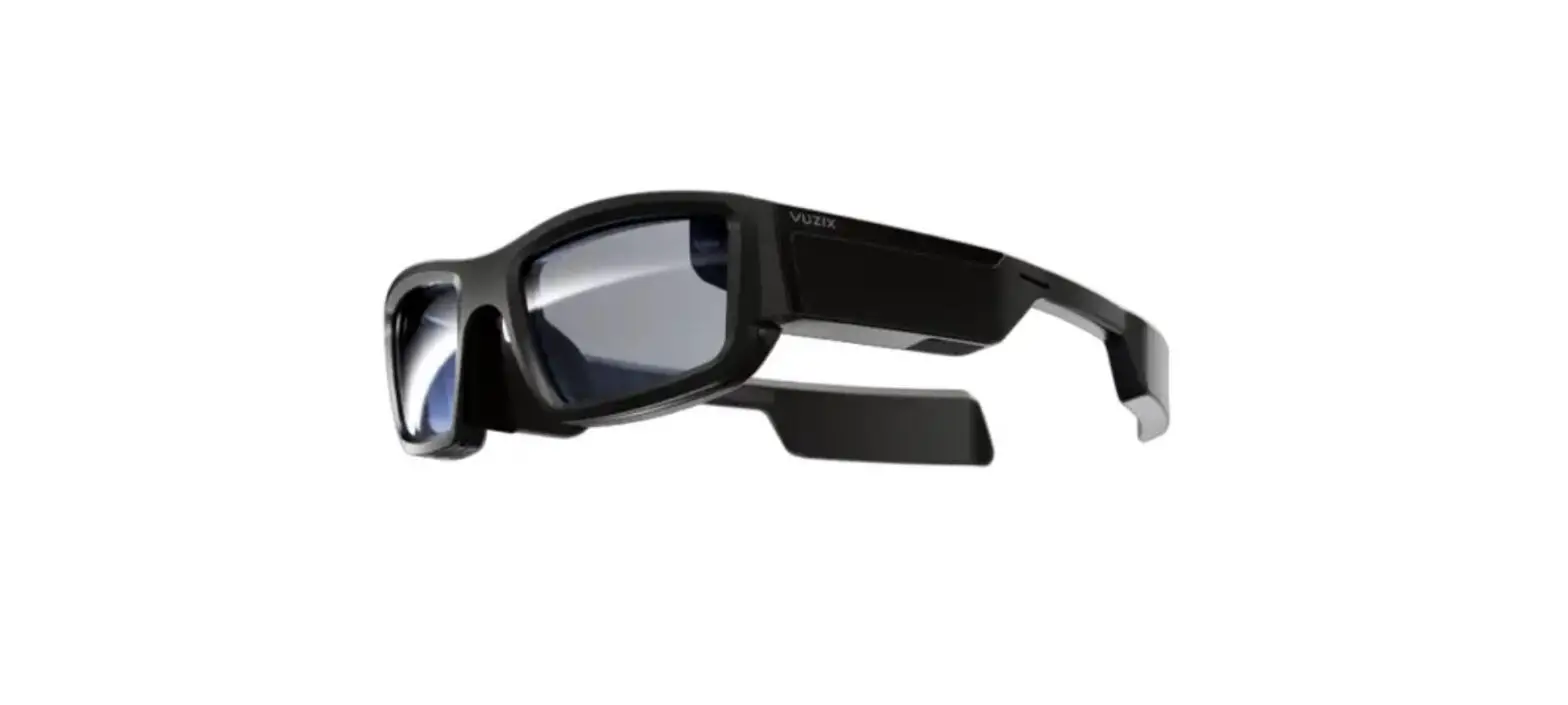
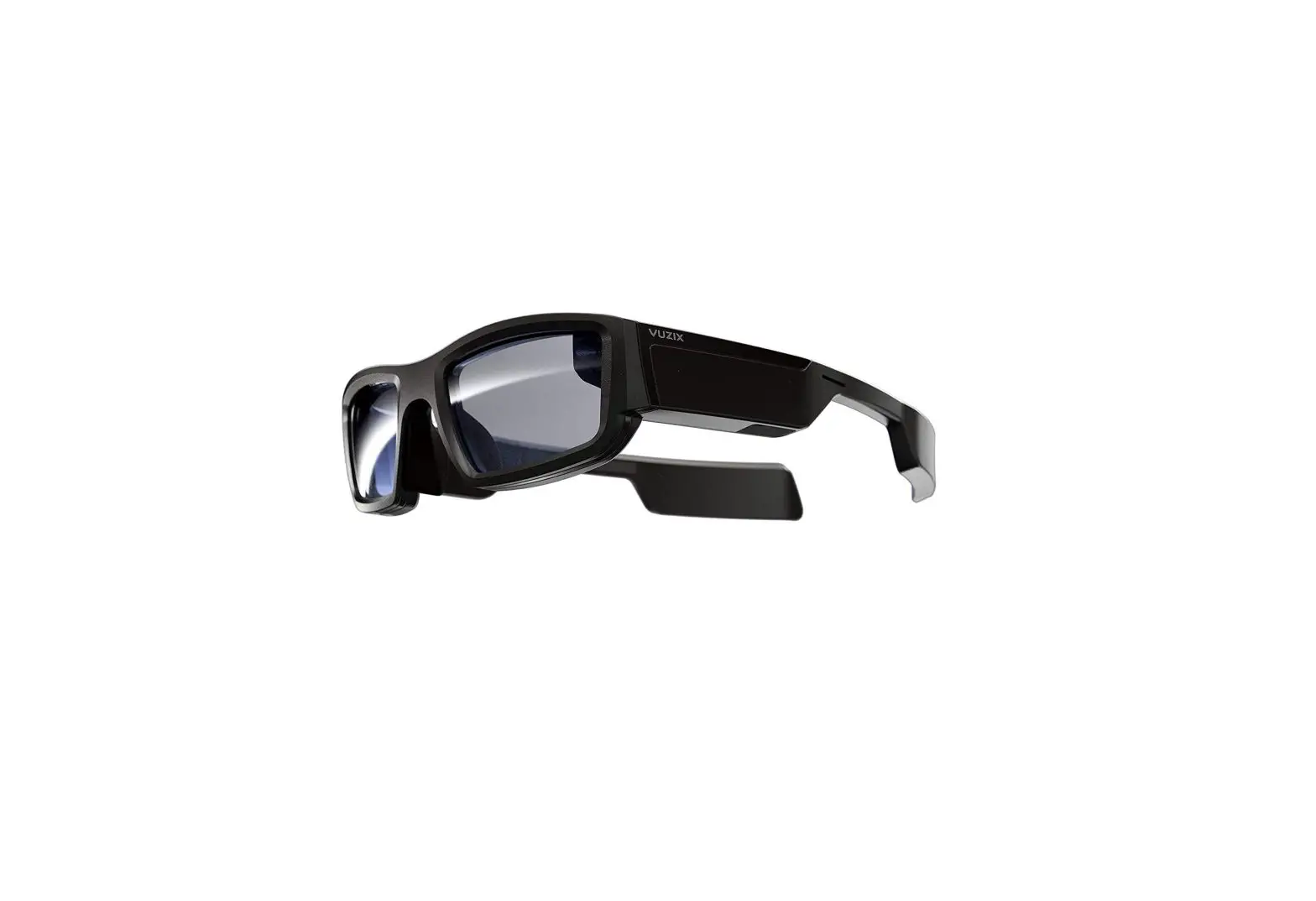
Product Information: The product being discussed is the Vuzix M400
Smart Glasses System. It is a wearable Android-based computer with
Wi-Fi connectivity, voice-command functionality, and an HD camera.
The system includes a viewer, USB-C battery, USB-C to USB-C cable,
and the M400 mounting system. The viewer is worn on the dominant
eye for optimal use. The system can be assembled by attaching the
viewer and USB-C battery to the frames using the mounting rail. The
USB-C cable is then connected between the viewer and the battery.
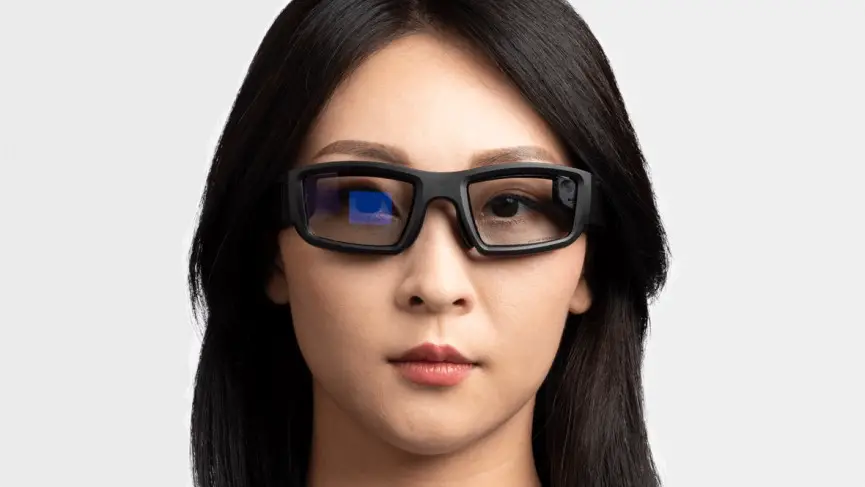
The M400 Smart Glasses can be worn over regular prescription
eyewear and can be adjusted for a comfortable fit. Additional
mounting options and accessories are available online. Product
Usage Instructions: 1. Charging for first-time use: – Charge the
battery before use with the wall charger. – Wait until all three
LEDs are solid. – Charging may take up to two hours if the battery
is fully empty. – The Power LED indicator will be red if the
battery is too low to power on. Keep it plugged in to USB to
charge. 2. Assembling your M400 Smart Glasses System: – Determine
your dominant eye before attaching the viewer to the frames. –
Attach the viewer to the side of the frame by sliding the mounting
rail onto the temple mount. – Ensure proper fitting and
adjustability by sliding it forward and backward. – Attach the
USB-C battery to the other side of the frames using the same
mounting process. – Connect one end of the USB-C cable to the
viewer and the other end to the battery. – When ready to wear, lift
the power cable over your head and rest it on your shoulders. –
Place the Smart Glasses on your head like a pair of glasses. – Use
ear hooks and alternate nose pads for a proper fit. 3. Determining
your dominant eye: – Extend your hands and place them together to
make a small triangle between your thumbs and knuckle. – Keep both
eyes open and center a nearby object inside the triangle. – Close
each eye one at a time and notice how the object moves out of view.
– The eye that keeps the object in view is your dominant eye. 4.
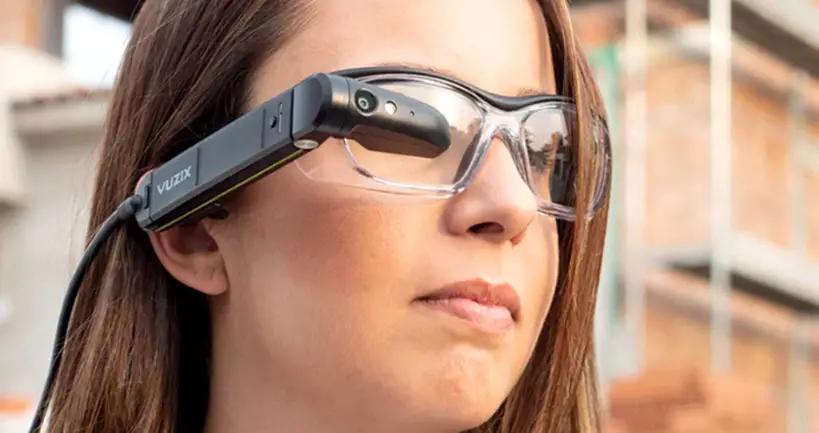
Wearing the M400: – Ensure the Smart Glasses frames are resting
comfortably on your head. – The frames can be worn over regular
prescription eyewear. – Adjust the nosepiece for a comfortable and
secure fit. – After mounting the viewer, adjust its position until
it is at a comfortable distance from your dominant eye. – Adjust
the eyepiece until you can see the full image. – Additional
mounting options and accessories can be found online. 5. Focusing
near-field: – First-time users may experience challenges focusing
their near-field vision on the M400 display. – Keep both eyes open
while using the device. – It may take up to 20 minutes for some
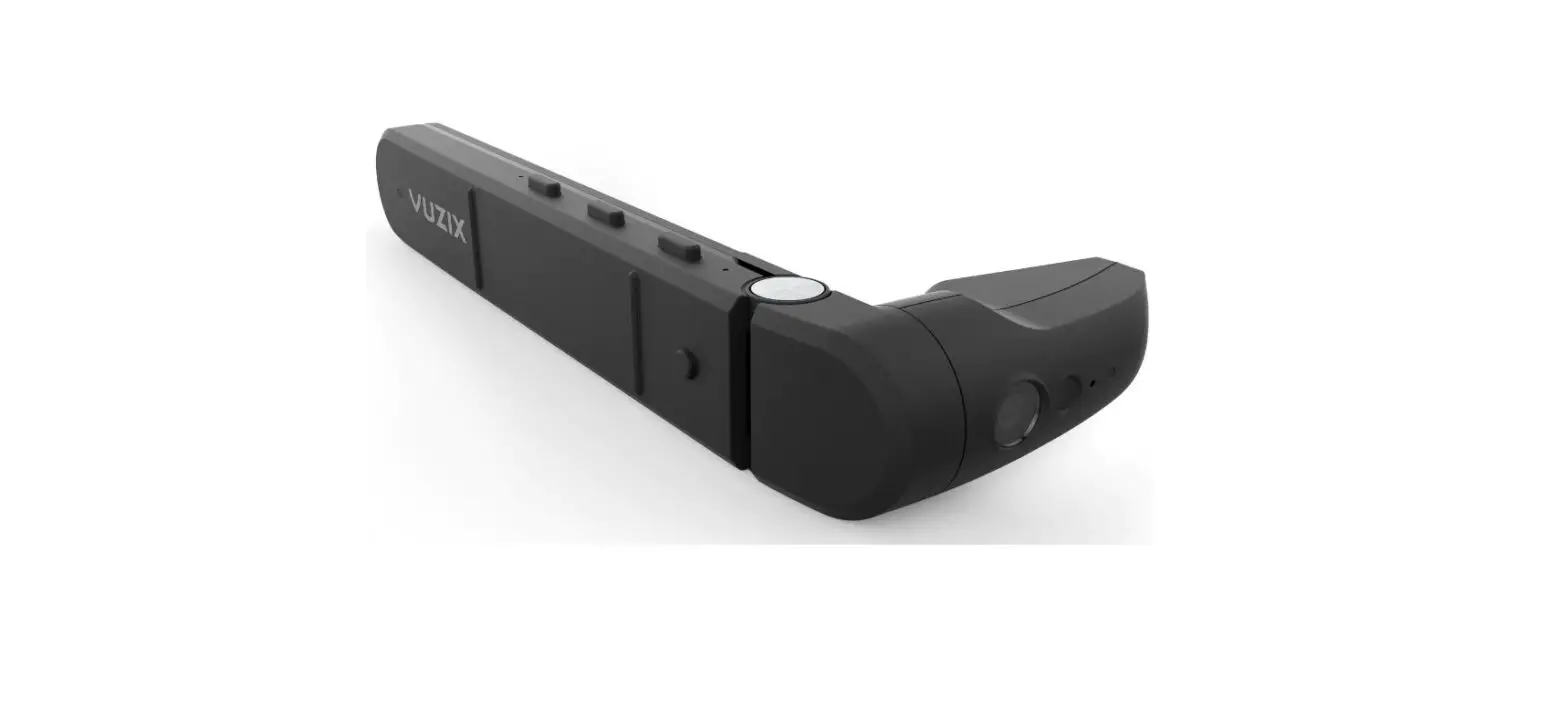
users to adjust. 6. Navigating the M400: – The M400 features a
touchpad, navigation buttons, power button, camera,
flash/flashlight, and recording LED. – Short press the navigation
buttons for primary functions (forward navigation, back navigation,
select). – Long press (approximately one second) on the touchpad
for secondary functions (open menu, etc.). Note: This response is
provided with HTML formatting.
M400
User Manual V2.2
Model 472
CONGRATULATIONS ON YOUR NEW VUZIX M400 SMART GLASSES SYSTEM
Your M400 Smart Glasses System is an ergonomically designed, wearable Android-based computer with Wi-Fi connectivity, voice-command functionality and HD camera — right out of the box, including:
· M400 viewer with adjustable display screen · USB-C Battery · USB-C to USB-C power cable · USB-A to USB-C cable (for charging the USB-C Battery) · M-Series Lens-less frames · Soft case for storage More head mount accessories are available at https://www.vuzix.com/products/accessories including M-Series Headband, Ball Cap Mount, Safety Glasses, and others.
02
CHARGING FOR FIRST-TIME USE Charge battery before use with wall charger, wait until all three LEDs are solid. Can take up to two hours if the battery is fully empty. The Power LED indicator will be Red if the battery is too low to power on, keep plugged in to USB to charge.
03
USB-C Battery
USB-C to USB-C Cable
Viewer
Assembling the M400 mounting system Power to M400 from Battery
04
ASSEMBLING YOUR M400 SMART GLASSES SYSTEM
1. The viewer will be worn on the dominant eye. Before attaching the viewer to either side of the Smart Glasses frames, determine your dominant eye for optimum use of M400 capabilities.
2. Attach viewer to the side of the frame by sliding the mounting rail onto the temple mount on the frames. Once properly fitted, the unit will be adjustable by sliding forward and backward.
3. Using the same mounting process, attach the USB-C battery onto the other side of the frames. 4. Plug one end of the USB-C cable into the viewer and the other end into the battery. 5. When ready to wear your M400 Smart Glasses, lift the power cable over
your head to rest on your shoulders as you place the Smart Glasses as you would a pair of glasses.
6. Ear hooks and alternate nose pads are available for proper fit.
DETERMINE YOUR DOMINANT EYE
Extend your hands, placing them together to make a small triangle between your thumbs and
knuckle. Keeping both eyes open, center a nearby object inside the triangle. Close each eye one at a
time. Notice how the object moves out of view when one eye is closed? When the object remains in
view, the open eye is your dominant eye.
05
06
WEARING THE M400
1. Make sure the Smart Glasses frames are resting comfortably on your head. Frames can be worn over the top of the majority of regular prescription eyewear. The nosepiece of the frames can be adjusted to fit comfortably and securely.
2. After mounting the viewer, adjust the viewer as shown until it is a comfortable distance and preferred position from your dominant eye.
3. Adjust the eyepiece as shown until you can see the full image. 4. Additional mounting options, including frames with prescription lenses, safety frames, hard hat,
headband mounts, and more, can be found online at Vuzix.com under Products > M400 Smart Glasses > Accessories.
FOCUSING NEAR-FIELD First time users may find some challenges focusing their near-field vision on the M400 display. Making sure to keep both eyes open, some users may need up to 20 minutes to adjust.
07
NAVIGATING THE M400
USB-C Port Power LED
Mounting Rail
Navigation Buttons
Back
Center Front
Display
Touchpad
Power Button
Camera
Flash/Flashlight
Recording LED
Note: Recording LED is Red when the camera is on
08
TOUCHPAD
BUTTONS
One finger: · Tap to activate selection or turn on
the screen · Hold to activate menu · Swipe up/down/left/right to move
selection
Short Press for primary functions: Front: Forward navigation Center: Back navigation Back: Select
Long Press (approx. one sec) touch for secondary functions: Front: Open menu Center:
Two fingers: · Tap to go back or return
Exit to home menu Back: Back one step
· Hold to go to home screen · Swipe back for backspace · Swipe forward for delete · Swipe up to raise volume · Swipe down to lower volume
VOICE The M400 can be activated by “Hello Vuzix” when properly configured. The M400 will listen for voice commands for 15 seconds by default.
To activate Voice control, open the Settings menu and navigate to System -> Speech Recognition. Enable the speech recognition.
Three fingers: · Tap to turn off screen
A full list of voice control commands can be viewed from that same settings menu.
09
M400 POWER LED
Color Green Red
Meaning On Too low to power on, keep plugged in to USB to charge
IF THE BATTERY RUNS OUT DURING USE
If the battery runs out of power the viewer will display a message on the screen. 1. Unplug the USB cable from the battery 2. Remove the battery from the mount and replace with a charged one 3. Plug the USB cable back in
10
POWERING DOWN AND RESTARTING
Press and hold the power button on the viewer to access the power menu.
· To reboot, highlight the reboot entry and activate it. The viewer will power off and automatically turn back on.
·
To fully power off, highlight the power off entry and activate it. The viewer will ask you
to unplug the USB cable. After you unplug the cable the viewer will fully power off.
Leave the cable disconnected while the viewer is off. The battery will power off as
soon as it’s unplugged.
If the USB cable is unplugged the device will power off after about five minutes. If the internal battery is already discharged this may occur sooner.
11
PREINSTALLED APPLICATIONS The M400 comes preinstalled with several standard applications such as Camera, Gallery and QR and barcode Scanner.
12
CONNECTING TO WI-FI
QR code setup: 1. The easiest way to connect to Wi-Fi is by scanning a
QR code — QR codes can be securely created using vuzix.com/wifiQR from your phone or computer. 2. Open Scanner from the main carousel. 3. Point the M400 at the phone or computer screen that is displaying the QR code to scan.
Manual setup: 1. At the home page, select the Settings app. 2. Select Network & Internet then Wi-Fi menu option
and then press the select button to activate Wi-Fi. 3. Once the list of available networks populates,
highlight the preferred network and select. 4. Enter password using displayed keyboard, Select
Connect.
13
REGISTERING YOUR DEVICE
1. Register your device by logging on to your Vuzix App Store account from a computer or phone at vuzix.com/appstore.
2. Follow the instructions on the website 3. Once registered, you will see the serial
number of your M400 under your account.
INSTALLING APPLICATIONS
Application can be installed on the M400 via the Vuzix App Store. The Vuzix App Store will install and manage applications via the OTA (Over the Air) mechanism and will require WiFi connectivity. For instructions and additional information about installing applications and using the Vuzix App Store, visit: www.vuzix.com/ support. The M400 supports ADB (Android Debug Bridge) as an alternative mechanism for advanced users to install applications.
serial number location 14
GETTING THE LATEST UPDATES The M400 will automatically check for updates once it is connected to Wi-Fi. Click Update on the following pop-up.
NOTE: If your corporate firewall prevents access to the external website, your system administrator may provide additional settings for your M400 or may provide a software update offline.
15
DEVELOPING FOR M400 Developer documentation is available at vuzix.com/developers. In order to power the unit during development, please note: · The included battery does not support data pass-through. · The viewer should be plugged into the developer’s machine with a USB
C-to-C cable for the best experience. · If a USB A-to-C cable must be used, then using a CDP-capable port will
provide enough power. If the USB-A port is not providing sufficient power, functions of the device may become impaired without notice, and the viewer may shut down completely.
16
TROUBLESHOOTING COMMON ISSUES
SYMPTOM
DIAGNOSIS
REMEDY
M400 will not turn on and power LED is not lit.
Battery is discharged.
Connect battery to wall charger for up to two hours for a full charge, then connect battery to viewer.
M400 will not turn on and power LED is red.
Internal battery is discharged.
Leave viewer connected to USB power. System will begin booting within a few minutes.
M400 display is blank but power LED is lit.
Screen has turned off to conserve power.
Tap any button to wake the screen.
M400 powers off after 20-30 minutes while plugged in to USB.
USB source does not provide enough current.
M400 can draw up to 1.5A while in operation.
17
CLEANING AND CARE
·
Clean the viewer and battery with a damp cloth and mild detergent if necessary. Do not use all-
purpose cleaners as these may damage the seals and impair the water resistance.
·
Make sure that there is no standing water in the USB connector before inserting the cable.
·
Do not insert sharp objects into any holes in the viewer as this may damage the mesh and impair
the water resistance.
·
Do not use metal objects to clean the USB port as this may cause electrical damage.
M400 in a Medical Environment
The Expected Service Life of the M400 and M400 Power Bank is 3 years.
Normal Performance – If the M400 or M400 Power Bank fail to perform as described in the User Manual, please stop using the device and contact Vuzix Technical Support at 1-800-436-7838 or https://www.vuzix.com/Contact/ Customer.
Disposal – The M400 and M400 Power Bank contain Lithium Polymer batteries that should be disposed according to local laws and regulations. – Do not disassemble, there are no serviceable parts. The batteries are not replaceable. No not incinerate the devices.
18
M400 in a Medical Environment
– The M400 is used to assist a medical professional but does not perform any medical procedures. – The M400 is a system that is worn on the head with a headband or glasses. The system consists of the M400 viewer and M400 Power Bank that powers the viewer with a USB-C cable. – The M400 system is a hands-free two-way communication device used as a tool for the medical professional to communicate over Wi-Fi to: Allow another remote medical professional to hear instructions or see instructions on the viewer. Allow another remote medical professional to send feedback, or record and share images from the viewer. Record audio and video of a procedure for later.
– The optimal operating environment for the M400 is 0°C to 45°C and 0-95%RH.
– The M400 is completely self-contained and does not need to be used with any other device. It does not need to be plugged into the wall or any other medical device. The M400 does not come in contact with a patient and is not used by the patient.
– The M400 can be used in most medical settings. Examples of medical settings are the medical office, hospital, or operating room.
19
M400 in a Medical Environment
– Only charge glasses and power bank via IEC 60950/IEC 62368 compliant power source. – External power bank charging to a separate power supply must comply with all medical equipment
practices. – Do not use accessories, detachable parts, and materials not included with the M400 or described in
the user manual for use. – Do not disassemble or modify the M400. – The M400 and M400 Power Bank both have Ingress Protection rating of IP67. This means the M400
and external battery are protected from dust and protected from immersion in water up to 1m. – The M400 complies with all regulatory requirements in the countries it is sold. It has been certified
not to interfere with other devices. – Children under the age of seven (7) are still learning to focus and track with their eyes. Their vision is
still immature. For these reasons, near eye-displays SHOULD NOT BE USED BY CHILDREN UNDER THE AGE OF SEVEN (7). – Smart glasses can potentially have adverse effects on the user, including: motion sickness, perceptual after effects, disorientation, decreased postural stability, and eye strain. Take frequent breaks to lessen the potential of these effects.
20
Indications Storage
M400 and M400 USB Battery storage: -10°C to 45°C, 0% to 95%RH, and 760 to 1060 hPa Symbols Retail box describes: Please read the User Guide Carefully Ingress protection against sand and water immersion Manufacturing Date
Operating Temperature
Operating Relative Humidity
21
REGULATORY INFORMATION
Regulatory information can be viewed from the Settings application:
1. Open “System” 2. Open “About Glasses” 3. Open “Regulatory Labels” Radiation Exposure Statement Europe The maximum combined SAR head measurements (limit 2.0 W/kg) WLAN 2.4G 0.011 W/kg 10 g Head SAR WLAN 5.2G 0.014 W/kg 10 g Head SAR
FCC/IC/MIC Statement Operation of this device in the band 5150-5250 MHz is restricted to indoor use only.
Modelo: 472 Para maiores informações, consulte o site da ANATEL www.anatel.gov.br Este equipamento não tem direito à proteção contra interferência prejudicial e não pode causar interferência em sistemas devidamente autorizados
22
LEARNING MORE
Visit www.vuzix.com/support/M400-smart-glasses for more information on the M400 or contact [email protected] for additional information.
FOR MORE INFORMATION ON THE M400 AND ACCESSORIES, VISIT:
vuzix.com | vuzix.eu | vuzix.jp
Vuzix Corporation 25 Hendrix Road West Henrietta, NY 14586 ©Vuzix 2021 This User Manual is subject to change. Please read the included safety information, also at www.vuzix.com/support/safety-warranty-m-series before using this product. All trademarks belong to respect owners. 472PB0002(0005) M400 USER MANUAL
References
 Vuzix | Heads-Up, Hands-Free AR Smart Glasses
-
Vuzix | View The Future
-
Developer Center – Vuzix
-
Vuzix | Heads-Up, Hands-Free AR Smart Glasses – Vuzix Europe
 ƒrƒ…[ƒWƒbƒNƒXƒWƒƒƒpƒ“Š”Ž®‰ïŽÐ
-
Anatel — Agência Nacional de Telecomunicações
-
Vuzix | Heads-Up, Hands-Free AR Smart Glasses
-
M-Series Product Support – Vuzix
-
Vuzix M-Series Smart Glasses Safety & Warranty
-
Contact Sales – Vuzix
-
Accessories – Vuzix
 Vuzix | Heads-Up, Hands-Free AR Smart Glasses
 Vuzix | Heads-Up, Hands-Free AR Smart Glasses – Vuzix Europe
 ƒrƒ…[ƒWƒbƒNƒXƒWƒƒƒpƒ“Š”Ž®‰ïŽÐ
 Anatel — Agência Nacional de Telecomunicações
 Vuzix | Heads-Up, Hands-Free AR Smart Glasses