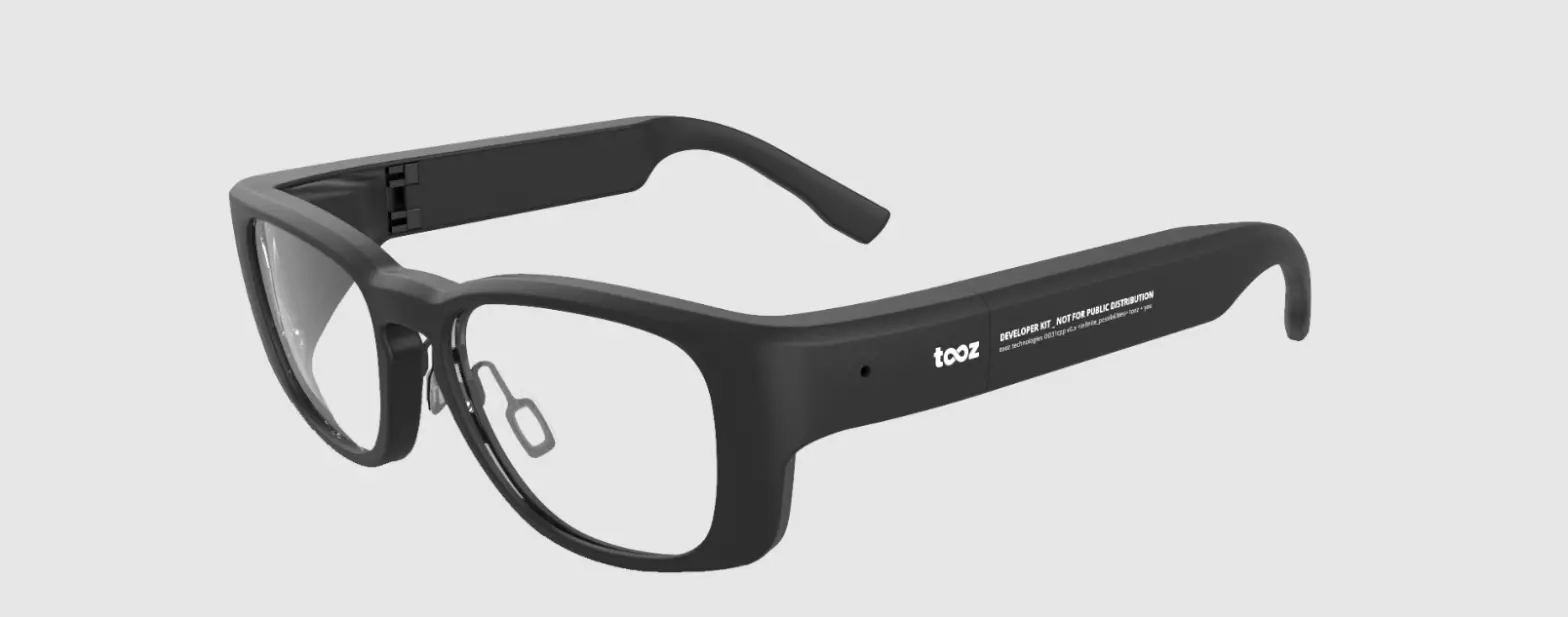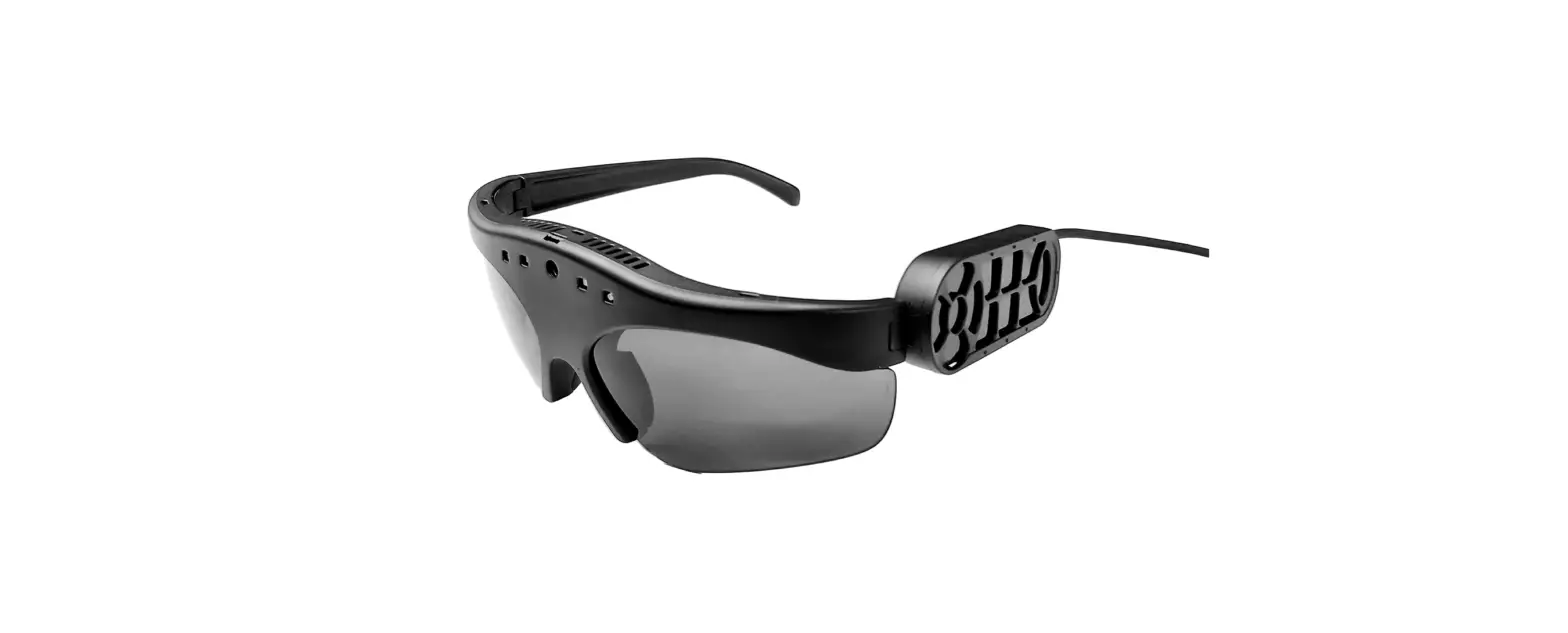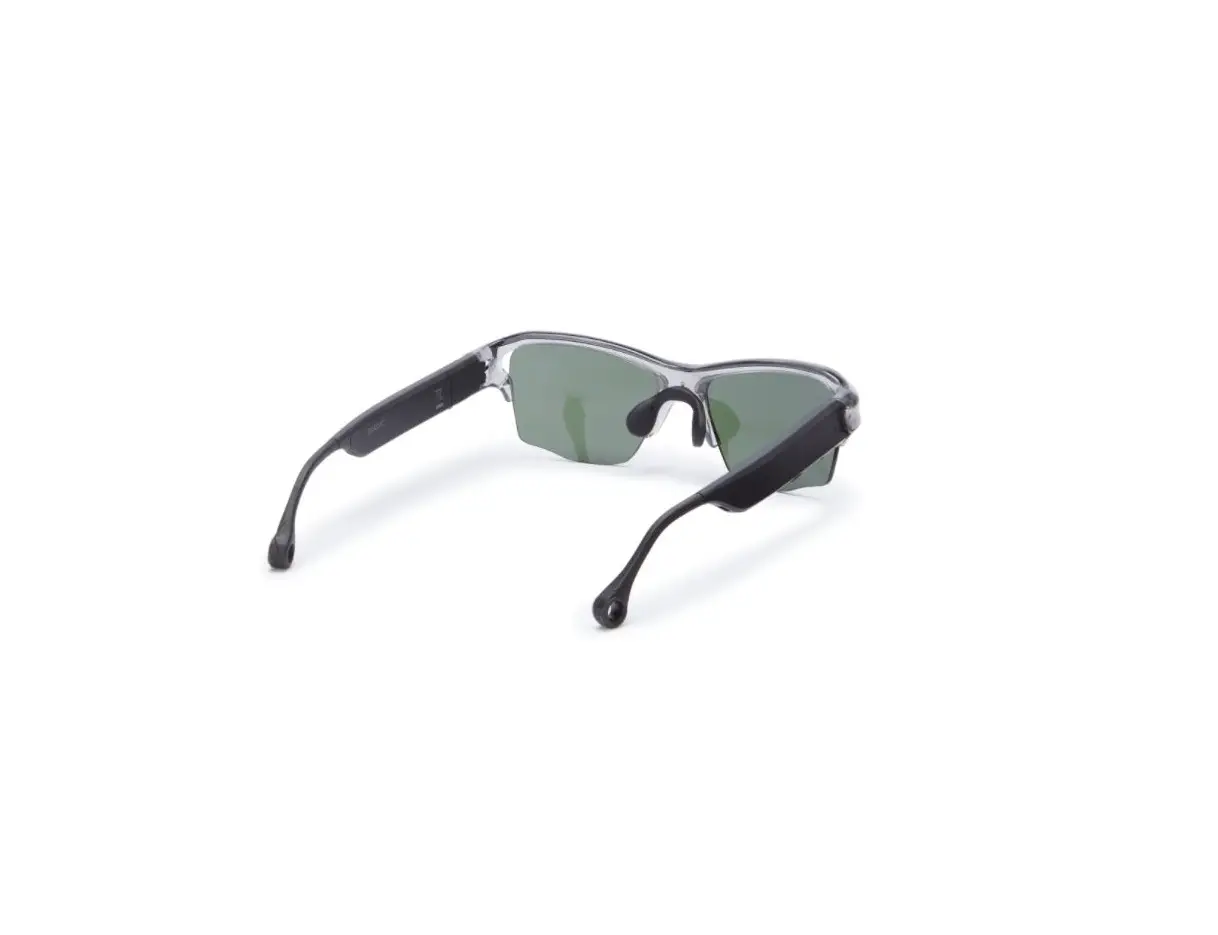
solos AirGo 2 Smart Glasses User Manual
Contents hide
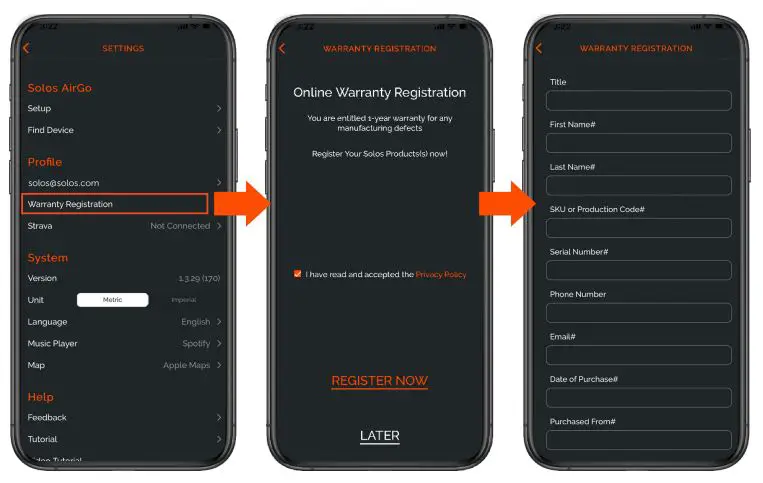
Warranty Registration
- Open Solos AirGo App
- Go to Setting > Profile > Warranty Registration
- Tap Register Now
- Enter warranty information
 Power On / Off
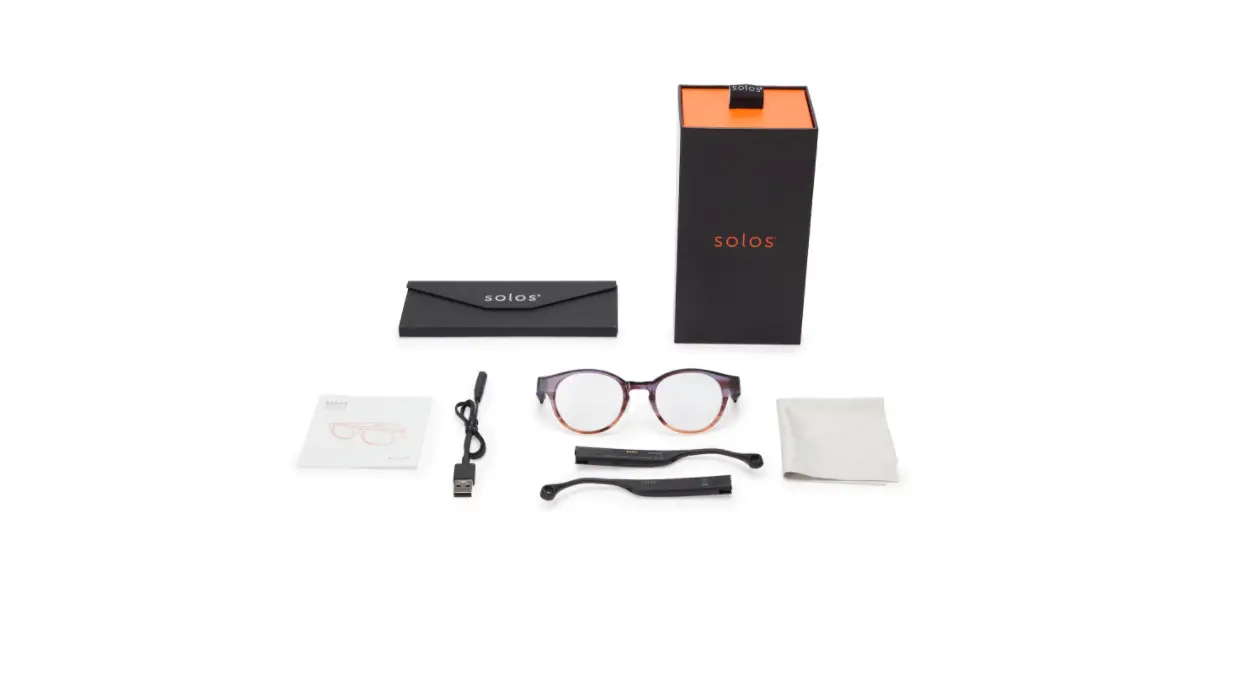
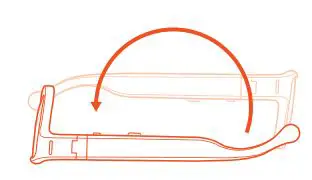
- Before power on, please confirm that the left and right temples are attached to the AirGo 2 glasses frame.
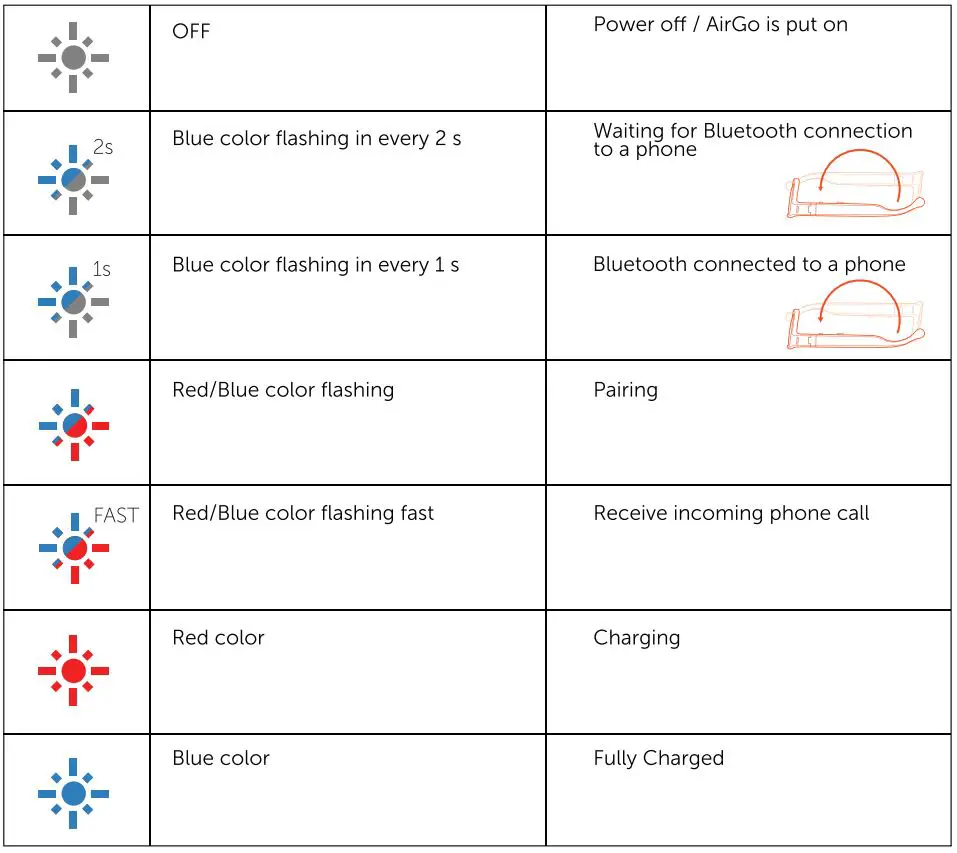
- To power on AirGo 2, long press multi-function button for 2 seconds until Power Status voice prompt is heard, and it’s LED flashes in blue color . AirGo 2 will reconnect to last paired phone automatically.

- To power off AirGo 2, long press Multi-function button for 3 seconds until “Power Off” voice prompt is heard, and its LED will turn off.

- AirGo 2 will power off automatically if it is upside down for 3 minutes.
 Bluetooth Pairing
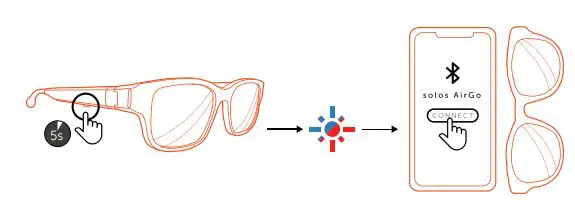
- Long press multi-function button for 5 seconds to power on AirGo 2 until its LED flashes in red/blue color and “Pairing” voice prompt is heard.
- Turn on Bluetooth connectivity of your phone and put AirGo 2 right next to your Phone.
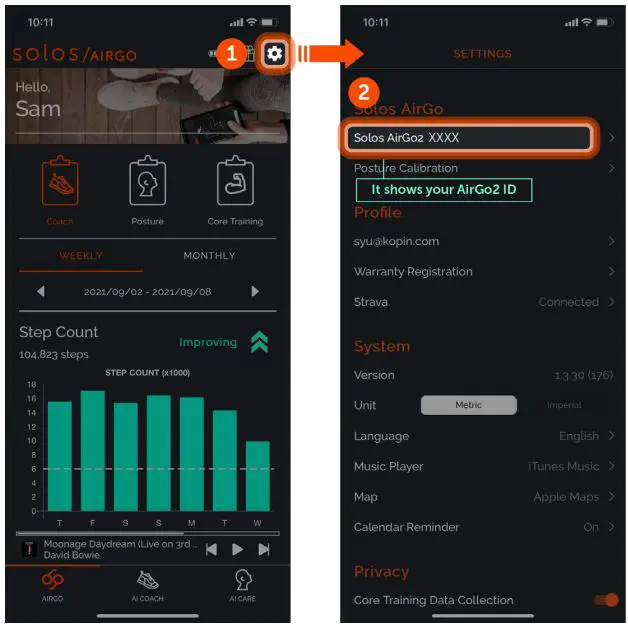
- Open Bluetooth settings on your phone and select “Solos AirGo 2 xxxx”. (“xxxx” is the unique device number)
- AirGo 2’s LED will flash in blue color only after it is paired to your phone. It is ready for call and music now.
 Operation Summary
 Music Control
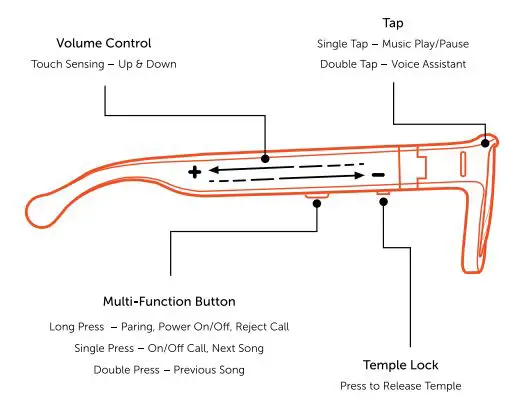
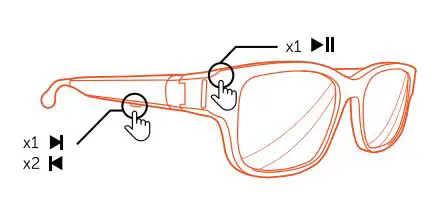
- To play music, ▶ single tap on the frame.
- To pause music, single tap on the frame.
- When playing music, short press on multi-function button to play next track ▶Ⅱ .
- When playing music, short press on multi-function button TWICE consecutively to play previous track. Ⅱ◀
 Phone Call
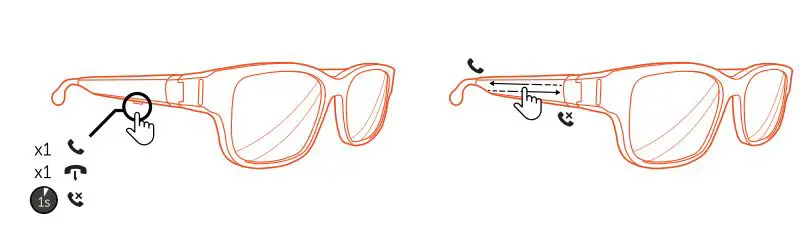
- To accept a phone call, short press Multi-function button or slide backwards on right temple.
- To reject a phone call,
 long press Multi-function button for 1 second or slide forwards on right temple.
 - To end a phone call,
 short press Multi-function button.
 Phone Call ( Call Waiting )
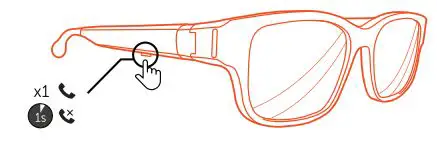
- To accept
 the 2nd incoming phone call, short press Multi-function button. Current call will be ended.
 - To reject
 the 2nd incoming phone call, long press Multi-function button for 1 second
 Volume Control
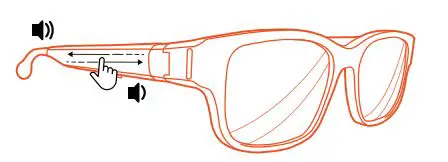
- To increase volume level, slide backward on right temple during phone call or listen to music.
- To decrease volume level, slide forward on right temple during phone call or listen to music.
- Each slide backward or slide forward will adjust one step of the volume level.
 Voice Assistant
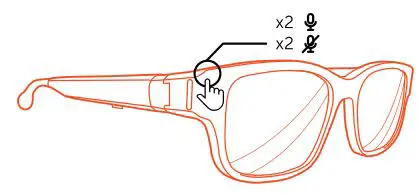
- Double tap on the frame to enable voice assistant of your phone (iOS or Android). After your double tap, you will hear the Voice assistant beep tone. You can start the voice command.
- Double tap on the frame again to end voice assistant.

 Charging
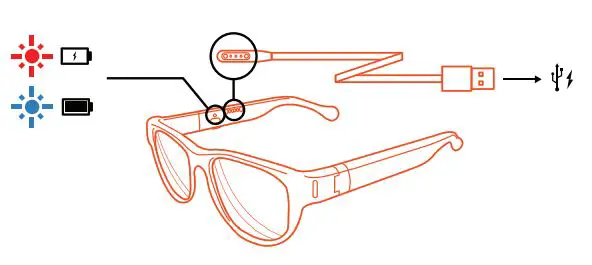
- Connect pogo pin connector of the charging cable to AirGo 2 charging port.
- Plug USB connector of the charging cable to USB charger or laptop.
- AirGo 2’s LED shows in red color during charging and blue color after fully charged.
- AirGo 2 will be automatically power off when its under charging.
- When disconnect pogo pin connector from AirGo 2, AirGo 2 will power on and reconnect to last paired phone automatically.
 Mobile App
- AirGo mobile app uses AirGo 2 smart glasses to provide AI Care , AI Coach and many other features.
- AI Care takes care of your health with providing wellbeing features such as posture monitoring, posture/stretching exercise, personal reminders (drink water), etc.
- AI Coach calculates and coaches your jogging activities.
- AirGo mobile app is available for both iOS and Android




Tap Sensitivity
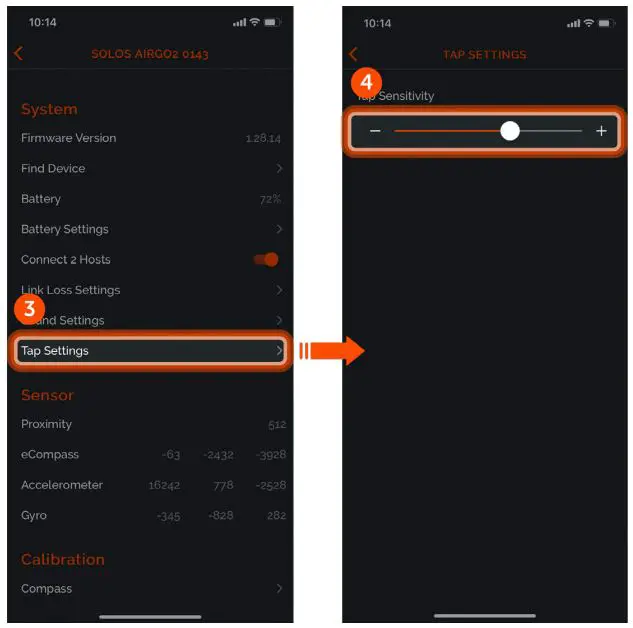
- Sensitivity of single-tap (start / stop music) and double-tap (activate Siri / OK Google) of AirGo 2 smart glasses can be adjusted through AirGo mobile app
- Follow below steps to adjust tap sensitivity
Music Equalizer
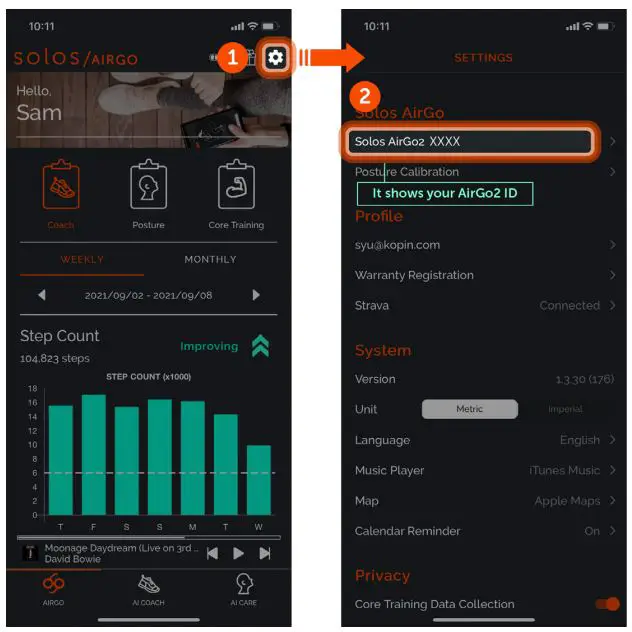
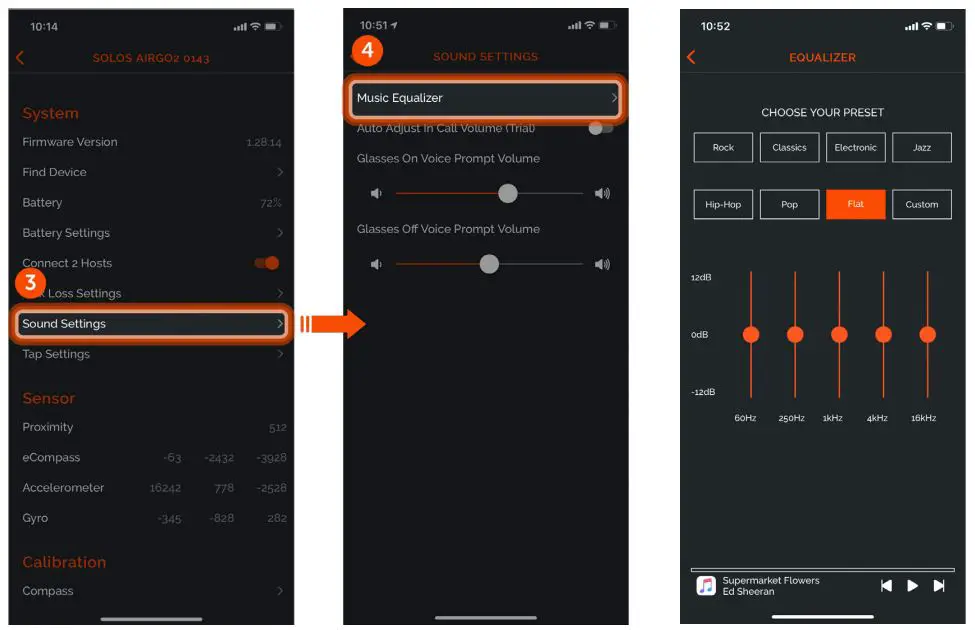
- Use 5-band Music Equalizer inside AirGo app to adjust the gain of individual frequency to personalize the music taste according to user’s preference
- Follow below steps to use the Music Equalizer
Dual Host
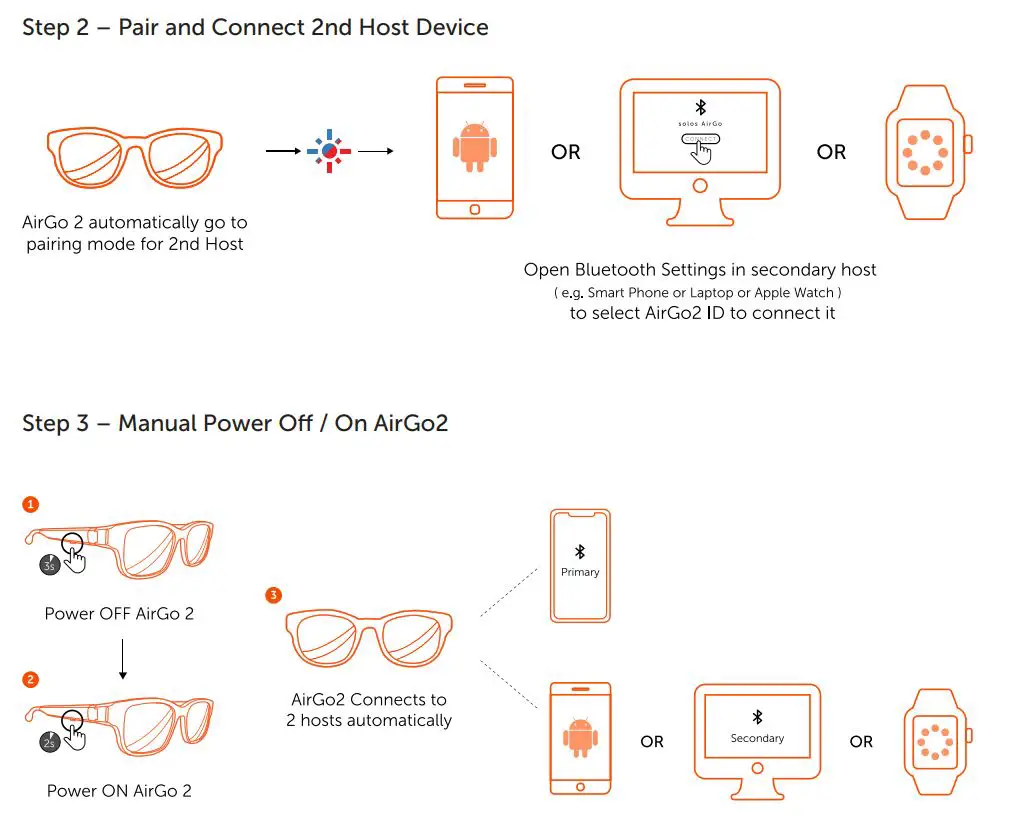
- AirGo 2 smart glasses supports Dual Host feature to connect to 2 host devices simultaneously, e.g.
– iPhone and Android Phone
– iPhone and Mac
– Android Phone and PC
– iPhone and iPad
– etc. - After AirGo2 smartglasses connects to 2 host devices, user can listen to music streaming, or receive the phone call, from either one of the connected host devices.
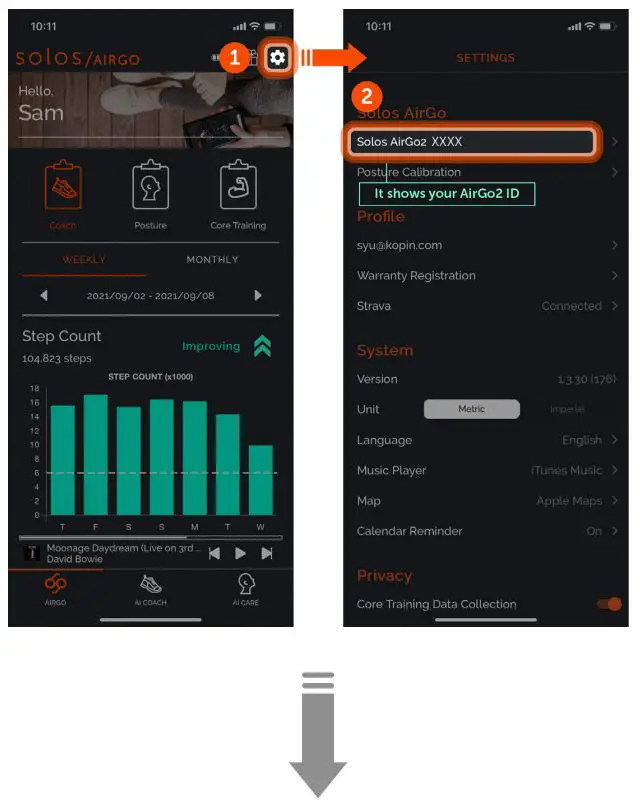
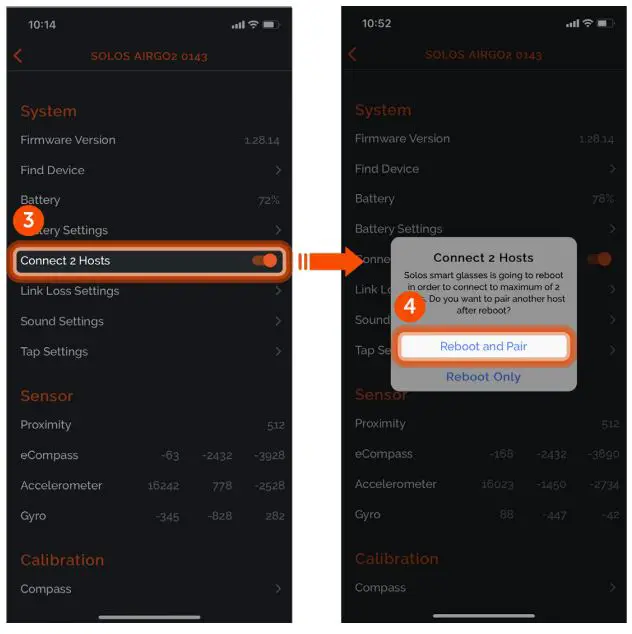
- Dual Host is turned OFF by default. It requires AirGo mobile app to turn it ON.
- Follow below steps to enable the Dual Host and connect to 2 host devices
Step 1 Turn on Dual Host
 LED Lighting Mode