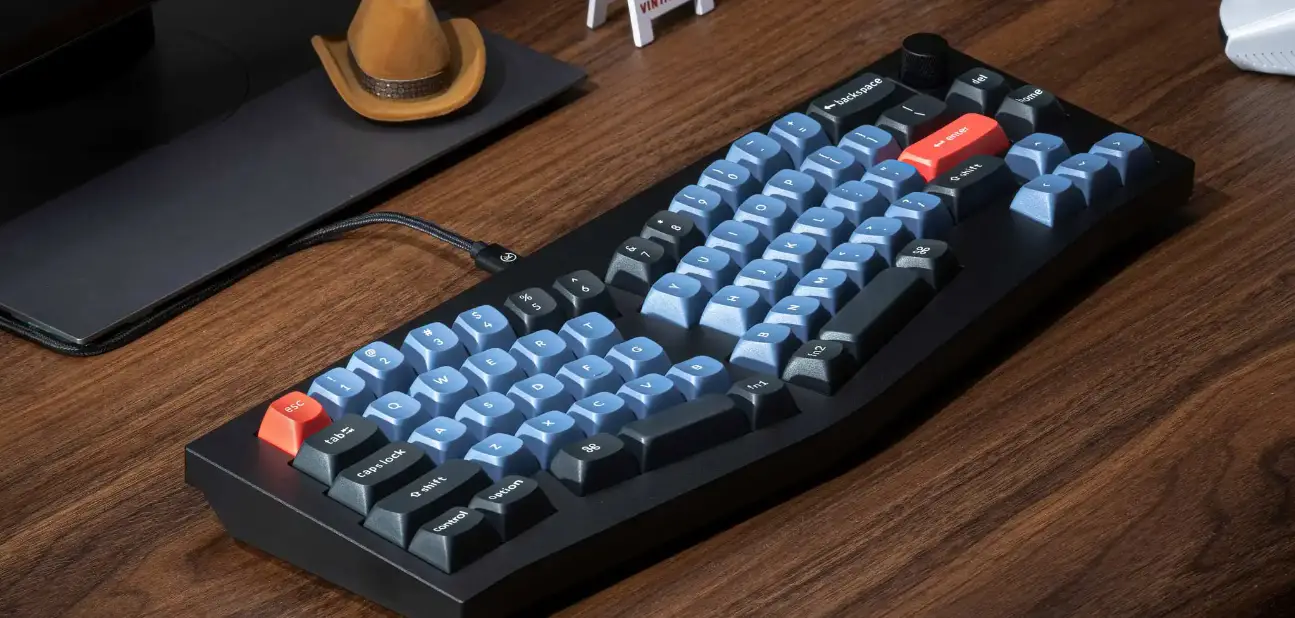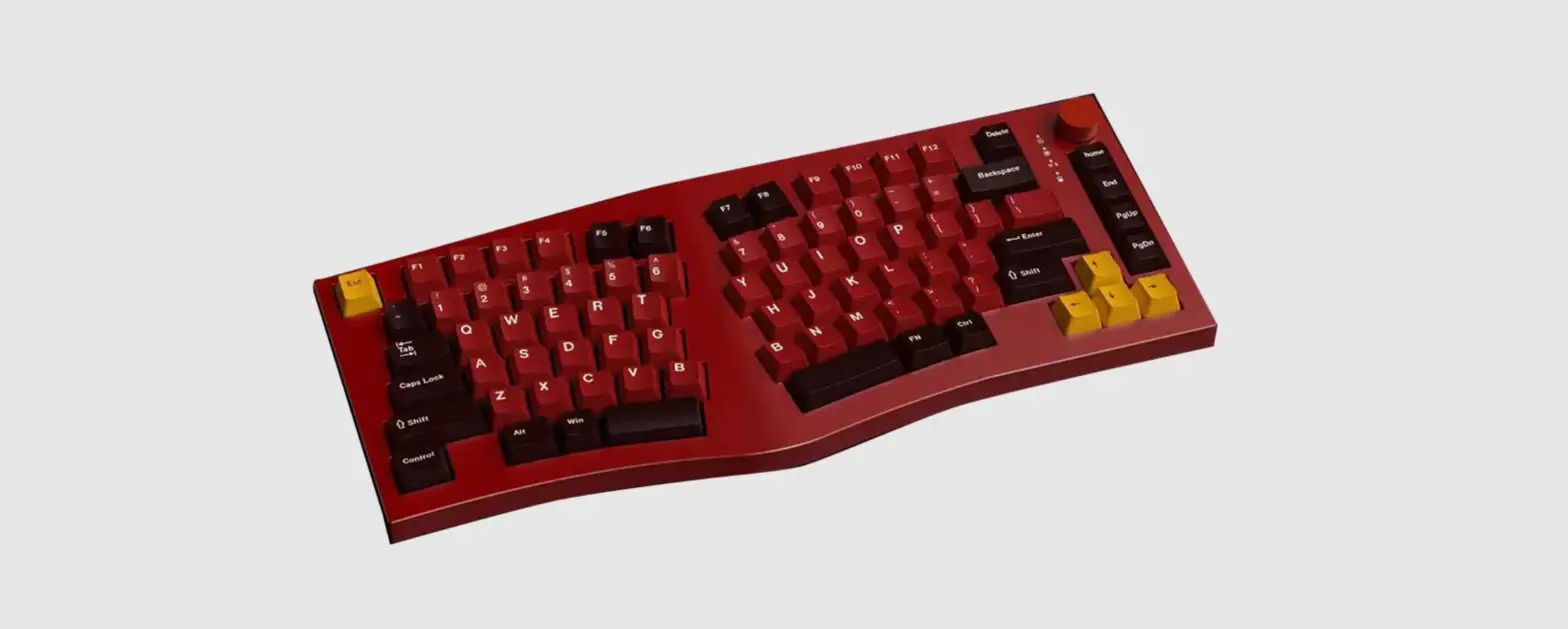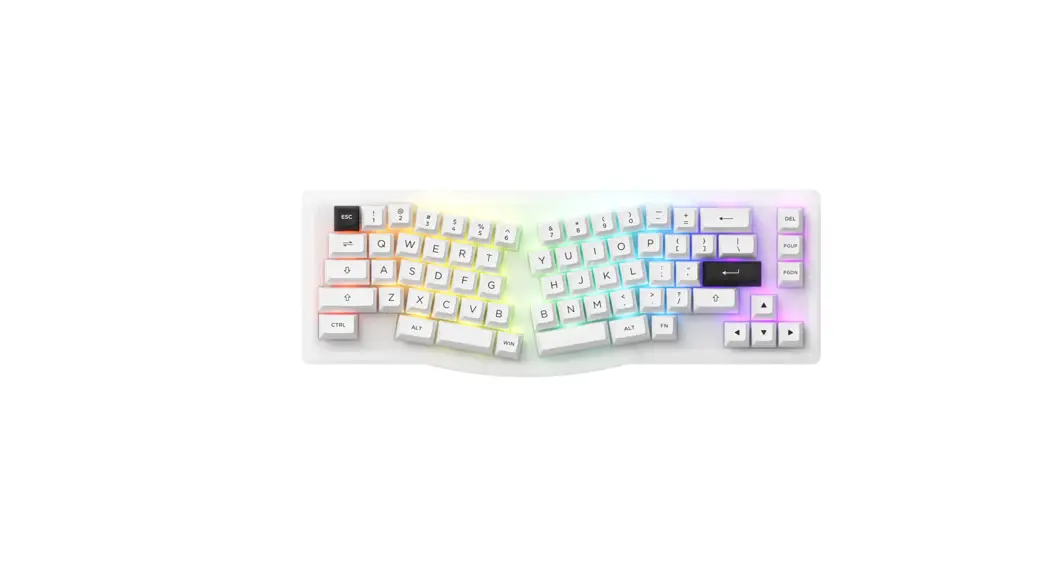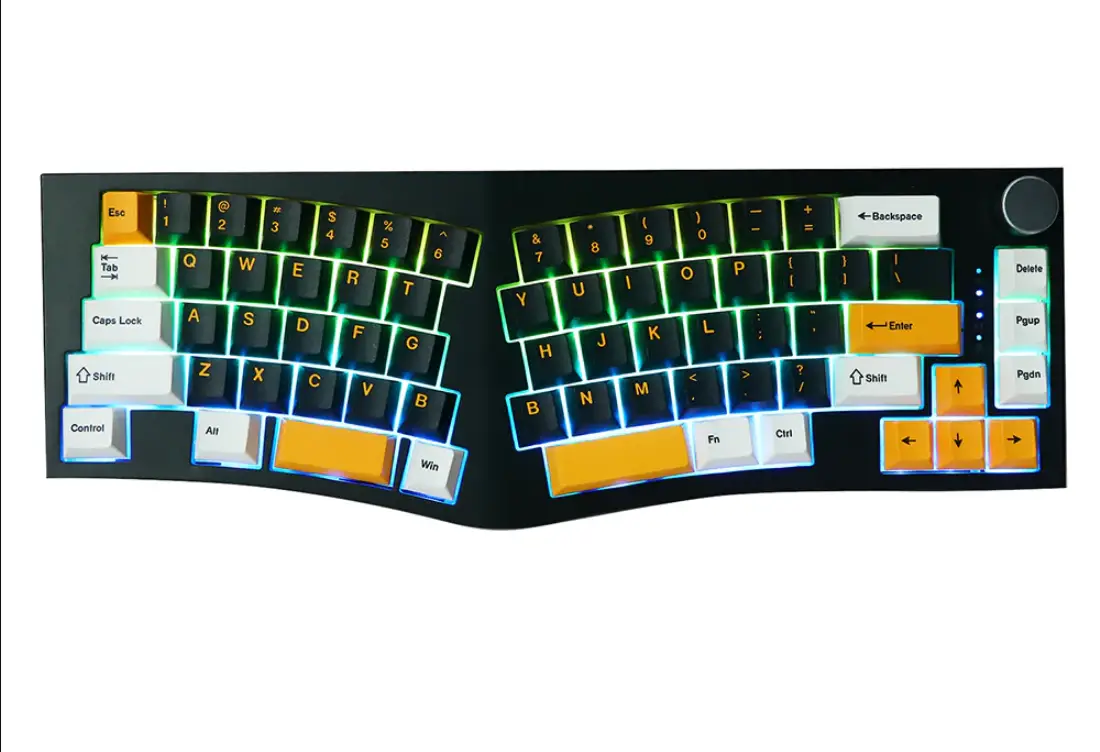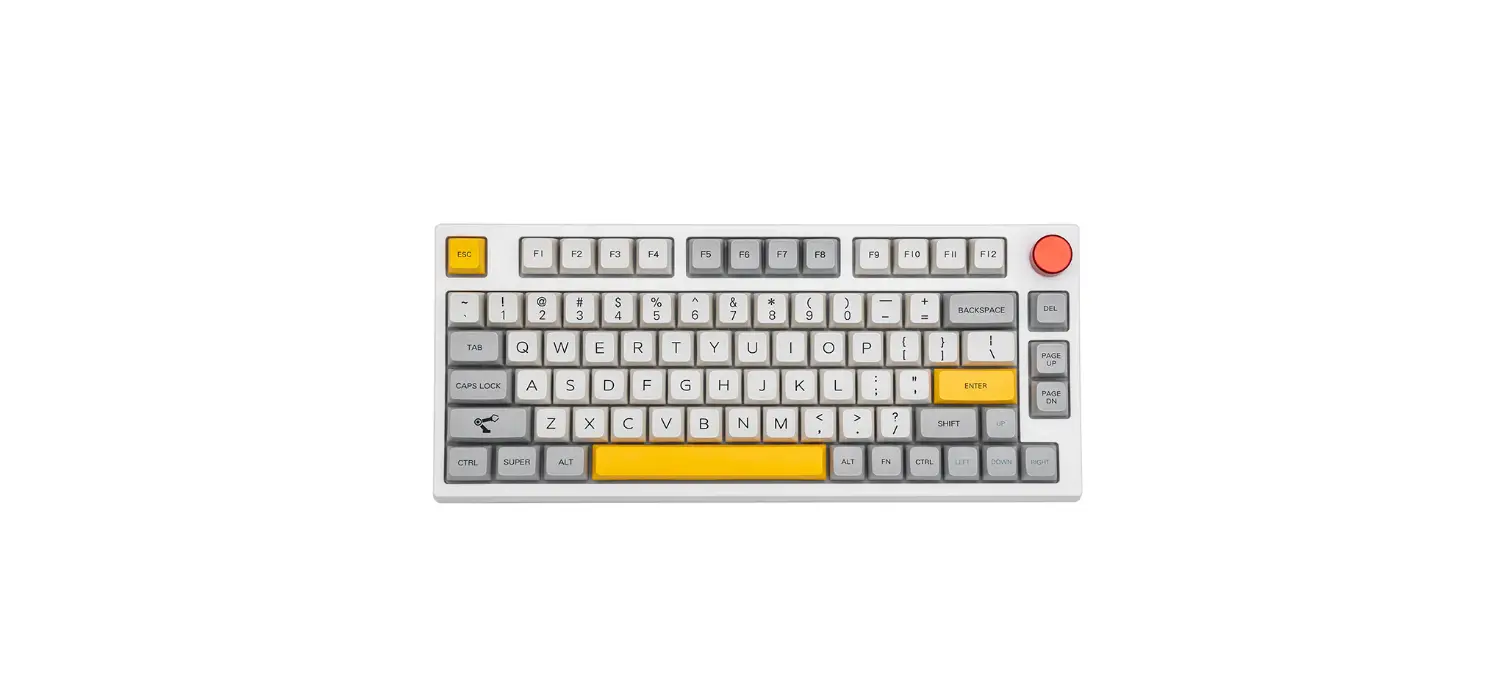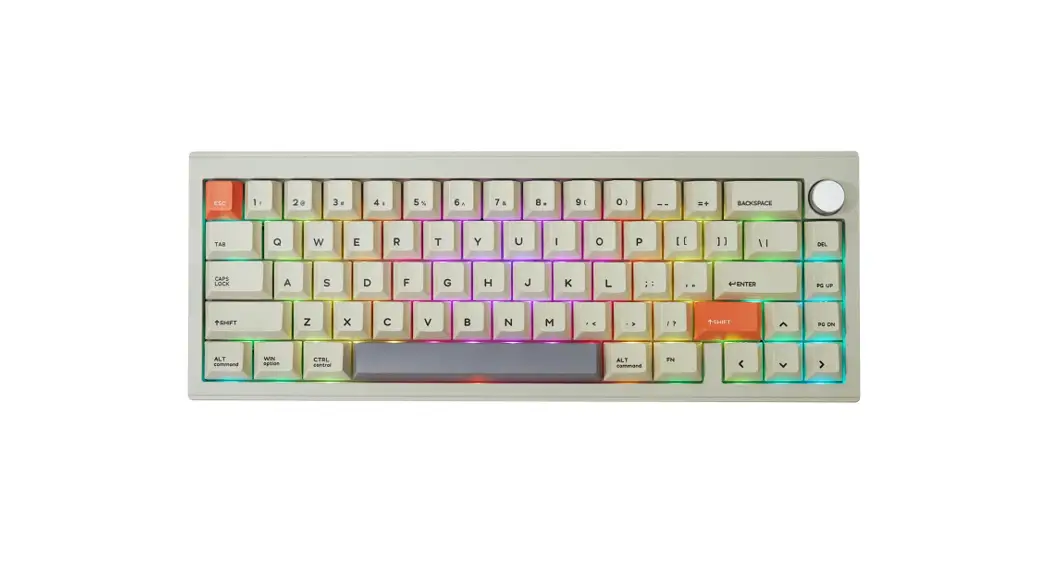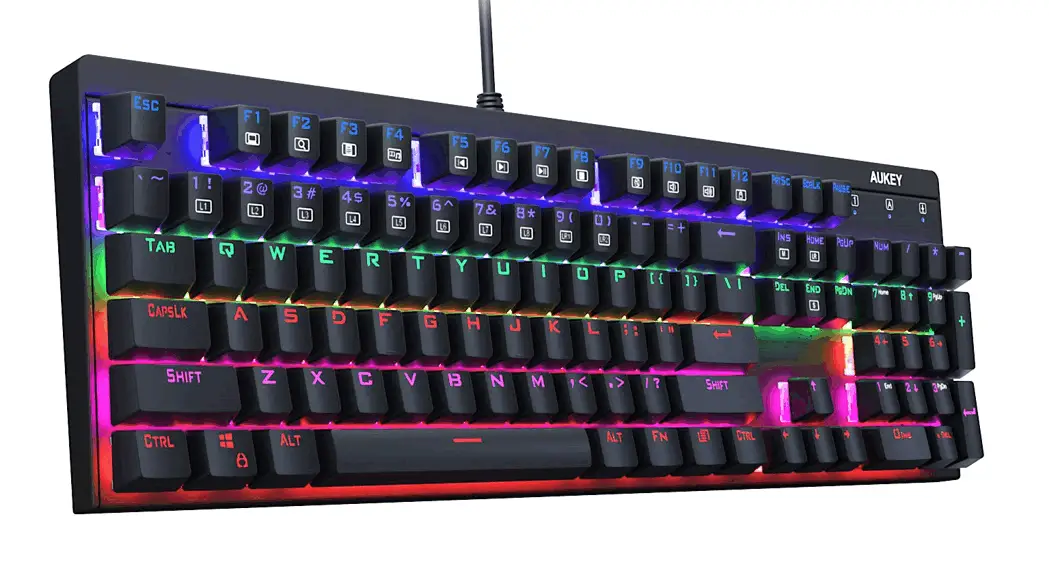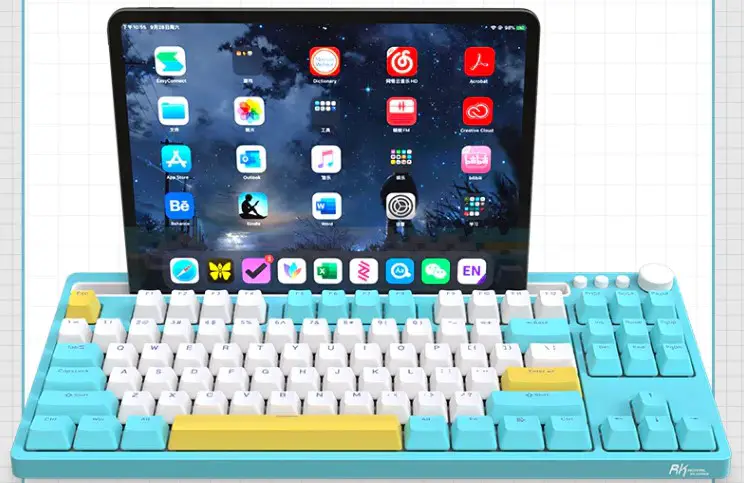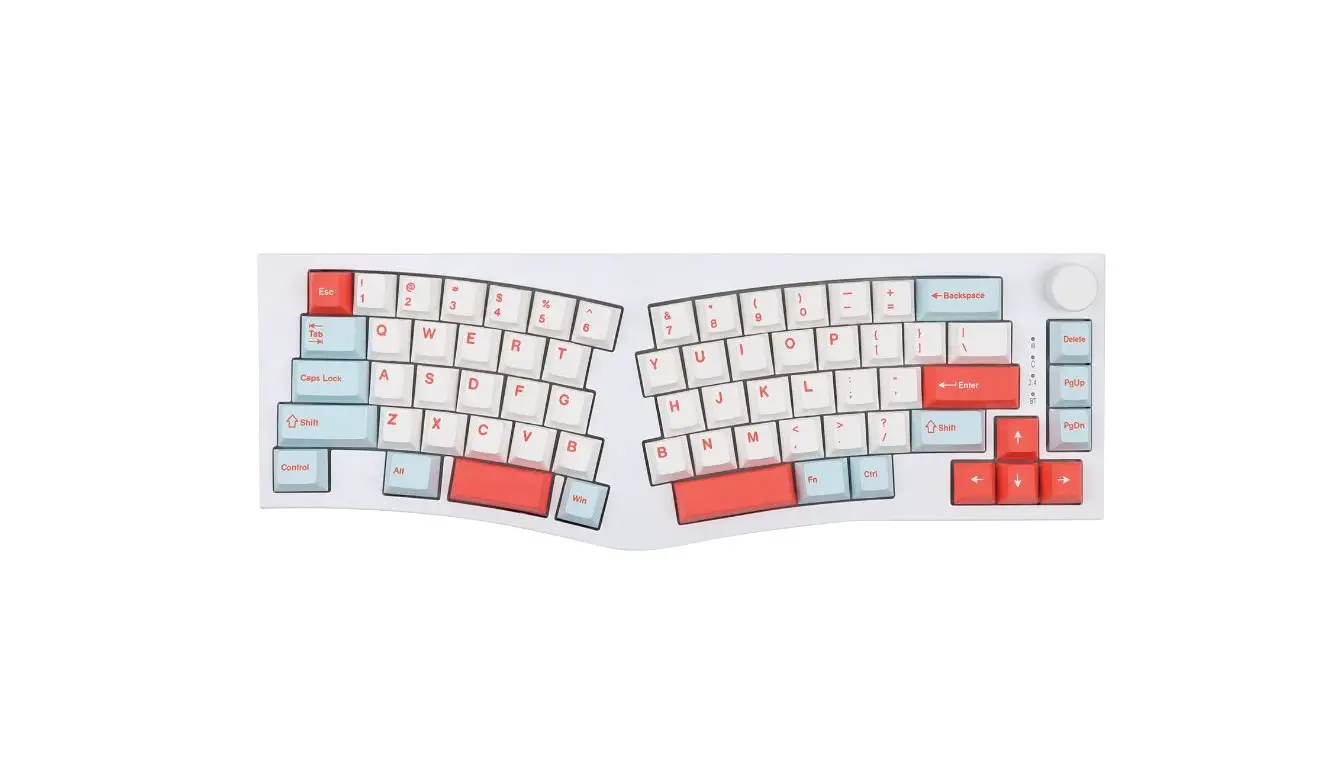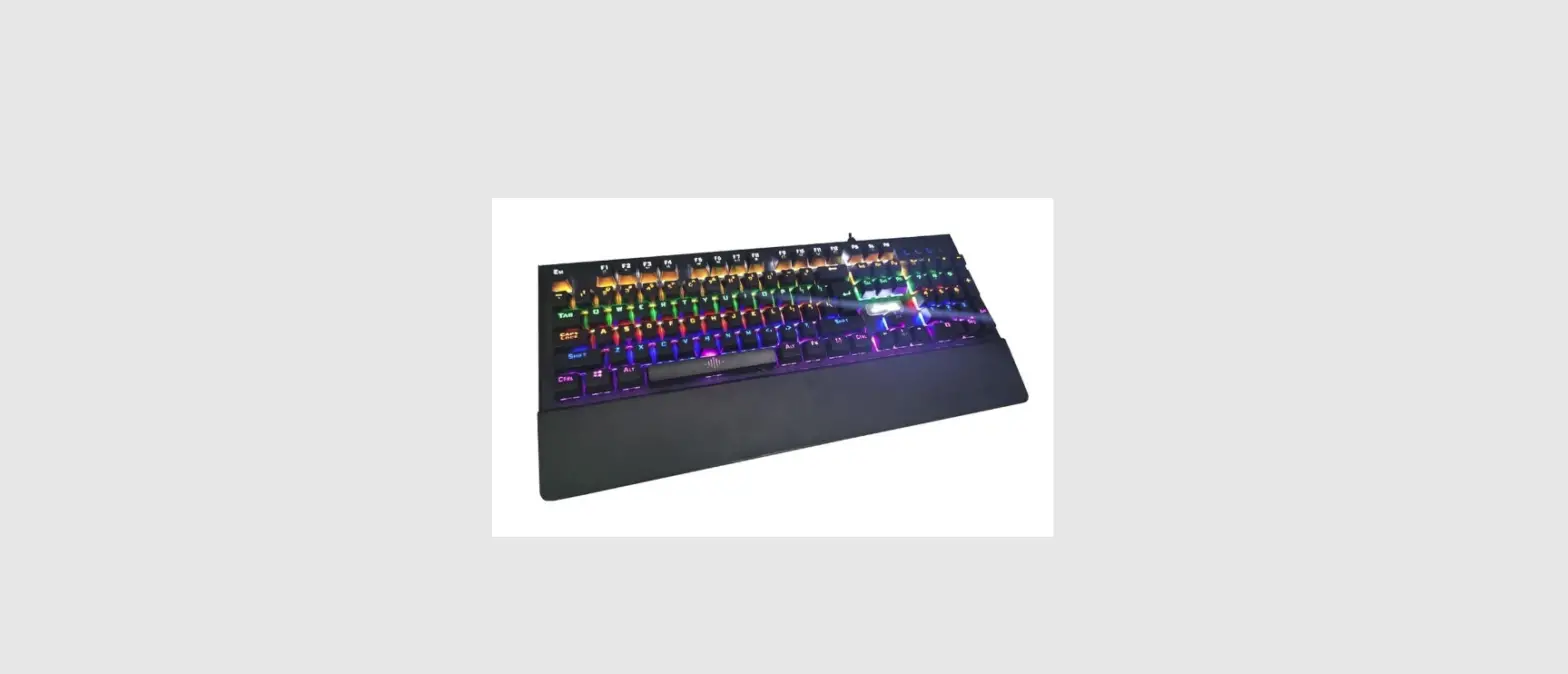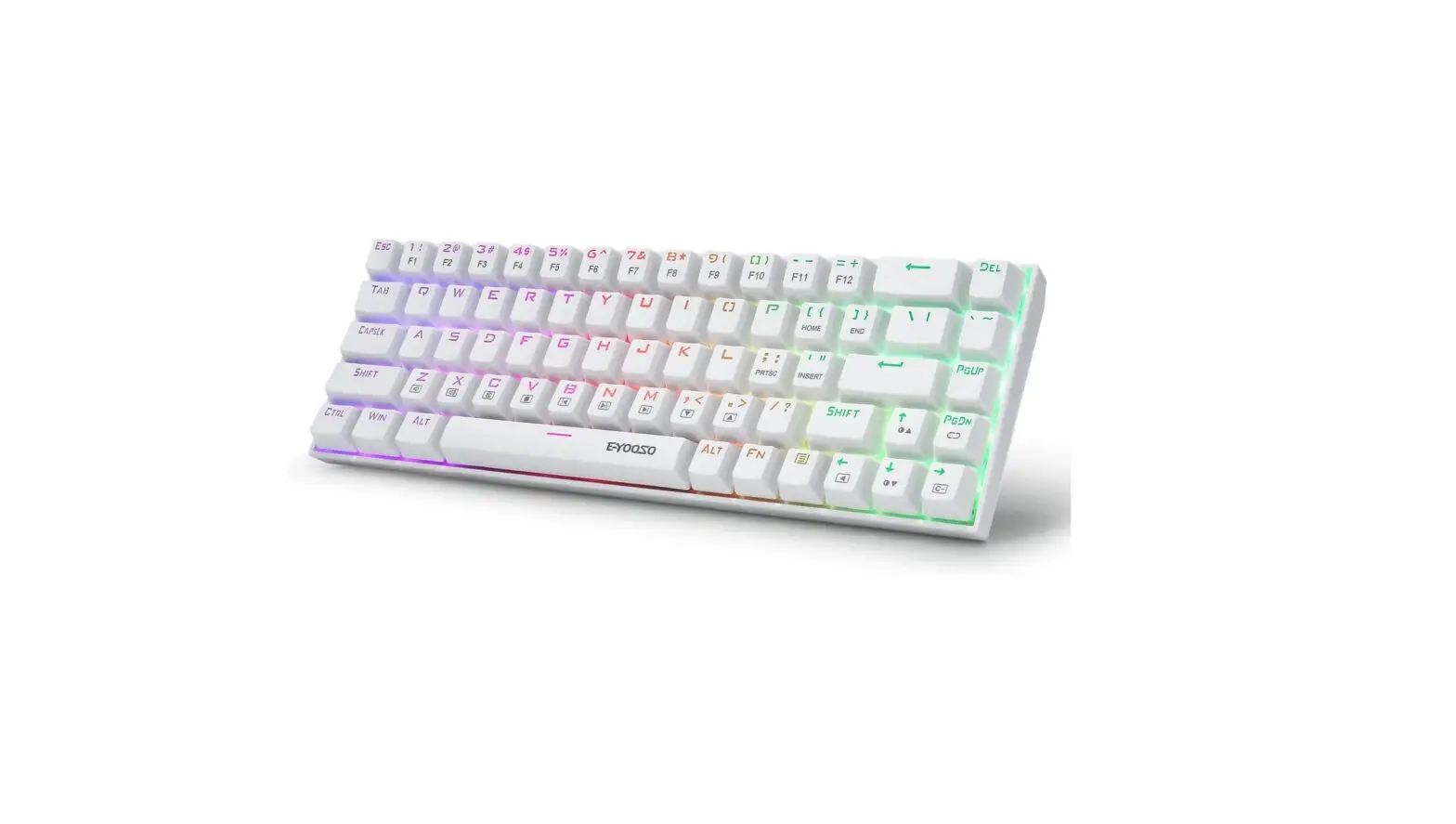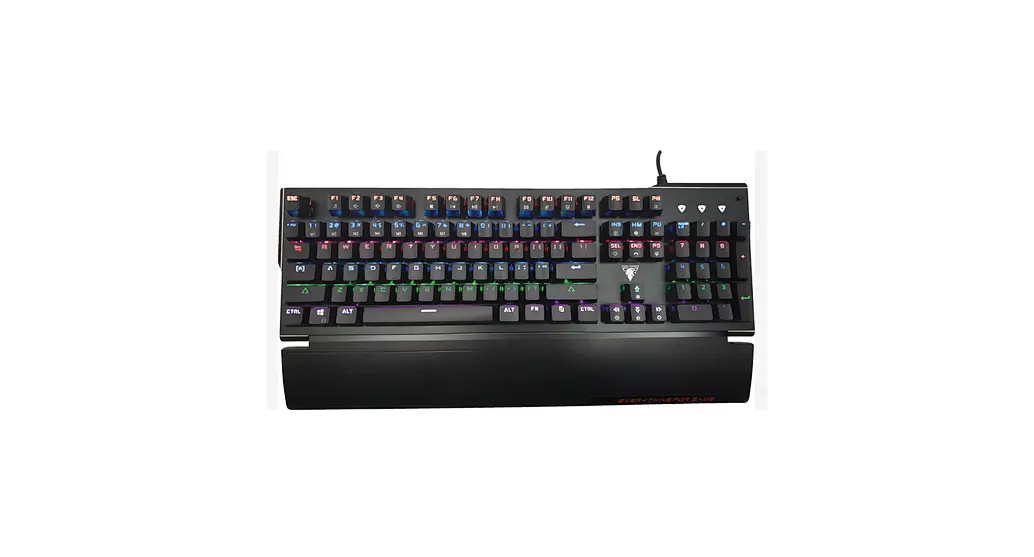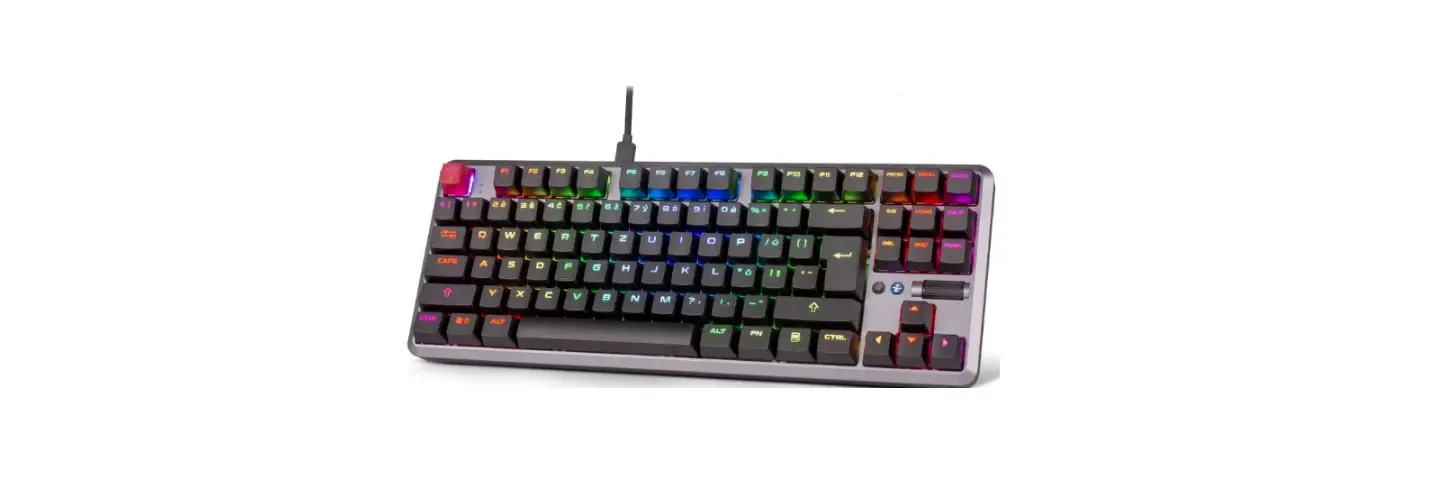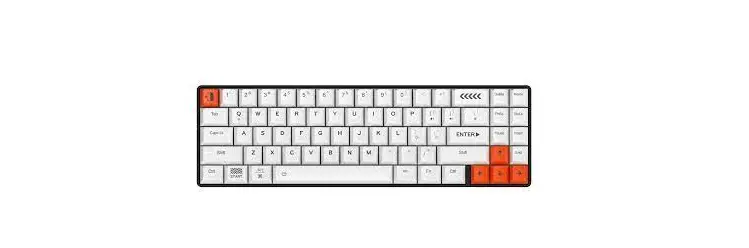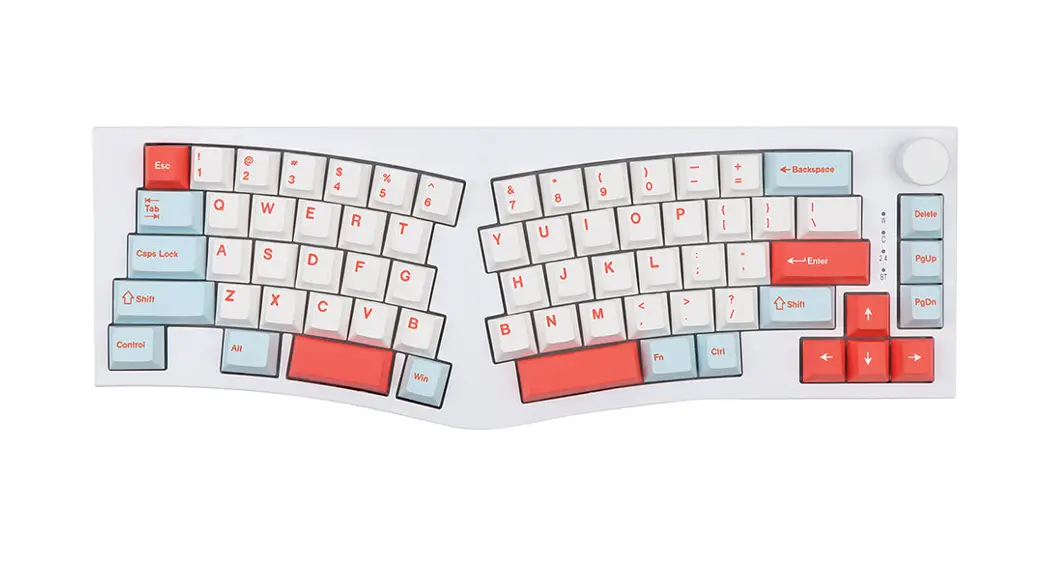

ALICE-80 Keyboard
User Manual
Swtich & USB Function
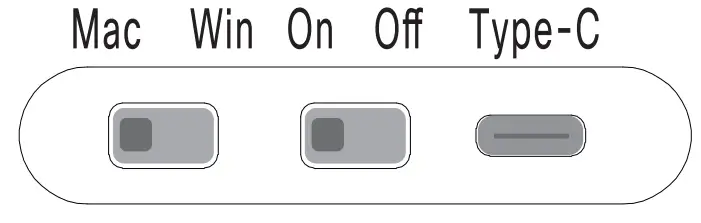
Mac For Mac system used , key-function shift to for Mac computer or iPAD;
Win For Windows system used , key-function shift to for standard Windows computer;
On For Wireless version used, including the 2.4g and bluetooth mode; USB cable only for charge in this time.
Off For Wired version used, in the same time ,you need insert the Type-C cable to device and USB to computer, working on USB mode ;
Type-C Type-C cable insert here and USB connect to computer for connect to computer ;
Working on USB mode(swithch to Off) and only for charge the battery ( switch to On).
Interface Connected Function
USB Version—– Push the mode switch 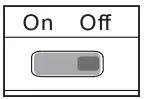 to OFF state.
- Connect the USB-A port to computer USB port and Connect the Type-C port to keyboard;
- Push the mode switch to OFF state for enter to wired USB device mode.
Wireless 2.4G Version— Push the mode switch 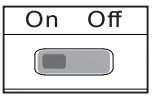 to ON state.
- Connect the USB-A port to computer USB port and Connect the Type-C port to keyboard;
- Press the Fn and G key for enter to 2.4G device mode;
- If your want used this 2.4g device , you need connect the receiver
 to USB port of computer first, that’s important ; Or ( the other’s solution)
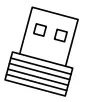 to USB port of computer first, that’s important ; Or ( the other’s solution)
- Switch the ON/OFF button to ON , and Make sure the battery is available ;
- Press the Fn and G key for enter to 2.4G device mode;
- If your want used this 2.4g device , you need connect the receiver to USB port of computer first, that’s important ;
Wireless BT Version —– Push the mode switch 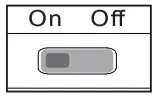 to ON state.
- Connect the USB-A port to computer USB port and Connect the Type-C port to keyboard;
- Press the Fn and C/V/B key for enter to BT device Alice-1/2/3 mode, one by one;
- Long press 3 seconds for pairing to new device by bluetooth ;
- Press 1 time for re-connected to paired device by bluetooth ;
- Press the Fn + C/V/B 1 time, You can switch between Alice-1/2/3 device;
Battery status indicator Function
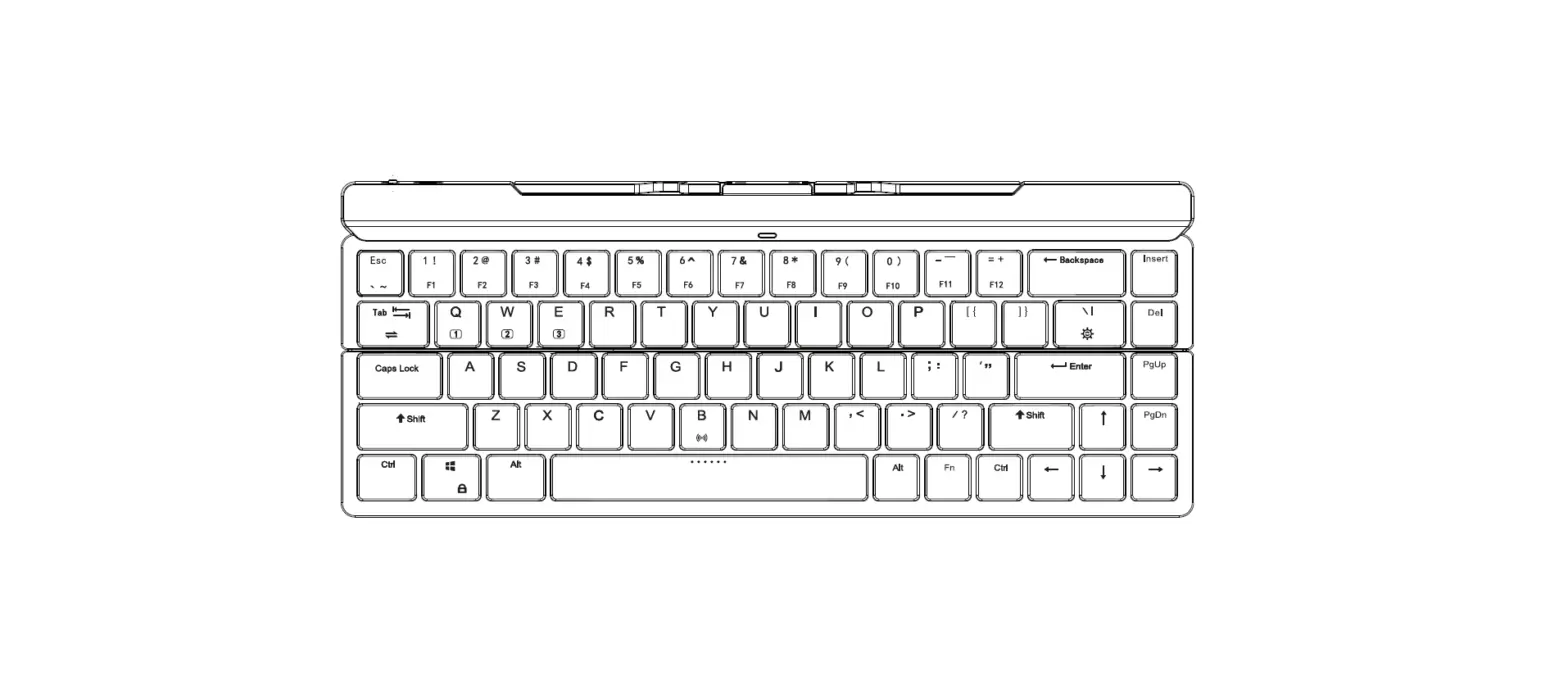
On keyboard , the right side of CTRL  key’s LED lighting is for indicator of battery status.
Low battery the right side of CTRL key’s LED will lighting RED flash.
Charging Press 3seconds Fn and the right side of CTRL key, LED will lighting BLUE.
Full charge Press 3seconds Fn and the right side of CTRL key, LED will lighting GREEN.
Battery is dead the right side of CTRL key’s LED will lighting RED continuous.
Device name description
USB Version FEKER Alice80
2.4G Version Wireless Gaming Keyboard
BT Version FEKER Alice-1
FEKER Alice-2
FEKER Alice-3
Electrical Specifications (for reference only)
| Version | Item | Current(data) |
| USB | Wired constant lighting mode | ≤ 260 mA |
| Wired constant Un-lighting | ≤10 mA | |
| 2.4G | 2.4G constant lighting mode | ≤ 380 mA |
| 2.4G sleep mode | ≤ 0.02 mA | |
| Bluetooth | BT constant lighting mode | ≤ 380 mA |
| BT sleep mode | ≤ 0.02 mA | |
| Charge | Recharging mode | ≤ 450 mA |
FN+Keys Function
| Fn + | For Windows | For Mac | ||
| Function Key | Function | Function Key | Function | |
| Esc | Esc | ∼ | ||
| 1! | Fl | 1! | Screen brightness decrease | |
| 2@ | F2 | 2@ | Screen brightness increase | |
| 3# | F3 | 3# | Multitask controller | |
| 4 $ | F4 | 4 $ | Program listing | |
| 5% | F5 | |||
| 6∧ | F6 | |||
| 7& | F7 | 7& | Previous track | |
| 8* | F8 | 8* | Play & pause | |
| 9( | F9 | 9( | Next track | |
| 0) | F10 | 0) | Mute | |
| — | Fl 1 | — | Volume decrease | |
| = + | F12 | =+ | Volume increase | |
| Win | Win Lock&Unlock | |||
| :/ | Backlight colour change | 11 | Backlight colour change | |
| Del | Backlight mode change | Del | Backlight mode change | |
| I | Ins | I | Ins | |
| P | Prs | P | Prs | |
| L | Backlight On&Off Switch | L | Backlight On&Off Switch | |
| ?/ | My calculator | ?/ | My calculator | |
| M | Mute | M | Mute | |
| <, | Volume down | <, | Volume down | |
| >. | Volume up | >. | Volume up | |
| W | Directional keys interchange | W | Directional keys interchange | |
| Backspace | Press 3 s for reset | Backspace | Press 3 s for reset | |
| Page up | Home | |||
| Page down | End | |||
| ; : | Lighting flow velocity down | |||
| , “ | Lighting flow velocity up | |||
| — | Lighting flow direction to right | — | Lighting flow direction to right | |
| — | Lighting flow direction to left | — | Lighting flow direction to left | |
| I | Lighting brightness increase | |||
| I | Lighting brightness decrease | |||
| C | BT device Alice-1 | |||
| V | BT device Alice-2 | |||
| B | BT device Alice-3 | |||
| G | 2.4 G device | |||
| N | Wired USB device | |||
FCC Statement
Changes or modifications not expressly approved by the party responsible for compliance could void the user’s authority to operate the equipment.
This equipment has been tested and found to comply with the limits for a Class B digital device, pursuant to Part 15 of the FCC Rules. These limits are designed to provide reasonable protection against harmful interference in a residential installation. This equipment generates uses and can radiate radio frequency energy and, if not installed and used in accordance with the instructions, may cause harmful interference to radio communications. However, there is no guarantee that interference will not occur in a particular installation. If this equipment does cause harmful interference to radio or television reception, which can be determined by turning the equipment off and on, the user is encouraged to try to correct the interference by one or more of the following measures:
- Reorient or relocate the receiving antenna.
- Increase the separation between the equipment and receiver.
- Connect the equipment into an outlet on a circuit different from that to which the receiver is connected.
- Consult the dealer or an experienced radio/TV technician for help
This device complies with part 15 of the FCC rules. Operation is subject to the following two conditions (1)this device may not cause harmful interference, and (2) this device must accept any interference received, including interference that may cause undesired operation.
System Requirement
Compatible with Windows 2000 and above and Mac system.