 Creating an Eco Society
1678087012 LoRaWAN Walrus-ID Gateway
User Guide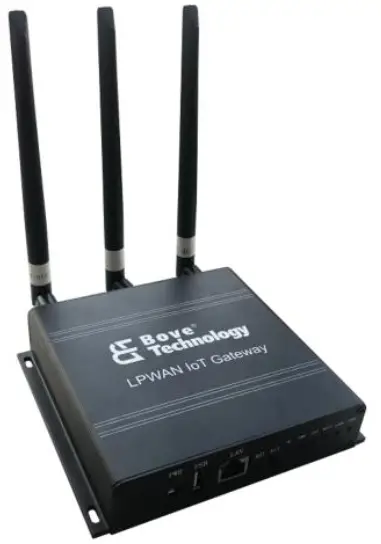
Preview
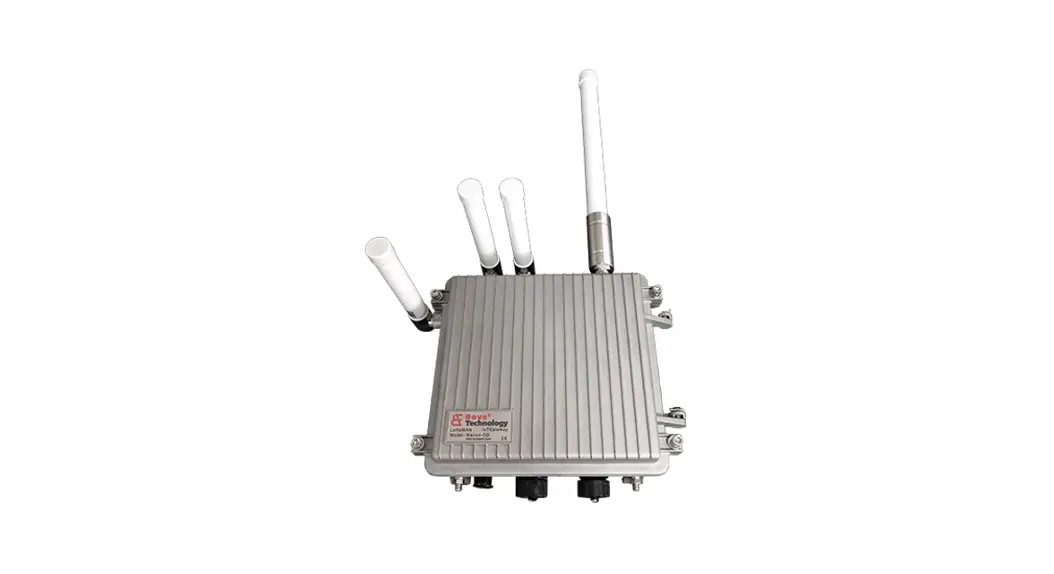
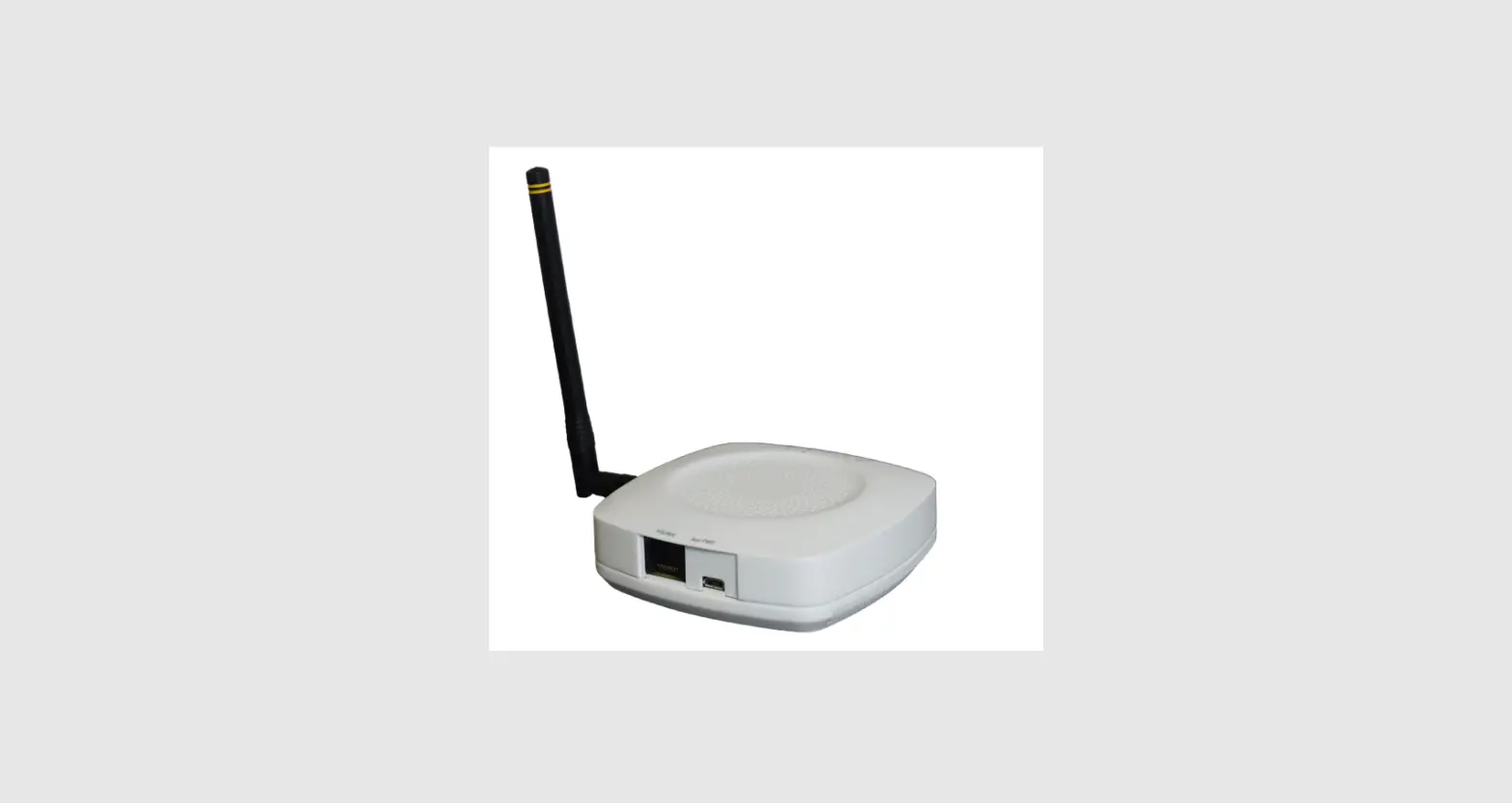
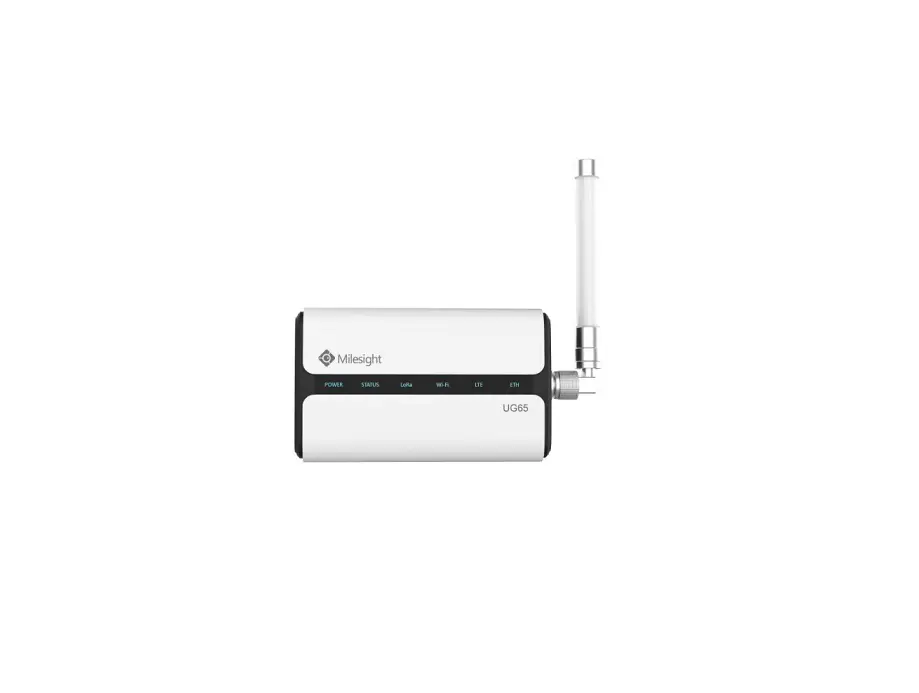
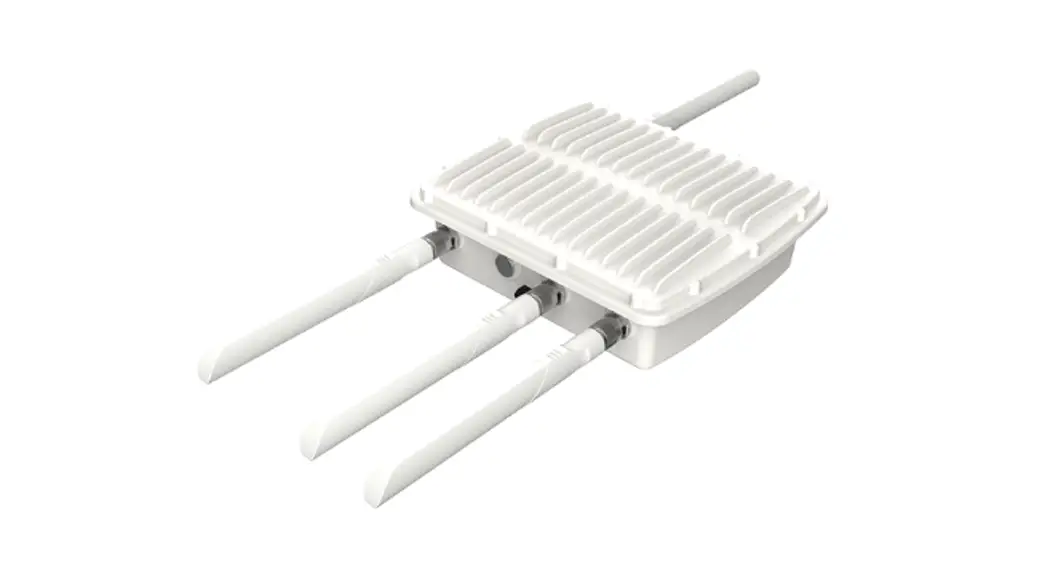
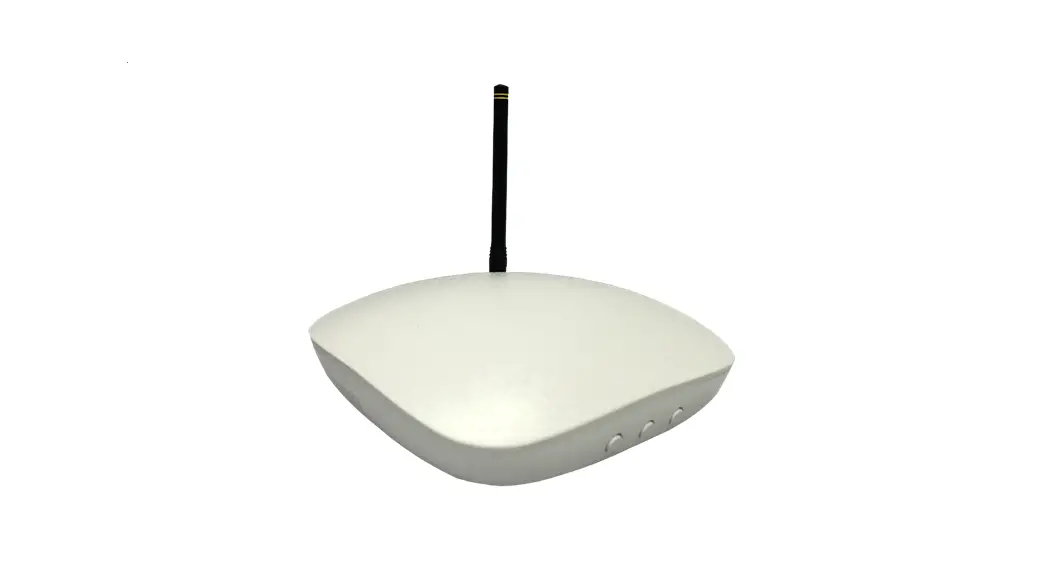
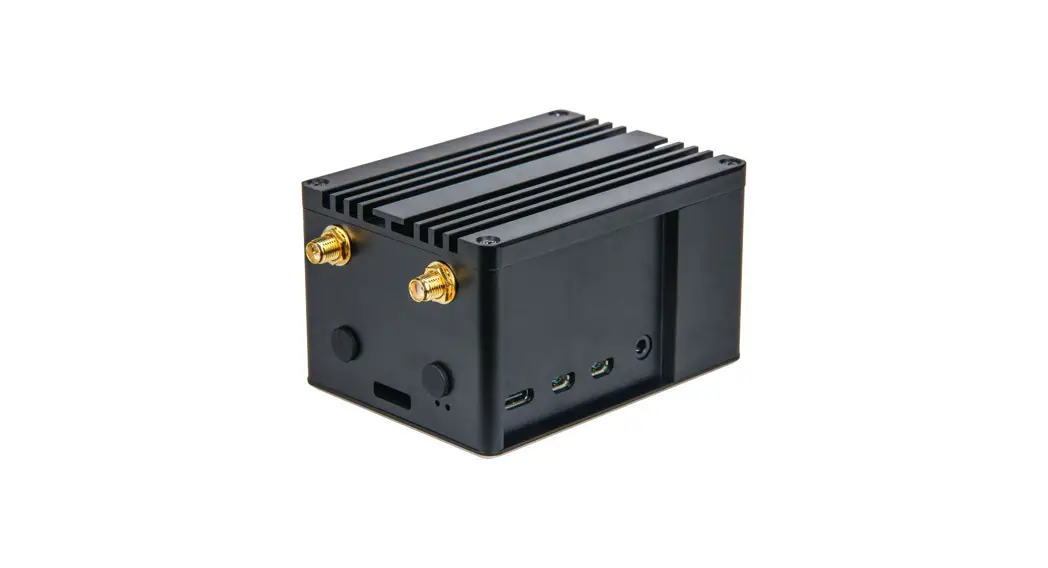
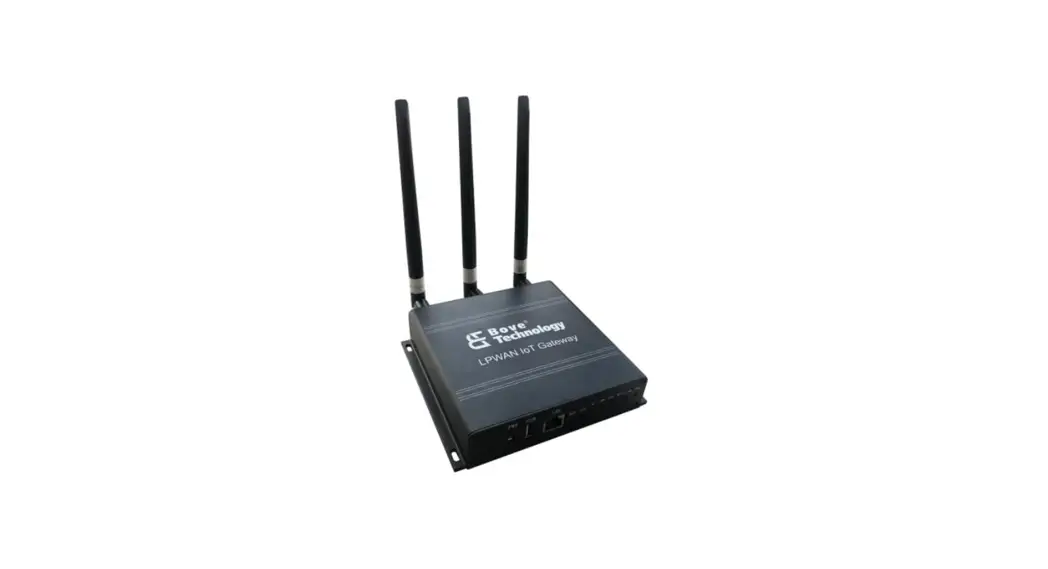
Walrus-ID LoRaWAN gateway integrates a LTE 4G (optional) module, a WiFi module and a LoRa module. Walrus-ID gateway has the characteristics of compact size, simple appearance, high reliability, etc. It can easily realize the rapid network deployment in various environments.
Preparing
2.1.Gateway Connection
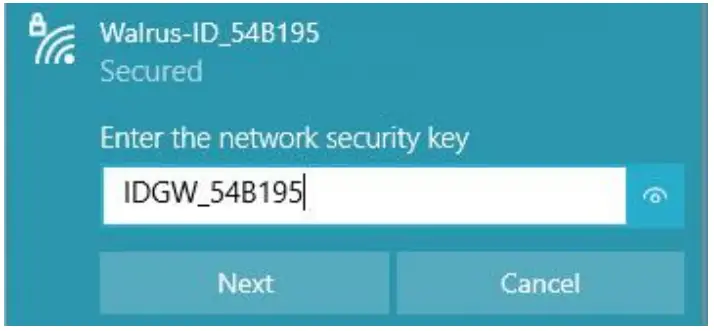
Connect Gateway’s Wi-Fi. The gateway’s name which likes “Walrus-ID_xxxxxx”, then fills in the password the default format is “IDGW_xxxxxx”.
2.2.Gateway Login
Open the browser on your computer and fill the IP 192.168.100.1 (default).
Enter the username and password.
Username: admin
Password: admin

Status

3.1.Overview
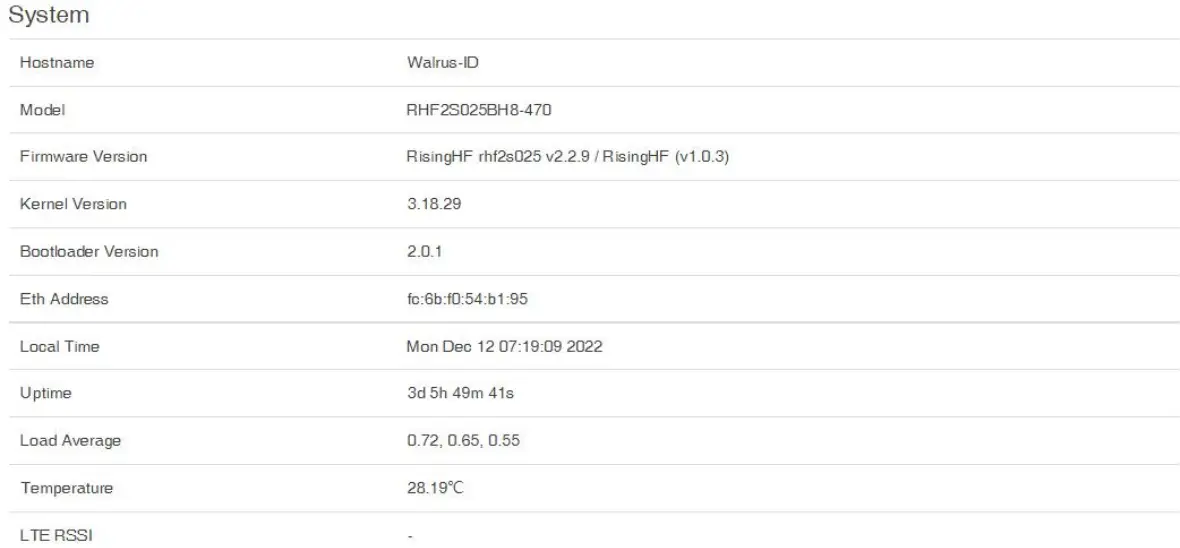
3.1.1 System
3.1.2 Memory

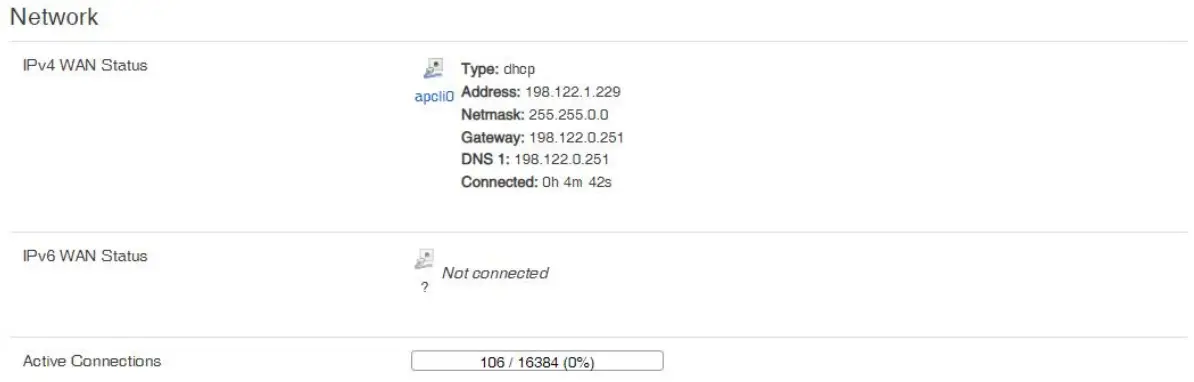
3.1.3 Network
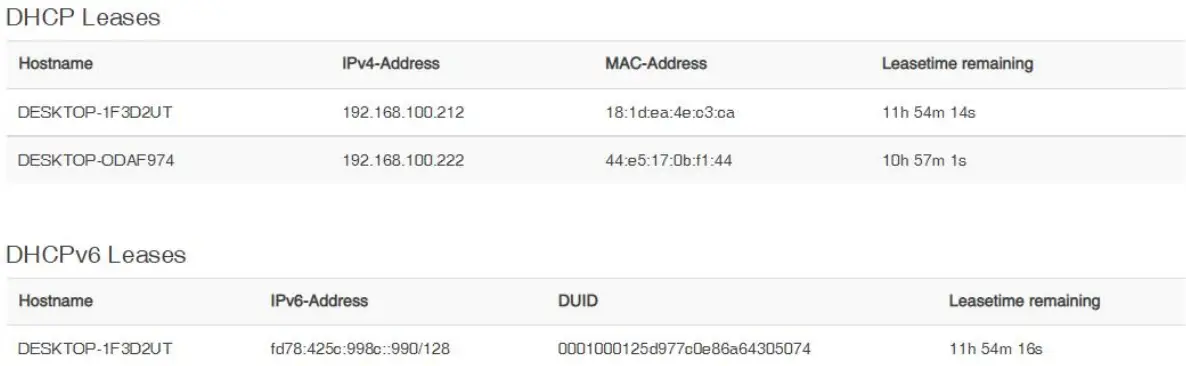
3.1.4 DHCP Leases
Network
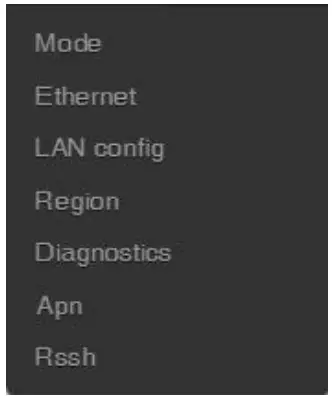
4.1. Mode
4.1.1. AP mode
The factory default of the Walrus-ID gateway is the AP mode. In this mode, the gateway needs to connect to the Internet through the Ethernet port, DHCP. The LAN port on ID gateway can link to router’s DHCP LAN port to enable Internet access.
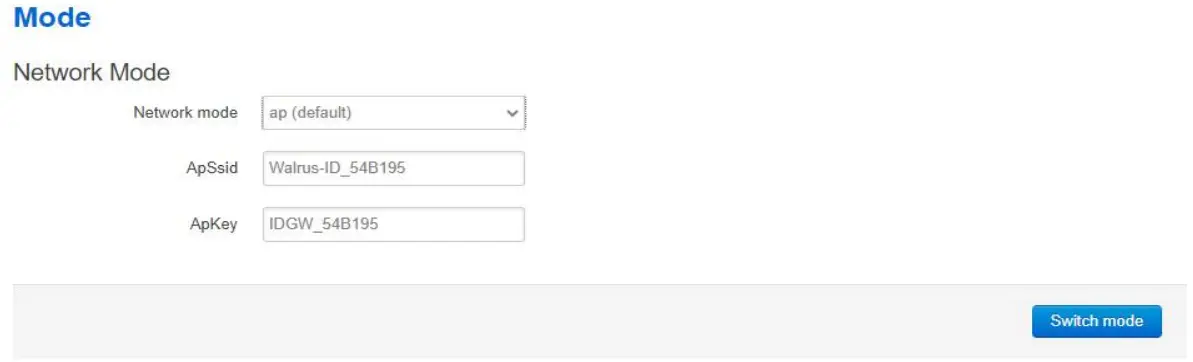
Note: ApSsid and ApKey are the wifi name and password, can be changed.
4.1.2. APSTA mode
In APSTA mode, gateway will have the abilities of AP and STA functions. Gateway connect to main Wi-Fi and provide sub Wi-Fi to other end devices.
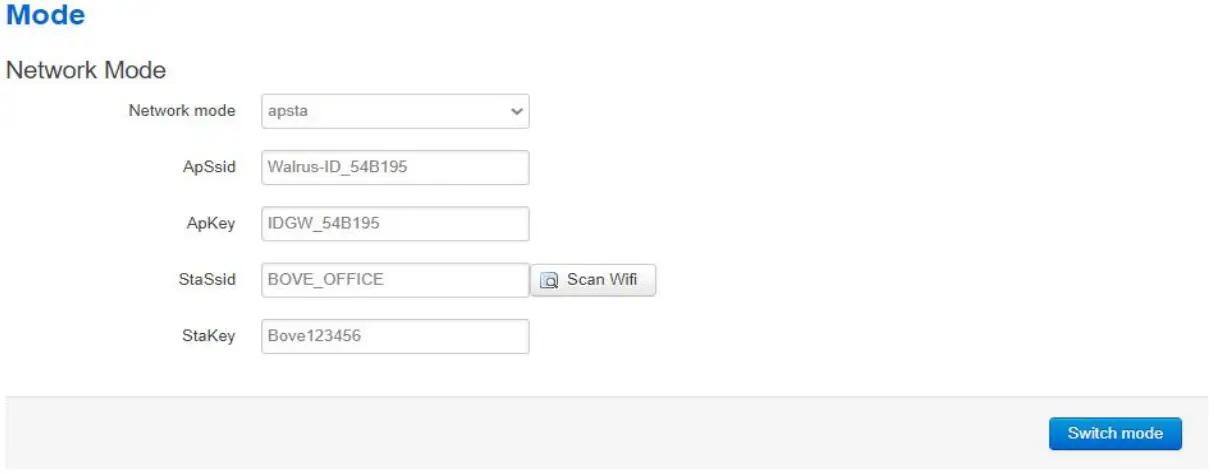
- Click “Scan WiFi”
- Select the main WiFi in StaSsid and fill in password in StaKey
- Click Switch Mode to applying the changes
NOTE: If the switch fails by Stakey value wrong or SSID missing, will revert to ap.
4.1.3. IPPPOE mode
PPPOE mode supports dial-up Internet access.
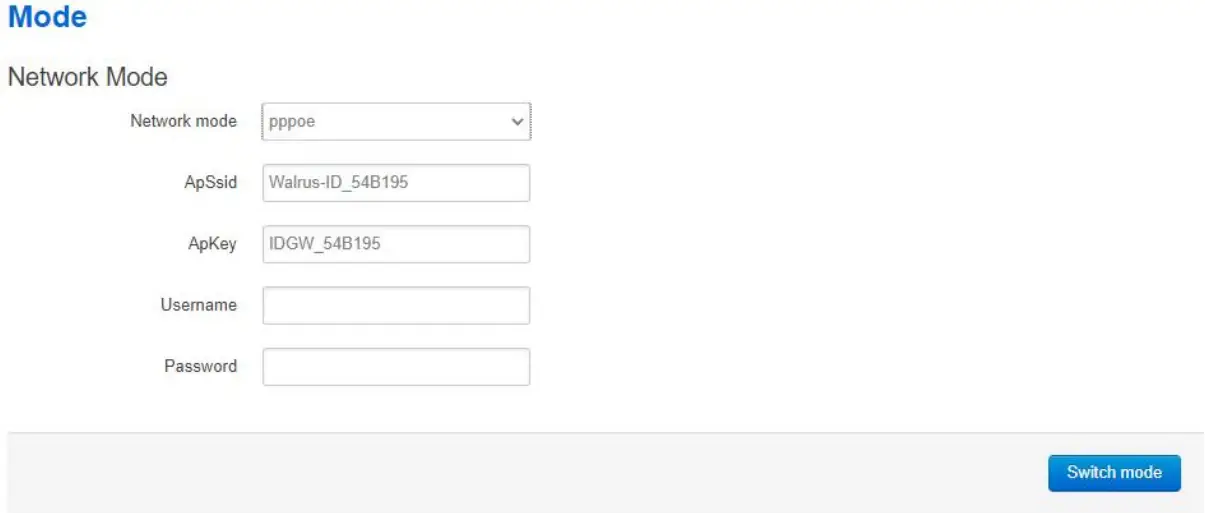
Refer to ISP for the WAN access username and password.
4.2.Ethernet
Note: For Ethernet configure, only support when AP mode enabled.
4.2.1. DHCP client
Use DHCP IP provide by router
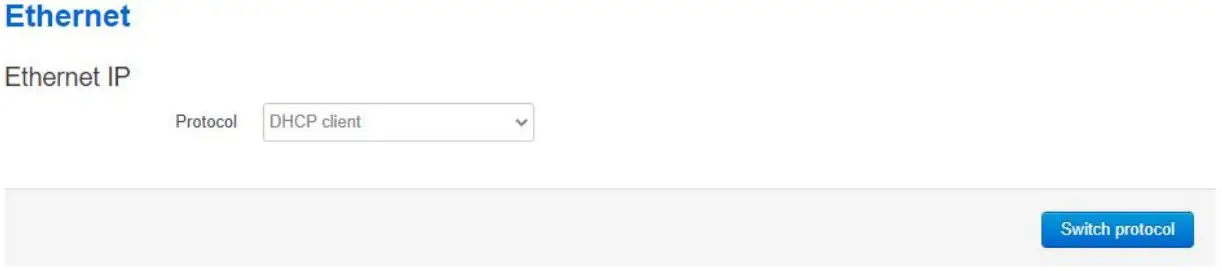
Click Switch Protocol to switch the Ethernet mode.
4.2.2. Static address
Use static address to access the WAN, should be in the same subnet as router.
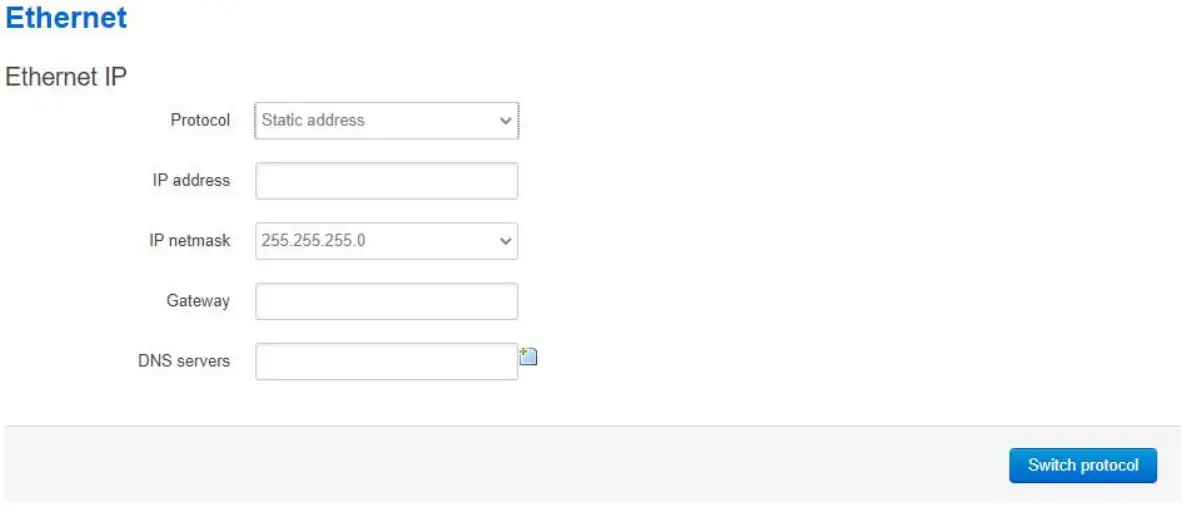
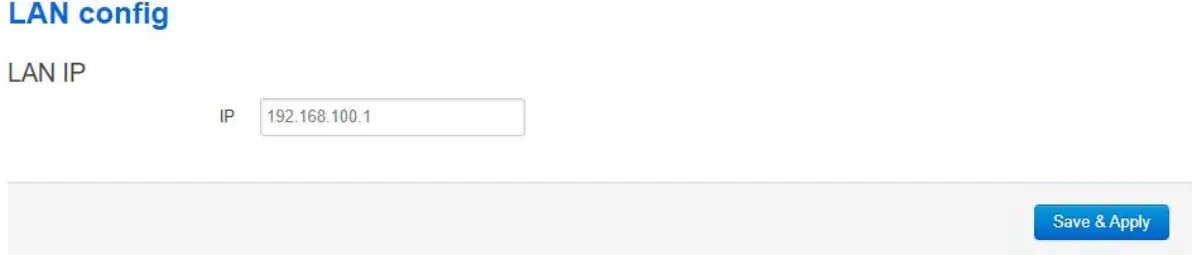
4.3.LAN config
Local area network configure, the IP address is used to login the gateway web UI.
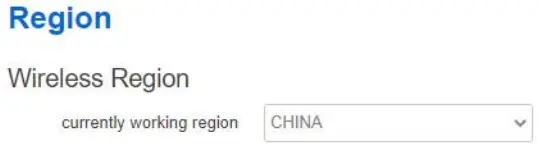
4.4.Region
Gateway wireless region setting.
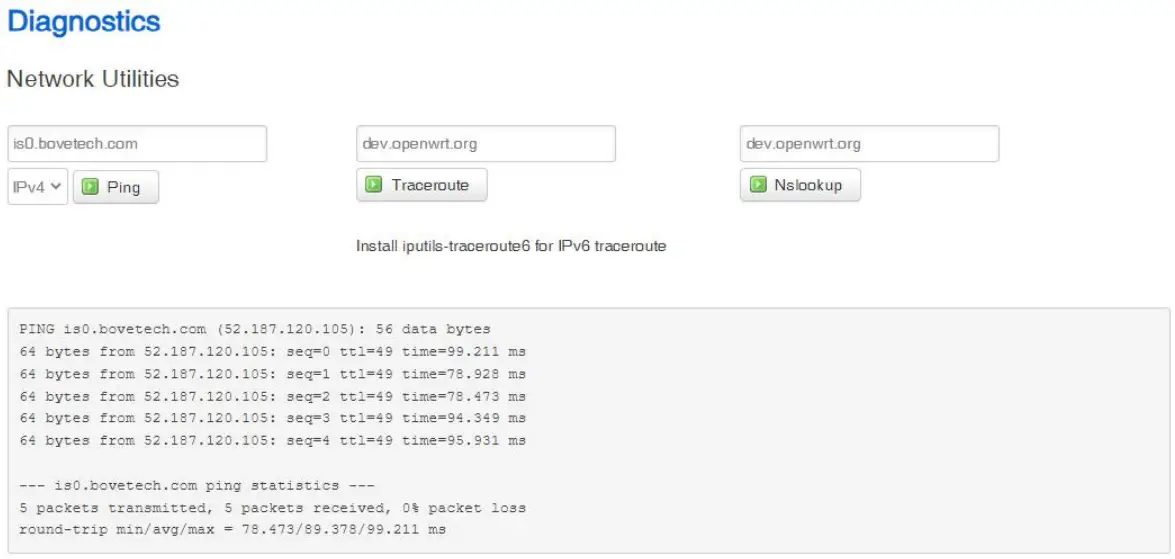
4.5.Diagnostics
Using network tools to check the network status.
4.6.APN
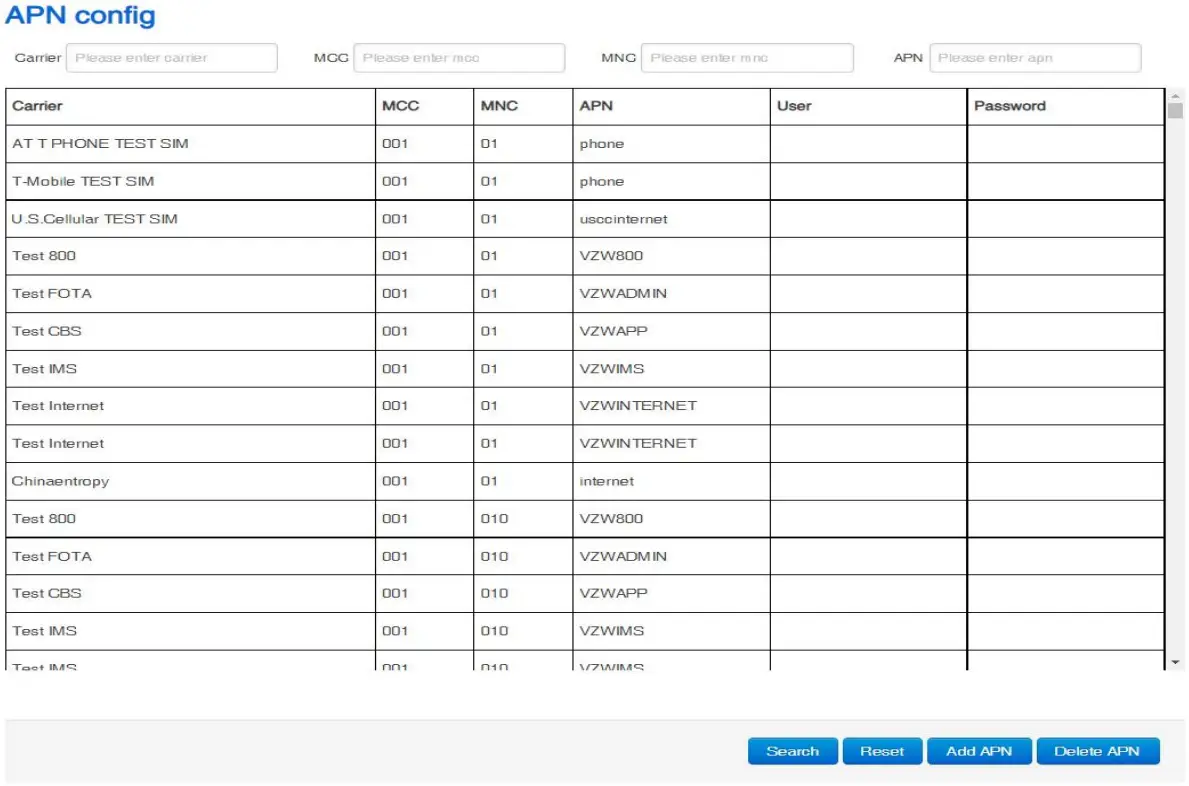
Walrus-ID gateway has many built-in APN setting. In case of customer’s APN is not included, gateway supports add APN operation.
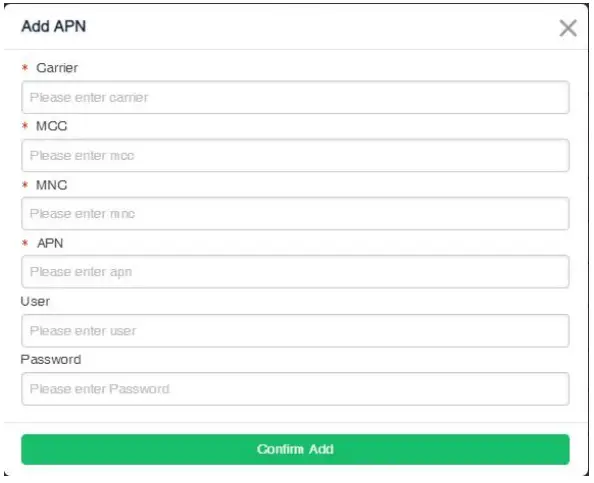
Note: Add APN need confirm the information on the picture with the operator.
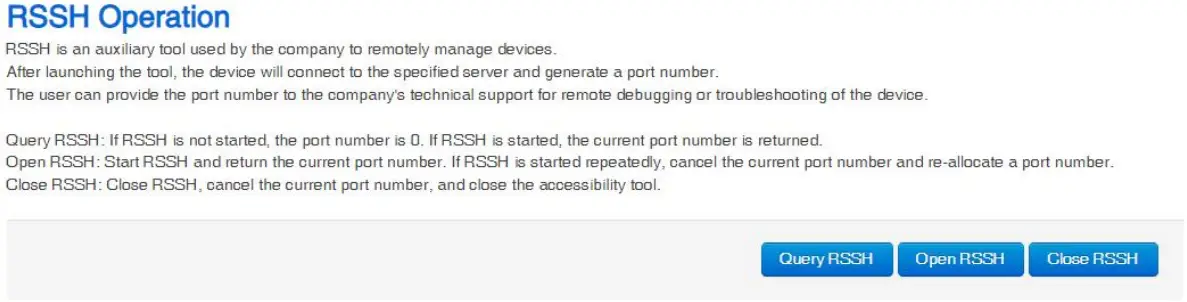
4.7.RSSH
- RSSH is an auxiliary tool used by the company to remotely manage devices. After launching the tool, the device will connect to the specified server and generate a port number.
- The user can provide the port number to the company’s technical support for remote debugging or troubleshooting of the device.

System
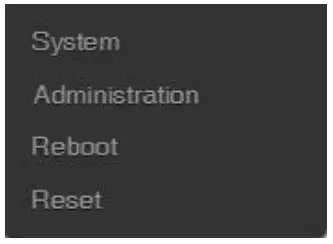
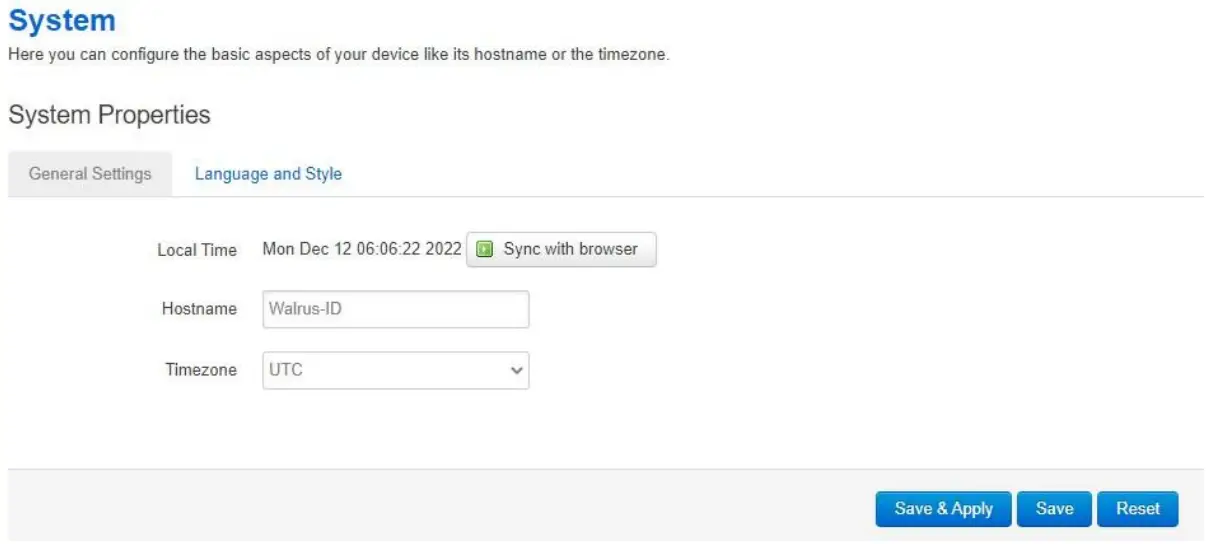
5.1.System
Here you can configure the basic aspects of your device like its hostname or the timezone.
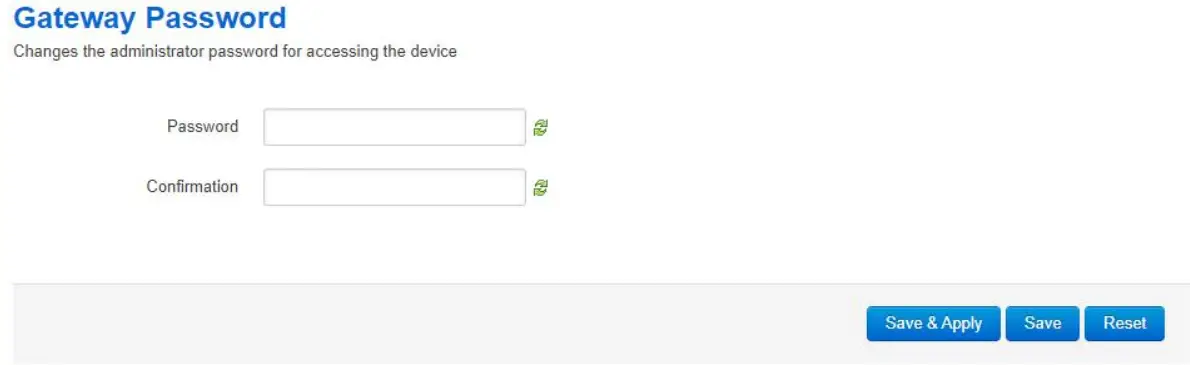
5.2.Administrator
Changes the administrator password for accessing the device
5.3.Reboot
Reboots the operating system of your device
5.4.Reset
Resets the operating system of your device
Server
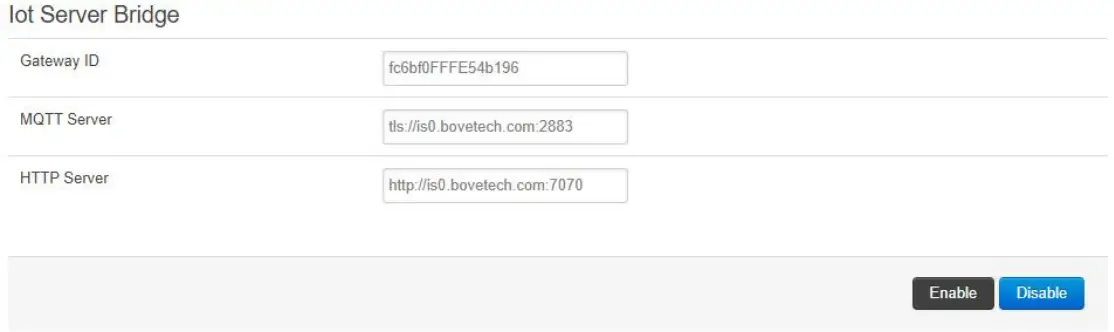
Iotsquare Bridge is a program that integrates device management and LoRaWAN data forwarding.
The system starts the program by default and connects to the Iotsquare server (http://is0.bovetech.com:7070).
When the device does not launch the Iotsquare SDK, the program is only used to manage the device; when the device starts the Iotsquare SDK, the program can be used to manage the device and forward LoRaWAN data.
If users do not want to use the device management functions provided by the company’s servers, and want to provide LoRaWAN services to the company’s servers, you can close the Iotsquare Bridge and connect to the server using the standard Packet forwarder.
LoRa
7.1.LoRa RSSI
Noise Floor Scanning to evaluate the ambient noise.
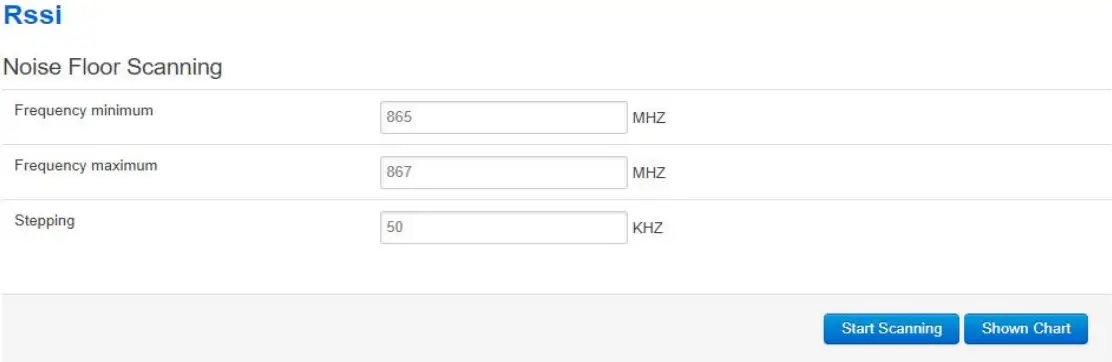
Set start value/ end value of frequency and stepping value. Start Scanning to scan the noise.
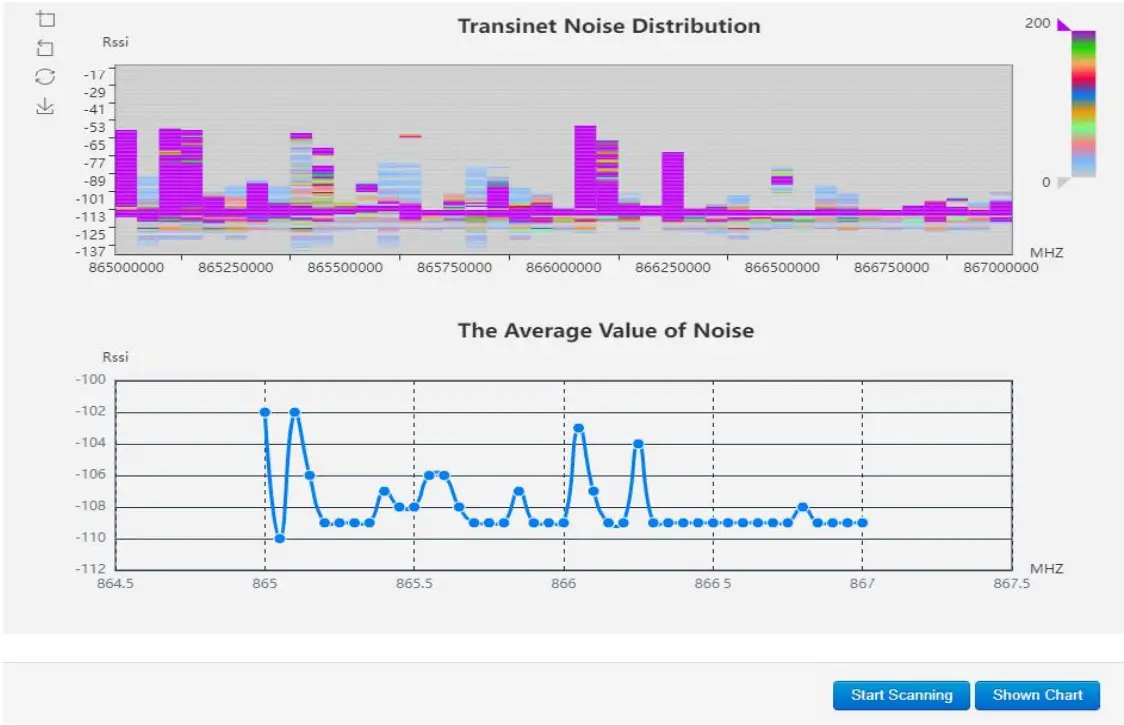
Note: The ambient noise can’t be over -95dBm, normally -100dBm is the worst condition. Example if the value is -107dBm which is the good condition. If the result shows the ambient noise over -95dBm, you must change the installation place. Or the communication distance will be greatly reduced. So if the result like this picture the gateway location is acceptable.
7.2.Packet Forwarder
Choose and set LoRaWAN standard PKTFWD to connect the LoRaWAN network server.
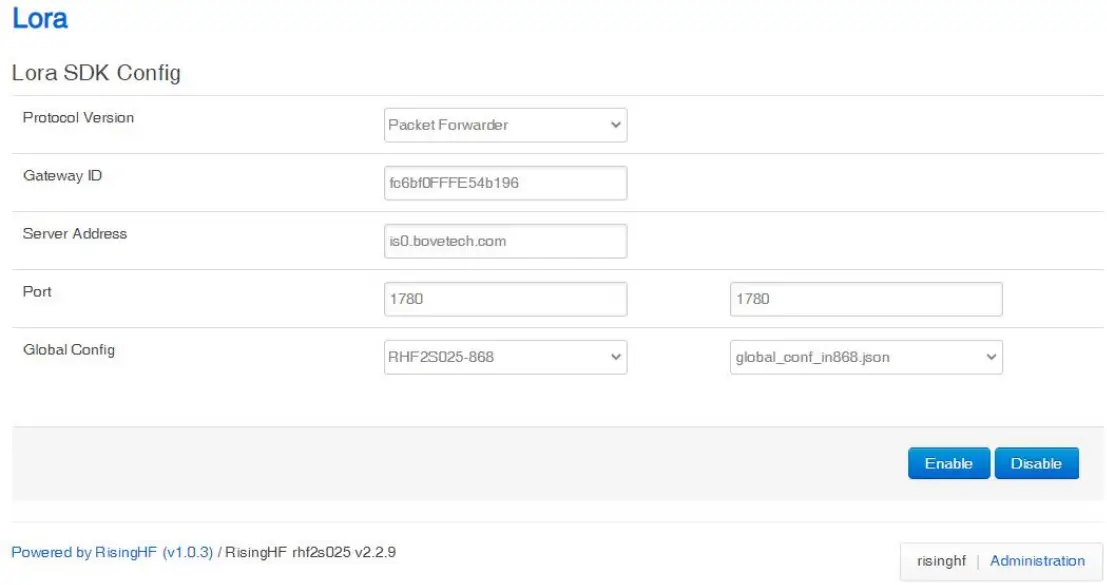
Note: Use Bove Alpaca-E , platform, the server address is “is0.bovetech.com”, the port is 1780 (downlink and uplink are same)
7.3.Other Network Server
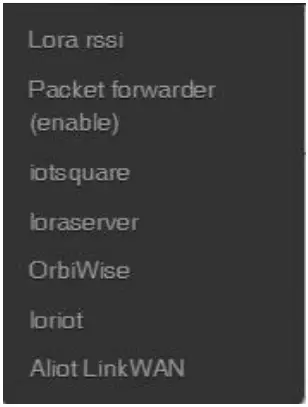
Instead of standard packet forward, Walrus-ID Gateway also support different network server: iotsquare, loraserver, OrbiWise, loriot, Alit LinkWAN.
Gateway Interface
8.1.LED
Walrus-ID gateway provides a total of 6 units of LED for functional indication, which is convenient for users to understand the running status of each function of the gateway device. There are Power, System, Wi-Fi, LoRa, USB and 4G . There is a network port LED on the RJ45 to indicate the network cable access status.
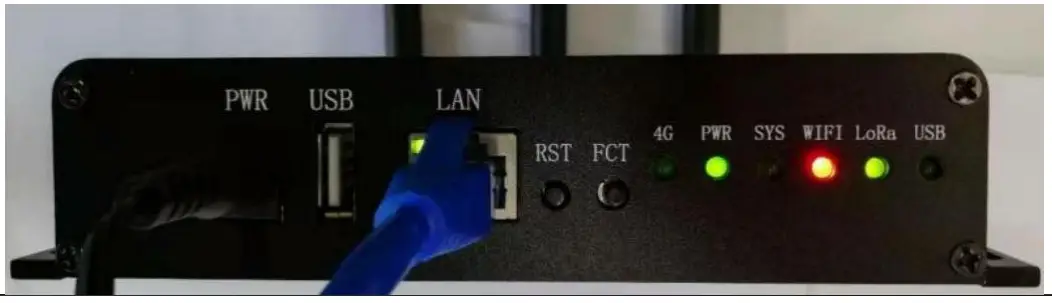
| PWR | Green LED always on when power on. |
| SYS | After the system is completely started, the led light flashes slowly in green; when you press the RESET button to restore the factory settings, the led light flashes quickly; when you press the RESET key to restart, the led light is always on; when the device enters the system upgrade mode, the led light flashes slowly. |
| WI Fl | The led lights are divided into three indicator states: green, red and orange. After the system is completely started, the network is in APSTA mode, and sta has been properly connected to the main router, the led light is green; if the connection to the main router is poor, the led light is orange; otherwise it is red. |
| LoRa | The led has two states: green and red. After the system is completely started, LoRa is working normally when it is green; otherwise it is red. |
| USB | When the device is inserted into a USB flash drive, the led light is always green. If there is data interaction between the device and the USB flash drive, the led light will flash. |
| Ethernet LED | When RJ45 port is linked, the LED will flash. |
| 4G LED (some versions) | The 4G light has three states: slow flashing (75ms on and 3000ms off), fast flashing (600ms on and 600ms off), and fast flashing (75ms on and 75ms off). Slow flashing: standby state Fast flashing: no SIM card; registered network; registration failure Faster than fast flashing: establishing data link |
8.2.Button
Walrus ID gateway has two buttons, FCT and RESET.
| FCT | Long press more than 1 second to enter WPS mode. |
| RESET | Press and hold the button for more than 1 second, release the button, the system light changes from slow flashing to always on, then the device restarts; press and hold the button for more than 5 seconds, release the button, the system light changes from slow flashing to fast flashing, the device is reset to factory settings |
REVISION
V1.1.0 2022/12/12
+Update the document format, change wifi configure pictures
Bove Intelligent Technology Co., Ltd
Add: Level 5, Building 5, No. 36, Changsheng South Road,
Jiaxing, Zhejiang, China, 314000
Tel: +86 573 83525916
Fax: +86 573 83525912
Email:
[email protected]
www.bovetech.com
Creating an Eco Society
www.bovetech.com
Copyright© 2022 Bove Intelligent Technology Co., Ltd
 IoTSquare
 Bove Technology