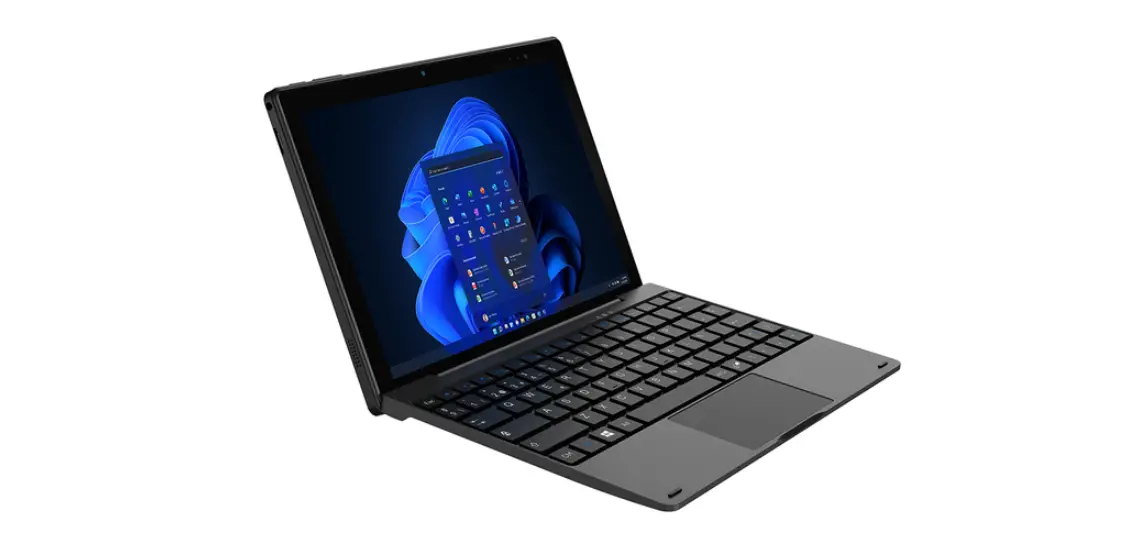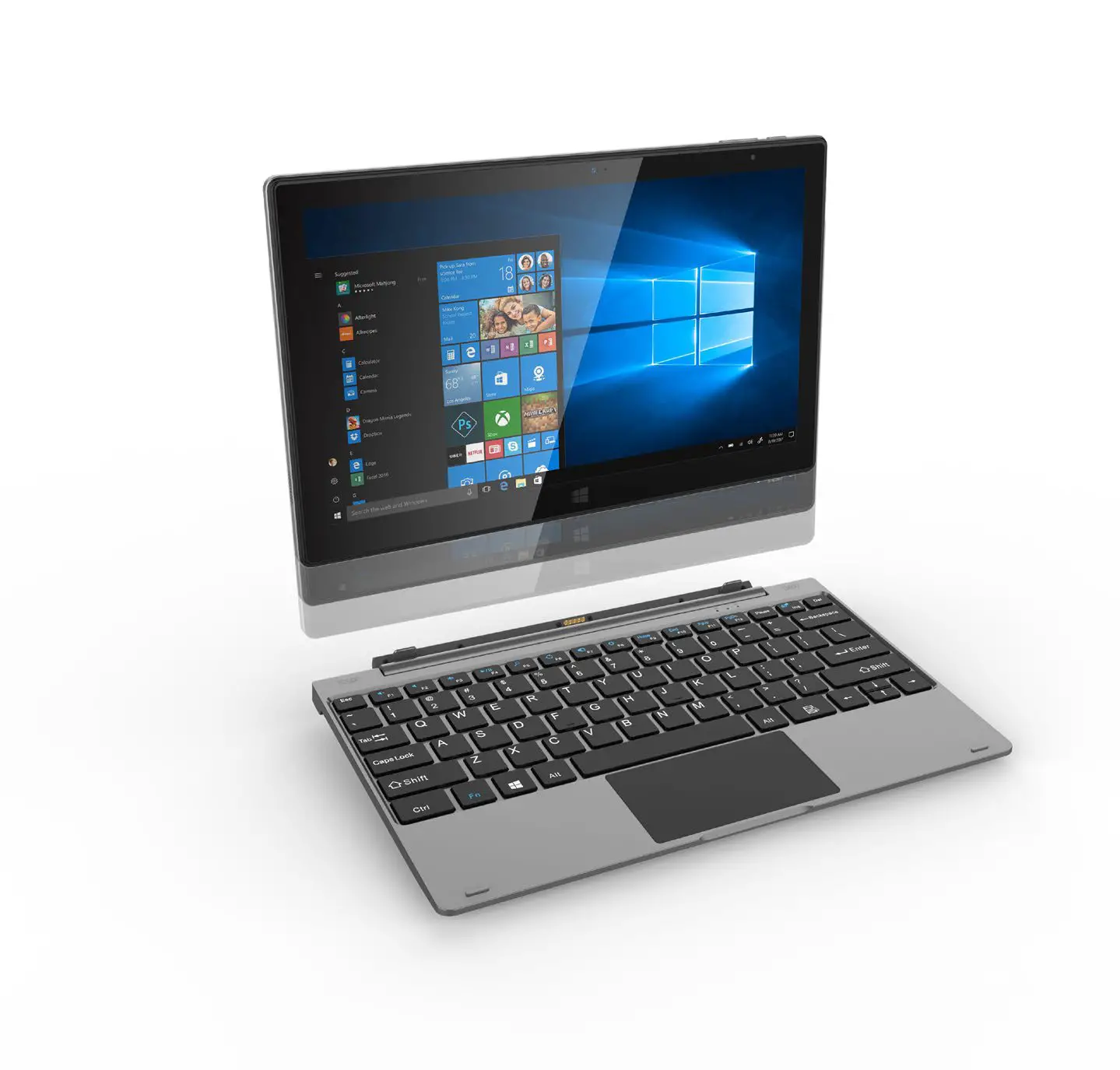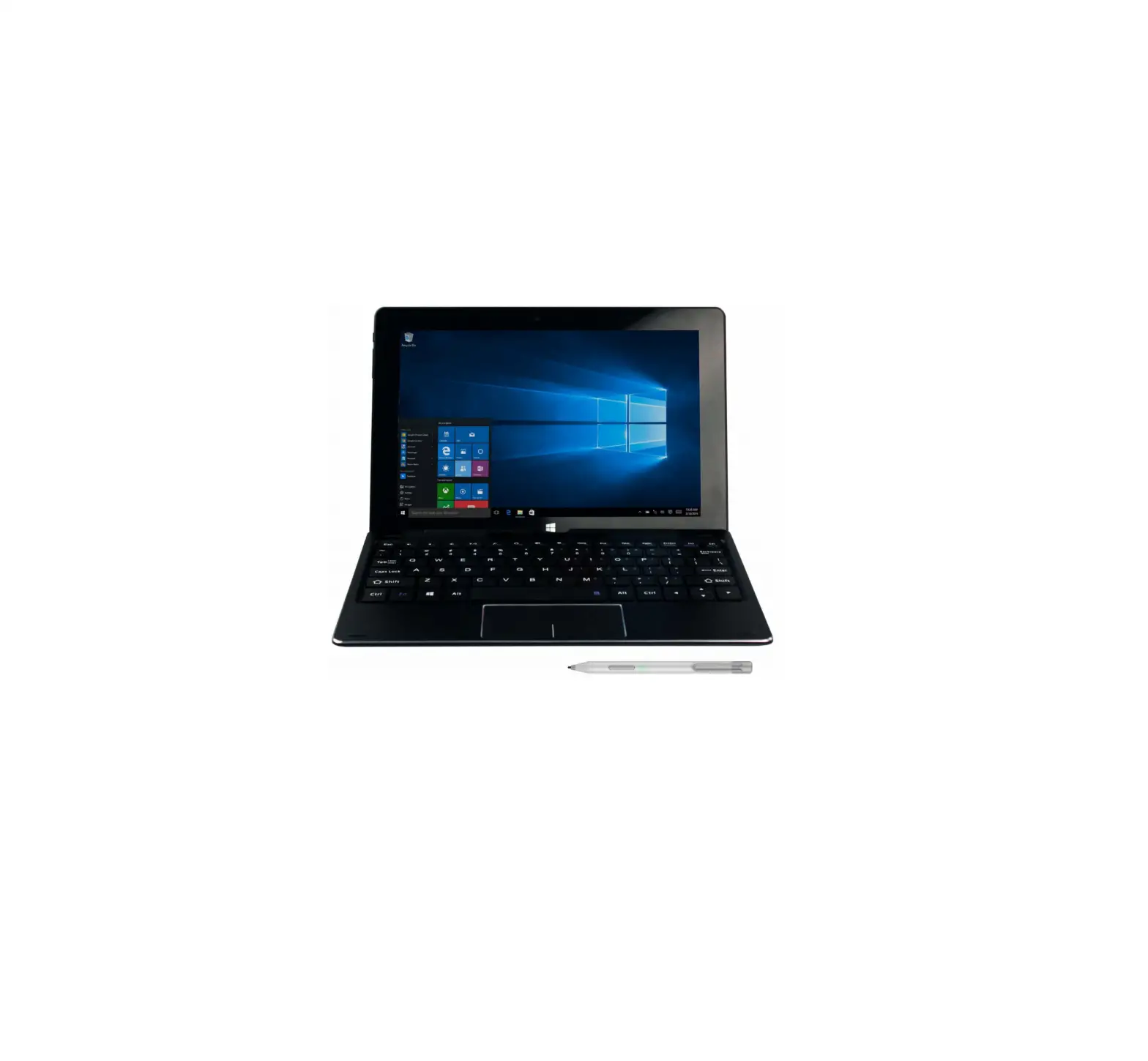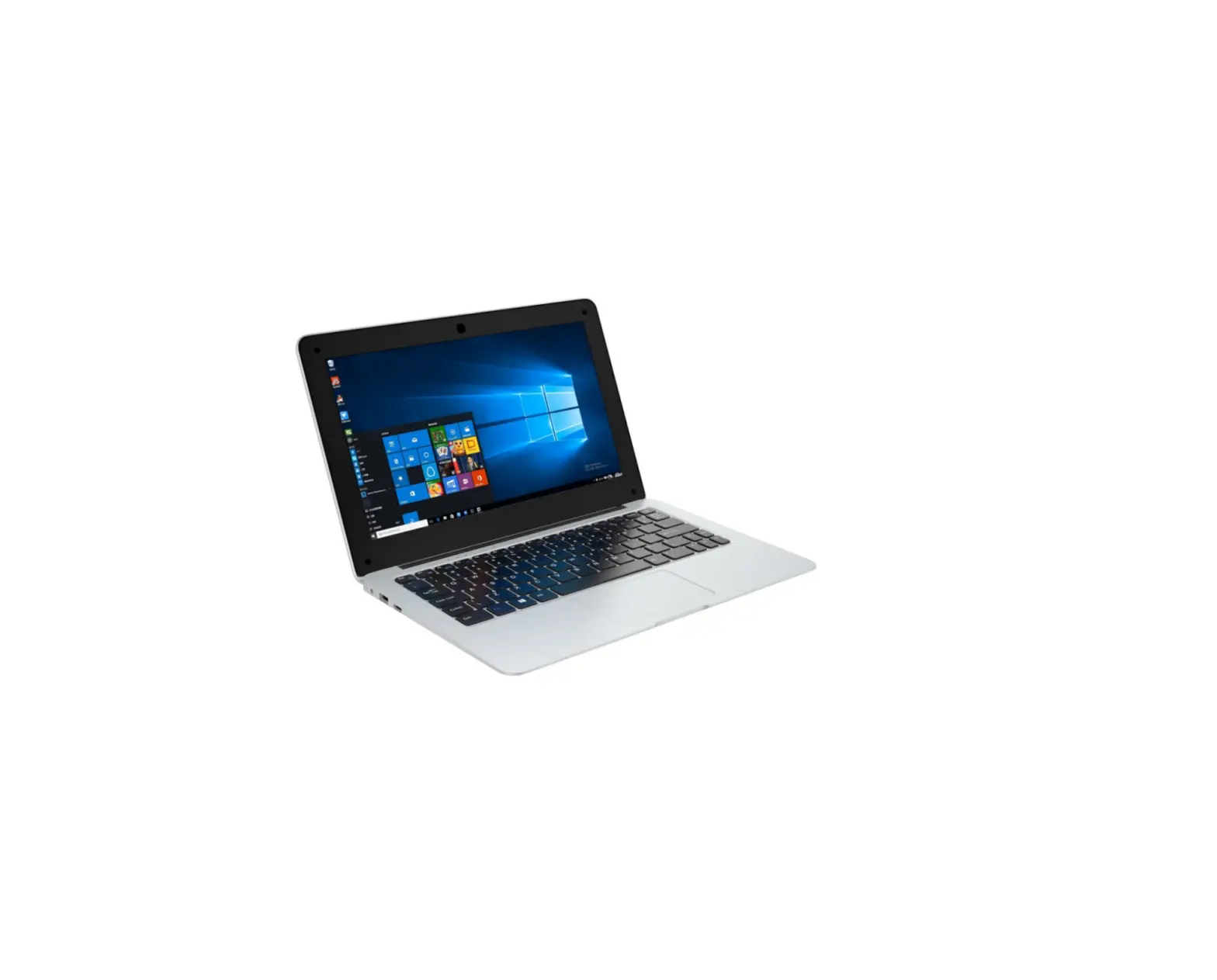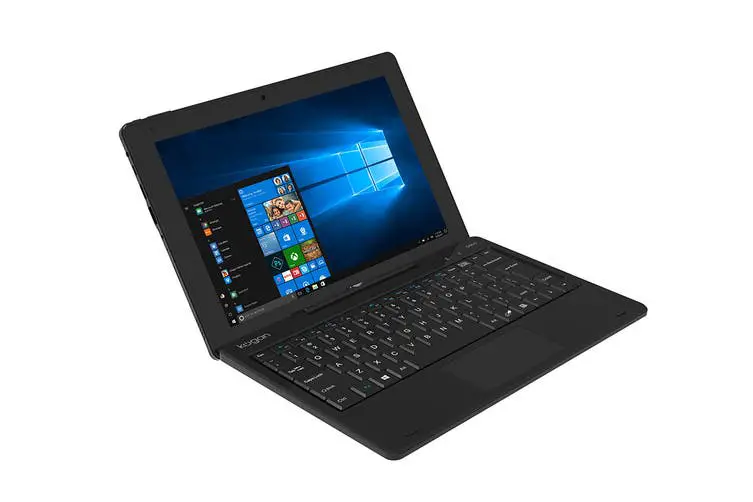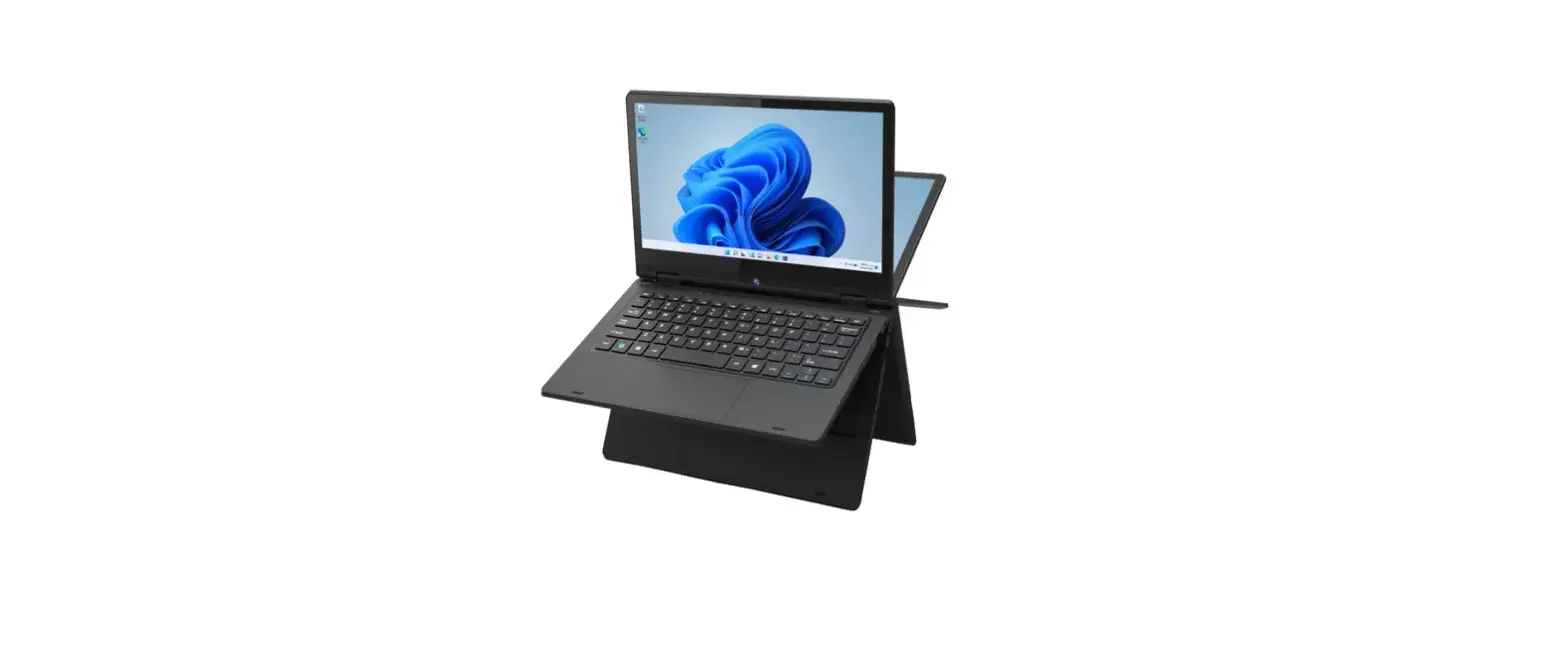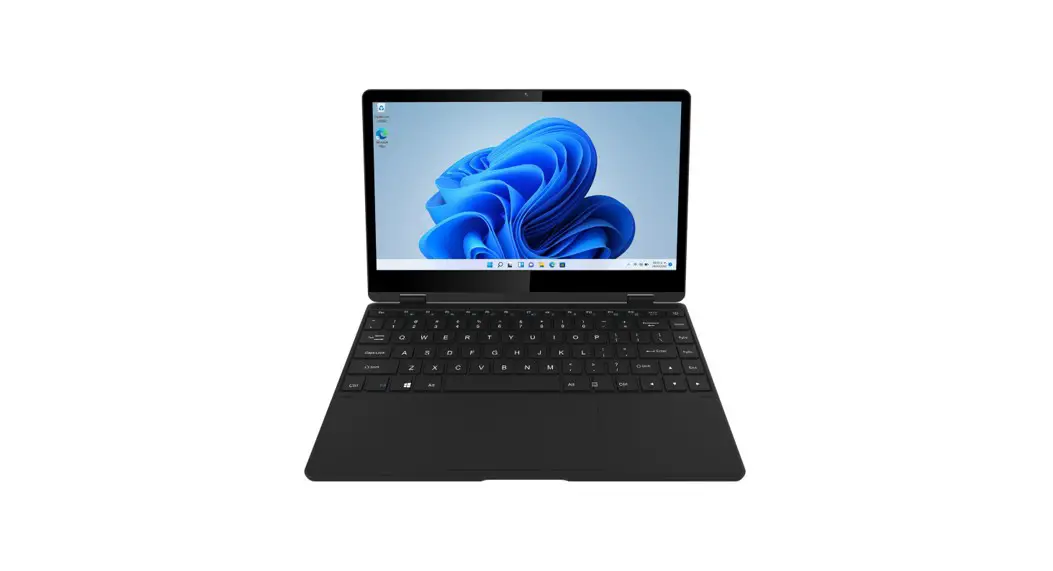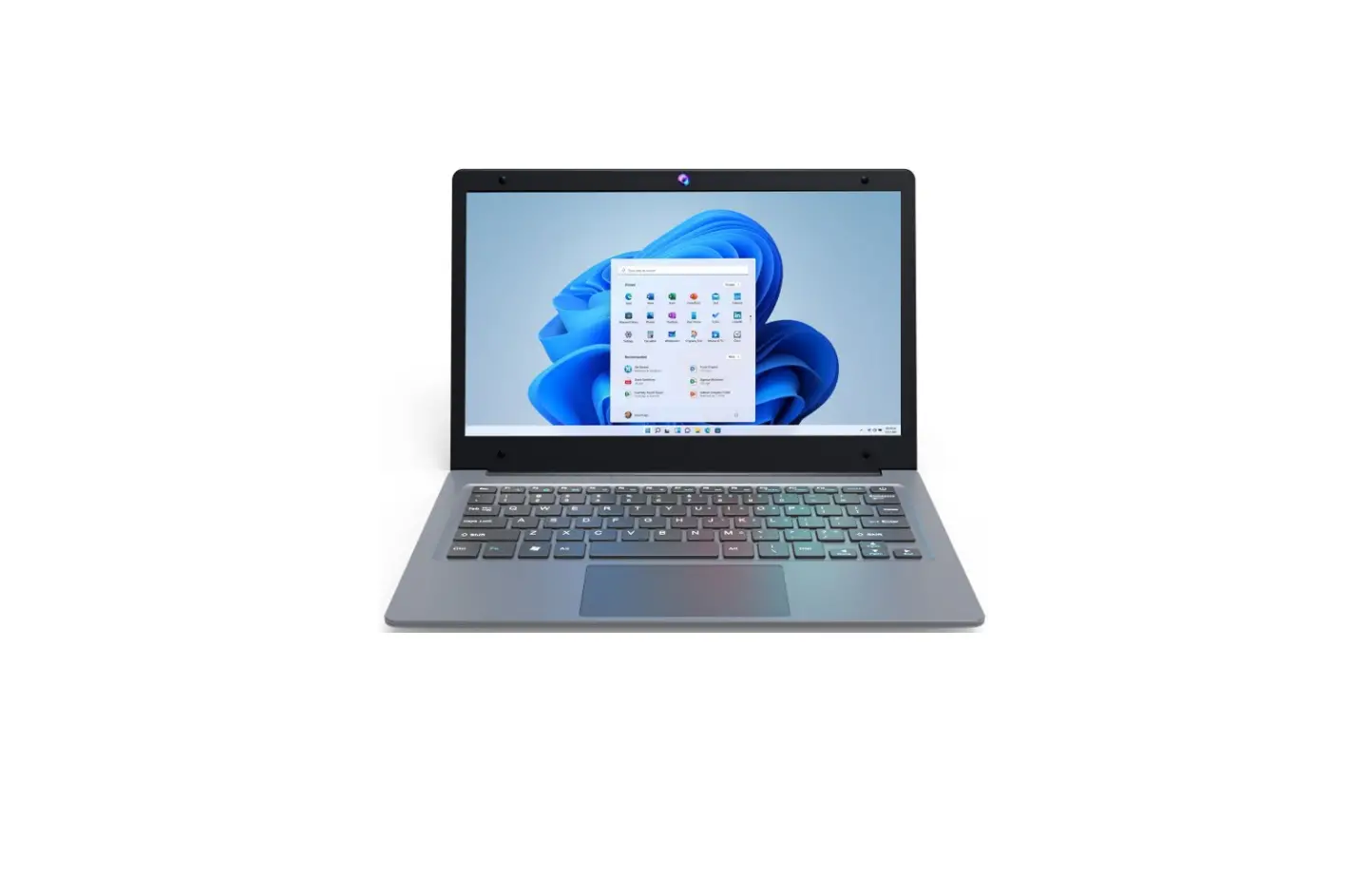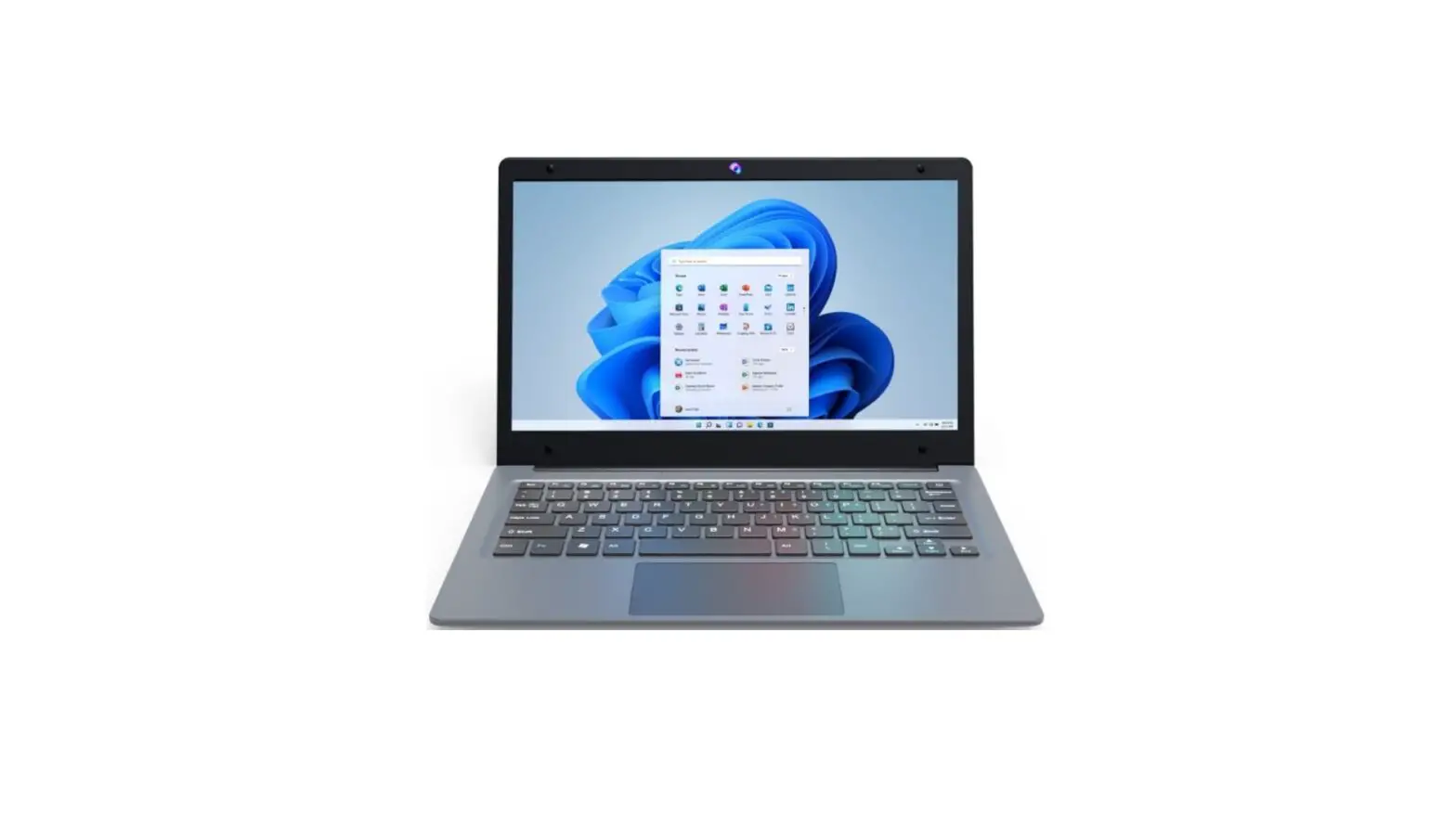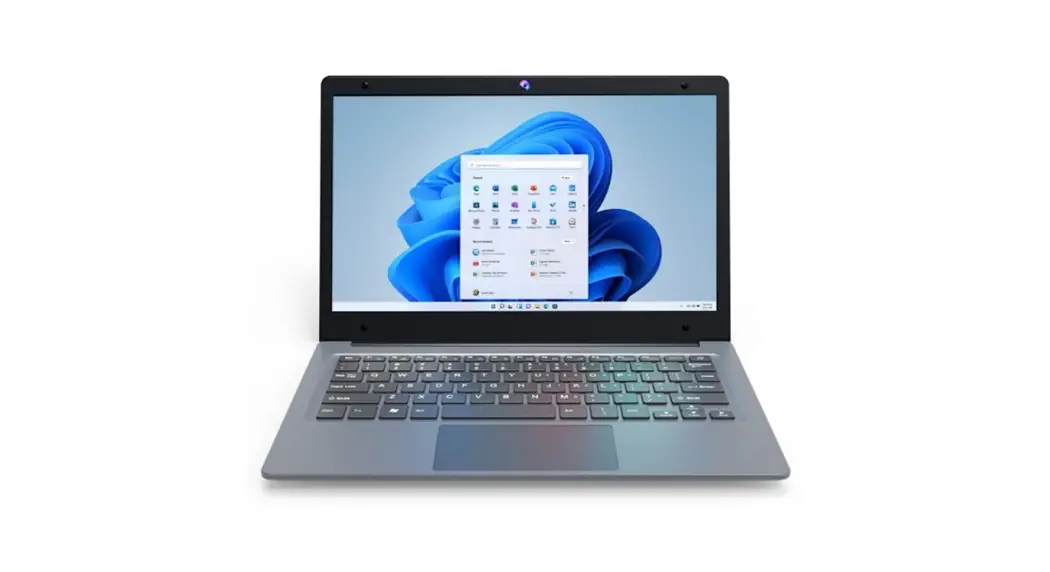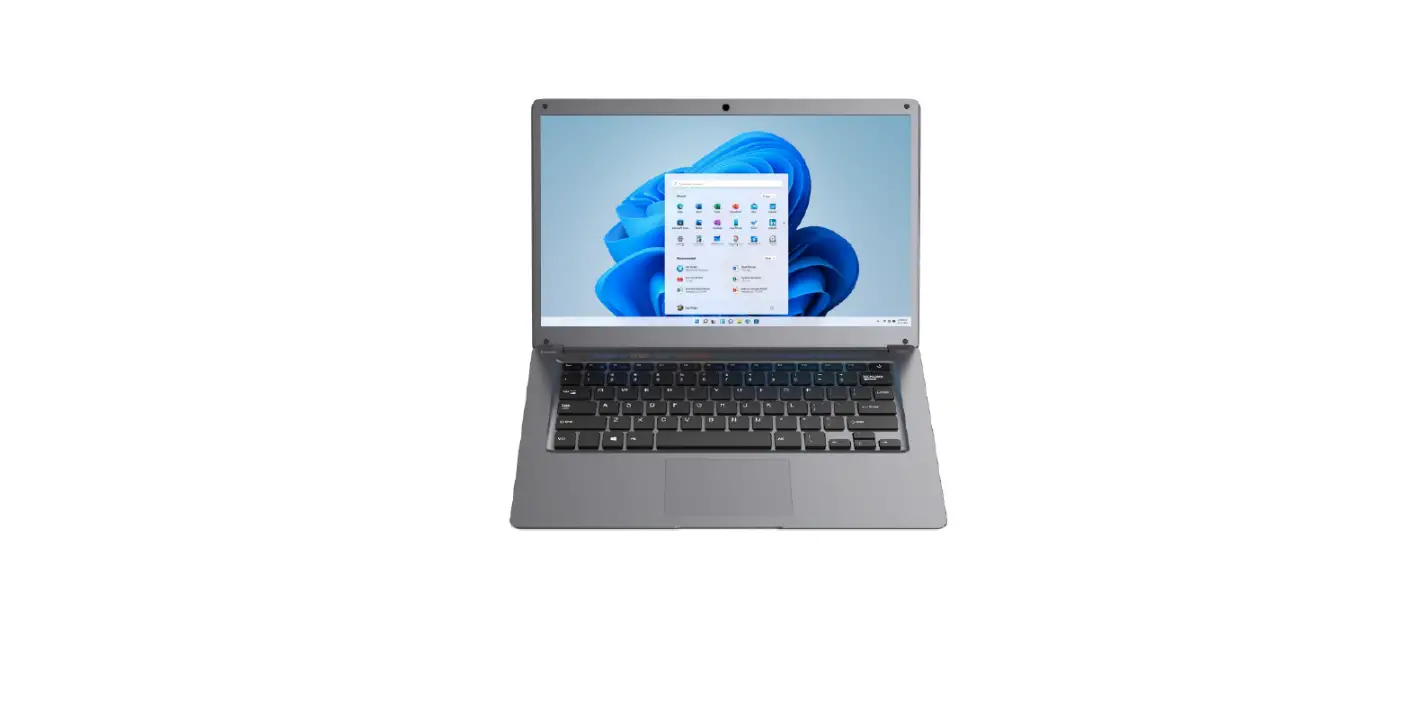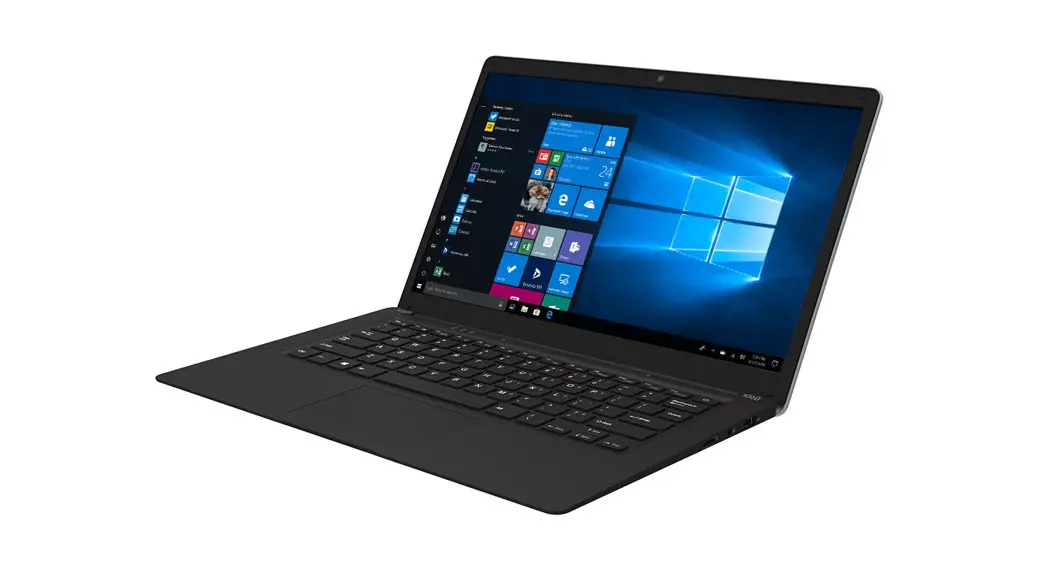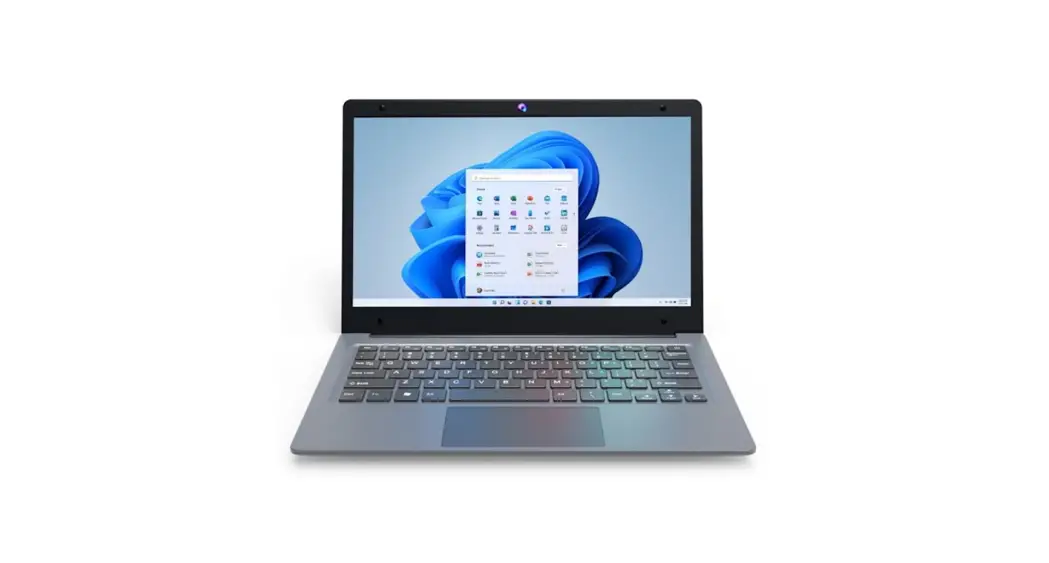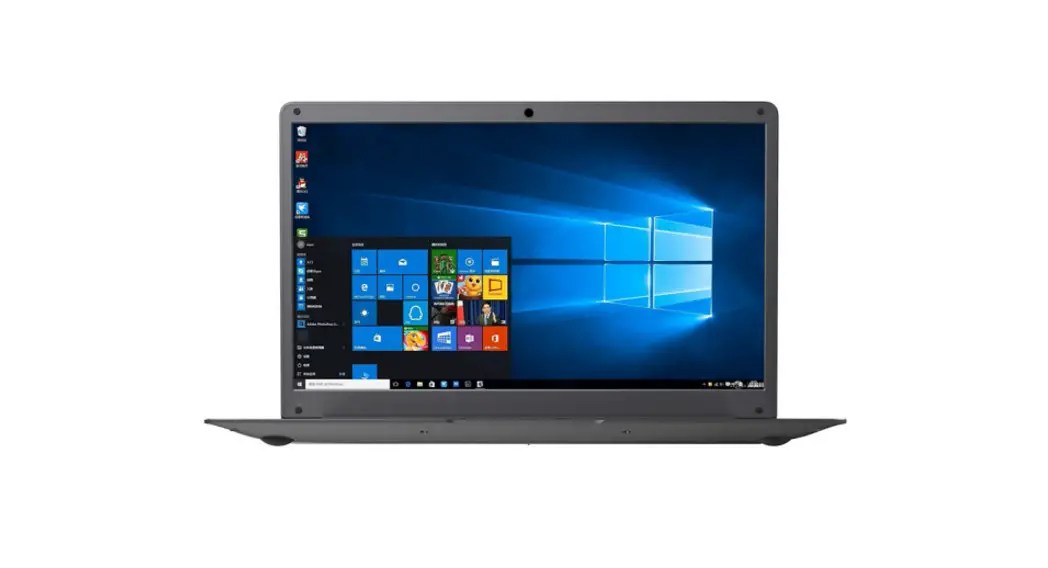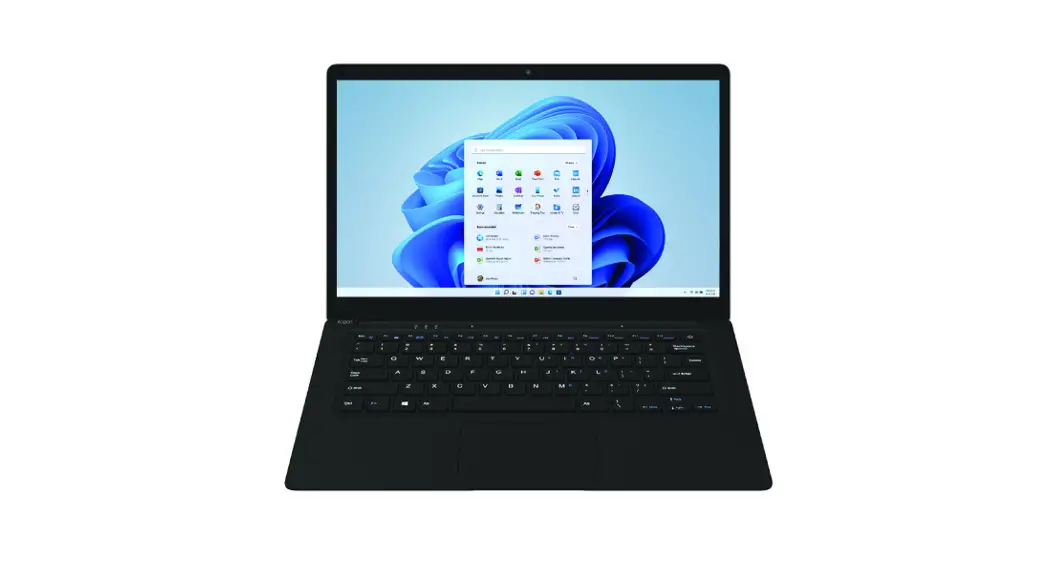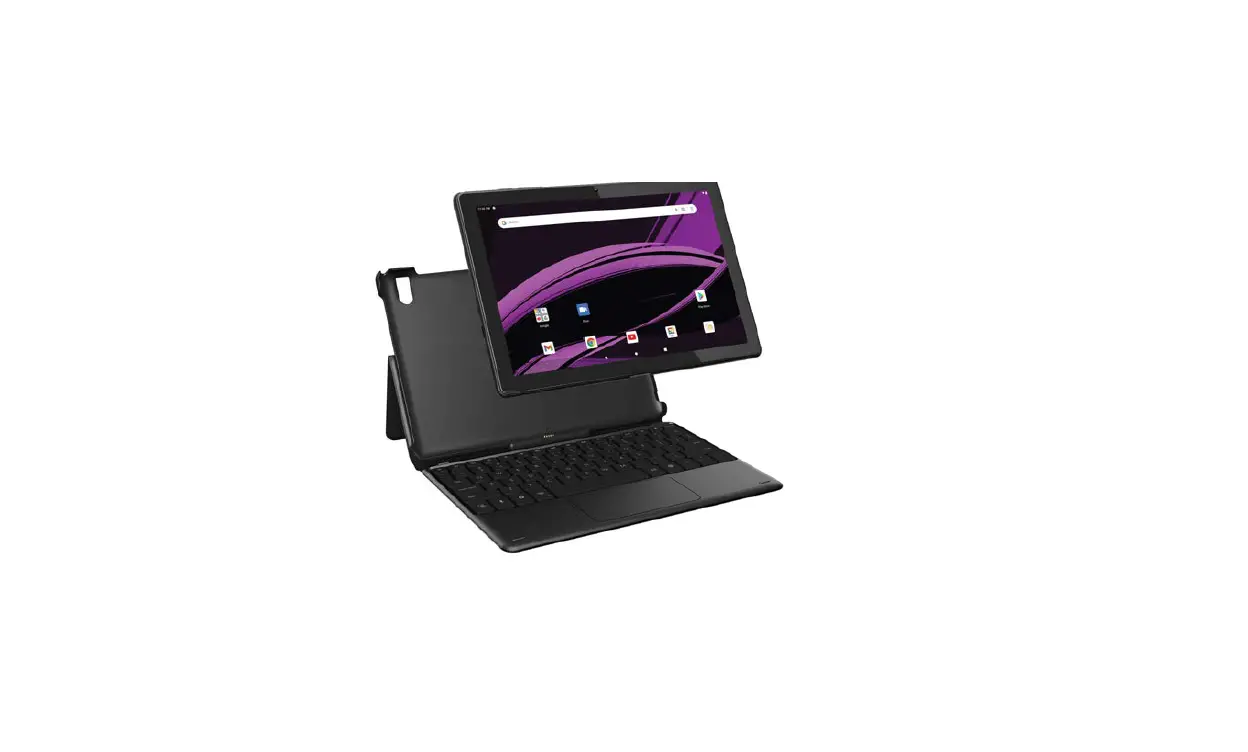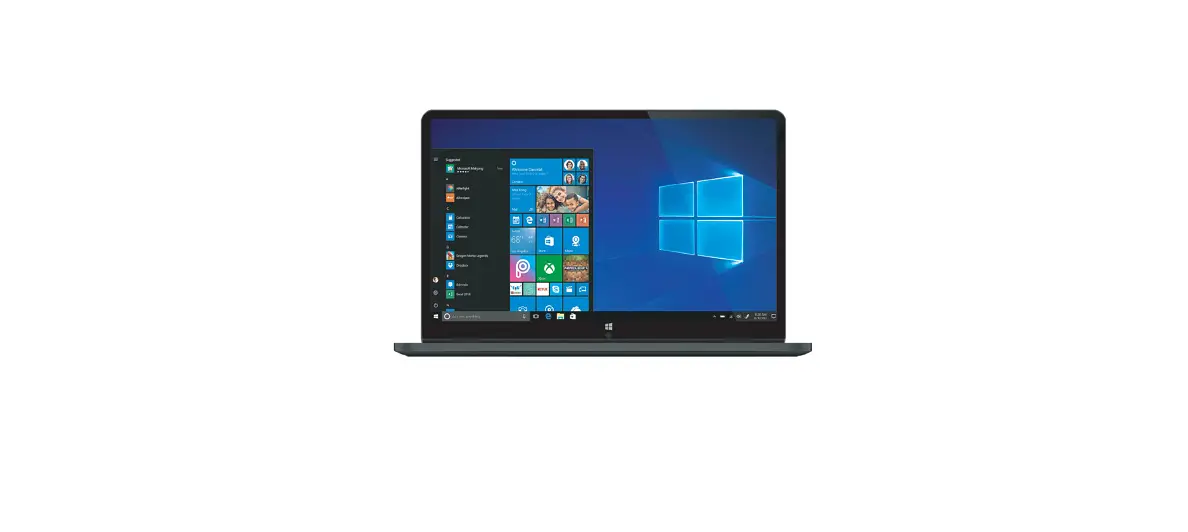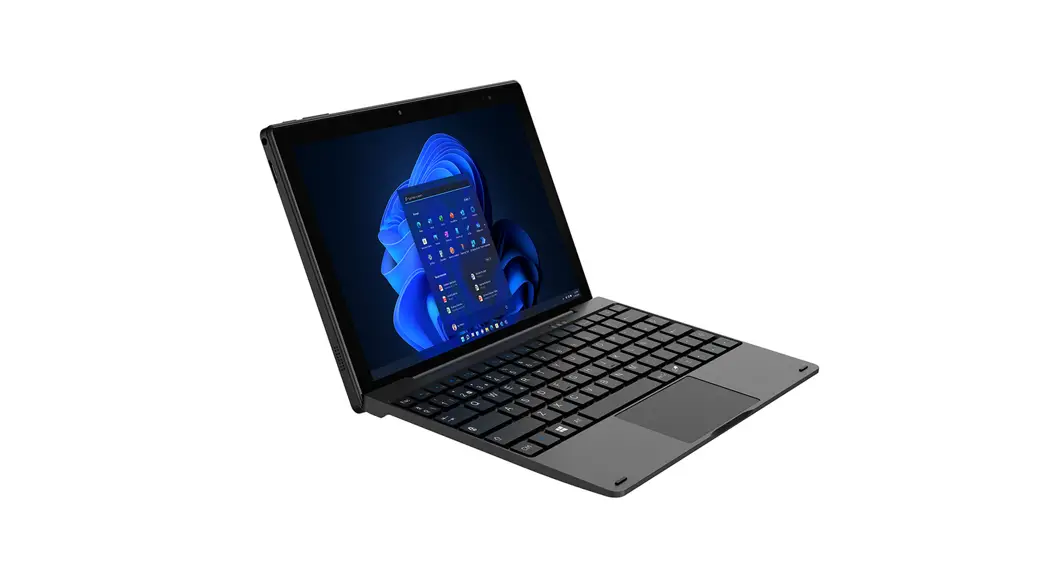
 KAL10D600PB ATLAS 10.1 Inch 2-IN-1
D600 Touchscreen Laptop
 User Guide
SAFETY & WARNINGS
Ensure to read all instructions and warnings in this user guide prior to first use. Retain this user guide for future reference.
- This laptop is suitable for use in non-tropic areas below 2,000 meters.
- Do not drop or shake the laptop.
- Do not use the laptop in extreme temperatures or in humid or dusty environments. Do not expose the laptop to direct sunlight.
- Avoid use of the laptop near strong magnetic fields.
- Do not allow water or any other liquid to touch the laptop. If water or any other liquid splashes onto the laptop, turn it off immediately and do not use until it is dried.
- To avoid causing damage due to corrosion or dampness, do not clean the laptop with liquids or any detergent containing chemicals.
- Ensure to back up all data to an external device when using the laptop.
- Do not attempt to modify or disassemble the laptop yourself.
- Replacing the battery with the incorrect type may cause explosions. Ensure to only use the original batteries.
- This user guide may be updated at any time. To find the most up-to-date version of this user guide, visit help.Kogan.com.
CLEANING & CARE
Ensure the laptop is turned off before cleaning. Wipe the surface with a soft dry cloth.
COMPONENTS LIST
- Tablet
- Charger
- Keyboard base
- User guide
OVERVIEW
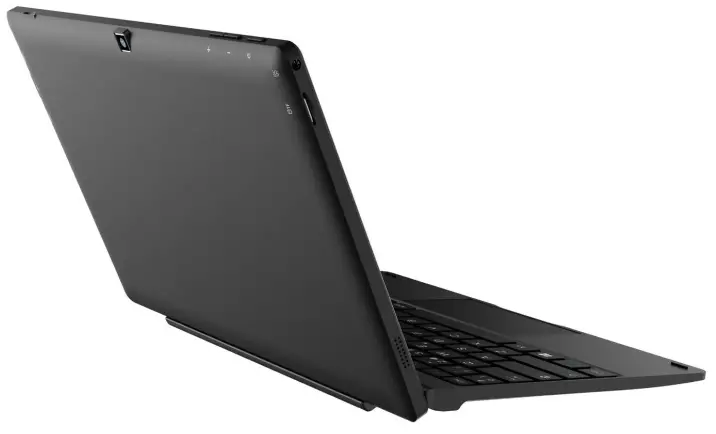
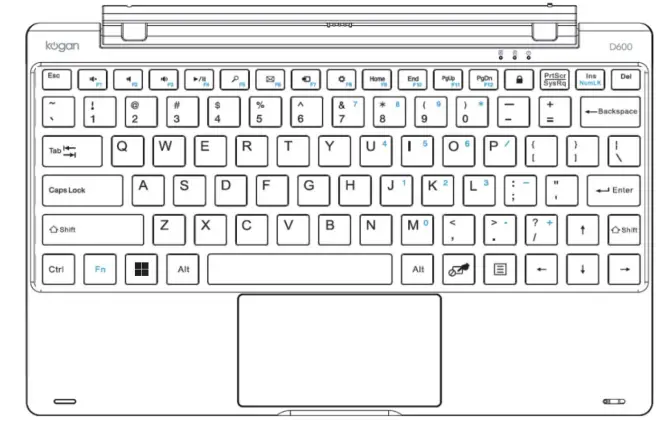
Tablet 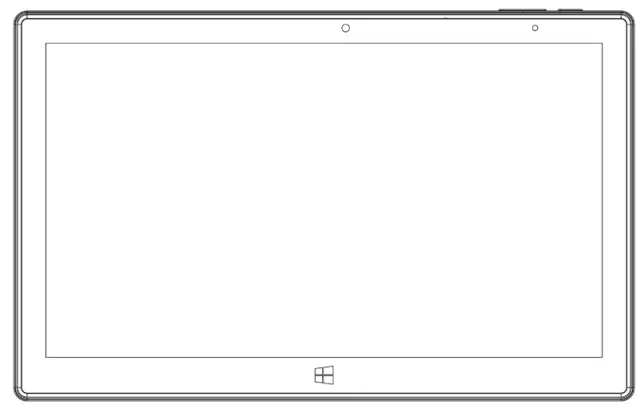 Keyboard base
  Tablet – Front and side view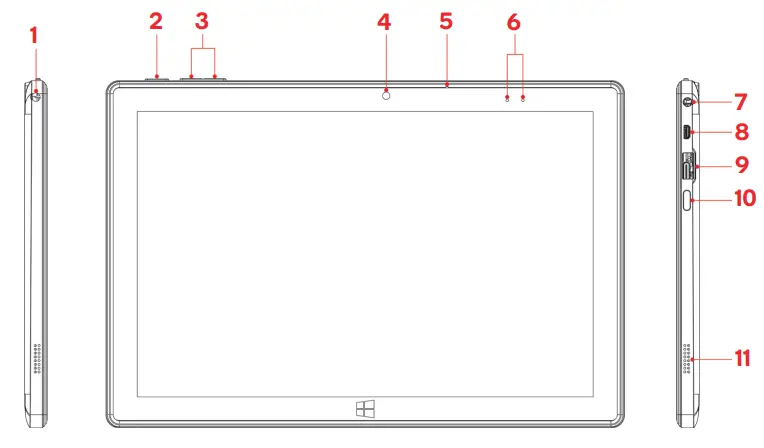
| No. | Name | Description |
| 1 | 3.5mm headphone jack | Used to plug in audio devices (for example, earphones). |
| 2 | Power button | • Press and hold to turn the tablet on/off. • If turned on, pressing this button will put the tablet to sleep mode. Pressing again will wake the tablet. |
| 3 | Volume controls | Increase or decrease volume. |
| 4 | Front camera | Take photos and record videos. Ideal for video calls. |
| 5 | Microphone | Used for recording audio, ideal for video calls. |
| 6 | Charging indicators | Will illuminate when charging the laptop. |
| 7 | Charging port | Insert the charger into this port and a socket to charge the laptop. |
| 8 | Micro HDMI port | Used with Micro HDMI cables to connect compatible devices. |
| 9 | USB 3.0 port | Used with USB drives, or for connecting a mouse or keyboard. |
| 10 | USB Type-C port | Used with USB Type-C cables to connect with compatible devices. |
| 11 | Speaker | Used to hear audio and watch content. |
Tablet – Bottom view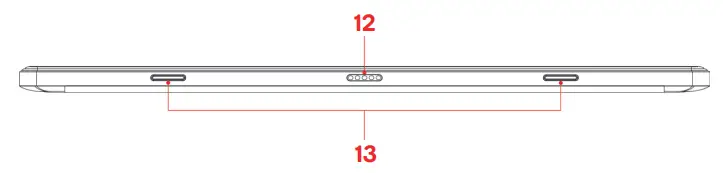 Tablet – Rear view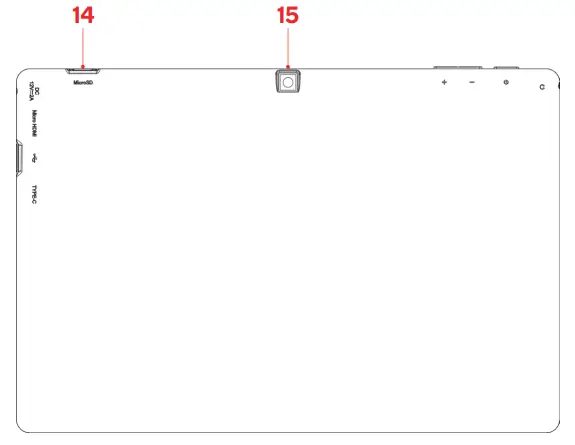
| No. | Name | Description |
| 12 | Magnetic connector | Used to easily connect the tablet to the keyboard base. |
| 13 | Tablet to keyboard connectors | Align these connectors with the keyboard base to securely attach the tablet to the keyboard base. |
| 14 | MicroSD card slot | Used for microSD cards. This slot also supports the microSD format. |
| 15 | Back camera | Take photos and record videos. |
Keyboard base – Top and side view 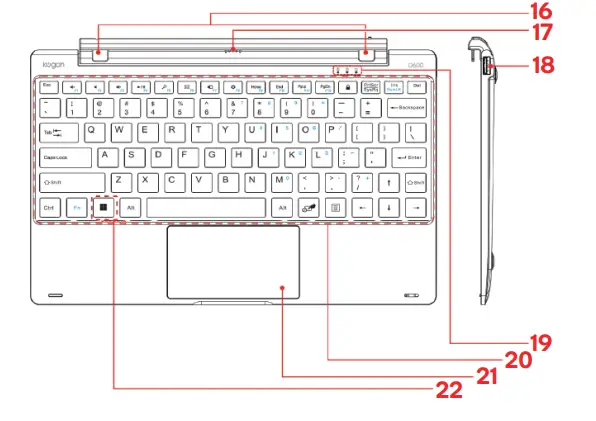
| No. | Name | Description |
| 16 | Tablet to keyboard | Align these connectors with the keyboard base to securely attach the tablet to the keyboard base. |
| 17 | Magnetic connector | Used to easily connect the tablet to the keyboard base. |
| 18 | USB 2.0 port | Used with USB drives, or for connecting a mouse or keyboard. |
| 19 | Indicator lights | Indicators for the number lock, caps lock and charging. |
| 20 | QWERTY keyboard | • Full size keyboard layout. • Use the function ‘Fn’ key to access alternate key functions. |
| 21 | Touchpad | Used to control the cursor on the Laptop. This has the same function as a mouse. |
| 22 | Windows key | Press to open the start menu. |
GETTING STARTED
Charging
It may be necessary to charge the laptop before first use. Plug one end of the charger into the charging port, then the other end into a power socket. Switch the socket on and the charging indicator will illuminate.
Turning on
Press and hold the power button to turn the laptop on. When turning on for the first time, you may be prompted to log into your Microsoft account to be able to set up Windows 11. Follow the on-screen prompts to complete the setup.
USING WINDOWS 11
Desktop and start menu
Once the setup has finished, the laptop will boot into the desktop.
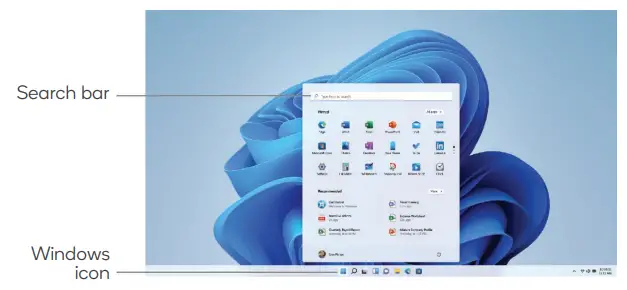
Using the touchpad or your fingers, click/tap on the Windows icon on the bottom of the screen. This will bring up the start menu. The start menu will display and allow you to open your downloaded applications.
Frequently used applications will appear on the front of the start menu, but other applications can be opened by typing their name into the search bar.
 Pinning/unpinning applications to the start menu
If you would like certain applications to always appear on the front of the start menu, find the application using the search bar, then right click (or press and hold if using the touch screen) on the application icon and select ‘Pin to Start’.
To unpin applications from the start menu, right click (or press and hold if using the touch screen) on the application in the start menu, then select ‘Unpin from Start’.
Notifications centre
The notifications centre displays any notifications and alerts (for example, emails, calendar reminders).
Slide one finger left from the right side of the screen (or click the date and time in the bottom right corner on the screen) to access the notifications centre.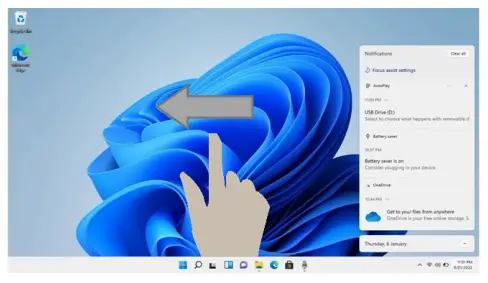 Widgets menu
The widgets menu allows you to view news, weather, and other personalized content in one glance.
Slide one finger right from the left side of the screen (or click the widgets icon on the bottom of the screen) to access/set up the widgets menu.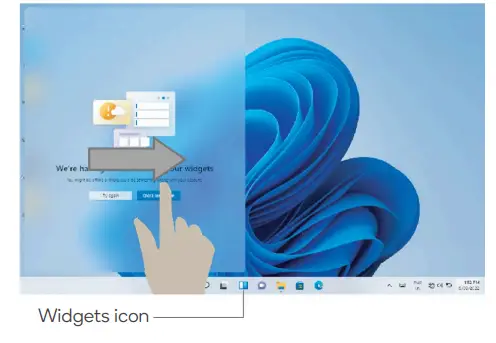 Quick settings
To access settings such as Wi-Fi and Bluetooth, select the network, volume, or battery icons in the bottom right corner of the screen.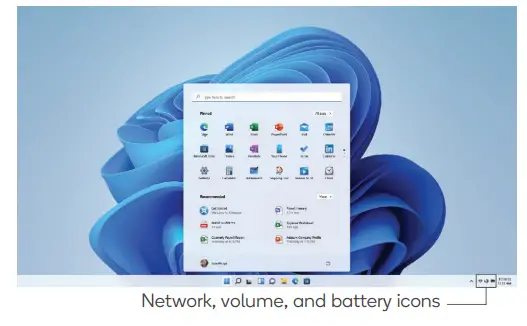 Viewing all currently opened applications
To view all currently opened applications, hold down the ‘Alt’ and ‘Tab’ keys. Press and release the ‘Tab’ key to switch between different applications.
Alternatively, if using the touch screen, swipe three fingers up from the bottom of the screen to view all currently opened applications.
Multitasking
Drag one window to the left or right side of the screen and let go when you can see an overlay of the window around half of the screen. You can then select another open window to fill the free space on the other half of the screen.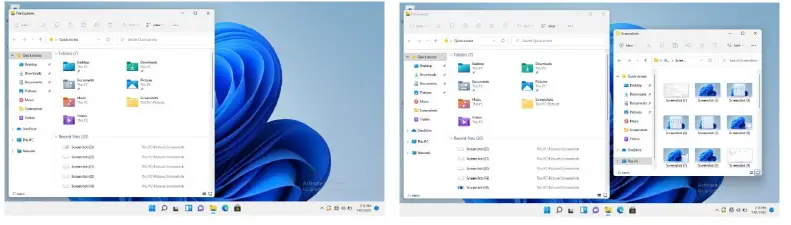 Sleep, restart and shut down
Click on the Windows icon on the bottom of the screen, then click on the power icon. Click on ‘Sleep’, ‘Restart’ or ‘Shut Down’ to perform the appropriate action.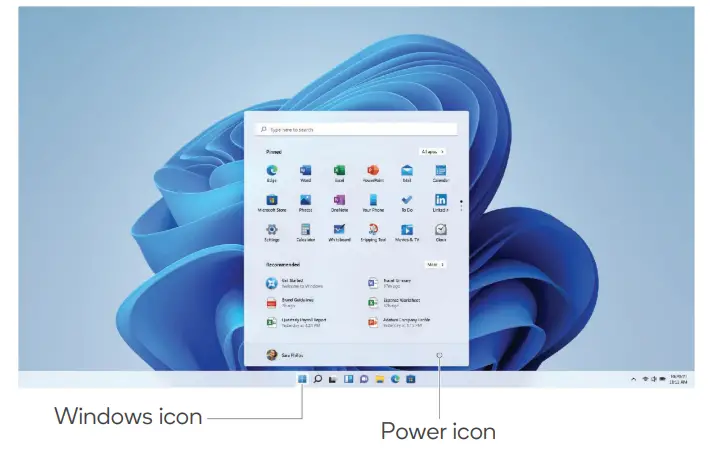 To wake up the laptop from sleep, press and hold the power button. If the laptop is unresponsive, press and hold down the power button to shut down the laptop. Press and
hold the power button again to turn the laptop back on.
SPECIFICATIONS
Performance
| CPU | Intel Celeron N4020 Processor |
| CPU speed | 1.1GHz–2.8GHz |
| GPU | Intel UHD 600 Graphics |
| Operating system | Windows 11 Pro |
| System memory (RAM | 4GB |
Power
| Battery capacity | 3000mAh |
| Battery type | Lithium-ion polymer battery |
Display
| Screen size | 10.1″ |
| Screen resolution | 800 x 1280 IPS |
| Touch screen | Yes |
Storage
| Storage capacity | 128GB |
| Storage type | eMMC |
Inputs/Outputs
| Headphone jack | Yes |
| Micro HDMI | x1 1.4a |
| USB 3.0 | x1 |
| USB Type C | x1 |
| MicroSD | Yes, up to 128GB |
Audio
| Speaker | 2 x 1W |
Connectivity
| Bluetooth | Yes |
| Bluetooth version | 5.0 |
| Wi-Fi | Yes |
| Wi-Fi protocols | WIFI 802.11b/g/n/ac |
Othe
| Dimensions | 248 x 167 x 10.5mm |
| Built-in webcam | Yes |
| Convertible | Yes |
| Detachable | Yes |
Need more information?
We hope that this user guide has given you the assistance needed for a simple set-up.
For the most up-to-date guide for your product, as well as any additional assistance you may require, head online to help.kogan.com