 USER GUIDE
 USER GUIDE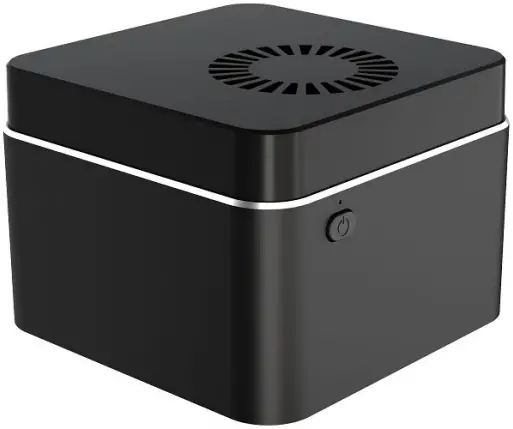
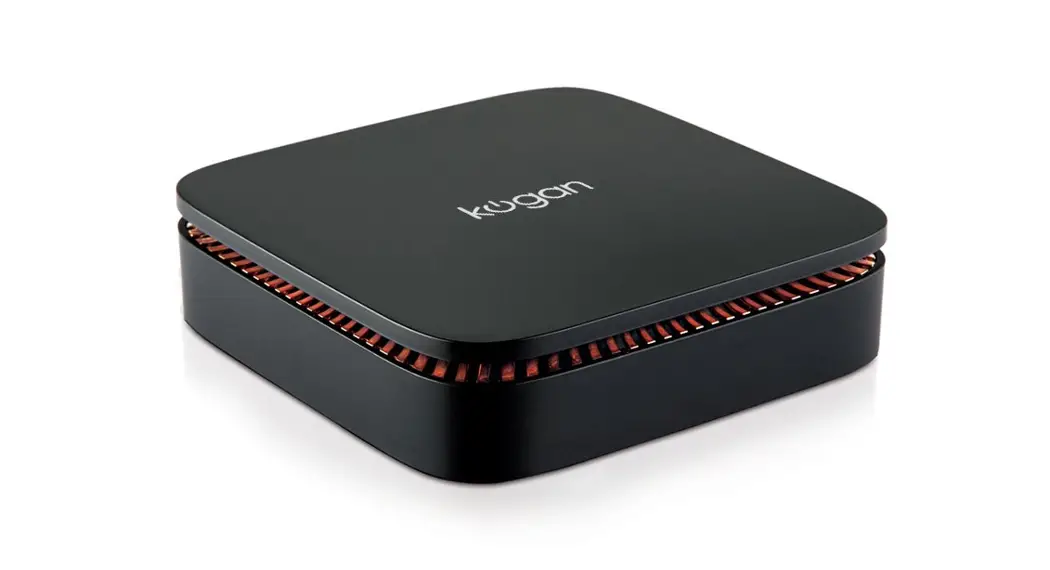
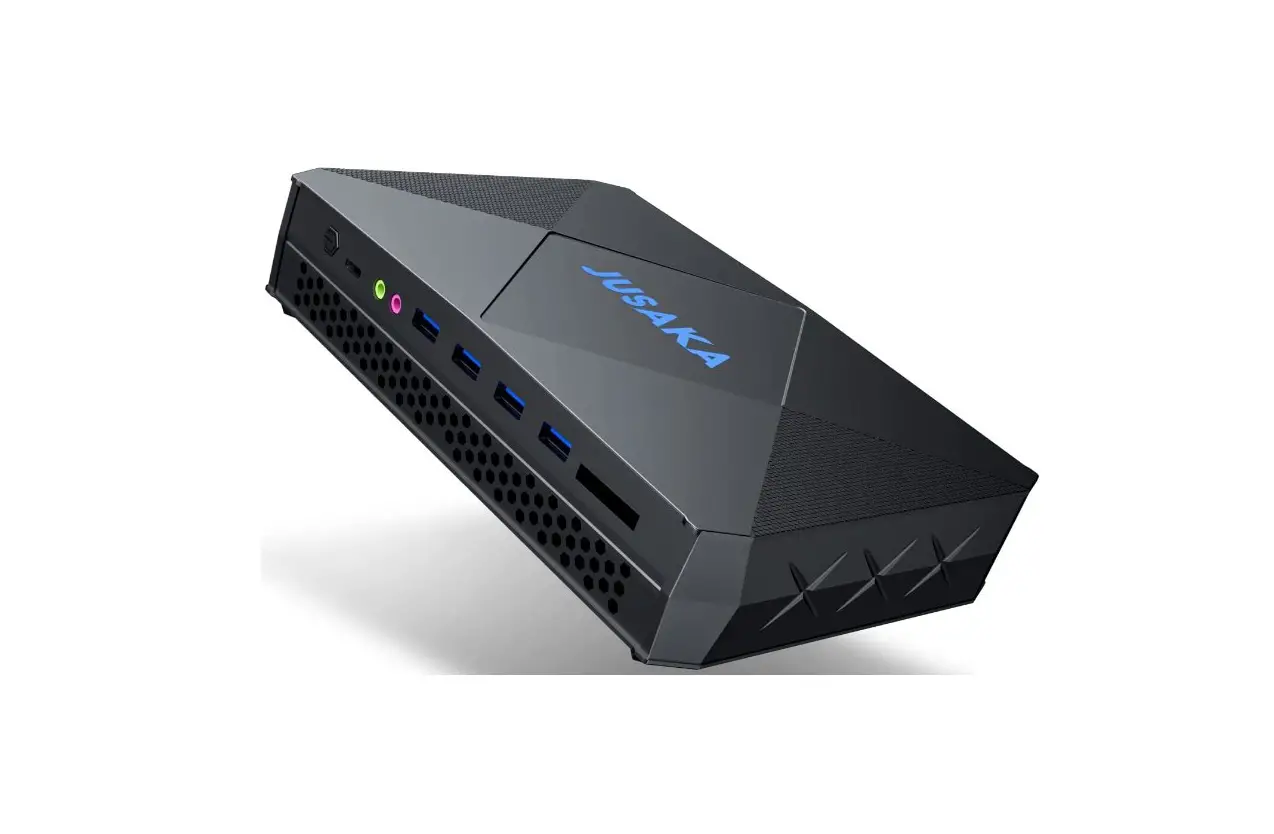
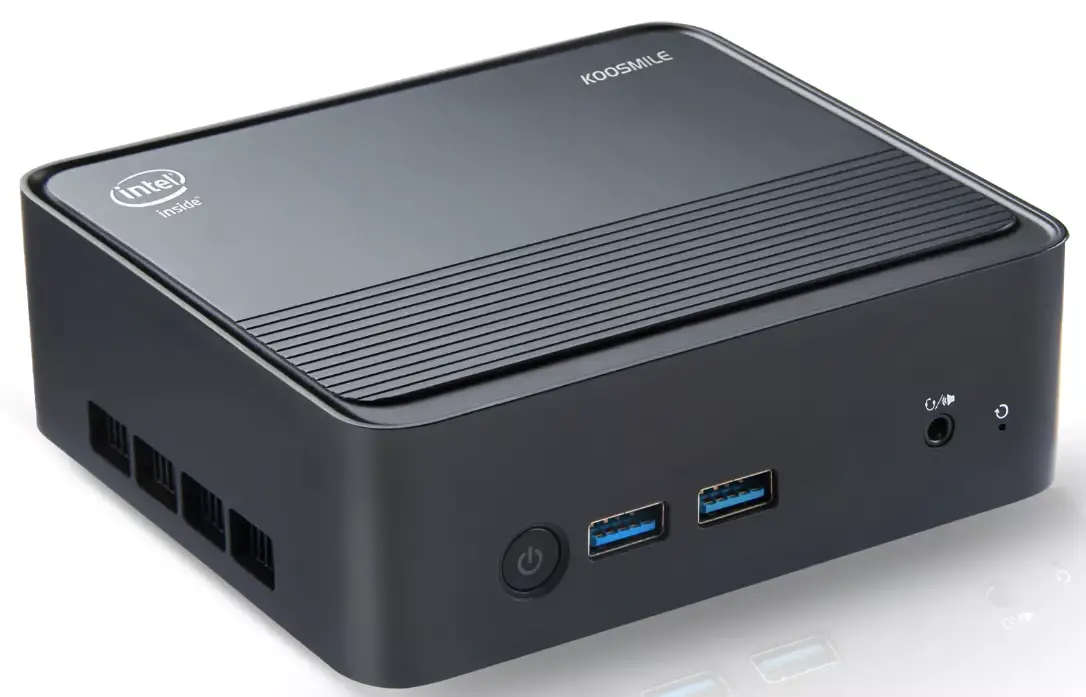
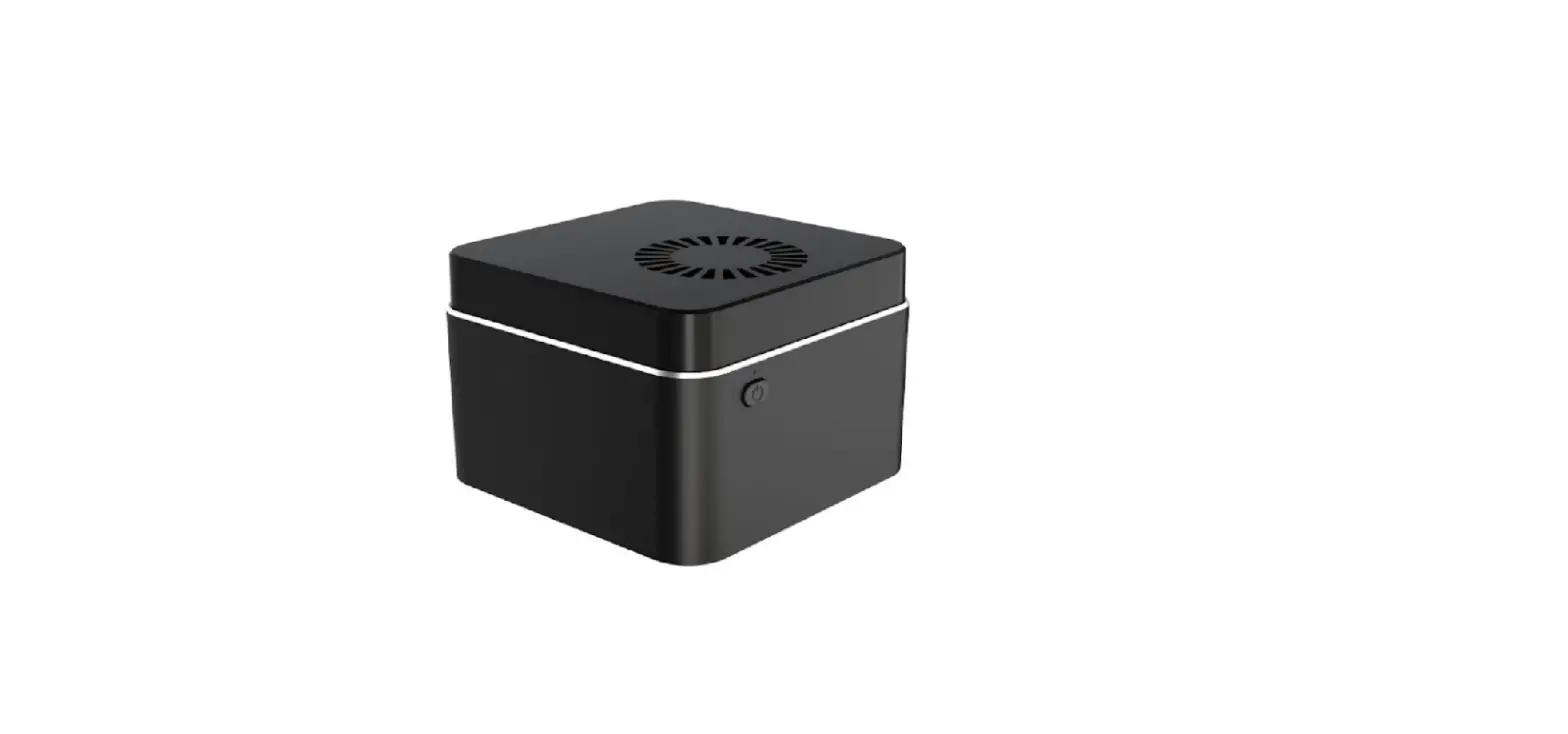
ATLAS G600 MINI PC
WITH WINDOWS 11 PRO
KAMPG600HA
SAFETY & WARNINGS
Ensure to read all warnings and instructions in this user guide prior to first use. Retain this user guide for future reference.
- This PC contains small batteries for the CMOS on the motherboard. If the batteries require replacement, do not attempt to replace them yourself. Contact help.Kogan.com for assistance.
- The ideal working temperature of this PC is 10-35°C with a relative humidity of 30-80%.
- Do not repeatedly turn on and turn off the PC in a short period of time as this may cause damage to the internals.
- Do not allow food, water, or any other liquids to come into contact with the PC.
- Do not cover the fans on the PC as this may lead to lower performance and overheating.
- Do not expose the PC to strong lights or direct sunlight.
- Do not place the PC near strong magnetic fields.
- Do not use this PC in high altitudes (3000 metres above sea level and higher).
- Do not use this PC in highly humid or tropical areas.
- If there is a sudden power outage whilst the PC was in use, this may cause damage to the hard drive. When the power is reconnected, ensure to run a scan on the hard drive to check for any errors that may have occurred.
- When connecting the PC with a cable, do not forcibly pull on the cable to unplug it from the PC.
- Unplug and store the PC if it will not be used for an extended period.
COMPONENTS LIST
- Mini PC
- Power adapter with USB-C cable
- User guide
OVERVIEW
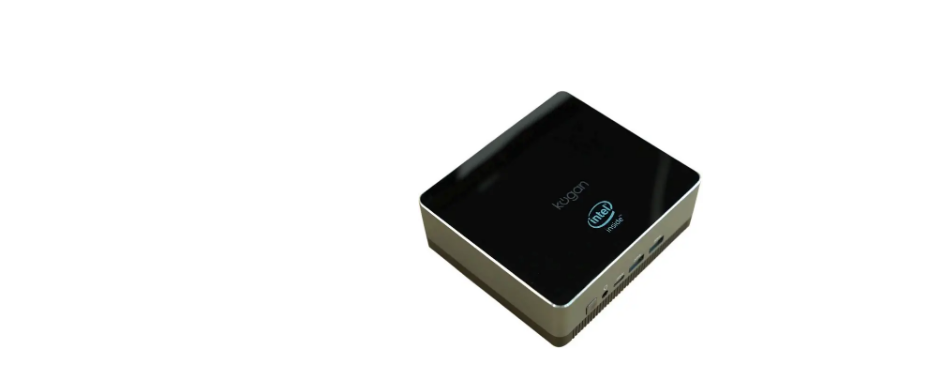
Front view
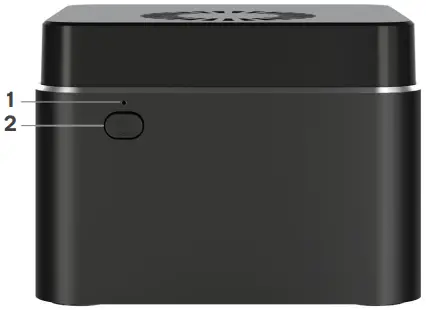
1 Power indicator
2 Power button
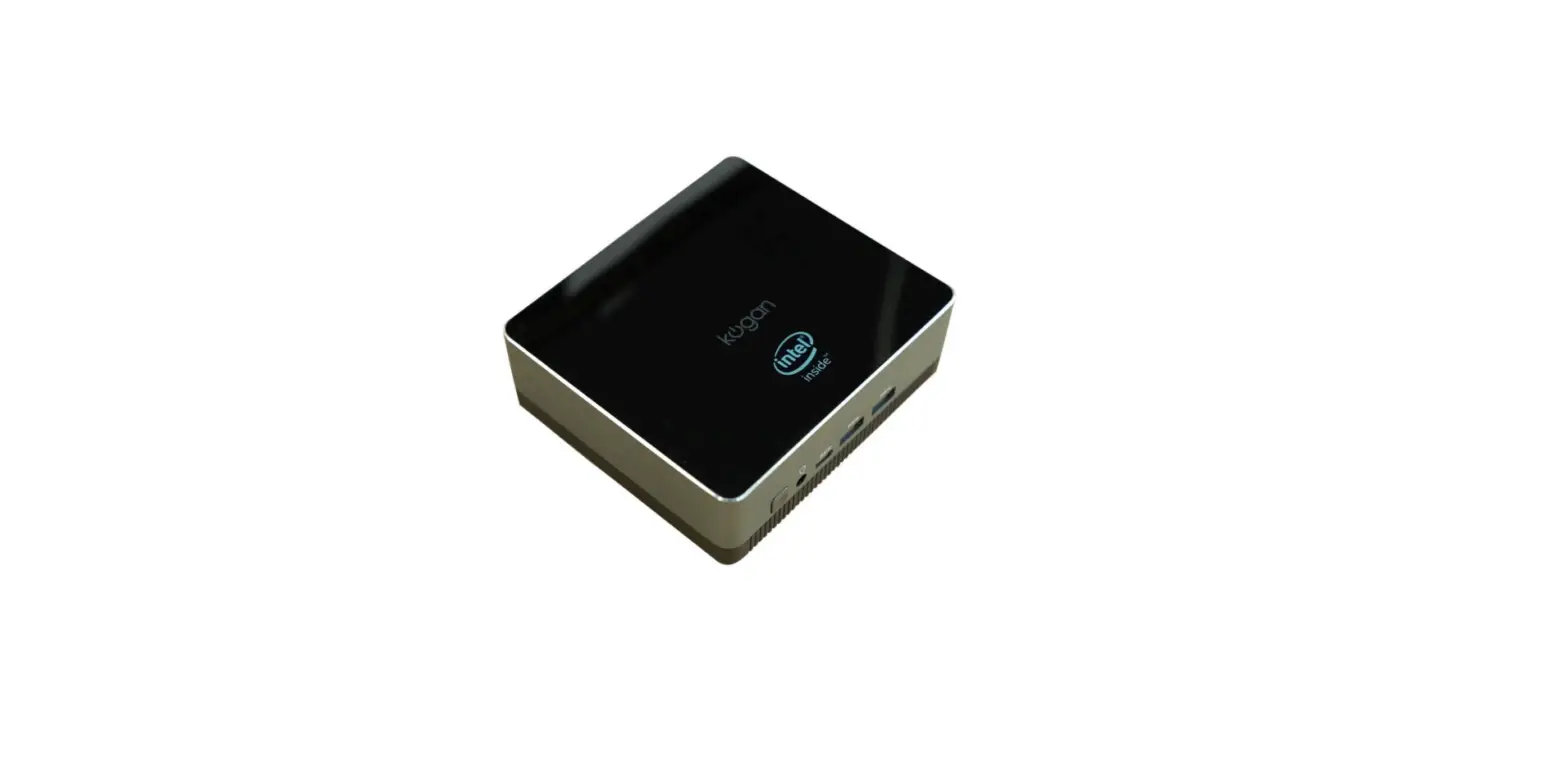
Top/side/back view
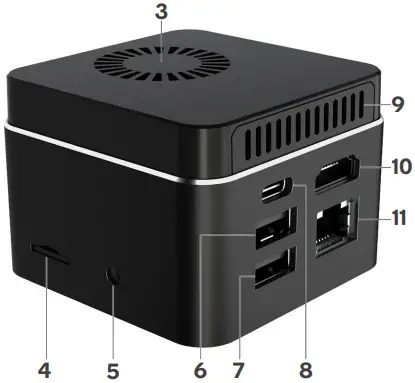
3 Top fan
4 microSD card slot
5 3.5mm audio jack
6 USB 3.0 port
7 USB 3.0 port
8 USB-C port
9 Side fan
10 HDMI port
11 RJ-45 (Ethernet) port
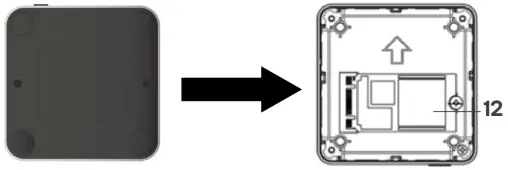
12 SSD (underneath)
OPERATION
1. Connect the PC to an external display (for example, TV, monitor, projector) with a HDMI cable (not supplied).
2. Connect the USB-C end of the power adapter into the USB-C port on the PC. Connect the power adapter into a power socket and switch on the socket.
3. Select the video output on the external display to the PC. Press the power button on the PC to start up the system. The power indicator will illuminate, and the PC will be ready for use.
4. Use the device by connecting it with a wired or wireless keyboard and mouse via USB port.
Note:
You may connect a wired or wireless keyboard and mouse using the USB 3.0 ports.
SPECIFICATIONS
| Dimensions (L x W x H) | 62 x 62 x 43mm |
| Weight | 155.7g |
| Power input | AC 110–240V, 50–60Hz |
| Power output | USB-C, 12V/2A |
| System and performance | |
| OS | Windows 11 Pro |
| CPU | Intel Gemini Lake N4020 4M Cache, up to 2.80GHz |
| Core | Dual core |
| Lithography | 14nm |
| GPU | Intel UHD Graphics |
| Intel Burst Technology support | Yes |
| Memory type | LPDDR4 |
| RAM | 4GB |
| Wireless connectivity | Intel Wireless-AC 9461, 802.11 a/b/g/n/ac |
| Wi-Fi frequency supported | 2.4G, 5G |
| Bluetooth | Version 5.1 |
| Internal storage | eMMC, 64GB |
| SSD support | Yes, M.2 SSD up to 512GB |
| WHQL/CTS support | Yes |
| Ports | |
| USB | x2 USB 3.0, x1 USB-C |
| HDMI | x1 HDMI 1.4 |
| microSD card reader | Yes |
| Ethernet port | Yes |
| 3.5mm audio jack | Yes |
Need more information?
We hope that this user guide has given you the assistance needed for a simple set-up.
For the most up-to-date guide for your product, as well as any additional assistance you may require, head online to help.kogan.com