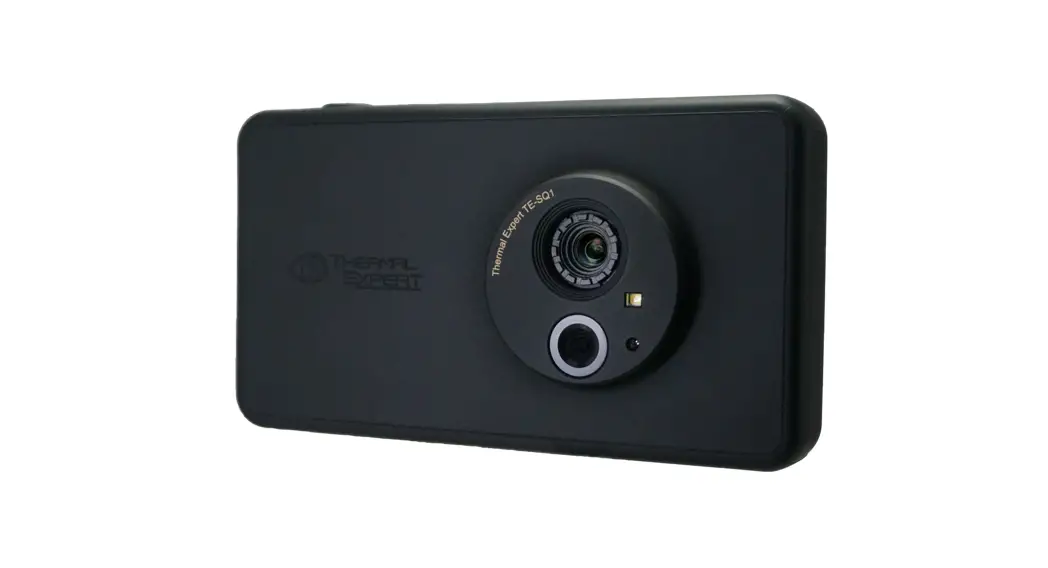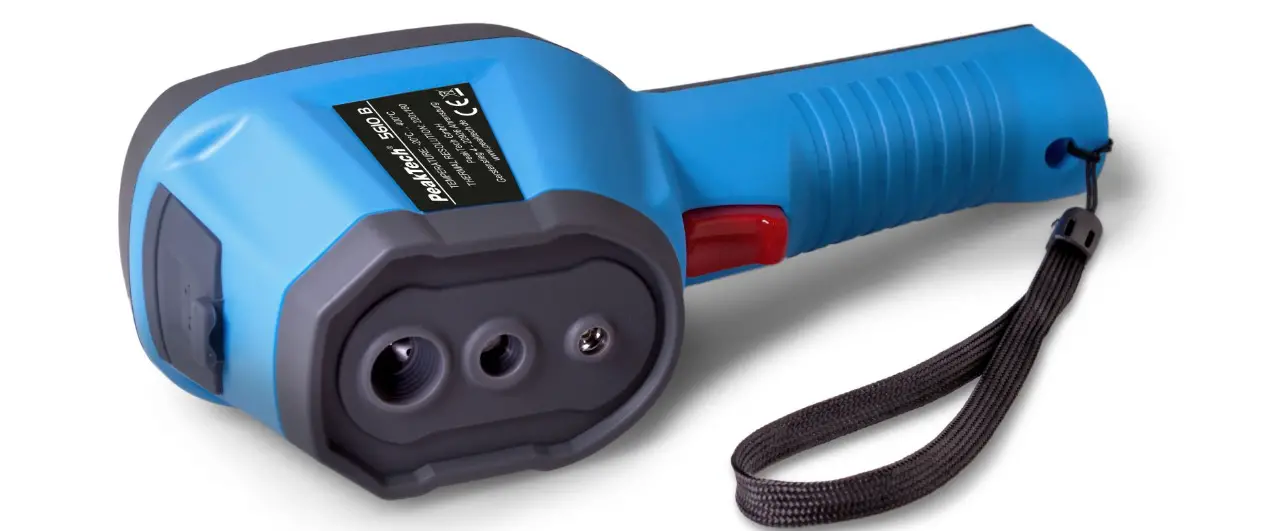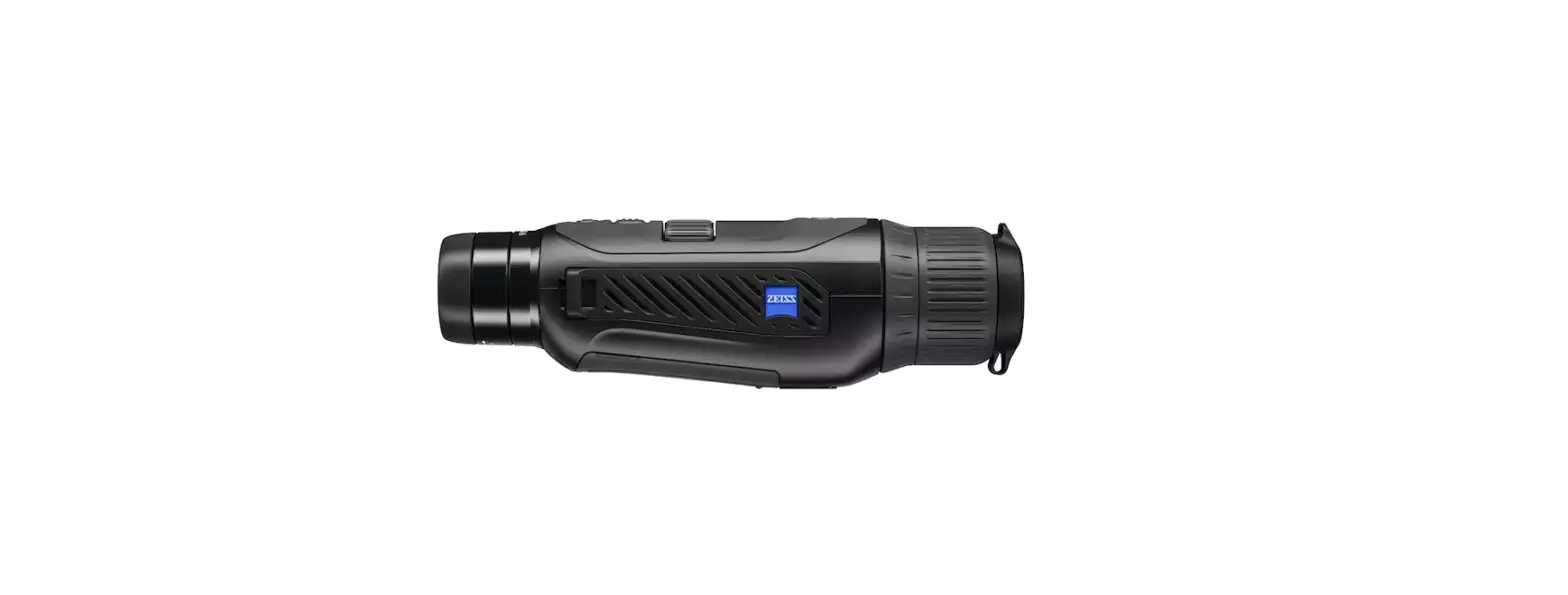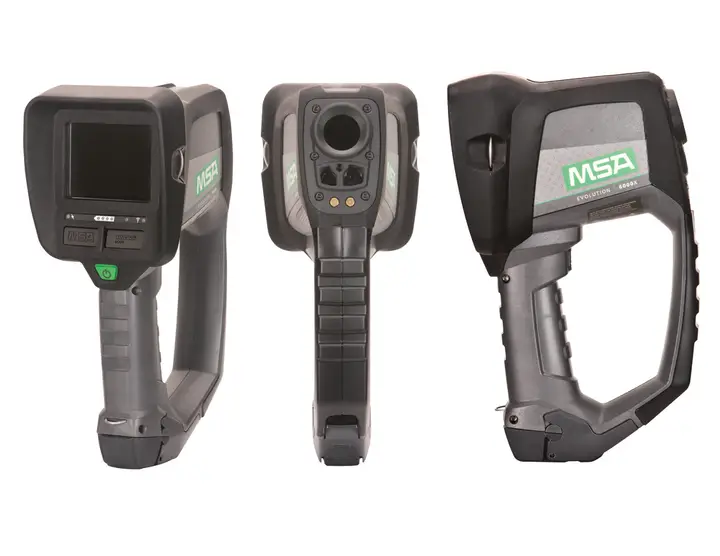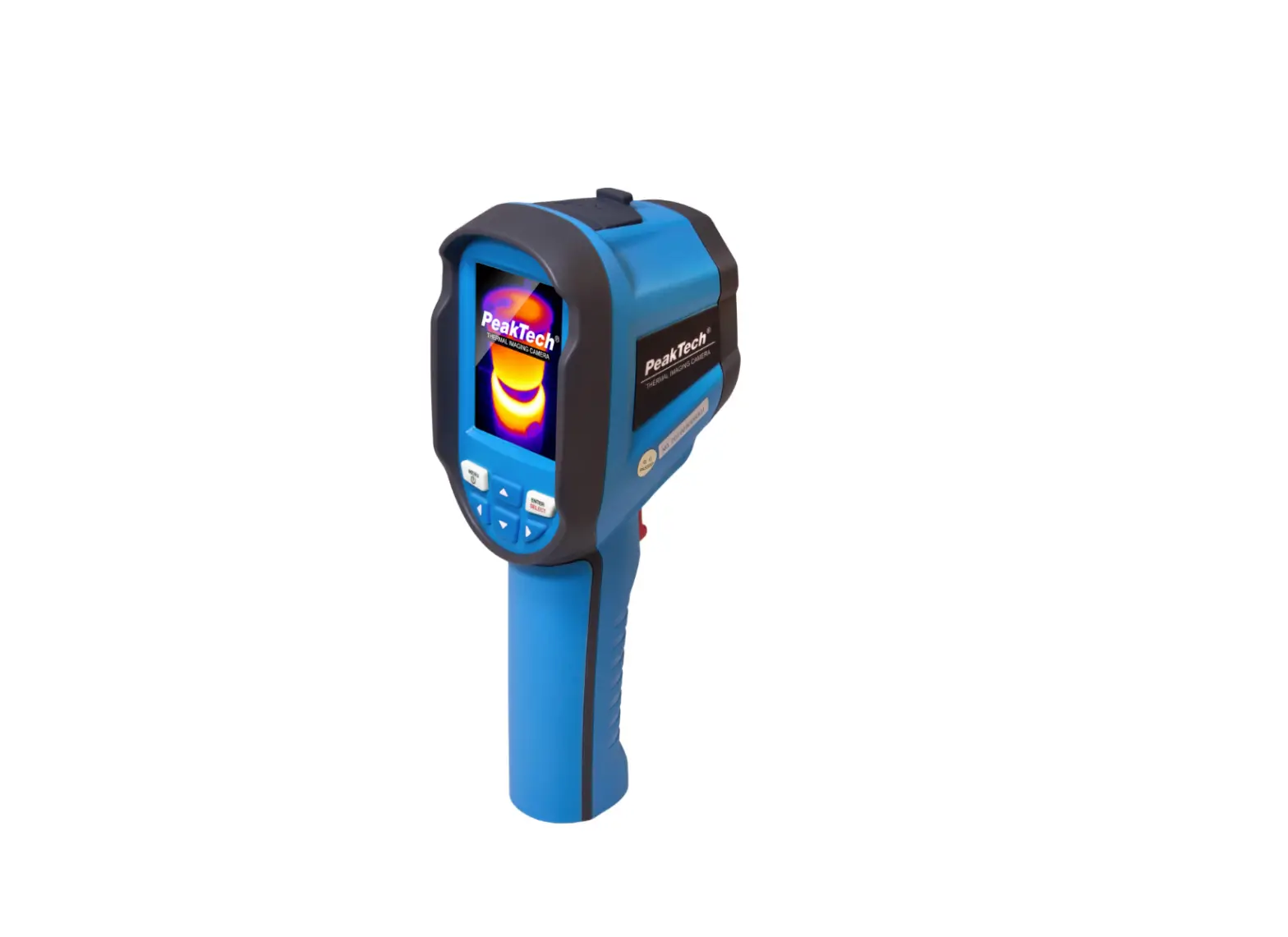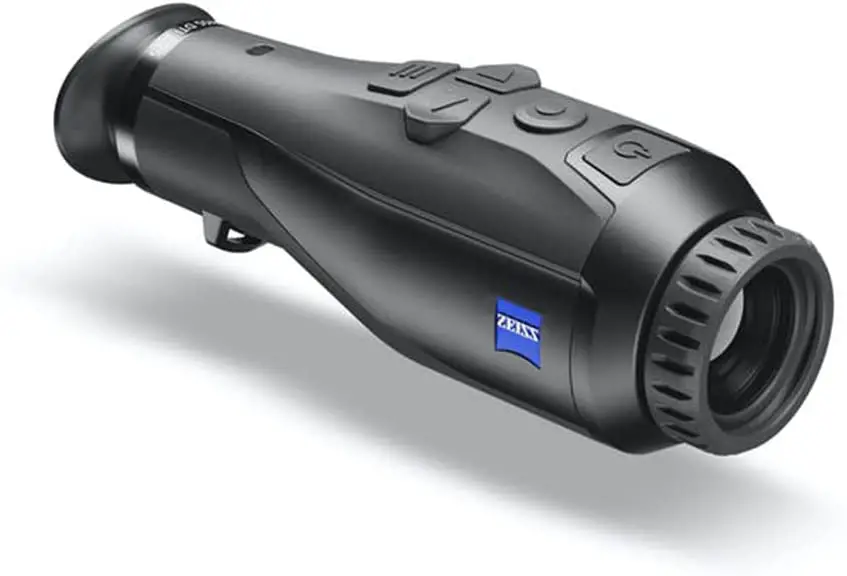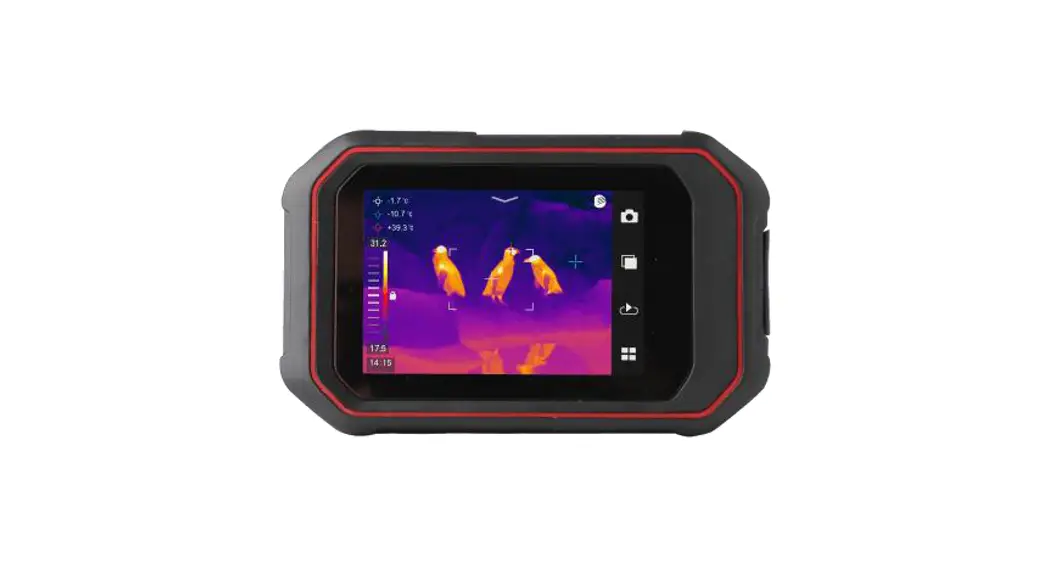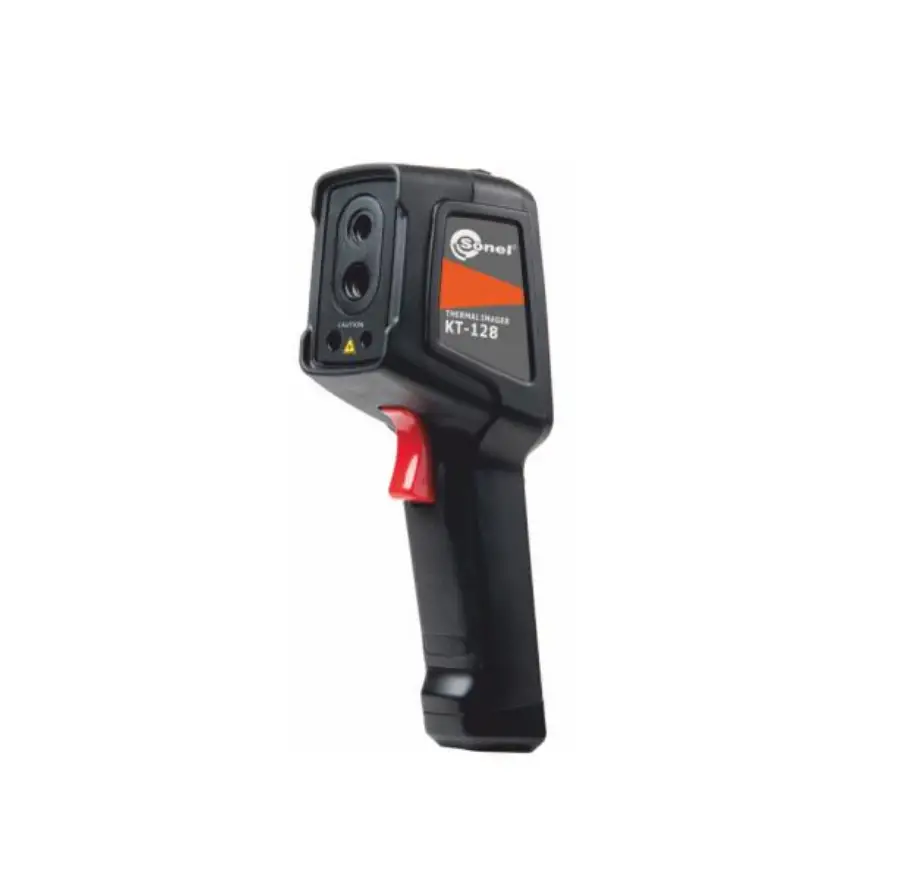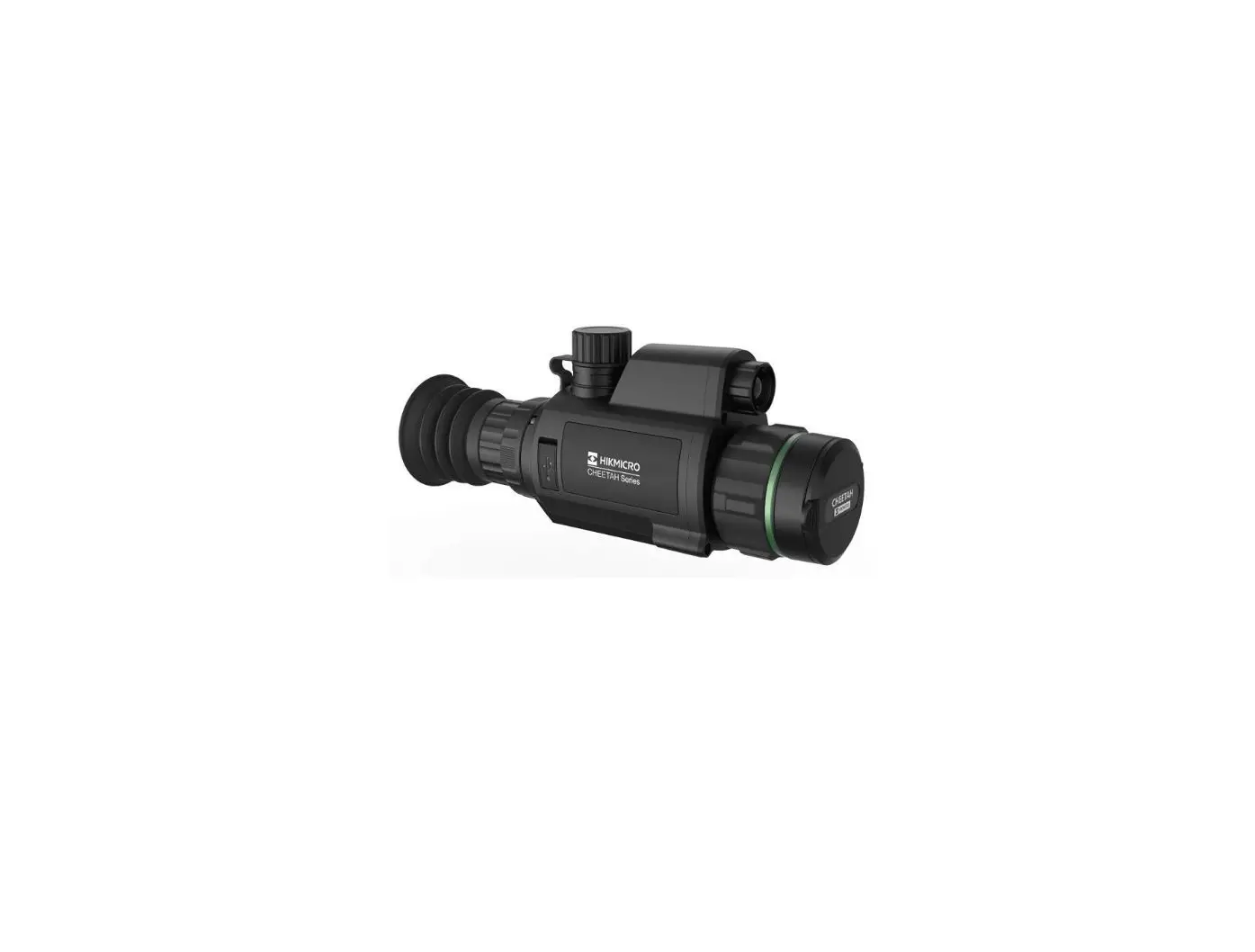

Chiron Pixfra Thermal Imaging Camera
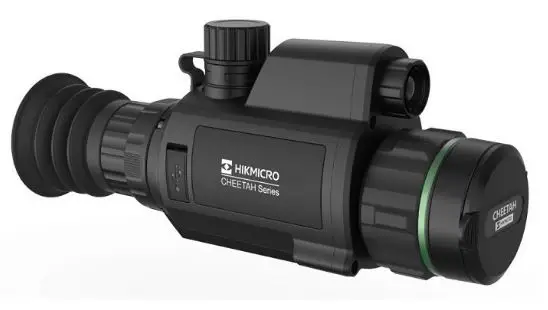
Chiron User’s Manual V1.0.2
Foreword
This manual introduces the functions and operations of Chiron (hereinafter referred to as the Camera). Read carefully before using the device, and keep the manual safe for future reference.
Safety Instructions
The following signal words might appear in the manual:
| Signal Words | Meaning |
|---|---|
| DANGER | Indicates a high potential hazard which, if not avoided, will result in death or serious injury. |
| WARNING | Indicates a medium or low potential hazard which, if not avoided, could result in slight or moderate injury. |
| CAUTION | Indicates a potential risk which, if not avoided, could result in property damage, data loss, reductions in performance, or unpredictable results. |
| ESD | Electrostatic Sensitive Devices. Indicates a device that is sensitive to electrostatic discharge. |
| DANGER HIGH VOLTAGE | Indicates dangerous high voltage. Take care to avoid coming into contact with electricity. |
| LASER RADIATION HAZARD | Indicates a laser radiation hazard. Take care to avoid exposure to a laser beam. |
| TIP | Provides methods to help you solve a problem or save time. |
| NOTE | Provides additional information as a supplement to the text. |
Revision History
Version V1.0.2 – Updated the packing list. Updated System Update.
Version V1.0.1 – December 2022
Version V1.0.0 – November 2022
Privacy Protection Notice
As the device user or data controller, you might collect the personal data of others such as their face, fingerprints, and license plate number. You need to be in compliance with your local privacy protection laws and regulations to protect the legitimate rights and interests of other people by implementing measures which include but are not limited: Providing clear and visible identification to inform people of the existence of the surveillance area and provide required contact information.
About the Manual
The manual is for reference only. Slight differences might be found between the manual and the product. We are not liable for losses incurred due to operating the product in ways that are not in compliance with the manual. The manual will be updated according to the latest laws and regulations of related jurisdictions.
Important Safeguards and Warnings
This section introduces content covering the proper handling of the device, hazard prevention, and prevention of property damage.
Read carefully before using the device, and comply with the guidelines when using it.
Transportation Requirements
- Transport the Camera within the allowed humidity and temperature conditions.
- Do not fall, squeeze, violently vibrate or immerse the device in liquid when transporting.
- Gently pick and place the Camera when moving, prevent the internal equipment becoming damaged or cable connection becoming loose.
- Do not transport the Camera without package. Use the factory default package or material of equal quality to pack the Camera when transporting it, otherwise the Camera can become easily damaged.
Storage Requirements
- Store the Camera within the allowed humidity and temperature conditions.
- Do not place the device in a humid, dusty or extremely hot or cold site that has strong electromagnetic radiation or unstable illumination.
- Do not squeeze, violently vibrate or immerse the device in liquid.
- Do not mechanically vibrate or crash when storing.
- Store the Camera in a ventilated place that has no strong electromagnetic radiation.
- For long-term storage of the battery, make sure that it is fully charged every half year to ensure
Note: The text extract is incomplete and ends abruptly. Please provide the complete text extract for detailed product information and usage instructions.
Foreword
General
This manual introduces the functions and operations of Chiron (hereinafter referred to as “the Camera”). Read carefully before using the device, and keep the manual safe for future reference.
Safety Instructions
The following signal words might appear in the manual.
| Signal Words | Meaning |
 | Indicates a high potential hazard which, if not avoided, will result in death or serious injury. |
 | Indicates a medium or low potential hazard which, if not avoided, could result in slight or moderate injury. |
 | Indicates a potential risk which, if not avoided, could result in property damage, data loss, reductions in performance, or unpredictable results. |
 | Electrostatic Sensitive Devices. Indicates a device that is sensitive to electrostatic discharge. |
 | Indicates dangerous high voltage. Take care to avoid coming into contact with electricity. |
 | Indicates a laser radiation hazard. Take care to avoid exposure to a laser beam. |
 | Provides methods to help you solve a problem or save time. |
 | Provides additional information as a supplement to the text. |
Revision History
| Version | Revision Content | Release Time |
| V1.0.2 | Updated the packing list. | January 2023 |
| V1.0.1 | Updated “System Update”. | December 2022 |
| V1.0.0 | First release. | November 2022 |
Privacy Protection Notice
As the device user or data controller, you might collect the personal data of others such as their face, fingerprints, and license plate number. You need to be in compliance with your local privacy protection laws and regulations to protect the legitimate rights and interests of other people by implementing measures which include but are not limited: Providing clear and visible identification to inform people of the existence of the surveillance area and provide required contact information.
About the Manual
- The manual is for reference only. Slight differences might be found between the manual and the product.
- We are not liable for losses incurred due to operating the product in ways that are not in compliance with the manual.
- The manual will be updated according to the latest laws and regulations of related jurisdictions. For detailed information, see the paper user’s manual, use our CD-ROM, scan the QR code or visit our official website. The manual is for reference only. Slight differences might be found between the electronic version and the paper version.
- All designs and software are subject to change without prior written notice. Product updates might result in some differences appearing between the actual product and the manual. Please contact customer service for the latest program and supplementary documentation.
- There might be errors in the print or deviations in the description of the functions, operations and technical data. If there is any doubt or dispute, we reserve the right of final explanation.
- Upgrade the reader software or try other mainstream reader software if the manual (in PDF format) cannot be opened.
- All trademarks, registered trademarks and company names in the manual are properties of their respective owners.
- Please visit our website, contact the supplier or customer service if any problems occur while using the device.
- If there is any uncertainty or controversy, we reserve the right of final explanation.
Important Safeguards and Warnings
This section introduces content covering the proper handling of the device, hazard prevention, and prevention of property damage. Read carefully before using the device, and comply with the guidelines when using it.
Transportation Requirements
WARNING
- Transport the Camera within the allowed humidity and temperature conditions.
- Do not fall, squeeze, violently vibrate or immerse the device in liquid when transporting. Gently pick and place the Camera when moving, prevent the internal equipment becoming damaged or cable connection becoming loose.
- Do not transport the Camera without package. Use the factory default package or material of equal quality to pack the Camera when transporting it, otherwise the Camera can become easily damaged.
Storage Requirements
WARNING
- Store the Camera within the allowed humidity and temperature conditions.
- Do not place the device in a humid, dusty or extremely hot or cold site that has strong electromagnetic radiation or unstable illumination.
- Do not squeeze, violently vibrate or immerse the device in liquid.
- Do not mechanically vibrate or crash when storing.
- Store the Camera in a ventilated place that has no strong electromagnetic radiation.
- For long-term storage of the battery, make sure that it is fully charged every half year to ensure the battery quality. Otherwise, damage may occur.
Operation Requirements
DANGER
- Prevent liquid from flowing into the Camera to avoid damage to the internal components.
- Do not stuff foreign materials into the Camera to prevent a short circuit which could result in the Camera being damaged or people becoming injured.
- Do not expose the device to high electromagnetic radiation or dusty environments.
- Do not aim the lens at the sun or any other bright light.
- Improper use or replacement of the battery may result in explosion hazard.
- Do not charge other battery types with the supplied charger. Confirm there is no flammable material within 2 m of the charger during charging.
- Make sure that the plug is properly connected to the power socket.
- Do not connect multiple devices to one power adapter, to avoid over-heating or fire hazards caused by overload.
- If smoke, odor, or noise arises from the device, immediately turn off the power, unplug the power cable, and contact the service center.
- Do not dismantle the Camera. The internal components can only be repaired by a qualified professional. Dismantling it without professional assistance might cause water seeping in or might result in the Camera producing poor quality images.
- Operating temperature: –30 °C to +55 °C (–22 °F to +121 °F), and the operating humidity shall be 95% or less.
Maintenance and Repair Requirements
DANGER
- Prevent liquid from flowing into the Camera to avoid damage to the internal components. In case the liquid enters the Camera, immediately stop using the Camera, cut off the power, and disconnect all the cables, and then contact your local customer service center.
- Use the accessories regulated by the manufacturer. The Camera should be maintained by qualified professionals.
- Make sure to cut off the power before cleaning the Camera, to prevent electric shock.
WARNING
If the Camera malfunctions, contact your local customer service center. Do not dismantle the Camera.
- Clean the Camera body with a piece of soft dry cloth. For any dirt that is hard to remove, pick up a piece of clean and soft cloth, dip it into a little neutral detergent and gently wipe the dust away. After that, wipe away all the remaining liquid on the Camera with another dry cloth. Never use volatile solvents such as alcohol, benzene and thinner, or cleaners that are strong and abrasive. Otherwise, the Camera’s surface coating will be damaged and its working performance will be encumbered.
- Save the factory package of the Camera. When the Camera malfunctions, pack the Camera with the factory package and send to the dealer.
Product Introduction
Overview
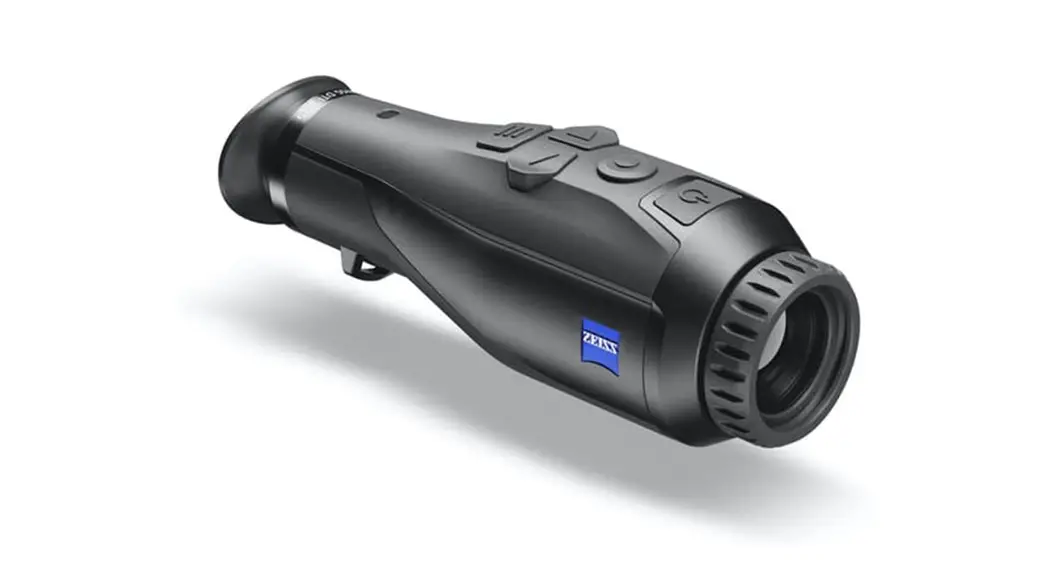
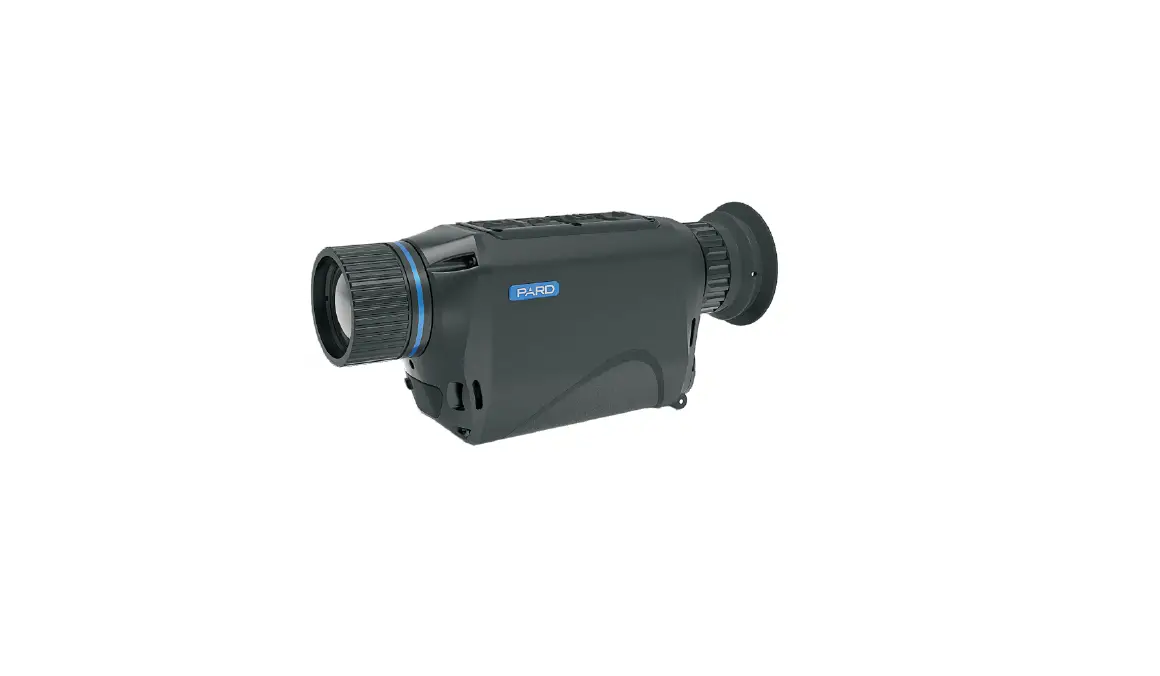
The thermal monocular camera captures sharp thermal imaging at a fast frame rate for smooth, impeccable vision on running targets and from moving vehicles. Designed to increase situational awareness at any time of day, the camera can detect humans, animals, and objects in complete darkness, haze, or through glaring light, equipping law enforcement professionals, hunters, and outdoor enthusiasts with reliable thermal imaging in tough conditions. It is widely used in outdoor scenarios for hunting, animal observation, and more.
Functions
- Colorization
Different colorization modes display different effects. - Digital zoom
Supports 1×, 2×, 4× and 8× digital zoom. The number might different depending on devices. - Zeroing profile
The Camera supports multiple zeroing profiles, and each profile has multiple coordinates, which makes the shoot more accurate. - Picture in picture
The target with the reticle can be magnified in the OSD image, which offers a closer view of the target with the whole visual scene. - Auto recording
When the impact sensor of the Camera detects impact, it will automatically record the video, recording the wonderful moment of hunting. - Range measurement
Marks the top and bottom of the target, and the screen automatically displays the distance of the target from the camera. - Hot point tracking
Detects and marks the highest and lowest temperature point. - Network
Supports network connection through the Wi-Fi. You can add the Camera through mobile app to realize functions, such as capturing, recording and parameter configuration. - Storage
Built-in storage (up to 32 GB), supports recording and capturing. - Automatic standby and shutdown
Supports setting time of automatic suspend and shutdown.
Structure
Packing List
Table 2-1 Packing list
| Name | Quantity |
| Camera | 1 |
| Type-C Cable | 1 |
| Rechargeable Battery | 2 |
| Guide Rail | 1 |
| Battery Charger | 1 |
| Quick Start Guide | 1 |
| Legal and Regulatory Information | 1 |
| Warranty Card | 1 |
Device Description
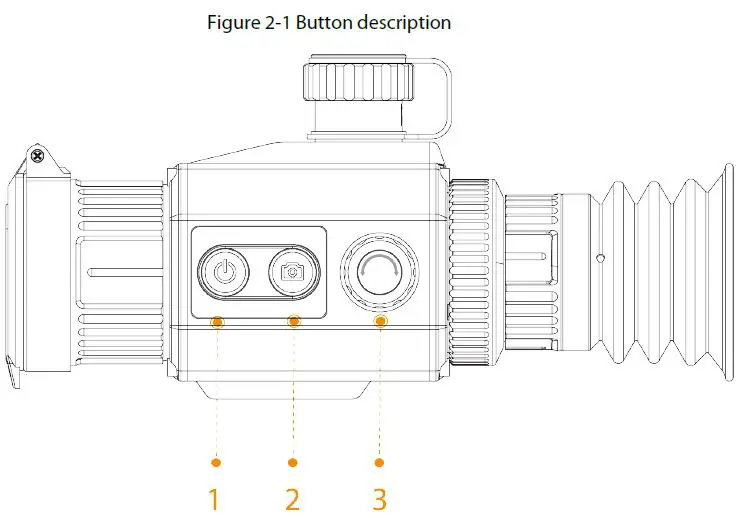
Table 2-2 Button description
| No. | Name | Description |
| 1 | Power button | ● Press and hold to start or shut down the Camera. ● Double-press to enable the sleep mode.. |
| 2 | Capture button | ● Press and hold to record videos. ● Press to capture images. |
| 3 | Menu/Zoom/FFC button | ● Press and hold to go to the standard menu. ● Press to go to the brief menu. ● Rotate the button for digital zoom. ● Double-press to do the flat-field calibration for the image. |
| 1 + 2 | Power button + Capture button | Press at the same time to select the pseudo color. |
| 1 + 3 | Power button + Menu button | Press at the same time to select the zeroing profile. |
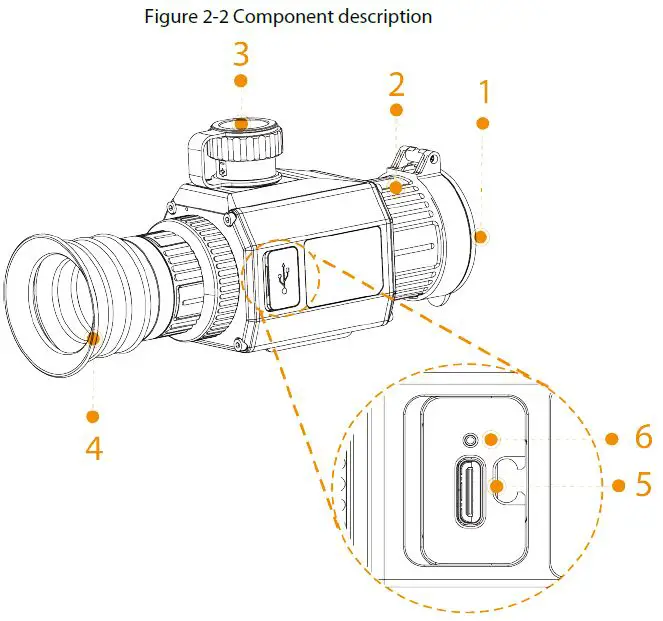
Table 2-3 Component description
| No. | Name | Description |
| 1 | Protective cover | Dust prevention. Close the cover when not using the Camera. |
| 2 | Adjustable lens | Manually rotate the lens to adjust the focus for a clear image. |
| 3 | Battery compartment | The place for holding the battery. |
| 4 | Eyeshade | Protects the eyes from glare. |
|
5 |
Type-C port | ● Connects to a data cable for charging. ● Connect the Camera to a smart phone to view live images through the app. ● Connect to the Camera to a computer for exporting files. |
|
6 | Charging indicator | ● Red and green lights flashing alternately: charging error. ● Red light on: charging. ● Green light on: fully charged. ● Off: not connected to data cable to charge. |
Basic Operation
Starting and Shutdown
Press and hold to start or shut down the Camera; double-press to suspend or weak up the Camera.
After starting the Camera, remove the protective cover of the lens.
- When the Camera is shut down, press and hold
 to start it.
 - When the Camera is on, press and hold to shut down it.
- When the Camera is on, double-press to suspend the Camera.
- When the Camera is in suspend mode, double-press to weak up it.
Configuring the Camera
Menu Description
When the Camera is on, press and hold to go to the standard menu. Functions of all buttons are as follows.
- Rotate
 to move upward or downward the cursor.
 - Press to confirm.
- Press to exit.
Image Adjustment
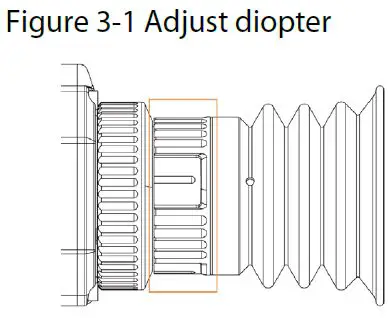
- Adjusting Diopter
To get clear images, rotate the eyepiece to fit your eyesight.
For the first-time use, adjust the diopter before configuring the functions.
Step 1 Aim the lens at the target, and then make your eyes close to the eyeshade.
Step 2 Adjust clockwise or counterclockwise the eyepiece to your eyesight.
- Setting Colorization
Select the colorization, which adds color to the thermal image and uses color to indicate the temperature.
Step 1 On the standard menu, rotate to select .
.
Step 2 Press to go to the Colorization configuration screen.
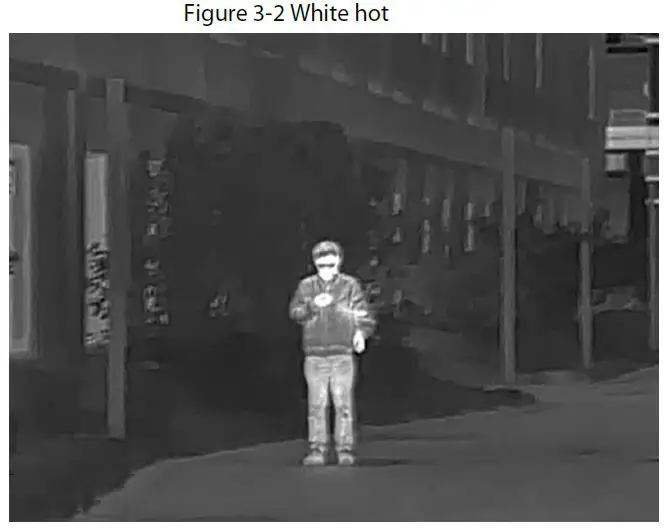
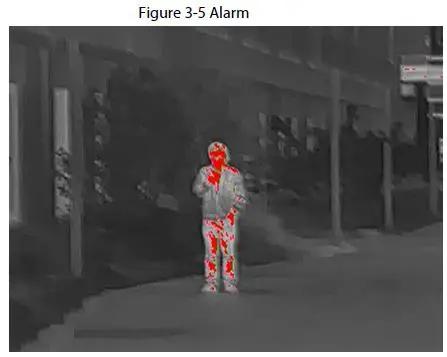
Step 3 Rotate to select the colorization.- White Hot: The objects with high temperature are white. The higher the temperature, the brighter the color.
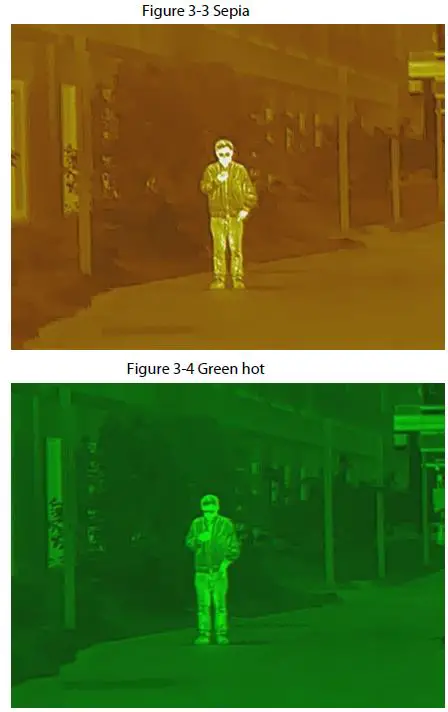
- Sepia: The objects with high temperature are amber. The higher the temperature, the brighter the color.
- Green Hot: The objects with high temperature are green. The higher the temperature, the brighter the color.
- Alarm: The objects with high temperature are red. The objects can stand out.
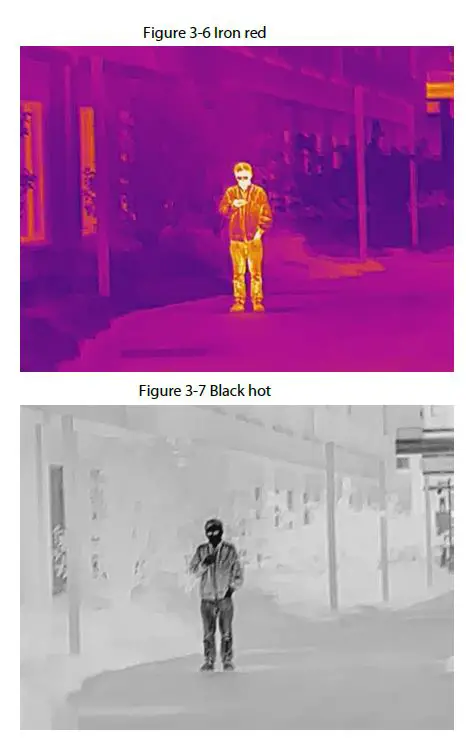
- Iron Red: The objects with high temperature are red. The higher the temperature, the brighter the color.
- Black Hot: The objects with high temperature are black. The higher the temperature, the darker the color.
Step 4 Press to save the configuration. 


- Setting Digital Zoom
Digital zoom helps to zoom in the image.
On the viewing screen, rotate to do digital zoom, and the image changes.
 .
.
Setting Scene Mode
Step 1 Press and hold to go to the standard menu.
Step 2 On the standard menu, rotate to select .
.
Step 3 Press to go to the Scene Mode configuration screen.
Step 4 Rotate to select the scene mode from Standard and Forest.
- Standard: Used for daily observation.
- Forest: Stands out the targets with high temperature, which makes it easier to find out the targets.
Step 5 Press to save the configuration.
Setting Zeroing Profile
Prerequisites
Before setting zeroing profile, make sure that you have configured zeroing in Zeroing. For details,see “3.2.5 Setting Zeroing”.
Procedure
Step 1 Press and hold to go to the standard menu.
Step 2 On the standard menu, rotate to select .
.
Step 3 Press to go to the ZeroingProfile configuration screen.
Step 4 Rotate to select the zeroing profile as needed.
Step 5 Press to save the configuration.
Setting Zeroing
Prerequisites
Before setting zeroing, make sure that you have selected the zeroing group in Zeroing Profile. For details, see “3.2.4 Setting Zeroing Profile”.
Procedure
Step 1 Press and hold to go to the standard menu.
Step 2 On the standard menu, rotate to select .
.
Step 3 Press to go to the Zeroing configuration screen.
Step 4 Rotate to select the parameters to be configured.
- Reticle No.
- Press .
- Rotate to select a number as the reticle number.
- Press to save the configuration.
- Press
- Type
- Press .
- Rotate to select the reticle type.
The Camera supports multiple reticles. - Press to save the configuration.
- Press
- Color
- Press .
- Rotate to select the reticle color from White, Red, Green.
- Press to save the configuration.
- Press
- Distance
- Press .
- Rotate to select the distance between the target and the Camera.
- Press to save the configuration and go to the reticle configuration screen.
- Press
Step 5 Adjust the reticle.
- When the cursor on the distance value, press to set the distance.
- Select
 and press to freeze the image.
 - Select
 and press to magnify the image.
 - Select
 and press to select X-axis and Y-axis.
 - Rotate to adjust the position of the reticle.
- Select
 to save the configuration.
 and press
 and press
 and press
 to save the configuration.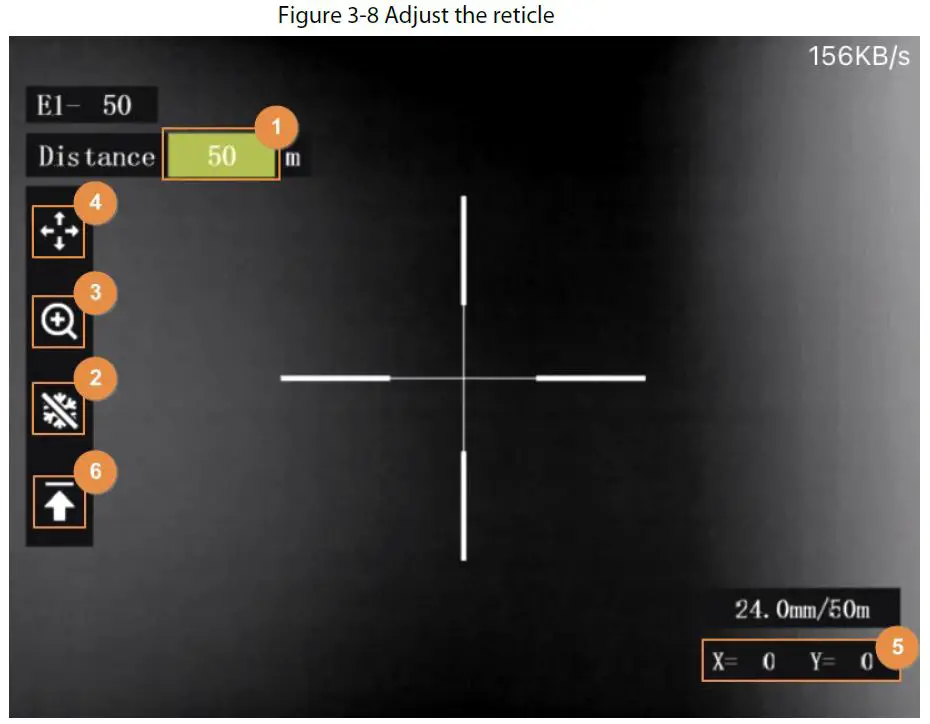
Setting PIP
After enabling PIP, the target with the reticle can be magnified in the OSD image, which offers a closer view of the target with the whole visual scene.
Step 1 Press and hold to go to the standard menu.
Step 2 On the standard menu, rotate to select .
.
Step 3 Press to go to the PIP configuration screen.
Step 4 Rotate to select On and Off.
On: An OSD image is displayed on the screen, and the target with the reticle can be magnified in the OSD image.
● Off: Disable the PIP.
Step 5 Press to save the configuration.
Setting Light
You can set the brightness of the image (level 1, level 2, level 3 level 4 and level 5).
Step 1 Press and hold to go to the standard menu.
Step 2 On the standard menu, rotate to select .
.
Step 3 Press to go to the Light configuration screen.
Step 4 Rotate to select the level. The higher the level is, the brighter the image will be.
Step 5 Press to save the configuration.
Setting Contrast
You can set the contrast of the image (level 1, level 2, level 3 level 4 and level 5).
Step 1 Press and hold to go to the standard menu.
Step 2 On the standard menu, rotate to select .
.
Step 3 Press to go to the Contrast configuration screen.
Step 4 Rotate to select the level. The higher the level is, the more the contrast will be between bright and dark areas.
Step 5 Press to save the configuration.
Setting Ranging Mode
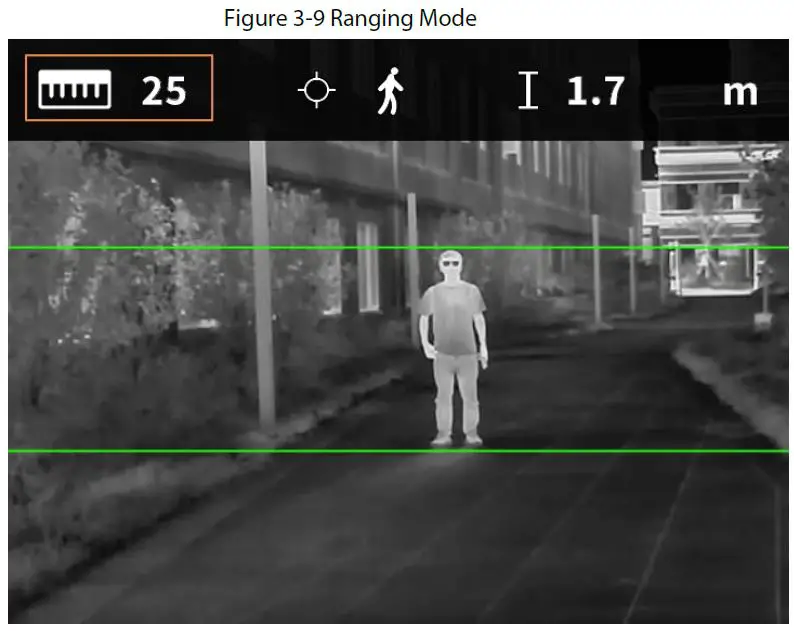
After setting the ranging mode, the Camera can measure the range towards targets.
To guarantee the measurement accuracy, keep your hand steady when measuring the range.
Step 1 Press and hold to go to the standard menu.
Step 2 On the standard menu, rotate to select .
.
Step 3 Press to go to the Ranging Mode configuration screen.
Step 4 Rotate to select the ranging mode.
You can select from Rabbit, Wolf, Deer, Wild Boar and Customize.
Step 5 Press to save the configuration.
Two green lines are displayed on the screen.
When you select Customize, you need to set the height of the target.
Step 6 Rotate to move the green lines to the top and bottom of the target to get the distance between the target and the Camera.
Setting FFC Mode
With FFC (Flat-Field Calibration), the thermal image can be optimized, and you can easily find out temperature changes. You can set the FFC mode from Auto, immediately and Manual.
Step 1 Press and hold to go to the standard menu.
Step 2 On the standard menu, rotate to select .
.
Step 3 Press to go to the FFC Mode configuration screen.
Step 4 Select the FFC mode.
- Auto: The camera calibrates image automatically every certain period.
- Rotate to select Auto.
- Press to confirm.
The camera calibrates image automatically.
- Rotate
- Manual: Calibrate the image manually as needed.
- Rotate to select Manual.
- Double-press to calibrates the image manually.
- Rotate
Setting DPC
After enabling DPC (Defective Pixels Correction), you can correct the defective pixels in the image.
Step 1 Press and hold to go to the standard menu.
Step 2 On the standard menu, rotate to select .
.
Step 3 Press to go to the DPC configuration screen.
Step 4 Rotate to set DPC.
- Auto: The Camera automatically corrects the defective pixels in the image.
- Select Auto.
- Press to start the auto correction.
- Follow the screen instructions to close the lens cover.
- Press to save the configurations.
- Manual: You need to correct the defective pixels manually.
- Press to select X-axis and Y-axis.
- Rotate to calibrate the defective pixels.
- Press and hold to save the configuration.
The center of the cursor is the position of the defective pixel.
- Press
- Restore: The DPC configuration is restored to the primary state.
Setting Hot Point
Tracks the point with the highest temperature in real time.
Step 1 Press and hold to go to the standard menu.
Step 2 On the standard menu, rotate to select .
.
Step 3 Press to go to the Hot Point On configuration screen.
Step 4 Rotate to enable or disable the hot point.
Step 5 Press to save the configuration.
After enabling the hot point, the hot point icon will automatically locate at the points with the highest in the image.
Setting Wi-Fi Connection
After enabling Wi-Fi connection, you can connect your phone to the hotspot of the Camera, and then access the Camera with the app.
The frequency bands and modes and the nominal limits of transmitted power (radiated and/or conducted) applicable to this radio device are the following:
Wi-Fi 2.4 GHz (2.4 GHz to 2.4835 GHz) 20 dBm
Some cameras will automatically disable the Wi-Fi function when the battery level is lower than 15%.
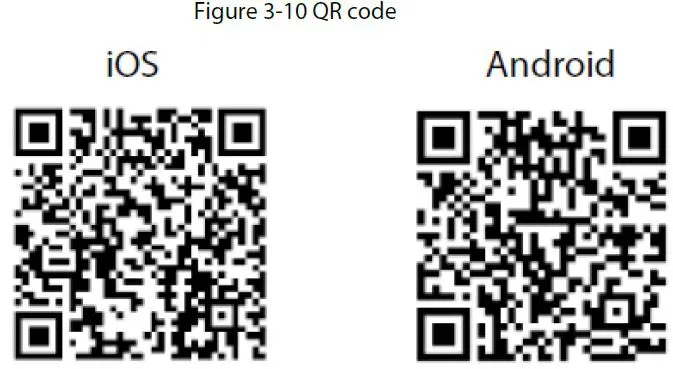
Step 1 Scan the QR code with your smart phone to install the app.
Step 2 On the standard menu, rotate to select .
.
Step 3 Press to go to the WiFi configuration screen.
Step 4 Enable the Wi-Fi function.
- Hotspot: Use the Camera as the hotspot, and connect your phone to the hotspot of the Camera.
- Rotate to select Hotspot, and then press .
- Enable the Wi-Fi of your smart phone, and then connect to the hotspot of the Camera.
- Wi-Fi name: Model number + serial number.
- Wi-Fi password: The last 8 digits of the serial number.
You can find the serial number on the Camera and the label of the packing box.
- Log in to the app. The password is the last 8 digits of the serial number. Add devices according to the prompt.
- Rotate
- Wi-Fi: Use your phone as the hotspot, and connect Camera to the hotspot of your phone.
- Rotate to select Hotspot, and then press .
The Wi-fi mane and password are displayed on the screen. - Chang the Wi-Fi name and password of your phone as the screen shows.
- Select , and then press
 . The Camera automatically connects to the hotspot of your phone.
 - Log in to the app. The password is the last 8 digits of the serial number. Add devices according to the prompt.
- Rotate
- Off: Disable the Wi-Fi function.
 . The Camera automatically connects to the hotspot of your phone.
System Settings
Step 1 Press and hold to go to the standard menu.
Step 2 On the standard menu, rotate to select .
.
Step 3 Press to go to the System Settings configuration screen.
Step 4 Rotate to select the parameter to be configured.
Table 3-1 System settings
| Parameter | Description |
|
OSD Set | ● On: Displays the start bar in the upper-right corner of the screen, including the current zeroing file, Wi-Fi, memory usage, digital zoom and battery level. ● Off: Not displays the start bar. |
| MIC | ● On: The videos are recorded with sound. ● Off: The videos are recorded without sound. |
| BurningWarning | ● On: Enable burning warning. ● Off: Disable burning warning. |
|
Auto Standby | Rotate to set the auto standby time. ● Off: Disable auto standby. ● 15 Min, 30 Min: The Camera will automatically standby in the configured time. |
|
Auto Shutdown | Rotate to set the auto shutdown time. ● Off: Disable auto shutdown. ● 30 Min, 60 Min: The Camera will automatically shut down in the configured time. |
| Logo | Rotate to set whether to display the logo during device starting. ● On: Display the logo during device starting. ● Off: Not display the logo during device starting. |
| Brightness | Rotate to select the brightness level from Low, Middle, and High. |
|
USB Mode | Rotate to select the USB mode from Off, UVC, Storage. ● Off: Charge the Camera. ● UVC: Connect the Camera to a smart phone to view live images through the app. ● Storage: The Camera can be used as a storage device. |
| Language | Rotate to select the language as needed. |
| Unite Set | Rotate to select the unite from Meter and Feet. |
|
Storage | Rotate to select the storage mode from FullDiskStop and FullDiskCover. ● FullDiskStop: Stop recording videos or capturing image when the disk is full. ● FullDiskCover: Cyclically overwrite the earliest video or image files when the disk is full. |
| Version | Press to view the information of the device. |
| Restore Default | Press to restore the parameters to the defaults. |
Step 5 Press to save the configuration.
Video and Snapshot
Recording Videos
Auto Recording
When the impact sensor of the Camera detects impact, it will automatically record the video, recording the wonderful moment of hunting.
Step 1 Press and hold to go to the standard menu.
Step 2 On the standard menu, rotate to select .
.
Step 3 Press to go to the Auto REC configuration screen.
Step 4 Rotate to enable or disable Auto REC.
- On: The Camera will record videos when the impact sensor of the Camera detects impact.
- Off: The Camera will not record videos any time.
Step 5 Press to save the configuration
Recording Videos
On the viewing interface, press and hold for 3 seconds to start recording a video. The OSD flashes red on the screen and the recording time is display.
Press and hold again for 3 seconds to stop the recording. When the recording stops, the recording time will display normally.
Capturing Images
On the viewing page, press to capture images.
The screen will display an icon when the capturing succeeds.
Exporting File
Exports the recorded and captured files.
Step 1 Connect the Camera to the computer through USB data cable.
The driver will automatically be installed for first-time connection.
- Connect the cables before starting the Camera. Do not hot swap the USB port of the Camera.
- Select Storage on the USB Mode configuration screen after connecting the Camera to the computer.
Step 2 On the computer desktop, double-click My Computer, and then open the Camera disk at a mobile storage device.
Step 3 Select the files to export and copy them to the computer.
The specific computer client is required for playing the exported files.
Step 4 Disconnect the USB data cable with the computer.
After connecting the Camera to the computer, images can be displayed on the Camera, but the functions of recording and capturing will not be available.
Power Supply
You can supply power to the Camera through the rechargeable battery coming with the Camera or
charging with the Type-C cable.
Installing the Battery
Step 1 Open the cover of the battery compartment.
Step 2 Put one battery into the battery compartment.
Make sure that the battery is installed with the positive electrode downward.
Step 3 Tighten the cover.
Charging
The start bar will display battery information after the Camera starts. When the battery is low, charge
the Camera timely to make sure the normal function.
- During charging, keep the battery temperature 0 °C to +60 °C (+32 °F to +140 °F).
- Charge the Camera with the data cable that comes with the delivery.
Step 1 Open the sealing cover of the port when charging.
Step 2 Connect the type-C cable to the port to charge the Camera.
The charging indicator states:
● Red and green lights flashing alternately: charging error.
● Red light on: charging.
● Green light on: fully charged.
● Off: not connected to data cable to charge.
Installing Guide Rail
Prerequisites
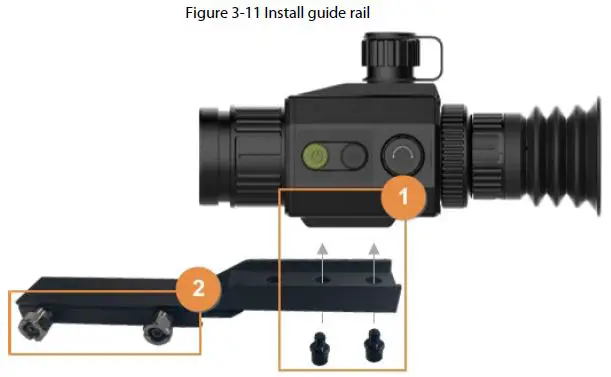
Before installing the guide rail, shut down the Camera and clean the bracket and guide rail with clean cloth.
Procedure
Step 1 Fix the Camera on the guide rail with the fixed screws.
Step 2 Tighten the knobs of the guide rail.
System Update
Update the Camera manually or through the app.
Upgrading Manually
Step 1 Press and hold to go to the standard menu.
Step 2 On the standard menu, rotate to select .
Step 3 Press to go to the System Settings configuration screen.
Step 4 Rotate to select USB Mode.
Step 5 Rotate to select Storage.
Step 6 Copy the upgrading file (.bin).
Step 7 Restart the Camera.
Upgrading through App
When the app detects new program for upgrading, it will prompt a notification. Tap Upgrade to upgrade the system
Appendix 1 Compliance Notice
The thermal series products might be subject to export controls in various countries or regions,including without limitation, the United States, European Union, United Kingdom and/or other member countries of the Wassenaar Arrangement. Please consult your professional legal or compliance expert or local government authorities for any necessary export license requirements if you intend to transfer, export, re-export the thermal series products between different countries.