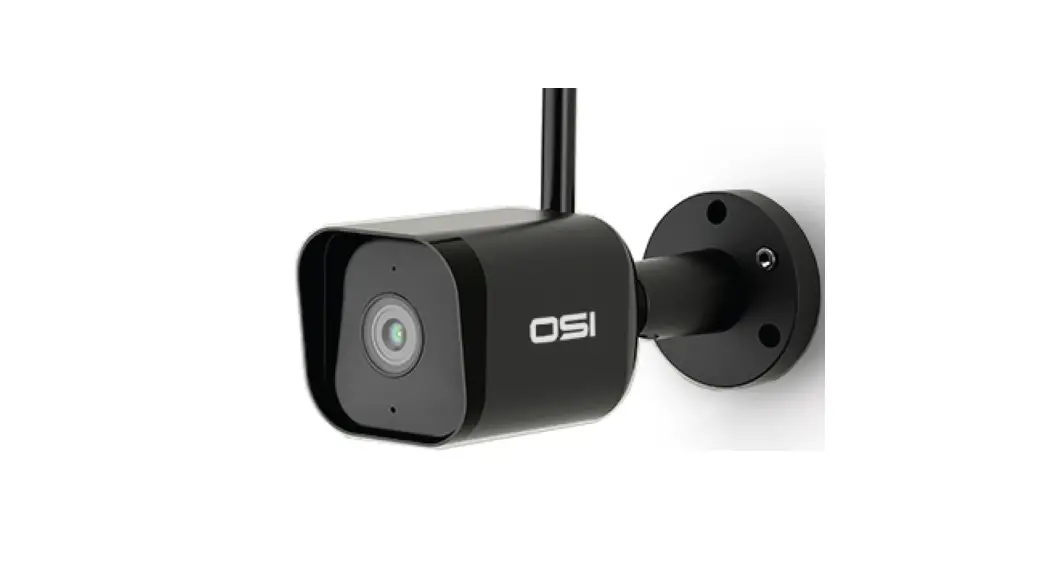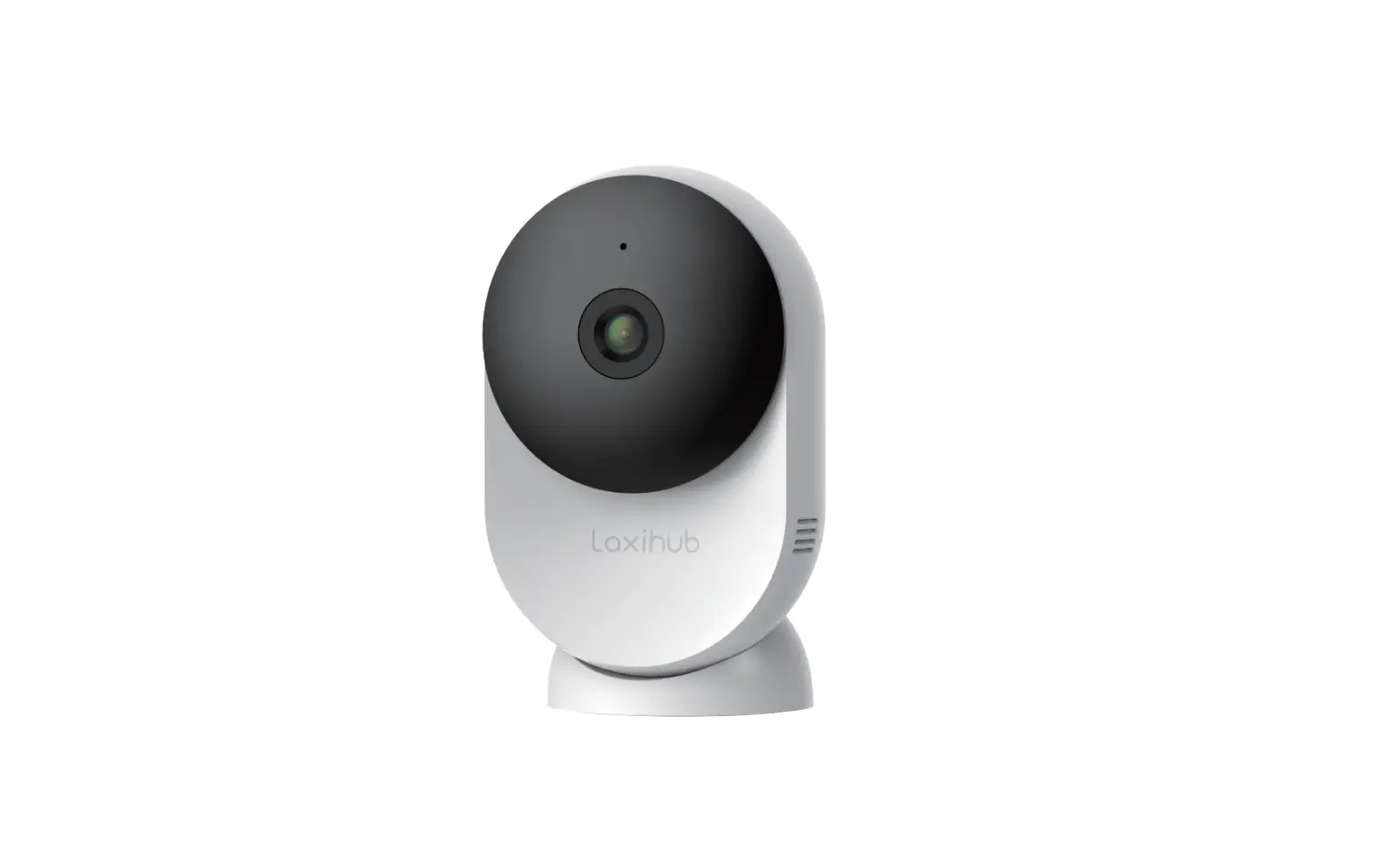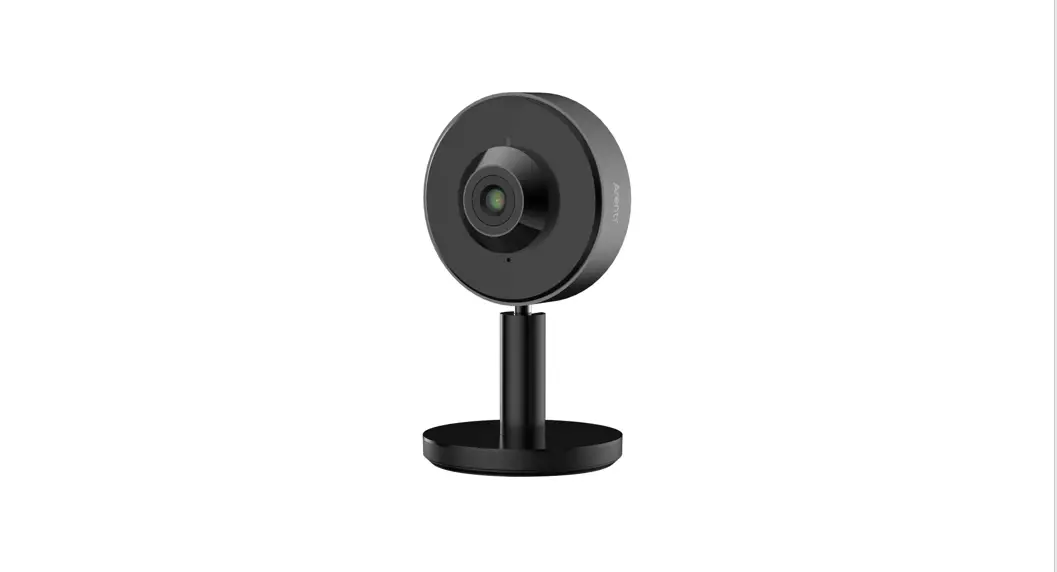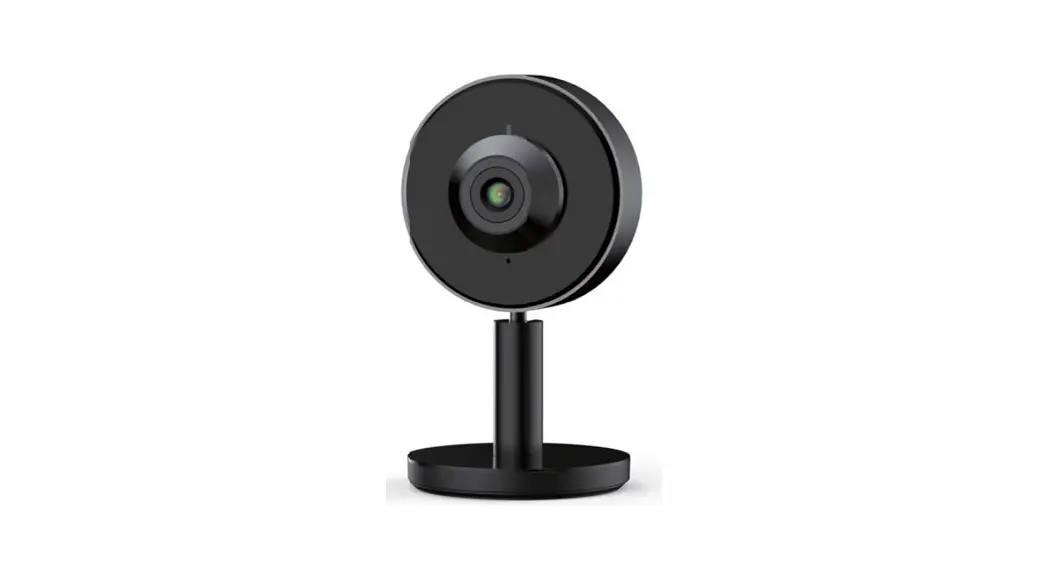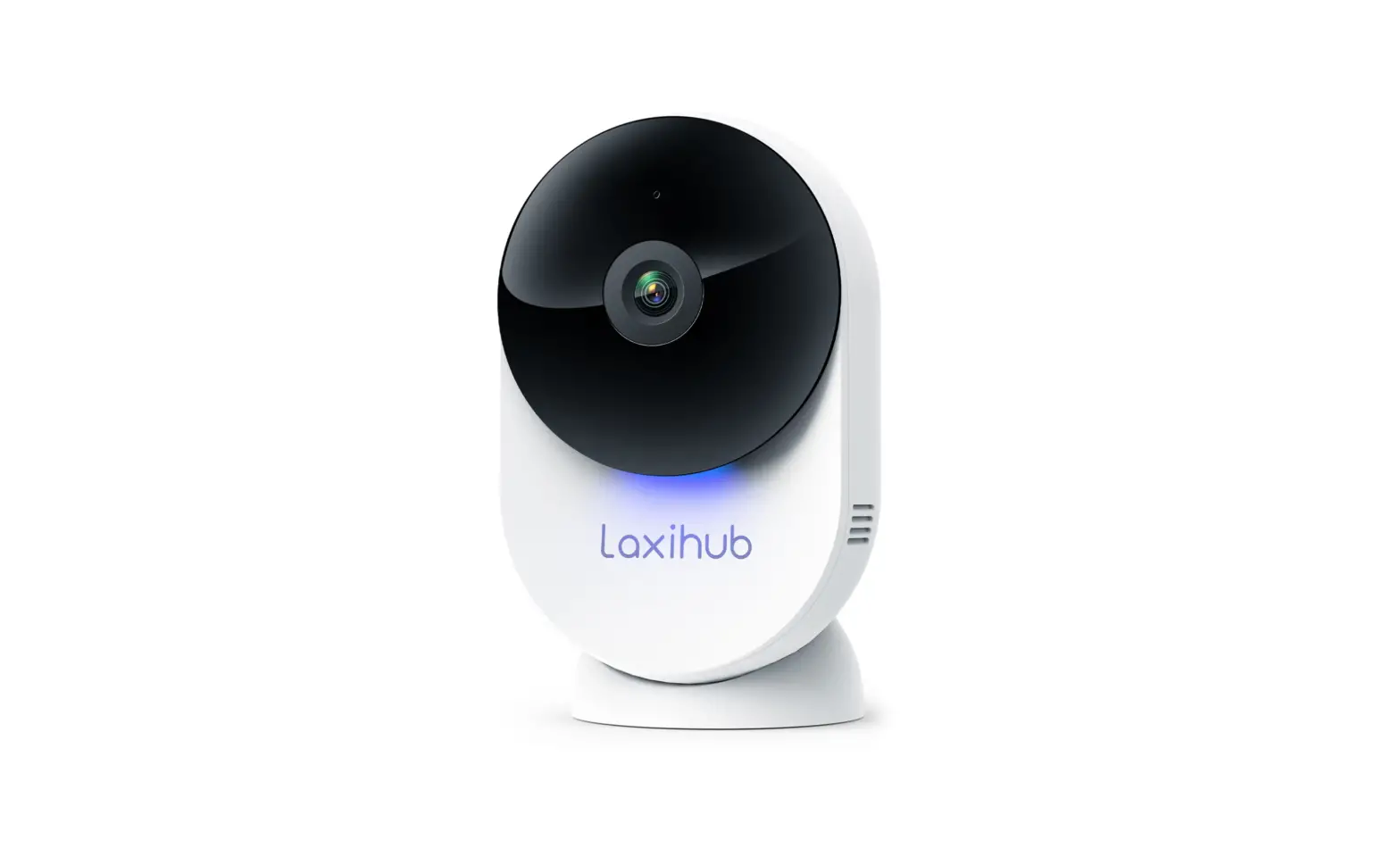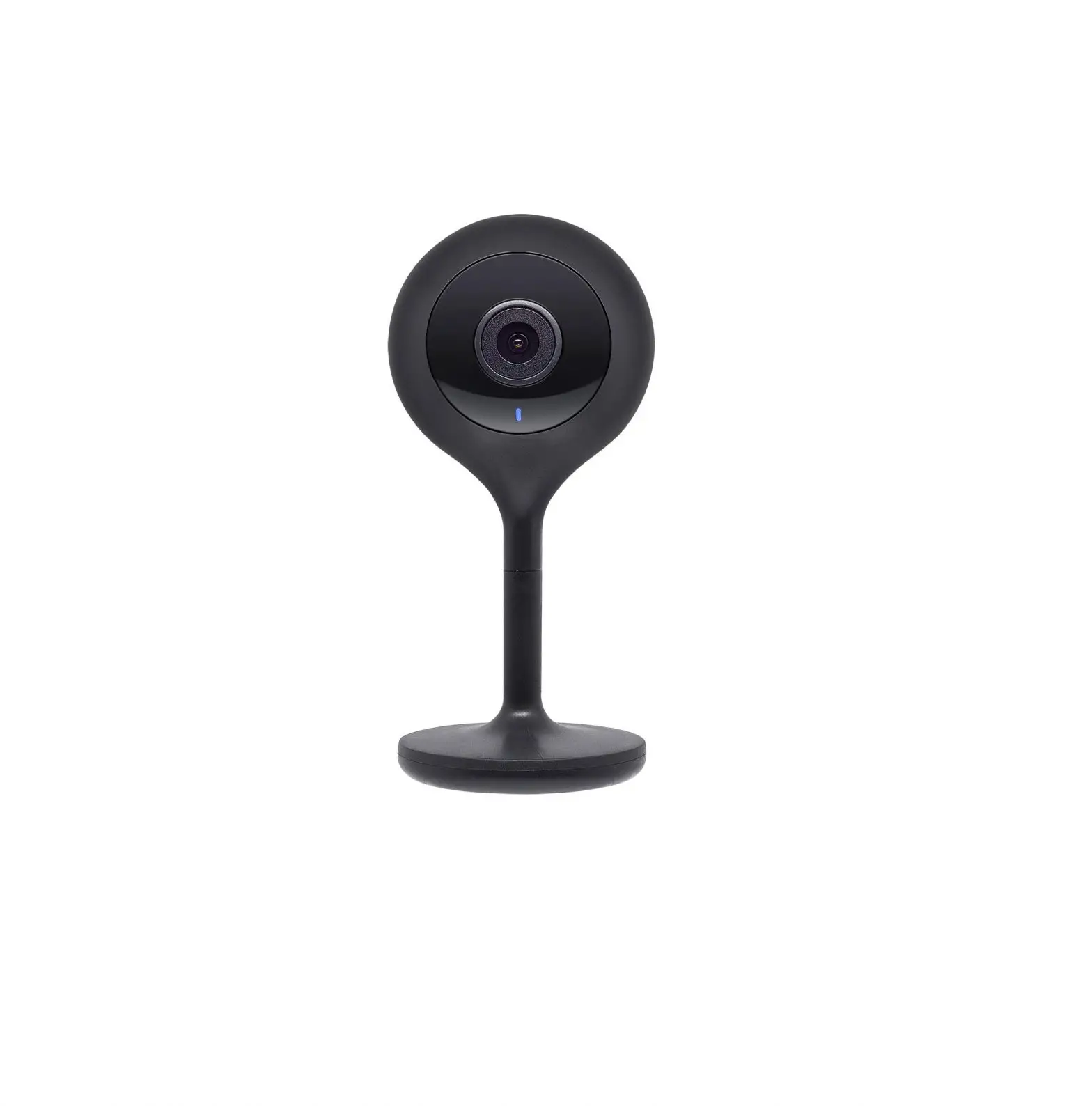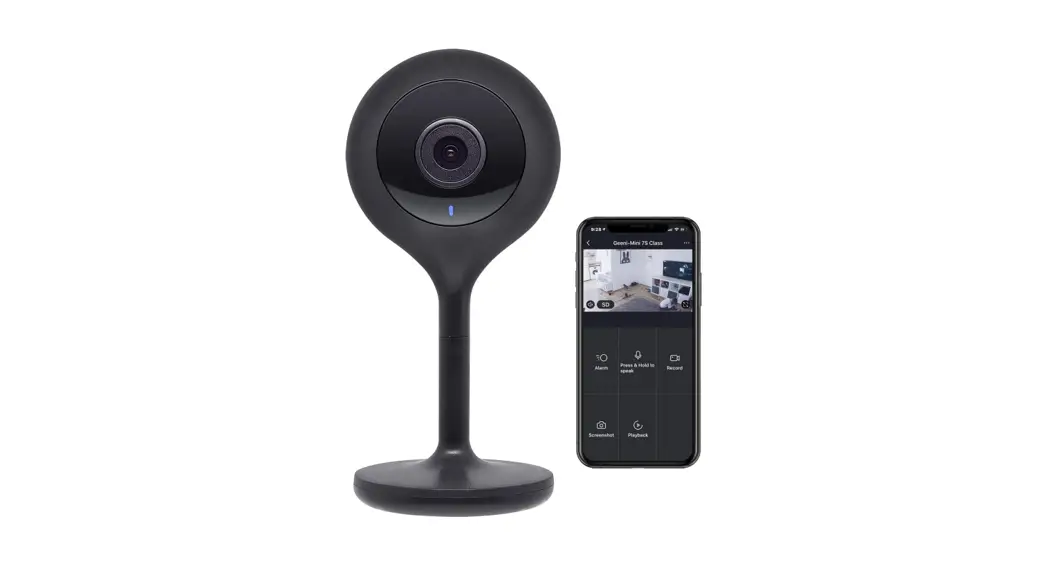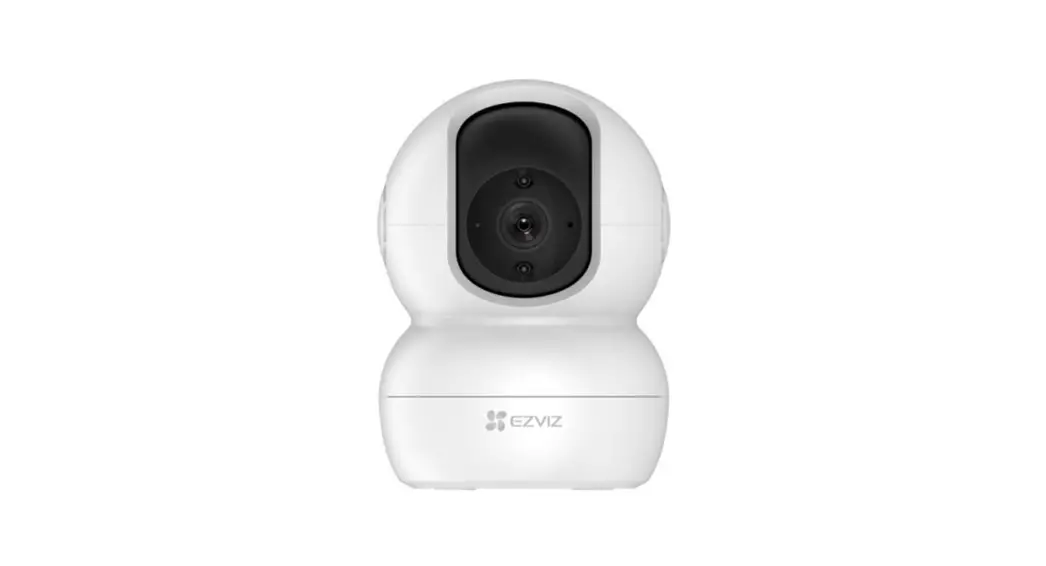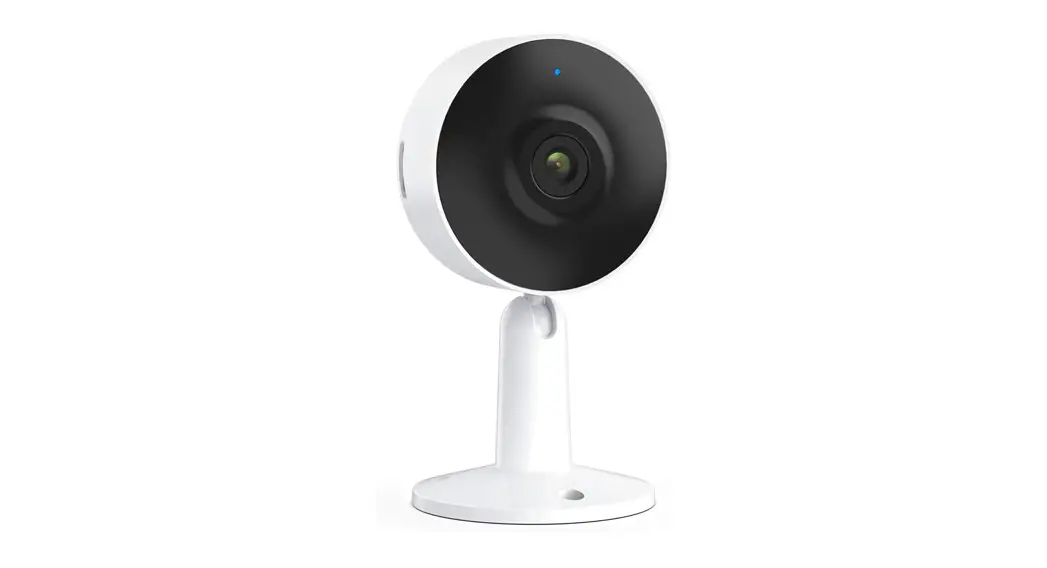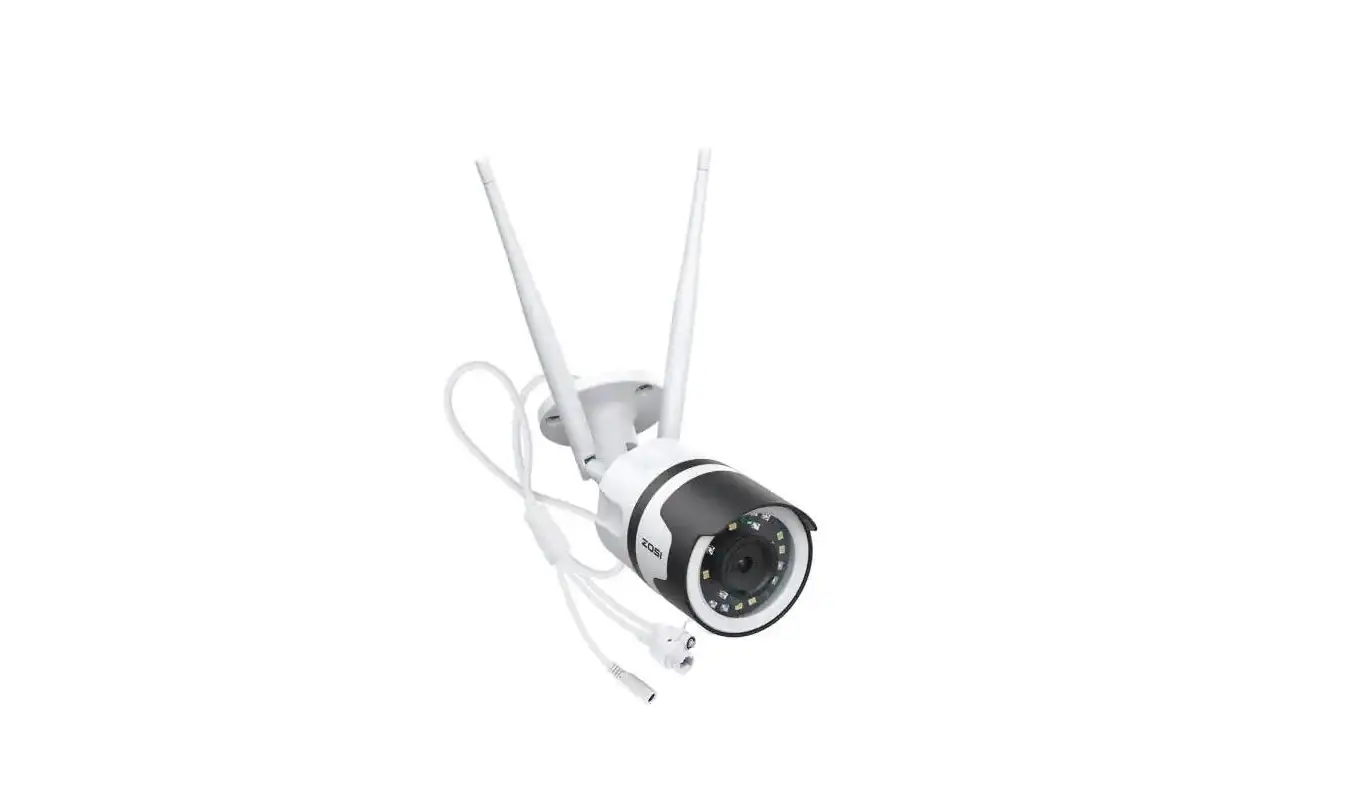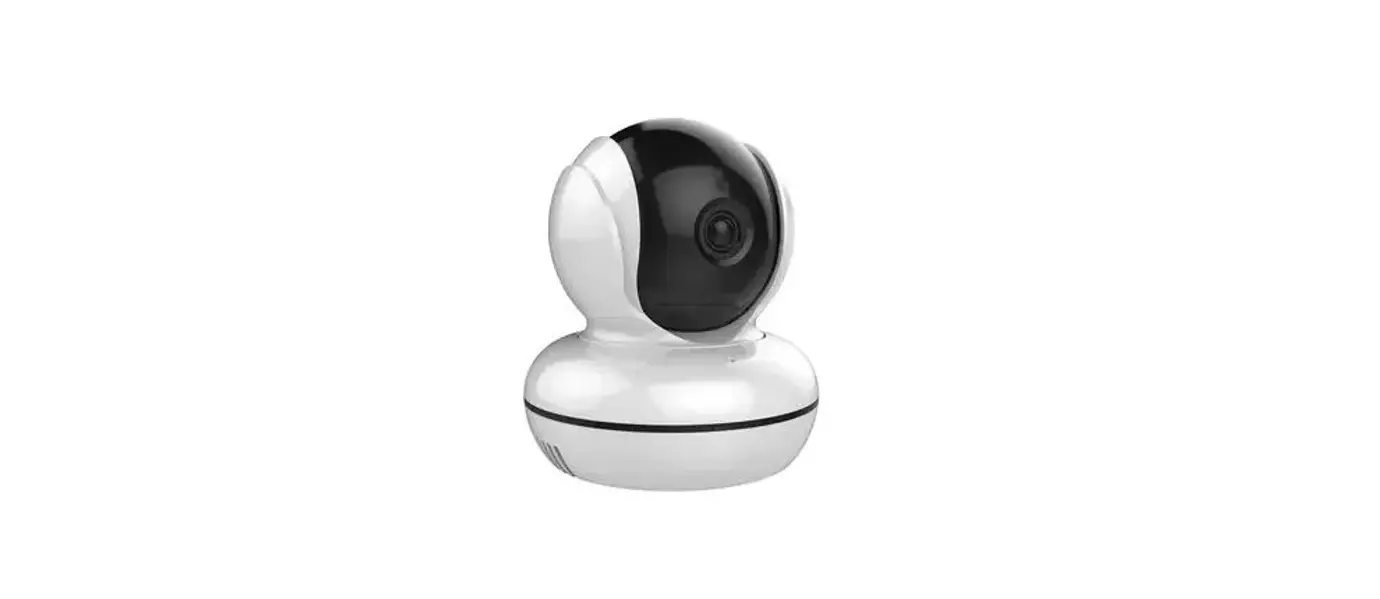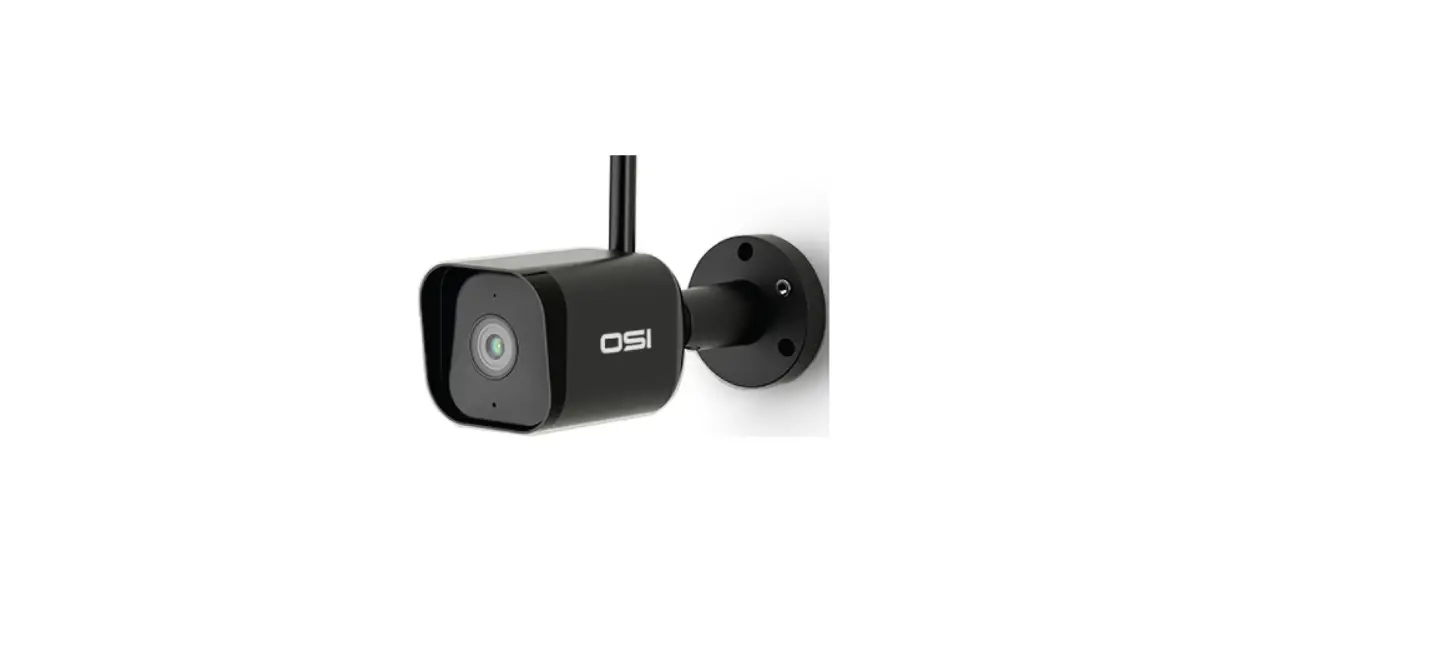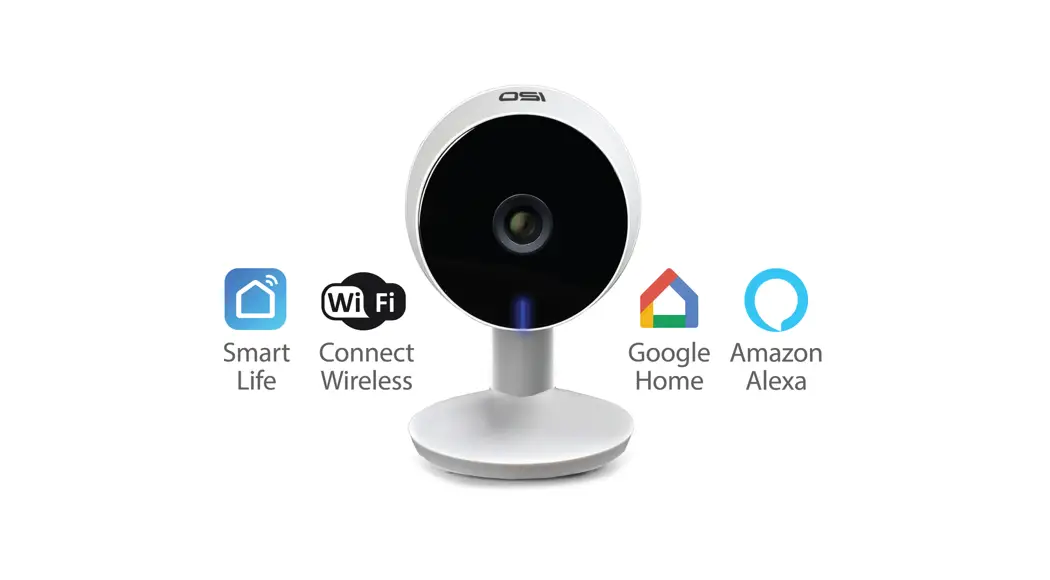

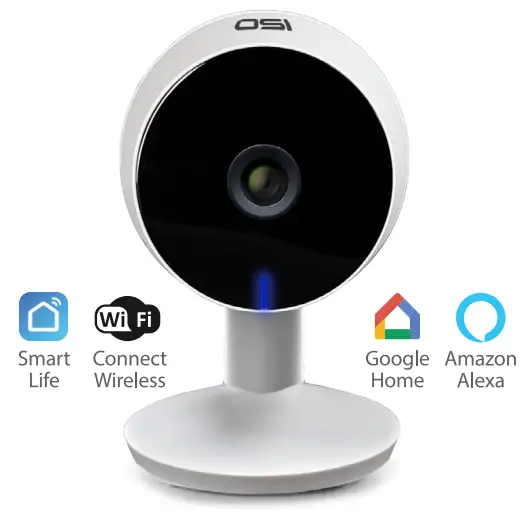
OSI Smart Mini Camera
1080P Indoor/Outdoor Wi-Fi Security Camera
………………….
QUICK GULDE
Expand your OSI Smart Security System! Visit osigodirect.com or 
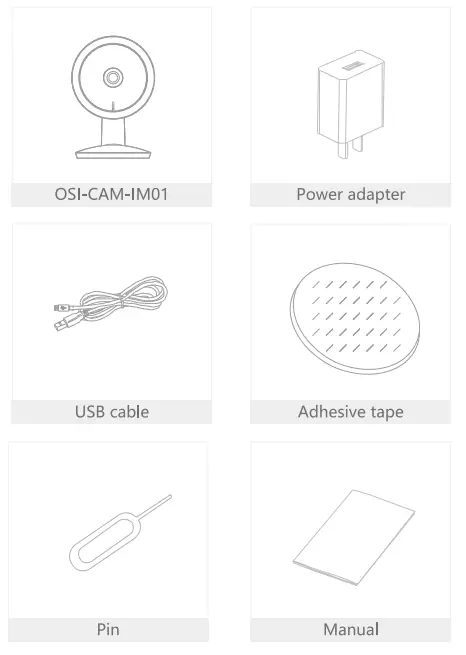
What’s in the box
Consult the checklist below for all components.
Scan me! Video Tutorial Set-up & Install
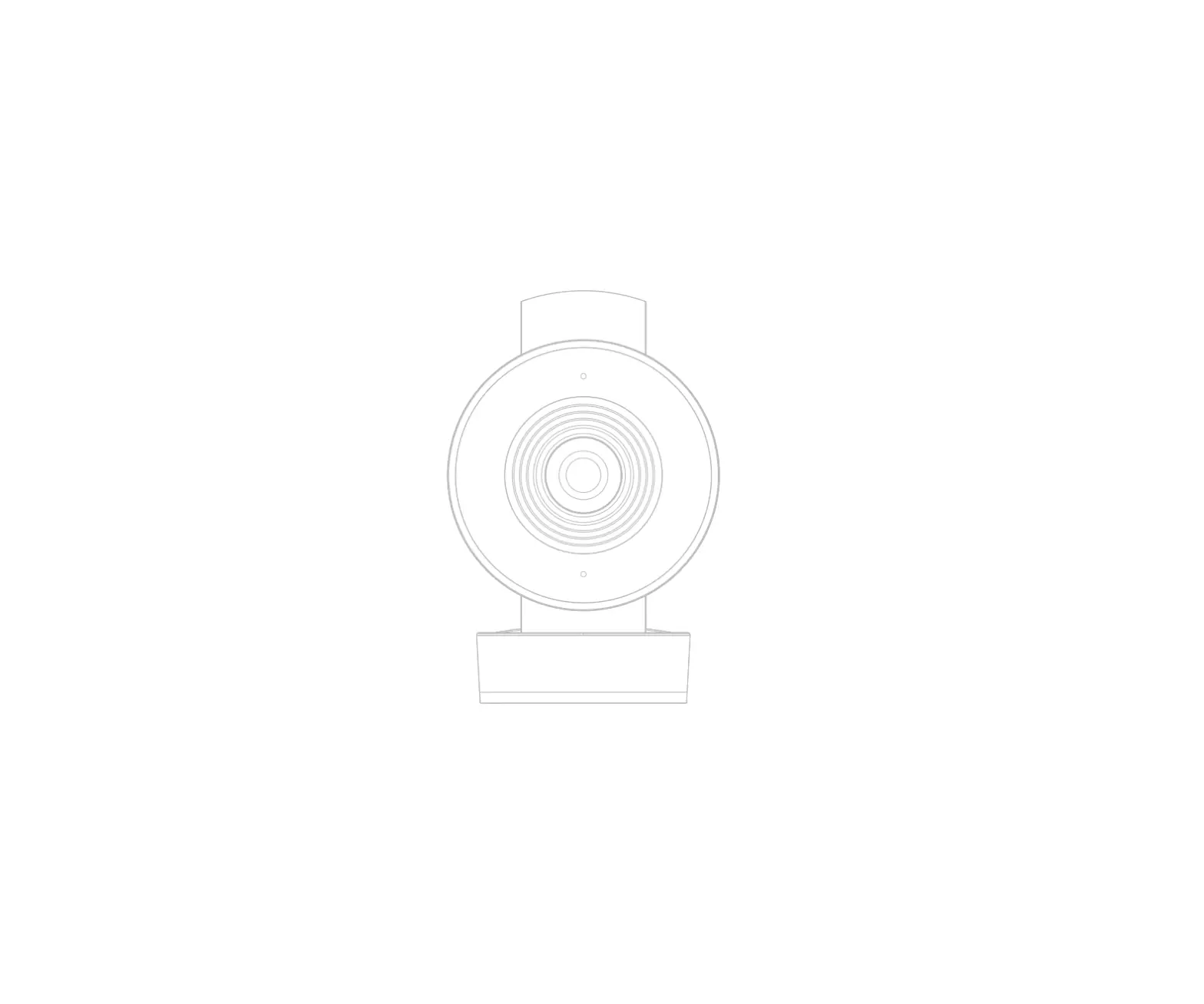
Description
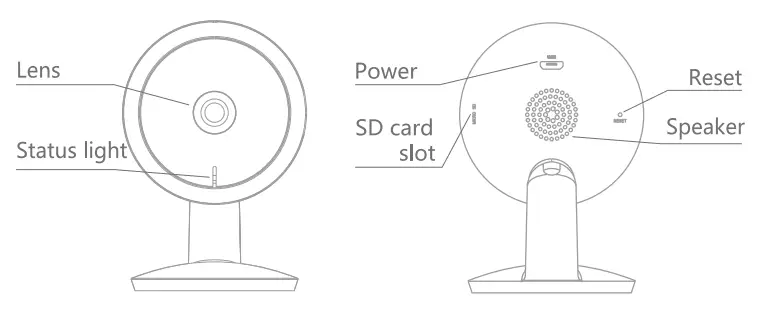
| Power | DC5V±10% |
| Status light | • Red light solids on the device or network is abnormal • Blinking red light: awaiting WiFi connecting • Blue light solids on camera running correctly • Blinking blue light: currently connecting |
| Microphone | Captures sounds for your video |
| SD card slot | Supports local SD Card storage (Max.128G) |
| Reset | Press and hold the ‘RESET’ for 5 seconds with a pin to reset the device(The camera will return to factory defaults) |
Install
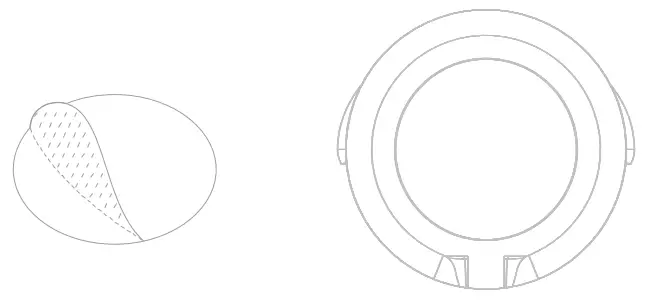
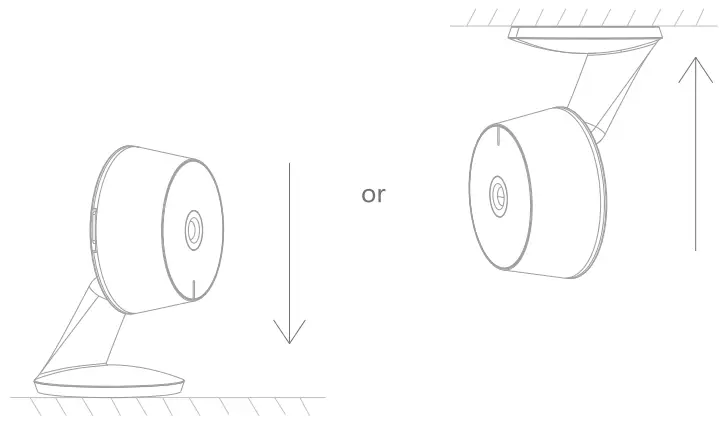
- Stick the adhesive tape in the middle of the camera’s bottom

- Put the camera on the clean plane

Connect
Download
SmartLife is available for both iOS and Android OS. Search the name ‘Smart Life’, in App Store or Google Play, or scan the QR-Code to download the App.
Support
 Set up router
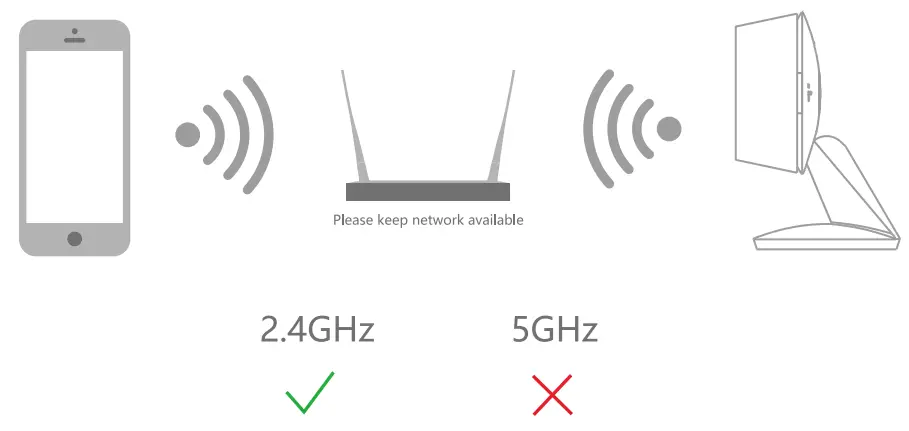
The router supports the 2.4GHz WiFi (it doesn’t support the 5GHz) and is connected to the WiFi network. Please set the parameters of the router before joining the WiFi network, and record the SSID and password of your WiFi.
Registration process
Step 1
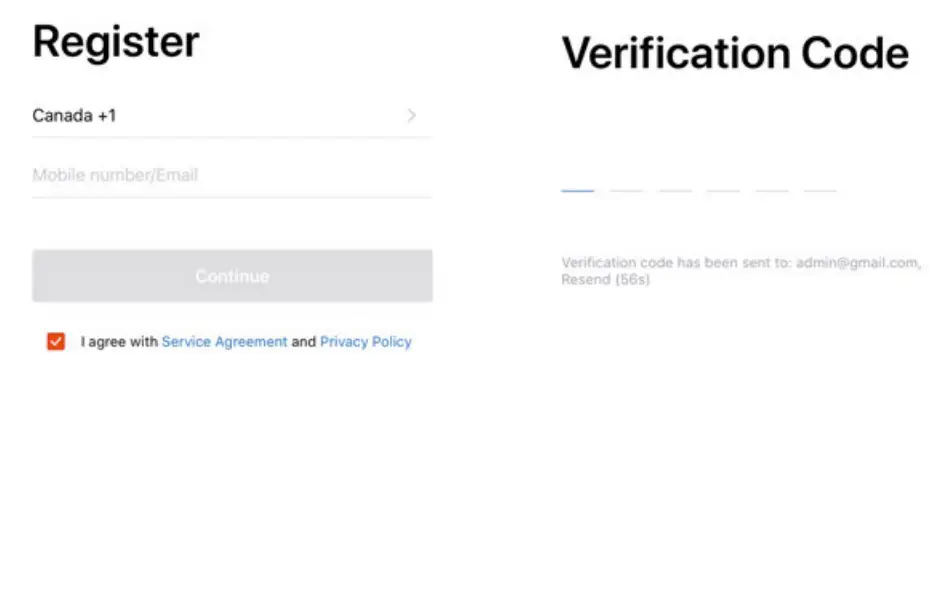
Open the Smart Life App, click ‘Register”, read the “Privacy Policy and click “Agree”.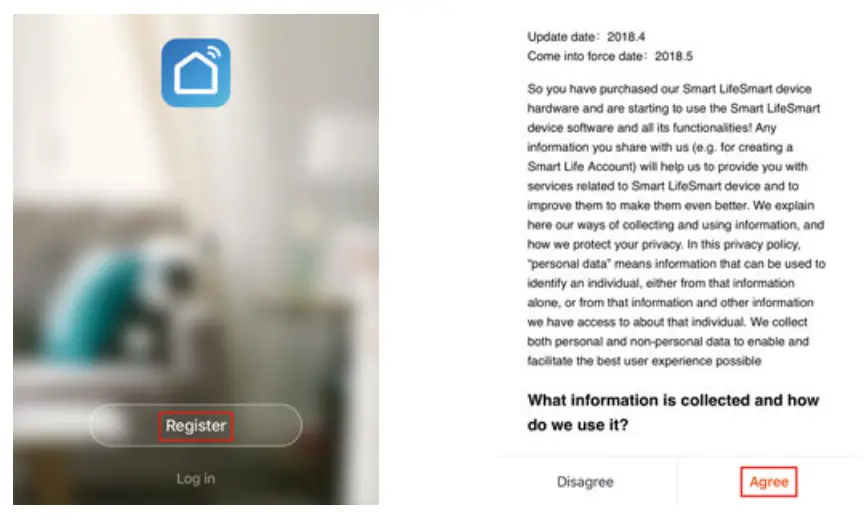 Step 2
Input a legal and valid Mobile number or Email address and click “Continue”. Input the Verification Code, then log in to the app.
QR Code Configuration
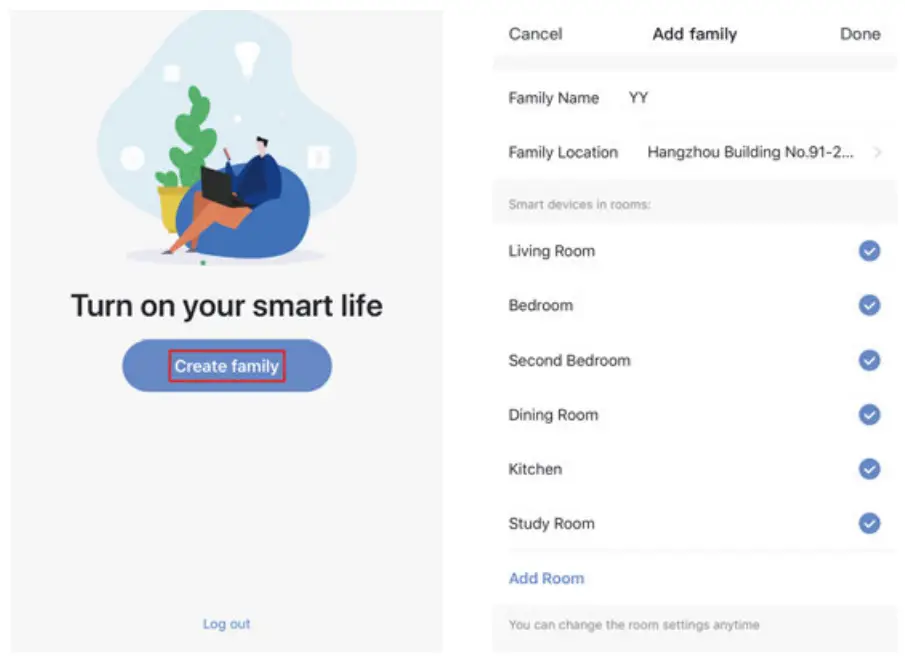
- Open the Smart Life App, click “Create a family”, and you can customize the Family name and related settings.

- Continue to click ‘Security & Sensor” » “Smart Camera”,and then choose”Add Device” or “+”,ready to add camera.
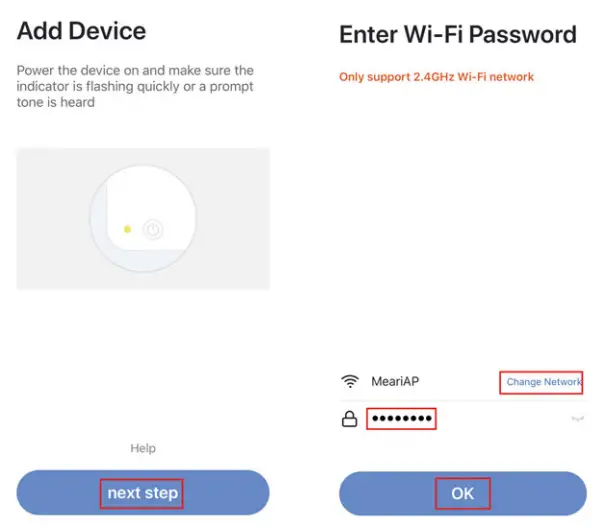
- In “Add Device” this interface, continue to click ‘next step”, and then you should input your WiFi passwords.
 Note:
Note:
1) Camera only supports a 2.4GHz WiFi network.
2) The number of bits in the SSID and router’s passwords should not exceed 24 digits. - In this interface, you should scan the QR code in your phone with the camera, when the camera comes out “dong dong dong”. And you can complete the configuration in about 30s.

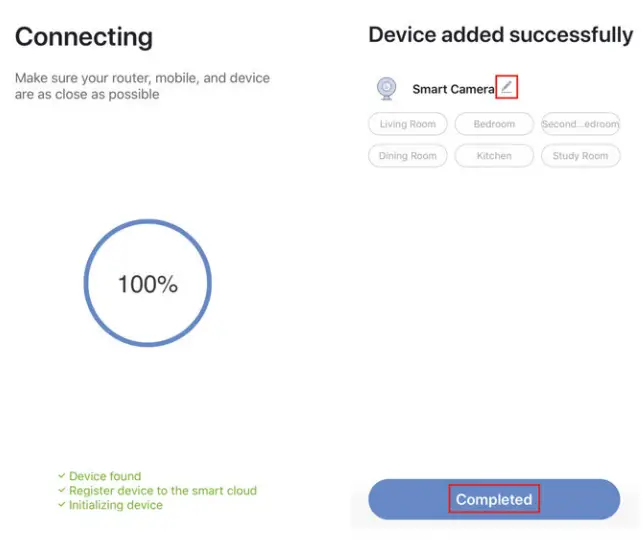
- When connecting, you should make sure your router, mobile, and camera are as close as possible. When the camera is added successfully, click “
 ” you could also DIY the camera’s name.
 Note:
Note: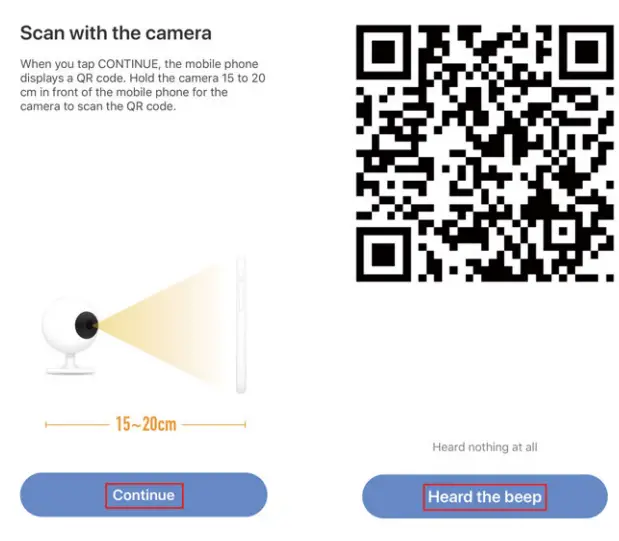
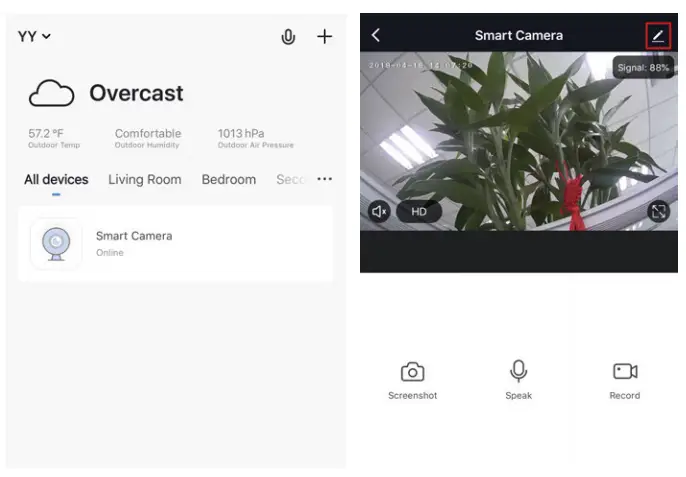
Settings
In the “Smart Camera” interface, click “ “, and you can set the camera’s common functions.
 FAQ
FAQ
 FAQ
FAQQ: The device cannot be previewed properly?
A: Check whether the network is normal, you can place the camera close to the router, and if not, it is recommended to reset the device and add it again.
Q: Why is it still in the list of devices after resetting?
A: The reset device only resets the network configuration of the camera, but cannot change the configuration on the App, remove the camera, and must be deleted by the App.
Q: How to cut the camera network to another router?
A: First remove and reset the device on the App and then configure the device again by the App.
Q: Why doesn’t the device identify the SD card?
A: It is recommended to plug in an SD card after a power cut. Confirm whether the SD card is normally available and the format is FAT32. And the TF card can’t be identified when the internet environment is not good.
Q: Why I can’t get the notifications with my cell phone App?
A: Please confirm that the App has been running on the phone, and the relevant reminder function has been opened; Message notification and authority confirmation in the mobile phone system has been opened.
Functions
Video flip
Flip your video stream vertically anytime for maximum flexibility.
Motion detection
Motion sensors will notify you when movement is detected.
Record
Record every moment using high-capacity SD card storage.
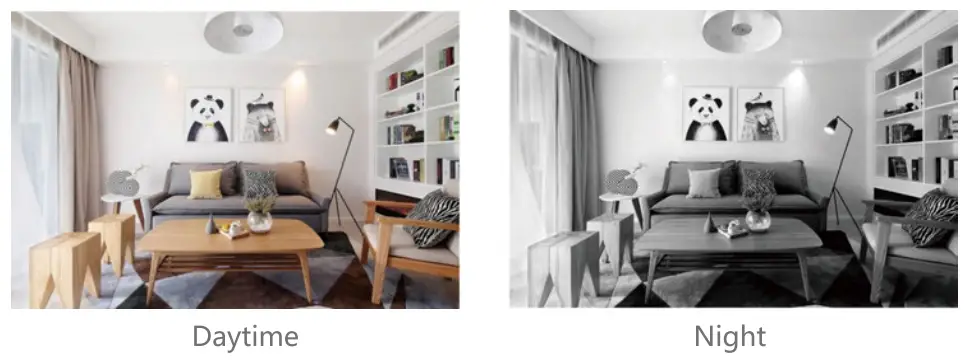
Day & Night
Powerful night vision means no interruptions, even in complete darkness.
Thank you for your purchase!
We’re happy you chose our 051 Smart DIY product and appreciate your business. We’re constantly striving to provide the best experience for our customers. If you have questions or need help with your product please email us at [email protected] (allow up to 1 business day for a reply) and let us do our best to help you!
-OSI Go Direct Team
Made in China