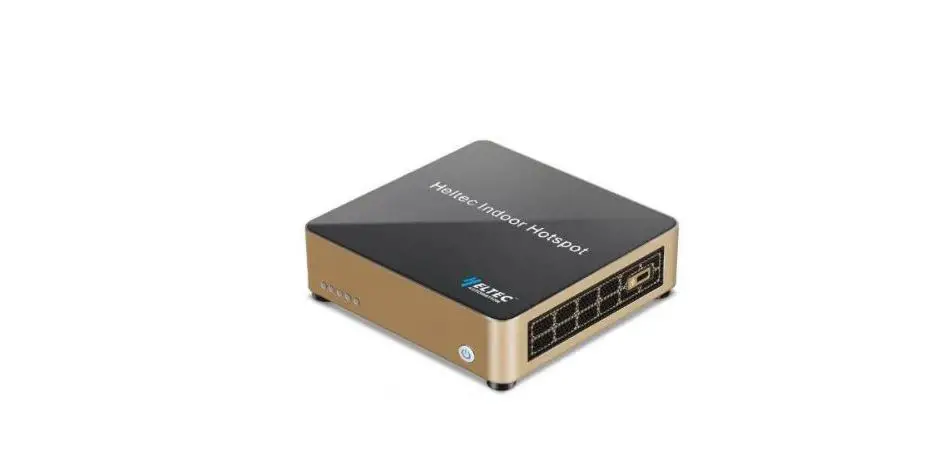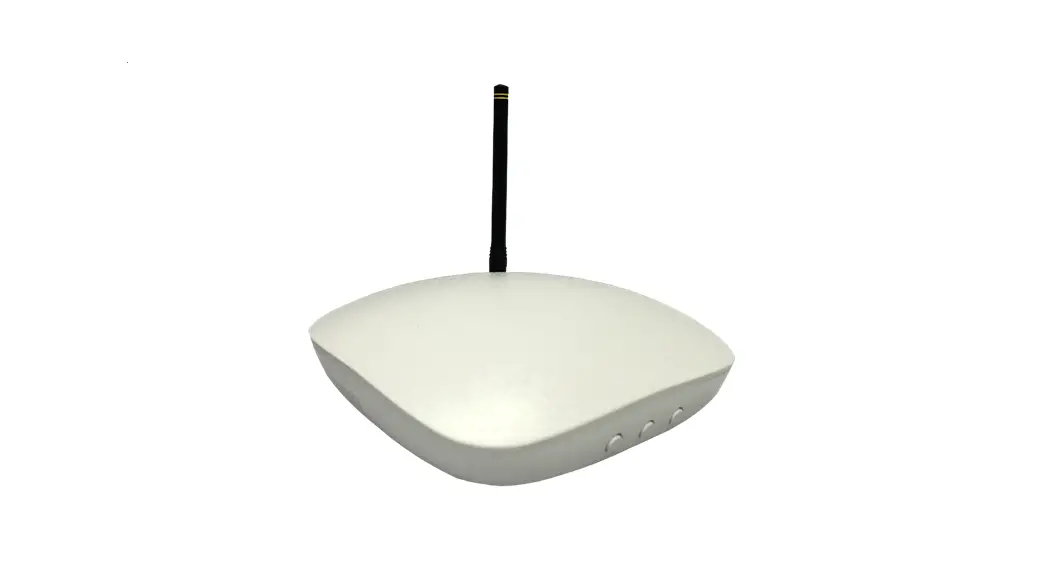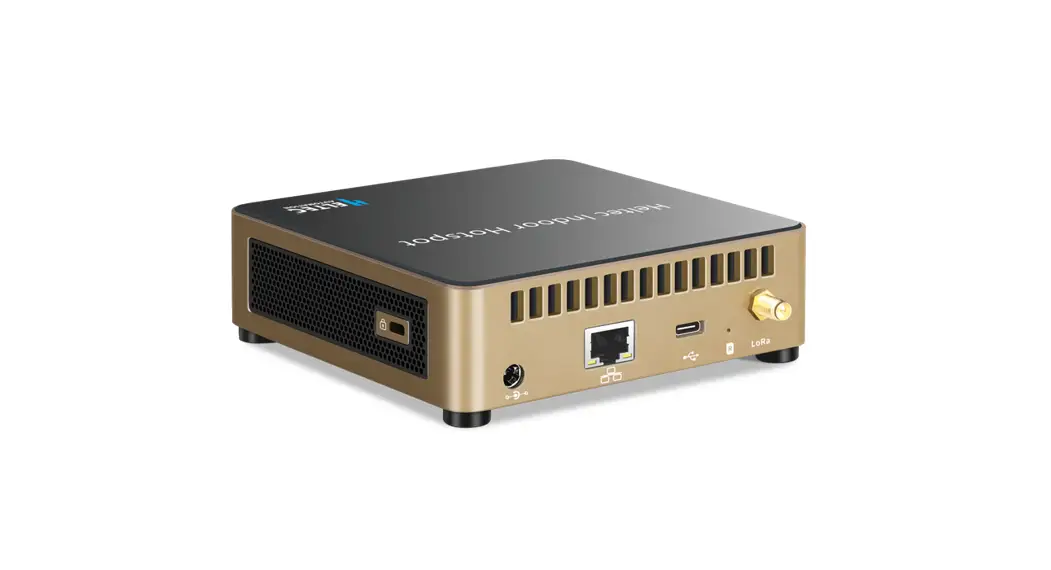

HT-M2808
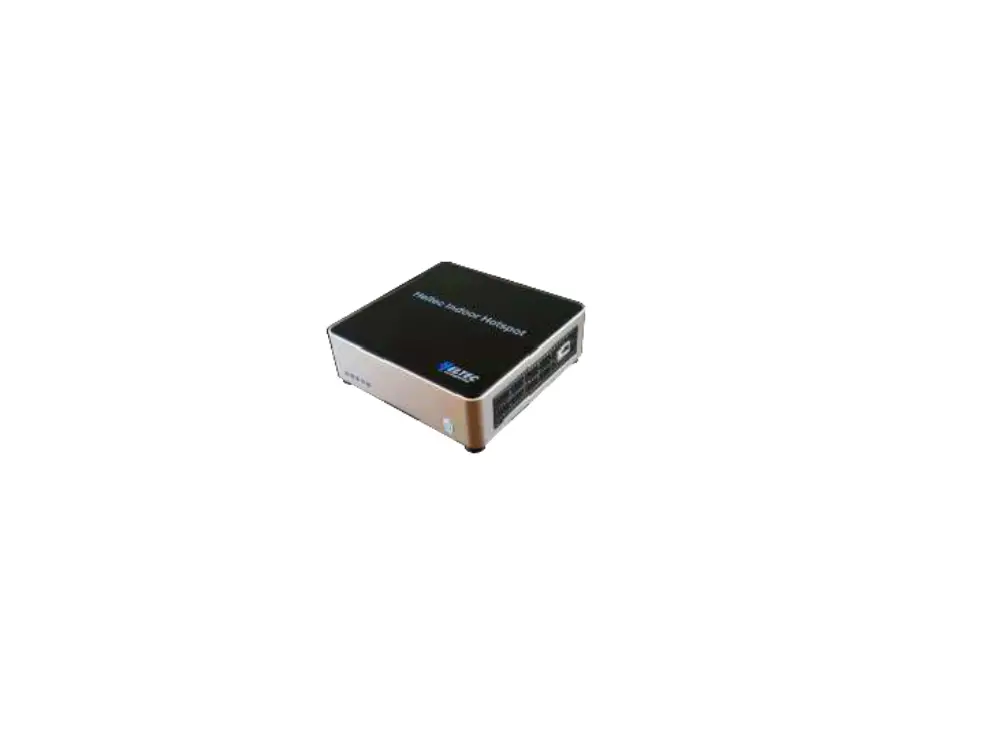
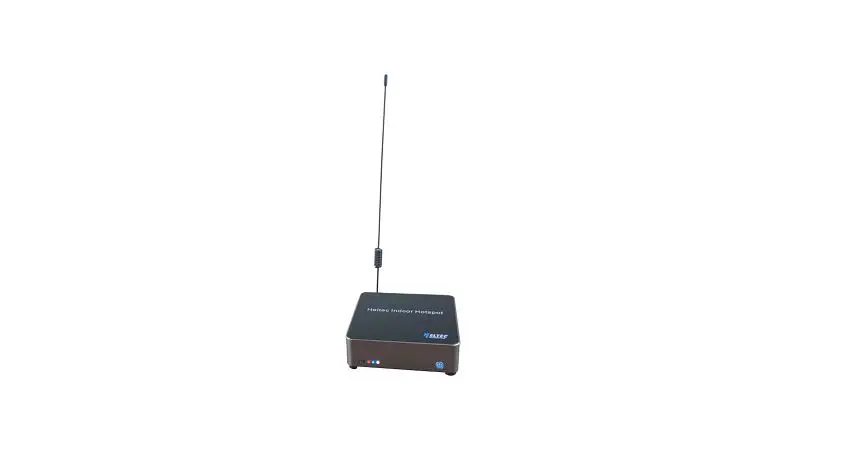
Indoor LoRaWAN/LongFi Hotspot
 Warning
After the machine is connected to the network (either by inserting the network cable before the Helium APP connection or after configuring the Wi-Fi through the Helium APP), it will start to update the firmware of the miner and start to synchronize the blockchain. If the power is cut off at this time, a system error may occur.
Please press and hold the shutdown button to shut down. A direct power failure may damage the eMMC.
Activation process
Step 1: Download Helium APP through Apple Store / Google Play
 Step 2: Connect the antenna first (required), and insert the network cable (if needed).
Plugin the power cord and the Hotspot will automatically turn on.
Step 3: Use Helium APP to connect to Hotspot.
|
|
 3) Orange light is always on or flashing, system startup. 3) Orange light is always on or flashing, system startup. | 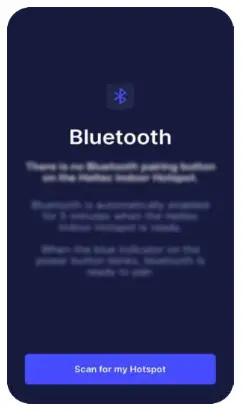 4) When the power button LED flashes, Bluetooth is turned on 4) When the power button LED flashes, Bluetooth is turned on |
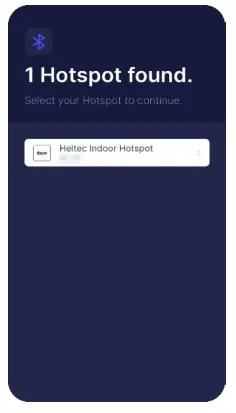 5) Choose your Hotspot and connect via Bluetooth 5) Choose your Hotspot and connect via Bluetooth | 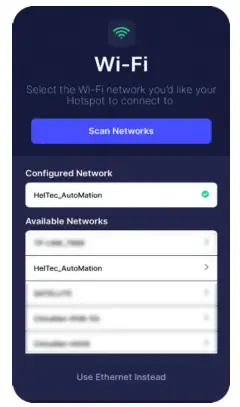 6) According to your situation, choose to use Ethernet or Wi-Fi 6) According to your situation, choose to use Ethernet or Wi-Fi |
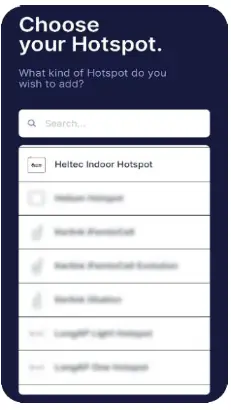 1) Select Heltec Indoor Hotspot in the Hotspot list
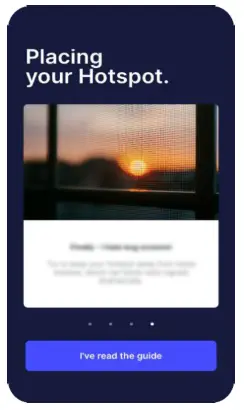 2) Read Hotspot deployment and diagnostic instructions
Description
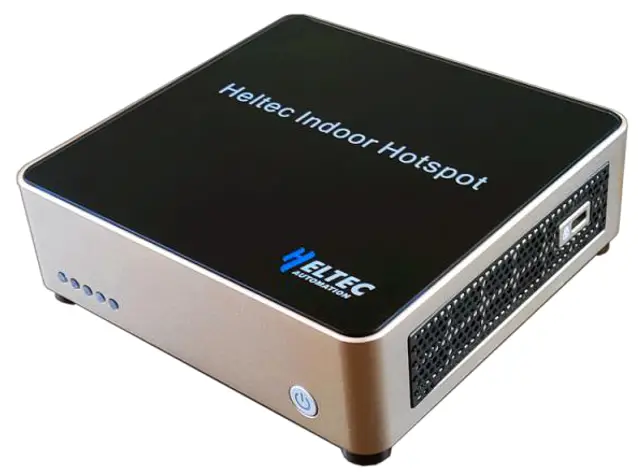
LED description
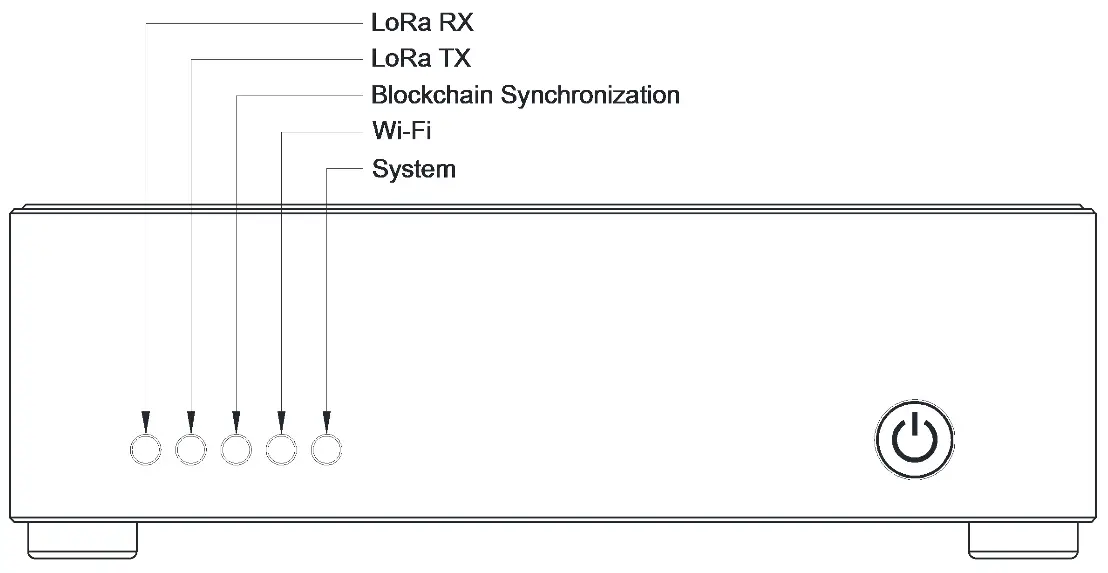
Function | Color | Description |
| Lora RX | Red | This LED flashes when LoRa receives data. |
| Lora TX | Green | The LED flashes when LoRa sends data. |
| Blockchain Synchronization | Orange | · Blinking: Blockchain synchronizing; · Steady on Blockchain synchronize completely. |
| Wi-Fi | Blue | The Wi-Fi connection is successful. |
| System | White | HT-M2808 Linux kernel running. |
Power button description
- Short press: Restart the system.
- Press longer than 3 seconds 1: System shut down.
- The blue light of the power button flashes five minutes after the device is powered on or reset, and Hotspot’s Bluetooth can be found and paired at this time.
Bluetooth description
The blue light on the power button will continue to flash for 5 minutes after the system is turned on, and the Hotspot Bluetooth will be activated. If the Blue tooth is not connected within 5 minutes, it will be turned off automatically.
Local diagnostic page introduction
Enter the LAN IP address of Heltec Indoor Hotspot in the browser to open the local diagnostic page.
- Default user name: HT-M2808
- Default password: The last 6 digits of your device’s Ethernet Mac address, in lowercase.
For example, if your ETH address is 11:22:33:AA:BB: CC, then your default password is aabbcc.
The Ethernet address can be found on the back label of the fuselage. If the label is broken, Plug the network cable into the device, you can see the Mac address in the router’s management page.
For more information about Heltec Indoor Hotspot, please visit: https://heltec.org/project/ht-m2808
1 Long press the button for 3 seconds, and then release the button when the LED lights are all off.
Packing List
Name | Unit | Quality |
| Heltec Indoor Hotspot | PCS | 1 |
| 12V / 3A DC Adapter | PCS | 1 |
| DC adapter 110/220V power wire | PCS | 1 |
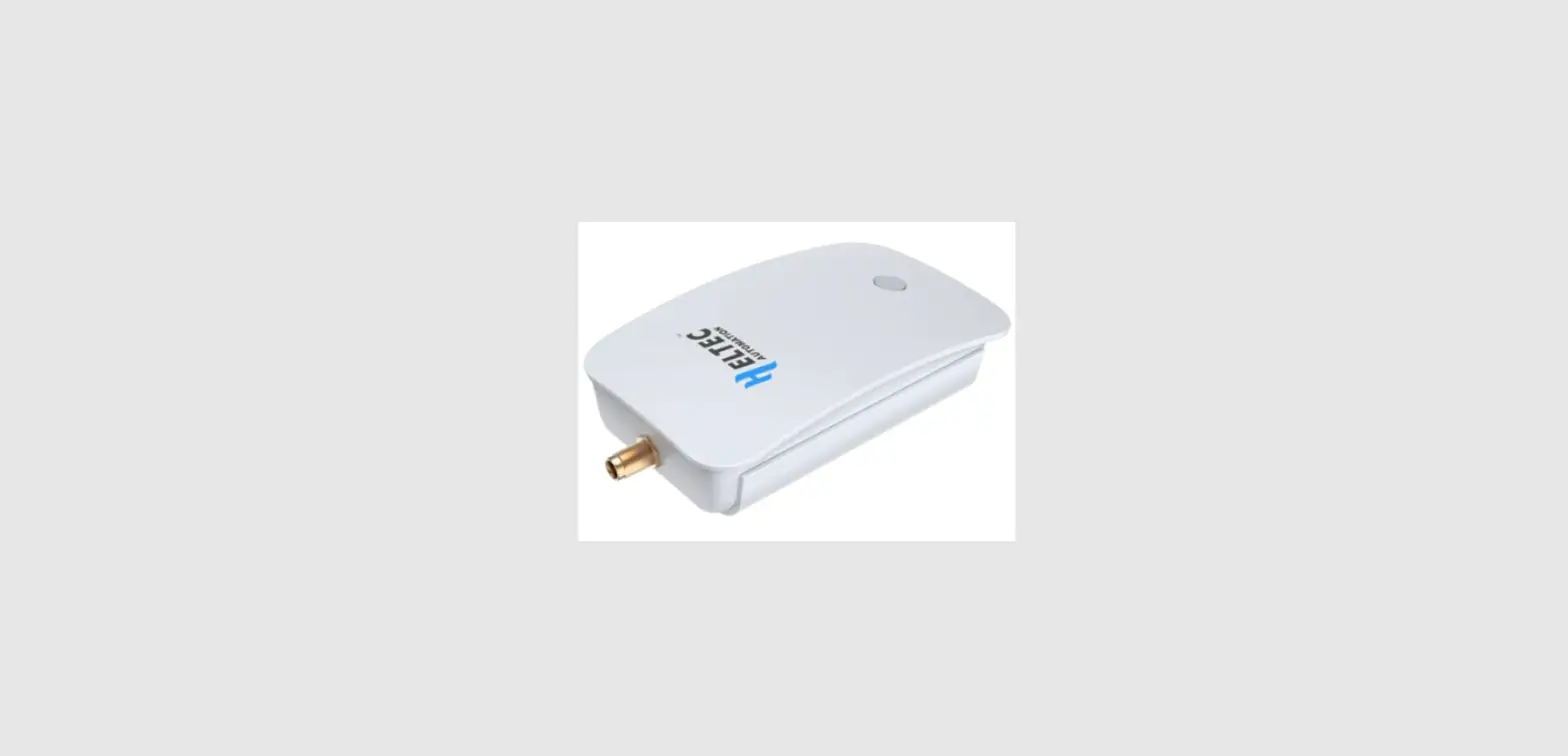
| SMA LoRa antenna (1.5m shielded wire) | PCS | 1 |
 Heltec Automation – 成都惠利特自动化科技有限公司